charging FORD FOCUS ELECTRIC 2015 3.G Owner's Manual
[x] Cancel search | Manufacturer: FORD, Model Year: 2015, Model line: FOCUS ELECTRIC, Model: FORD FOCUS ELECTRIC 2015 3.GPages: 369, PDF Size: 4.53 MB
Page 285 of 369
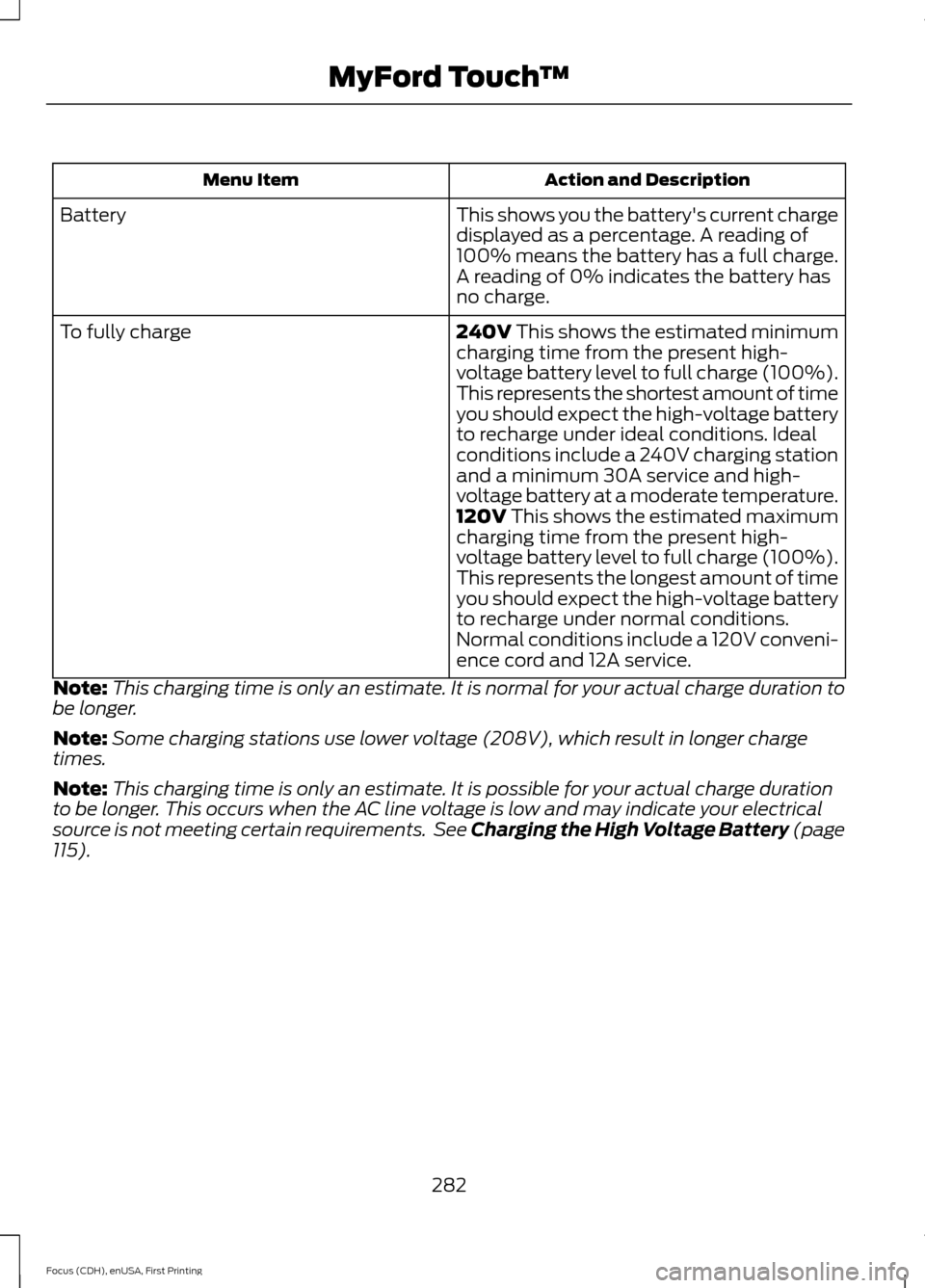
Action and Description
Menu Item
This shows you the battery's current charge
displayed as a percentage. A reading of
100% means the battery has a full charge.
A reading of 0% indicates the battery has
no charge.
Battery
240V This shows the estimated minimum
charging time from the present high-
voltage battery level to full charge (100%).
This represents the shortest amount of time
you should expect the high-voltage battery
to recharge under ideal conditions. Ideal
conditions include a 240V charging station
and a minimum 30A service and high-
voltage battery at a moderate temperature.
To fully charge
120V
This shows the estimated maximum
charging time from the present high-
voltage battery level to full charge (100%).
This represents the longest amount of time
you should expect the high-voltage battery
to recharge under normal conditions.
Normal conditions include a 120V conveni-
ence cord and 12A service.
Note: This charging time is only an estimate. It is normal for your actual charge duration to
be longer.
Note: Some charging stations use lower voltage (208V), which result in longer charge
times.
Note: This charging time is only an estimate. It is possible for your actual charge duration
to be longer. This occurs when the AC line voltage is low and may indicate your electrical
source is not meeting certain requirements. See Charging the High Voltage Battery (page
115
).
282
Focus (CDH), enUSA, First Printing MyFord Touch
™
Page 286 of 369
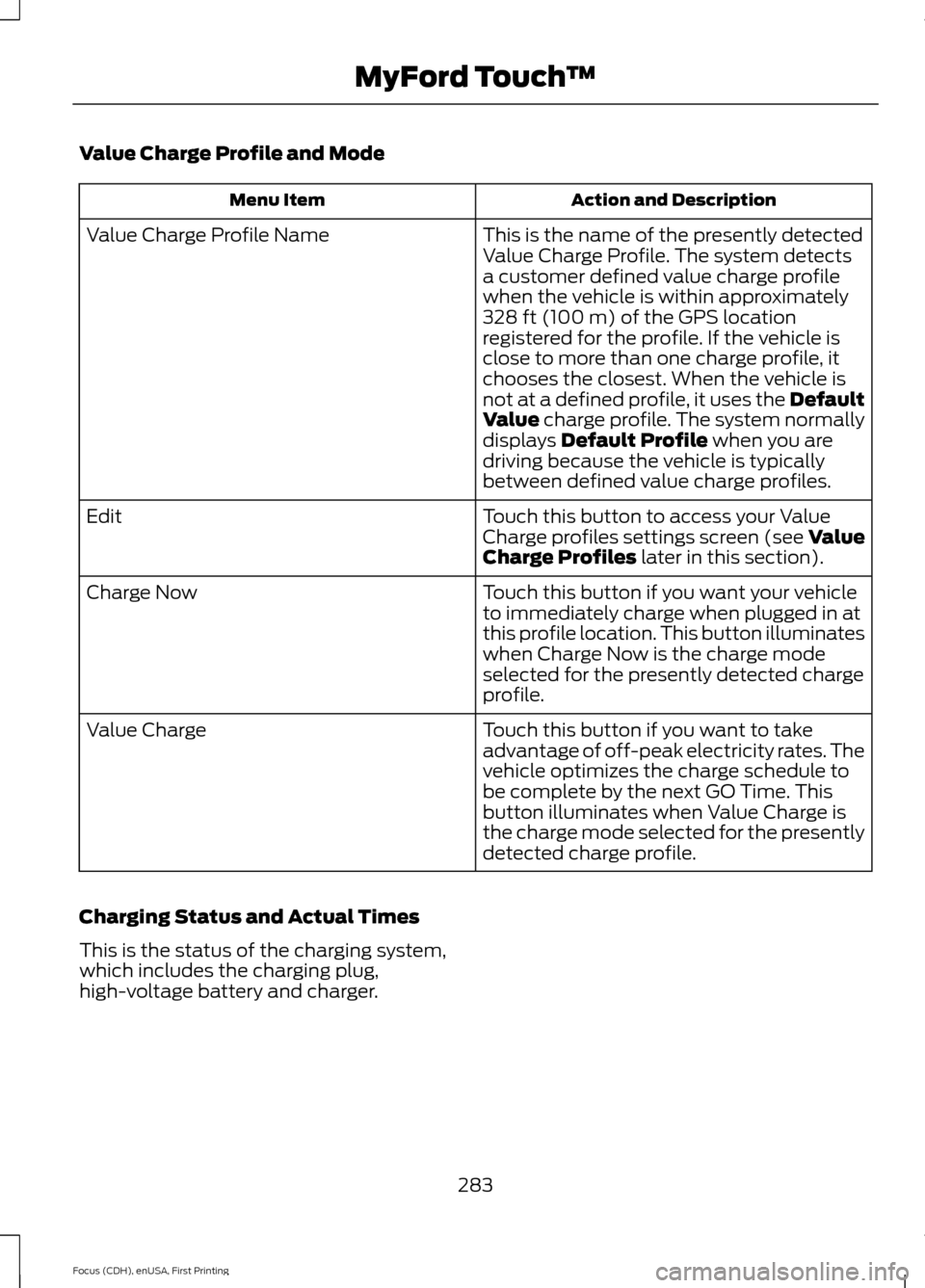
Value Charge Profile and Mode
Action and Description
Menu Item
This is the name of the presently detected
Value Charge Profile. The system detects
a customer defined value charge profile
when the vehicle is within approximately
328 ft (100 m) of the GPS location
registered for the profile. If the vehicle is
close to more than one charge profile, it
chooses the closest. When the vehicle is
not at a defined profile, it uses the Default
Value
charge profile. The system normally
displays Default Profile when you are
driving because the vehicle is typically
between defined value charge profiles.
Value Charge Profile Name
Touch this button to access your Value
Charge profiles settings screen (see Value
Charge Profiles
later in this section).
Edit
Touch this button if you want your vehicle
to immediately charge when plugged in at
this profile location. This button illuminates
when Charge Now is the charge mode
selected for the presently detected charge
profile.
Charge Now
Touch this button if you want to take
advantage of off-peak electricity rates. The
vehicle optimizes the charge schedule to
be complete by the next GO Time. This
button illuminates when Value Charge is
the charge mode selected for the presently
detected charge profile.
Value Charge
Charging Status and Actual Times
This is the status of the charging system,
which includes the charging plug,
high-voltage battery and charger.
283
Focus (CDH), enUSA, First Printing MyFord Touch
™
Page 287 of 369
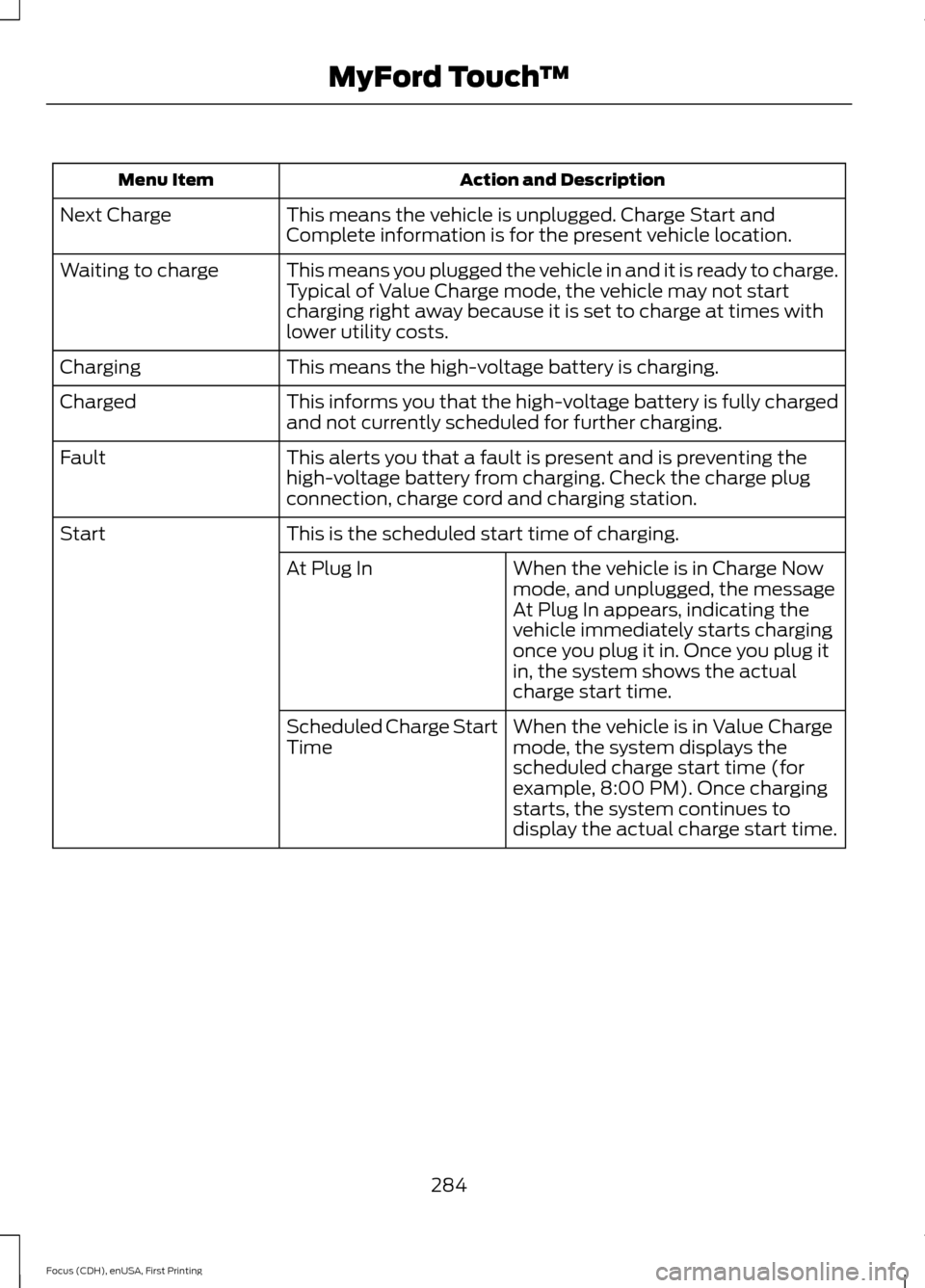
Action and Description
Menu Item
This means the vehicle is unplugged. Charge Start and
Complete information is for the present vehicle location.
Next Charge
This means you plugged the vehicle in and it is ready to charge.
Typical of Value Charge mode, the vehicle may not start
charging right away because it is set to charge at times with
lower utility costs.
Waiting to charge
This means the high-voltage battery is charging.
Charging
This informs you that the high-voltage battery is fully charged
and not currently scheduled for further charging.
Charged
This alerts you that a fault is present and is preventing the
high-voltage battery from charging. Check the charge plug
connection, charge cord and charging station.
Fault
This is the scheduled start time of charging.
Start
When the vehicle is in Charge Now
mode, and unplugged, the message
At Plug In appears, indicating the
vehicle immediately starts charging
once you plug it in. Once you plug it
in, the system shows the actual
charge start time.
At Plug In
When the vehicle is in Value Charge
mode, the system displays the
scheduled charge start time (for
example, 8:00 PM). Once charging
starts, the system continues to
display the actual charge start time.
Scheduled Charge Start
Time
284
Focus (CDH), enUSA, First Printing MyFord Touch
™
Page 288 of 369
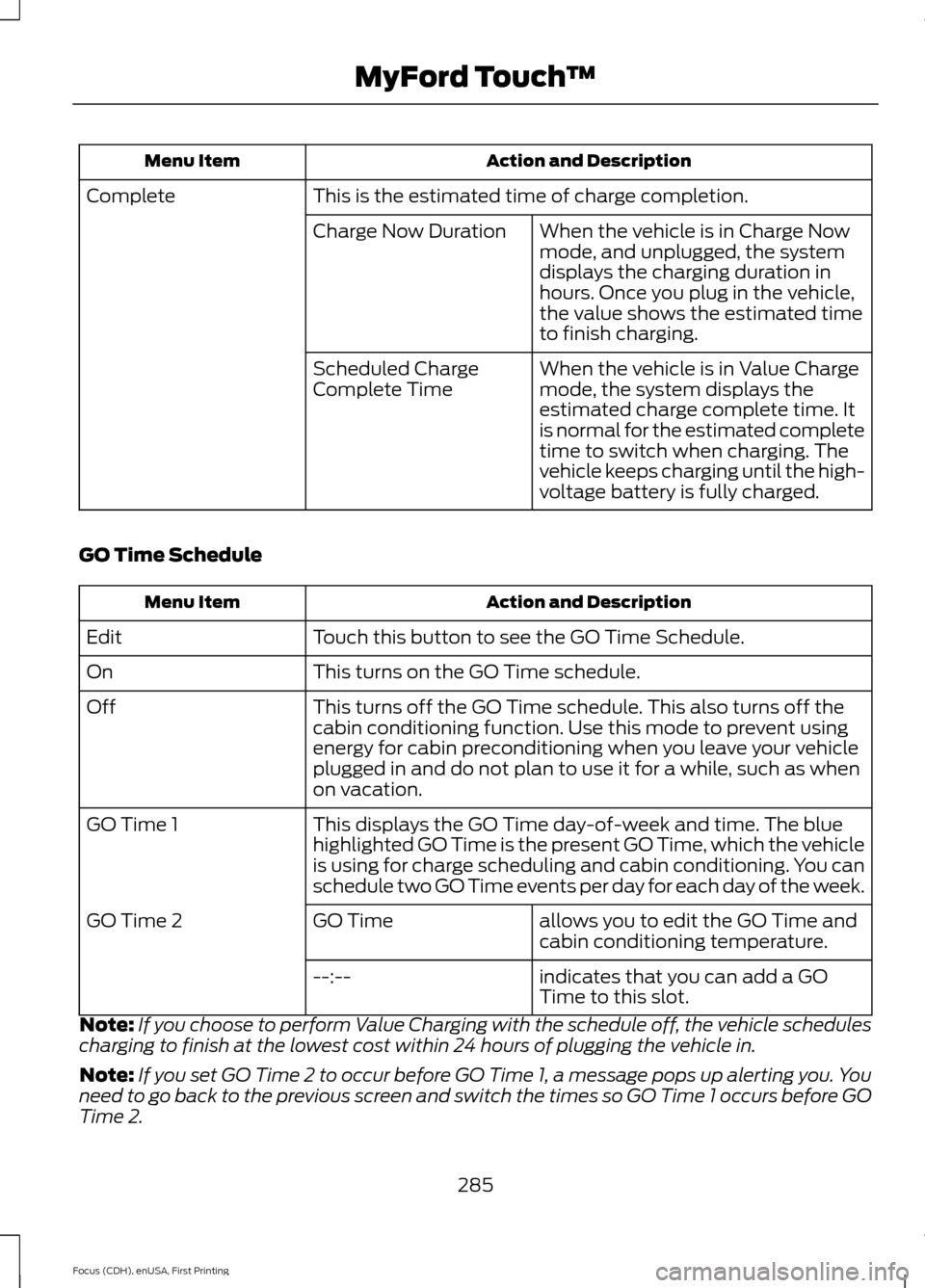
Action and Description
Menu Item
This is the estimated time of charge completion.
Complete
When the vehicle is in Charge Now
mode, and unplugged, the system
displays the charging duration in
hours. Once you plug in the vehicle,
the value shows the estimated time
to finish charging.
Charge Now Duration
When the vehicle is in Value Charge
mode, the system displays the
estimated charge complete time. It
is normal for the estimated complete
time to switch when charging. The
vehicle keeps charging until the high-
voltage battery is fully charged.
Scheduled Charge
Complete Time
GO Time Schedule Action and Description
Menu Item
Touch this button to see the GO Time Schedule.
Edit
This turns on the GO Time schedule.
On
This turns off the GO Time schedule. This also turns off the
cabin conditioning function. Use this mode to prevent using
energy for cabin preconditioning when you leave your vehicle
plugged in and do not plan to use it for a while, such as when
on vacation.
Off
This displays the GO Time day-of-week and time. The blue
highlighted GO Time is the present GO Time, which the vehicle
is using for charge scheduling and cabin conditioning. You can
schedule two GO Time events per day for each day of the week.
GO Time 1
allows you to edit the GO Time and
cabin conditioning temperature.
GO Time
GO Time 2
indicates that you can add a GO
Time to this slot.
--:--
Note: If you choose to perform Value Charging with the schedule off, the vehicle schedules
charging to finish at the lowest cost within 24 hours of plugging the vehicle in.
Note: If you set GO Time 2 to occur before GO Time 1, a message pops up alerting you. You
need to go back to the previous screen and switch the times so GO Time 1 occurs before GO
Time 2.
285
Focus (CDH), enUSA, First Printing MyFord Touch
™
Page 289 of 369
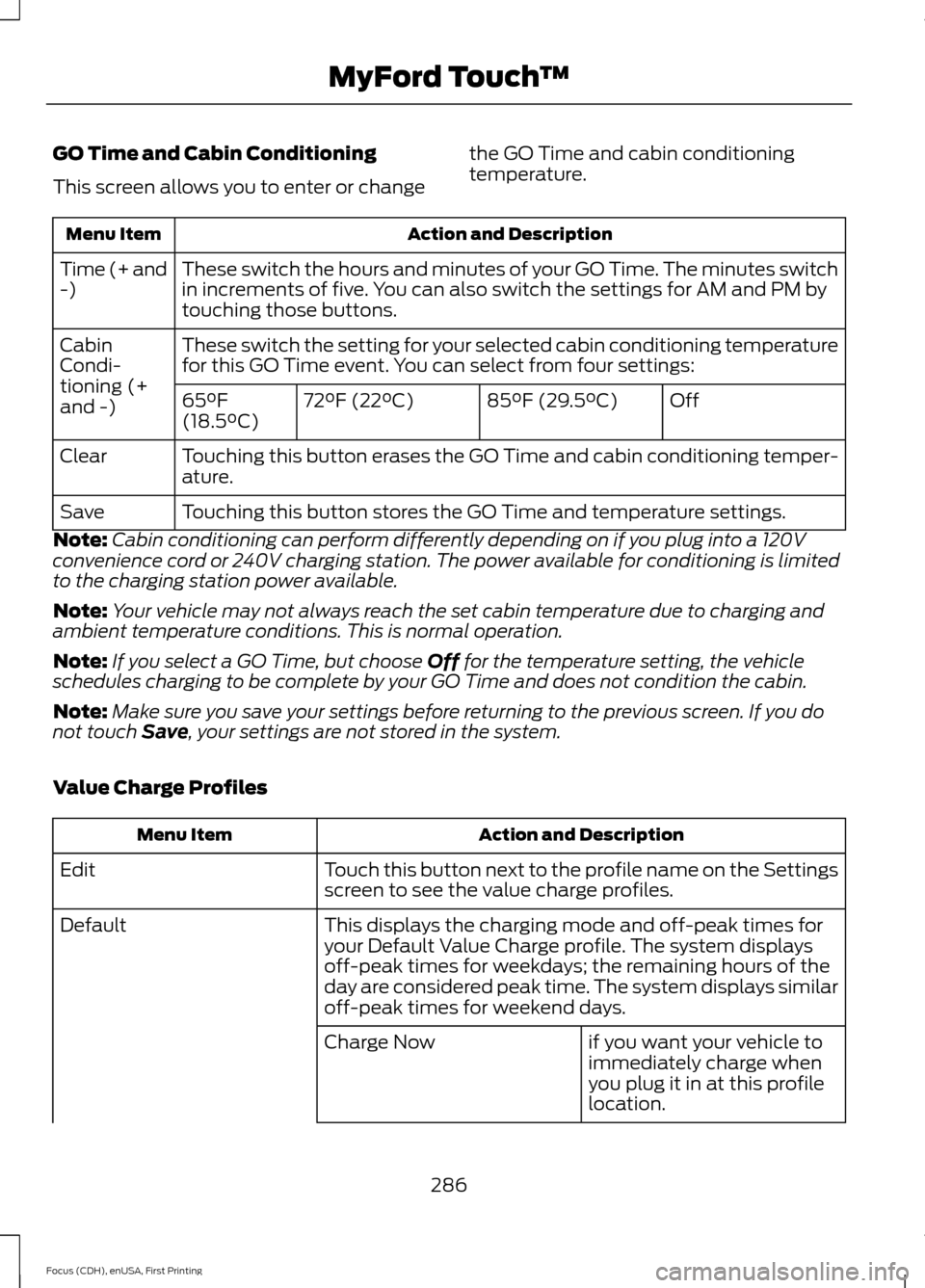
GO Time and Cabin Conditioning
This screen allows you to enter or change
the GO Time and cabin conditioning
temperature.Action and Description
Menu Item
These switch the hours and minutes of your GO Time. The minutes switch
in increments of five. You can also switch the settings for AM and PM by
touching those buttons.
Time (+ and
-)
These switch the setting for your selected cabin conditioning temperature
for this GO Time event. You can select from four settings:
Cabin
Condi-
tioning (+
and -)
Off
85°F (29.5°C)
72°F (22°C)
65°F
(18.5°C)
Touching this button erases the GO Time and cabin conditioning temper-
ature.
Clear
Touching this button stores the GO Time and temperature settings.
Save
Note: Cabin conditioning can perform differently depending on if you plug into a 120V
convenience cord or 240V charging station. The power available for conditioning is limited
to the charging station power available.
Note: Your vehicle may not always reach the set cabin temperature due to charging and
ambient temperature conditions. This is normal operation.
Note: If you select a GO Time, but choose Off for the temperature setting, the vehicle
schedules charging to be complete by your GO Time and does not condition the cabin.
Note: Make sure you save your settings before returning to the previous screen. If you do
not touch
Save, your settings are not stored in the system.
Value Charge Profiles Action and Description
Menu Item
Touch this button next to the profile name on the Settings
screen to see the value charge profiles.
Edit
This displays the charging mode and off-peak times for
your Default Value Charge profile. The system displays
off-peak times for weekdays; the remaining hours of the
day are considered peak time. The system displays similar
off-peak times for weekend days.
Default
if you want your vehicle to
immediately charge when
you plug it in at this profile
location.
Charge Now
286
Focus (CDH), enUSA, First Printing MyFord Touch
™
Page 292 of 369
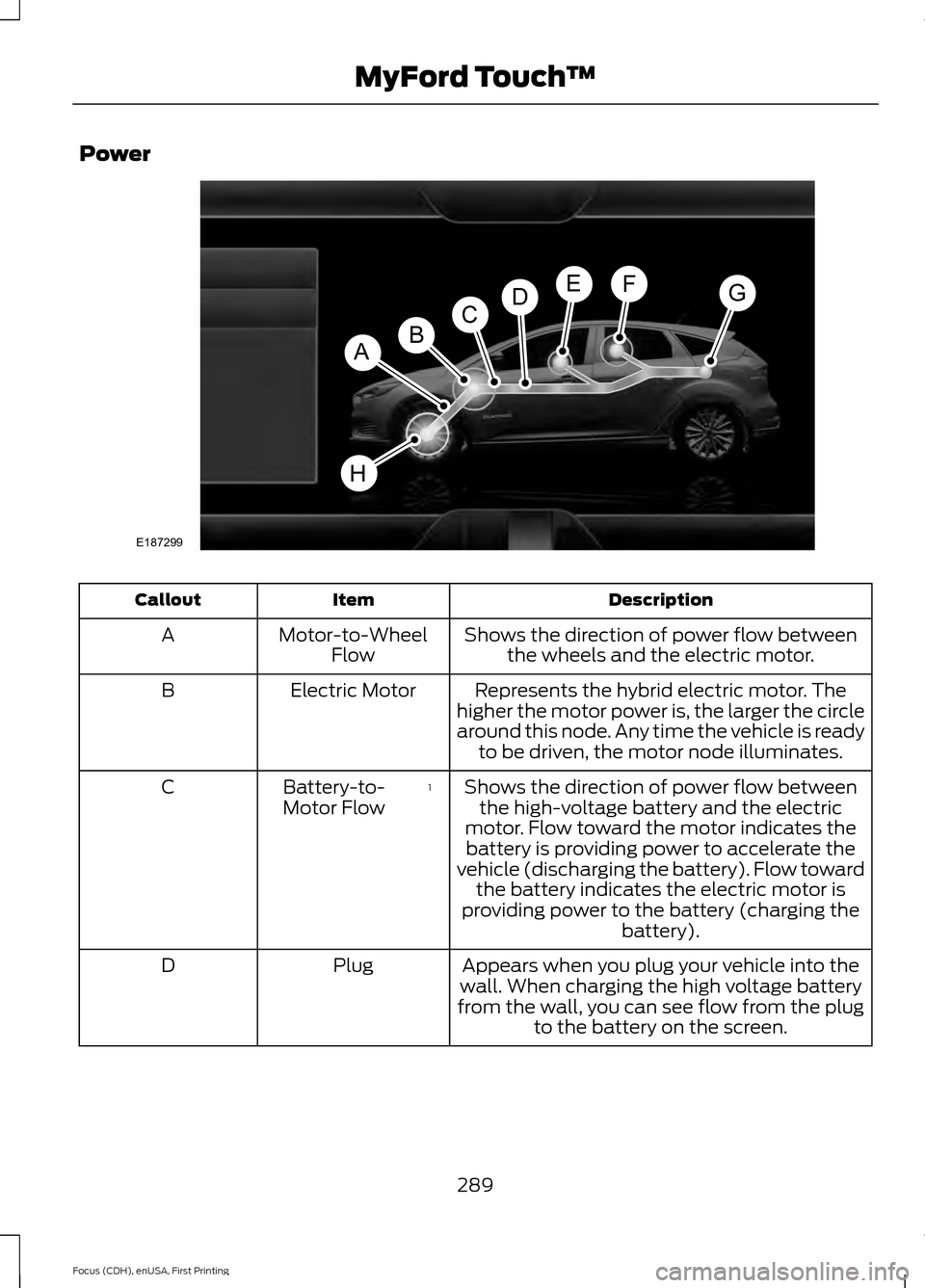
Power
Description
Item
Callout
Shows the direction of power flow betweenthe wheels and the electric motor.
Motor-to-Wheel
Flow
A
Represents the hybrid electric motor. The
higher the motor power is, the larger the circle
around this node. Any time the vehicle is ready to be driven, the motor node illuminates.
Electric Motor
B
Shows the direction of power flow betweenthe high-voltage battery and the electric
motor. Flow toward the motor indicates the battery is providing power to accelerate the
vehicle (discharging the battery). Flow toward the battery indicates the electric motor is
providing power to the battery (charging the battery).
1
Battery-to-
Motor Flow
C
Appears when you plug your vehicle into the
wall. When charging the high voltage battery
from the wall, you can see flow from the plug to the battery on the screen.
Plug
D
289
Focus (CDH), enUSA, First Printing MyFord Touch
™E187299
A
DGEF
BC
H
Page 293 of 369
Description
Item
Callout
Includes all power usage from the low voltageaccessories such as the climate control fan,
headlights and heated seats. The higher the power usage is from these accessories, the
larger the circle around the node. This node illuminates anytime the vehicle is on since
there is always some low level power in use.
2
Other
E
Includes the power usage from the high-
voltage climate control components such as the electric A/C compressor and the electric heater. The higher the power usage is from
these components, the larger the circle around this node.
2,3
Climate
F
Represents your high-voltage battery. A circleilluminates around the node when the high- voltage battery is receiving power from
regenerative braking, engine charging or
external charging (when you plug it in). The
higher the power going into the high-voltage
battery, the larger the circle around this node.
High Voltage
Battery Power
G
Represents the power going to the wheels.
The higher the wheel power is, the larger the circle around this node.
Drive Power
H
1 The battery-to-motor flow includes
battery power the vehicle is using for
acceleration. It does not include energy the
vehicle is using for accessories (such as air
conditioning, headlights and radio). This
screen displays accessories and climate
usage separately.
2 Accessories indicates electrical power
demands from your vehicle ’s accessory
systems. Accessories use power but do not
contribute to making the vehicle move. The
power flow displays power usage from the
climate control system and other
accessories separately. 3
The climate control system may
determine A/C is necessary even when you
switch it off. In this case, you may see some
climate power when the A/C is off.
Status
This indicates which mode is active within
the vehicle system.
290
Focus (CDH), enUSA, First Printing MyFord Touch
™
Page 294 of 369
Action and Description
Menu Item
The hybrid system is storing power in the high-voltage
battery.
Charging HV Battery
The vehicle is either at rest, or sharing very little power
between the electric system parts.
Idle
You are driving in electric mode.
Electric Drive
The high-voltage battery charging from the wall is
complete.
Charge Complete
Privacy Notice for GPS Mapping with
MyFord® Mobile
MyFord Mobile allows for GPS mapping
when you register a vehicle to a MyFord
Mobile account. To remove the vehicle
from the account, thereby removing GPS
mapping ability, perform a Master Reset
in the vehicle. See Settings (page 240). Prior to transferring ownership of a vehicle,
owners may choose to execute a Master
Reset or Factory Reset (completed via the
MyFord Mobile website). Either method
will remove the vehicle from all MyFord
Mobile accounts.
We recommend that new owners conduct
a Master Reset upon taking possession of
the vehicle to remove it from any existing
MyFord Mobile accounts. The new owner
can activate a MyFord Mobile account by
going to www.myfordmobile.com and
following the registration process.
291
Focus (CDH), enUSA, First Printing MyFord Touch
™
Page 310 of 369
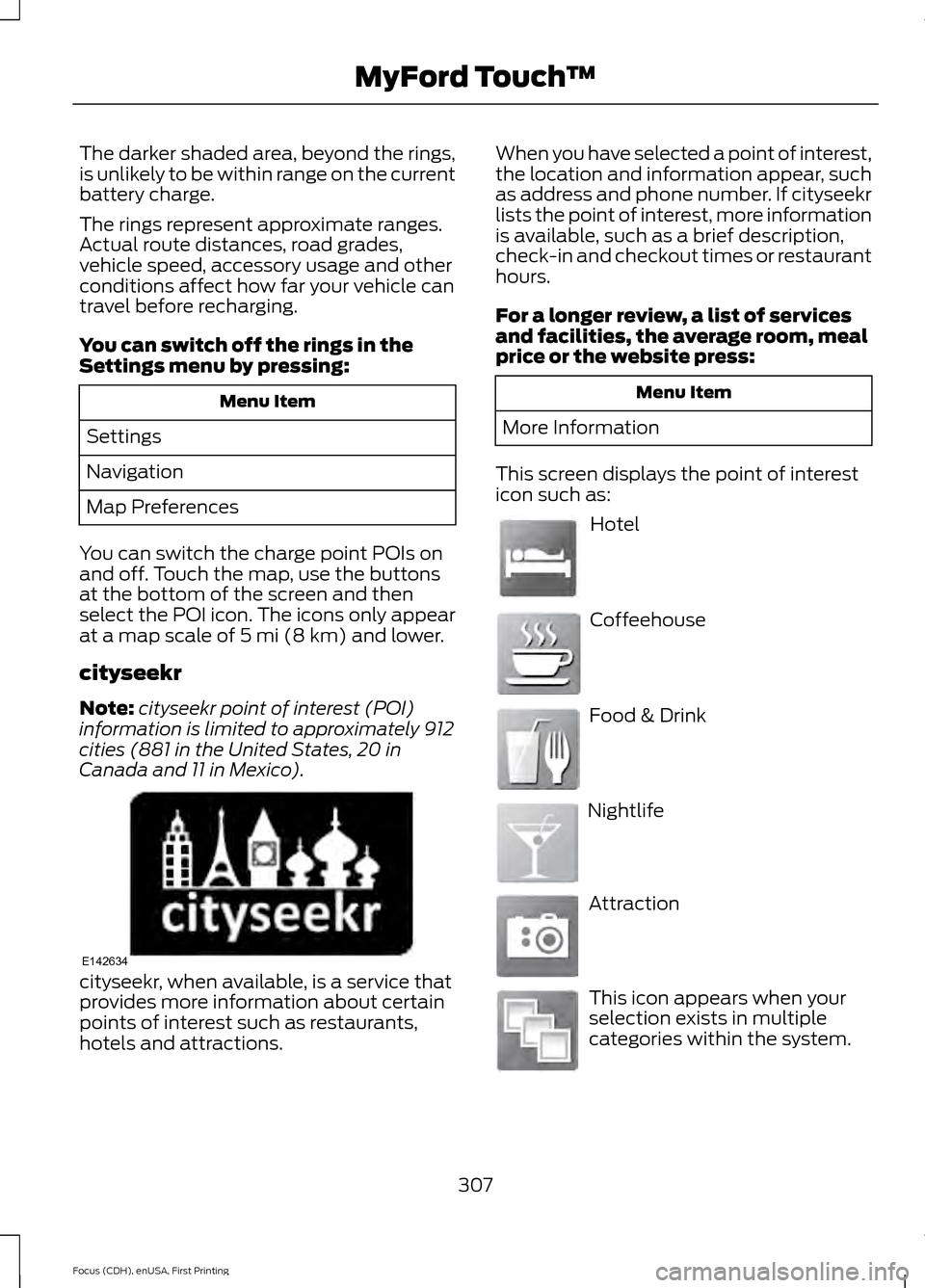
The darker shaded area, beyond the rings,
is unlikely to be within range on the current
battery charge.
The rings represent approximate ranges.
Actual route distances, road grades,
vehicle speed, accessory usage and other
conditions affect how far your vehicle can
travel before recharging.
You can switch off the rings in the
Settings menu by pressing:
Menu Item
Settings
Navigation
Map Preferences
You can switch the charge point POIs on
and off. Touch the map, use the buttons
at the bottom of the screen and then
select the POI icon. The icons only appear
at a map scale of 5 mi (8 km) and lower.
cityseekr
Note: cityseekr point of interest (POI)
information is limited to approximately 912
cities (881 in the United States, 20 in
Canada and 11 in Mexico). cityseekr, when available, is a service that
provides more information about certain
points of interest such as restaurants,
hotels and attractions. When you have selected a point of interest,
the location and information appear, such
as address and phone number. If cityseekr
lists the point of interest, more information
is available, such as a brief description,
check-in and checkout times or restaurant
hours.
For a longer review, a list of services
and facilities, the average room, meal
price or the website press:
Menu Item
More Information
This screen displays the point of interest
icon such as: Hotel
Coffeehouse
Food & Drink
Nightlife
Attraction
This icon appears when your
selection exists in multiple
categories within the system.
307
Focus (CDH), enUSA, First Printing MyFord Touch
™E142634 E143884 E142636 E142637 E142638 E142639 E142640
Page 363 of 369
Changing the Wiper Blades......................175
Charging the High Voltage Battery.........115 Charge Port............................................................ 118
Charging.................................................................. 118
Charging Equipment........................................... 115
Convenience Charging and MyFord Mobile................................................................ 120
Disconnecting the Charging Coupler..........120
Locking the Charging Coupler......................... 119
Waiting to Charge................................................ 119
Checking MyKey System Status...............53
Checking the Wiper Blades.......................175
Child Restraint and Safety Belt Maintenance.................................................35
Child Safety
........................................................17
General Information............................................. 17
Child Safety Locks..........................................27 Left-Hand Side..................................................... 28
Right-Hand Side................................................... 28
Child Seat Positioning..................................26
Cleaning Leather Seats..............................185
Cleaning Products
........................................182
Cleaning the Alloy Wheels........................186
Cleaning the Engine.....................................183
Cleaning the Exterior...................................182 Exterior Chrome Parts....................................... 182
Exterior Plastic Parts......................................... 183
Stripes or Graphics............................................. 183
Underbody............................................................ 183
Cleaning the Instrument Panel and Instrument Cluster Lens.........................184
Cleaning the Interior
....................................184
Cleaning the Windows and Wiper Blades............................................................184
Clearing All MyKeys.......................................52
Climate.............................................................301 Climate Control Voice Commands.............303
Climate Control............................................100
Cold Weather Precautions........................145
Collision, Damage or Fire Event..............150 Guidance for Ford Motor Company Electric
and Hybrid-Electric Vehicles Equipped
With High Voltage Batteries...................... 150
Coolant Check.................................................171 Adding Coolant..................................................... 171
Recycled Coolant................................................ 172
Severe Climates................................................... 172
Crash Sensors and Airbag Indicator.......44 Creating a MyKey.............................................51
Programming/Changing Configurable
Settings................................................................ 51
Cruise Control.................................................68 Principle of Operation....................................... 133
Cruise control See: Using Cruise Control................................ 133
Customer Assistance
..................................152
D
Data Recording
..................................................7
Event Data Recording............................................ 7
Service Data Recording......................................... 7
Daytime Running Lamps.............................74 Type 1 - Conventional
(Non-Configurable)........................................ 74
Type 2 - Configurable.......................................... 74
Direction Indicators........................................75
Driver and Passenger Airbags...................38 Children and Airbags.......................................... 38
Proper Driver and Front Passenger Seating Adjustment........................................................ 38
Driver Knee Airbag.........................................42
Driving Aids
.....................................................134
Driving Hints...................................................145
Driving Through Water................................145
DRL See: Daytime Running Lamps......................... 74
E
Electric Vehicle Information.....................278 Power..................................................................... 289
Settings.................................................................. 279
End User License Agreement..................323 SYNC End User License Agreement
(EULA).............................................................. 323
Engine Immobilizer See: Passive Anti-Theft System..................... 64
360
Focus (CDH), enUSA, First Printing Index