phone FORD FOCUS ELECTRIC 2015 3.G Owner's Manual
[x] Cancel search | Manufacturer: FORD, Model Year: 2015, Model line: FOCUS ELECTRIC, Model: FORD FOCUS ELECTRIC 2015 3.GPages: 369, PDF Size: 4.53 MB
Page 240 of 369
Accessing and Adjusting Modes Through Your Right Vehicle Information
Display
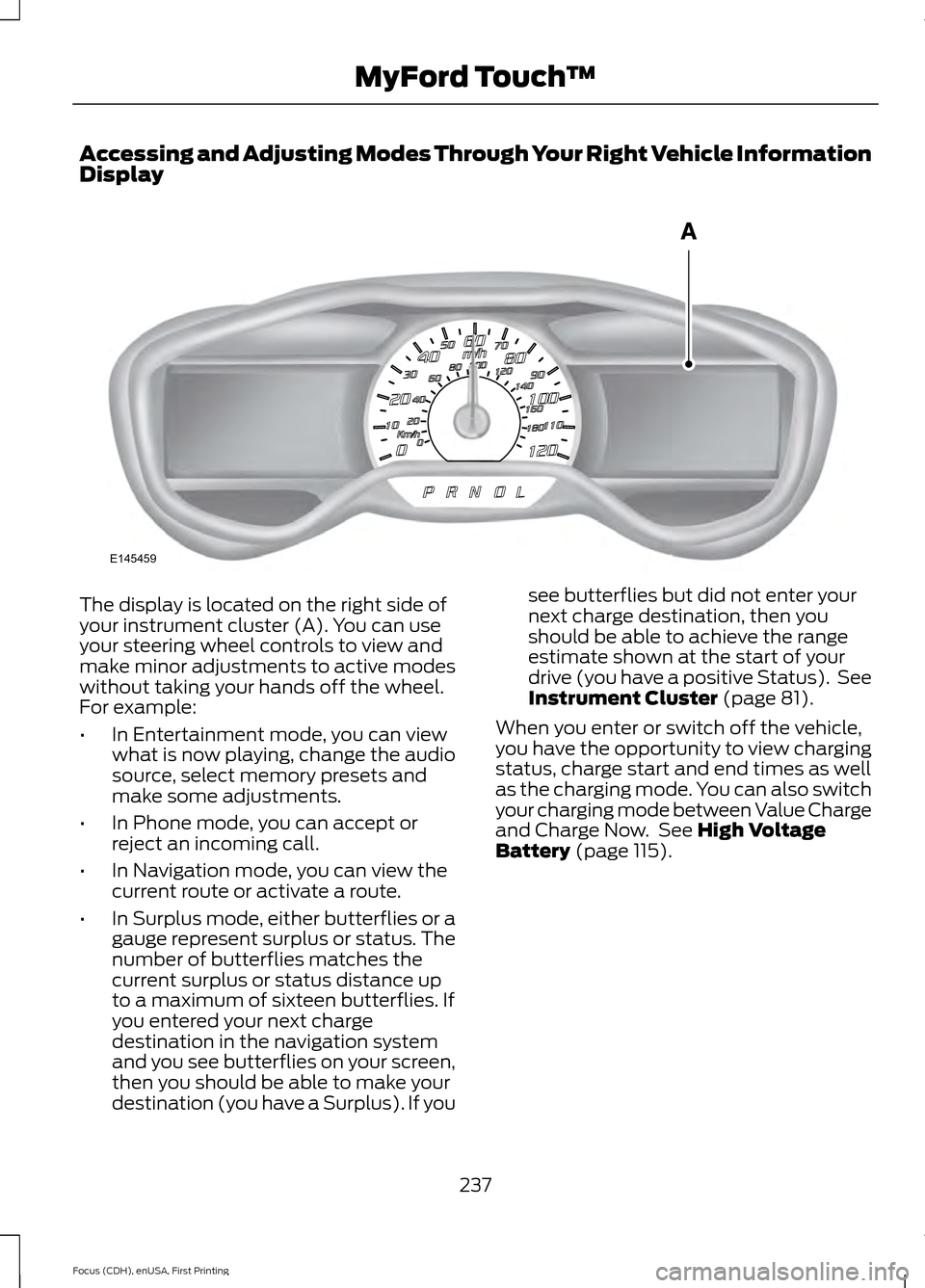
The display is located on the right side of
your instrument cluster (A). You can use
your steering wheel controls to view and
make minor adjustments to active modes
without taking your hands off the wheel.
For example:
•
In Entertainment mode, you can view
what is now playing, change the audio
source, select memory presets and
make some adjustments.
• In Phone mode, you can accept or
reject an incoming call.
• In Navigation mode, you can view the
current route or activate a route.
• In Surplus mode, either butterflies or a
gauge represent surplus or status. The
number of butterflies matches the
current surplus or status distance up
to a maximum of sixteen butterflies. If
you entered your next charge
destination in the navigation system
and you see butterflies on your screen,
then you should be able to make your
destination (you have a Surplus). If you see butterflies but did not enter your
next charge destination, then you
should be able to achieve the range
estimate shown at the start of your
drive (you have a positive Status). See
Instrument Cluster (page 81).
When you enter or switch off the vehicle,
you have the opportunity to view charging
status, charge start and end times as well
as the charging mode. You can also switch
your charging mode between Value Charge
and Charge Now. See
High Voltage
Battery (page 115).
237
Focus (CDH), enUSA, First Printing MyFord Touch
™E145459
Page 242 of 369
Using the touchscreen, press:
Menu Item
Settings
Help
Voice Command List Using the steering wheel control, press
the voice button and when prompted
say one of the following: Voice Commands
List of Commands
Radio List of Commands
Phone List of Commands
Voice Instructions List of Commands
Voice Command Settings
These allow you to customize the level of
system interaction, help and feedback. The
system defaults to standard interaction
that uses candidate lists and confirmation
prompts as these provide the highest level
of guidance and feedback. Action and Description
Menu Item
In this mode the system provides
detailed interaction and guidance.
Novice
Interaction Mode
This mode has less audible interac-tion and more tone prompts.
Advanced
The system uses these short questions to confirm your voice
command. If turned off, the system simply makes a best guess as to what you requested. The system may still occasionally ask you to confirm a voice command.
Confirmation Prompts
Candidate lists are lists of possible results from your voice
commands. The system creates these lists when it has the
same confidence level of several options based on your voice command.
Phone Candidate Lists
Media Candidate Lists
239
Focus (CDH), enUSA, First Printing MyFord Touch
™
Page 243 of 369
Using the touchscreen, press the
settings icon, then press:
Menu Item
Voice Settings
Voice Control
Select from the following:
Interaction Mode
Confirmation Prompts
Media Candidate Lists
Phone Candidate Lists
Voice Control Volume Using Voice Commands with the
Touchscreen Options
The voice command system has a dual
mode feature which allows you to switch
between using voice commands and
making on-screen selections. This is
available only when the system displays a
list of candidates generated during a voice
command session. For example, this can
be used when entering a street address or
trying to call a contact from a cell phone
paired to the system.
SETTINGS 240
Focus (CDH), enUSA, First Printing MyFord Touch
™A
B
C
D
E
F
E161968
Page 249 of 369
To make adjustments using the touchscreen, select:
Action and Description
Menu Item
Settings
Vehicle
Charge Port Light Ring
You can then select: Illuminates when plugging in, opening doors, pressing the
unlock button on your remote and while charging.
On
Does not illuminate.
Off
Illuminates only when plugging in, opening doors, or
pressing the unlock button on your remote.
Limited
Note: Details on the charge port light ring
functions are in another chapter. See High
Voltage Battery (page 115).
Settings
Access and adjust system settings, voice
features, as well as phone, navigation and
wireless settings. SystemTo make adjustments using the touchscreen, select:
Action and Description
Message
Press the settings icon.
Settings
System
Then select from the following:
Select to have the touchscreen display in English, Spanish or
French.
Language
Select to display units in kilometers or miles.
Distance
Select to display units in Celsius or Fahrenheit.
Temperature
Adjust the volume of voice prompts from the system.
System Prompt Volume
Select to have the system beep to confirm choices made
through the touchscreen.
Touch Screen Button
Beep
246
Focus (CDH), enUSA, First Printing MyFord Touch
™E142607
Page 250 of 369
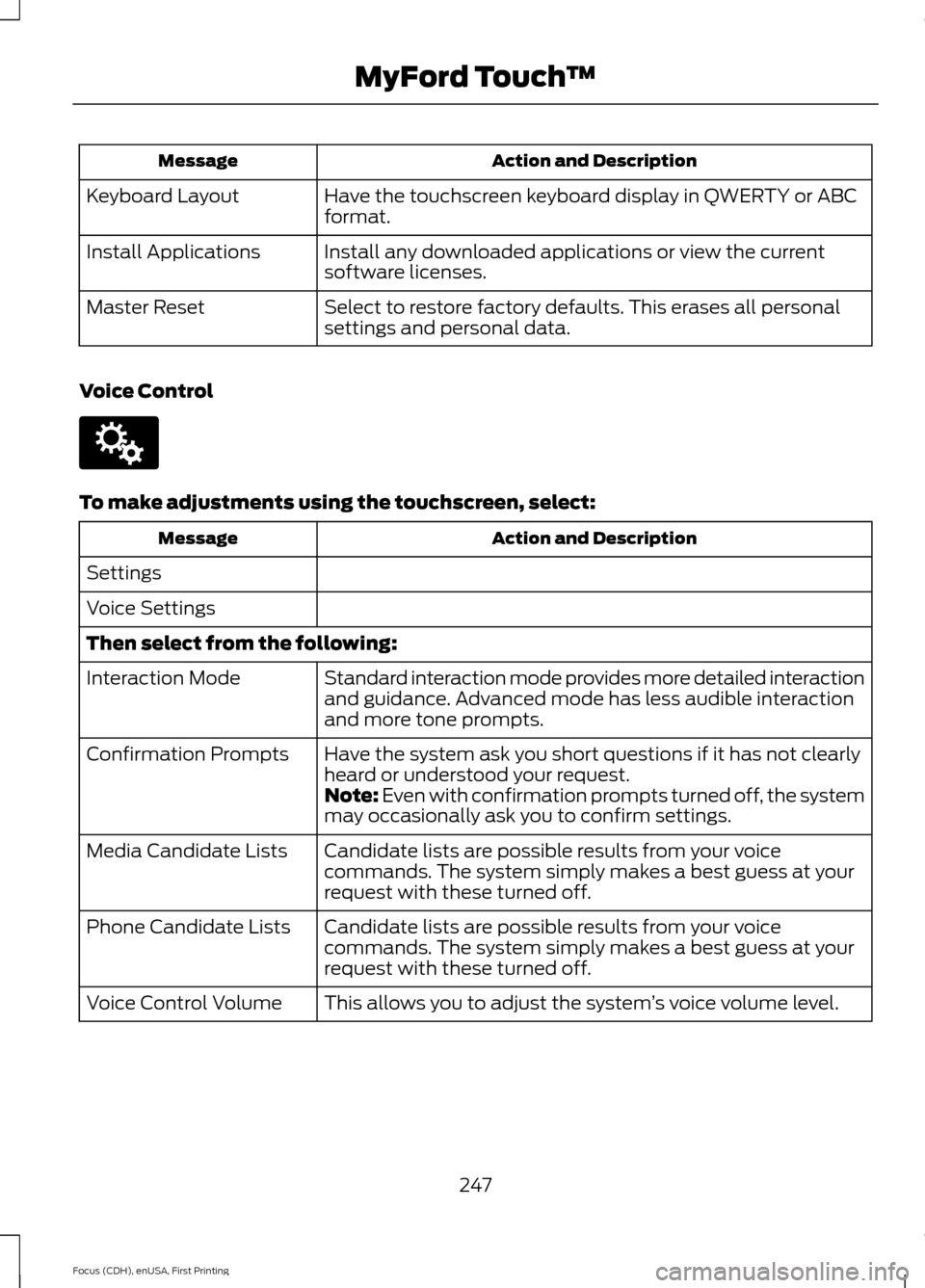
Action and Description
Message
Have the touchscreen keyboard display in QWERTY or ABC
format.
Keyboard Layout
Install any downloaded applications or view the current
software licenses.
Install Applications
Select to restore factory defaults. This erases all personal
settings and personal data.
Master Reset
Voice Control To make adjustments using the touchscreen, select:
Action and Description
Message
Settings
Voice Settings
Then select from the following: Standard interaction mode provides more detailed interaction
and guidance. Advanced mode has less audible interaction
and more tone prompts.
Interaction Mode
Have the system ask you short questions if it has not clearly
heard or understood your request.
Confirmation Prompts
Note: Even with confirmation prompts turned off, the system
may occasionally ask you to confirm settings.
Candidate lists are possible results from your voice
commands. The system simply makes a best guess at your
request with these turned off.
Media Candidate Lists
Candidate lists are possible results from your voice
commands. The system simply makes a best guess at your
request with these turned off.
Phone Candidate Lists
This allows you to adjust the system ’s voice volume level.
Voice Control Volume
247
Focus (CDH), enUSA, First Printing MyFord Touch
™E142607
Page 253 of 369
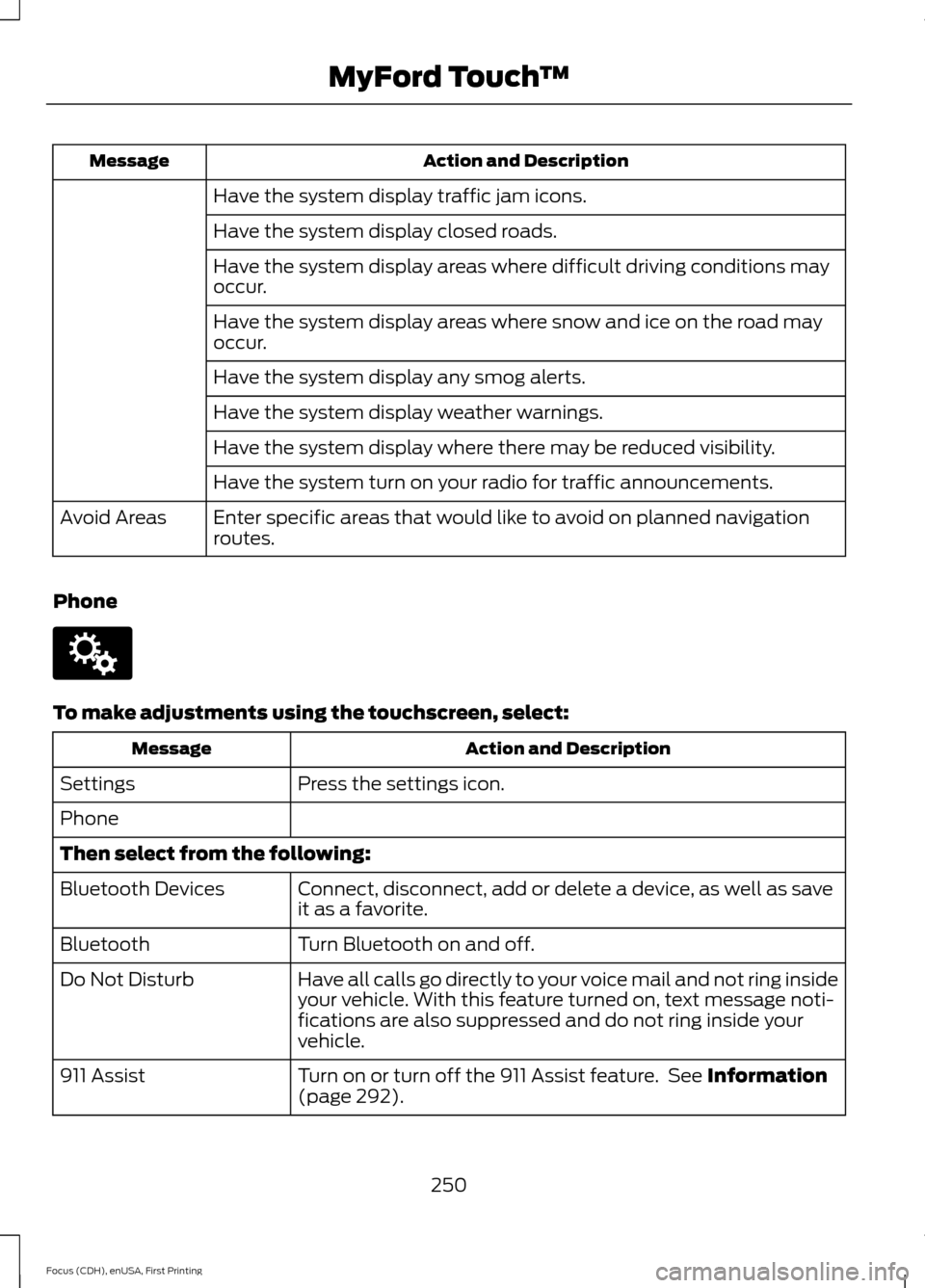
Action and Description
Message
Have the system display traffic jam icons.
Have the system display closed roads.
Have the system display areas where difficult driving conditions may
occur.
Have the system display areas where snow and ice on the road may
occur.
Have the system display any smog alerts.
Have the system display weather warnings.
Have the system display where there may be reduced visibility.
Have the system turn on your radio for traffic announcements.
Enter specific areas that would like to avoid on planned navigation
routes.
Avoid Areas
Phone To make adjustments using the touchscreen, select:
Action and Description
Message
Press the settings icon.
Settings
Phone
Then select from the following:
Connect, disconnect, add or delete a device, as well as save
it as a favorite.
Bluetooth Devices
Turn Bluetooth on and off.
Bluetooth
Have all calls go directly to your voice mail and not ring inside
your vehicle. With this feature turned on, text message noti-
fications are also suppressed and do not ring inside your
vehicle.
Do Not Disturb
Turn on or turn off the 911 Assist feature. See Information
(page 292).
911 Assist
250
Focus (CDH), enUSA, First Printing MyFord Touch
™E142607
Page 254 of 369
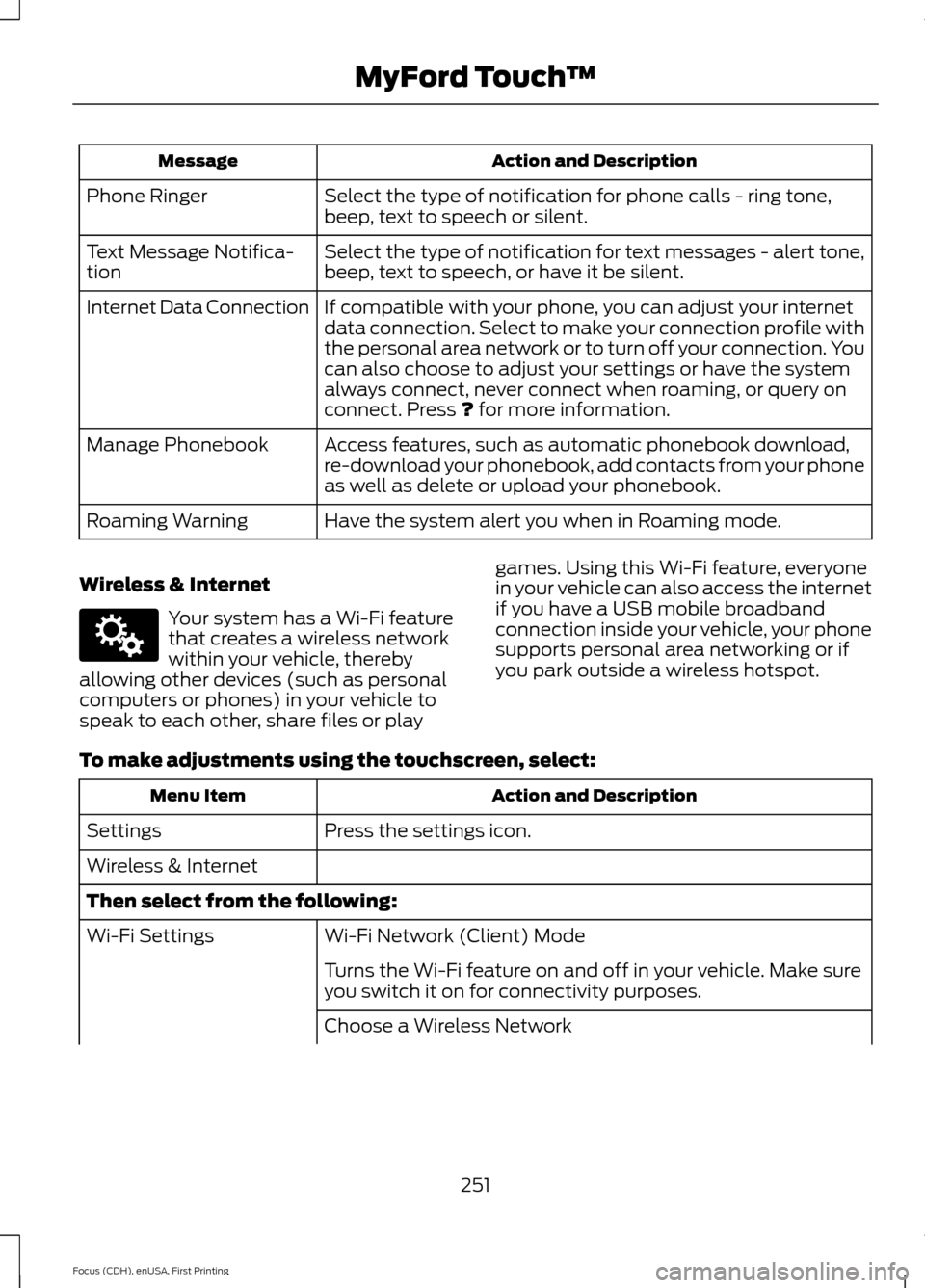
Action and Description
Message
Select the type of notification for phone calls - ring tone,
beep, text to speech or silent.
Phone Ringer
Select the type of notification for text messages - alert tone,
beep, text to speech, or have it be silent.
Text Message Notifica-
tion
If compatible with your phone, you can adjust your internet
data connection. Select to make your connection profile with
the personal area network or to turn off your connection. You
can also choose to adjust your settings or have the system
always connect, never connect when roaming, or query on
connect. Press ? for more information.
Internet Data Connection
Access features, such as automatic phonebook download,
re-download your phonebook, add contacts from your phone
as well as delete or upload your phonebook.
Manage Phonebook
Have the system alert you when in Roaming mode.
Roaming Warning
Wireless & Internet Your system has a Wi-Fi feature
that creates a wireless network
within your vehicle, thereby
allowing other devices (such as personal
computers or phones) in your vehicle to
speak to each other, share files or play games. Using this Wi-Fi feature, everyone
in your vehicle can also access the internet
if you have a USB mobile broadband
connection inside your vehicle, your phone
supports personal area networking or if
you park outside a wireless hotspot.
To make adjustments using the touchscreen, select: Action and Description
Menu Item
Press the settings icon.
Settings
Wireless & Internet
Then select from the following:
Wi-Fi Network (Client) Mode
Wi-Fi Settings
Turns the Wi-Fi feature on and off in your vehicle. Make sure
you switch it on for connectivity purposes.
Choose a Wireless Network
251
Focus (CDH), enUSA, First Printing MyFord Touch
™E142607
Page 255 of 369
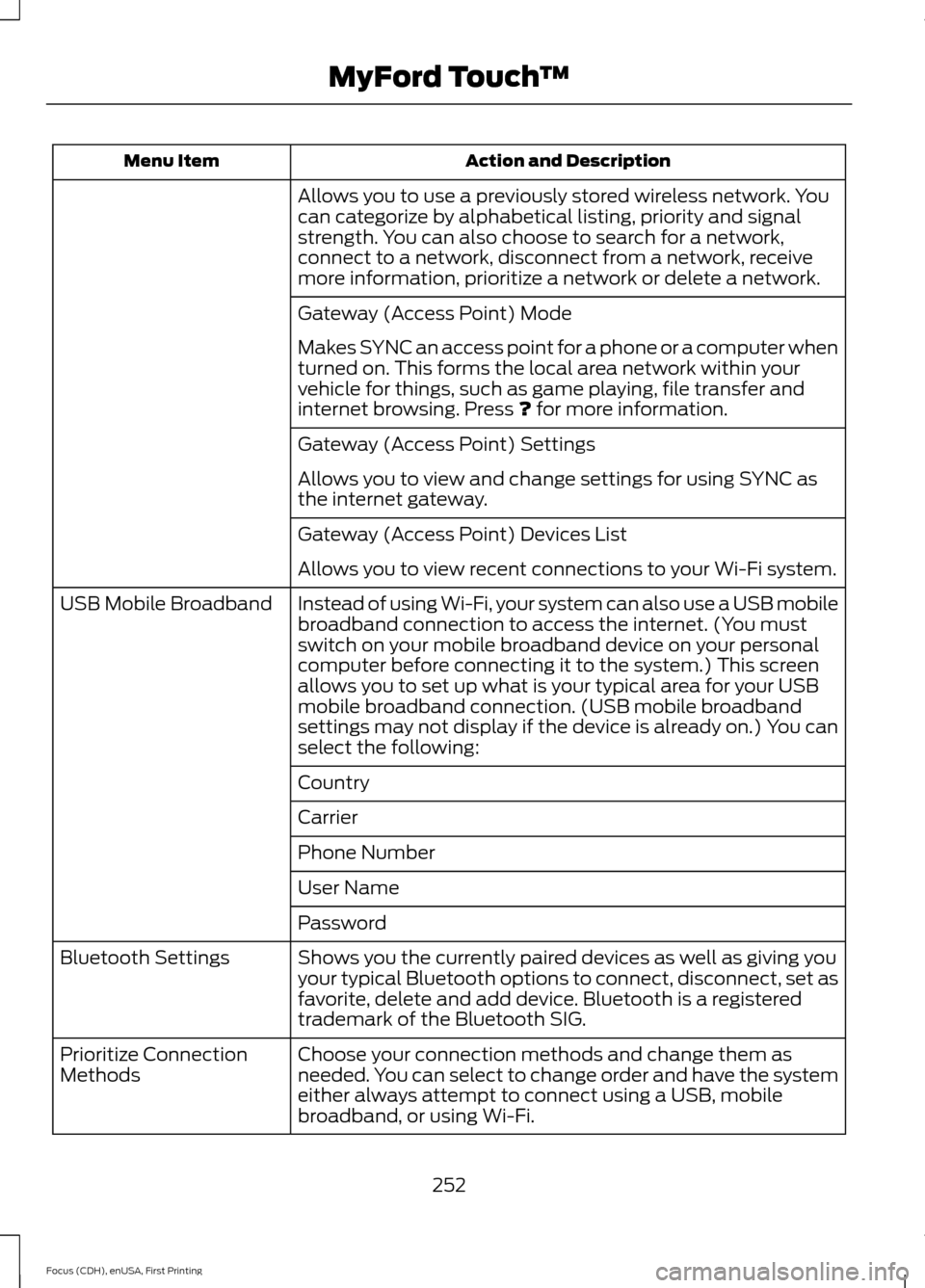
Action and Description
Menu Item
Allows you to use a previously stored wireless network. You
can categorize by alphabetical listing, priority and signal
strength. You can also choose to search for a network,
connect to a network, disconnect from a network, receive
more information, prioritize a network or delete a network.
Gateway (Access Point) Mode
Makes SYNC an access point for a phone or a computer when
turned on. This forms the local area network within your
vehicle for things, such as game playing, file transfer and
internet browsing. Press ? for more information.
Gateway (Access Point) Settings
Allows you to view and change settings for using SYNC as
the internet gateway.
Gateway (Access Point) Devices List
Allows you to view recent connections to your Wi-Fi system.
Instead of using Wi-Fi, your system can also use a USB mobile
broadband connection to access the internet. (You must
switch on your mobile broadband device on your personal
computer before connecting it to the system.) This screen
allows you to set up what is your typical area for your USB
mobile broadband connection. (USB mobile broadband
settings may not display if the device is already on.) You can
select the following:
USB Mobile Broadband
Country
Carrier
Phone Number
User Name
Password
Shows you the currently paired devices as well as giving you
your typical Bluetooth options to connect, disconnect, set as
favorite, delete and add device. Bluetooth is a registered
trademark of the Bluetooth SIG.
Bluetooth Settings
Choose your connection methods and change them as
needed. You can select to change order and have the system
either always attempt to connect using a USB, mobile
broadband, or using Wi-Fi.
Prioritize Connection
Methods
252
Focus (CDH), enUSA, First Printing MyFord Touch
™
Page 257 of 369
Action and Description
Menu Item
The ICE contacts you select
appear at the end of the
Emergency Assistance call
process.
Select to access your phone-
book and then select the
desired contacts. The
numbers then appear as
options on this screen for the
ICE 1 and ICE 2 buttons.
Edit
View categorized lists of voice commands.
Voice
Command List
You can also access Help using the voice
commands. The system provides
allowable voice commands for the current
mode. Press the voice button and when
prompted say:
Voice command
Help
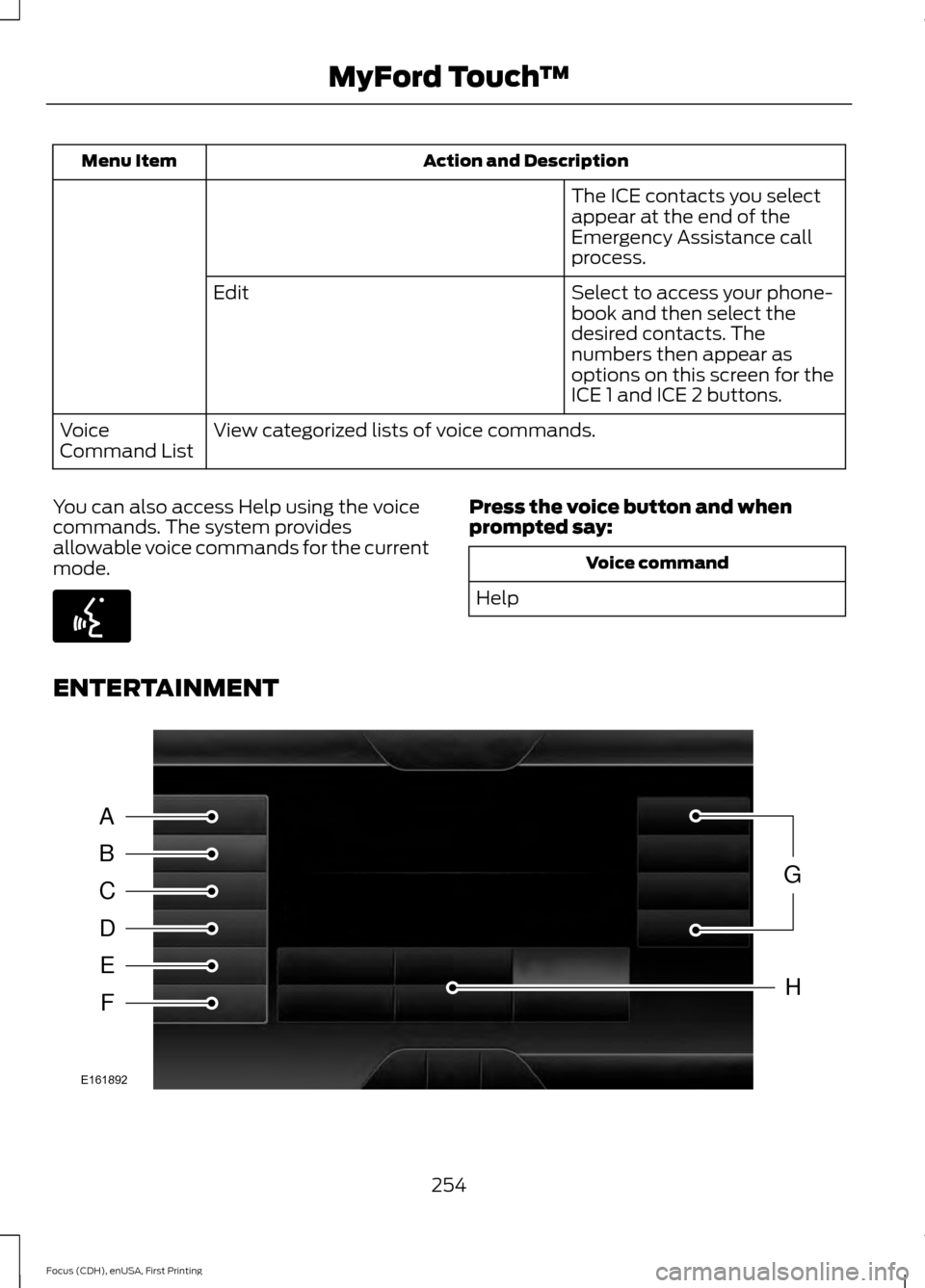
ENTERTAINMENT 254
Focus (CDH), enUSA, First Printing MyFord Touch
™E142599 A
B
C
D
E
F
G
H
E161892
Page 272 of 369
Voice command
Say the name of what you would like to listen to such as a band, song, album or playlist.
Play
Similar Music
Help
Supported Media Players, Formats
and Metadata Information
SYNC is capable of hosting nearly any
digital media player, including iPod,
Zune ™, plays from device players, and
most USB drives. Supported audio formats
include MP3, WMA, WAV and AAC.
It is also able to organize your indexed
media from your playing device by
metadata tags. Metadata tags, which are
descriptive software identifiers embedded
in the media files, provide information
about the file.
If your indexed media files contain no
information embedded in these metadata
tags, SYNC may classify the empty
metadata tags as unknown.
Bluetooth Audio
The system allows you to stream audio
over your vehicle's speakers from your
connected, Bluetooth-enabled cell phone. To access, press the lower left corner
on the touchscreen, then select:
Message
BT Stereo
Bluetooth Audio Voice Commands The voice system allows you to control
your media with a simple voice command.
For example to change songs, press the
voice button and follow the system
prompts.
Line In
WARNINGS
Driving while distracted can result in
loss of vehicle control, crash and
injury. We strongly recommend that
you use extreme caution when using any
device that may take your focus off the
road. Your primary responsibility is the safe
operation of your vehicle. We recommend
against the use of any handheld device
while driving and encourage the use of
voice-operated systems when possible.
Make sure you are aware of all applicable
local laws that may affect the use of
electronic devices while driving. For safety reasons, do not connect
or adjust the settings on your
portable music player while your
vehicle is moving.
269
Focus (CDH), enUSA, First Printing MyFord Touch
™E142611 E142599