battery FORD FOCUS ELECTRIC 2015 3.G Repair Manual
[x] Cancel search | Manufacturer: FORD, Model Year: 2015, Model line: FOCUS ELECTRIC, Model: FORD FOCUS ELECTRIC 2015 3.GPages: 369, PDF Size: 4.53 MB
Page 284 of 369
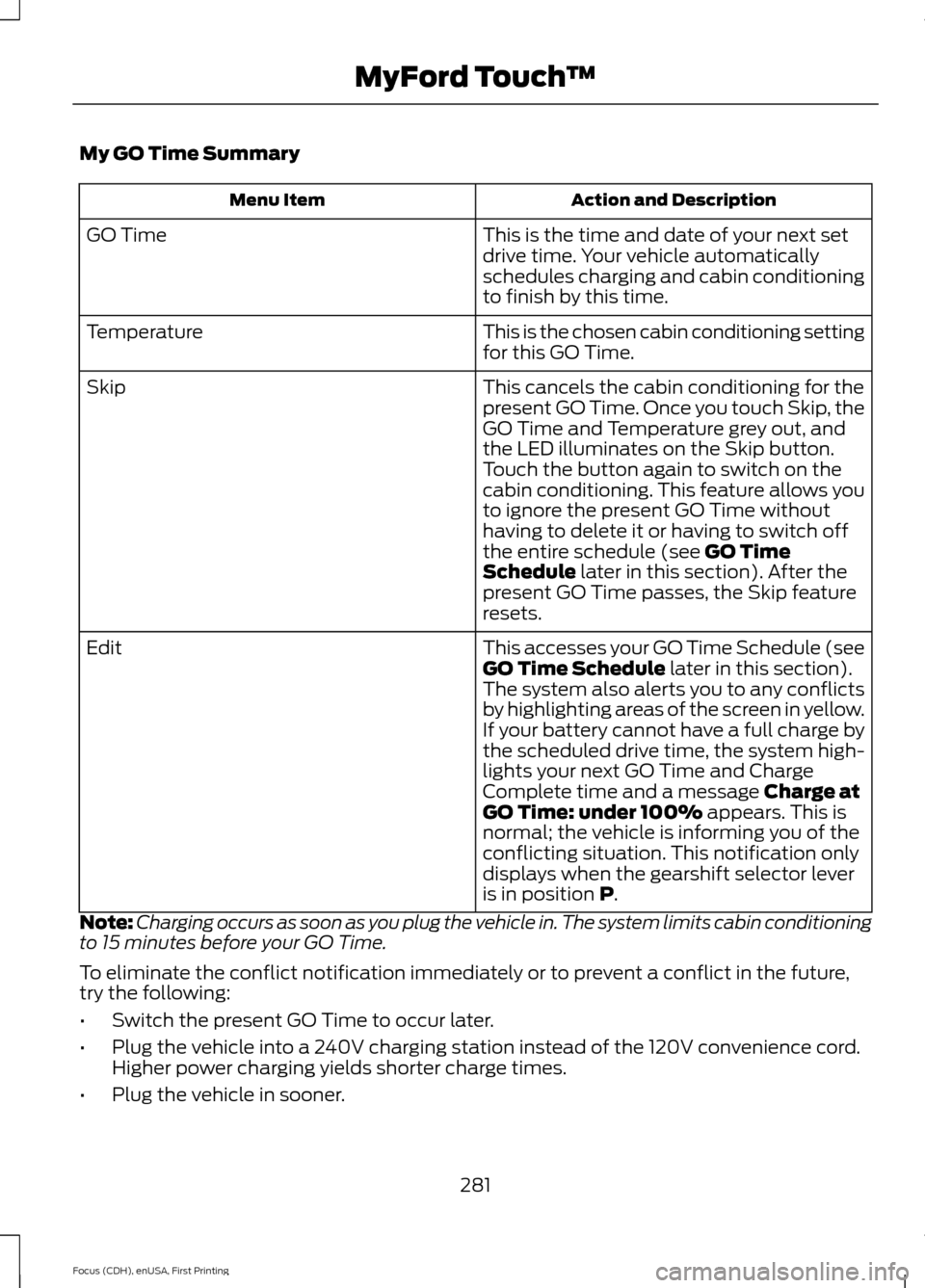
My GO Time Summary
Action and Description
Menu Item
This is the time and date of your next set
drive time. Your vehicle automatically
schedules charging and cabin conditioning
to finish by this time.
GO Time
This is the chosen cabin conditioning setting
for this GO Time.
Temperature
This cancels the cabin conditioning for the
present GO Time. Once you touch Skip, the
GO Time and Temperature grey out, and
the LED illuminates on the Skip button.
Touch the button again to switch on the
cabin conditioning. This feature allows you
to ignore the present GO Time without
having to delete it or having to switch off
the entire schedule (see GO Time
Schedule later in this section). After the
present GO Time passes, the Skip feature
resets.
Skip
This accesses your GO Time Schedule (see
GO Time Schedule
later in this section).
The system also alerts you to any conflicts
by highlighting areas of the screen in yellow.
If your battery cannot have a full charge by
the scheduled drive time, the system high-
lights your next GO Time and Charge
Complete time and a message
Charge at
GO Time: under 100% appears. This is
normal; the vehicle is informing you of the
conflicting situation. This notification only
displays when the gearshift selector lever
is in position
P.
Edit
Note: Charging occurs as soon as you plug the vehicle in. The system limits cabin conditioning
to 15 minutes before your GO Time.
To eliminate the conflict notification immediately or to prevent a conflict in the future,
try the following:
• Switch the present GO Time to occur later.
• Plug the vehicle into a 240V charging station instead of the 120V convenience cord.
Higher power charging yields shorter charge times.
• Plug the vehicle in sooner.
281
Focus (CDH), enUSA, First Printing MyFord Touch
™
Page 285 of 369
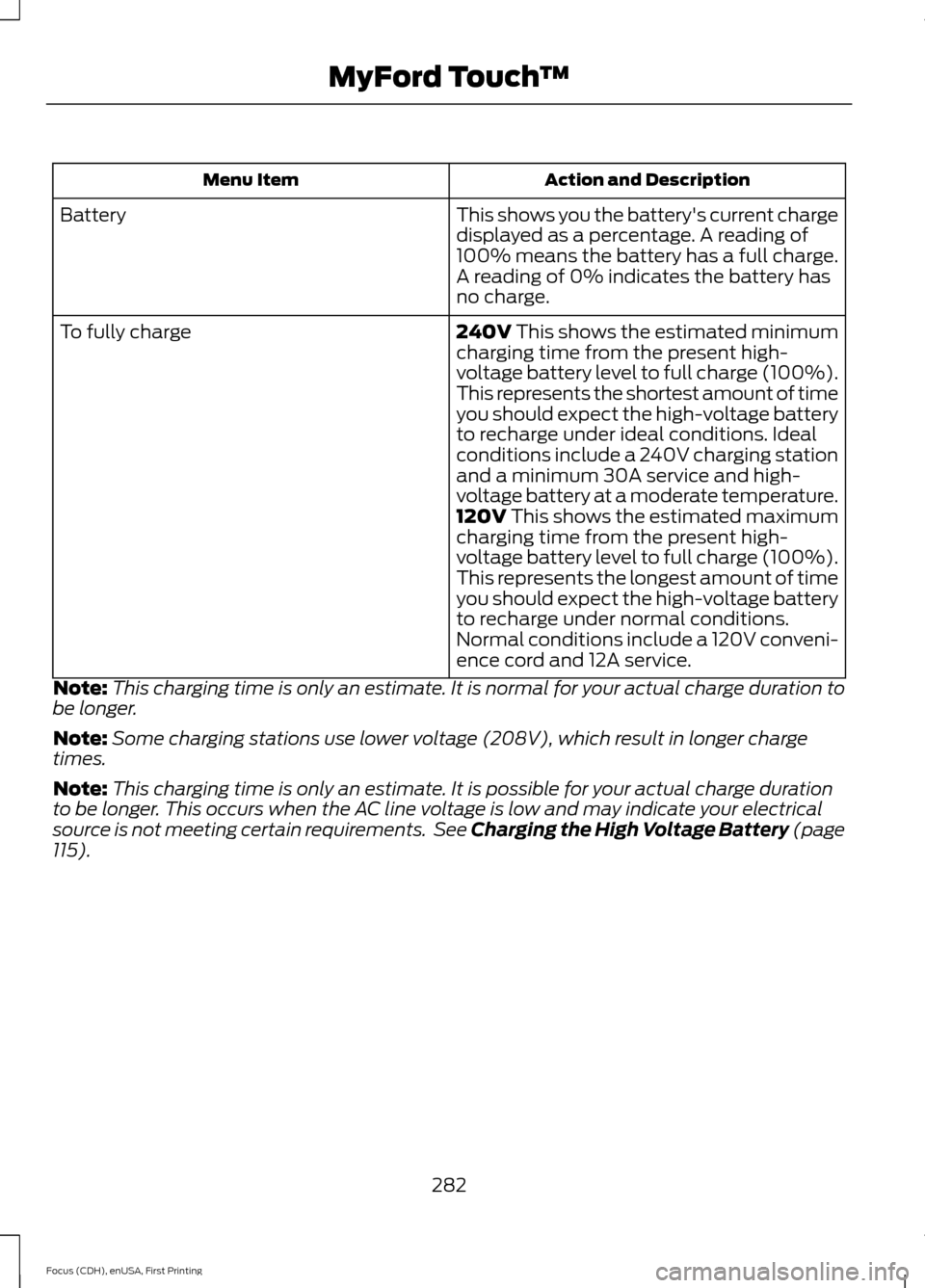
Action and Description
Menu Item
This shows you the battery's current charge
displayed as a percentage. A reading of
100% means the battery has a full charge.
A reading of 0% indicates the battery has
no charge.
Battery
240V This shows the estimated minimum
charging time from the present high-
voltage battery level to full charge (100%).
This represents the shortest amount of time
you should expect the high-voltage battery
to recharge under ideal conditions. Ideal
conditions include a 240V charging station
and a minimum 30A service and high-
voltage battery at a moderate temperature.
To fully charge
120V
This shows the estimated maximum
charging time from the present high-
voltage battery level to full charge (100%).
This represents the longest amount of time
you should expect the high-voltage battery
to recharge under normal conditions.
Normal conditions include a 120V conveni-
ence cord and 12A service.
Note: This charging time is only an estimate. It is normal for your actual charge duration to
be longer.
Note: Some charging stations use lower voltage (208V), which result in longer charge
times.
Note: This charging time is only an estimate. It is possible for your actual charge duration
to be longer. This occurs when the AC line voltage is low and may indicate your electrical
source is not meeting certain requirements. See Charging the High Voltage Battery (page
115
).
282
Focus (CDH), enUSA, First Printing MyFord Touch
™
Page 286 of 369
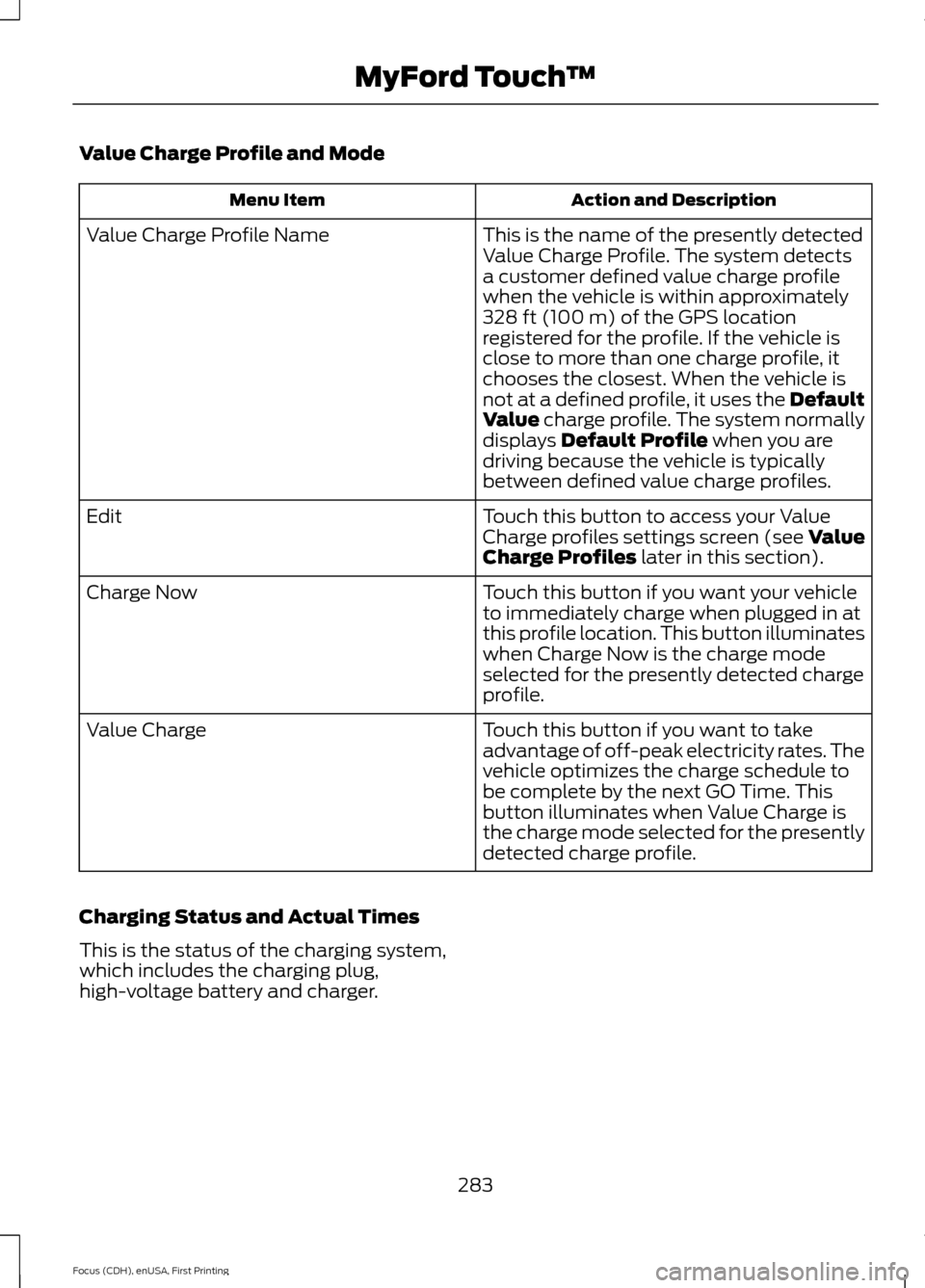
Value Charge Profile and Mode
Action and Description
Menu Item
This is the name of the presently detected
Value Charge Profile. The system detects
a customer defined value charge profile
when the vehicle is within approximately
328 ft (100 m) of the GPS location
registered for the profile. If the vehicle is
close to more than one charge profile, it
chooses the closest. When the vehicle is
not at a defined profile, it uses the Default
Value
charge profile. The system normally
displays Default Profile when you are
driving because the vehicle is typically
between defined value charge profiles.
Value Charge Profile Name
Touch this button to access your Value
Charge profiles settings screen (see Value
Charge Profiles
later in this section).
Edit
Touch this button if you want your vehicle
to immediately charge when plugged in at
this profile location. This button illuminates
when Charge Now is the charge mode
selected for the presently detected charge
profile.
Charge Now
Touch this button if you want to take
advantage of off-peak electricity rates. The
vehicle optimizes the charge schedule to
be complete by the next GO Time. This
button illuminates when Value Charge is
the charge mode selected for the presently
detected charge profile.
Value Charge
Charging Status and Actual Times
This is the status of the charging system,
which includes the charging plug,
high-voltage battery and charger.
283
Focus (CDH), enUSA, First Printing MyFord Touch
™
Page 287 of 369
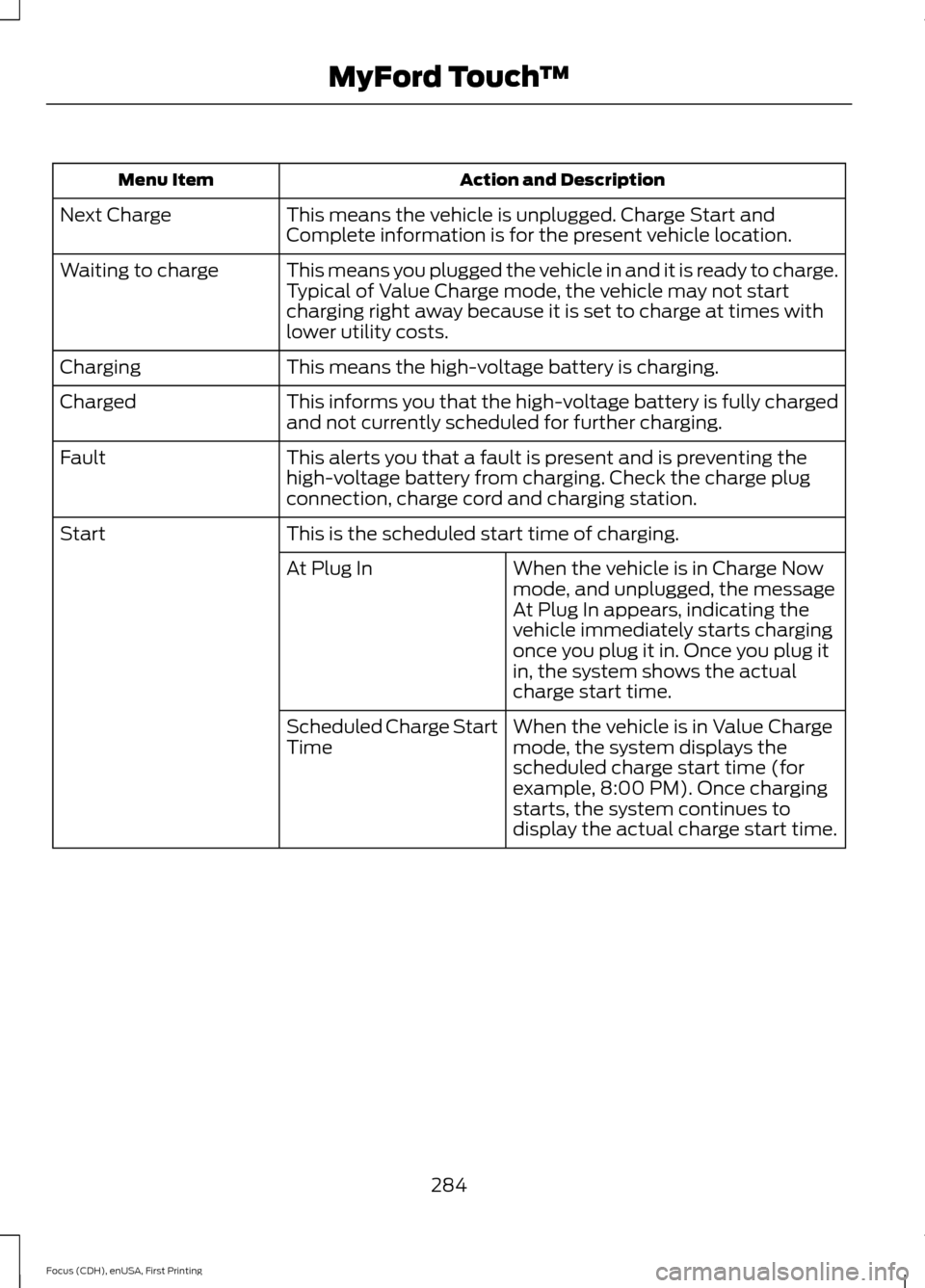
Action and Description
Menu Item
This means the vehicle is unplugged. Charge Start and
Complete information is for the present vehicle location.
Next Charge
This means you plugged the vehicle in and it is ready to charge.
Typical of Value Charge mode, the vehicle may not start
charging right away because it is set to charge at times with
lower utility costs.
Waiting to charge
This means the high-voltage battery is charging.
Charging
This informs you that the high-voltage battery is fully charged
and not currently scheduled for further charging.
Charged
This alerts you that a fault is present and is preventing the
high-voltage battery from charging. Check the charge plug
connection, charge cord and charging station.
Fault
This is the scheduled start time of charging.
Start
When the vehicle is in Charge Now
mode, and unplugged, the message
At Plug In appears, indicating the
vehicle immediately starts charging
once you plug it in. Once you plug it
in, the system shows the actual
charge start time.
At Plug In
When the vehicle is in Value Charge
mode, the system displays the
scheduled charge start time (for
example, 8:00 PM). Once charging
starts, the system continues to
display the actual charge start time.
Scheduled Charge Start
Time
284
Focus (CDH), enUSA, First Printing MyFord Touch
™
Page 288 of 369
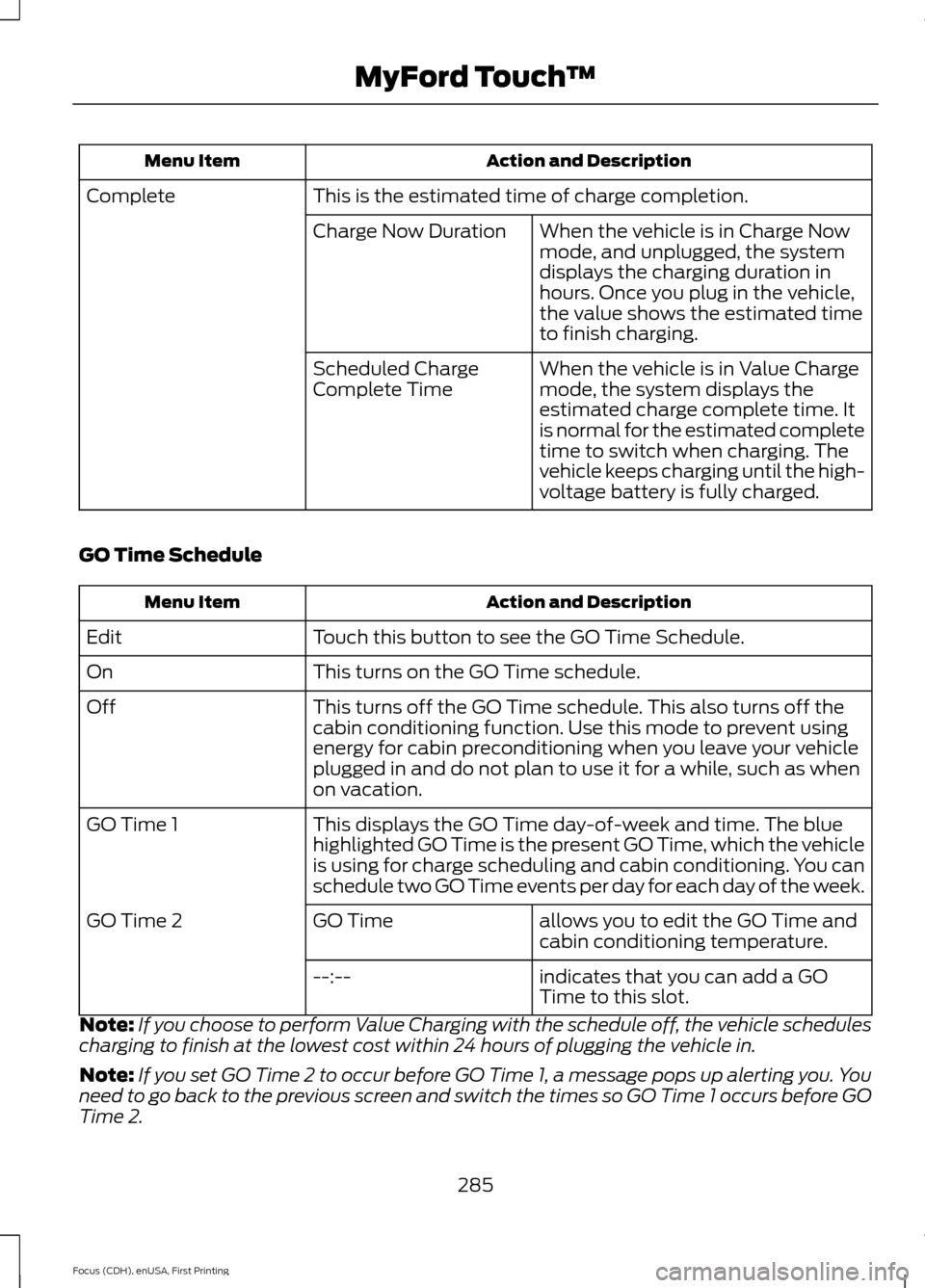
Action and Description
Menu Item
This is the estimated time of charge completion.
Complete
When the vehicle is in Charge Now
mode, and unplugged, the system
displays the charging duration in
hours. Once you plug in the vehicle,
the value shows the estimated time
to finish charging.
Charge Now Duration
When the vehicle is in Value Charge
mode, the system displays the
estimated charge complete time. It
is normal for the estimated complete
time to switch when charging. The
vehicle keeps charging until the high-
voltage battery is fully charged.
Scheduled Charge
Complete Time
GO Time Schedule Action and Description
Menu Item
Touch this button to see the GO Time Schedule.
Edit
This turns on the GO Time schedule.
On
This turns off the GO Time schedule. This also turns off the
cabin conditioning function. Use this mode to prevent using
energy for cabin preconditioning when you leave your vehicle
plugged in and do not plan to use it for a while, such as when
on vacation.
Off
This displays the GO Time day-of-week and time. The blue
highlighted GO Time is the present GO Time, which the vehicle
is using for charge scheduling and cabin conditioning. You can
schedule two GO Time events per day for each day of the week.
GO Time 1
allows you to edit the GO Time and
cabin conditioning temperature.
GO Time
GO Time 2
indicates that you can add a GO
Time to this slot.
--:--
Note: If you choose to perform Value Charging with the schedule off, the vehicle schedules
charging to finish at the lowest cost within 24 hours of plugging the vehicle in.
Note: If you set GO Time 2 to occur before GO Time 1, a message pops up alerting you. You
need to go back to the previous screen and switch the times so GO Time 1 occurs before GO
Time 2.
285
Focus (CDH), enUSA, First Printing MyFord Touch
™
Page 292 of 369
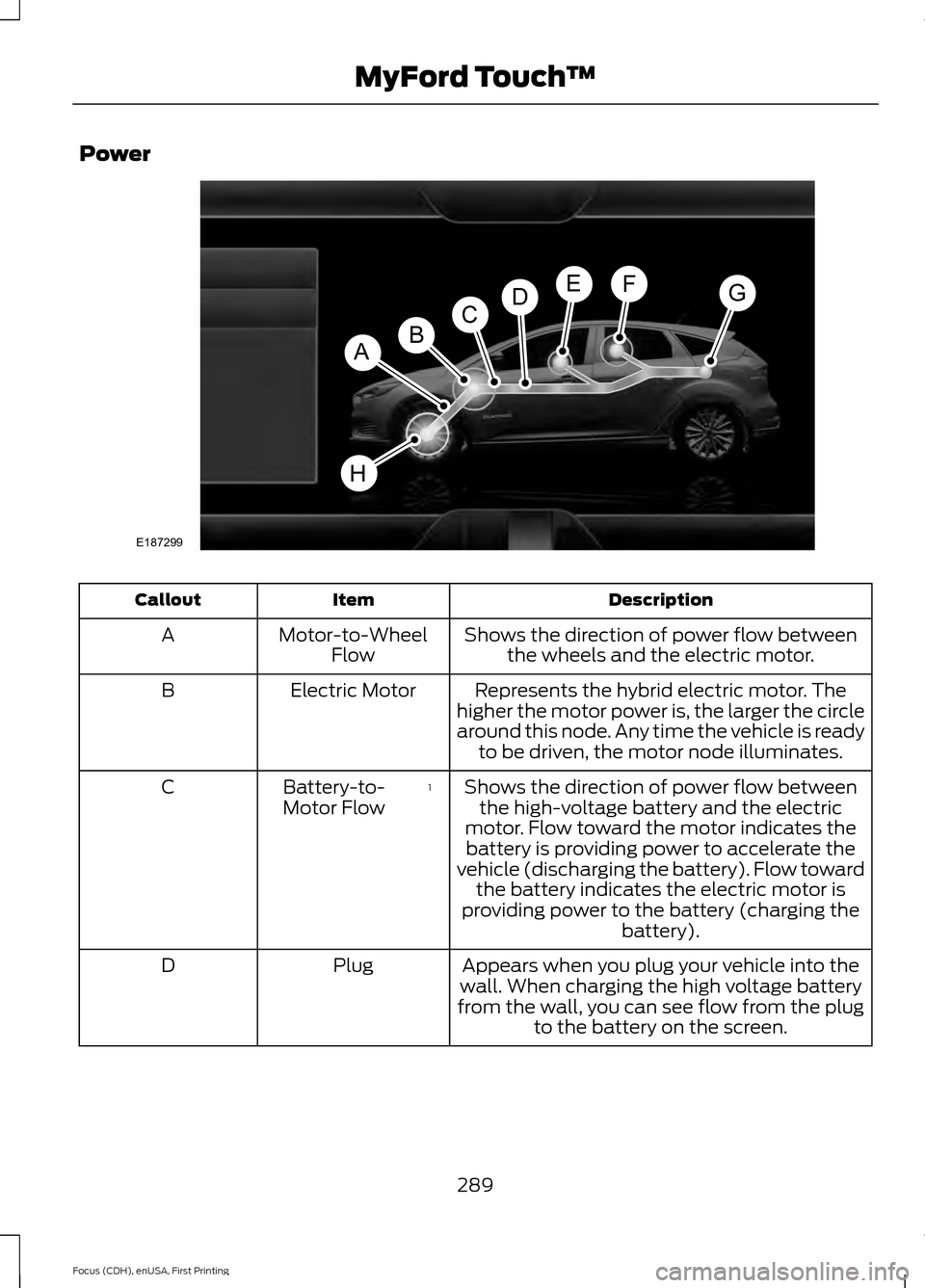
Power
Description
Item
Callout
Shows the direction of power flow betweenthe wheels and the electric motor.
Motor-to-Wheel
Flow
A
Represents the hybrid electric motor. The
higher the motor power is, the larger the circle
around this node. Any time the vehicle is ready to be driven, the motor node illuminates.
Electric Motor
B
Shows the direction of power flow betweenthe high-voltage battery and the electric
motor. Flow toward the motor indicates the battery is providing power to accelerate the
vehicle (discharging the battery). Flow toward the battery indicates the electric motor is
providing power to the battery (charging the battery).
1
Battery-to-
Motor Flow
C
Appears when you plug your vehicle into the
wall. When charging the high voltage battery
from the wall, you can see flow from the plug to the battery on the screen.
Plug
D
289
Focus (CDH), enUSA, First Printing MyFord Touch
™E187299
A
DGEF
BC
H
Page 293 of 369
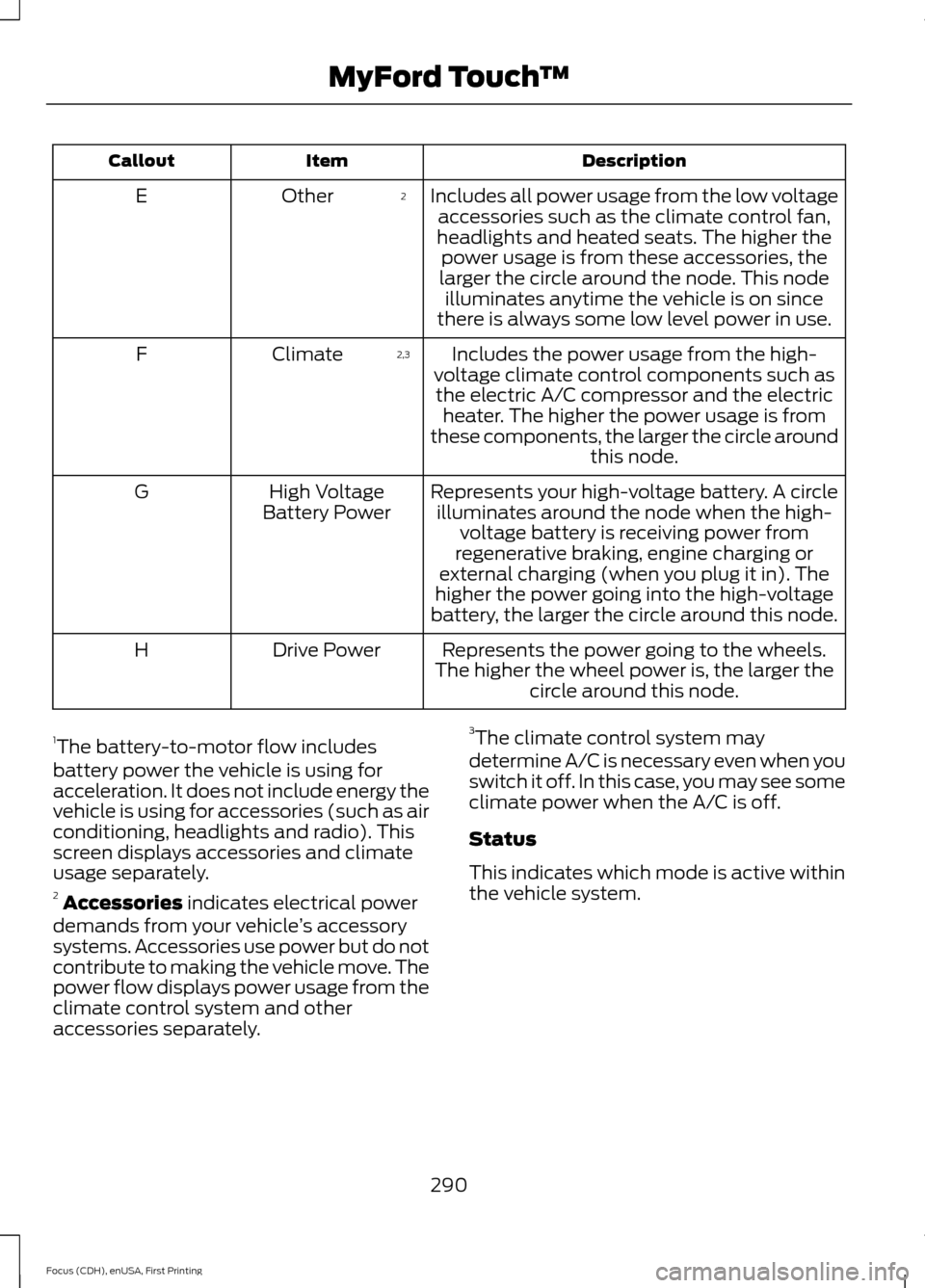
Description
Item
Callout
Includes all power usage from the low voltageaccessories such as the climate control fan,
headlights and heated seats. The higher the power usage is from these accessories, the
larger the circle around the node. This node illuminates anytime the vehicle is on since
there is always some low level power in use.
2
Other
E
Includes the power usage from the high-
voltage climate control components such as the electric A/C compressor and the electric heater. The higher the power usage is from
these components, the larger the circle around this node.
2,3
Climate
F
Represents your high-voltage battery. A circleilluminates around the node when the high- voltage battery is receiving power from
regenerative braking, engine charging or
external charging (when you plug it in). The
higher the power going into the high-voltage
battery, the larger the circle around this node.
High Voltage
Battery Power
G
Represents the power going to the wheels.
The higher the wheel power is, the larger the circle around this node.
Drive Power
H
1 The battery-to-motor flow includes
battery power the vehicle is using for
acceleration. It does not include energy the
vehicle is using for accessories (such as air
conditioning, headlights and radio). This
screen displays accessories and climate
usage separately.
2 Accessories indicates electrical power
demands from your vehicle ’s accessory
systems. Accessories use power but do not
contribute to making the vehicle move. The
power flow displays power usage from the
climate control system and other
accessories separately. 3
The climate control system may
determine A/C is necessary even when you
switch it off. In this case, you may see some
climate power when the A/C is off.
Status
This indicates which mode is active within
the vehicle system.
290
Focus (CDH), enUSA, First Printing MyFord Touch
™
Page 294 of 369
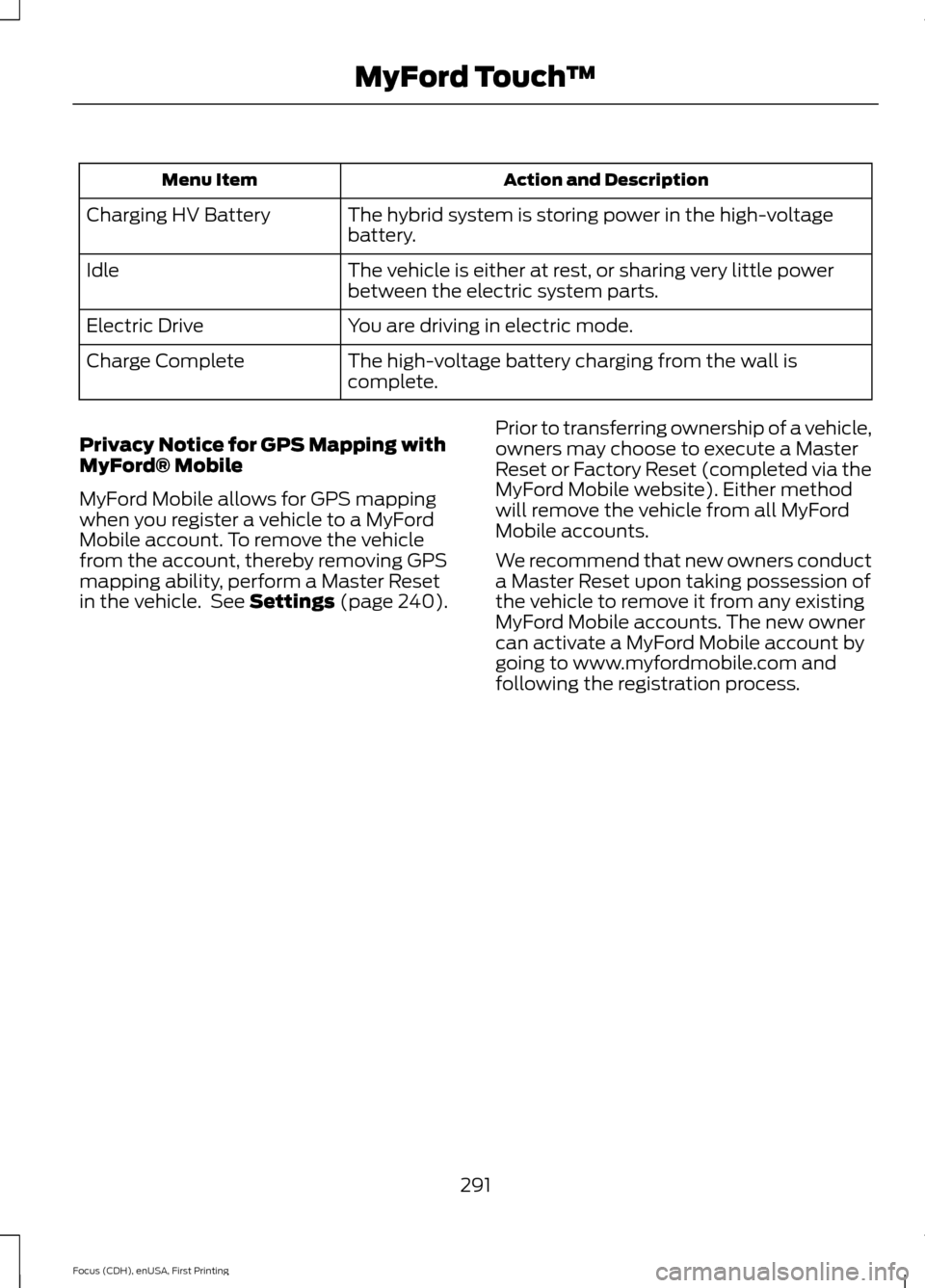
Action and Description
Menu Item
The hybrid system is storing power in the high-voltage
battery.
Charging HV Battery
The vehicle is either at rest, or sharing very little power
between the electric system parts.
Idle
You are driving in electric mode.
Electric Drive
The high-voltage battery charging from the wall is
complete.
Charge Complete
Privacy Notice for GPS Mapping with
MyFord® Mobile
MyFord Mobile allows for GPS mapping
when you register a vehicle to a MyFord
Mobile account. To remove the vehicle
from the account, thereby removing GPS
mapping ability, perform a Master Reset
in the vehicle. See Settings (page 240). Prior to transferring ownership of a vehicle,
owners may choose to execute a Master
Reset or Factory Reset (completed via the
MyFord Mobile website). Either method
will remove the vehicle from all MyFord
Mobile accounts.
We recommend that new owners conduct
a Master Reset upon taking possession of
the vehicle to remove it from any existing
MyFord Mobile accounts. The new owner
can activate a MyFord Mobile account by
going to www.myfordmobile.com and
following the registration process.
291
Focus (CDH), enUSA, First Printing MyFord Touch
™
Page 302 of 369
If your vehicle is equipped with
Navigation, touch the I (Information)
button to access these features. If your
vehicle is not equipped with
Navigation, touch the corner of the
touchscreen with the green tab. Then
select:
Message
Apps
911 Assist
On You can also access 911 Assist by
pressing:
Message
Settings
Phone
911 Assist
Or you can also select:
Help
911 Assist
To make sure that 911 Assist works
properly:
• SYNC must be powered and working
properly at the time of the incident and
throughout feature activation and use.
• The 911 Assist feature must be set on
prior to the incident.
• You must pair and connect a
Bluetooth-enabled and compatible
phone to SYNC. •
A connected Bluetooth-enabled phone
must have the ability to make and
maintain an outgoing call at the time
of the incident.
• A connected Bluetooth-enabled phone
must have adequate network coverage,
battery power and signal strength.
• The vehicle must have battery power
and be located in the United States,
Canada or in a territory in which 911 is
the emergency number.
In the Event of a Crash
Not all crashes deploy an airbag or activate
the fuel pump shut-off (which would
trigger 911 Assist); however, SYNC tries to
contact emergency services if 911 Assist
triggers. If a connected phone sustains
damage or loses connection to SYNC,
SYNC searches for, and tries to connect
to, any available previously paired phone
and tries to make the call to 911.
Before making the call:
• SYNC provides a short window of time
(approximately 10 seconds) to cancel
the call. If you fail to cancel the call,
SYNC attempts to dial 911.
• SYNC says the following, or a similar
message: "SYNC will attempt to call
911, to cancel the call, press Cancel on
your screen or press and hold the
phone button on your steering wheel."
If you do not cancel the call, and SYNC
makes a successful call, a pre-recorded
message plays for the 911 operator, and
then the occupant(s) in your vehicle is able
to talk with the operator. Be prepared to
provide your name, phone number and
location immediately, because not all 911
systems are capable of receiving this
information electronically.
299
Focus (CDH), enUSA, First Printing MyFord Touch
™E142607
Page 303 of 369
911 Assist May Not Work If:
•
Your cellular phone or 911 Assist
hardware sustains damage in a crash.
• The vehicle's battery or the SYNC
system has no power.
• The phones(s) previously paired or
connected to the system are thrown
from the vehicle.
911 Assist Privacy Notice
When you turn on 911 Assist, it may
disclose to emergency services that your
vehicle has been in a crash involving the
deployment of an airbag or activation of
the fuel pump shut-off. Certain versions or
updates to 911 Assist may also be capable
of electronically or verbally disclosing to
911 operators your vehicle location or other
details about your vehicle or crash to assist
911 operators to provide the most
appropriate emergency services. If you do
not want to disclose this information, do
not turn the feature on.
Vehicle Health Report WARNING
Always follow scheduled
maintenance instructions, regularly
inspect your vehicle, and seek repair
for any damage or problem you suspect.
Vehicle Health Report supplements, but
cannot replace, normal maintenance and
vehicle inspection. Vehicle Health Report
only monitors certain systems
electronically monitored by your vehicle
and will not monitor or report the status
of any other system, (such as brake lining
wear). Failure to perform scheduled
maintenance and regularly inspect your
vehicle may result in vehicle damage and
serious injury. Note:
This feature is only available in the
United States. Note:
Your Vehicle Health Report feature
requires activation prior to use. Visit
www.SYNCMyRide.com to register. There
is no fee or subscription associated with
Vehicle Health Report, but you must register
to use this feature.
Note: This feature may not function
properly if you have enabled caller ID
blocking on your cellular phone. Before
running a report, review the Vehicle Health
Report Privacy Notice.
Note: In order to allow a break-in period for
your vehicle, you may not be able to create
a Vehicle Health Report until your vehicle
odometer has reached 200 miles.
Note: Cellular phone and SMS charges may
apply when making a report.
Register for Vehicle Health Report and set
your report preferences at
www.SYNCMyRide.com. After registering,
you can request a Vehicle Health Report
(inside your vehicle). Return to your
account at www.SYNCMyRide.com to view
your report. You can also choose for SYNC
to remind you automatically to run reports
at specific mileage intervals. Cellular phone
airtime usage may apply when reporting.
The system allows you to check your
vehicle ’s overall health in the form of a
diagnostic report card. The Vehicle Health
Report contains valuable information, for
example:
• Vehicle diagnostic information.
• Scheduled maintenance.
• Open recalls and Field Service Actions.
• Items noted during vehicle inspections
by your authorized dealer that still need
servicing.
Making a Report 300
Focus (CDH), enUSA, First Printing MyFord Touch
™E142608