wheel FORD FOCUS ELECTRIC 2015 3.G Repair Manual
[x] Cancel search | Manufacturer: FORD, Model Year: 2015, Model line: FOCUS ELECTRIC, Model: FORD FOCUS ELECTRIC 2015 3.GPages: 369, PDF Size: 4.53 MB
Page 220 of 369
Please note that the TPMS is not a
substitute for proper tire maintenance, and
it is the driver
’s responsibility to maintain
correct tire pressure, even if under-inflation
has not reached the level to trigger
illumination of the TPMS low tire pressure
telltale.
Your vehicle has also been equipped with
a TPMS malfunction indicator to indicate
when the system is not operating properly.
The TPMS malfunction indicator is
combined with the low tire pressure
telltale. When the system detects a
malfunction, the telltale will flash for
approximately one minute and then remain
continuously illuminated. This sequence
will continue upon subsequent vehicle
start-ups as long as the malfunction exists.
When the malfunction indicator is
illuminated, the system may not be able
to detect or signal low tire pressure as
intended. TPMS malfunctions may occur
for a variety of reasons, including the
installation of replacement or alternate
tires or wheels on the vehicle that prevent
the TPMS from functioning properly.
Always check the TPMS malfunction
telltale after replacing one or more tires or
wheels on your vehicle to ensure that the
replacement or alternate tires and wheels
allow the TPMS to continue to function
properly.
The tire pressure monitoring system
complies with part 15 of the FCC rules and
with RSS-210 of Industry Canada.
Operation is subject to the following two
conditions: (1) This device may not cause
harmful interference, and (2) This device
must accept any interference received,
including interference that may cause
undesired operation. Changing Tires With a Tire
Pressure Monitoring System
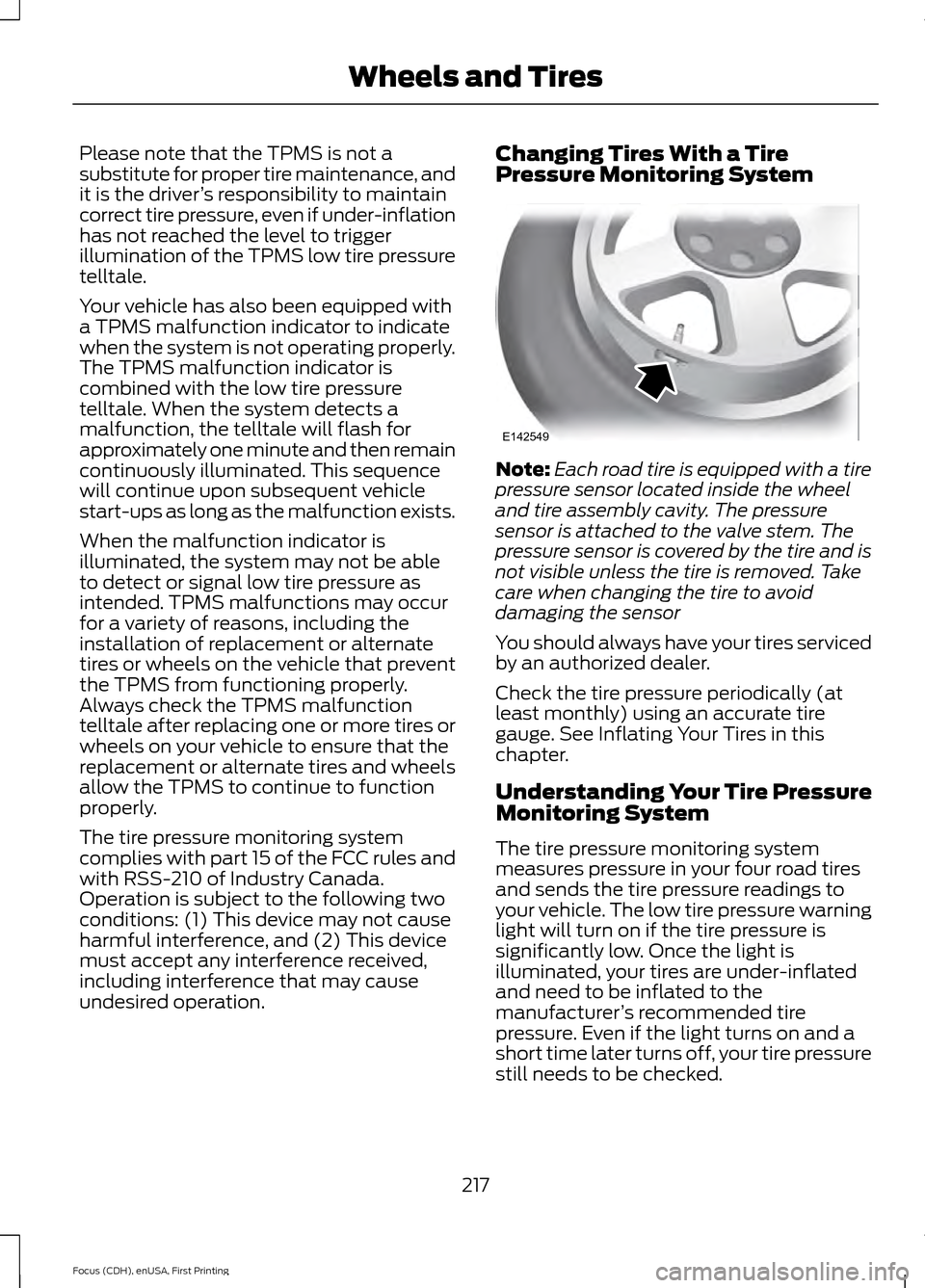
Note:
Each road tire is equipped with a tire
pressure sensor located inside the wheel
and tire assembly cavity. The pressure
sensor is attached to the valve stem. The
pressure sensor is covered by the tire and is
not visible unless the tire is removed. Take
care when changing the tire to avoid
damaging the sensor
You should always have your tires serviced
by an authorized dealer.
Check the tire pressure periodically (at
least monthly) using an accurate tire
gauge. See Inflating Your Tires in this
chapter.
Understanding Your Tire Pressure
Monitoring System
The tire pressure monitoring system
measures pressure in your four road tires
and sends the tire pressure readings to
your vehicle. The low tire pressure warning
light will turn on if the tire pressure is
significantly low. Once the light is
illuminated, your tires are under-inflated
and need to be inflated to the
manufacturer ’s recommended tire
pressure. Even if the light turns on and a
short time later turns off, your tire pressure
still needs to be checked.
217
Focus (CDH), enUSA, First Printing Wheels and TiresE142549
Page 221 of 369
When Your Temporary Spare Tire is
Installed
When one of your road tires needs to be
replaced with the temporary spare, the
system will continue to identify an issue to
remind you that the damaged road wheel
and tire assembly needs to be repaired and
put back on your vehicle.
To restore the full function of the tire
pressure monitoring system, have the
damaged road wheel and tire assembly
repaired and remounted on your vehicle.
When You Believe Your System is Not
Operating Properly
The main function of the tire pressure
monitoring system is to warn you when
your tires need air. It can also warn you in
the event the system is no longer capable
of functioning as intended. See the
following chart for information concerning
your tire pressure monitoring system:
218
Focus (CDH), enUSA, First Printing Wheels and Tires
Page 222 of 369
Customer action required
Possible cause
Low tire pressure
warning light
Make sure tires are at the proper pres-
sure. See Inflating your tires in this
chapter. After inflating your tires to the
manufacturer’s recommended pressure
as shown on the Tire Label (located on
the edge of driver ’s door or the B-Pillar),
the vehicle must be driven for at least
two minutes over 20 mph (32 km/h)
before the light turns off.
Tire(s) under-inflated
Solid warning light
Repair the damaged road wheel and tire
assembly and reinstall it on the vehicle
to restore system function. For a
description on how the system functions,
see When your temporary spare tire
is installed in this section.
Spare tire in use
If the tires are properly inflated and the
spare tire is not in use but the light
remains on, contact your authorized
dealer as soon as possible.
TPMS malfunction
Repair the damaged road wheel and tire
assembly and reinstall it on the vehicle
to restore system function. For a
description on how the system functions,
see
When your temporary spare tire
is installed in this section.
Spare tire in use
Flashing warning
light
If the tires are properly inflated and the
spare tire is not in use but the light
remains on, contact your authorized
dealer as soon as possible.
TPMS malfunction
When Inflating Your Tires
When putting air into your tires (such as at
a gas station or in your garage), the tire
pressure monitoring system may not
respond immediately to the air added to
your tires. It may take up to two minutes of driving
over 20 mph (32 km/h) for the light to turn
off after you have filled your tires to the
recommended inflation pressure
219
Focus (CDH), enUSA, First Printing Wheels and Tires
Page 223 of 369
How Temperature Affects Your Tire
Pressure
The tire pressure monitoring system
monitors tire pressure in each pneumatic
tire. While driving in a normal manner, a
typical passenger tire inflation pressure
may increase about 2 to 4 psi (14 to 28
kPa) from a cold start situation. If the
vehicle is stationary overnight with the
outside temperature significantly lower
than the daytime temperature, the tire
pressure may decrease about 3 psi (21
kPa) for a drop of 30°F (17°C) in ambient
temperature. This lower pressure value
may be detected by the tire pressure
monitoring system as being significantly
lower than the recommended inflation
pressure and activate the system warning
light for low tire pressure. If the low tire
pressure warning light is on, visually check
each tire to verify that no tire is flat. If one
or more tires are flat, repair as necessary.
Check the air pressure in the road tires. If
any tire is under-inflated, carefully drive
the vehicle to the nearest location where
air can be added to the tires. Inflate all the
tires to the recommended inflation
pressure.
CHANGING A ROAD WHEEL
Important Information for Lifting
or Jacking WARNING
If you do not follow the guidelines it
will result in extensive damage to the
high voltage battery.
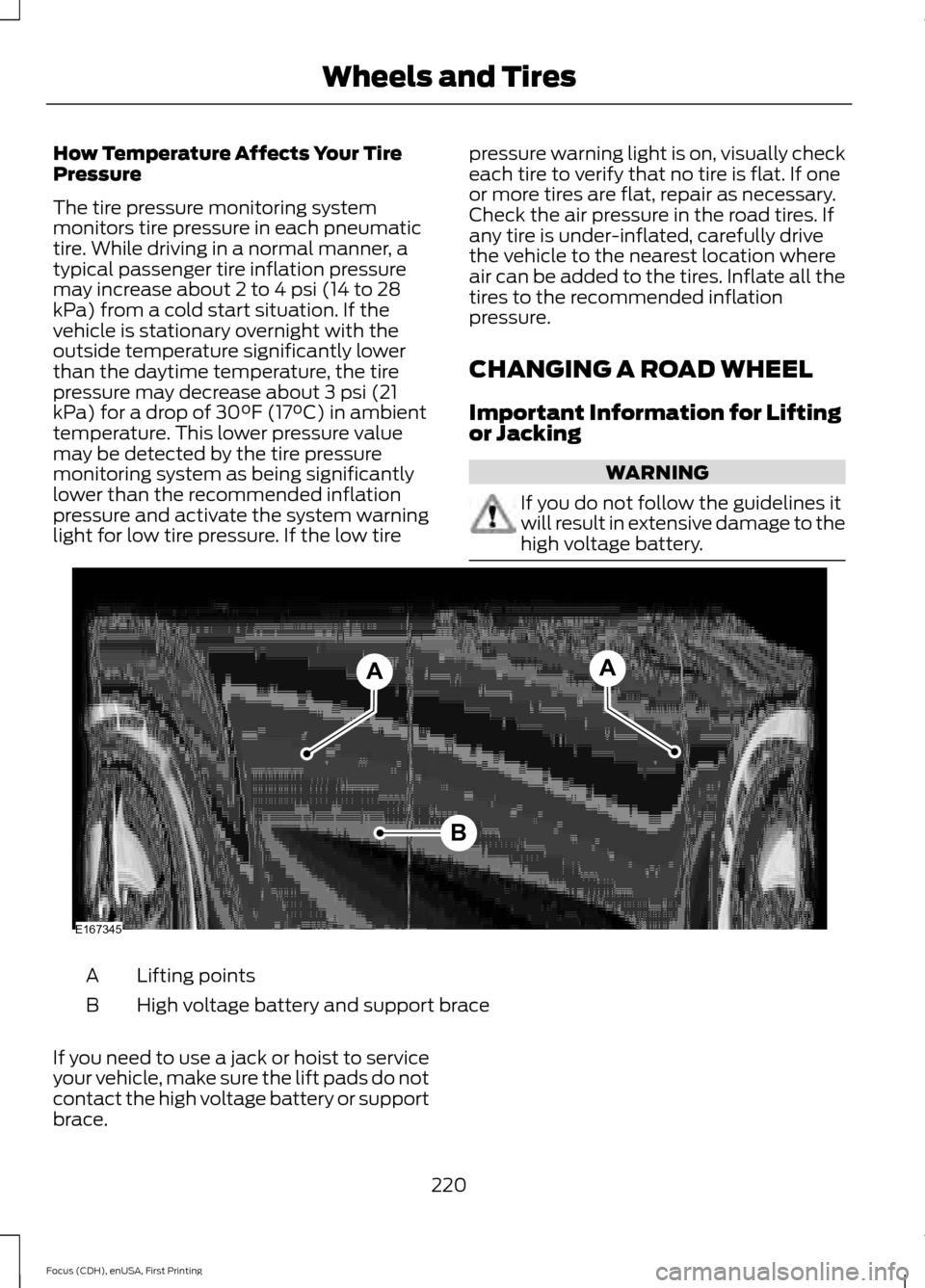
Lifting points
A
High voltage battery and support brace
B
If you need to use a jack or hoist to service
your vehicle, make sure the lift pads do not
contact the high voltage battery or support
brace.
220
Focus (CDH), enUSA, First Printing Wheels and TiresB
AA
E167345
Page 224 of 369
The high voltage battery and support brace
are very close to the rear lifting points.
These points are identifiable by a triangle
icon. Position the lift pads of the jack or
hoist at the specified lifting points. Lifting
your vehicle with the lift pads of the jack
or hoist on the high voltage battery or the
brace will damage the battery.
LUG NUTS
WARNING
When a wheel is installed, always
remove any corrosion, dirt or foreign
materials present on the mounting
surfaces of the wheel or the surface of the
wheel hub, brake drum or brake disc that
contacts the wheel. Make sure that any
fasteners that attach the rotor to the hub
are secured so they do not interfere with
the mounting surfaces of the wheel.
Installing wheels without correct
metal-to-metal contact at the wheel
mounting surfaces can cause the wheel
nuts to loosen and the wheel to come off
while the vehicle is in motion, resulting in
loss of control. Retighten the lug nuts to the specified
torque within 100 mi (160 km) after any
wheel disturbance (such as tire rotation,
changing a flat tire, wheel removal). Wheel lug nut
torque*
Bolt size
100 lb.ft (135 Nm)
M12 x 1.5
*Torque specifications are for nut and bolt
threads free of dirt and rust. Use only Ford
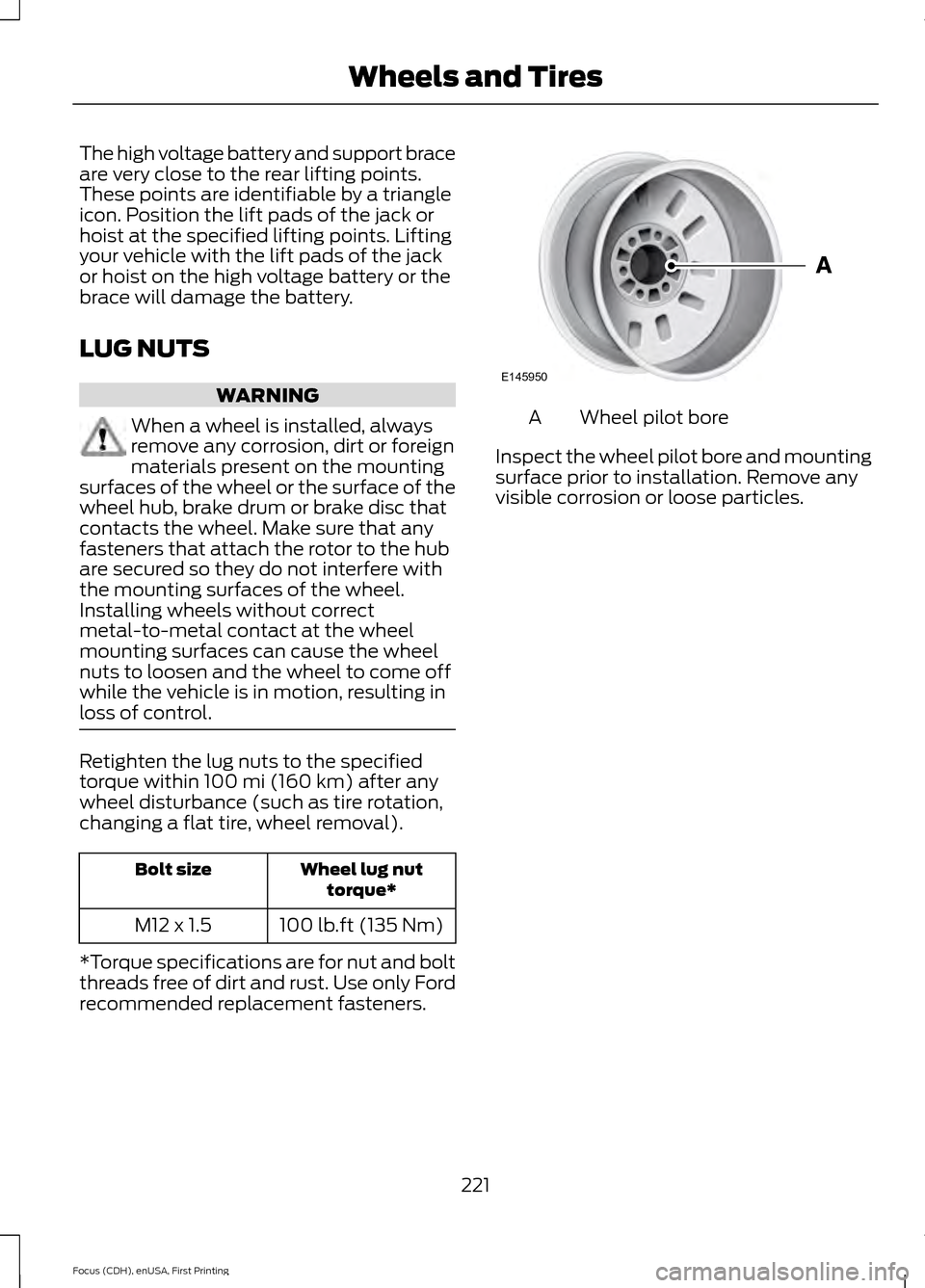
recommended replacement fasteners. Wheel pilot bore
A
Inspect the wheel pilot bore and mounting
surface prior to installation. Remove any
visible corrosion or loose particles.
221
Focus (CDH), enUSA, First Printing Wheels and TiresE145950
Page 237 of 369
Action and Description
Message
Press this button to switch the display screen off. Press again,
or touch the screen to switch the display screen on.
Display
Touch the control repeatedly to switch between media
modes.
Source
Adjust the settings for:
Sound
•Bass
• Treble
• Midrange
• Balance
• Fade
• DSP (Digital Signal Processing)
• Occupancy Mode
• Speed Compensated Volume.
Using the Steering Wheel Controls
Depending on your vehicle, it may also have the following controls: Action and Description
Control
Adjust the volume of playing media.
VOL
Press to start a voice session. Press again to interrupt a voice
prompt and begin speaking. Press and hold to end an active
voice session.
Voice
Use as you normally would in media and phone modes.
Seek and Call Accept
Use as you normally would in media and phone modes.
Seek and Call Reject
Using the Touchscreen
• Make sure your hands are clean and
dry.
• Press firmly on the center of a control
graphic or menu item.
• Keep metal objects or other conductive
material away from the surface of the
touchscreen. Cleaning the Touchscreen Display
Use a clean, soft cloth such as one used
for cleaning glasses. If dirt or fingerprints
are still visible, apply a small amount of
alcohol to the cloth. Do not pour or spray
alcohol onto the display. Do not use
detergent or any type of solvent to clean
the display.
234
Focus (CDH), enUSA, First Printing MyFord Touch
™
Page 240 of 369
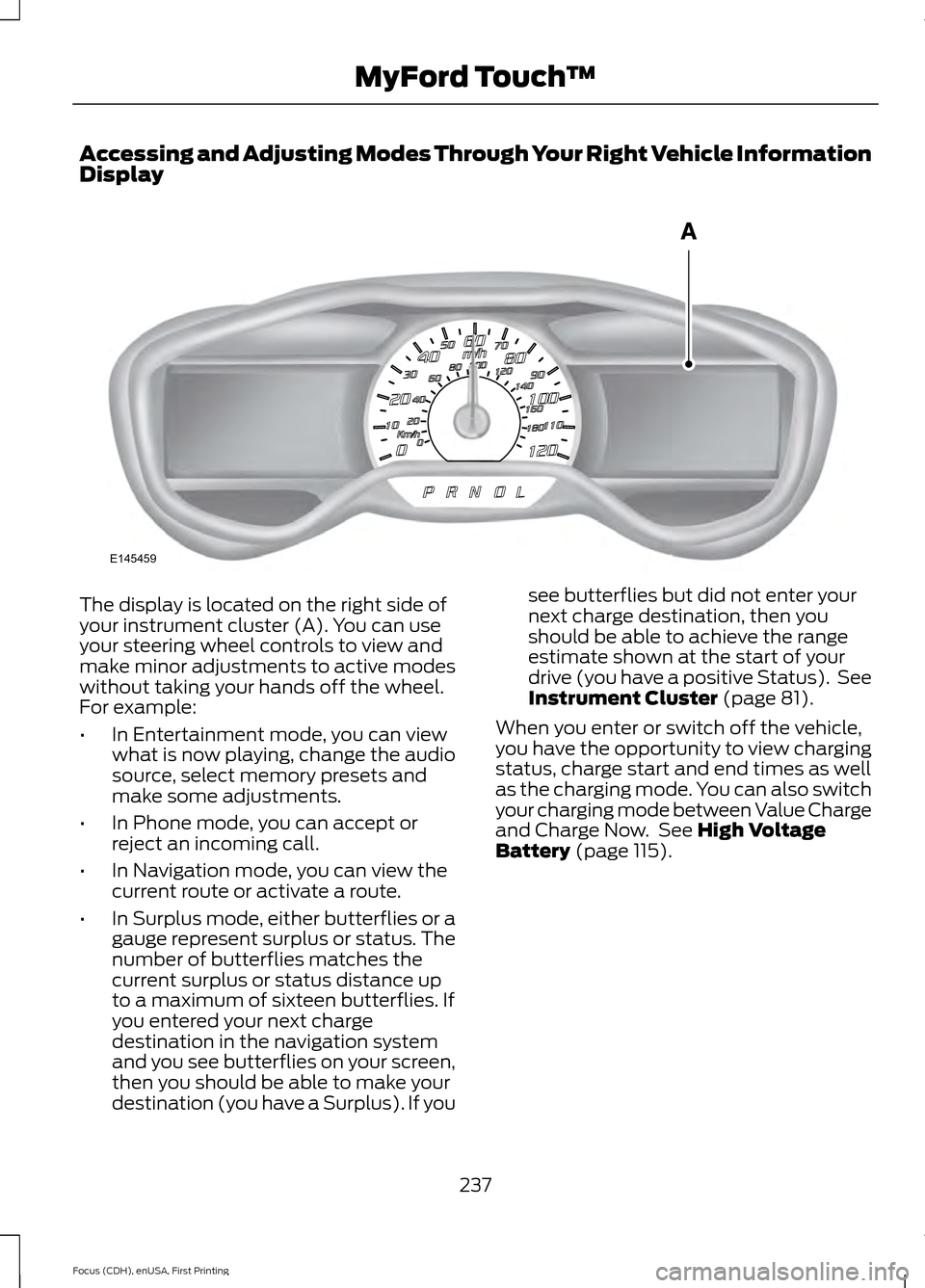
Accessing and Adjusting Modes Through Your Right Vehicle Information
Display
The display is located on the right side of
your instrument cluster (A). You can use
your steering wheel controls to view and
make minor adjustments to active modes
without taking your hands off the wheel.
For example:
•
In Entertainment mode, you can view
what is now playing, change the audio
source, select memory presets and
make some adjustments.
• In Phone mode, you can accept or
reject an incoming call.
• In Navigation mode, you can view the
current route or activate a route.
• In Surplus mode, either butterflies or a
gauge represent surplus or status. The
number of butterflies matches the
current surplus or status distance up
to a maximum of sixteen butterflies. If
you entered your next charge
destination in the navigation system
and you see butterflies on your screen,
then you should be able to make your
destination (you have a Surplus). If you see butterflies but did not enter your
next charge destination, then you
should be able to achieve the range
estimate shown at the start of your
drive (you have a positive Status). See
Instrument Cluster (page 81).
When you enter or switch off the vehicle,
you have the opportunity to view charging
status, charge start and end times as well
as the charging mode. You can also switch
your charging mode between Value Charge
and Charge Now. See
High Voltage
Battery (page 115).
237
Focus (CDH), enUSA, First Printing MyFord Touch
™E145459
Page 241 of 369
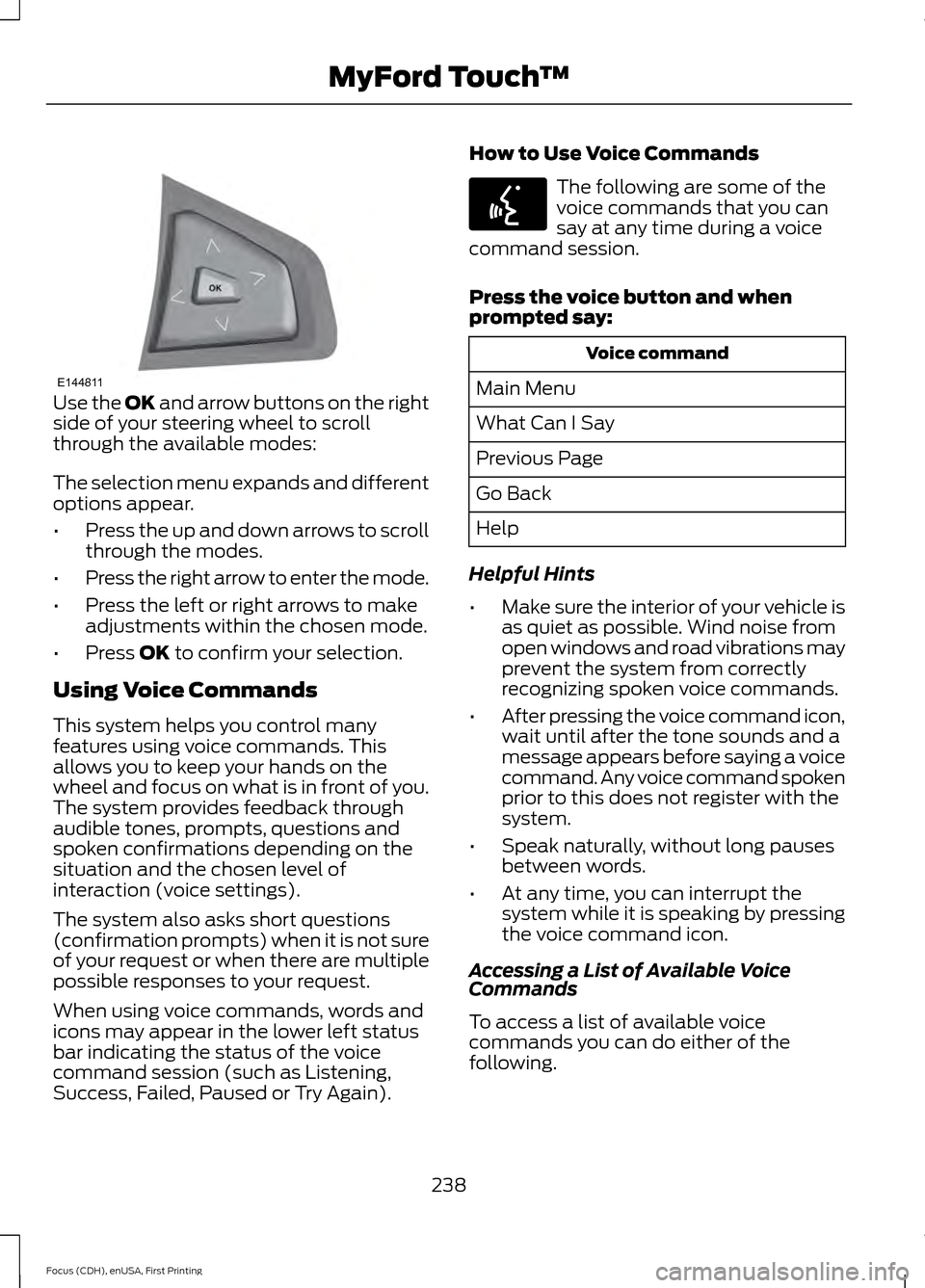
Use the OK and arrow buttons on the right
side of your steering wheel to scroll
through the available modes:
The selection menu expands and different
options appear.
• Press the up and down arrows to scroll
through the modes.
• Press the right arrow to enter the mode.
• Press the left or right arrows to make
adjustments within the chosen mode.
• Press
OK to confirm your selection.
Using Voice Commands
This system helps you control many
features using voice commands. This
allows you to keep your hands on the
wheel and focus on what is in front of you.
The system provides feedback through
audible tones, prompts, questions and
spoken confirmations depending on the
situation and the chosen level of
interaction (voice settings).
The system also asks short questions
(confirmation prompts) when it is not sure
of your request or when there are multiple
possible responses to your request.
When using voice commands, words and
icons may appear in the lower left status
bar indicating the status of the voice
command session (such as Listening,
Success, Failed, Paused or Try Again). How to Use Voice Commands The following are some of the
voice commands that you can
say at any time during a voice
command session.
Press the voice button and when
prompted say: Voice command
Main Menu
What Can I Say
Previous Page
Go Back
Help
Helpful Hints
• Make sure the interior of your vehicle is
as quiet as possible. Wind noise from
open windows and road vibrations may
prevent the system from correctly
recognizing spoken voice commands.
• After pressing the voice command icon,
wait until after the tone sounds and a
message appears before saying a voice
command. Any voice command spoken
prior to this does not register with the
system.
• Speak naturally, without long pauses
between words.
• At any time, you can interrupt the
system while it is speaking by pressing
the voice command icon.
Accessing a List of Available Voice
Commands
To access a list of available voice
commands you can do either of the
following.
238
Focus (CDH), enUSA, First Printing MyFord Touch
™E144811 E142599
Page 242 of 369
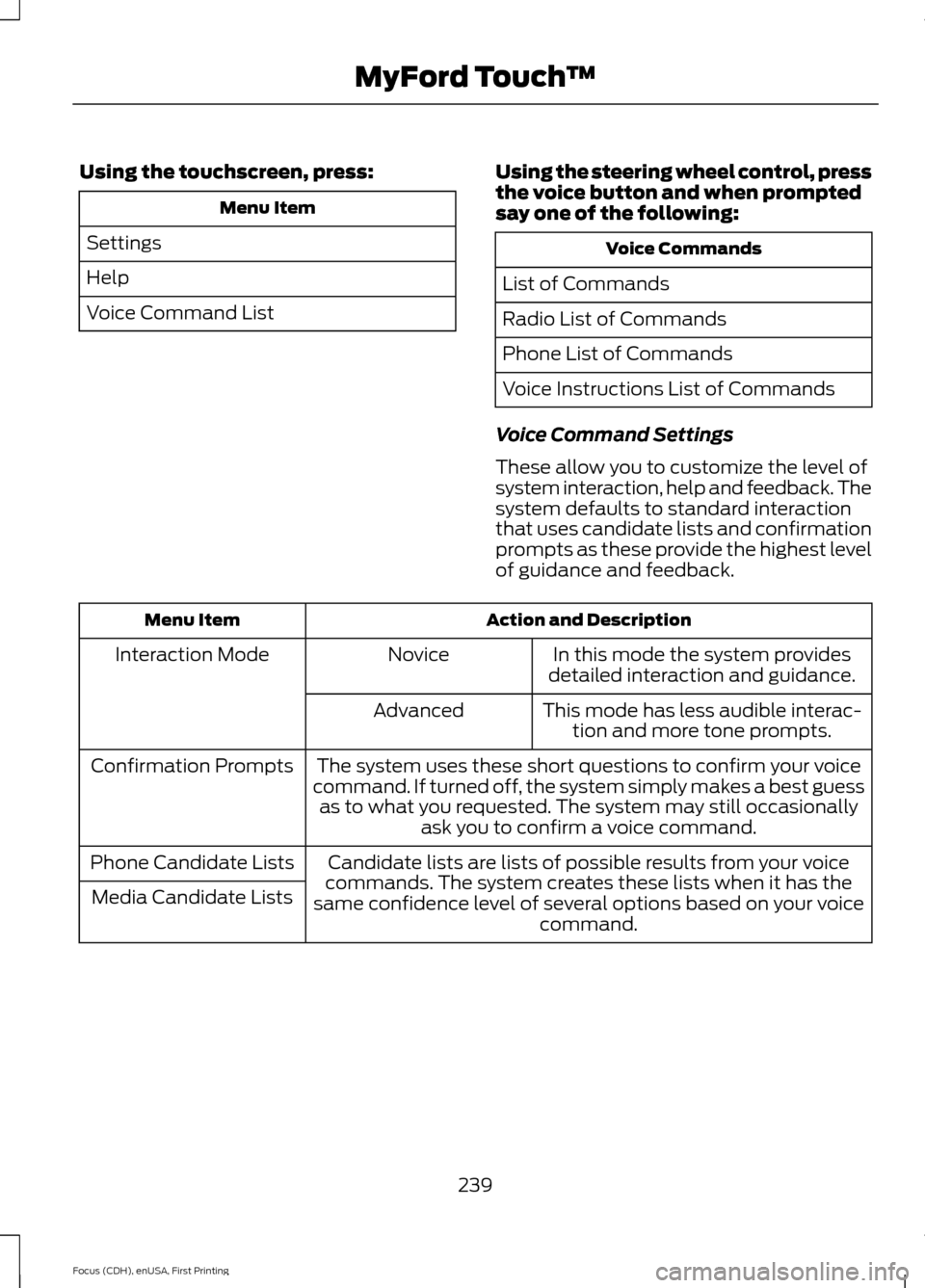
Using the touchscreen, press:
Menu Item
Settings
Help
Voice Command List Using the steering wheel control, press
the voice button and when prompted
say one of the following: Voice Commands
List of Commands
Radio List of Commands
Phone List of Commands
Voice Instructions List of Commands
Voice Command Settings
These allow you to customize the level of
system interaction, help and feedback. The
system defaults to standard interaction
that uses candidate lists and confirmation
prompts as these provide the highest level
of guidance and feedback. Action and Description
Menu Item
In this mode the system provides
detailed interaction and guidance.
Novice
Interaction Mode
This mode has less audible interac-tion and more tone prompts.
Advanced
The system uses these short questions to confirm your voice
command. If turned off, the system simply makes a best guess as to what you requested. The system may still occasionally ask you to confirm a voice command.
Confirmation Prompts
Candidate lists are lists of possible results from your voice
commands. The system creates these lists when it has the
same confidence level of several options based on your voice command.
Phone Candidate Lists
Media Candidate Lists
239
Focus (CDH), enUSA, First Printing MyFord Touch
™
Page 244 of 369
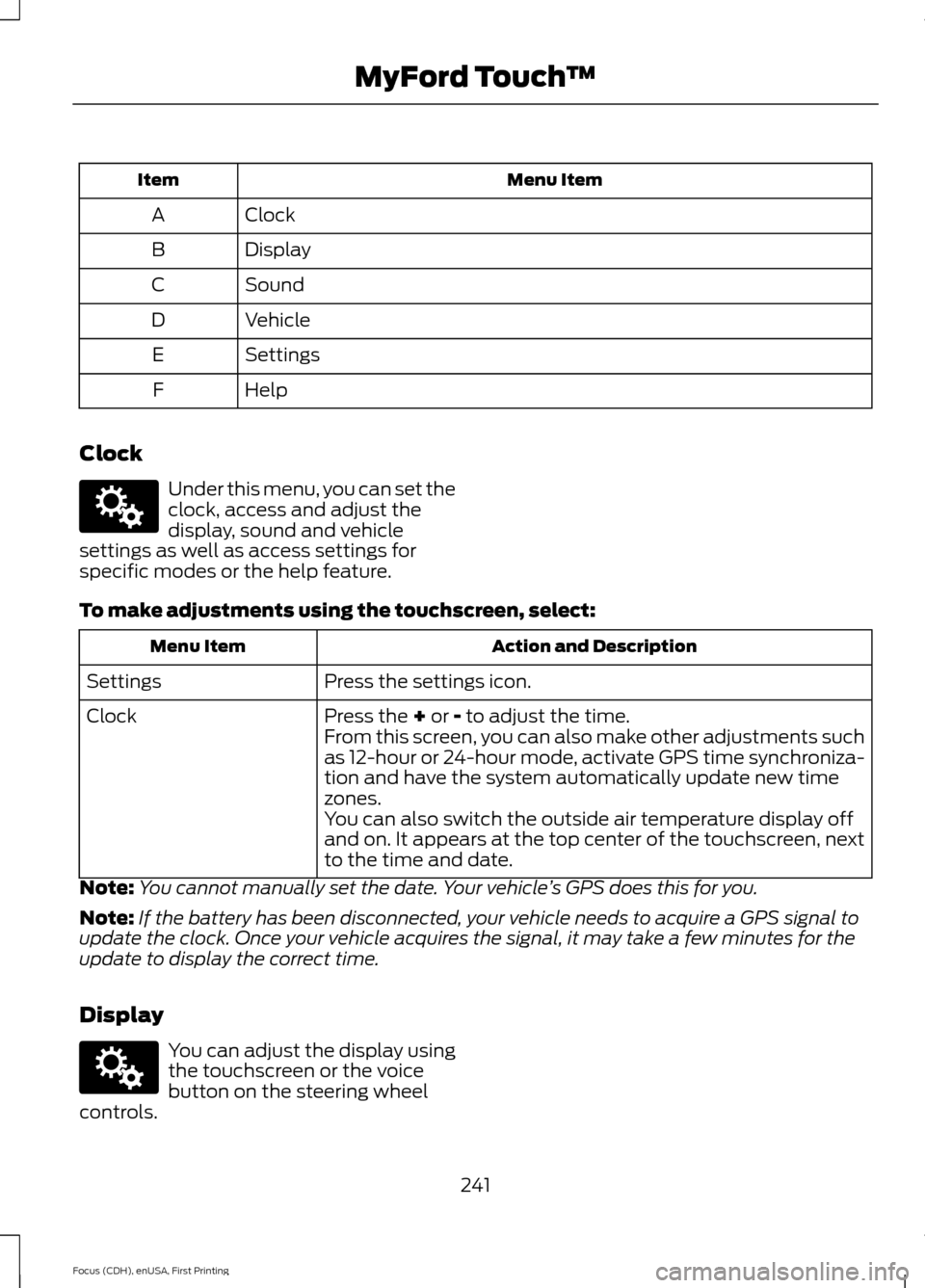
Menu Item
Item
Clock
A
Display
B
Sound
C
Vehicle
D
Settings
E
Help
F
Clock Under this menu, you can set the
clock, access and adjust the
display, sound and vehicle
settings as well as access settings for
specific modes or the help feature.
To make adjustments using the touchscreen, select: Action and Description
Menu Item
Press the settings icon.
Settings
Press the + or - to adjust the time.
Clock
From this screen, you can also make other adjustments such
as 12-hour or 24-hour mode, activate GPS time synchroniza-
tion and have the system automatically update new time
zones.
You can also switch the outside air temperature display off
and on. It appears at the top center of the touchscreen, next
to the time and date.
Note: You cannot manually set the date. Your vehicle ’s GPS does this for you.
Note: If the battery has been disconnected, your vehicle needs to acquire a GPS signal to
update the clock. Once your vehicle acquires the signal, it may take a few minutes for the
update to display the correct time.
Display You can adjust the display using
the touchscreen or the voice
button on the steering wheel
controls.
241
Focus (CDH), enUSA, First Printing MyFord Touch
™E142607 E142607