buttons FORD FOCUS ELECTRIC 2018 User Guide
[x] Cancel search | Manufacturer: FORD, Model Year: 2018, Model line: FOCUS ELECTRIC, Model: FORD FOCUS ELECTRIC 2018Pages: 375, PDF Size: 12.81 MB
Page 179 of 375
CHANGING THE FRONT WIPER
BLADES
Note:
If streaks or smears appear on the
windshield, clean the windshield and the
wiper blades. If that does not resolve the
issue, install new wiper blades.
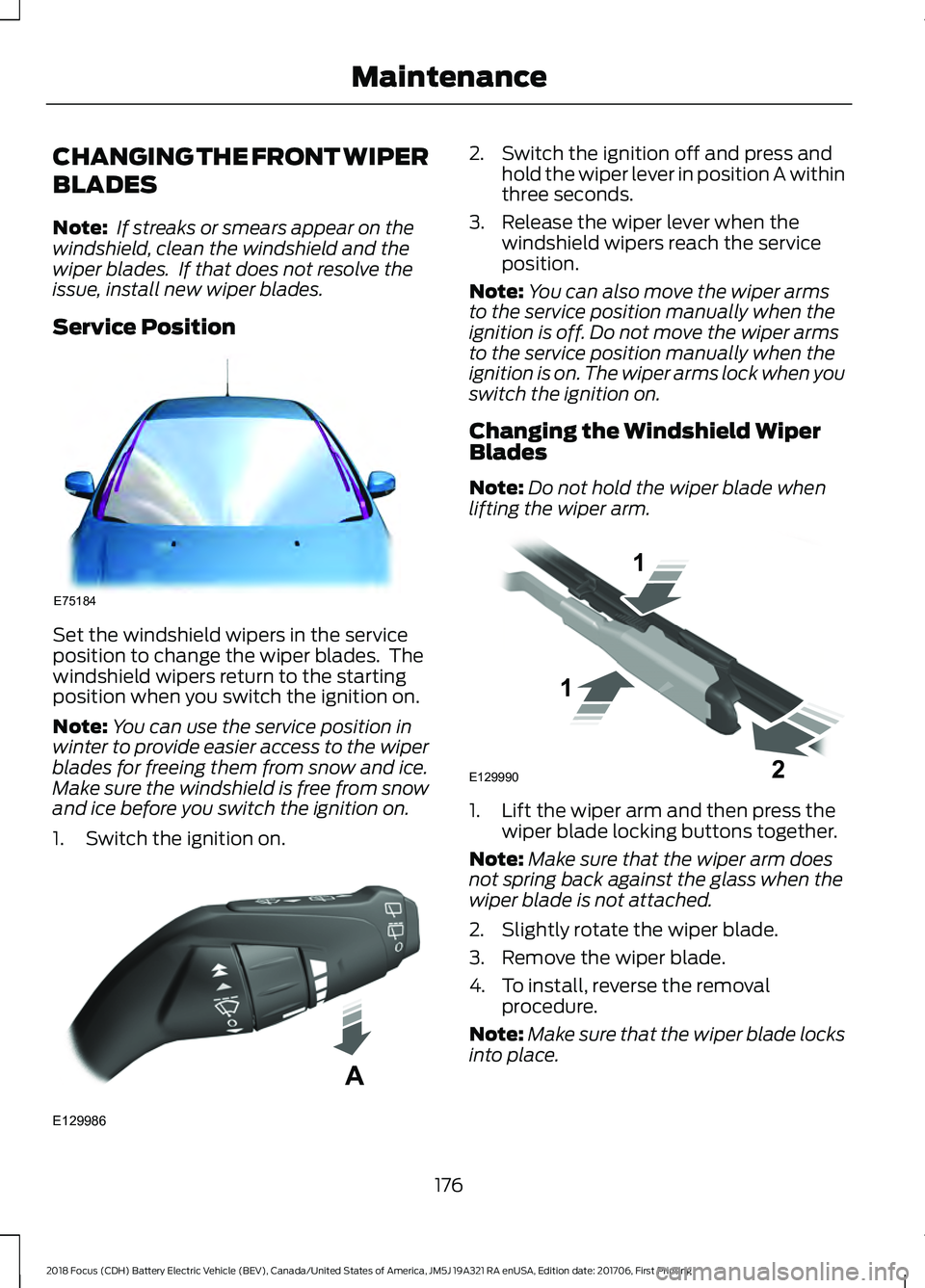
Service Position Set the windshield wipers in the service
position to change the wiper blades. The
windshield wipers return to the starting
position when you switch the ignition on.
Note:
You can use the service position in
winter to provide easier access to the wiper
blades for freeing them from snow and ice.
Make sure the windshield is free from snow
and ice before you switch the ignition on.
1. Switch the ignition on. 2. Switch the ignition off and press and
hold the wiper lever in position A within
three seconds.
3. Release the wiper lever when the windshield wipers reach the service
position.
Note: You can also move the wiper arms
to the service position manually when the
ignition is off. Do not move the wiper arms
to the service position manually when the
ignition is on. The wiper arms lock when you
switch the ignition on.
Changing the Windshield Wiper
Blades
Note: Do not hold the wiper blade when
lifting the wiper arm. 1. Lift the wiper arm and then press the
wiper blade locking buttons together.
Note: Make sure that the wiper arm does
not spring back against the glass when the
wiper blade is not attached.
2. Slightly rotate the wiper blade.
3. Remove the wiper blade.
4. To install, reverse the removal procedure.
Note: Make sure that the wiper blade locks
into place.
176
2018 Focus (CDH) Battery Electric Vehicle (BEV), Canada/United States of America, JM5J 19A321 RA enUSA, Edition date: 201706, First Printing MaintenanceE75184 E129986
A E129990
1
1 2
Page 231 of 375
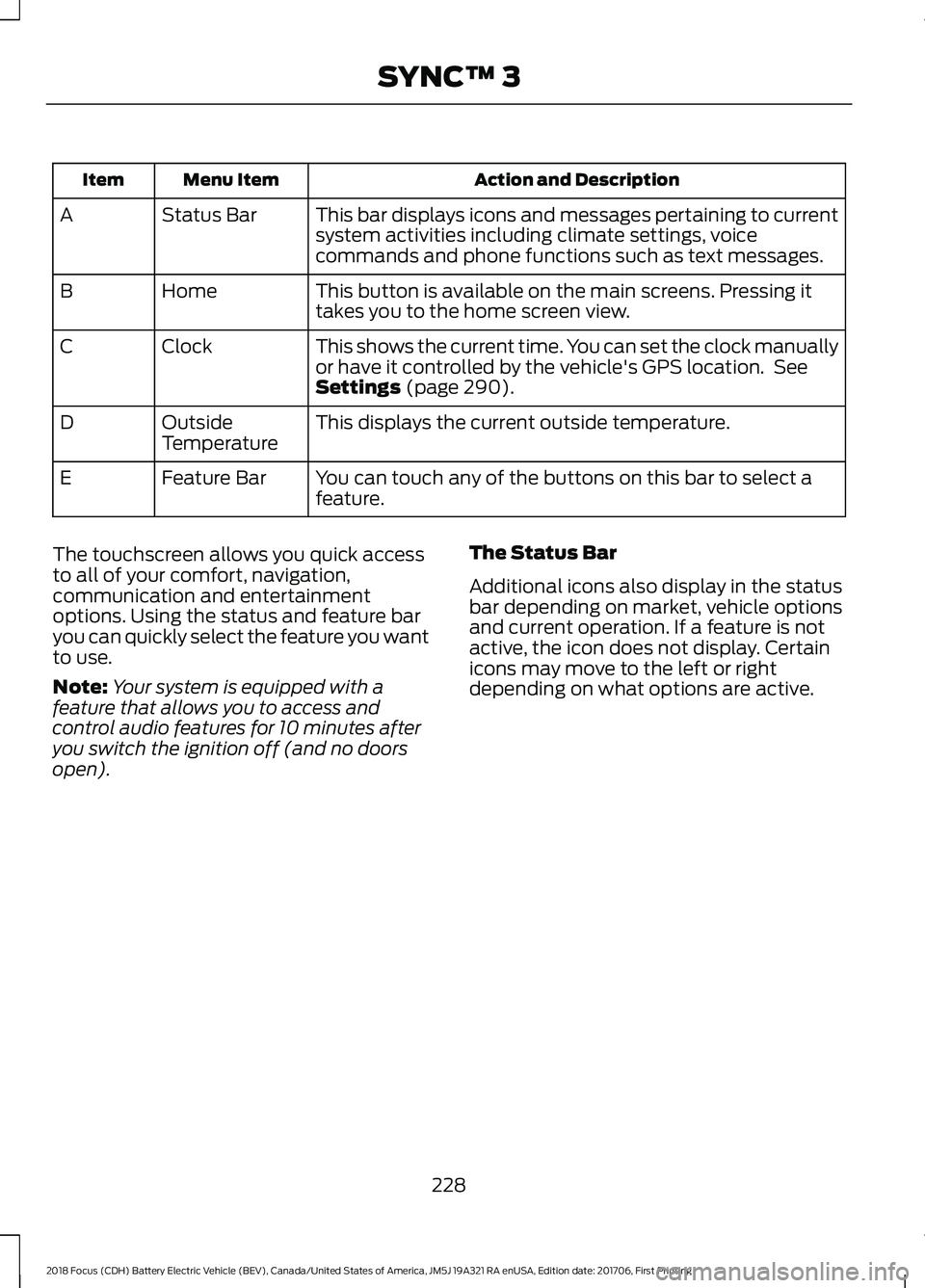
Action and Description
Menu Item
Item
This bar displays icons and messages pertaining to current
system activities including climate settings, voice
commands and phone functions such as text messages.
Status Bar
A
This button is available on the main screens. Pressing it
takes you to the home screen view.
Home
B
This shows the current time. You can set the clock manually
or have it controlled by the vehicle's GPS location. See
Settings (page 290).
Clock
C
This displays the current outside temperature.
Outside
Temperature
D
You can touch any of the buttons on this bar to select a
feature.
Feature Bar
E
The touchscreen allows you quick access
to all of your comfort, navigation,
communication and entertainment
options. Using the status and feature bar
you can quickly select the feature you want
to use.
Note: Your system is equipped with a
feature that allows you to access and
control audio features for 10 minutes after
you switch the ignition off (and no doors
open). The Status Bar
Additional icons also display in the status
bar depending on market, vehicle options
and current operation. If a feature is not
active, the icon does not display. Certain
icons may move to the left or right
depending on what options are active.
228
2018 Focus (CDH) Battery Electric Vehicle (BEV), Canada/United States of America, JM5J 19A321 RA enUSA, Edition date: 201706, First Printing SYNC™ 3
Page 235 of 375
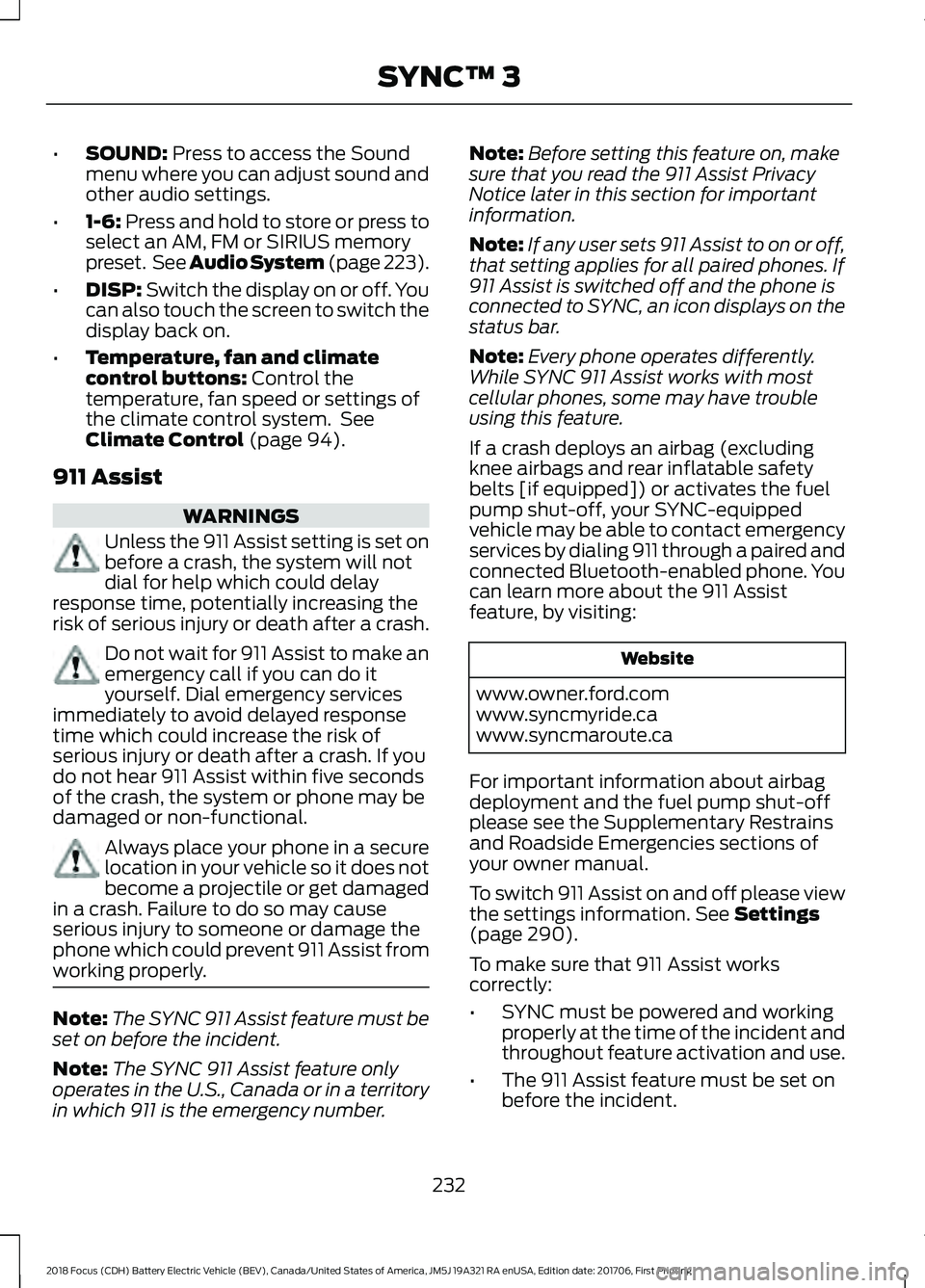
•
SOUND: Press to access the Sound
menu where you can adjust sound and
other audio settings.
• 1-6:
Press and hold to store or press to
select an AM, FM or SIRIUS memory
preset. See Audio System (page 223).
• DISP:
Switch the display on or off. You
can also touch the screen to switch the
display back on.
• Temperature, fan and climate
control buttons:
Control the
temperature, fan speed or settings of
the climate control system. See
Climate Control
(page 94).
911 Assist WARNINGS
Unless the 911 Assist setting is set on
before a crash, the system will not
dial for help which could delay
response time, potentially increasing the
risk of serious injury or death after a crash. Do not wait for 911 Assist to make an
emergency call if you can do it
yourself. Dial emergency services
immediately to avoid delayed response
time which could increase the risk of
serious injury or death after a crash. If you
do not hear 911 Assist within five seconds
of the crash, the system or phone may be
damaged or non-functional. Always place your phone in a secure
location in your vehicle so it does not
become a projectile or get damaged
in a crash. Failure to do so may cause
serious injury to someone or damage the
phone which could prevent 911 Assist from
working properly. Note:
The SYNC 911 Assist feature must be
set on before the incident.
Note: The SYNC 911 Assist feature only
operates in the U.S., Canada or in a territory
in which 911 is the emergency number. Note:
Before setting this feature on, make
sure that you read the 911 Assist Privacy
Notice later in this section for important
information.
Note: If any user sets 911 Assist to on or off,
that setting applies for all paired phones. If
911 Assist is switched off and the phone is
connected to SYNC, an icon displays on the
status bar.
Note: Every phone operates differently.
While SYNC 911 Assist works with most
cellular phones, some may have trouble
using this feature.
If a crash deploys an airbag (excluding
knee airbags and rear inflatable safety
belts [if equipped]) or activates the fuel
pump shut-off, your SYNC-equipped
vehicle may be able to contact emergency
services by dialing 911 through a paired and
connected Bluetooth-enabled phone. You
can learn more about the 911 Assist
feature, by visiting: Website
www.owner.ford.com
www.syncmyride.ca
www.syncmaroute.ca
For important information about airbag
deployment and the fuel pump shut-off
please see the Supplementary Restrains
and Roadside Emergencies sections of
your owner manual.
To switch 911 Assist on and off please view
the settings information.
See Settings
(page 290).
To make sure that 911 Assist works
correctly:
• SYNC must be powered and working
properly at the time of the incident and
throughout feature activation and use.
• The 911 Assist feature must be set on
before the incident.
232
2018 Focus (CDH) Battery Electric Vehicle (BEV), Canada/United States of America, JM5J 19A321 RA enUSA, Edition date: 201706, First Printing SYNC™ 3
Page 248 of 375
Note:
Depending on the current climate
control settings, the fan speed may
automatically go down while issuing voice
commands or while making and receiving
phone calls via SYNC to reduce the amount
of background noise in the vehicle. The fan
speed will automatically return to normal
operation once the voice session ends. Fan
speed can also be adjusted normally during
a voice session, simply press fan buttons (or
turn fan knob) to increase or decrease fan
speed to desired setting. To disable this automatic fan speed
reduction feature during voice sessions,
press and hold the climate control AC and
Recirculated air buttons simultaneously,
release and then increase fan speed within
2 seconds. To re-enable this feature, repeat
the above sequence.
ENTERTAINMENT 245
2018 Focus (CDH) Battery Electric Vehicle (BEV), Canada/United States of America, JM5J 19A321 RA enUSA, Edition date: 201706, First Printing SYNC™ 3E207617D
Page 249 of 375
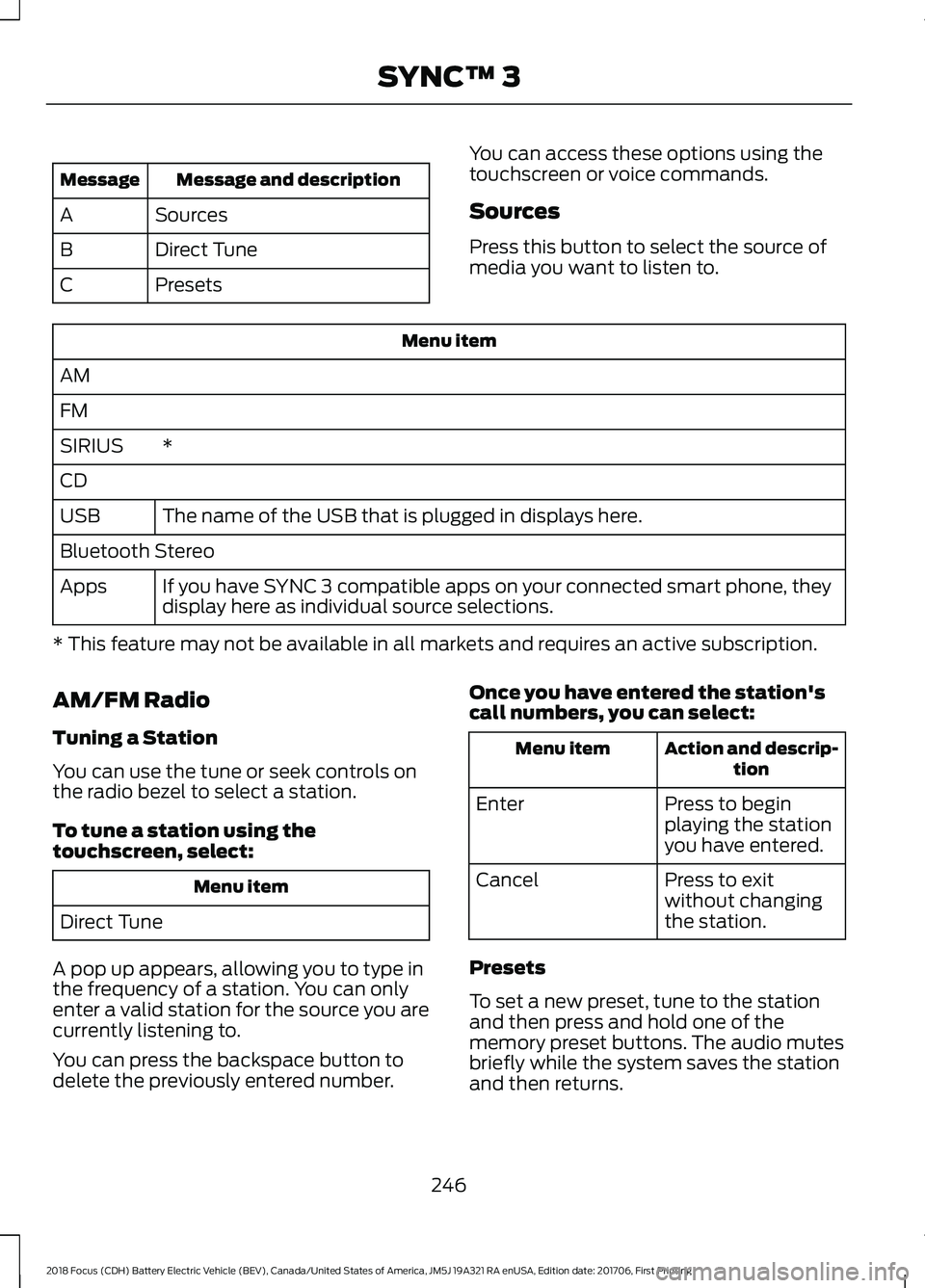
Message and description
Message
Sources
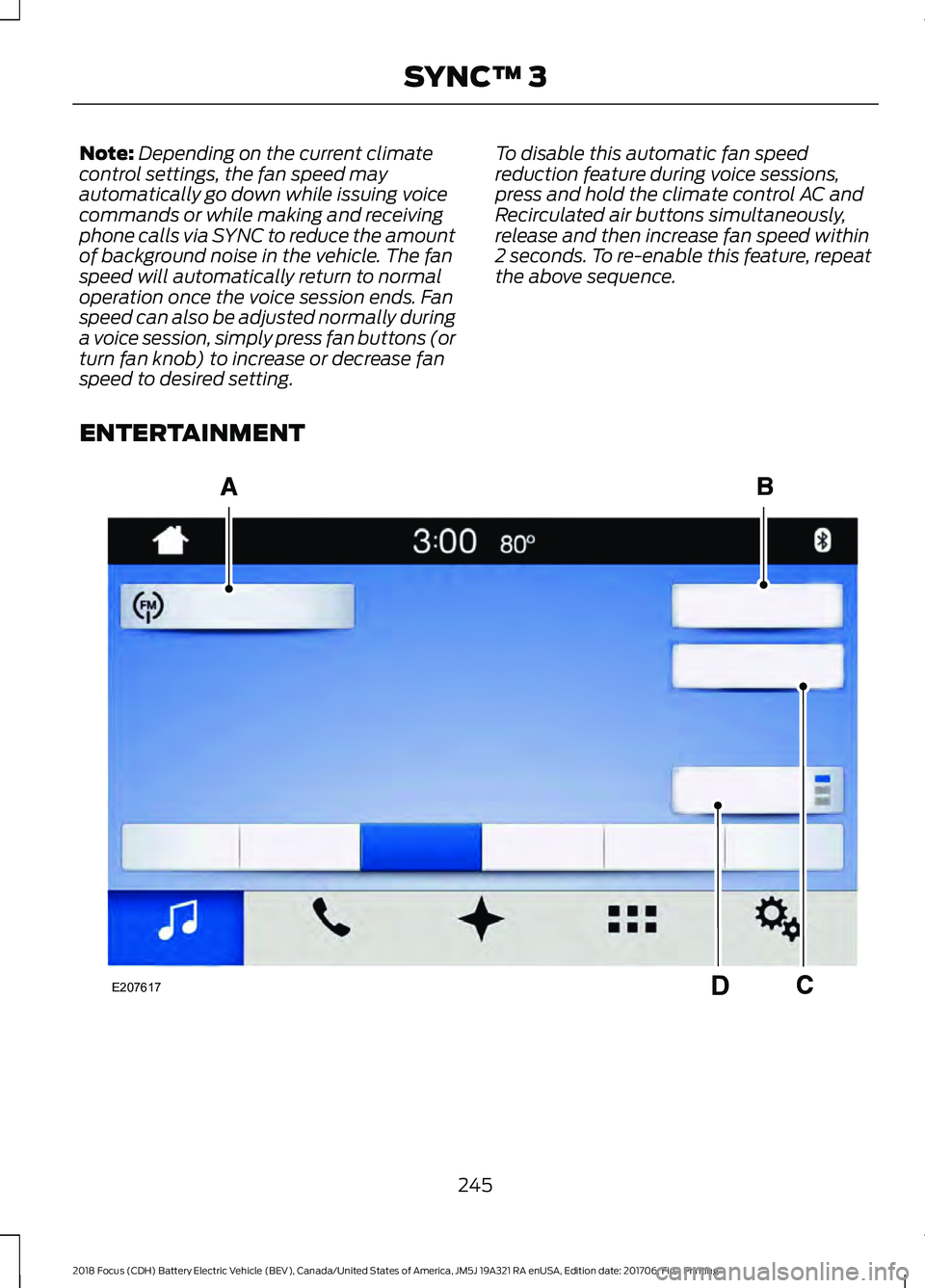
A
Direct Tune
B
Presets
C You can access these options using the
touchscreen or voice commands.
Sources
Press this button to select the source of
media you want to listen to.Menu item
AM
FM *
SIRIUS
CD
The name of the USB that is plugged in displays here.
USB
Bluetooth Stereo
If you have SYNC 3 compatible apps on your connected smart phone, they
display here as individual source selections.
Apps
* This feature may not be available in all markets and requires an active subscription.
AM/FM Radio
Tuning a Station
You can use the tune or seek controls on
the radio bezel to select a station.
To tune a station using the
touchscreen, select: Menu item
Direct Tune
A pop up appears, allowing you to type in
the frequency of a station. You can only
enter a valid station for the source you are
currently listening to.
You can press the backspace button to
delete the previously entered number. Once you have entered the station's
call numbers, you can select: Action and descrip-
tion
Menu item
Press to begin
playing the station
you have entered.
Enter
Press to exit
without changing
the station.
Cancel
Presets
To set a new preset, tune to the station
and then press and hold one of the
memory preset buttons. The audio mutes
briefly while the system saves the station
and then returns.
246
2018 Focus (CDH) Battery Electric Vehicle (BEV), Canada/United States of America, JM5J 19A321 RA enUSA, Edition date: 201706, First Printing SYNC™ 3
Page 250 of 375
There are two preset banks available for
AM and three banks for FM. To access
additional presets, tap the preset button.
The indicator on the preset button shows
which bank of presets you are currently
viewing.
SiriusXM® Satellite Radio (If
Activated)
Note:
This feature may not be available in
all markets and requires an active
subscription. SiriusXM satellite radio is a
subscription-based satellite radio service
that broadcasts a variety of music, sports,
news, weather, traffic and entertainment
programming. Your factory-installed
SiriusXM satellite radio system includes
hardware and a limited subscription term
that begins on the date of sale or lease of
your vehicle. See an authorized dealer for
availability.
For more information on extended
subscription terms (a service fee is
required), the online media player and a
list of SiriusXM satellite radio channels,
and other features, please visit
www.siriusxm.com in the United States,
www.siriusxm.ca in Canada, or call
SiriusXM at 1-888-539-7474.
Note:
SiriusXM reserves the unrestricted
right to change, rearrange, add or delete
programming. This includes canceling,
moving or adding particular channels, and
its prices, at any time, with or without notice
to you. Ford Motor Company shall not be
responsible for any such programming
changes.
Note: This receiver includes the eCos
real-time operating system. eCos is
published under the eCos License.
The following buttons are available for SiriusXM: Action and description
Menu item
Touch this button to see a list of available stations.
Browse
A pop-up appears, allowing you to type in the call numbers of
a station.
Direct Tune
Once you enter the stations call numbers, you can select:The system tunes to the station you select.
Enter
You exit the pop-up and the current station
continues to play.
Cancel
You can press the backspace button to delete the previous
number.
247
2018 Focus (CDH) Battery Electric Vehicle (BEV), Canada/United States of America, JM5J 19A321 RA enUSA, Edition date: 201706, First Printing SYNC™ 3E234451
Page 251 of 375
Action and description
Menu item
Replay audio on the current channel. You can replay approx-
imately 45 minutes of audio as long as you remain tuned to
the current station. Changing stations erases the previous
audio.
Replay
When you are in replay mode, you are not
able to select a different preset until you
return to live audio. Pressing this button
returns you to the live broadcast.
Live
Save the current song, artist, or team as a favorite. The system
alerts you when it plays again on any channel.
ALERT
Selecting this button allows you to enable and edit alerts. See
Settings (page 290).
Memory Presets
To set a preset, tune to the station then
press and hold one of the memory preset
buttons. The audio mutes briefly while the
system saves the station and returns once
the station is stored. There are three preset banks available for
SiriusXM. To access additional presets, tap
the preset button. The indicator on the
preset button shows which bank of presets
you are currently viewing.
Satellite Radio Electronic Serial
Number (ESN)
You need your ESN to activate, modify or
track your satellite radio account. See
Settings
(page 290).
SiriusXM Satellite Radio Reception Factors and Troubleshooting Potential reception issues
For optimal reception performance, keep the antenna clear
of snow and ice build-up and keep luggage and other
materials as far away from the antenna as possible.
Antenna obstructions
Hills, mountains, tall buildings, bridges, tunnels, freeway
overpasses, parking garages, dense tree foliage and thunder-
storms can interfere with your reception.
Terrain
When you pass a ground-based broadcast-repeating tower,
a stronger signal may overtake a weaker one and the audio
system may mute.
Station overload
Your display may show ACQUIRING... to indicate the interfer-
ence and the audio system may mute.
Satellite radio signal
interference
248
2018 Focus (CDH) Battery Electric Vehicle (BEV), Canada/United States of America, JM5J 19A321 RA enUSA, Edition date: 201706, First Printing SYNC™ 3
Page 255 of 375
Potential station issues
Action
Cause
Issues
No action required. The station
is not available in your current
location.
The previously stored multicast
preset or direct tune is not
available in your current recep-
tion area.
Cannot access HD2 or
HD3 multicast channel
when recalling a preset
or from a direct tune.
Fill out the station issue form.
*
Data service issue by the radio
broadcaster.
Text information does
not match currently
playing audio.
Fill out the station issue form.
*
Data service issue by the radio
broadcaster.
There is no text
information shown for
currently selected
frequency.
HD Radio Technology manufactured under
license from DTS Inc. U.S. and foreign
patents. HD Radio and the HD and HD
Radio logos are proprietary trademarks of
DTS Inc. Ford Motor Company and DTS
Inc. are not responsible for the content sent
using HD Radio technology. Content may
be changed, added or deleted at any time
at the station owner's discretion.
* You can find the form here: Website
http://hdradio.com/stations/feedback
CD
Once you select this option, the system
returns you to the main audio screen.
The current audio information appears on
the screen.
The following buttons are also available: Function
Button
You can use the browse button to select a track.
Browse
Select this button and a small number one displays to indicate
the track is set to repeat.
Repeat
For MP3 CDs, this button allows you to toggle through repeat
off, repeat one track (a small number one displays), and repeat
current folder (a small folder displays).
Select the shuffle symbol to have the audio on the disk play
in random order.
Shuffle
You can use the forward, reverse, pause or
play buttons to control the audio playback.
252
2018 Focus (CDH) Battery Electric Vehicle (BEV), Canada/United States of America, JM5J 19A321 RA enUSA, Edition date: 201706, First Printing SYNC™ 3
Page 256 of 375
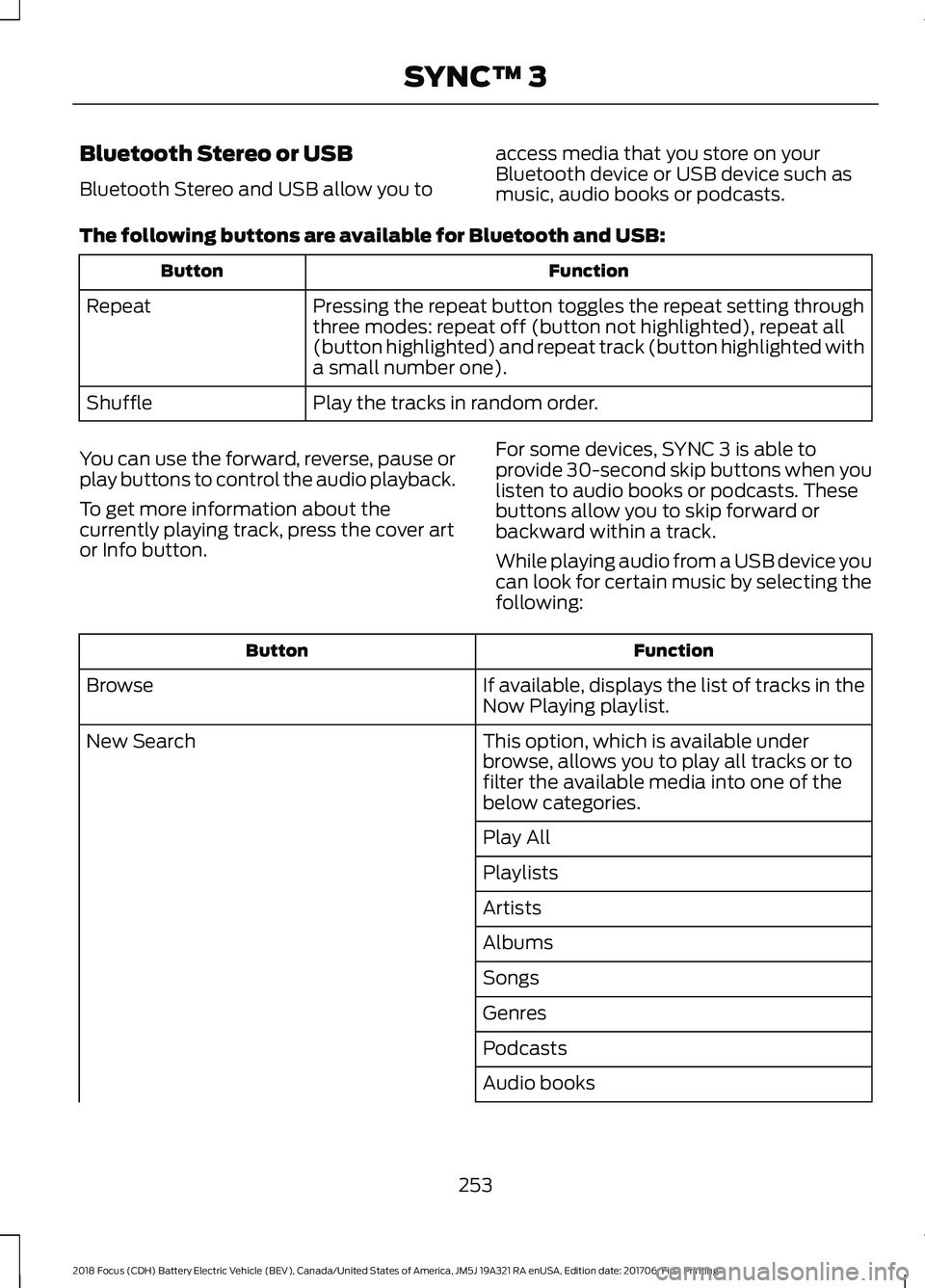
Bluetooth Stereo or USB
Bluetooth Stereo and USB allow you to
access media that you store on your
Bluetooth device or USB device such as
music, audio books or podcasts.
The following buttons are available for Bluetooth and USB: Function
Button
Pressing the repeat button toggles the repeat setting through
three modes: repeat off (button not highlighted), repeat all
(button highlighted) and repeat track (button highlighted with
a small number one).
Repeat
Play the tracks in random order.
Shuffle
You can use the forward, reverse, pause or
play buttons to control the audio playback.
To get more information about the
currently playing track, press the cover art
or Info button. For some devices, SYNC 3 is able to
provide 30-second skip buttons when you
listen to audio books or podcasts. These
buttons allow you to skip forward or
backward within a track.
While playing audio from a USB device you
can look for certain music by selecting the
following: Function
Button
If available, displays the list of tracks in the
Now Playing playlist.
Browse
This option, which is available under
browse, allows you to play all tracks or to
filter the available media into one of the
below categories.
New Search
Play All
Playlists
Artists
Albums
Songs
Genres
Podcasts
Audio books
253
2018 Focus (CDH) Battery Electric Vehicle (BEV), Canada/United States of America, JM5J 19A321 RA enUSA, Edition date: 201706, First Printing SYNC™ 3
Page 269 of 375
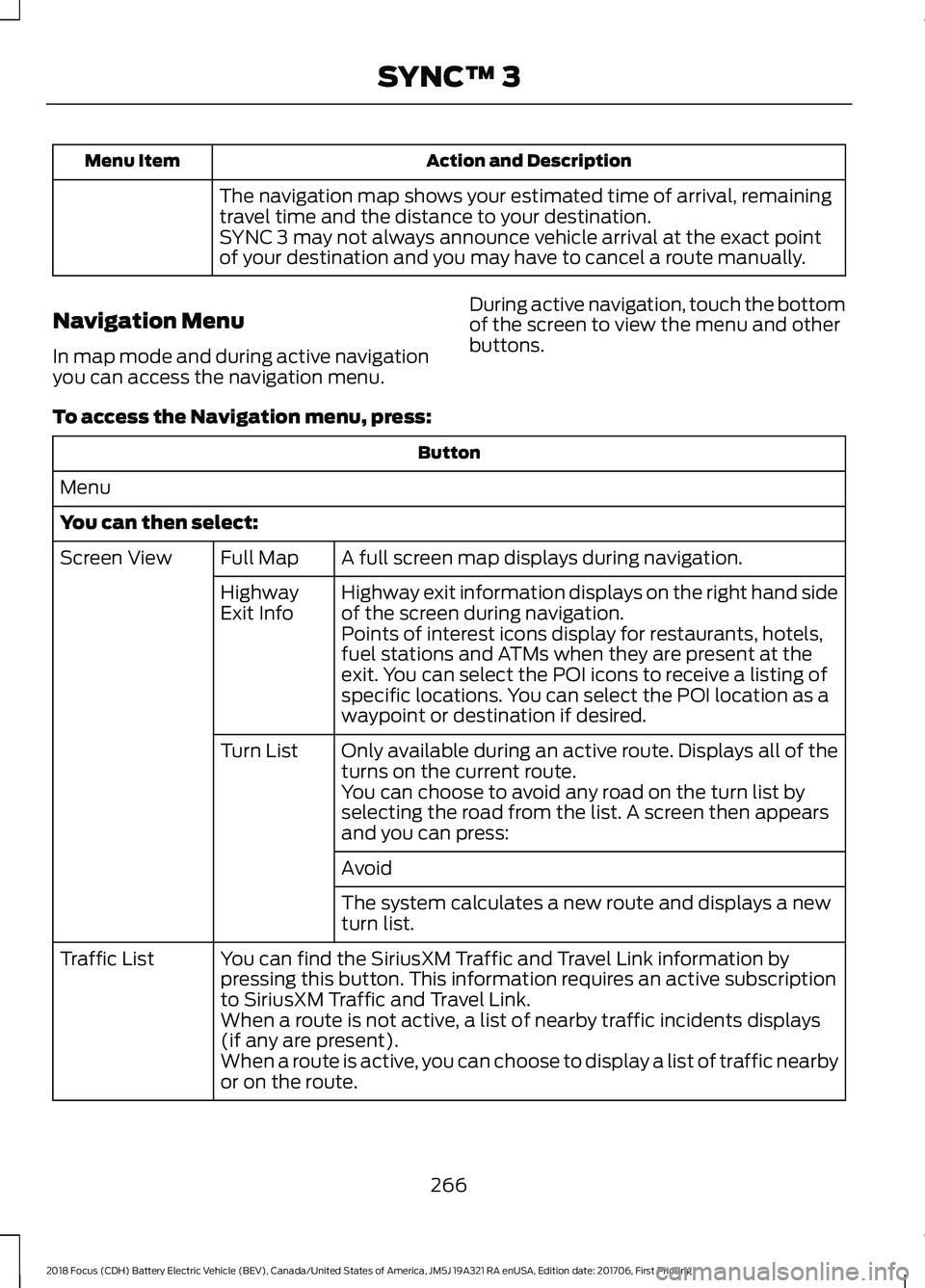
Action and Description
Menu Item
The navigation map shows your estimated time of arrival, remaining
travel time and the distance to your destination.
SYNC 3 may not always announce vehicle arrival at the exact point
of your destination and you may have to cancel a route manually.
Navigation Menu
In map mode and during active navigation
you can access the navigation menu. During active navigation, touch the bottom
of the screen to view the menu and other
buttons.
To access the Navigation menu, press: Button
Menu
You can then select: A full screen map displays during navigation.
Full Map
Screen View
Highway exit information displays on the right hand side
of the screen during navigation.
Highway
Exit Info
Points of interest icons display for restaurants, hotels,
fuel stations and ATMs when they are present at the
exit. You can select the POI icons to receive a listing of
specific locations. You can select the POI location as a
waypoint or destination if desired.
Only available during an active route. Displays all of the
turns on the current route.
Turn List
You can choose to avoid any road on the turn list by
selecting the road from the list. A screen then appears
and you can press:
Avoid
The system calculates a new route and displays a new
turn list.
You can find the SiriusXM Traffic and Travel Link information by
pressing this button. This information requires an active subscription
to SiriusXM Traffic and Travel Link.
Traffic List
When a route is not active, a list of nearby traffic incidents displays
(if any are present).
When a route is active, you can choose to display a list of traffic nearby
or on the route.
266
2018 Focus (CDH) Battery Electric Vehicle (BEV), Canada/United States of America, JM5J 19A321 RA enUSA, Edition date: 201706, First Printing SYNC™ 3