light FORD FUSION 2018 Owner's Guide
[x] Cancel search | Manufacturer: FORD, Model Year: 2018, Model line: FUSION, Model: FORD FUSION 2018Pages: 539, PDF Size: 6.42 MB
Page 99 of 539
GENERAL INFORMATION
WARNING
Driving while distracted can result in
loss of vehicle control, crash and
injury. We strongly recommend that
you use extreme caution when using any
device that may take your focus off the
road. Your primary responsibility is the safe
operation of your vehicle. We recommend
against the use of any hand-held device
while driving and encourage the use of
voice-operated systems when possible.
Make sure you are aware of all applicable
local laws that may affect the use of
electronic devices while driving. Note:
Your vehicle may or may not be
equipped with all the messages listed in this
chapter. Your vehicle will not display
messages of systems it is not equipped with.
Various systems on your vehicle can be
controlled using the information display
controls on the steering wheel.
Corresponding information is displayed in
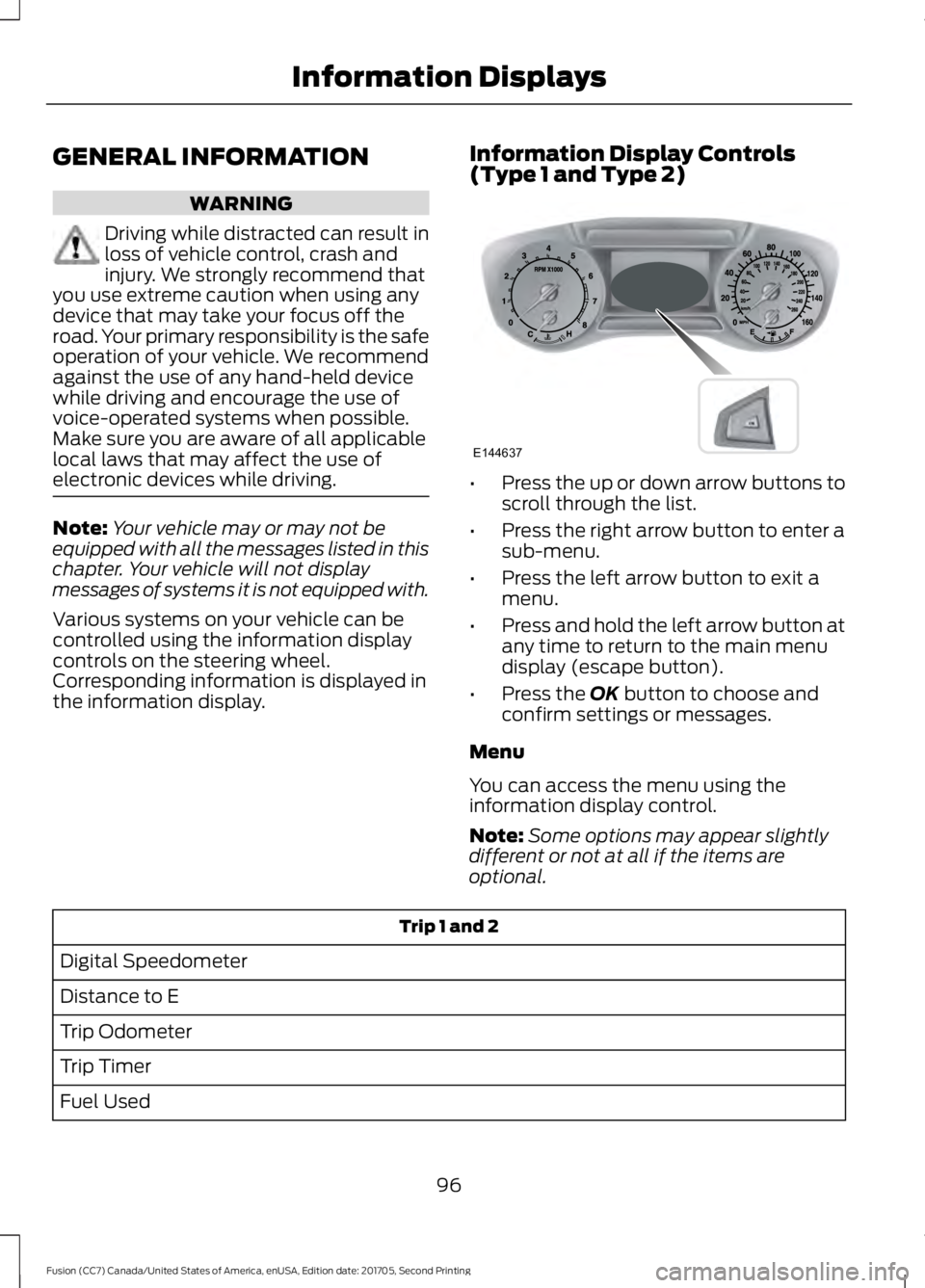
the information display. Information Display Controls
(Type 1 and Type 2) •
Press the up or down arrow buttons to
scroll through the list.
• Press the right arrow button to enter a
sub-menu.
• Press the left arrow button to exit a
menu.
• Press and hold the left arrow button at
any time to return to the main menu
display (escape button).
• Press the OK button to choose and
confirm settings or messages.
Menu
You can access the menu using the
information display control.
Note: Some options may appear slightly
different or not at all if the items are
optional. Trip 1 and 2
Digital Speedometer
Distance to E
Trip Odometer
Trip Timer
Fuel Used
96
Fusion (CC7) Canada/United States of America, enUSA, Edition date: 201705, Second Printing Information DisplaysE144637
Page 102 of 539
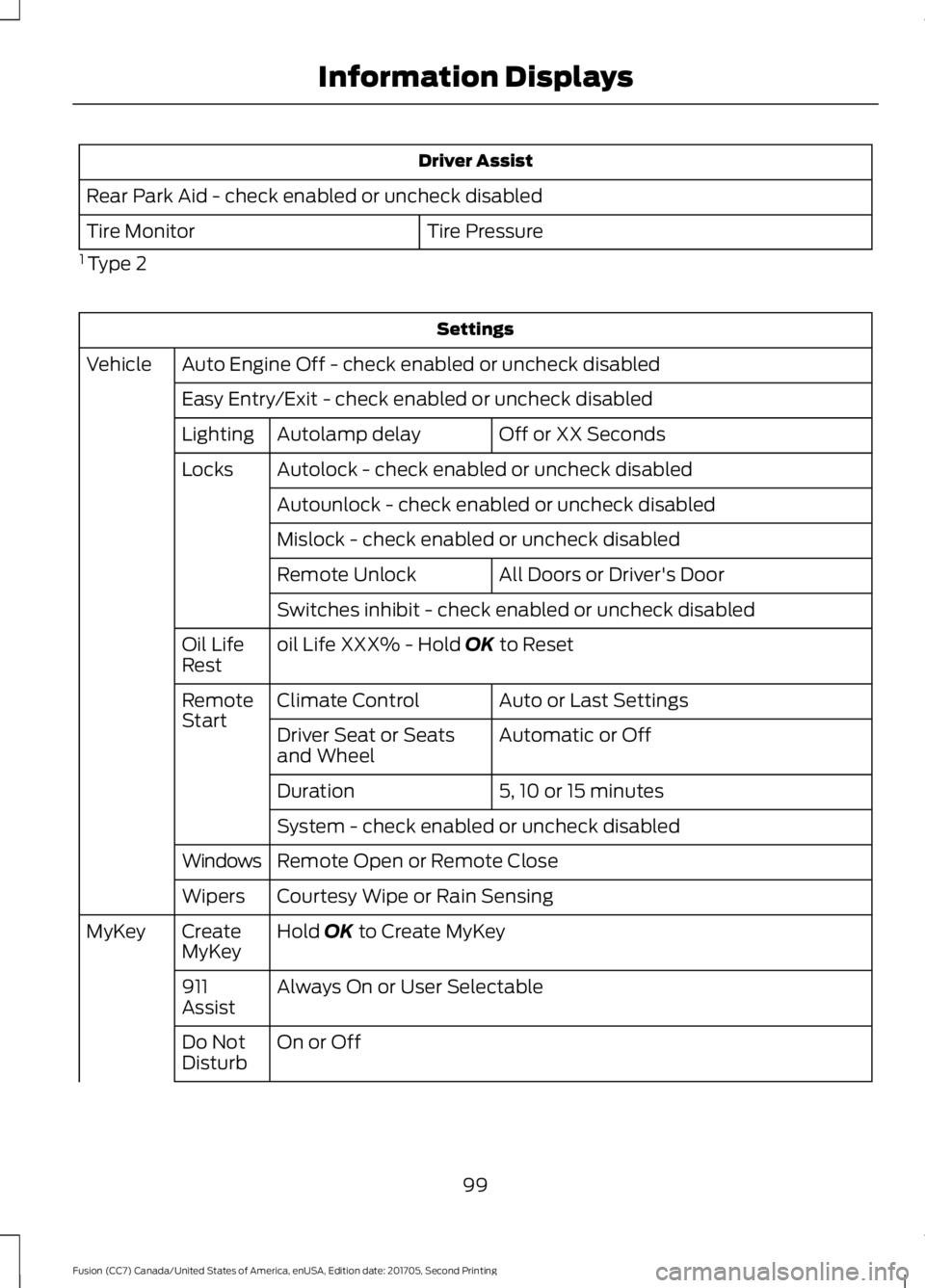
Driver Assist
Rear Park Aid - check enabled or uncheck disabled Tire Pressure
Tire Monitor
1 Type 2 Settings
Auto Engine Off - check enabled or uncheck disabled
Vehicle
Easy Entry/Exit - check enabled or uncheck disabled Off or XX Seconds
Autolamp delay
Lighting
Autolock - check enabled or uncheck disabled
Locks
Autounlock - check enabled or uncheck disabled
Mislock - check enabled or uncheck disabled All Doors or Driver's Door
Remote Unlock
Switches inhibit - check enabled or uncheck disabled
oil Life XXX% - Hold OK to Reset
Oil Life
Rest
Auto or Last Settings
Climate Control
Remote
Start
Automatic or Off
Driver Seat or Seats
and Wheel
5, 10 or 15 minutes
Duration
System - check enabled or uncheck disabled
Remote Open or Remote Close
Windows
Courtesy Wipe or Rain Sensing
Wipers
Hold
OK to Create MyKey
Create
MyKey
MyKey
Always On or User Selectable
911
Assist
On or Off
Do Not
Disturb
99
Fusion (CC7) Canada/United States of America, enUSA, Edition date: 201705, Second Printing Information Displays
Page 104 of 539
Scroll up or down to highlight one of the
categories, then press the right arrow key
or OK to enter into that category. Press the
left arrow key as needed to exit back to the
main menu. Display Mode
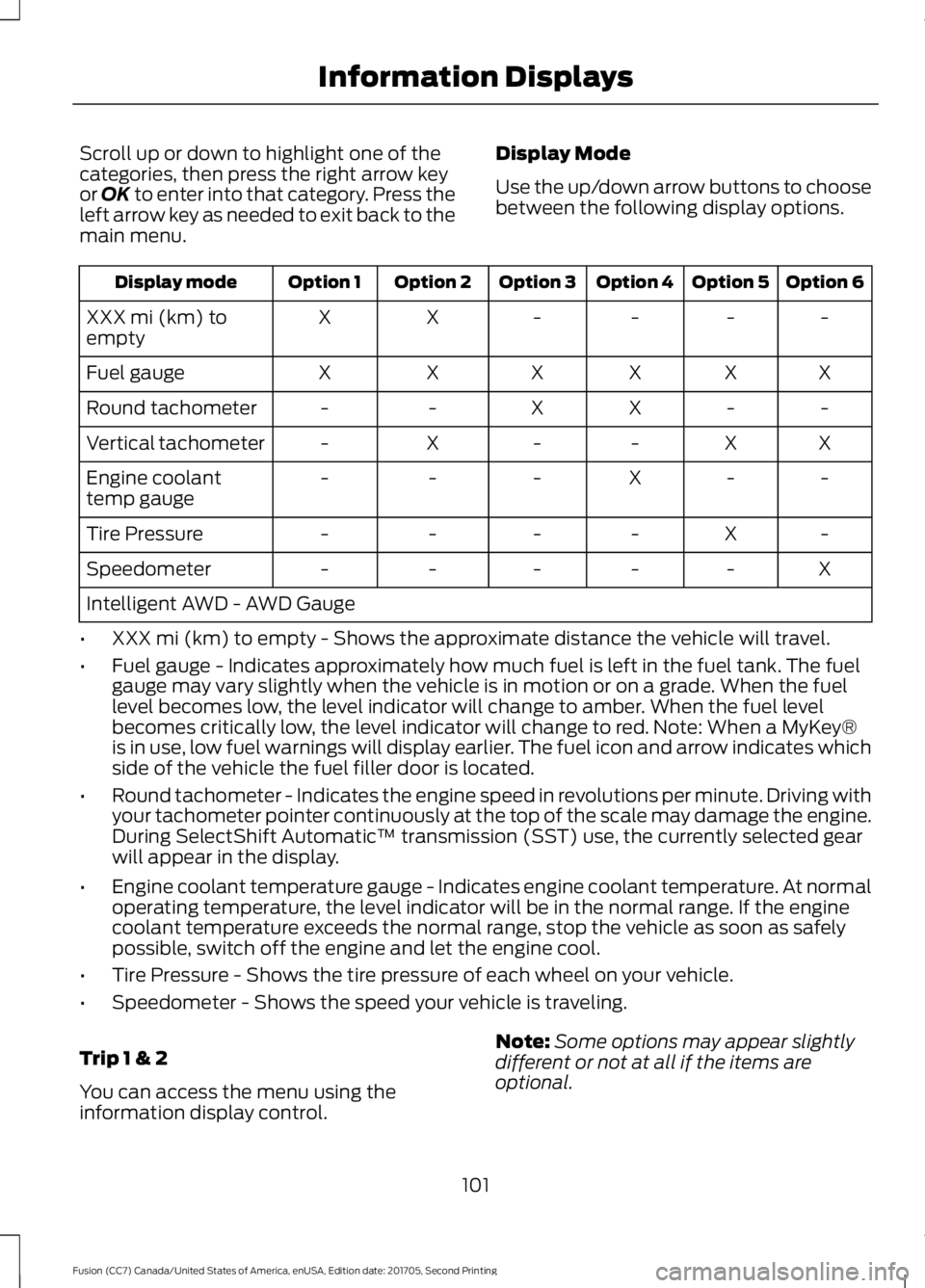
Use the up/down arrow buttons to choose
between the following display options. Option 6
Option 5
Option 4
Option 3
Option 2
Option 1
Display mode
-
-
-
-
X
X
XXX mi (km) to
empty
X
X
X
X
X
X
Fuel gauge
-
-
X
X
-
-
Round tachometer
X
X
-
-
X
-
Vertical tachometer
-
-
X
-
-
-
Engine coolant
temp gauge
-
X
-
-
-
-
Tire Pressure
X
-
-
-
-
-
Speedometer
Intelligent AWD - AWD Gauge
• XXX mi (km) to empty - Shows the approximate distance the vehicle will travel.
• Fuel gauge - Indicates approximately how much fuel is left in the fuel tank. The fuel
gauge may vary slightly when the vehicle is in motion or on a grade. When the fuel
level becomes low, the level indicator will change to amber. When the fuel level
becomes critically low, the level indicator will change to red. Note: When a MyKey®
is in use, low fuel warnings will display earlier. The fuel icon and arrow indicates which
side of the vehicle the fuel filler door is located.
• Round tachometer - Indicates the engine speed in revolutions per minute. Driving with
your tachometer pointer continuously at the top of the scale may damage the engine.
During SelectShift Automatic ™ transmission (SST) use, the currently selected gear
will appear in the display.
• Engine coolant temperature gauge - Indicates engine coolant temperature. At normal
operating temperature, the level indicator will be in the normal range. If the engine
coolant temperature exceeds the normal range, stop the vehicle as soon as safely
possible, switch off the engine and let the engine cool.
• Tire Pressure - Shows the tire pressure of each wheel on your vehicle.
• Speedometer - Shows the speed your vehicle is traveling.
Trip 1 & 2
You can access the menu using the
information display control. Note:
Some options may appear slightly
different or not at all if the items are
optional.
101
Fusion (CC7) Canada/United States of America, enUSA, Edition date: 201705, Second Printing Information Displays
Page 106 of 539
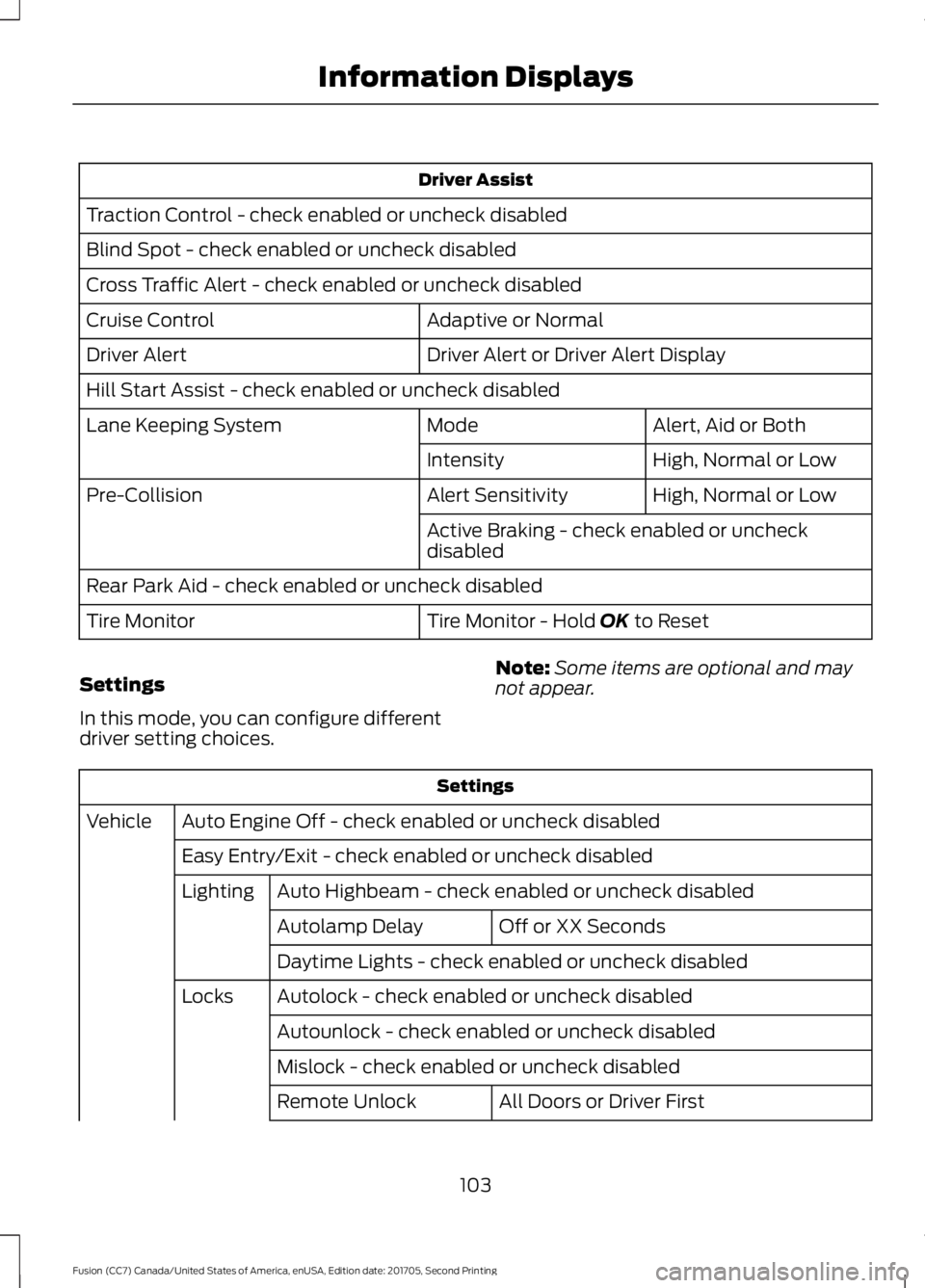
Driver Assist
Traction Control - check enabled or uncheck disabled
Blind Spot - check enabled or uncheck disabled
Cross Traffic Alert - check enabled or uncheck disabled Adaptive or Normal
Cruise Control
Driver Alert or Driver Alert Display
Driver Alert
Hill Start Assist - check enabled or uncheck disabled
Alert, Aid or Both
Mode
Lane Keeping System
High, Normal or Low
Intensity
High, Normal or Low
Alert Sensitivity
Pre-Collision
Active Braking - check enabled or uncheck
disabled
Rear Park Aid - check enabled or uncheck disabled Tire Monitor - Hold OK to Reset
Tire Monitor
Settings
In this mode, you can configure different
driver setting choices. Note:
Some items are optional and may
not appear. Settings
Auto Engine Off - check enabled or uncheck disabled
Vehicle
Easy Entry/Exit - check enabled or uncheck disabledAuto Highbeam - check enabled or uncheck disabled
Lighting
Off or XX Seconds
Autolamp Delay
Daytime Lights - check enabled or uncheck disabled
Autolock - check enabled or uncheck disabled
Locks
Autounlock - check enabled or uncheck disabled
Mislock - check enabled or uncheck disabled All Doors or Driver First
Remote Unlock
103
Fusion (CC7) Canada/United States of America, enUSA, Edition date: 201705, Second Printing Information Displays
Page 133 of 539

SITTING IN THE CORRECT
POSITION
WARNINGS
Sitting improperly, out of position or
with the seatback reclined too far
can take weight off the seat cushion
and affect the decision of the passenger
sensing system, resulting in serious injury
or death in the event of a crash. Always sit
upright against your seat back, with your
feet on the floor. Do not recline the seatback as this
can cause the occupant to slide
under the safety belt, resulting in
serious injury in the event of a crash. Do not place objects higher than the
seatback to reduce the risk of serious
injury in the event of a crash or during
heavy braking. When you use them properly, the seat,
head restraint, safety belt and airbags will
provide optimum protection in the event
of a crash. We recommend that you follow these
guidelines:
•
Sit in an upright position with the base
of your spine as far back as possible.
• Do not recline the seatback more than
30 degrees.
• Adjust the head restraint so that the
top of it is level with the top of your
head and as far forward as possible.
Make sure that you remain
comfortable.
• Keep sufficient distance between
yourself and the steering wheel. We
recommend a minimum of 10 in
(25 cm) between your breastbone and
the airbag cover.
• Hold the steering wheel with your arms
slightly bent.
• Bend your legs slightly so that you can
press the pedals fully.
• Position the shoulder strap of the
safety belt over the center of your
shoulder and position the lap strap
tightly across your hips.
Make sure that your driving position is
comfortable and that you can maintain full
control of your vehicle.
HEAD RESTRAINTS WARNINGS
Fully adjust the head restraint before
you sit in or operate your vehicle. This
will help minimize the risk of neck
injury in the event of a crash. Do not adjust
the head restraint when your vehicle is
moving. The head restraint is a safety device.
Whenever possible it should be
installed and properly adjusted when
the seat is occupied. Failure to adjust the
head restraint properly could reduce its
effectiveness during certain impacts. 130
Fusion (CC7) Canada/United States of America, enUSA, Edition date: 201705, Second Printing SeatsE68595
Page 140 of 539
HEATED SEATS (If Equipped)
WARNING
People who are unable to feel pain
to their skin because of advanced
age, chronic illness, diabetes, spinal
cord injury, medication, alcohol use,
exhaustion or other physical conditions,
must exercise care when using the heated
seat. The heated seat may cause burns
even at low temperatures, especially if
used for long periods of time. Do not place
anything on the seat that insulates against
heat, such as a blanket or cushion. This
may cause the heated seat to overheat.
Do not puncture the seat with pins, needles
or other pointed objects. This may damage
the heating element which may cause the
heated seat to overheat. An overheated
seat may cause serious personal injury. Do not do the following:
•
Place heavy objects on the seat.
• Operate the heated seat if water or any
other liquid is spilled on the seat. Allow
the seat to dry thoroughly.
• Operate the heated seats unless the
engine is running. Doing so can cause
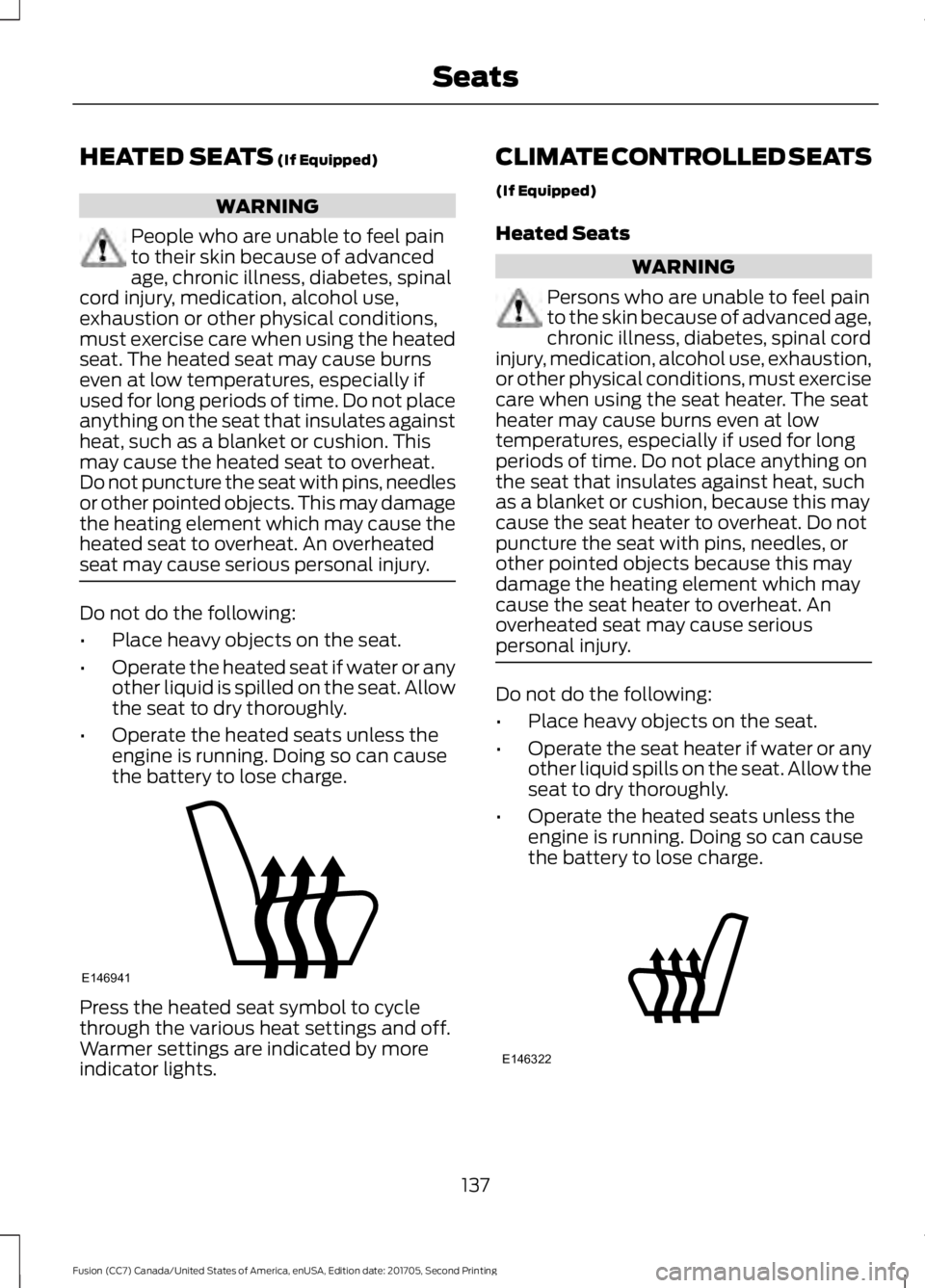
the battery to lose charge. Press the heated seat symbol to cycle
through the various heat settings and off.
Warmer settings are indicated by more
indicator lights. CLIMATE CONTROLLED SEATS
(If Equipped)
Heated Seats WARNING
Persons who are unable to feel pain
to the skin because of advanced age,
chronic illness, diabetes, spinal cord
injury, medication, alcohol use, exhaustion,
or other physical conditions, must exercise
care when using the seat heater. The seat
heater may cause burns even at low
temperatures, especially if used for long
periods of time. Do not place anything on
the seat that insulates against heat, such
as a blanket or cushion, because this may
cause the seat heater to overheat. Do not
puncture the seat with pins, needles, or
other pointed objects because this may
damage the heating element which may
cause the seat heater to overheat. An
overheated seat may cause serious
personal injury. Do not do the following:
•
Place heavy objects on the seat.
• Operate the seat heater if water or any
other liquid spills on the seat. Allow the
seat to dry thoroughly.
• Operate the heated seats unless the
engine is running. Doing so can cause
the battery to lose charge. 137
Fusion (CC7) Canada/United States of America, enUSA, Edition date: 201705, Second Printing SeatsE146941 E146322
Page 141 of 539

Press the heated seat symbol to cycle
through the various heat settings and off.
More indicator lights indicate warmer
settings.
Cooled Seats
The cooled seats will only function when
the engine is running.
To operate the cooled seats:
Press the cooled seat symbol to cycle
through the various cooling settings and
off. More indicator lights indicate cooler
settings.
If the engine falls below 350 RPM while
the cooled seats are on, the feature will
turn itself off. You will need to reactivate
it.
Climate controlled seat air filter
replacement
Your vehicle is equipped with lifetime air
filters that are integrated with the seats.
Regular maintenance or replacement is
not needed. REAR SEAT ARMREST (If Equipped) Fold the armrest down to use the armrest
and cupholder.
138
Fusion (CC7) Canada/United States of America, enUSA, Edition date: 201705, Second Printing SeatsE146309 E144635
Page 142 of 539

HomeLink Wireless Control
System
WARNINGS
Make sure that the garage door and
security device are free from
obstruction when you are
programming. Do not program the system
with the vehicle in the garage. Do not use the system with any
garage door opener that does not
have the safety stop and reverse
feature as required by U.S. Federal Safety
Standards (this includes any garage door
opener manufactured before April 1, 1982).
A garage door opener which cannot detect
an object, signaling the door to stop and
reverse, does not meet current federal
safety standards. Using a garage door
opener without these features increases
the risk of serious injury or death. Note:
Make sure you keep the original
remote control transmitter for use in other
vehicles as well as for future system
programming.
Note: We recommend that upon the sale
or lease termination of your vehicle, you
erase the programmed function buttons for
security reasons. See Erasing the Function
Button Codes.
Note: You can program a maximum of
three devices. To change or replace any of
the three devices after it has been initially
programmed, you must first erase the
current settings. See Erasing the Function
Button Codes
. The universal garage door opener replaces
the common hand-held garage door
opener with a three-button transmitter
that is integrated into the driver
’s sun visor.
The system includes two primary features,
a garage door opener and a platform for
remote activation of devices within the
home. As well as being programmed for
garage doors, the system transmitter can
be programmed to operate entry gate
operators, security systems, entry door
locks and home or office lighting.
Additional system information can be
found online at www.homelink.com,
www.youtube.com/HomeLinkGentex or
by calling the toll-free help line on
1-800-355-3515.
In-Vehicle Programming
This process is to program your hand-held
transmitter and your in-vehicle HomeLink
button.
Note: The programming steps below
assume you will be programming HomeLink
that was not previously programmed.
Note: Put a new battery in the hand-held
transmitter. This will ensure quicker training
and accurate transmission of the
radio-frequency signal.
139
Fusion (CC7) Canada/United States of America, enUSA, Edition date: 201705, Second Printing Universal Garage Door Opener
(If Equipped)E142657
Page 143 of 539

1.
With your vehicle parked outside of the
garage, turn your ignition to the on
position, but do not start your vehicle.
2. Hold your hand-held garage door transmitter
2–6 in (5– 14 cm) away
from the HomeLink button you want
to program.
3. Using both hands, simultaneously, press and hold the desired HomeLink
button and the hand-held transmitter
button. DO NOT release either one until
the HomeLink indicator light flashes
slowly and then rapidly. When the
indicator light flashes rapidly, both
buttons may be released. The rapid
flashing indicates successful training.
Note: You may need to use a different
method if you live in Canada or have
difficulties programming your gate operator
or garage door opener. See
Gate Operator
/ Canadian Programming.
4. Press and hold the HomeLink button you programmed for two seconds, then
release. You may need to do this twice
to activate the door. If your garage door
does not operate, watch the HomeLink
indicator light.
If the indicator light stays on, the
programming is complete. No further
action is needed.
If the indicator light flashes rapidly for 2
seconds and then turns to a constant light,
the HomeLink button is not programmed
yet. See Programming Your Garage Door
Opener Motor. To program additional buttons, repeat
Steps 1 – 4.
For questions or comments, please contact
HomeLink at www.homelink.com,
www.youtube.com/HomeLinkGentex or
1-800-355-3515.
Programming Your Garage Door
Opener Motor
Note:
You may need a ladder to reach the
unit and you may need to remove the cover
or lamp lens on your garage door opener. 1. Press the learn button on the garage
door opener motor and then you have
30 seconds to complete the next two
steps.
2. Return to your vehicle. 3.
Press and hold the function button you
want to program for 2 seconds, then
release. Repeat this step. Depending
on your brand of garage door opener,
you may need to repeat this sequence
a third time.
140
Fusion (CC7) Canada/United States of America, enUSA, Edition date: 201705, Second Printing Universal Garage Door Opener
(If Equipped)E142658 E142659 E142658
Page 144 of 539

Gate Operator / Canadian
Programming
Canadian radio-frequency laws require
transmitter signals to
“time-out” (or quit)
after several seconds of transmission –
which may not be long enough for
HomeLink to pick up the signal during
programming. Similar to this Canadian law,
some U.S. gate operators are designed to
“time-out” in the same manner.
Note: If programming a garage door opener
or gate operator, it is advised to unplug the
device during the “cycling” process to
prevent possible overheating.
1. Press and hold the HomeLink button while you press and release, every two
seconds, your hand-held transmitter
until the HomeLink indicator light
changes from a slow to a rapidly
blinking light.
2. Release both the HomeLink and hand-held transmitter buttons.
3. Continue programing HomeLink. See In-Vehicle Programming
.
Erasing the Function Button Codes
Note: You cannot erase individual buttons. 1. Press and hold the outer two function
buttons simultaneously for
approximately 20 seconds until the
indicator lights above the buttons flash
rapidly.
2. When the indicator lights flash, release
the buttons. The codes for all buttons
are erased.
Reprogramming a Single Button
To program a device to a previously trained
button, follow these steps:
1. Press and hold the desired button. Do NOT release the button.
2. The indicator light will begin to flash after 20 seconds. Without releasing the
button, follow Step 1 in the
Programming section.
For questions or comments, contact
HomeLink at www.homelink.com,
www.youtube.com/HomeLinkGentex or
1-800-355-3515.
Programming to a Genie Intellicode 2
Garage Door Opener
Note: The Genie Intellicode 2 transmitter
must already be programmed to operate
with the garage door opener.
Note: To program HomeLink to the
transmitter you must first put the
transmitter into programming mode.
141
Fusion (CC7) Canada/United States of America, enUSA, Edition date: 201705, Second Printing Universal Garage Door Opener
(If Equipped)E142660