AUX FORD FUSION (AMERICAS) 2013 2.G Owners Manual
[x] Cancel search | Manufacturer: FORD, Model Year: 2013, Model line: FUSION (AMERICAS), Model: FORD FUSION (AMERICAS) 2013 2.GPages: 458
Page 5 of 458
Autowipers.......................................................65
Windshield Washers.....................................66
Lighting
Lighting Control..............................................67
Autolamps........................................................67
Instrument Lighting Dimmer.....................68
Headlamp Exit Delay....................................68
Daytime Running Lamps
............................68
Automatic High Beam Control.................69
Front Fog Lamps
............................................70
Direction Indicators
.......................................70
Interior Lamps.................................................70
Windows and Mirrors
Power Windows..............................................72
Global Opening and Closing......................73
Exterior Mirrors.................................................73
Interior Mirror
....................................................74
Sun Visors
..........................................................75
Moonroof...........................................................75
Instrument Cluster
Gauges................................................................77
Warning Lamps and Indicators.................79
Audible Warnings and Indicators.............82
Information Displays
General Information
......................................83
Information Messages
..................................91
Audio System
General Information....................................105
Audio unit - Vehicles With: AM/FM/CD/SYNC/Satellite
Radio............................................................106
Audio unit - Vehicles With: Premium AM/FM/CD.................................................108
Audio unit - Vehicles With: Sony AM/FM/CD
..................................................110 Satellite Radio................................................113
Auxiliary Input Jack.......................................116
USB Port
............................................................117
Media Hub.........................................................117
Climate Control
Manual Climate Control
.............................118
Automatic Climate Control
.......................119
Automatic Climate Control
........................121
Automatic Climate Control
.......................123
Hints on Controlling the Interior Climate.........................................................124
Heated Windows and Mirrors..................126
Cabin Air Filter
................................................127
Remote Start..................................................127
Seats
Sitting in the Correct Position..................129
Head Restraints.............................................129
Manual Seats
..................................................131
Power Seats.....................................................131
Memory Function
..........................................132
Rear Seats
.......................................................134
Heated Seats
..................................................135
Ventilated Seats............................................135
Rear Seat Armrest........................................136
Universal Garage Door Opener
Universal Garage Door Opener................137
Auxiliary Power Points
Auxiliary Power Points.................................141
Storage Compartments
Center Console
..............................................143
Overhead Console........................................143
2
Fusion/Mondeo (CC7) Table of Contents
Page 111 of 458
MEDIA: Press this button to access your auxiliary input jack or switch between
devices you plug into the input jack or USB port.
R
Clock:
Press this button to access the clock setting. Use the center arrow
controls to change the hours and minutes. You can also set the clock by pressing
the
MENU button and scrolling to Clock Settings.
S
RADIO:
Press this button to listen to the radio or change radio frequencies
bands. Press the function buttons below the radio screen to select different
radio functions.
T
SIRIUS:
Press this button to listen to SIRIUS satellite radio.
U
AUDIO UNIT - VEHICLES WITH:
PREMIUM AM/FM/CD WARNING
Driving while distracted can result in
loss of vehicle control, accident and
injury. Ford strongly recommends
that you use extreme caution when using
any device or feature that may take your
focus off the road. Your primary
responsibility is the safe operation of the
vehicle. We recommend against the use
of any handheld device while driving,
encourage the use of voice-operated
systems when possible and that you
become aware of applicable state and
local laws that may affect use of electronic
devices while driving. Note:
The MyFord Touch® system controls
most of the audio features. See
MyFord
Touch ™ (page 343).
108
Fusion/Mondeo (CC7) Audio System
Page 119 of 458
AUXILIARY INPUT JACK
WARNINGS
Driving while distracted can result in
loss of vehicle control, accident and
injury. We strongly recommend that
you use extreme caution when using any
device or feature that may take your focus
off the road. Your primary responsibility is
the safe operation of your vehicle. We
recommend against the use of any
handheld device while driving and
encourage the use of voice-operated
systems when possible. Make sure that
you are aware of applicable state and local
laws that may affect use of electronic
devices while driving. For safety reasons, do not connect
or adjust the settings on your
portable music player while your
vehicle is moving. Store the portable music player in a
secure location, such as the center
console or the glove box, when your
vehicle is moving. Hard objects may
become projectiles in a collision or sudden
stop, which may increase the risk of serious
injury. The audio extension cable must be
long enough to allow the portable music
player to be safely stored while your
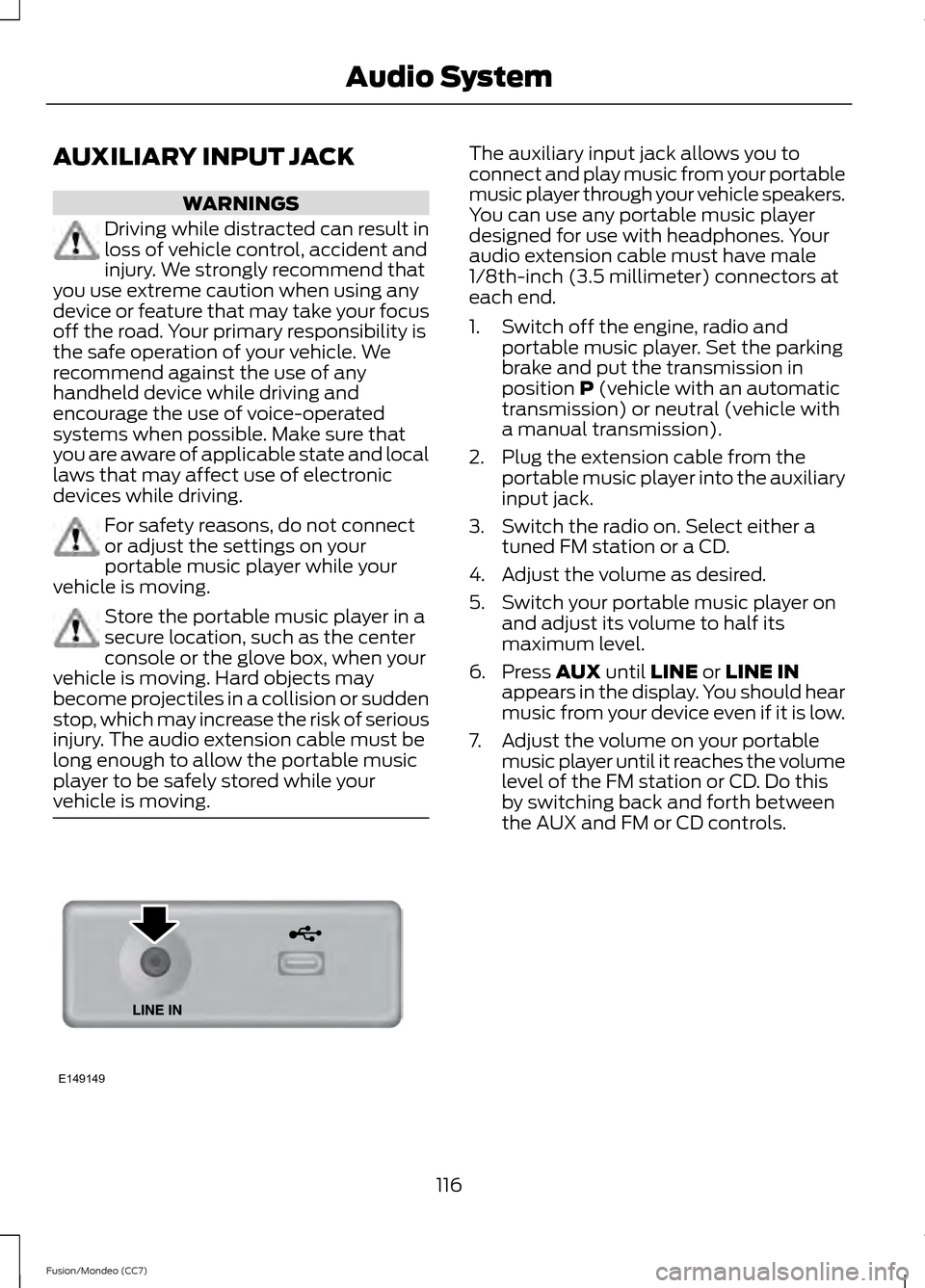
vehicle is moving. The auxiliary input jack allows you to
connect and play music from your portable
music player through your vehicle speakers.
You can use any portable music player
designed for use with headphones. Your
audio extension cable must have male
1/8th-inch (3.5 millimeter) connectors at
each end.
1. Switch off the engine, radio and
portable music player. Set the parking
brake and put the transmission in
position P (vehicle with an automatic
transmission) or neutral (vehicle with
a manual transmission).
2. Plug the extension cable from the portable music player into the auxiliary
input jack.
3. Switch the radio on. Select either a tuned FM station or a CD.
4. Adjust the volume as desired.
5. Switch your portable music player on and adjust its volume to half its
maximum level.
6. Press
AUX until LINE or LINE IN
appears in the display. You should hear
music from your device even if it is low.
7. Adjust the volume on your portable music player until it reaches the volume
level of the FM station or CD. Do this
by switching back and forth between
the AUX and FM or CD controls.
116
Fusion/Mondeo (CC7) Audio SystemE149149
Page 144 of 458
12 Volt DC Power Point
WARNING
Do not plug optional electrical
accessories into the cigar lighter
socket (if equipped). Improper use
of the lighter can cause damage not
covered by your warranty, and can result
in fire or serious injury. Note:
If used when the engine is not
running, the battery will discharge. There
may be insufficient power to restart your
engine.
Note: Do not insert objects other than an
accessory plug into the power point. This
will damage the outlet and blow the fuse.
Note: Do not hang any type of accessory or
accessory bracket from the plug.
Note: Do not use the power point over the
vehicle capacity of 12 volt DC 180 watts or
a fuse may blow.
Note: Do not use the power point for
operating a cigar lighter element.
Note: Improper use of the power point can
cause damage not covered by your
warranty.
Note: Always keep the power point caps
closed when not in use.
Run the engine for full capacity use of the
power point. To prevent the battery from
being discharged:
• Do not use the power point longer than
necessary when the engine is not
running.
• Do not leave devices plugged in
overnight or when the vehicle is parked
for extended periods.
Locations
Power points may be found: •
in the front of the center console
• inside the center console storage bin
• on the rear of the center console.
110 Volt AC Power Point (If Equipped) WARNING
Do not keep electrical devices
plugged in the power point whenever
the device is not in use. Do not use
any extension cord with the 110 volt AC
power point, since it will defeat the safety
protection design. Doing so my cause the
power point to overload due to powering
multiple devices that can reach beyond
the 150 watt load limit and could result in
fire or serious injury. Note:
Keep the engine running to use the
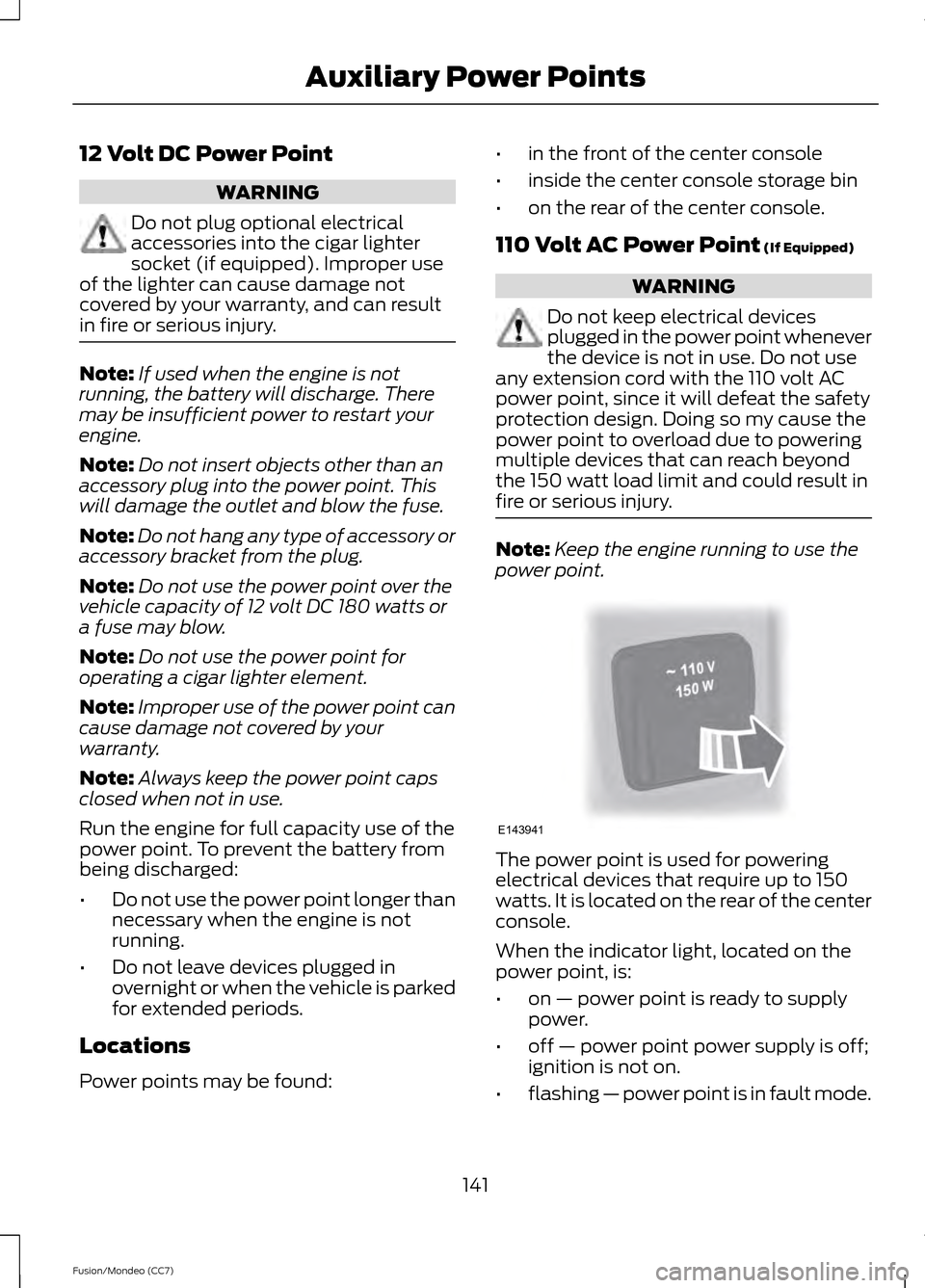
power point. The power point is used for powering
electrical devices that require up to 150
watts. It is located on the rear of the center
console.
When the indicator light, located on the
power point, is:
•
on — power point is ready to supply
power.
• off — power point power supply is off;
ignition is not on.
• flashing — power point is in fault mode.
141
Fusion/Mondeo (CC7) Auxiliary Power PointsE143941
Page 145 of 458
The power point temporarily turns off
power if the 150 watt limit is exceeded. It
can also switch to a fault mode when it is
overloaded, overheated, or shorted. Unplug
your device and switch the ignition off then
on for overloading and shorting conditions.
Let the system cool off, then turn the
ignition off then on for an overheating
condition.
The power point is not designed for electric
devices such as:
•
Cathode ray tube type televisions
• Motor loads, for example vacuum
cleaners, electric saws and other
electric power tools, or
compressor-driven refrigerators
• Measuring devices which process
precise data, for example medical
equipment or measuring equipment
• Other appliances requiring an
extremely stable power supply, for
example microcomputer-controlled
electric blankets or touch sensor lamps
142
Fusion/Mondeo (CC7) Auxiliary Power Points
Page 146 of 458
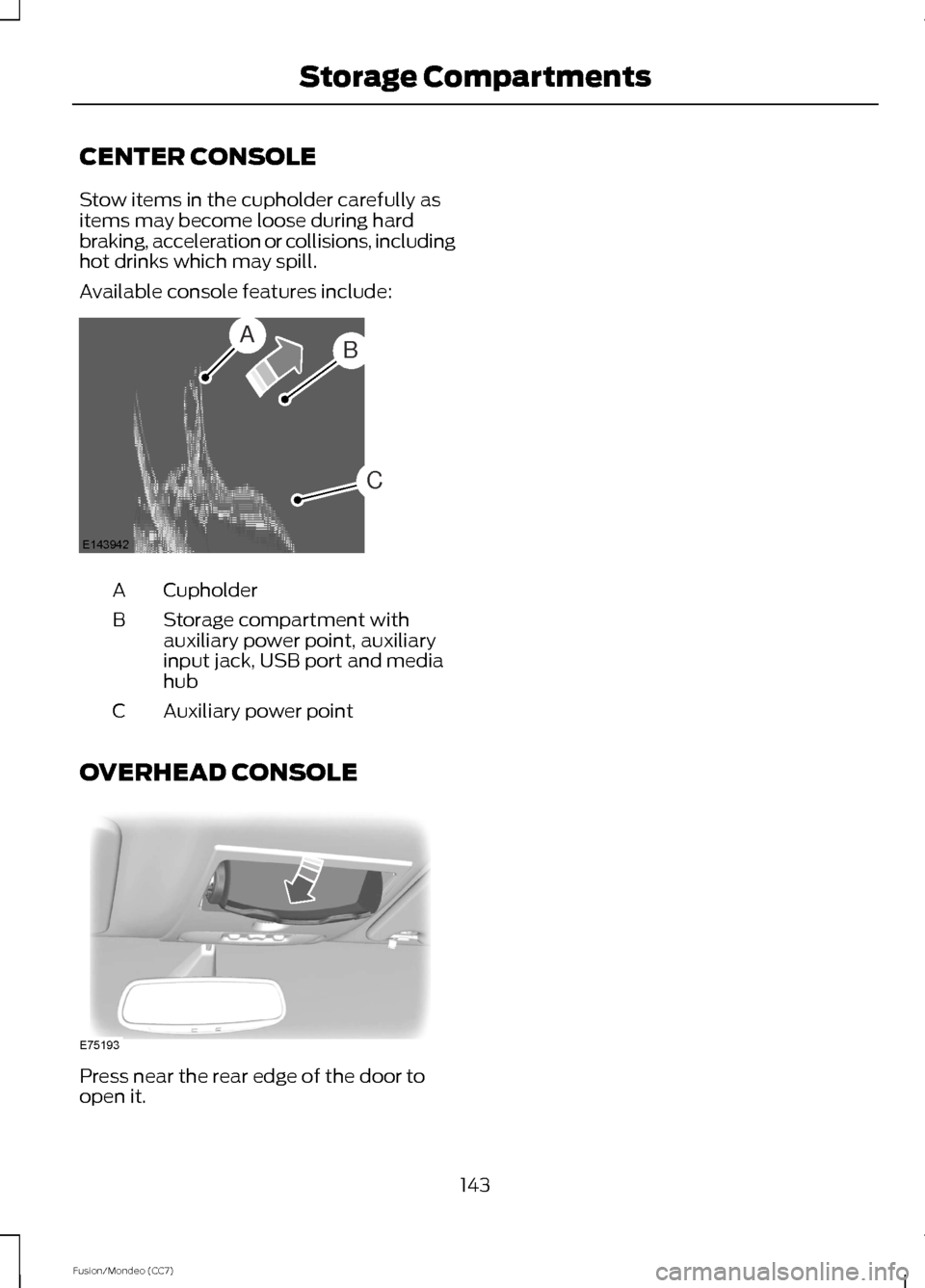
CENTER CONSOLE
Stow items in the cupholder carefully as
items may become loose during hard
braking, acceleration or collisions, including
hot drinks which may spill.
Available console features include:
Cupholder
A
Storage compartment with
auxiliary power point, auxiliary
input jack, USB port and media
hub
B
Auxiliary power point
C
OVERHEAD CONSOLE Press near the rear edge of the door to
open it.
143
Fusion/Mondeo (CC7) Storage CompartmentsAB
C
E143942 E75193
Page 300 of 458
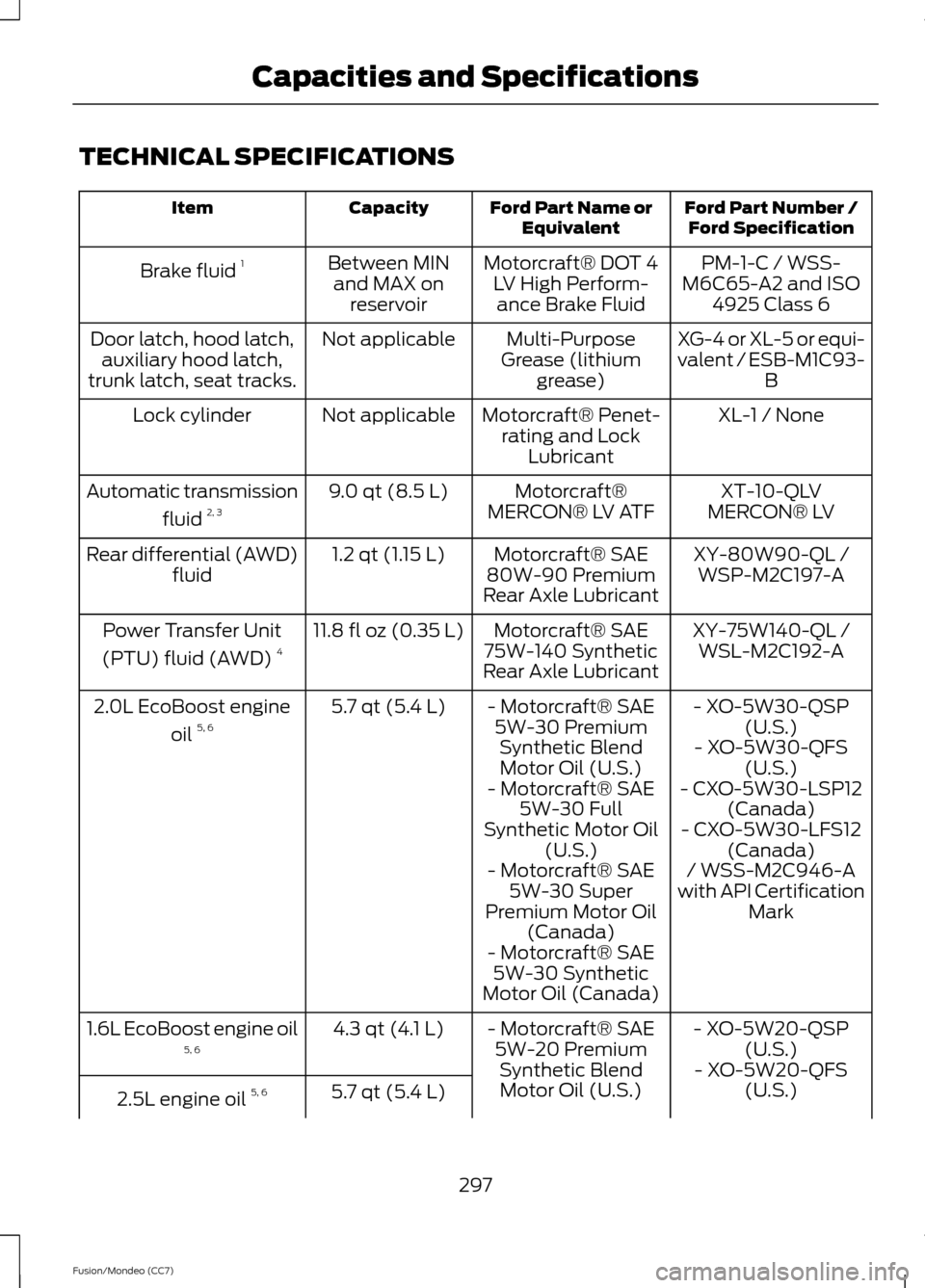
TECHNICAL SPECIFICATIONS
Ford Part Number /
Ford Specification
Ford Part Name or
Equivalent
Capacity
Item
PM-1-C / WSS-
M6C65-A2 and ISO 4925 Class 6
Motorcraft® DOT 4
LV High Perform-ance Brake Fluid
Between MIN
and MAX on reservoir
Brake fluid
1
XG-4 or XL-5 or equi-
valent / ESB-M1C93-B
Multi-Purpose
Grease (lithium grease)
Not applicable
Door latch, hood latch,
auxiliary hood latch,
trunk latch, seat tracks.
XL-1 / None
Motorcraft® Penet-
rating and Lock Lubricant
Not applicable
Lock cylinder
XT-10-QLV
MERCON® LV
Motorcraft®
MERCON® LV ATF
9.0 qt (8.5 L)
Automatic transmission
fluid 2, 3
XY-80W90-QL /WSP-M2C197-A
Motorcraft® SAE
80W-90 Premium
Rear Axle Lubricant
1.2 qt (1.15 L)
Rear differential (AWD)
fluid
XY-75W140-QL /WSL-M2C192-A
Motorcraft® SAE
75W-140 Synthetic
Rear Axle Lubricant
11.8 fl oz (0.35 L)
Power Transfer Unit
(PTU) fluid (AWD) 4
- XO-5W30-QSP(U.S.)
- Motorcraft® SAE
5W-30 PremiumSynthetic BlendMotor Oil (U.S.)
5.7 qt (5.4 L)
2.0L EcoBoost engine
oil 5, 6
- XO-5W30-QFS(U.S.)
- Motorcraft® SAE 5W-30 Full
Synthetic Motor Oil (U.S.) - CXO-5W30-LSP12
(Canada)
- CXO-5W30-LFS12 (Canada)
- Motorcraft® SAE 5W-30 Super
Premium Motor Oil (Canada) / WSS-M2C946-A
with API Certification Mark
- Motorcraft® SAE 5W-30 Synthetic
Motor Oil (Canada)
- XO-5W20-QSP(U.S.)
- Motorcraft® SAE
5W-20 PremiumSynthetic BlendMotor Oil (U.S.)
4.3 qt (4.1 L)
1.6L EcoBoost engine oil
5, 6
- XO-5W20-QFS(U.S.)
5.7 qt (5.4 L)
2.5L engine oil 5, 6
297
Fusion/Mondeo (CC7) Capacities and Specifications
Page 310 of 458
System data cannot be accessed without
special equipment and access to the
vehicle's SYNC module. Ford Motor
Company and Ford of Canada will not
access the system data for any purpose
other than as described absent consent, a
court order, or where required by law
enforcement, other government
authorities, or other third parties acting
with lawful authority. Other parties may
seek to access the information
independently of Ford Motor Company and
Ford of Canada. For further privacy
information, see the sections on 911 Assist,
Vehicle Health Report, and Traffic,
Directions and Information.
USING VOICE RECOGNITION
This system helps you control many
features using voice commands. This
allows you to keep your hands on the
wheel and focus on what is in front of you.
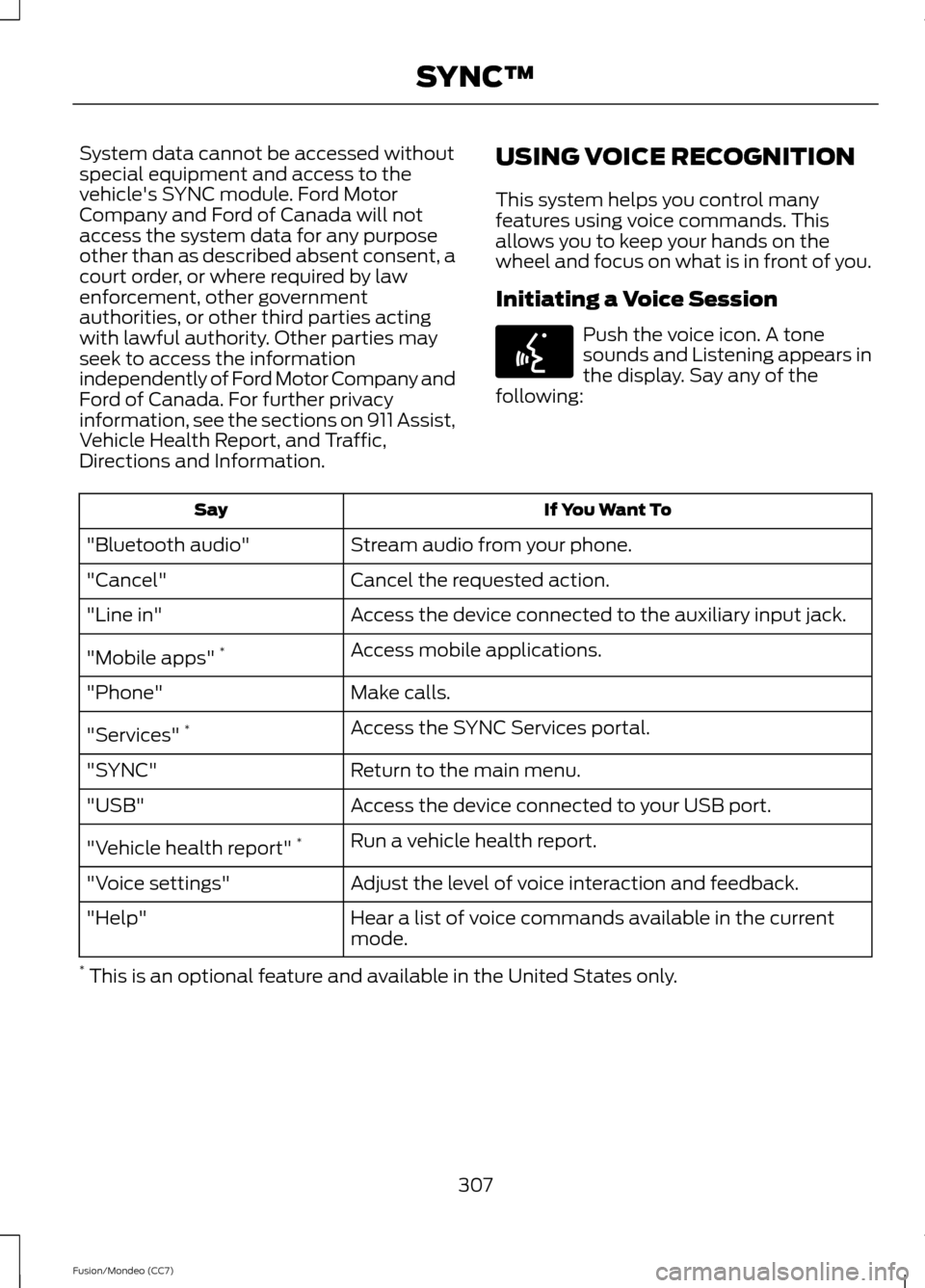
Initiating a Voice Session Push the voice icon. A tone
sounds and Listening appears in
the display. Say any of the
following: If You Want To
Say
Stream audio from your phone.
"Bluetooth audio"
Cancel the requested action.
"Cancel"
Access the device connected to the auxiliary input jack.
"Line in"
Access mobile applications.
"Mobile apps" *
Make calls.
"Phone"
Access the SYNC Services portal.
"Services" *
Return to the main menu.
"SYNC"
Access the device connected to your USB port.
"USB"
Run a vehicle health report.
"Vehicle health report" *
Adjust the level of voice interaction and feedback.
"Voice settings"
Hear a list of voice commands available in the current
mode.
"Help"
* This is an optional feature and available in the United States only.
307
Fusion/Mondeo (CC7) SYNC™E142599
Page 331 of 458
SYNC Services quick tips
You can even access your account outside your vehicle.
Just use the number on your phone's call history. Traffic
and Directions features do not function properly but
information services and the 411 connect and text message
features are available.
SYNC AppLink
Note: You must pair and connect your
smartphone to SYNC to access AppLink.
Note: iPhone users need to connect the
phone to the USB port in order to start the
application. We recommend you lock your
iPhone after starting an application.
Note: TThe AppLink feature is not available
if your vehicle is equipped with the MyFord
Touch or MyLincoln Touch system.
Note: Depending on your display type, you
can access AppLink from the media menu,
the phone menu, or by using voice
commands. Once an app is running through
AppLink, you can control main features of
the app through voice commands and
steering wheel controls.
To Access Using the Phone Menu
1. Press the phone button to access the SYNC phone menu on-screen.
2. Scroll to Mobile Apps and press OK to access a list of available applications.
3. Scroll through the list of available applications and press OK to select a
particular app.
4. Once an app is running through SYNC,
you can access an app ’s menu by
pressing the MENU button to first
access the SYNC menu.
5. Select "SYNC-Media" by pressing
OK. 6. Scroll until "
displayed (such as, Pandora Menu),
then press
OK. From here, you can
access an application's features, such
as Thumbs up and Thumbs down. For
more information, please visit
www.SYNCMyRide.com.
To Access Using the Media Menu
1. Press the
AUX button on the center
console.
2. Press
MENU to access the SYNC
menu.
3. Select "SYNC-Media" by pressing
OK.
4. Scroll to Mobile Apps and press OK to
access a list of available applications.
5. Scroll through the list of available applications and press
OK to select a
particular app.
6. Once an app is running through SYNC,
you can access an app ’s menu by
pressing the
MENU button to first
access the SYNC menu.
7. Select "SYNC-Media" by pressing
OK.
8. Scroll until "
then press
OK. From here, you can
access an application's features, such
as Thumbs up and Thumbs down. For
more information, please visit
www.SYNCMyRide.com.
To Access Using Voice Commands
1. Press the voice icon.
2. When prompted, say "Mobile Apps".
328
Fusion/Mondeo (CC7) SYNC™
Page 332 of 458
3. Say the name of the application after
the tone.
4. The app should start. While an app is running through SYNC, you can press
the voice button and speak commands
specific to the app, such as "Play
Station Quickmix". Say "Help" to
discover available voice commands.
USING SYNC™ WITH YOUR
MEDIA PLAYER
You can access and play music from your
digital music player over your vehicle's
speaker system using the system's media
menu or voice commands. You can also
sort and play your music by specific
categories, such as artist and album.
SYNC is capable of hosting nearly any
digital media player including: iPod®,
Zune ™, Plays from device players, and
most USB drives. SYNC also supports
audio formats, such as MP3, WMA, WAV
and ACC.
Connecting Your Digital Media
Player to the USB Port
Note: If your digital media player has a
power switch, make sure you switch it on
before plugging it in.
To Connect Using Voice Commands
1. Plug the device into the USB port.
2. Press the voice icon and when prompted, say "USB".
3. You can now play music by saying any of the appropriate voice commands.
See the media voice commands. To Connect Using the System Menu
1. Plug the device into the USB port.
2. Press AUX and then MENU to enter
the media menu.
3. Scroll to Select Source. Press
OK.
4. Scroll to USB. Press
OK.
5. Depending on how many digital media
files are on your connected device,
Indexing
may appear in the radio
display. When indexing is complete, the
screen returns to the Play menu.
Press
OK and scroll through selections of:
• Play All
• Albums
• Genres
• Playlists
• Tracks
• Explore USB
• Similar Music
• Return
What's Playing?
At any time when a track is playing, you
can press the voice icon and ask the
system "What's playing?". The system
reads the metadata tags (if populated) of
the playing track to you.
Media Voice Commands Press the voice icon. When
prompted, say "USB", then any
of the following:
329
Fusion/Mondeo (CC7) SYNC™E142599