navigation system FORD FUSION (AMERICAS) 2016 2.G Owner's Manual
[x] Cancel search | Manufacturer: FORD, Model Year: 2016, Model line: FUSION (AMERICAS), Model: FORD FUSION (AMERICAS) 2016 2.GPages: 518, PDF Size: 5.72 MB
Page 448 of 518
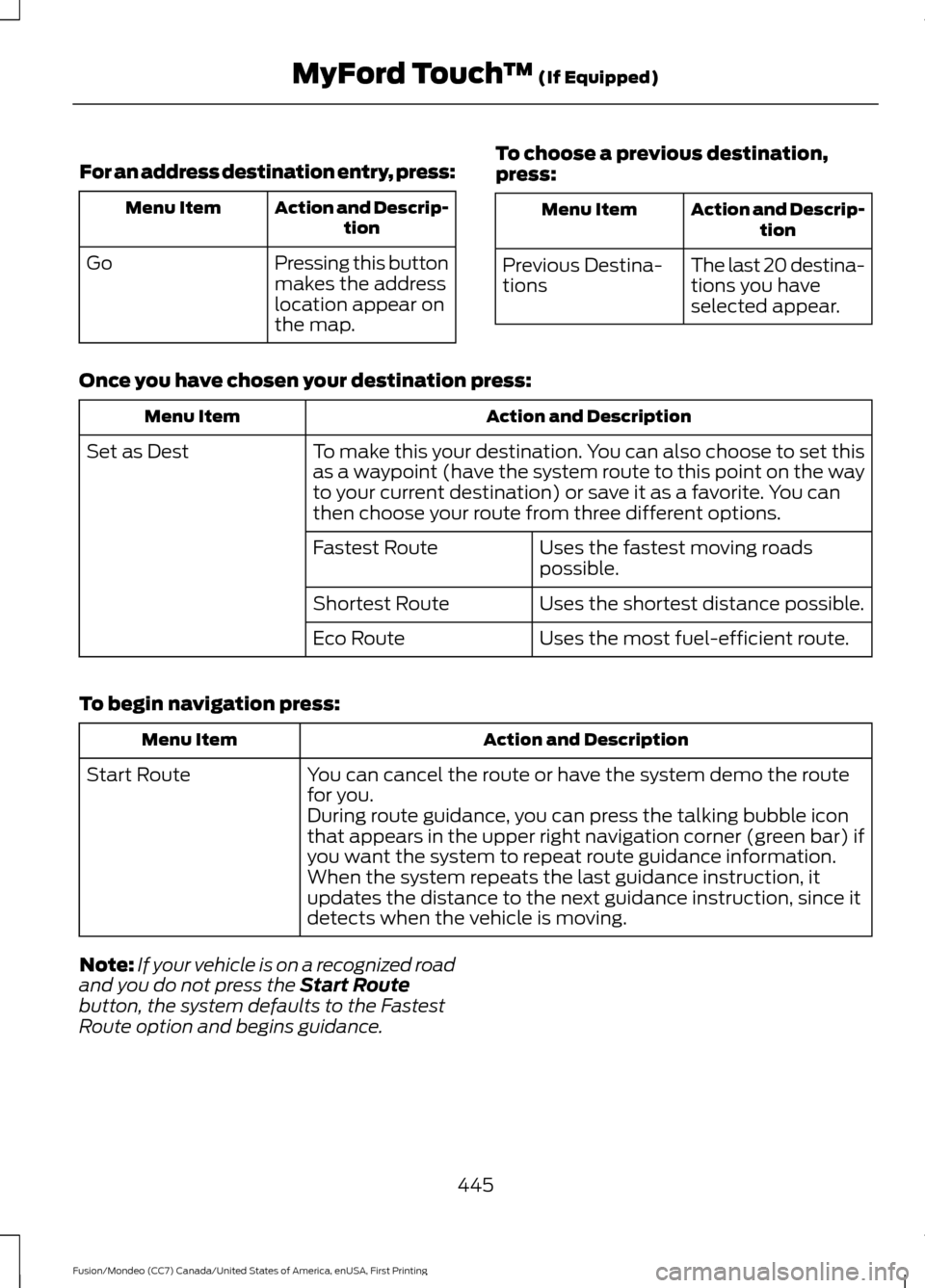
For an address destination entry, press:
Action and Descrip-
tion
Menu Item
Pressing this button
makes the address
location appear on
the map.
Go To choose a previous destination,
press: Action and Descrip-
tion
Menu Item
The last 20 destina-
tions you have
selected appear.
Previous Destina-
tions
Once you have chosen your destination press: Action and Description
Menu Item
To make this your destination. You can also choose to set this
as a waypoint (have the system route to this point on the way
to your current destination) or save it as a favorite. You can
then choose your route from three different options.
Set as Dest
Uses the fastest moving roads
possible.
Fastest Route
Uses the shortest distance possible.
Shortest Route
Uses the most fuel-efficient route.
Eco Route
To begin navigation press: Action and Description
Menu Item
You can cancel the route or have the system demo the route
for you.
Start Route
During route guidance, you can press the talking bubble icon
that appears in the upper right navigation corner (green bar) if
you want the system to repeat route guidance information.
When the system repeats the last guidance instruction, it
updates the distance to the next guidance instruction, since it
detects when the vehicle is moving.
Note: If your vehicle is on a recognized road
and you do not press the Start Route
button, the system defaults to the Fastest
Route option and begins guidance.
445
Fusion/Mondeo (CC7) Canada/United States of America, enUSA, First Printing MyFord Touch
™
(If Equipped)
Page 450 of 518
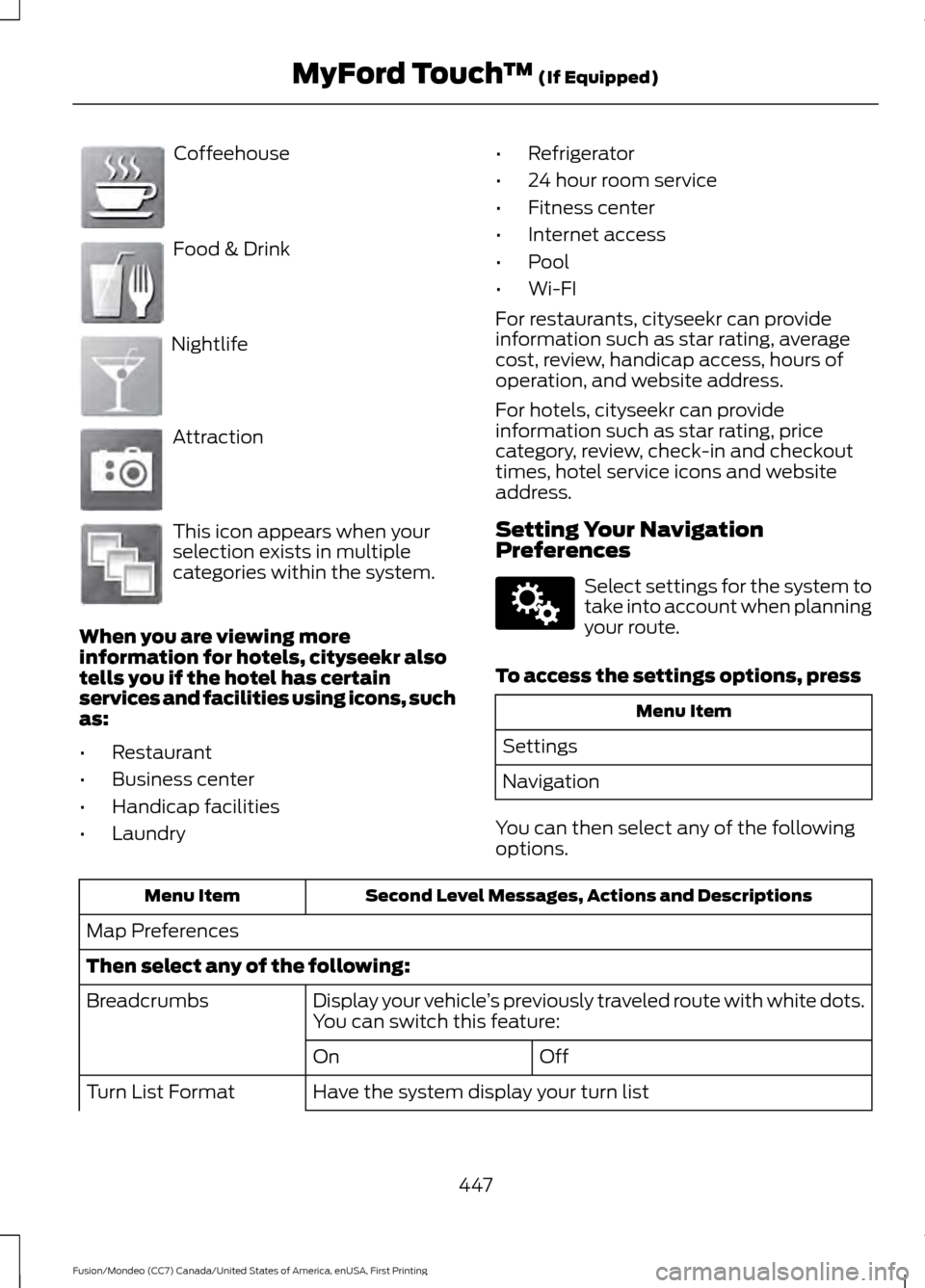
Coffeehouse
Food & Drink
Nightlife
Attraction
This icon appears when your
selection exists in multiple
categories within the system.
When you are viewing more
information for hotels, cityseekr also
tells you if the hotel has certain
services and facilities using icons, such
as:
• Restaurant
• Business center
• Handicap facilities
• Laundry •
Refrigerator
• 24 hour room service
• Fitness center
• Internet access
• Pool
• Wi-FI
For restaurants, cityseekr can provide
information such as star rating, average
cost, review, handicap access, hours of
operation, and website address.
For hotels, cityseekr can provide
information such as star rating, price
category, review, check-in and checkout
times, hotel service icons and website
address.
Setting Your Navigation
Preferences Select settings for the system to
take into account when planning
your route.
To access the settings options, press Menu Item
Settings
Navigation
You can then select any of the following
options. Second Level Messages, Actions and Descriptions
Menu Item
Map Preferences
Then select any of the following: Display your vehicle’s previously traveled route with white dots.
You can switch this feature:
Breadcrumbs
Off
On
Have the system display your turn list
Turn List Format
447
Fusion/Mondeo (CC7) Canada/United States of America, enUSA, First Printing MyFord Touch
™ (If Equipped)E142636 E142637 E142638 E142639 E142640 E142607
Page 451 of 518
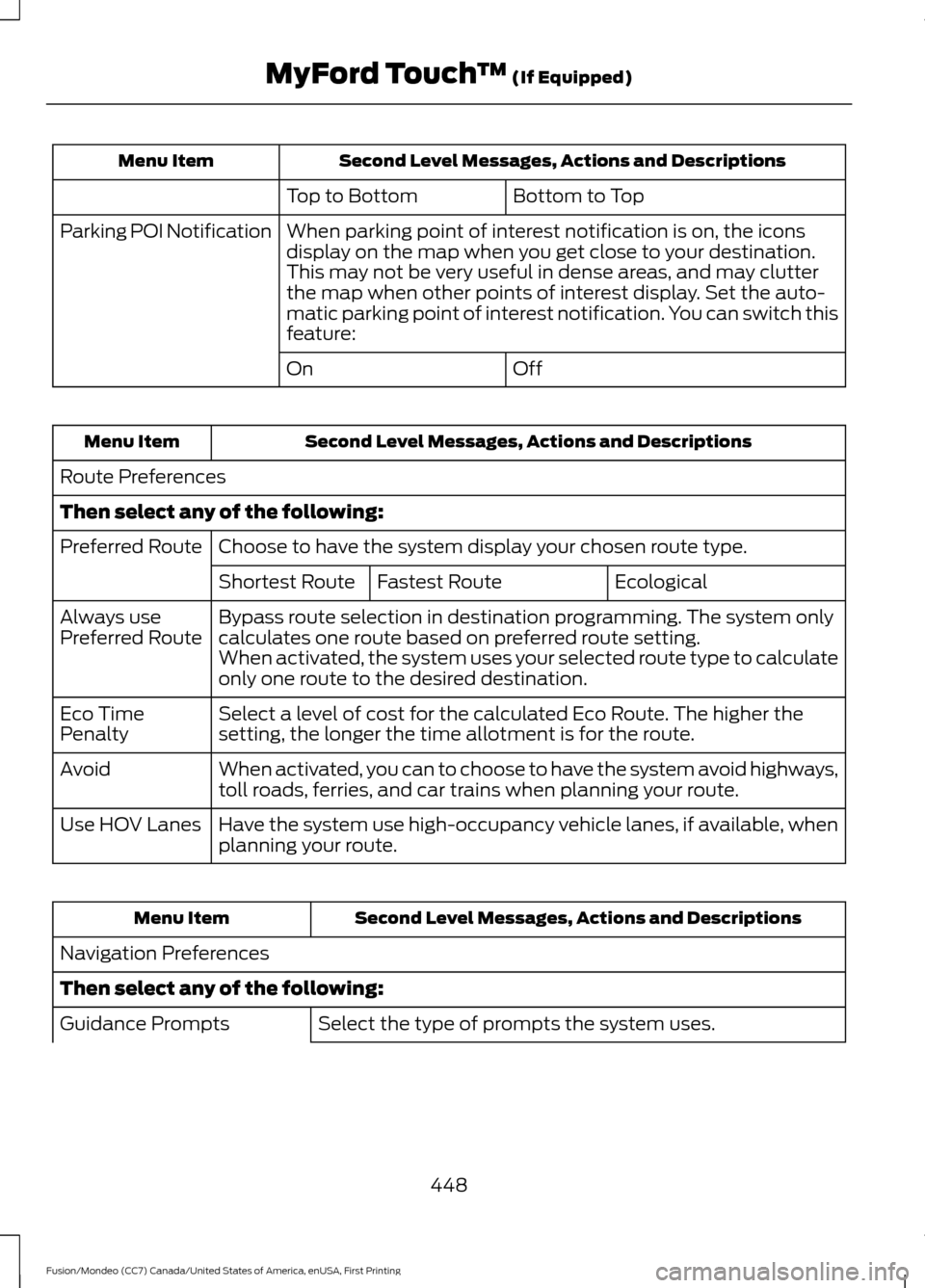
Second Level Messages, Actions and Descriptions
Menu Item
Bottom to Top
Top to Bottom
When parking point of interest notification is on, the icons
display on the map when you get close to your destination.
This may not be very useful in dense areas, and may clutter
the map when other points of interest display. Set the auto-
matic parking point of interest notification. You can switch this
feature:
Parking POI Notification
Off
On Second Level Messages, Actions and Descriptions
Menu Item
Route Preferences
Then select any of the following: Choose to have the system display your chosen route type.
Preferred Route
Ecological
Fastest Route
Shortest Route
Bypass route selection in destination programming. The system only
calculates one route based on preferred route setting.
Always use
Preferred Route
When activated, the system uses your selected route type to calculate
only one route to the desired destination.
Select a level of cost for the calculated Eco Route. The higher the
setting, the longer the time allotment is for the route.
Eco Time
Penalty
When activated, you can to choose to have the system avoid highways,
toll roads, ferries, and car trains when planning your route.
Avoid
Have the system use high-occupancy vehicle lanes, if available, when
planning your route.
Use HOV Lanes Second Level Messages, Actions and Descriptions
Menu Item
Navigation Preferences
Then select any of the following: Select the type of prompts the system uses.
Guidance Prompts
448
Fusion/Mondeo (CC7) Canada/United States of America, enUSA, First Printing MyFord Touch
™ (If Equipped)
Page 456 of 518
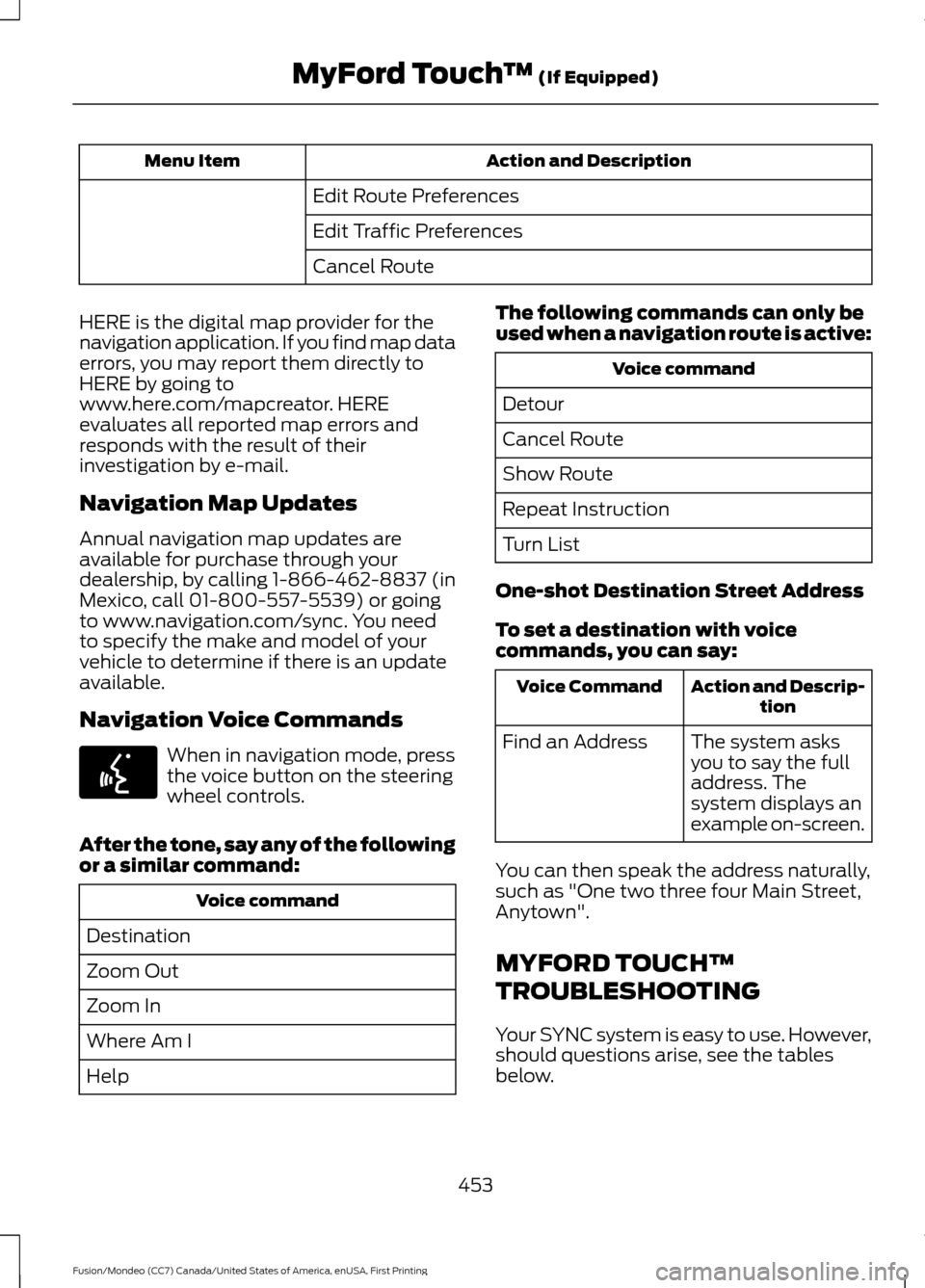
Action and Description
Menu Item
Edit Route Preferences
Edit Traffic Preferences
Cancel Route
HERE is the digital map provider for the
navigation application. If you find map data
errors, you may report them directly to
HERE by going to
www.here.com/mapcreator. HERE
evaluates all reported map errors and
responds with the result of their
investigation by e-mail.
Navigation Map Updates
Annual navigation map updates are
available for purchase through your
dealership, by calling 1-866-462-8837 (in
Mexico, call 01-800-557-5539) or going
to www.navigation.com/sync. You need
to specify the make and model of your
vehicle to determine if there is an update
available.
Navigation Voice Commands When in navigation mode, press
the voice button on the steering
wheel controls.
After the tone, say any of the following
or a similar command: Voice command
Destination
Zoom Out
Zoom In
Where Am I
Help The following commands can only be
used when a navigation route is active: Voice command
Detour
Cancel Route
Show Route
Repeat Instruction
Turn List
One-shot Destination Street Address
To set a destination with voice
commands, you can say: Action and Descrip-
tion
Voice Command
The system asks
you to say the full
address. The
system displays an
example on-screen.
Find an Address
You can then speak the address naturally,
such as "One two three four Main Street,
Anytown".
MYFORD TOUCH™
TROUBLESHOOTING
Your SYNC system is easy to use. However,
should questions arise, see the tables
below.
453
Fusion/Mondeo (CC7) Canada/United States of America, enUSA, First Printing MyFord Touch
™ (If Equipped)E142599
Page 488 of 518
WARNING
Operating certain parts of this
system while driving can distract
your attention away from the road,
and possibly cause an accident or other
serious consequences. Do not change
system settings or enter data non-verbally
(using your hands) while driving. Stop the
vehicle in a safe and legal manner before
attempting these operations. This is
important since while setting up or
changing some functions you might be
required to distract your attention away
from the road and remove your hands from
the wheel. General Operation
Voice Command Control: Functions
within the Windows Automotive-based
system may be accomplished using only
voice commands. Using voice commands
while driving allows you to operate the
system without removing your hands from
the wheel.
Prolonged Views of Screen:
Do not
access any function requiring a prolonged
view of the screen while you are driving.
Pull over in a safe and legal manner before
attempting to access a function of the
system requiring prolonged attention. Even
occasional short scans to the screen may
be hazardous if your attention has been
diverted away from your driving task at a
critical time.
Volume Setting: Do not raise the volume
excessively. Keep the volume at a level
where you can still hear outside traffic and
emergency signals while driving. Driving
while unable to hear these sounds could
cause an accident. Use of Speech Recognition Functions:
Speech recognition software is inherently
a statistical process which is subject to
errors. It is your responsibility to monitor
any speech recognition functions included
in the system and address any errors.
Navigation Features:
Any navigation
features included in the system are
intended to provide turn by turn
instructions to get you to a desired
destination. Please make certain all
persons using this system carefully read
and follow instructions and safety
information fully.
Distraction Hazard:
Any navigation
features may require manual (non-verbal)
setup. Attempting to perform such set-up
or insert data while driving can seriously
distract your attention and could cause an
accident or other serious consequences.
Stop the vehicle in a safe and legal manner
before attempting these operations.
Let Your Judgment Prevail:
Any
navigation features are provided only as
an aid. Make your driving decisions based
on your observations of local conditions
and existing traffic regulations. Any such
feature is not a substitute for your personal
judgment. Any route suggestions made by
this system should never replace any local
traffic regulations or your personal
judgment or knowledge of safe driving
practices.
Route Safety:
Do not follow the route
suggestions if doing so would result in an
unsafe or illegal maneuver, if you would be
placed in an unsafe situation, or if you
would be directed into an area that you
consider unsafe. The driver is ultimately
responsible for the safe operation of the
vehicle and therefore, must evaluate
whether it is safe to follow the suggested
directions.
485
Fusion/Mondeo (CC7) Canada/United States of America, enUSA, First Printing Appendices
Page 489 of 518
Potential Map Inaccuracy: Maps used
by this system may be inaccurate because
of changes in roads, traffic controls or
driving conditions. Always use good
judgment and common sense when
following the suggested routes.
Emergency Services:
Do not rely on any
navigation features included in the system
to route you to emergency services. Ask
local authorities or an emergency services
operator for these locations. Not all
emergency services such as police, fire
stations, hospitals and clinics are likely to
be contained in the map database for such
navigation features.
Telenav Software End User License
Agreement
Please read these terms and conditions
carefully before you use the Telenav
Software. Your use of the Telenav
Software indicates that you accept these
terms and conditions. If you do not accept
these terms and conditions, do not break
the seal of the package, launch, or
otherwise use the Telenav Software.
These terms and conditions represent the
agreement (“ Agreement”) between you
and Telenav, Inc. (“Telenav ”) with respect
to the Telenav Software (including
upgrades, modifications, or additions
thereto) (collectively “Telenav Software”).
All references herein to “you” and “your ”
means you, your employees, agents, and
contractors, and any other entity on whose
behalf you accept these terms and
conditions, all of whom shall also be bound
by this Agreement. Additionally, all of your
account information, as well as other
payment and personal information
provided by you to Telenav (directly or
through the use of the Telenav Software,
is subject to Telenav ’s privacy policy
located at http://www.telenav.com. Telenav may revise this Agreement and
the privacy policy at any time, with or
without notice to you. You agree to visit
http://www.telenav.com from time to time
to review the then current version of this
Agreement and of the privacy policy.
1. Safe and Lawful Use
You acknowledge that devoting attention
to the Telenav Software may pose a risk
of injury or death to you and others in
situations that otherwise require your
undivided attention, and you therefore
agree to comply with the following when
using the Telenav Software: (a) observe
all traffic laws and otherwise drive safely;
(b) use your own personal judgment while
driving. If you feel that a route suggested
by the Telenav Software instructs you to
perform an unsafe or illegal maneuver,
places you in an unsafe situation, or directs
you into an area that you consider to be
unsafe, do not follow such instructions; (c)
do not input destinations, or otherwise
manipulate the Telenav Software, unless
your vehicle is stationary and parked; (d)
do not use the Telenav Software for any
illegal, unauthorized, unintended, unsafe,
hazardous, or unlawful purposes, or in any
manner inconsistent with this Agreement;
(e) arrange all GPS and wireless devices
and cables necessary for use of the
Telenav Software in a secure manner in
your vehicle so that they will not interfere
with your driving and will not prevent the
operation of any safety device (such as an
airbag).
You agree to indemnify and hold Telenav
harmless against all claims resulting from
any dangerous or otherwise inappropriate
use of the Telenav Software in any moving
vehicle, including as a result of your failure
to comply with the directions above.
486
Fusion/Mondeo (CC7) Canada/United States of America, enUSA, First Printing Appendices
Page 493 of 518
Agreement), and thus your use of the
Telenav Software is also subject to such
terms. You agree to comply with the
following additional terms and conditions,
which are applicable to Telenav
’s third
party vendor licensors:
9.1 End User Terms Required by HERE
North America, LLC
The data (“Data ”) is provided for your
personal, internal use only and not for
resale. It is protected by copyright, and is
subject to the following terms and
conditions which are agreed to by you, on
the one hand, and Telenav (“Telenav ”) and
its licensors (including their licensors and
suppliers) on the other hand.
© 2013 HERE. All rights reserved.
The Data for areas of Canada includes
information taken with permission from
Canadian authorities, including: © Her
Majesty the Queen in Right of Canada, ©
Queen's Printer for Ontario, © Canada Post
Corporation, GeoBase®, © Department of
Natural Resources Canada.
HERE holds a non-exclusive license from
the United States Postal Service® to
publish and sell ZIP+4® information.
©United States Postal Service® 2014.
Prices are not established, controlled or
approved by the United States Postal
Service®. The following trademarks and
registrations are owned by the USPS:
United States Postal Service, USPS, and
ZIP+4.
The Data for Mexico includes certain data
from Instituto Nacional de Estadística y
Geografía.
TERMS AND CONDITIONS 9.2 End User Terms Required by NAV2
(Shanghai) Co., Ltd
The data (“Data
”) is provided for your
personal, internal use only and not for
resale. It is protected by copyright, and is
subject to the following terms and
conditions which are agreed to by you, on
the one hand, and NAV2 (Shanghai) Co.,
Ltd (“NAV2”) and its licensors (including
their licensors and suppliers) on the other
hand.
© 20xx. All rights reserved.
Permitted Use.
You agree to use this Data together with
the Telenav Software solely for the internal
business and personal purposes for which
you were licensed, and not for service
bureau, time-sharing or other similar
purposes. Accordingly, but subject to the
restrictions set forth in the following
paragraphs, you agree not to otherwise
reproduce, copy, modify, decompile,
disassemble, create any derivative works
of, or reverse engineer any portion of this
Data, and may not transfer or distribute it
in any form, for any purpose, except to the
extent permitted by mandatory laws.
Restrictions.
Except where you have been specifically
licensed to do so by Telenav, and without
limiting the preceding paragraph, you may
not use this Data (a) with any products,
systems, or applications installed or
otherwise connected to or in
communication with vehicles, capable of
vehicle navigation, positioning, dispatch,
real time route guidance, fleet
management or similar applications; or (b)
with or in communication with any
490
Fusion/Mondeo (CC7) Canada/United States of America, enUSA, First Printing Appendices
Page 500 of 518
“Based upon electronic data
© National Land Survey
Sweden.
”
Sweden
“Topografische Grundlage: ©
Bundesamt für Landestopo-
graphie.
Switzer-
land
E. Respective Country Distribution. Client
acknowledges that HERE has not
received approvals to distribute map
data for the following countries in such
respective countries: Albania, Belarus,
Kyrgyzstan, Moldova and Uzbekistan.
HERE may update such list from time to
time. The license rights granted to Client
under this TL with respect to the Data
for such countries are contingent upon
Client’
s compliance with all applicable
laws and regulations, including, without
limitation, any required licenses or
approvals to distribute the Application
incorporating such Data in such
respective countries.
VI. Australia Territory A. Third Party Notices. Any and all copies
of the Data and/or packaging relating
thereto shall include the respective Third
Party Notices set forth below and used
as described below corresponding to
the Territory (or portion thereof)
included in such copy: Copyright. Based on data provided
under license from PSMA Australia
Limited (www.psma.com.au). Product incorporates data which is ©
20XX Telstra Corporation Limited, GM
Holden Limited, Intelematics Australia
Pty Ltd and Continental Pty Ltd.
B. Third Party Notices for Australia. In
addition to the foregoing, the End-User
Terms for any Application containing
RDS-TMC Traffic Codes for Australia
shall contain the following notice:
“Product incorporates traffic location
codes which is © 20XX Telstra Corpora-
tion Limited and its licensors. ”
VII. China Territory
Personal Use Only
You agree to use this Data together with
[insert name of Client Application] for the
solely personal, non-commercial purposes
for which you were licensed, and not for
service bureau, time-sharing or other
similar purposes. Accordingly, but subject
to the restrictions set forth in the following
paragraphs, you may copy this Data only
as necessary for your personal use to (i)
view it, and (ii) save it, provided that you
do not remove any copyright notices that
appear and do not modify the Data in any
way. You agree not to otherwise reproduce,
copy, modify, decompile, disassemble or
reverse engineer any portion of this Data,
and may not transfer or distribute it in any
form, for any purpose, except to the extent
permitted by mandatory laws.
Restrictions
Except where you have been specifically
licensed to do so by NAV2 , and without
limiting the preceding paragraph, you may
not (a) use this Data with any products,
systems, or applications installed or
otherwise connected to or in
communication with vehicles, capable of
vehicle navigation, positioning, dispatch,
real time route guidance, fleet
management or similar applications; or (b)
497
Fusion/Mondeo (CC7) Canada/United States of America, enUSA, First Printing Appendices
Page 513 of 518
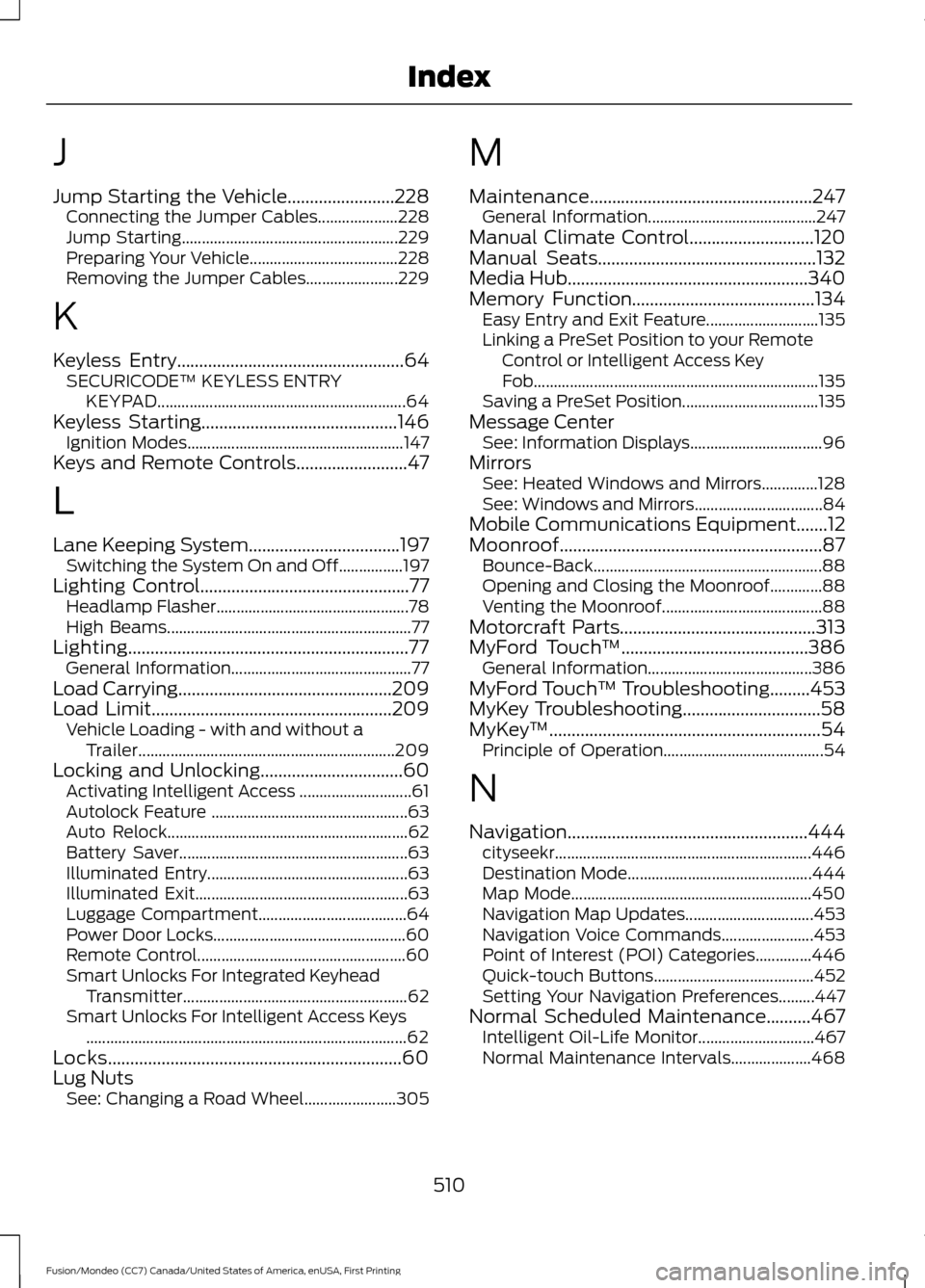
J
Jump Starting the Vehicle........................228
Connecting the Jumper Cables.................... 228
Jump Starting...................................................... 229
Preparing Your Vehicle..................................... 228
Removing the Jumper Cables....................... 229
K
Keyless Entry...................................................64
SECURICODE™ KEYLESS ENTRY
KEYPAD.............................................................. 64
Keyless Starting............................................146 Ignition Modes...................................................... 147
Keys and Remote Controls.........................47
L
Lane Keeping System..................................197 Switching the System On and Off................197
Lighting Control
...............................................77
Headlamp Flasher................................................ 78
High Beams............................................................. 77
Lighting...............................................................77 General Information............................................. 77
Load Carrying................................................209
Load Limit
......................................................209
Vehicle Loading - with and without a
Trailer................................................................ 209
Locking and Unlocking................................60 Activating Intelligent Access ............................ 61
Autolock Feature ................................................. 63
Auto Relock............................................................ 62
Battery Saver......................................................... 63
Illuminated Entry.................................................. 63
Illuminated Exit..................................................... 63
Luggage Compartment..................................... 64
Power Door Locks................................................ 60
Remote Control.................................................... 60
Smart Unlocks For Integrated Keyhead Transmitter........................................................ 62
Smart Unlocks For Intelligent Access Keys ........................................................................\
........ 62
Locks..................................................................60
Lug Nuts See: Changing a Road Wheel....................... 305M
Maintenance..................................................247
General Information.......................................... 247
Manual Climate Control............................120
Manual Seats.................................................132
Media Hub......................................................340
Memory Function.........................................134 Easy Entry and Exit Feature............................ 135
Linking a PreSet Position to your Remote Control or Intelligent Access Key
Fob....................................................................... 135
Saving a PreSet Position.................................. 135
Message Center See: Information Displays................................. 96
Mirrors See: Heated Windows and Mirrors..............128
See: Windows and Mirrors................................ 84
Mobile Communications Equipment
.......12
Moonroof...........................................................87 Bounce-Back......................................................... 88
Opening and Closing the Moonroof.............88
Venting the Moonroof........................................ 88
Motorcraft Parts
............................................313
MyFord Touch ™..........................................386
General Information......................................... 386
MyFord Touch ™ Troubleshooting
.........453
MyKey Troubleshooting...............................58
MyKey ™
.............................................................54
Principle of Operation........................................ 54
N
Navigation......................................................444 cityseekr................................................................ 446
Destination Mode.............................................. 444
Map Mode............................................................ 450
Navigation Map Updates................................ 453
Navigation Voice Commands....................... 453
Point of Interest (POI) Categories..............446
Quick-touch Buttons........................................ 452
Setting Your Navigation Preferences.........447
Normal Scheduled Maintenance..........467 Intelligent Oil-Life Monitor............................. 467
Normal Maintenance Intervals.................... 468
510
Fusion/Mondeo (CC7) Canada/United States of America, enUSA, First Printing Index