audio FORD FUSION ENERGI 2017 Owner's Manual
[x] Cancel search | Manufacturer: FORD, Model Year: 2017, Model line: FUSION ENERGI, Model: FORD FUSION ENERGI 2017Pages: 526, PDF Size: 7.89 MB
Page 323 of 526
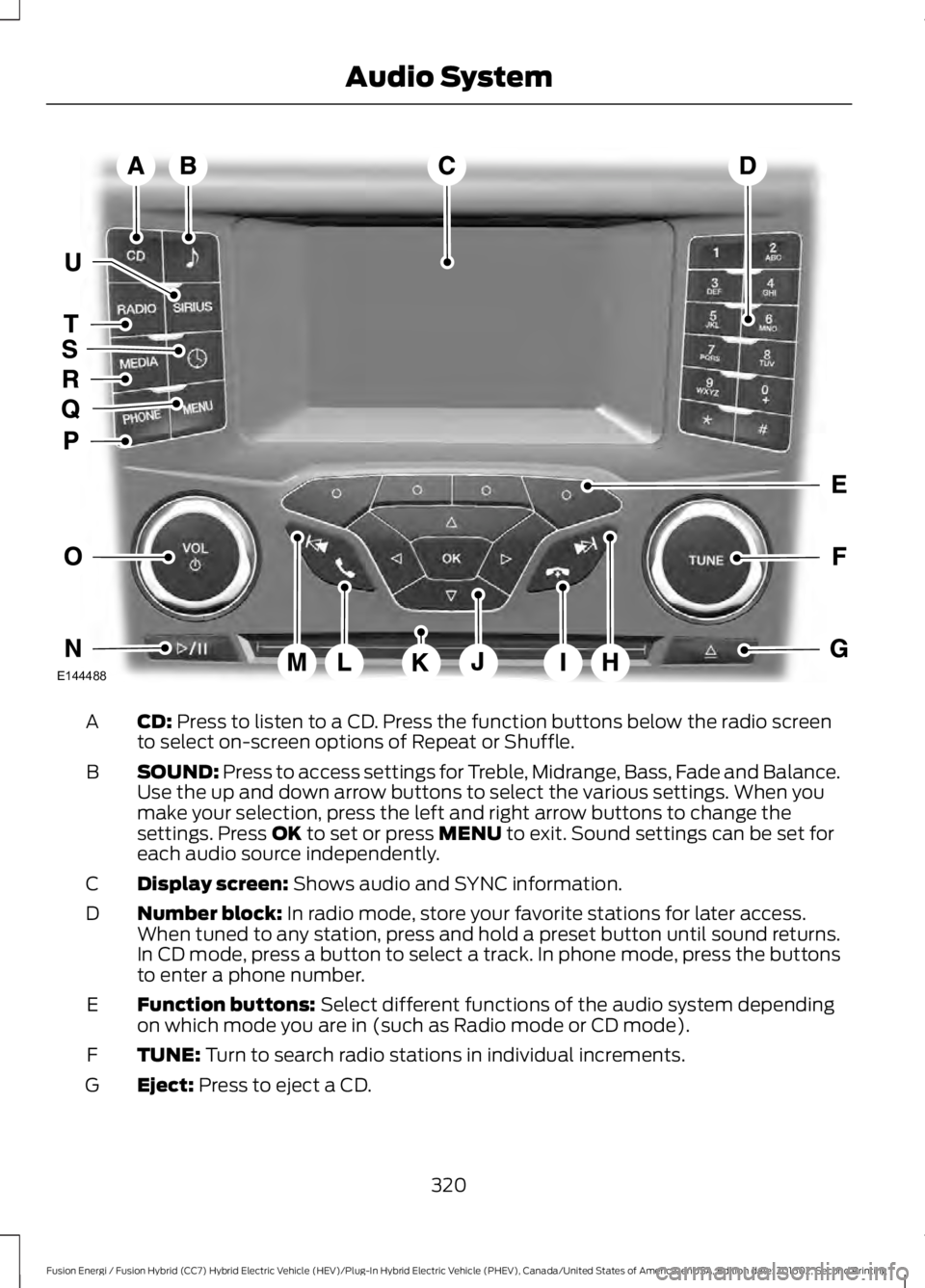
CD: Press to listen to a CD. Press the function buttons below the radio screento select on-screen options of Repeat or Shuffle.A
SOUND: Press to access settings for Treble, Midrange, Bass, Fade and Balance.Use the up and down arrow buttons to select the various settings. When youmake your selection, press the left and right arrow buttons to change thesettings. Press OK to set or press MENU to exit. Sound settings can be set foreach audio source independently.
B
Display screen: Shows audio and SYNC information.C
Number block: In radio mode, store your favorite stations for later access.When tuned to any station, press and hold a preset button until sound returns.In CD mode, press a button to select a track. In phone mode, press the buttonsto enter a phone number.
D
Function buttons: Select different functions of the audio system dependingon which mode you are in (such as Radio mode or CD mode).E
TUNE: Turn to search radio stations in individual increments.F
Eject: Press to eject a CD.G
320
Fusion Energi / Fusion Hybrid (CC7) Hybrid Electric Vehicle (HEV)/Plug-In Hybrid Electric Vehicle (PHEV), Canada/United States of America, enUSA, Edition date: 201602, Second Printing
Audio SystemE144488
Page 324 of 526
Seek: In radio mode, select a radio station and press this button. The systemstops at the next strongest station. Press and hold to move quickly to the nextstrong radio station or memory preset. In CD mode, press to select the nexttrack. Press and hold to move quickly forward through the current track.
H
End phone call: Press and hold to end a phone call.I
Cursor arrows and OK: Use the up and down arrow buttons to select thevarious settings. When you make your selection, press the left and right arrowbuttons to change the settings. Press OK to set or press MENU to exit.
J
CD slot: Insert a CD.K
Answer or Make phone call: Press to either answer an incoming phone callor to make a phone call.L
Seek: In radio mode, select a radio station and press this button. The systemstops at the previous strongest station. Press and hold the button to movequickly to the previous strong radio station or memory preset. In CD mode, pressto select the previous track. Press and hold to move quickly backward throughthe current track.
M
Play/Pause: Press to either play or pause a track when listening to a CD.N
VOL and Power: Press to switch the system on and off. Turn to adjust thevolume.O
PHONE: Press to access the phone features of the SYNC system. See SYNC™(page 327).P
MENU: Press to access different audio system features. See Menu Structurelater in this section.Q
MEDIA: Press to access your auxiliary input jack or switch between devicesyou plug into the input jack or USB port.R
Clock: Press to access the clock setting. Use the center arrow controls to changethe hours and minutes. You can also set the clock by pressing the MENU buttonand scrolling to Clock Settings.
S
RADIO: Press to listen to the radio or change radio stations. Press the functionbuttons below the radio screen to select different radio functions.T
SIRIUS or MUTE: If your vehicle is equipped with SIRIUS satellite radio, pressto listen to SIRIUS satellite radio. If your vehicle is not equipped with SIRIUSsatellite radio, press the button to mute the playing media.
U
DIGITAL RADIO
Note:HD Radio broadcasts are notavailable in all markets.
HD Radio technology is the digitalevolution of analog AM/FM radio. Yoursystem has a special receiver that allowsit to receive digital broadcasts (whereavailable) in addition to the analogbroadcasts, it already receives. Digitalbroadcasts provide a better sound quality
321
Fusion Energi / Fusion Hybrid (CC7) Hybrid Electric Vehicle (HEV)/Plug-In Hybrid Electric Vehicle (PHEV), Canada/United States of America, enUSA, Edition date: 201602, Second Printing
Audio System
Page 325 of 526
than analog broadcasts with free,crystal-clear audio and no static ordistortion. For more information, and aguide to available stations andprogramming, please visitwww.hdradio.com.
When HD Radio is on and you tune to astation broadcasting HD Radio technology,you may notice the HD Radio logo on yourscreen. When this logo is available, youmay also see Title and Artist fieldson-screen.
The multicast indicator appears in FMmode (only) if the current station isbroadcasting multiple digital broadcasts.The highlighted numbers signify availabledigital channels where new or differentcontent is available. HD1 signifies the mainprogramming status and is available inanalog and digital broadcasts. Othermulticast stations (HD2 through HD7) areonly available digitally.
When HD Radio broadcasts are active, youcan access the following functions:
•Scan allows you to hear a briefsampling of all available stations. Thisfeature still works when HD Radioreception is on, although it does notscan for HD2-HD7 channels. You maysee the HD logo appear if the stationhas a digital broadcast.
•Memory presets allow you to save anactive channel as a memory preset.Touch and hold a memory preset slotuntil the sound returns. There is a briefmute while the radio saves the station.Sound returns when finished. Whenswitching to an HD2 or HD3 memorypreset, the sound mutes before thedigital audio plays, because the systemhas to reacquire the digital signal.
Note:As with any saved radio station, youcannot access the saved station if yourvehicle is outside the station’s receptionarea.
HD Radio Reception and Station Troubleshooting
Potential reception issues
If you are listening to a multicast station and you are onthe fringe of the reception area, the station may mute dueto weak signal strength.
Reception area
If you are listening to HD1, the system switches back tothe analog broadcast until the digital broadcast is availableagain. However, if you are listening to any of the possibleHD2-HD7 multicast channels, the station mutes and staysmuted unless it is able to connect to the digital signalagain.
When the system first receives a station (aside from HD2-HD7 multicast stations), it first plays the station in theanalog version. Once the receiver verifies the station is anHD Radio station, it shifts to the digital version. Dependingon the station quality, you may hear a slight sound changewhen the station changes from analog to digital. Blendingis the shift from analog to digital sound or digital back toanalog sound.
Station blending
322
Fusion Energi / Fusion Hybrid (CC7) Hybrid Electric Vehicle (HEV)/Plug-In Hybrid Electric Vehicle (PHEV), Canada/United States of America, enUSA, Edition date: 201602, Second Printing
Audio System
Page 326 of 526
In order to provide the best possibleexperience, use the contact form to reportany station issues found while listening toa station broadcasting with HD Radio
technology. Independent entities own andoperate each station. These stations areresponsible for ensuring all audio streamsand data fields are accurate.
Potential station issues
ActionCauseIssues
No action required. This is abroadcast issue.This is poor time alignmentby the radio broadcaster.Echo, stutter, skip or repeatin audio.Increase or decrease inaudio volume.
No action required. Thereception issue may clear upas you continue to drive.
The radio is shifting betweenanalog and digital audio.Sound fading or blending inand out.
No action required. This isnormal behavior. Wait untilthe audio is available.
The digital multicast is notavailable until the HD Radiobroadcast is decoded. Oncedecoded, the audio is avail-able.
There is an audio mutedelay when selecting HD2 orHD3, multicast preset orDirect Tune.
No action required. Thestation is not available inyour current location.
The previously storedmulticast preset or directtune is not available in yourcurrent reception area.
Cannot access HD2 or HD3multicast channel whenrecalling a preset or from adirect tune.
Fill out the station issueform at website listed
below.*
Data service issue by theradio broadcaster.Text information does notmatch currently playingaudio.
Fill out the station issueform at website listed
below.*
Data service issue by theradio broadcaster.There is no text informationshown for currently selectedfrequency.
No action required. This isnormal behavior.Pressing Scan disablesHD2-HD7 channel search.HD2-HD7 stations not foundwhen Scan is pressed.
* http://www.ibiquity.com/automotive/report_radio_station_experiences
323
Fusion Energi / Fusion Hybrid (CC7) Hybrid Electric Vehicle (HEV)/Plug-In Hybrid Electric Vehicle (PHEV), Canada/United States of America, enUSA, Edition date: 201602, Second Printing
Audio System
Page 327 of 526
HD Radio Technology manufactured underlicense from iBiquity Digital Corp. U.S. andforeign patents. HD Radio and the HD andHD Radio logos are proprietary trademarksof iBiquity Digital Corp. Ford MotorCompany and iBiquity Digital Corp. are notresponsible for the content sent using HDRadio technology. Content may bechanged, added or deleted at any time atthe station owner's discretion.
SATELLITE RADIO (If Equipped)
SIRIUS® broadcasts a variety of music,news, sports, weather, traffic andentertainment satellite radio channels. Formore information and a complete list ofSIRIUS satellite radio channels, visitwww.siriusxm.com in the United States,www.siriusxm.ca in Canada, or call SIRIUSat 1-888-539-7474.
Note:This receiver includes the eCosreal-time operating system. eCos ispublished under the eCos License.
Satellite Radio Reception Factors
Potential satellite radio reception issues
For optimal reception performance, keep the antennaclear of snow and ice build-up and keep luggage and othermaterial as far away from the antenna as possible.
Antenna obstructions
Hills, mountains, tall buildings, bridges, tunnels, freewayoverpasses, parking garages, dense tree foliage andthunderstorms can interfere with your reception.
Terrain
When you pass a ground-based broadcast-repeatingtower, a stronger signal may overtake a weaker one andthe audio system may mute.
Station overload
Your display may show ACQUIRING . . . to indicate theinterference and the audio system may mute.Satellite radio signal interfer-ence
SIRIUS® Satellite Radio Service
Note:SIRIUS reserves the unrestricted rightto change, rearrange, add or deleteprogramming including canceling, movingor adding particular channels, and its prices,at any time, with or without notice to you.Ford Motor Company shall not beresponsible for any such programmingchanges.
324
Fusion Energi / Fusion Hybrid (CC7) Hybrid Electric Vehicle (HEV)/Plug-In Hybrid Electric Vehicle (PHEV), Canada/United States of America, enUSA, Edition date: 201602, Second Printing
Audio SystemE142593
Page 328 of 526
SIRIUS satellite radio is asubscription-based satellite radio servicethat broadcasts a variety of music, sports,news, weather, traffic and entertainmentprogramming. Your factory-installedSIRIUS satellite radio system includeshardware and a limited subscription term,which begins on the date of sale or leaseof your vehicle. See an authorized dealerfor availability.
For more information on extendedsubscription terms (a service fee isrequired), the online media player and acomplete list of SIRIUS satellite radiochannels, and other features, please visitwww.siriusxm.com in the United States,www.siriusxm.ca in Canada, or call SIRIUSat 1-888-539-7474.
Satellite Radio Electronic SerialNumber (ESN)
You need your ESN to activate, modify ortrack your satellite radio account. When insatellite radio mode, tune to channel 0.
Troubleshooting
ActionConditionMessage
No action required. Thismessage should disappearshortly.
Radio requires more thantwo seconds to produceaudio for the selectedchannel.
Acquiring…
If this message does notclear shortly, or with an igni-tion key cycle, your receivermay have a fault. See anauthorized dealer for service.
There is an internal moduleor system failure present.Satellite antenna fault
SIRIUS system failure
Tune to another channel orchoose another preset.The channel is no longeravailable.Invalid Channel
Contact SIRIUS at 1-888-539-7474 to subscribe tothe channel, or tune toanother channel.
Your subscription does notinclude this channel.Unsubscribed Channel
The signal is blocked. Whenyou move into an open area,the signal should return.
The signal is lost from theSIRIUS satellite or SIRIUStower to your vehicleantenna.
No Signal
No action required. Theprocess may take up tothree minutes.
Update of channelprogramming in progress.Updating…
325
Fusion Energi / Fusion Hybrid (CC7) Hybrid Electric Vehicle (HEV)/Plug-In Hybrid Electric Vehicle (PHEV), Canada/United States of America, enUSA, Edition date: 201602, Second Printing
Audio System
Page 329 of 526
ActionConditionMessage
Contact SIRIUS at 1-888-539-7474 to resolvesubscription issues.
Your satellite service is nolonger available.Questions? Call
1-888-539-7474
Use the channel guide toturn off the Lock or Skipfunction on that station.
All the channels in theselected category are eitherskipped or locked.
None found
Check Channel Guide
No action required.SIRIUS has updated thechannels available for yourvehicle.
Subscription Updated
USB PORT (If Equipped)
WARNING
Driving while distracted can result inloss of vehicle control, crash andinjury. We strongly recommend thatyou use extreme caution when using anydevice that may take your focus off theroad. Your primary responsibility is the safeoperation of your vehicle. We recommendagainst the use of any hand-held devicewhile driving and encourage the use ofvoice-operated systems when possible.Make sure you are aware of all applicablelocal laws that may affect the use ofelectronic devices while driving.
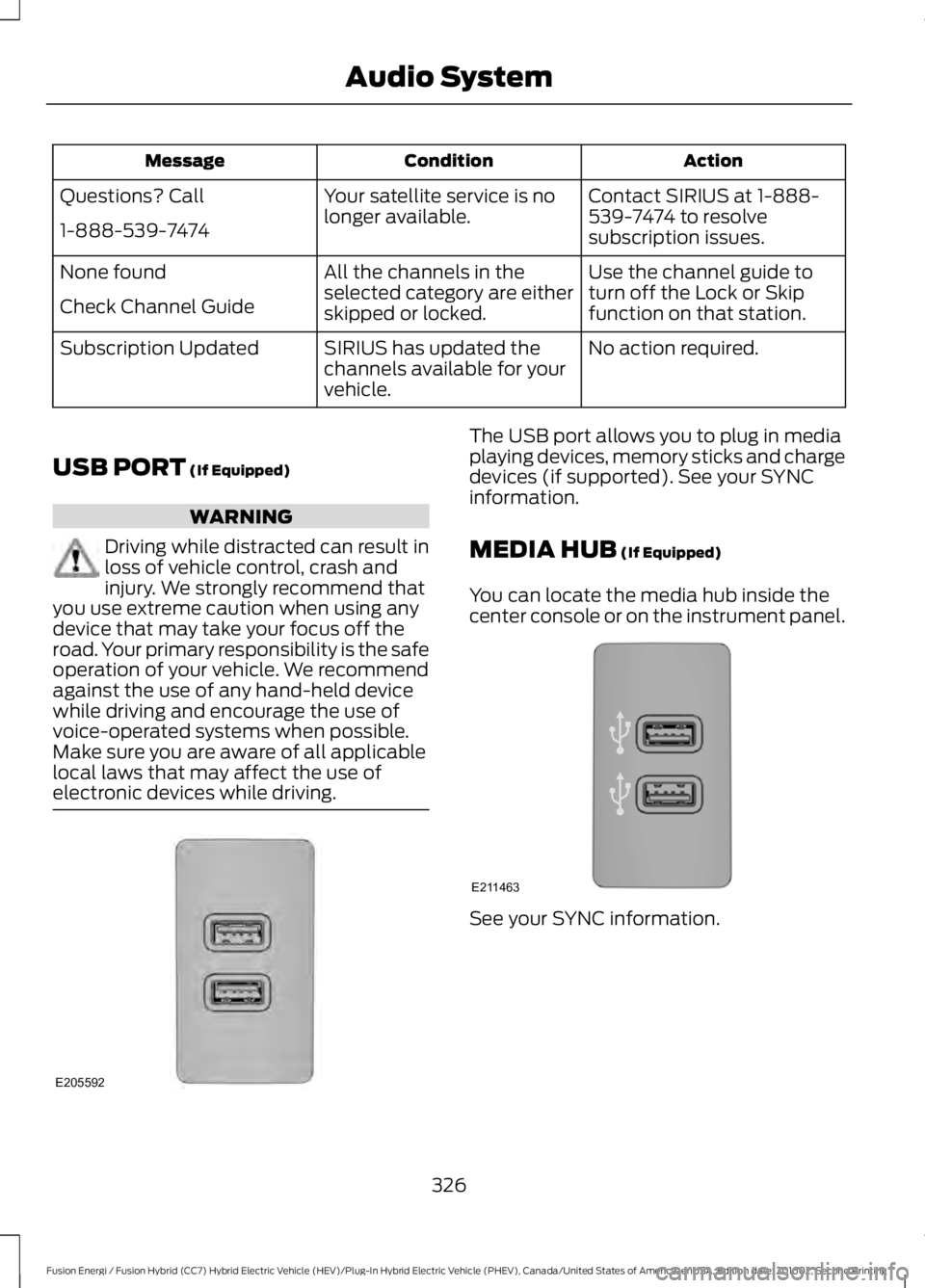
The USB port allows you to plug in mediaplaying devices, memory sticks and chargedevices (if supported). See your SYNCinformation.
MEDIA HUB (If Equipped)
You can locate the media hub inside thecenter console or on the instrument panel.
See your SYNC information.
326
Fusion Energi / Fusion Hybrid (CC7) Hybrid Electric Vehicle (HEV)/Plug-In Hybrid Electric Vehicle (PHEV), Canada/United States of America, enUSA, Edition date: 201602, Second Printing
Audio SystemE205592 E211463
Page 334 of 526
To adjust this setting press the voice button, when prompted say:
Action and DescriptionVoice Command
voice settings
Then any of the following:
When enabled, this feature will prompt youto confirm any voice initiated call commandprior to the call being placed.
phone confirmation on
The system will make a best guess; youmay still occasionally be asked to confirmsettings.
phone confirmation off
Changing the Voice Settings
In addition to using voice commands tochange the voice settings, you can also usethe menu in the audio display.
To change the voice settings press theMenu button then select:
Menu Item
SYNC-Settings
Voice settings
Note:Depending on the current climatecontrol settings, the fan speed mayautomatically go down while issuing voicecommands or while making and receivingphone calls via SYNC to reduce the amountof background noise in the vehicle. The fanspeed will automatically return to normaloperation once the voice session ends. Fanspeed can also be adjusted normally duringa voice session, simply press fan buttons (orturn fan knob) to increase or decrease fanspeed to desired setting.
To disable this automatic fan speedreduction feature during voice sessions,press and hold the climate control AC andRecirculated air buttons simultaneously,release and then increase fan speed within2 seconds. To re-enable this feature, repeatthe above sequence.
USING SYNC™ WITH YOUR
PHONE
Hands-free calling is one of the mainfeatures of SYNC. While the systemsupports a variety of features, many aredependent on your cellular phone'sfunctionality. At a minimum, most cellularphones with Bluetooth wireless technologysupport the following functions:
•Answering an incoming call.
•Ending a call.
•Using privacy mode.
•Dialing a number.
•Redialing.
•Call waiting notification.
•Caller ID.
331
Fusion Energi / Fusion Hybrid (CC7) Hybrid Electric Vehicle (HEV)/Plug-In Hybrid Electric Vehicle (PHEV), Canada/United States of America, enUSA, Edition date: 201602, Second Printing
SYNC™
Page 335 of 526
Other features, such as text messagingusing Bluetooth and automatic phonebookdownload, are phone-dependent features.To check your phone's compatibility, seeyour phone's manual and visitwww.SYNCMyRide.com,www.SYNCMyRide.ca orwww.syncmaroute.ca.
Pairing a Phone for the First Time
Wirelessly pairing your phone with SYNCallows you to make and receive hands-freecalls.
Note:SYNC can support downloading upto approximately 4000 entries perBluetooth-enabled cellular phone.
Note:Make sure to switch on the ignitionand the radio. Shift the transmission intopark (P) for automatic transmission or firstgear for manual transmission.
Using the Audio System
Note:To scroll through the menus, pressthe up and down arrows on your audiosystem.
1. Make sure to switch on your phone'sBluetooth feature before starting thesearch. See your device's manual ifnecessary.
2. Press the PHONE button. When theaudio display indicates there is nopaired phone, select the option to add.
3. When a message to begin pairingappears in the audio display, search forSYNC on your phone to start the pairingprocess.
4. When prompted on your cell phone’sdisplay, confirm that the PIN providedby SYNC matches the PIN displayedon your cell phone. Your phone is nowpaired and the display indicates thatthe pairing was successful. If you areprompted to enter a PIN on your device,enter the PIN displayed on the screen.The display indicates when the pairingis successful.
Depending on your phone's capability andyour market, the system may prompt youwith questions, such as setting the currentphone as the primary phone (the phoneSYNC automatically tries to connect withfirst upon vehicle start-up) anddownloading your phonebook.
Using Voice Commands
Make sure to switch on yourphone's Bluetooth featurebefore starting the search. Seeyour device's manual if necessary.
Press the voice and when promptedsay:
Action and Descrip-tionVoice Command
Follow the instruc-tions on the audiodisplay.
(pair ([Bluetooth]device | phone |Bluetooth audio) |add phone)
You can say any of the voice commandsthat appear within open and close bracketsthat are separated by |. For example,where; (what's | what is) appears you say;what's or what is.
The commands that have [ ] around theword means that the word is optional.
332
Fusion Energi / Fusion Hybrid (CC7) Hybrid Electric Vehicle (HEV)/Plug-In Hybrid Electric Vehicle (PHEV), Canada/United States of America, enUSA, Edition date: 201602, Second Printing
SYNC™E142599
Page 336 of 526
Depending on your phone's capability andyour market, the system may prompt youwith questions, such as setting the currentphone as the primary phone (the phoneSYNC automatically tries to connect withfirst upon vehicle start-up) anddownloading your phonebook.
Pairing Subsequent Phones
Note:Make sure to switch on the ignitionand the radio. Shift the transmission intopark (P) for automatic transmission or firstgear for manual transmission.
Note:To scroll through the menus, pressthe up and down arrows on your audiosystem.
1. Make sure to switch on your phone'sBluetooth feature before starting thesearch. See your device's manual ifnecessary.
2. Press the PHONE button.
3. Select the option for BluetoothDevices.
4. Press the OK button.
5. Select the option to add. This startsthe pairing process.
6. When a message to begin pairingappears in the audio display, search forSYNC on your device.
7. When prompted on your cell phone’sdisplay, confirm that the PIN providedby SYNC matches the PIN displayedon your cell phone. Your phone is nowpaired and the display indicates thatthe pairing was successful. If you areprompted to enter a PIN on your device,enter the PIN displayed on the screen.The display indicates when the pairingis successful.
SYNC may prompt you with more cellphone options. Your cell phone may alsoprompt you to give SYNC permission toaccess information. For more informationon your cell phone’s capability, see yourcell phone’s manual and visit the website.
Phone Voice Commands
Press the voice button. Whenprompted, say any of thefollowing:
Voice Command
(phone | Blackberry | iPhone)
Then say any of the following:
call (___)
call ___ at home
call ___ ((in|at) [the] office | at work)
call ___ on (cell | mobile)
call ___ on other
1dial [[a] number]
2([go to] privacy | transfer to phone| privacy on)
2(hold call [on] | place call on hold)
2join (calls | call)
2mute call [on]
2(mute call off | un-mute call)
(turn ringer on | silent mode off)
(turn ringer off | silent mode [on])
333
Fusion Energi / Fusion Hybrid (CC7) Hybrid Electric Vehicle (HEV)/Plug-In Hybrid Electric Vehicle (PHEV), Canada/United States of America, enUSA, Edition date: 201602, Second Printing
SYNC™E142599