change time FORD FUSION ENERGI 2017 Owner's Manual
[x] Cancel search | Manufacturer: FORD, Model Year: 2017, Model line: FUSION ENERGI, Model: FORD FUSION ENERGI 2017Pages: 526, PDF Size: 7.89 MB
Page 195 of 526
The system does not position the vehicle where I want in the space
A parked vehicle has a high attachment (salt sprayer, snowplow or moving truck bed).
The parking space length or position of parked objects changed after your vehicle passed.
The temperature around your vehicle changes quickly (driving from a heated garageinto the cold, or after leaving a car wash).
REAR VIEW CAMERA
WARNINGS
The rear view camera system is areverse aid supplement device thatstill requires the driver to use it inconjunction with the interior and exteriormirrors for maximum coverage.
Objects that are close to eithercorner of the bumper or under thebumper, might not be seen on thescreen due to the limited coverage of thecamera system.
Reverse your vehicle as slow aspossible, higher speeds may limityour reaction time to stop yourvehicle.
Use caution when the rear cargo dooris ajar. If the rear cargo door is ajar,the camera will be out of positionand the video image may be incorrect. Allguidelines disappear when the rear cargodoor is ajar. Some vehicles may not comeequipped with guidelines.
Use caution when turning camerafeatures on or off when thetransmission is not in park (P). Makesure your vehicle is not moving.
The rear view camera system provides avideo image of the area behind yourvehicle.
During operation, lines appear in thedisplay which represent your vehicle’s pathand proximity to objects behind yourvehicle.
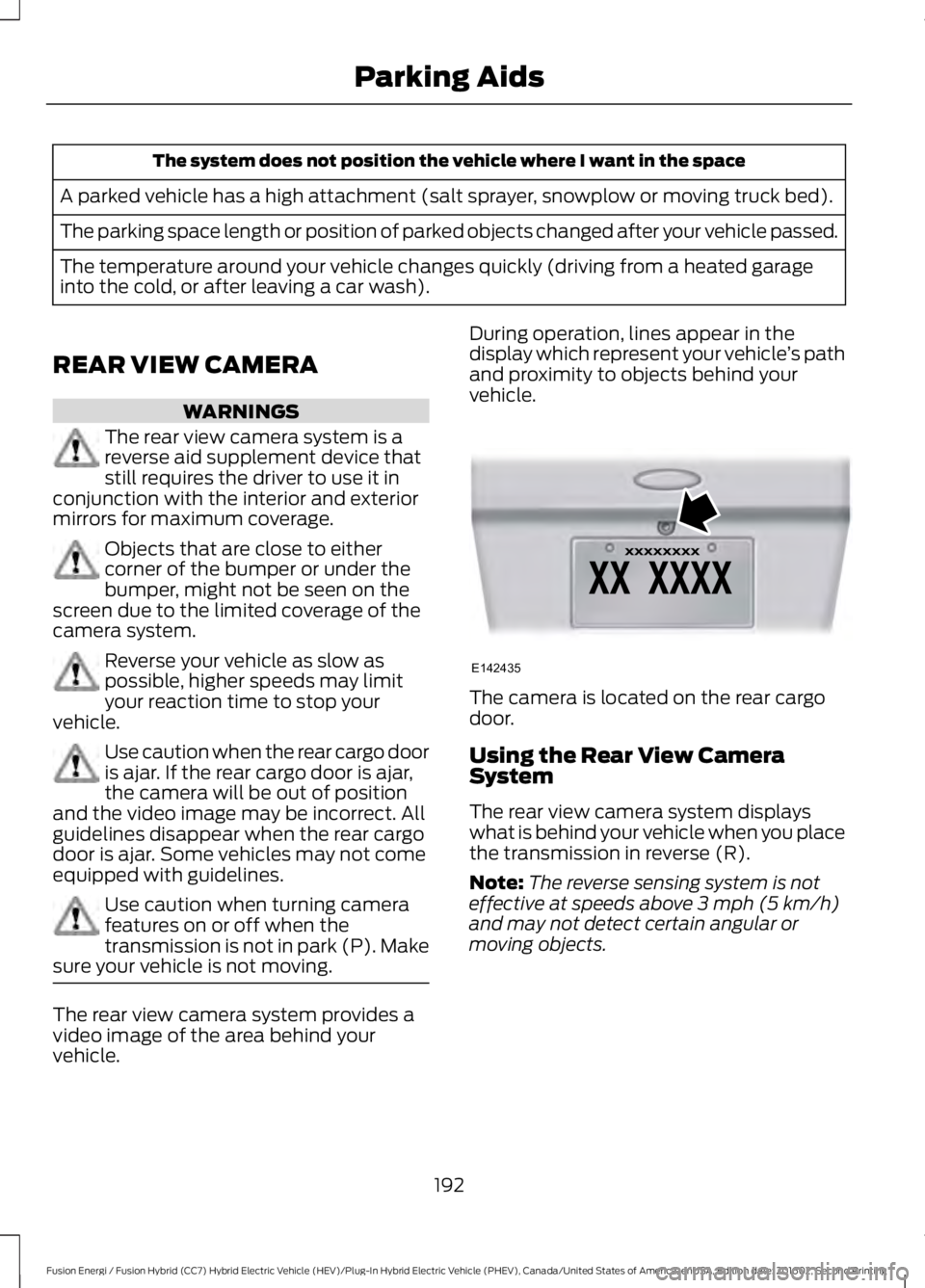
The camera is located on the rear cargodoor.
Using the Rear View CameraSystem
The rear view camera system displayswhat is behind your vehicle when you placethe transmission in reverse (R).
Note:The reverse sensing system is noteffective at speeds above 3 mph (5 km/h)and may not detect certain angular ormoving objects.
192
Fusion Energi / Fusion Hybrid (CC7) Hybrid Electric Vehicle (HEV)/Plug-In Hybrid Electric Vehicle (PHEV), Canada/United States of America, enUSA, Edition date: 201602, Second Printing
Parking AidsE142435
Page 196 of 526
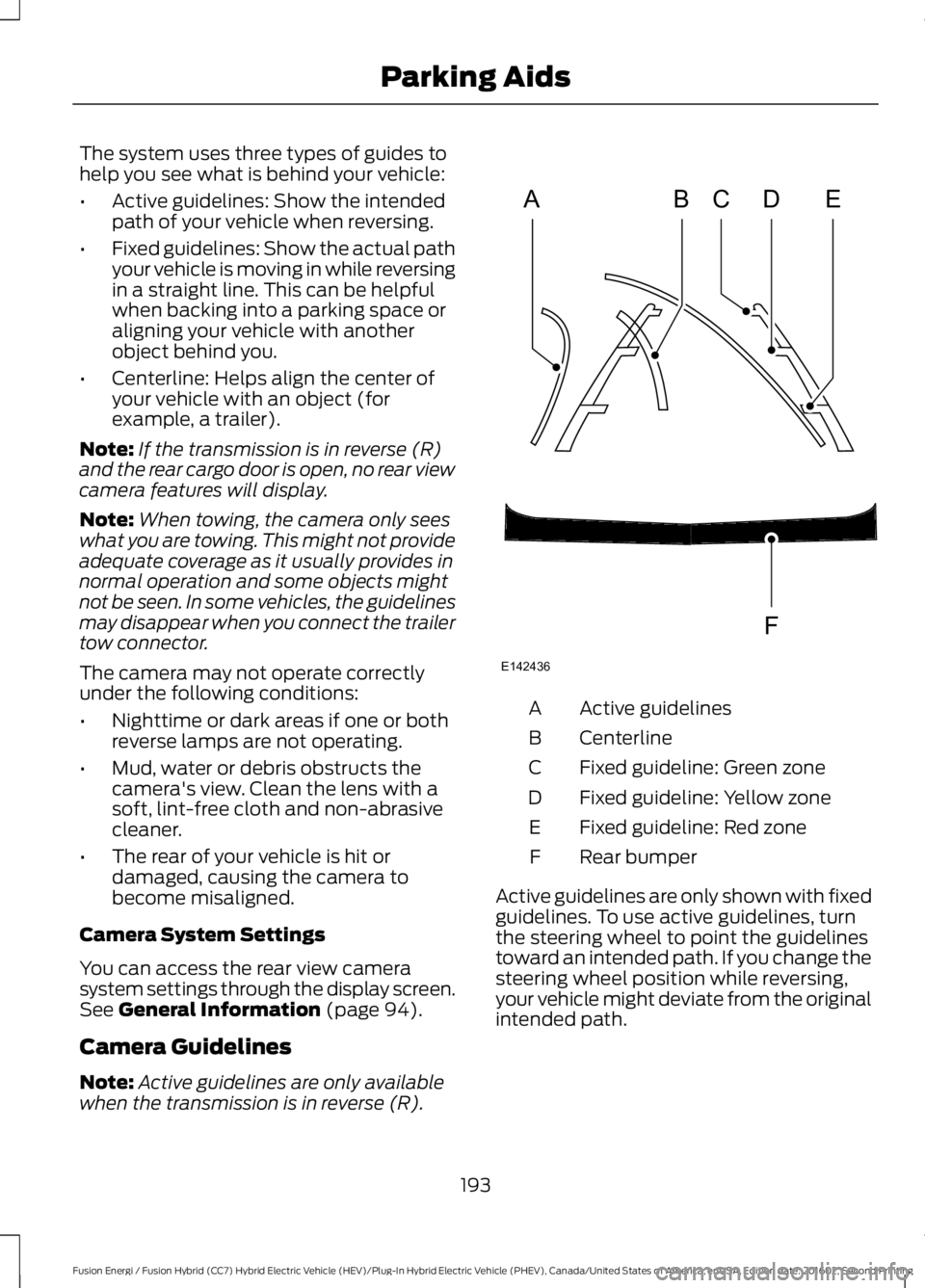
The system uses three types of guides tohelp you see what is behind your vehicle:
•Active guidelines: Show the intendedpath of your vehicle when reversing.
•Fixed guidelines: Show the actual pathyour vehicle is moving in while reversingin a straight line. This can be helpfulwhen backing into a parking space oraligning your vehicle with anotherobject behind you.
•Centerline: Helps align the center ofyour vehicle with an object (forexample, a trailer).
Note:If the transmission is in reverse (R)and the rear cargo door is open, no rear viewcamera features will display.
Note:When towing, the camera only seeswhat you are towing. This might not provideadequate coverage as it usually provides innormal operation and some objects mightnot be seen. In some vehicles, the guidelinesmay disappear when you connect the trailertow connector.
The camera may not operate correctlyunder the following conditions:
•Nighttime or dark areas if one or bothreverse lamps are not operating.
•Mud, water or debris obstructs thecamera's view. Clean the lens with asoft, lint-free cloth and non-abrasivecleaner.
•The rear of your vehicle is hit ordamaged, causing the camera tobecome misaligned.
Camera System Settings
You can access the rear view camerasystem settings through the display screen.See General Information (page 94).
Camera Guidelines
Note:Active guidelines are only availablewhen the transmission is in reverse (R).
Active guidelinesA
CenterlineB
Fixed guideline: Green zoneC
Fixed guideline: Yellow zoneD
Fixed guideline: Red zoneE
Rear bumperF
Active guidelines are only shown with fixedguidelines. To use active guidelines, turnthe steering wheel to point the guidelinestoward an intended path. If you change thesteering wheel position while reversing,your vehicle might deviate from the originalintended path.
193
Fusion Energi / Fusion Hybrid (CC7) Hybrid Electric Vehicle (HEV)/Plug-In Hybrid Electric Vehicle (PHEV), Canada/United States of America, enUSA, Edition date: 201602, Second Printing
Parking AidsABCD
F
E
E142436
Page 199 of 526
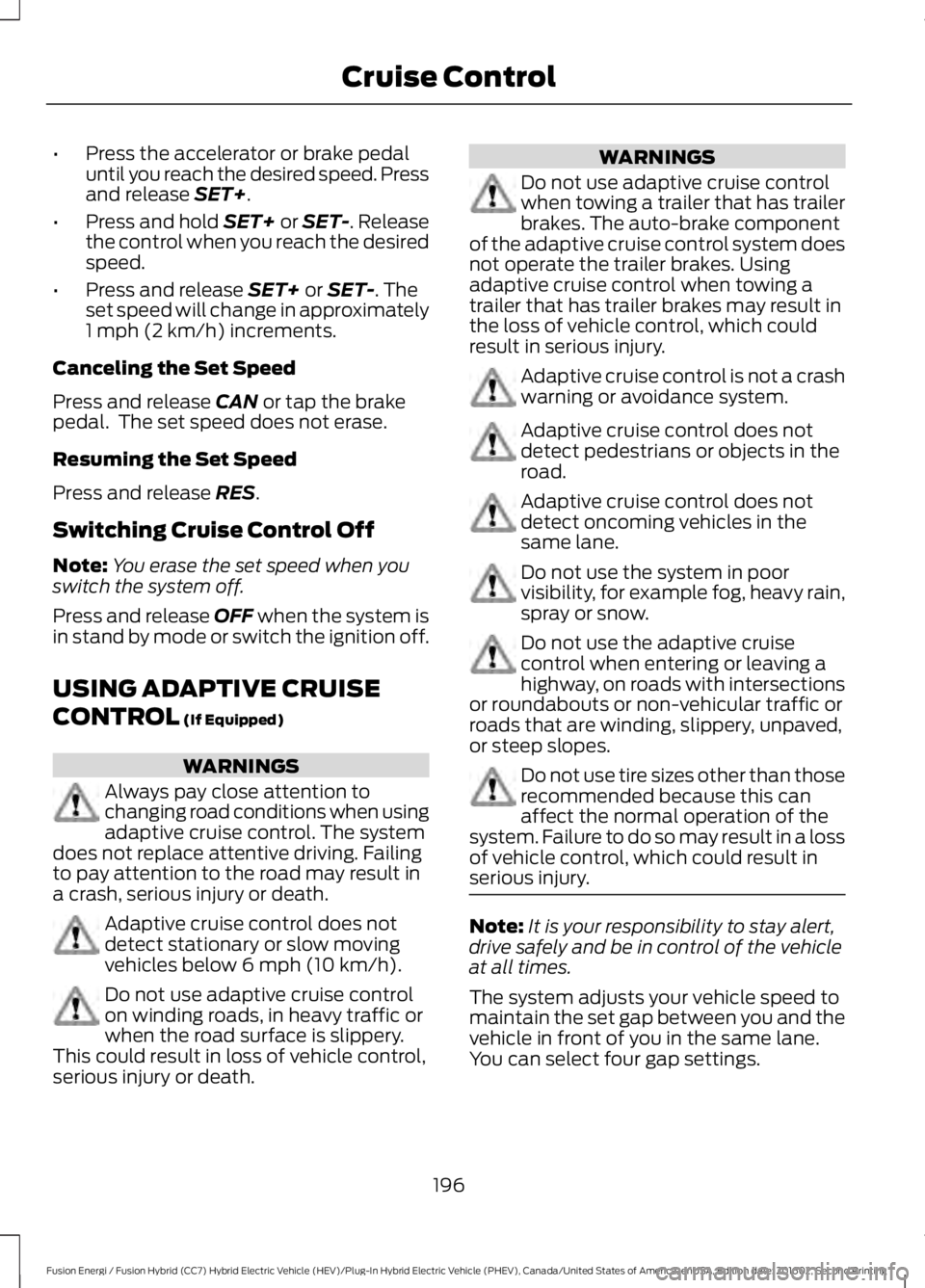
•Press the accelerator or brake pedaluntil you reach the desired speed. Pressand release SET+.
•Press and hold SET+ or SET-. Releasethe control when you reach the desiredspeed.
•Press and release SET+ or SET-. Theset speed will change in approximately1 mph (2 km/h) increments.
Canceling the Set Speed
Press and release CAN or tap the brakepedal. The set speed does not erase.
Resuming the Set Speed
Press and release RES.
Switching Cruise Control Off
Note:You erase the set speed when youswitch the system off.
Press and release OFF when the system isin stand by mode or switch the ignition off.
USING ADAPTIVE CRUISE
CONTROL (If Equipped)
WARNINGS
Always pay close attention tochanging road conditions when usingadaptive cruise control. The systemdoes not replace attentive driving. Failingto pay attention to the road may result ina crash, serious injury or death.
Adaptive cruise control does notdetect stationary or slow movingvehicles below 6 mph (10 km/h).
Do not use adaptive cruise controlon winding roads, in heavy traffic orwhen the road surface is slippery.This could result in loss of vehicle control,serious injury or death.
WARNINGS
Do not use adaptive cruise controlwhen towing a trailer that has trailerbrakes. The auto-brake componentof the adaptive cruise control system doesnot operate the trailer brakes. Usingadaptive cruise control when towing atrailer that has trailer brakes may result inthe loss of vehicle control, which couldresult in serious injury.
Adaptive cruise control is not a crashwarning or avoidance system.
Adaptive cruise control does notdetect pedestrians or objects in theroad.
Adaptive cruise control does notdetect oncoming vehicles in thesame lane.
Do not use the system in poorvisibility, for example fog, heavy rain,spray or snow.
Do not use the adaptive cruisecontrol when entering or leaving ahighway, on roads with intersectionsor roundabouts or non-vehicular traffic orroads that are winding, slippery, unpaved,or steep slopes.
Do not use tire sizes other than thoserecommended because this canaffect the normal operation of thesystem. Failure to do so may result in a lossof vehicle control, which could result inserious injury.
Note:It is your responsibility to stay alert,drive safely and be in control of the vehicleat all times.
The system adjusts your vehicle speed tomaintain the set gap between you and thevehicle in front of you in the same lane.You can select four gap settings.
196
Fusion Energi / Fusion Hybrid (CC7) Hybrid Electric Vehicle (HEV)/Plug-In Hybrid Electric Vehicle (PHEV), Canada/United States of America, enUSA, Edition date: 201602, Second Printing
Cruise Control
Page 202 of 526
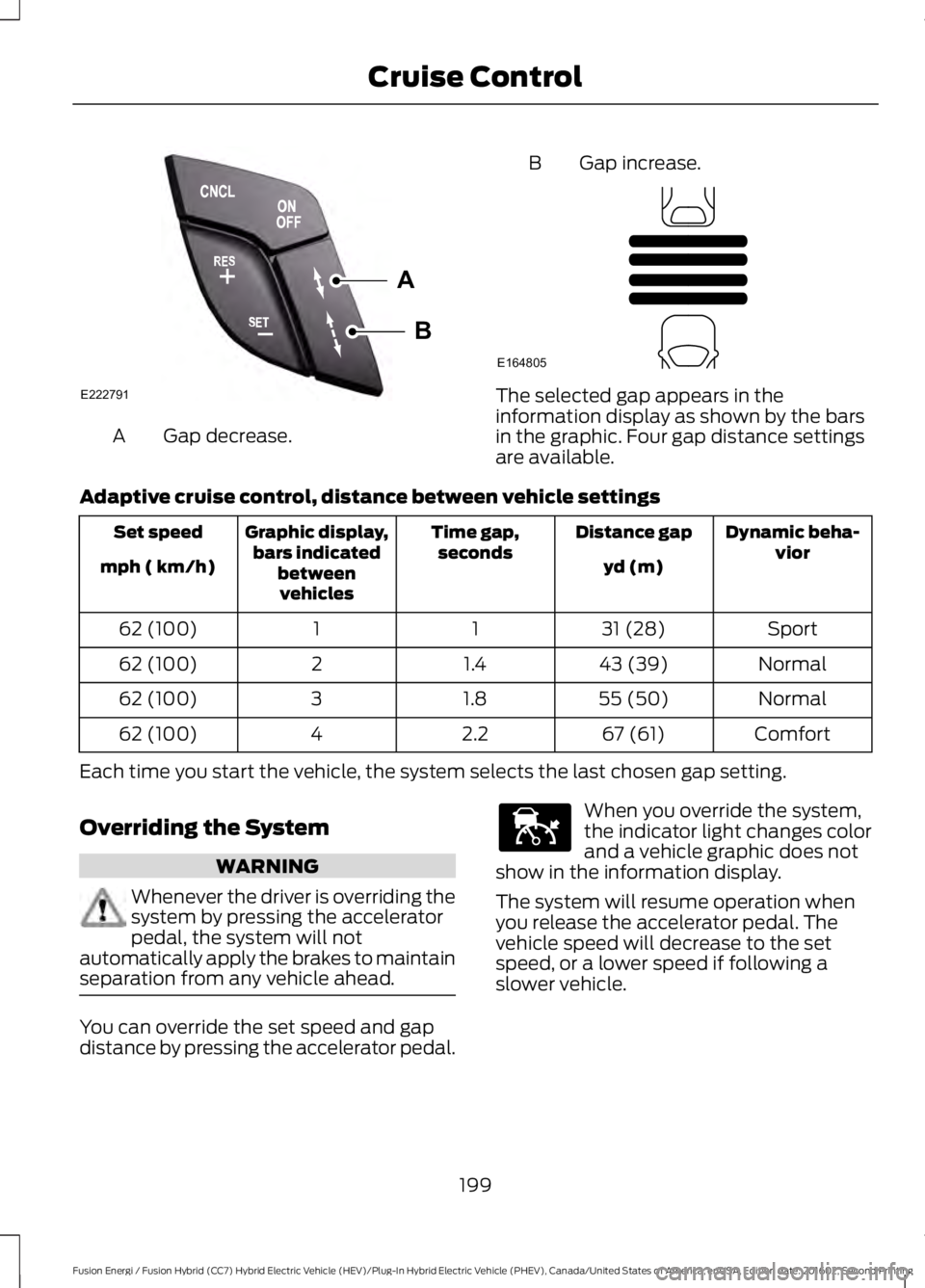
Gap decrease.A
B Gap increase.
The selected gap appears in theinformation display as shown by the barsin the graphic. Four gap distance settingsare available.
Adaptive cruise control, distance between vehicle settings
Dynamic beha-viorDistance gapTime gap,secondsGraphic display,bars indicatedbetweenvehicles
Set speed
yd (m)mph ( km/h)
Sport31 (28)1162 (100)
Normal43 (39)1.4262 (100)
Normal55 (50)1.8362 (100)
Comfort67 (61)2.2462 (100)
Each time you start the vehicle, the system selects the last chosen gap setting.
Overriding the System
WARNING
Whenever the driver is overriding thesystem by pressing the acceleratorpedal, the system will notautomatically apply the brakes to maintainseparation from any vehicle ahead.
You can override the set speed and gapdistance by pressing the accelerator pedal.
When you override the system,the indicator light changes colorand a vehicle graphic does notshow in the information display.
The system will resume operation whenyou release the accelerator pedal. Thevehicle speed will decrease to the setspeed, or a lower speed if following aslower vehicle.
199
Fusion Energi / Fusion Hybrid (CC7) Hybrid Electric Vehicle (HEV)/Plug-In Hybrid Electric Vehicle (PHEV), Canada/United States of America, enUSA, Edition date: 201602, Second Printing
Cruise ControlA
B
E222791 E164805 E144529
Page 203 of 526
Changing the Set Speed
•Press and release RES+ or SET-. Whenyou select km/h as the displaymeasurement in the informationdisplay the set speed changes inapproximately 2 km/h increments.When you select mph as the displaymeasurement in the informationdisplay the set speed changes inapproximately 1 mph increments.
•Press the accelerator or brake pedaluntil you reach the desired speed. Pressand release SET-.
•Press and hold RES+ or SET-. Releasethe control when you reach the desiredspeed. The set speed changes inapproximately 5 mph/10 km/hincrements.
•Press the RES+ or SET- button tochange the set speed in increments ofapproximately 1 mph or 2 km/h.
•Hold the RES+ or SET- button tochange the set speed in increments ofapproximately 5 mph or 10 km/h.
The system may apply the brakes to slowthe vehicle to the new set speed. The setspeed displays continuously in theinformation display when the system isactive.
Canceling the Set Speed
Press and release CNCL or tap the brakepedal. The set speed does not erase.
Resuming the Set Speed
Press and release RES+. The vehiclereturns to the previously set speed. The setspeed displays continuously in theinformation display while the system isactive.
Note:Only use resume if you are aware ofthe set speed and intend to return to it.
Automatic Cancellation
Automatic cancellation occurs if:
•The tires lose traction.
•The engine speed is too low.
•You apply the parking brake.
Note:If the engine speed drops too low,the information display indicates low enginespeed. Shift to a lower gear (manualtransmission only) to avoid automaticcancellation.
Hilly Condition Usage
Note:An audible alarm sounds and thesystem shuts down when it applies brakesfor an extended period of time. This allowsthe brakes to cool. The system functionsnormally after the brakes have cooled.
You should select a lower gear positionwhen the system is active in situationssuch as prolonged downhill driving onsteep grades, for example in mountainousareas. The system needs additional enginebraking in these situations to reduce theload on the vehicle’s regular brake systemto prevent them from overheating.
Switching Adaptive Cruise ControlOff
Press and release OFF when the system isin stand by mode or switch the ignition off.
Note:You erase the set speed when youswitch the system off.
200
Fusion Energi / Fusion Hybrid (CC7) Hybrid Electric Vehicle (HEV)/Plug-In Hybrid Electric Vehicle (PHEV), Canada/United States of America, enUSA, Edition date: 201602, Second Printing
Cruise Control
Page 204 of 526
Detection Issues
WARNING
On rare occasions, detection issuescan occur due to the roadinfrastructures, for example bridges,tunnels and safety barriers. In these cases,the system may brake late orunexpectedly. At all times, you areresponsible for controlling your vehicle,supervising the system and intervening, ifrequired.
The radar sensor has a limited field ofvision. It may not detect vehicles at all ormay detect a vehicle later than expectedin some situations. The lead vehicle graphicwill not illuminate if the system does notdetect a vehicle in front of you.
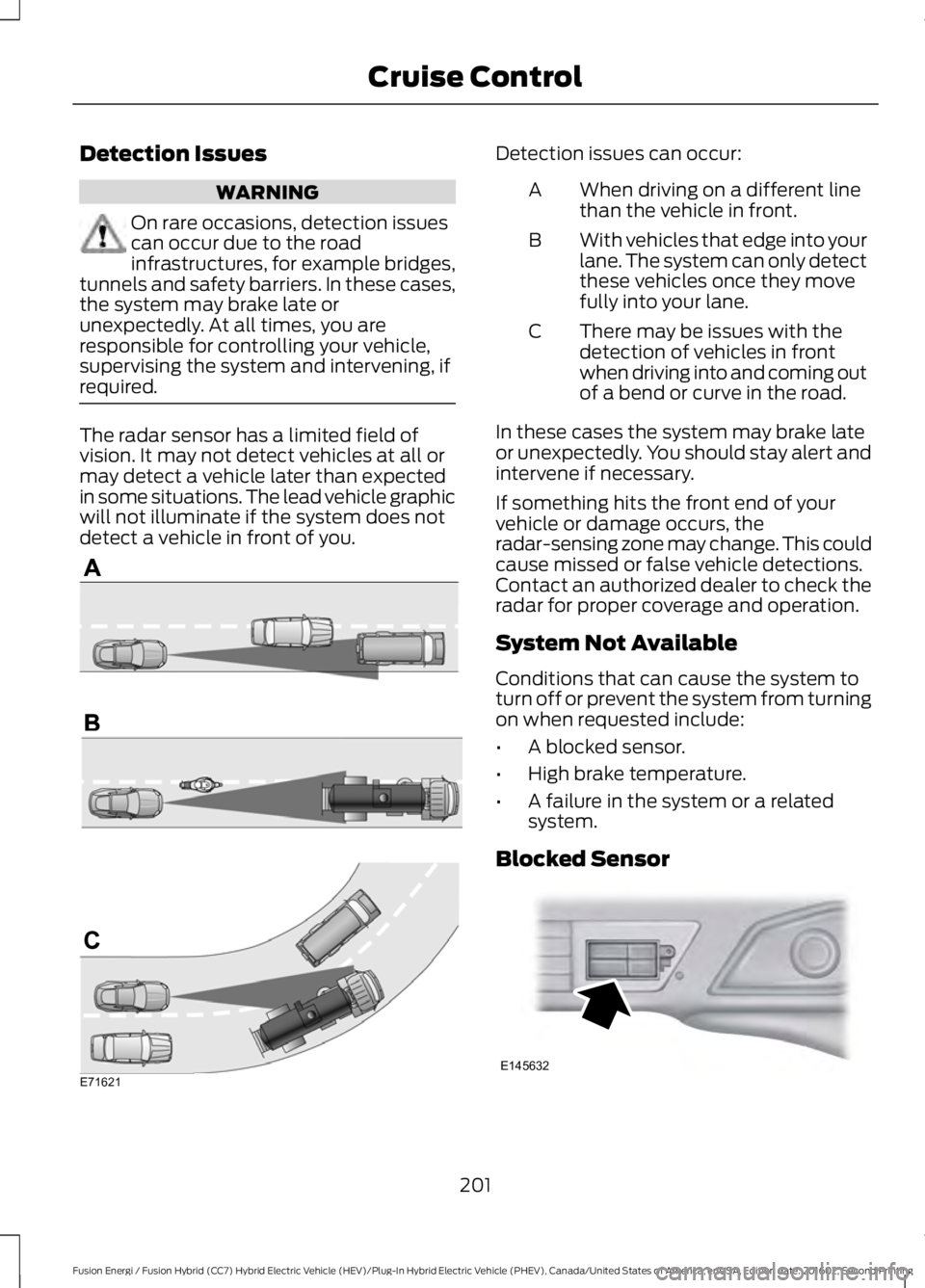
Detection issues can occur:
When driving on a different linethan the vehicle in front.A
With vehicles that edge into yourlane. The system can only detectthese vehicles once they movefully into your lane.
B
There may be issues with thedetection of vehicles in frontwhen driving into and coming outof a bend or curve in the road.
C
In these cases the system may brake lateor unexpectedly. You should stay alert andintervene if necessary.
If something hits the front end of yourvehicle or damage occurs, theradar-sensing zone may change. This couldcause missed or false vehicle detections.Contact an authorized dealer to check theradar for proper coverage and operation.
System Not Available
Conditions that can cause the system toturn off or prevent the system from turningon when requested include:
•A blocked sensor.
•High brake temperature.
•A failure in the system or a relatedsystem.
Blocked Sensor
201
Fusion Energi / Fusion Hybrid (CC7) Hybrid Electric Vehicle (HEV)/Plug-In Hybrid Electric Vehicle (PHEV), Canada/United States of America, enUSA, Edition date: 201602, Second Printing
Cruise ControlE71621 E145632
Page 205 of 526
A message appears if something obstructsthe sensor's radar signals. The sensor islocated behind a cover near the driver sideof the lower grille. The system cannotdetect a vehicle ahead and does notfunction when something obstructs the
radar signal.
Note:You cannot see the sensor, it isbehind a fascia panel.
The following table lists possible causesand actions for this message displaying.
ActionCause
Clean the grille surface in front of the radaror remove the object obstructing it.The surface of the radar in the grille is dirtyor obstructed in some way.
Wait a short time. It may take severalminutes for the radar to detect that it is freefrom obstruction.
The surface of the radar in the grille is cleanbut the message remains in the display.
Do not use the system in these conditionsbecause it may not detect any vehiclesahead.
Heavy rain or snow is interfering with theradar signals.
Do not use the system in these conditionsbecause it may not detect any vehiclesahead.
Swirling water, or snow or ice on the surfaceof the road may interfere with the radarsignals.
Wait a short time or switch to normal cruisecontrol.You are in a desert or remote area with noother vehicles and no roadside objects.
Due to the nature of radar technology, it ispossible to get a blockage warning and notbe blocked. This can happen, for example,when driving in sparse rural or desertenvironments. A false blocked conditionwill either self clear or clear after a keycycle.
Switching to Normal CruiseControl
WARNING
Normal cruise control will not brakedue to slower vehicles. Always beaware of which mode you haveselected and apply the brakes whennecessary.
You can manually change from adaptivecruise control to normal cruise controlthrough the information display. SeeInformation Displays (page 94).
The cruise control indicator lightreplaces the adaptive cruisecontrol indicator light if youselect normal cruise control. The gapsetting will not display, the system will notautomatically respond to lead vehicles andautomatic braking will not activate.
202
Fusion Energi / Fusion Hybrid (CC7) Hybrid Electric Vehicle (HEV)/Plug-In Hybrid Electric Vehicle (PHEV), Canada/United States of America, enUSA, Edition date: 201602, Second Printing
Cruise ControlE71340
Page 207 of 526
System Display
When active the system will runautomatically in the background and onlyissue a warning if required. You can viewthe status at any time using theinformation display. See GeneralInformation (page 94).
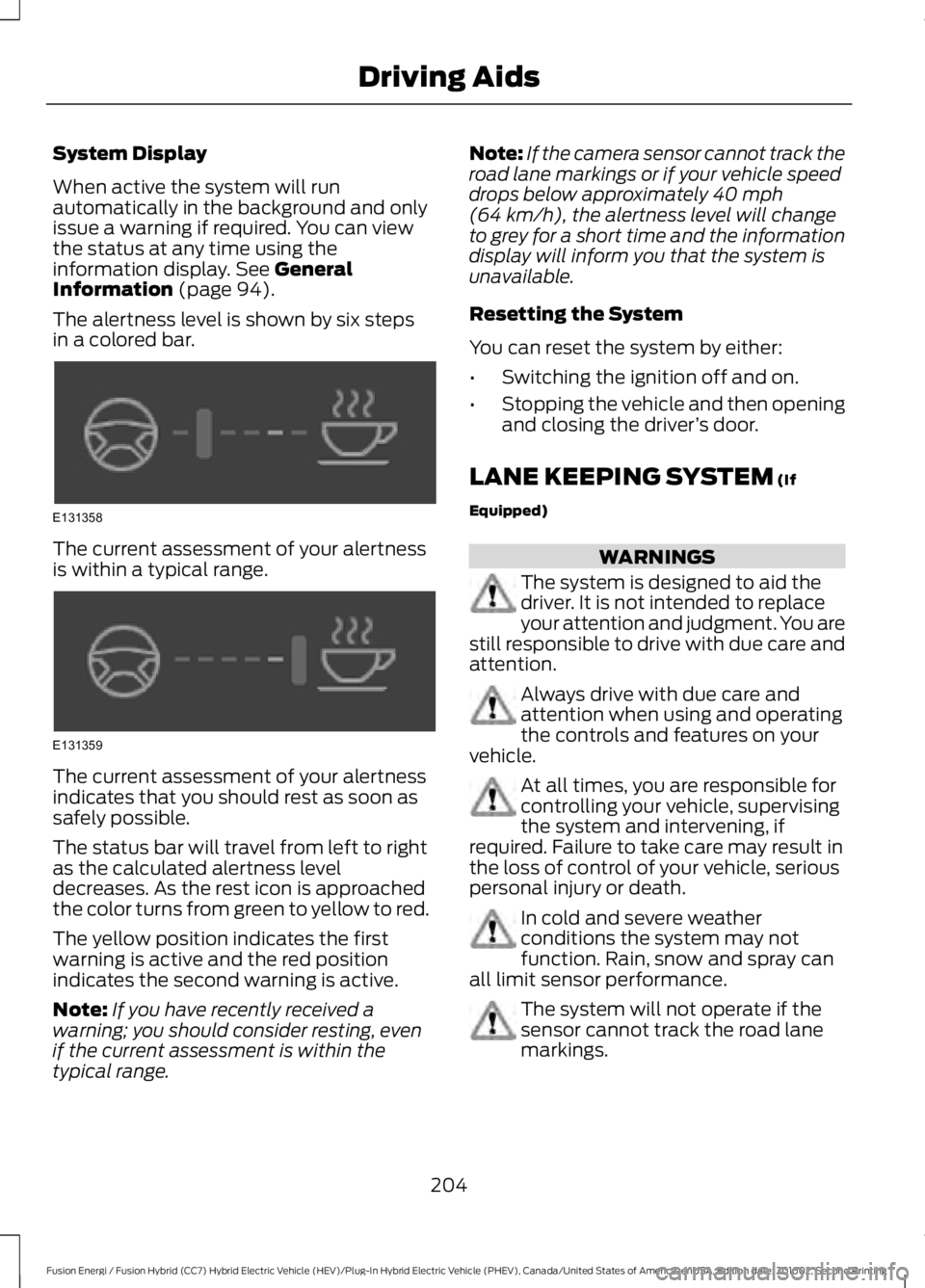
The alertness level is shown by six stepsin a colored bar.
The current assessment of your alertnessis within a typical range.
The current assessment of your alertnessindicates that you should rest as soon assafely possible.
The status bar will travel from left to rightas the calculated alertness leveldecreases. As the rest icon is approachedthe color turns from green to yellow to red.
The yellow position indicates the firstwarning is active and the red positionindicates the second warning is active.
Note:If you have recently received awarning; you should consider resting, evenif the current assessment is within thetypical range.
Note:If the camera sensor cannot track theroad lane markings or if your vehicle speeddrops below approximately 40 mph(64 km/h), the alertness level will changeto grey for a short time and the informationdisplay will inform you that the system isunavailable.
Resetting the System
You can reset the system by either:
•Switching the ignition off and on.
•Stopping the vehicle and then openingand closing the driver’s door.
LANE KEEPING SYSTEM (If
Equipped)
WARNINGS
The system is designed to aid thedriver. It is not intended to replaceyour attention and judgment. You arestill responsible to drive with due care andattention.
Always drive with due care andattention when using and operatingthe controls and features on yourvehicle.
At all times, you are responsible forcontrolling your vehicle, supervisingthe system and intervening, ifrequired. Failure to take care may result inthe loss of control of your vehicle, seriouspersonal injury or death.
In cold and severe weatherconditions the system may notfunction. Rain, snow and spray canall limit sensor performance.
The system will not operate if thesensor cannot track the road lanemarkings.
204
Fusion Energi / Fusion Hybrid (CC7) Hybrid Electric Vehicle (HEV)/Plug-In Hybrid Electric Vehicle (PHEV), Canada/United States of America, enUSA, Edition date: 201602, Second Printing
Driving AidsE131358 E131359
Page 208 of 526
WARNINGS
The sensor may incorrectly track lanemarkings as other structures orobjects. This can result in a false ormissed warning.
Large contrasts in outside lightingcan limit sensor performance.
The system may not operateproperly if the sensor is blocked.Keep the windshield free fromobstruction.
If damage occurs in the immediatearea surrounding the sensor, haveyour vehicle checked as soon aspossible.
Note:The system works above 40 mph(64 km/h).
Note:The system works as long as thecamera can detect one lane marking.
Note:The system may not function if thecamera is blocked or there is damage to thewindshield.
Note:When Aid mode is on and the systemdetects no steering activity for a shortperiod, the system will alert you to put yourhands on the steering wheel. The systemmay detect a light grip or touch on thesteering wheel as hands off driving.
The system notifies you to stay in your lanethrough the steering system and theinstrument cluster display when the frontcamera detects an unintentional drift outof your lane is likely to occur. The systemautomatically detects and tracks the roadlane markings using a camera mountedbehind the interior rear view mirror.
Switching the System On and Off
Note:The system on or off setting is storeduntil it is manually changed, unless a MyKeyis detected. If the system detects a MyKeyit defaults to on and the mode is set to Alert.
Note:If a MyKey is detected, pressing thebutton will not affect the on or off status ofthe system.
Press the button on the steeringwheel stalk to switch the systemon or off.
System Settings
The system has optional setting menusavailable. The system stores thelast-known selection for each of thesesettings. You do not need to readjust yoursettings each time you turn on the system.
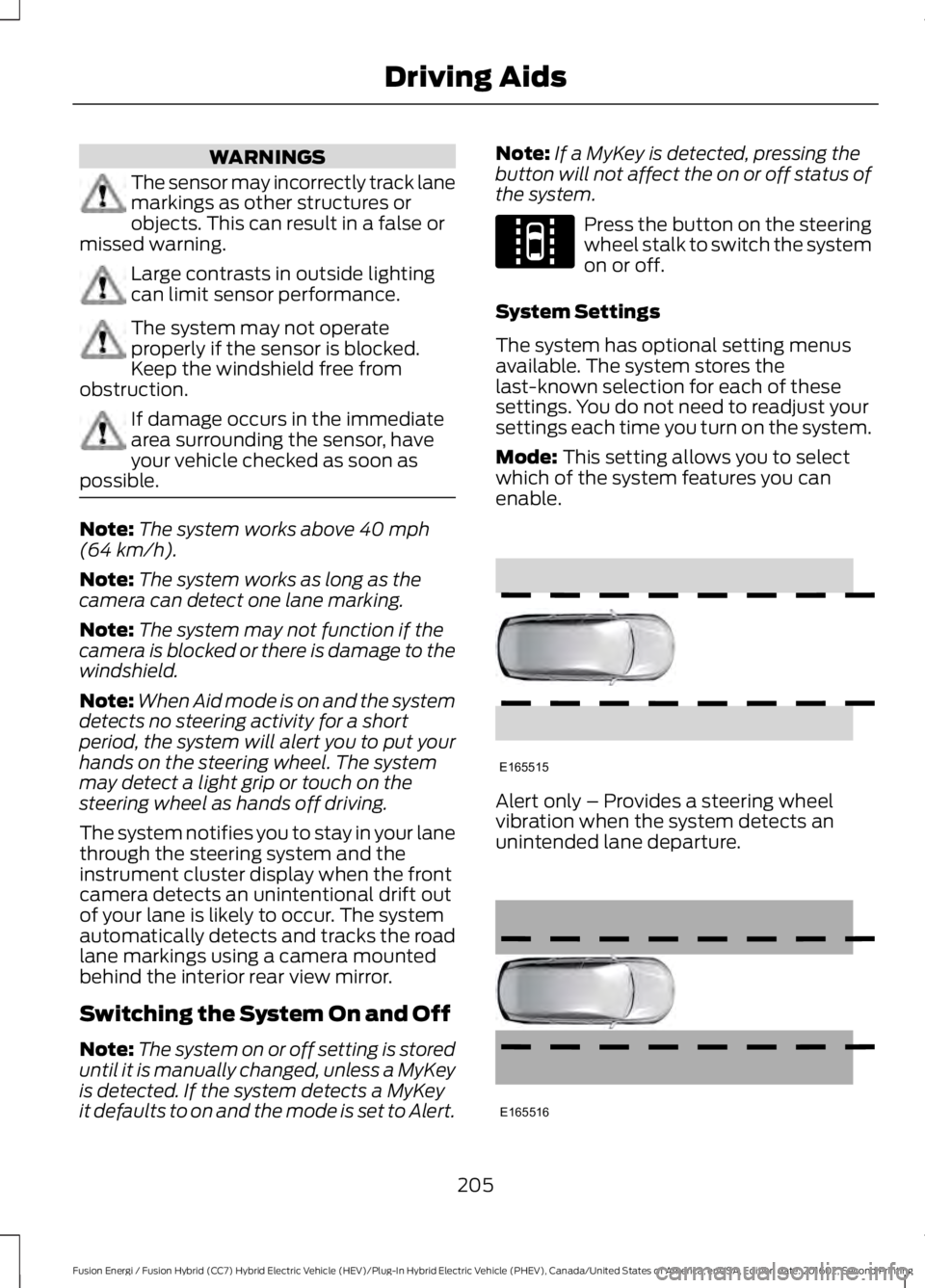
Mode: This setting allows you to selectwhich of the system features you canenable.
Alert only – Provides a steering wheelvibration when the system detects anunintended lane departure.
205
Fusion Energi / Fusion Hybrid (CC7) Hybrid Electric Vehicle (HEV)/Plug-In Hybrid Electric Vehicle (PHEV), Canada/United States of America, enUSA, Edition date: 201602, Second Printing
Driving AidsE144813 E165515 E165516
Page 210 of 526
•The road has no or poor lane markingsin the camera field-of-view.
•The camera is obscured or unable todetect the lane markings due toenvironmental conditions (significantsun angles, shadows, snow, heavy rainor fog), traffic conditions (following alarge vehicle that is blocking orshadowing the lane), or vehicleconditions (poor headlampillumination).
See Troubleshooting for additionalinformation.
Green: Indicates that the system isavailable or ready to provide a warning orintervention, on the indicated side(s).
Yellow: Indicates that the system isproviding or has just provided a lanekeeping aid intervention.
Red: Indicates that the system is providingor has just provided a lane keeping alertwarning.
The system can be temporarily suppressedat any time by the following:
•Quick braking.
•Fast acceleration.
•Using the turn signal indicator.
•Evasive steering maneuver.
Troubleshooting
Why is the feature not available (line markings are gray) when I can see the lane markingson the road?
Vehicle speed is outside the operational range of the feature
Sun is shining directly into the camera lens
Quick intentional lane change
Staying too close to the lane marking
Driving at high speeds in curves
The last Alert warning or Aid intervention occurred a short time ago
Ambiguous lane markings (mainly in construction zones)
Rapid transition from light to dark or vice versa
Sudden offset in lane markings
ABS or AdvanceTrac activation
Camera blockage due to dirt, grime, fog, frost or water on the windshield
Driving too close to the vehicle in front of you
Transitioning between no lane markings to lane markings or vice versa
Standing water on the road
Faint lane markings (partial yellow lane markings on concrete roads)
207
Fusion Energi / Fusion Hybrid (CC7) Hybrid Electric Vehicle (HEV)/Plug-In Hybrid Electric Vehicle (PHEV), Canada/United States of America, enUSA, Edition date: 201602, Second Printing
Driving Aids