instrument panel FORD FUSION ENERGI 2017 Owner's Manual
[x] Cancel search | Manufacturer: FORD, Model Year: 2017, Model line: FUSION ENERGI, Model: FORD FUSION ENERGI 2017Pages: 526, PDF Size: 7.89 MB
Page 310 of 526
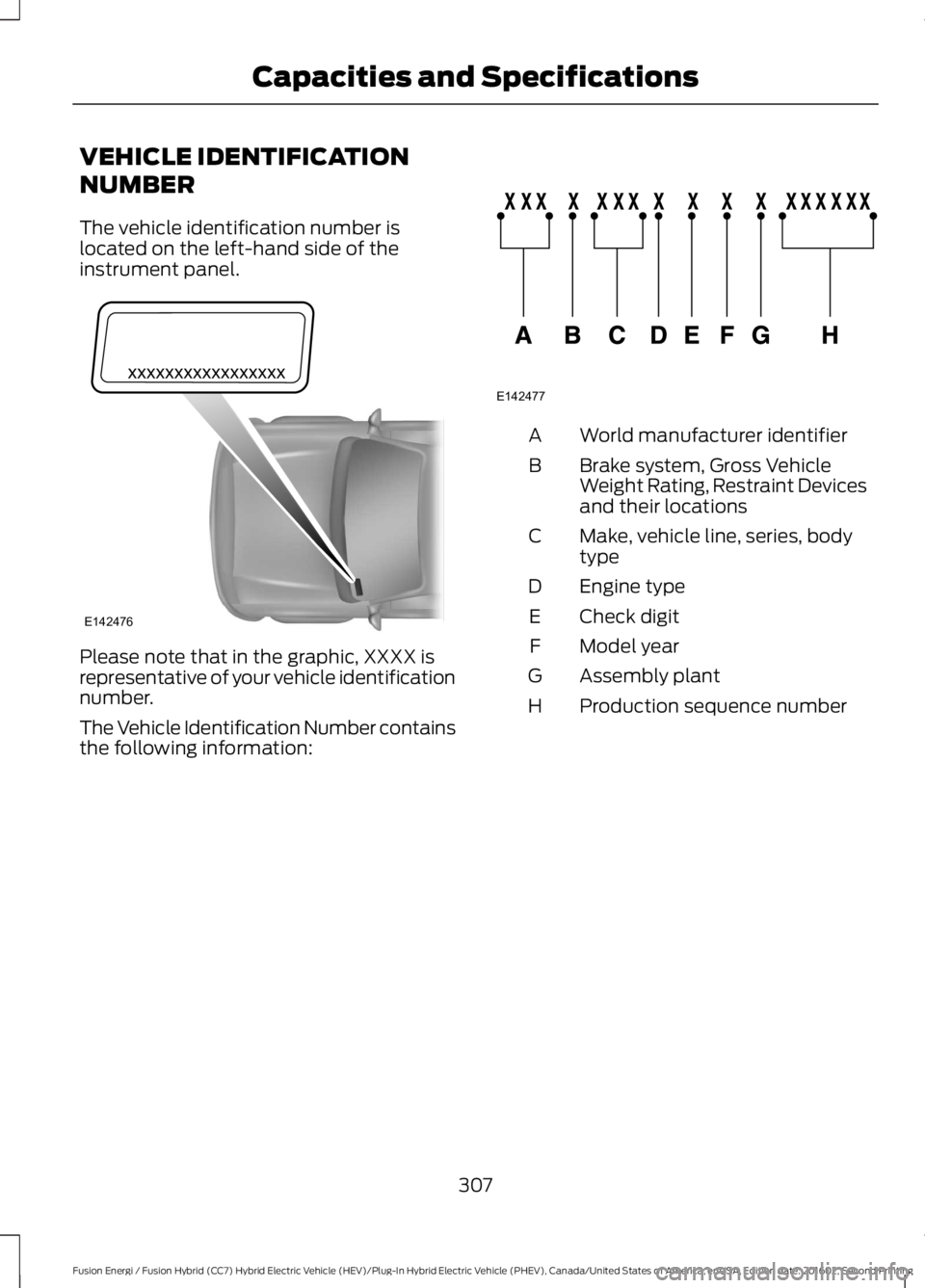
VEHICLE IDENTIFICATION
NUMBER
The vehicle identification number islocated on the left-hand side of theinstrument panel.
Please note that in the graphic, XXXX isrepresentative of your vehicle identificationnumber.
The Vehicle Identification Number containsthe following information:
World manufacturer identifierA
Brake system, Gross VehicleWeight Rating, Restraint Devicesand their locations
B
Make, vehicle line, series, bodytypeC
Engine typeD
Check digitE
Model yearF
Assembly plantG
Production sequence numberH
307
Fusion Energi / Fusion Hybrid (CC7) Hybrid Electric Vehicle (HEV)/Plug-In Hybrid Electric Vehicle (PHEV), Canada/United States of America, enUSA, Edition date: 201602, Second Printing
Capacities and SpecificationsE142476 E142477
Page 329 of 526
ActionConditionMessage
Contact SIRIUS at 1-888-539-7474 to resolvesubscription issues.
Your satellite service is nolonger available.Questions? Call
1-888-539-7474
Use the channel guide toturn off the Lock or Skipfunction on that station.
All the channels in theselected category are eitherskipped or locked.
None found
Check Channel Guide
No action required.SIRIUS has updated thechannels available for yourvehicle.
Subscription Updated
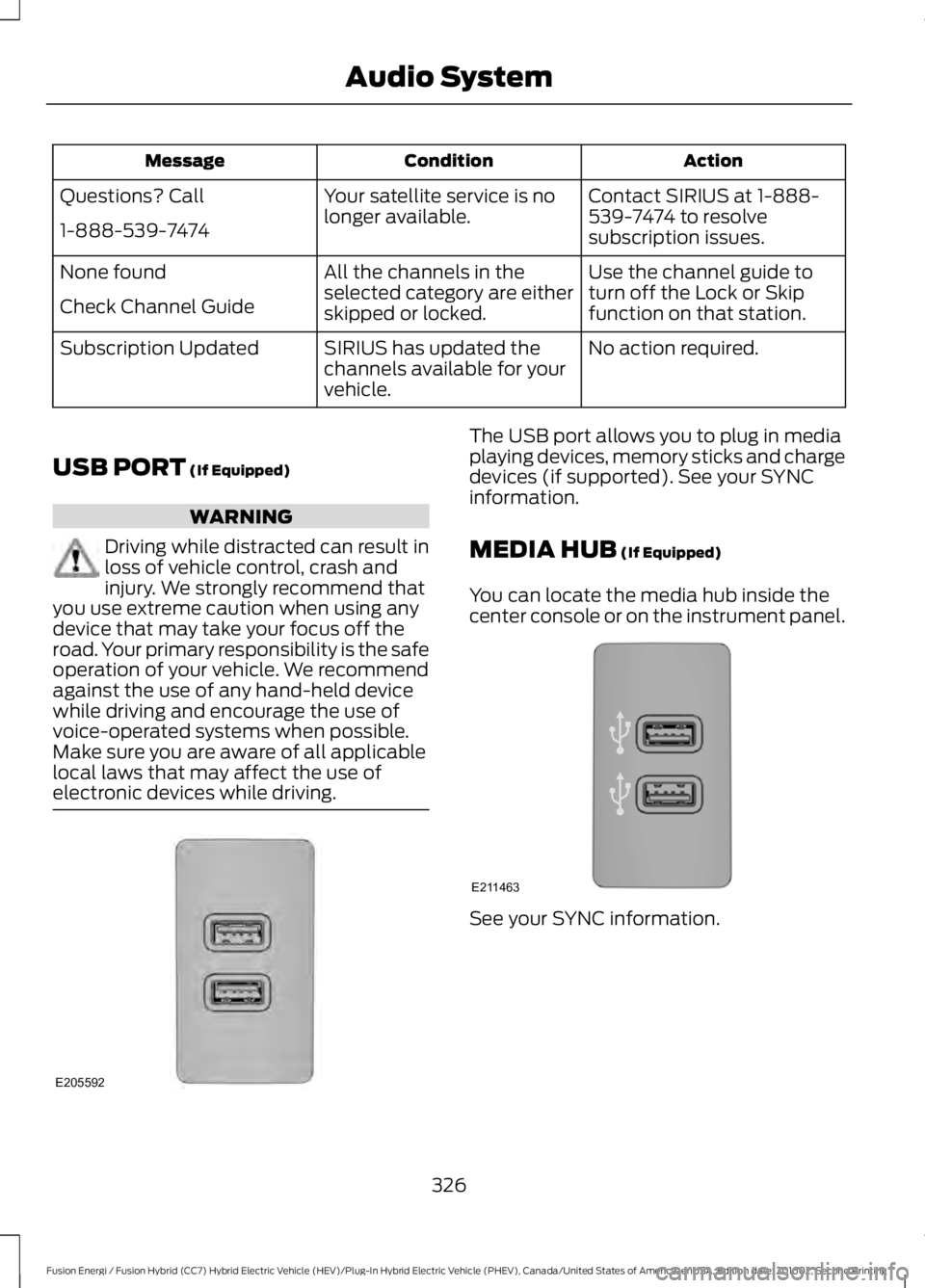
USB PORT (If Equipped)
WARNING
Driving while distracted can result inloss of vehicle control, crash andinjury. We strongly recommend thatyou use extreme caution when using anydevice that may take your focus off theroad. Your primary responsibility is the safeoperation of your vehicle. We recommendagainst the use of any hand-held devicewhile driving and encourage the use ofvoice-operated systems when possible.Make sure you are aware of all applicablelocal laws that may affect the use ofelectronic devices while driving.
The USB port allows you to plug in mediaplaying devices, memory sticks and chargedevices (if supported). See your SYNCinformation.
MEDIA HUB (If Equipped)
You can locate the media hub inside thecenter console or on the instrument panel.
See your SYNC information.
326
Fusion Energi / Fusion Hybrid (CC7) Hybrid Electric Vehicle (HEV)/Plug-In Hybrid Electric Vehicle (PHEV), Canada/United States of America, enUSA, Edition date: 201602, Second Printing
Audio SystemE205592 E211463
Page 357 of 526
Description and ActionDisplay
2. Scroll to browse indexed media files on the device, andthen press the OK button.
Resets the USB index. After the new indexing is complete,you can choose what to play from the USB song library.Reset USB
*You can use the buttons at the bottom of the audio display to jump to a certainalphabetical category quickly. You can also use the letters on the audio system's numerickeypad to jump in the list.
Using Voice Commands
You can access and view your USB songsusing voice commands.
Plug the device into your vehicle's USBport.
Press the voice button and whenprompted, say any of the followingcommands:
Accessing and Viewing USB Media
(browse | search | show) all (album |albums)
(browse | search | show) all (artist |artists)
(browse | search | show) all (genre |genres)
(browse | search | show) all (playlist |playlists)
(browse | search | show) all (song | songs| title | titles | file | files | track | tracks)
(browse | search | show) album ___
(browse | search | show) artist ___
(browse | search | show) genre ___
(browse | search | show) playlist ___
USB 2 (If Equipped)
Your vehicle may come equipped with anadditional USB port. If so, USB 1 is locatedat the front of the vehicle at the bottom ofthe instrument panel. USB 2 is locatedinside the storage compartment of thevehicle's center console.
You can plug in an additional USB deviceinto the second USB port.
You can access both USB devices by usingvoice commands.
To access a USB device press the voicebutton and when prompted say:
Voice command
USB 1
USB 2
Note:SYNC only supports one connectediOS (Apple) devices at a time (whicheverone you plug in first). When you connect asecond iOS device, the systems charges it,but does not support playback from it.
Bluetooth Devices and SystemSettings
You can access these menus using theaudio display. See Using SYNC™ WithYour Phone (page 331).
354
Fusion Energi / Fusion Hybrid (CC7) Hybrid Electric Vehicle (HEV)/Plug-In Hybrid Electric Vehicle (PHEV), Canada/United States of America, enUSA, Edition date: 201602, Second Printing
SYNC™
Page 374 of 526
InformationOption
Missed callsOutgoing callsIncoming callsAll callsQuickdial
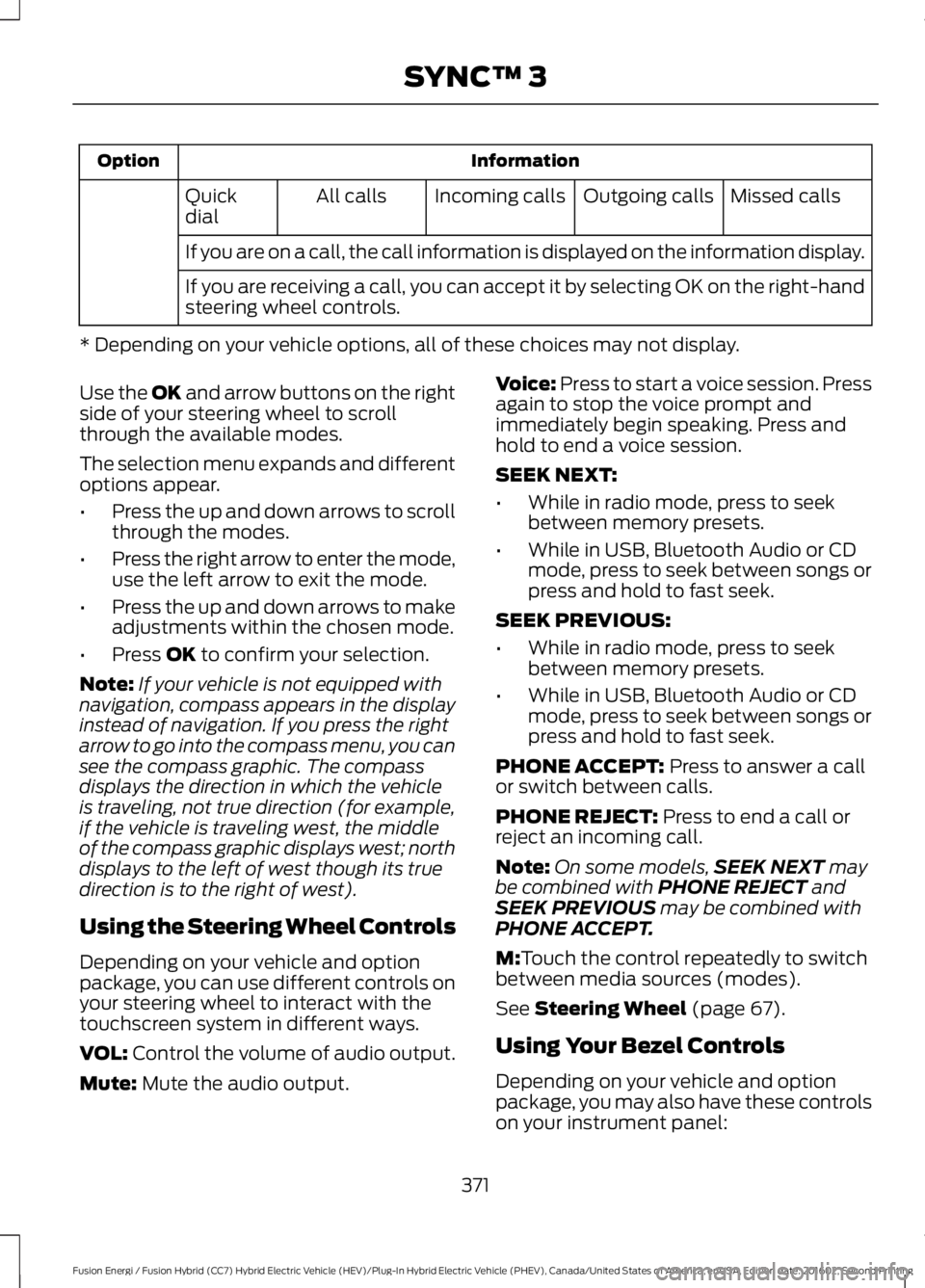
If you are on a call, the call information is displayed on the information display.
If you are receiving a call, you can accept it by selecting OK on the right-handsteering wheel controls.
* Depending on your vehicle options, all of these choices may not display.
Use the OK and arrow buttons on the rightside of your steering wheel to scrollthrough the available modes.
The selection menu expands and differentoptions appear.
•Press the up and down arrows to scrollthrough the modes.
•Press the right arrow to enter the mode,use the left arrow to exit the mode.
•Press the up and down arrows to makeadjustments within the chosen mode.
•Press OK to confirm your selection.
Note:If your vehicle is not equipped withnavigation, compass appears in the displayinstead of navigation. If you press the rightarrow to go into the compass menu, you cansee the compass graphic. The compassdisplays the direction in which the vehicleis traveling, not true direction (for example,if the vehicle is traveling west, the middleof the compass graphic displays west; northdisplays to the left of west though its truedirection is to the right of west).
Using the Steering Wheel Controls
Depending on your vehicle and optionpackage, you can use different controls onyour steering wheel to interact with thetouchscreen system in different ways.
VOL: Control the volume of audio output.
Mute: Mute the audio output.
Voice: Press to start a voice session. Pressagain to stop the voice prompt andimmediately begin speaking. Press andhold to end a voice session.
SEEK NEXT:
•While in radio mode, press to seekbetween memory presets.
•While in USB, Bluetooth Audio or CDmode, press to seek between songs orpress and hold to fast seek.
SEEK PREVIOUS:
•While in radio mode, press to seekbetween memory presets.
•While in USB, Bluetooth Audio or CDmode, press to seek between songs orpress and hold to fast seek.
PHONE ACCEPT: Press to answer a callor switch between calls.
PHONE REJECT: Press to end a call orreject an incoming call.
Note:On some models,SEEK NEXT maybe combined with PHONE REJECT andSEEK PREVIOUS may be combined withPHONE ACCEPT.
M:Touch the control repeatedly to switchbetween media sources (modes).
See Steering Wheel (page 67).
Using Your Bezel Controls
Depending on your vehicle and optionpackage, you may also have these controlson your instrument panel:
371
Fusion Energi / Fusion Hybrid (CC7) Hybrid Electric Vehicle (HEV)/Plug-In Hybrid Electric Vehicle (PHEV), Canada/United States of America, enUSA, Edition date: 201602, Second Printing
SYNC™ 3
Page 398 of 526
FunctionButton
Composers
This button allows you to choose a specificletter to view within the category you arebrowsing.
A-Z Jump
If available, this allows you to browse thefolders and files on your USB device.Explore Device
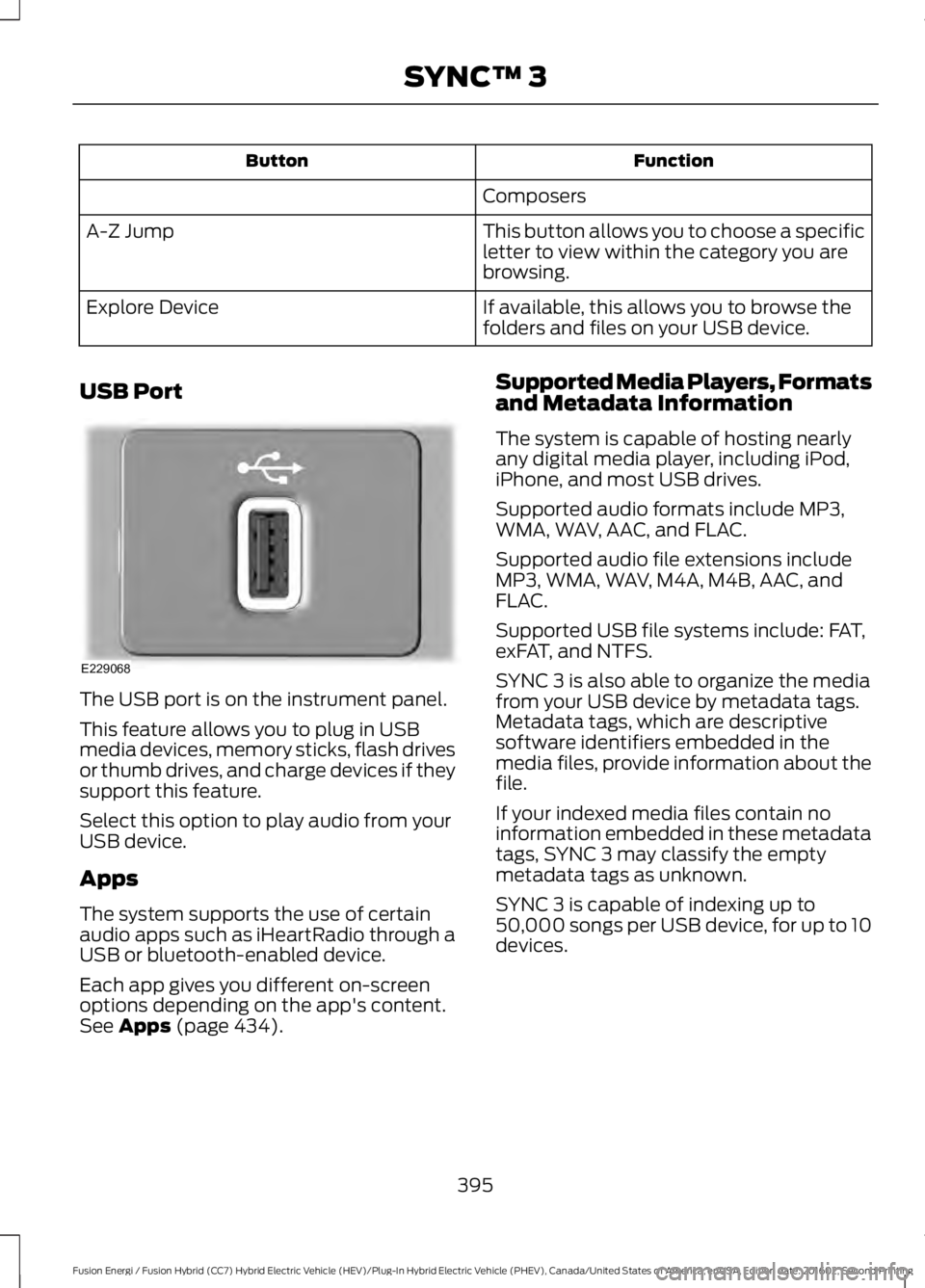
USB Port
The USB port is on the instrument panel.
This feature allows you to plug in USBmedia devices, memory sticks, flash drivesor thumb drives, and charge devices if theysupport this feature.
Select this option to play audio from yourUSB device.
Apps
The system supports the use of certainaudio apps such as iHeartRadio through aUSB or bluetooth-enabled device.
Each app gives you different on-screenoptions depending on the app's content.See Apps (page 434).
Supported Media Players, Formatsand Metadata Information
The system is capable of hosting nearlyany digital media player, including iPod,iPhone, and most USB drives.
Supported audio formats include MP3,WMA, WAV, AAC, and FLAC.
Supported audio file extensions includeMP3, WMA, WAV, M4A, M4B, AAC, andFLAC.
Supported USB file systems include: FAT,exFAT, and NTFS.
SYNC 3 is also able to organize the mediafrom your USB device by metadata tags.Metadata tags, which are descriptivesoftware identifiers embedded in themedia files, provide information about thefile.
If your indexed media files contain noinformation embedded in these metadatatags, SYNC 3 may classify the emptymetadata tags as unknown.
SYNC 3 is capable of indexing up to50,000 songs per USB device, for up to 10devices.
395
Fusion Energi / Fusion Hybrid (CC7) Hybrid Electric Vehicle (HEV)/Plug-In Hybrid Electric Vehicle (PHEV), Canada/United States of America, enUSA, Edition date: 201602, Second Printing
SYNC™ 3E229068
Page 401 of 526
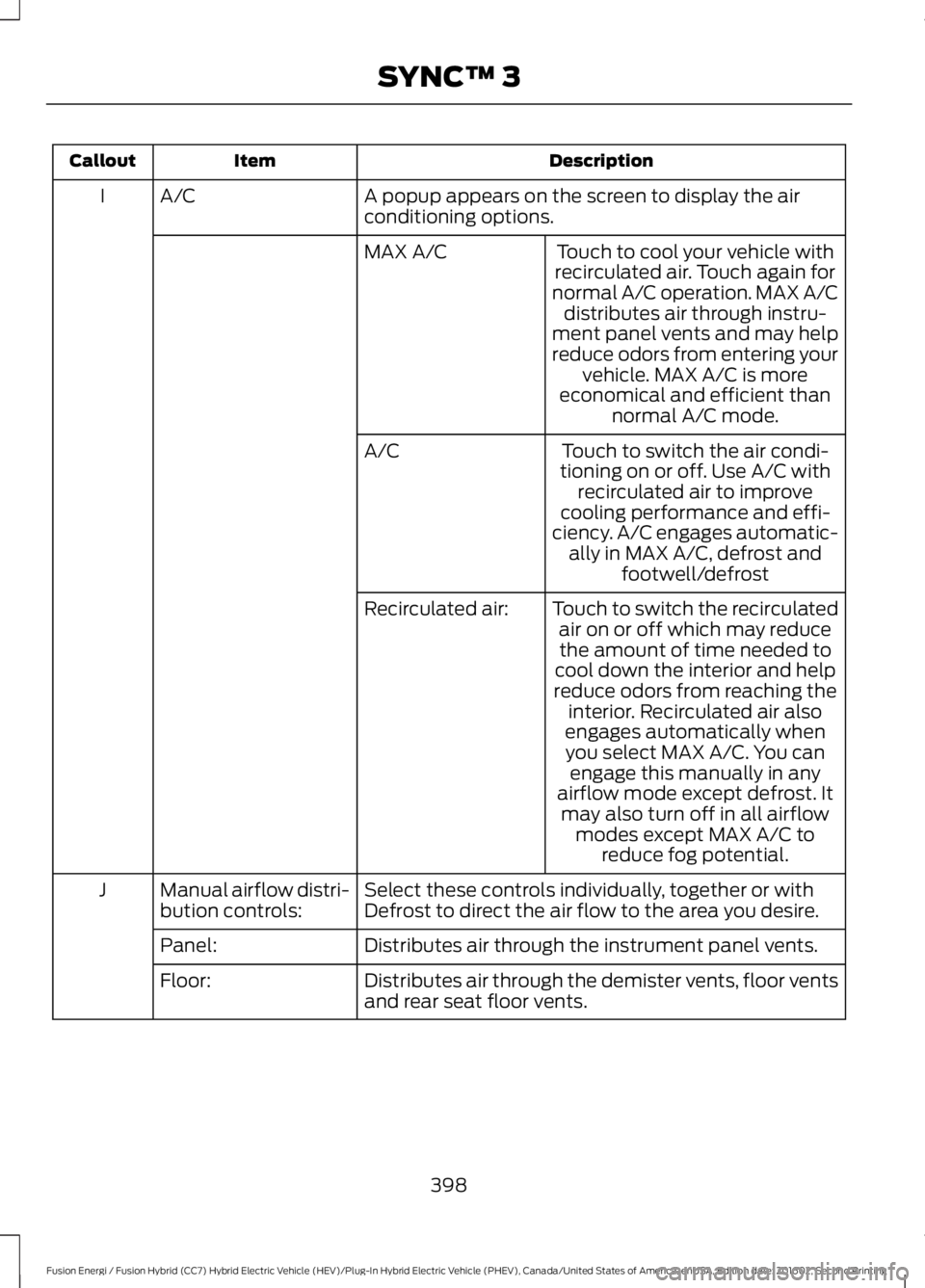
DescriptionItemCallout
A popup appears on the screen to display the airconditioning options.A/CI
Touch to cool your vehicle withrecirculated air. Touch again fornormal A/C operation. MAX A/Cdistributes air through instru-ment panel vents and may helpreduce odors from entering yourvehicle. MAX A/C is moreeconomical and efficient thannormal A/C mode.
MAX A/C
Touch to switch the air condi-tioning on or off. Use A/C withrecirculated air to improvecooling performance and effi-ciency. A/C engages automatic-ally in MAX A/C, defrost andfootwell/defrost
A/C
Touch to switch the recirculatedair on or off which may reducethe amount of time needed tocool down the interior and helpreduce odors from reaching theinterior. Recirculated air also
Recirculated air:
engages automatically whenyou select MAX A/C. You canengage this manually in anyairflow mode except defrost. Itmay also turn off in all airflowmodes except MAX A/C toreduce fog potential.
Select these controls individually, together or withDefrost to direct the air flow to the area you desire.Manual airflow distri-bution controls:J
Distributes air through the instrument panel vents.Panel:
Distributes air through the demister vents, floor ventsand rear seat floor vents.Floor:
398
Fusion Energi / Fusion Hybrid (CC7) Hybrid Electric Vehicle (HEV)/Plug-In Hybrid Electric Vehicle (PHEV), Canada/United States of America, enUSA, Edition date: 201602, Second Printing
SYNC™ 3
Page 517 of 526
Using the System..............................................209Bonnet LockSee: Opening and Closing the Hood..........252Booster Seats..................................................25Types of Booster Seats......................................26Brake Fluid Check.......................................260Brakes................................................................174General Information...........................................174Breaking-In.....................................................223Bulb Specification Chart...........................267
C
Cabin Air Filter.................................................121California Proposition 65..............................11Capacities and Specifications...............309Specifications.....................................................309Car WashSee: Cleaning the Exterior................................271Center Console..............................................139Center Console with Rotary Control...........139Changing a Bulb..........................................266Headlamp............................................................266LED Lamps...........................................................266License Plate Lamp...........................................267Reversing Lamp.................................................266Changing a Fuse..........................................250Fuses......................................................................250Changing the 12V Battery.........................260Changing the Engine Air Filter................269Changing the Wiper Blades.....................262Charging the High Voltage Battery........164Energi Vehicles....................................................164Checking MyKey System Status...............56MyKey Distance....................................................56Number of Admin Keys......................................56Number of MyKeys..............................................56Checking the Wiper Blades......................262Child Restraint and SeatbeltMaintenance..................................................37Child Restraint Positioning..........................27Child Safety.......................................................16General Information.............................................16Child Safety Locks.........................................28Left-Hand Side......................................................29Right-Hand Side...................................................29Cleaning Leather Seats..............................274Cleaning Products.......................................270
Cleaning the Engine....................................272Cleaning the Exterior....................................271Exterior Chrome Parts.......................................271Exterior Plastic Parts..........................................271Stripes or Graphics.............................................271Underbody............................................................272Under Hood..........................................................272Cleaning the Instrument Panel andInstrument Cluster Lens.........................274Cleaning the Interior....................................273Cleaning the Wheels...................................275Cleaning the Windows and WiperBlades............................................................273Clearing All MyKeys.......................................56Climate............................................................396Climate Control..............................................116Climate Controlled Seats..........................130Cooled Seats........................................................130Collision, Damage or Fire Event.............230Guidance for Ford Motor Company Electricand Hybrid-Electric Vehicles EquippedWith High Voltage Batteries.....................230Coolant CheckSee: Engine Coolant Check............................256Crash Sensors and Airbag Indicator.......46Creating a MyKey............................................55Programming or Changing ConfigurableSettings...............................................................56Cross Traffic Alert.........................................210False Alerts............................................................212Switching the System Off and On................213System Errors.......................................................213System Lights, Messages and AudibleAlerts...................................................................212System Limitations............................................212Using the System...............................................210Cruise Control.................................................69Principle of Operation.......................................195Type 1........................................................................69Type 2.......................................................................69Cruise controlSee: Using Cruise Control................................195Customer Assistance.................................234
D
Data Recording..................................................9Event Data Recording..........................................10
514
Fusion Energi / Fusion Hybrid (CC7) Hybrid Electric Vehicle (HEV)/Plug-In Hybrid Electric Vehicle (PHEV), Canada/United States of America, enUSA, Edition date: 201602, Second Printing
Index