ignition FORD FUSION ENERGI 2018 Manual PDF
[x] Cancel search | Manufacturer: FORD, Model Year: 2018, Model line: FUSION ENERGI, Model: FORD FUSION ENERGI 2018Pages: 538, PDF Size: 7.52 MB
Page 374 of 538
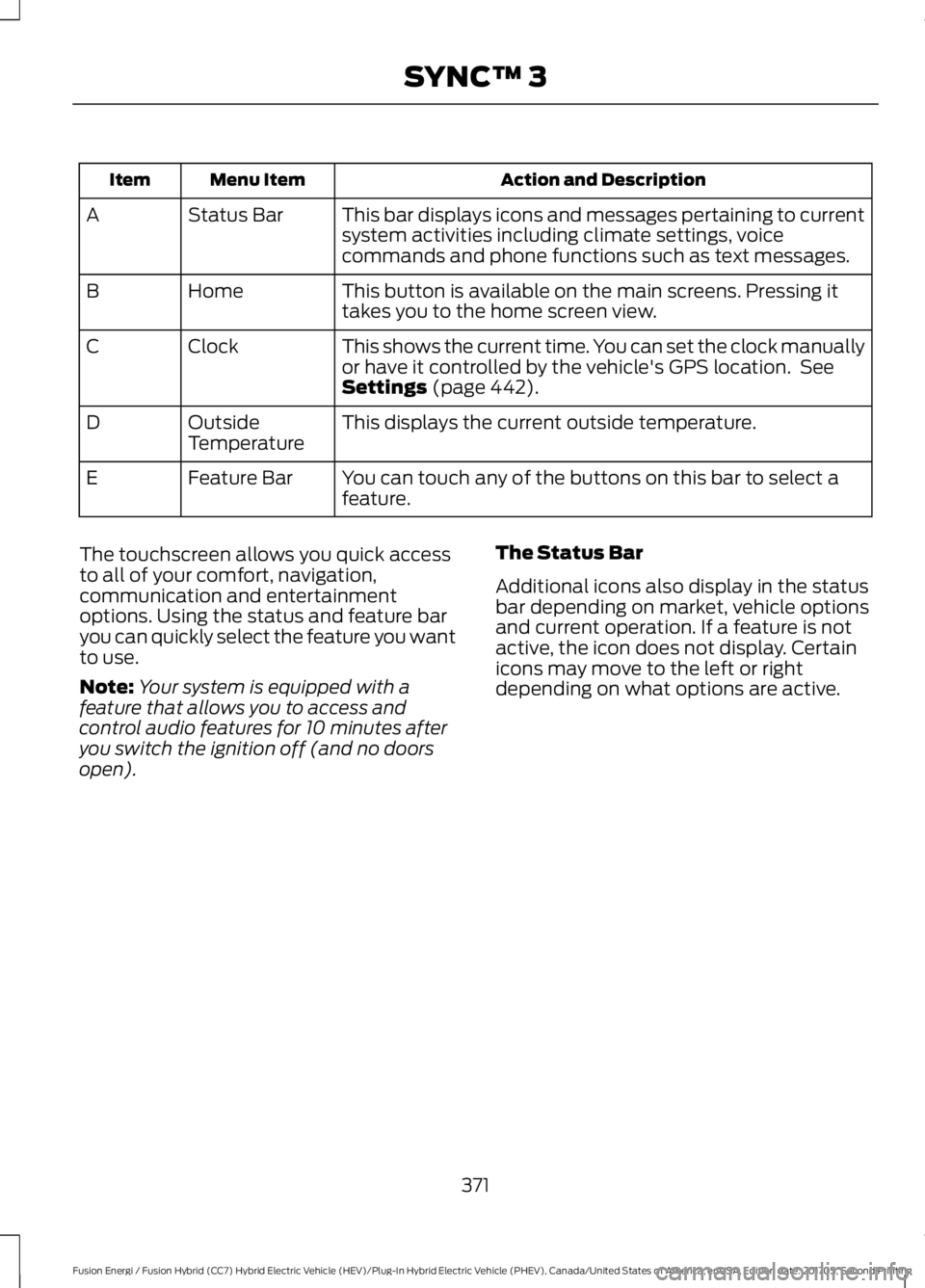
Action and DescriptionMenu ItemItem
This bar displays icons and messages pertaining to currentsystem activities including climate settings, voicecommands and phone functions such as text messages.
Status BarA
This button is available on the main screens. Pressing ittakes you to the home screen view.HomeB
This shows the current time. You can set the clock manuallyor have it controlled by the vehicle's GPS location. SeeSettings (page 442).
ClockC
This displays the current outside temperature.OutsideTemperatureD
You can touch any of the buttons on this bar to select afeature.Feature BarE
The touchscreen allows you quick accessto all of your comfort, navigation,communication and entertainmentoptions. Using the status and feature baryou can quickly select the feature you wantto use.
Note:Your system is equipped with afeature that allows you to access andcontrol audio features for 10 minutes afteryou switch the ignition off (and no doorsopen).
The Status Bar
Additional icons also display in the statusbar depending on market, vehicle optionsand current operation. If a feature is notactive, the icon does not display. Certainicons may move to the left or rightdepending on what options are active.
371
Fusion Energi / Fusion Hybrid (CC7) Hybrid Electric Vehicle (HEV)/Plug-In Hybrid Electric Vehicle (PHEV), Canada/United States of America, enUSA, Edition date: 201705, Second Printing
SYNC™ 3
Page 385 of 538
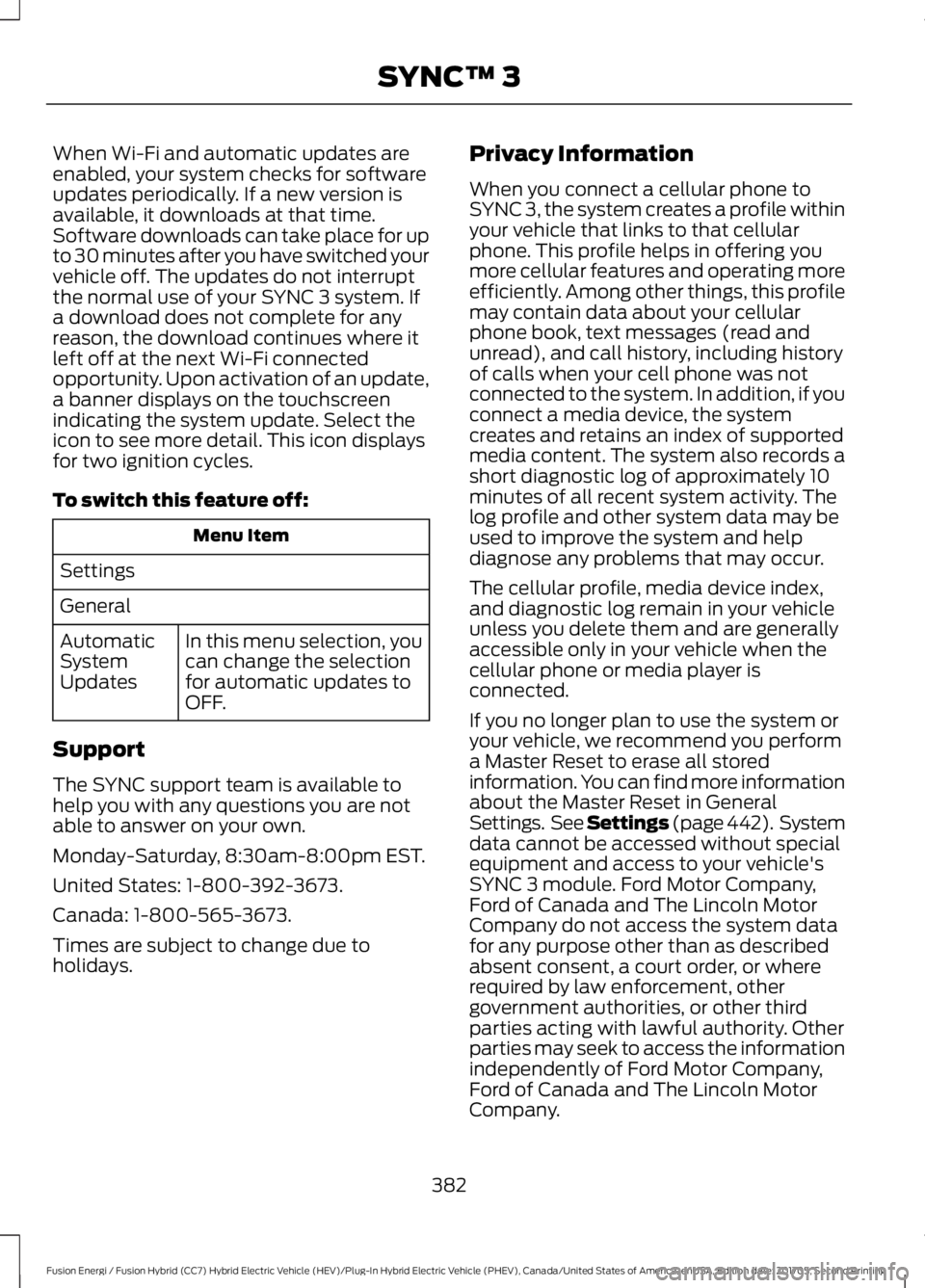
When Wi-Fi and automatic updates areenabled, your system checks for softwareupdates periodically. If a new version isavailable, it downloads at that time.Software downloads can take place for upto 30 minutes after you have switched yourvehicle off. The updates do not interruptthe normal use of your SYNC 3 system. Ifa download does not complete for anyreason, the download continues where itleft off at the next Wi-Fi connectedopportunity. Upon activation of an update,a banner displays on the touchscreenindicating the system update. Select theicon to see more detail. This icon displaysfor two ignition cycles.
To switch this feature off:
Menu Item
Settings
General
In this menu selection, youcan change the selectionfor automatic updates toOFF.
AutomaticSystemUpdates
Support
The SYNC support team is available tohelp you with any questions you are notable to answer on your own.
Monday-Saturday, 8:30am-8:00pm EST.
United States: 1-800-392-3673.
Canada: 1-800-565-3673.
Times are subject to change due toholidays.
Privacy Information
When you connect a cellular phone toSYNC 3, the system creates a profile withinyour vehicle that links to that cellularphone. This profile helps in offering youmore cellular features and operating moreefficiently. Among other things, this profilemay contain data about your cellularphone book, text messages (read andunread), and call history, including historyof calls when your cell phone was notconnected to the system. In addition, if youconnect a media device, the systemcreates and retains an index of supportedmedia content. The system also records ashort diagnostic log of approximately 10minutes of all recent system activity. Thelog profile and other system data may beused to improve the system and helpdiagnose any problems that may occur.
The cellular profile, media device index,and diagnostic log remain in your vehicleunless you delete them and are generallyaccessible only in your vehicle when thecellular phone or media player isconnected.
If you no longer plan to use the system oryour vehicle, we recommend you performa Master Reset to erase all storedinformation. You can find more informationabout the Master Reset in GeneralSettings. See Settings (page 442). Systemdata cannot be accessed without specialequipment and access to your vehicle'sSYNC 3 module. Ford Motor Company,Ford of Canada and The Lincoln MotorCompany do not access the system datafor any purpose other than as describedabsent consent, a court order, or whererequired by law enforcement, othergovernment authorities, or other thirdparties acting with lawful authority. Otherparties may seek to access the informationindependently of Ford Motor Company,Ford of Canada and The Lincoln MotorCompany.
382
Fusion Energi / Fusion Hybrid (CC7) Hybrid Electric Vehicle (HEV)/Plug-In Hybrid Electric Vehicle (PHEV), Canada/United States of America, enUSA, Edition date: 201705, Second Printing
SYNC™ 3
Page 398 of 538
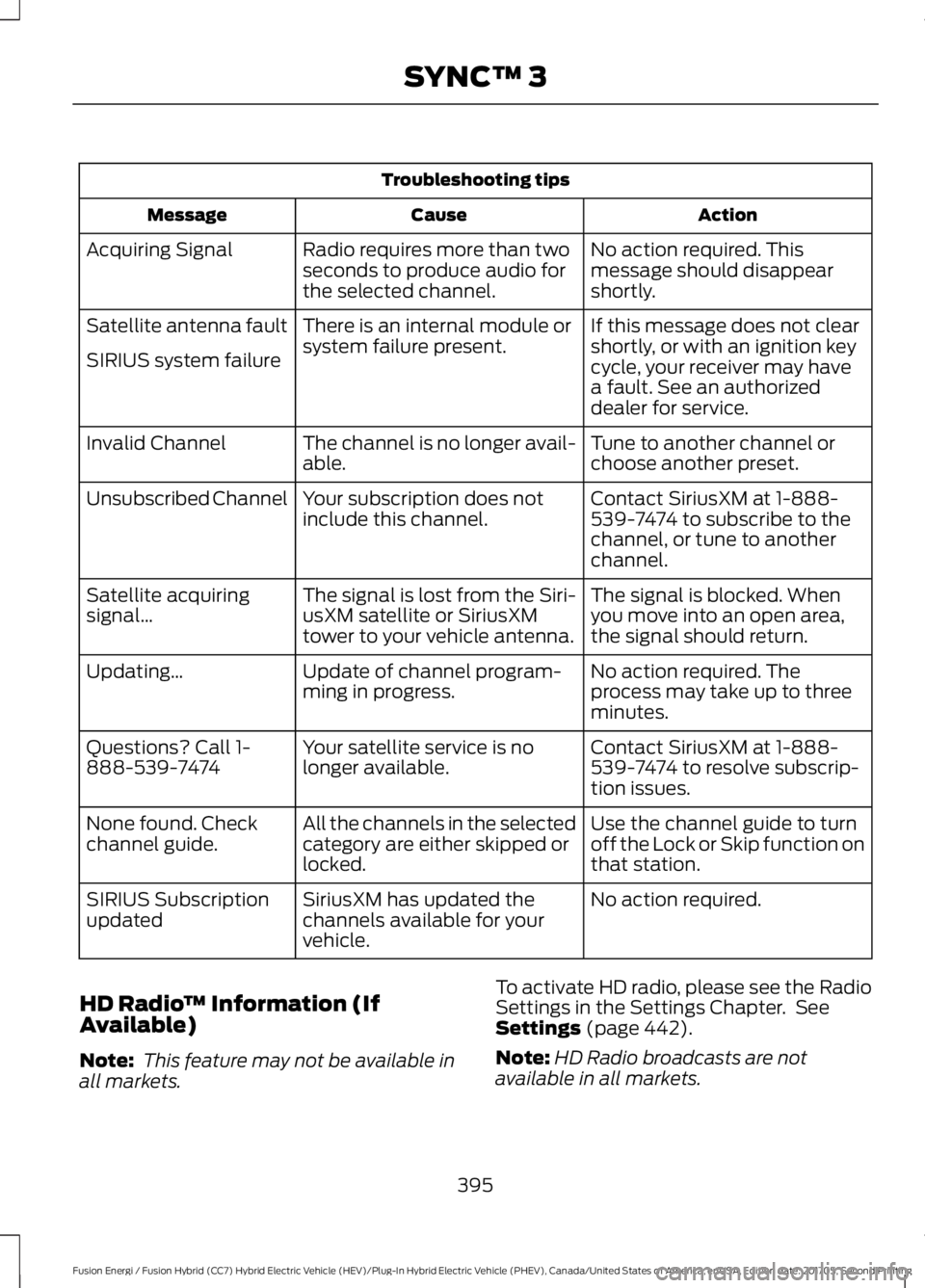
Troubleshooting tips
ActionCauseMessage
No action required. Thismessage should disappearshortly.
Radio requires more than twoseconds to produce audio forthe selected channel.
Acquiring Signal
If this message does not clearshortly, or with an ignition keycycle, your receiver may havea fault. See an authorizeddealer for service.
There is an internal module orsystem failure present.Satellite antenna fault
SIRIUS system failure
Tune to another channel orchoose another preset.The channel is no longer avail-able.Invalid Channel
Contact SiriusXM at 1-888-539-7474 to subscribe to thechannel, or tune to anotherchannel.
Your subscription does notinclude this channel.Unsubscribed Channel
The signal is blocked. Whenyou move into an open area,the signal should return.
The signal is lost from the Siri-usXM satellite or SiriusXMtower to your vehicle antenna.
Satellite acquiringsignal…
No action required. Theprocess may take up to threeminutes.
Update of channel program-ming in progress.Updating…
Contact SiriusXM at 1-888-539-7474 to resolve subscrip-tion issues.
Your satellite service is nolonger available.Questions? Call 1-888-539-7474
Use the channel guide to turnoff the Lock or Skip function onthat station.
All the channels in the selectedcategory are either skipped orlocked.
None found. Checkchannel guide.
No action required.SiriusXM has updated thechannels available for yourvehicle.
SIRIUS Subscriptionupdated
HD Radio™ Information (IfAvailable)
Note: This feature may not be available inall markets.
To activate HD radio, please see the RadioSettings in the Settings Chapter. SeeSettings (page 442).
Note:HD Radio broadcasts are notavailable in all markets.
395
Fusion Energi / Fusion Hybrid (CC7) Hybrid Electric Vehicle (HEV)/Plug-In Hybrid Electric Vehicle (PHEV), Canada/United States of America, enUSA, Edition date: 201705, Second Printing
SYNC™ 3
Page 420 of 538
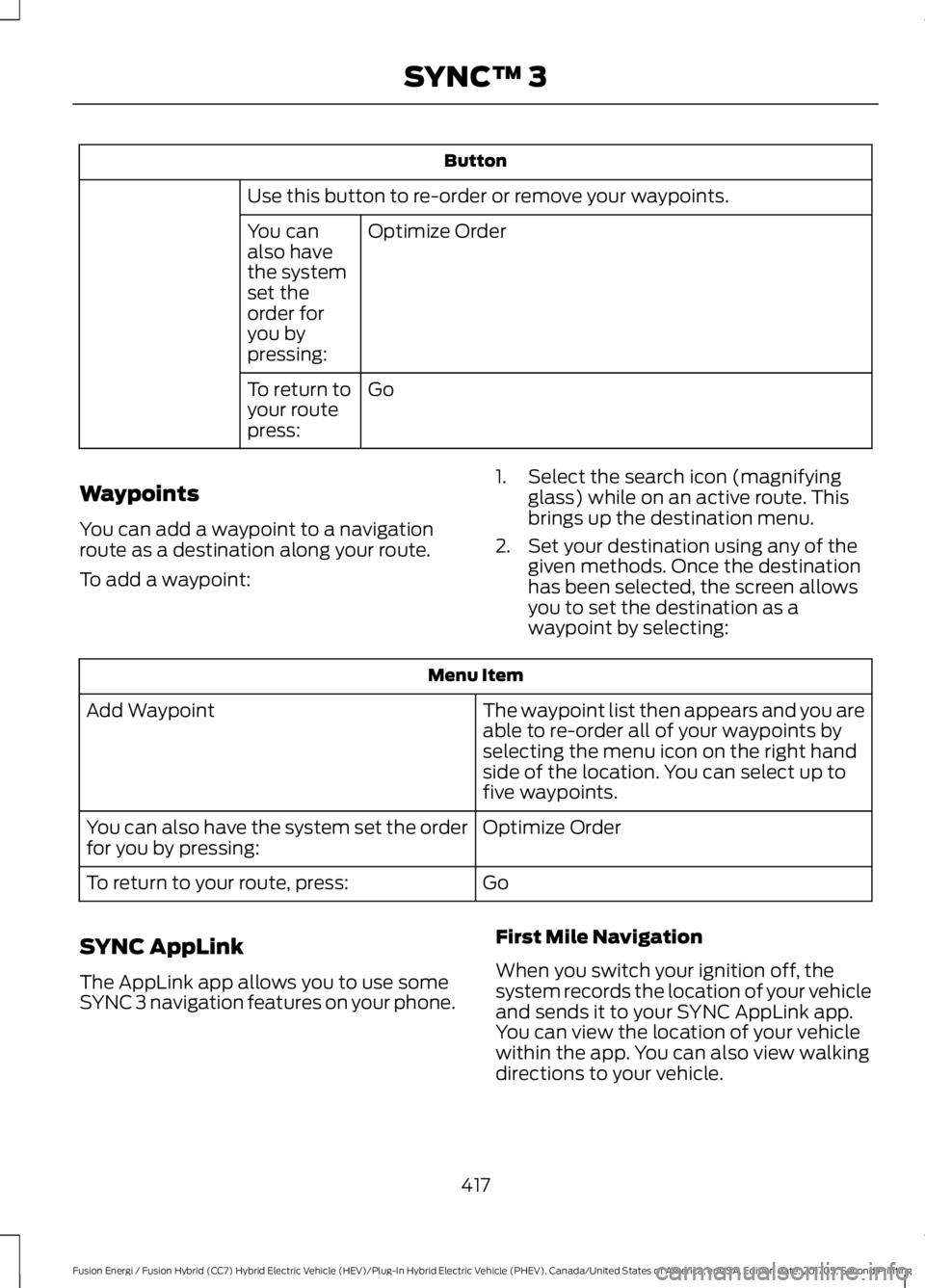
Button
Use this button to re-order or remove your waypoints.
Optimize OrderYou canalso havethe systemset theorder foryou bypressing:
GoTo return toyour routepress:
Waypoints
You can add a waypoint to a navigationroute as a destination along your route.
To add a waypoint:
1. Select the search icon (magnifyingglass) while on an active route. Thisbrings up the destination menu.
2. Set your destination using any of thegiven methods. Once the destinationhas been selected, the screen allowsyou to set the destination as awaypoint by selecting:
Menu Item
The waypoint list then appears and you areable to re-order all of your waypoints byselecting the menu icon on the right handside of the location. You can select up tofive waypoints.
Add Waypoint
Optimize OrderYou can also have the system set the orderfor you by pressing:
GoTo return to your route, press:
SYNC AppLink
The AppLink app allows you to use someSYNC 3 navigation features on your phone.
First Mile Navigation
When you switch your ignition off, thesystem records the location of your vehicleand sends it to your SYNC AppLink app.You can view the location of your vehiclewithin the app. You can also view walkingdirections to your vehicle.
417
Fusion Energi / Fusion Hybrid (CC7) Hybrid Electric Vehicle (HEV)/Plug-In Hybrid Electric Vehicle (PHEV), Canada/United States of America, enUSA, Edition date: 201705, Second Printing
SYNC™ 3
Page 456 of 538
Action and DescriptionMenu Item
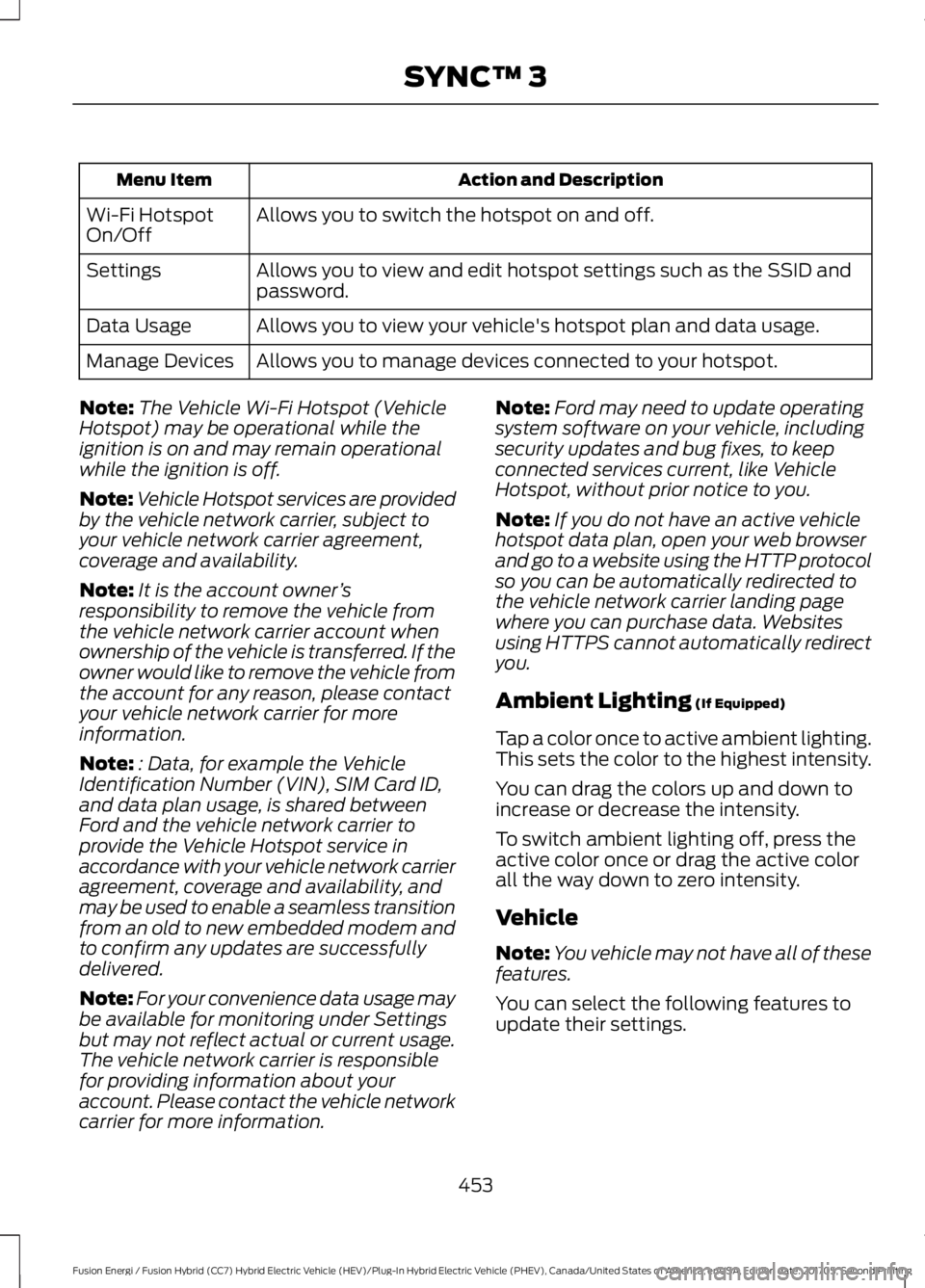
Allows you to switch the hotspot on and off.Wi-Fi HotspotOn/Off
Allows you to view and edit hotspot settings such as the SSID andpassword.Settings
Allows you to view your vehicle's hotspot plan and data usage.Data Usage
Allows you to manage devices connected to your hotspot.Manage Devices
Note:The Vehicle Wi-Fi Hotspot (VehicleHotspot) may be operational while theignition is on and may remain operationalwhile the ignition is off.
Note:Vehicle Hotspot services are providedby the vehicle network carrier, subject toyour vehicle network carrier agreement,coverage and availability.
Note:It is the account owner’sresponsibility to remove the vehicle fromthe vehicle network carrier account whenownership of the vehicle is transferred. If theowner would like to remove the vehicle fromthe account for any reason, please contactyour vehicle network carrier for moreinformation.
Note:: Data, for example the VehicleIdentification Number (VIN), SIM Card ID,and data plan usage, is shared betweenFord and the vehicle network carrier toprovide the Vehicle Hotspot service inaccordance with your vehicle network carrieragreement, coverage and availability, andmay be used to enable a seamless transitionfrom an old to new embedded modem andto confirm any updates are successfullydelivered.
Note:For your convenience data usage maybe available for monitoring under Settingsbut may not reflect actual or current usage.The vehicle network carrier is responsiblefor providing information about youraccount. Please contact the vehicle networkcarrier for more information.
Note:Ford may need to update operatingsystem software on your vehicle, includingsecurity updates and bug fixes, to keepconnected services current, like VehicleHotspot, without prior notice to you.
Note:If you do not have an active vehiclehotspot data plan, open your web browserand go to a website using the HTTP protocolso you can be automatically redirected tothe vehicle network carrier landing pagewhere you can purchase data. Websitesusing HTTPS cannot automatically redirectyou.
Ambient Lighting (If Equipped)
Tap a color once to active ambient lighting.This sets the color to the highest intensity.
You can drag the colors up and down toincrease or decrease the intensity.
To switch ambient lighting off, press theactive color once or drag the active colorall the way down to zero intensity.
Vehicle
Note:You vehicle may not have all of thesefeatures.
You can select the following features toupdate their settings.
453
Fusion Energi / Fusion Hybrid (CC7) Hybrid Electric Vehicle (HEV)/Plug-In Hybrid Electric Vehicle (PHEV), Canada/United States of America, enUSA, Edition date: 201705, Second Printing
SYNC™ 3
Page 465 of 538
AppLink issues
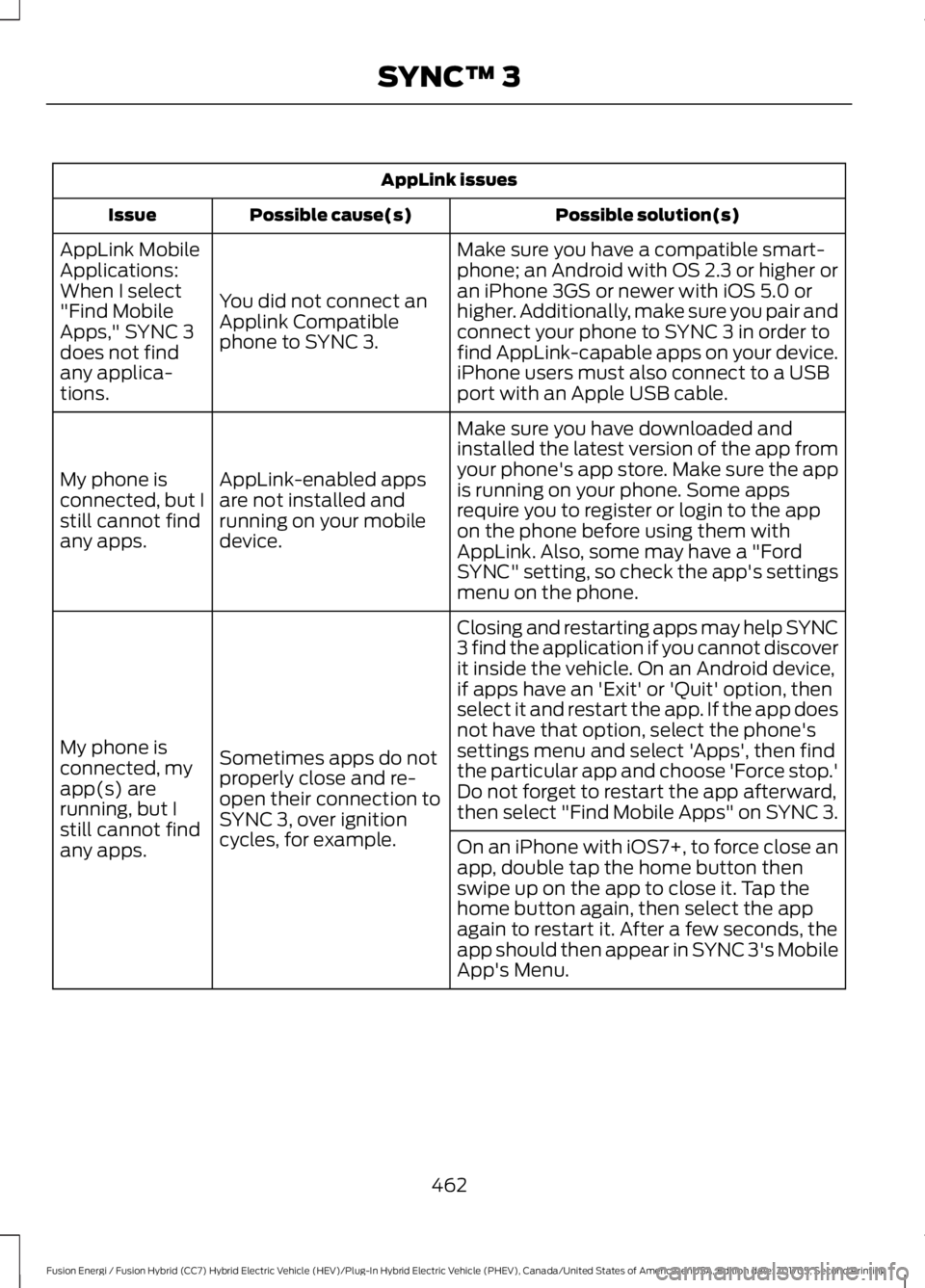
Possible solution(s)Possible cause(s)Issue
Make sure you have a compatible smart-phone; an Android with OS 2.3 or higher oran iPhone 3GS or newer with iOS 5.0 orhigher. Additionally, make sure you pair andconnect your phone to SYNC 3 in order tofind AppLink-capable apps on your device.iPhone users must also connect to a USBport with an Apple USB cable.
You did not connect anApplink Compatiblephone to SYNC 3.
AppLink MobileApplications:When I select"Find MobileApps," SYNC 3does not findany applica-tions.
Make sure you have downloaded andinstalled the latest version of the app fromyour phone's app store. Make sure the appis running on your phone. Some appsrequire you to register or login to the appon the phone before using them withAppLink. Also, some may have a "FordSYNC" setting, so check the app's settingsmenu on the phone.
AppLink-enabled appsare not installed andrunning on your mobiledevice.
My phone isconnected, but Istill cannot findany apps.
Closing and restarting apps may help SYNC3 find the application if you cannot discoverit inside the vehicle. On an Android device,if apps have an 'Exit' or 'Quit' option, thenselect it and restart the app. If the app doesnot have that option, select the phone'ssettings menu and select 'Apps', then findthe particular app and choose 'Force stop.'Do not forget to restart the app afterward,then select "Find Mobile Apps" on SYNC 3.
Sometimes apps do notproperly close and re-open their connection toSYNC 3, over ignitioncycles, for example.
My phone isconnected, myapp(s) arerunning, but Istill cannot findany apps.On an iPhone with iOS7+, to force close anapp, double tap the home button thenswipe up on the app to close it. Tap thehome button again, then select the appagain to restart it. After a few seconds, theapp should then appear in SYNC 3's MobileApp's Menu.
462
Fusion Energi / Fusion Hybrid (CC7) Hybrid Electric Vehicle (HEV)/Plug-In Hybrid Electric Vehicle (PHEV), Canada/United States of America, enUSA, Edition date: 201705, Second Printing
SYNC™ 3
Page 469 of 538
Personal Profiles
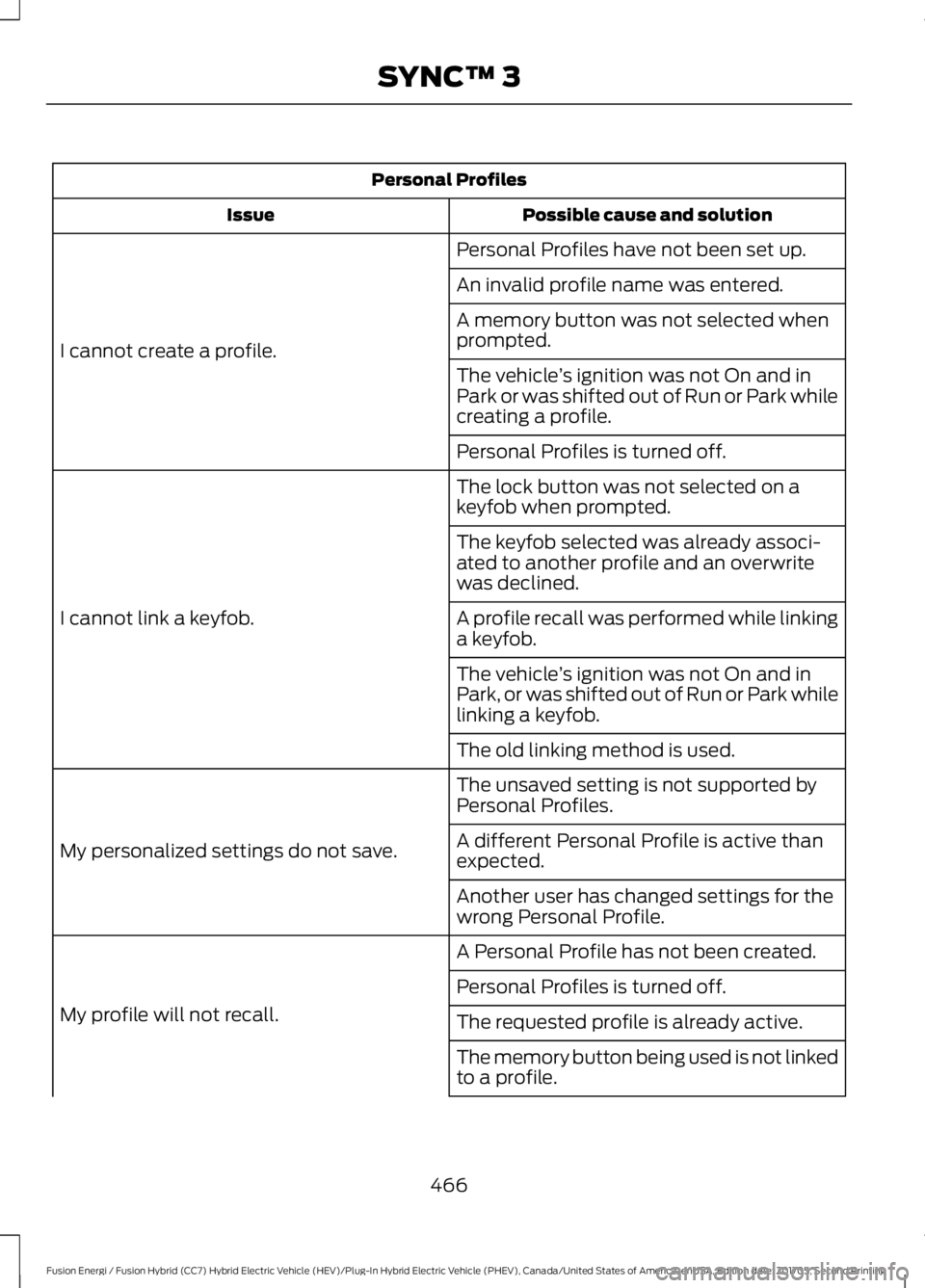
Possible cause and solutionIssue
Personal Profiles have not been set up.
I cannot create a profile.
An invalid profile name was entered.
A memory button was not selected whenprompted.
The vehicle’s ignition was not On and inPark or was shifted out of Run or Park whilecreating a profile.
Personal Profiles is turned off.
The lock button was not selected on akeyfob when prompted.
I cannot link a keyfob.
The keyfob selected was already associ-ated to another profile and an overwritewas declined.
A profile recall was performed while linkinga keyfob.
The vehicle’s ignition was not On and inPark, or was shifted out of Run or Park whilelinking a keyfob.
The old linking method is used.
The unsaved setting is not supported byPersonal Profiles.
My personalized settings do not save.A different Personal Profile is active thanexpected.
Another user has changed settings for thewrong Personal Profile.
A Personal Profile has not been created.
My profile will not recall.
Personal Profiles is turned off.
The requested profile is already active.
The memory button being used is not linkedto a profile.
466
Fusion Energi / Fusion Hybrid (CC7) Hybrid Electric Vehicle (HEV)/Plug-In Hybrid Electric Vehicle (PHEV), Canada/United States of America, enUSA, Edition date: 201705, Second Printing
SYNC™ 3
Page 498 of 538
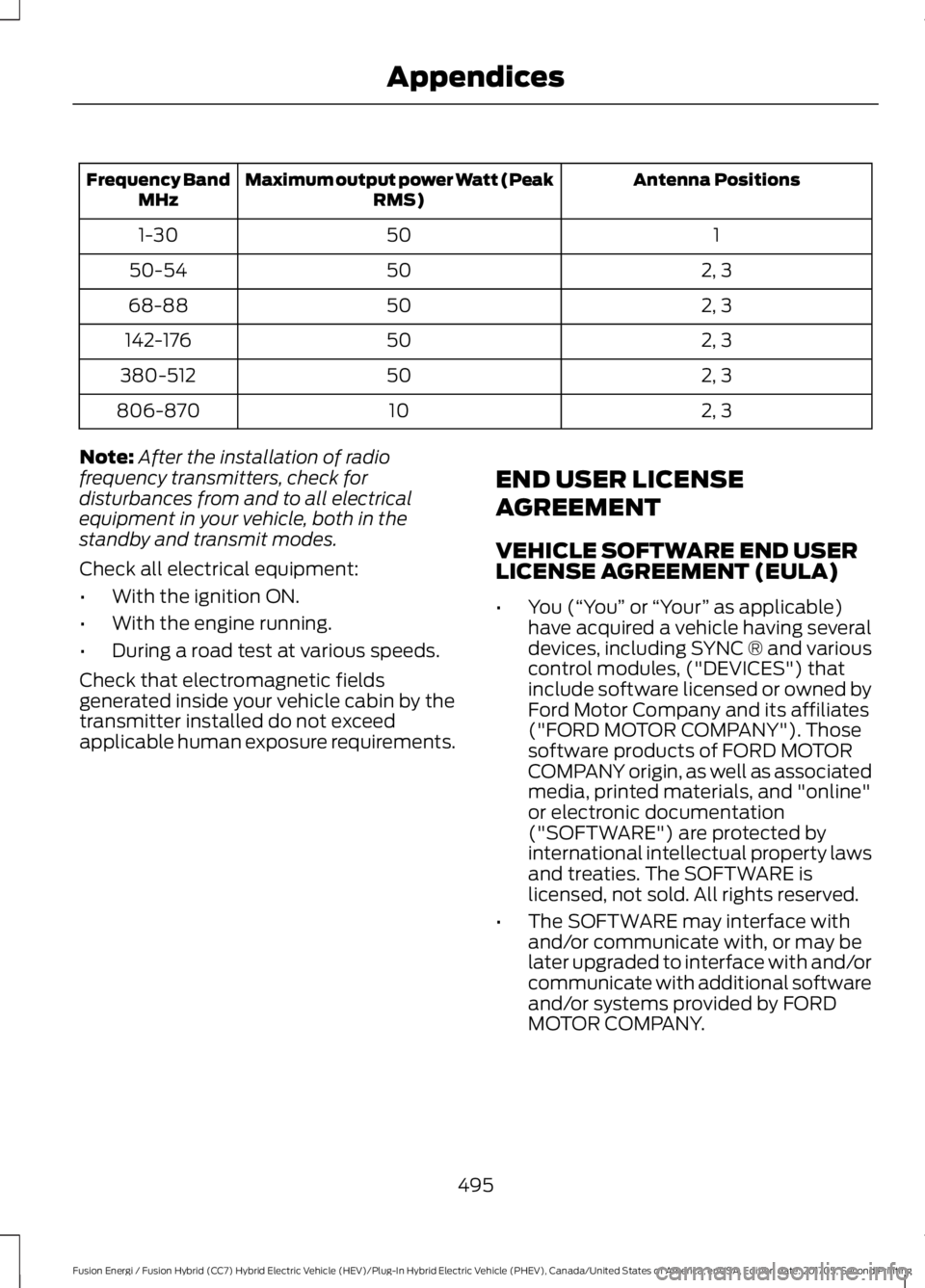
Antenna PositionsMaximum output power Watt (PeakRMS)Frequency BandMHz
1501-30
2, 35050-54
2, 35068-88
2, 350142-176
2, 350380-512
2, 310806-870
Note:After the installation of radiofrequency transmitters, check fordisturbances from and to all electricalequipment in your vehicle, both in thestandby and transmit modes.
Check all electrical equipment:
•With the ignition ON.
•With the engine running.
•During a road test at various speeds.
Check that electromagnetic fieldsgenerated inside your vehicle cabin by thetransmitter installed do not exceedapplicable human exposure requirements.
END USER LICENSE
AGREEMENT
VEHICLE SOFTWARE END USERLICENSE AGREEMENT (EULA)
•You (“You” or “Your” as applicable)have acquired a vehicle having severaldevices, including SYNC ® and variouscontrol modules, ("DEVICES") thatinclude software licensed or owned byFord Motor Company and its affiliates("FORD MOTOR COMPANY"). Thosesoftware products of FORD MOTORCOMPANY origin, as well as associatedmedia, printed materials, and "online"or electronic documentation("SOFTWARE") are protected byinternational intellectual property lawsand treaties. The SOFTWARE islicensed, not sold. All rights reserved.
•The SOFTWARE may interface withand/or communicate with, or may belater upgraded to interface with and/orcommunicate with additional softwareand/or systems provided by FORDMOTOR COMPANY.
495
Fusion Energi / Fusion Hybrid (CC7) Hybrid Electric Vehicle (HEV)/Plug-In Hybrid Electric Vehicle (PHEV), Canada/United States of America, enUSA, Edition date: 201705, Second Printing
Appendices
Page 533 of 538
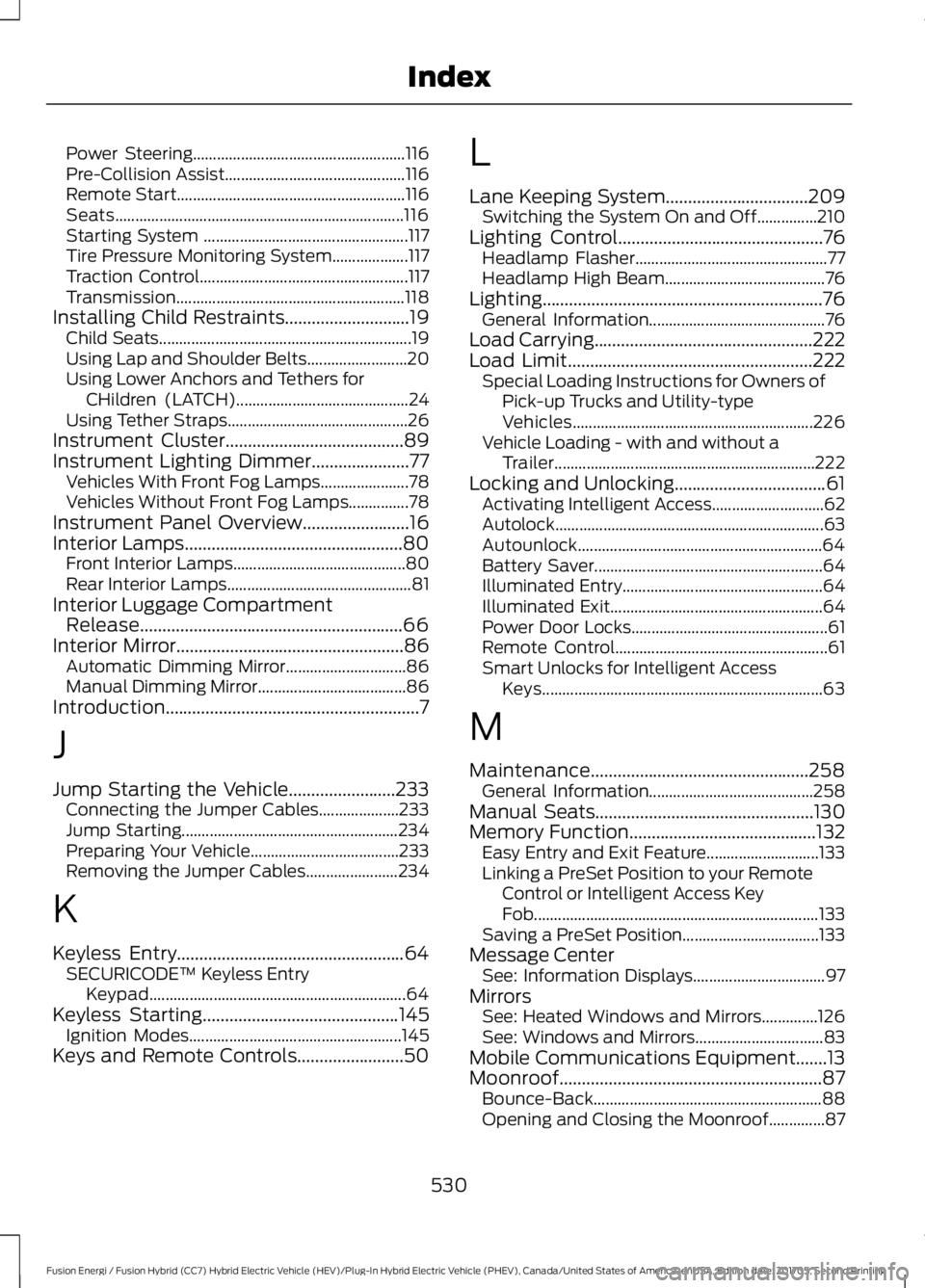
Power Steering.....................................................116Pre-Collision Assist.............................................116Remote Start.........................................................116Seats........................................................................116Starting System ...................................................117Tire Pressure Monitoring System...................117Traction Control....................................................117Transmission.........................................................118Installing Child Restraints............................19Child Seats...............................................................19Using Lap and Shoulder Belts.........................20Using Lower Anchors and Tethers forCHildren (LATCH)...........................................24Using Tether Straps.............................................26Instrument Cluster........................................89Instrument Lighting Dimmer......................77Vehicles With Front Fog Lamps......................78Vehicles Without Front Fog Lamps...............78Instrument Panel Overview........................16Interior Lamps.................................................80Front Interior Lamps...........................................80Rear Interior Lamps..............................................81Interior Luggage CompartmentRelease...........................................................66Interior Mirror...................................................86Automatic Dimming Mirror..............................86Manual Dimming Mirror.....................................86Introduction.........................................................7
J
Jump Starting the Vehicle........................233Connecting the Jumper Cables....................233Jump Starting......................................................234Preparing Your Vehicle.....................................233Removing the Jumper Cables.......................234
K
Keyless Entry...................................................64SECURICODE™ Keyless EntryKeypad................................................................64Keyless Starting............................................145Ignition Modes.....................................................145Keys and Remote Controls........................50
L
Lane Keeping System................................209Switching the System On and Off...............210Lighting Control..............................................76Headlamp Flasher................................................77Headlamp High Beam........................................76Lighting...............................................................76General Information............................................76Load Carrying.................................................222Load Limit.......................................................222Special Loading Instructions for Owners ofPick-up Trucks and Utility-typeVehicles............................................................226Vehicle Loading - with and without aTrailer.................................................................222Locking and Unlocking..................................61Activating Intelligent Access............................62Autolock...................................................................63Autounlock.............................................................64Battery Saver.........................................................64Illuminated Entry..................................................64Illuminated Exit.....................................................64Power Door Locks.................................................61Remote Control.....................................................61Smart Unlocks for Intelligent AccessKeys......................................................................63
M
Maintenance.................................................258General Information.........................................258Manual Seats.................................................130Memory Function..........................................132Easy Entry and Exit Feature............................133Linking a PreSet Position to your RemoteControl or Intelligent Access KeyFob.......................................................................133Saving a PreSet Position..................................133Message CenterSee: Information Displays.................................97MirrorsSee: Heated Windows and Mirrors..............126See: Windows and Mirrors................................83Mobile Communications Equipment.......13Moonroof...........................................................87Bounce-Back.........................................................88Opening and Closing the Moonroof..............87
530
Fusion Energi / Fusion Hybrid (CC7) Hybrid Electric Vehicle (HEV)/Plug-In Hybrid Electric Vehicle (PHEV), Canada/United States of America, enUSA, Edition date: 201705, Second Printing
Index