reset FORD FUSION ENERGI 2020 Service Manual
[x] Cancel search | Manufacturer: FORD, Model Year: 2020, Model line: FUSION ENERGI, Model: FORD FUSION ENERGI 2020Pages: 486, PDF Size: 6.28 MB
Page 368 of 486
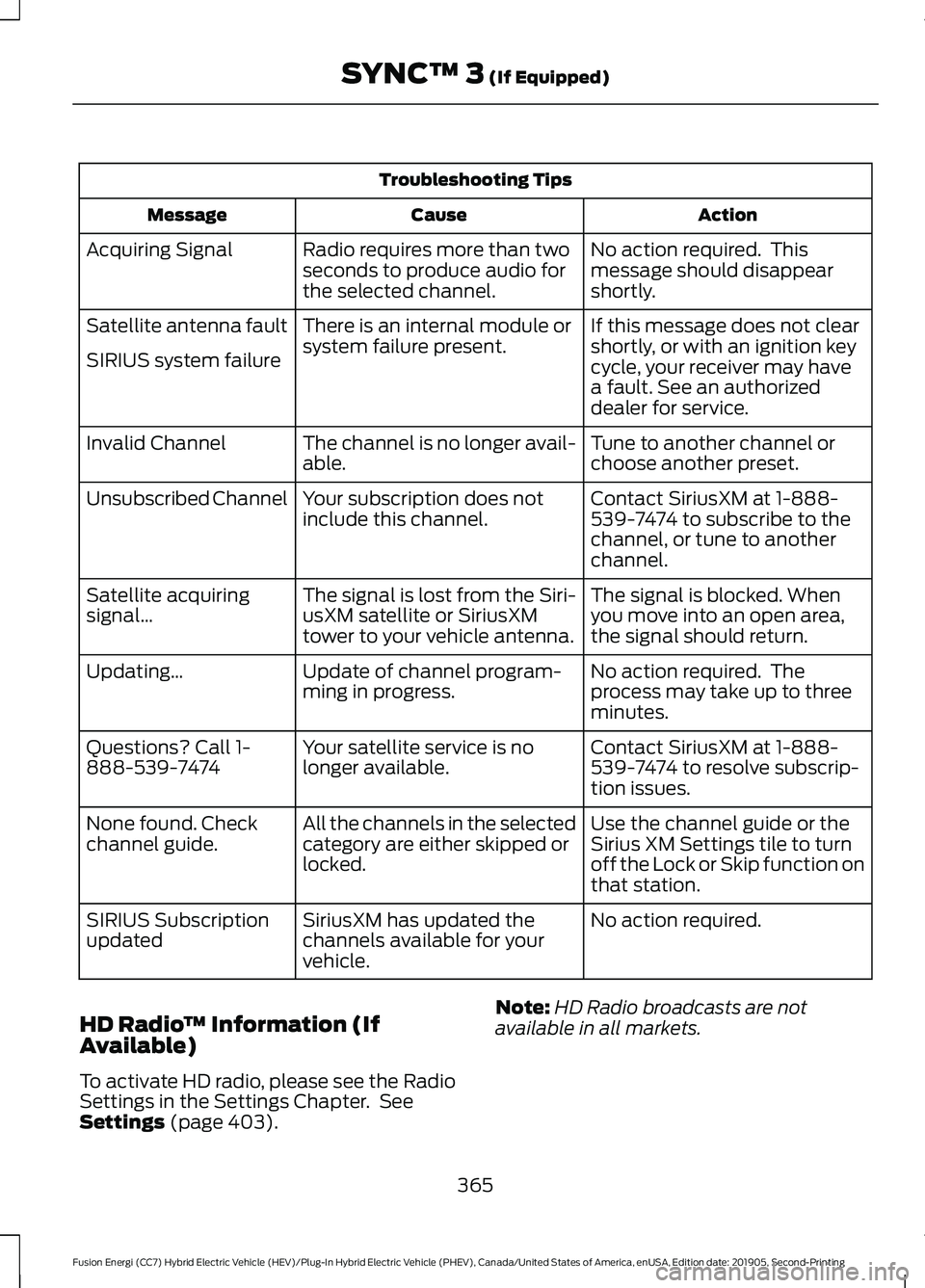
Troubleshooting Tips
Action
Cause
Message
No action required. This
message should disappear
shortly.
Radio requires more than two
seconds to produce audio for
the selected channel.
Acquiring Signal
If this message does not clear
shortly, or with an ignition key
cycle, your receiver may have
a fault. See an authorized
dealer for service.
There is an internal module or
system failure present.
Satellite antenna fault
SIRIUS system failure
Tune to another channel or
choose another preset.
The channel is no longer avail-
able.
Invalid Channel
Contact SiriusXM at 1-888-
539-7474 to subscribe to the
channel, or tune to another
channel.
Your subscription does not
include this channel.
Unsubscribed Channel
The signal is blocked. When
you move into an open area,
the signal should return.
The signal is lost from the Siri-
usXM satellite or SiriusXM
tower to your vehicle antenna.
Satellite acquiring
signal…
No action required. The
process may take up to three
minutes.
Update of channel program-
ming in progress.
Updating…
Contact SiriusXM at 1-888-
539-7474 to resolve subscrip-
tion issues.
Your satellite service is no
longer available.
Questions? Call 1-
888-539-7474
Use the channel guide or the
Sirius XM Settings tile to turn
off the Lock or Skip function on
that station.
All the channels in the selected
category are either skipped or
locked.
None found. Check
channel guide.
No action required.
SiriusXM has updated the
channels available for your
vehicle.
SIRIUS Subscription
updated
HD Radio ™ Information (If
Available)
To activate HD radio, please see the Radio
Settings in the Settings Chapter. See
Settings (page 403). Note:
HD Radio broadcasts are not
available in all markets.
365
Fusion Energi (CC7) Hybrid Electric Vehicle (HEV)/Plug-In Hybrid Electric Vehicle (PHEV), Canada/United States of America, enUSA, Edition date: 201905, Second-Printing SYNC™ 3
(If Equipped)
Page 369 of 486
HD Radio technology is the digital
evolution of analog AM/FM radio. Your
system has a special receiver that allows
it to receive digital broadcasts (where
available) in addition to the analog
broadcasts, it already receives. Digital
broadcasts provide a better sound quality
than analog broadcasts with free,
crystal-clear audio and no static or
distortion. For more information, and a
guide to available stations and
programming, please visit:
Website
www.hdradio.com
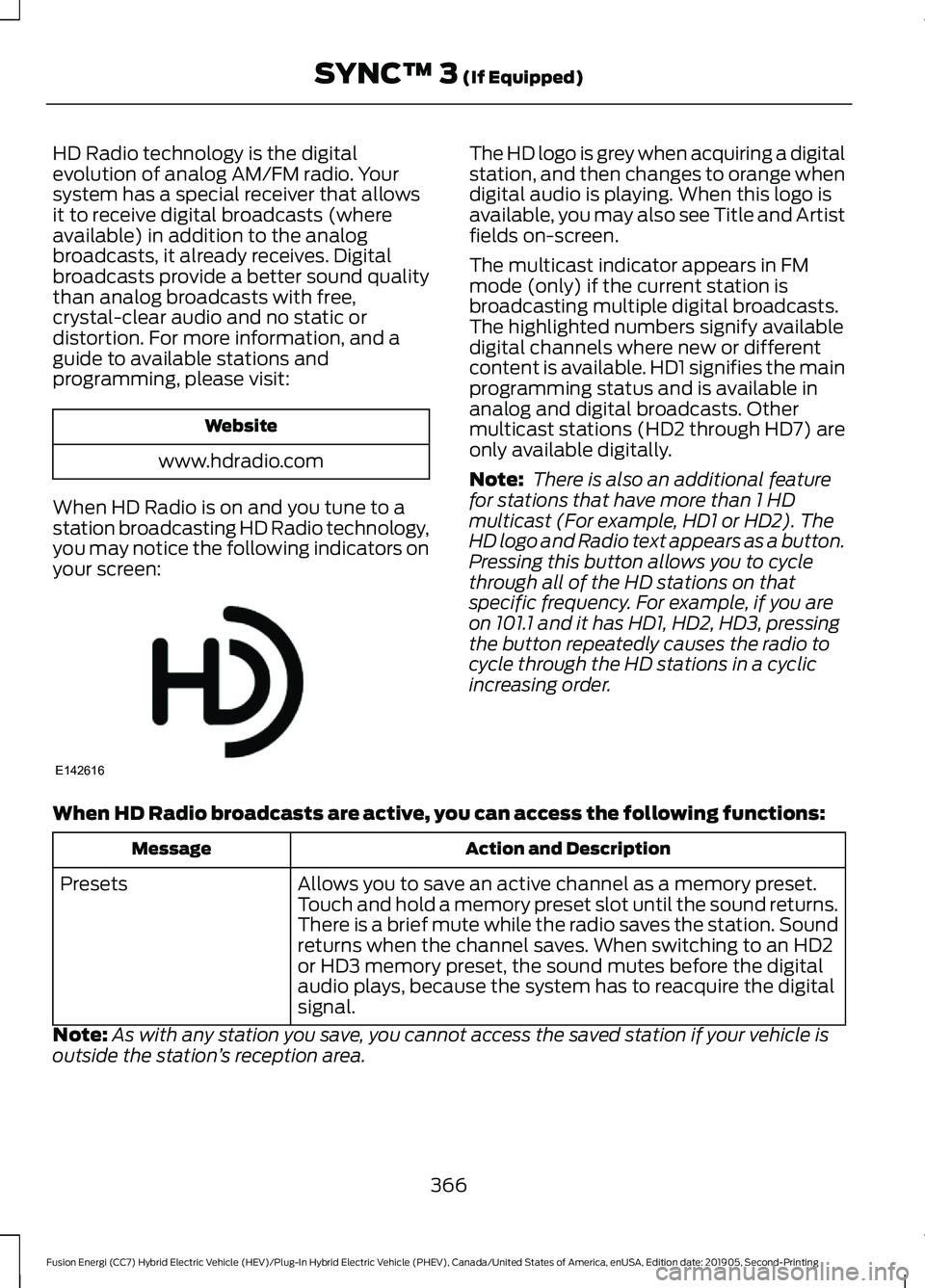
When HD Radio is on and you tune to a
station broadcasting HD Radio technology,
you may notice the following indicators on
your screen: The HD logo is grey when acquiring a digital
station, and then changes to orange when
digital audio is playing. When this logo is
available, you may also see Title and Artist
fields on-screen.
The multicast indicator appears in FM
mode (only) if the current station is
broadcasting multiple digital broadcasts.
The highlighted numbers signify available
digital channels where new or different
content is available. HD1 signifies the main
programming status and is available in
analog and digital broadcasts. Other
multicast stations (HD2 through HD7) are
only available digitally.
Note:
There is also an additional feature
for stations that have more than 1 HD
multicast (For example, HD1 or HD2). The
HD logo and Radio text appears as a button.
Pressing this button allows you to cycle
through all of the HD stations on that
specific frequency. For example, if you are
on 101.1 and it has HD1, HD2, HD3, pressing
the button repeatedly causes the radio to
cycle through the HD stations in a cyclic
increasing order.
When HD Radio broadcasts are active, you can access the following functions: Action and Description
Message
Allows you to save an active channel as a memory preset.
Touch and hold a memory preset slot until the sound returns.
There is a brief mute while the radio saves the station. Sound
returns when the channel saves. When switching to an HD2
or HD3 memory preset, the sound mutes before the digital
audio plays, because the system has to reacquire the digital
signal.
Presets
Note: As with any station you save, you cannot access the saved station if your vehicle is
outside the station ’s reception area.
366
Fusion Energi (CC7) Hybrid Electric Vehicle (HEV)/Plug-In Hybrid Electric Vehicle (PHEV), Canada/United States of America, enUSA, Edition date: 201905, Second-Printing SYNC™ 3 (If Equipped)E142616
Page 370 of 486
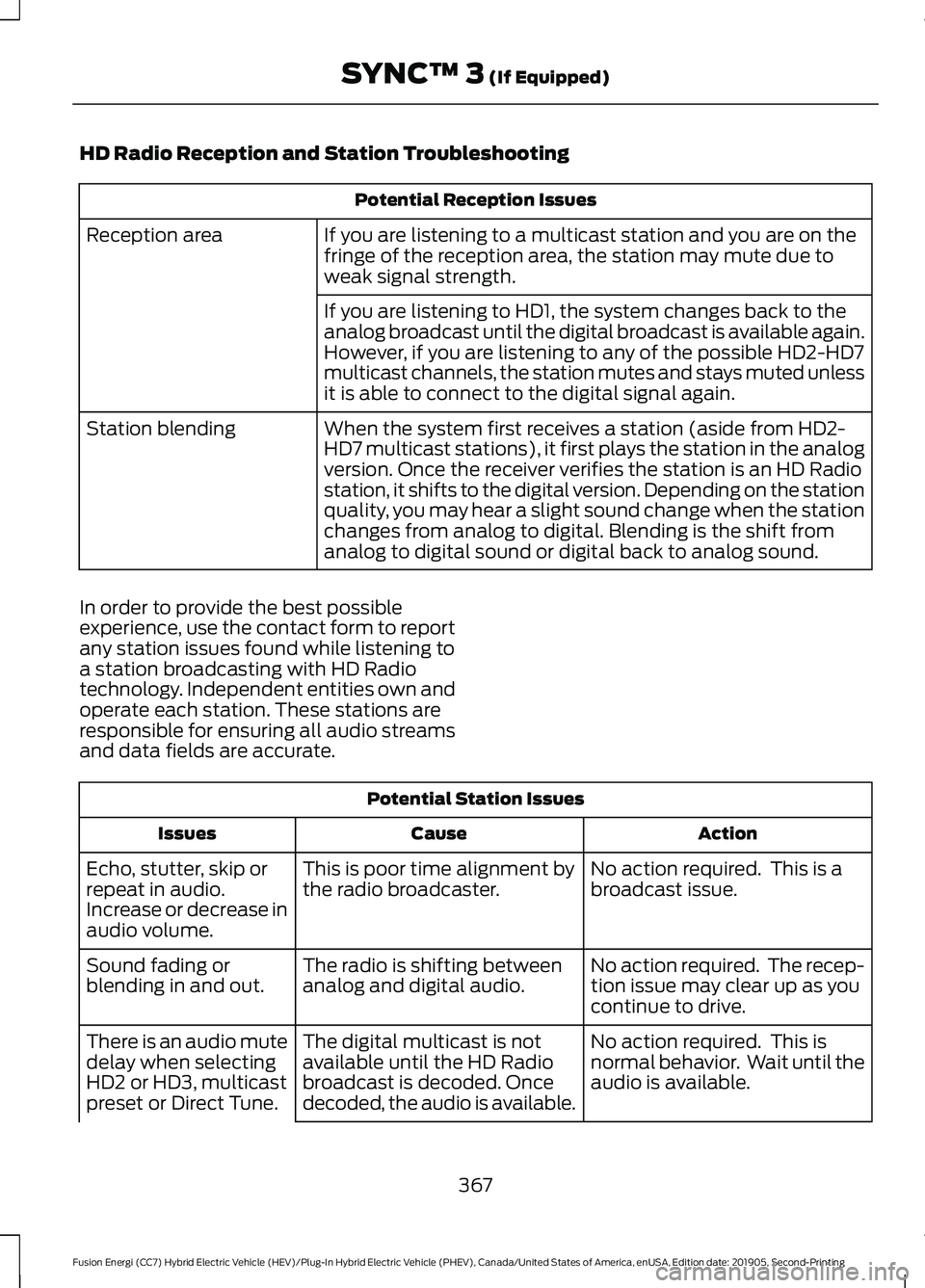
HD Radio Reception and Station Troubleshooting
Potential Reception Issues
If you are listening to a multicast station and you are on the
fringe of the reception area, the station may mute due to
weak signal strength.
Reception area
If you are listening to HD1, the system changes back to the
analog broadcast until the digital broadcast is available again.
However, if you are listening to any of the possible HD2-HD7
multicast channels, the station mutes and stays muted unless
it is able to connect to the digital signal again.
When the system first receives a station (aside from HD2-
HD7 multicast stations), it first plays the station in the analog
version. Once the receiver verifies the station is an HD Radio
station, it shifts to the digital version. Depending on the station
quality, you may hear a slight sound change when the station
changes from analog to digital. Blending is the shift from
analog to digital sound or digital back to analog sound.
Station blending
In order to provide the best possible
experience, use the contact form to report
any station issues found while listening to
a station broadcasting with HD Radio
technology. Independent entities own and
operate each station. These stations are
responsible for ensuring all audio streams
and data fields are accurate. Potential Station Issues
Action
Cause
Issues
No action required. This is a
broadcast issue.
This is poor time alignment by
the radio broadcaster.
Echo, stutter, skip or
repeat in audio.
Increase or decrease in
audio volume.
No action required. The recep-
tion issue may clear up as you
continue to drive.
The radio is shifting between
analog and digital audio.
Sound fading or
blending in and out.
No action required. This is
normal behavior. Wait until the
audio is available.
The digital multicast is not
available until the HD Radio
broadcast is decoded. Once
decoded, the audio is available.
There is an audio mute
delay when selecting
HD2 or HD3, multicast
preset or Direct Tune.
367
Fusion Energi (CC7) Hybrid Electric Vehicle (HEV)/Plug-In Hybrid Electric Vehicle (PHEV), Canada/United States of America, enUSA, Edition date: 201905, Second-Printing SYNC™ 3 (If Equipped)
Page 371 of 486
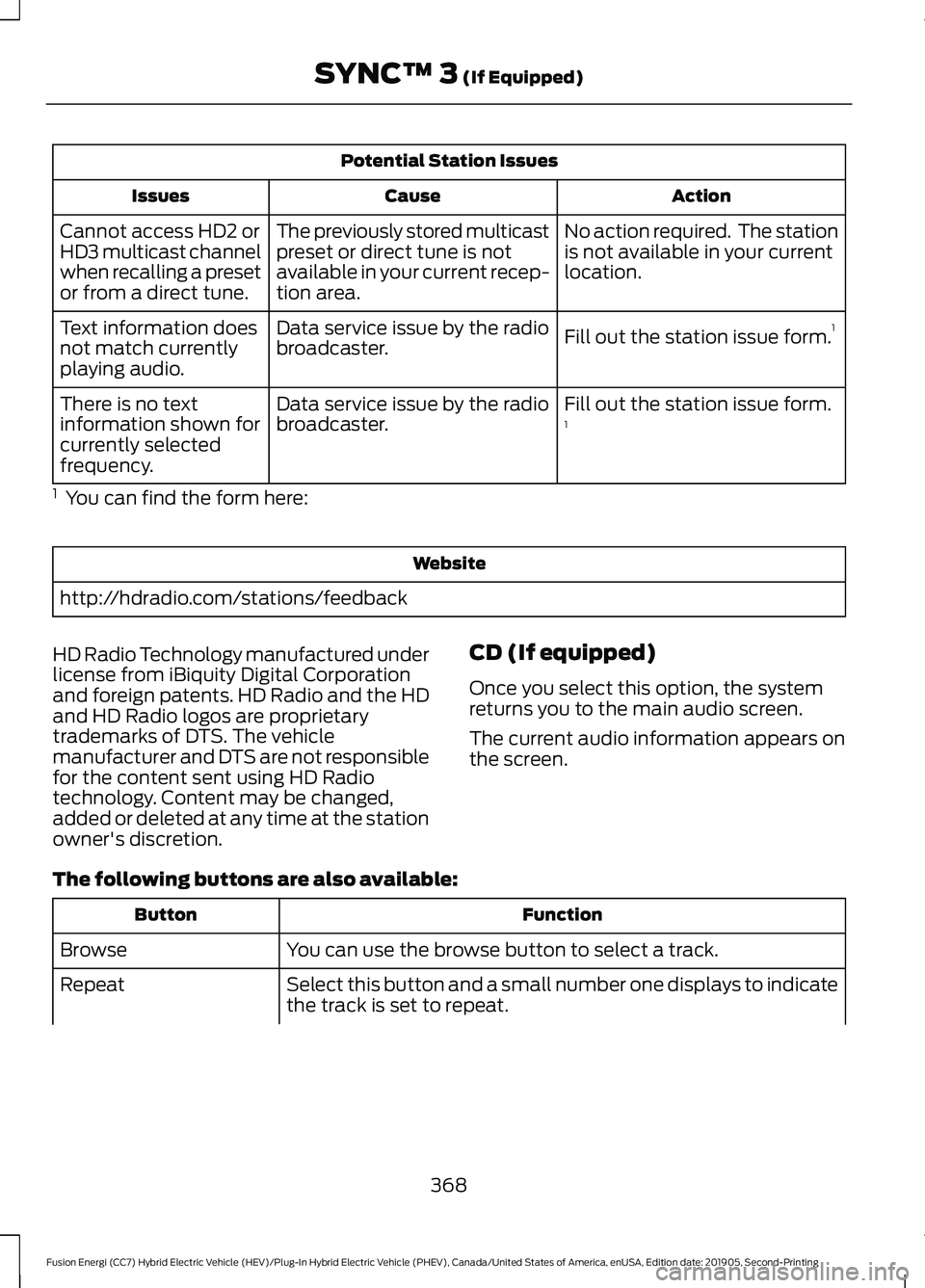
Potential Station Issues
Action
Cause
Issues
No action required. The station
is not available in your current
location.
The previously stored multicast
preset or direct tune is not
available in your current recep-
tion area.
Cannot access HD2 or
HD3 multicast channel
when recalling a preset
or from a direct tune.
Fill out the station issue form.1
Data service issue by the radio
broadcaster.
Text information does
not match currently
playing audio.
Fill out the station issue form.
1
Data service issue by the radio
broadcaster.
There is no text
information shown for
currently selected
frequency.
1 You can find the form here: Website
http://hdradio.com/stations/feedback
HD Radio Technology manufactured under
license from iBiquity Digital Corporation
and foreign patents. HD Radio and the HD
and HD Radio logos are proprietary
trademarks of DTS. The vehicle
manufacturer and DTS are not responsible
for the content sent using HD Radio
technology. Content may be changed,
added or deleted at any time at the station
owner's discretion. CD (If equipped)
Once you select this option, the system
returns you to the main audio screen.
The current audio information appears on
the screen.
The following buttons are also available: Function
Button
You can use the browse button to select a track.
Browse
Select this button and a small number one displays to indicate
the track is set to repeat.
Repeat
368
Fusion Energi (CC7) Hybrid Electric Vehicle (HEV)/Plug-In Hybrid Electric Vehicle (PHEV), Canada/United States of America, enUSA, Edition date: 201905, Second-Printing SYNC™ 3 (If Equipped)
Page 388 of 486
Action and Description
Menu Item
Item
This area of the screen shows your scheduled Go Time and
your cabin conditioning information.
My GO Times
A
This is the time and date of your next set drive time. Your
vehicle automatically schedules charging and cabin condi-
tioning to finish by this time.
Next GO Time
B
This is the chosen cabin conditioning setting for this GO
Time.
Temperature
C
This accesses your GO Time Schedule (see GO Time
Schedule later in this section).
Edit
D
This cancels the cabin conditioning for the present GO Time.
Once you touch Skip, the GO Time and Temperature grey
out, and the LED illuminates on the Skip button. Touch the
button again to switch on the cabin conditioning. This
feature allows you to ignore the present GO Time without
having to delete it or having to switch off the entire schedule
(see
GO Time Schedule later in this section). After the
present GO Time passes, this feature resets.
Skip
E
Conflict Notification
The system alerts you to any conflicts by
highlighting areas of the screen in colored
text.
If your battery cannot have a full charge by the scheduled drive time, the system
highlights your next GO Time and Charge Complete time and the following
message appears: Action and Description
Menu Item
This is normal; the vehicle is informing you of the conflicting situation.
This notification only displays when the gearshift selector lever is in
position
P.
Charge time
not sufficient
to meet
scheduled
GO Time
settings Note: Charging occurs as soon as you plug the vehicle in. The system
limits cabin conditioning to 15 minutes before your GO Time.
385
Fusion Energi (CC7) Hybrid Electric Vehicle (HEV)/Plug-In Hybrid Electric Vehicle (PHEV), Canada/United States of America, enUSA, Edition date: 201905, Second-Printing SYNC™ 3
(If Equipped)
Page 403 of 486
Engine On Due To
(Energi Only) The engine is on to optimize vehicle operation. The
vehicle returns to electric mode when possible.
Normal Operation
The engine is on to provide increased powertrain
braking. This can occur when you turn on the grade
assist feature, when speed control is on or when driving
with your foot off the accelerator pedal. Turning off
grade assist or speed control may allow the vehicle to
return to electric mode.
Engine Braking Active
Privacy Notice for GPS Mapping with
MyFord
MyFord allows for GPS mapping when a
vehicle is registered to a MyFord Mobile
account. To remove the vehicle from the
account, thereby removing GPS mapping
ability, a Master Reset can be performed
in the vehicle. See Settings (page 403).
Before transferring ownership of a vehicle,
owners may choose to execute a Master
Reset or Factory Reset (completed via the
MyFord Mobile website). Either method
removes the vehicle from all MyFord
Mobile accounts.
It is recommended that new owners
conduct a Master Reset upon taking
possession of the vehicle to remove it from
any existing MyFord Mobile accounts. The
new owner can activate a MyFord Mobile
account by completing registration process
on the website. Website
www.myfordmobile.com www.syncmyride.ca Website
www.syncmaroute.ca
APPS
The system allows you interact with select
mobile apps while keeping your eyes on
the road. Voice commands, your steering
wheel buttons, or a quick tap on your
touchscreen give you advanced control of
compatible mobile apps. You can also
stream your favorite music or podcasts,
share your time of arrival with friends, and
keep connected safely.
When you start an app through the system
for the first time, you could be asked to
grant certain permissions. You can review
and change the permissions that you have
granted at any time when your vehicle is
not moving. We recommend that you
check your data plan before using your
apps through the system. Using them
could result in additional charges. We also
recommend that you check the app
provider's terms and conditions and
privacy policy before using their app. Make
sure that you have an active account for
apps that you want to use through the
system. Some apps will work with no
setup. Others require you to configure
some personal settings before you can use
them.
400
Fusion Energi (CC7) Hybrid Electric Vehicle (HEV)/Plug-In Hybrid Electric Vehicle (PHEV), Canada/United States of America, enUSA, Edition date: 201905, Second-Printing SYNC™ 3
(If Equipped)
Page 406 of 486
SETTINGS
Press the button to enter the
settings menu.
Once you select a tile, press the
button next to a menu item to
view an explanation of the
feature or setting.
Sound
Select this tile to adjust sound the settings.
Clock
Select this tile to adjust the clock settings.
Bluetooth
Select this tile to switch Bluetooth on and
off and adjust the settings.
Phone
Select this tile to connect, disconnect, and
manage the connected device settings.
Audio
Select this tile to adjust the audio settings.
Driver Assist (If Equipped)
Select this tile to adjust Driver Assist
features like Parking Aids, Lane Keeping
System, Pedestrian Detection, and
Auto-Start-Stop.
Vehicle
Select this tile to adjust vehicle settings
like windows, alarm, lighting, and MyKey
settings.
FordPass
Select this tile to adjust the FordPass
settings General
Select this tile to adjust settings like
language, measurement units, or to reset
the system.
911 Assist
(If Equipped)
Select this tile to switch 911 Assist on and
off.
Automatic Updates
Select this tile to adjust the automatic
update settings.
Mobile Apps
Select this tile to adjust permissions,
enable, disable, and update mobile apps.
Display
Select this tile to adjust display settings
like brightness and auto dim.
Charge Settings
(If Equipped)
Select this tile to adjust the electric vehicle
charge settings.
Voice Control
Select this tile to adjust voice control
settings like command confirmations and
displayed lists.
Navigation
(If Equipped)
Select this tile to adjust navigation settings
like map preferences and route guidance.
Multi Contour Seats
(If Equipped)
Select this tile to adjust the position and
massage function of your multi contour
seats.
Seats
(If Equipped)
Select this tile to adjust the lumbar
function of your seats.
403
Fusion Energi (CC7) Hybrid Electric Vehicle (HEV)/Plug-In Hybrid Electric Vehicle (PHEV), Canada/United States of America, enUSA, Edition date: 201905, Second-Printing SYNC™ 3
(If Equipped)E280315 E268570
Page 409 of 486
Possible Cause and Resolution
Symptom
–You are not saying the name exactly as it appears on
your device.
•Say the first and last name of the contact exactly
as it appears on your device. Spell out any abbrevi-
ations in the name.
– The name contains special characters, for example *,
- or +.
•Rename the contact on your device or use the
touchscreen to select and call the contact.
The system does not under-
stand the name of a contact
in the phonebook on my
device and calls the wrong
contact.
–You are not saying the name exactly as it appears on
your device.
•Say the first and last name of the contact exactly
as it appears on your device. The system applies
phonetic pronunciation rules of the selected
language to the names of contacts in the phone-
book on your device. Select the name of the
contact on the touchscreen and use the Hear it
option to get an idea of how the system expects
you to pronounce it.
The system does not under-
stand foreign names of
contacts in the phonebook
on my device.
–Device limitation.
•The system uses text-to-speech technology and
uses a synthetically generated voice rather than
pre-recorded human voice.
The system voice prompts
and the pronunciation of
some words does not seem
to be very accurate.
USB and Bluetooth Audio Possible Cause and Resolution
Symptom
I cannot connect my device. –Device malfunction.
•Disconnect your device. Switch your device off,
reset it and try again.
– Cable connection issue.
•Correctly connect the cable to your device and the
vehicle USB port.
– Incompatible cable.
•Use the cable recommended by the manufacturer
of your device.
406
Fusion Energi (CC7) Hybrid Electric Vehicle (HEV)/Plug-In Hybrid Electric Vehicle (PHEV), Canada/United States of America, enUSA, Edition date: 201905, Second-Printing SYNC™ 3 (If Equipped)
Page 411 of 486
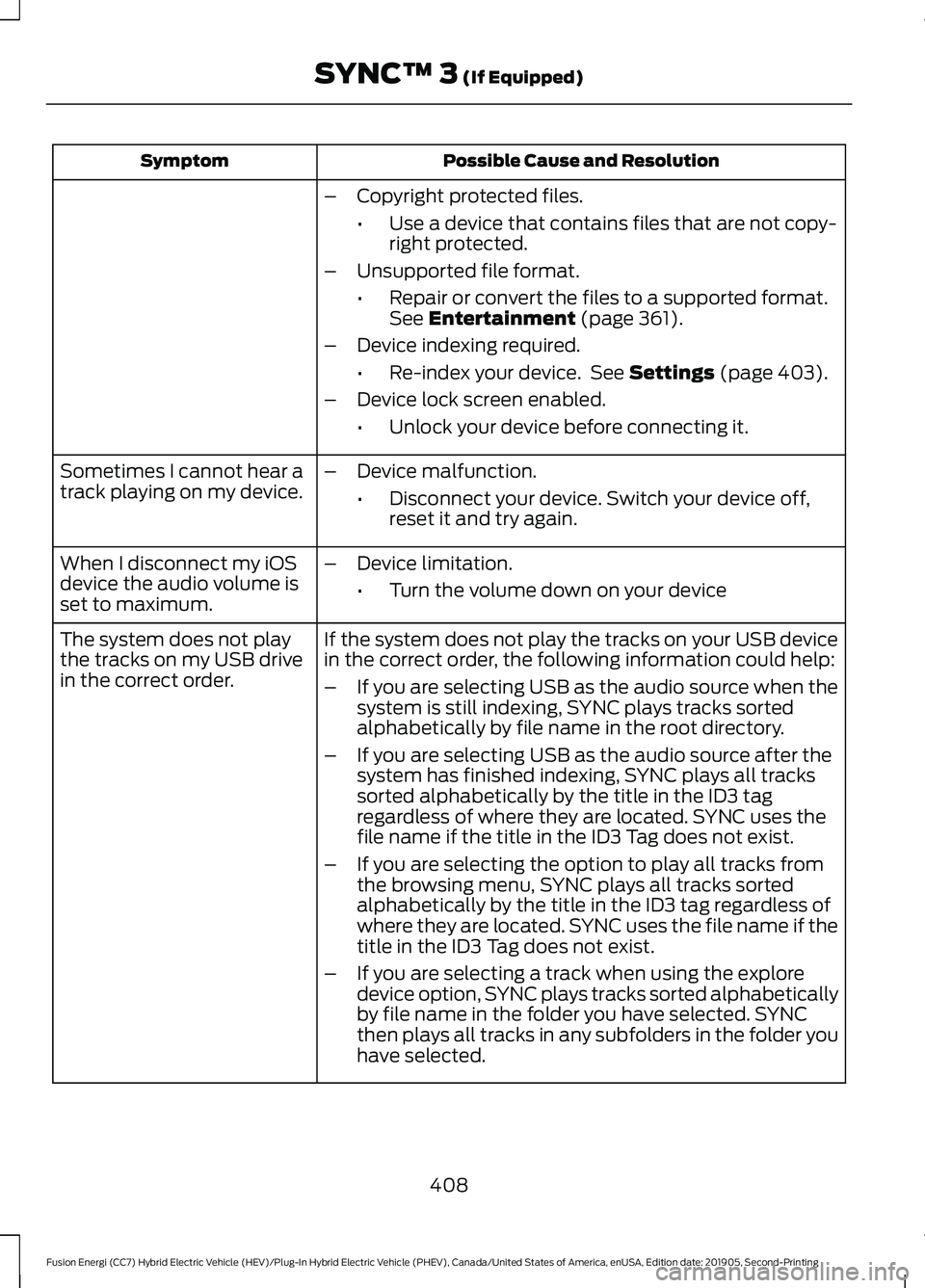
Possible Cause and Resolution
Symptom
–Copyright protected files.
•Use a device that contains files that are not copy-
right protected.
– Unsupported file format.
•Repair or convert the files to a supported format.
See Entertainment (page 361).
– Device indexing required.
•Re-index your device. See
Settings (page 403).
– Device lock screen enabled.
•Unlock your device before connecting it.
Sometimes I cannot hear a
track playing on my device. –
Device malfunction.
•Disconnect your device. Switch your device off,
reset it and try again.
When I disconnect my iOS
device the audio volume is
set to maximum. –
Device limitation.
•Turn the volume down on your device
If the system does not play the tracks on your USB device
in the correct order, the following information could help:
The system does not play
the tracks on my USB drive
in the correct order.
–If you are selecting USB as the audio source when the
system is still indexing, SYNC plays tracks sorted
alphabetically by file name in the root directory.
– If you are selecting USB as the audio source after the
system has finished indexing, SYNC plays all tracks
sorted alphabetically by the title in the ID3 tag
regardless of where they are located. SYNC uses the
file name if the title in the ID3 Tag does not exist.
– If you are selecting the option to play all tracks from
the browsing menu, SYNC plays all tracks sorted
alphabetically by the title in the ID3 tag regardless of
where they are located. SYNC uses the file name if the
title in the ID3 Tag does not exist.
– If you are selecting a track when using the explore
device option, SYNC plays tracks sorted alphabetically
by file name in the folder you have selected. SYNC
then plays all tracks in any subfolders in the folder you
have selected.
408
Fusion Energi (CC7) Hybrid Electric Vehicle (HEV)/Plug-In Hybrid Electric Vehicle (PHEV), Canada/United States of America, enUSA, Edition date: 201905, Second-Printing SYNC™ 3
(If Equipped)
Page 412 of 486
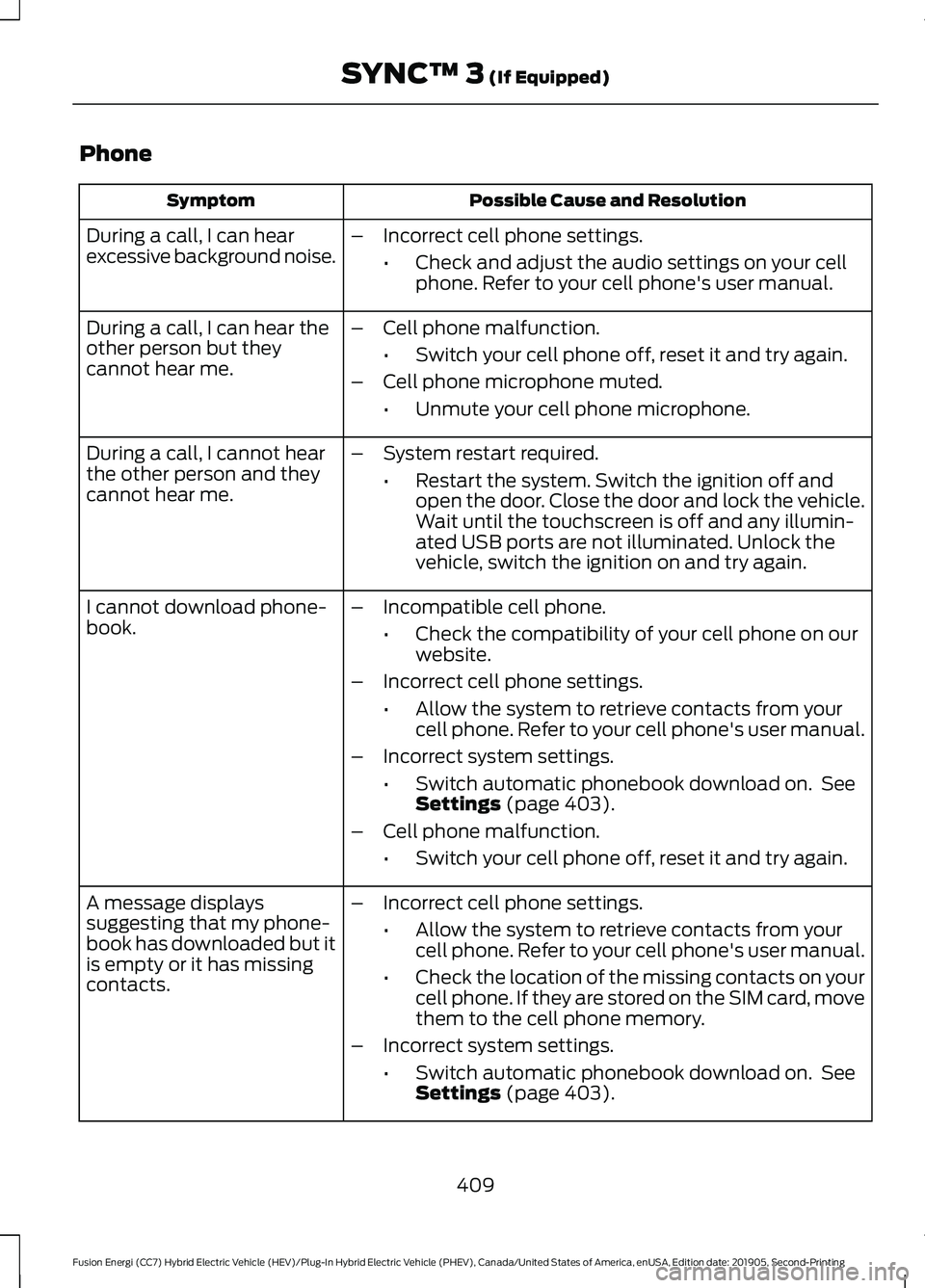
Phone
Possible Cause and Resolution
Symptom
During a call, I can hear
excessive background noise. –
Incorrect cell phone settings.
•Check and adjust the audio settings on your cell
phone. Refer to your cell phone's user manual.
– Cell phone malfunction.
•Switch your cell phone off, reset it and try again.
– Cell phone microphone muted.
•Unmute your cell phone microphone.
During a call, I can hear the
other person but they
cannot hear me.
During a call, I cannot hear
the other person and they
cannot hear me.
–
System restart required.
•Restart the system. Switch the ignition off and
open the door. Close the door and lock the vehicle.
Wait until the touchscreen is off and any illumin-
ated USB ports are not illuminated. Unlock the
vehicle, switch the ignition on and try again.
I cannot download phone-
book. –
Incompatible cell phone.
•Check the compatibility of your cell phone on our
website.
– Incorrect cell phone settings.
•Allow the system to retrieve contacts from your
cell phone. Refer to your cell phone's user manual.
– Incorrect system settings.
•Switch automatic phonebook download on. See
Settings (page 403).
– Cell phone malfunction.
•Switch your cell phone off, reset it and try again.
– Incorrect cell phone settings.
•Allow the system to retrieve contacts from your
cell phone. Refer to your cell phone's user manual.
• Check the location of the missing contacts on your
cell phone. If they are stored on the SIM card, move
them to the cell phone memory.
– Incorrect system settings.
•Switch automatic phonebook download on. See
Settings
(page 403).
A message displays
suggesting that my phone-
book has downloaded but it
is empty or it has missing
contacts.
409
Fusion Energi (CC7) Hybrid Electric Vehicle (HEV)/Plug-In Hybrid Electric Vehicle (PHEV), Canada/United States of America, enUSA, Edition date: 201905, Second-Printing SYNC™ 3
(If Equipped)