radio FORD FUSION HYBRID 2014 Owner's Guide
[x] Cancel search | Manufacturer: FORD, Model Year: 2014, Model line: FUSION HYBRID, Model: FORD FUSION HYBRID 2014Pages: 473, PDF Size: 5.93 MB
Page 336 of 473
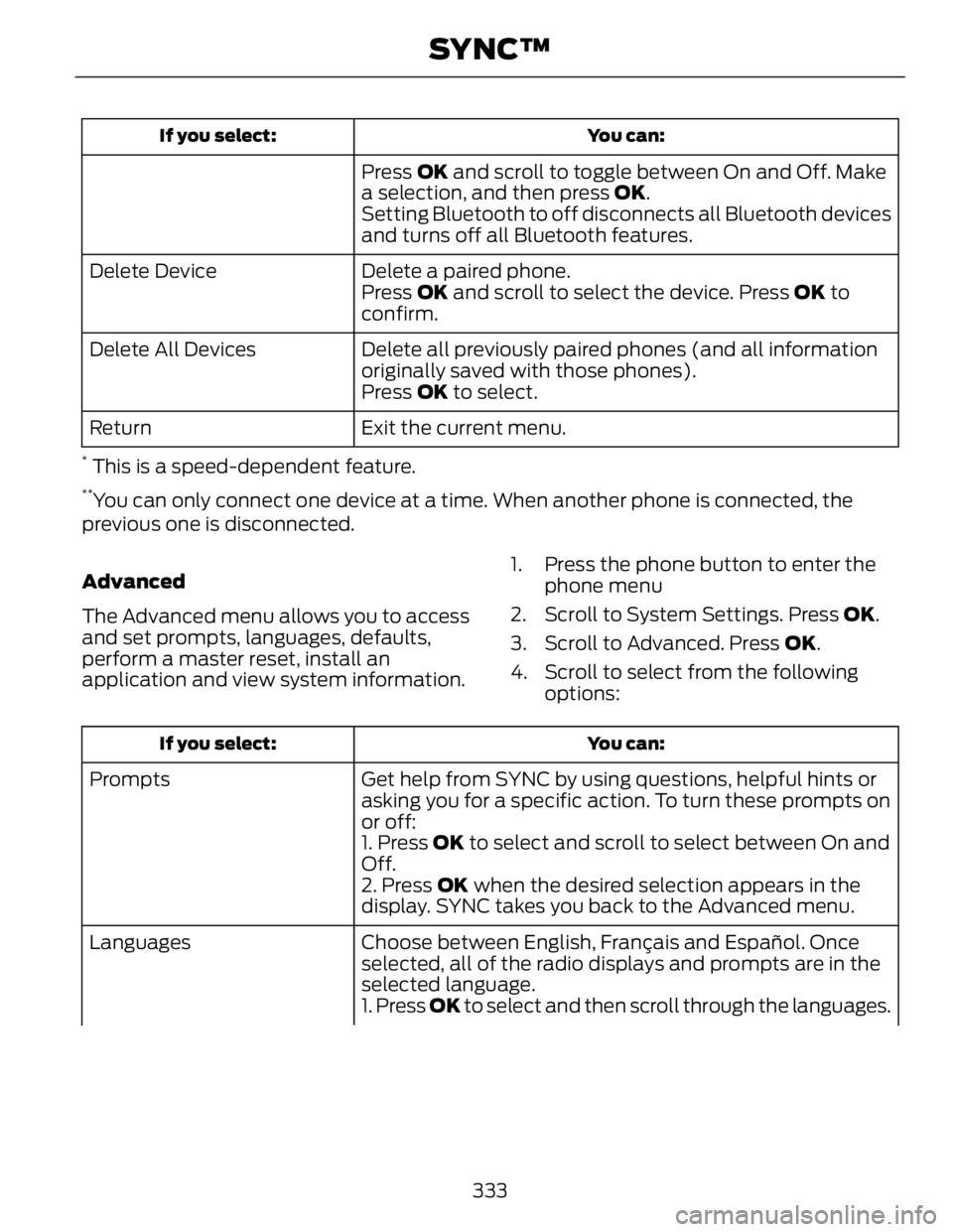
You can:If you select:
Press OK and scroll to toggle between On and Off. Make
a selection, and then press OK .
Setting Bluetooth to off disconnects all Bluetooth devices
and turns off all Bluetooth features.
Delete a paired phone.Delete Device
Press OK and scroll to select the device. Press OK to
confirm.
Delete all previously paired phones (and all information
originally saved with those phones).Delete All Devices
Press OK to select.
Exit the current menu.Return *
This is a speed-dependent feature. **
You can only connect one device at a time. When another phone is connected, the
previous one is disconnected.
Advanced
The Advanced menu allows you to access
and set prompts, languages, defaults,
perform a master reset, install an
application and view system information. 1. Press the phone button to enter the
phone menu
2. Scroll to System Settings. Press OK .
3. Scroll to Advanced. Press OK .
4. Scroll to select from the following
options: You can:If you select:
Get help from SYNC by using questions, helpful hints or
asking you for a specific action. To turn these prompts on
or off:Prompts
1. Press OK to select and scroll to select between On and
Off.
2. Press OK when the desired selection appears in the
display. SYNC takes you back to the Advanced menu.
Choose between English, Français and Español. Once
selected, all of the radio displays and prompts are in the
selected language.Languages
1. Press OK to select and then scroll through the languages.
333SYNC™
Page 339 of 473
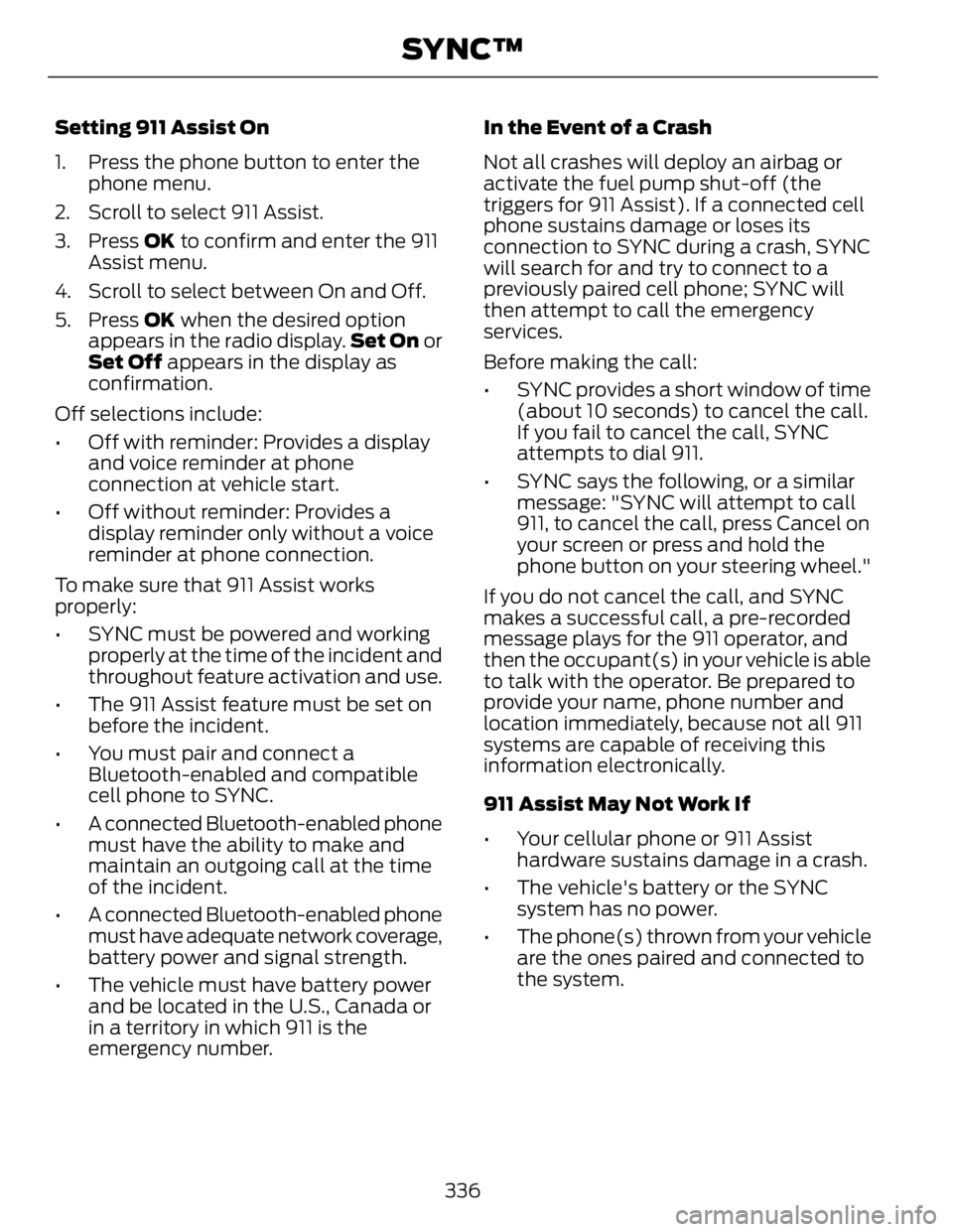
Setting 911 Assist On
1. Press the phone button to enter the
phone menu.
2. Scroll to select 911 Assist.
3. Press OK to confirm and enter the 911
Assist menu.
4. Scroll to select between On and Off.
5. Press OK when the desired option
appears in the radio display. Set On or
Set Off appears in the display as
confirmation.
Off selections include:
• Off with reminder: Provides a display
and voice reminder at phone
connection at vehicle start.
• Off without reminder: Provides a
display reminder only without a voice
reminder at phone connection.
To make sure that 911 Assist works
properly:
• SYNC must be powered and working
properly at the time of the incident and
throughout feature activation and use.
• The 911 Assist feature must be set on
before the incident.
• You must pair and connect a
Bluetooth-enabled and compatible
cell phone to SYNC.
• A connected Bluetooth-enabled phone
must have the ability to make and
maintain an outgoing call at the time
of the incident.
• A connected Bluetooth-enabled phone
must have adequate network coverage,
battery power and signal strength.
• The vehicle must have battery power
and be located in the U.S., Canada or
in a territory in which 911 is the
emergency number. In the Event of a Crash
Not all crashes will deploy an airbag or
activate the fuel pump shut-off (the
triggers for 911 Assist). If a connected cell
phone sustains damage or loses its
connection to SYNC during a crash, SYNC
will search for and try to connect to a
previously paired cell phone; SYNC will
then attempt to call the emergency
services.
Before making the call:
• SYNC provides a short window of time
(about 10 seconds) to cancel the call.
If you fail to cancel the call, SYNC
attempts to dial 911.
• SYNC says the following, or a similar
message: "SYNC will attempt to call
911, to cancel the call, press Cancel on
your screen or press and hold the
phone button on your steering wheel."
If you do not cancel the call, and SYNC
makes a successful call, a pre-recorded
message plays for the 911 operator, and
then the occupant(s) in your vehicle is able
to talk with the operator. Be prepared to
provide your name, phone number and
location immediately, because not all 911
systems are capable of receiving this
information electronically.
911 Assist May Not Work If
• Your cellular phone or 911 Assist
hardware sustains damage in a crash.
• The vehicle's battery or the SYNC
system has no power.
• The phone(s) thrown from your vehicle
are the ones paired and connected to
the system.
336SYNC™
Page 345 of 473
USING SYNC™ WITH YOUR
MEDIA PLAYER You can access and play music from your
digital music player over your vehicle's
speaker system using the system's media
menu or voice commands. You can also
sort and play your music by specific
categories, such as artist and album.
SYNC is capable of hosting nearly any
digital media player including: iPod®,
Zune™, Plays from device players, and
most USB drives. SYNC also supports
audio formats, such as MP3, WMA, WAV
and ACC.
Connecting Your Digital Media
Player to the USB Port Note: If your digital media player has a
power switch, make sure you switch it on
before plugging it in.
To Connect Using Voice Commands
1. Plug the device into the USB port.
2. Press the voice icon and when
prompted, say "USB".
3. You can now play music by saying any
of the appropriate voice commands.
See the media voice commands.
To Connect Using the System Menu
1. Plug the device into the USB port.
2. Press AUX and then MENU to enter
the media menu.
3. Scroll to Select Source. Press OK .
4. Scroll to USB. Press OK .
5. Depending on how many digital media
files are on your connected device,
Indexing may appear in the radio
display. When indexing is complete, the
screen returns to the Play menu. Press OK and scroll through selections of:
• Play All
• Albums
• Genres
• Playlists
• Tracks
•Explore USB
• Similar Music
• Return
What's Playing? At any time when a track is playing, you
can press the voice icon and ask the
system "What's playing?". The system
reads the metadata tags (if populated) of
the playing track to you.
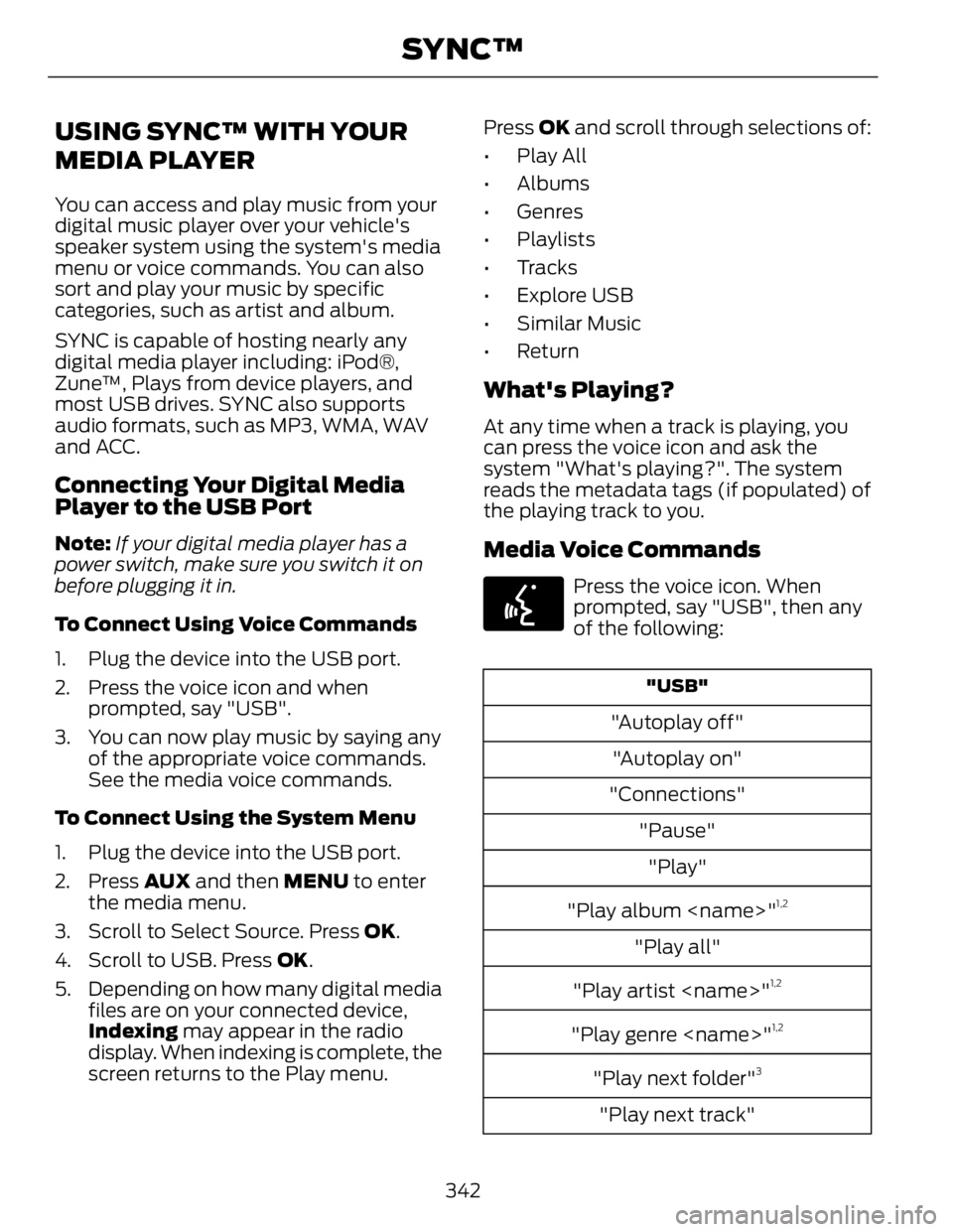
Media Voice Commands E142599
Press the voice icon. When
prompted, say "USB", then any
of the following: "USB"
"Autoplay off"
"Autoplay on"
"Connections"
"Pause"
"Play"
"Play album
"Play all"
"Play artist
"Play genre
"Play next folder" 3
"Play next track"
342SYNC™
Page 366 of 473
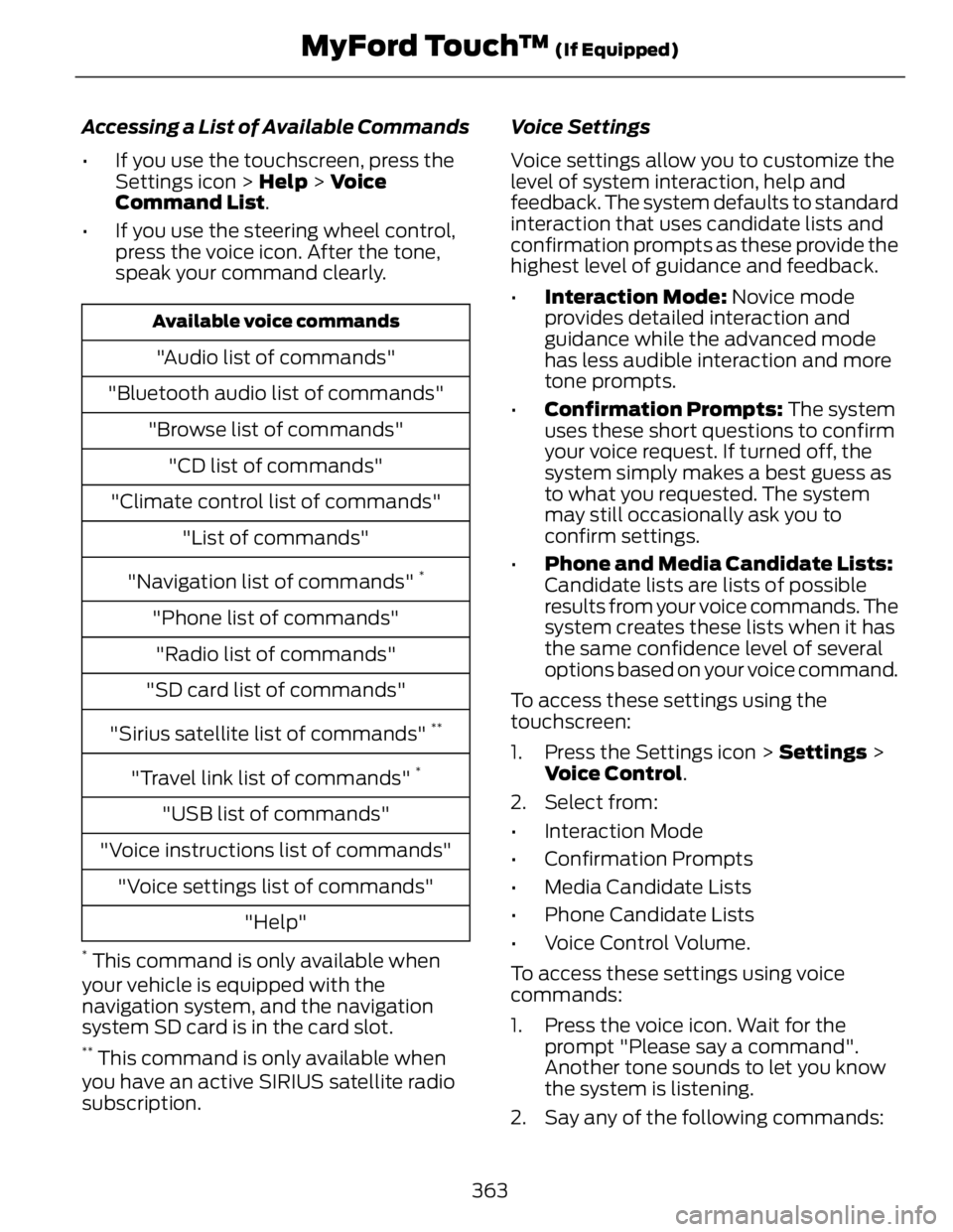
Accessing a List of Available Commands
• If you use the touchscreen, press the
Settings icon > Help > Voice
Command List .
• If you use the steering wheel control,
press the voice icon. After the tone,
speak your command clearly. Available voice commands
"Audio list of commands"
"Bluetooth audio list of commands"
"Browse list of commands"
"CD list of commands"
"Climate control list of commands"
"List of commands"
"Navigation list of commands" *
"Phone list of commands"
"Radio list of commands"
"SD card list of commands"
"Sirius satellite list of commands" **
"Travel link list of commands" *
"USB list of commands"
"Voice instructions list of commands"
"Voice settings list of commands"
"Help"*
This command is only available when
your vehicle is equipped with the
navigation system, and the navigation
system SD card is in the card slot. **
This command is only available when
you have an active SIRIUS satellite radio
subscription. Voice Settings
Voice settings allow you to customize the
level of system interaction, help and
feedback. The system defaults to standard
interaction that uses candidate lists and
confirmation prompts as these provide the
highest level of guidance and feedback.
• Interaction Mode: Novice mode
provides detailed interaction and
guidance while the advanced mode
has less audible interaction and more
tone prompts.
• Confirmation Prompts: The system
uses these short questions to confirm
your voice request. If turned off, the
system simply makes a best guess as
to what you requested. The system
may still occasionally ask you to
confirm settings.
• Phone and Media Candidate Lists:
Candidate lists are lists of possible
results from your voice commands. The
system creates these lists when it has
the same confidence level of several
options based on your voice command.
To access these settings using the
touchscreen:
1. Press the Settings icon > Settings >
Voice Control .
2. Select from:
• Interaction Mode
• Confirmation Prompts
• Media Candidate Lists
• Phone Candidate Lists
• Voice Control Volume.
To access these settings using voice
commands:
1. Press the voice icon. Wait for the
prompt "Please say a command".
Another tone sounds to let you know
the system is listening.
2. Say any of the following commands:
363MyFord Touch™ (If Equipped)
Page 373 of 473
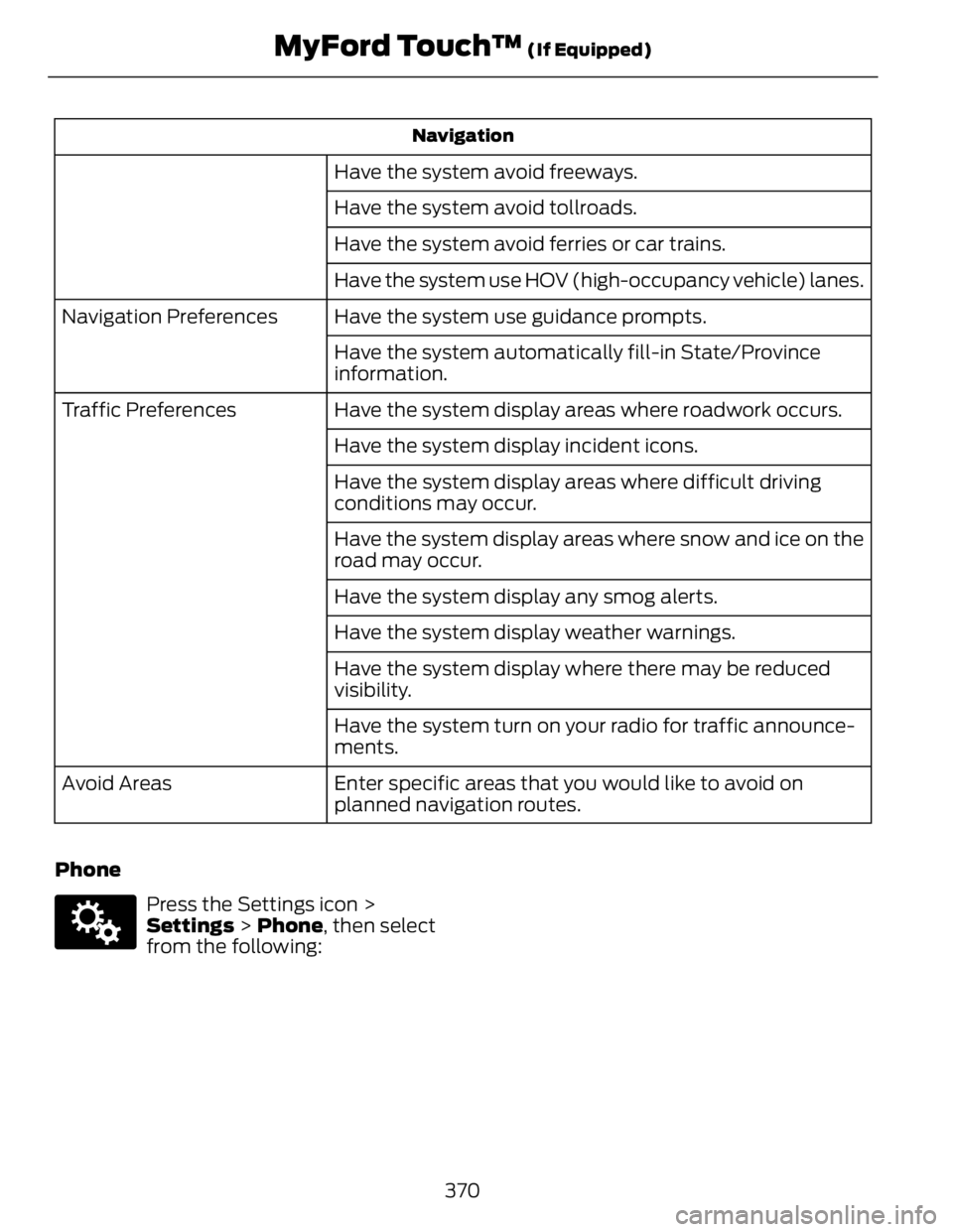
Navigation
Have the system avoid freeways.
Have the system avoid tollroads.
Have the system avoid ferries or car trains.
Have the system use HOV (high-occupancy vehicle) lanes.
Have the system use guidance prompts.Navigation Preferences
Have the system automatically fill-in State/Province
information.
Have the system display areas where roadwork occurs.Traffic Preferences
Have the system display incident icons.
Have the system display areas where difficult driving
conditions may occur.
Have the system display areas where snow and ice on the
road may occur.
Have the system display any smog alerts.
Have the system display weather warnings.
Have the system display where there may be reduced
visibility.
Have the system turn on your radio for traffic announce-
ments.
Enter specific areas that you would like to avoid on
planned navigation routes.Avoid Areas
Phone E142607
Press the Settings icon >
Settings > Phone , then select
from the following:
370MyFord Touch™ (If Equipped)
Page 376 of 473
E142626
The
Wi-Fi CERTIFIED Logo is a certification mark of
the Wi-Fi Alliance.
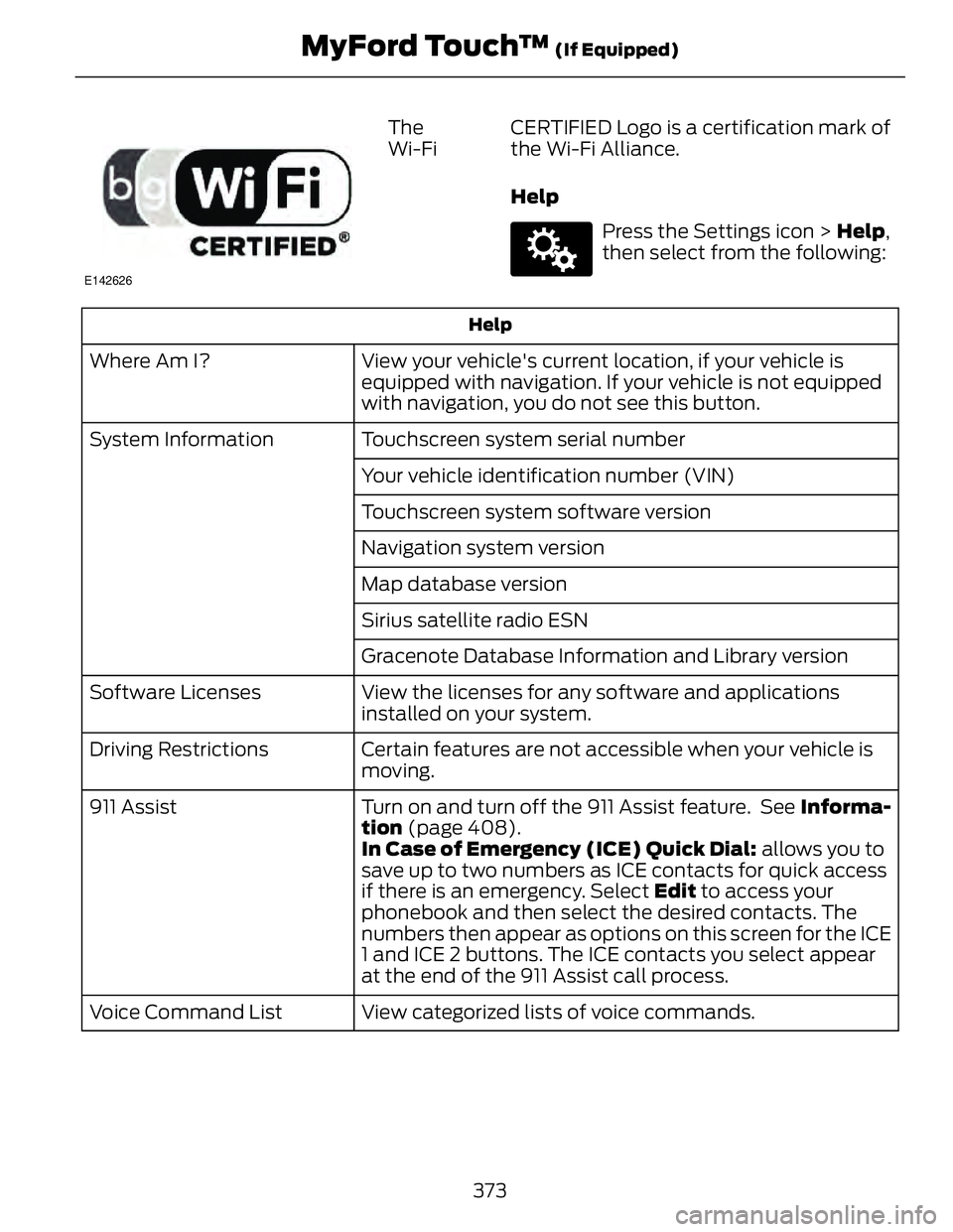
Help E142607
Press the Settings icon > Help ,
then select from the following:Help
View your vehicle's current location, if your vehicle is
equipped with navigation. If your vehicle is not equipped
with navigation, you do not see this button.Where Am I?
Touchscreen system serial numberSystem Information
Your vehicle identification number (VIN)
Touchscreen system software version
Navigation system version
Map database version
Sirius satellite radio ESN
Gracenote Database Information and Library version
View the licenses for any software and applications
installed on your system.Software Licenses
Certain features are not accessible when your vehicle is
moving.Driving Restrictions
Turn on and turn off the 911 Assist feature. See Informa-
tion (page 408).911 Assist
In Case of Emergency (ICE) Quick Dial: allows you to
save up to two numbers as ICE contacts for quick access
if there is an emergency. Select Edit to access your
phonebook and then select the desired contacts. The
numbers then appear as options on this screen for the ICE
1 and ICE 2 buttons. The ICE contacts you select appear
at the end of the 911 Assist call process.
View categorized lists of voice commands.Voice Command List
373MyFord Touch™ (If Equipped)
Page 377 of 473
To access Help using the voice commands,
press the voice button, then, after the tone, say "Help". The system provides allowable
voice commands for the current mode.
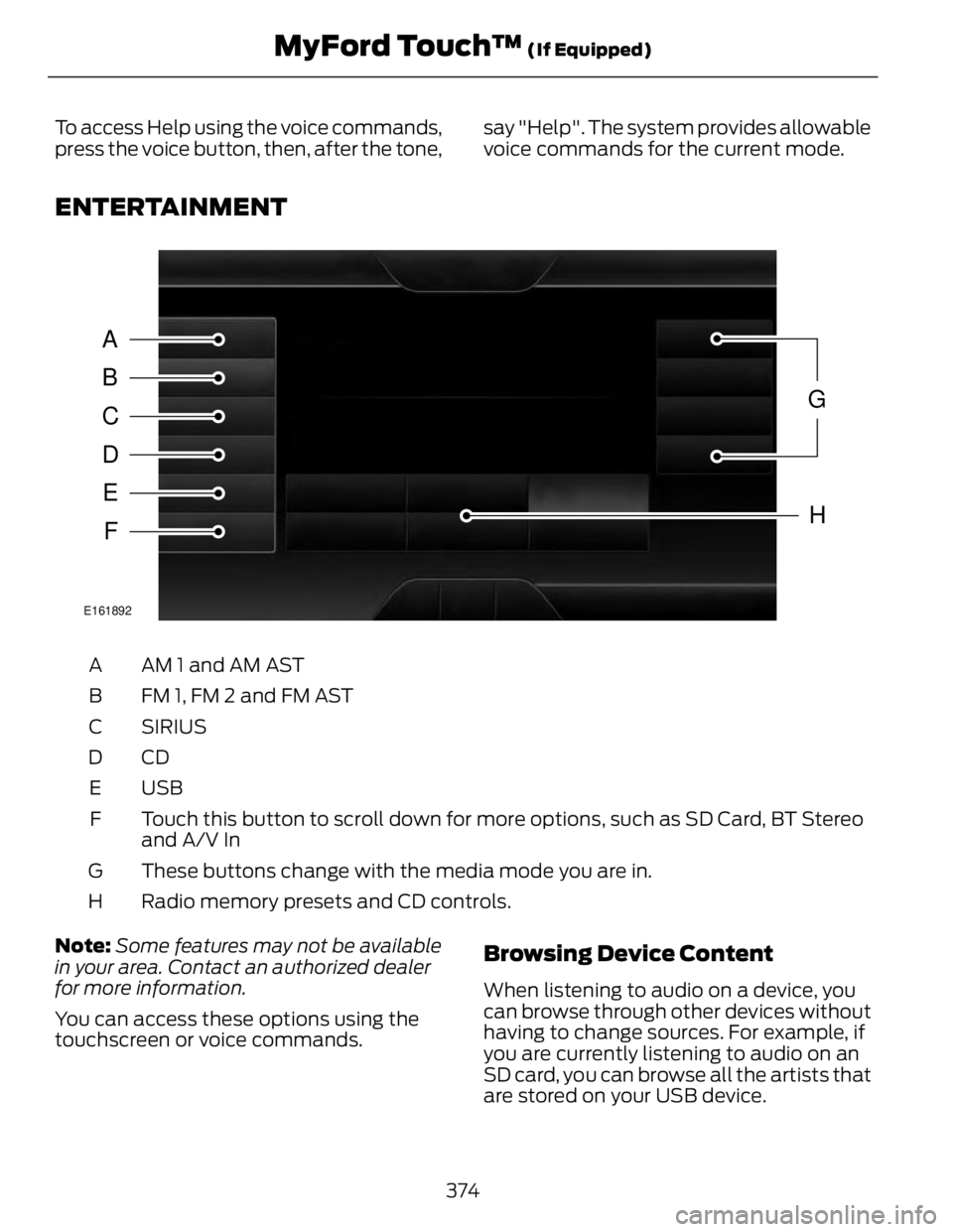
ENTERTAINMENT
A
B
C
D
E
F G
HE161892
AM 1 and AM ASTA
FM 1, FM 2 and FM ASTB
SIRIUSC
CDD
USBE
Touch this button to scroll down for more options, such as SD Card, BT Stereo
and A/V InF
These buttons change with the media mode you are in.G
Radio memory presets and CD controls.H
Note: Some features may not be available
in your area. Contact an authorized dealer
for more information.
You can access these options using the
touchscreen or voice commands. Browsing Device Content
When listening to audio on a device, you
can browse through other devices without
having to change sources. For example, if
you are currently listening to audio on an
SD card, you can browse all the artists that
are stored on your USB device.
374MyFord Touch™ (If Equipped)
Page 378 of 473
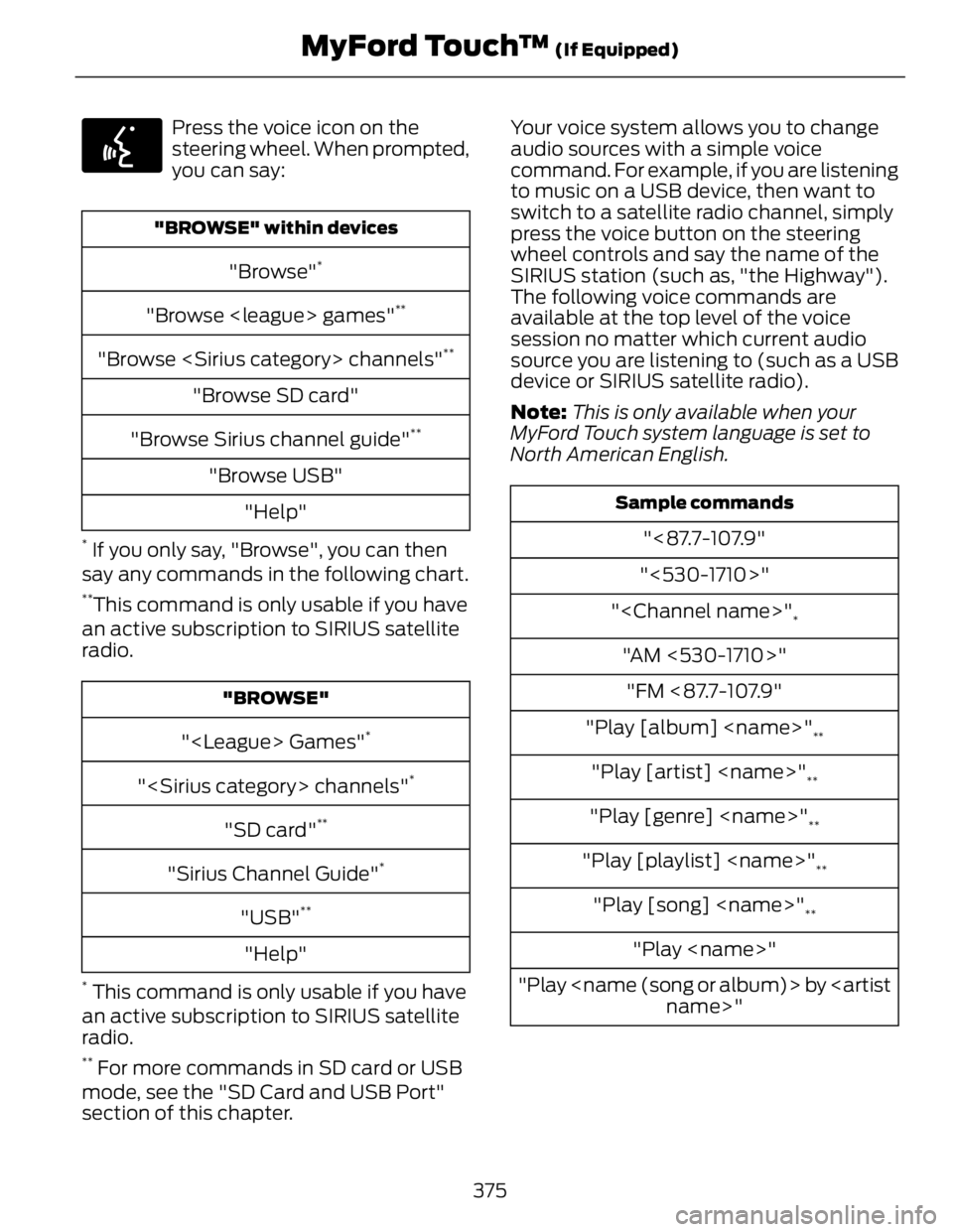
E142599
Press the voice icon on the
steering wheel. When prompted,
you can say:"BROWSE" within devices
"Browse" *
"Browse
"Browse
"Browse SD card"
"Browse Sirius channel guide" **
"Browse USB"
"Help"*
If you only say, "Browse", you can then
say any commands in the following chart. **
This command is only usable if you have
an active subscription to SIRIUS satellite
radio. "BROWSE"
"
"
"SD card" **
"Sirius Channel Guide" *
"USB" **
"Help"*
This command is only usable if you have
an active subscription to SIRIUS satellite
radio. **
For more commands in SD card or USB
mode, see the "SD Card and USB Port"
section of this chapter. Your voice system allows you to change
audio sources with a simple voice
command. For example, if you are listening
to music on a USB device, then want to
switch to a satellite radio channel, simply
press the voice button on the steering
wheel controls and say the name of the
SIRIUS station (such as, "the Highway").
The following voice commands are
available at the top level of the voice
session no matter which current audio
source you are listening to (such as a USB
device or SIRIUS satellite radio).
Note: This is only available when your
MyFord Touch system language is set to
North American English. Sample commands
"<87.7-107.9"
"<530-1710>"
"
"AM <530-1710>"
"FM <87.7-107.9"
"Play [album]
"Play [artist]
"Play [genre]
"Play [playlist]
"Play [song]
"Play
"Play
375MyFord Touch™ (If Equipped)
Page 379 of 473
![FORD FUSION HYBRID 2014 Owners Guide Sample commands
"Sirius <0-223>" *
"Sports games" *
*
This command is only usable if you have
an active subscription to SIRIUS satellite
radio. **
The commands that have [ ] around t](/img/11/58811/w960_58811-378.png "FORD FUSION HYBRID 2014 Owners Guide Sample commands
\"Sirius <0-223>\" *
\"Sports games\" *
*
This command is only usable if you have
an active subscription to SIRIUS satellite
radio. **
The commands that have [ ] around t")
Sample commands
"Sirius <0-223>" *
"Sports games" *
*
This command is only usable if you have
an active subscription to SIRIUS satellite
radio. **
The commands that have [ ] around the
word means that the word is optional. For
example, if you say, "Play Metallica", this
is the same as the voice command, "Play
[artist]
AM/FM Radio E142611
Touch the AM or FM tab to listen
to the radio.
To change between AM and FM presets,
just touch the AM or FM tab.
Memory Presets
Save a station by pressing and holding one
of the memory preset areas. There is a brief
mute while the radio saves the station.
Sound returns when finished.
HD Radio
Touch this button to turn HD Radio on. The
light on the button illuminates when the
feature is on. HD Radio allows you to
receive radio broadcasts digitally, where
available, providing free, crystal-clear
sound. See HD Radio information later in
this chapter.
Scan
Touch this button to go to the next strong
AM or FM radio station. The light on the
button illuminates when the feature is on. Options
Sound Settings
Touch this button to adjust settings for:
•Bass
• Midrange
• Treble
• Balance and Fade
• DSP (Digital Signal processing)
• Occupancy Mode
• Speed Compensated Volume.
Note: Your vehicle may not have all these
sound settings.
Set PTY for Seek/Scan
This allows you to select a category of
music you would like to search for. You can
then choose to either seek or scan for the
stations playing that category.
RDS Text Display
This allows you to view the information
broadcast by FM stations.
AST
AST (Autostore) allows you to have the
system automatically store the six
strongest stations in your current location.
TAG Button
This feature is available when HD Radio is
on, and allows you to tag a song to
download later. When you select On, TA G
appears on-screen when HD Radio is
active. You can touch TA G to save the
information of the song that is playing.
When you plug in your portable music
player, the information transfers, if
supported by your device. When you are
connected to iTunes, the tags appear to
remind you of the songs you would like to
download. See HD Radio information later
in this chapter.
376MyFord Touch™ (If Equipped)
Page 380 of 473
Direct Tune
Touch this button to manually enter the
desired station number. Touch Enter when
you are done.
HD Radio™ Information (If Available)
Note: HD Radio broadcasts are not
available in all markets.
HD Radio technology is the digital
evolution of analog AM/FM radio. Your
system has a special receiver that allows
it to receive digital broadcasts (where
available) in addition to the analog
broadcasts, it already receives. Digital
broadcasts provide a better sound quality
than analog broadcasts with free,
crystal-clear audio and no static or
distortion. For more information, and a
guide to available stations and
programming, please visit
www.hdradi o.com.
When HD Radio is on and you tune to a
station broadcasting HD Radio technology,
you may notice the following indicators on
your screen: E142616
The HD Radio logo blinks when acquiring
a digital station and stays solid when
digital audio is playing. When this logo is
available, you may also see Title and Artist
fields on-screen. The multicast indicator appears in FM
mode (only) if the current station is
broadcasting multiple digital broadcasts.
The highlighted numbers signify available
digital channels where new or different
content is available. HD1 signifies the main
programming status and is available in
analog and digital broadcasts. Other
multicast stations (HD2 through HD7) are
only available digitally.
TA G allows you to save a song to
download later when you are on an
acquired HD Radio station and the feature
is on. To turn the feature on and use it:
1. Press AM or FM > Options > TA G
Button > On .
2. When you hear a song you like, touch
TA G .
3. The system automatically saves the
song's information and transfers it to
your portable music player (if
supported) when you connect it to the
system. The system automatically
transfers the tag to your player (if
already connected) and a pop-up
confirms the transfer.
4. When you access iTunes with your
portable music player, the tags appear
to you as a reminder. The system
allows you to tag up to approximately
100 songs. For a list of devices that
support tagging, see
www.SYNCMyRide.com,
www.SYNCMyRide.ca or
www.syncmaroute.ca.
377MyFord Touch™ (If Equipped)