ignition FORD GT 2018 Service Manual
[x] Cancel search | Manufacturer: FORD, Model Year: 2018, Model line: GT, Model: FORD GT 2018Pages: 325, PDF Size: 6.61 MB
Page 207 of 325
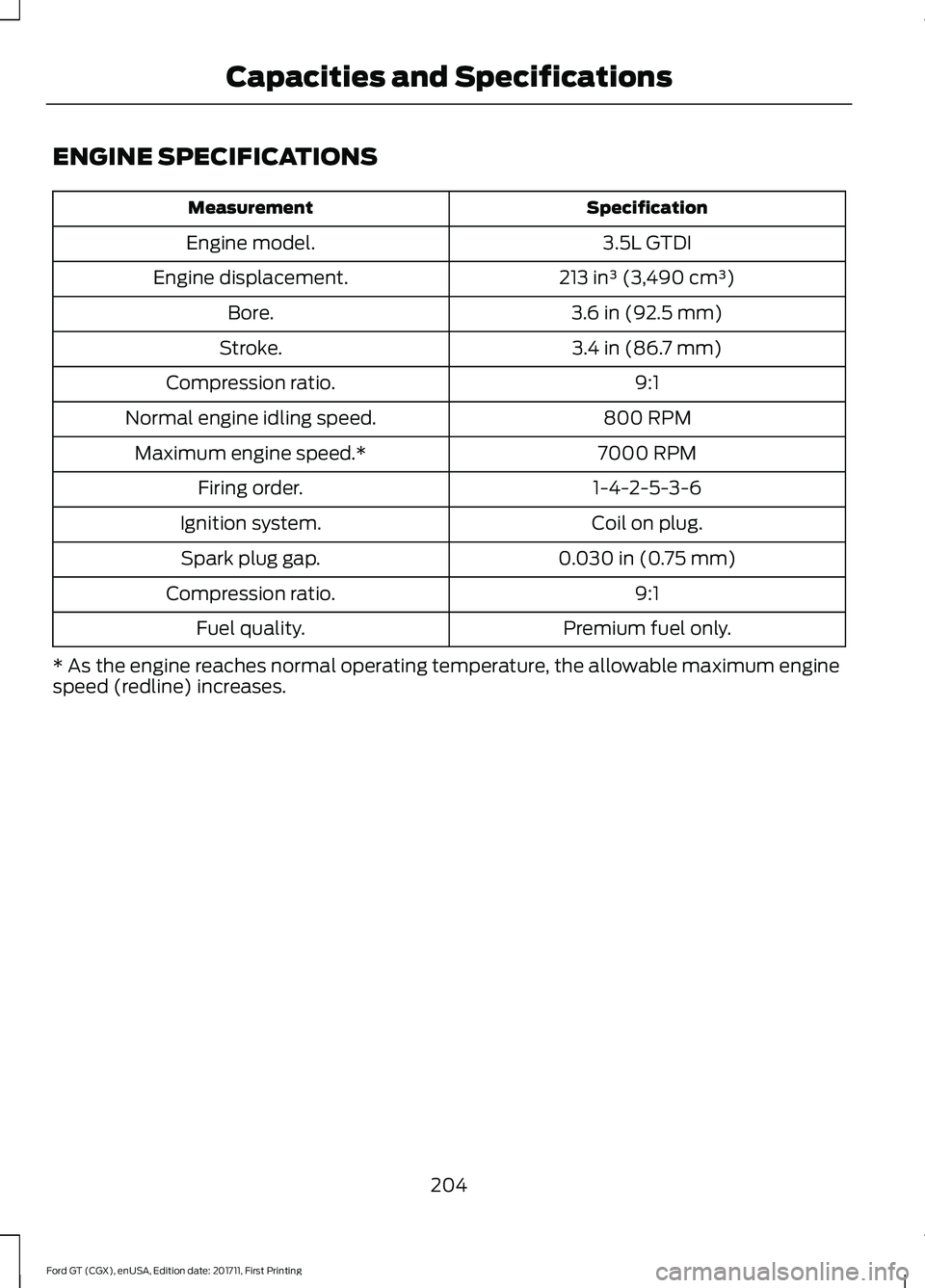
ENGINE SPECIFICATIONS
Specification
Measurement
3.5L GTDI
Engine model.
213 in³ (3,490 cm³)
Engine displacement.
3.6 in (92.5 mm)
Bore.
3.4 in (86.7 mm)
Stroke.
9:1
Compression ratio.
800 RPM
Normal engine idling speed.
7000 RPM
Maximum engine speed.*
1-4-2-5-3-6
Firing order.
Coil on plug.
Ignition system.
0.030 in (0.75 mm)
Spark plug gap.
9:1
Compression ratio.
Premium fuel only.
Fuel quality.
* As the engine reaches normal operating temperature, the allowable maximum engine
speed (redline) increases.
204
Ford GT (CGX), enUSA, Edition date: 201711, First Printing Capacities and Specifications
Page 217 of 325
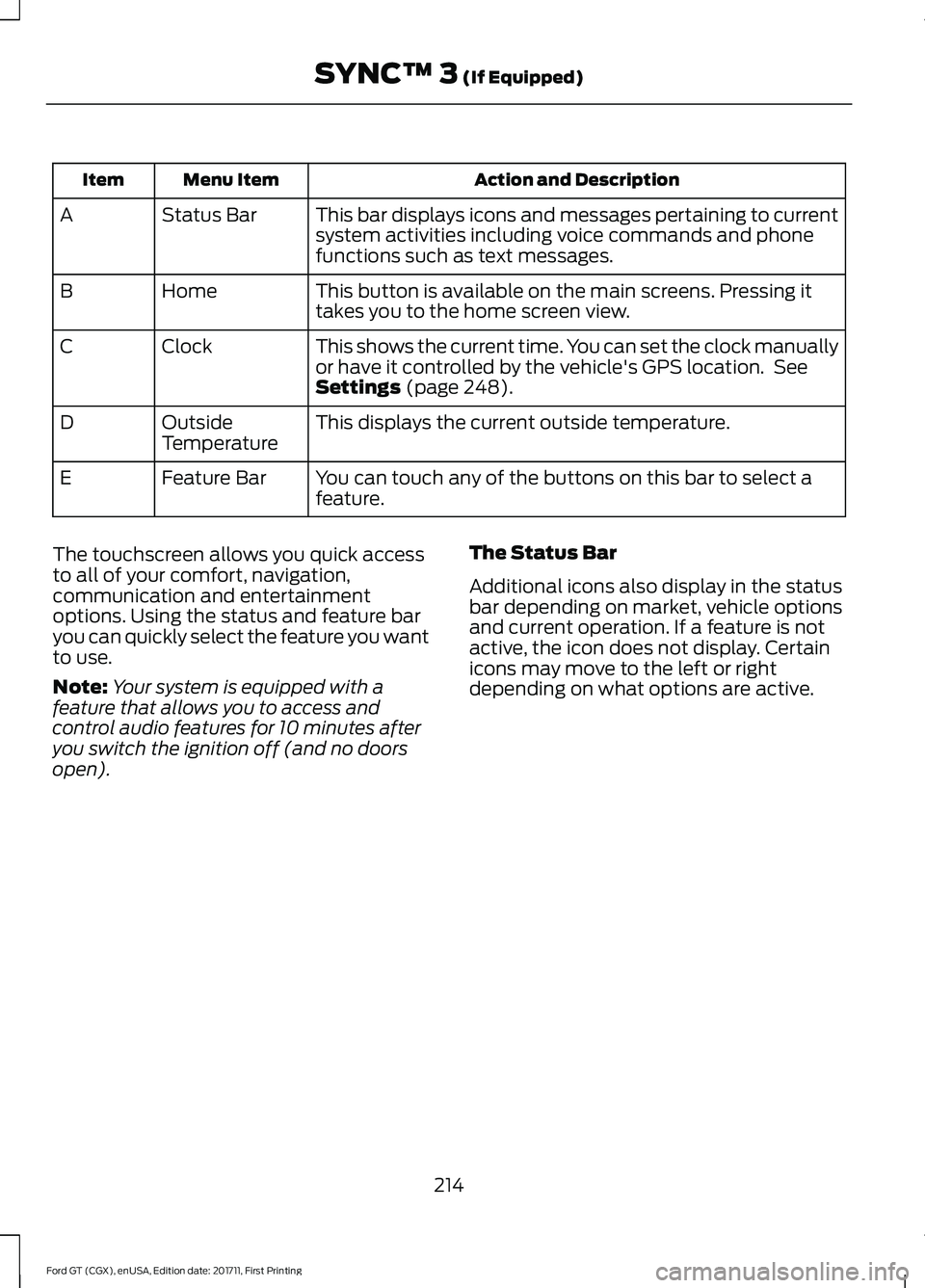
Action and Description
Menu Item
Item
This bar displays icons and messages pertaining to current
system activities including voice commands and phone
functions such as text messages.
Status Bar
A
This button is available on the main screens. Pressing it
takes you to the home screen view.
Home
B
This shows the current time. You can set the clock manually
or have it controlled by the vehicle's GPS location. See
Settings (page 248).
Clock
C
This displays the current outside temperature.
Outside
Temperature
D
You can touch any of the buttons on this bar to select a
feature.
Feature Bar
E
The touchscreen allows you quick access
to all of your comfort, navigation,
communication and entertainment
options. Using the status and feature bar
you can quickly select the feature you want
to use.
Note: Your system is equipped with a
feature that allows you to access and
control audio features for 10 minutes after
you switch the ignition off (and no doors
open). The Status Bar
Additional icons also display in the status
bar depending on market, vehicle options
and current operation. If a feature is not
active, the icon does not display. Certain
icons may move to the left or right
depending on what options are active.
214
Ford GT (CGX), enUSA, Edition date: 201711, First Printing SYNC™ 3
(If Equipped)
Page 225 of 325
When Wi-Fi and automatic updates are
enabled, your system checks for software
updates periodically. If a new version is
available, it downloads at that time.
Software downloads can take place for up
to 30 minutes after you have switched your
vehicle off. The updates do not interrupt
the normal use of your SYNC 3 system. If
a download does not complete for any
reason, the download continues where it
left off at the next Wi-Fi connected
opportunity. Upon activation of an update,
a banner displays on the touchscreen
indicating the system update. Select the
icon to see more detail. This icon displays
for two ignition cycles.
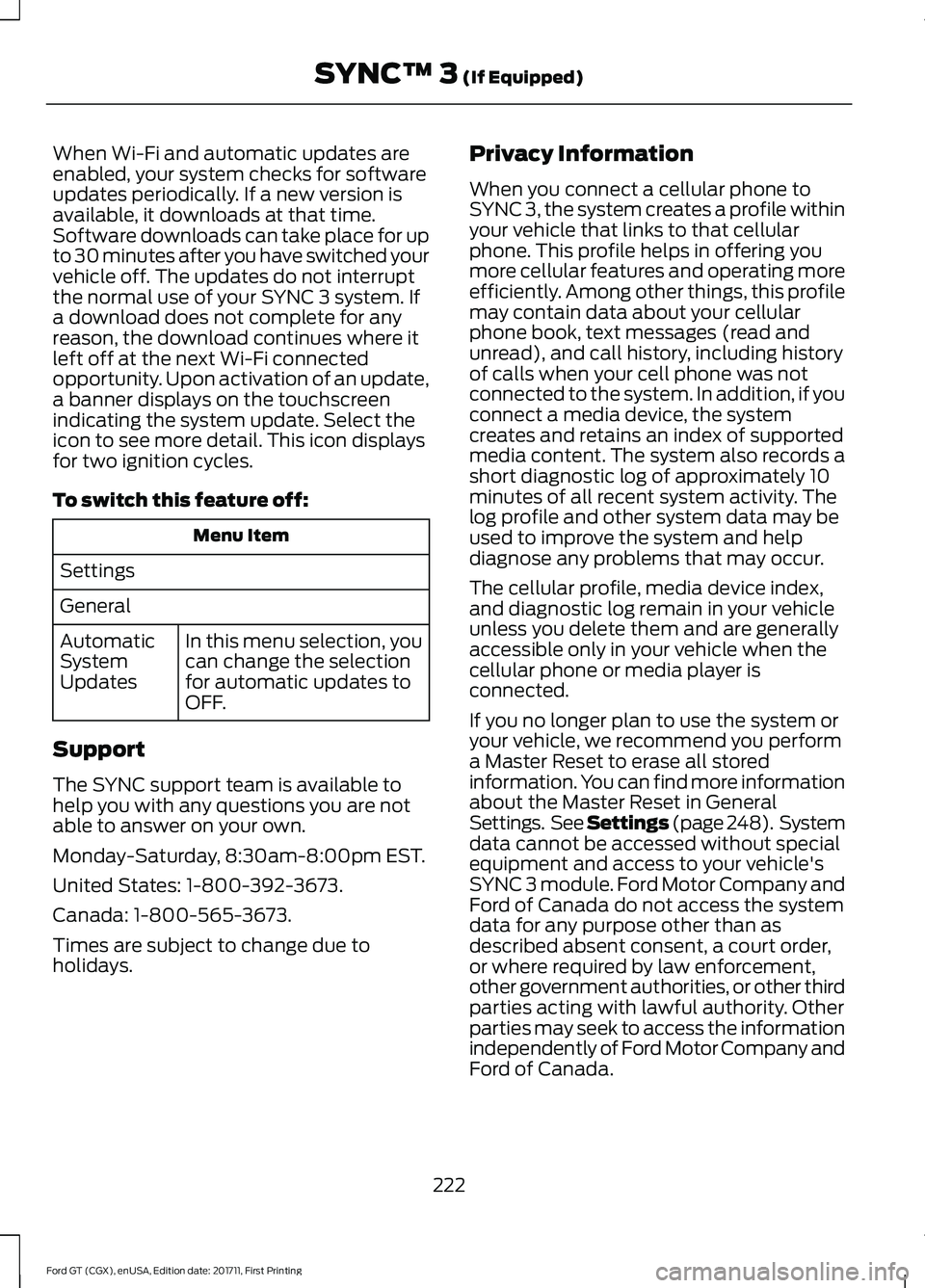
To switch this feature off:
Menu Item
Settings
General In this menu selection, you
can change the selection
for automatic updates to
OFF.
Automatic
System
Updates
Support
The SYNC support team is available to
help you with any questions you are not
able to answer on your own.
Monday-Saturday, 8:30am-8:00pm EST.
United States: 1-800-392-3673.
Canada: 1-800-565-3673.
Times are subject to change due to
holidays. Privacy Information
When you connect a cellular phone to
SYNC 3, the system creates a profile within
your vehicle that links to that cellular
phone. This profile helps in offering you
more cellular features and operating more
efficiently. Among other things, this profile
may contain data about your cellular
phone book, text messages (read and
unread), and call history, including history
of calls when your cell phone was not
connected to the system. In addition, if you
connect a media device, the system
creates and retains an index of supported
media content. The system also records a
short diagnostic log of approximately 10
minutes of all recent system activity. The
log profile and other system data may be
used to improve the system and help
diagnose any problems that may occur.
The cellular profile, media device index,
and diagnostic log remain in your vehicle
unless you delete them and are generally
accessible only in your vehicle when the
cellular phone or media player is
connected.
If you no longer plan to use the system or
your vehicle, we recommend you perform
a Master Reset to erase all stored
information. You can find more information
about the Master Reset in General
Settings. See Settings (page 248). System
data cannot be accessed without special
equipment and access to your vehicle's
SYNC 3 module. Ford Motor Company and
Ford of Canada do not access the system
data for any purpose other than as
described absent consent, a court order,
or where required by law enforcement,
other government authorities, or other third
parties acting with lawful authority. Other
parties may seek to access the information
independently of Ford Motor Company and
Ford of Canada.
222
Ford GT (CGX), enUSA, Edition date: 201711, First Printing SYNC™ 3 (If Equipped)
Page 269 of 325
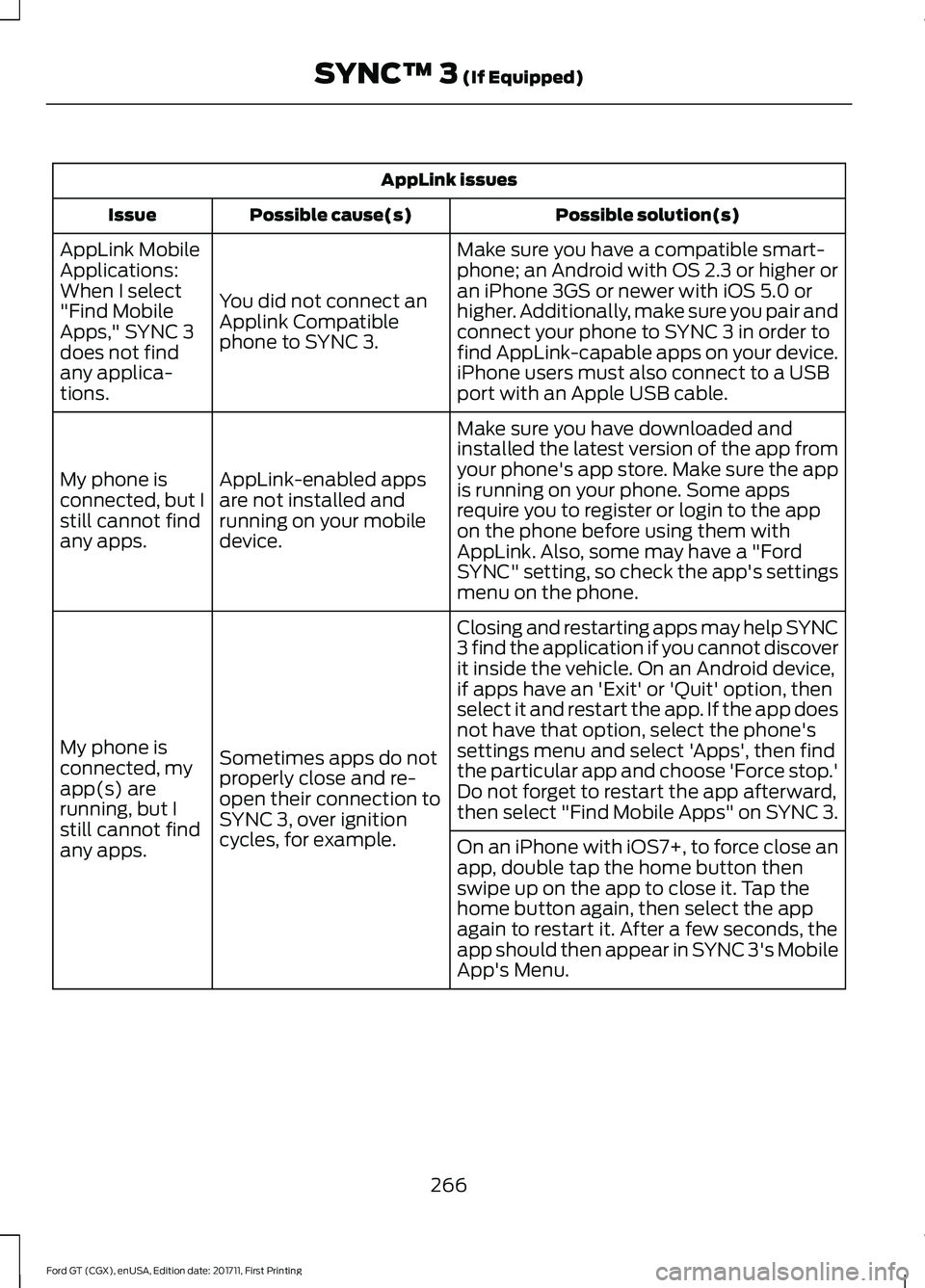
AppLink issues
Possible solution(s)
Possible cause(s)
Issue
Make sure you have a compatible smart-
phone; an Android with OS 2.3 or higher or
an iPhone 3GS or newer with iOS 5.0 or
higher. Additionally, make sure you pair and
connect your phone to SYNC 3 in order to
find AppLink-capable apps on your device.
iPhone users must also connect to a USB
port with an Apple USB cable.
You did not connect an
Applink Compatible
phone to SYNC 3.
AppLink Mobile
Applications:
When I select
"Find Mobile
Apps," SYNC 3
does not find
any applica-
tions.
Make sure you have downloaded and
installed the latest version of the app from
your phone's app store. Make sure the app
is running on your phone. Some apps
require you to register or login to the app
on the phone before using them with
AppLink. Also, some may have a "Ford
SYNC" setting, so check the app's settings
menu on the phone.
AppLink-enabled apps
are not installed and
running on your mobile
device.
My phone is
connected, but I
still cannot find
any apps.
Closing and restarting apps may help SYNC
3 find the application if you cannot discover
it inside the vehicle. On an Android device,
if apps have an 'Exit' or 'Quit' option, then
select it and restart the app. If the app does
not have that option, select the phone's
settings menu and select 'Apps', then find
the particular app and choose 'Force stop.'
Do not forget to restart the app afterward,
then select "Find Mobile Apps" on SYNC 3.
Sometimes apps do not
properly close and re-
open their connection to
SYNC 3, over ignition
cycles, for example.
My phone is
connected, my
app(s) are
running, but I
still cannot find
any apps.
On an iPhone with iOS7+, to force close an
app, double tap the home button then
swipe up on the app to close it. Tap the
home button again, then select the app
again to restart it. After a few seconds, the
app should then appear in SYNC 3's Mobile
App's Menu.
266
Ford GT (CGX), enUSA, Edition date: 201711, First Printing SYNC™ 3 (If Equipped)
Page 273 of 325
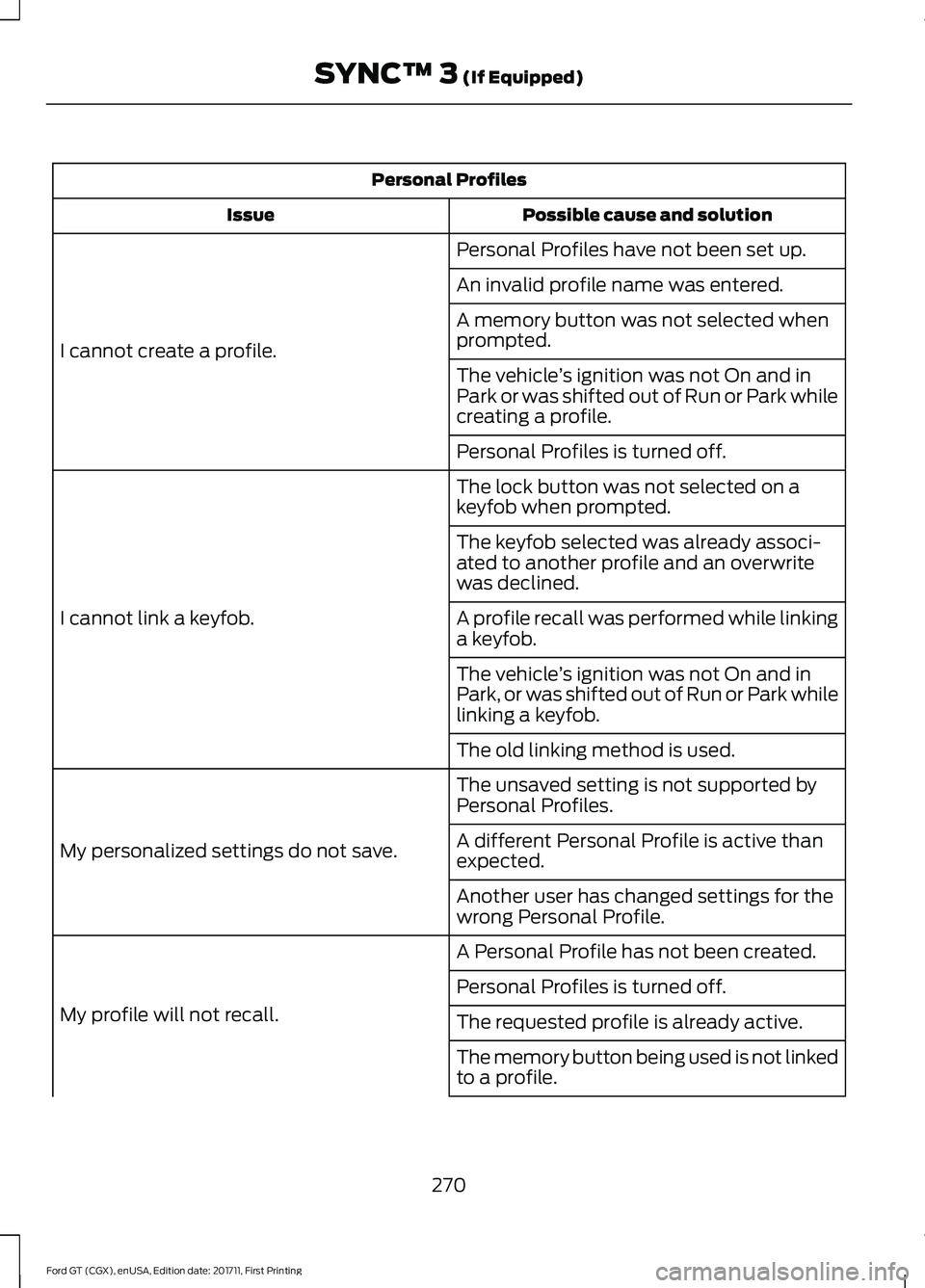
Personal Profiles
Possible cause and solution
Issue
Personal Profiles have not been set up.
I cannot create a profile. An invalid profile name was entered.
A memory button was not selected when
prompted.
The vehicle
’s ignition was not On and in
Park or was shifted out of Run or Park while
creating a profile.
Personal Profiles is turned off.
The lock button was not selected on a
keyfob when prompted.
I cannot link a keyfob. The keyfob selected was already associ-
ated to another profile and an overwrite
was declined.
A profile recall was performed while linking
a keyfob.
The vehicle
’s ignition was not On and in
Park, or was shifted out of Run or Park while
linking a keyfob.
The old linking method is used.
The unsaved setting is not supported by
Personal Profiles.
My personalized settings do not save. A different Personal Profile is active than
expected.
Another user has changed settings for the
wrong Personal Profile.
A Personal Profile has not been created.
My profile will not recall. Personal Profiles is turned off.
The requested profile is already active.
The memory button being used is not linked
to a profile.
270
Ford GT (CGX), enUSA, Edition date: 201711, First Printing SYNC™ 3 (If Equipped)
Page 321 of 325
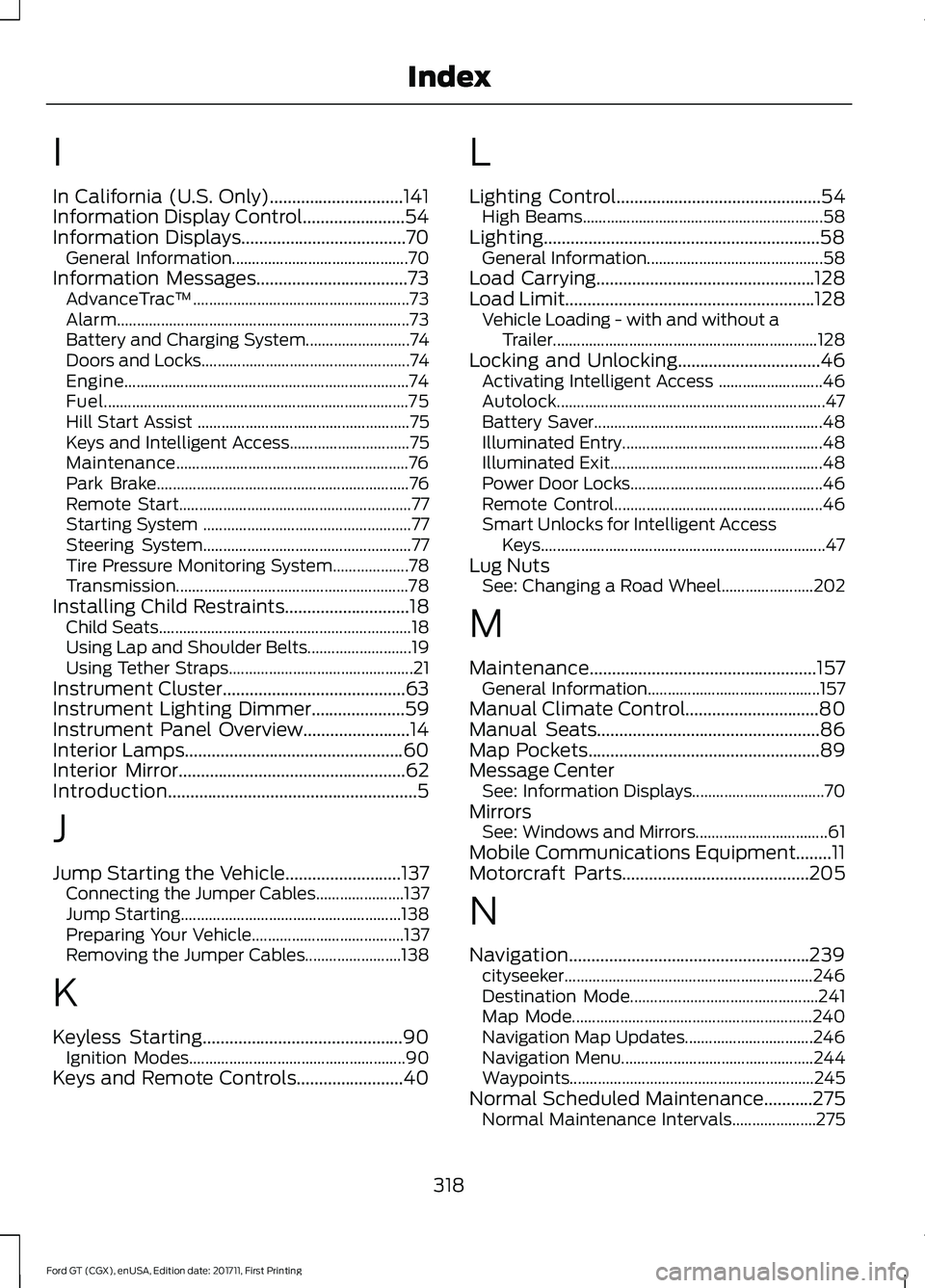
I
In California (U.S. Only)..............................141
Information Display Control.......................54
Information Displays.....................................70
General Information............................................ 70
Information Messages
..................................73
AdvanceTrac ™...................................................... 73
Alarm........................................................................\
. 73
Battery and Charging System.......................... 74
Doors and Locks.................................................... 74
Engine....................................................................... 74
Fuel........................................................................\
.... 75
Hill Start Assist ..................................................... 75
Keys and Intelligent Access.............................. 75
Maintenance.......................................................... 76
Park Brake............................................................... 76
Remote Start.......................................................... 77
Starting System .................................................... 77
Steering System.................................................... 77
Tire Pressure Monitoring System................... 78
Transmission.......................................................... 78
Installing Child Restraints
............................18
Child Seats............................................................... 18
Using Lap and Shoulder Belts.......................... 19
Using Tether Straps.............................................. 21
Instrument Cluster
.........................................63
Instrument Lighting Dimmer.....................59
Instrument Panel Overview........................14
Interior Lamps
.................................................60
Interior Mirror...................................................62
Introduction........................................................5
J
Jump Starting the Vehicle
..........................137
Connecting the Jumper Cables...................... 137
Jump Starting....................................................... 138
Preparing Your Vehicle...................................... 137
Removing the Jumper Cables........................ 138
K
Keyless Starting
.............................................90
Ignition Modes...................................................... 90
Keys and Remote Controls........................40 L
Lighting Control
..............................................54
High Beams............................................................ 58
Lighting..............................................................58 General Information............................................ 58
Load Carrying.................................................128
Load Limit........................................................128 Vehicle Loading - with and without a
Trailer.................................................................. 128
Locking and Unlocking
................................46
Activating Intelligent Access .......................... 46
Autolock................................................................... 47
Battery Saver......................................................... 48
Illuminated Entry.................................................. 48
Illuminated Exit..................................................... 48
Power Door Locks................................................ 46
Remote Control.................................................... 46
Smart Unlocks for Intelligent Access Keys....................................................................... 47
Lug Nuts See: Changing a Road Wheel....................... 202
M
Maintenance...................................................157 General Information........................................... 157
Manual Climate Control
..............................80
Manual Seats..................................................86
Map Pockets....................................................89
Message Center See: Information Displays................................. 70
Mirrors See: Windows and Mirrors................................. 61
Mobile Communications Equipment........11
Motorcraft Parts
..........................................205
N
Navigation......................................................239 cityseeker.............................................................. 246
Destination Mode............................................... 241
Map Mode............................................................ 240
Navigation Map Updates................................ 246
Navigation Menu................................................ 244
Waypoints............................................................. 245
Normal Scheduled Maintenance...........275 Normal Maintenance Intervals..................... 275
318
Ford GT (CGX), enUSA, Edition date: 201711, First Printing Index