USB FORD GT 2019 Owner's Manual
[x] Cancel search | Manufacturer: FORD, Model Year: 2019, Model line: GT, Model: FORD GT 2019Pages: 321, PDF Size: 5.24 MB
Page 263 of 321
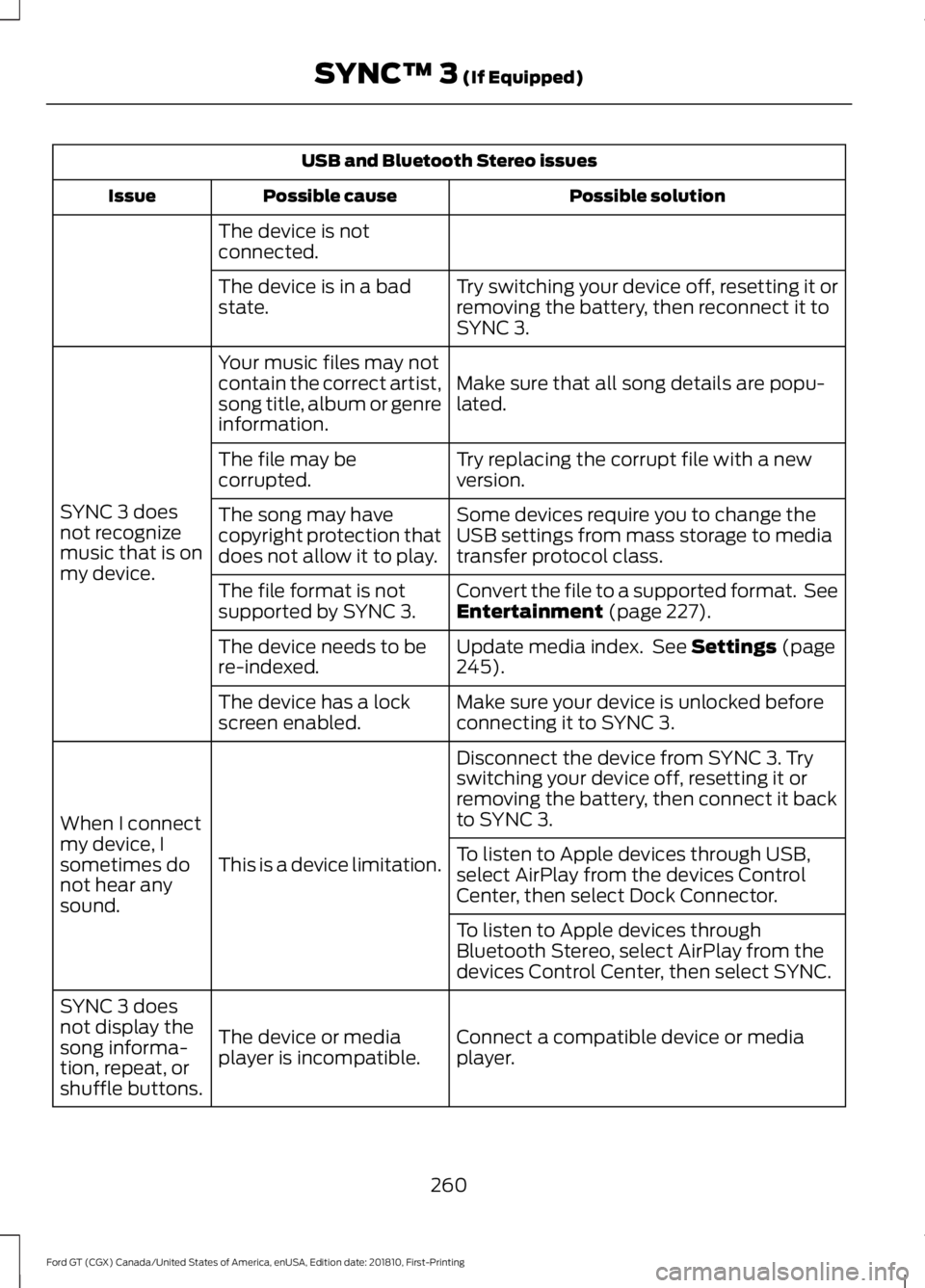
USB and Bluetooth Stereo issues
Possible solution
Possible cause
Issue
The device is not
connected. Try switching your device off, resetting it or
removing the battery, then reconnect it to
SYNC 3.
The device is in a bad
state.
Make sure that all song details are popu-
lated.
Your music files may not
contain the correct artist,
song title, album or genre
information.
SYNC 3 does
not recognize
music that is on
my device. Try replacing the corrupt file with a new
version.
The file may be
corrupted.
Some devices require you to change the
USB settings from mass storage to media
transfer protocol class.
The song may have
copyright protection that
does not allow it to play.
Convert the file to a supported format. See
Entertainment (page 227).
The file format is not
supported by SYNC 3.
Update media index. See
Settings (page
245).
The device needs to be
re-indexed.
Make sure your device is unlocked before
connecting it to SYNC 3.
The device has a lock
screen enabled.
Disconnect the device from SYNC 3. Try
switching your device off, resetting it or
removing the battery, then connect it back
to SYNC 3.
This is a device limitation.
When I connect
my device, I
sometimes do
not hear any
sound. To listen to Apple devices through USB,
select AirPlay from the devices Control
Center, then select Dock Connector.
To listen to Apple devices through
Bluetooth Stereo, select AirPlay from the
devices Control Center, then select SYNC.
Connect a compatible device or media
player.
The device or media
player is incompatible.
SYNC 3 does
not display the
song informa-
tion, repeat, or
shuffle buttons.
260
Ford GT (CGX) Canada/United States of America, enUSA, Edition date: 201810, First-Printing SYNC™ 3
(If Equipped)
Page 266 of 321
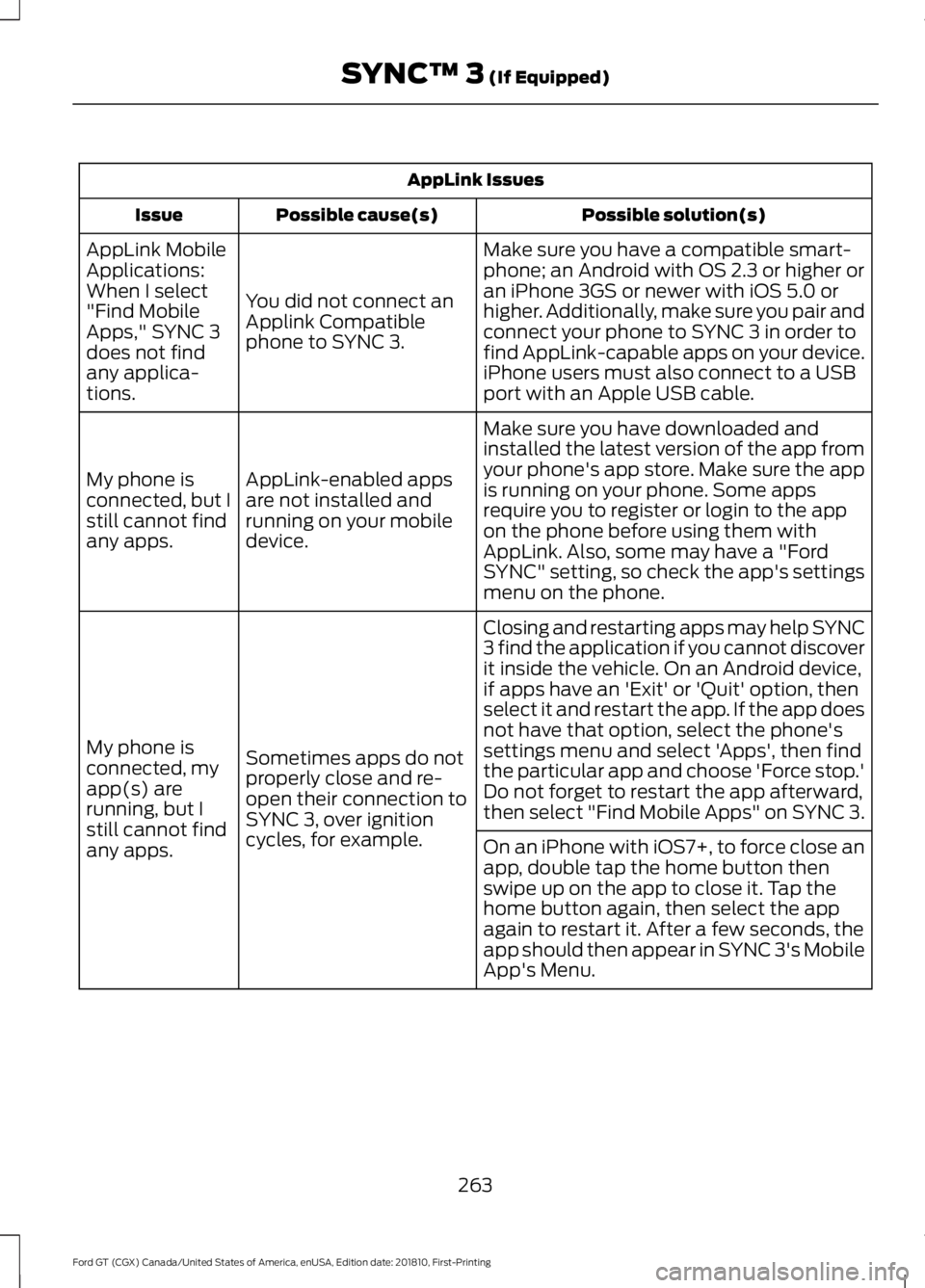
AppLink Issues
Possible solution(s)
Possible cause(s)
Issue
Make sure you have a compatible smart-
phone; an Android with OS 2.3 or higher or
an iPhone 3GS or newer with iOS 5.0 or
higher. Additionally, make sure you pair and
connect your phone to SYNC 3 in order to
find AppLink-capable apps on your device.
iPhone users must also connect to a USB
port with an Apple USB cable.
You did not connect an
Applink Compatible
phone to SYNC 3.
AppLink Mobile
Applications:
When I select
"Find Mobile
Apps," SYNC 3
does not find
any applica-
tions.
Make sure you have downloaded and
installed the latest version of the app from
your phone's app store. Make sure the app
is running on your phone. Some apps
require you to register or login to the app
on the phone before using them with
AppLink. Also, some may have a "Ford
SYNC" setting, so check the app's settings
menu on the phone.
AppLink-enabled apps
are not installed and
running on your mobile
device.
My phone is
connected, but I
still cannot find
any apps.
Closing and restarting apps may help SYNC
3 find the application if you cannot discover
it inside the vehicle. On an Android device,
if apps have an 'Exit' or 'Quit' option, then
select it and restart the app. If the app does
not have that option, select the phone's
settings menu and select 'Apps', then find
the particular app and choose 'Force stop.'
Do not forget to restart the app afterward,
then select "Find Mobile Apps" on SYNC 3.
Sometimes apps do not
properly close and re-
open their connection to
SYNC 3, over ignition
cycles, for example.
My phone is
connected, my
app(s) are
running, but I
still cannot find
any apps.
On an iPhone with iOS7+, to force close an
app, double tap the home button then
swipe up on the app to close it. Tap the
home button again, then select the app
again to restart it. After a few seconds, the
app should then appear in SYNC 3's Mobile
App's Menu.
263
Ford GT (CGX) Canada/United States of America, enUSA, Edition date: 201810, First-Printing SYNC™ 3 (If Equipped)
Page 267 of 321
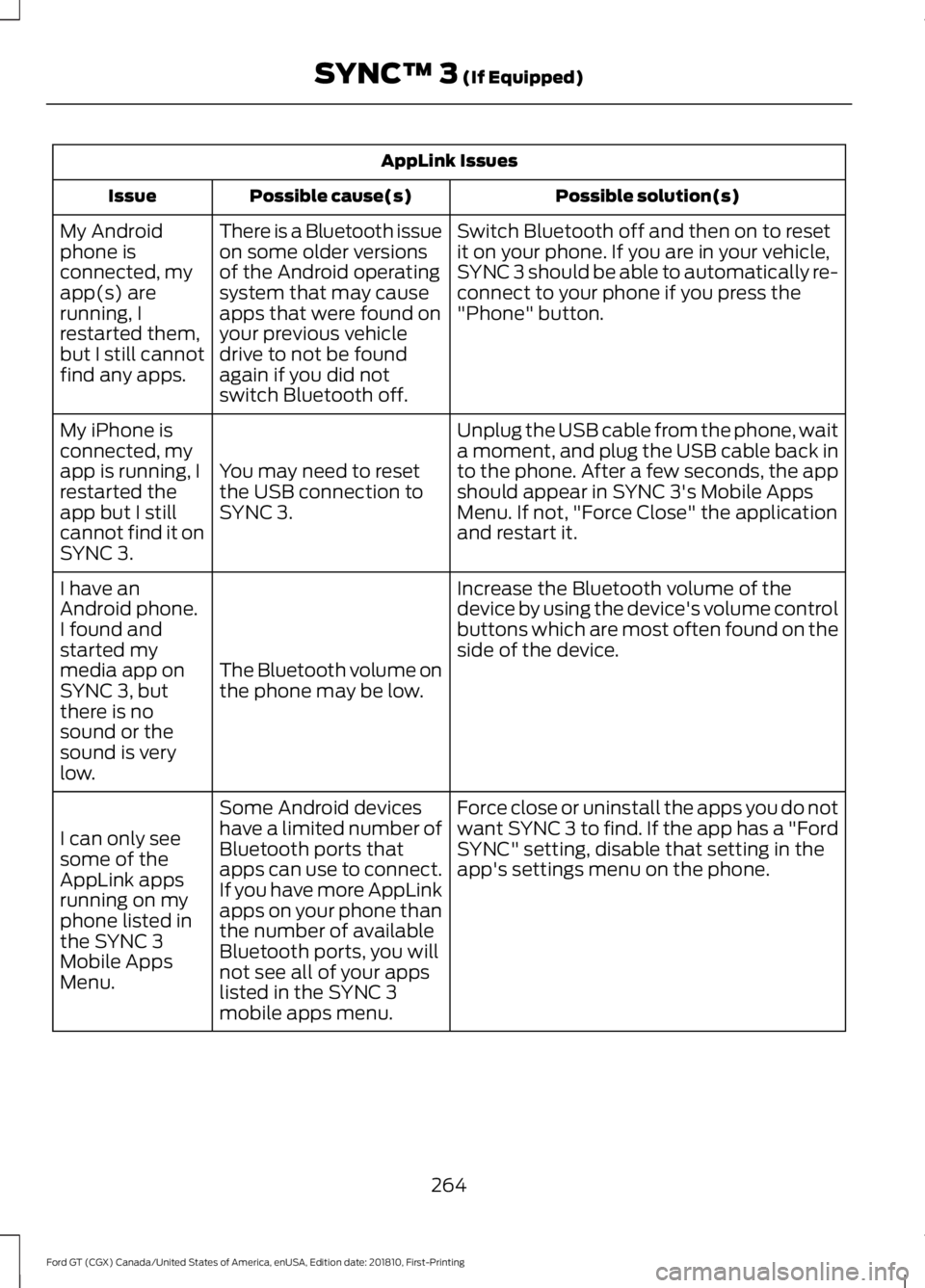
AppLink Issues
Possible solution(s)
Possible cause(s)
Issue
Switch Bluetooth off and then on to reset
it on your phone. If you are in your vehicle,
SYNC 3 should be able to automatically re-
connect to your phone if you press the
"Phone" button.
There is a Bluetooth issue
on some older versions
of the Android operating
system that may cause
apps that were found on
your previous vehicle
drive to not be found
again if you did not
switch Bluetooth off.
My Android
phone is
connected, my
app(s) are
running, I
restarted them,
but I still cannot
find any apps.
Unplug the USB cable from the phone, wait
a moment, and plug the USB cable back in
to the phone. After a few seconds, the app
should appear in SYNC 3's Mobile Apps
Menu. If not, "Force Close" the application
and restart it.
You may need to reset
the USB connection to
SYNC 3.
My iPhone is
connected, my
app is running, I
restarted the
app but I still
cannot find it on
SYNC 3.
Increase the Bluetooth volume of the
device by using the device's volume control
buttons which are most often found on the
side of the device.
The Bluetooth volume on
the phone may be low.
I have an
Android phone.
I found and
started my
media app on
SYNC 3, but
there is no
sound or the
sound is very
low.
Force close or uninstall the apps you do not
want SYNC 3 to find. If the app has a "Ford
SYNC" setting, disable that setting in the
app's settings menu on the phone.
Some Android devices
have a limited number of
Bluetooth ports that
apps can use to connect.
If you have more AppLink
apps on your phone than
the number of available
Bluetooth ports, you will
not see all of your apps
listed in the SYNC 3
mobile apps menu.
I can only see
some of the
AppLink apps
running on my
phone listed in
the SYNC 3
Mobile Apps
Menu.
264
Ford GT (CGX) Canada/United States of America, enUSA, Edition date: 201810, First-Printing SYNC™ 3 (If Equipped)
Page 269 of 321
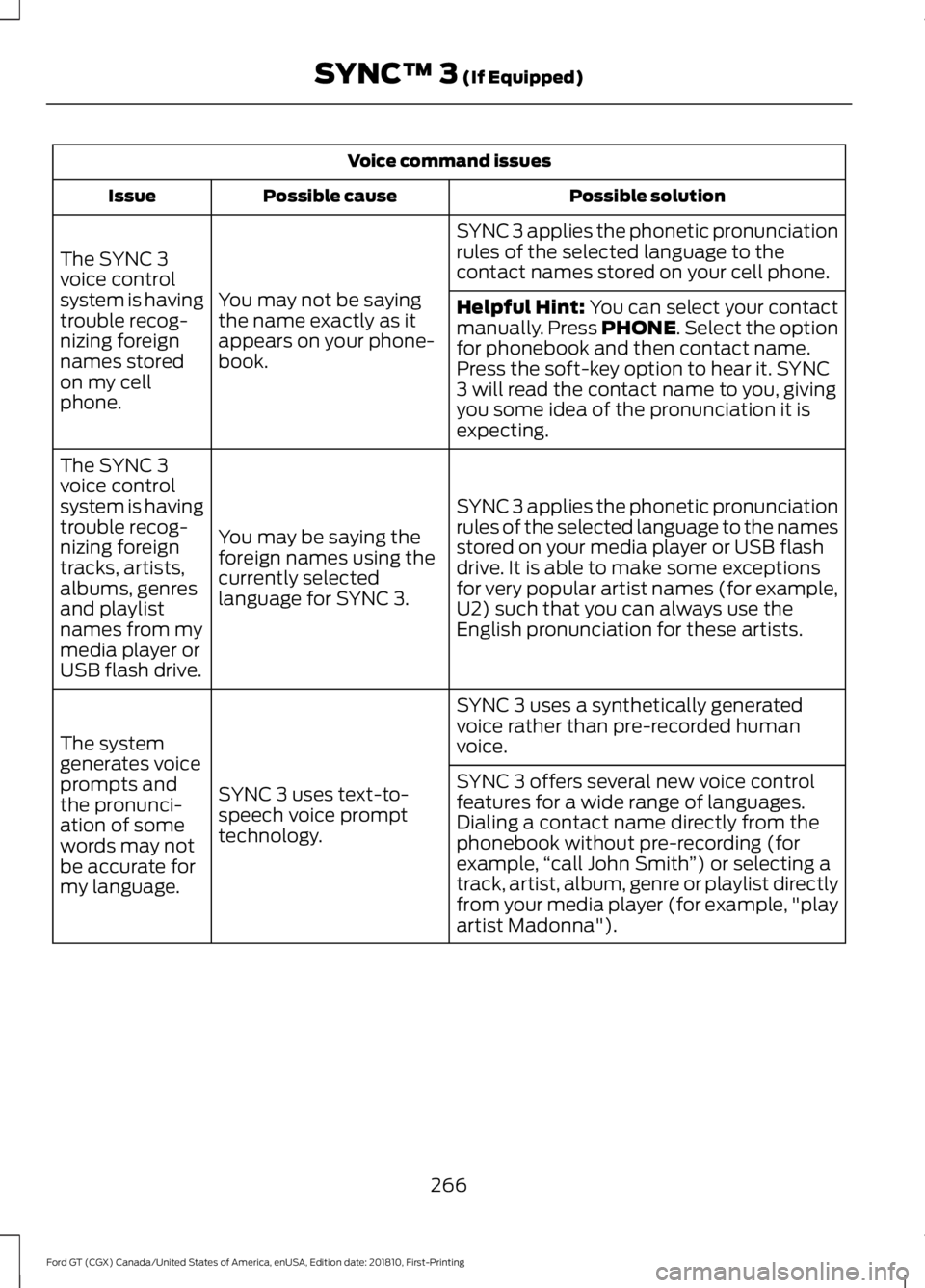
Voice command issues
Possible solution
Possible cause
Issue
SYNC 3 applies the phonetic pronunciation
rules of the selected language to the
contact names stored on your cell phone.
You may not be saying
the name exactly as it
appears on your phone-
book.
The SYNC 3
voice control
system is having
trouble recog-
nizing foreign
names stored
on my cell
phone.
Helpful Hint: You can select your contact
manually. Press PHONE. Select the option
for phonebook and then contact name.
Press the soft-key option to hear it. SYNC
3 will read the contact name to you, giving
you some idea of the pronunciation it is
expecting.
SYNC 3 applies the phonetic pronunciation
rules of the selected language to the names
stored on your media player or USB flash
drive. It is able to make some exceptions
for very popular artist names (for example,
U2) such that you can always use the
English pronunciation for these artists.
You may be saying the
foreign names using the
currently selected
language for SYNC 3.
The SYNC 3
voice control
system is having
trouble recog-
nizing foreign
tracks, artists,
albums, genres
and playlist
names from my
media player or
USB flash drive.
SYNC 3 uses a synthetically generated
voice rather than pre-recorded human
voice.
SYNC 3 uses text-to-
speech voice prompt
technology.
The system
generates voice
prompts and
the pronunci-
ation of some
words may not
be accurate for
my language. SYNC 3 offers several new voice control
features for a wide range of languages.
Dialing a contact name directly from the
phonebook without pre-recording (for
example,
“call John Smith ”) or selecting a
track, artist, album, genre or playlist directly
from your media player (for example, "play
artist Madonna").
266
Ford GT (CGX) Canada/United States of America, enUSA, Edition date: 201810, First-Printing SYNC™ 3
(If Equipped)
Page 272 of 321
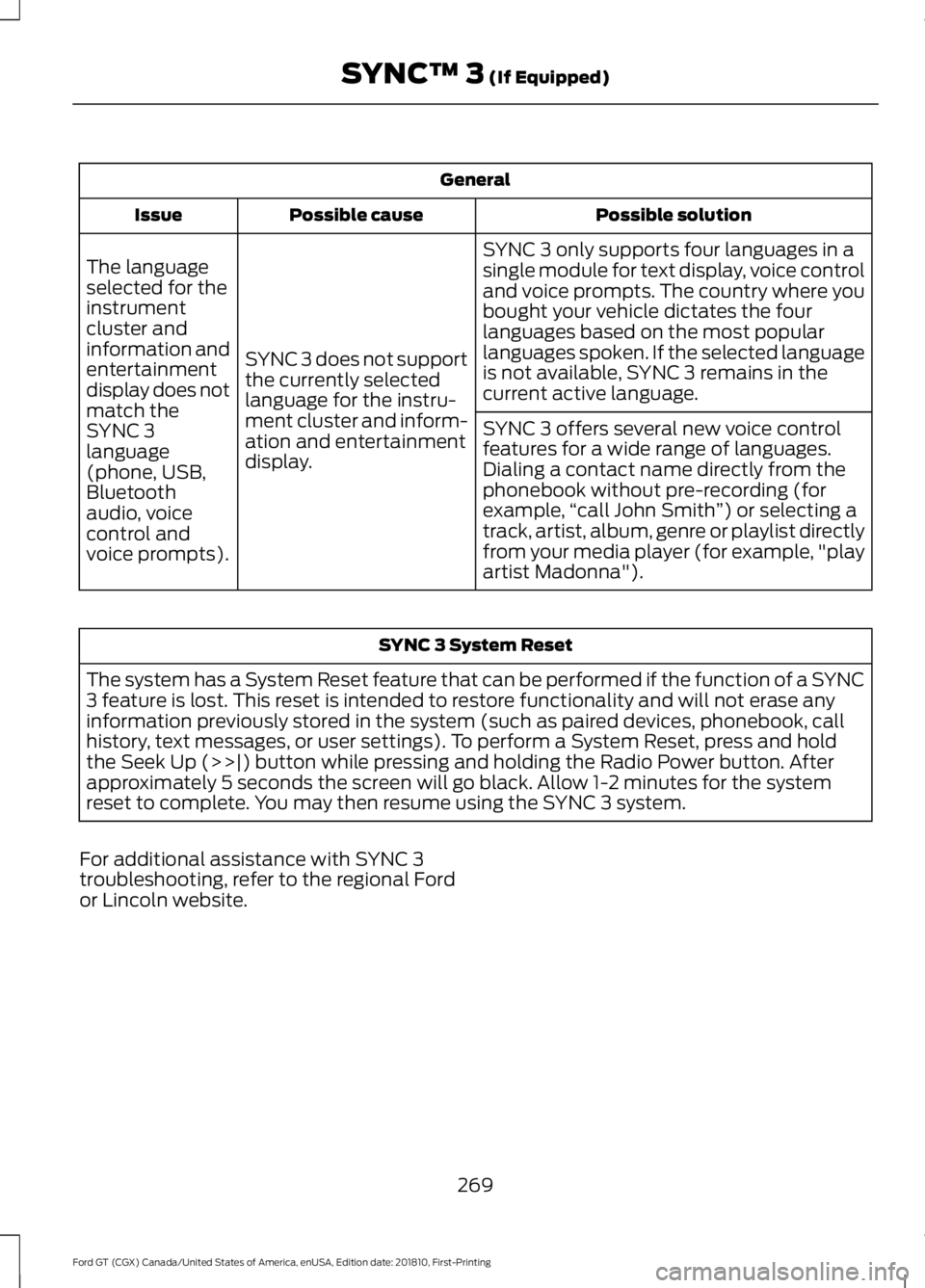
General
Possible solution
Possible cause
Issue
SYNC 3 only supports four languages in a
single module for text display, voice control
and voice prompts. The country where you
bought your vehicle dictates the four
languages based on the most popular
languages spoken. If the selected language
is not available, SYNC 3 remains in the
current active language.
SYNC 3 does not support
the currently selected
language for the instru-
ment cluster and inform-
ation and entertainment
display.
The language
selected for the
instrument
cluster and
information and
entertainment
display does not
match the
SYNC 3
SYNC 3 offers several new voice control
features for a wide range of languages.
Dialing a contact name directly from the
phonebook without pre-recording (for
example,
“call John Smith ”) or selecting a
track, artist, album, genre or playlist directly
from your media player (for example, "play
artist Madonna").
language
(phone, USB,
Bluetooth
audio, voice
control and
voice prompts). SYNC 3 System Reset
The system has a System Reset feature that can be performed if the function of a SYNC
3 feature is lost. This reset is intended to restore functionality and will not erase any
information previously stored in the system (such as paired devices, phonebook, call
history, text messages, or user settings). To perform a System Reset, press and hold
the Seek Up (>>|) button while pressing and holding the Radio Power button. After
approximately 5 seconds the screen will go black. Allow 1-2 minutes for the system
reset to complete. You may then resume using the SYNC 3 system.
For additional assistance with SYNC 3
troubleshooting, refer to the regional Ford
or Lincoln website.
269
Ford GT (CGX) Canada/United States of America, enUSA, Edition date: 201810, First-Printing SYNC™ 3 (If Equipped)
Page 316 of 321
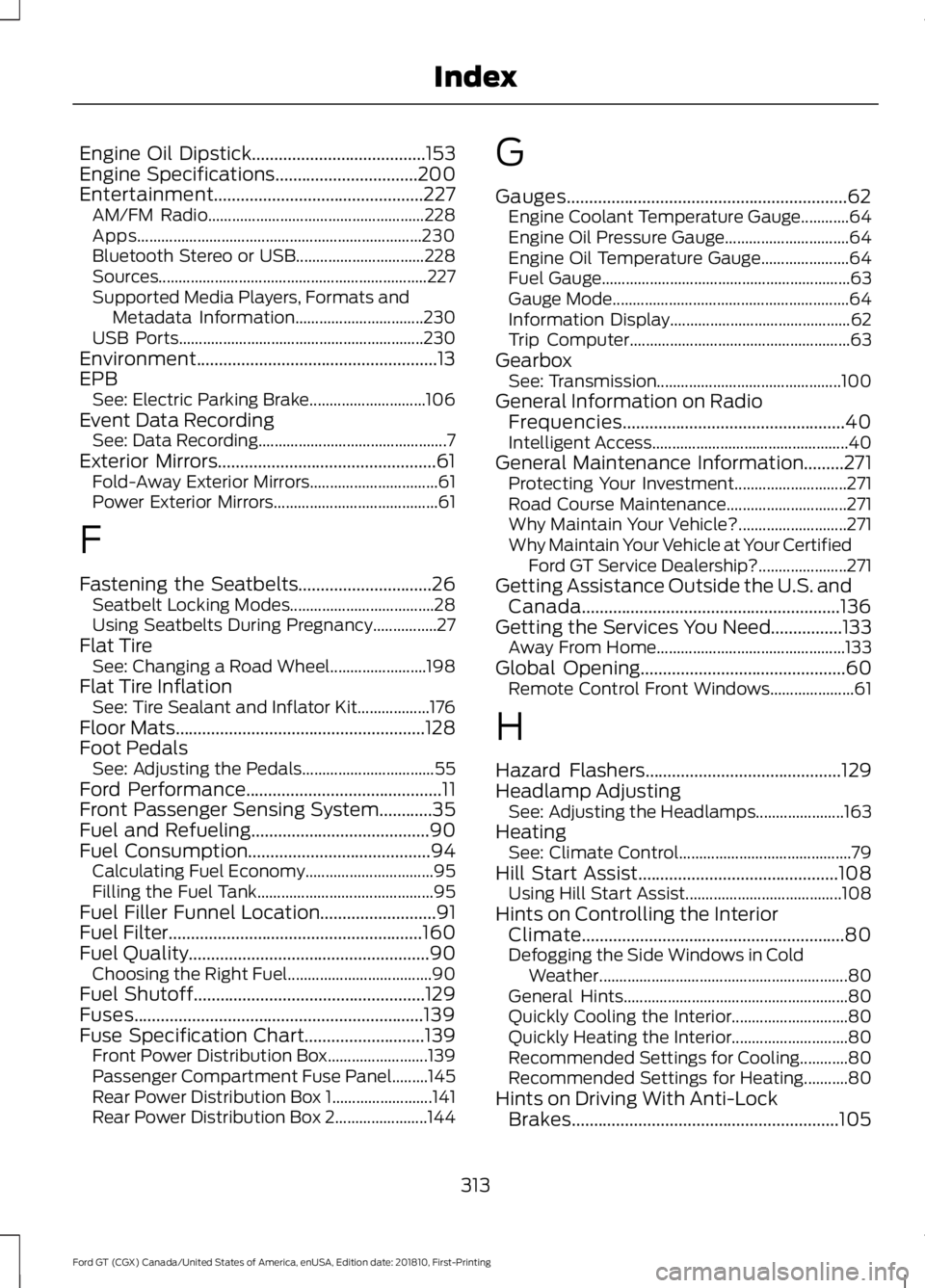
Engine Oil Dipstick.......................................153
Engine Specifications................................200
Entertainment...............................................227 AM/FM Radio...................................................... 228
Apps....................................................................... 230
Bluetooth Stereo or USB................................ 228
Sources................................................................... 227
Supported Media Players, Formats and Metadata Information................................ 230
USB Ports............................................................. 230
Environment......................................................13
EPB See: Electric Parking Brake............................. 106
Event Data Recording See: Data Recording............................................... 7
Exterior Mirrors.................................................61 Fold-Away Exterior Mirrors................................ 61
Power Exterior Mirrors......................................... 61
F
Fastening the Seatbelts..............................26 Seatbelt Locking Modes.................................... 28
Using Seatbelts During Pregnancy................27
Flat Tire See: Changing a Road Wheel........................ 198
Flat Tire Inflation See: Tire Sealant and Inflator Kit.................. 176
Floor Mats........................................................128
Foot Pedals See: Adjusting the Pedals................................. 55
Ford Performance
............................................11
Front Passenger Sensing System............35
Fuel and Refueling
........................................90
Fuel Consumption.........................................94 Calculating Fuel Economy................................ 95
Filling the Fuel Tank............................................ 95
Fuel Filler Funnel Location
..........................91
Fuel Filter.........................................................160
Fuel Quality
......................................................90
Choosing the Right Fuel.................................... 90
Fuel Shutoff
....................................................129
Fuses.................................................................139
Fuse Specification Chart...........................139 Front Power Distribution Box......................... 139
Passenger Compartment Fuse Panel.........145
Rear Power Distribution Box 1......................... 141
Rear Power Distribution Box 2....................... 144G
Gauges...............................................................62
Engine Coolant Temperature Gauge............64
Engine Oil Pressure Gauge............................... 64
Engine Oil Temperature Gauge...................... 64
Fuel Gauge.............................................................. 63
Gauge Mode........................................................... 64
Information Display............................................. 62
Trip Computer....................................................... 63
Gearbox See: Transmission.............................................. 100
General Information on Radio Frequencies..................................................40
Intelligent Access................................................. 40
General Maintenance Information.........271 Protecting Your Investment............................ 271
Road Course Maintenance.............................. 271
Why Maintain Your Vehicle?........................... 271
Why Maintain Your Vehicle at Your Certified Ford GT Service Dealership?...................... 271
Getting Assistance Outside the U.S. and Canada..........................................................136
Getting the Services You Need................133 Away From Home............................................... 133
Global Opening..............................................60 Remote Control Front Windows..................... 61
H
Hazard Flashers
............................................129
Headlamp Adjusting See: Adjusting the Headlamps...................... 163
Heating See: Climate Control........................................... 79
Hill Start Assist.............................................108 Using Hill Start Assist....................................... 108
Hints on Controlling the Interior Climate...........................................................80
Defogging the Side Windows in Cold Weather.............................................................. 80
General Hints........................................................ 80
Quickly Cooling the Interior............................. 80
Quickly Heating the Interior............................. 80
Recommended Settings for Cooling............80
Recommended Settings for Heating...........80
Hints on Driving With Anti-Lock Brakes
............................................................105
313
Ford GT (CGX) Canada/United States of America, enUSA, Edition date: 201810, First-Printing Index
Page 320 of 321
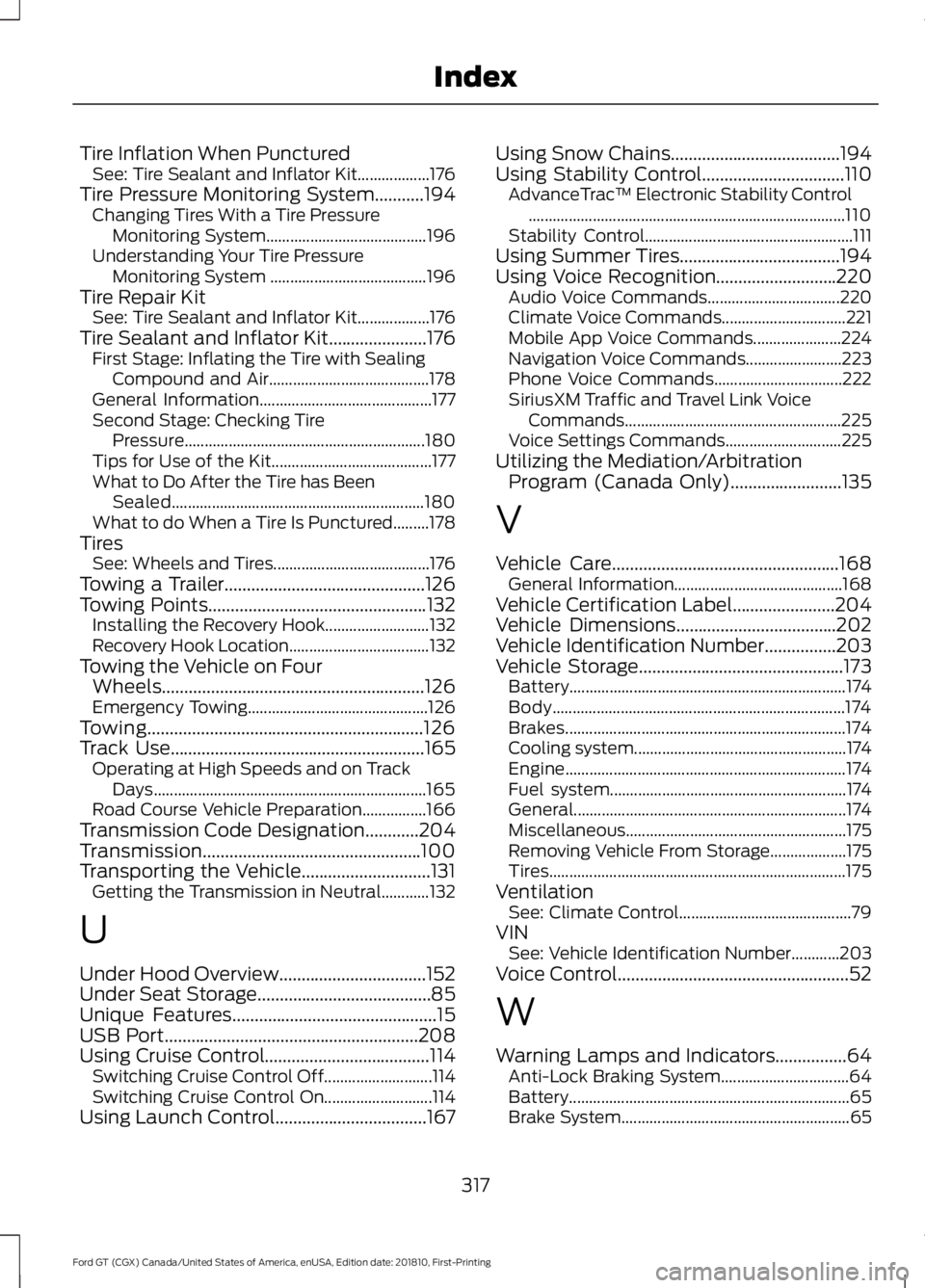
Tire Inflation When Punctured
See: Tire Sealant and Inflator Kit.................. 176
Tire Pressure Monitoring System...........194 Changing Tires With a Tire Pressure
Monitoring System........................................ 196
Understanding Your Tire Pressure Monitoring System ....................................... 196
Tire Repair Kit See: Tire Sealant and Inflator Kit.................. 176
Tire Sealant and Inflator Kit......................176 First Stage: Inflating the Tire with Sealing
Compound and Air........................................ 178
General Information........................................... 177
Second Stage: Checking Tire Pressure............................................................ 180
Tips for Use of the Kit........................................ 177
What to Do After the Tire has Been Sealed............................................................... 180
What to do When a Tire Is Punctured.........178
Tires See: Wheels and Tires....................................... 176
Towing a Trailer.............................................126
Towing Points.................................................132
Installing the Recovery Hook.......................... 132
Recovery Hook Location................................... 132
Towing the Vehicle on Four Wheels...........................................................126
Emergency Towing............................................. 126
Towing..............................................................126
Track Use
.........................................................165
Operating at High Speeds and on Track
Days.................................................................... 165
Road Course Vehicle Preparation................166
Transmission Code Designation............204
Transmission.................................................100
Transporting the Vehicle.............................131 Getting the Transmission in Neutral............132
U
Under Hood Overview.................................152
Under Seat Storage.......................................85
Unique Features
..............................................15
USB Port.........................................................208
Using Cruise Control.....................................114 Switching Cruise Control Off........................... 114
Switching Cruise Control On........................... 114
Using Launch Control..................................167 Using Snow Chains
......................................194
Using Stability Control................................110 AdvanceTrac ™ Electronic Stability Control
........................................................................\
....... 110
Stability Control.................................................... 111
Using Summer Tires....................................194
Using Voice Recognition
...........................220
Audio Voice Commands................................. 220
Climate Voice Commands............................... 221
Mobile App Voice Commands...................... 224
Navigation Voice Commands........................ 223
Phone Voice Commands................................ 222
SiriusXM Traffic and Travel Link Voice Commands...................................................... 225
Voice Settings Commands............................. 225
Utilizing the Mediation/Arbitration Program (Canada Only)
.........................135
V
Vehicle Care
...................................................168
General Information.......................................... 168
Vehicle Certification Label.......................204
Vehicle Dimensions
....................................202
Vehicle Identification Number................203
Vehicle Storage..............................................173 Battery..................................................................... 174
Body........................................................................\
. 174
Brakes...................................................................... 174
Cooling system..................................................... 174
Engine...................................................................... 174
Fuel system........................................................... 174
General.................................................................... 174
Miscellaneous ....................................................... 175
Removing Vehicle From Storage................... 175
Tires........................................................................\
.. 175
Ventilation See: Climate Control........................................... 79
VIN See: Vehicle Identification Number............203
Voice Control
....................................................52
W
Warning Lamps and Indicators................64 Anti-Lock Braking System................................ 64
Battery...................................................................... 65
Brake System......................................................... 65
317
Ford GT (CGX) Canada/United States of America, enUSA, Edition date: 201810, First-Printing Index