service FORD GT 2021 Workshop Manual
[x] Cancel search | Manufacturer: FORD, Model Year: 2021, Model line: GT, Model: FORD GT 2021Pages: 321, PDF Size: 5.78 MB
Page 244 of 321
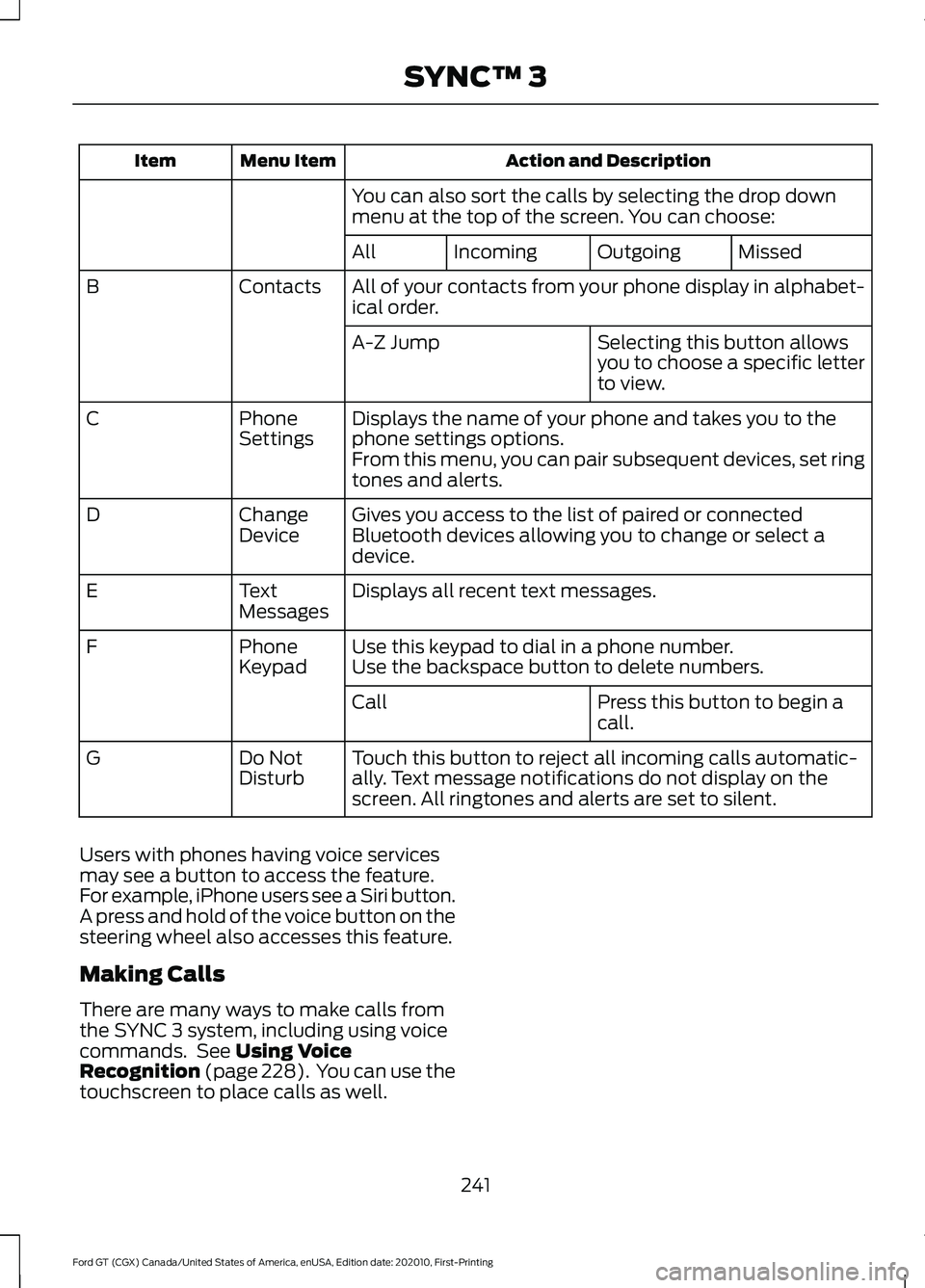
Action and Description
Menu Item
Item
You can also sort the calls by selecting the drop down
menu at the top of the screen. You can choose: Missed
Outgoing
Incoming
All
All of your contacts from your phone display in alphabet-
ical order.
Contacts
B
Selecting this button allows
you to choose a specific letter
to view.
A-Z Jump
Displays the name of your phone and takes you to the
phone settings options.
Phone
Settings
C
From this menu, you can pair subsequent devices, set ring
tones and alerts.
Gives you access to the list of paired or connected
Bluetooth devices allowing you to change or select a
device.
Change
Device
D
Displays all recent text messages.
Text
Messages
E
Use this keypad to dial in a phone number.
Phone
Keypad
F
Use the backspace button to delete numbers.
Press this button to begin a
call.
Call
Touch this button to reject all incoming calls automatic-
ally. Text message notifications do not display on the
screen. All ringtones and alerts are set to silent.
Do Not
Disturb
G
Users with phones having voice services
may see a button to access the feature.
For example, iPhone users see a Siri button.
A press and hold of the voice button on the
steering wheel also accesses this feature.
Making Calls
There are many ways to make calls from
the SYNC 3 system, including using voice
commands. See Using Voice
Recognition (page 228). You can use the
touchscreen to place calls as well.
241
Ford GT (CGX) Canada/United States of America, enUSA, Edition date: 202010, First-Printing SYNC™ 3
Page 254 of 321
cityseeker (If Equipped)
Note: cityseeker point of interest (POI)
information is limited to approximately 1110
cities (1049 in the United States, 36 in
Canada and 15 in Mexico). cityseeker, when available, is a service that
provides more information about certain
points of interest such as restaurants,
hotels and attractions.
When you have selected a point of interest,
the location and information appear, such
as address, phone number and a star
rating.
Press
More Information to see a photo,
a review, a list of services and facilities, the
average room or meal price and the web
address. This screen displays the point of
interest icons.
For restaurants, cityseeker can provide
information such as star rating, average
cost, review, handicap access, hours of
operation, and website address.
For hotels, cityseeker can provide
information such as star rating, price
category, review, check-in and checkout
times, hotel service icons and website
address. Hotel service icons include:
• Restaurant
• Business center
• Handicap facilities
• Laundry
• Refrigerator
• 24 hour room service •
Fitness center
• Internet access
• Pool
• Wi-Fi
Attractions include nearby landmarks,
amusement parks, historic buildings and
more. cityseeker can provide information
such as star rating, reviews, hour of
operation and admission price.
Navigation Map Updates
Annual navigation map updates are
available for purchase through your
dealership, by calling 1-866-462-8837 in
the United States and Canada or
01-800-557-5539 in Mexico. You can also
visit: Website
www.navigation.com/sync
You need to specify the make and model
of your vehicle to determine if there is an
update available.
HERE is the digital map provider for the
navigation application. If you find map data
errors, you may report them directly to
HERE by going to
www.here.com/mapcreator. HERE
evaluates all reported map errors and
responds with the result of their
investigation by e-mail.
Map coverage includes the USA (including
Puerto Rico and the US Virgin Islands),
Canada and Mexico.
251
Ford GT (CGX) Canada/United States of America, enUSA, Edition date: 202010, First-Printing SYNC™ 3E225487
Page 255 of 321
APPS
The system enables voice, steering wheel,
and touch screen control of SYNC 3
AppLink enabled smartphone apps. Once
an app is running through AppLink, you can
control main features of the app through
voice commands and steering wheel
controls.
Note:
Available AppLink enabled apps will
vary by market.
Note: You must pair and connect your
smartphone via Bluetooth to SYNC 3 to
access AppLink.
Note: iPhone users need to connect the
phone to the USB port.
Note: For information on available apps,
supported smartphone devices and
troubleshooting tips please visit: Websites
owner.ford.com
www.syncmyride.ca
www.syncmaroute.ca
Note: Make sure you have an active account
for the app that you have downloaded.
Some apps will work automatically with no
setup. Other apps will want you to configure
your personal settings and personalize your
experience by creating stations or favorites.
We recommend you do this at home or
outside of your vehicle.
Note: We encourage you to review the
smartphone app ’s terms of service and
privacy policies because Ford is not
responsible for your app or its use of data. Note:
AppLink is a native SYNC system
feature. Accessing mobile apps through
AppLink is only possible when Android Auto
or Apple CarPlay are disabled. Some apps
may only be accessible in the car through
Applink and others only through Android
Auto or Apple CarPlay. Please refer to the
Smartphone Connectivity information to
disable Android Auto or Apple CarPlay.
Note: In order to use an app with SYNC 3,
the App needs to be running in the
background of your phone. If you shut down
the app on your phone, it shuts down the
app on SYNC 3 as well.
Note: If a SYNC 3 AppLink compatible app
is not shown in the Apps Domain, make sure
the required app is running on the mobile
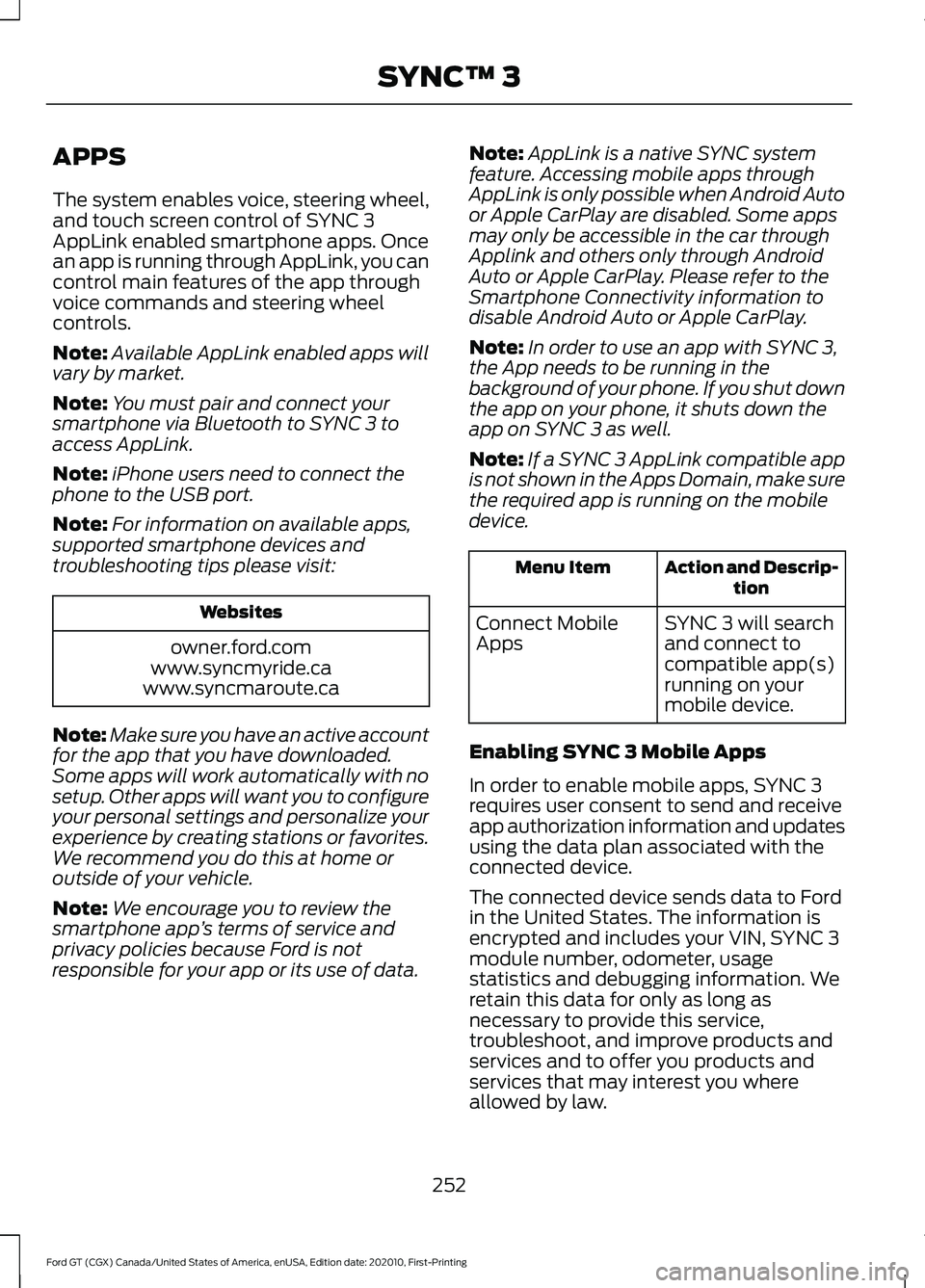
device. Action and Descrip-
tion
Menu Item
SYNC 3 will search
and connect to
compatible app(s)
running on your
mobile device.
Connect Mobile
Apps
Enabling SYNC 3 Mobile Apps
In order to enable mobile apps, SYNC 3
requires user consent to send and receive
app authorization information and updates
using the data plan associated with the
connected device.
The connected device sends data to Ford
in the United States. The information is
encrypted and includes your VIN, SYNC 3
module number, odometer, usage
statistics and debugging information. We
retain this data for only as long as
necessary to provide this service,
troubleshoot, and improve products and
services and to offer you products and
services that may interest you where
allowed by law.
252
Ford GT (CGX) Canada/United States of America, enUSA, Edition date: 202010, First-Printing SYNC™ 3
Page 256 of 321
Note:
You must enable mobile apps for
each connected device the first time you
select a mobile app using the system.
Note: Ford reserves the right to limit
functionality or deactivate mobile apps at
any time.
Note: Standard data rates apply. Ford is
not responsible for any additional charges
you may receive from your service provider,
when your vehicle sends or receives data
through the connected device. This includes
any additional charges incurred due to
driving in areas when roaming out of a home
network.
You can enable and disable apps through
settings. See Settings (page 253).
App Permissions
The system organizes the App permissions
into groups. You can grant these group
permissions individually. You can change
a permission group status any time when
not driving, by using the settings menu.
While in the settings menu, you can also
see the data included in each group. When you launch an app using SYNC 3,
the system may ask you to grant certain
permissions, for example Vehicle
information, Driving characteristics, GPS
and Speed, and/or Push notifications. You
can enable all groups or none of them
during the initial app permissions prompts.
The settings menu offers individual group
permission control.
Note:
You are only prompted to grant
permissions the first time you use an app
with SYNC 3.
Note: If you disable group permissions,
apps will still be enabled to work with SYNC
3 unless you deactivate All Apps in the
settings menu.
SETTINGS
Under this menu, you can access and
adjust the settings for many of the system
features. To access additional settings,
swipe the screen left or right.
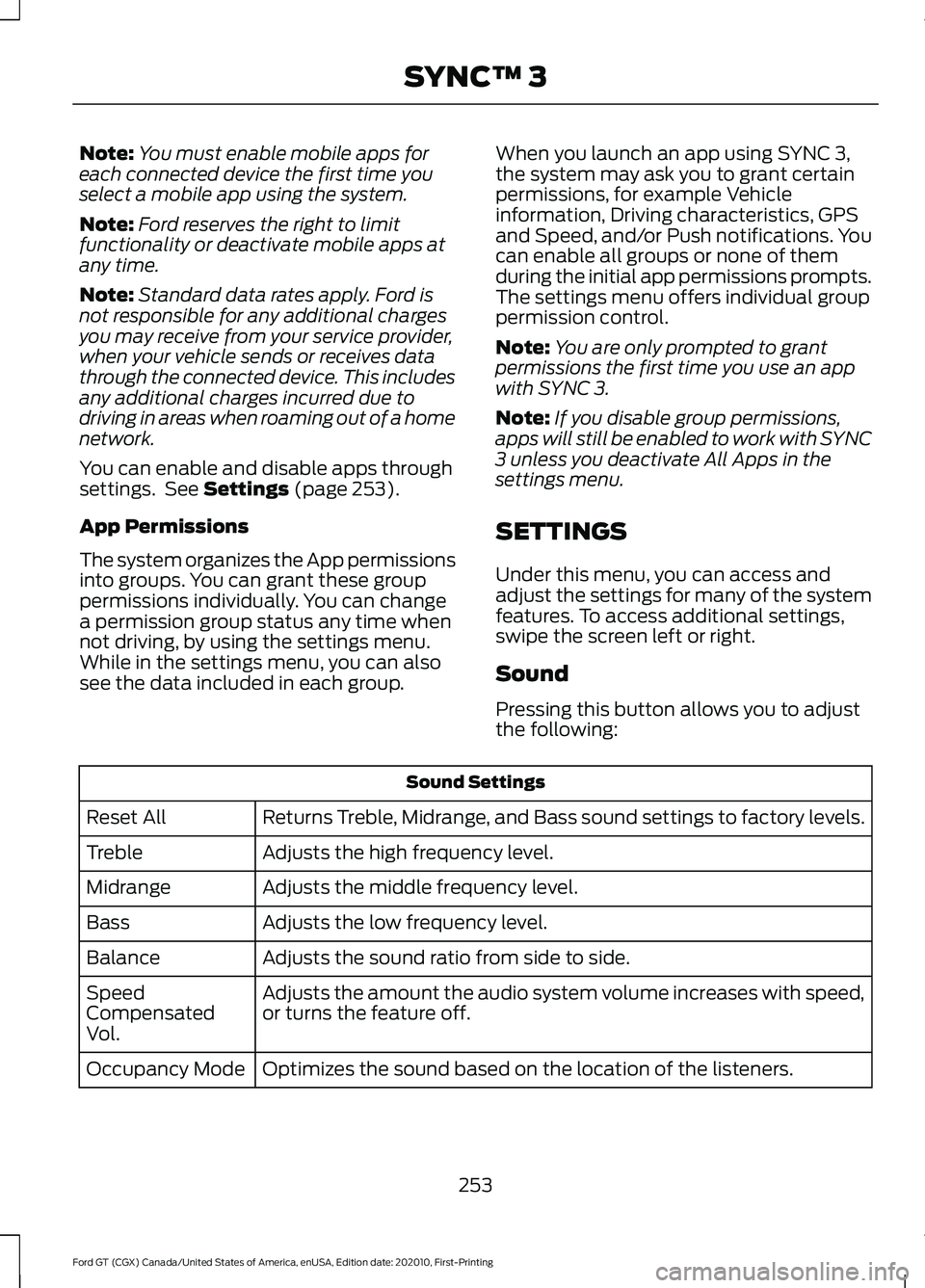
Sound
Pressing this button allows you to adjust
the following: Sound Settings
Returns Treble, Midrange, and Bass sound settings to factory levels.
Reset All
Adjusts the high frequency level.
Treble
Adjusts the middle frequency level.
Midrange
Adjusts the low frequency level.
Bass
Adjusts the sound ratio from side to side.
Balance
Adjusts the amount the audio system volume increases with speed,
or turns the feature off.
Speed
Compensated
Vol.
Optimizes the sound based on the location of the listeners.
Occupancy Mode
253
Ford GT (CGX) Canada/United States of America, enUSA, Edition date: 202010, First-Printing SYNC™ 3
Page 261 of 321
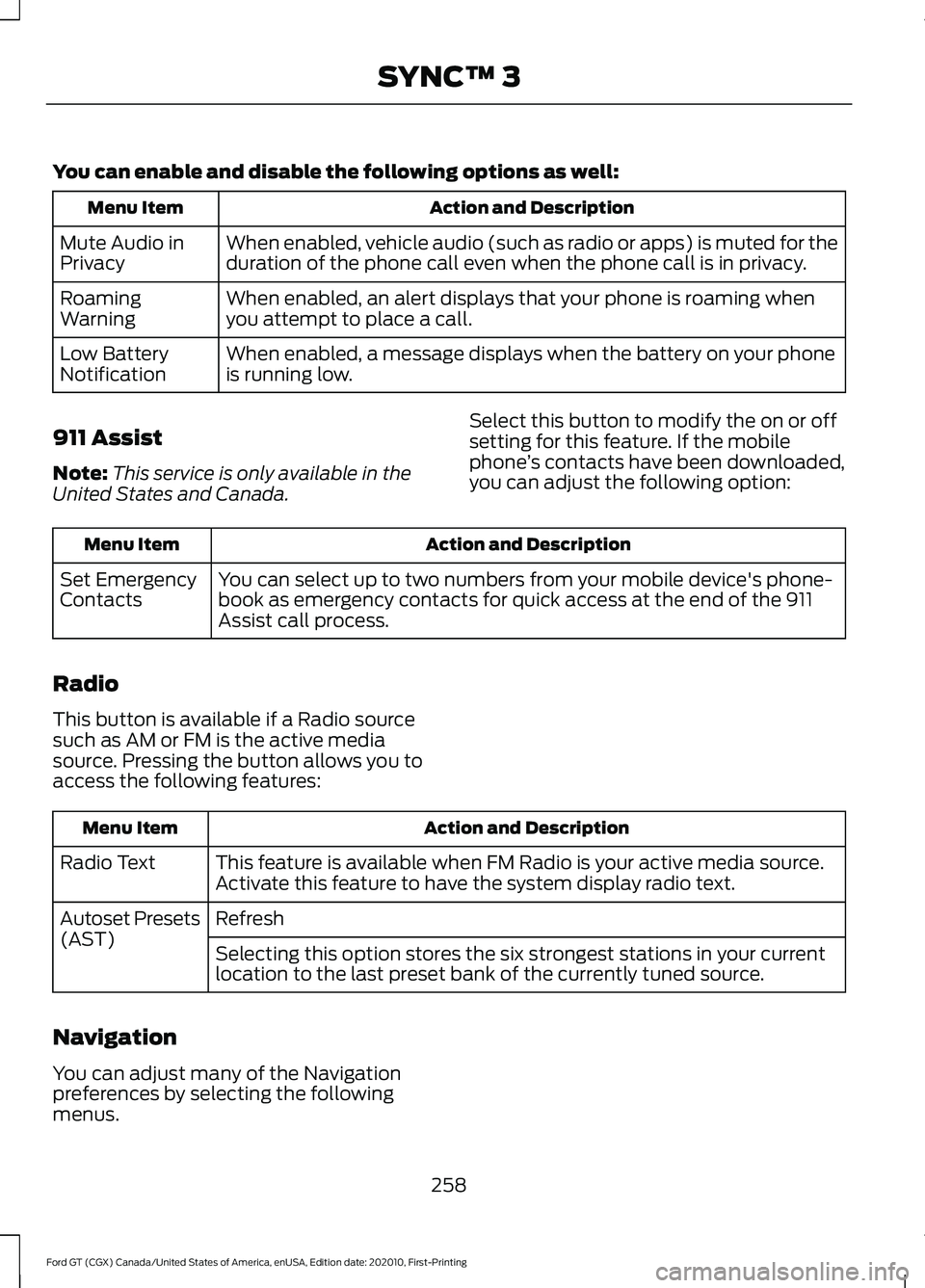
You can enable and disable the following options as well:
Action and Description
Menu Item
When enabled, vehicle audio (such as radio or apps) is muted for the
duration of the phone call even when the phone call is in privacy.
Mute Audio in
Privacy
When enabled, an alert displays that your phone is roaming when
you attempt to place a call.
Roaming
Warning
When enabled, a message displays when the battery on your phone
is running low.
Low Battery
Notification
911 Assist
Note: This service is only available in the
United States and Canada. Select this button to modify the on or off
setting for this feature. If the mobile
phone
’s contacts have been downloaded,
you can adjust the following option: Action and Description
Menu Item
You can select up to two numbers from your mobile device's phone-
book as emergency contacts for quick access at the end of the 911
Assist call process.
Set Emergency
Contacts
Radio
This button is available if a Radio source
such as AM or FM is the active media
source. Pressing the button allows you to
access the following features: Action and Description
Menu Item
This feature is available when FM Radio is your active media source.
Activate this feature to have the system display radio text.
Radio Text
Refresh
Autoset Presets
(AST)
Selecting this option stores the six strongest stations in your current
location to the last preset bank of the currently tuned source.
Navigation
You can adjust many of the Navigation
preferences by selecting the following
menus.
258
Ford GT (CGX) Canada/United States of America, enUSA, Edition date: 202010, First-Printing SYNC™ 3
Page 264 of 321
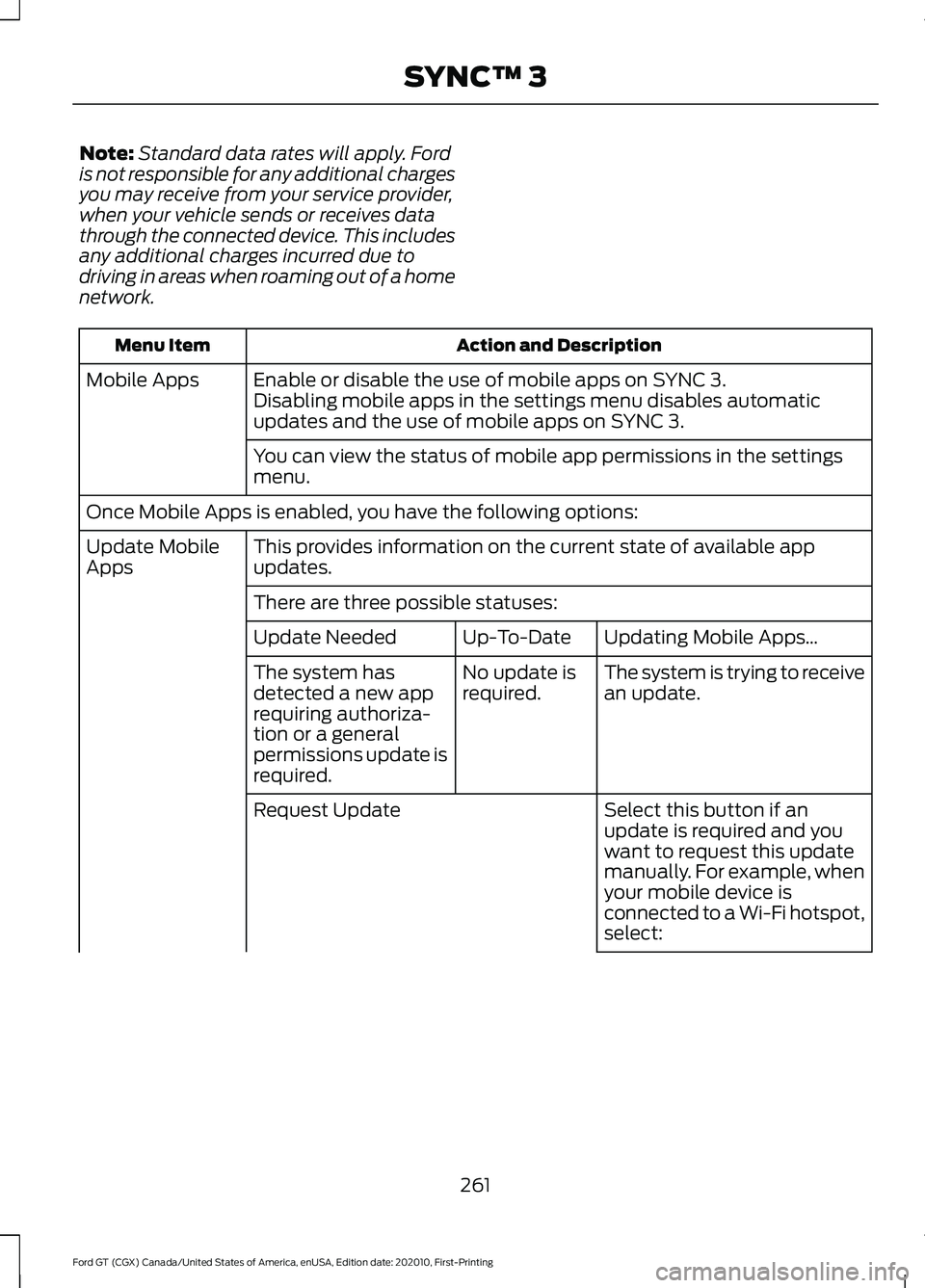
Note:
Standard data rates will apply. Ford
is not responsible for any additional charges
you may receive from your service provider,
when your vehicle sends or receives data
through the connected device. This includes
any additional charges incurred due to
driving in areas when roaming out of a home
network. Action and Description
Menu Item
Enable or disable the use of mobile apps on SYNC 3.
Mobile Apps
Disabling mobile apps in the settings menu disables automatic
updates and the use of mobile apps on SYNC 3.
You can view the status of mobile app permissions in the settings
menu.
Once Mobile Apps is enabled, you have the following options: This provides information on the current state of available app
updates.
Update Mobile
Apps
There are three possible statuses: Updating Mobile Apps…
Up-To-Date
Update Needed
The system is trying to receive
an update.
No update is
required.
The system has
detected a new app
requiring authoriza-
tion or a general
permissions update is
required.
Select this button if an
update is required and you
want to request this update
manually. For example, when
your mobile device is
connected to a Wi-Fi hotspot,
select:
Request Update
261
Ford GT (CGX) Canada/United States of America, enUSA, Edition date: 202010, First-Printing SYNC™ 3
Page 270 of 321
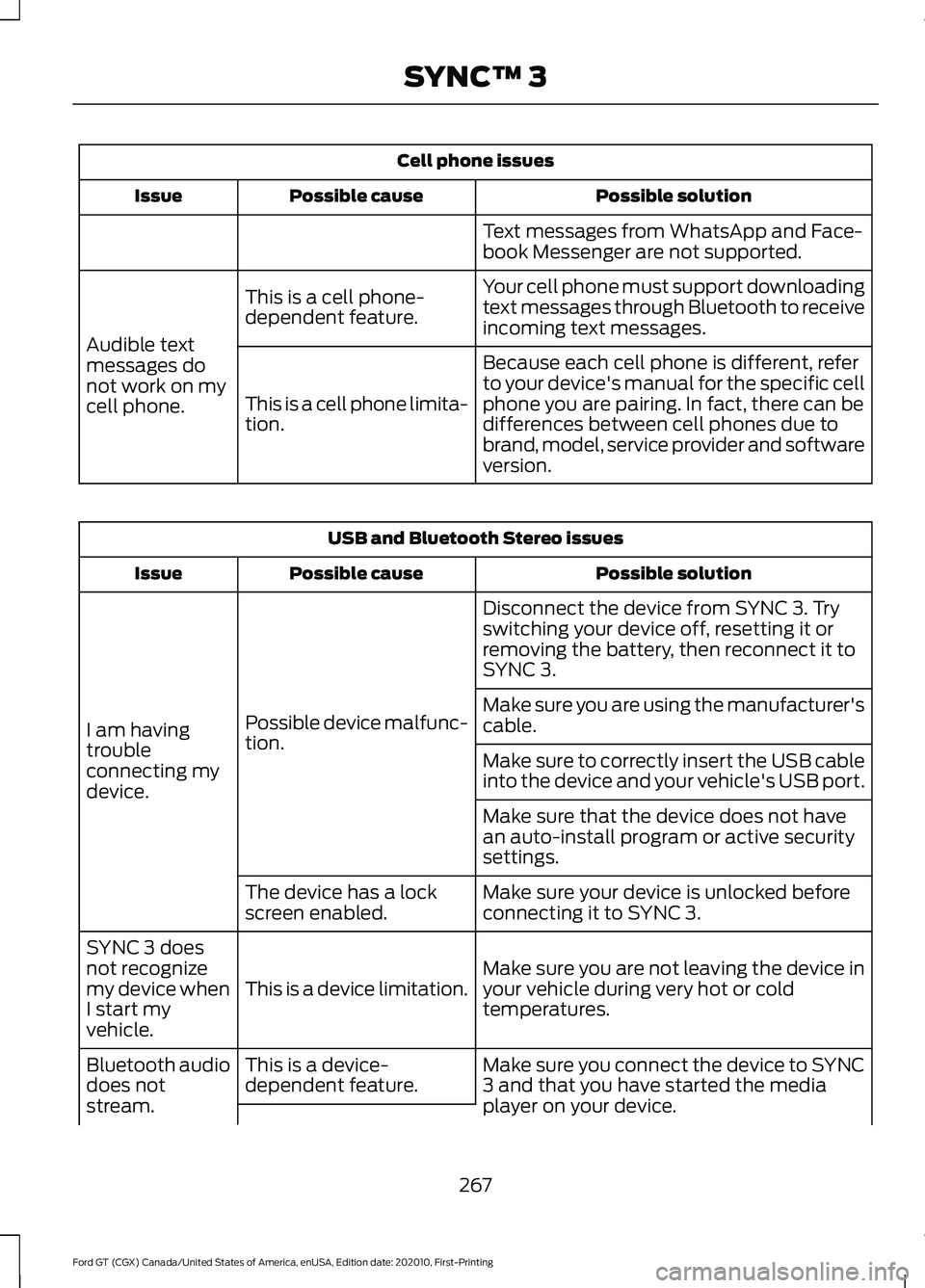
Cell phone issues
Possible solution
Possible cause
Issue
Text messages from WhatsApp and Face-
book Messenger are not supported.
Your cell phone must support downloading
text messages through Bluetooth to receive
incoming text messages.
This is a cell phone-
dependent feature.
Audible text
messages do
not work on my
cell phone. Because each cell phone is different, refer
to your device's manual for the specific cell
phone you are pairing. In fact, there can be
differences between cell phones due to
brand, model, service provider and software
version.
This is a cell phone limita-
tion. USB and Bluetooth Stereo issues
Possible solution
Possible cause
Issue
Disconnect the device from SYNC 3. Try
switching your device off, resetting it or
removing the battery, then reconnect it to
SYNC 3.
Possible device malfunc-
tion.
I am having
trouble
connecting my
device. Make sure you are using the manufacturer's
cable.
Make sure to correctly insert the USB cable
into the device and your vehicle's USB port.
Make sure that the device does not have
an auto-install program or active security
settings.
Make sure your device is unlocked before
connecting it to SYNC 3.
The device has a lock
screen enabled.
Make sure you are not leaving the device in
your vehicle during very hot or cold
temperatures.
This is a device limitation.
SYNC 3 does
not recognize
my device when
I start my
vehicle.
Make sure you connect the device to SYNC
3 and that you have started the media
player on your device.
This is a device-
dependent feature.
Bluetooth audio
does not
stream.
267
Ford GT (CGX) Canada/United States of America, enUSA, Edition date: 202010, First-Printing SYNC™ 3
Page 273 of 321
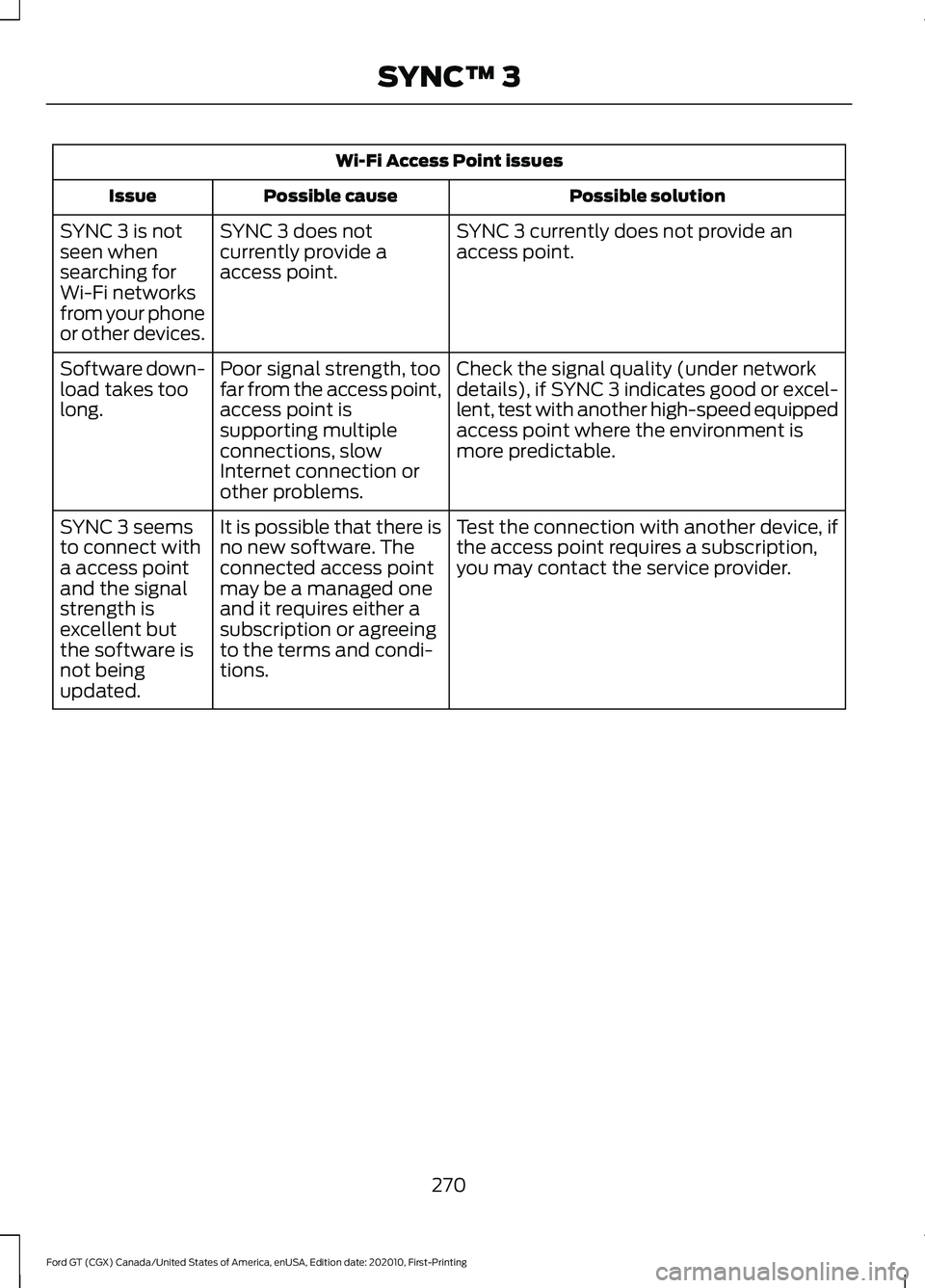
Wi-Fi Access Point issues
Possible solution
Possible cause
Issue
SYNC 3 currently does not provide an
access point.
SYNC 3 does not
currently provide a
access point.
SYNC 3 is not
seen when
searching for
Wi-Fi networks
from your phone
or other devices.
Check the signal quality (under network
details), if SYNC 3 indicates good or excel-
lent, test with another high-speed equipped
access point where the environment is
more predictable.
Poor signal strength, too
far from the access point,
access point is
supporting multiple
connections, slow
Internet connection or
other problems.
Software down-
load takes too
long.
Test the connection with another device, if
the access point requires a subscription,
you may contact the service provider.
It is possible that there is
no new software. The
connected access point
may be a managed one
and it requires either a
subscription or agreeing
to the terms and condi-
tions.
SYNC 3 seems
to connect with
a access point
and the signal
strength is
excellent but
the software is
not being
updated.
270
Ford GT (CGX) Canada/United States of America, enUSA, Edition date: 202010, First-Printing SYNC™ 3
Page 282 of 321
GENERAL MAINTENANCE
INFORMATION
Why Maintain Your Vehicle?
Carefully following the maintenance
schedule helps protect against major repair
expenses resulting from neglect or
inadequate maintenance and may help to
increase the value of your vehicle when
you sell or trade it. Keep all receipts for
completed maintenance with your vehicle
and record the maintenance in the pages
that follow in this section.
We have established regular maintenance
intervals for your vehicle based upon
rigorous testing. It is important that you
have your vehicle serviced at the proper
times. Remember that time is just as
important as miles driven. These intervals
are based on both time and distance
driven. Since cars like the Ford GT do not
get driven daily in most cases, your
maintenance intervals may be more based
on time than distance driven.
It is your responsibility to have all
scheduled maintenance performed and to
make sure that the materials used meet
the specifications identified in this owner's
manual. See Capacities and
Specifications (page 205).
Failure to perform scheduled maintenance
invalidates warranty coverage on parts
affected by the lack of maintenance.
Why Maintain Your Vehicle at Your
Certified Ford GT Service
Dealership?
Factory-Trained Technicians
Service technicians participate in extensive
factory-sponsored certification training to
help them become experts on the
operation of your Ford GT. Genuine Ford and Motorcraft™
Replacement Parts
Certified Ford GT Service Dealerships stock
the Ford and Motorcraft parts needed to
maintain your Ford GT. These parts meet
or exceed our specifications. Parts installed
at your dealership carry a nationwide
24-month or unlimited mile (kilometer)
parts and labor limited warranty.
If you do not use Ford authorized parts they
may not meet our specifications and
depending on the part, it could affect
emissions compliance.
Convenience
The Ford GT Concierge will be happy to
assist you in scheduling your maintenance
visits and will work with your Certified Ford
GT Service Dealership to make these
arrangements.
Road Course Maintenance
If your Ford GT is subjected to dedicated
road course use, we recommend additional
maintenance. See
Special Operating
Conditions Scheduled Maintenance
(page
281).
Protecting Your Investment
Additives and Chemicals
This owner's manual and the Ford
Workshop Manual list the recommended
additives and chemicals for your vehicle.
We do not recommend using chemicals or
additives not approved by us as part of
your vehicle ’s normal maintenance. Please
consult your warranty information.
279
Ford GT (CGX) Canada/United States of America, enUSA, Edition date: 202010, First-Printing Scheduled Maintenance
Page 286 of 321
END USER LICENSE
AGREEMENT
VEHICLE SOFTWARE END USER
LICENSE AGREEMENT (EULA)
•
You (“You” or “Your ” as applicable)
have acquired a vehicle having several
devices, including SYNC ® and various
control modules, ("DEVICES") that
include software licensed or owned by
Ford Motor Company and its affiliates
("FORD MOTOR COMPANY"). Those
software products of FORD MOTOR
COMPANY origin, as well as associated
media, printed materials, and "online"
or electronic documentation
("SOFTWARE") are protected by
international intellectual property laws
and treaties. The SOFTWARE is
licensed, not sold. All rights reserved.
• The SOFTWARE may interface with
and/or communicate with, or may be
later upgraded to interface with and/or
communicate with additional software
and/or systems provided by FORD
MOTOR COMPANY.
IF YOU DO NOT AGREE TO THIS END
USER LICENSE AGREEMENT ("EULA")
DO NOT USE THE DEVICES OR COPY
THE SOFTWARE. ANY USE OF THE
SOFTWARE, INCLUDING BUT NOT
LIMITED TO USE ON THE DEVICES,
WILL CONSTITUTE YOUR AGREEMENT
TO THIS EULA (OR RATIFICATION OF
ANY PREVIOUS CONSENT).
GRANT OF SOFTWARE LICENSE: This
EULA grants you the following license:
• You may use the SOFTWARE as
installed on the DEVICES and as
otherwise interfacing with systems
and/or services provide by or through
FORD MOTOR COMPANY or its third
party software and service providers. Description of Other Rights and
Limitations
•
Speech Recognition:
If the
SOFTWARE includes speech
recognition component(s), you should
understand that speech recognition is
an inherently statistical process and
that recognition errors are inherent in
the process. Neither FORD MOTOR
COMPANY nor its suppliers shall be
liable for any damages arising out of
errors in the speech recognition
process. It is your responsibility to
monitor any speech recognition
functions included in the system.
• Limitations on Reverse Engineering,
Decompilation and Disassembly:
You may not reverse engineer,
decompile, translate, disassemble or
attempt to discover any source code
or underlying ideas or algorithms of the
SOFTWARE nor permit others to
reverse engineer, decompile or
disassemble the SOFTWARE, except
and only to the extent that such activity
is expressly permitted by applicable
law notwithstanding this limitation or
to the extent as may be permitted by
the licensing terms governing use of
any open source components included
with the SOFTWARE.
• Limitations on Distributing,
Copying, Modifying and Creating
Derivative Works:
You may not
distribute, copy, make modifications
to or create derivative works based on
the SOFTWARE, except and only to the
extent that such activity is expressly
permitted by applicable law
notwithstanding this limitation or to
the extent as may be permitted by the
licensing terms governing use of any
open source components included with
the SOFTWARE.
283
Ford GT (CGX) Canada/United States of America, enUSA, Edition date: 202010, First-Printing Appendices