ECO FORD MAVERICK 2022 Owner's Manual
[x] Cancel search | Manufacturer: FORD, Model Year: 2022, Model line: MAVERICK, Model: FORD MAVERICK 2022Pages: 533, PDF Size: 9.58 MB
Page 51 of 533
CHECKING THE SEATBELTS
Check the seatbelts and child restraints
periodically to make sure they work
properly and are not damaged. Make sure
there are no nicks, tears or cuts. Replace if
necessary.
Check the following seatbelt assemblies
after a crash.
•
Retractors.
• Buckles.
• Front seatbelt buckle assemblies.
• Shoulder belt height adjusters.
• Shoulder belt guide on seat backrest.
• Child restraint LATCH and tether
anchors.
• Attaching hardware.
Read the child restraint manufacturer's
instructions for additional inspection and
maintenance information specific to the
child restraint.
We recommend that all seatbelt
assemblies in use in vehicles involved in a
crash be replaced. However, if the crash
was minor and an authorized dealer finds
that the belts do not show damage and
continue to operate properly, they do not
need to be replaced. Seatbelt assemblies
not in use during a crash should also be
checked and replaced if either damage or
improper operation is noted.
Properly care for seatbelts. See Cleaning
Seatbelts (page 323).
SEATBELT EXTENSIONS WARNING:
Persons who fit into
the vehicle's seatbelt should not use an
extension. Unnecessary use could result
in serious personal injury in the event of
a crash. WARNING:
Only use extensions
provided free of charge by our dealers.
The dealer will provide an extension
designed specifically for this vehicle,
model year and seating position. The use
of an extension intended for another
vehicle, model year or seating position
may not offer you the full protection of
your vehicle's seatbelt restraint system. WARNING:
Never use seatbelt
extensions to install child restraints. WARNING:
Do not use extensions
to change the way the seatbelt fits
across the torso, over the lap or to make
the seatbelt buckle easier to reach.
If, because of body size or driving position,
it is not possible to properly fasten the
seatbelt over your lap and shoulder, an
extension that is compatible with the
seatbelts is available free of charge from
our dealers. Only use our seatbelt
extensions made by the original equipment
seatbelt manufacturer with our seatbelts.
Ask your authorized dealer if your extension
is compatible with your vehicle restraint
system.
48
2022 Maverick (CFE) Canada/United States of America, enUSA, Edition date: 202106, First-Printing Seatbelts
Page 56 of 533
WARNING: Keep the areas in front
of the airbags free from obstruction. Do
not affix anything to or over the airbag
covers. Objects could become projectiles
during airbag deployment. Failure to
follow this instruction could result in
personal injury or death. WARNING:
To reduce risk of injury,
do not obstruct or place objects in the
deployment path of the airbag. WARNING:
Do not place a
rearward facing child restraint in front of
an active airbag. Failure to follow this
instruction could result in personal injury
or death. WARNING:
Do not attempt to
service, repair, or modify the
supplementary restraint system or
associated components. Failure to
follow this instruction could result in
personal injury or death. WARNING:
Several airbag system
components get hot after inflation. To
reduce the risk of injury, do not touch
them after inflation. WARNING:
If a supplementary
restraint system component has
deployed, it will not function again. Have
the system and associated components
inspected as soon as possible. Failure to
follow this instruction could result in
personal injury or death. PROPERLY ADJUSTING THE
DRIVER AND FRONT
PASSENGER SEATS WARNING:
National Highway
Traffic Safety Administration (NHTSA)
recommends a minimum distance of at
least
10 in (25 cm) between an
occupant's chest and the driver airbag
module.
To properly position yourself away from
the airbag:
• Move your seat to the rear as far as you
can while still reaching the pedals
comfortably.
• Recline the seat slightly one or two
degrees from the upright position.
After all occupants have adjusted their
seats and put on seatbelts, it is very
important that they continue to sit
properly. Properly seated occupants sit
upright, lean against the seat backrest, and
center themselves on the seat cushion,
with their feet comfortably extended on
the floor. Sitting improperly can increase
the chance of injury in a crash event. For
example, if an occupant slouches, lies
down, turns sideways, sits forward, leans
forward or sideways, or puts one or both
feet up, the chance of injury during a crash
greatly increases.
CHILDREN AND AIRBAGS WARNING:
Do not place a
rearward facing child restraint in front of
an active airbag. Failure to follow this
instruction could result in personal injury
or death.
53
2022 Maverick (CFE) Canada/United States of America, enUSA, Edition date: 202106, First-Printing Airbags
Page 62 of 533
WHAT IS 911 ASSIST
911 Assist is a SYNC system feature that
can call for help.
For more information, visit
www
. o wner .f or d . c om .
EMERGENCY CALL
REQUIREMENTS WARNING: Do not wait for 911
Assist to make an emergency call if you
can do it yourself. Dial emergency
services immediately to avoid delayed
response time which could increase the
risk of serious injury or death after a
crash. If you do not hear 911 Assist within
five seconds of the crash, the system or
phone may be damaged or
non-functional. WARNING:
Always place your
phone in a secure location in your vehicle
so it does not become a projectile or get
damaged in a crash. Failure to do so may
cause serious injury to someone or
damage the phone which could prevent
911 Assist from working properly. WARNING:
Unless the 911 Assist
setting is set on before a crash, the
system will not dial for help which could
delay response time, potentially
increasing the risk of serious injury or
death after a crash.
• SYNC is powered and working properly
at the time of the incident and
throughout feature activation and use.
• The 911 Assist feature must be set on
before the incident.
• You must pair and connect a
Bluetooth®
enabled and compatible
cell phone to SYNC. •
A connected
Bluetooth® enabled
phone must have the ability to make
and maintain an outgoing call at the
time of the incident.
• A connected
Bluetooth® enabled
phone must have adequate network
coverage, battery power and signal
strength.
• The vehicle must have battery power
and be located in the U.S., Canada or
in a territory in which 911 is the
emergency number.
Note: If any user sets 911 Assist to on or off,
that setting applies for all paired phones. If
911 Assist is off and the phone connected
to SYNC, an icon displays on the status bar.
Note: Every phone operates differently.
While SYNC 911 Assist works with most
cellular phones, some may have trouble
using this feature.
EMERGENCY CALL
LIMITATIONS
The SYNC 911 Assist feature only operates
in the U.S., Canada or in a territory in which
911 is the emergency number. The following
are limitations of this feature:
• Your cellular phone or 911 Assist
hardware sustains damage in a crash.
• The vehicle's battery or the SYNC
system has no power.
• The phone(s) thrown from your vehicle
are the ones paired and connected to
the system.
59
2022 Maverick (CFE) Canada/United States of America, enUSA, Edition date: 202106, First-Printing 911 Assist
Page 64 of 533
Note:
Inspect the key blade for debris.
Periodically clean with a brush.
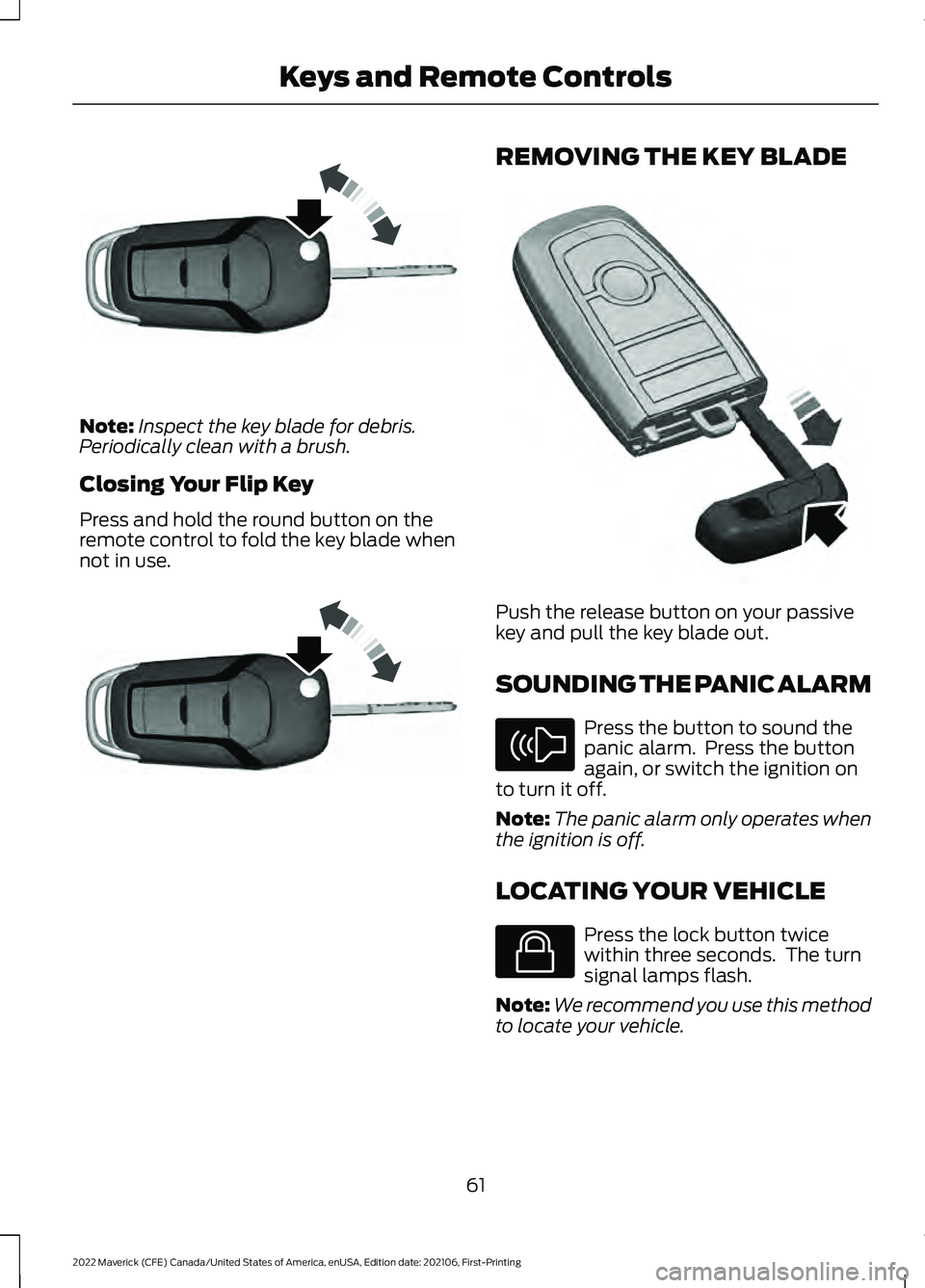
Closing Your Flip Key
Press and hold the round button on the
remote control to fold the key blade when
not in use. REMOVING THE KEY BLADE
Push the release button on your passive
key and pull the key blade out.
SOUNDING THE PANIC ALARM
Press the button to sound the
panic alarm. Press the button
again, or switch the ignition on
to turn it off.
Note: The panic alarm only operates when
the ignition is off.
LOCATING YOUR VEHICLE Press the lock button twice
within three seconds. The turn
signal lamps flash.
Note: We recommend you use this method
to locate your vehicle.
61
2022 Maverick (CFE) Canada/United States of America, enUSA, Edition date: 202106, First-Printing Keys and Remote ControlsE191532 E191532 E322866 E138624 E138623
Page 70 of 533
Emergency Assistance
If you set emergency assistance to always
on, you cannot switch it off with a MyKey.
Do Not Disturb
If you set do not disturb to always on, you
cannot switch it off with a MyKey.
Note:
If a phone is connected using Apple
CarPlay or Android Auto while driving with
a MyKey, the driver can receive phone calls
and text messages even if the do not disturb
restriction is on, and if the vehicle comes
with satellite radio, there is no restriction on
the adult content.
Traction and Stability Control
If you set traction control or stability
control to always on, you cannot switch it
off with a MyKey.
CREATING A MYKEY -
VEHICLES WITHOUT: PUSH
BUTTON START
1. Switch the ignition on using an admin key.
Note: You can program the restrictions to
all keys but one. Any keys that you did not
program are administrator keys or admin
keys.
2. Access the main menu in the information display and then scroll
through the menus to change the
settings of your MyKey. From the
MyKey menu select the option Create
MyKey. See Instrument Cluster
Display (page 116). 3. When prompted, hold the OK button
until you see a message informing you
to label this key as a MyKey. The
programmed restrictions apply when
you switch the vehicle off, open and
close the driver door and restart your
vehicle with the programmed key or
remote control.
4. Switch the ignition off.
You successfully created a MyKey.
You can also program configurable
settings for the keys.
Note: We recommend that you label this
key.
67
2022 Maverick (CFE) Canada/United States of America, enUSA, Edition date: 202106, First-Printing MyKey
™
Page 71 of 533
CREATING A MYKEY -
VEHICLES WITH: PUSH
BUTTON START
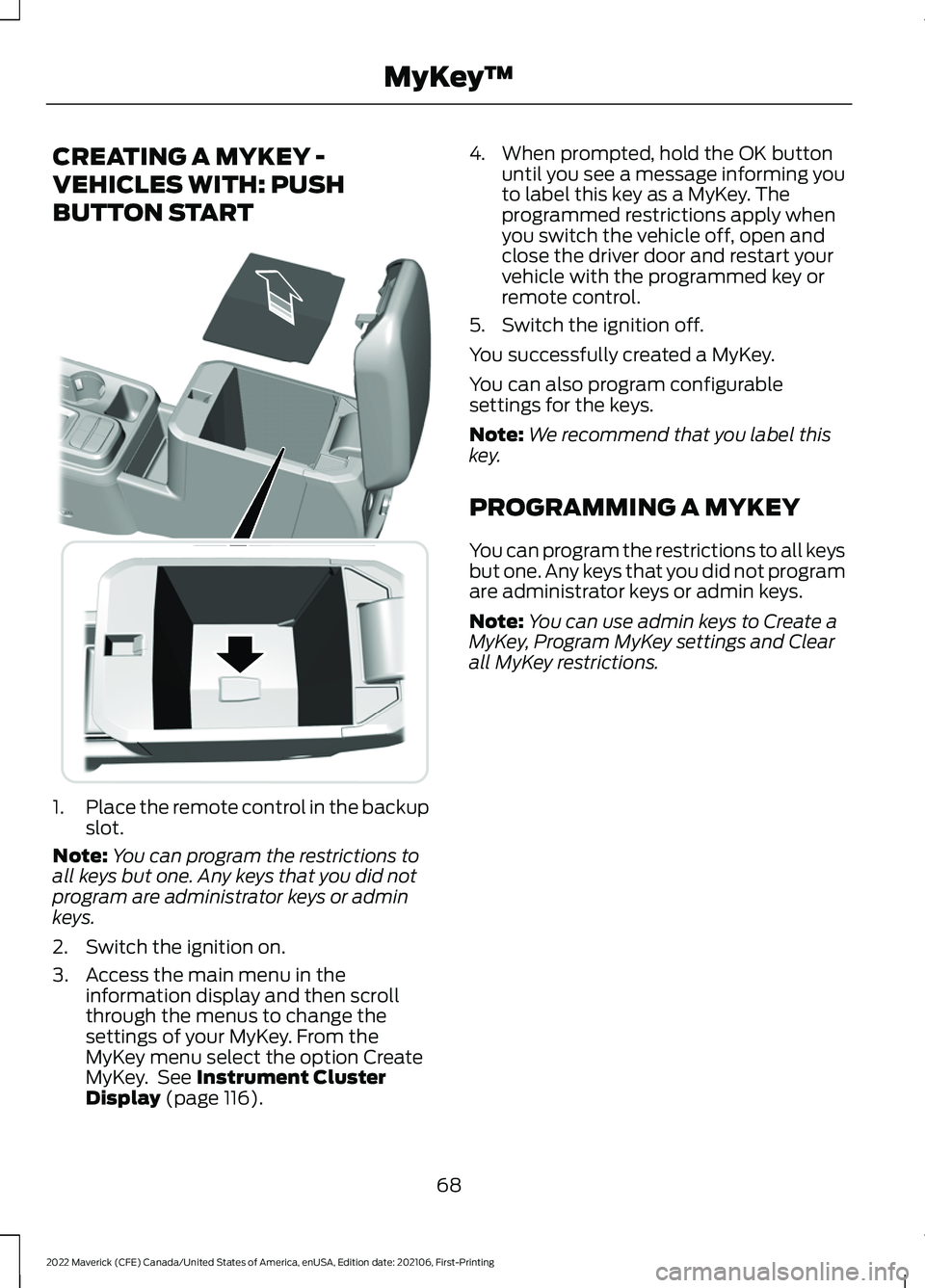
1.
Place the remote control in the backup
slot.
Note: You can program the restrictions to
all keys but one. Any keys that you did not
program are administrator keys or admin
keys.
2. Switch the ignition on.
3. Access the main menu in the information display and then scroll
through the menus to change the
settings of your MyKey. From the
MyKey menu select the option Create
MyKey. See Instrument Cluster
Display (page 116). 4. When prompted, hold the OK button
until you see a message informing you
to label this key as a MyKey. The
programmed restrictions apply when
you switch the vehicle off, open and
close the driver door and restart your
vehicle with the programmed key or
remote control.
5. Switch the ignition off.
You successfully created a MyKey.
You can also program configurable
settings for the keys.
Note: We recommend that you label this
key.
PROGRAMMING A MYKEY
You can program the restrictions to all keys
but one. Any keys that you did not program
are administrator keys or admin keys.
Note: You can use admin keys to Create a
MyKey, Program MyKey settings and Clear
all MyKey restrictions.
68
2022 Maverick (CFE) Canada/United States of America, enUSA, Edition date: 202106, First-Printing MyKey
™E349250
Page 75 of 533
MYKEY – FREQUENTLY ASKED
QUESTIONS - VEHICLES
WITHOUT: PUSH BUTTON START
What is an admin key?
An admin key is a key that you have
not created as a MyKey. See Creating
a MyKey (page 67).
Why am I not able to create a MyKey? The key used to switch the ignition on
is not an admin key. The key used to
switch the ignition on is the only admin
key. There has to be at least one admin
key.
Why am I not able to program a MyKey? The key used to switch the ignition on
is not an admin key. You have not
created any MyKeys. See
Creating a
MyKey (page 67).
Why am I not able to clear the MyKeys? The key used to switch the ignition on
is not an admin key. You have not
created any MyKeys. See
Creating a
MyKey (page 67).
Why is the MyKey distance not
accumulating? The key used to start the engine is an
admin key. You have not created any
MyKeys. See
Creating a MyKey
(page 67). You have cleared the
MyKeys. See Clearing All MyKeys
(page 69).
MYKEY – FREQUENTLY ASKED
QUESTIONS - VEHICLES WITH:
PUSH BUTTON START
What is an admin key? An admin key is a key that you have
not created as a MyKey. See Creating
a MyKey
(page 68). Why am I not able create a MyKey?
You have not placed the admin key in
the backup position. See
Creating a
MyKey (page 68). The key used to
switch the ignition on is not an admin
key. The key used to switch the ignition
on is the only admin key. There has to
be at least one admin key. You did not
switch the ignition off after creating
the last MyKey.
Why am I not able to program a MyKey? The admin key is not inside your
vehicle. The key used to switch the
ignition on is not an admin key. You
have not created any MyKeys. See
Creating a MyKey
(page 68).
Why am I not able to clear the MyKeys? The admin key is not inside your
vehicle. The key used to switch the
ignition on is not an admin key. You
have not created any MyKeys. See
Creating a MyKey
(page 68).
Why is the MyKey distance not
accumulating? The key used to start the engine is an
admin key. An admin key and a MyKey
are inside your vehicle. You have not
created any MyKeys. See
Creating a
MyKey (page 68). You have cleared
the MyKeys. See Clearing All
MyKeys (page 69).
Why am I not able to start the engine
with a MyKey? An admin key and a MyKey are inside
your vehicle. The system recognizes
only the admin key when both are
present.
72
2022 Maverick (CFE) Canada/United States of America, enUSA, Edition date: 202106, First-Printing MyKey
™
Page 77 of 533
Press the button to lock all
doors.
INDIVIDUALLY UNLOCKING AND
LOCKING THE DOORS USING THE
LOCKING BUTTON
The power door lock control is on the driver
and front passenger door panels. Unlock.
A
Lock.
B
OPENING THE DOORS FROM
INSIDE YOUR VEHICLE
Pull the interior door handle twice to
unlock and open a rear door. The first pull
unlocks the door and the second pull
opens the door.
AUTOUNLOCK
WHAT IS AUTOUNLOCK
Autounlock is an unlocking feature that
unlocks the vehicle doors when your
vehicle comes to a stop. AUTOUNLOCK REQUIREMENTS
Autounlock unlocks all the doors when all
of the following occur:
•
The ignition is on, all the doors are
closed and your vehicle is moving at a
speed greater than 12 mph (20 km/h).
• Your vehicle comes to a stop.
• You open the driver door within 10
minutes of switching the ignition off or
to the accessory position.
SWITCHING AUTOUNLOCK ON
AND OFF
1. Using the information display controls on the steering wheel, select Settings.
2. Select Vehicle Settings.
3. Switch
Autounlock on or off.
AUTOLOCK
WHAT IS AUTOLOCK
Autolock is a locking feature that locks
your vehicle doors when you start driving.
AUTOLOCK REQUIREMENTS
Autolock locks all the doors when all of the
following occur:
• All doors are closed.
• The ignition is on.
• Your vehicle reaches a speed greater
than
12 mph (20 km/h).
MISLOCK
WHAT IS MISLOCK
Mislock is a locking feature that warns you
if your vehicle has not locked.
74
2022 Maverick (CFE) Canada/United States of America, enUSA, Edition date: 202106, First-Printing Doors and LocksE267111 E196954
Page 78 of 533
MISLOCK LIMITATIONS
When you press the lock button once, the
direction indicators do not flash if:
•
Any door or the liftgate is open.
• The hood is open.
When you press the lock button twice
within three seconds, the horn sounds if:
• Any door or the liftgate is open.
• The hood is open.
If you switch mislock off, the horn does not
sound if you press the lock button on the
remote control when a door is open.
SWITCHING MISLOCK ON AND
OFF
1. Using the information display controls on the steering wheel, select Settings.
2. Select Vehicle Settings. 3. Switch
Mislock Chirp on or off.
DOORS AND LOCKS AUDIBLE
WARNINGS
Door Ajar Audible Warning
Sounds when a door is not fully closed and
your vehicle is moving.
DOORS AND LOCKS –
TROUBLESHOOTING
DOORS AND LOCKS – WARNING
LAMPS
Door Ajar Warning Lamp It illuminates when you switch
the ignition on and remains on if
any door or the hood is open.
DOORS AND LOCKS – INFORMATION MESSAGES Action
Message
Displays if a door is open. Fully close the door.
Driver Door Ajar
Passenger Door Ajar
Rear Left Door Ajar
Rear Right Door Ajar
75
2022 Maverick (CFE) Canada/United States of America, enUSA, Edition date: 202106, First-Printing Doors and LocksE249859
Page 80 of 533
KEYLESS ENTRY LIMITATIONS
Make sure your remote control is within 3 ft
(1 m) from the front door handles and the
tailgate.
The system could not function if:
• The remote control remains stationary
for about a minute.
• The vehicle battery has no charge.
• The remote control battery has no
charge.
• There is interference causing issues
with the remote control frequencies.
• The remote control is too close to
metal objects or electronic devices, for
example keys or a cell phone.
KEYLESS ENTRY SETTINGS
Switching Keyless Entry On and
Off
1. Switch the ignition on using an original
key that has not been created as a
MyKey.
2. Using the information display controls on the steering wheel, select Settings.
3. Select
Vehicle Settings.
4. Select
Locks.
Reprogramming the Unlocking
Function
You can enable two-stage unlocking
function allowing you to unlock only the
driver door when you touch the unlock
sensor.
Press and hold both the lock and unlock
buttons on the remote control for four
seconds to disable or enable two-stage
unlocking. If you program the unlocking function so
that only the driver door unlocks, you can
unlock all of the other doors from inside
your vehicle using the power door lock
control. You can unlock individual doors
by pulling the interior door handles on
those doors.
USING KEYLESS ENTRY
Unlocking the Doors
With your passive key within
3 ft (1 m) of
your vehicle, touch the unlock sensor on
the back of the door handle for a brief
period and then pull on the door handle to
unlock, being careful not to touch the lock
sensor at the same time or pull on the door
handle too quickly. The intelligent access
system requires a brief delay to
authenticate your intelligent access key.
Locking the Doors With your passive key within
3 ft (1 m) of
your vehicle, touch the outer door handle
lock sensor for approximately one second
to lock, being careful not to touch the
unlock sensor on the back of the door
handle at the same time. After locking, you
can immediately pull on the door handle
to confirm locking occurred without
inadvertently unlocking.
77
2022 Maverick (CFE) Canada/United States of America, enUSA, Edition date: 202106, First-Printing Keyless Entry
(If Equipped)E248553 E248554