reset FORD MAVERICK 2022 Owner's Manual
[x] Cancel search | Manufacturer: FORD, Model Year: 2022, Model line: MAVERICK, Model: FORD MAVERICK 2022Pages: 533, PDF Size: 9.58 MB
Page 328 of 533
PREPARING YOUR VEHICLE
FOR STORAGE
If you plan on storing your vehicle for 30
days or more, the following maintenance
recommendations ensures your vehicle
stays in good operating condition.
Under various conditions, long-term
storage may lead to degraded engine
performance or failure unless you use
specific precautions to preserve your
vehicle.
General
•
Store all vehicles in a dry, ventilated
place.
• If vehicles are stored outside, they
require regular maintenance to protect
against rust and weather damage.
• Make sure all linkages, cables, levers
and pins under your vehicle are covered
with grease to prevent rust.
• Move vehicles at least 25 ft (7.5 m)
every 15 days to lubricate working parts
and prevent corrosion.
• Fill the fuel tank with high-quality fuel
until the first automatic shutoff of the
fuel pump nozzle.
Engine
• Change the engine oil and filter prior to
storage because used engine oil
contains contaminants which may
cause engine damage.
• Start the engine every 15 days for a
minimum of 15 minutes. Run at fast
idle with the climate controls set to
defrost until the engine reaches normal
operating temperature.
• With your foot on the brake, shift
through all the gears while the engine
is running. Body
•
Wash your vehicle thoroughly to
remove dirt, grease, oil, tar or mud from
exterior surfaces, rear-wheel housings
and the underside of front fenders.
• Periodically wash your vehicle if it is
stored in exposed locations.
• Touch-up exposed or primed metal to
prevent rust.
• Cover chrome and stainless steel parts
with a thick coat of auto wax to prevent
discoloration. Re-wax as necessary
when you wash your vehicle.
• Lubricate all hood, door and luggage
compartment hinges and latches with
a light grade oil.
• Cover interior trim to prevent fading.
• Keep all rubber parts free from oil and
solvents.
Hybrid Battery Systems
We recommend the following actions for
your vehicle:
• When storing your vehicle for greater
than 30 days the state of charge
should be approximately 50%.
Additionally we recommend
disconnecting the 12V battery which
will reduce system loads on the HV
battery.
12 Volt Battery
• Check and recharge as necessary. Keep
connections clean.
Note: It is necessary to reset memory
features if you disconnect the battery
cables.
Brakes
Make sure the brakes and parking brake
release fully.
325
2022 Maverick (CFE) Canada/United States of America, enUSA, Edition date: 202106, First-Printing Storing Your Vehicle
Page 343 of 533
Highway Hazards
No matter how carefully you drive,
there is always the possibility that
you could eventually have a flat
tire on the highway. Drive slowly
to the closest safe area out of
traffic. This could further damage
the flat tire, but your safety is
more important.
If you feel a sudden vibration or
ride disturbance while driving, or
you suspect your tire or vehicle
has been damaged, immediately
reduce your speed. Drive with
caution until you can safely pull
off the road. Stop and inspect the
tires for damage. If a tire is
under-inflated or damaged,
deflate it, remove the wheel and
replace it with your spare tire and
wheel. If you cannot detect a
cause, have the vehicle towed to
the nearest repair facility or tire
dealer to have the vehicle
inspected.
Tire and Wheel Alignment
A bad jolt from hitting a curb or
pothole can cause the front end
of your vehicle to become
misaligned or cause damage to
your tires. If your vehicle seems to
pull to one side when you are
driving, the wheels could be out of
alignment. Have an authorized
dealer check the wheel alignment
periodically.
Wheel misalignment in the front
or the rear can cause uneven and
rapid treadwear of your tires and
should be corrected by an
authorized dealer.
INSPECTING THE WHEEL
VALVE STEMS
Check the valve stems for holes,
cracks, or cuts that could permit
air leakage.
TIRE ROTATION
WARNING: If the tire label
shows different tire pressures for
the front and rear tires and the
vehicle has a tire pressure
monitoring system, then you
need to update the settings for
the system sensors. Always
perform the system reset
procedure after tire rotation. If
you do not reset the system, it
may not provide a low tire
pressure warning when
necessary.
Rotating your tires at the
recommended interval will help
your tires wear more evenly,
providing better tire performance
and longer tire life.
Note: If your tires show any uneven
wear have the alignment checked
by an authorized dealer before
rotating tires.
340
2022 Maverick (CFE) Canada/United States of America, enUSA, Edition date: 202106, First-Printing Tire Care
Page 376 of 533
CREATING A VEHICLE WI-FI
HOTSPOT - VEHICLES WITH:
SYNC 3
You can create a Wi-Fi hotspot in your
vehicle and allow devices to connect to it
for access to the Internet.
Press the button to enter the
settings menu.
1. Select FordPass Connect.
2. Select
Vehicle Hotspot.
Note: The vehicle hotspot default setting
is on.
3. Select
Settings.
4. Make sure that you have Wi-Fi visibility
switched on.
Note: The Wi-Fi Visibility default setting is
on.
Finding the Wi-Fi Hotspot Name
and Password Press the button to enter the
settings menu.
1. Select
FordPass Connect.
2. Select
Vehicle Hotspot.
3. Select
Settings.
Note: The SSID is the hotspot name.
4. Scroll to
Hide password.
5. Uncheck the box.
Connecting a Device to the Wi-Fi
Hotspot
1. On your device, switch on Wi-Fi and select the hotspot from the list of
available Wi-Fi networks.
2. When prompted, enter the password. Purchasing a Data Plan
1. Connect a device to the hotspot.
Note:
The vehicle network carrier ’s portal
opens on your device.
2. If the portal does not open on your device, open a website and it redirects
to the vehicle network carrier ’s portal.
Note: Secure websites do not redirect.
Note: If you have an active plan, the system
does not redirect to the vehicle network
carrier ’s portal when you connect a device.
Visit the vehicle network carrier ’s website
to purchase more data.
Note: If data usage information is available
in the vehicle hotspot menu, it is
approximate.
Note: If you carry out a master reset, the
system does not remove your vehicle from
your vehicle network carrier ’s account. To
remove your vehicle from the account,
contact your vehicle network carrier.
Note: The vehicle network carrier provides
Vehicle Hotspot services, subject to your
vehicle network carrier agreement, coverage
and availability.
CHANGING THE VEHICLE WI-
FI HOTSPOT NAME OR
PASSWORD Press the button to enter the
settings menu.
1. Select
FordPass Connect.
2. Select
Vehicle Hotspot.
3. Select
Settings.
4. Select
SSID: ___.
5. Enter your required SSID.
6. Select
Done.
7. Select
Password: ___.
373
2022 Maverick (CFE) Canada/United States of America, enUSA, Edition date: 202106, First-Printing Vehicle Wi-Fi Hotspot
Page 379 of 533
Turning off the Audio
Press the button to turn off the
audio.
Press the button again to turn on
the audio.
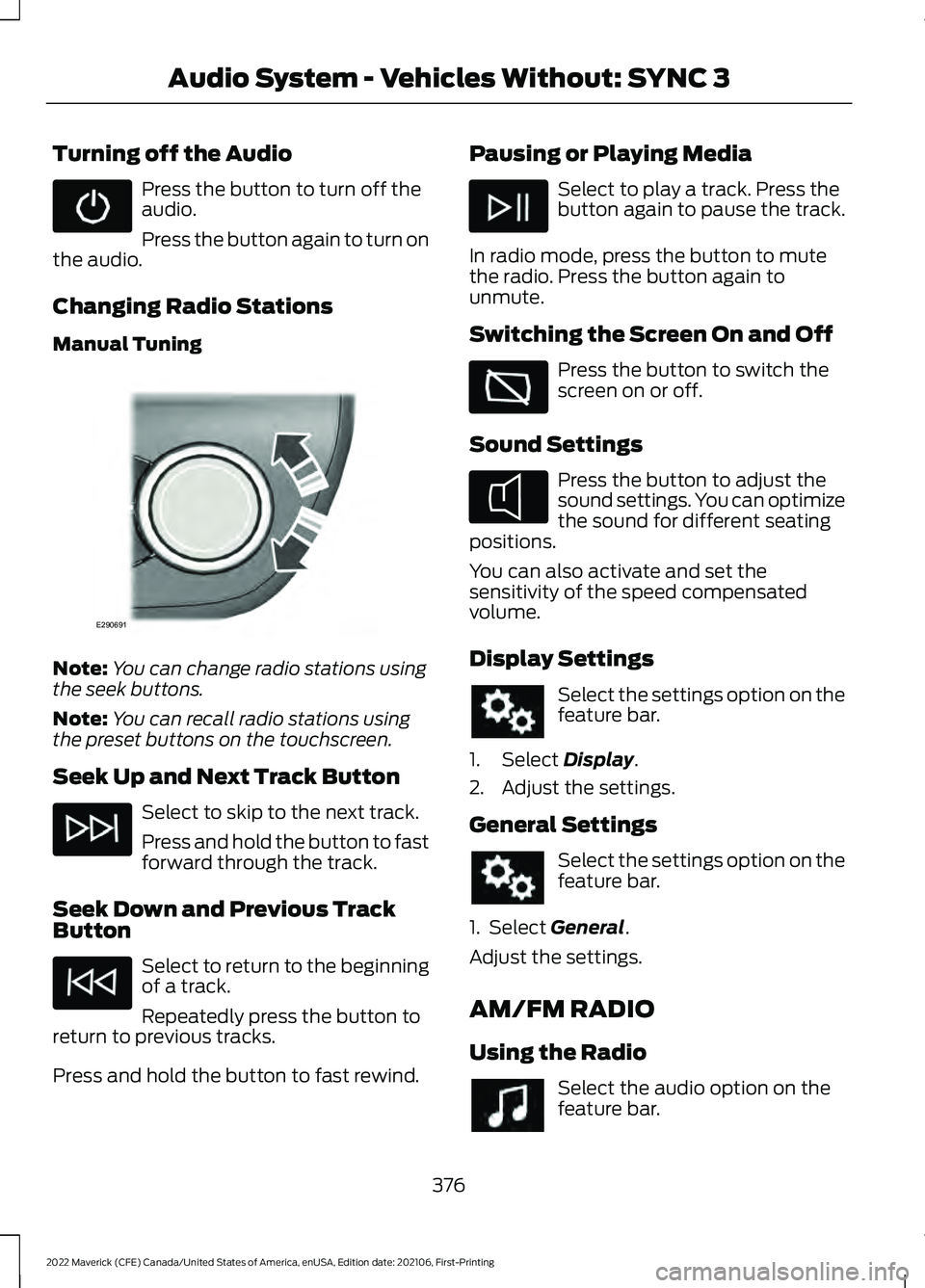
Changing Radio Stations
Manual Tuning Note:
You can change radio stations using
the seek buttons.
Note: You can recall radio stations using
the preset buttons on the touchscreen.
Seek Up and Next Track Button Select to skip to the next track.
Press and hold the button to fast
forward through the track.
Seek Down and Previous Track
Button Select to return to the beginning
of a track.
Repeatedly press the button to
return to previous tracks.
Press and hold the button to fast rewind. Pausing or Playing Media Select to play a track. Press the
button again to pause the track.
In radio mode, press the button to mute
the radio. Press the button again to
unmute.
Switching the Screen On and Off Press the button to switch the
screen on or off.
Sound Settings Press the button to adjust the
sound settings. You can optimize
the sound for different seating
positions.
You can also activate and set the
sensitivity of the speed compensated
volume.
Display Settings Select the settings option on the
feature bar.
1. Select Display.
2. Adjust the settings.
General Settings Select the settings option on the
feature bar.
1. Select
General.
Adjust the settings.
AM/FM RADIO
Using the Radio Select the audio option on the
feature bar.
376
2022 Maverick (CFE) Canada/United States of America, enUSA, Edition date: 202106, First-Printing Audio System - Vehicles Without: SYNC 3 E290691 E354722
Page 380 of 533
Selecting a Radio Station From a List
1. Select Sources.
2. Select a radio source.
3. Select
Browse.
4. Select a radio station from the list.
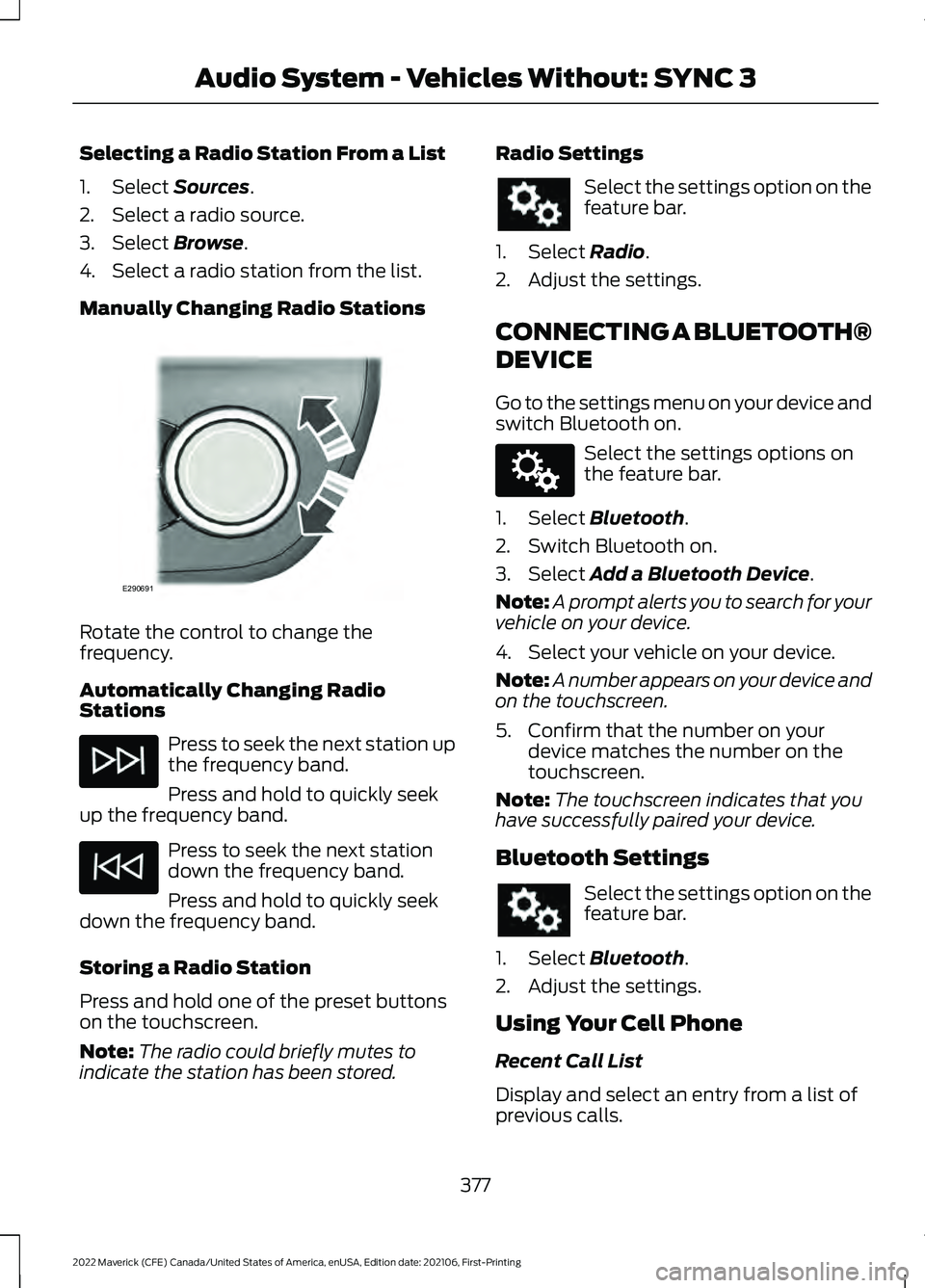
Manually Changing Radio Stations Rotate the control to change the
frequency.
Automatically Changing Radio
Stations
Press to seek the next station up
the frequency band.
Press and hold to quickly seek
up the frequency band. Press to seek the next station
down the frequency band.
Press and hold to quickly seek
down the frequency band.
Storing a Radio Station
Press and hold one of the preset buttons
on the touchscreen.
Note: The radio could briefly mutes to
indicate the station has been stored. Radio Settings Select the settings option on the
feature bar.
1. Select Radio.
2. Adjust the settings.
CONNECTING A BLUETOOTH®
DEVICE
Go to the settings menu on your device and
switch Bluetooth on. Select the settings options on
the feature bar.
1. Select
Bluetooth.
2. Switch Bluetooth on.
3. Select
Add a Bluetooth Device.
Note: A prompt alerts you to search for your
vehicle on your device.
4. Select your vehicle on your device.
Note: A number appears on your device and
on the touchscreen.
5. Confirm that the number on your device matches the number on the
touchscreen.
Note: The touchscreen indicates that you
have successfully paired your device.
Bluetooth Settings Select the settings option on the
feature bar.
1. Select
Bluetooth.
2. Adjust the settings.
Using Your Cell Phone
Recent Call List
Display and select an entry from a list of
previous calls.
377
2022 Maverick (CFE) Canada/United States of America, enUSA, Edition date: 202106, First-Printing Audio System - Vehicles Without: SYNC 3E290691 E142607
Page 386 of 533
AUDIO SYSTEM – TROUBLESHOOTING
Possible Cause and Resolution
Symptom
The system is not func-
tioning. •
You can reset the system to restore functionality that has
stopped working.
•The system reset is designed to restore functionality
and does not delete any personal data that you have
stored.
I want to delete personal
data from the system. •
A master reset is required to restore the system back to
factory settings.
•This deletes any personal data that you have stored.
Resetting the System
1. Simultaneously press and hold the seek up and the audio unit power
buttons until the screen goes black.
2. Wait three minutes to allow the system
to complete the reset.
Master Reset Select the settings option on the
feature bar.
1. Select General.
2. Select
Master Reset.
3. Select
Continue.
Note: If you carry out a master reset, the
system does not remove your vehicle from
your vehicle network carrier ’s account. To
remove your vehicle from the account,
contact your vehicle network carrier.
Note: If you carry out a master reset, the
system removes any authorized users and
personal data.
383
2022 Maverick (CFE) Canada/United States of America, enUSA, Edition date: 202106, First-Printing Audio System - Vehicles Without: SYNC 3
Page 387 of 533
AUDIO SYSTEM
PRECAUTIONS
WARNING: Driving while distracted
can result in loss of vehicle control, crash
and injury. We strongly recommend that
you use extreme caution when using any
device that may take your focus off the
road. Your primary responsibility is the
safe operation of your vehicle. We
recommend against the use of any
hand-held device while driving and
encourage the use of voice-operated
systems when possible. Make sure you
are aware of all applicable local laws
that may affect the use of electronic
devices while driving.
Listening to loud audio for long periods of
time could damage your hearing.
SWITCHING THE AUDIO UNIT
ON AND OFF Press the button on the volume
control.
SELECTING THE AUDIO
SOURCE
1. Press your preferred audio source.
Note: Available audio sources are listed
along the top of the radio screen.
PLAYING OR PAUSING THE
AUDIO SOURCE Press to pause playback. Press
again to resume playback.
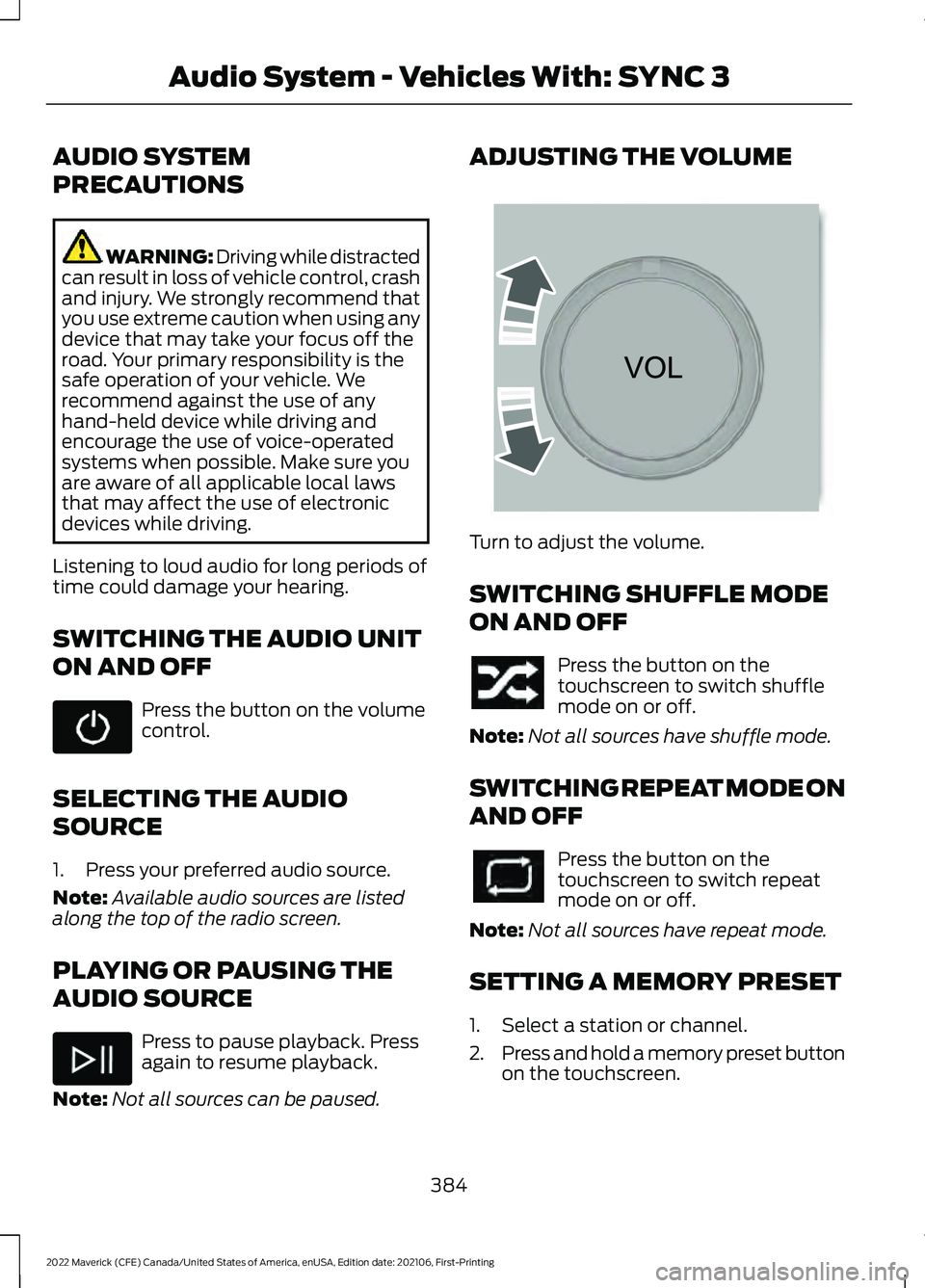
Note: Not all sources can be paused. ADJUSTING THE VOLUME
Turn to adjust the volume.
SWITCHING SHUFFLE MODE
ON AND OFF
Press the button on the
touchscreen to switch shuffle
mode on or off.
Note: Not all sources have shuffle mode.
SWITCHING REPEAT MODE ON
AND OFF Press the button on the
touchscreen to switch repeat
mode on or off.
Note: Not all sources have repeat mode.
SETTING A MEMORY PRESET
1. Select a station or channel.
2. Press and hold a memory preset button
on the touchscreen.
384
2022 Maverick (CFE) Canada/United States of America, enUSA, Edition date: 202106, First-Printing Audio System - Vehicles With: SYNC 3 E265373
Page 388 of 533
Note:
The audio mutes briefly while the
system saves the preset and returns once it
is stored.
Note: You can save presets from multiple
sources to the memory preset bar.
MUTING THE AUDIO Press the button on the steering
wheel to mute the audio.
Press to mute the signal. Press
again to restore the signal.
ADJUSTING THE SOUND
SETTINGS
Balance and Fade (If Equipped)
1. Access the vehicle drawer on the touchscreen.
2. Press
SETTINGS.
3. Press
Sound.
4. Press
Balance / Fade.
5. Press the arrows to adjust the settings.
Tone Settings
1. Access the vehicle drawer on the touchscreen.
2. Press
SETTINGS.
3. Press
Sound.
4. Press
Tone Settings.
5. Use the slider bar to adjust the settings.
Speed Compensated Volume
1. Access the vehicle drawer on the touchscreen.
2. Press
SETTINGS.
3. Press
Sound.
4. Press
Speed Compensated Volume. 5. Press a setting.
Occupancy Mode
(If Equipped)
1. Access the vehicle drawer on the touchscreen.
2. Press
SETTINGS.
3. Press
Sound.
4. Press
Occupancy Mode.
5. Press a setting.
Sound Mode
(If Equipped)
1. Access the vehicle drawer on the touchscreen.
2. Press
SETTINGS.
3. Press
Sound.
4. Press
Sound Mode.
5. Press a setting.
SETTING THE CLOCK AND
DATE
1. Access the vehicle drawer on the touchscreen.
2. Press
SETTINGS.
3. Press
Clock.
4. Set the time.
Note: The
AM and PM options are not
available if 24-hour mode is on.
5. Press the arrows to adjust the settings.
Switching Automatic Time
Updates On and Off
1. Access the vehicle drawer on the touchscreen.
2. Press
SETTINGS.
3. Press
Clock.
4. Switch
Automatic time zone update
on or off.
385
2022 Maverick (CFE) Canada/United States of America, enUSA, Edition date: 202106, First-Printing Audio System - Vehicles With: SYNC 3
Page 401 of 533
Description
Voice Command
The system does not confirm before placing a call.
Phone Confirmation Off
The system displays a short list of available commands.
Voice Command Lists On
The system does not display the list of commands.
Voice Command Lists Off
You can use the volume control to adjust
the volume of the system voice prompts.
While prompt is active, adjust the volume
control up or down to your desired setting.
Note: Depending on the current climate
control settings, the fan speed may
automatically go down while issuing voice
commands or while making and receiving
phone calls via SYNC to reduce the amount
of background noise in the vehicle. The fan
speed will automatically return to normal
operation once the voice session ends. You
can adjust the fan speed during a voice
session, simply press the fan buttons (or
turn the fan knob) to increase or decrease
the fan speed to the setting you prefer.
To disable this automatic fan speed
reduction feature during voice sessions,
press and hold the climate control AC and
Recirculated air buttons simultaneously,
release and then increase fan speed within
2 seconds. To re-enable this feature, repeat
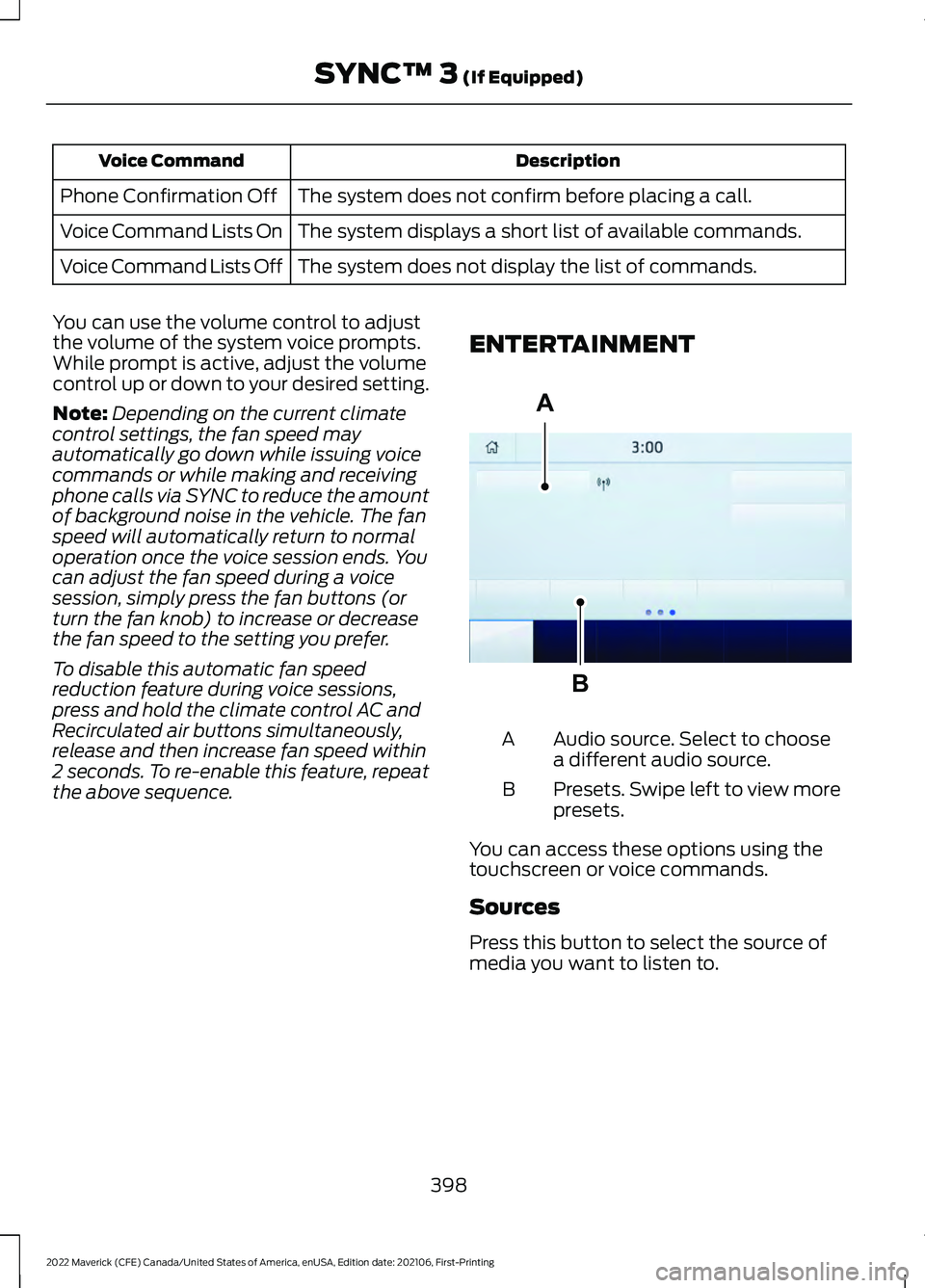
the above sequence. ENTERTAINMENT Audio source. Select to choose
a different audio source.
A
Presets. Swipe left to view more
presets.
B
You can access these options using the
touchscreen or voice commands.
Sources
Press this button to select the source of
media you want to listen to.
398
2022 Maverick (CFE) Canada/United States of America, enUSA, Edition date: 202106, First-Printing SYNC™ 3 (If Equipped)A
BE293491
Page 402 of 533
Menu Item
AM
FM 1
SIRIUS
CD
The name of the USB that is plugged in displays here.
USB
Bluetooth Stereo
If you have SYNC 3 compatible apps on your connected smart phone, they
display here as individual source selections.
Apps
1 This feature may not be available in all markets and requires an active subscription.
AM/FM Radio
Tuning a Station
You can use the tune or seek controls on
the radio bezel to select a station.
To tune a station using the
touchscreen, select: Menu Item
Direct Tune
A pop up appears, allowing you to type in
the frequency of a station. You can only
enter a valid station for the source you are
currently listening to.
You can press the backspace button to
delete the previously entered number. Once you have entered the station's
call numbers, you can select: Action and Descrip-
tion
Menu Item
Press to begin
playing the station
you have entered.
Enter
Press to exit
without changing
the station.
Cancel
Presets
To set a new preset, tune to the station
and then press and hold one of the
memory preset buttons. The audio mutes
briefly while the system saves the station
and then returns.
You may be able to add additional preset
pages using the settings option on the
feature bar.
399
2022 Maverick (CFE) Canada/United States of America, enUSA, Edition date: 202106, First-Printing SYNC™ 3 (If Equipped)