service FORD MAVERICK 2022 Workshop Manual
[x] Cancel search | Manufacturer: FORD, Model Year: 2022, Model line: MAVERICK, Model: FORD MAVERICK 2022Pages: 533, PDF Size: 9.58 MB
Page 355 of 533
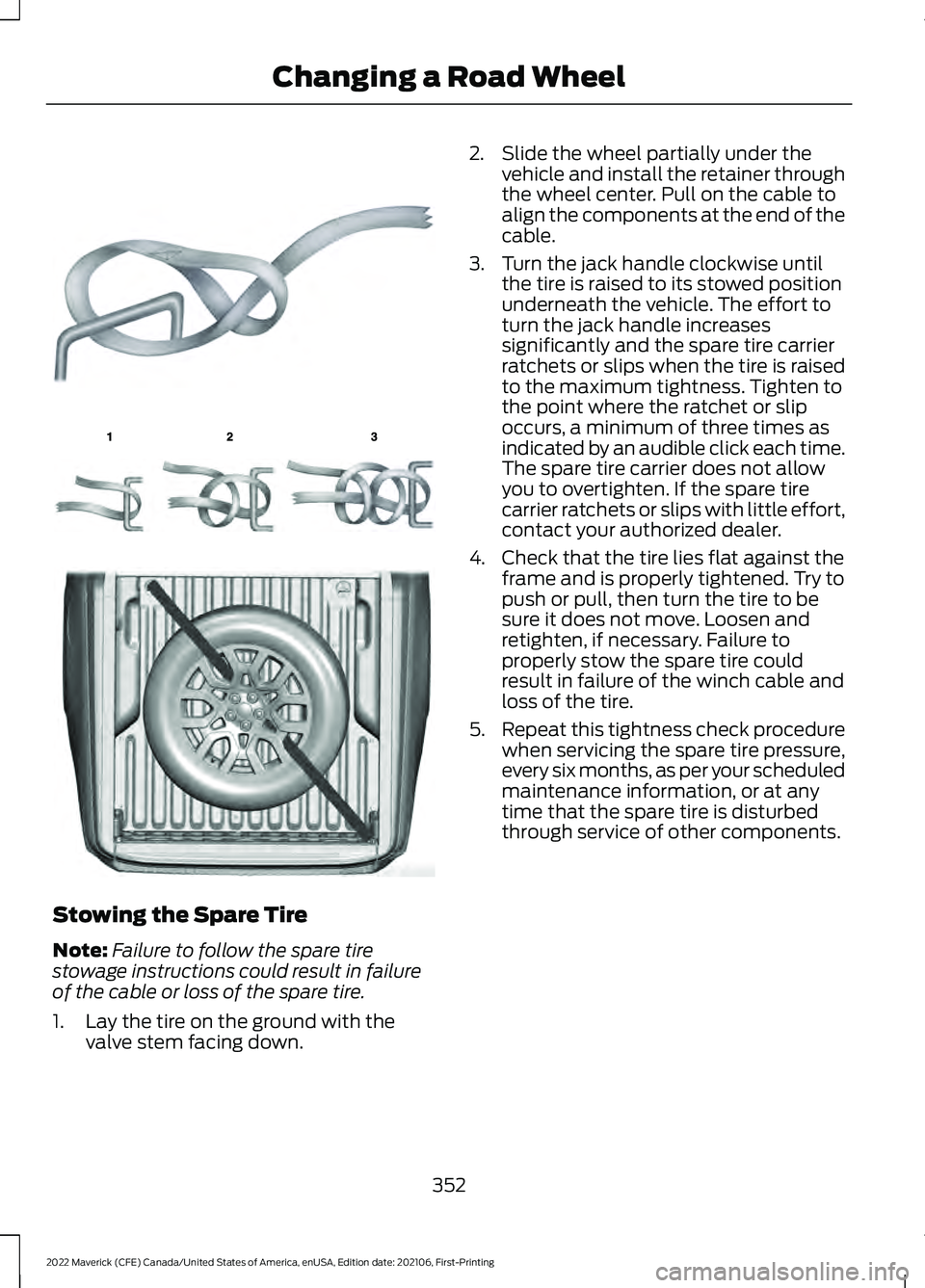
Stowing the Spare Tire
Note:
Failure to follow the spare tire
stowage instructions could result in failure
of the cable or loss of the spare tire.
1. Lay the tire on the ground with the valve stem facing down. 2. Slide the wheel partially under the
vehicle and install the retainer through
the wheel center. Pull on the cable to
align the components at the end of the
cable.
3. Turn the jack handle clockwise until the tire is raised to its stowed position
underneath the vehicle. The effort to
turn the jack handle increases
significantly and the spare tire carrier
ratchets or slips when the tire is raised
to the maximum tightness. Tighten to
the point where the ratchet or slip
occurs, a minimum of three times as
indicated by an audible click each time.
The spare tire carrier does not allow
you to overtighten. If the spare tire
carrier ratchets or slips with little effort,
contact your authorized dealer.
4. Check that the tire lies flat against the frame and is properly tightened. Try to
push or pull, then turn the tire to be
sure it does not move. Loosen and
retighten, if necessary. Failure to
properly stow the spare tire could
result in failure of the winch cable and
loss of the tire.
5. Repeat this tightness check procedure
when servicing the spare tire pressure,
every six months, as per your scheduled
maintenance information, or at any
time that the spare tire is disturbed
through service of other components.
352
2022 Maverick (CFE) Canada/United States of America, enUSA, Edition date: 202106, First-Printing Changing a Road WheelE142906 E143746 E355267
Page 368 of 533
AIR CONDITIONING SYSTEM
CAPACITY AND
SPECIFICATION - 2.0L
ECOBOOST™
WARNING: The air conditioning
refrigerant system contains refrigerant
under high pressure. Only qualified
personnel should service the air
conditioning refrigerant system. Opening the air conditioning refrigerant system
can cause personal injury.
Use refrigerant and oil that meets the
defined specifications.
If you do not use refrigerant and oil that
meets the defined specifications, it could
result in:
• Component damage that your vehicle
warranty does not cover.
• Reduced vehicle performance.
Capacities Refrigerant Oil
Refrigerant
Variant
3.4 fl oz (100 ml)
19.4 oz (0.55 kg)
All.
Materials Specification
Name
WSS-M17B21-A
R-1234yf Refrigerant(U.S.)
R-1234yf Refrigerant / Frigorigène R-1234yf(Canada)
YN-33-A(U.S.)
HS7Z-19B519-BA(Canada)
WSS-M2C300-A2
Motorcraft® R-1234yf Refrigerant PAG Oil(U.S.)
Motorcraft® R-1234yf Refrigerant PAG Oil / Huile
PAG pour frigorigène R-1234yf Motorcraft®(Canada)
YN-35(U.S. & Canada)
365
2022 Maverick (CFE) Canada/United States of America, enUSA, Edition date: 202106, First-Printing Capacities and Specifications
Page 369 of 533
AIR CONDITIONING SYSTEM
CAPACITY AND
SPECIFICATION - 2.5L, HYBRID
ELECTRIC VEHICLE (HEV)
WARNING: The air conditioning
refrigerant system contains refrigerant
under high pressure. Only qualified
personnel should service the air
conditioning refrigerant system. Opening the air conditioning refrigerant system
can cause personal injury.
Use refrigerant and oil that meets the
defined specifications.
If you do not use refrigerant and oil that
meets the defined specifications, it could
result in:
• Component damage that your vehicle
warranty does not cover.
• Reduced vehicle performance.
Capacities Refrigerant Oil
Refrigerant
Variant
5.1 fl oz (150 ml)
17.6 oz (0.5 kg)
All.
Materials Specification
Name
WSS-M17B21-A
R-1234yf Refrigerant(U.S.)
R-1234yf Refrigerant / Frigorigène R-1234yf(Canada)
YN-33-A(U.S.)
HS7Z-19B519-BA(Canada)
WSS-M2C31-B2
Motorcraft® R-1234yf Refrigerant POE Oil(U.S.)
Motorcraft® R-1234yf Refrigerant POE Oil / Huile
POE pour frigorigène R-1234yf Motorcraft®(Canada)
YN-34(U.S. & Canada)
WASHER FLUID SPECIFICATION
Capacities Quantity
Variant
Fill as required.
All.
366
2022 Maverick (CFE) Canada/United States of America, enUSA, Edition date: 202106, First-Printing Capacities and Specifications
Page 372 of 533
WHAT IS A CONNECTED
VEHICLE
A connected vehicle has technology that
allows your vehicle to connect to a mobile
network and for you to access a range of
features. When used in conjunction with
the FordPass app, it could allow you to
monitor and control your vehicle further,
for example checking the tire pressures,
and the vehicle location. For additional
information, refer to the local Ford website.
CONNECTED VEHICLE
REQUIREMENTS
Connected service and related feature
functionality requires a compatible vehicle
network.
Some remote features require additional
service activation. Log in to your Ford
account for details. Some restrictions, third
party terms and message or data rates
may apply.
CONNECTED VEHICLE
LIMITATIONS
Evolving technology, cellular networks, or
regulations could affect functionality and
availability, or continued provision of some
features. These changes could even stop
some features from functioning.
CONNECTING THE VEHICLE TO
A MOBILE NETWORK
WHAT IS THE MODEM
The modem allows access to a
range of features built into your
vehicle. ENABLING AND DISABLING THE
MODEM - VEHICLES WITH: SYNC
3
1. Press Settings.
2. Press
FordPass Connect.
3. Press
Connectivity Settings.
4. Switch connectivity features on or off.
CONNECTING FORDPASS TO THE
MODEM
1. Make sure that the modem is enabled using the vehicle settings menu.
2. Open the FordPass app on your device
and log in.
3. Add your vehicle or select your vehicle if already added.
4. Select the option to activate your vehicle.
5. Make sure that the name on the screen
matches the name shown in your
FordPass account.
6. Confirm that FordPass account is connected to the modem.
CONNECTING THE VEHICLE TO
A WI-FI NETWORK
1. Press
Settings.
2. Press
Wi-Fi.
3. Switch
Wi-Fi on.
4. Press
View Available Networks.
5. Select an available Wi-Fi network.
Note: Enter the network password to
connect to a secure network.
369
2022 Maverick (CFE) Canada/United States of America, enUSA, Edition date: 202106, First-Printing Connected Vehicle
Page 375 of 533
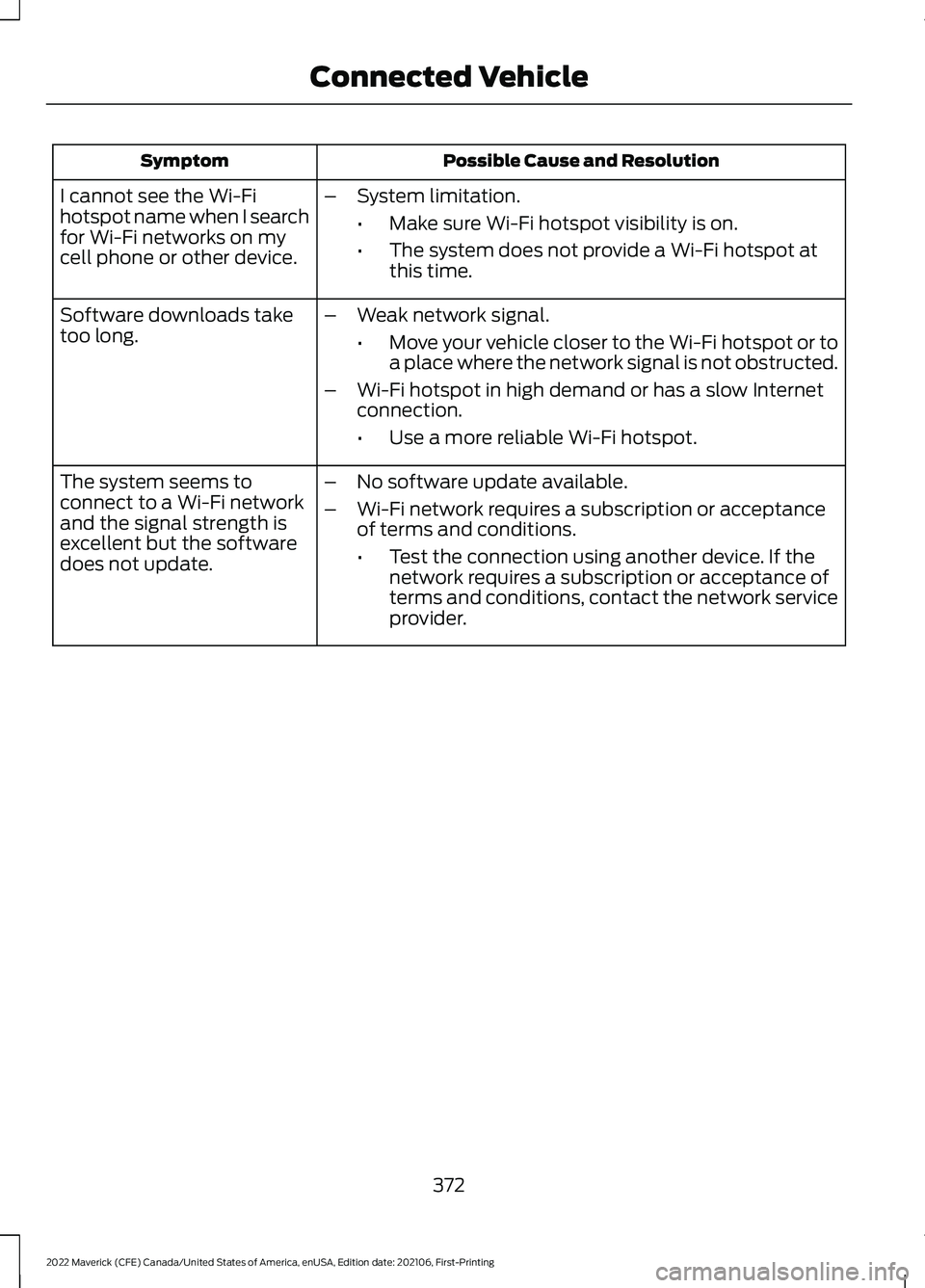
Possible Cause and Resolution
Symptom
I cannot see the Wi-Fi
hotspot name when I search
for Wi-Fi networks on my
cell phone or other device. –
System limitation.
•Make sure Wi-Fi hotspot visibility is on.
• The system does not provide a Wi-Fi hotspot at
this time.
– Weak network signal.
•Move your vehicle closer to the Wi-Fi hotspot or to
a place where the network signal is not obstructed.
– Wi-Fi hotspot in high demand or has a slow Internet
connection.
•Use a more reliable Wi-Fi hotspot.
Software downloads take
too long.
–No software update available.
– Wi-Fi network requires a subscription or acceptance
of terms and conditions.
•Test the connection using another device. If the
network requires a subscription or acceptance of
terms and conditions, contact the network service
provider.
The system seems to
connect to a Wi-Fi network
and the signal strength is
excellent but the software
does not update.
372
2022 Maverick (CFE) Canada/United States of America, enUSA, Edition date: 202106, First-Printing Connected Vehicle
Page 376 of 533
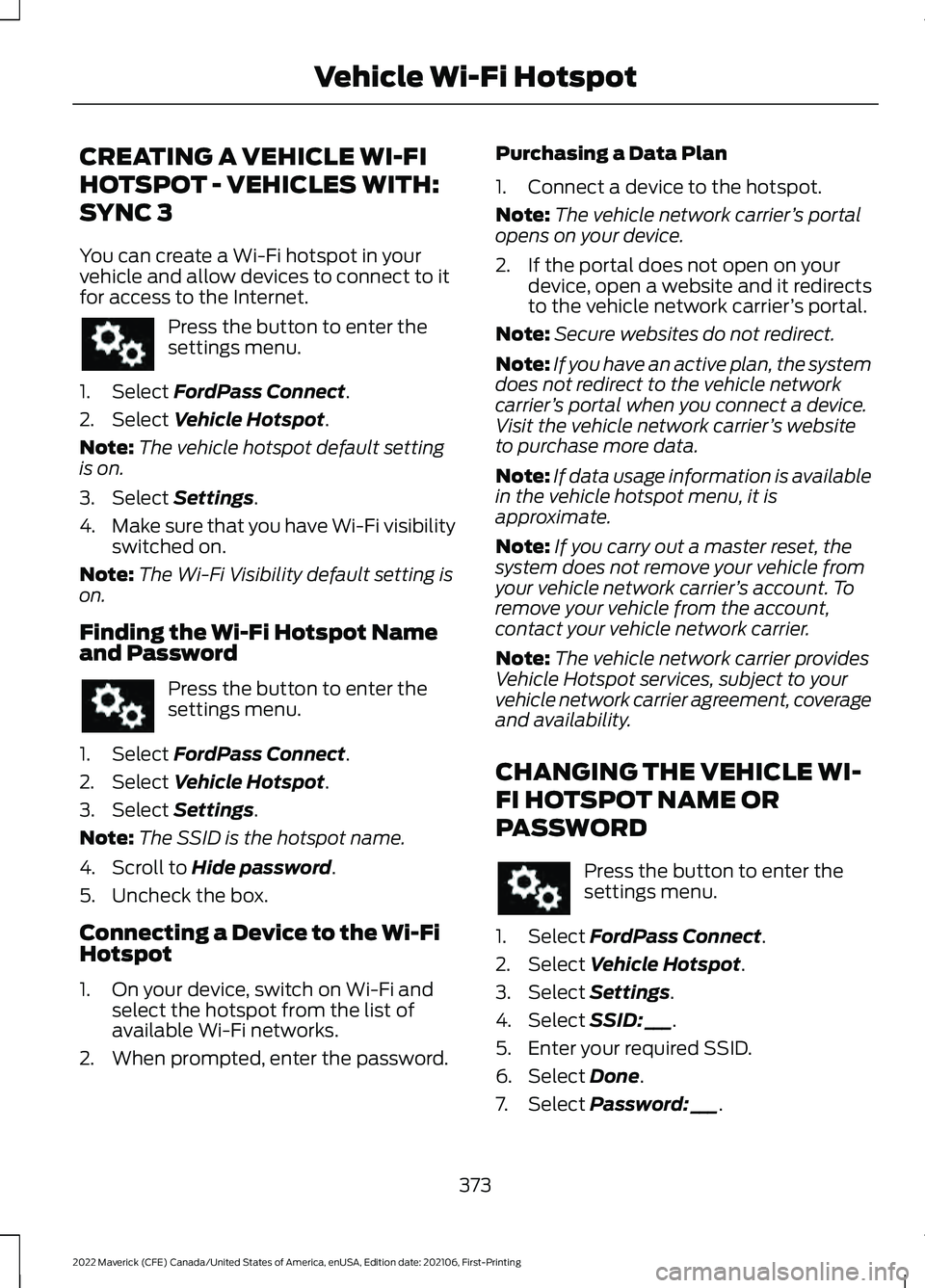
CREATING A VEHICLE WI-FI
HOTSPOT - VEHICLES WITH:
SYNC 3
You can create a Wi-Fi hotspot in your
vehicle and allow devices to connect to it
for access to the Internet.
Press the button to enter the
settings menu.
1. Select FordPass Connect.
2. Select
Vehicle Hotspot.
Note: The vehicle hotspot default setting
is on.
3. Select
Settings.
4. Make sure that you have Wi-Fi visibility
switched on.
Note: The Wi-Fi Visibility default setting is
on.
Finding the Wi-Fi Hotspot Name
and Password Press the button to enter the
settings menu.
1. Select
FordPass Connect.
2. Select
Vehicle Hotspot.
3. Select
Settings.
Note: The SSID is the hotspot name.
4. Scroll to
Hide password.
5. Uncheck the box.
Connecting a Device to the Wi-Fi
Hotspot
1. On your device, switch on Wi-Fi and select the hotspot from the list of
available Wi-Fi networks.
2. When prompted, enter the password. Purchasing a Data Plan
1. Connect a device to the hotspot.
Note:
The vehicle network carrier ’s portal
opens on your device.
2. If the portal does not open on your device, open a website and it redirects
to the vehicle network carrier ’s portal.
Note: Secure websites do not redirect.
Note: If you have an active plan, the system
does not redirect to the vehicle network
carrier ’s portal when you connect a device.
Visit the vehicle network carrier ’s website
to purchase more data.
Note: If data usage information is available
in the vehicle hotspot menu, it is
approximate.
Note: If you carry out a master reset, the
system does not remove your vehicle from
your vehicle network carrier ’s account. To
remove your vehicle from the account,
contact your vehicle network carrier.
Note: The vehicle network carrier provides
Vehicle Hotspot services, subject to your
vehicle network carrier agreement, coverage
and availability.
CHANGING THE VEHICLE WI-
FI HOTSPOT NAME OR
PASSWORD Press the button to enter the
settings menu.
1. Select
FordPass Connect.
2. Select
Vehicle Hotspot.
3. Select
Settings.
4. Select
SSID: ___.
5. Enter your required SSID.
6. Select
Done.
7. Select
Password: ___.
373
2022 Maverick (CFE) Canada/United States of America, enUSA, Edition date: 202106, First-Printing Vehicle Wi-Fi Hotspot
Page 385 of 533
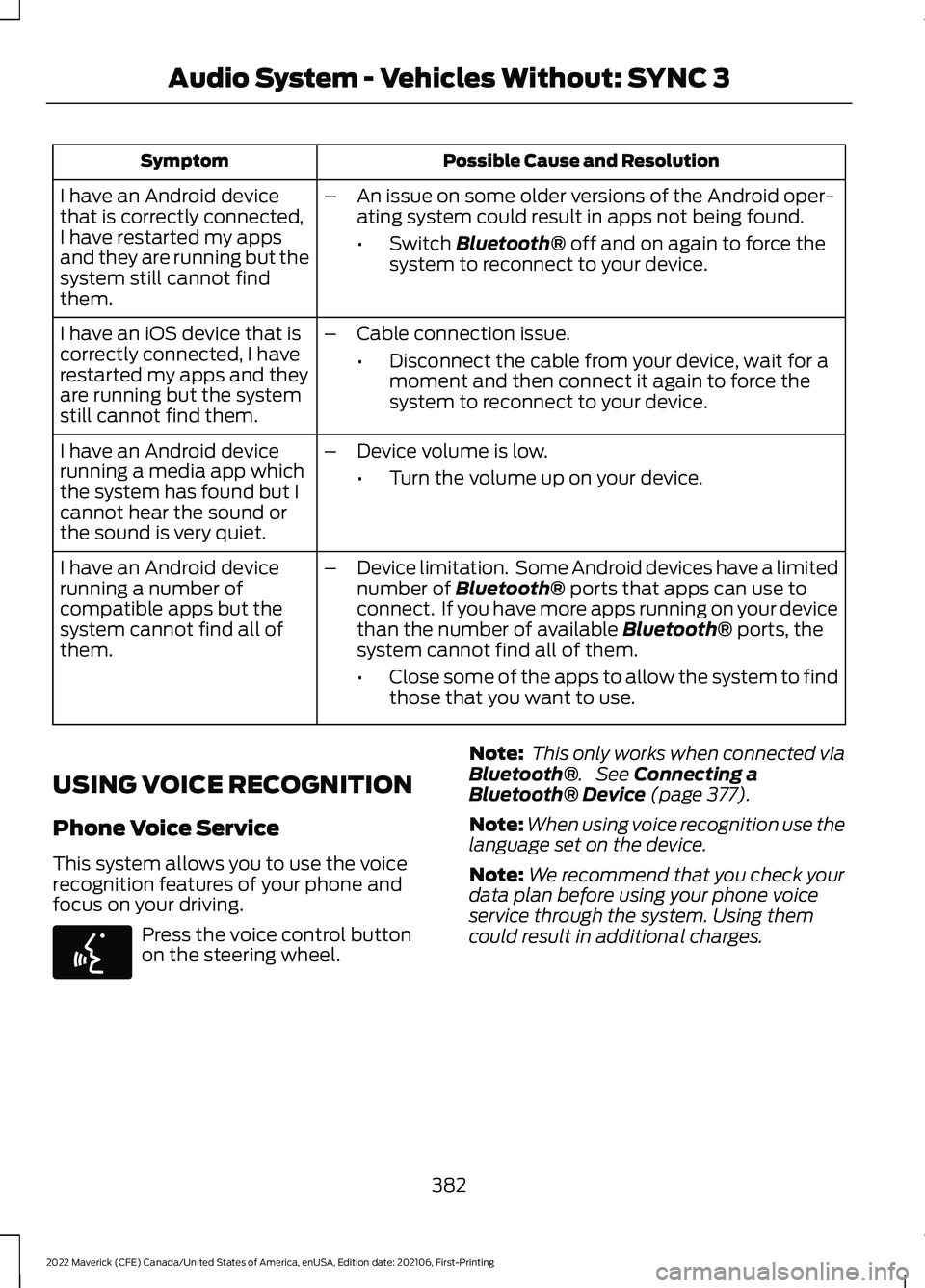
Possible Cause and Resolution
Symptom
I have an Android device
that is correctly connected,
I have restarted my apps
and they are running but the
system still cannot find
them. –
An issue on some older versions of the Android oper-
ating system could result in apps not being found.
•Switch Bluetooth® off and on again to force the
system to reconnect to your device.
I have an iOS device that is
correctly connected, I have
restarted my apps and they
are running but the system
still cannot find them. –
Cable connection issue.
•Disconnect the cable from your device, wait for a
moment and then connect it again to force the
system to reconnect to your device.
I have an Android device
running a media app which
the system has found but I
cannot hear the sound or
the sound is very quiet. –
Device volume is low.
•Turn the volume up on your device.
I have an Android device
running a number of
compatible apps but the
system cannot find all of
them. –
Device limitation. Some Android devices have a limited
number of
Bluetooth® ports that apps can use to
connect. If you have more apps running on your device
than the number of available
Bluetooth® ports, the
system cannot find all of them.
• Close some of the apps to allow the system to find
those that you want to use.
USING VOICE RECOGNITION
Phone Voice Service
This system allows you to use the voice
recognition features of your phone and
focus on your driving. Press the voice control button
on the steering wheel.
Note:
This only works when connected via
Bluetooth®
. See Connecting a
Bluetooth® Device (page 377).
Note: When using voice recognition use the
language set on the device.
Note: We recommend that you check your
data plan before using your phone voice
service through the system. Using them
could result in additional charges.
382
2022 Maverick (CFE) Canada/United States of America, enUSA, Edition date: 202106, First-Printing Audio System - Vehicles Without: SYNC 3E142599
Page 403 of 533
SiriusXM® Satellite Radio (If
Activated)
Note:
This feature may not be available in
all markets and requires an active
subscription. SiriusXM satellite radio is a
subscription-based satellite radio service
that broadcasts a variety of music, sports,
news, weather, traffic and entertainment
programming. Your factory-installed
SiriusXM satellite radio system includes
hardware and a limited subscription term
that begins on the date of sale or lease of
your vehicle. See an authorized dealer for
availability.
For more information on extended
subscription terms (a service fee is
required), the online media player and a
list of SiriusXM satellite radio channels,
and other features, please visit
www.siriusxm.com in the United States,
www.siriusxm.ca in Canada, or call
SiriusXM at 1-888-539-7474.
Note:
SiriusXM reserves the unrestricted
right to change, rearrange, add or delete
programming. This includes canceling,
moving or adding particular channels, and
its prices, at any time, with or without notice
to you. We are not responsible for any such
programming changes.
Note: This receiver includes the eCos
real-time operating system. eCos is
published under the eCos License.
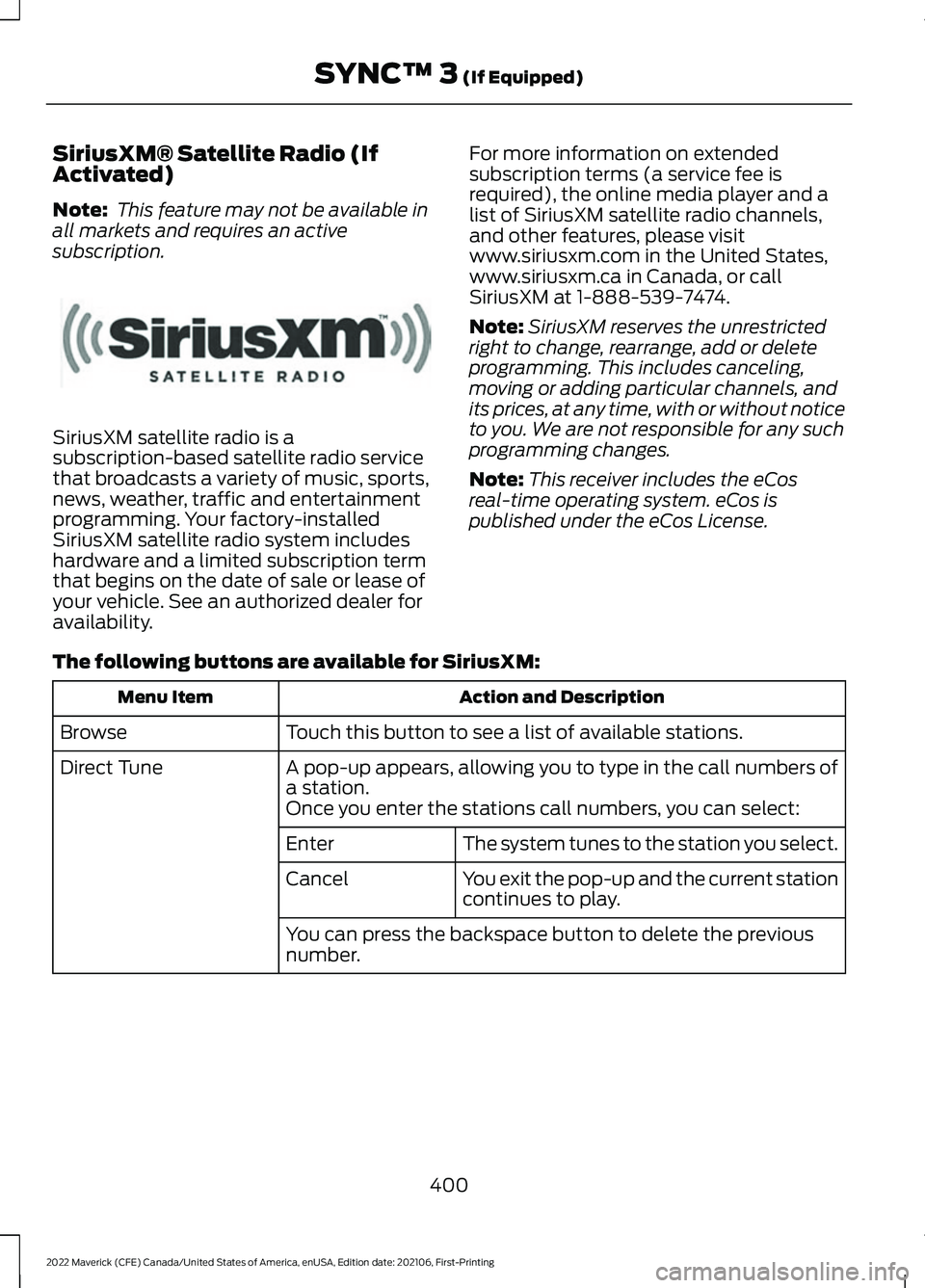
The following buttons are available for SiriusXM: Action and Description
Menu Item
Touch this button to see a list of available stations.
Browse
A pop-up appears, allowing you to type in the call numbers of
a station.
Direct Tune
Once you enter the stations call numbers, you can select:The system tunes to the station you select.
Enter
You exit the pop-up and the current station
continues to play.
Cancel
You can press the backspace button to delete the previous
number.
400
2022 Maverick (CFE) Canada/United States of America, enUSA, Edition date: 202106, First-Printing SYNC™ 3 (If Equipped)E234451
Page 405 of 533
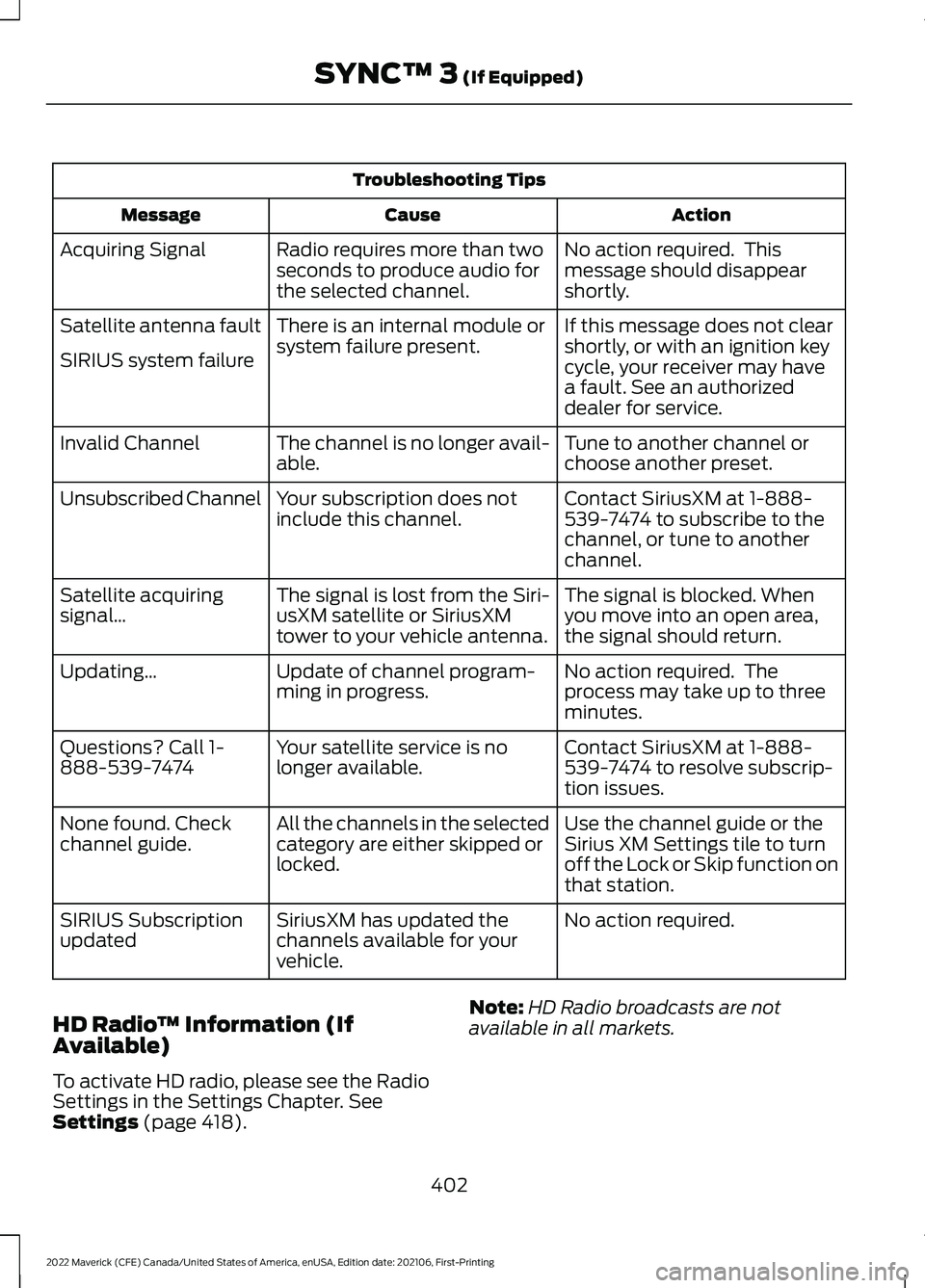
Troubleshooting Tips
Action
Cause
Message
No action required. This
message should disappear
shortly.
Radio requires more than two
seconds to produce audio for
the selected channel.
Acquiring Signal
If this message does not clear
shortly, or with an ignition key
cycle, your receiver may have
a fault. See an authorized
dealer for service.
There is an internal module or
system failure present.
Satellite antenna fault
SIRIUS system failure
Tune to another channel or
choose another preset.
The channel is no longer avail-
able.
Invalid Channel
Contact SiriusXM at 1-888-
539-7474 to subscribe to the
channel, or tune to another
channel.
Your subscription does not
include this channel.
Unsubscribed Channel
The signal is blocked. When
you move into an open area,
the signal should return.
The signal is lost from the Siri-
usXM satellite or SiriusXM
tower to your vehicle antenna.
Satellite acquiring
signal…
No action required. The
process may take up to three
minutes.
Update of channel program-
ming in progress.
Updating…
Contact SiriusXM at 1-888-
539-7474 to resolve subscrip-
tion issues.
Your satellite service is no
longer available.
Questions? Call 1-
888-539-7474
Use the channel guide or the
Sirius XM Settings tile to turn
off the Lock or Skip function on
that station.
All the channels in the selected
category are either skipped or
locked.
None found. Check
channel guide.
No action required.
SiriusXM has updated the
channels available for your
vehicle.
SIRIUS Subscription
updated
HD Radio ™ Information (If
Available)
To activate HD radio, please see the Radio
Settings in the Settings Chapter. See
Settings (page 418). Note:
HD Radio broadcasts are not
available in all markets.
402
2022 Maverick (CFE) Canada/United States of America, enUSA, Edition date: 202106, First-Printing SYNC™ 3
(If Equipped)
Page 408 of 533
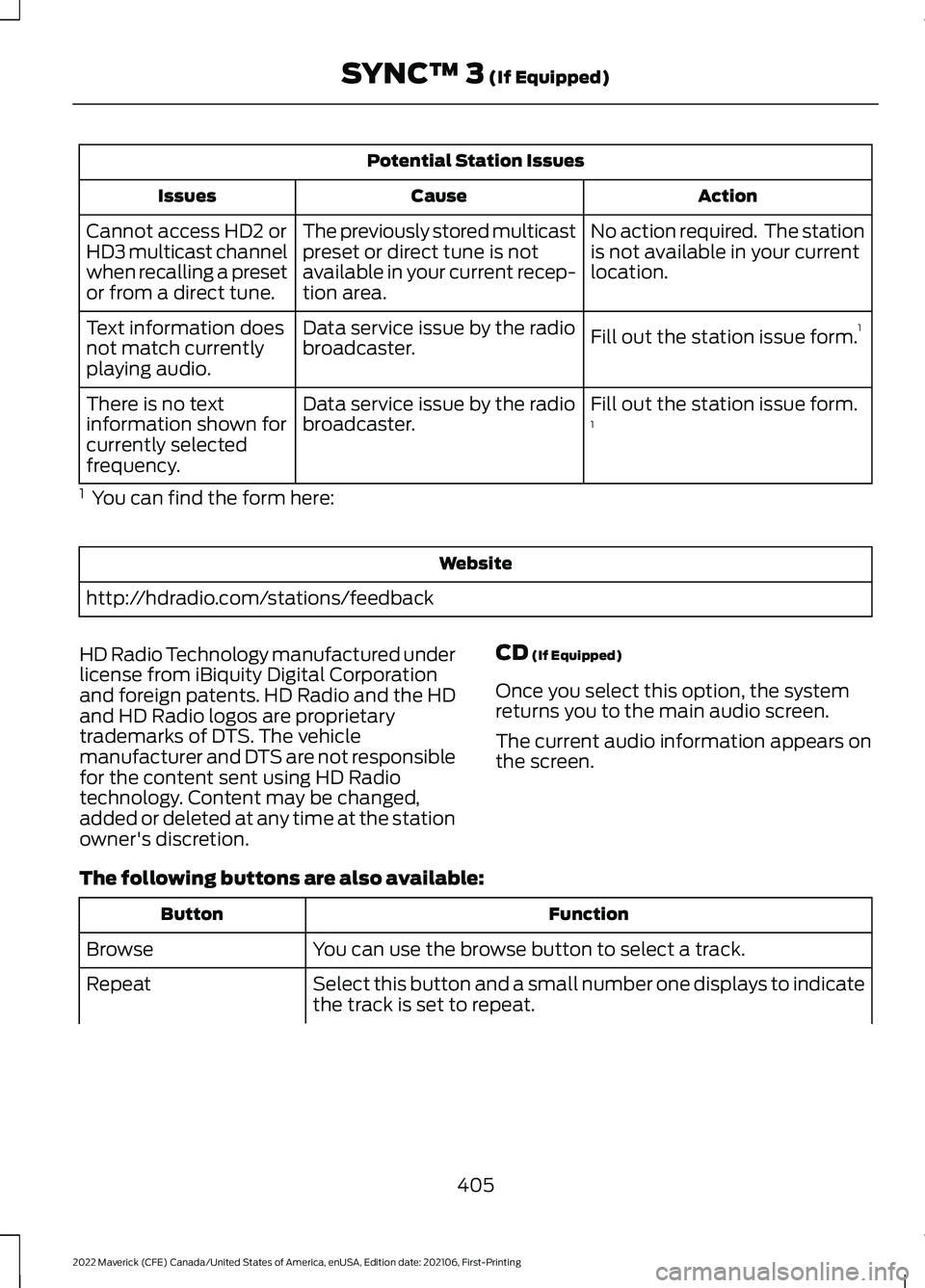
Potential Station Issues
Action
Cause
Issues
No action required. The station
is not available in your current
location.
The previously stored multicast
preset or direct tune is not
available in your current recep-
tion area.
Cannot access HD2 or
HD3 multicast channel
when recalling a preset
or from a direct tune.
Fill out the station issue form.1
Data service issue by the radio
broadcaster.
Text information does
not match currently
playing audio.
Fill out the station issue form.
1
Data service issue by the radio
broadcaster.
There is no text
information shown for
currently selected
frequency.
1 You can find the form here: Website
http://hdradio.com/stations/feedback
HD Radio Technology manufactured under
license from iBiquity Digital Corporation
and foreign patents. HD Radio and the HD
and HD Radio logos are proprietary
trademarks of DTS. The vehicle
manufacturer and DTS are not responsible
for the content sent using HD Radio
technology. Content may be changed,
added or deleted at any time at the station
owner's discretion. CD (If Equipped)
Once you select this option, the system
returns you to the main audio screen.
The current audio information appears on
the screen.
The following buttons are also available: Function
Button
You can use the browse button to select a track.
Browse
Select this button and a small number one displays to indicate
the track is set to repeat.
Repeat
405
2022 Maverick (CFE) Canada/United States of America, enUSA, Edition date: 202106, First-Printing SYNC™ 3
(If Equipped)