clock FORD MAVERICK 2023 Owner's Manual
[x] Cancel search | Manufacturer: FORD, Model Year: 2023, Model line: MAVERICK, Model: FORD MAVERICK 2023Pages: 556, PDF Size: 14.79 MB
Page 364 of 556
Stowing the Spare Tire
Note:Failure to follow the spare tirestowage instructions could result in failureof the cable or loss of the spare tire.
1.Lay the tire on the ground with thevalve stem facing down.
2.Slide the wheel partially under thevehicle and install the retainer throughthe wheel center. Pull on the cable toalign the components at the end of thecable.
3.Turn the jack handle clockwise untilthe tire is raised to its stowed positionunderneath the vehicle. The effort toturn the jack handle increasessignificantly and the spare tire carrierratchets or slips when the tire is raisedto the maximum tightness. Tighten tothe point where the ratchet or slipoccurs, a minimum of three times asindicated by an audible click each time.The spare tire carrier does not allowyou to overtighten. If the spare tirecarrier ratchets or slips with little effort,contact your authorized dealer.
4.Check that the tire lies flat against theframe and is properly tightened. Try topush or pull, then turn the tire to besure it does not move. Loosen andretighten, if necessary. Failure toproperly stow the spare tire couldresult in failure of the winch cable andloss of the tire.
5.Repeat this tightness check procedurewhen servicing the spare tire pressure,every six months, as per your scheduledmaintenance information, or at anytime that the spare tire is disturbedthrough service of other components.
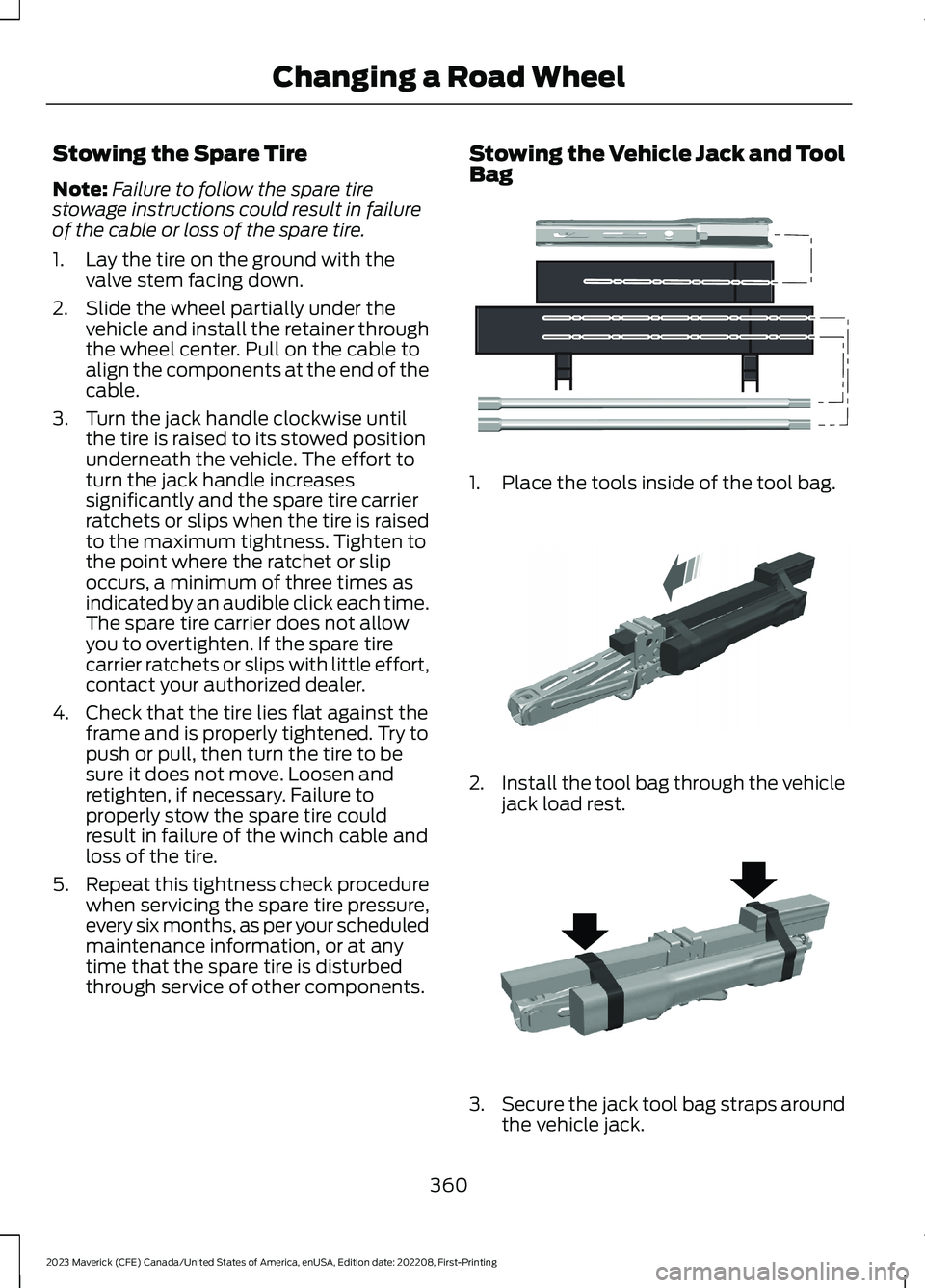
Stowing the Vehicle Jack and ToolBag
1.Place the tools inside of the tool bag.
2.Install the tool bag through the vehiclejack load rest.
3.Secure the jack tool bag straps aroundthe vehicle jack.
360
2023 Maverick (CFE) Canada/United States of America, enUSA, Edition date: 202208, First-PrintingChanging a Road WheelE352149 E352034 E352022
Page 365 of 556
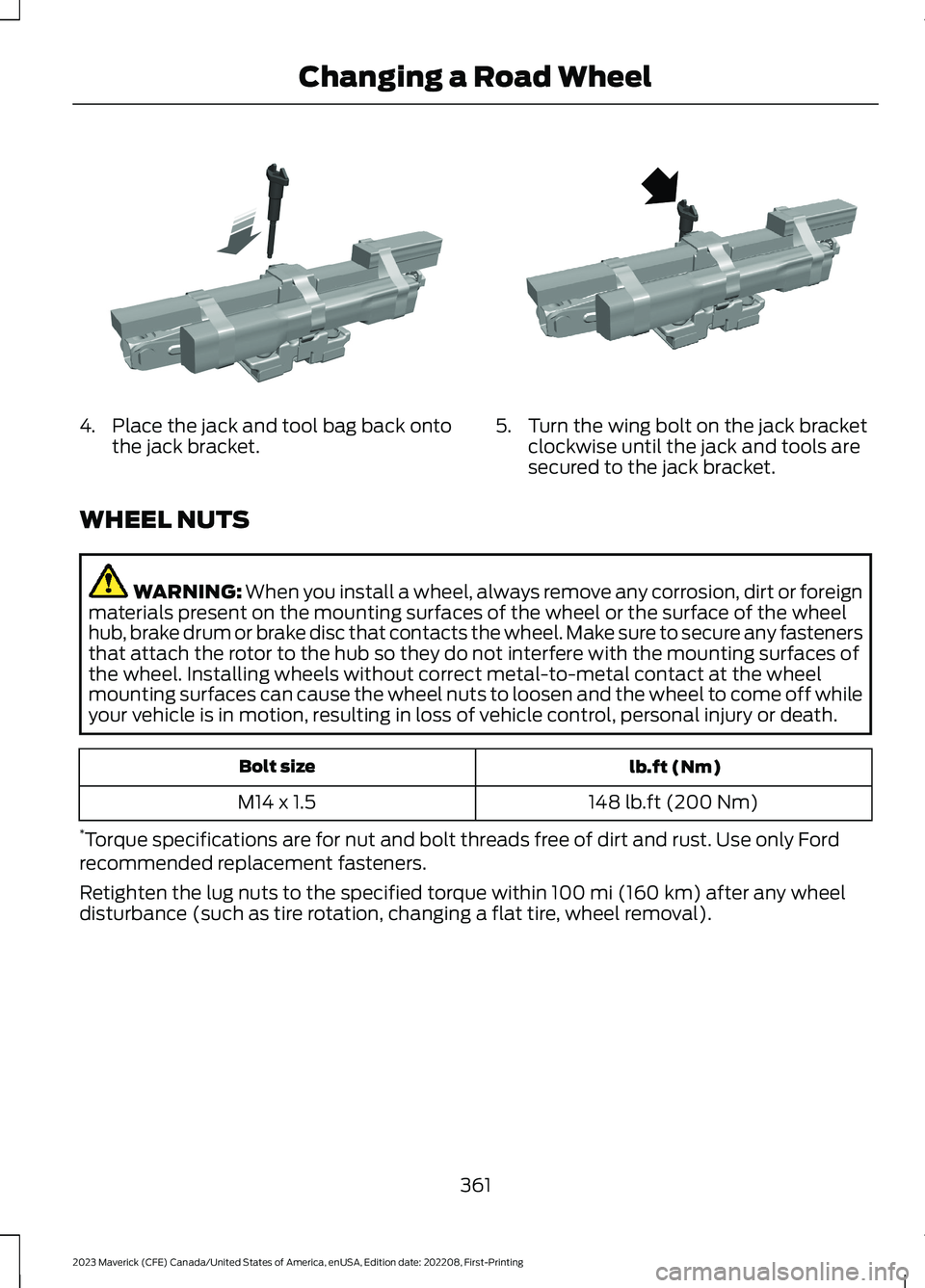
4.Place the jack and tool bag back ontothe jack bracket.5.Turn the wing bolt on the jack bracketclockwise until the jack and tools aresecured to the jack bracket.
WHEEL NUTS
WARNING: When you install a wheel, always remove any corrosion, dirt or foreignmaterials present on the mounting surfaces of the wheel or the surface of the wheelhub, brake drum or brake disc that contacts the wheel. Make sure to secure any fastenersthat attach the rotor to the hub so they do not interfere with the mounting surfaces ofthe wheel. Installing wheels without correct metal-to-metal contact at the wheelmounting surfaces can cause the wheel nuts to loosen and the wheel to come off whileyour vehicle is in motion, resulting in loss of vehicle control, personal injury or death.
lb.ft (Nm)Bolt size
148 lb.ft (200 Nm)M14 x 1.5
*Torque specifications are for nut and bolt threads free of dirt and rust. Use only Fordrecommended replacement fasteners.
Retighten the lug nuts to the specified torque within 100 mi (160 km) after any wheeldisturbance (such as tire rotation, changing a flat tire, wheel removal).
361
2023 Maverick (CFE) Canada/United States of America, enUSA, Edition date: 202208, First-PrintingChanging a Road WheelE352027 E352026
Page 397 of 556
SETTING A MEMORY PRESET
1.Select a station or channel.
2.Press and hold a memory preset buttonon the touchscreen.
Note:The audio mutes briefly while thesystem saves the preset and returns once itis stored.
Note:You can save presets from multiplesources to the memory preset bar.
MUTING THE AUDIO
Press the button on the steeringwheel to mute the audio.
Press to mute the signal. Pressagain to restore the signal.
ADJUSTING THE SOUND
SETTINGS
Balance and Fade (If Equipped)
1.Access the vehicle drawer on thetouchscreen.
2.Press SETTINGS.
3.Press Sound.
4.Press Balance / Fade.
5.Press the arrows to adjust the settings.
Tone Settings
1.Access the vehicle drawer on thetouchscreen.
2.Press SETTINGS.
3.Press Sound.
4.Press Tone Settings.
5.Use the slider bar to adjust the settings.
Speed Compensated Volume
1.Access the vehicle drawer on thetouchscreen.
2.Press SETTINGS.
3.Press Sound.
4.Press Speed Compensated Volume.
5.Press a setting.
Occupancy Mode (If Equipped)
1.Access the vehicle drawer on thetouchscreen.
2.Press SETTINGS.
3.Press Sound.
4.Press Occupancy Mode.
5.Press a setting.
Sound Mode (If Equipped)
1.Access the vehicle drawer on thetouchscreen.
2.Press SETTINGS.
3.Press Sound.
4.Press Sound Mode.
5.Press a setting.
SETTING THE CLOCK AND
DATE
1.Access the vehicle drawer on thetouchscreen.
2.Press SETTINGS.
3.Press Clock.
4.Set the time.
Note:The AM and PM options are notavailable if 24-hour mode is on.
5.Press the arrows to adjust the settings.
393
2023 Maverick (CFE) Canada/United States of America, enUSA, Edition date: 202208, First-PrintingAudio System - Vehicles With: SYNC 3
Page 398 of 556
Switching Automatic TimeUpdates On and Off
1.Access the vehicle drawer on thetouchscreen.
2.Press SETTINGS.
3.Press Clock.
4.Switch Automatic time zone updateon or off.
AM/FM RADIO
AM/FM RADIO LIMITATIONS
The further you travel from an AM or FMstation, the weaker the signal and theweaker the reception.
Hills, mountains, tall buildings, bridges,tunnels, freeway overpasses, parkinggarages, dense tree foliage andthunderstorms can interfere with thereception.
When you pass a ground-based broadcastrepeating tower, a stronger signal mayovertake a weaker one and result in theaudio system muting.
SELECTING A RADIO STATION
Manually Selecting a RadioStation
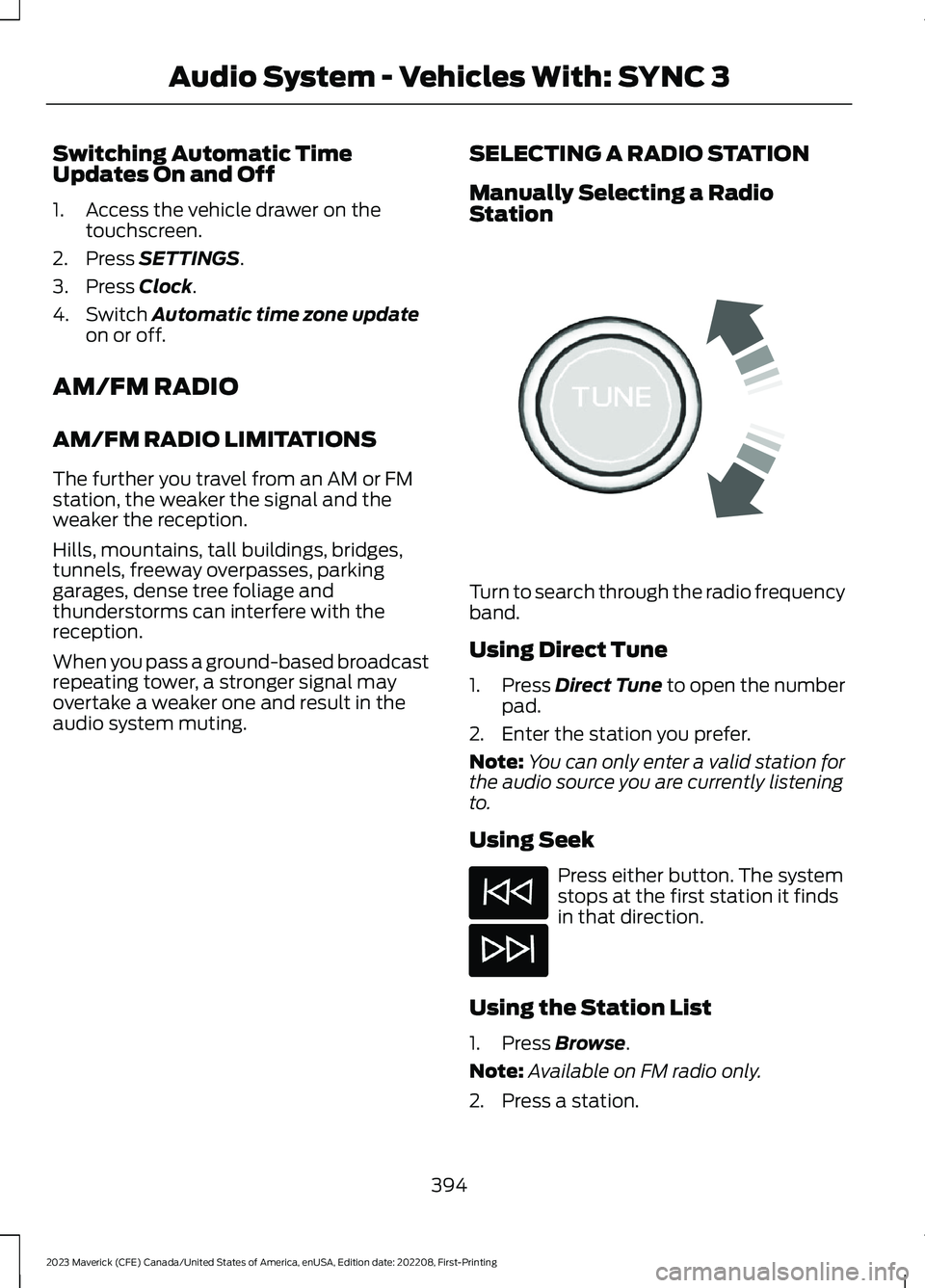
Turn to search through the radio frequencyband.
Using Direct Tune
1.Press Direct Tune to open the numberpad.
2.Enter the station you prefer.
Note:You can only enter a valid station forthe audio source you are currently listeningto.
Using Seek
Press either button. The systemstops at the first station it findsin that direction.
Using the Station List
1.Press Browse.
Note:Available on FM radio only.
2.Press a station.
394
2023 Maverick (CFE) Canada/United States of America, enUSA, Edition date: 202208, First-PrintingAudio System - Vehicles With: SYNC 3E270235
Page 405 of 556
GENERAL INFORMATION
WARNING: Driving while distractedcan result in loss of vehicle control, crashand injury. We strongly recommend thatyou use extreme caution when using anydevice that may take your focus off theroad. Your primary responsibility is thesafe operation of your vehicle. Werecommend against the use of anyhand-held device while driving andencourage the use of voice-operatedsystems when possible. Make sure youare aware of all applicable local lawsthat may affect the use of electronicdevices while driving.
About SYNC
The system allows you to interact with theentertainment, information andcommunication systems on your vehicleusing voice commands and a touchscreen.The system provides easy interaction withaudio, phone, navigation, mobile apps andsettings.
Note:You can switch the system on anduse it for up to an hour without switchingthe ignition on.
Note:You can use the system after youswitch the ignition off for up to 10 minutesor until you open a door.
Note:For your safety, some features arespeed-dependent. Their use is limited towhen your vehicle speed is less than 3 mph(5 km/h).
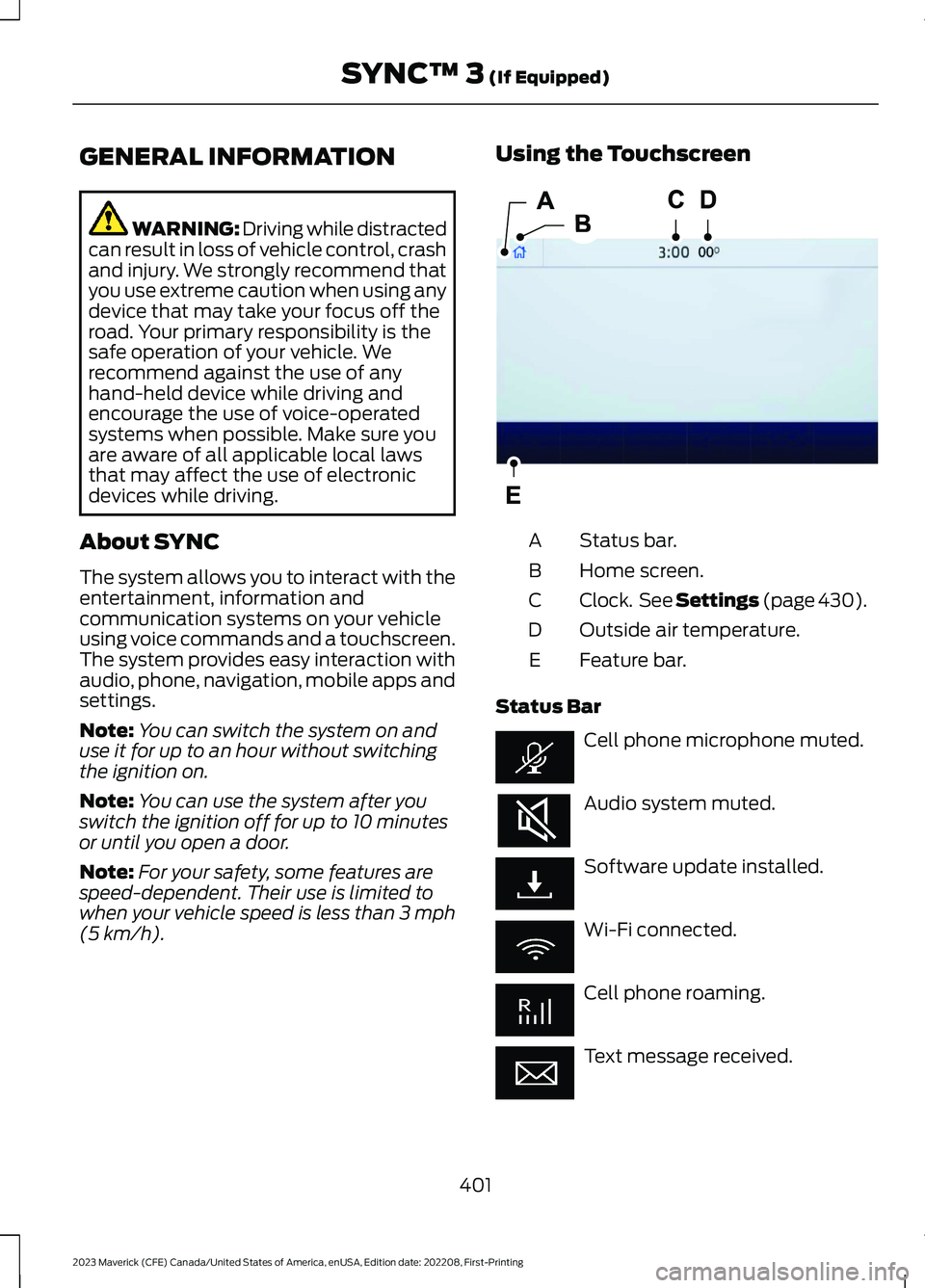
Using the Touchscreen
Status bar.A
Home screen.B
Clock. See Settings (page 430).C
Outside air temperature.D
Feature bar.E
Status Bar
Cell phone microphone muted.
Audio system muted.
Software update installed.
Wi-Fi connected.
Cell phone roaming.
Text message received.
401
2023 Maverick (CFE) Canada/United States of America, enUSA, Edition date: 202208, First-PrintingSYNC™ 3 (If Equipped)E293823
Page 435 of 556
Clock
Select this tile to adjust the clock settings.
Bluetooth®
Select this tile to switch Bluetooth® onand off and adjust the settings.
Phone
Select this tile to connect, disconnect, andmanage the connected device settings.
Audio
Select this tile to adjust the audio settings.
Driver Assist (If Equipped)
Select this tile to adjust Driver Assistfeatures like Parking Aids, Lane KeepingSystem, Pedestrian Detection, andAuto-Start-Stop.
Vehicle
Select this tile to adjust vehicle settingslike windows, alarm, lighting, and MyKeysettings.
FordPass (If Equipped)
Select this tile to adjust the FordPasssettings
General
Select this tile to adjust settings likelanguage, measurement units, or to resetthe system.
911 Assist (If Equipped)
Select this tile to switch 911 Assist on andoff.
Automatic Updates
Select this tile to adjust the automaticupdate settings.
Mobile Apps
Select this tile to adjust permissions,enable, disable, and update mobile apps.
Display
Select this tile to adjust display settingslike brightness and auto dim.
Charge Settings (If Equipped)
Select this tile to adjust the electric vehiclecharge settings.
Voice Control
Select this tile to adjust voice controlsettings like command confirmations anddisplayed lists.
Navigation (If Equipped)
Select this tile to adjust navigation settingslike map preferences and route guidance.
Seats (If Equipped)
Select this tile to adjust the lumbarfunction and massage function of yourmulti contour seats.
Message Center (If Equipped)
Select this tile to view vehicle messages.
Personal Profiles (If Equipped)
Select this tile to adjust recalled memoryfeatures when using personal profiles.
Valet Mode (If Equipped)
Select this tile to enable and disable valetmode.
Ambient Lighting (If Equipped)
Select this tile to change the color orintensity of the interior lighting.
431
2023 Maverick (CFE) Canada/United States of America, enUSA, Edition date: 202208, First-PrintingSYNC™ 3 (If Equipped)
Page 552 of 556
Resetting the Individual Trip Values -Vehicles With: 4.2 Inch Screen.............120Resetting the Trip Computer....................120Restarting the Engine.................................168Resuming the Set Speed...........................218Roadside Assistance..................................282Rollover Warning.........................................459Running-InSee: Breaking-In.................................................278Running Out of Fuel.....................................173Adding Fuel From a Portable FuelContainer...........................................................173Filling a Portable Fuel Container...................173
S
Satellite Radio..............................................396Locating the Satellite Radio IdentificationNumber............................................................396Satellite Radio Limitations............................396What Is Satellite Radio...................................396Scheduled Maintenance..........................450Seatbelt Extensions......................................48Seatbelt Precautions....................................42Seatbelt Reminder........................................46How Does the Seatbelt ReminderWork.....................................................................46Seatbelt Reminder Audible Warnings..........47Seatbelt Reminder Indicators.........................46Switching the Seatbelt Reminder On andOff..........................................................................47Seatbelts...........................................................42Automatic Locking Mode..................................44Seatbelt Reminder..............................................46Sensitive Locking Mode.....................................44Security..............................................................84Anti-Theft Alarm System.................................84Anti-Theft Alarm System Settings................85Passive Anti-Theft System..............................84Security – Troubleshooting..............................86Security – Troubleshooting.......................86Security – Frequently AskedQuestions...........................................................87Security – Information Messages..................86Selecting a Drive Mode.............................230Selecting the Audio Source.....................392
Sensitive Locking Mode...............................44How Does Sensitive Locking ModeWork.....................................................................44What is Sensitive Locking Mode....................44Service Data.....................................................23Setting a Memory Preset..........................393Settings Data...................................................24Settings...........................................................430Setting the Adaptive Cruise ControlGap.................................................................223Setting the Adaptive Cruise ControlSpeed............................................................222Setting the Blower Motor Speed............126Setting the Clock and Date......................393Setting the Cruise Control Speed...........217Setting the Hill Descent Speed.............206Setting the Temperature...........................126Setting the Trail Control Speed.............204Shifting Your Immobile Vehicle Out ofPark (P) - Gasoline....................................187Shifting Your Vehicle Into Gear...............183Sitting in the Correct Position..................135Software UpdateSee: Vehicle Software Updates...................445Sounding the Panic Alarm..........................62Special Notices.................................................17Special Operating Conditions ScheduledMaintenance..............................................456Speed ControlSee: Cruise Control.............................................217Speedometer...................................................111Stability Control Indicator........................203Stability Control...........................................202Stability Control – Troubleshooting...........203Stability Control –Troubleshooting........................................203Stability Control – Warning Lamps............203Starter SwitchSee: Ignition Switch...........................................156Starting and Stopping the Engine –Precautions..................................................156Starting and Stopping the Engine.........156Automatic Engine Stop.....................................161Engine Block Heater..........................................159Starting and Stopping the Engine –Troubleshooting.............................................162Starting the Engine.............................................157Stopping the Engine.........................................160
548
2023 Maverick (CFE) Canada/United States of America, enUSA, Edition date: 202208, First-PrintingIndex