key FORD MAVERICK 2023 Workshop Manual
[x] Cancel search | Manufacturer: FORD, Model Year: 2023, Model line: MAVERICK, Model: FORD MAVERICK 2023Pages: 556, PDF Size: 14.79 MB
Page 297 of 556
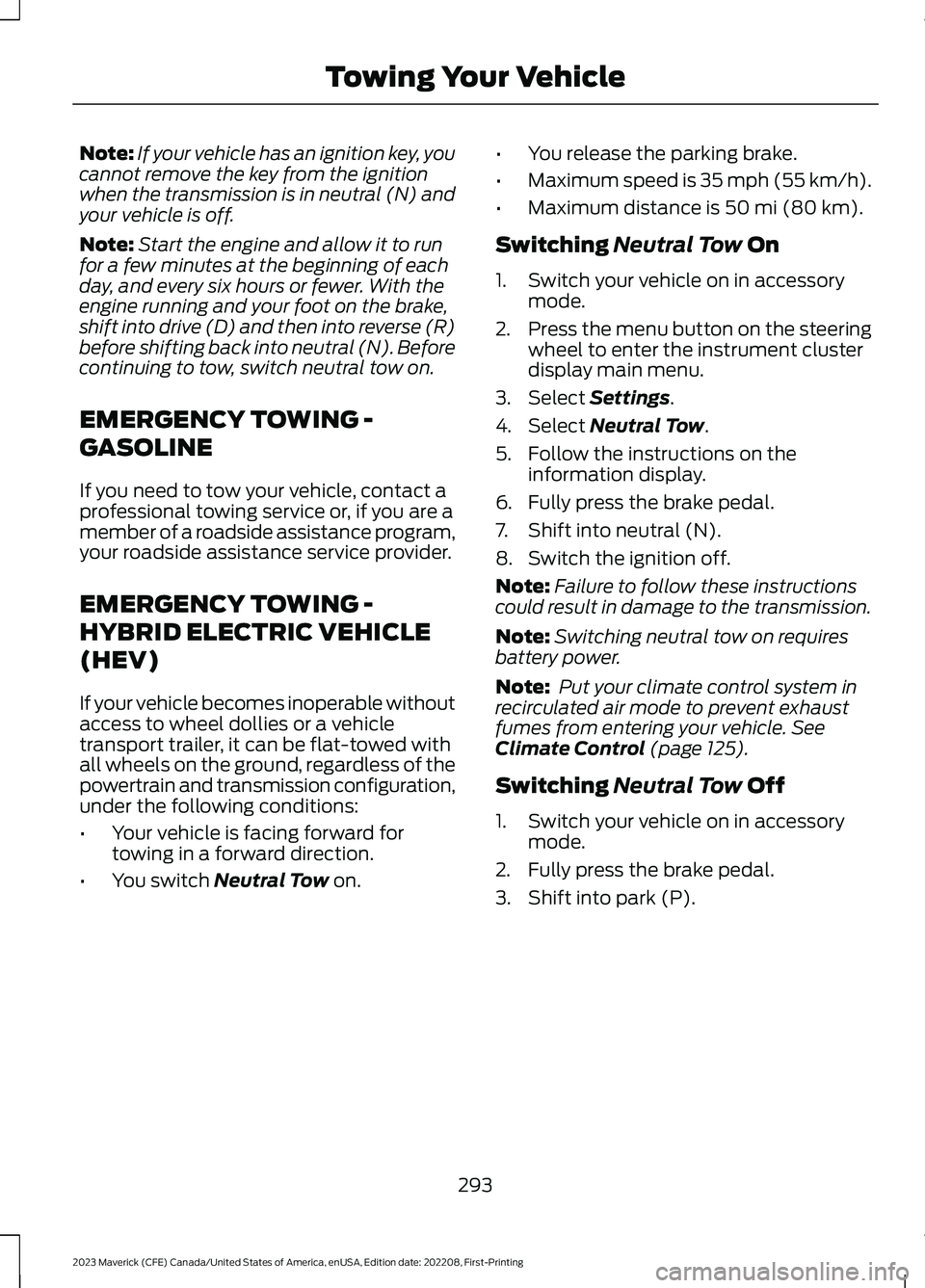
Note:If your vehicle has an ignition key, youcannot remove the key from the ignitionwhen the transmission is in neutral (N) andyour vehicle is off.
Note:Start the engine and allow it to runfor a few minutes at the beginning of eachday, and every six hours or fewer. With theengine running and your foot on the brake,shift into drive (D) and then into reverse (R)before shifting back into neutral (N). Beforecontinuing to tow, switch neutral tow on.
EMERGENCY TOWING -
GASOLINE
If you need to tow your vehicle, contact aprofessional towing service or, if you are amember of a roadside assistance program,your roadside assistance service provider.
EMERGENCY TOWING -
HYBRID ELECTRIC VEHICLE
(HEV)
If your vehicle becomes inoperable withoutaccess to wheel dollies or a vehicletransport trailer, it can be flat-towed withall wheels on the ground, regardless of thepowertrain and transmission configuration,under the following conditions:
•Your vehicle is facing forward fortowing in a forward direction.
•You switch Neutral Tow on.
•You release the parking brake.
•Maximum speed is 35 mph (55 km/h).
•Maximum distance is 50 mi (80 km).
Switching Neutral Tow On
1.Switch your vehicle on in accessorymode.
2.Press the menu button on the steeringwheel to enter the instrument clusterdisplay main menu.
3.Select Settings.
4.Select Neutral Tow.
5.Follow the instructions on theinformation display.
6.Fully press the brake pedal.
7.Shift into neutral (N).
8.Switch the ignition off.
Note:Failure to follow these instructionscould result in damage to the transmission.
Note:Switching neutral tow on requiresbattery power.
Note: Put your climate control system inrecirculated air mode to prevent exhaustfumes from entering your vehicle. SeeClimate Control (page 125).
Switching Neutral Tow Off
1.Switch your vehicle on in accessorymode.
2.Fully press the brake pedal.
3.Shift into park (P).
293
2023 Maverick (CFE) Canada/United States of America, enUSA, Edition date: 202208, First-PrintingTowing Your Vehicle
Page 306 of 556
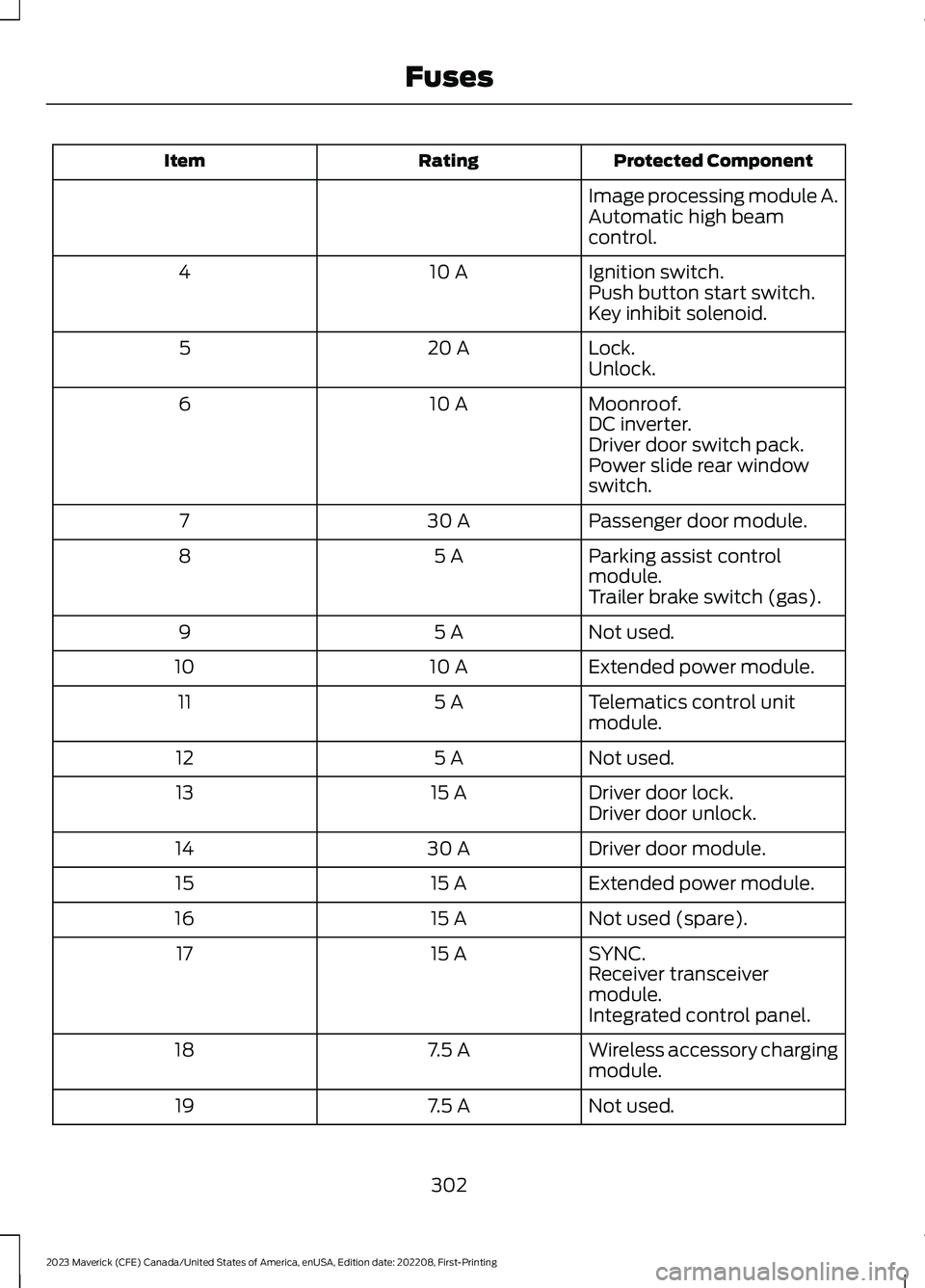
Protected ComponentRatingItem
Image processing module A.Automatic high beamcontrol.
Ignition switch.10 A4Push button start switch.Key inhibit solenoid.
Lock.20 A5Unlock.
Moonroof.10 A6DC inverter.Driver door switch pack.Power slide rear windowswitch.
Passenger door module.30 A7
Parking assist controlmodule.5 A8
Trailer brake switch (gas).
Not used.5 A9
Extended power module.10 A10
Telematics control unitmodule.5 A11
Not used.5 A12
Driver door lock.15 A13Driver door unlock.
Driver door module.30 A14
Extended power module.15 A15
Not used (spare).15 A16
SYNC.15 A17Receiver transceivermodule.Integrated control panel.
Wireless accessory chargingmodule.7.5 A18
Not used.7.5 A19
302
2023 Maverick (CFE) Canada/United States of America, enUSA, Edition date: 202208, First-PrintingFuses
Page 390 of 556
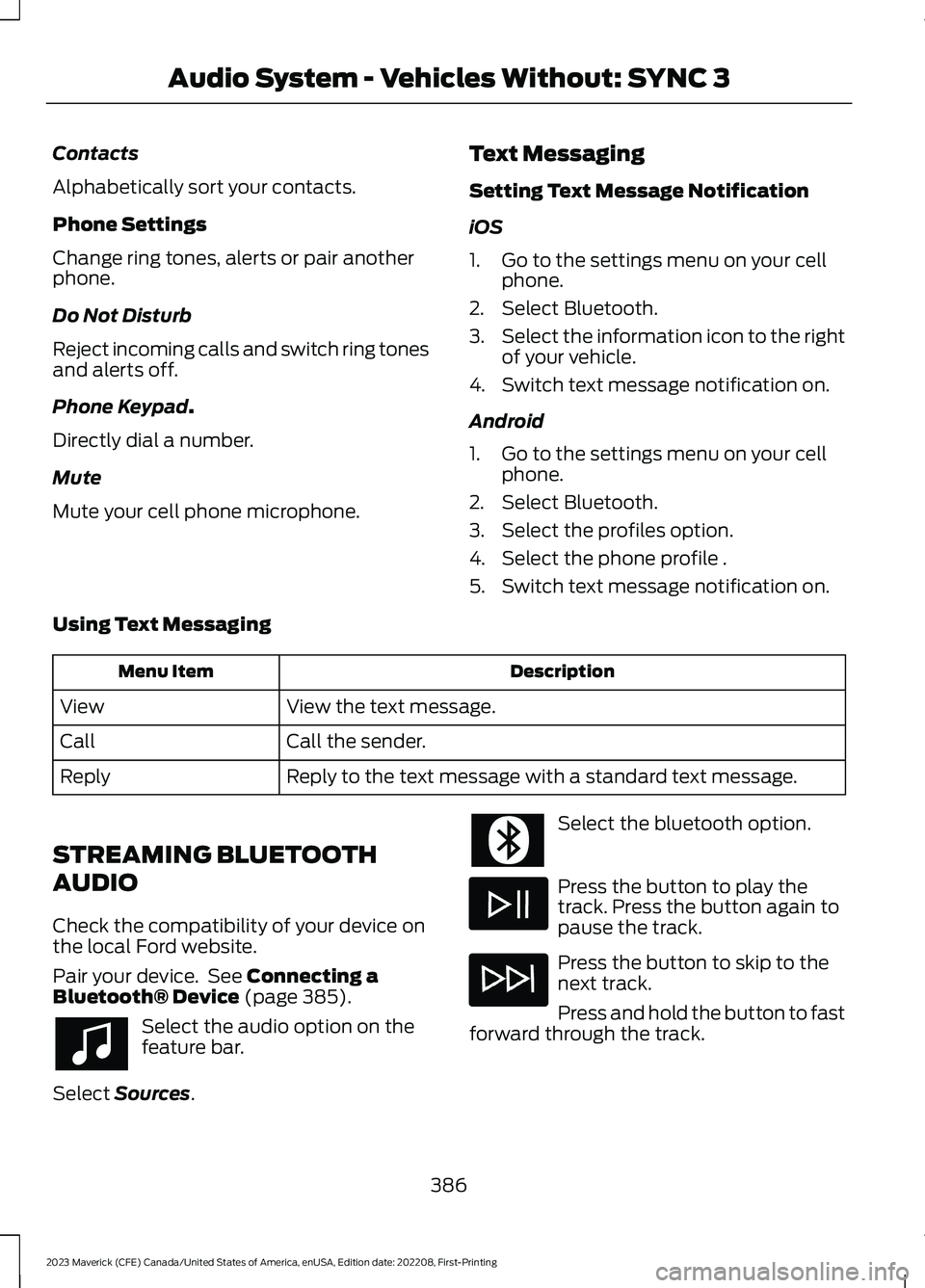
Contacts
Alphabetically sort your contacts.
Phone Settings
Change ring tones, alerts or pair anotherphone.
Do Not Disturb
Reject incoming calls and switch ring tonesand alerts off.
Phone Keypad.
Directly dial a number.
Mute
Mute your cell phone microphone.
Text Messaging
Setting Text Message Notification
iOS
1.Go to the settings menu on your cellphone.
2.Select Bluetooth.
3.Select the information icon to the rightof your vehicle.
4.Switch text message notification on.
Android
1.Go to the settings menu on your cellphone.
2.Select Bluetooth.
3.Select the profiles option.
4.Select the phone profile .
5.Switch text message notification on.
Using Text Messaging
DescriptionMenu Item
View the text message.View
Call the sender.Call
Reply to the text message with a standard text message.Reply
STREAMING BLUETOOTH
AUDIO
Check the compatibility of your device onthe local Ford website.
Pair your device. See Connecting aBluetooth® Device (page 385).
Select the audio option on thefeature bar.
Select Sources.
Select the bluetooth option.
Press the button to play thetrack. Press the button again topause the track.
Press the button to skip to thenext track.
Press and hold the button to fastforward through the track.
386
2023 Maverick (CFE) Canada/United States of America, enUSA, Edition date: 202208, First-PrintingAudio System - Vehicles Without: SYNC 3
Page 418 of 556
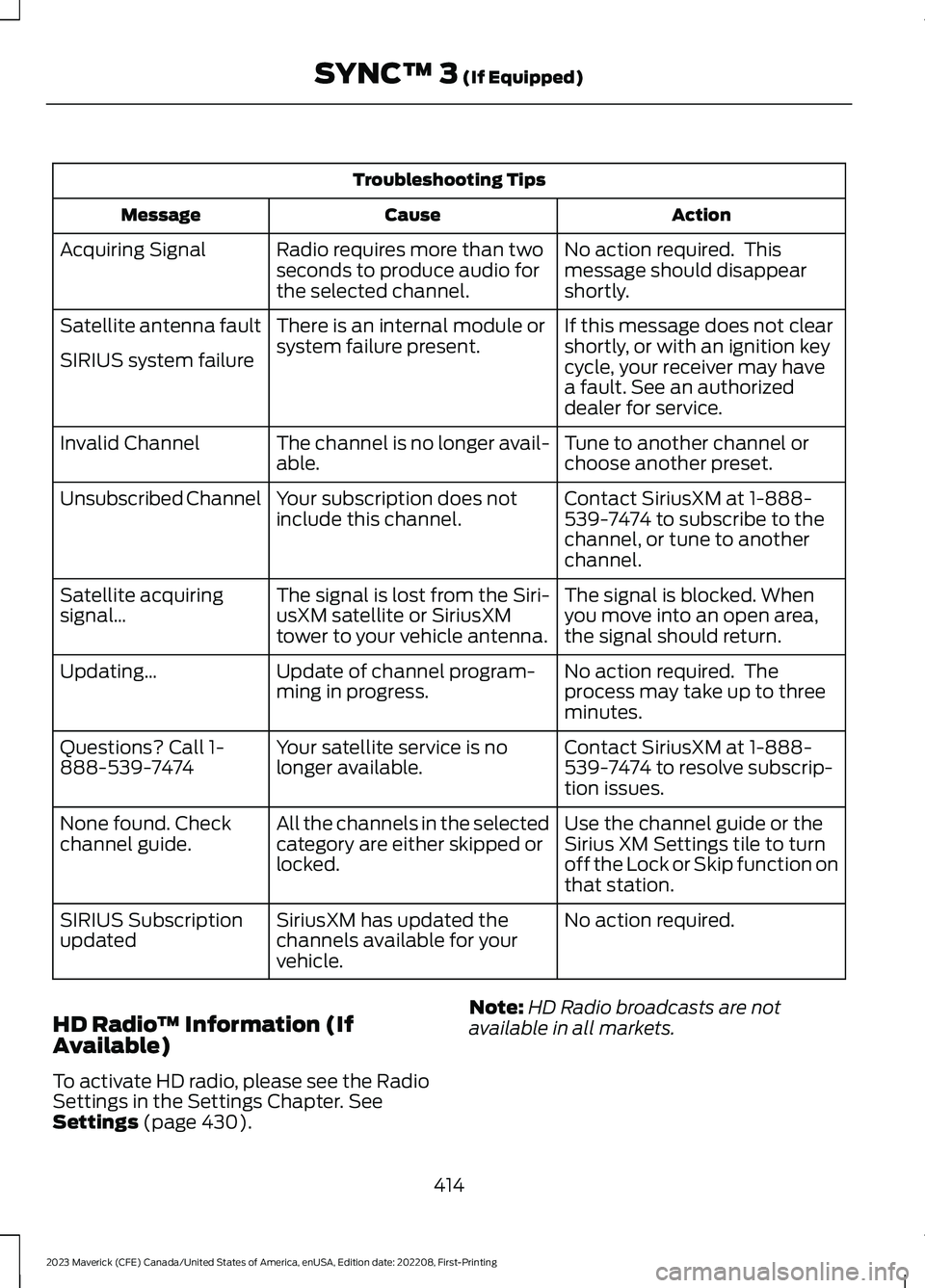
Troubleshooting Tips
ActionCauseMessage
No action required. Thismessage should disappearshortly.
Radio requires more than twoseconds to produce audio forthe selected channel.
Acquiring Signal
If this message does not clearshortly, or with an ignition keycycle, your receiver may havea fault. See an authorizeddealer for service.
There is an internal module orsystem failure present.Satellite antenna fault
SIRIUS system failure
Tune to another channel orchoose another preset.The channel is no longer avail-able.Invalid Channel
Contact SiriusXM at 1-888-539-7474 to subscribe to thechannel, or tune to anotherchannel.
Your subscription does notinclude this channel.Unsubscribed Channel
The signal is blocked. Whenyou move into an open area,the signal should return.
The signal is lost from the Siri-usXM satellite or SiriusXMtower to your vehicle antenna.
Satellite acquiringsignal…
No action required. Theprocess may take up to threeminutes.
Update of channel program-ming in progress.Updating…
Contact SiriusXM at 1-888-539-7474 to resolve subscrip-tion issues.
Your satellite service is nolonger available.Questions? Call 1-888-539-7474
Use the channel guide or theSirius XM Settings tile to turnoff the Lock or Skip function onthat station.
All the channels in the selectedcategory are either skipped orlocked.
None found. Checkchannel guide.
No action required.SiriusXM has updated thechannels available for yourvehicle.
SIRIUS Subscriptionupdated
HD Radio™ Information (IfAvailable)
To activate HD radio, please see the RadioSettings in the Settings Chapter. SeeSettings (page 430).
Note:HD Radio broadcasts are notavailable in all markets.
414
2023 Maverick (CFE) Canada/United States of America, enUSA, Edition date: 202208, First-PrintingSYNC™ 3 (If Equipped)
Page 425 of 556
Do Not Disturb
Reject incoming calls and switch ring tonesand alerts off.
Phone Keypad
Directly dial a number.
Text Messaging
Setting Text Message Notification
iOS
1.Go to the settings menu on your cellphone.
2.Select Bluetooth.
3.Select the information icon to the rightof your vehicle.
4.Switch text message notification on.
Android
1.Go to the settings menu on your cellphone.
2.Select Bluetooth.
3.Select the profiles option.
4.Select the phone profile.
5.Switch text message notification on.
Using Text Messaging
DescriptionMenu Item
Hear the text message.Hear It
View the text message.View
Call the sender.Call
Reply to the text message with a standard text message.Reply
Apple CarPlay (If Equipped)
1.Connect your device to a USB port.
2.Follow the instructions on thetouchscreen.
Note:Certain features of the system arenot available when you are using AppleCarPlay.
Switching Apple CarPlay Off
Select the settings option on thefeature bar.
1.Select Apple CarPlay Preferences.
2.Switch Apple CarPlay off.
Android Auto (If Equipped)
1.Connect your device to a USB port.
2.Follow the instructions on thetouchscreen.
Note:You might need to enable AndroidAuto from the settings menu.
Note:Certain features of the system arenot available when you are using AndroidAuto.
Switching Android Auto Off
Select the settings option on thefeature bar.
1.Select Android Auto.
2.Switch Android Auto off.
421
2023 Maverick (CFE) Canada/United States of America, enUSA, Edition date: 202208, First-PrintingSYNC™ 3 (If Equipped)
Page 427 of 556
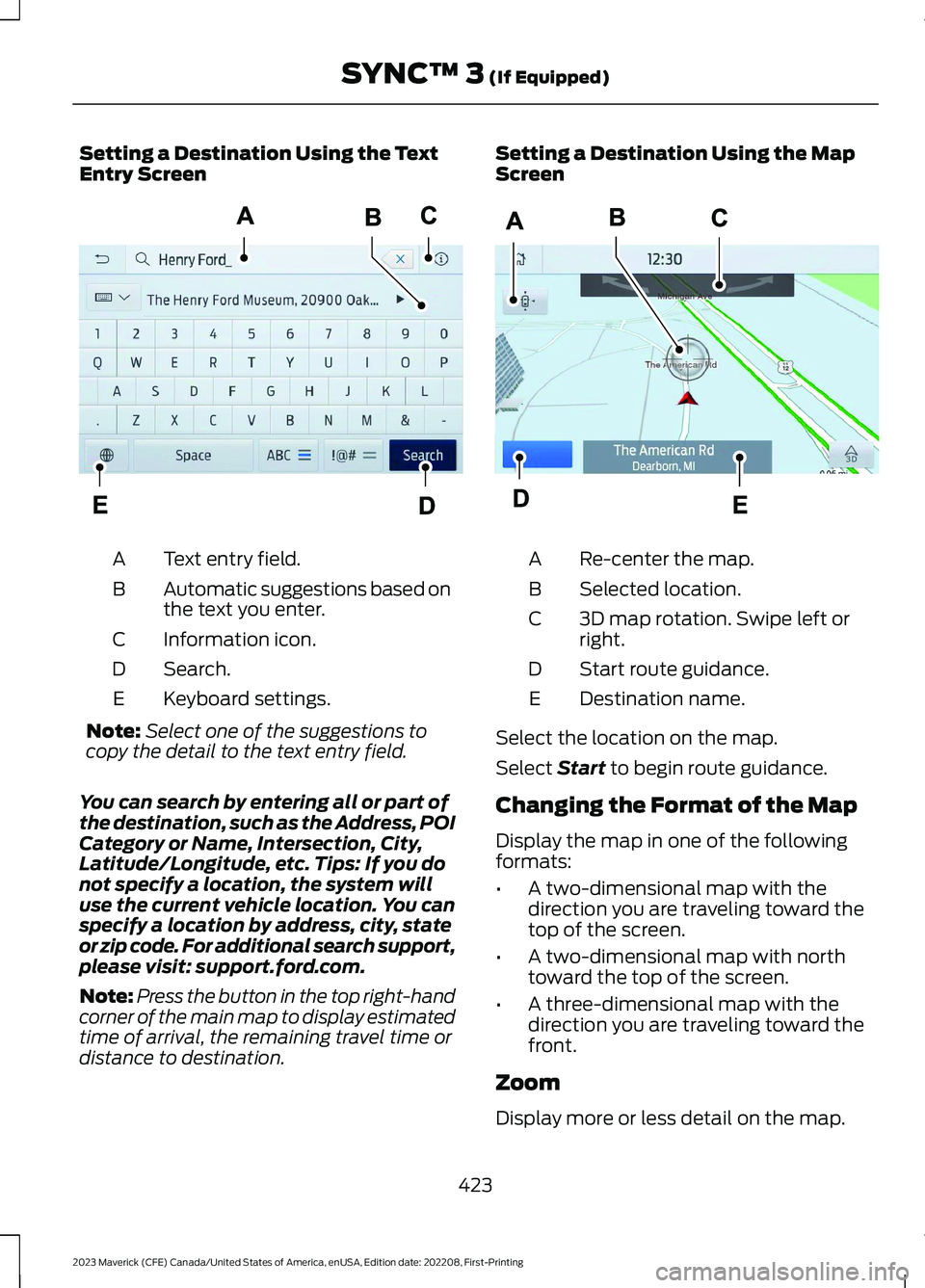
Setting a Destination Using the TextEntry Screen
Text entry field.A
Automatic suggestions based onthe text you enter.B
Information icon.C
Search.D
Keyboard settings.E
Note:Select one of the suggestions tocopy the detail to the text entry field.
You can search by entering all or part ofthe destination, such as the Address, POICategory or Name, Intersection, City,Latitude/Longitude, etc. Tips: If you donot specify a location, the system willuse the current vehicle location. You canspecify a location by address, city, stateor zip code. For additional search support,please visit: support.ford.com.
Note:Press the button in the top right-handcorner of the main map to display estimatedtime of arrival, the remaining travel time ordistance to destination.
Setting a Destination Using the MapScreen
Re-center the map.A
Selected location.B
3D map rotation. Swipe left orright.C
Start route guidance.D
Destination name.E
Select the location on the map.
Select Start to begin route guidance.
Changing the Format of the Map
Display the map in one of the followingformats:
•A two-dimensional map with thedirection you are traveling toward thetop of the screen.
•A two-dimensional map with northtoward the top of the screen.
•A three-dimensional map with thedirection you are traveling toward thefront.
Zoom
Display more or less detail on the map.
423
2023 Maverick (CFE) Canada/United States of America, enUSA, Edition date: 202208, First-PrintingSYNC™ 3 (If Equipped)E297558 E297559
Page 435 of 556
Clock
Select this tile to adjust the clock settings.
Bluetooth®
Select this tile to switch Bluetooth® onand off and adjust the settings.
Phone
Select this tile to connect, disconnect, andmanage the connected device settings.
Audio
Select this tile to adjust the audio settings.
Driver Assist (If Equipped)
Select this tile to adjust Driver Assistfeatures like Parking Aids, Lane KeepingSystem, Pedestrian Detection, andAuto-Start-Stop.
Vehicle
Select this tile to adjust vehicle settingslike windows, alarm, lighting, and MyKeysettings.
FordPass (If Equipped)
Select this tile to adjust the FordPasssettings
General
Select this tile to adjust settings likelanguage, measurement units, or to resetthe system.
911 Assist (If Equipped)
Select this tile to switch 911 Assist on andoff.
Automatic Updates
Select this tile to adjust the automaticupdate settings.
Mobile Apps
Select this tile to adjust permissions,enable, disable, and update mobile apps.
Display
Select this tile to adjust display settingslike brightness and auto dim.
Charge Settings (If Equipped)
Select this tile to adjust the electric vehiclecharge settings.
Voice Control
Select this tile to adjust voice controlsettings like command confirmations anddisplayed lists.
Navigation (If Equipped)
Select this tile to adjust navigation settingslike map preferences and route guidance.
Seats (If Equipped)
Select this tile to adjust the lumbarfunction and massage function of yourmulti contour seats.
Message Center (If Equipped)
Select this tile to view vehicle messages.
Personal Profiles (If Equipped)
Select this tile to adjust recalled memoryfeatures when using personal profiles.
Valet Mode (If Equipped)
Select this tile to enable and disable valetmode.
Ambient Lighting (If Equipped)
Select this tile to change the color orintensity of the interior lighting.
431
2023 Maverick (CFE) Canada/United States of America, enUSA, Edition date: 202208, First-PrintingSYNC™ 3 (If Equipped)
Page 481 of 556
This device complies with Part 15 of theFCC Rules and with Innovation, Scienceand Economic Development Canada’slicence-exempt RSS(s). Operation issubject to the following two conditions:
1.This device may not cause harmfulinterference, and
2.This device must accept anyinterference received, includinginterference that may cause undesiredoperation.
Zambia
KEYS AND REMOTE CONTROLS
Argentina
477
2023 Maverick (CFE) Canada/United States of America, enUSA, Edition date: 202208, First-PrintingCustomer InformationE340196 E339844 E342143 E340119 E346171
Page 542 of 556
Calculating the Load Limit.......................259Canceling the Set Speed..........................204Capacities and Specifications................363Catalytic Converter......................................180Catalytic Converter –Troubleshooting............................................180Catalytic Converter Precautions............180Catalytic Converter –Troubleshooting........................................180Catalytic Converter – WarningLamps................................................................180Center Console..............................................153Opening the Center Console..........................153Changing a Flat Tire....................................354Changing a Road Wheel...........................354Changing the 12V Battery..........................315Changing the 12V Battery - HybridElectric Vehicle (HEV).............................318Changing the Engine Air Filter - 2.0LEcoBoost™..................................................313Changing the Engine Air Filter - 2.5L,Hybrid Electric Vehicle (HEV)...............314Changing the Fuel Filter.............................315Changing the Remote Control Battery -Vehicles With: Push Button Start.........64Changing the Remote Control Battery -Vehicles Without: Push ButtonStart.................................................................63Changing the Vehicle Wi-Fi HotspotName or Password...................................381Charging a Device.........................................147Charging a Wireless Device.......................152Checking MyKey System Status..............69Checking the Brake Fluid...........................192Checking the Coolant................................309Checking the Seatbelts...............................48Checking the Tire Pressures....................346Checking the Wiper Blades........................89Children and Airbags.....................................53Child Restraint Anchor Points....................32Locating the Child Restraint Lower AnchorPoints...................................................................32Locating the Child Restraint Top TetherAnchor Points...................................................33What Are the Child Restraint AnchorPoints...................................................................32Child Restraints...............................................33Child Restraint Position Information.............33
Child Restraints Recommendation...............34Child Safety.......................................................31Child Restraint Anchor Points..........................32Child Restraints.....................................................33Installing Child Restraints.................................34Child Safety Locks..........................................41Child Safety Precautions..............................31Cleaning Products........................................327Cleaning the Exterior..................................328Cleaning Camera Lenses andSensors.............................................................329Cleaning Chrome, Aluminium or StainlessSteel...................................................................328Cleaning Headlamps and RearLamps...............................................................328Cleaning Stripes or Graphics.........................329Cleaning the Engine Compartment............329Cleaning the Exterior Precautions...............328Cleaning the Underbody.................................329Cleaning Wheels................................................328Cleaning Windows and WiperBlades...............................................................328Cleaning the Interior...................................329Cleaning Carpets and Floor Mats.................331Cleaning Displays and Screens....................330Cleaning Fabric...................................................330Cleaning Leather................................................330Cleaning Moonroof Tracks..............................331Cleaning Plastic.................................................330Cleaning Seatbelts.............................................331Cleaning Storage Compartments................331Cleaning the Instrument Panel....................329Cleaning Vinyl.......................................................331Clearing All MyKeys.......................................69Climate Control.............................................125Auto Mode.............................................................126Climate Control Hints.................................128Cold Weather Precautions.......................278Configuring the Trip Computer - VehiclesWith: 4.2 Inch Screen...............................120Connected Vehicle.......................................377Connecting the Vehicle to a MobileNetwork.............................................................377Connected Vehicle Data..............................24Connected Vehicle Limitations...............377Connected Vehicle Requirements.........377Connected Vehicle – Troubleshooting -Vehicles With: Modem............................378
538
2023 Maverick (CFE) Canada/United States of America, enUSA, Edition date: 202208, First-PrintingIndex
Page 543 of 556
Connected Vehicle – Troubleshooting -Vehicles With: SYNC 3/SYNC 2.5.......379Connecting a Bluetooth® Device..........385Connecting a Trailer....................................265Connecting a Trailer Precautions..........265Connecting the Vehicle to a MobileNetwork.........................................................377Connecting FordPass to the Modem..........377Enabling and Disabling the Modem............377What Is the Modem...........................................377Connecting the Vehicle to a Wi-FiNetwork.........................................................377Contacting Us...................................................15Cooling System Capacity andSpecification - 2.0L EcoBoost™........369Cooling System Capacity andSpecification - 2.5L, Hybrid ElectricVehicle (HEV).............................................370Crash and BreakdownInformation.................................................282Automatic Crash Shutoff...............................288Jump Starting the Vehicle..............................284Post-Crash Alert System.................................287Post Impact Braking.........................................288Recovery Towing................................................289Crash Sensors and Airbag Indicator........57Creating a MyKey...........................................68Creating a Vehicle Wi-Fi Hotspot...........381Cross Traffic Alert........................................244Cross Traffic Alert –Troubleshooting............................................246Cross Traffic Alert Indicators...................245Cross Traffic Alert Limitations................244Cross Traffic Alert Precautions...............244Cross Traffic Alert –Troubleshooting........................................246Cross Traffic Alert – InformationMessages.........................................................246Cruise Control.................................................217Cruise Control Indicators...........................218Cup Holders....................................................153Cup Holder Precautions...................................153Customer Information...............................459Radio Frequency CertificationLabels...............................................................463Customizing the Instrument ClusterDisplay - Vehicles With: 4.2 InchScreen.............................................................116
Customizing the Instrument ClusterDisplay - Vehicles With: 6.5 InchScreen.............................................................116
D
Data Privacy......................................................22Department of Transportation UniformTire Quality Grades..................................335Digital Radio..................................................395Digital Radio Indicators...................................395Digital Radio Limitations................................395How Does Digital Radio Work.......................395Switching Digital Radio Reception On andOff......................................................................395What Is Digital Radio........................................395Directing the Flow of Air.............................126Disposing of Airbags.....................................58Distance Alert.................................................251Adjusting the Sensitivity of DistanceAlert.....................................................................251What Is Distance Alert......................................251Distance Indication.....................................249Distance Indication Indicator.........................251Switching Distance Indication On andOff........................................................................251What Is Distance Indication...........................249Door Lock Switch Inhibitor..........................73How Does the Door Lock Switch InhibitorWork......................................................................73Doors and Locks Audible Warnings.........74Doors and Locks..............................................72Autolock...................................................................73Autounlock..............................................................73Door Lock Switch Inhibitor................................73Doors and Locks – Troubleshooting.............74Mislock......................................................................73Operating the Doors From Inside YourVehicle..................................................................72Operating the Doors From Outside YourVehicle..................................................................72Doors and Locks – Troubleshooting.......74Doors and Locks – Frequently AskedQuestions...........................................................75Doors and Locks – InformationMessages............................................................74Doors and Locks – Warning Lamps...............74
539
2023 Maverick (CFE) Canada/United States of America, enUSA, Edition date: 202208, First-PrintingIndex