reset FORD MUSTANG 2009 5.G User Guide
[x] Cancel search | Manufacturer: FORD, Model Year: 2009, Model line: MUSTANG, Model: FORD MUSTANG 2009 5.GPages: 292, PDF Size: 2.66 MB
Page 32 of 292
AUTOSET:Allows you to set the strongest local radio stations without
losing your original manually set preset stations for AM/FM1/FM2. Press
MENU to access. Use
/to set or turn on/off.
When the six strongest stations are filled, the station stored in preset 1
will begin playing. If there are less than six strong stations, the system
will store the last one in the remaining presets. You can then access the
stations by pressing the memory presets. To disengage, press MENU to
access and press
/to turn the feature off.
BASS:Press MENU to access the bass setting. Use
/to adjust.
TREB (Treble):Press MENU to reach the treble setting. Use
/to
adjust.
BAL (Balance):Press MENU to reach the balance setting. Use
/
to adjust the audio between the left (L) and right (R) speakers.
FADE:Press MENU to reach the fade setting. Use
/to adjust the
audio between the back (B) and front (F) speakers.
OCCUPANCY mode:Use
/select and optimize sound for ALL
SEATS, DRIVERS SEAT, REAR SEATS or CONVERTIBLE (if equipped).
SPEEDVOL (Speed sensitive volume):Press MENU to reach the
SPEEDVOL setting. Radio volume automatically gets louder with
increasing vehicle speed to compensate for road and wind noise.
Use
/to adjust.
The default setting isoff;increasing your vehicle speed will not change
the volume level.
Adjust1–7:Increasing this setting from 1 (lowest setting) to 7 (highest
setting) allows the radio volume to automatically change slightly with
vehicle speed to compensate for road and wind noise.
Recommended level is1–3;SPEED OFF turns the feature off and level 7
is the maximum setting.
RBDS (Radio Broadcast Data System):Available only in FM mode.
This feature allows you to search RBDS-equipped stations for a certain
category of music format: CLASSIC, COUNTRY, INFORM, JAZZ/RB,
ROCK, etc.
To activate,press MENU repeatedly until RBDS (ON/OFF) appears in
the display. Use
/to toggle RBDS ON/OFF. When RBDS is OFF,
you will not be able to search for RBDS equipped stations or view the
station name or type.
2009 05+ Mustang(197)
Owners Guide
USA(fus)
Entertainment Systems
32
Page 34 of 292
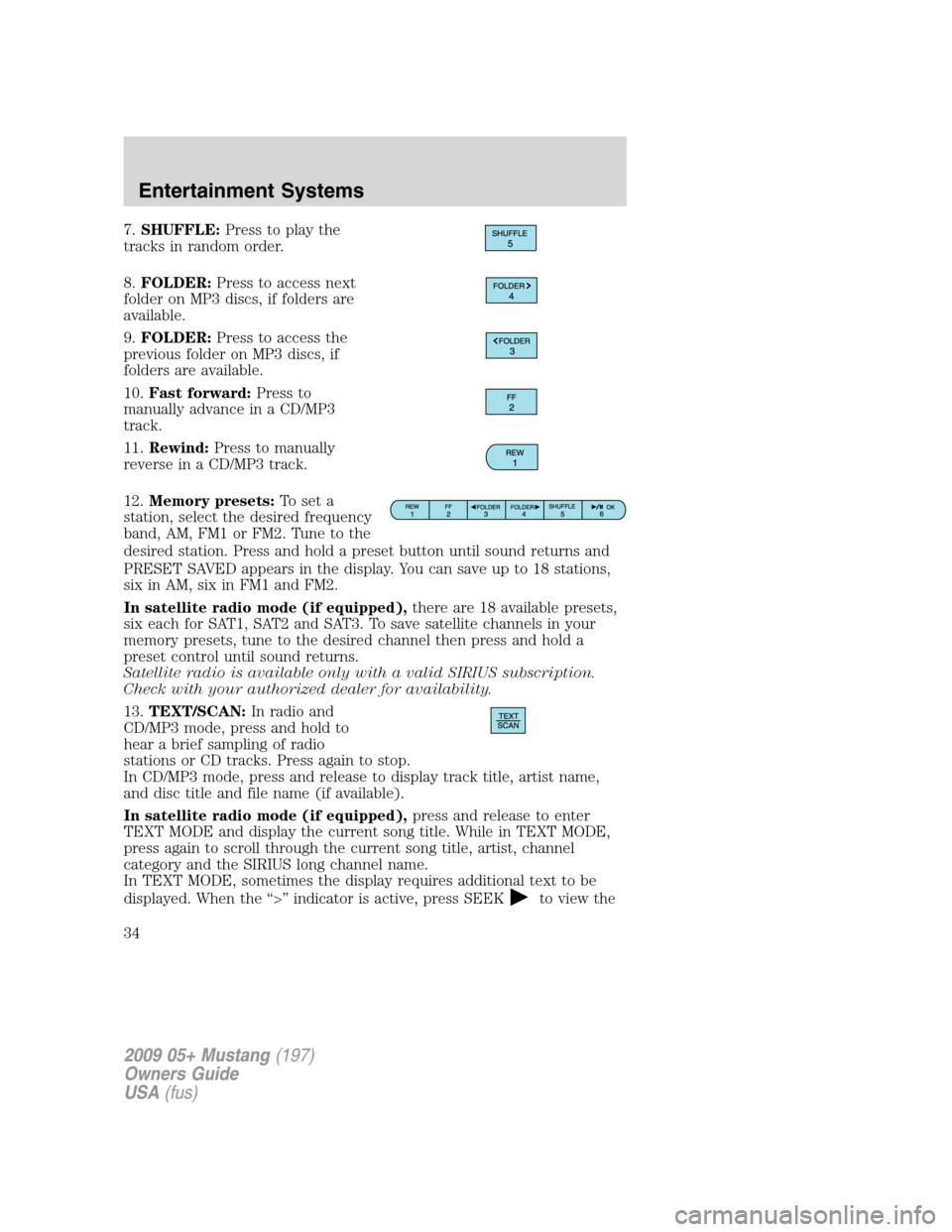
7.SHUFFLE:Press to play the
tracks in random order.
8.FOLDER:Press to access next
folder on MP3 discs, if folders are
available.
9.FOLDER:Press to access the
previous folder on MP3 discs, if
folders are available.
10.Fast forward:Press to
manually advance in a CD/MP3
track.
11.Rewind:Press to manually
reverse in a CD/MP3 track.
12.Memory presets:To set a
station, select the desired frequency
band, AM, FM1 or FM2. Tune to the
desired station. Press and hold a preset button until sound returns and
PRESET SAVED appears in the display. You can save up to 18 stations,
six in AM, six in FM1 and FM2.
In satellite radio mode (if equipped),there are 18 available presets,
six each for SAT1, SAT2 and SAT3. To save satellite channels in your
memory presets, tune to the desired channel then press and hold a
preset control until sound returns.
Satellite radio is available only with a valid SIRIUS subscription.
Check with your authorized dealer for availability.
13.TEXT/SCAN:In radio and
CD/MP3 mode, press and hold to
hear a brief sampling of radio
stations or CD tracks. Press again to stop.
In CD/MP3 mode, press and release to display track title, artist name,
and disc title and file name (if available).
In satellite radio mode (if equipped),press and release to enter
TEXT MODE and display the current song title. While in TEXT MODE,
press again to scroll through the current song title, artist, channel
category and the SIRIUS long channel name.
In TEXT MODE, sometimes the display requires additional text to be
displayed. When the “>” indicator is active, press SEEK
to view the
2009 05+ Mustang(197)
Owners Guide
USA(fus)
Entertainment Systems
34
Page 35 of 292
additional display text. When the “>” indicator is active, pressSEEK
to view the previous display text.
In satellite radio mode (if equipped),press and hold to hear a brief
sampling of the next channels. Press again to stop.
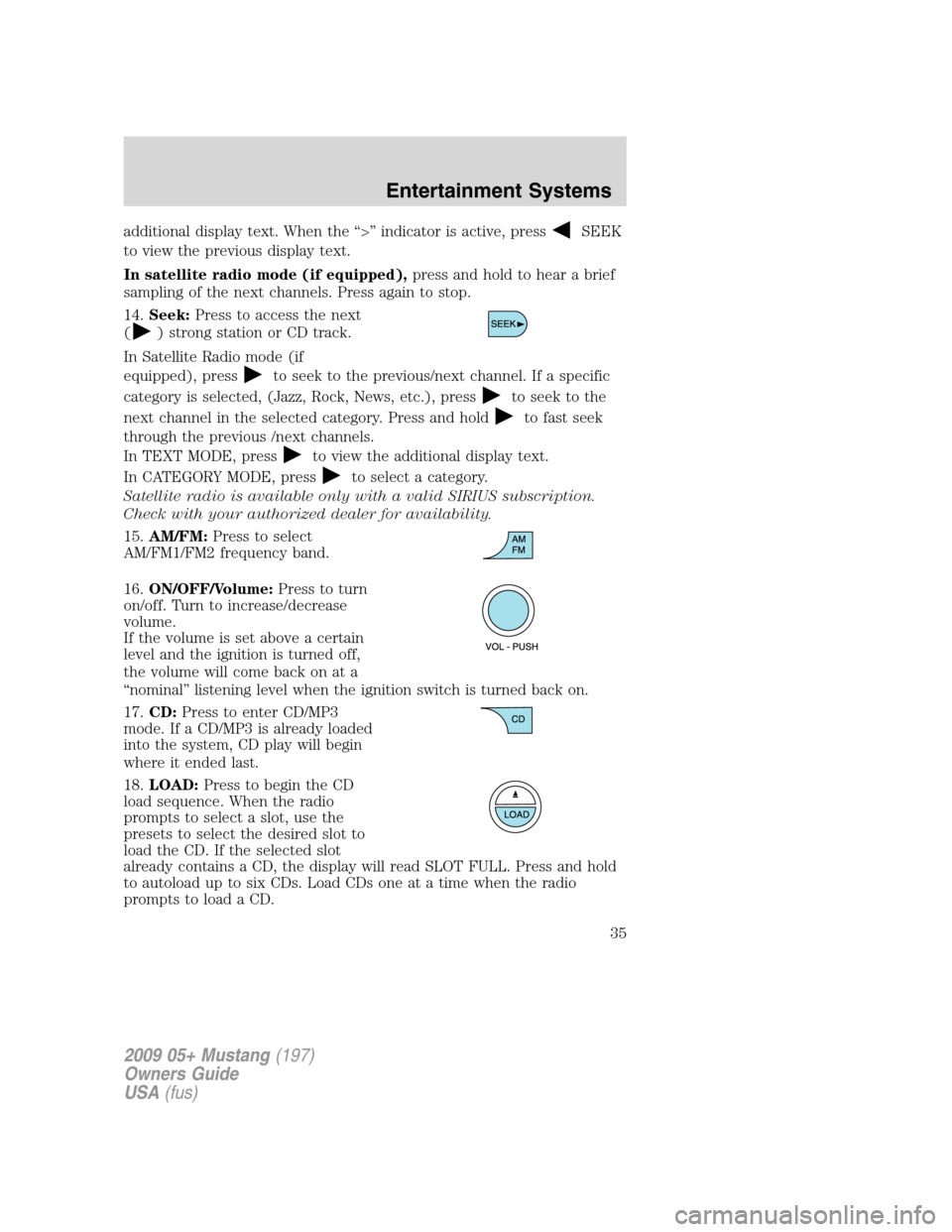
14.Seek:Press to access the next
(
) strong station or CD track.
In Satellite Radio mode (if
equipped), press
to seek to the previous/next channel. If a specific
category is selected, (Jazz, Rock, News, etc.), press
to seek to the
next channel in the selected category. Press and hold
to fast seek
through the previous /next channels.
In TEXT MODE, press
to view the additional display text.
In CATEGORY MODE, press
to select a category.
Satellite radio is available only with a valid SIRIUS subscription.
Check with your authorized dealer for availability.
15.AM/FM:Press to select
AM/FM1/FM2 frequency band.
16.ON/OFF/Volume:Press to turn
on/off. Turn to increase/decrease
volume.
If the volume is set above a certain
level and the ignition is turned off,
the volume will come back on at a
“nominal” listening level when the ignition switch is turned back on.
17.CD:Press to enter CD/MP3
mode. If a CD/MP3 is already loaded
into the system, CD play will begin
where it ended last.
18.LOAD:Press to begin the CD
load sequence. When the radio
prompts to select a slot, use the
presets to select the desired slot to
load the CD. If the selected slot
already contains a CD, the display will read SLOT FULL. Press and hold
to autoload up to six CDs. Load CDs one at a time when the radio
prompts to load a CD.
2009 05+ Mustang(197)
Owners Guide
USA(fus)
Entertainment Systems
35
Page 36 of 292
19.CD eject:Press to begin the CD
eject sequence. When the radio
prompts to select a CD, use the
presets to select the desired CD to eject. Press and hold to auto eject all
CDs present in the system. If there is no CD present, the display will
read NO CD.
20.CD slot:Insert one CD/MP3 at
a time, label side up, when the
system prompts to load a CD.
Auxiliary input jack (Line in)
WARNING:Driving while distracted can result in loss of vehicle
control, accident and injury. Ford strongly recommends that
drivers use extreme caution when using any device that may take their
focus off the road. The driver’s primary responsibility is the safe
operation of their vehicle. Only use cell phones and other devices not
essential to the driving task when it is safe to do so.
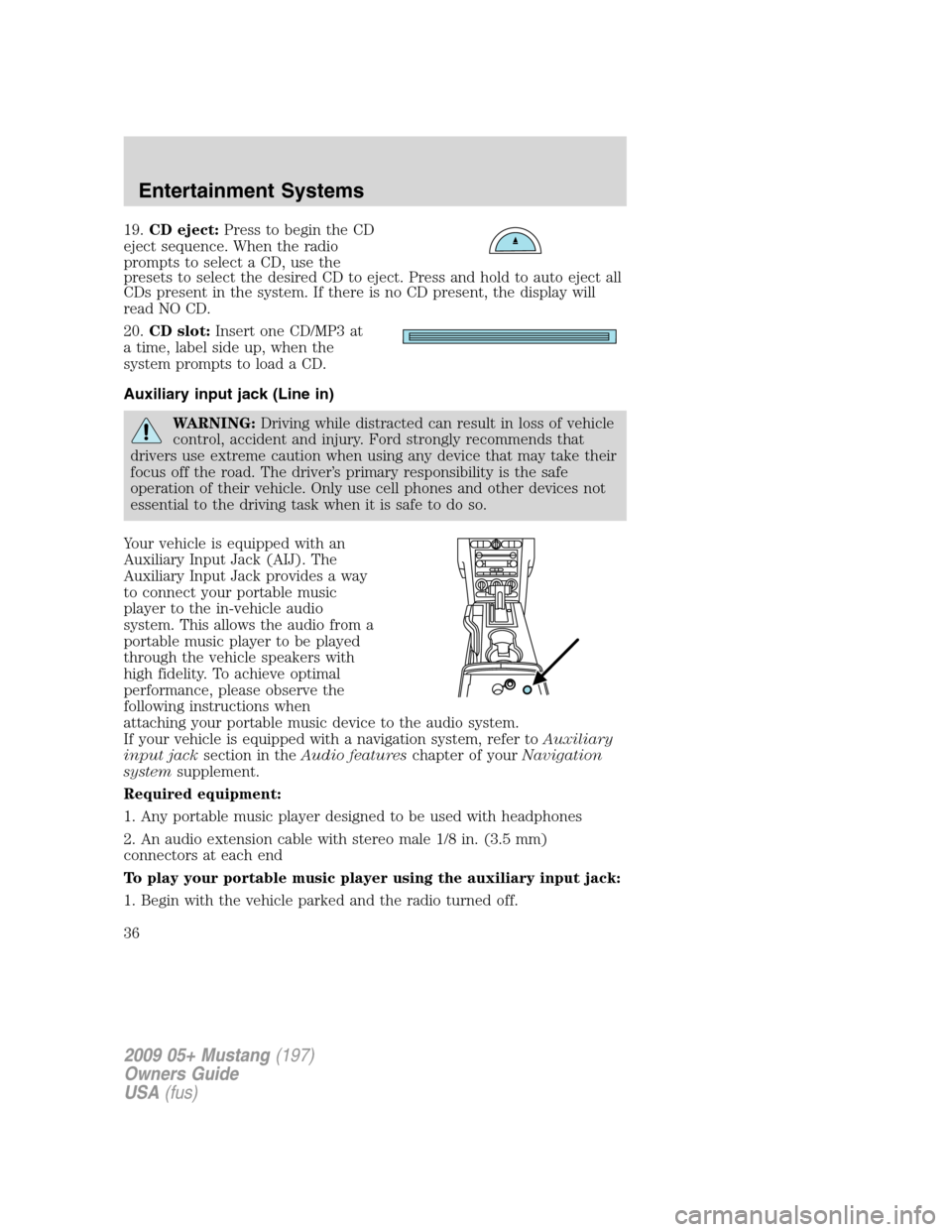
Your vehicle is equipped with an
Auxiliary Input Jack (AIJ). The
Auxiliary Input Jack provides a way
to connect your portable music
player to the in-vehicle audio
system. This allows the audio from a
portable music player to be played
through the vehicle speakers with
high fidelity. To achieve optimal
performance, please observe the
following instructions when
attaching your portable music device to the audio system.
If your vehicle is equipped with a navigation system, refer toAuxiliary
input jacksection in theAudio featureschapter of yourNavigation
systemsupplement.
Required equipment:
1. Any portable music player designed to be used with headphones
2. An audio extension cable with stereo male 1/8 in. (3.5 mm)
connectors at each end
To play your portable music player using the auxiliary input jack:
1. Begin with the vehicle parked and the radio turned off.
2009 05+ Mustang(197)
Owners Guide
USA(fus)
Entertainment Systems
36
Page 41 of 292
•Terrain: Hills, mountains, tall buildings, bridges, tunnels, freeway
overpasses, parking garages, dense tree foliage and thunderstorms can
interfere with your reception.
•Station overload: When you pass a ground based broadcast repeating
tower, a stronger signal may overtake a weaker one and result in an
audio mute.
Unlike AM/FM audible static, you will hear an audio mute when there is
a satellite radio signal interference. Your radio display may display NO
SIGNAL to indicate the interference.
SIRIUS satellite radio service:SIRIUS Satellite Radio is a subscription
based satellite radio service that broadcasts music, sports, news and
entertainment programming. A service fee is required in order to receive
SIRIUS service. Vehicles that are equipped with a factory installed
SIRIUS Satellite Radio system include:
•Hardware and limited subscription term, which begins on the date of
sale or lease of the vehicle.
•Use of online media player providing access to all SIRIUS music
channels over the internet using any computer connected to the
internet (U.S. customers only)
For information on extended subscription terms, contact SIRIUS at
1–888–539–7474.
Note:SIRIUS reserves the unrestricted right to change, rearrange, add
or delete programming including canceling, moving or adding particular
channels, and its prices, at any time, with or without notice to you. Ford
Motor Company shall not be responsible for any such programming
changes.
Satellite Radio Electronic Serial Number (ESN):This 12-digit
Satellite Serial Number is needed to activate, modify or track your
satellite radio account. You will need this number when communicating
with SIRIUS. While in Satellite Radio mode, you can view this number on
the radio display by pressing AUX and Preset 1 control simultaneously.
2009 05+ Mustang(197)
Owners Guide
USA(fus)
Entertainment Systems
41
Page 42 of 292
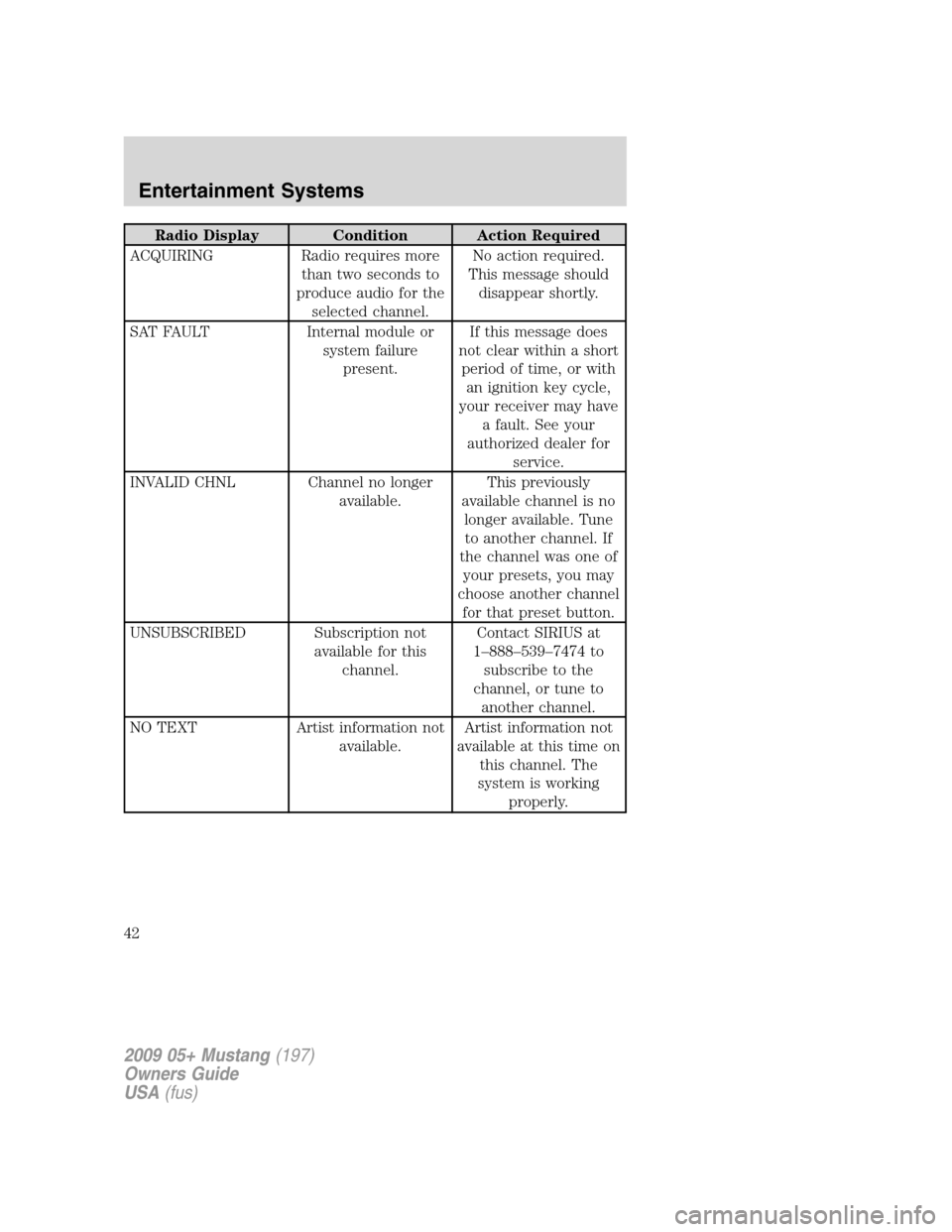
Radio Display Condition Action Required
ACQUIRING Radio requires more
than two seconds to
produce audio for the
selected channel.No action required.
This message should
disappear shortly.
SAT FAULT Internal module or
system failure
present.If this message does
not clear within a short
period of time, or with
an ignition key cycle,
your receiver may have
a fault. See your
authorized dealer for
service.
INVALID CHNL Channel no longer
available.This previously
available channel is no
longer available. Tune
to another channel. If
the channel was one of
your presets, you may
choose another channel
for that preset button.
UNSUBSCRIBED Subscription not
available for this
channel.Contact SIRIUS at
1–888–539–7474 to
subscribe to the
channel, or tune to
another channel.
NO TEXT Artist information not
available.Artist information not
available at this time on
this channel. The
system is working
properly.
2009 05+ Mustang(197)
Owners Guide
USA(fus)
Entertainment Systems
42
Page 50 of 292
Note:If the battery is disconnected, discharged, or a new battery is
installed, the dimmer switch requires re-calibration. Rotate the dimmer
switch from the full dim position to the full dome/on position to reset.
This will ensure that your displays are visible under all lighting
conditions.
AIMING THE HEADLAMPS
The headlamps on your vehicle are properly aimed at the assembly plant.
If your vehicle has been in an accident the alignment of your headlamps
should be checked by your authorized dealer.
Vertical aim adjustment
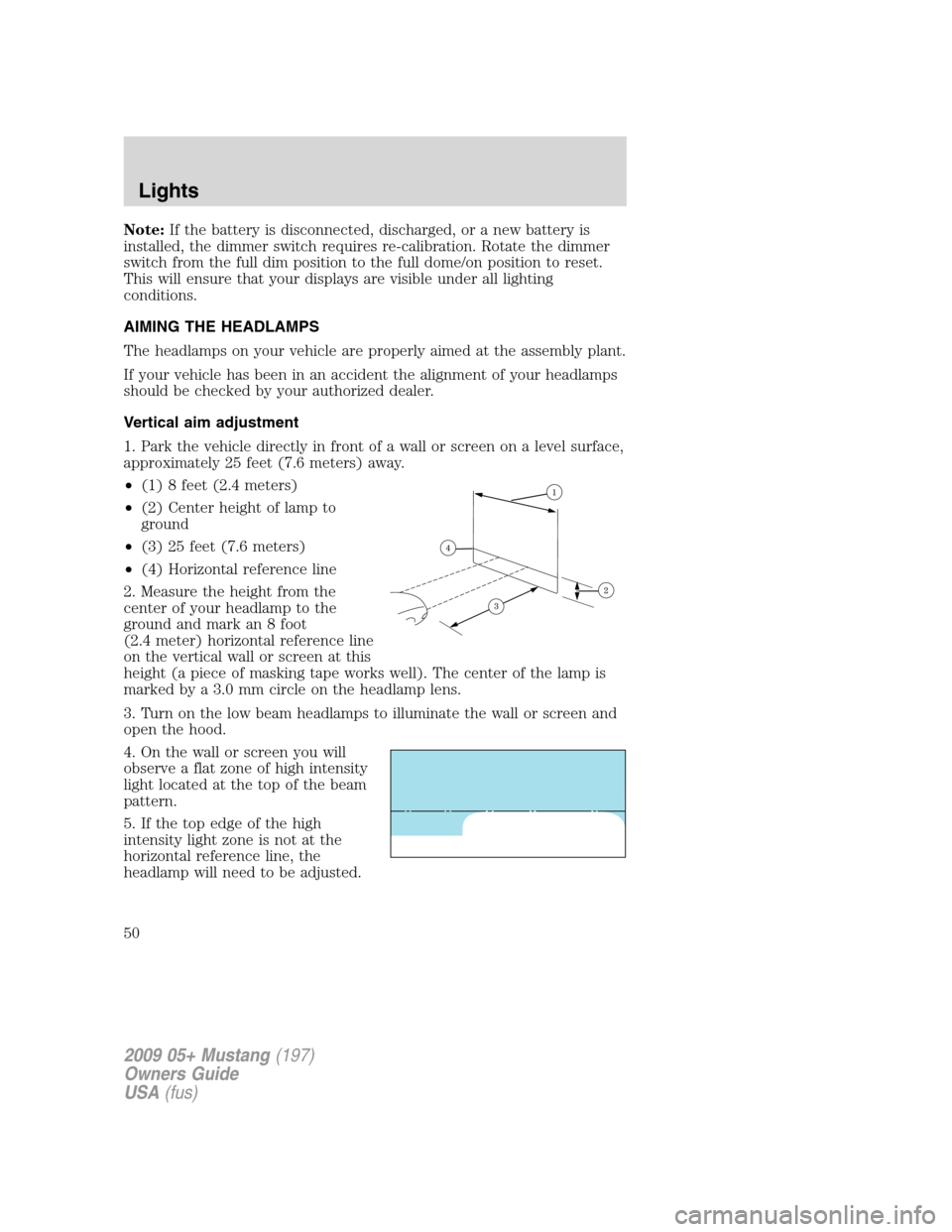
1. Park the vehicle directly in front of a wall or screen on a level surface,
approximately 25 feet (7.6 meters) away.
•(1) 8 feet (2.4 meters)
•(2) Center height of lamp to
ground
•(3) 25 feet (7.6 meters)
•(4) Horizontal reference line
2. Measure the height from the
center of your headlamp to the
ground and mark an 8 foot
(2.4 meter) horizontal reference line
on the vertical wall or screen at this
height (a piece of masking tape works well). The center of the lamp is
marked by a 3.0 mm circle on the headlamp lens.
3. Turn on the low beam headlamps to illuminate the wall or screen and
open the hood.
4. On the wall or screen you will
observe a flat zone of high intensity
light located at the top of the beam
pattern.
5. If the top edge of the high
intensity light zone is not at the
horizontal reference line, the
headlamp will need to be adjusted.
2009 05+ Mustang(197)
Owners Guide
USA(fus)
Lights
50
Page 63 of 292
Restoring the Express up functionality (Front windows only)
Under low battery power conditions, Express Up only functionality may
be lost. To reset this function after restoring full battery power, pull the
switch to the Express Up position, hold the switch until the glass
reaches the stall position and continue to hold for two seconds. Push the
window switch DOWN and operate the window to the full down position.
Express UP will now be functional.Perform Express UP
re-calibration with door closed only. Calibrating with door open
will cause the window to continuously bounce back.
Bounce Back (Front windows only)
When an obstacle has been detected in the window opening as the
window is moving upward, the window will automatically move down and
stop at a prescribed position.
Bounce Back Override (Front windows only)
To override Bounce Back, within two seconds after reaching Bounce
Back position, if the switch is moved from the Neutral to the Express Up
positionthe window will travel up with no bounce back protection.
If the switch is released before the window reaches fully closed position,
the window will stop. For example: Bounce Back Override can be used to
overcome the resistance of ice on the window or seals.
Short drop glass (Front windows only)
In order to improve door efforts and sealing, your vehicle is equipped
with short drop glass. This feature lowers the glass when either door is
opened. The glass returns to its closed position when the door is closed.
Proper operation of the short drop glass requires that the windows be
calibrated.Though your windows will have been calibrated before
your vehicle is delivered to you, it is possible for the windows to
lose calibration.If a window loses its calibration, your short drop
feature will lower the window, but will not raise it again when the door is
closed. To re-calibrate the window, pull the switch up to raise the
window until it completes its travel and hold the switch up for two
seconds. Another possible effect of lost calibration is that the feature
may not lower the window. To re-calibrate the window in this case, lower
the window until it completes its travel and hold the switch down for
two seconds. Immediately after releasing the window down switch, pull
the switch up to raise the window until it completes its travel and hold
the switch up for two seconds.Perform Short drop re-calibration
with doors closed only. Re-calibrating with doors open will cause
the window to continuously bounce back.
2009 05+ Mustang(197)
Owners Guide
USA(fus)
Driver Controls
63
Page 74 of 292
Selectable features
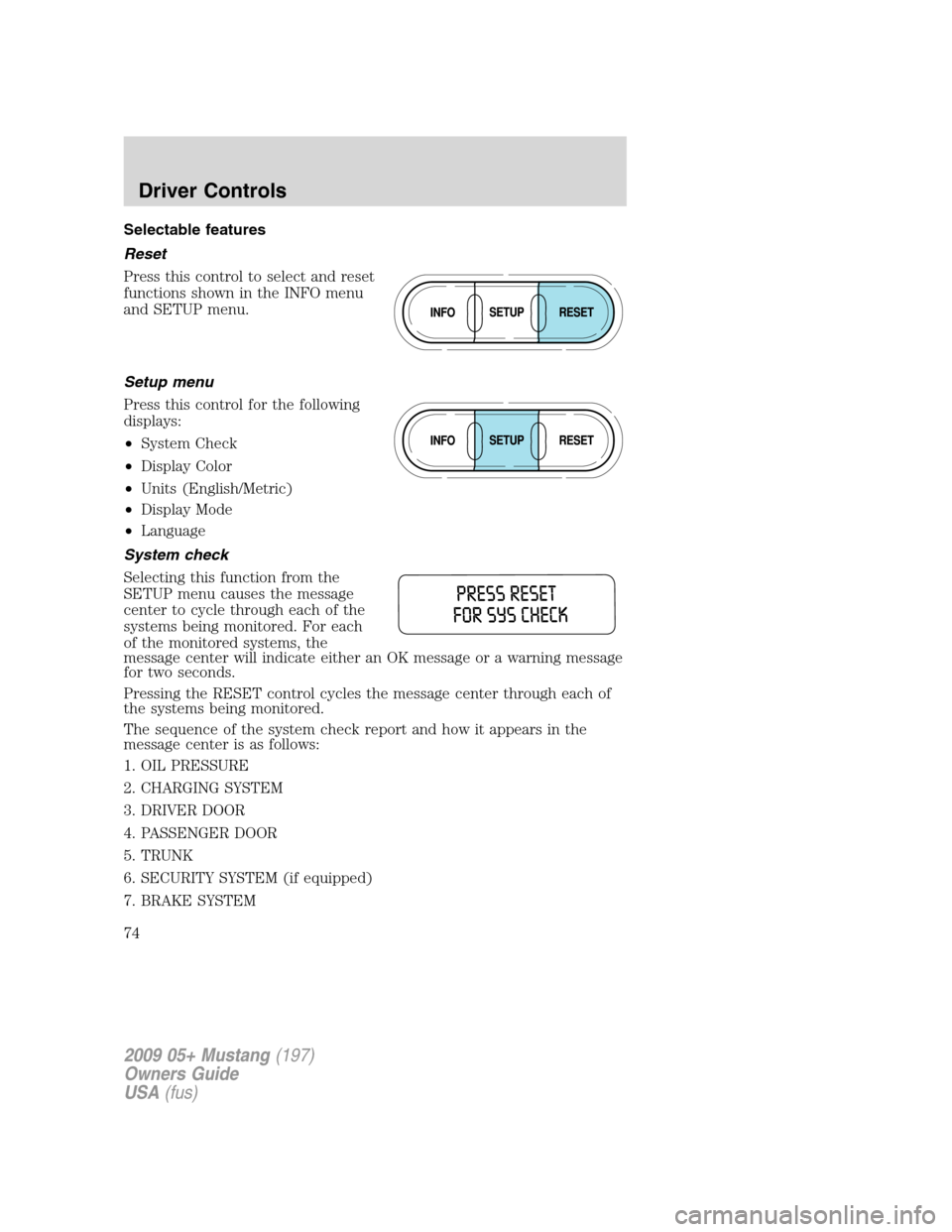
Reset
Press this control to select and reset
functions shown in the INFO menu
and SETUP menu.
Setup menu
Press this control for the following
displays:
•System Check
•Display Color
•Units (English/Metric)
•Display Mode
•Language
System check
Selecting this function from the
SETUP menu causes the message
center to cycle through each of the
systems being monitored. For each
of the monitored systems, the
message center will indicate either an OK message or a warning message
for two seconds.
Pressing the RESET control cycles the message center through each of
the systems being monitored.
The sequence of the system check report and how it appears in the
message center is as follows:
1. OIL PRESSURE
2. CHARGING SYSTEM
3. DRIVER DOOR
4. PASSENGER DOOR
5. TRUNK
6. SECURITY SYSTEM (if equipped)
7. BRAKE SYSTEM
2009 05+ Mustang(197)
Owners Guide
USA(fus)
Driver Controls
74
Page 75 of 292
8. TRAC CONTROL (if equipped)
9. FUEL CAP
10. FUEL LEVEL
11. MILES TO EMPTY
Display color
The instrument cluster gauges are backlit with white backlighting when
the headlamps are off. When the headlamps are on, the user can select
one of six preset colors or one user definable color (MyColor™) for the
nighttime gauge backlighting. Headlamps must be on to set up the
nighttime display color.
Note:A gauge in a warning condition will be lit red when the headlamps
are on.
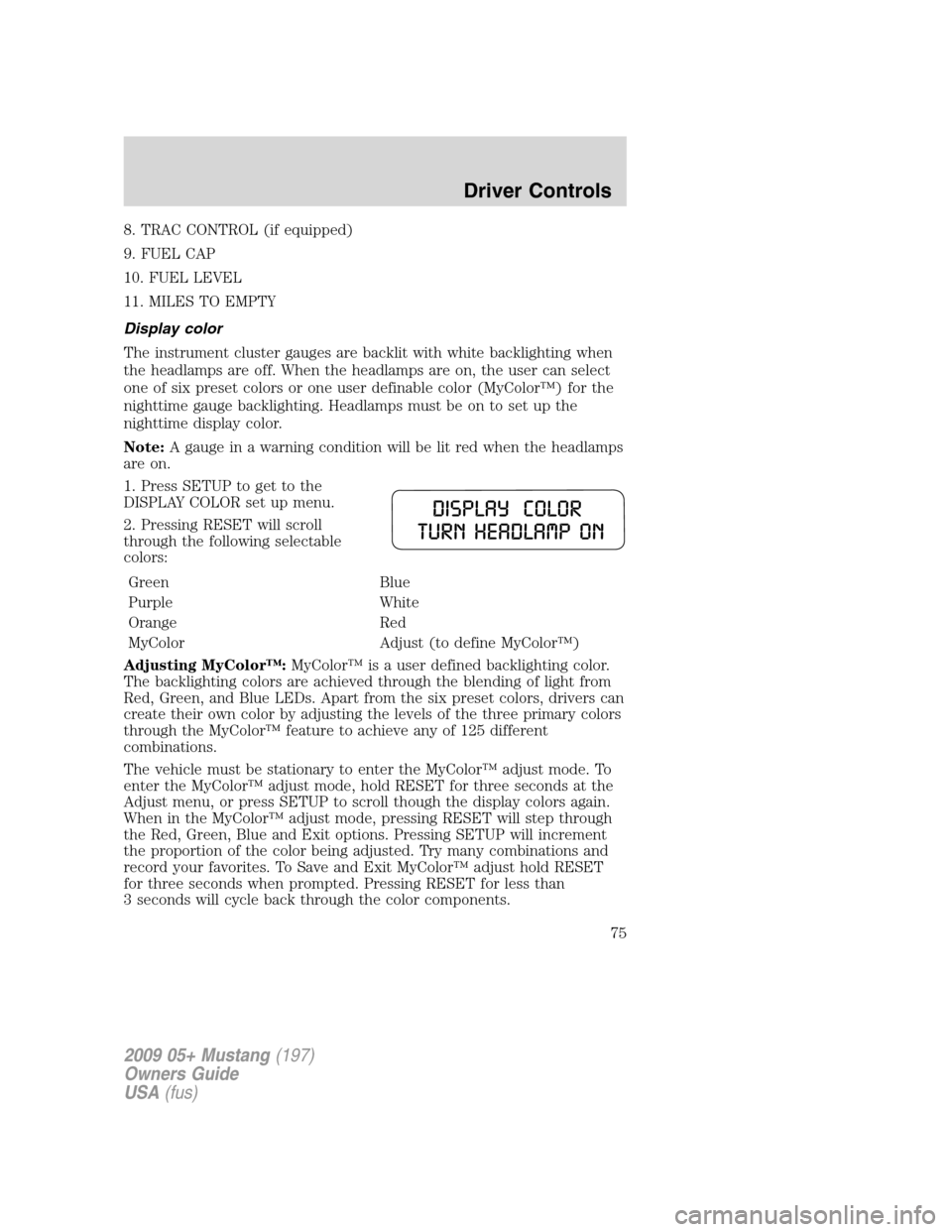
1. Press SETUP to get to the
DISPLAY COLOR set up menu.
2. Pressing RESET will scroll
through the following selectable
colors:
Green Blue
Purple White
Orange Red
MyColor Adjust (to define MyColor™)
Adjusting MyColor™:MyColor™ is a user defined backlighting color.
The backlighting colors are achieved through the blending of light from
Red, Green, and Blue LEDs. Apart from the six preset colors, drivers can
create their own color by adjusting the levels of the three primary colors
through the MyColor™ feature to achieve any of 125 different
combinations.
The vehicle must be stationary to enter the MyColor™ adjust mode. To
enter the MyColor™ adjust mode, hold RESET for three seconds at the
Adjust menu, or press SETUP to scroll though the display colors again.
When in the MyColor™ adjust mode, pressing RESET will step through
the Red, Green, Blue and Exit options. Pressing SETUP will increment
the proportion of the color being adjusted. Try many combinations and
record your favorites. To Save and Exit MyColor™ adjust hold RESET
for three seconds when prompted. Pressing RESET for less than
3 seconds will cycle back through the color components.
2009 05+ Mustang(197)
Owners Guide
USA(fus)
Driver Controls
75