buttons FORD MUSTANG 2014 5.G Owner's Manual
[x] Cancel search | Manufacturer: FORD, Model Year: 2014, Model line: MUSTANG, Model: FORD MUSTANG 2014 5.GPages: 461, PDF Size: 5.47 MB
Page 379 of 461
E.TUNE RPT:
•In radio or satellite radio mode, turn the control to advance in
individual increments up or down the frequency band to the desired
station.
•In MP3 mode, turn the control to advance to the next or previous
folder.
•In navigation mode, press this button to hear the last spoken
navigation guidance prompt.
F.DISP:Press this button to select a display mode: On, Status Bar Only,
and Off.
G.SOUND:
•Press this button to access the sound menu.
•Press while the sound menu is active to access the menu tabs of
Bass/Treble, Balance/Fade, SCV (Speed Compensated Volume), DSP
(Digital Signal Processing) and Visualizer.
H.SEEK:
•In radio and satellite radio mode, press the arrow buttons to find
previous or next available stations or channels within the currently
selected Category or Genre.
•In CD and DVD modes, press the arrow buttons to select the previous
or next track or chapter.
I.MEDIA:
•Press this button to access the media menu.
•Press while the media menu is active to access the available sources
of CD/DVD, Jukebox and User Device.
J.RADIO:
•Press this button to access the radio menu.
•Press while the radio menu is active to access the available sources of
AM, FM1, FM2, SAT1, SAT2, and SAT3.
K.VOL:Press and hold this button to turn the system off and on. Turn
the control to adjust the volume.
Note:If a navigation route is active when the navigation system is off,
the system resumes the route when you turn the system on.
L.Memory presets:
•Store your favorite radio stations. To store a radio station, tune to the
station, then press and hold a preset button until sound returns.
•In radio and satellite radio mode, press a button to access your saved
presets or channels.
378Navigation System (If Equipped)
2014 05+ Mustang(197)
Owners Guide gf, 1st Printing, November 2012
USA(fus)
Page 381 of 461
Type 2
WARNING:Driving while distracted can result in loss of vehicle
control, crash and injury. We strongly recommend that you use
extreme caution when using any device that may take your focus off
the road. Your primary responsibility is the safe operation of your
vehicle. We recommend against the use of any hand-held device while
driving and encourage the use of voice-operated systems when possible.
Make sure you are aware of all applicable local laws that may affect the
use of electronic devices while driving.
The system divides the screen in two sections after it initializes:
•Status bars:This is the top and bottom portion of the screen.
It displays the clock or date and other useful information, depending
on which mode you are in.
•Display area:The touchscreen changes depending on current
system operation. Different buttons display in this area, depending on
which mode you are in.
Note:Some features, such as SIRIUS satellite radio, may not be available
in your location. Check with your authorized dealer.
380Navigation System (If Equipped)
2014 05+ Mustang(197)
Owners Guide gf, 1st Printing, November 2012
USA(fus)
Page 382 of 461
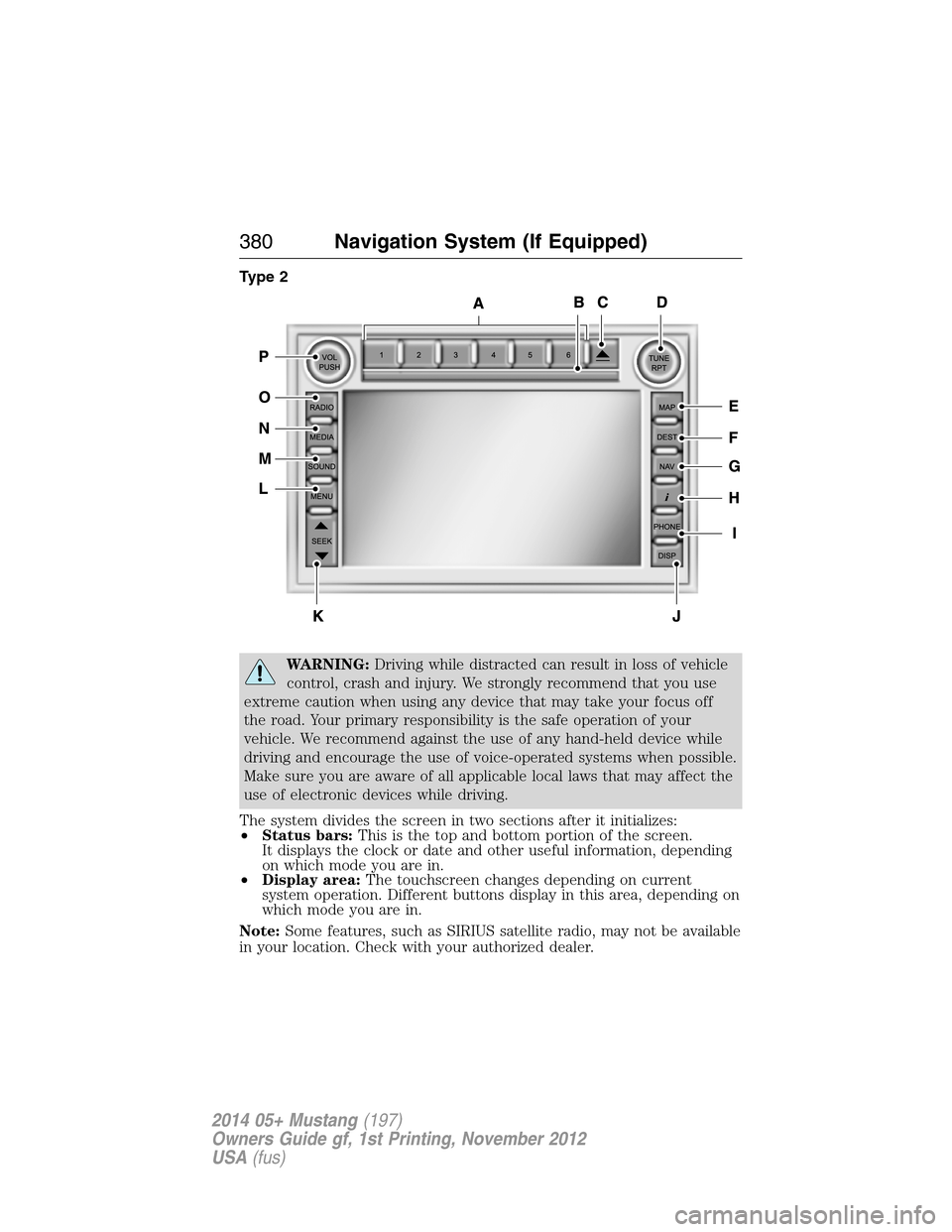
A.Memory presets:
•Store your favorite radio stations. To store a radio station, tune to the
station, then press and hold a preset button until sound returns.
•In radio and satellite radio mode, press a button to access your saved
presets or channels.
B.CD and DVD slot:Insert a CD or DVD, label side up.
C.Eject:Press this button to eject a CD or DVD from the system.
D.TUNE RPT:
•In radio or satellite radio mode, turn the control to advance in
individual increments up or down the frequency band to the desired
station.
•In MP3 mode, turn the control to advance to the next or previous
folder.
•In navigation mode, press this button to hear the last spoken
navigation guidance prompt.
E.MAP:
•Press this button to access the navigation map.
•Press while the map display is active to center the map on the
current vehicle position. Press while the map display and route are
active to see the different map guidance views.
F.DEST:
•Press this button to access the destination entry menu.
•Press while the destination entry menu is active to show additional
destination entry techniques.
G.N AV:
•Press this button to access the navigation menu.
•Press while the navigation menu is active to access the navigation
menu tabs.
H.I (Information):Press this button to access features such as Where
am I?, SIRIUS® Travel Link™, Calendar, System Info and Help.
I.PHONE:Press this button to access the SYNC phone menu.
J.DISP:Press this button to select a display mode: On, Status Bar Only,
and Off.
K.SEEK:
•In radio and satellite radio mode, press the arrow buttons to find
previous or next available stations or channels within the currently
selected Category or Genre.
•In CD and DVD modes, press the arrow buttons to select the previous
or next track or chapter.
Navigation System (If Equipped)381
2014 05+ Mustang(197)
Owners Guide gf, 1st Printing, November 2012
USA(fus)
Page 390 of 461
If you select: You can:
Feedback Touch Screen Button Beepallows you to
select when the system sounds an audible
tone: All Buttons (whenever any system
button is touched), Touch Screen (only when
touchscreen selections are made) or Off (no
audible tones at all).
Voice Volumeallows you to change
navigation voice and audible tone volume by
touching + or -.
Satellite Radio Channel Nameallows you
to choose to display the satellite radio
channel name.
Voice Recognition Interaction Mode
allows you to choose the level of system
interaction and feedback. Standard is the
default and provides the most interaction and
feedback using prompts. Advanced uses less
feedback and prompts.
Voice Recognition Confirmationallows you
to choose level of voice command
confirmation. Selecting On causes the system
to always ask to confirm a command.
Selecting Off causes the system to ask for
confirmation less frequently.
Voice Recognition User Profileallows you
to switch between user profiles.
Train the system to better recognize your
voice. Two profiles can be created; seeUsing
voice recognitionearlier in this section.
Navigation System (If Equipped)389
2014 05+ Mustang(197)
Owners Guide gf, 1st Printing, November 2012
USA(fus)
Page 400 of 461
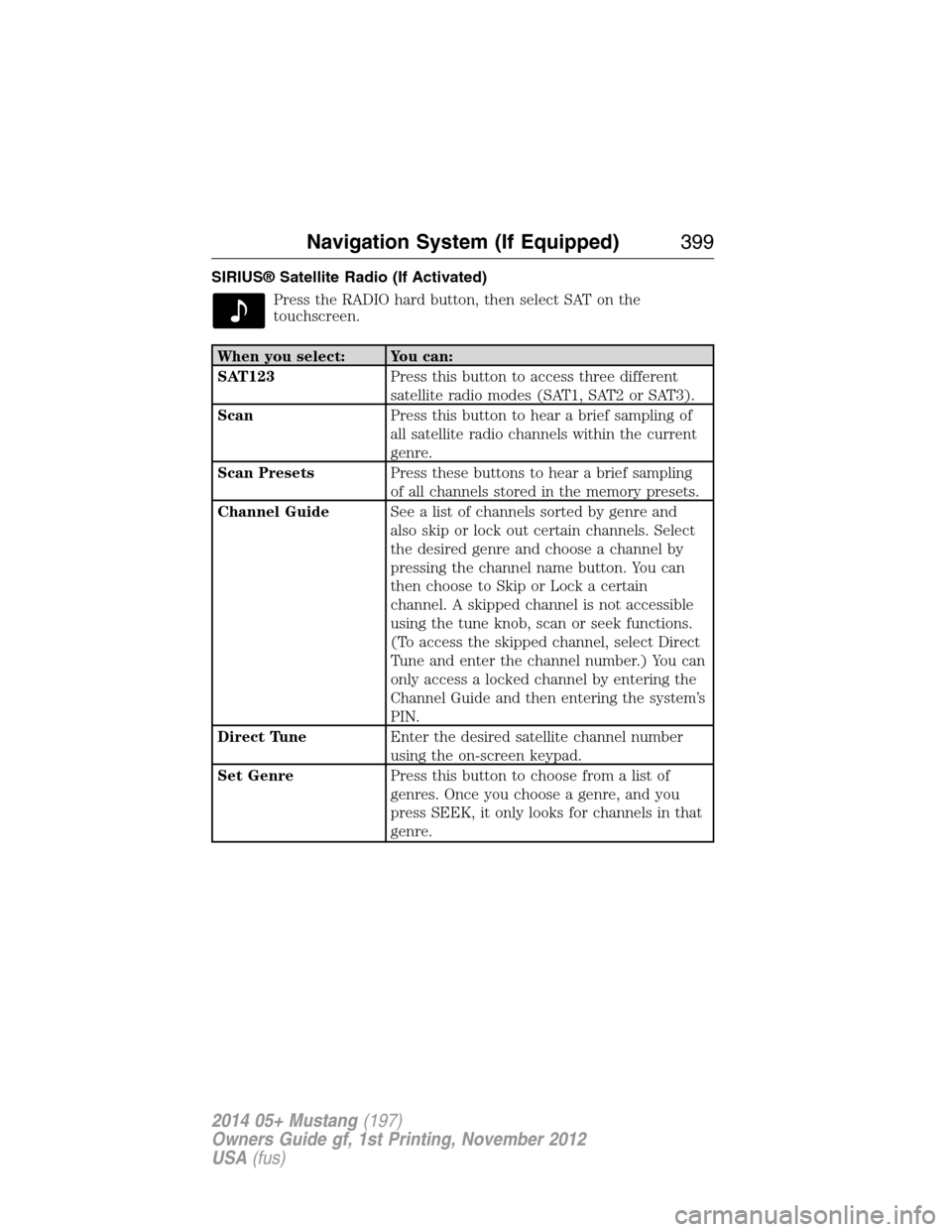
SIRIUS® Satellite Radio (If Activated)
Press the RADIO hard button, then select SAT on the
touchscreen.
When you select: You can:
SAT123Press this button to access three different
satellite radio modes (SAT1, SAT2 or SAT3).
ScanPress this button to hear a brief sampling of
all satellite radio channels within the current
genre.
Scan PresetsPress these buttons to hear a brief sampling
of all channels stored in the memory presets.
Channel GuideSee a list of channels sorted by genre and
also skip or lock out certain channels. Select
the desired genre and choose a channel by
pressing the channel name button. You can
then choose to Skip or Lock a certain
channel. A skipped channel is not accessible
using the tune knob, scan or seek functions.
(To access the skipped channel, select Direct
Tune and enter the channel number.) You can
only access a locked channel by entering the
Channel Guide and then entering the system’s
PIN.
Direct TuneEnter the desired satellite channel number
using the on-screen keypad.
Set GenrePress this button to choose from a list of
genres. Once you choose a genre, and you
press SEEK, it only looks for channels in that
genre.
Navigation System (If Equipped)399
2014 05+ Mustang(197)
Owners Guide gf, 1st Printing, November 2012
USA(fus)
Page 417 of 461
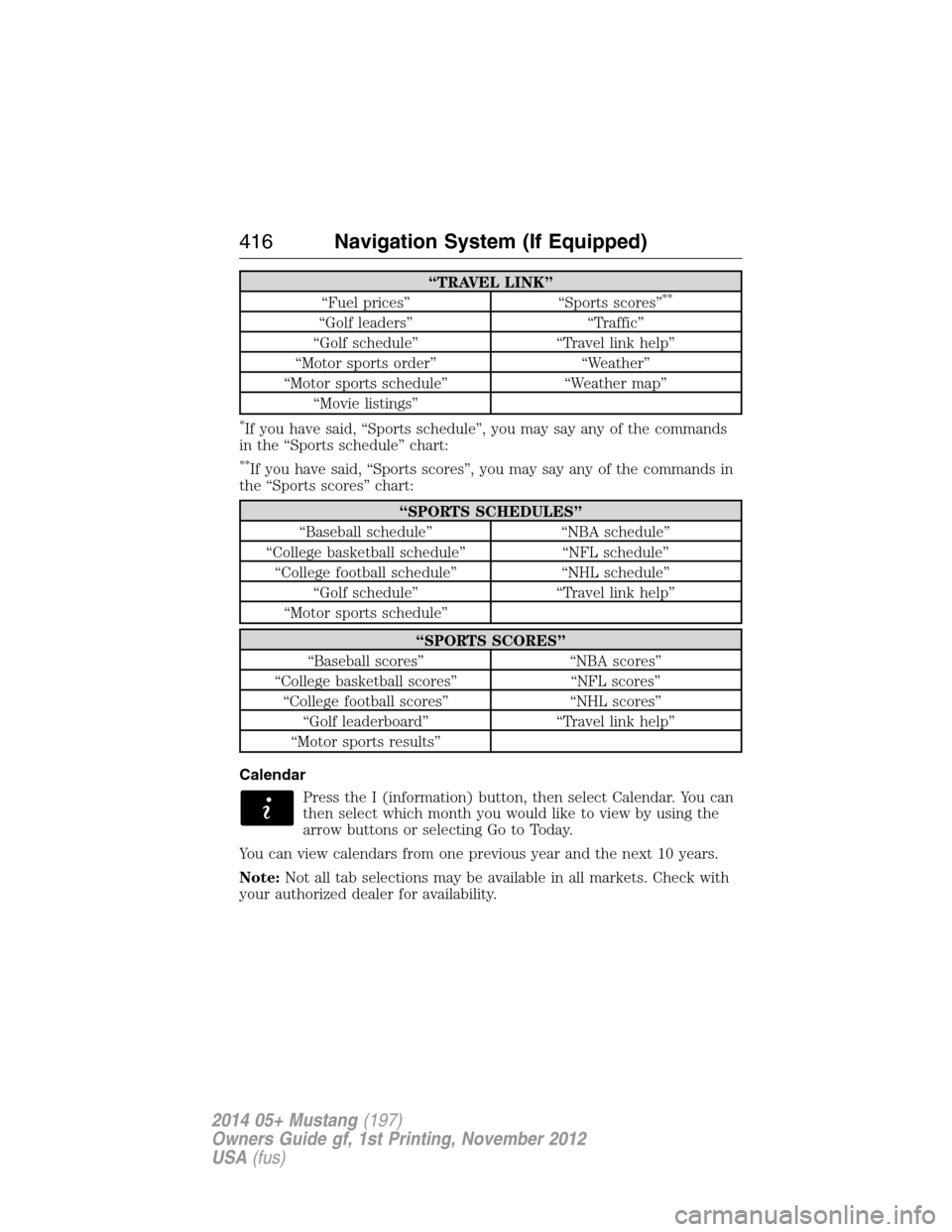
“TRAVEL LINK”
“Fuel prices” “Sports scores”**
“Golf leaders” “Traffic”
“Golf schedule” “Travel link help”
“Motor sports order” “Weather”
“Motor sports schedule” “Weather map”
“Movie listings”
*If you have said, “Sports schedule”, you may say any of the commands
in the “Sports schedule” chart:
**If you have said, “Sports scores”, you may say any of the commands in
the “Sports scores” chart:
“SPORTS SCHEDULES”
“Baseball schedule” “NBA schedule”
“College basketball schedule” “NFL schedule”
“College football schedule” “NHL schedule”
“Golf schedule” “Travel link help”
“Motor sports schedule”
“SPORTS SCORES”
“Baseball scores” “NBA scores”
“College basketball scores” “NFL scores”
“College football scores” “NHL scores”
“Golf leaderboard” “Travel link help”
“Motor sports results”
Calendar
Press the I (information) button, then select Calendar. You can
then select which month you would like to view by using the
arrow buttons or selecting Go to Today.
You can view calendars from one previous year and the next 10 years.
Note:Not all tab selections may be available in all markets. Check with
your authorized dealer for availability.
416Navigation System (If Equipped)
2014 05+ Mustang(197)
Owners Guide gf, 1st Printing, November 2012
USA(fus)
Page 418 of 461
System Information
Press the I (information) button, then select System
Information.
In this screen, you can view the following options:
•Phone number for your Customer Service Center
•Current system versions installed
•Current SIRIUS® Radio ESN
•SIRIUS® Travel Link™ ESN.
Note:Not all tab selections may be available in all markets. Check with
your authorized dealer for availability.
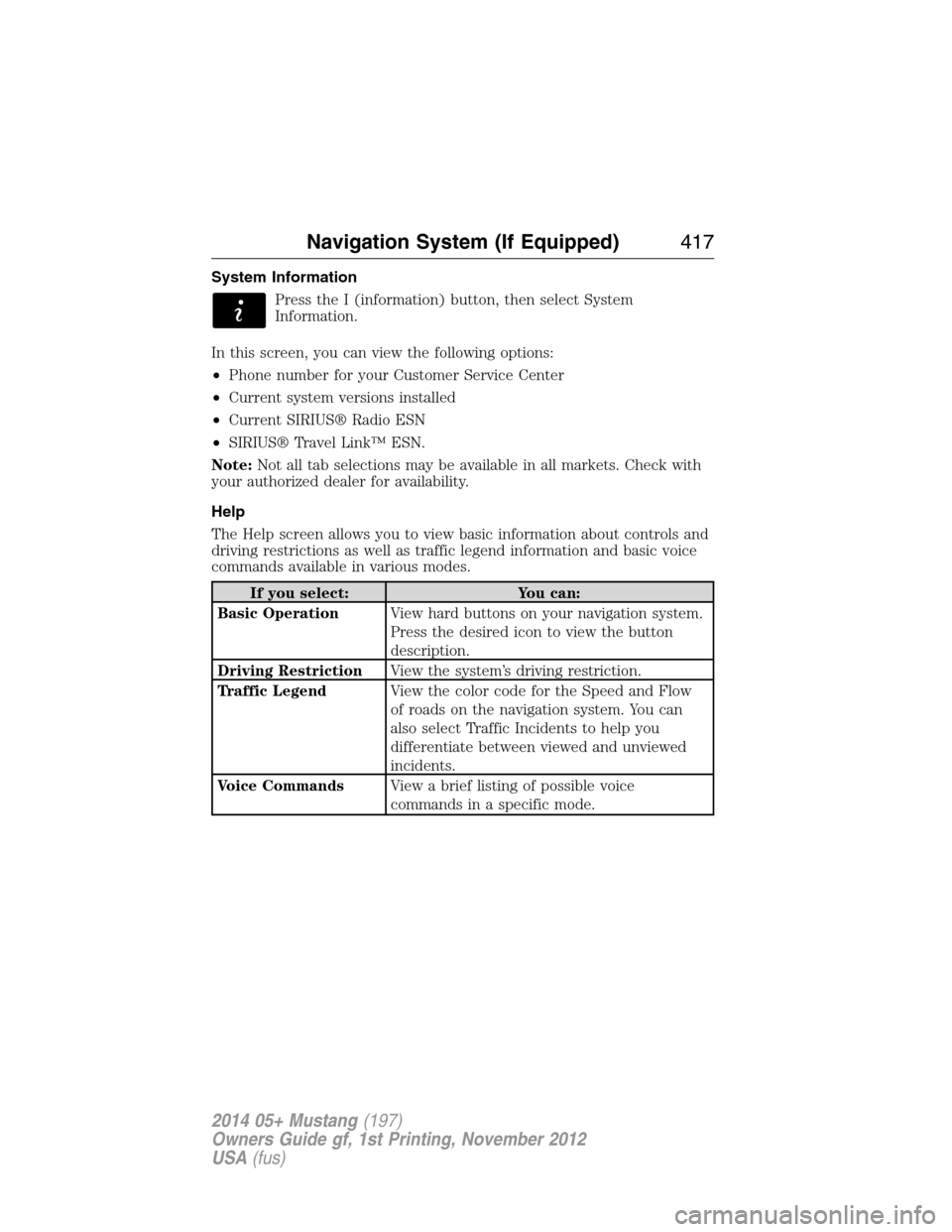
Help
The Help screen allows you to view basic information about controls and
driving restrictions as well as traffic legend information and basic voice
commands available in various modes.
If you select: You can:
Basic OperationView hard buttons on your navigation system.
Press the desired icon to view the button
description.
Driving RestrictionView the system’s driving restriction.
Traffic LegendView the color code for the Speed and Flow
of roads on the navigation system. You can
also select Traffic Incidents to help you
differentiate between viewed and unviewed
incidents.
Voice CommandsView a brief listing of possible voice
commands in a specific mode.
Navigation System (If Equipped)417
2014 05+ Mustang(197)
Owners Guide gf, 1st Printing, November 2012
USA(fus)
Page 434 of 461
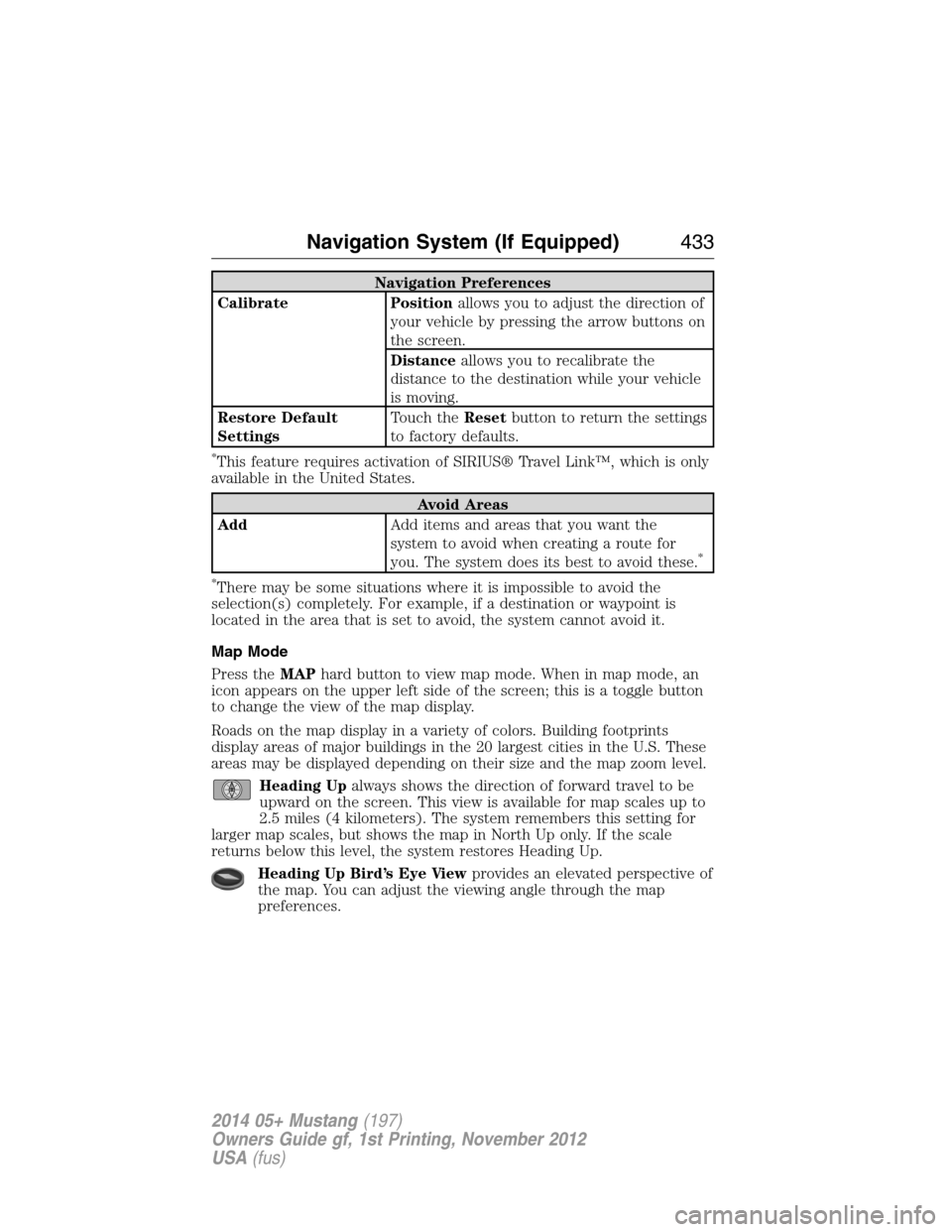
Navigation Preferences
Calibrate Positionallows you to adjust the direction of
your vehicle by pressing the arrow buttons on
the screen.
Distanceallows you to recalibrate the
distance to the destination while your vehicle
is moving.
Restore Default
SettingsTouch theResetbutton to return the settings
to factory defaults.
*This feature requires activation of SIRIUS® Travel Link™, which is only
available in the United States.
Avoid Areas
AddAdd items and areas that you want the
system to avoid when creating a route for
you. The system does its best to avoid these.
*
*
There may be some situations where it is impossible to avoid the
selection(s) completely. For example, if a destination or waypoint is
located in the area that is set to avoid, the system cannot avoid it.
Map Mode
Press theMAPhard button to view map mode. When in map mode, an
icon appears on the upper left side of the screen; this is a toggle button
to change the view of the map display.
Roads on the map display in a variety of colors. Building footprints
display areas of major buildings in the 20 largest cities in the U.S. These
areas may be displayed depending on their size and the map zoom level.
Heading Upalways shows the direction of forward travel to be
upward on the screen. This view is available for map scales up to
2.5 miles (4 kilometers). The system remembers this setting for
larger map scales, but shows the map in North Up only. If the scale
returns below this level, the system restores Heading Up.
Heading Up Bird’s Eye Viewprovides an elevated perspective of
the map. You can adjust the viewing angle through the map
preferences.
Navigation System (If Equipped)433
2014 05+ Mustang(197)
Owners Guide gf, 1st Printing, November 2012
USA(fus)
Page 436 of 461
No GPS symbolindicates that insufficient GPS satellite signals
are available for accurate map positioning. This icon may display
under normal operation in an area with poor GPS access.
Map Scale
The map display scale has 17 levels, ranging from
0.02 miles (.03 kilometers) to 1000 miles (1600 kilometers).
The system synchronizes the zoom scales for North Up,
Heading Up and 3D Map views.
In Map Mode, you can zoom in or out, changing the display
scale, by touching an arrow button on the left side of the
screen.
In Full Screen Map Mode, touch this button to use the Zoom Direct
buttons. The Zoom Direct buttons represent the most common map
scales. Touch a button to show the map at the desired scale. The scale is
approximate and based on the width of the map scale button. The size of
the scale varies based on the screen size.
Map Scrolling
Single scroll modeallows you to press and release on the map display
to bring the pressed position to the center of the screen. The scroll
mode times out after five minutes of inactivity.
Continuous scroll modeallows you to touch and hold the map to
begin scrolling continuously in one of eight directions closest to the point
that is touched. The scroll continues until you release the map, and
increases in speed after three seconds. This is not possible if your
vehicle is moving. The scroll mode times out after five minutes of
inactivity.
Bird’s eye view scroll modeis available after you touch the map twice,
and then selecting one of the eight buttons that appear on the map, in
an oval pattern, in the center of the screen. The two scroll buttons
located in the farthest east and west points of the oval, scroll in a circle
around the vehicle. The remaining buttons scroll in a straight line in the
arrow direction.
0.1 mi
Navigation System (If Equipped)435
2014 05+ Mustang(197)
Owners Guide gf, 1st Printing, November 2012
USA(fus)
Page 437 of 461
Quick-touch Buttons
When in map mode, touch anywhere on the map display to access the
following options:
When you select: You can:
Set as DestSelect a scrolled location on the map as your
destination. You may scroll the map by
pressing your index finger on the map display.
When you reach the desired location, simply
let go and then press Set as Dest.
Set as WaypointSet the current location as a waypoint.
Save to Address
BookSave the current location to the address book.
POI Icons On/OffSelect point of interest icons to display on the
map. You can select up to three icons to
display on the map at the same time.
View TrafficAdjust the map display to the right scale. This
scale allows the entire route to be visible in
the screen.
View/Edit RouteAccess these features when a route is active:
Cancel route.
Edit route preferences.
Edit destination/waypoints.
View route.
Edit traffic preferences.
*
Edit turn list.
*This feature requires activation of SIRIUS® Travel Link™, which is only
available in the United States.
Navteq is the digital map provider for the navigation application. If you
find map data errors, you may report them directly to Navteq by going to
http://mapreporter.navteq.com. Navteq evaluates all reported map errors
and responds with the result of their investigation by e-mail.
Navigation Map Updates
Annual navigation map updates are available for purchase through your
dealership, by calling 1-800-NAVMAPS (in Mexico, call 01–800–557–5539) or
going to www.navigation.com/ford. You need to specify the make and model
of your vehicle to determine if there is an update available.
436Navigation System (If Equipped)
2014 05+ Mustang(197)
Owners Guide gf, 1st Printing, November 2012
USA(fus)