display FORD MUSTANG 2018 Owners Manual
[x] Cancel search | Manufacturer: FORD, Model Year: 2018, Model line: MUSTANG, Model: FORD MUSTANG 2018Pages: 506, PDF Size: 7.66 MB
Page 414 of 506
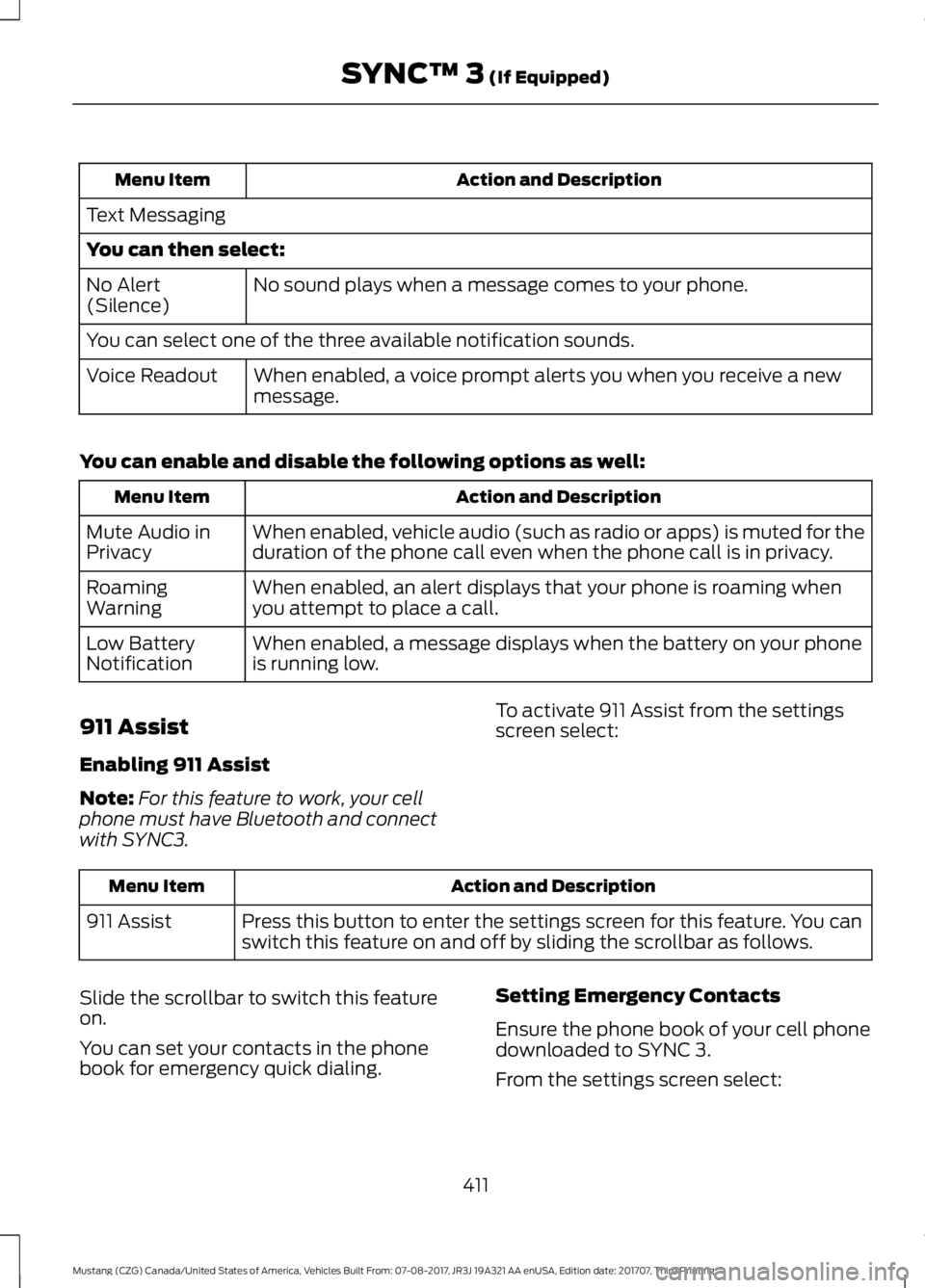
Action and Description
Menu Item
Text Messaging
You can then select: No sound plays when a message comes to your phone.
No Alert
(Silence)
You can select one of the three available notification sounds.
When enabled, a voice prompt alerts you when you receive a new
message.
Voice Readout
You can enable and disable the following options as well: Action and Description
Menu Item
When enabled, vehicle audio (such as radio or apps) is muted for the
duration of the phone call even when the phone call is in privacy.
Mute Audio in
Privacy
When enabled, an alert displays that your phone is roaming when
you attempt to place a call.
Roaming
Warning
When enabled, a message displays when the battery on your phone
is running low.
Low Battery
Notification
911 Assist
Enabling 911 Assist
Note: For this feature to work, your cell
phone must have Bluetooth and connect
with SYNC3. To activate 911 Assist from the settings
screen select: Action and Description
Menu Item
Press this button to enter the settings screen for this feature. You can
switch this feature on and off by sliding the scrollbar as follows.
911 Assist
Slide the scrollbar to switch this feature
on.
You can set your contacts in the phone
book for emergency quick dialing. Setting Emergency Contacts
Ensure the phone book of your cell phone
downloaded to SYNC 3.
From the settings screen select:
411
Mustang (CZG) Canada/United States of America, Vehicles Built From: 07-08-2017, JR3J 19A321 AA enUSA, Edition date: 201707, Third Printing SYNC™ 3 (If Equipped)
Page 415 of 506
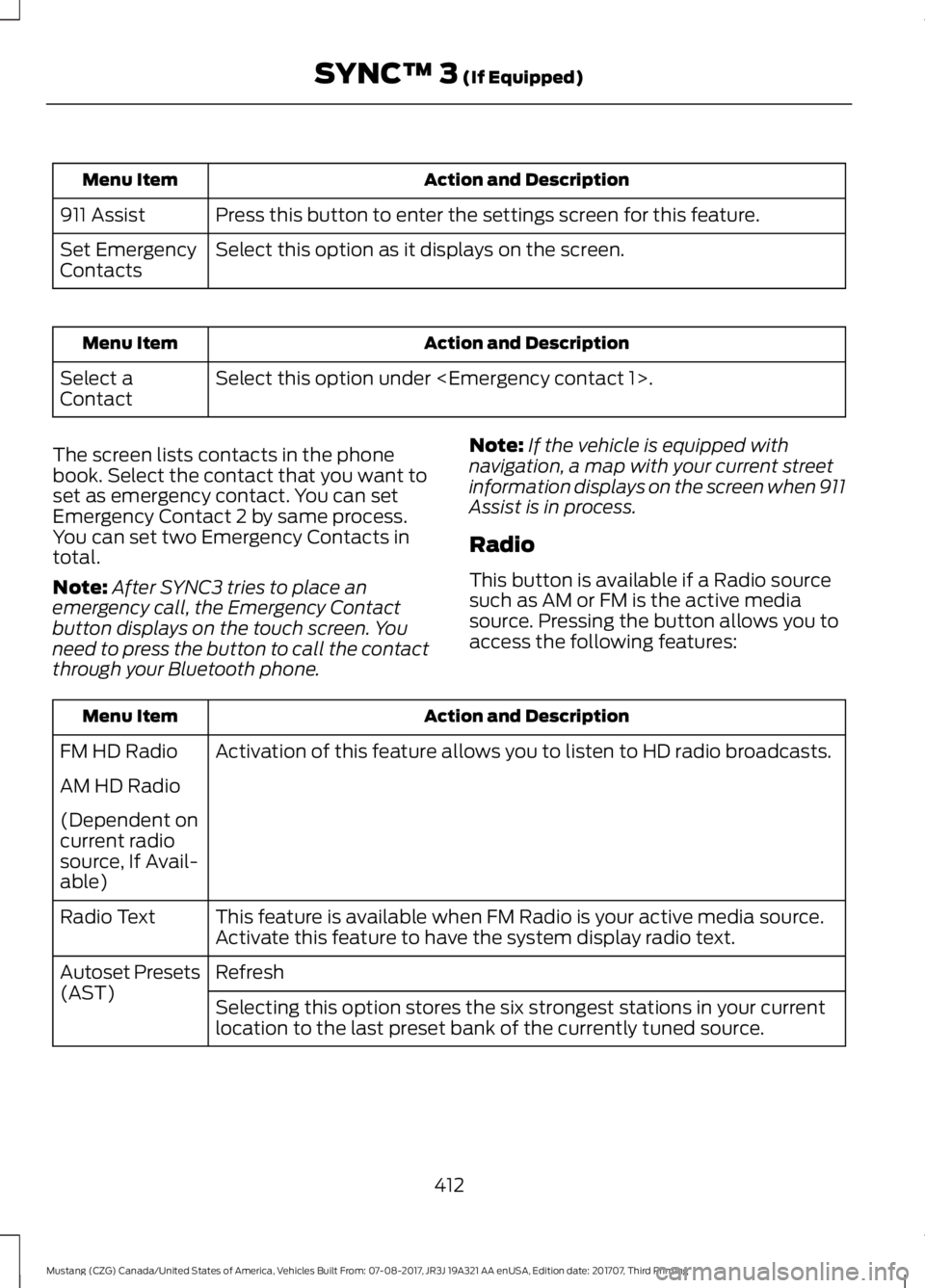
Action and Description
Menu Item
Press this button to enter the settings screen for this feature.
911 Assist
Select this option as it displays on the screen.
Set Emergency
Contacts Action and Description
Menu Item
Select this option under
Select a
Contact
The screen lists contacts in the phone
book. Select the contact that you want to
set as emergency contact. You can set
Emergency Contact 2 by same process.
You can set two Emergency Contacts in
total.
Note: After SYNC3 tries to place an
emergency call, the Emergency Contact
button displays on the touch screen. You
need to press the button to call the contact
through your Bluetooth phone. Note:
If the vehicle is equipped with
navigation, a map with your current street
information displays on the screen when 911
Assist is in process.
Radio
This button is available if a Radio source
such as AM or FM is the active media
source. Pressing the button allows you to
access the following features: Action and Description
Menu Item
Activation of this feature allows you to listen to HD radio broadcasts.
FM HD Radio
AM HD Radio
(Dependent on
current radio
source, If Avail-
able)
This feature is available when FM Radio is your active media source.
Activate this feature to have the system display radio text.
Radio Text
Refresh
Autoset Presets
(AST)
Selecting this option stores the six strongest stations in your current
location to the last preset bank of the currently tuned source.
412
Mustang (CZG) Canada/United States of America, Vehicles Built From: 07-08-2017, JR3J 19A321 AA enUSA, Edition date: 201707, Third Printing SYNC™ 3 (If Equipped)
Page 416 of 506
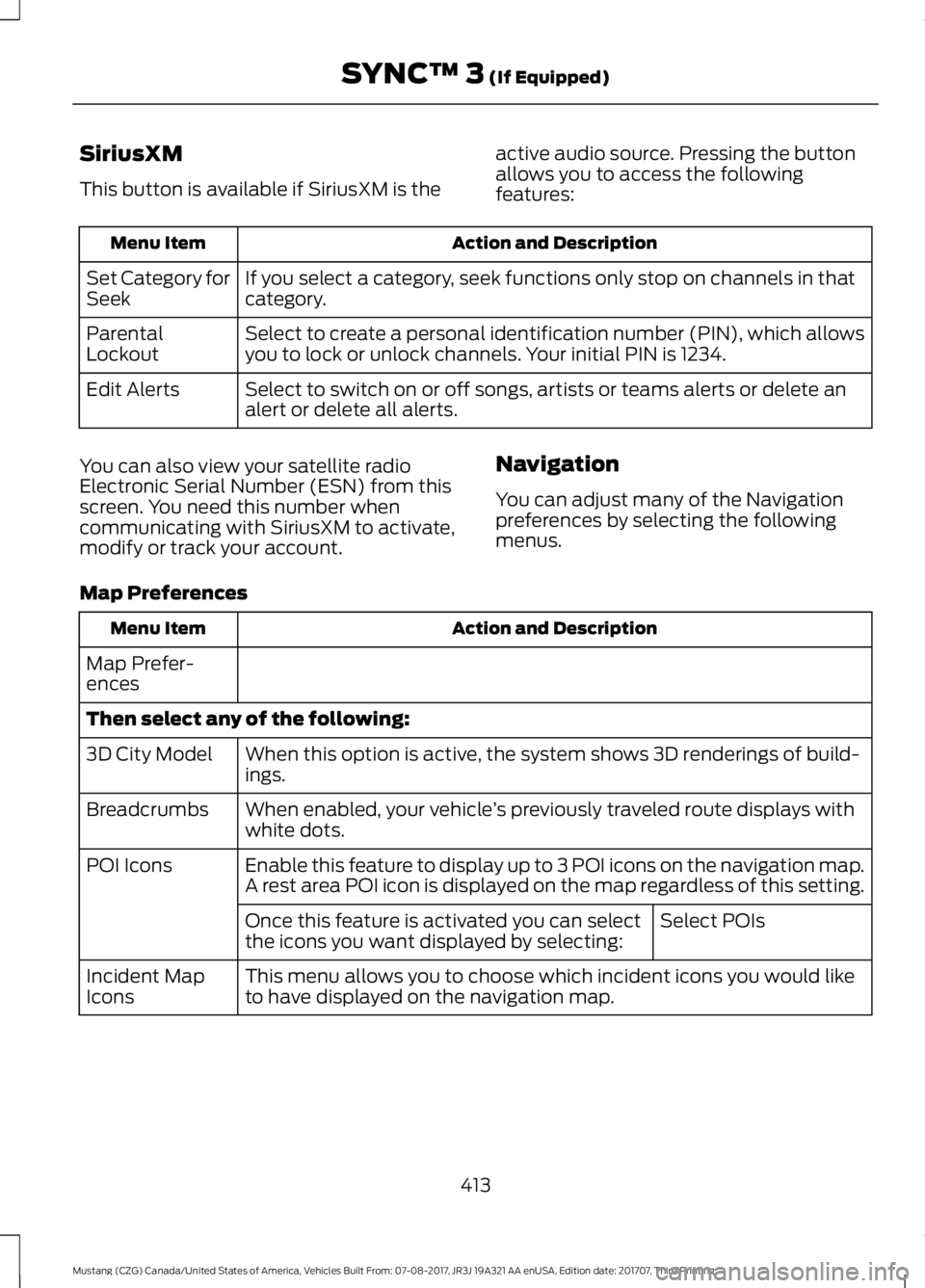
SiriusXM
This button is available if SiriusXM is the
active audio source. Pressing the button
allows you to access the following
features: Action and Description
Menu Item
If you select a category, seek functions only stop on channels in that
category.
Set Category for
Seek
Select to create a personal identification number (PIN), which allows
you to lock or unlock channels. Your initial PIN is 1234.
Parental
Lockout
Select to switch on or off songs, artists or teams alerts or delete an
alert or delete all alerts.
Edit Alerts
You can also view your satellite radio
Electronic Serial Number (ESN) from this
screen. You need this number when
communicating with SiriusXM to activate,
modify or track your account. Navigation
You can adjust many of the Navigation
preferences by selecting the following
menus.
Map Preferences Action and Description
Menu Item
Map Prefer-
ences
Then select any of the following: When this option is active, the system shows 3D renderings of build-
ings.
3D City Model
When enabled, your vehicle ’s previously traveled route displays with
white dots.
Breadcrumbs
Enable this feature to display up to 3 POI icons on the navigation map.
A rest area POI icon is displayed on the map regardless of this setting.
POI Icons
Select POIs
Once this feature is activated you can select
the icons you want displayed by selecting:
This menu allows you to choose which incident icons you would like
to have displayed on the navigation map.
Incident Map
Icons
413
Mustang (CZG) Canada/United States of America, Vehicles Built From: 07-08-2017, JR3J 19A321 AA enUSA, Edition date: 201707, Third Printing SYNC™ 3 (If Equipped)
Page 417 of 506
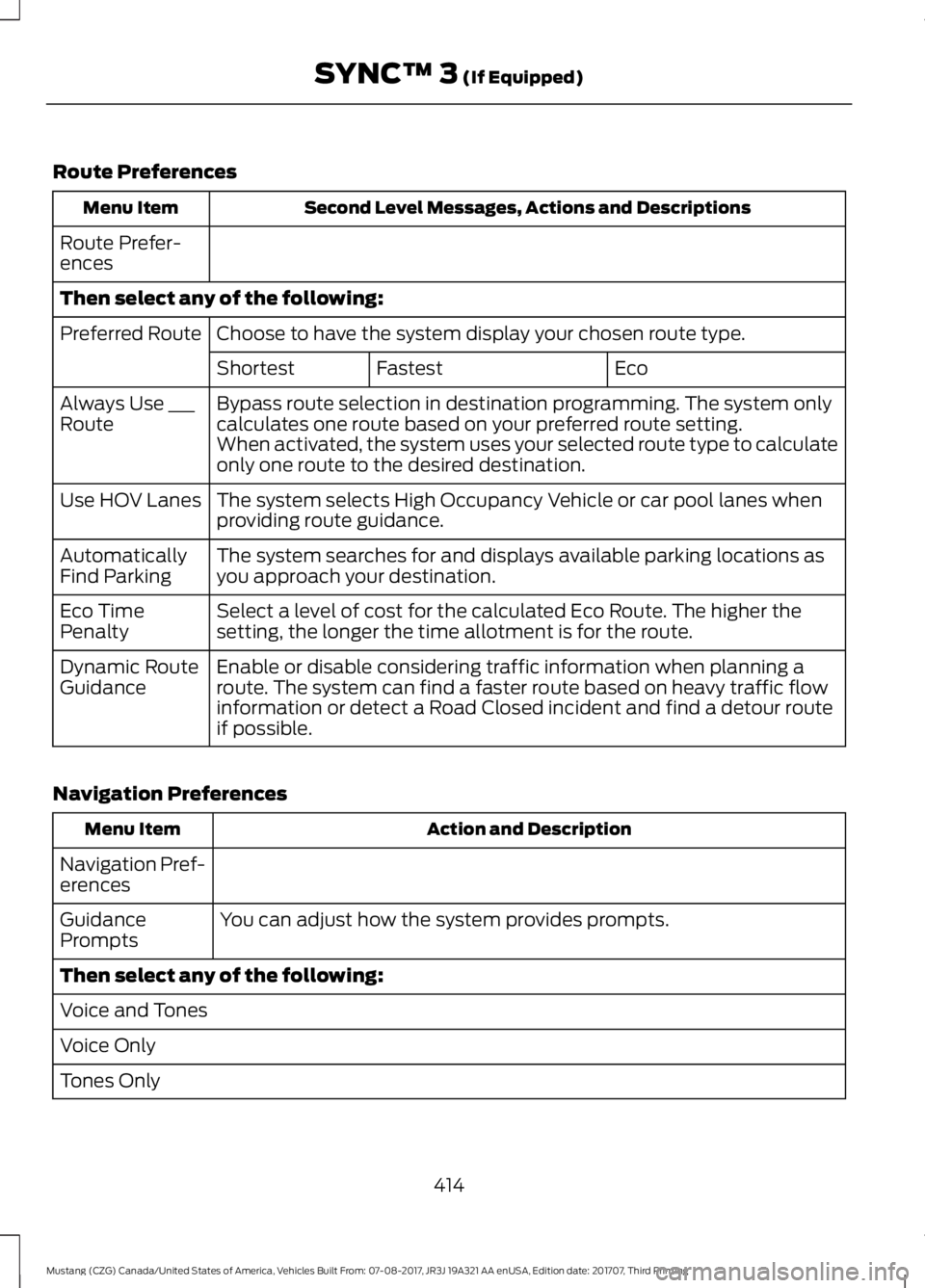
Route Preferences
Second Level Messages, Actions and Descriptions
Menu Item
Route Prefer-
ences
Then select any of the following: Choose to have the system display your chosen route type.
Preferred Route
Eco
Fastest
Shortest
Bypass route selection in destination programming. The system only
calculates one route based on your preferred route setting.
Always Use ___
Route
When activated, the system uses your selected route type to calculate
only one route to the desired destination.
The system selects High Occupancy Vehicle or car pool lanes when
providing route guidance.
Use HOV Lanes
The system searches for and displays available parking locations as
you approach your destination.
Automatically
Find Parking
Select a level of cost for the calculated Eco Route. The higher the
setting, the longer the time allotment is for the route.
Eco Time
Penalty
Enable or disable considering traffic information when planning a
route. The system can find a faster route based on heavy traffic flow
information or detect a Road Closed incident and find a detour route
if possible.
Dynamic Route
Guidance
Navigation Preferences Action and Description
Menu Item
Navigation Pref-
erences You can adjust how the system provides prompts.
Guidance
Prompts
Then select any of the following:
Voice and Tones
Voice Only
Tones Only
414
Mustang (CZG) Canada/United States of America, Vehicles Built From: 07-08-2017, JR3J 19A321 AA enUSA, Edition date: 201707, Third Printing SYNC™ 3 (If Equipped)
Page 419 of 506
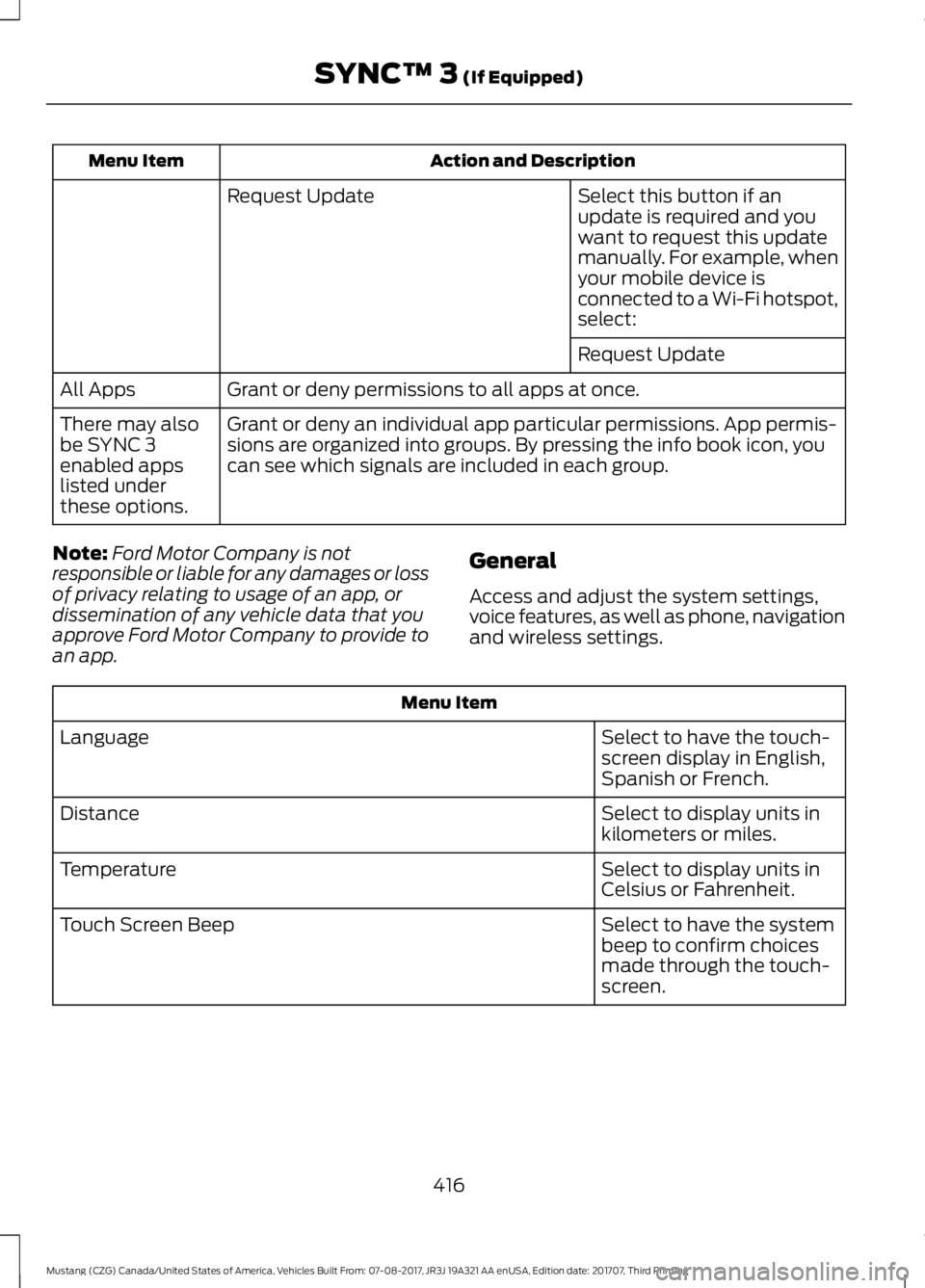
Action and Description
Menu Item
Select this button if an
update is required and you
want to request this update
manually. For example, when
your mobile device is
connected to a Wi-Fi hotspot,
select:
Request Update
Request Update
Grant or deny permissions to all apps at once.
All Apps
Grant or deny an individual app particular permissions. App permis-
sions are organized into groups. By pressing the info book icon, you
can see which signals are included in each group.
There may also
be SYNC 3
enabled apps
listed under
these options.
Note: Ford Motor Company is not
responsible or liable for any damages or loss
of privacy relating to usage of an app, or
dissemination of any vehicle data that you
approve Ford Motor Company to provide to
an app. General
Access and adjust the system settings,
voice features, as well as phone, navigation
and wireless settings.Menu Item
Select to have the touch-
screen display in English,
Spanish or French.
Language
Select to display units in
kilometers or miles.
Distance
Select to display units in
Celsius or Fahrenheit.
Temperature
Select to have the system
beep to confirm choices
made through the touch-
screen.
Touch Screen Beep
416
Mustang (CZG) Canada/United States of America, Vehicles Built From: 07-08-2017, JR3J 19A321 AA enUSA, Edition date: 201707, Third Printing SYNC™ 3 (If Equipped)
Page 420 of 506
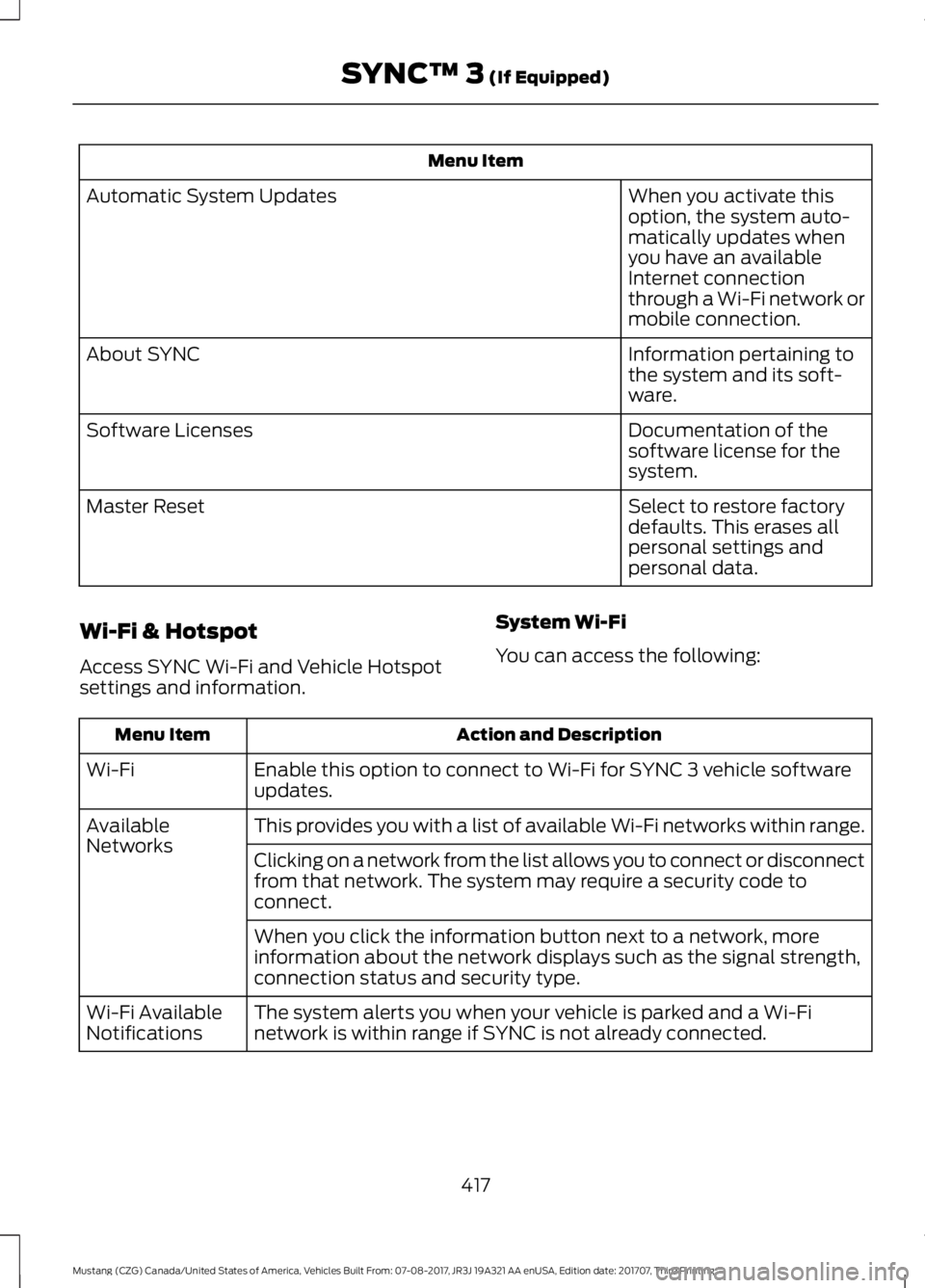
Menu Item
When you activate this
option, the system auto-
matically updates when
you have an available
Internet connection
through a Wi-Fi network or
mobile connection.
Automatic System Updates
Information pertaining to
the system and its soft-
ware.
About SYNC
Documentation of the
software license for the
system.
Software Licenses
Select to restore factory
defaults. This erases all
personal settings and
personal data.
Master Reset
Wi-Fi & Hotspot
Access SYNC Wi-Fi and Vehicle Hotspot
settings and information. System Wi-Fi
You can access the following: Action and Description
Menu Item
Enable this option to connect to Wi-Fi for SYNC 3 vehicle software
updates.
Wi-Fi
This provides you with a list of available Wi-Fi networks within range.
Available
Networks
Clicking on a network from the list allows you to connect or disconnect
from that network. The system may require a security code to
connect.
When you click the information button next to a network, more
information about the network displays such as the signal strength,
connection status and security type.
The system alerts you when your vehicle is parked and a Wi-Fi
network is within range if SYNC is not already connected.
Wi-Fi Available
Notifications
417
Mustang (CZG) Canada/United States of America, Vehicles Built From: 07-08-2017, JR3J 19A321 AA enUSA, Edition date: 201707, Third Printing SYNC™ 3 (If Equipped)
Page 422 of 506
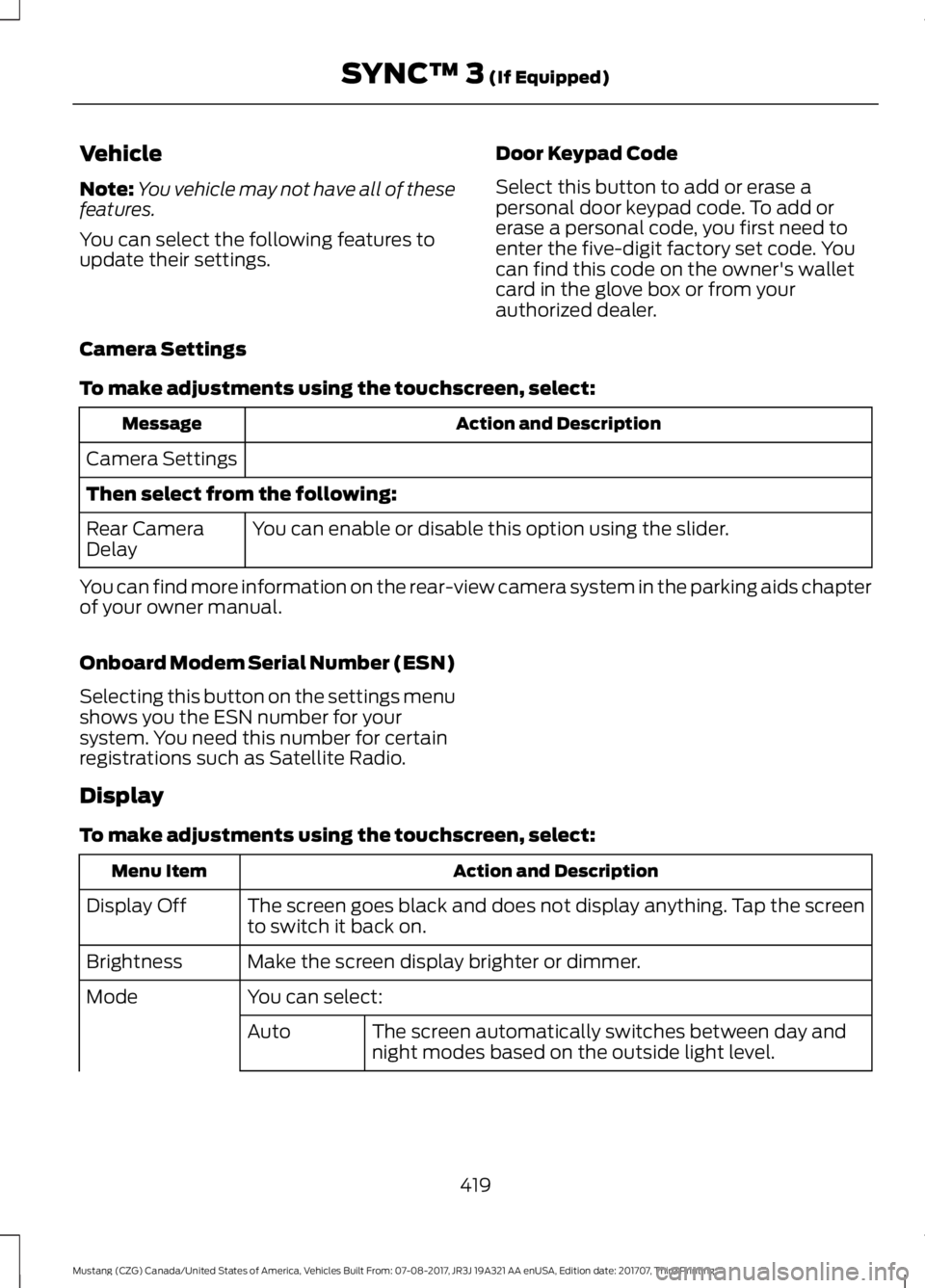
Vehicle
Note:
You vehicle may not have all of these
features.
You can select the following features to
update their settings. Door Keypad Code
Select this button to add or erase a
personal door keypad code. To add or
erase a personal code, you first need to
enter the five-digit factory set code. You
can find this code on the owner's wallet
card in the glove box or from your
authorized dealer.
Camera Settings
To make adjustments using the touchscreen, select: Action and Description
Message
Camera Settings
Then select from the following: You can enable or disable this option using the slider.
Rear Camera
Delay
You can find more information on the rear-view camera system in the parking aids chapter
of your owner manual.
Onboard Modem Serial Number (ESN)
Selecting this button on the settings menu
shows you the ESN number for your
system. You need this number for certain
registrations such as Satellite Radio.
Display
To make adjustments using the touchscreen, select: Action and Description
Menu Item
The screen goes black and does not display anything. Tap the screen
to switch it back on.
Display Off
Make the screen display brighter or dimmer.
Brightness
You can select:
Mode
The screen automatically switches between day and
night modes based on the outside light level.
Auto
419
Mustang (CZG) Canada/United States of America, Vehicles Built From: 07-08-2017, JR3J 19A321 AA enUSA, Edition date: 201707, Third Printing SYNC™ 3 (If Equipped)
Page 423 of 506
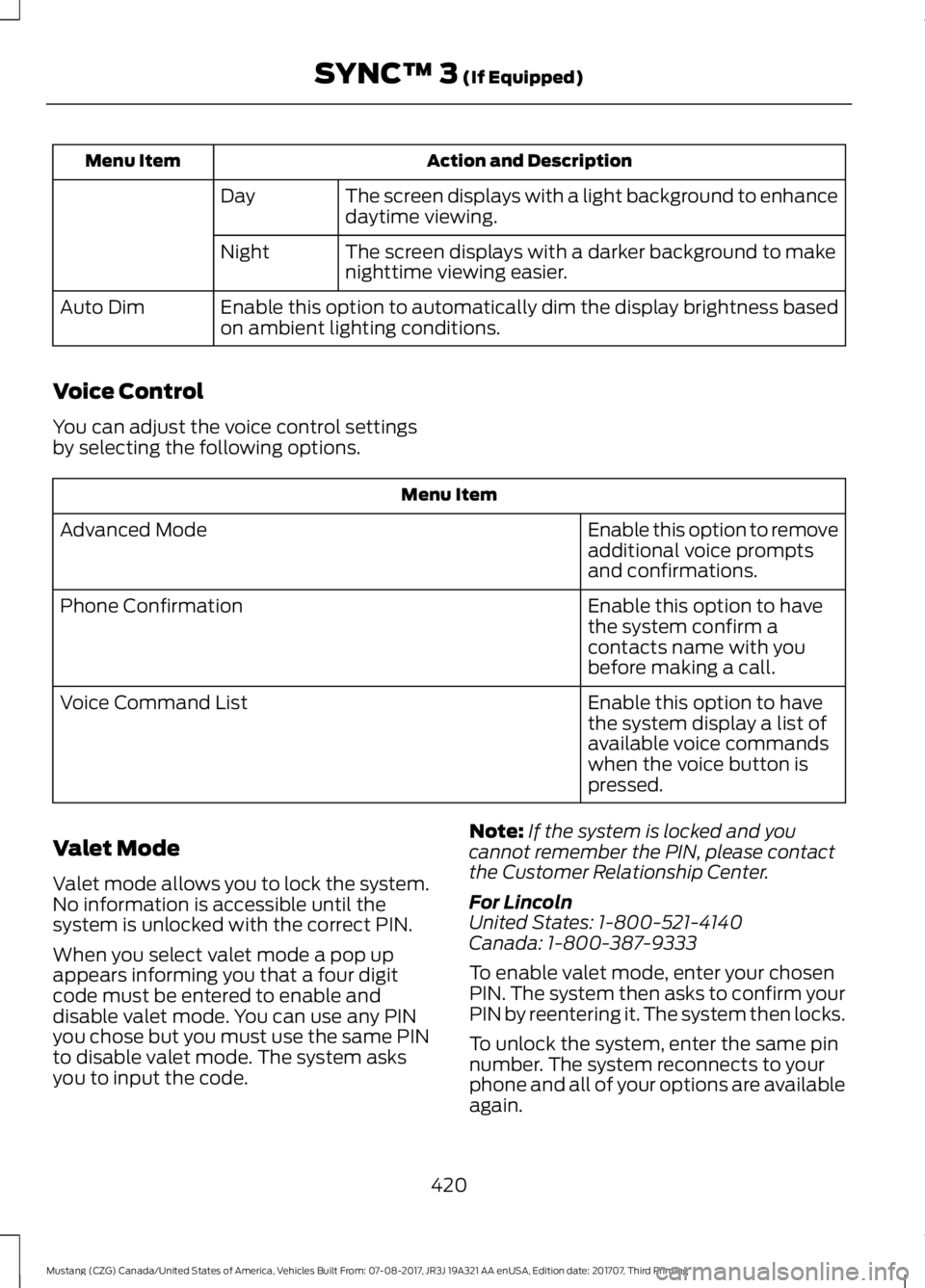
Action and Description
Menu Item
The screen displays with a light background to enhance
daytime viewing.
Day
The screen displays with a darker background to make
nighttime viewing easier.
Night
Enable this option to automatically dim the display brightness based
on ambient lighting conditions.
Auto Dim
Voice Control
You can adjust the voice control settings
by selecting the following options. Menu Item
Enable this option to remove
additional voice prompts
and confirmations.
Advanced Mode
Enable this option to have
the system confirm a
contacts name with you
before making a call.
Phone Confirmation
Enable this option to have
the system display a list of
available voice commands
when the voice button is
pressed.
Voice Command List
Valet Mode
Valet mode allows you to lock the system.
No information is accessible until the
system is unlocked with the correct PIN.
When you select valet mode a pop up
appears informing you that a four digit
code must be entered to enable and
disable valet mode. You can use any PIN
you chose but you must use the same PIN
to disable valet mode. The system asks
you to input the code. Note:
If the system is locked and you
cannot remember the PIN, please contact
the Customer Relationship Center.
For Lincoln
United States: 1-800-521-4140
Canada: 1-800-387-9333
To enable valet mode, enter your chosen
PIN. The system then asks to confirm your
PIN by reentering it. The system then locks.
To unlock the system, enter the same pin
number. The system reconnects to your
phone and all of your options are available
again.
420
Mustang (CZG) Canada/United States of America, Vehicles Built From: 07-08-2017, JR3J 19A321 AA enUSA, Edition date: 201707, Third Printing SYNC™ 3 (If Equipped)
Page 428 of 506
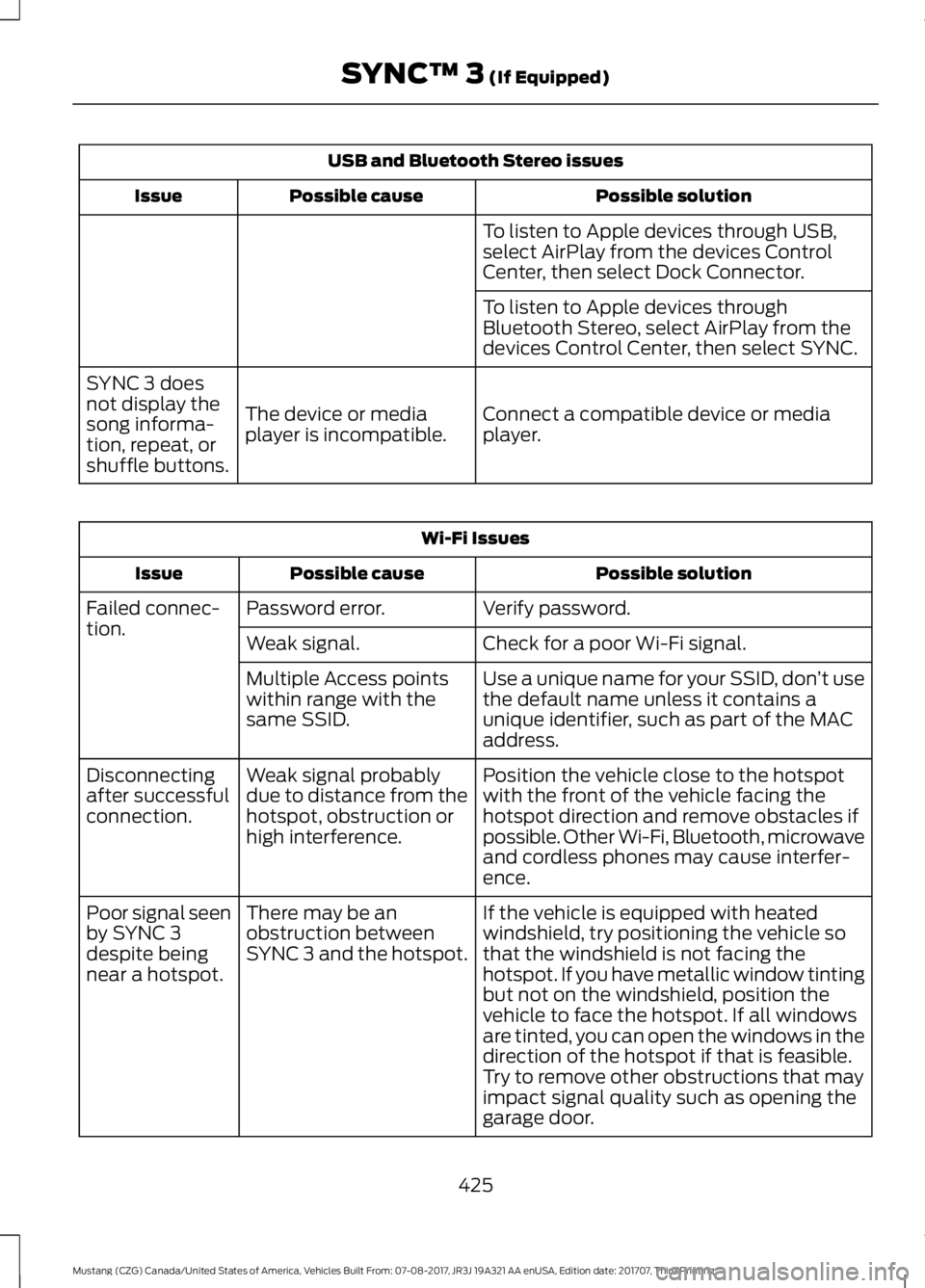
USB and Bluetooth Stereo issues
Possible solution
Possible cause
Issue
To listen to Apple devices through USB,
select AirPlay from the devices Control
Center, then select Dock Connector.
To listen to Apple devices through
Bluetooth Stereo, select AirPlay from the
devices Control Center, then select SYNC.
Connect a compatible device or media
player.
The device or media
player is incompatible.
SYNC 3 does
not display the
song informa-
tion, repeat, or
shuffle buttons. Wi-Fi Issues
Possible solution
Possible cause
Issue
Verify password.
Password error.
Failed connec-
tion.
Check for a poor Wi-Fi signal.
Weak signal.
Use a unique name for your SSID, don ’t use
the default name unless it contains a
unique identifier, such as part of the MAC
address.
Multiple Access points
within range with the
same SSID.
Position the vehicle close to the hotspot
with the front of the vehicle facing the
hotspot direction and remove obstacles if
possible. Other Wi-Fi, Bluetooth, microwave
and cordless phones may cause interfer-
ence.
Weak signal probably
due to distance from the
hotspot, obstruction or
high interference.
Disconnecting
after successful
connection.
If the vehicle is equipped with heated
windshield, try positioning the vehicle so
that the windshield is not facing the
hotspot. If you have metallic window tinting
but not on the windshield, position the
vehicle to face the hotspot. If all windows
are tinted, you can open the windows in the
direction of the hotspot if that is feasible.
There may be an
obstruction between
SYNC 3 and the hotspot.
Poor signal seen
by SYNC 3
despite being
near a hotspot.
Try to remove other obstructions that may
impact signal quality such as opening the
garage door.
425
Mustang (CZG) Canada/United States of America, Vehicles Built From: 07-08-2017, JR3J 19A321 AA enUSA, Edition date: 201707, Third Printing SYNC™ 3 (If Equipped)
Page 432 of 506
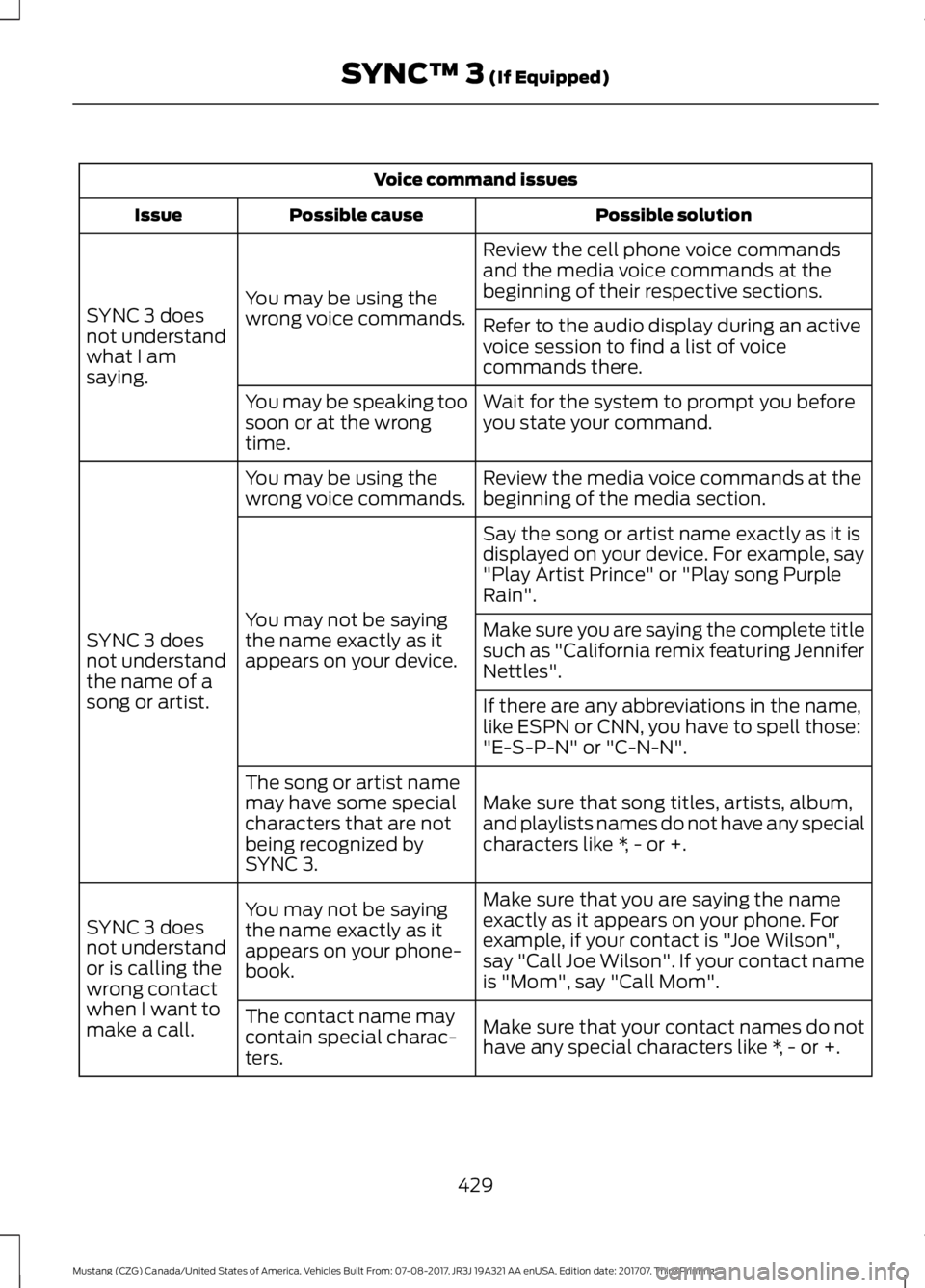
Voice command issues
Possible solution
Possible cause
Issue
Review the cell phone voice commands
and the media voice commands at the
beginning of their respective sections.
You may be using the
wrong voice commands.
SYNC 3 does
not understand
what I am
saying. Refer to the audio display during an active
voice session to find a list of voice
commands there.
Wait for the system to prompt you before
you state your command.
You may be speaking too
soon or at the wrong
time.
Review the media voice commands at the
beginning of the media section.
You may be using the
wrong voice commands.
SYNC 3 does
not understand
the name of a
song or artist. Say the song or artist name exactly as it is
displayed on your device. For example, say
"Play Artist Prince" or "Play song Purple
Rain".
You may not be saying
the name exactly as it
appears on your device. Make sure you are saying the complete title
such as "California remix featuring Jennifer
Nettles".
If there are any abbreviations in the name,
like ESPN or CNN, you have to spell those:
"E-S-P-N" or "C-N-N".
Make sure that song titles, artists, album,
and playlists names do not have any special
characters like *, - or +.
The song or artist name
may have some special
characters that are not
being recognized by
SYNC 3.
Make sure that you are saying the name
exactly as it appears on your phone. For
example, if your contact is "Joe Wilson",
say "Call Joe Wilson". If your contact name
is "Mom", say "Call Mom".
You may not be saying
the name exactly as it
appears on your phone-
book.
SYNC 3 does
not understand
or is calling the
wrong contact
when I want to
make a call.
Make sure that your contact names do not
have any special characters like *, - or +.
The contact name may
contain special charac-
ters.
429
Mustang (CZG) Canada/United States of America, Vehicles Built From: 07-08-2017, JR3J 19A321 AA enUSA, Edition date: 201707, Third Printing SYNC™ 3 (If Equipped)