start stop button FORD MUSTANG 2019 User Guide
[x] Cancel search | Manufacturer: FORD, Model Year: 2019, Model line: MUSTANG, Model: FORD MUSTANG 2019Pages: 495, PDF Size: 8.04 MB
Page 136 of 495
•
You can reset the timer by interacting
with your vehicle (such as pressing the
brake pedal or accelerator pedal).
• You can temporarily switch off the
shutdown feature any time the ignition
is on (for the current ignition cycle
only). Use the information display to
do so. See Information Displays
(page 88).
• During the countdown before engine
shutdown, you are prompted to press
OK or RESET (depending on your type
of information display) to temporarily
switch the feature off (for the current
ignition cycle only).
Stopping the Engine When Your
Vehicle is Stationary
1. Move the transmission selector lever to park (P) (automatic transmission)
or neutral (manual transmission).
2. Press the button once.
3. Apply the parking brake.
Note: This switches off the ignition, all
electrical circuits, warning lamps and
indicators.
Note: If the engine is idling for 30 minutes,
the ignition and engine automatically shut
down. Stopping the Engine When Your
Vehicle is Moving WARNING:
Switching off the
engine when the vehicle is still moving
will result in a loss of brake and steering
assistance. The steering will not lock, but
higher effort will be required. When the
ignition is switched off, some electrical
circuits, including air bags, warning lamps
and indicators may also be off. If the
ignition was turned off accidentally, you
can shift into neutral (N) and re-start the
engine.
1. Move the transmission selector lever to the neutral position and use the
brakes to bring your vehicle to a safe
stop.
2. When your vehicle has stopped, move the transmission selector lever to park
(P) (automatic transmission) or
neutral (manual transmission).
3. Press and hold the button for one second, or press it three times within
two seconds.
4. Apply the parking brake.
Guarding Against Exhaust Fumes WARNING:
If you smell exhaust
fumes inside your vehicle, have your
vehicle checked by your authorized
dealer immediately. Do not drive your
vehicle if you smell exhaust fumes.
Carbon monoxide is present in exhaust
fumes. Take precautions to avoid its
dangerous effects.
133
Mustang (CZG) Canada/United States of America, Vehicles Built From: 14-05-2018, enUSA, Edition date: 201804, Second-Printing Starting and Stopping the Engine
Page 152 of 495
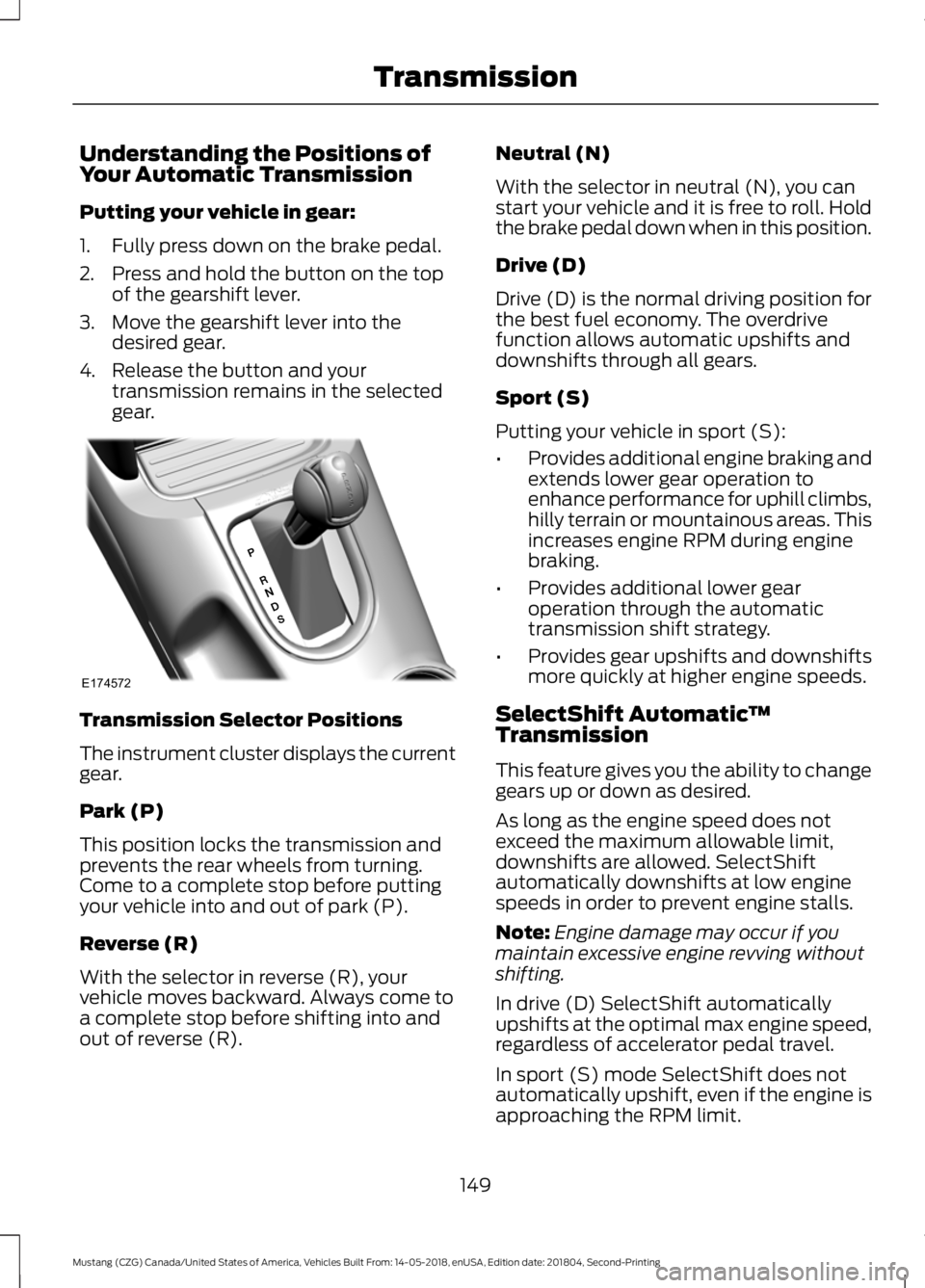
Understanding the Positions of
Your Automatic Transmission
Putting your vehicle in gear:
1. Fully press down on the brake pedal.
2. Press and hold the button on the top
of the gearshift lever.
3. Move the gearshift lever into the desired gear.
4. Release the button and your transmission remains in the selected
gear. Transmission Selector Positions
The instrument cluster displays the current
gear.
Park (P)
This position locks the transmission and
prevents the rear wheels from turning.
Come to a complete stop before putting
your vehicle into and out of park (P).
Reverse (R)
With the selector in reverse (R), your
vehicle moves backward. Always come to
a complete stop before shifting into and
out of reverse (R). Neutral (N)
With the selector in neutral (N), you can
start your vehicle and it is free to roll. Hold
the brake pedal down when in this position.
Drive (D)
Drive (D) is the normal driving position for
the best fuel economy. The overdrive
function allows automatic upshifts and
downshifts through all gears.
Sport (S)
Putting your vehicle in sport (S):
•
Provides additional engine braking and
extends lower gear operation to
enhance performance for uphill climbs,
hilly terrain or mountainous areas. This
increases engine RPM during engine
braking.
• Provides additional lower gear
operation through the automatic
transmission shift strategy.
• Provides gear upshifts and downshifts
more quickly at higher engine speeds.
SelectShift Automatic ™
Transmission
This feature gives you the ability to change
gears up or down as desired.
As long as the engine speed does not
exceed the maximum allowable limit,
downshifts are allowed. SelectShift
automatically downshifts at low engine
speeds in order to prevent engine stalls.
Note: Engine damage may occur if you
maintain excessive engine revving without
shifting.
In drive (D) SelectShift automatically
upshifts at the optimal max engine speed,
regardless of accelerator pedal travel.
In sport (S) mode SelectShift does not
automatically upshift, even if the engine is
approaching the RPM limit.
149
Mustang (CZG) Canada/United States of America, Vehicles Built From: 14-05-2018, enUSA, Edition date: 201804, Second-Printing TransmissionE174572
Page 162 of 495
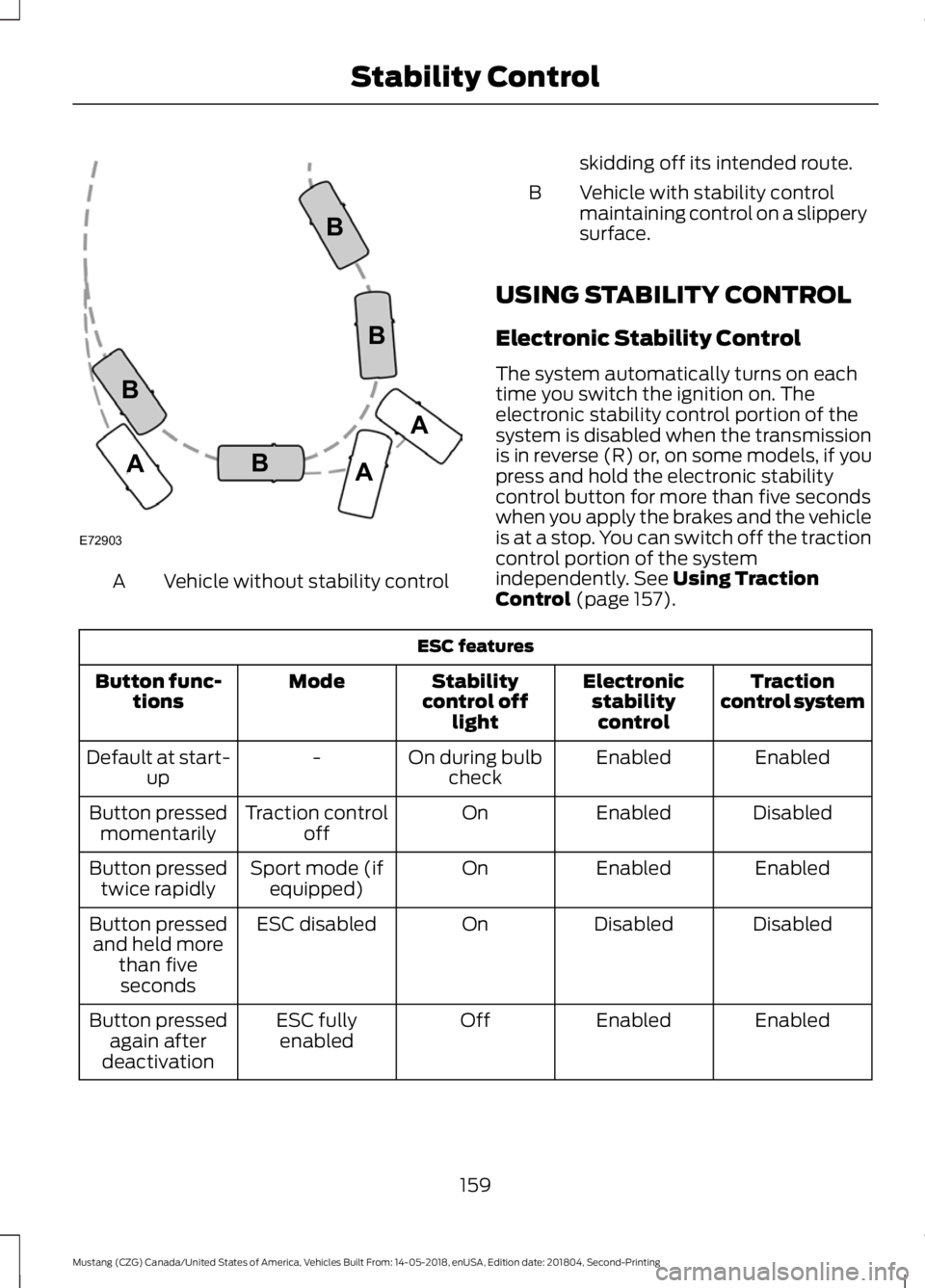
Vehicle without stability control
A skidding off its intended route.
Vehicle with stability control
maintaining control on a slippery
surface.
B
USING STABILITY CONTROL
Electronic Stability Control
The system automatically turns on each
time you switch the ignition on. The
electronic stability control portion of the
system is disabled when the transmission
is in reverse (R) or, on some models, if you
press and hold the electronic stability
control button for more than five seconds
when you apply the brakes and the vehicle
is at a stop. You can switch off the traction
control portion of the system
independently. See Using Traction
Control (page 157). ESC features
Traction
control system
Electronic
stabilitycontrol
Stability
control off light
Mode
Button func-
tions
Enabled
Enabled
On during bulb
check
-
Default at start-
up
Disabled
Enabled
On
Traction control
off
Button pressed
momentarily
Enabled
Enabled
On
Sport mode (if
equipped)
Button pressed
twice rapidly
Disabled
Disabled
On
ESC disabled
Button pressed
and held more than fiveseconds
Enabled
Enabled
Off
ESC fully
enabled
Button pressed
again after
deactivation
159
Mustang (CZG) Canada/United States of America, Vehicles Built From: 14-05-2018, enUSA, Edition date: 201804, Second-Printing Stability ControlE72903A
AA
B
BB
B
Page 211 of 495
Vehicles Sold in Canada: Getting
Roadside Assistance
To fully assist you should you have a
vehicle concern, Ford Motor Company of
Canada, Limited offers a complimentary
roadside assistance program. This program
is eligible within Canada or the continental
United States.
The service is available 24 hours a day,
seven days a week.
This program is separate from the New
Vehicle Limited Warranty, but the coverage
is concurrent with the powertrain coverage
period of your vehicle. Canadian roadside
coverage and benefits may differ from the
U.S. coverage.
If you require more information, please call
us in Canada at 1-800-665-2006, or visit
our website at www.ford.ca.
HAZARD FLASHERS
Note:
The hazard flashers operate when
the ignition is in any position, or if the key is
not in the ignition. If used when the vehicle
is not running, the battery loses charge. As
a result, there may be insufficient power to
restart your vehicle. The flasher control is on the
instrument panel. Use your
hazard flashers when your
vehicle is creating a safety hazard for other
motorists.
• Press the flasher control and all front
and rear direction indicators flash.
• Press the button again to switch them
off. FUEL SHUTOFF WARNING: If your vehicle has
been involved in a crash, have the fuel
system checked. Failure to follow this
instruction could result in fire, personal
injury or death.
Note: When you try to restart your vehicle
after a fuel shutoff, the vehicle makes sure
that various systems are safe to restart.
Once the vehicle determines the systems
are safe, then the vehicle allows you to
restart.
Note: In the event that your vehicle does
not restart after your third attempt, contact
a qualified technician.
The fuel pump shutoff stops the flow of
fuel to the engine in the event of a
moderate to severe crash. Not every
impact causes a shutoff.
Should your vehicle shut off after a crash,
you may restart your vehicle.
1. Press
START/STOP to switch off your
vehicle.
2. Press the brake pedal and START/STOP
to switch on your
vehicle.
3. Remove your foot from the brake pedal
and press
START/STOP to switch off
your vehicle.
4. You can attempt to start the vehicle by pressing the brake pedal and
START/STOP
, or press START/STOP
without pressing the brake pedal.
208
Mustang (CZG) Canada/United States of America, Vehicles Built From: 14-05-2018, enUSA, Edition date: 201804, Second-Printing Roadside Emergencies
Page 254 of 495
Note:
The Track Exhaust Mode setting is
only for use at tracks and not for use on
public roadways. Use of this setting results
in increased exterior noise, which may not
meet state and local laws and regulations.
It is the obligation of the driver to operate
the vehicle in a manner that complies with
state and local requirements. Only use the
Track Exhaust Mode
setting at a
competition track or an off-road course
where elevated exterior vehicle noise is
acceptable.
Lap Timer
Gives you the ability to record lap times at
three separate tracks.
Launch Control (If Equipped)
Maximizes your vehicle's traction from a
standing start.
Use launch control, follow these steps:
1. Bring your vehicle to a complete stop.
2. Make sure launch control is enabled. The indicator illuminates in the
instrument display when launch control
is enabled.
See Warning Lamps and
Indicators (page 84).
3. Fully depress the clutch pedal.
4. Shift the transmission into 1st gear.
5. Fully depress the accelerator pedal and
allow the engine RPM to stabilize.
6. Release the clutch pedal.
Line Lock
Line lock is a feature intended for use at
tracks only and should not be used on
public roadways. Use of this feature may
result in significantly increased rear tire
wear. It is intended to condition the rear
tires to maximize traction prior to track use.
Line lock maintains brake force at the front
wheels, allowing the rear wheels to spin
with minimal vehicle movement. This feature is located in the
Track Apps
menu. Make selections through the 5-way
information display control and OK button
located on the steering wheel.
Using
Line Lock
There are three line lock stages:
• Initiated.
• Engaged.
• Off.
Initiating
Line Lock
The initiation stage verifies that the vehicle
is ready for line lock function, and confirms
driver intent. Follow the prompts in the
information display to initiate line lock.
The following conditions must be met to
initialize line lock:
• The vehicle is on a level surface.
• The engine is running.
• The vehicle is traveling less than
25 mph (40 km/h)
.
• Selectable drive mode is not in wet
mode (if equipped).
• There are no electronic stability control
faults.
If you want to cancel line lock once it is
initialized, press the left information
display control. Once initiated, line lock is
prepared for activation and remains
initiated up to 25 mph (40 km/h). If vehicle
speed exceeds 25 mph (40 km/h), line lock
automatically cancels.
251
Mustang (CZG) Canada/United States of America, Vehicles Built From: 14-05-2018, enUSA, Edition date: 201804, Second-Printing Track Use
Page 255 of 495
Engaging Line Lock
Follow the prompts in the information
display to engage line lock after it is
initialized. To engage, firmly apply the
brakes. Then press the OK button. Once
engaged, release the brake pedal. The
front brakes remain applied and the rear
brakes release. At this point, the
engagement timer is initiated and shown
on the driver information display.
The following conditions must be met to
engage line lock:
• The vehicle is on a level surface.
• The engine is running.
• The vehicle is stopped.
• The parking brake is not applied.
• The driver door is closed.
• The transmission is in a forward gear.
• Selectable drive mode is not in wet
mode (if equipped).
• There are no electronic stability control
faults.
• The steering wheel must be in the
straight ahead position.
Releasing
Line Lock
While line lock is engaged, you can exit
(release) the feature using the OK button.
When you press the OK button, line lock
releases immediately and normal vehicle
function resumes. When line lock engages,
a countdown timer shows the remaining
time before line lock is released
automatically. If you exceed the time limit,
or another vehicle condition requires line
lock to release, the system safely
disengages and normal vehicle function
resumes.
Note: If you apply the brake pedal while
line lock is engaged, line lock automatically
cancels and normal brake function resumes. Start Option
Allows you to select the type of countdown
the information display shows before
starting an event.
Status Screen
Provides the status of your chosen
performance-related settings.
View/Clear Results
Allows you to view and clear the last and
saved results of the
Acceleration Timer,
Brake Performance, and All Time Best
results.
252
Mustang (CZG) Canada/United States of America, Vehicles Built From: 14-05-2018, enUSA, Edition date: 201804, Second-Printing Track Use
Page 267 of 495
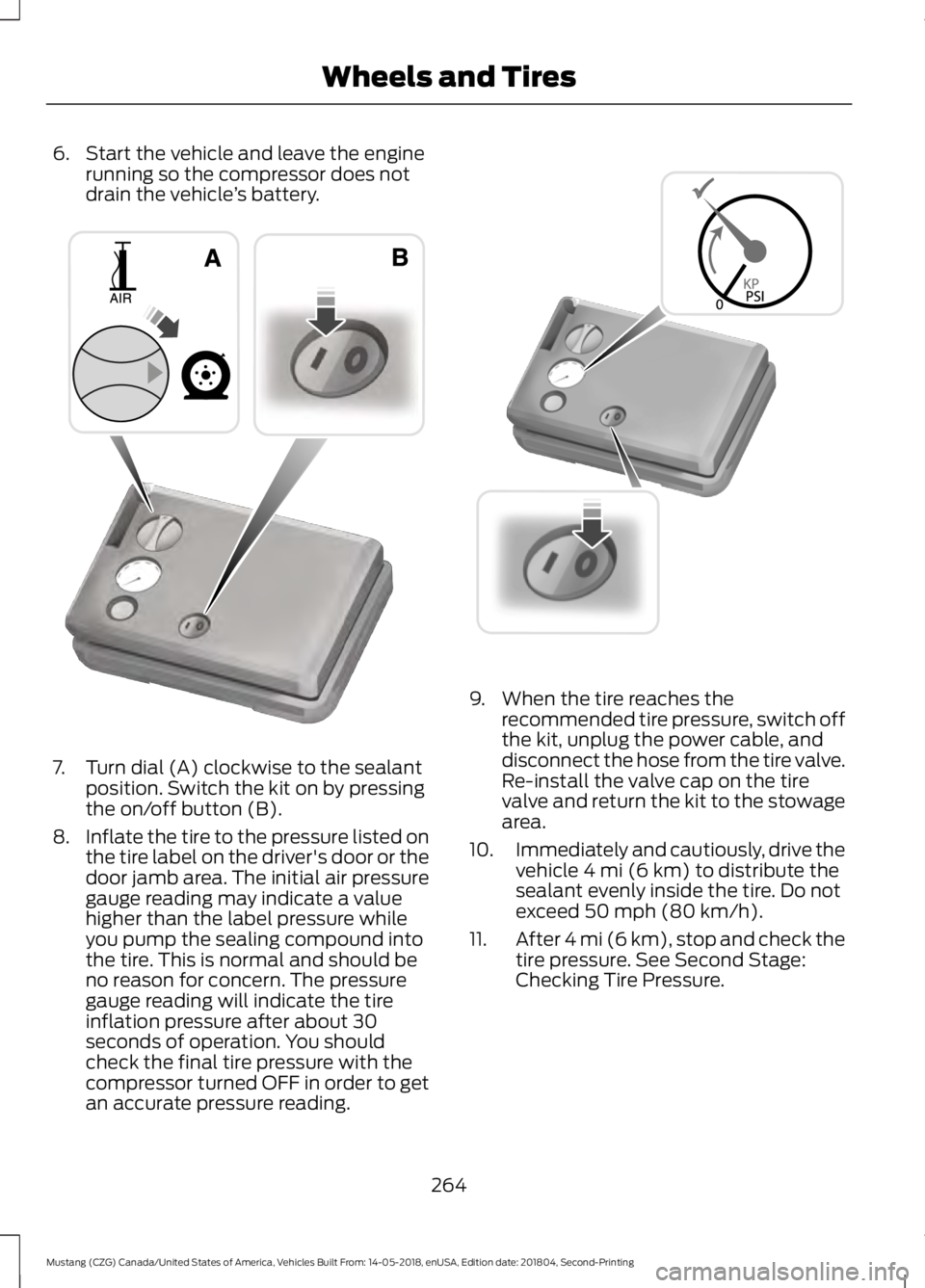
6. Start the vehicle and leave the engine
running so the compressor does not
drain the vehicle ’s battery. 7. Turn dial (A) clockwise to the sealant
position. Switch the kit on by pressing
the on/off button (B).
8. Inflate the tire to the pressure listed on
the tire label on the driver's door or the
door jamb area. The initial air pressure
gauge reading may indicate a value
higher than the label pressure while
you pump the sealing compound into
the tire. This is normal and should be
no reason for concern. The pressure
gauge reading will indicate the tire
inflation pressure after about 30
seconds of operation. You should
check the final tire pressure with the
compressor turned OFF in order to get
an accurate pressure reading. 9. When the tire reaches the
recommended tire pressure, switch off
the kit, unplug the power cable, and
disconnect the hose from the tire valve.
Re-install the valve cap on the tire
valve and return the kit to the stowage
area.
10. Immediately and cautiously, drive the
vehicle 4 mi (6 km) to distribute the
sealant evenly inside the tire. Do not
exceed
50 mph (80 km/h).
11. After 4 mi (6 km), stop and check the
tire pressure. See Second Stage:
Checking Tire Pressure.
264
Mustang (CZG) Canada/United States of America, Vehicles Built From: 14-05-2018, enUSA, Edition date: 201804, Second-Printing Wheels and TiresE175981 E175982
Page 342 of 495
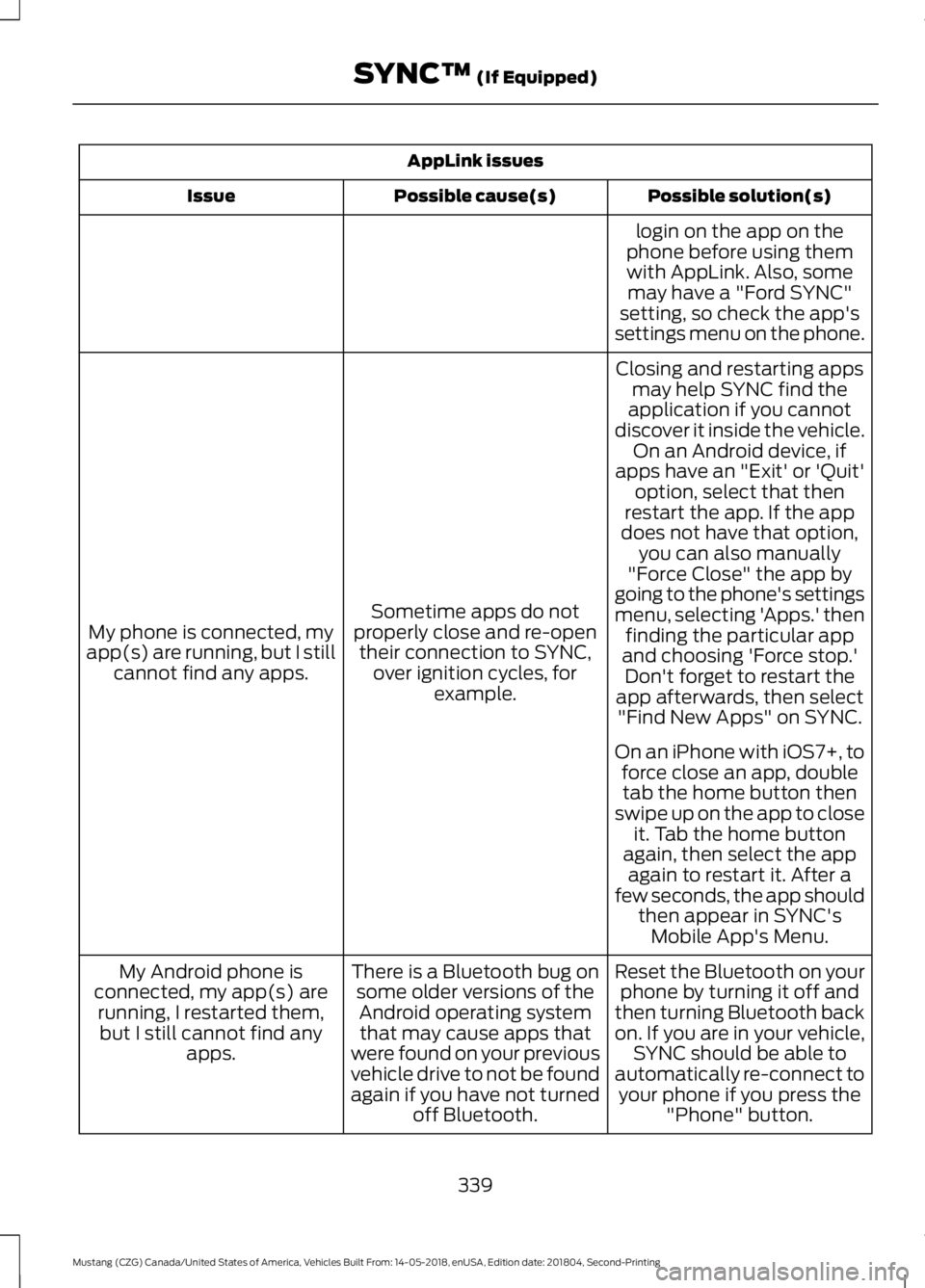
AppLink issues
Possible solution(s)
Possible cause(s)
Issue
login on the app on the
phone before using them with AppLink. Also, some may have a "Ford SYNC"
setting, so check the app's
settings menu on the phone.
Closing and restarting apps may help SYNC find the
application if you cannot
discover it inside the vehicle. On an Android device, if
apps have an "Exit' or 'Quit'
Sometime apps do not
properly close and re-open their connection to SYNC, over ignition cycles, for example.
My phone is connected, my
app(s) are running, but I still cannot find any apps. option, select that then
restart the app. If the app
does not have that option, you can also manually
"Force Close" the app by
going to the phone's settings
menu, selecting 'Apps.' then finding the particular app
and choosing 'Force stop.' Don't forget to restart the
app afterwards, then select "Find New Apps" on SYNC.
On an iPhone with iOS7+, to force close an app, doubletab the home button then
swipe up on the app to close it. Tab the home button
again, then select the app again to restart it. After a
few seconds, the app should then appear in SYNC'sMobile App's Menu.
Reset the Bluetooth on your phone by turning it off and
then turning Bluetooth back
on. If you are in your vehicle, SYNC should be able to
automatically re-connect to your phone if you press the "Phone" button.
There is a Bluetooth bug on
some older versions of theAndroid operating systemthat may cause apps that
were found on your previous
vehicle drive to not be found
again if you have not turned off Bluetooth.
My Android phone is
connected, my app(s) are running, I restarted them,but I still cannot find any apps.
339
Mustang (CZG) Canada/United States of America, Vehicles Built From: 14-05-2018, enUSA, Edition date: 201804, Second-Printing SYNC™ (If Equipped)
Page 349 of 495
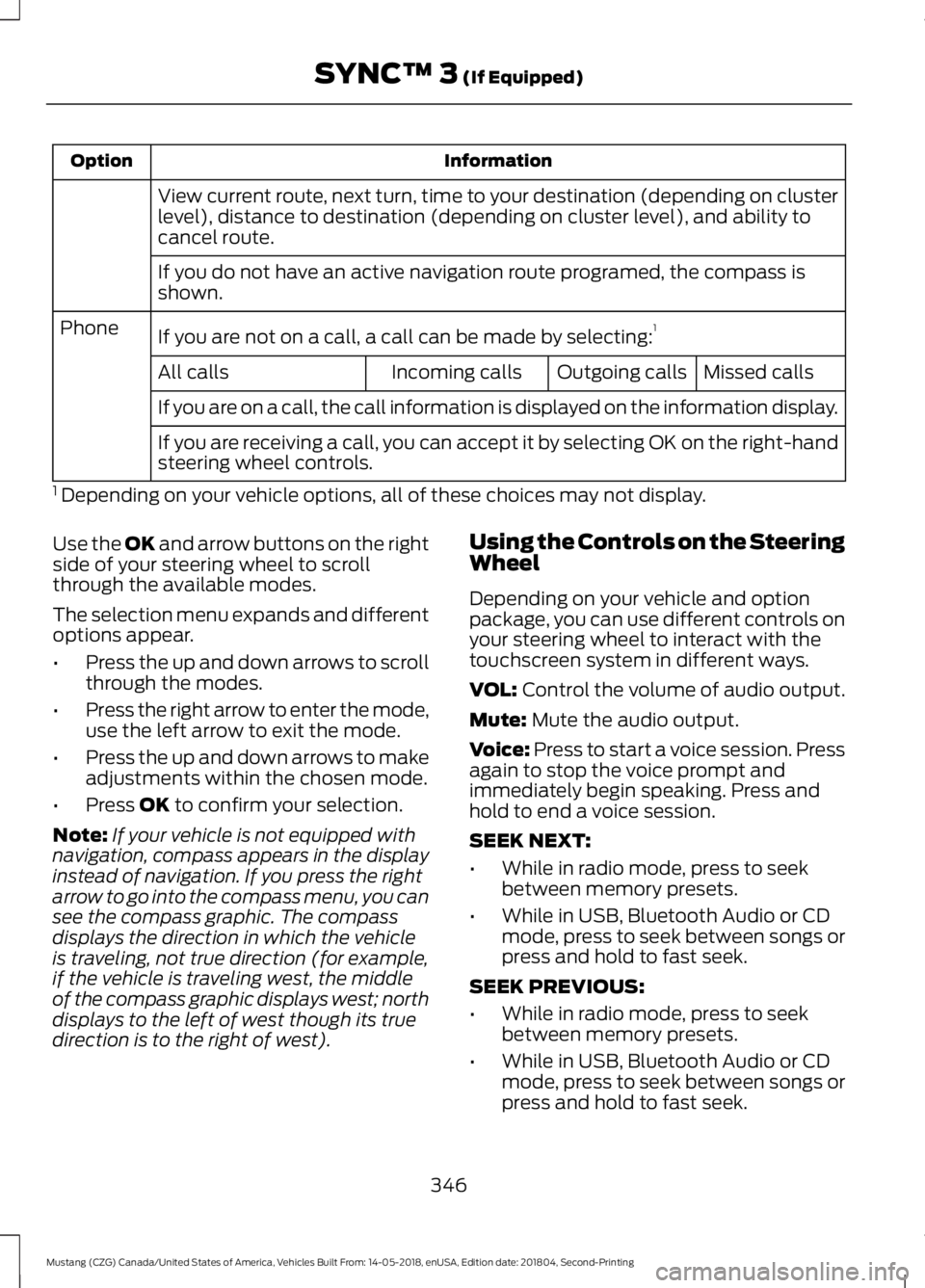
Information
Option
View current route, next turn, time to your destination (depending on cluster
level), distance to destination (depending on cluster level), and ability to
cancel route.
If you do not have an active navigation route programed, the compass is
shown.
If you are not on a call, a call can be made by selecting: 1
Phone
Missed calls
Outgoing calls
Incoming calls
All calls
If you are on a call, the call information is displayed on the information display.
If you are receiving a call, you can accept it by selecting OK on the right-hand
steering wheel controls.
1 Depending on your vehicle options, all of these choices may not display.
Use the OK and arrow buttons on the right
side of your steering wheel to scroll
through the available modes.
The selection menu expands and different
options appear.
• Press the up and down arrows to scroll
through the modes.
• Press the right arrow to enter the mode,
use the left arrow to exit the mode.
• Press the up and down arrows to make
adjustments within the chosen mode.
• Press
OK to confirm your selection.
Note: If your vehicle is not equipped with
navigation, compass appears in the display
instead of navigation. If you press the right
arrow to go into the compass menu, you can
see the compass graphic. The compass
displays the direction in which the vehicle
is traveling, not true direction (for example,
if the vehicle is traveling west, the middle
of the compass graphic displays west; north
displays to the left of west though its true
direction is to the right of west). Using the Controls on the Steering
Wheel
Depending on your vehicle and option
package, you can use different controls on
your steering wheel to interact with the
touchscreen system in different ways.
VOL:
Control the volume of audio output.
Mute:
Mute the audio output.
Voice:
Press to start a voice session. Press
again to stop the voice prompt and
immediately begin speaking. Press and
hold to end a voice session.
SEEK NEXT:
• While in radio mode, press to seek
between memory presets.
• While in USB, Bluetooth Audio or CD
mode, press to seek between songs or
press and hold to fast seek.
SEEK PREVIOUS:
• While in radio mode, press to seek
between memory presets.
• While in USB, Bluetooth Audio or CD
mode, press to seek between songs or
press and hold to fast seek.
346
Mustang (CZG) Canada/United States of America, Vehicles Built From: 14-05-2018, enUSA, Edition date: 201804, Second-Printing SYNC™ 3
(If Equipped)
Page 414 of 495
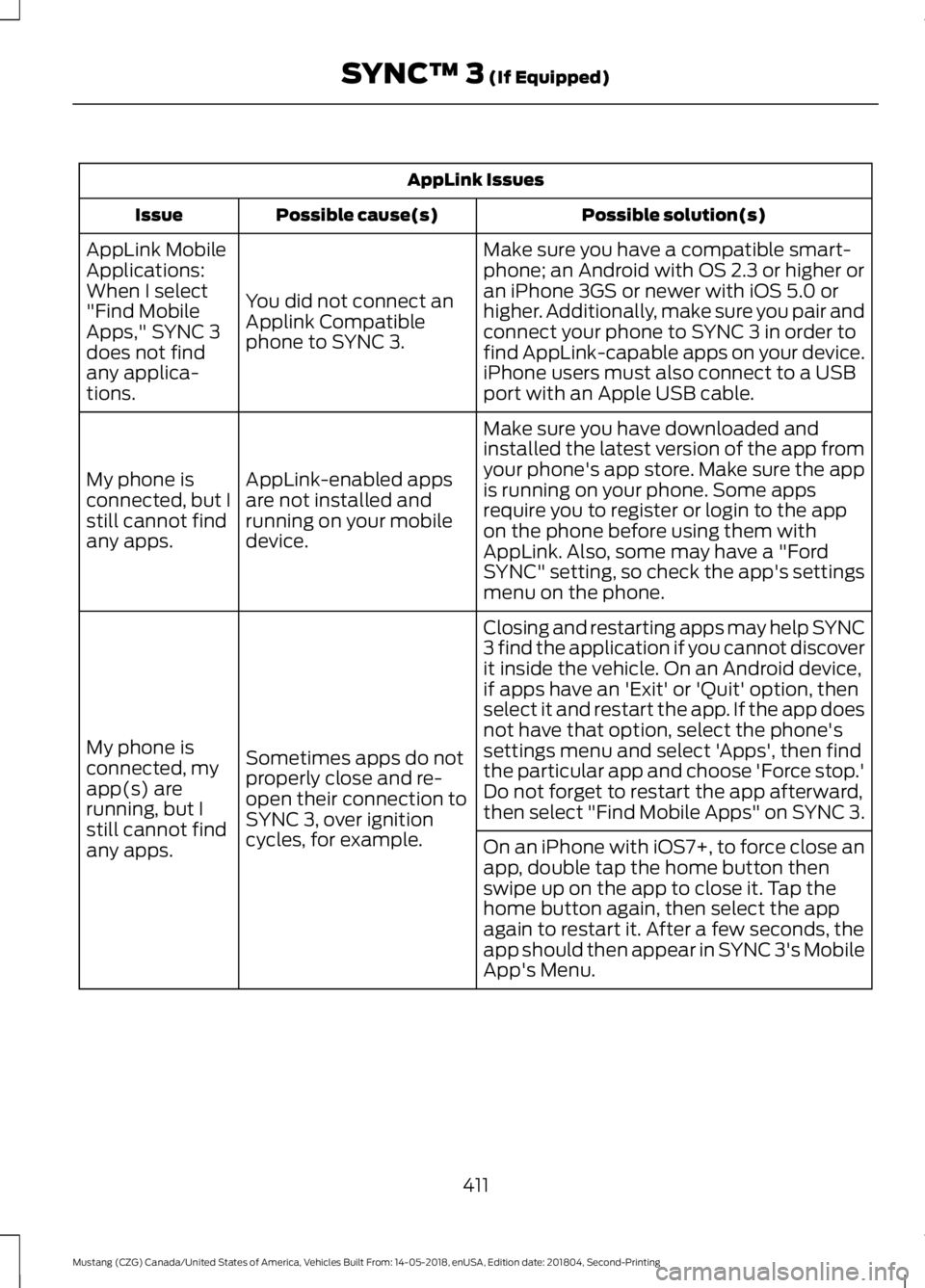
AppLink Issues
Possible solution(s)
Possible cause(s)
Issue
Make sure you have a compatible smart-
phone; an Android with OS 2.3 or higher or
an iPhone 3GS or newer with iOS 5.0 or
higher. Additionally, make sure you pair and
connect your phone to SYNC 3 in order to
find AppLink-capable apps on your device.
iPhone users must also connect to a USB
port with an Apple USB cable.
You did not connect an
Applink Compatible
phone to SYNC 3.
AppLink Mobile
Applications:
When I select
"Find Mobile
Apps," SYNC 3
does not find
any applica-
tions.
Make sure you have downloaded and
installed the latest version of the app from
your phone's app store. Make sure the app
is running on your phone. Some apps
require you to register or login to the app
on the phone before using them with
AppLink. Also, some may have a "Ford
SYNC" setting, so check the app's settings
menu on the phone.
AppLink-enabled apps
are not installed and
running on your mobile
device.
My phone is
connected, but I
still cannot find
any apps.
Closing and restarting apps may help SYNC
3 find the application if you cannot discover
it inside the vehicle. On an Android device,
if apps have an 'Exit' or 'Quit' option, then
select it and restart the app. If the app does
not have that option, select the phone's
settings menu and select 'Apps', then find
the particular app and choose 'Force stop.'
Do not forget to restart the app afterward,
then select "Find Mobile Apps" on SYNC 3.
Sometimes apps do not
properly close and re-
open their connection to
SYNC 3, over ignition
cycles, for example.
My phone is
connected, my
app(s) are
running, but I
still cannot find
any apps.
On an iPhone with iOS7+, to force close an
app, double tap the home button then
swipe up on the app to close it. Tap the
home button again, then select the app
again to restart it. After a few seconds, the
app should then appear in SYNC 3's Mobile
App's Menu.
411
Mustang (CZG) Canada/United States of America, Vehicles Built From: 14-05-2018, enUSA, Edition date: 201804, Second-Printing SYNC™ 3 (If Equipped)