radio FORD RANGER 2009 2.G User Guide
[x] Cancel search | Manufacturer: FORD, Model Year: 2009, Model line: RANGER, Model: FORD RANGER 2009 2.GPages: 280, PDF Size: 2.45 MB
Page 29 of 280
•DELETE ALL SONGS:Press SEEKor preset #6 to delete all
songs from the system’s memory. The display will read ARE YOU
SURE ? Press SEEK
or preset #6 to confirm deletion of all saved
songs and the display will read ALL DELETED.
Note:If there are no songs presently saved, the display will read NO
SONGS.
•ENABLE ALERTS / DISABLE ALERTS:Press SEEK
or preset
#6 to enable/disable the satellite alert status which alerts you when
your selected songs are playing on a satellite radio channel. (The
system default is disabled.) SONG ALERTS ENABLED/DISABLED will
appear in the display. The menu listing will display the opposite state.
For example, if you have chosen to enable the song alerts, the menu
listing will read DISABLE as the alerts are currently on, so your other
optionistoturnthemoff.
Satellite radio is available only with a valid SIRIUS radio
subscription. Check with your authorized dealer for availability.
AUTOSET:Allows you to set the strongest local radio stations without
losing your original manually set preset stations for AM/FM1/FM2 . Press
MENU to access. Use
MENUto set.
When the six strongest stations are filled, the station stored in preset 1
will begin playing. If there are less than six strong stations, the system
will store the last one in the remaining presets.
BASS:Press
MENUto decrease/increase the bass setting.
TREBLE:Press
MENUto decrease/increase the treble setting.
BALANCE:Press
MENUto adjust the audio between the left
and right speakers.
FADE:Press
MENUto adjust the audio between the front and
rear speakers.
Next/previous directory:In MP3 mode, press MENU
/to go to
the previous/next directory.
Flat file/directory mode:In MP3 mode, press MENU to access this
feature. Use
MENUto select flat file mode or directory mode.
2009 Ranger(ran)
Owners Guide, 1st Printing
USA(fus)
Entertainment Systems
29
Page 30 of 280
Track #/ normal music name/file name:Press MENU to access and
use
/to scroll through MP3 display options (track #, normal
music name or file name).
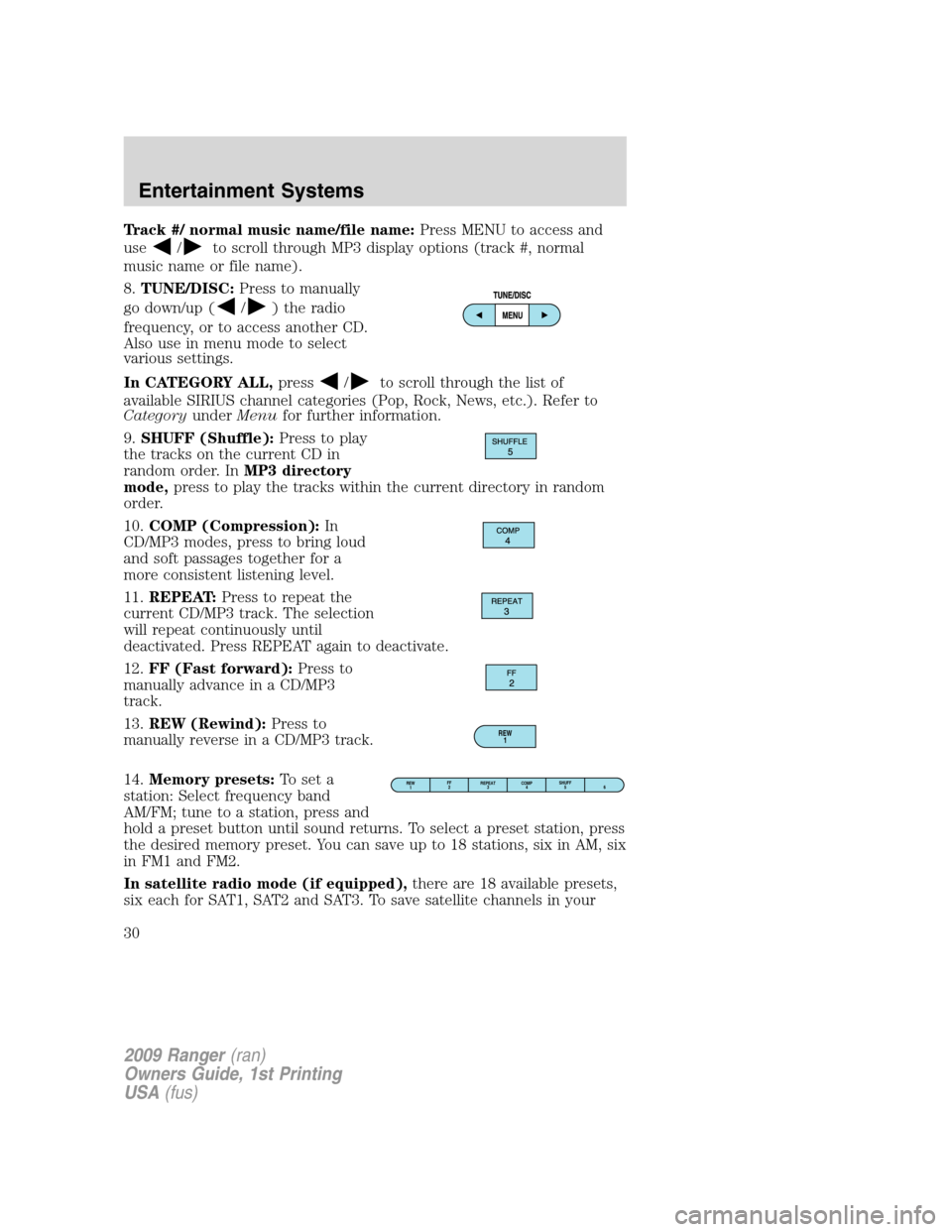
8.TUNE/DISC:Press to manually
go down/up (
/) the radio
frequency, or to access another CD.
Also use in menu mode to select
various settings.
In CATEGORY ALL,press
/to scroll through the list of
available SIRIUS channel categories (Pop, Rock, News, etc.). Refer to
CategoryunderMenufor further information.
9.SHUFF (Shuffle):Press to play
the tracks on the current CD in
random order. InMP3 directory
mode,press to play the tracks within the current directory in random
order.
10.COMP (Compression):In
CD/MP3 modes, press to bring loud
and soft passages together for a
more consistent listening level.
11.REPEAT:Press to repeat the
current CD/MP3 track. The selection
will repeat continuously until
deactivated. Press REPEAT again to deactivate.
12.FF (Fast forward):Press to
manually advance in a CD/MP3
track.
13.REW (Rewind):Press to
manually reverse in a CD/MP3 track.
14.Memory presets:To set a
station: Select frequency band
AM/FM; tune to a station, press and
hold a preset button until sound returns. To select a preset station, press
the desired memory preset. You can save up to 18 stations, six in AM, six
in FM1 and FM2.
In satellite radio mode (if equipped),there are 18 available presets,
six each for SAT1, SAT2 and SAT3. To save satellite channels in your
REW
1
REW
1FF
2REPEAT
3SHUFF
5
6 COMP
4
2009 Ranger(ran)
Owners Guide, 1st Printing
USA(fus)
Entertainment Systems
30
Page 31 of 280
memory presets, tune to the desired channel then press and hold a
preset control until sound returns.
Satellite radio is available only with a valid SIRIUS subscription.
Check with your authorized dealer for availability.
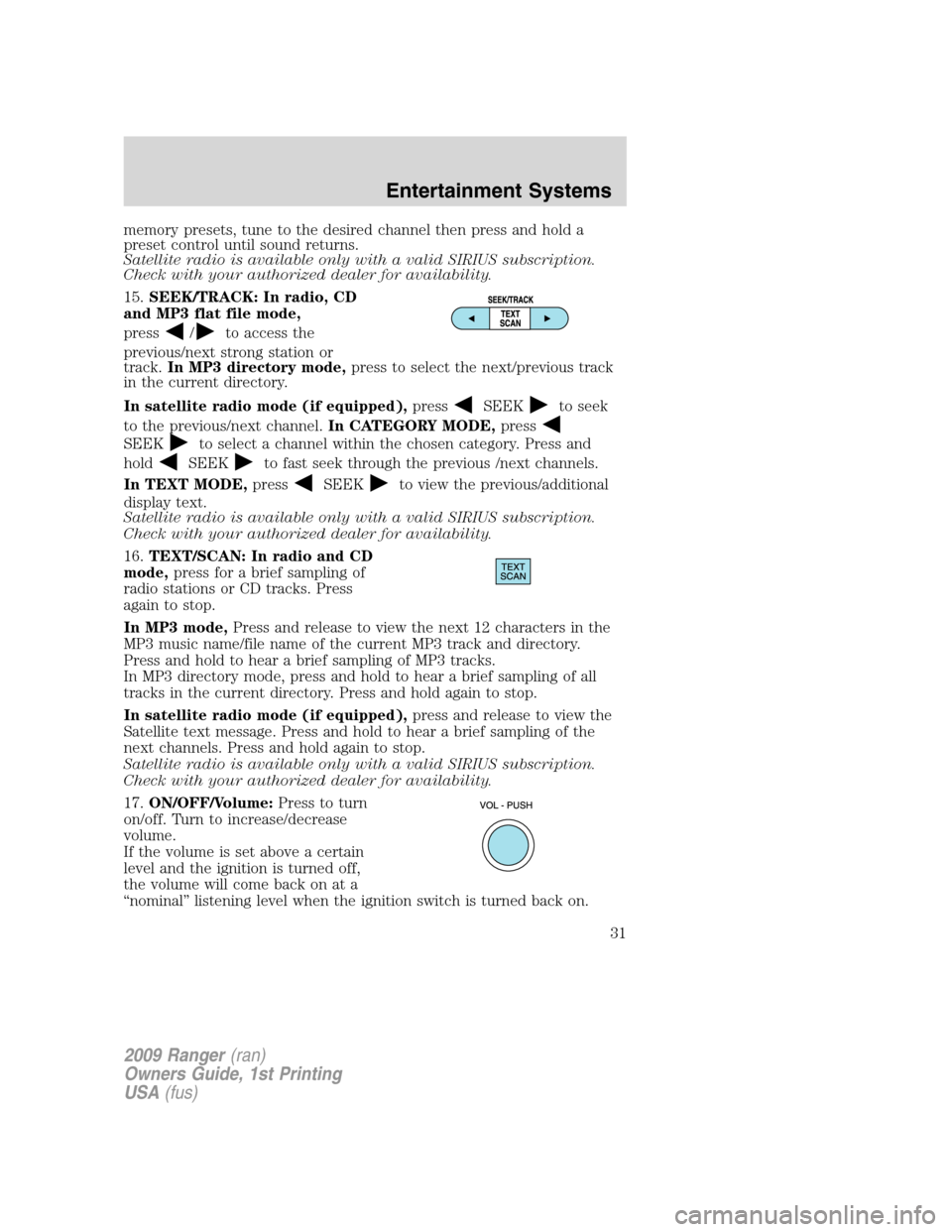
15.SEEK/TRACK: In radio, CD
and MP3 flat file mode,
press
/to access the
previous/next strong station or
track.In MP3 directory mode,press to select the next/previous track
in the current directory.
In satellite radio mode (if equipped),press
SEEKto seek
to the previous/next channel.In CATEGORY MODE,press
SEEKto select a channel within the chosen category. Press and
hold
SEEKto fast seek through the previous /next channels.
In TEXT MODE,press
SEEKto view the previous/additional
display text.
Satellite radio is available only with a valid SIRIUS subscription.
Check with your authorized dealer for availability.
16.TEXT/SCAN: In radio and CD
mode,press for a brief sampling of
radio stations or CD tracks. Press
again to stop.
In MP3 mode,Press and release to view the next 12 characters in the
MP3 music name/file name of the current MP3 track and directory.
Press and hold to hear a brief sampling of MP3 tracks.
In MP3 directory mode, press and hold to hear a brief sampling of all
tracks in the current directory. Press and hold again to stop.
In satellite radio mode (if equipped),press and release to view the
Satellite text message. Press and hold to hear a brief sampling of the
next channels. Press and hold again to stop.
Satellite radio is available only with a valid SIRIUS subscription.
Check with your authorized dealer for availability.
17.ON/OFF/Volume:Press to turn
on/off. Turn to increase/decrease
volume.
If the volume is set above a certain
level and the ignition is turned off,
the volume will come back on at a
“nominal” listening level when the ignition switch is turned back on.
2009 Ranger(ran)
Owners Guide, 1st Printing
USA(fus)
Entertainment Systems
31
Page 32 of 280
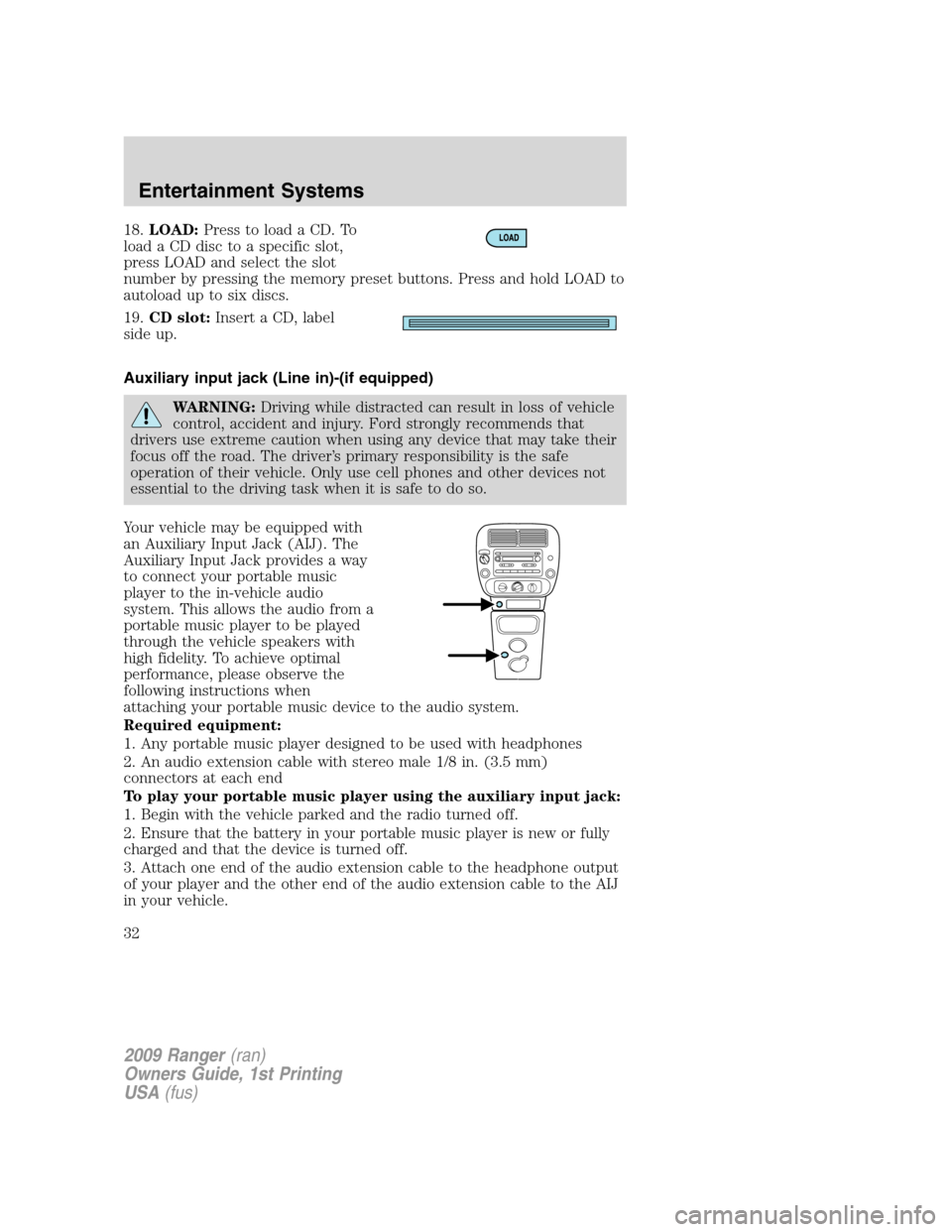
18.LOAD:Press to load a CD. To
load a CD disc to a specific slot,
press LOAD and select the slot
number by pressing the memory preset buttons. Press and hold LOAD to
autoload up to six discs.
19.CD slot:Insert a CD, label
side up.
Auxiliary input jack (Line in)-(if equipped)
WARNING:Driving while distracted can result in loss of vehicle
control, accident and injury. Ford strongly recommends that
drivers use extreme caution when using any device that may take their
focus off the road. The driver’s primary responsibility is the safe
operation of their vehicle. Only use cell phones and other devices not
essential to the driving task when it is safe to do so.
Your vehicle may be equipped with
an Auxiliary Input Jack (AIJ). The
Auxiliary Input Jack provides a way
to connect your portable music
player to the in-vehicle audio
system. This allows the audio from a
portable music player to be played
through the vehicle speakers with
high fidelity. To achieve optimal
performance, please observe the
following instructions when
attaching your portable music device to the audio system.
Required equipment:
1. Any portable music player designed to be used with headphones
2. An audio extension cable with stereo male 1/8 in. (3.5 mm)
connectors at each end
To play your portable music player using the auxiliary input jack:
1. Begin with the vehicle parked and the radio turned off.
2. Ensure that the battery in your portable music player is new or fully
charged and that the device is turned off.
3. Attach one end of the audio extension cable to the headphone output
of your player and the other end of the audio extension cable to the AIJ
in your vehicle.
2009 Ranger(ran)
Owners Guide, 1st Printing
USA(fus)
Entertainment Systems
32
Page 33 of 280
4. Turn the radio on, using either a tuned FM station or a CD loaded into
the system. Adjust the volume to a comfortable listening level.
5. Turn the portable music player on and adjust the volume to 1/2 the
volume.
6. Press AUX on the vehicle radio repeatedly until LINE IN appears in
the display.
You should hear audio from your portable music player although it may
be low.
7. Adjust the sound on your portable music player until it reaches the
level of the FM station or CD by switching back and forth between the
AUX and FM or CD controls.
Troubleshooting:
1. Do not connect the audio input jack to a line level output. Line level
outputs are intended for connection to a home stereo and are not
compatible with the AIJ. The AIJ will only work correctly with devices
that have a headphone output with a volume control.
2. Do not set the portable music player’s volume level higher than is
necessary to match the volume of the CD or FM radio in your audio
system as this will cause distortion and will reduce sound quality. Many
portable music players have different output levels, so not all players
should be set at the same levels. Some players will sound best at full
volume and others will need to be set at a lower volume.
3. If the music sounds distorted at lower listening levels, turn the
portable music player volume down. If the problems persists, replace or
recharge the batteries in the portable music player.
4. The portable music player must be controlled in the same manner
when it is used with headphones as the AIJ does not provide control
(play, pause, etc.) over the attached portable music player.
5. For safety reasons, connecting or adjusting the settings on your
portable music player should not be attempted while the vehicle is
moving. Also, the portable music player should be stored in a secure
location, such as the center console or the glove box, when the vehicle is
in motion. The audio extension cable must be long enough to allow the
portable music player to be safely stored while the vehicle is in motion.
2009 Ranger(ran)
Owners Guide, 1st Printing
USA(fus)
Entertainment Systems
33
Page 34 of 280
GENERAL AUDIO INFORMATION
Radio frequencies:
AM and FM frequencies are established by the Federal Communications
Commission (FCC) and the Canadian Radio and Telecommunications
Commission (CRTC). Those frequencies are:
AM: 530, 540–1700, 1710 kHz
FM: 87.7, 87.9–107.7, 107.9 MHz
Radio reception factors:
There are three factors that can affect radio reception:
•Distance/strength: The further you travel from an FM station, the
weaker the signal and the weaker the reception.
•Terrain: Hills, mountains, tall buildings, power lines, electric fences,
traffic lights and thunderstorms can interfere with your reception.
•Station overload: When you pass a broadcast tower, a stronger signal
may overtake a weaker one and play while the weak station frequency
is displayed.
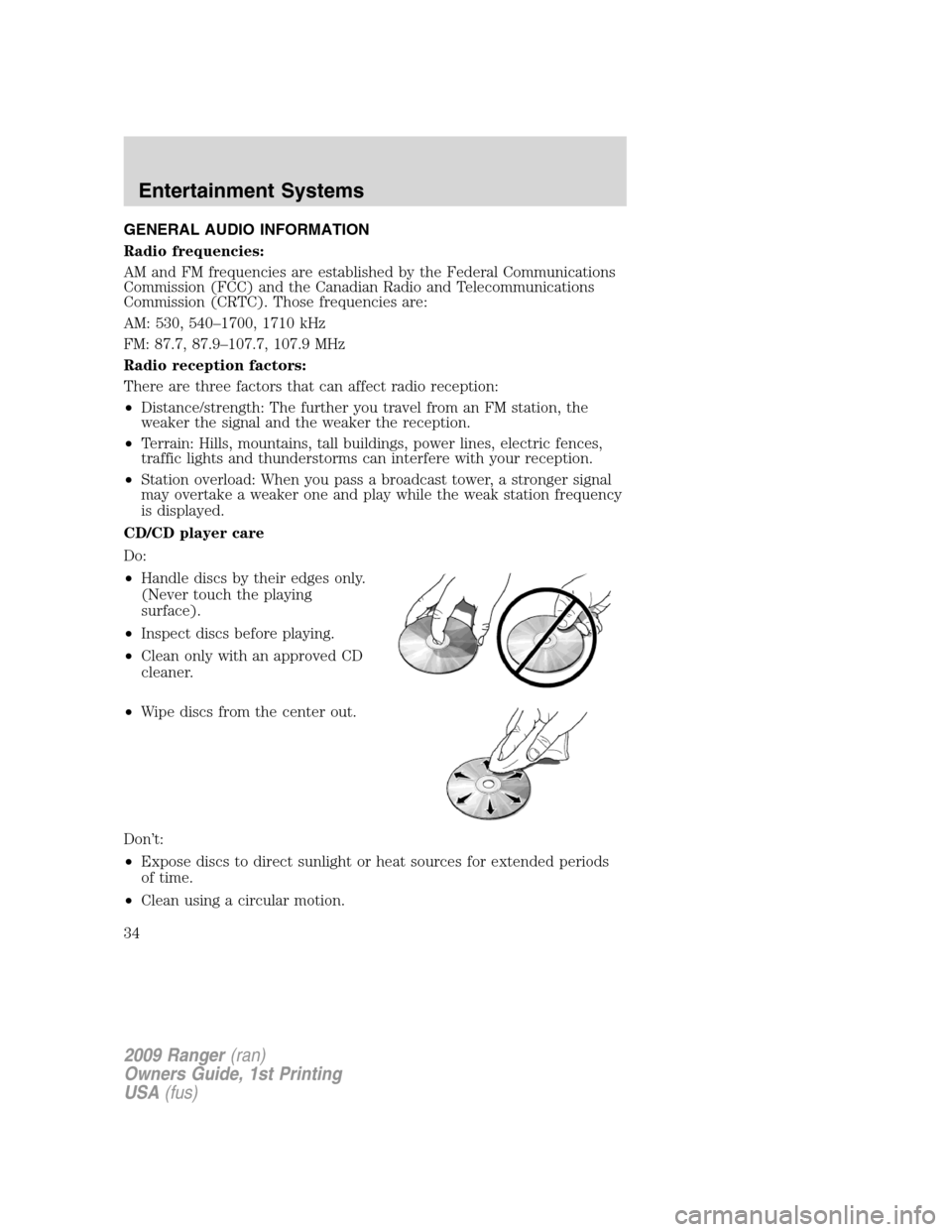
CD/CD player care
Do:
•Handle discs by their edges only.
(Never touch the playing
surface).
•Inspect discs before playing.
•Clean only with an approved CD
cleaner.
•Wipe discs from the center out.
Don’t:
•Expose discs to direct sunlight or heat sources for extended periods
of time.
•Clean using a circular motion.
2009 Ranger(ran)
Owners Guide, 1st Printing
USA(fus)
Entertainment Systems
34
Page 36 of 280
To change directories (folders), press MENU and then press/
to select the desired directory (folder).
Changing between flat file mode and directory mode
Your radio MP3 system will default to directory mode when an MP3 disc
is first inserted. When the MP3 system is in directory mode, theDIR
icon will be illuminated on the radio display.
•To change from directory mode to flat file mode while playing an MP3
CD: Press MENU until the radio display readsDirectory. Then
press
. The display will change fromDIRtoFlat File. The MP3
system is now in flat file mode.
•To change from flat file mode to directory mode while playing an MP3
CD: Press MENU until the radio display readsFlat File. Then
press
. The display will change fromFlat FiletoDIR. The MP3
system is now in directory mode.
MP3 track and folder structure
Your MP3 system recognizes MP3 individual tracks and folder structure
as follows:
•There are two different modes for MP3 disc playback: MP3 directory
mode (system default) and MP3 flat file mode. For more information
on directory and flat file mode, refer toSample MP3 structure
following.
•MP3 flat file mode ignores any folder structure on the MP3 disc. The
player numbers each MP3 track on the disc (noted by the .mp3 file
extension) from T001 to a maximum of T255.
Note:The maximum number of playable MP3 files may be less
depending on the structure of the CD and exact model of radio
present.
•MP3 directory mode represents a folder structure consisting of one
level of folders. The CD player numbers all MP3 tracks on the disc
(noted by the .mp3 file extension) and all folders containing MP3 files,
from F001 (folder) T001 (track) to F253 T255.
•Creating discs with only one level of folders will help with navigation
through the disc files.
2009 Ranger(ran)
Owners Guide, 1st Printing
USA(fus)
Entertainment Systems
36
Page 37 of 280
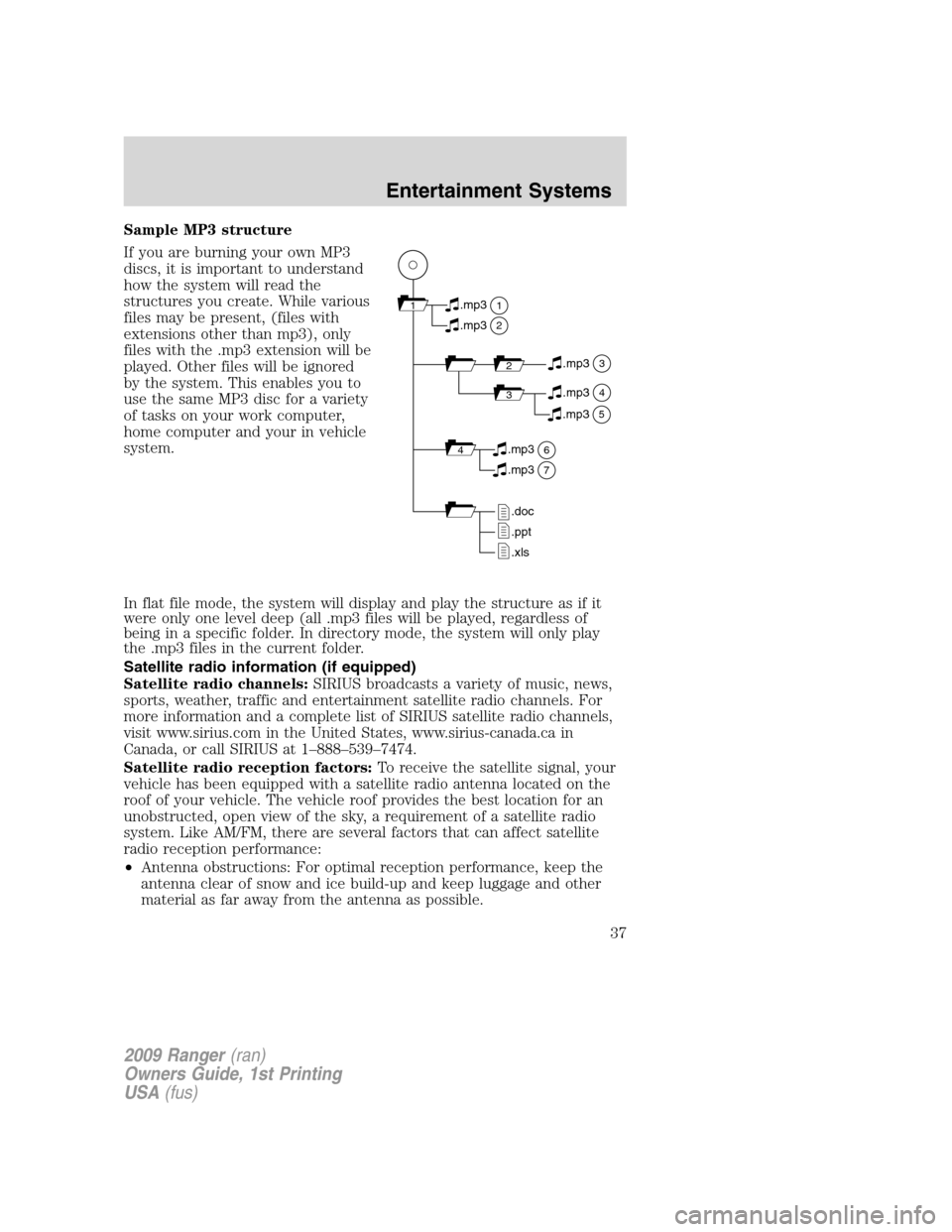
Sample MP3 structure
If you are burning your own MP3
discs, it is important to understand
how the system will read the
structures you create. While various
files may be present, (files with
extensions other than mp3), only
files with the .mp3 extension will be
played. Other files will be ignored
by the system. This enables you to
use the same MP3 disc for a variety
of tasks on your work computer,
home computer and your in vehicle
system.
In flat file mode, the system will display and play the structure as if it
were only one level deep (all .mp3 files will be played, regardless of
being in a specific folder. In directory mode, the system will only play
the .mp3 files in the current folder.
Satellite radio information (if equipped)
Satellite radio channels:SIRIUS broadcasts a variety of music, news,
sports, weather, traffic and entertainment satellite radio channels. For
more information and a complete list of SIRIUS satellite radio channels,
visit www.sirius.com in the United States, www.sirius-canada.ca in
Canada, or call SIRIUS at 1–888–539–7474.
Satellite radio reception factors:To receive the satellite signal, your
vehicle has been equipped with a satellite radio antenna located on the
roof of your vehicle. The vehicle roof provides the best location for an
unobstructed, open view of the sky, a requirement of a satellite radio
system. Like AM/FM, there are several factors that can affect satellite
radio reception performance:
•Antenna obstructions: For optimal reception performance, keep the
antenna clear of snow and ice build-up and keep luggage and other
material as far away from the antenna as possible.
11
2
.mp3
2.mp3
3.mp3
34.mp3
64.mp3
7.mp3
.doc
.ppt
.xls
5.mp3
2009 Ranger(ran)
Owners Guide, 1st Printing
USA(fus)
Entertainment Systems
37
Page 38 of 280
•Terrain: Hills, mountains, tall buildings, bridges, tunnels, freeway
overpasses, parking garages, dense tree foliage and thunderstorms can
interfere with your reception.
•Station overload: When you pass a ground based broadcast repeating
tower, a stronger signal may overtake a weaker one and result in an
audio mute.
Unlike AM/FM audible static, you will hear an audio mute when there is
a satellite radio signal interference. Your radio display may display NO
SIGNAL to indicate the interference.
SIRIUS satellite radio service:SIRIUS Satellite Radio is a subscription
based satellite radio service that broadcasts music, sports, news and
entertainment programming. A service fee is required in order to receive
SIRIUS service. Vehicles that are equipped with a factory installed
SIRIUS Satellite Radio system include:
•Hardware and limited subscription term, which begins on the date of
sale or lease of the vehicle.
•Use of online media player providing access to all SIRIUS music
channels over the internet using any computer connected to the
internet (U.S. customers only).
For information on extended subscription terms, contact SIRIUS at
1–888–539–7474.
Note:SIRIUS reserves the unrestricted right to change, rearrange, add
or delete programming including canceling, moving or adding particular
channels, and its prices, at any time, with or without notice to you. Ford
Motor Company shall not be responsible for any such programming
changes.
Satellite Radio Electronic Serial Number (ESN):This 12–digit
Satellite Serial Number is needed to activate, modify or track your
satellite radio account. You will need this number when communicating
with SIRIUS. While in Satellite Radio mode, you can view this number on
the radio display by pressing AUX and Preset 1 control simultaneously.
2009 Ranger(ran)
Owners Guide, 1st Printing
USA(fus)
Entertainment Systems
38
Page 39 of 280
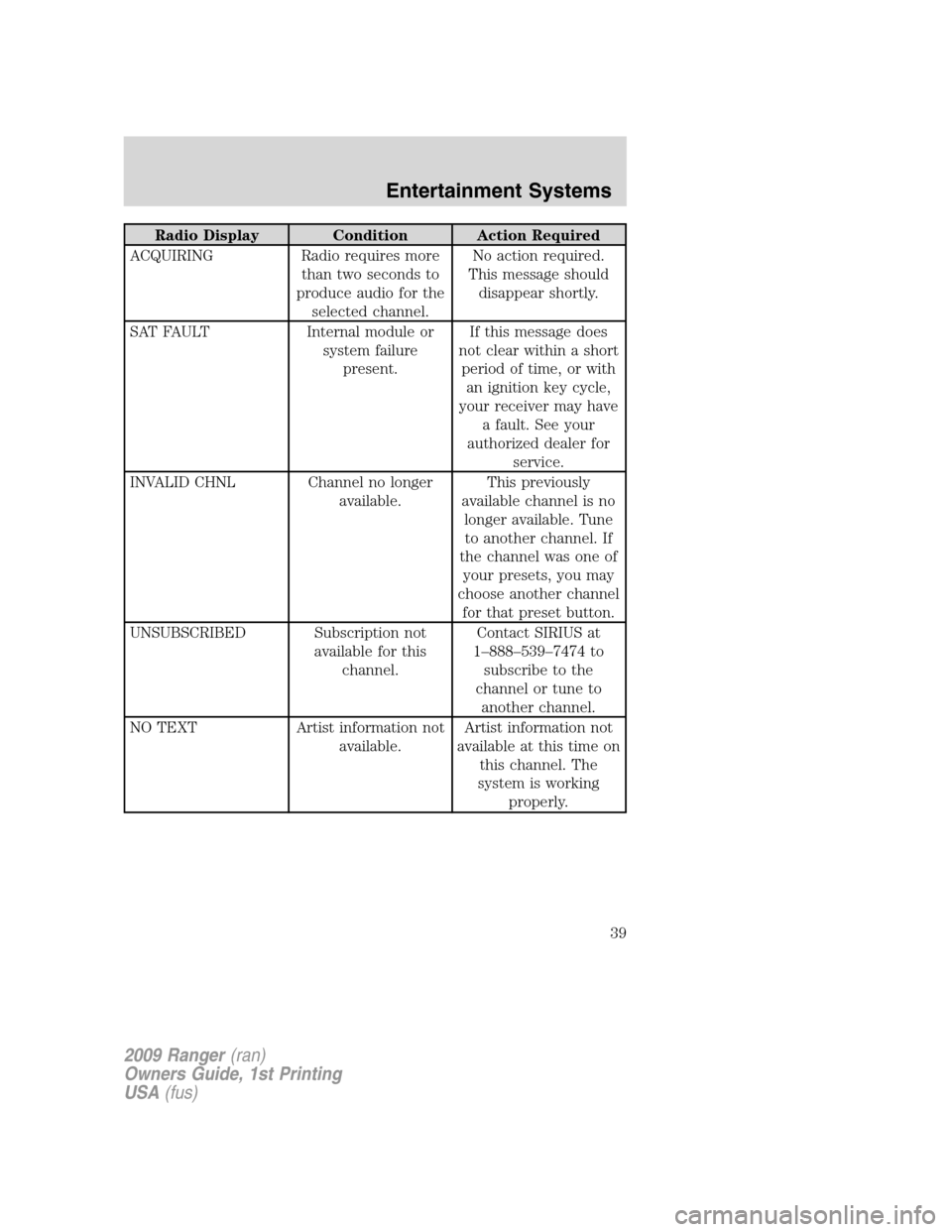
Radio Display Condition Action Required
ACQUIRING Radio requires more
than two seconds to
produce audio for the
selected channel.No action required.
This message should
disappear shortly.
SAT FAULT Internal module or
system failure
present.If this message does
not clear within a short
period of time, or with
an ignition key cycle,
your receiver may have
a fault. See your
authorized dealer for
service.
INVALID CHNL Channel no longer
available.This previously
available channel is no
longer available. Tune
to another channel. If
the channel was one of
your presets, you may
choose another channel
for that preset button.
UNSUBSCRIBED Subscription not
available for this
channel.Contact SIRIUS at
1–888–539–7474 to
subscribe to the
channel or tune to
another channel.
NO TEXT Artist information not
available.Artist information not
available at this time on
this channel. The
system is working
properly.
2009 Ranger(ran)
Owners Guide, 1st Printing
USA(fus)
Entertainment Systems
39