ECT FORD RANGER 2019 Owners Manual
[x] Cancel search | Manufacturer: FORD, Model Year: 2019, Model line: RANGER, Model: FORD RANGER 2019Pages: 512, PDF Size: 7.63 MB
Page 315 of 512
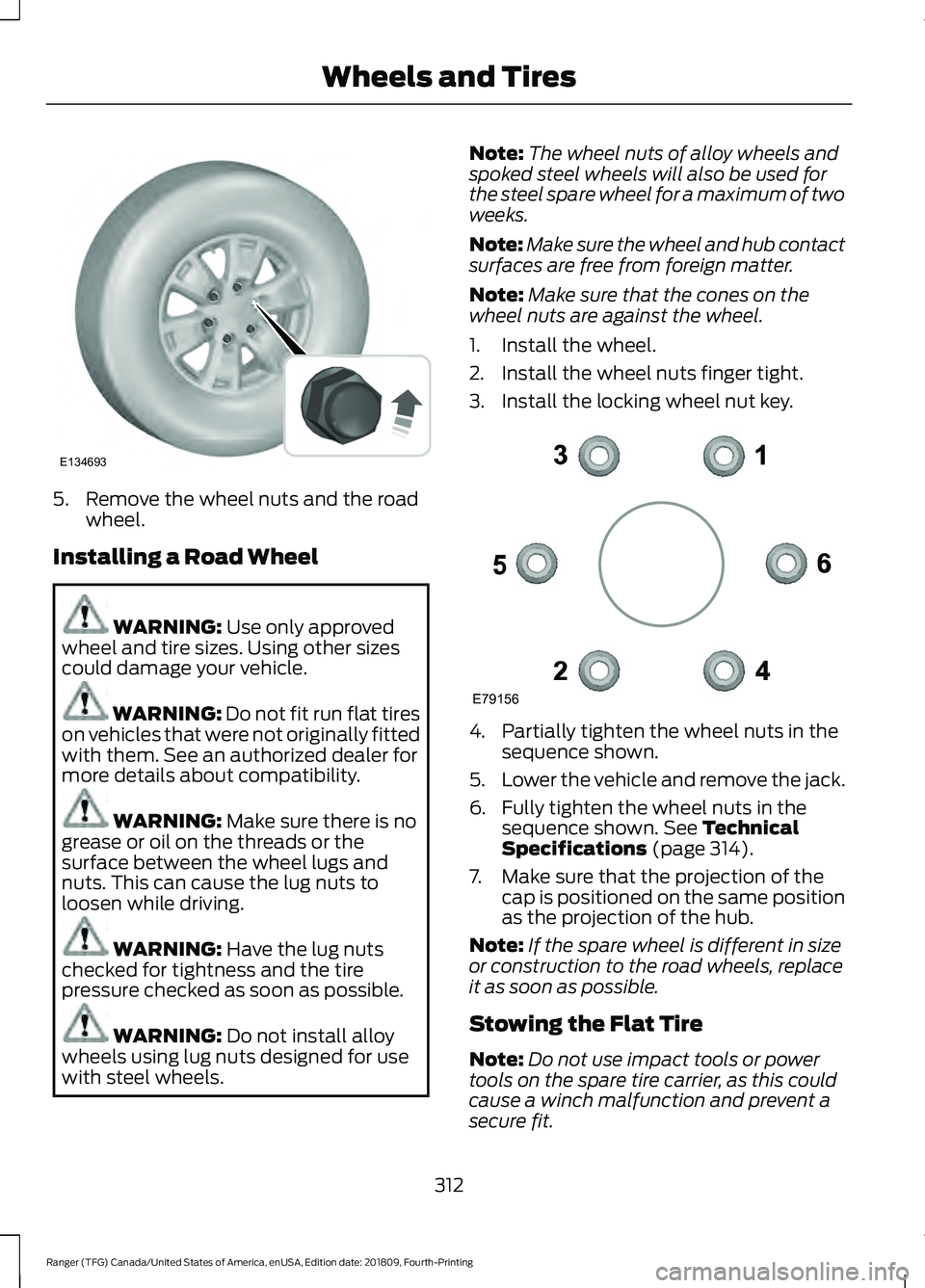
5. Remove the wheel nuts and the road
wheel.
Installing a Road Wheel WARNING: Use only approved
wheel and tire sizes. Using other sizes
could damage your vehicle. WARNING: Do not fit run flat tires
on vehicles that were not originally fitted
with them. See an authorized dealer for
more details about compatibility. WARNING:
Make sure there is no
grease or oil on the threads or the
surface between the wheel lugs and
nuts. This can cause the lug nuts to
loosen while driving. WARNING:
Have the lug nuts
checked for tightness and the tire
pressure checked as soon as possible. WARNING:
Do not install alloy
wheels using lug nuts designed for use
with steel wheels. Note:
The wheel nuts of alloy wheels and
spoked steel wheels will also be used for
the steel spare wheel for a maximum of two
weeks.
Note: Make sure the wheel and hub contact
surfaces are free from foreign matter.
Note: Make sure that the cones on the
wheel nuts are against the wheel.
1. Install the wheel.
2. Install the wheel nuts finger tight.
3. Install the locking wheel nut key. 4. Partially tighten the wheel nuts in the
sequence shown.
5. Lower the vehicle and remove the jack.
6. Fully tighten the wheel nuts in the sequence shown.
See Technical
Specifications (page 314).
7. Make sure that the projection of the cap is positioned on the same position
as the projection of the hub.
Note: If the spare wheel is different in size
or construction to the road wheels, replace
it as soon as possible.
Stowing the Flat Tire
Note: Do not use impact tools or power
tools on the spare tire carrier, as this could
cause a winch malfunction and prevent a
secure fit.
312
Ranger (TFG) Canada/United States of America, enUSA, Edition date: 201809, Fourth-Printing Wheels and TiresE134693 E79156
Page 317 of 512
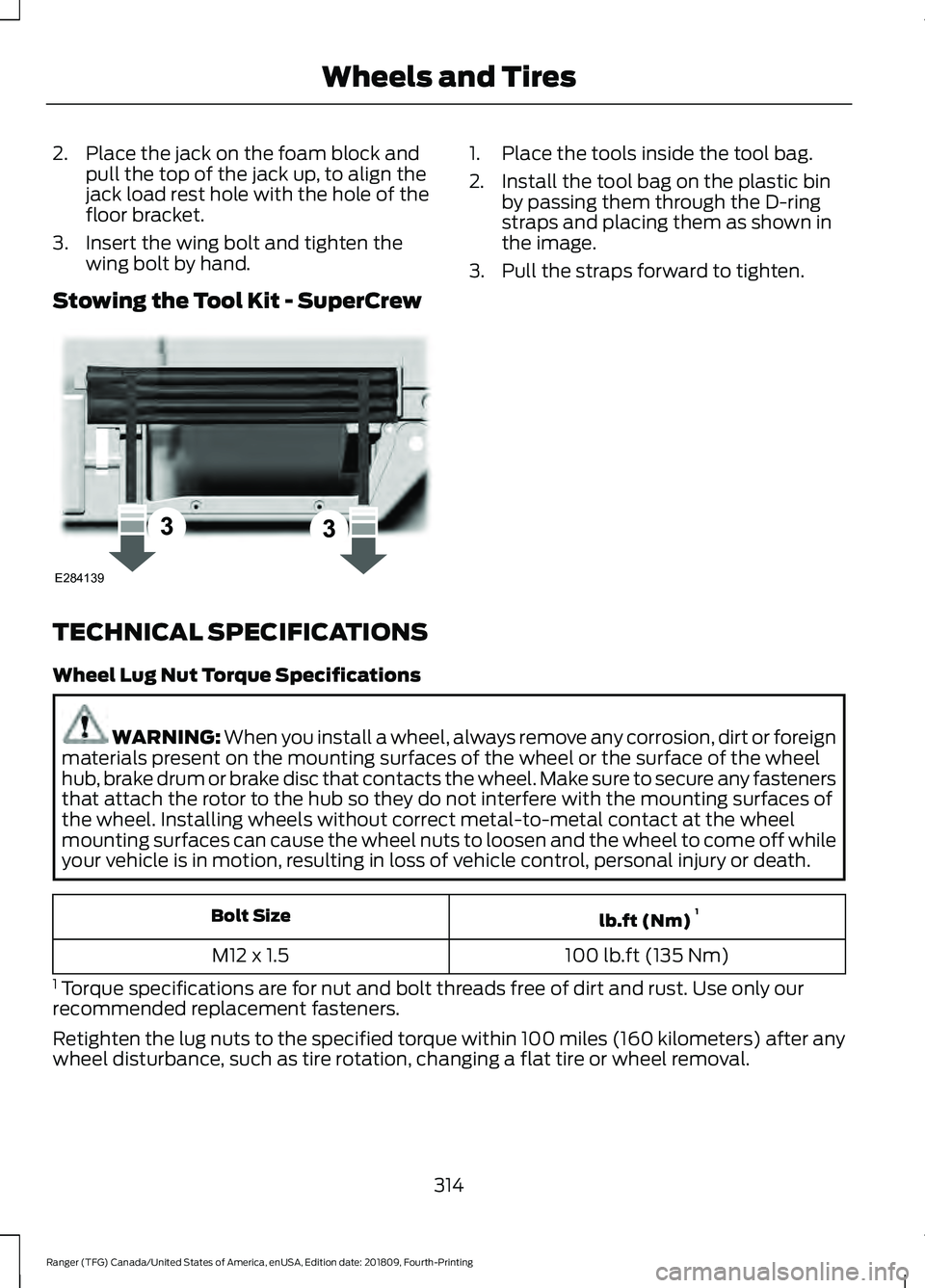
2. Place the jack on the foam block and
pull the top of the jack up, to align the
jack load rest hole with the hole of the
floor bracket.
3. Insert the wing bolt and tighten the wing bolt by hand.
Stowing the Tool Kit - SuperCrew 1. Place the tools inside the tool bag.
2. Install the tool bag on the plastic bin
by passing them through the D-ring
straps and placing them as shown in
the image.
3. Pull the straps forward to tighten.
TECHNICAL SPECIFICATIONS
Wheel Lug Nut Torque Specifications WARNING: When you install a wheel, always remove any corrosion, dirt or foreign
materials present on the mounting surfaces of the wheel or the surface of the wheel
hub, brake drum or brake disc that contacts the wheel. Make sure to secure any fasteners
that attach the rotor to the hub so they do not interfere with the mounting surfaces of
the wheel. Installing wheels without correct metal-to-metal contact at the wheel
mounting surfaces can cause the wheel nuts to loosen and the wheel to come off while
your vehicle is in motion, resulting in loss of vehicle control, personal injury or death. lb.ft (Nm)
1
Bolt Size
100 lb.ft (135 Nm)
M12 x 1.5
1 Torque specifications are for nut and bolt threads free of dirt and rust. Use only our
recommended replacement fasteners.
Retighten the lug nuts to the specified torque within 100 miles (160 kilometers) after any
wheel disturbance, such as tire rotation, changing a flat tire or wheel removal.
314
Ranger (TFG) Canada/United States of America, enUSA, Edition date: 201809, Fourth-Printing Wheels and TiresE284139
Page 318 of 512
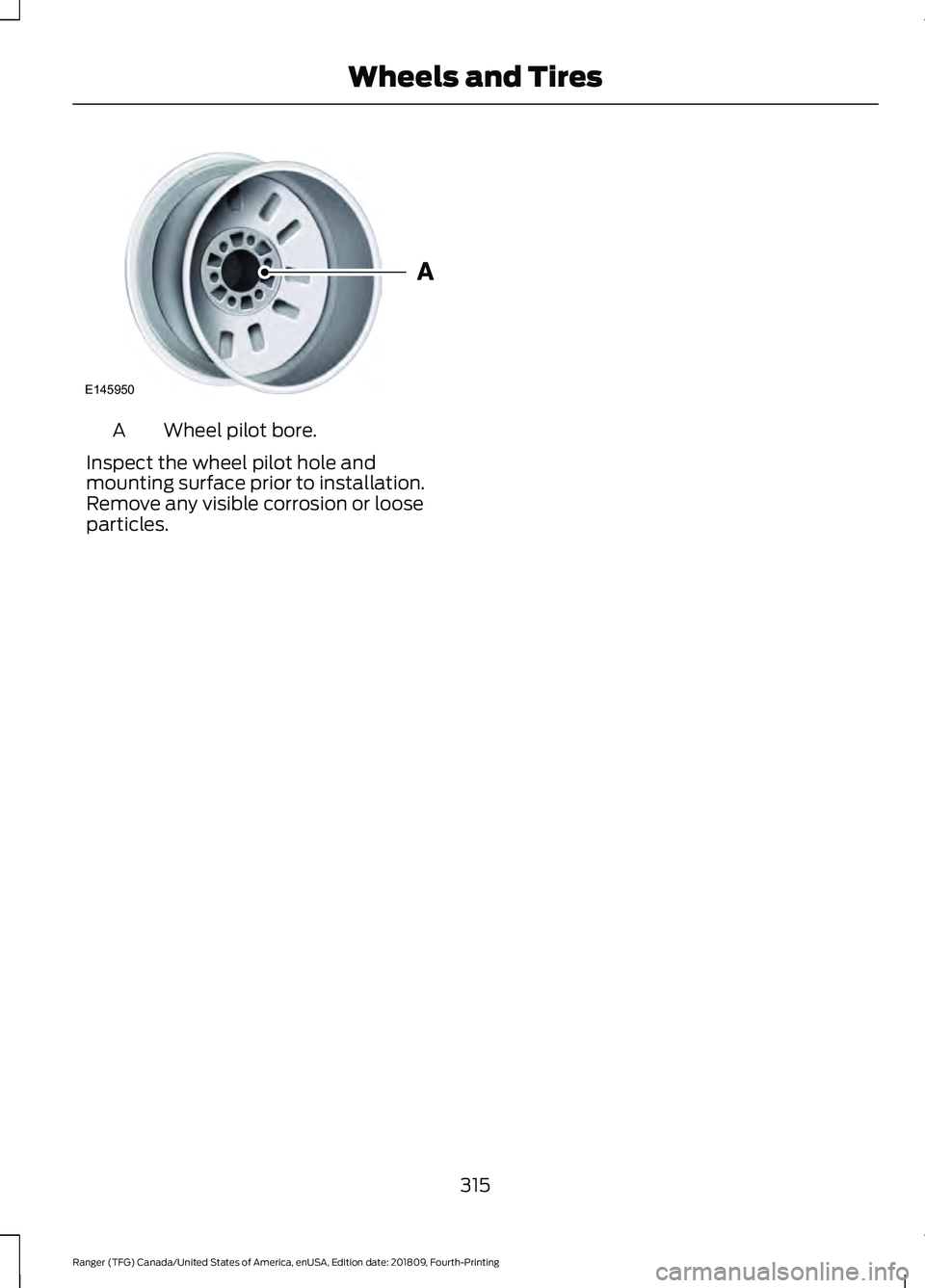
Wheel pilot bore.
A
Inspect the wheel pilot hole and
mounting surface prior to installation.
Remove any visible corrosion or loose
particles.
315
Ranger (TFG) Canada/United States of America, enUSA, Edition date: 201809, Fourth-Printing Wheels and TiresE145950
Page 327 of 512
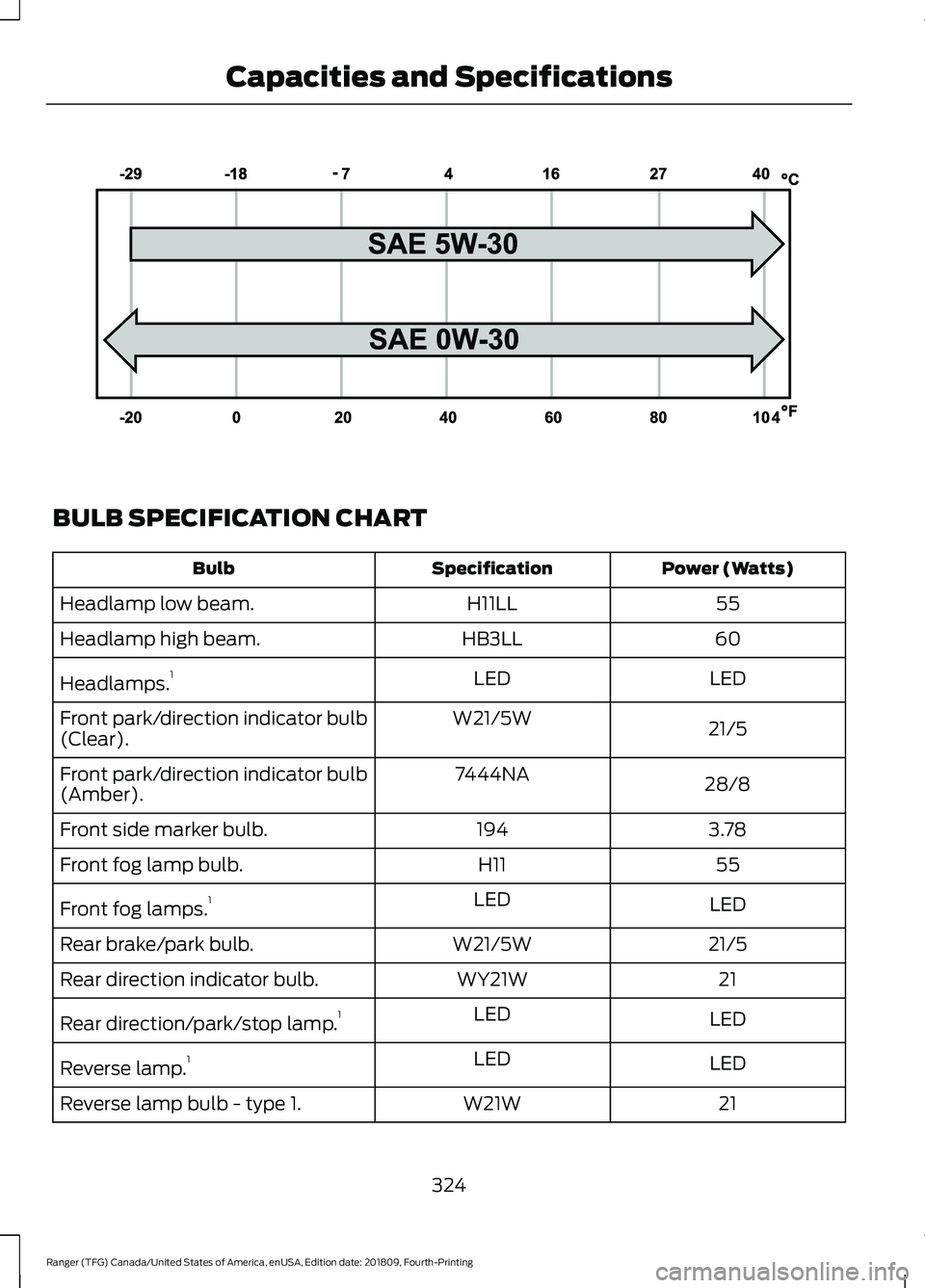
BULB SPECIFICATION CHART
Power (Watts)
Specification
Bulb
55
H11LL
Headlamp low beam.
60
HB3LL
Headlamp high beam.
LED
LED
Headlamps. 1
21/5
W21/5W
Front park/direction indicator bulb
(Clear).
28/8
7444NA
Front park/direction indicator bulb
(Amber).
3.78
194
Front side marker bulb.
55
H11
Front fog lamp bulb.
LED
LED
Front fog lamps. 1
21/5
W21/5W
Rear brake/park bulb.
21
WY21W
Rear direction indicator bulb.
LED
LED
Rear direction/park/stop lamp. 1
LED
LED
Reverse lamp. 1
21
W21W
Reverse lamp bulb - type 1.
324
Ranger (TFG) Canada/United States of America, enUSA, Edition date: 201809, Fourth-Printing Capacities and SpecificationsE240523
Page 328 of 512
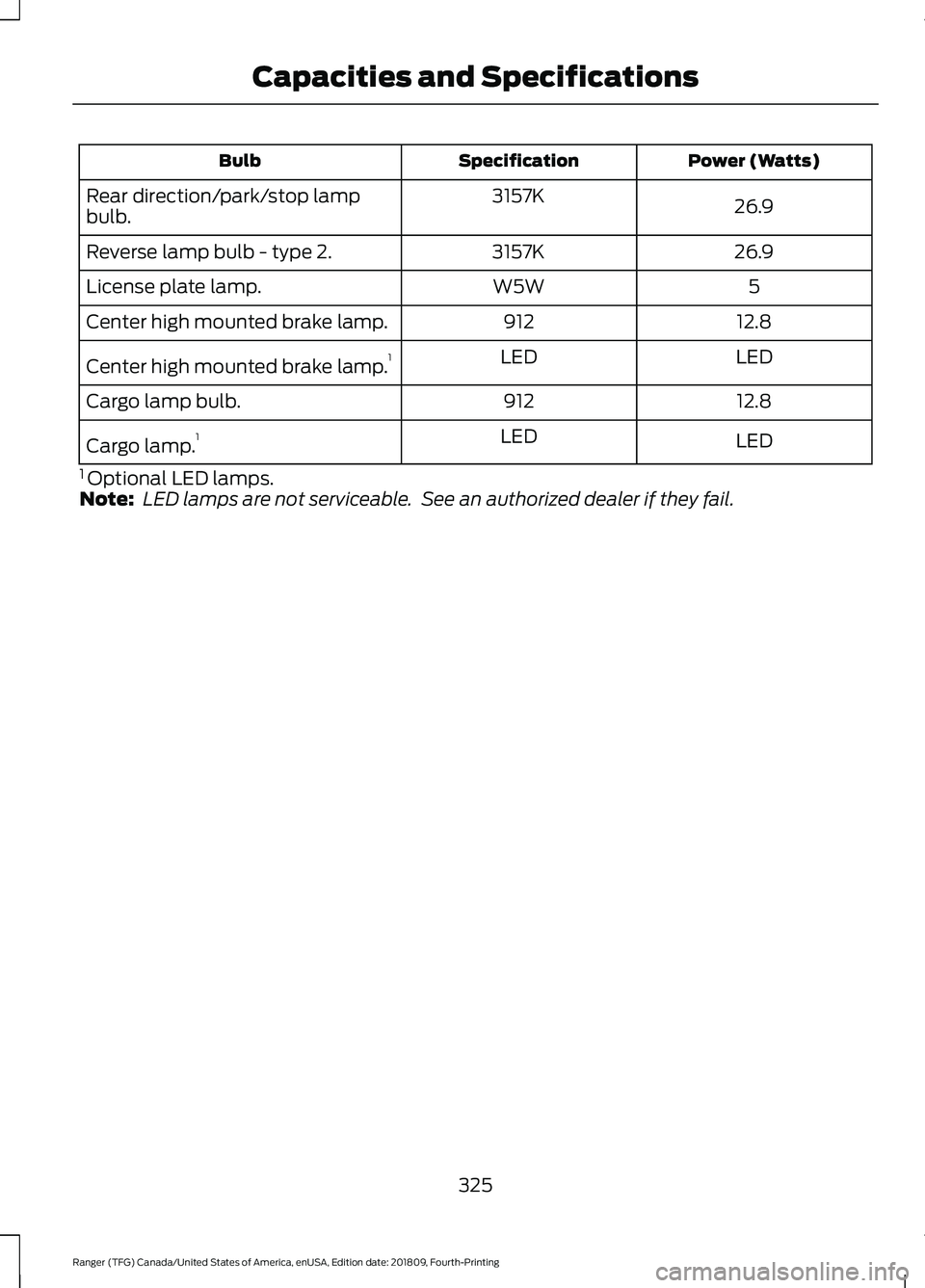
Power (Watts)
Specification
Bulb
26.9
3157K
Rear direction/park/stop lamp
bulb.
26.9
3157K
Reverse lamp bulb - type 2.
5
W5W
License plate lamp.
12.8
912
Center high mounted brake lamp.
LED
LED
Center high mounted brake lamp. 1
12.8
912
Cargo lamp bulb.
LED
LED
Cargo lamp. 1
1 Optional LED lamps.
Note: LED lamps are not serviceable. See an authorized dealer if they fail.
325
Ranger (TFG) Canada/United States of America, enUSA, Edition date: 201809, Fourth-Printing Capacities and Specifications
Page 329 of 512
GENERAL INFORMATION
Radio Frequencies and Reception
Factors
AM and FM frequencies are established by
the Federal Communications Commission
(FCC) and the Canadian Radio and
Telecommunications Commission (CRTC).
Those frequencies are:
•
AM: 530-1710 kHz
• FM: 87.9-107.9 MHz
Note: Listening to loud audio for long
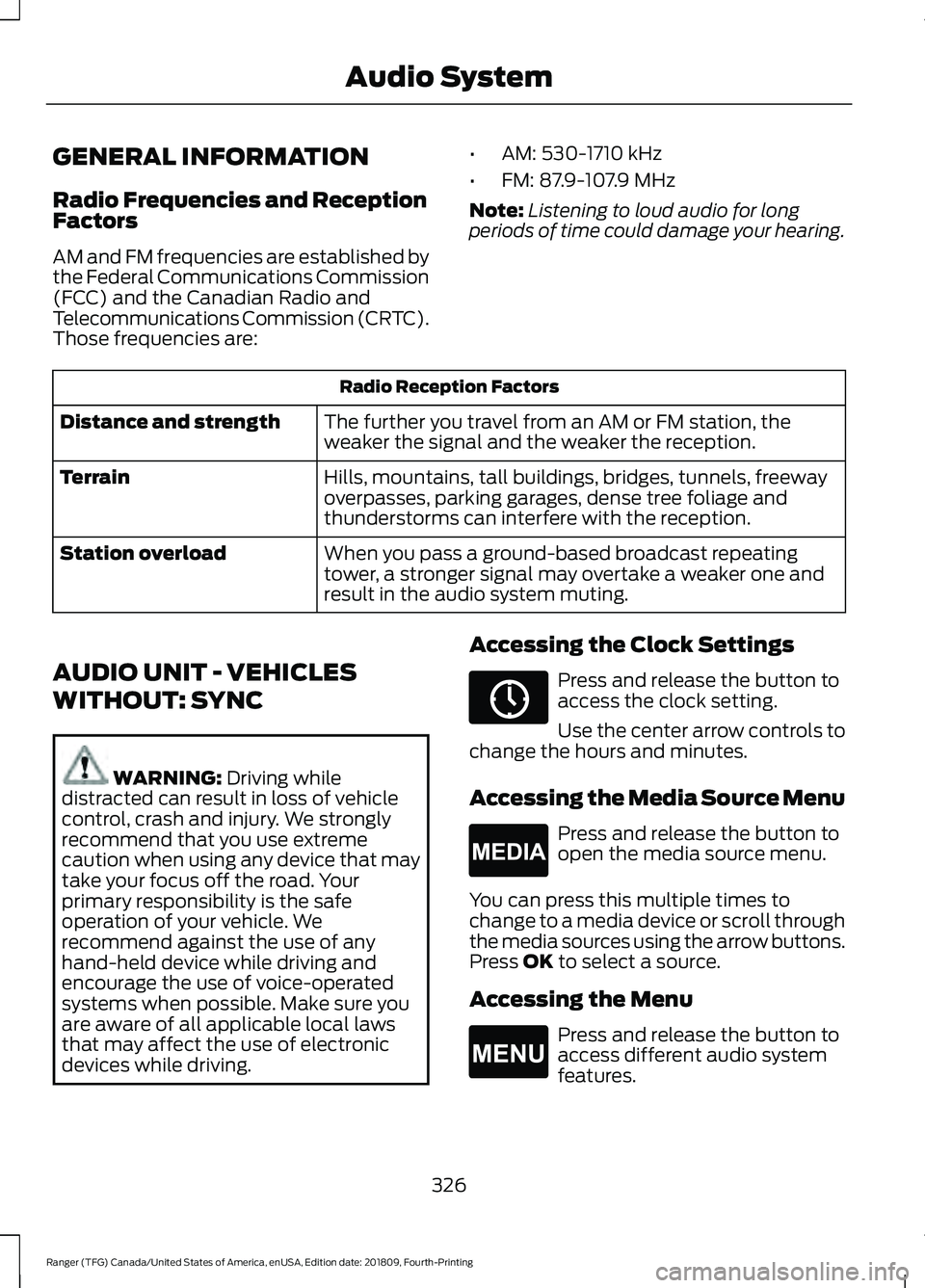
periods of time could damage your hearing. Radio Reception Factors
The further you travel from an AM or FM station, the
weaker the signal and the weaker the reception.
Distance and strength
Hills, mountains, tall buildings, bridges, tunnels, freeway
overpasses, parking garages, dense tree foliage and
thunderstorms can interfere with the reception.
Terrain
When you pass a ground-based broadcast repeating
tower, a stronger signal may overtake a weaker one and
result in the audio system muting.
Station overload
AUDIO UNIT - VEHICLES
WITHOUT: SYNC WARNING: Driving while
distracted can result in loss of vehicle
control, crash and injury. We strongly
recommend that you use extreme
caution when using any device that may
take your focus off the road. Your
primary responsibility is the safe
operation of your vehicle. We
recommend against the use of any
hand-held device while driving and
encourage the use of voice-operated
systems when possible. Make sure you
are aware of all applicable local laws
that may affect the use of electronic
devices while driving. Accessing the Clock Settings Press and release the button to
access the clock setting.
Use the center arrow controls to
change the hours and minutes.
Accessing the Media Source Menu Press and release the button to
open the media source menu.
You can press this multiple times to
change to a media device or scroll through
the media sources using the arrow buttons.
Press
OK to select a source.
Accessing the Menu Press and release the button to
access different audio system
features.
326
Ranger (TFG) Canada/United States of America, enUSA, Edition date: 201809, Fourth-Printing Audio SystemE265036 E265035 E265038
Page 330 of 512
Accessing the Phone Features
Press and release the button to
access the phone features of the
system.
Accessing the Sound Settings Press and release the button to
access settings for Treble,
Midrange, Bass, Fade and
Balance.
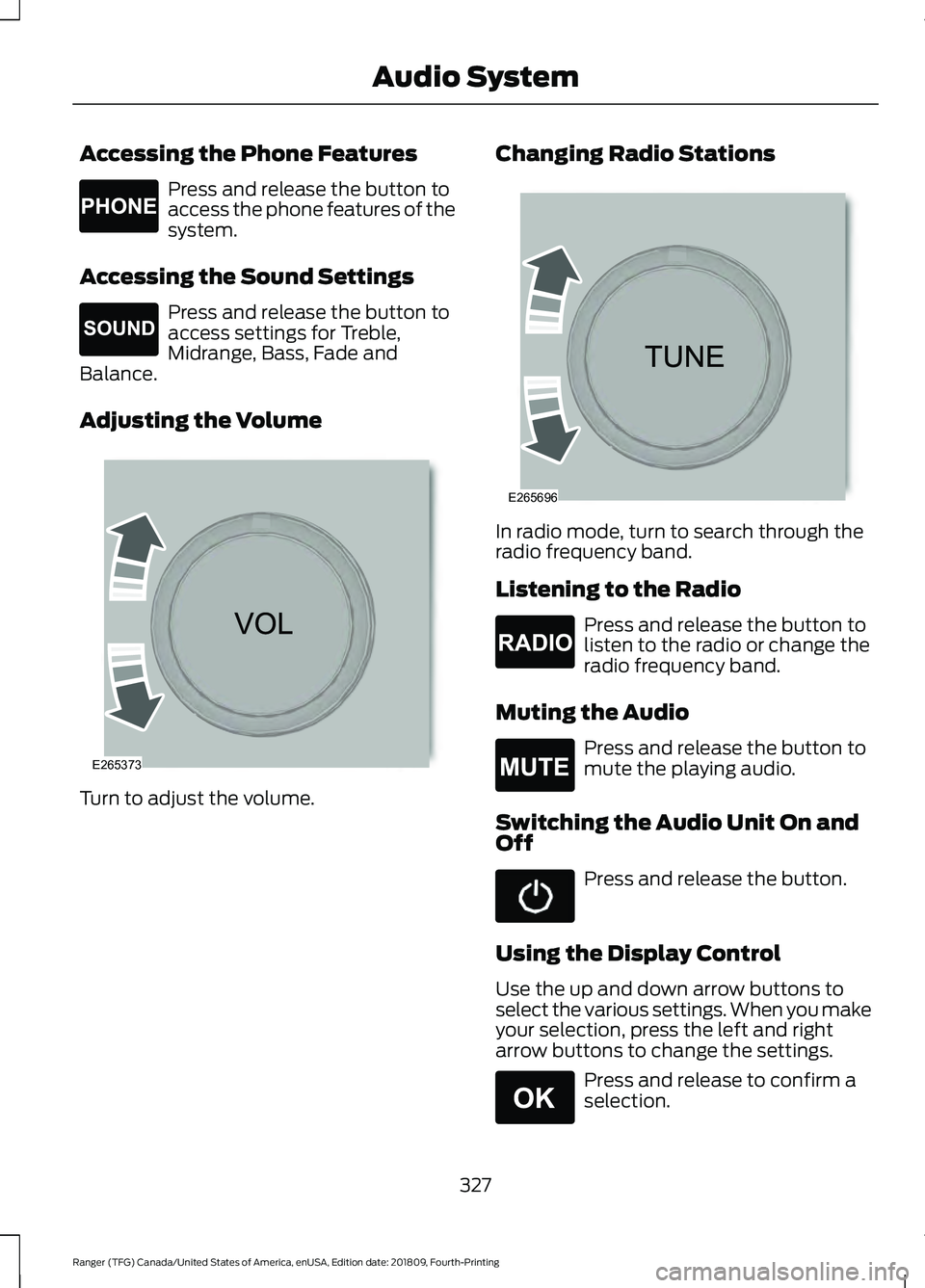
Adjusting the Volume Turn to adjust the volume. Changing Radio Stations In radio mode, turn to search through the
radio frequency band.
Listening to the Radio
Press and release the button to
listen to the radio or change the
radio frequency band.
Muting the Audio Press and release the button to
mute the playing audio.
Switching the Audio Unit On and
Off Press and release the button.
Using the Display Control
Use the up and down arrow buttons to
select the various settings. When you make
your selection, press the left and right
arrow buttons to change the settings. Press and release to confirm a
selection.
327
Ranger (TFG) Canada/United States of America, enUSA, Edition date: 201809, Fourth-Printing Audio SystemE265037 E265271 E265373 E265696 E265033 E265043 E265041
Page 331 of 512
Press and release the function buttons
below the display to select different
functions of the audio system depending
on which mode you are in.
Using the Number Block
In radio mode, store and recall your favorite
radio stations. To store a favorite station,
press and hold until the sound returns. In
phone mode, enter a phone number.
Using Seek, Fast Forward and
Reverse
In radio mode, select a frequency band and
press and release either button. The
system stops at the first station it finds in
that direction.
AUDIO UNIT - VEHICLES WITH:
SYNC
WARNING: Driving while
distracted can result in loss of vehicle
control, crash and injury. We strongly
recommend that you use extreme
caution when using any device that may
take your focus off the road. Your
primary responsibility is the safe
operation of your vehicle. We
recommend against the use of any
hand-held device while driving and
encourage the use of voice-operated
systems when possible. Make sure you
are aware of all applicable local laws
that may affect the use of electronic
devices while driving. Accessing the Apps Menu Press and release the button to
access the apps menu. Follow
the on-screen prompts to make
your selection.
Accessing the Clock Settings Press and release the button to
access the clock setting.
Use the center arrow controls to
change the hours and minutes.
Accessing the Media Source Menu Press and release the button to
open the media source menu.
You can press this multiple times to
change to a SYNC-Media device or scroll
through the media sources using the arrow
buttons. Press
OK to select a source.
Accessing the Information Menu Press and release the button to
access the information menu.
Follow the on-screen prompts
to make your selection.
Accessing the Phone Features Press and release the button to
access the phone features of the
SYNC system.
Accessing the Settings Menu Press and release the button to
access the settings menu.
Follow the on-screen prompts
to make your selection.
328
Ranger (TFG) Canada/United States of America, enUSA, Edition date: 201809, Fourth-Printing Audio System E249410 E265036 E100027 E268570 E272546 E142607
Page 333 of 512
Using the Display Control
Use the up and down arrow buttons to
select the various settings. When you make
your selection, press the left and right
arrow buttons to change the settings.
Press and release to confirm a
selection.
Using the Number Block
In radio mode, store and recall your favorite
radio stations. To store a favorite station
press and hold until the sound returns.
In phone mode, enter a phone number.
Using Seek, Fast Forward and
Reverse In radio mode, select a frequency band and
press and release either button. The
system stops at the first station it finds in
that direction.
AUDIO UNIT - VEHICLES WITH:
SYNC 3
WARNING: Driving while
distracted can result in loss of vehicle
control, crash and injury. We strongly
recommend that you use extreme
caution when using any device that may
take your focus off the road. Your
primary responsibility is the safe
operation of your vehicle. We
recommend against the use of any hand-held device while driving and
encourage the use of voice-operated
systems when possible. Make sure you
are aware of all applicable local laws
that may affect the use of electronic
devices while driving.
Note: The touchscreen system controls
most of the audio features.
Note: Some features, such as satellite
radio, may not be available in your location.
Check with an authorized dealer.
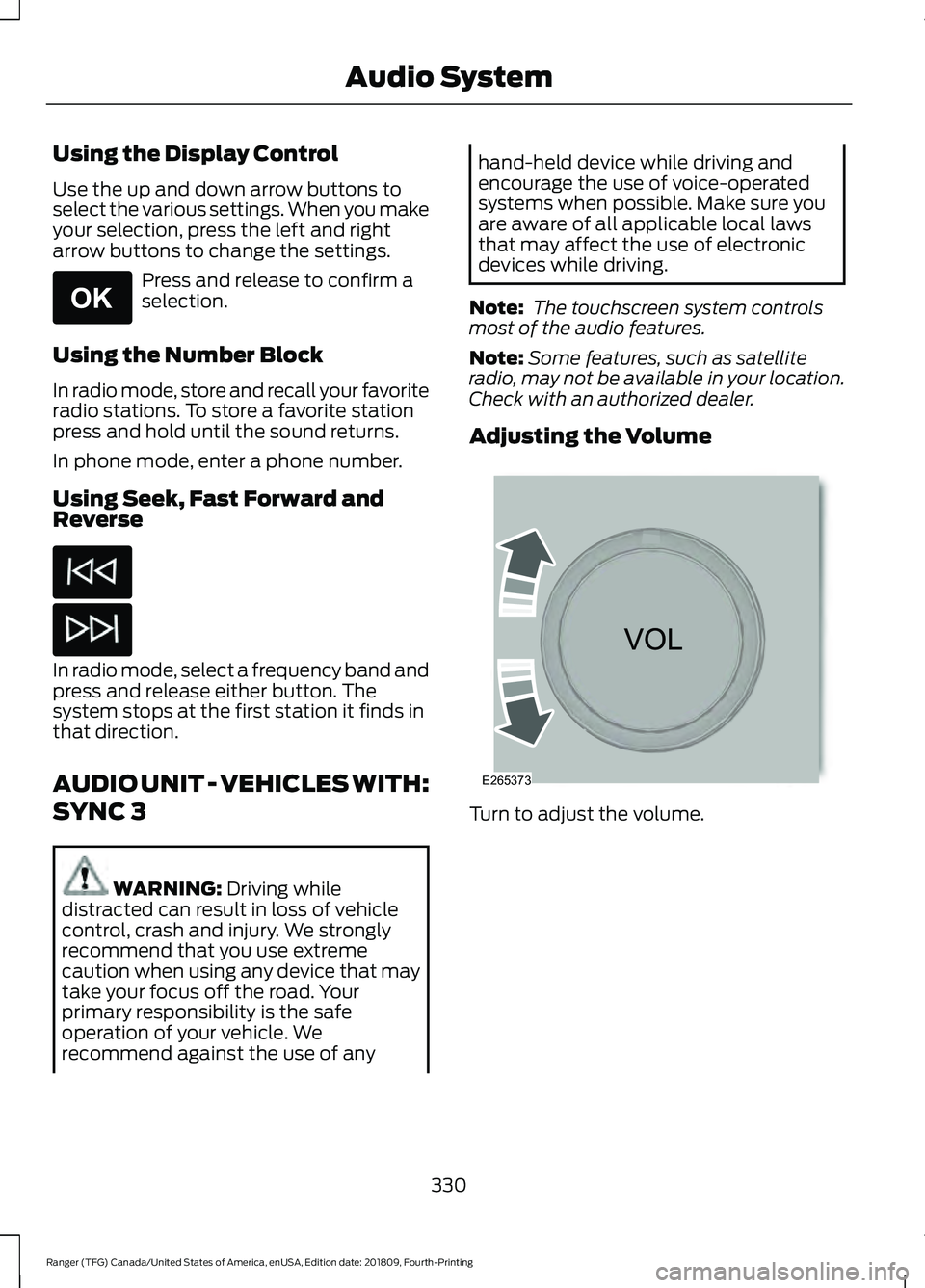
Adjusting the Volume Turn to adjust the volume.
330
Ranger (TFG) Canada/United States of America, enUSA, Edition date: 201809, Fourth-Printing Audio SystemE265041 E265373
Page 334 of 512
Changing Radio Stations
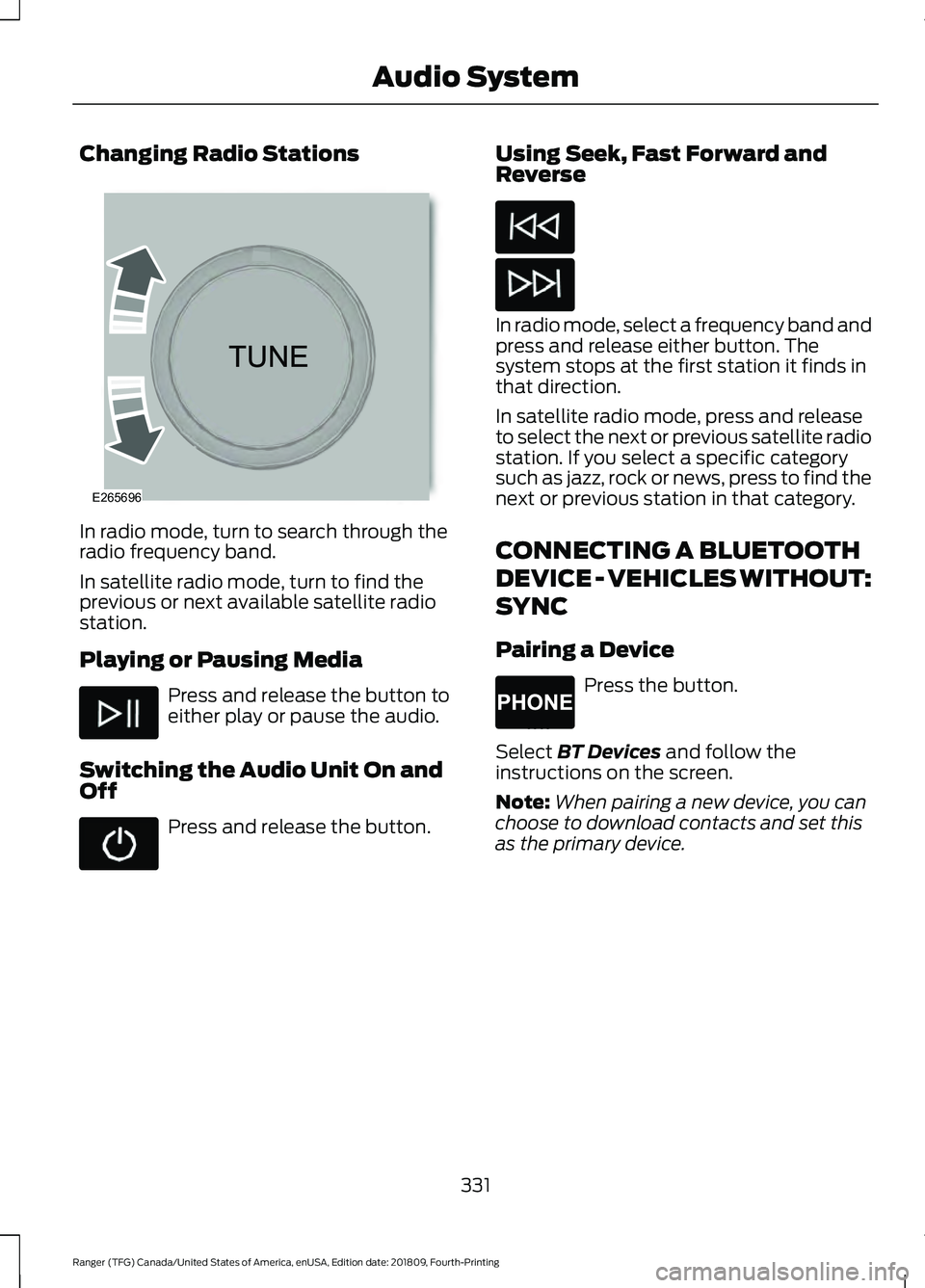
In radio mode, turn to search through the
radio frequency band.
In satellite radio mode, turn to find the
previous or next available satellite radio
station.
Playing or Pausing Media
Press and release the button to
either play or pause the audio.
Switching the Audio Unit On and
Off Press and release the button. Using Seek, Fast Forward and
Reverse In radio mode, select a frequency band and
press and release either button. The
system stops at the first station it finds in
that direction.
In satellite radio mode, press and release
to select the next or previous satellite radio
station. If you select a specific category
such as jazz, rock or news, press to find the
next or previous station in that category.
CONNECTING A BLUETOOTH
DEVICE - VEHICLES WITHOUT:
SYNC
Pairing a Device
Press the button.
Select BT Devices and follow the
instructions on the screen.
Note: When pairing a new device, you can
choose to download contacts and set this
as the primary device.
331
Ranger (TFG) Canada/United States of America, enUSA, Edition date: 201809, Fourth-Printing Audio SystemE265696 E265037