navigation system FORD RANGER 2019 Owner's Manual
[x] Cancel search | Manufacturer: FORD, Model Year: 2019, Model line: RANGER, Model: FORD RANGER 2019Pages: 512, PDF Size: 7.63 MB
Page 410 of 512
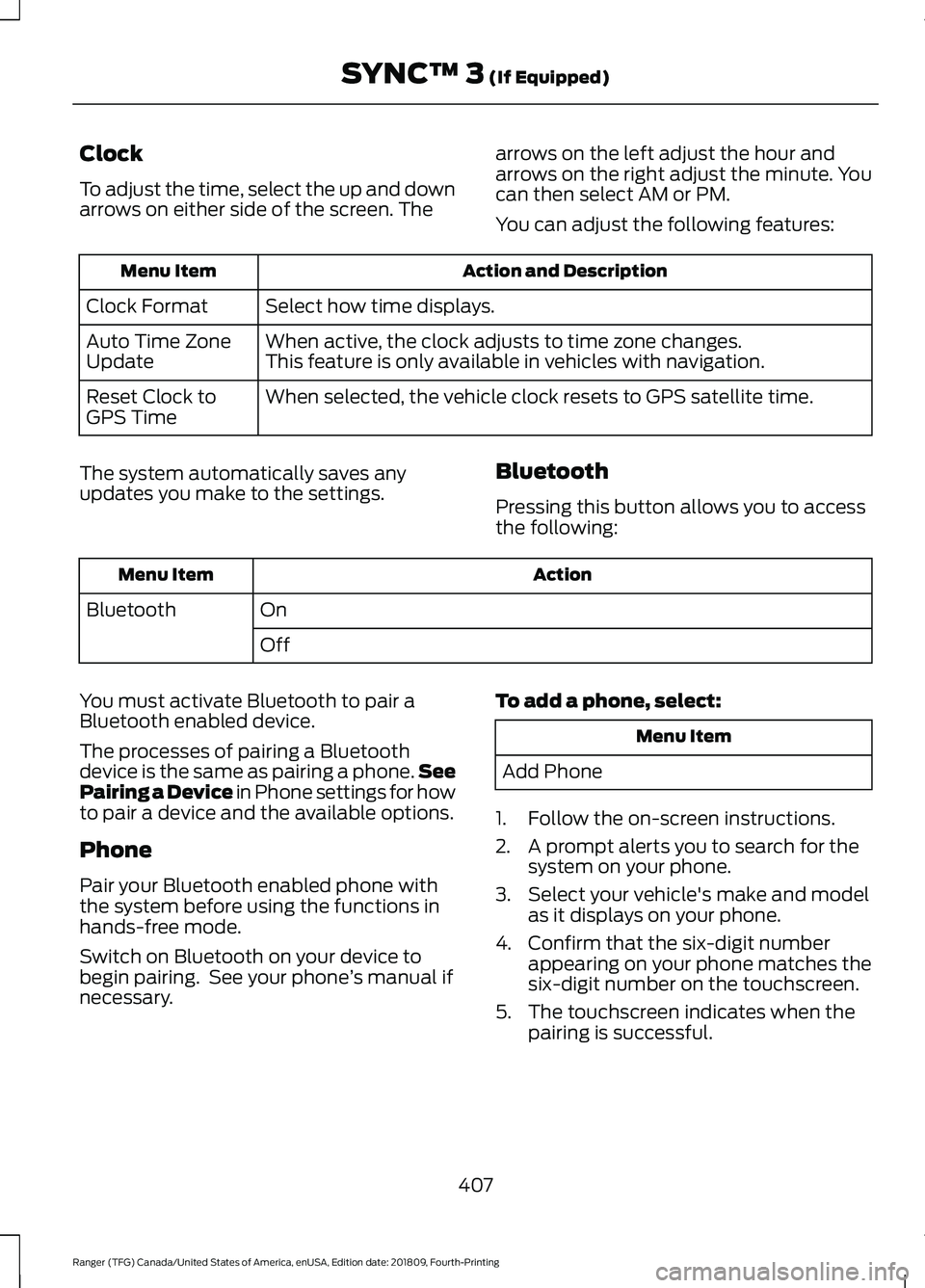
Clock
To adjust the time, select the up and down
arrows on either side of the screen. The
arrows on the left adjust the hour and
arrows on the right adjust the minute. You
can then select AM or PM.
You can adjust the following features: Action and Description
Menu Item
Select how time displays.
Clock Format
When active, the clock adjusts to time zone changes.
Auto Time Zone
Update This feature is only available in vehicles with navigation.
When selected, the vehicle clock resets to GPS satellite time.
Reset Clock to
GPS Time
The system automatically saves any
updates you make to the settings. Bluetooth
Pressing this button allows you to access
the following: Action
Menu Item
On
Bluetooth
Off
You must activate Bluetooth to pair a
Bluetooth enabled device.
The processes of pairing a Bluetooth
device is the same as pairing a phone. See
Pairing a Device in Phone settings for how
to pair a device and the available options.
Phone
Pair your Bluetooth enabled phone with
the system before using the functions in
hands-free mode.
Switch on Bluetooth on your device to
begin pairing. See your phone ’s manual if
necessary. To add a phone, select: Menu Item
Add Phone
1. Follow the on-screen instructions.
2. A prompt alerts you to search for the system on your phone.
3. Select your vehicle's make and model as it displays on your phone.
4. Confirm that the six-digit number appearing on your phone matches the
six-digit number on the touchscreen.
5. The touchscreen indicates when the pairing is successful.
407
Ranger (TFG) Canada/United States of America, enUSA, Edition date: 201809, Fourth-Printing SYNC™ 3 (If Equipped)
Page 414 of 512
The screen lists contacts in the phone
book. Select the contact that you want to
set as emergency contact. You can set
Emergency Contact 2 by same process.
You can set two Emergency Contacts in
total.
Note:
After SYNC3 tries to place an
emergency call, the Emergency Contact
button displays on the touch screen. You
need to press the button to call the contact
through your Bluetooth phone. Note:
If the vehicle is equipped with
navigation, a map with your current street
information displays on the screen when 911
Assist is in process.
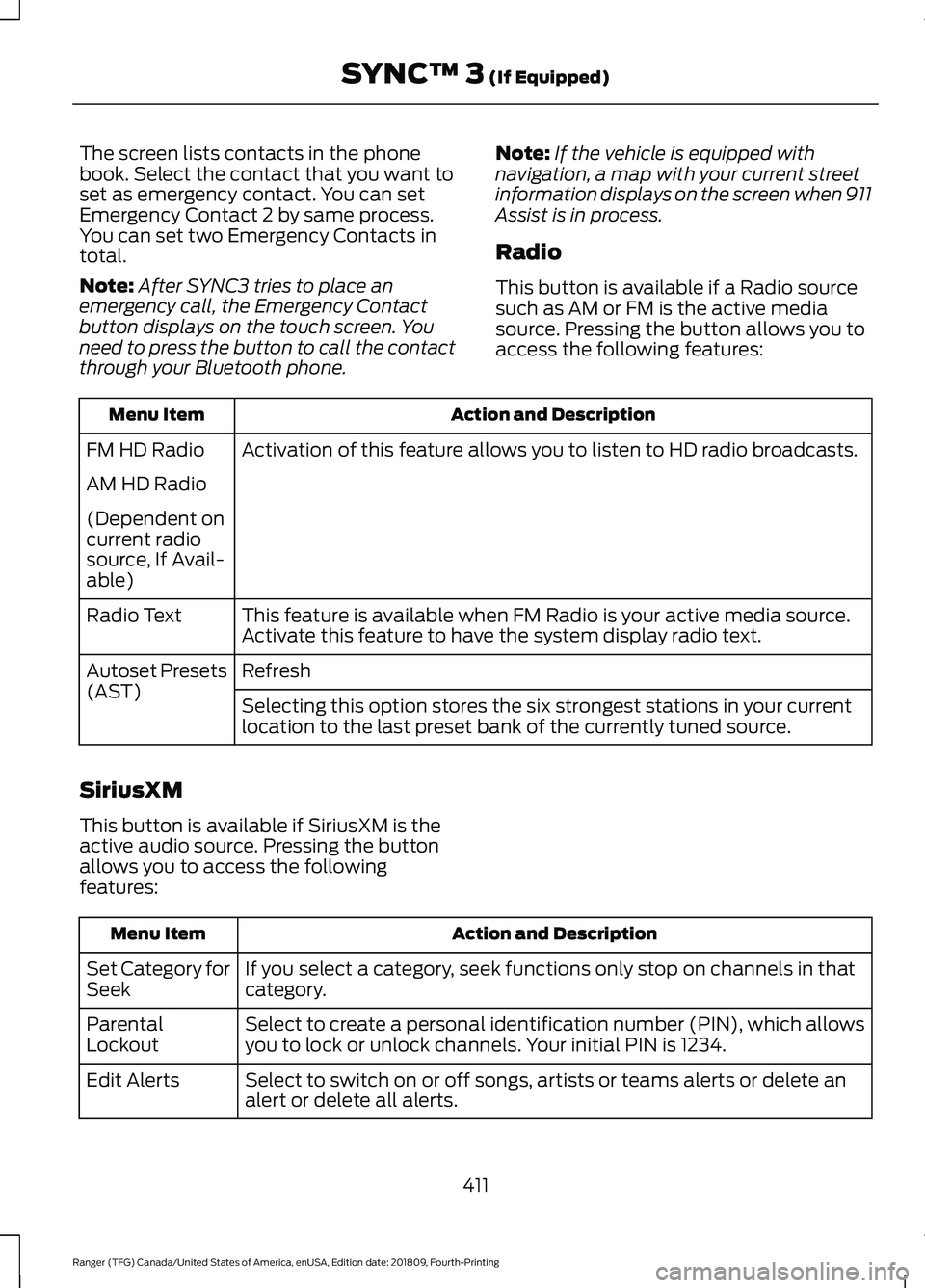
Radio
This button is available if a Radio source
such as AM or FM is the active media
source. Pressing the button allows you to
access the following features: Action and Description
Menu Item
Activation of this feature allows you to listen to HD radio broadcasts.
FM HD Radio
AM HD Radio
(Dependent on
current radio
source, If Avail-
able)
This feature is available when FM Radio is your active media source.
Activate this feature to have the system display radio text.
Radio Text
Refresh
Autoset Presets
(AST)
Selecting this option stores the six strongest stations in your current
location to the last preset bank of the currently tuned source.
SiriusXM
This button is available if SiriusXM is the
active audio source. Pressing the button
allows you to access the following
features: Action and Description
Menu Item
If you select a category, seek functions only stop on channels in that
category.
Set Category for
Seek
Select to create a personal identification number (PIN), which allows
you to lock or unlock channels. Your initial PIN is 1234.
Parental
Lockout
Select to switch on or off songs, artists or teams alerts or delete an
alert or delete all alerts.
Edit Alerts
411
Ranger (TFG) Canada/United States of America, enUSA, Edition date: 201809, Fourth-Printing SYNC™ 3 (If Equipped)
Page 415 of 512
You can also view your satellite radio
Electronic Serial Number (ESN) from this
screen. You need this number when
communicating with SiriusXM to activate,
modify or track your account.
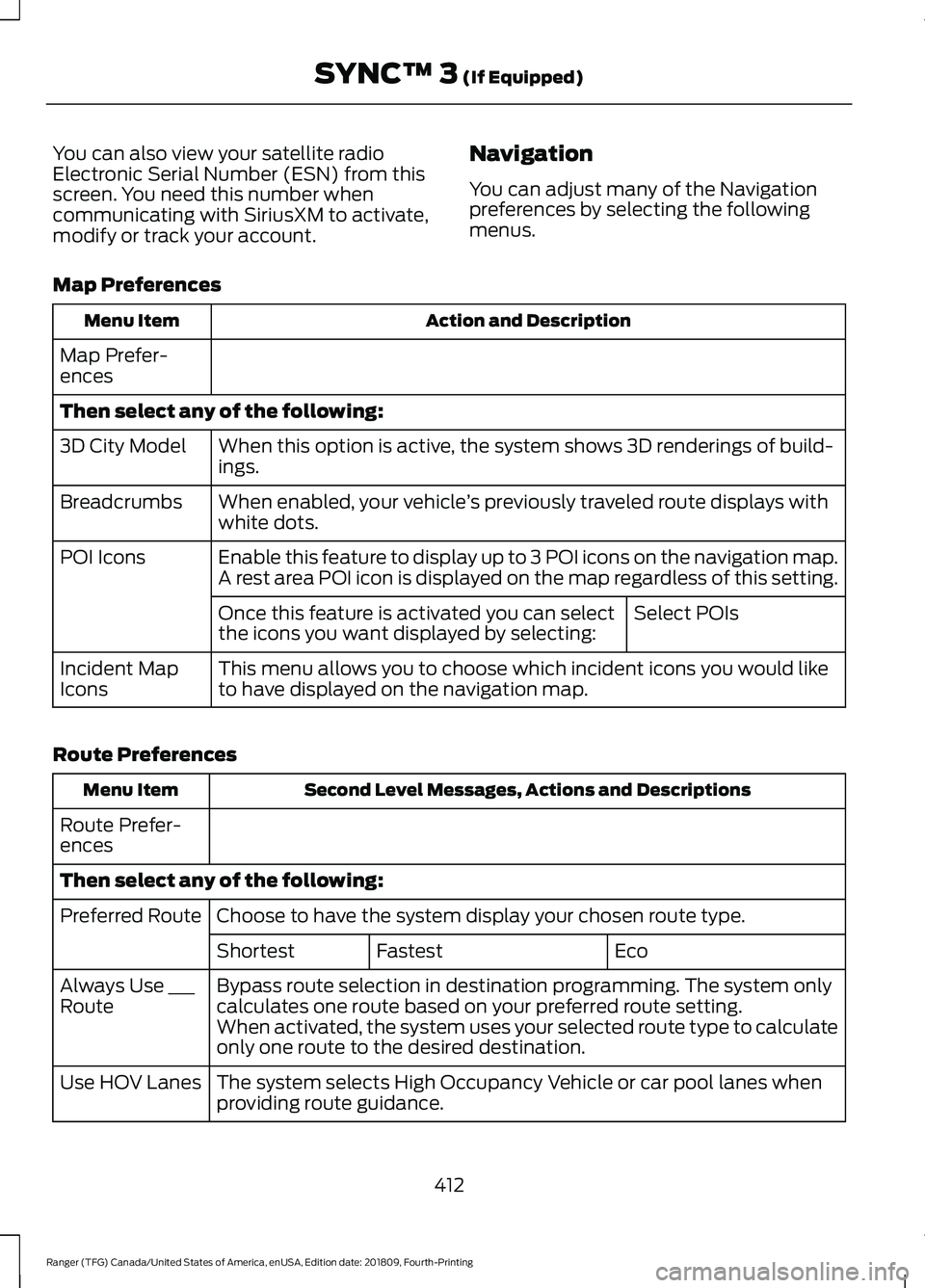
Navigation
You can adjust many of the Navigation
preferences by selecting the following
menus.
Map Preferences Action and Description
Menu Item
Map Prefer-
ences
Then select any of the following: When this option is active, the system shows 3D renderings of build-
ings.
3D City Model
When enabled, your vehicle ’s previously traveled route displays with
white dots.
Breadcrumbs
Enable this feature to display up to 3 POI icons on the navigation map.
A rest area POI icon is displayed on the map regardless of this setting.
POI Icons
Select POIs
Once this feature is activated you can select
the icons you want displayed by selecting:
This menu allows you to choose which incident icons you would like
to have displayed on the navigation map.
Incident Map
Icons
Route Preferences Second Level Messages, Actions and Descriptions
Menu Item
Route Prefer-
ences
Then select any of the following: Choose to have the system display your chosen route type.
Preferred Route
Eco
Fastest
Shortest
Bypass route selection in destination programming. The system only
calculates one route based on your preferred route setting.
Always Use ___
Route
When activated, the system uses your selected route type to calculate
only one route to the desired destination.
The system selects High Occupancy Vehicle or car pool lanes when
providing route guidance.
Use HOV Lanes
412
Ranger (TFG) Canada/United States of America, enUSA, Edition date: 201809, Fourth-Printing SYNC™ 3 (If Equipped)
Page 416 of 512
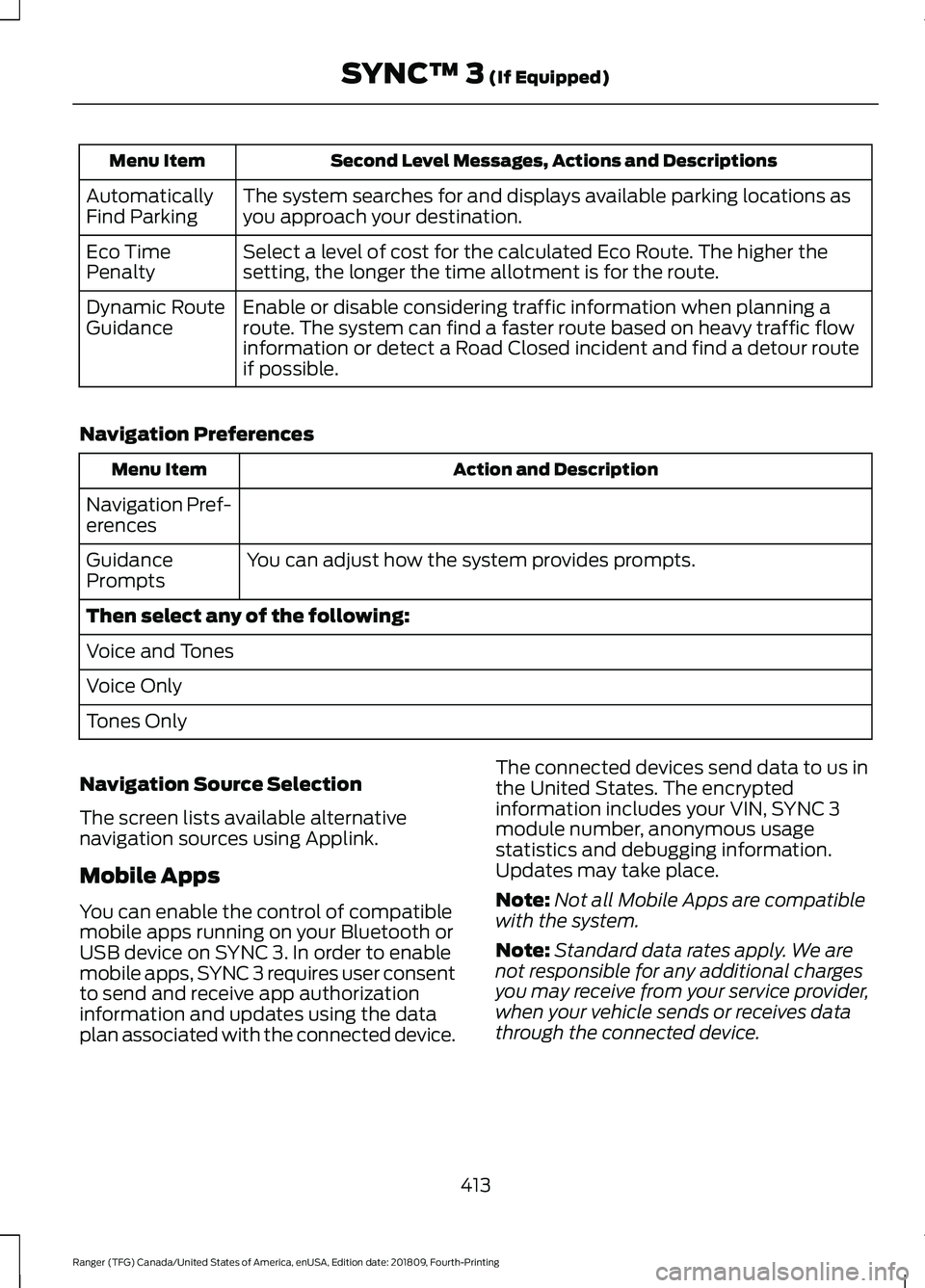
Second Level Messages, Actions and Descriptions
Menu Item
The system searches for and displays available parking locations as
you approach your destination.
Automatically
Find Parking
Select a level of cost for the calculated Eco Route. The higher the
setting, the longer the time allotment is for the route.
Eco Time
Penalty
Enable or disable considering traffic information when planning a
route. The system can find a faster route based on heavy traffic flow
information or detect a Road Closed incident and find a detour route
if possible.
Dynamic Route
Guidance
Navigation Preferences Action and Description
Menu Item
Navigation Pref-
erences You can adjust how the system provides prompts.
Guidance
Prompts
Then select any of the following:
Voice and Tones
Voice Only
Tones Only
Navigation Source Selection
The screen lists available alternative
navigation sources using Applink.
Mobile Apps
You can enable the control of compatible
mobile apps running on your Bluetooth or
USB device on SYNC 3. In order to enable
mobile apps, SYNC 3 requires user consent
to send and receive app authorization
information and updates using the data
plan associated with the connected device. The connected devices send data to us in
the United States. The encrypted
information includes your VIN, SYNC 3
module number, anonymous usage
statistics and debugging information.
Updates may take place.
Note:
Not all Mobile Apps are compatible
with the system.
Note: Standard data rates apply. We are
not responsible for any additional charges
you may receive from your service provider,
when your vehicle sends or receives data
through the connected device.
413
Ranger (TFG) Canada/United States of America, enUSA, Edition date: 201809, Fourth-Printing SYNC™ 3 (If Equipped)
Page 418 of 512
Note:
We is not responsible or liable for any
damages or loss of privacy relating to usage
of an app, or dissemination of any vehicle
data that you approve us to provide to an
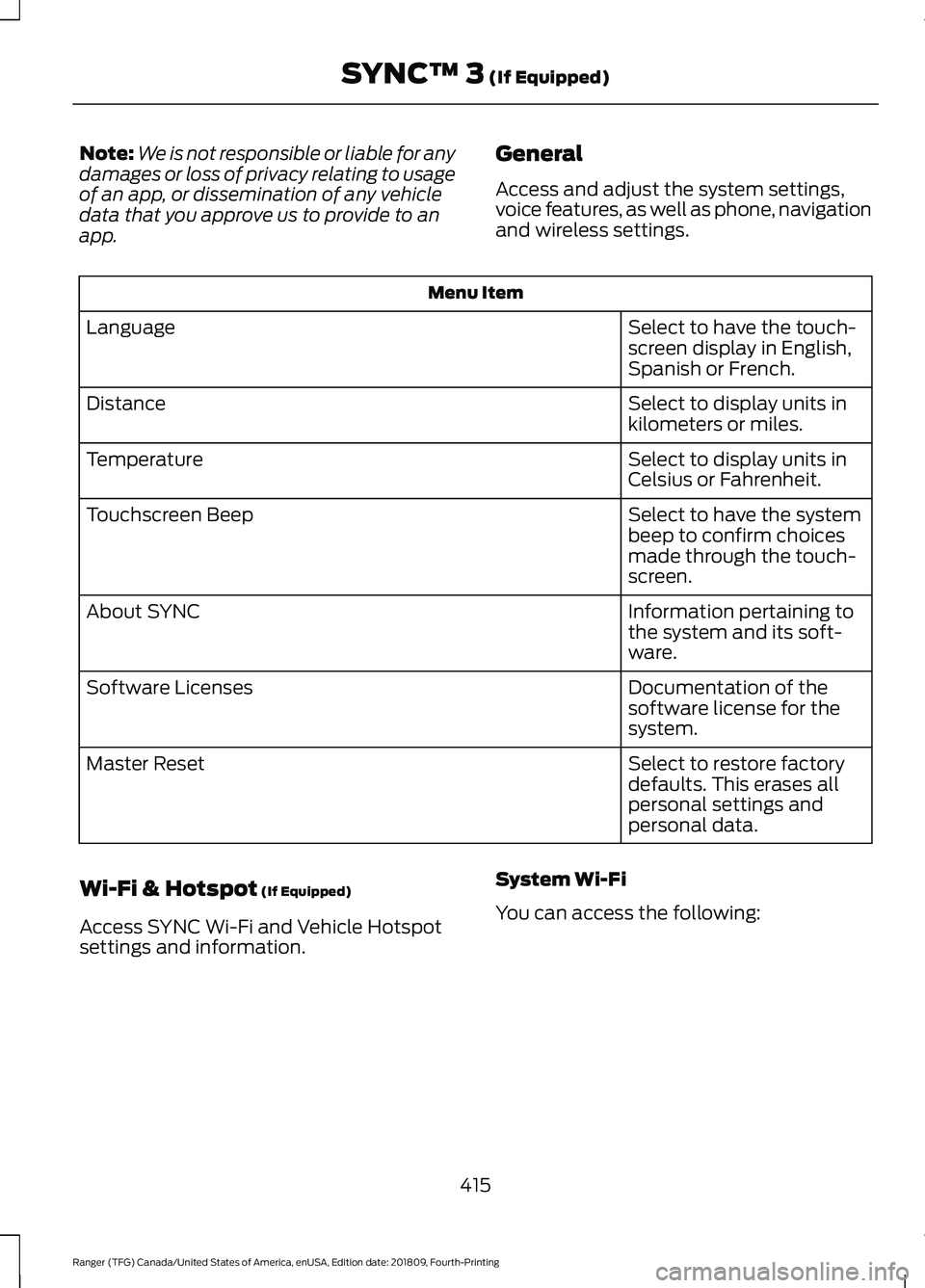
app. General
Access and adjust the system settings,
voice features, as well as phone, navigation
and wireless settings.Menu Item
Select to have the touch-
screen display in English,
Spanish or French.
Language
Select to display units in
kilometers or miles.
Distance
Select to display units in
Celsius or Fahrenheit.
Temperature
Select to have the system
beep to confirm choices
made through the touch-
screen.
Touchscreen Beep
Information pertaining to
the system and its soft-
ware.
About SYNC
Documentation of the
software license for the
system.
Software Licenses
Select to restore factory
defaults. This erases all
personal settings and
personal data.
Master Reset
Wi-Fi & Hotspot (If Equipped)
Access SYNC Wi-Fi and Vehicle Hotspot
settings and information. System Wi-Fi
You can access the following:
415
Ranger (TFG) Canada/United States of America, enUSA, Edition date: 201809, Fourth-Printing SYNC™ 3
(If Equipped)
Page 464 of 512
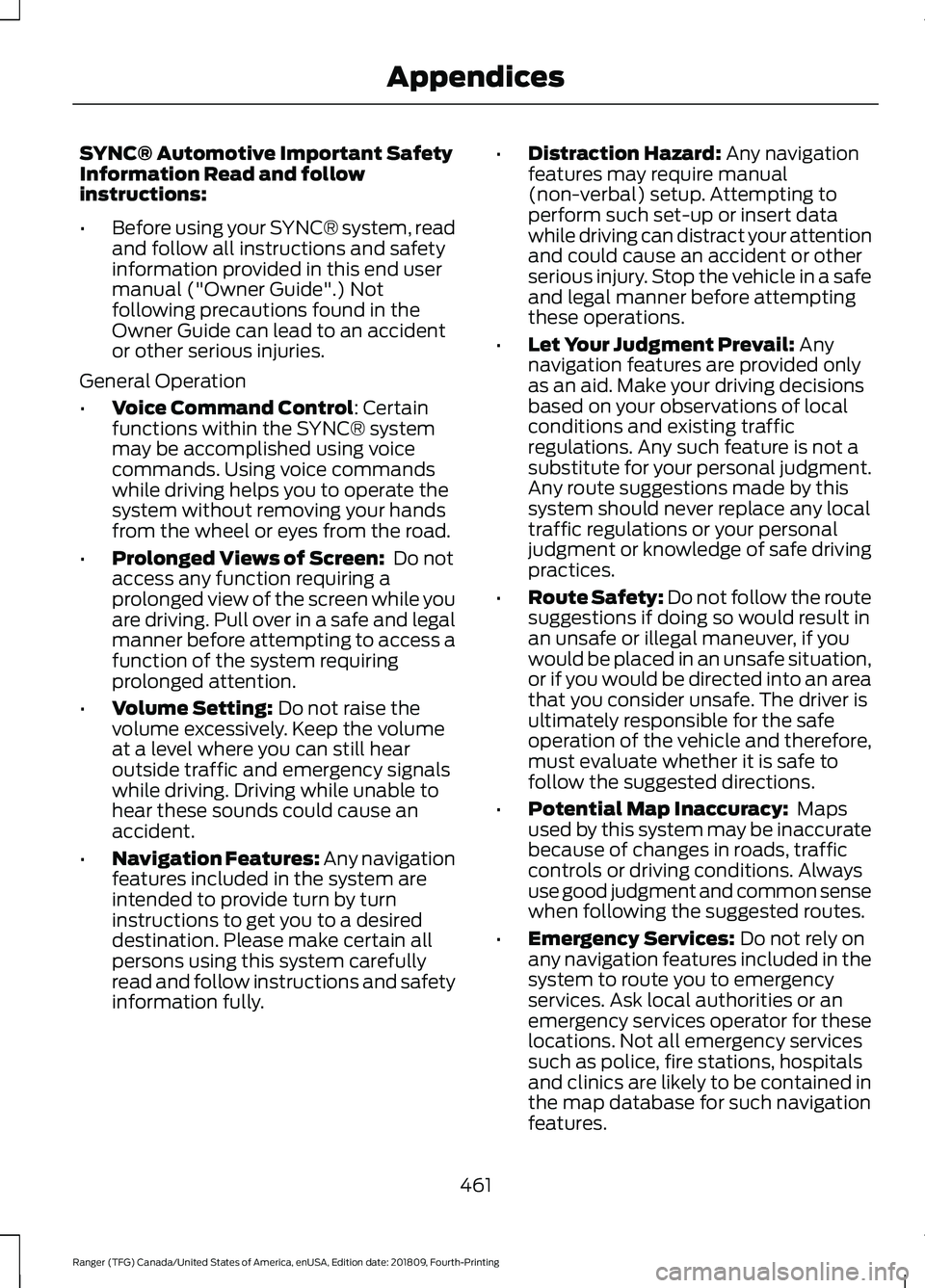
SYNC® Automotive Important Safety
Information Read and follow
instructions:
•
Before using your SYNC® system, read
and follow all instructions and safety
information provided in this end user
manual ("Owner Guide".) Not
following precautions found in the
Owner Guide can lead to an accident
or other serious injuries.
General Operation
• Voice Command Control: Certain
functions within the SYNC® system
may be accomplished using voice
commands. Using voice commands
while driving helps you to operate the
system without removing your hands
from the wheel or eyes from the road.
• Prolonged Views of Screen:
Do not
access any function requiring a
prolonged view of the screen while you
are driving. Pull over in a safe and legal
manner before attempting to access a
function of the system requiring
prolonged attention.
• Volume Setting:
Do not raise the
volume excessively. Keep the volume
at a level where you can still hear
outside traffic and emergency signals
while driving. Driving while unable to
hear these sounds could cause an
accident.
• Navigation Features:
Any navigation
features included in the system are
intended to provide turn by turn
instructions to get you to a desired
destination. Please make certain all
persons using this system carefully
read and follow instructions and safety
information fully. •
Distraction Hazard:
Any navigation
features may require manual
(non-verbal) setup. Attempting to
perform such set-up or insert data
while driving can distract your attention
and could cause an accident or other
serious injury. Stop the vehicle in a safe
and legal manner before attempting
these operations.
• Let Your Judgment Prevail:
Any
navigation features are provided only
as an aid. Make your driving decisions
based on your observations of local
conditions and existing traffic
regulations. Any such feature is not a
substitute for your personal judgment.
Any route suggestions made by this
system should never replace any local
traffic regulations or your personal
judgment or knowledge of safe driving
practices.
• Route Safety: Do not follow the route
suggestions if doing so would result in
an unsafe or illegal maneuver, if you
would be placed in an unsafe situation,
or if you would be directed into an area
that you consider unsafe. The driver is
ultimately responsible for the safe
operation of the vehicle and therefore,
must evaluate whether it is safe to
follow the suggested directions.
• Potential Map Inaccuracy:
Maps
used by this system may be inaccurate
because of changes in roads, traffic
controls or driving conditions. Always
use good judgment and common sense
when following the suggested routes.
• Emergency Services:
Do not rely on
any navigation features included in the
system to route you to emergency
services. Ask local authorities or an
emergency services operator for these
locations. Not all emergency services
such as police, fire stations, hospitals
and clinics are likely to be contained in
the map database for such navigation
features.
461
Ranger (TFG) Canada/United States of America, enUSA, Edition date: 201809, Fourth-Printing Appendices
Page 473 of 512
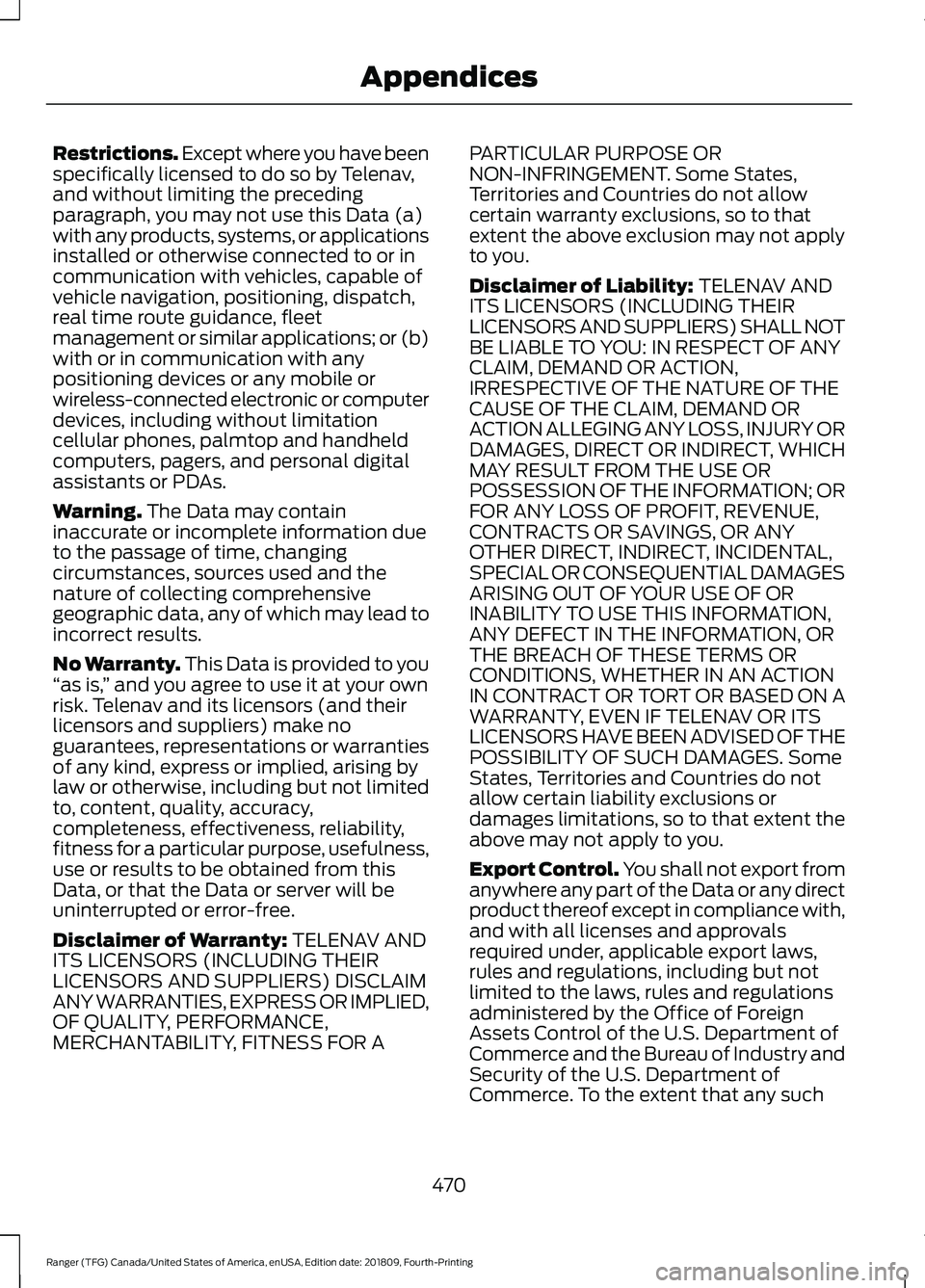
Restrictions. Except where you have been
specifically licensed to do so by Telenav,
and without limiting the preceding
paragraph, you may not use this Data (a)
with any products, systems, or applications
installed or otherwise connected to or in
communication with vehicles, capable of
vehicle navigation, positioning, dispatch,
real time route guidance, fleet
management or similar applications; or (b)
with or in communication with any
positioning devices or any mobile or
wireless-connected electronic or computer
devices, including without limitation
cellular phones, palmtop and handheld
computers, pagers, and personal digital
assistants or PDAs.
Warning. The Data may contain
inaccurate or incomplete information due
to the passage of time, changing
circumstances, sources used and the
nature of collecting comprehensive
geographic data, any of which may lead to
incorrect results.
No Warranty.
This Data is provided to you
“ as is, ” and you agree to use it at your own
risk. Telenav and its licensors (and their
licensors and suppliers) make no
guarantees, representations or warranties
of any kind, express or implied, arising by
law or otherwise, including but not limited
to, content, quality, accuracy,
completeness, effectiveness, reliability,
fitness for a particular purpose, usefulness,
use or results to be obtained from this
Data, or that the Data or server will be
uninterrupted or error-free.
Disclaimer of Warranty:
TELENAV AND
ITS LICENSORS (INCLUDING THEIR
LICENSORS AND SUPPLIERS) DISCLAIM
ANY WARRANTIES, EXPRESS OR IMPLIED,
OF QUALITY, PERFORMANCE,
MERCHANTABILITY, FITNESS FOR A PARTICULAR PURPOSE OR
NON-INFRINGEMENT. Some States,
Territories and Countries do not allow
certain warranty exclusions, so to that
extent the above exclusion may not apply
to you.
Disclaimer of Liability:
TELENAV AND
ITS LICENSORS (INCLUDING THEIR
LICENSORS AND SUPPLIERS) SHALL NOT
BE LIABLE TO YOU: IN RESPECT OF ANY
CLAIM, DEMAND OR ACTION,
IRRESPECTIVE OF THE NATURE OF THE
CAUSE OF THE CLAIM, DEMAND OR
ACTION ALLEGING ANY LOSS, INJURY OR
DAMAGES, DIRECT OR INDIRECT, WHICH
MAY RESULT FROM THE USE OR
POSSESSION OF THE INFORMATION; OR
FOR ANY LOSS OF PROFIT, REVENUE,
CONTRACTS OR SAVINGS, OR ANY
OTHER DIRECT, INDIRECT, INCIDENTAL,
SPECIAL OR CONSEQUENTIAL DAMAGES
ARISING OUT OF YOUR USE OF OR
INABILITY TO USE THIS INFORMATION,
ANY DEFECT IN THE INFORMATION, OR
THE BREACH OF THESE TERMS OR
CONDITIONS, WHETHER IN AN ACTION
IN CONTRACT OR TORT OR BASED ON A
WARRANTY, EVEN IF TELENAV OR ITS
LICENSORS HAVE BEEN ADVISED OF THE
POSSIBILITY OF SUCH DAMAGES. Some
States, Territories and Countries do not
allow certain liability exclusions or
damages limitations, so to that extent the
above may not apply to you.
Export Control.
You shall not export from
anywhere any part of the Data or any direct
product thereof except in compliance with,
and with all licenses and approvals
required under, applicable export laws,
rules and regulations, including but not
limited to the laws, rules and regulations
administered by the Office of Foreign
Assets Control of the U.S. Department of
Commerce and the Bureau of Industry and
Security of the U.S. Department of
Commerce. To the extent that any such
470
Ranger (TFG) Canada/United States of America, enUSA, Edition date: 201809, Fourth-Printing Appendices
Page 481 of 512
view it, and (ii) save it, provided that you
do not remove any copyright notices that
appear and do not modify the Data in any
way. You agree not to otherwise reproduce,
copy, modify, decompile, disassemble or
reverse engineer any portion of this Data,
and may not transfer or distribute it in any
form, for any purpose, except to the extent
permitted by mandatory laws.
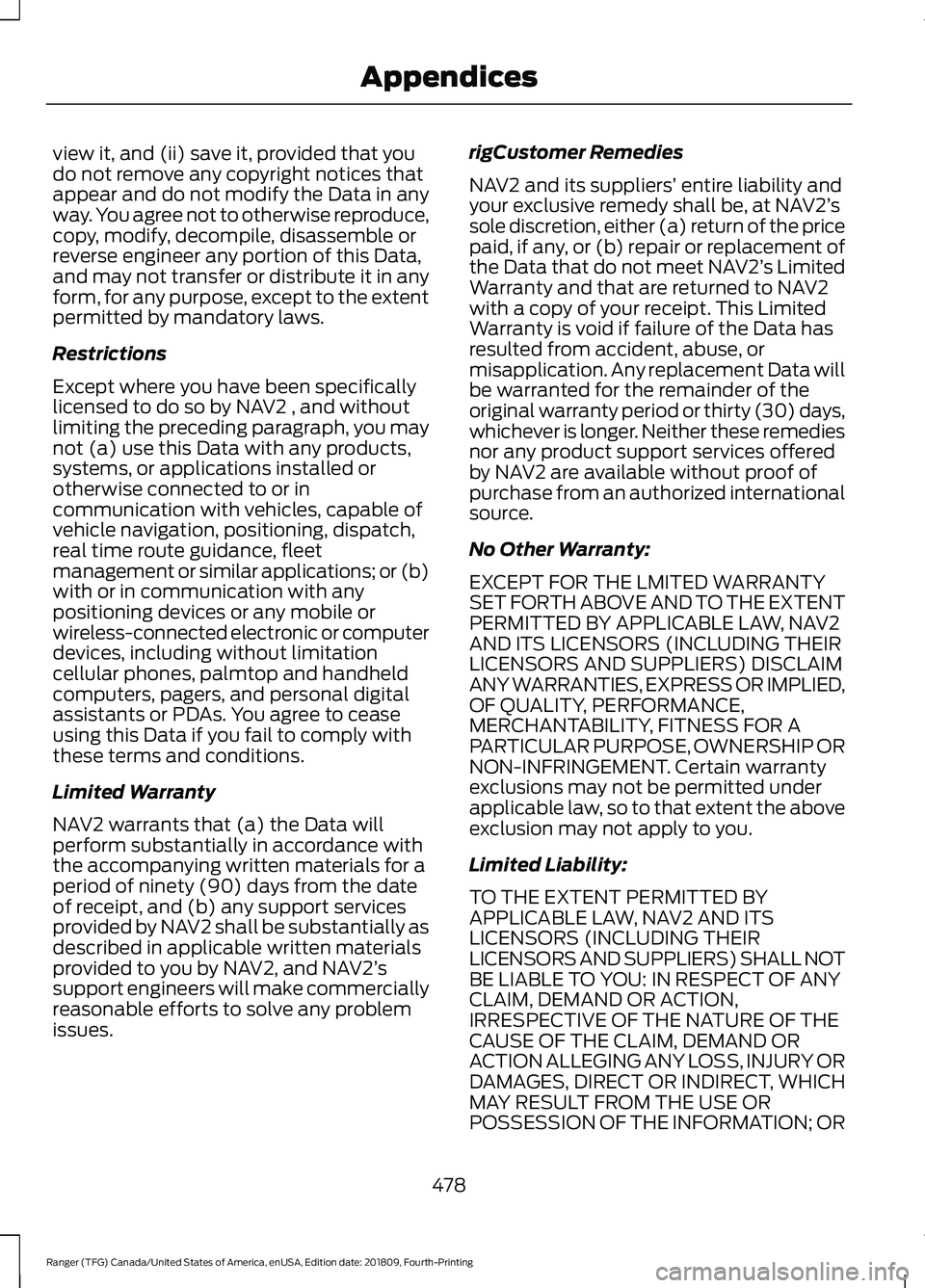
Restrictions
Except where you have been specifically
licensed to do so by NAV2 , and without
limiting the preceding paragraph, you may
not (a) use this Data with any products,
systems, or applications installed or
otherwise connected to or in
communication with vehicles, capable of
vehicle navigation, positioning, dispatch,
real time route guidance, fleet
management or similar applications; or (b)
with or in communication with any
positioning devices or any mobile or
wireless-connected electronic or computer
devices, including without limitation
cellular phones, palmtop and handheld
computers, pagers, and personal digital
assistants or PDAs. You agree to cease
using this Data if you fail to comply with
these terms and conditions.
Limited Warranty
NAV2 warrants that (a) the Data will
perform substantially in accordance with
the accompanying written materials for a
period of ninety (90) days from the date
of receipt, and (b) any support services
provided by NAV2 shall be substantially as
described in applicable written materials
provided to you by NAV2, and NAV2’
s
support engineers will make commercially
reasonable efforts to solve any problem
issues. rigCustomer Remedies
NAV2 and its suppliers’
entire liability and
your exclusive remedy shall be, at NAV2’ s
sole discretion, either (a) return of the price
paid, if any, or (b) repair or replacement of
the Data that do not meet NAV2’ s Limited
Warranty and that are returned to NAV2
with a copy of your receipt. This Limited
Warranty is void if failure of the Data has
resulted from accident, abuse, or
misapplication. Any replacement Data will
be warranted for the remainder of the
original warranty period or thirty (30) days,
whichever is longer. Neither these remedies
nor any product support services offered
by NAV2 are available without proof of
purchase from an authorized international
source.
No Other Warranty:
EXCEPT FOR THE LMITED WARRANTY
SET FORTH ABOVE AND TO THE EXTENT
PERMITTED BY APPLICABLE LAW, NAV2
AND ITS LICENSORS (INCLUDING THEIR
LICENSORS AND SUPPLIERS) DISCLAIM
ANY WARRANTIES, EXPRESS OR IMPLIED,
OF QUALITY, PERFORMANCE,
MERCHANTABILITY, FITNESS FOR A
PARTICULAR PURPOSE, OWNERSHIP OR
NON-INFRINGEMENT. Certain warranty
exclusions may not be permitted under
applicable law, so to that extent the above
exclusion may not apply to you.
Limited Liability:
TO THE EXTENT PERMITTED BY
APPLICABLE LAW, NAV2 AND ITS
LICENSORS (INCLUDING THEIR
LICENSORS AND SUPPLIERS) SHALL NOT
BE LIABLE TO YOU: IN RESPECT OF ANY
CLAIM, DEMAND OR ACTION,
IRRESPECTIVE OF THE NATURE OF THE
CAUSE OF THE CLAIM, DEMAND OR
ACTION ALLEGING ANY LOSS, INJURY OR
DAMAGES, DIRECT OR INDIRECT, WHICH
MAY RESULT FROM THE USE OR
POSSESSION OF THE INFORMATION; OR
478
Ranger (TFG) Canada/United States of America, enUSA, Edition date: 201809, Fourth-Printing Appendices
Page 506 of 512
J
Jump Starting the Vehicle........................230
Connecting the Jumper Cables.................... 230
Jump Starting....................................................... 231
Preparing Your Vehicle.................................... 230
Removing the Jumper Cables........................ 231
K
Keys and Remote Controls........................50
L
Lane Keeping System..................................191 Switching the System On and Off...............192
Lighting Control................................................71 Flashing the Headlamp High Beam...............72
Headlamp High Beam......................................... 71
Lighting................................................................71 General Information............................................. 71
Load Carriers See: Roof Racks and Load Carriers...............211
Load Carrying................................................207
Load Limit.......................................................207
Special Loading Instructions for Owners of
Pick-up Trucks and Utility-type
Vehicles............................................................... 211
Vehicle Loading - with and without a Trailer................................................................. 207
Load Retaining Fixtures...............................211 Tie Down Points................................................... 211
Locking and Unlocking.................................62 Autolock................................................................... 63
Locking and Unlocking the Doors with the Key Blade............................................................ 62
Opening a Rear Door from the Inside...........63
Power Door Locks................................................ 62
Remote Control.................................................... 62
Smart Unlocks for Integrated Keyhead Transmitter........................................................ 63
Lug Nuts See: Changing a Road Wheel....................... 304
M
Maintenance.................................................256 General Information......................................... 256Manual Climate Control...............................111
Directing the Airflow............................................ 111
Setting the Blower Motor Speed.................... 111
Setting the Temperature.................................... 111
Switching Maximum Air Conditioning On and Off................................................................. 111
Switching Maximum Defrost On and Off........................................................................\
. 112
Switching Recirculated Air On and Off........................................................................\
. 112
Switching the Air Conditioning On and Off........................................................................\
.. 111
Switching the Climate Control On and Off........................................................................\
.. 111
Manual Seats.................................................120 Adjusting the Recliner........................................ 121
Adjusting the Seat Height................................. 121
Moving the Seat Backward and Forward............................................................. 120
Manual Tailgate
.............................................213
Lowering the Tailgate........................................ 213
Media Hub......................................................338
Message Center See: Information Displays................................ 90
Mirrors See: Windows and Mirrors................................. 77
Mobile Communications Equipment.......15
Motorcraft Parts
............................................317
MyKey – Troubleshooting...........................60
MyKey ™
.............................................................57
Principle of Operation......................................... 57
N
Navigation......................................................394 cityseeker.............................................................. 401
Destination Mode.............................................. 396
Map Mode............................................................ 394
Navigation Map Updates............................... 402
Navigation Menu............................................... 399
SiriusXM Traffic and Travel Link.................. 402
SYNC AppLink..................................................... 401
Waypoints........................................................... 400
Normal Scheduled Maintenance...........441 Normal Maintenance Intervals...................... 441
503
Ranger (TFG) Canada/United States of America, enUSA, Edition date: 201809, Fourth-Printing Index
Page 509 of 512
Seatbelt Height Adjustment......................37
Seatbelt Reminder.........................................37 Seatbelt Status..................................................... 38
Seatbelts...........................................................34 Principle of Operation........................................ 34
Seats..................................................................118
Security..............................................................65
Settings...........................................................405 911 Assist............................................................... 410
Ambient Lighting................................................. 417
Bluetooth.............................................................. 407
Clock....................................................................... 407
Display.................................................................... 418
General................................................................... 415
Media Player....................................................... 406
Mobile Apps.......................................................... 413
Navigation............................................................. 412
Phone..................................................................... 407
Radio........................................................................\
411
SiriusXM.................................................................. 411
Sound.................................................................... 405
Valet Mode............................................................ 419
Vehicle..................................................................... 417
Voice Control........................................................ 418
Wi-Fi & Hotspot.................................................. 415
Setting the Trail Control Speed...............174
Side Airbags
.....................................................46
Sitting in the Correct Position...................118
Snow Chains See: Using Snow Chains.................................. 297
Spare Wheel See: Changing a Road Wheel....................... 304
Special Notices
................................................14
Fleet Telematics Modem.................................... 15
FordPass Connect................................................. 15
New Vehicle Limited Warranty......................... 14
Notice to Owners of Pickup Trucks and Utility Type Vehicles........................................ 15
On Board Diagnostics Data Link Connector ............................................................ 14
Special Instructions.............................................. 14
Using Your Vehicle as an Ambulance............15
Using Your Vehicle With a Snowplow...........15
Special Operating Conditions Scheduled Maintenance..............................................442
Exceptions........................................................... 444
Speed Control See: Cruise Control............................................ 182Stability Control
............................................169
Principle of Operation...................................... 169
Starter Switch See: Ignition Switch........................................... 133
Starting and Stopping the Engine..........133 General Information.......................................... 133
Steering...........................................................202 Electric Power Steering................................... 202
Steering Wheel...............................................66
Storage Compartments
..............................131
Sun Visors.........................................................82
Illuminated Vanity Mirror................................... 82
Supplementary Restraints System
.........42
Principle of Operation......................................... 42
Switching Trail Control On and Off........174
Symbols Glossary
.............................................7
SYNC™ 3........................................................356
General Information......................................... 356
SYNC™ 3 Troubleshooting
.......................419
SYNC™ Applications and Services
........................................................343
911 Assist............................................................... 343
SYNC Mobile Apps............................................ 345
SYNC™
............................................................339
General Information......................................... 339
SYNC™ Troubleshooting
..........................347
T
Tailgate Lock
...................................................213
Tailgate.............................................................213
Technical Specifications See: Capacities and Specifications.............316
Terrain Control................................................172 Principle of Operation........................................ 172
The Better Business Bureau (BBB) Auto Line Program (U.S. Only)
.......................236
Tire Care..........................................................282
Glossary of Tire Terminology........................ 284
Information About Uniform Tire Quality Grading............................................................. 282
Information Contained on the Tire Sidewall........................................................... 285
Temperature A B C............................................ 283
Traction AA A B C............................................... 283
Treadwear............................................................ 283
506
Ranger (TFG) Canada/United States of America, enUSA, Edition date: 201809, Fourth-Printing Index