message FORD RANGER 2019 Owners Manual
[x] Cancel search | Manufacturer: FORD, Model Year: 2019, Model line: RANGER, Model: FORD RANGER 2019Pages: 512, PDF Size: 7.63 MB
Page 5 of 512
Autowipers
......................................................69
Windshield Washers ....................................
70
Lighting
General Information ......................................
71
Lighting Control ...............................................
71
Autolamps ........................................................
72
Instrument Lighting Dimmer .....................
72
Daytime Running Lamps ............................
73
Automatic High Beam Control .................
74
Front Fog Lamps ............................................
75
Direction Indicators .......................................
75
Interior Lamps .................................................
75
Ambient Lighting ...........................................
76
Cargo Lamps ...................................................
76
Windows and Mirrors
Power Windows ..............................................
77
Exterior Mirrors ..............................................
80
Interior Mirror ...................................................
81
Sun Visors ........................................................
82
Instrument Cluster
Gauges ..............................................................
83
Warning Lamps and Indicators ...............
86
Audible Warnings and Indicators ............
89
Information Displays
General Information ....................................
90
Information Messages ................................
98
Climate Control
Manual Climate Control ..............................
111
Automatic Climate Control .......................
112
Hints on Controlling the Interior Climate ........................................................................\
..
113
Heated Windshield ......................................
116
Heated Rear Window ..................................
116
Heated Exterior Mirrors ...............................
116Cabin Air Filter
...............................................
116
Remote Start ..................................................
117
Seats
Sitting in the Correct Position ..................
118
Head Restraints ............................................
118
Manual Seats ................................................
120
Power Seats ....................................................
121
Rear Seats .......................................................
122
Heated Seats .................................................
124
Garage Door Opener
Universal Garage Door Opener ...............
125
Auxiliary Power Points
Auxiliary Power Points ...............................
129
Storage Compartments
Glove Compartment ....................................
131
Center Console ..............................................
131
Overhead Console ........................................
131
Rear Seat Armrest .......................................
132
Under Seat Storage .....................................
132
Starting and Stopping the Engine
General Information ...................................
133
Ignition Switch ..............................................
133
Push Button Ignition Switch ....................
134
Engine Block Heater ....................................
137
Unique Driving Characteristics
Auto-Start-Stop ..........................................
139
Fuel and Refueling
Safety Precautions .......................................
141
Fuel Quality .....................................................
141
Fuel Filler Funnel Location .......................
142
2
Ranger (TFG) Canada/United States of America, enUSA, Edition date: 201809, Fourth-Printing Table of Contents
Page 15 of 512
Entertainment Data
Data recorded includes, for example:
•
Music, videos or album art.
• Contacts and corresponding address
book entries.
• Navigation destinations.
Services That We Provide
If you use our services, we collect and use
data, for example account information,
vehicle location and driving characteristics,
that could identify you. We transmit this
data through a dedicated, protected
connection. We only collect and use data
to enable your use of our services to which
you have subscribed, with your consent or
where permitted by law. For additional
information, see the terms and conditions
of the services to which you have
subscribed.
Services That Third Parties
Provide
We recommend that you review the terms
and conditions and data privacy
information for any services to which you
subscribe. We take no responsibility for
services that third parties provide.
Vehicles With a Modem
The modem has a SIM. The modem
periodically sends messages to stay
connected to the cell phone network.
These messages could include information
that identifies your vehicle, the SIM and the
electronic serial number of the modem.
Cell phone network service providers could
have access to additional information, for
example cell phone network tower
identification. Note:
The modem continues to send this
information unless you have all added value
services deactivated. Contact the Ford
Customer Relationship Center. Refer to the
regional Ford website for contact
information.
Note: The service can be unavailable or
interrupted for a number of reasons, for
example environmental or topographical
conditions and data plan coverage.
Vehicles With SYNC
Mobile Device Data
If you connect a mobile device to your
vehicle, you can display data from your
device on the touchscreen for example,
music and album art. You can share your
vehicle data with mobile apps on your
device through the system. See Apps
(page 402).
The mobile apps function operates by your
connected device sending data to us in the
United States. The data is encrypted and
includes the vehicle identification number
of your vehicle, the SYNC module serial
number, odometer, enabled apps, usage
statistics and debugging information. We
retain it only as long as necessary to
provide the service, to troubleshoot, for
continuous improvement and to offer you
products and services that may be of
interest to you according to your
preferences and where allowed by law.
If you connect a cell phone to the system,
the system creates a profile that links to
that cell phone. The cell phone profile
enables more mobile features and efficient
operation. The profile contains, for
example data from your phonebook, read
and unread text messages and call history,
including history of calls when your cell
phone was not connected to the system.
12
Ranger (TFG) Canada/United States of America, enUSA, Edition date: 201809, Fourth-Printing Introduction
Page 18 of 512
interference with or even damage to
vehicle systems. We do not recommend
or endorse the use of aftermarket plug-in
devices unless approved by Ford. The
vehicle Warranty will not cover damage
caused by an aftermarket plug-in device.
Notice to Owners of Pickup Trucks
and Utility Type Vehicles
WARNING: Utility vehicles have a
significantly higher rollover rate than
other types of vehicles.
Before you drive your vehicle, please read
this Owner ’s Guide carefully. Your vehicle
is not a passenger car. As with other
vehicles of this type, failure to operate this
vehicle correctly may result in loss of
vehicle control, vehicle rollover, personal
injury or death.
Using Your Vehicle With a
Snowplow
Do not use this vehicle for
snowplowing.
Your vehicle does not have a snowplowing
package.
Using Your Vehicle as an
Ambulance
Do not use this vehicle as an
ambulance.
Your vehicle does not have the Ford
Ambulance Preparation Package. Fleet Telematics Modem
(If Equipped)
The onboard modem provides access to
data to support telematics services such
as location, speed, idle time, fuel, vehicle
diagnostics and maintenance alerts. To
explore data, telematics services, third
party service provider support and to
manage existing telematics accounts, refer
to www.commericalsolutions.ford.com or
call 833-FCS-FORD
Note: This is not available with FordPass
Connect.
FordPass Connect
(If Equipped)
With a FordPass Connect-equipped
vehicle, you can use FordPass to track your
vehicle ’s location and remotely access
vehicle features such as start, lock and
unlock and vehicle status including fuel
level and approximate mileage. Message
and data rates may apply. Services may
be limited by mobile phone network
coverage area. For additional information,
refer to www.fordpass.com.
MOBILE COMMUNICATIONS
EQUIPMENT WARNING:
Driving while
distracted can result in loss of vehicle
control, crash and injury. We strongly
recommend that you use extreme
caution when using any device that may
take your focus off the road. Your
primary responsibility is the safe
operation of your vehicle. We
recommend against the use of any
hand-held device while driving and
encourage the use of voice-operated
systems when possible. Make sure you
are aware of all applicable local laws
that may affect the use of electronic
devices while driving.
15
Ranger (TFG) Canada/United States of America, enUSA, Edition date: 201809, Fourth-Printing Introduction
Page 55 of 512
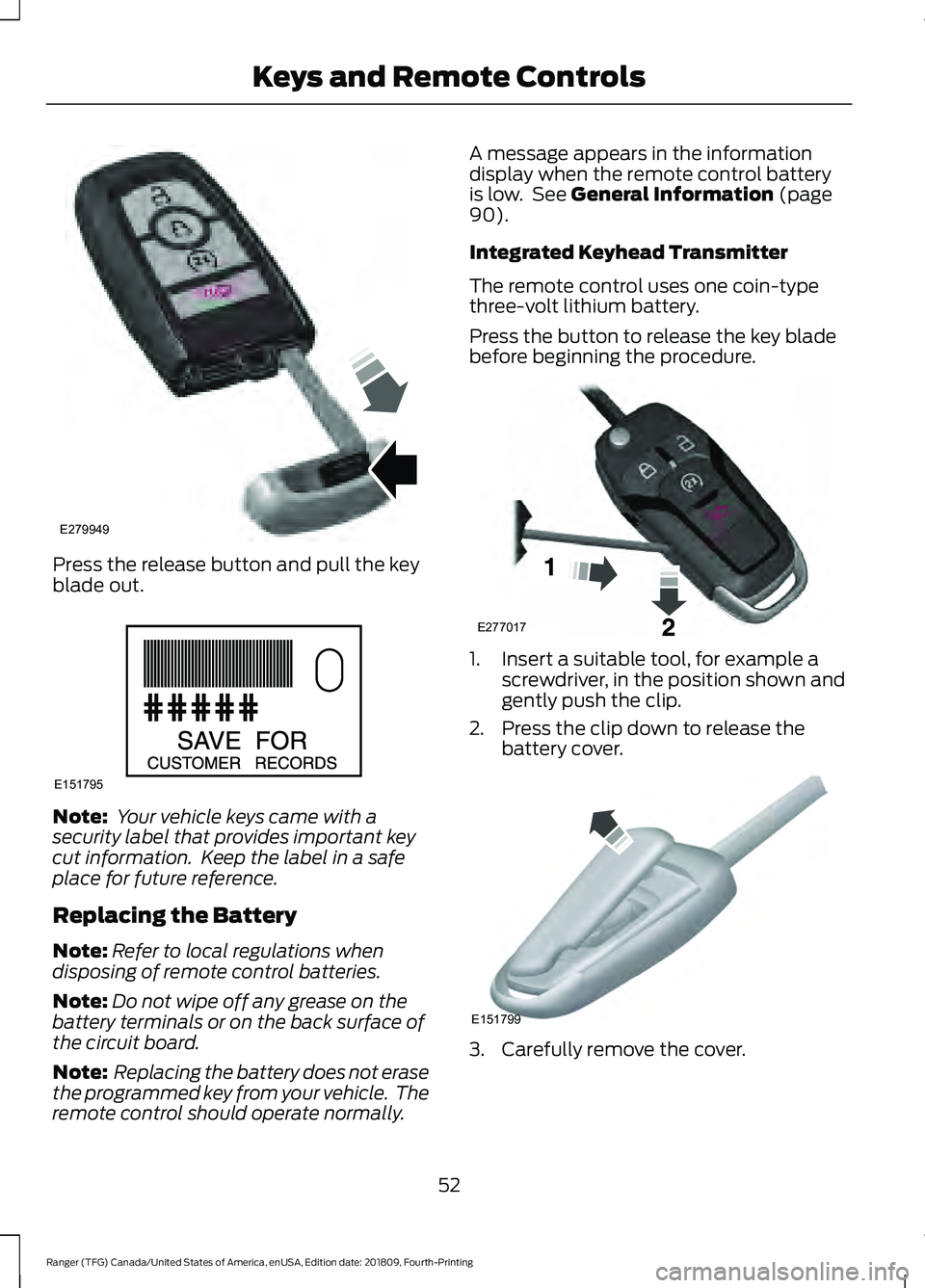
Press the release button and pull the key
blade out.
Note:
Your vehicle keys came with a
security label that provides important key
cut information. Keep the label in a safe
place for future reference.
Replacing the Battery
Note: Refer to local regulations when
disposing of remote control batteries.
Note: Do not wipe off any grease on the
battery terminals or on the back surface of
the circuit board.
Note: Replacing the battery does not erase
the programmed key from your vehicle. The
remote control should operate normally. A message appears in the information
display when the remote control battery
is low. See General Information (page
90).
Integrated Keyhead Transmitter
The remote control uses one coin-type
three-volt lithium battery.
Press the button to release the key blade
before beginning the procedure. 1. Insert a suitable tool, for example a
screwdriver, in the position shown and
gently push the clip.
2. Press the clip down to release the battery cover. 3. Carefully remove the cover.
52
Ranger (TFG) Canada/United States of America, enUSA, Edition date: 201809, Fourth-Printing Keys and Remote ControlsE279949 E151795 E277017 E151799
Page 61 of 512
Note:
Not every feature applies to every
vehicle in every market. When they are
available for your vehicle, then they appear
in your information display, providing
choices to switch them on or off, or to select
a more specific setting.
• Various vehicle speed limits so the
MyKey driver cannot exceed certain
speeds. The information display shows
warnings followed by an audible tone
when the MyKey driver reaches the set
speed. You cannot override the set
speed by fully depressing the
accelerator pedal. WARNING: Do not set MyKey
maximum speed limit to a limit that will
prevent the driver from maintaining a
safe speed considering posted speed
limits and prevailing road conditions. The
driver is always responsible to drive in
accordance with local laws and
prevailing conditions. Failure to do so
could result in accident or injury. •
Various vehicle speed reminders so
MyKey drivers know when their vehicle
speed approaches the limits. Warnings
appear in your information display and
a tone sounds when the MyKey drivers
exceed the set vehicle speed.
• The audio system's maximum volume
limits to 45% so MyKey drivers can
concentrate on the road. A message
appears in the information display
when MyKey drivers attempt to exceed
the limited volume. MyKey also
disables the automatic volume control.
Note:
If your vehicle includes an
AM/FM radio or a very basic audio
system, then the radio may not limit.
• Always on setting. This setting forces
certain features to remain on and
active for MyKey drivers. For example,
E911 or emergency assistance and the
do not disturb features stay on even if
a MyKey driver uses the feature's
control to switch it off. When selected,
you will not be able to turn off Advance
Trac or traction control (if your vehicle
has this feature).
CREATING A MYKEY
Use the information display to create a
MyKey:
1. Insert the key you want to program into
the ignition. If your vehicle is equipped
with a push-button start, place the
remote control into the backup slot.
See
Passive Key Backup Position
(page 56).
2. Switch the ignition on.
3. Access the main menu in the information display and then scroll
through the menus to change the
settings of your MyKey. From the
MyKey menu select the option Create
MyKey. See
Information Displays
(page 90).
58
Ranger (TFG) Canada/United States of America, enUSA, Edition date: 201809, Fourth-Printing MyKey
™
Page 62 of 512
4. When prompted, hold the OK button
until you see a message informing you
to label this key as a MyKey. The
programmed restrictions apply when
you key off, open and close the driver
door and restart your vehicle with the
programmed key or transmitter.
MyKey is successfully created. Make sure
you label it so you can distinguish it from
the admin keys.
You can also program configurable
settings for the key(s). See
Programming
and Changing Configurable Settings.
Programming and Changing
Configurable Settings
Use the information display to access your
configurable MyKey settings.
1. Switch the ignition on using an admin key or transmitter you want to program.
2. Access the main menu in the information display and then scroll
through the menus to change the
settings of your MyKey. See
Information Displays
(page 90).
3. Follow the instructions in the display. The programmed restrictions apply
when you switch the vehicle off, open
and close the driver door and restart
your vehicle with the programmed key
or transmitter.
Note: You can clear or change your MyKey
settings at any time during the same key
cycle as you created the MyKey. Once you
have switched the vehicle off, however, you
will need an admin key to change or clear
your MyKey settings. When you make any
changes to your MyKey settings, you change
the settings for every MyKey. You cannot
make individual changes to apply to certain
MyKeys. CLEARING ALL MYKEYS
When you clear your MyKeys, you remove
all restrictions and return all MyKeys to
their original admin key status at once. To
clear all MyKeys of all MyKey settings, use
the information display.
1. Switch the ignition on using an admin
key.
2. Access the main menu in the information display and then scroll
through the menus to begin clearing
your MyKey programming. See
Information Displays
(page 90).
3. Follow the instructions in the display.
4. A confirmation message appears in the
display after you finish clearing your
MyKeys.
Note: When you clear your MyKeys, you
remove all restrictions and return all MyKeys
to their original admin key status. You
cannot remove the MyKey restrictions
individually.
CHECKING MYKEY SYSTEM
STATUS
You can find information about your
programmed MyKeys by using the
information display. See
Information
Displays (page 90).
MyKey Distance
Tracks the distance when drivers use a
MyKey. The only way to delete the
accumulated distance is by using an admin
key to clear all MyKeys. If the distance does
not accumulate as expected, then the
intended user is not using the MyKey, or an
admin key user recently cleared and then
recreated a MyKey.
59
Ranger (TFG) Canada/United States of America, enUSA, Edition date: 201809, Fourth-Printing MyKey
™
Page 77 of 512
If the daytime running lamps are off in the
information display, the lamps stay off in
all switch positions.
AUTOMATIC HIGH BEAM
CONTROL (IF EQUIPPED)
WARNING:
The system does not
relieve you of your responsibility to drive
with due care and attention. You may
need to override the system if it does not
turn the high beams on or off.
The system turns on high beams if it is dark
enough and no other traffic is present. If it
detects an approaching vehicle ’s
headlamps or tail lamps, or street lighting
ahead, the system turns off high beams
before they can distract other road users.
Low beams remain on.
Note: The system may not operate properly
if the sensor is blocked. Keep the windshield
free from obstruction or damage.
Note: The system may not operate properly
in cold or inclement conditions. You can
switch on the high beams by overriding the
system.
Note: If the system detects a blockage, for
example bird droppings, bug splatter, snow
or ice, the system goes into low beam mode
until you clear the blockage. A message may
appear in the information display if the
camera is blocked.
Note: Using much larger tires or equipping
vehicle accessories such as snowplows can
modify your vehicle's ride height and
degrade automatic high beam control
performance.
A camera sensor, centrally mounted
behind the windshield of your vehicle,
continuously monitors conditions to turn
the high beams on and off. Once the system is active, the high beams
turn on if:
•
The ambient light level is low enough.
• There is no traffic in front of your
vehicle.
• The vehicle speed is greater than
approximately
32 mph (51 km/h).
The system turns the high beams off if:
• The ambient light level is high enough
that high beams are not required.
• The system detects an approaching
vehicle's headlamps or tail lamps.
• The vehicle speed falls below
approximately
27 mph (44 km/h).
• The system detects severe rain, snow
or fog.
• The camera is blocked.
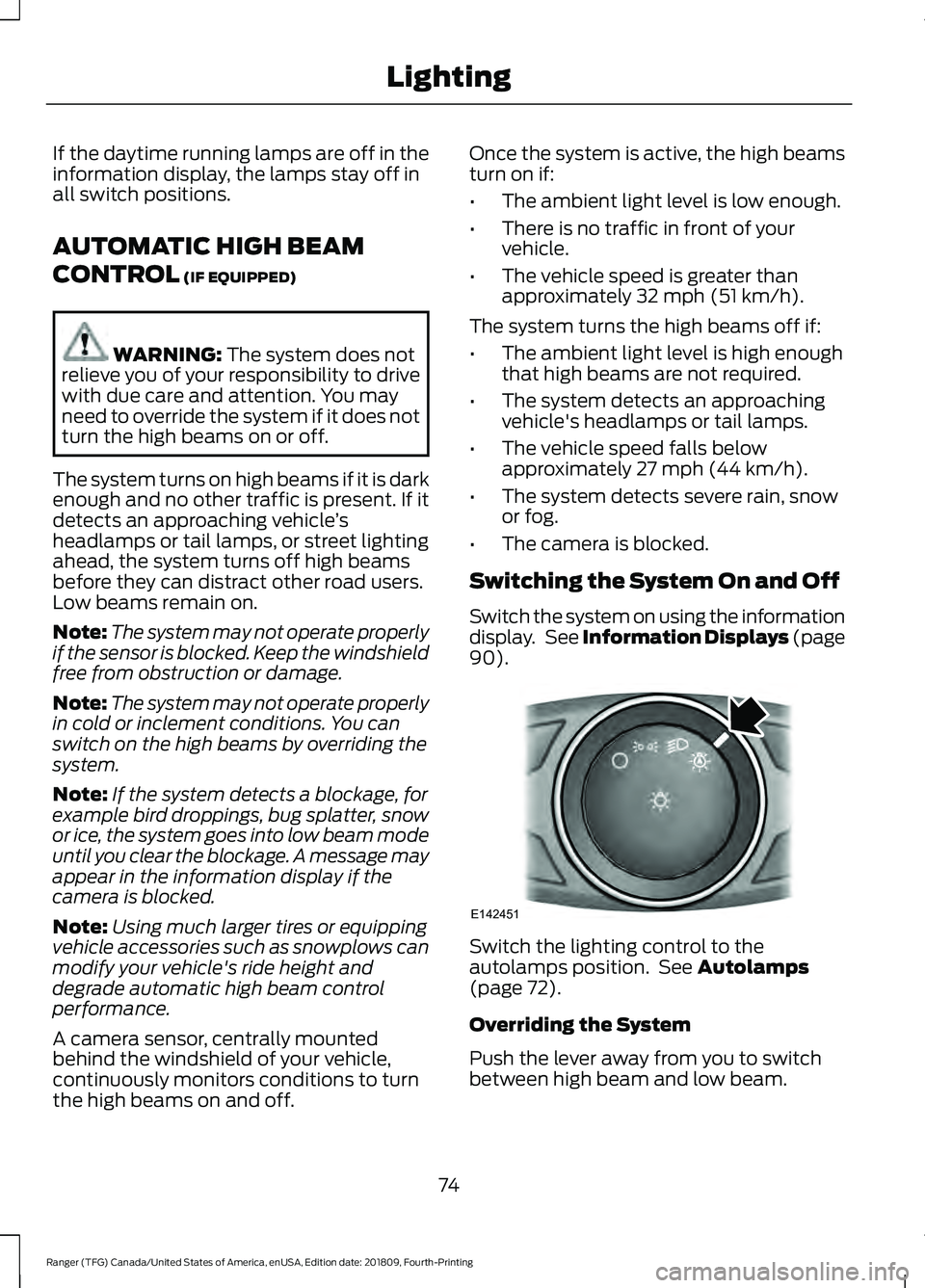
Switching the System On and Off
Switch the system on using the information
display. See Information Displays (page
90
). Switch the lighting control to the
autolamps position. See
Autolamps
(page 72).
Overriding the System
Push the lever away from you to switch
between high beam and low beam.
74
Ranger (TFG) Canada/United States of America, enUSA, Edition date: 201809, Fourth-Printing LightingE142451
Page 93 of 512
GENERAL INFORMATION
WARNING: Driving while
distracted can result in loss of vehicle
control, crash and injury. We strongly
recommend that you use extreme
caution when using any device that may
take your focus off the road. Your
primary responsibility is the safe
operation of your vehicle. We
recommend against the use of any
hand-held device while driving and
encourage the use of voice-operated
systems when possible. Make sure you
are aware of all applicable local laws
that may affect the use of electronic
devices while driving.
Note: Your vehicle may or may not be
equipped with all the messages listed in this
chapter. Your vehicle will not display
messages of systems it is not equipped with.
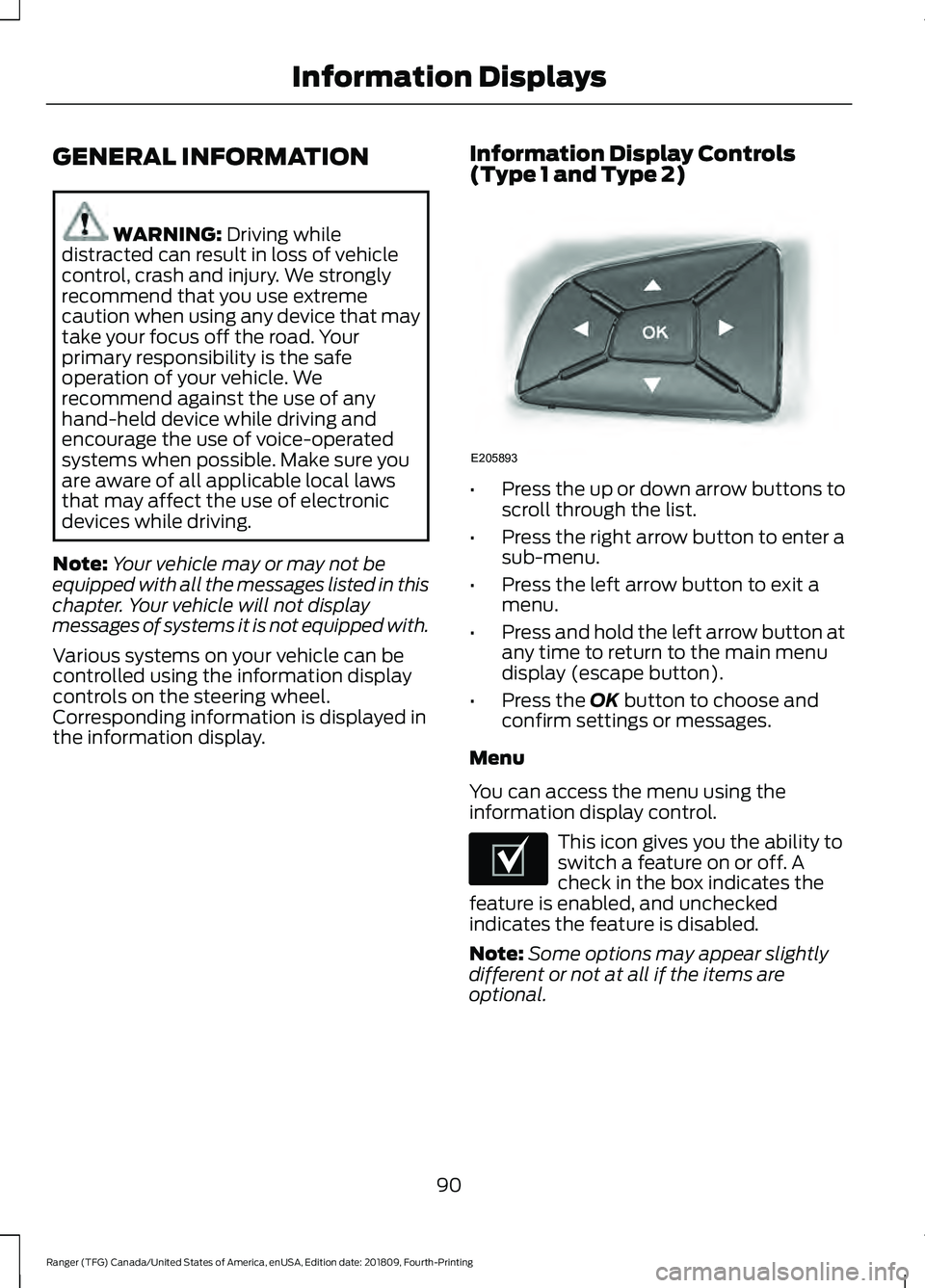
Various systems on your vehicle can be
controlled using the information display
controls on the steering wheel.
Corresponding information is displayed in
the information display. Information Display Controls
(Type 1 and Type 2) •
Press the up or down arrow buttons to
scroll through the list.
• Press the right arrow button to enter a
sub-menu.
• Press the left arrow button to exit a
menu.
• Press and hold the left arrow button at
any time to return to the main menu
display (escape button).
• Press the
OK button to choose and
confirm settings or messages.
Menu
You can access the menu using the
information display control. This icon gives you the ability to
switch a feature on or off. A
check in the box indicates the
feature is enabled, and unchecked
indicates the feature is disabled.
Note: Some options may appear slightly
different or not at all if the items are
optional.
90
Ranger (TFG) Canada/United States of America, enUSA, Edition date: 201809, Fourth-Printing Information DisplaysE205893 E204495
Page 95 of 512
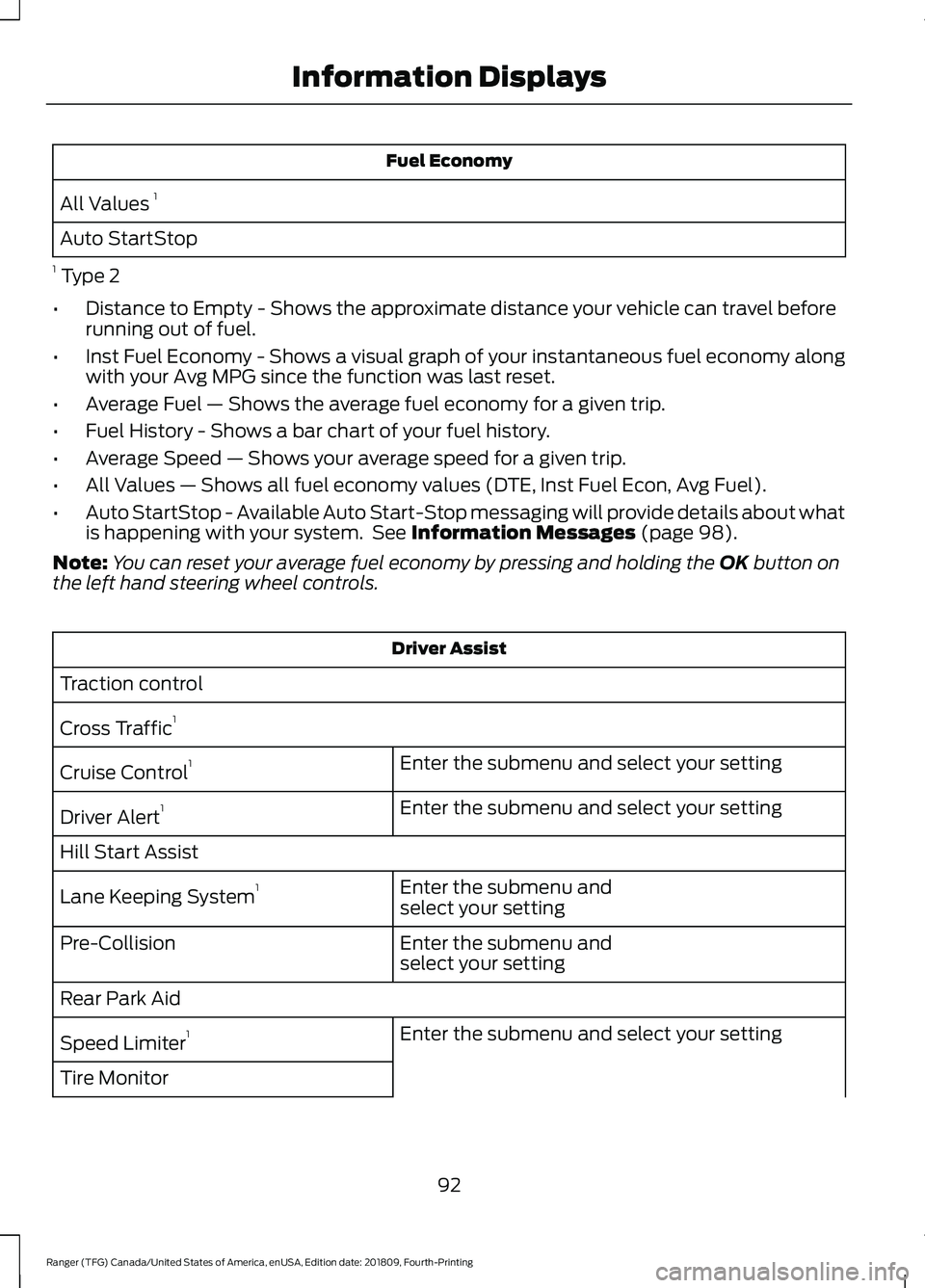
Fuel Economy
All Values 1
Auto StartStop
1 Type 2
• Distance to Empty - Shows the approximate distance your vehicle can travel before
running out of fuel.
• Inst Fuel Economy - Shows a visual graph of your instantaneous fuel economy along
with your Avg MPG since the function was last reset.
• Average Fuel — Shows the average fuel economy for a given trip.
• Fuel History - Shows a bar chart of your fuel history.
• Average Speed — Shows your average speed for a given trip.
• All Values — Shows all fuel economy values (DTE, Inst Fuel Econ, Avg Fuel).
• Auto StartStop - Available Auto Start-Stop messaging will provide details about what
is happening with your system. See Information Messages (page 98).
Note: You can reset your average fuel economy by pressing and holding the
OK button on
the left hand steering wheel controls. Driver Assist
Traction control
Cross Traffic 1
Enter the submenu and select your setting
Cruise Control 1
Enter the submenu and select your setting
Driver Alert 1
Hill Start Assist Enter the submenu and
select your setting
Lane Keeping System 1
Enter the submenu and
select your setting
Pre-Collision
Rear Park Aid
Enter the submenu and select your setting
Speed Limiter 1
Tire Monitor
92
Ranger (TFG) Canada/United States of America, enUSA, Edition date: 201809, Fourth-Printing Information Displays
Page 97 of 512
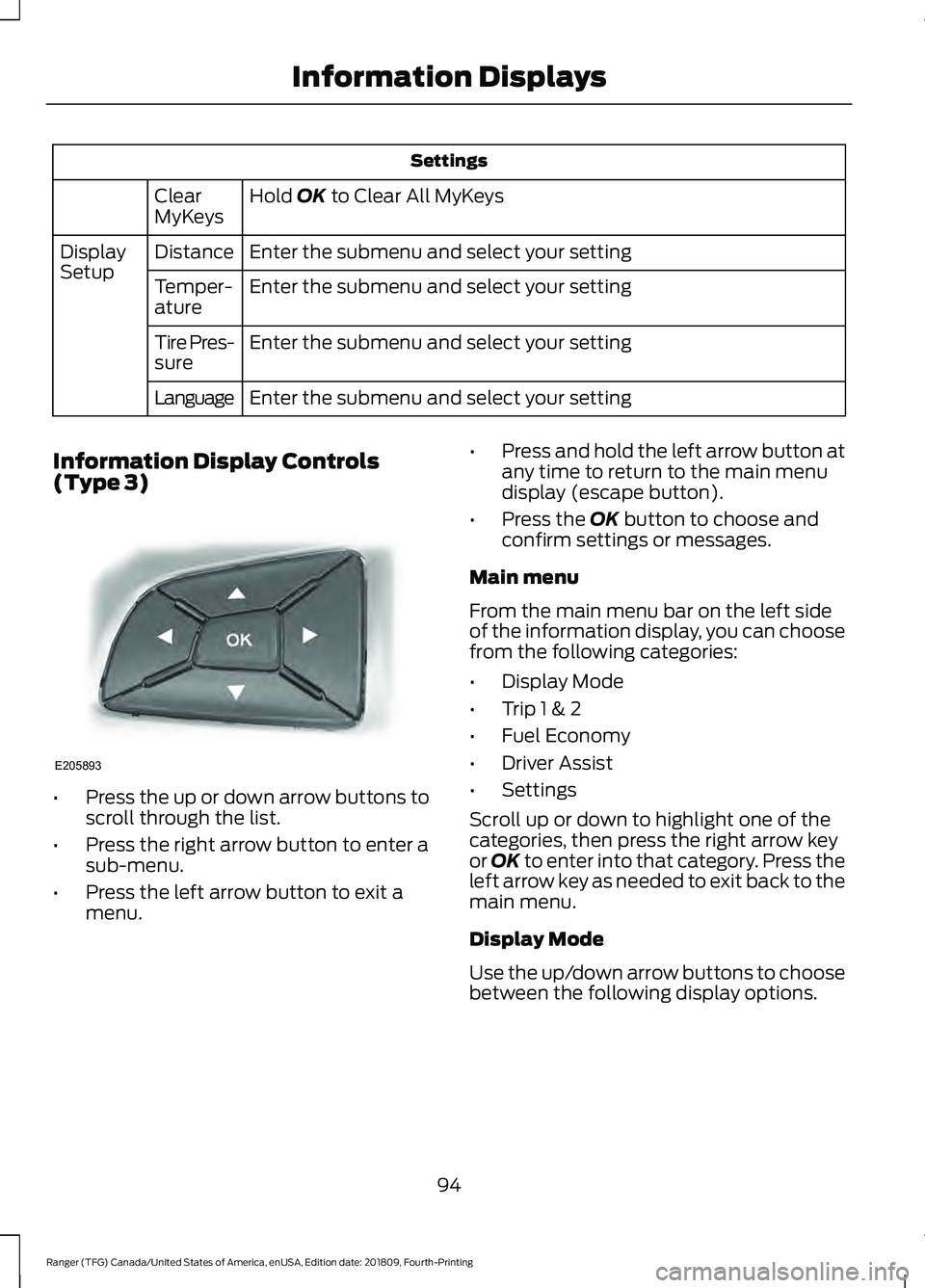
Settings
Hold OK to Clear All MyKeys
Clear
MyKeys
Enter the submenu and select your setting
Distance
Display
Setup
Enter the submenu and select your setting
Temper-
ature
Enter the submenu and select your setting
Tire Pres-
sure
Enter the submenu and select your setting
Language
Information Display Controls
(Type 3) •
Press the up or down arrow buttons to
scroll through the list.
• Press the right arrow button to enter a
sub-menu.
• Press the left arrow button to exit a
menu. •
Press and hold the left arrow button at
any time to return to the main menu
display (escape button).
• Press the
OK button to choose and
confirm settings or messages.
Main menu
From the main menu bar on the left side
of the information display, you can choose
from the following categories:
• Display Mode
• Trip 1 & 2
• Fuel Economy
• Driver Assist
• Settings
Scroll up or down to highlight one of the
categories, then press the right arrow key
or
OK to enter into that category. Press the
left arrow key as needed to exit back to the
main menu.
Display Mode
Use the up/down arrow buttons to choose
between the following display options.
94
Ranger (TFG) Canada/United States of America, enUSA, Edition date: 201809, Fourth-Printing Information DisplaysE205893