lac FORD RANGER 2020 Owners Manual
[x] Cancel search | Manufacturer: FORD, Model Year: 2020, Model line: RANGER, Model: FORD RANGER 2020Pages: 478, PDF Size: 7.44 MB
Page 326 of 478
ENGINE SPECIFICATIONS
2.3L EcoBoost
Engine
138.00 in³ (2,261.41 cm³)
Displacement.
Minimum 87 octane
Required fuel.
1-3-4-2
Firing order.
Coil on plug
Ignition system.
0.028–0.031 in (0.7–0.8 mm)
Spark plug gap.
10:1
Compression ratio.
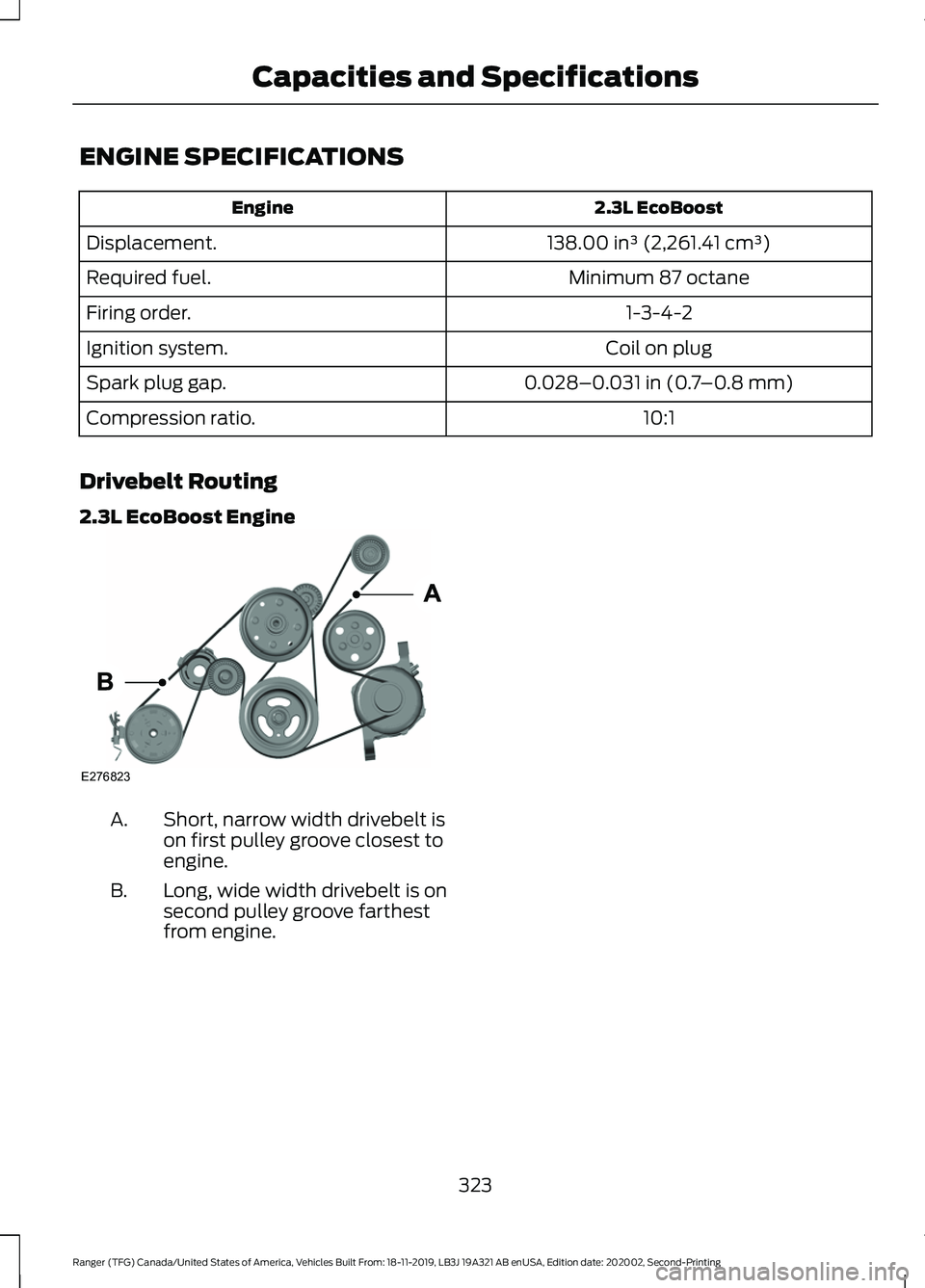
Drivebelt Routing
2.3L EcoBoost Engine Short, narrow width drivebelt is
on first pulley groove closest to
engine.
A.
Long, wide width drivebelt is on
second pulley groove farthest
from engine.
B.
323
Ranger (TFG) Canada/United States of America, Vehicles Built From: 18-11-2019, LB3J 19A321 AB enUSA, Edition date: 202002, Second-Printing Capacities and SpecificationsE276823
Page 327 of 478
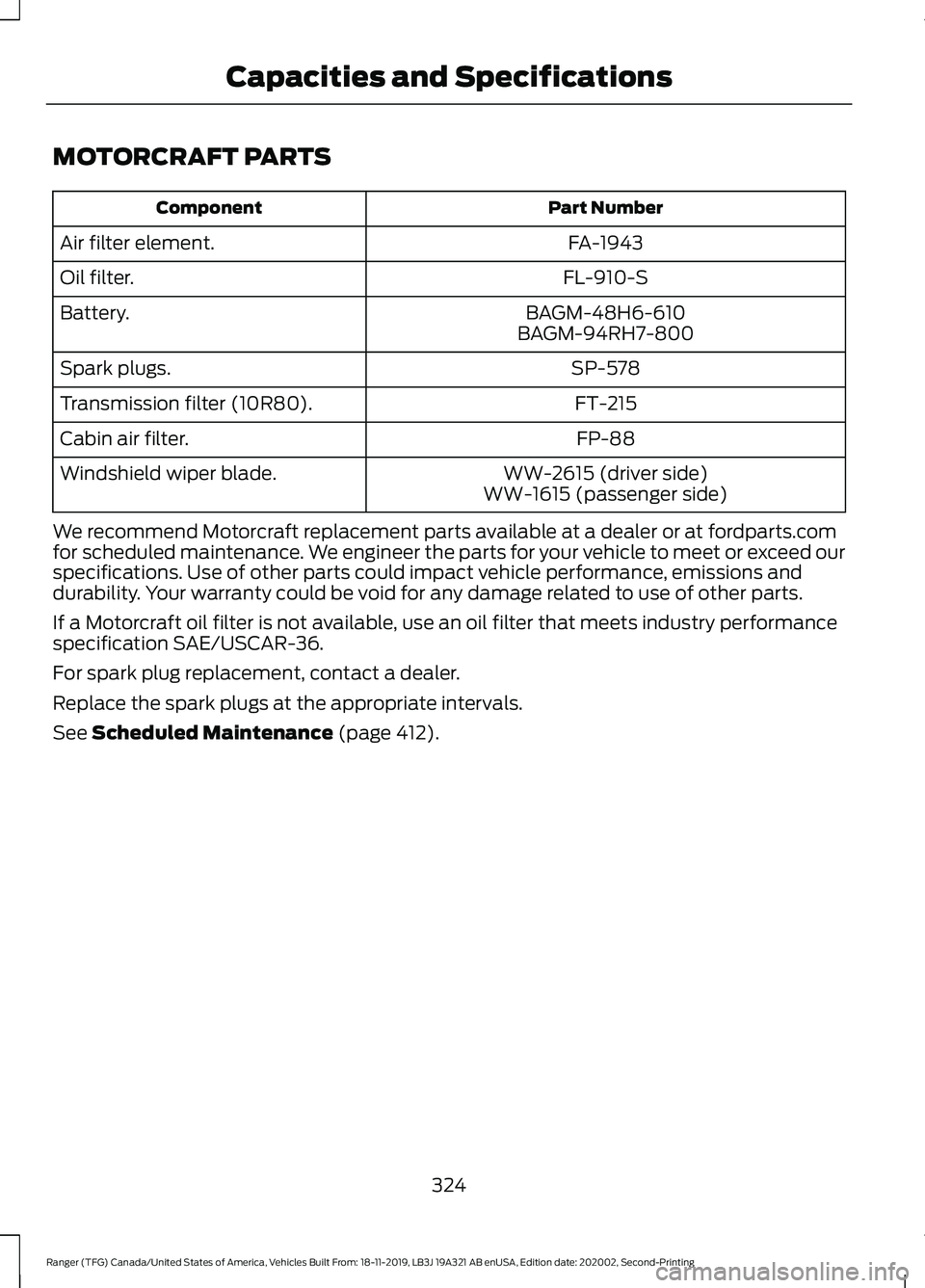
MOTORCRAFT PARTS
Part Number
Component
FA-1943
Air filter element.
FL-910-S
Oil filter.
BAGM-48H6-610
Battery.
BAGM-94RH7-800
SP-578
Spark plugs.
FT-215
Transmission filter (10R80).
FP-88
Cabin air filter.
WW-2615 (driver side)
Windshield wiper blade.
WW-1615 (passenger side)
We recommend Motorcraft replacement parts available at a dealer or at fordparts.com
for scheduled maintenance. We engineer the parts for your vehicle to meet or exceed our
specifications. Use of other parts could impact vehicle performance, emissions and
durability. Your warranty could be void for any damage related to use of other parts.
If a Motorcraft oil filter is not available, use an oil filter that meets industry performance
specification SAE/USCAR-36.
For spark plug replacement, contact a dealer.
Replace the spark plugs at the appropriate intervals.
See Scheduled Maintenance (page 412).
324
Ranger (TFG) Canada/United States of America, Vehicles Built From: 18-11-2019, LB3J 19A321 AB enUSA, Edition date: 202002, Second-Printing Capacities and Specifications
Page 337 of 478
Materials
Specification
Name
WSS-M14P19-A
Motorcraft® Premium Windshield Wash Concen-
trate with Bitterant(U.S.)
Motorcraft® Premium Quality Windshield Washer
Fluid / Liquide lave-glace de haute qualité Motor-
craft®(Canada)
ZC-32-B2(U.S.)
CXC-37-A/B/D/F(Canada)
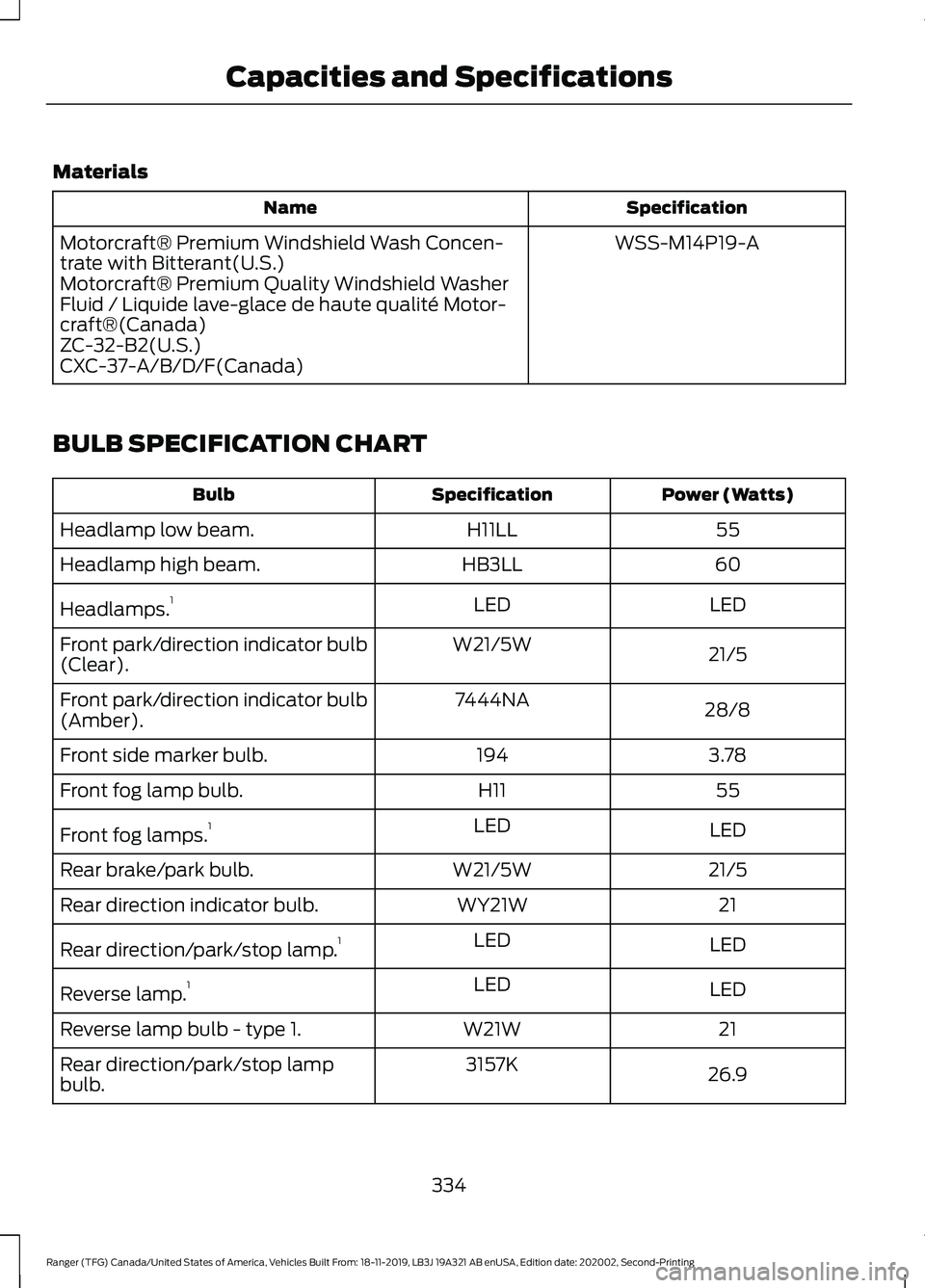
BULB SPECIFICATION CHART Power (Watts)
Specification
Bulb
55
H11LL
Headlamp low beam.
60
HB3LL
Headlamp high beam.
LED
LED
Headlamps. 1
21/5
W21/5W
Front park/direction indicator bulb
(Clear).
28/8
7444NA
Front park/direction indicator bulb
(Amber).
3.78
194
Front side marker bulb.
55
H11
Front fog lamp bulb.
LED
LED
Front fog lamps. 1
21/5
W21/5W
Rear brake/park bulb.
21
WY21W
Rear direction indicator bulb.
LED
LED
Rear direction/park/stop lamp. 1
LED
LED
Reverse lamp. 1
21
W21W
Reverse lamp bulb - type 1.
26.9
3157K
Rear direction/park/stop lamp
bulb.
334
Ranger (TFG) Canada/United States of America, Vehicles Built From: 18-11-2019, LB3J 19A321 AB enUSA, Edition date: 202002, Second-Printing Capacities and Specifications
Page 340 of 478
6.
Make sure that the name on the screen
matches the name shown in your
FordPass account.
7. Confirm that FordPass account is connected to the modem .
CONNECTING THE VEHICLE TO
A WI-FI NETWORK - VEHICLES
WITH: SYNC 3
1. Select Settings. 2. Select
Wi-Fi.
3. Switch
System Wi-Fi on.
4. Select
View Available Networks.
5. Select an available Wi-Fi network.
Note: Enter the network password to
connect to a secure network.
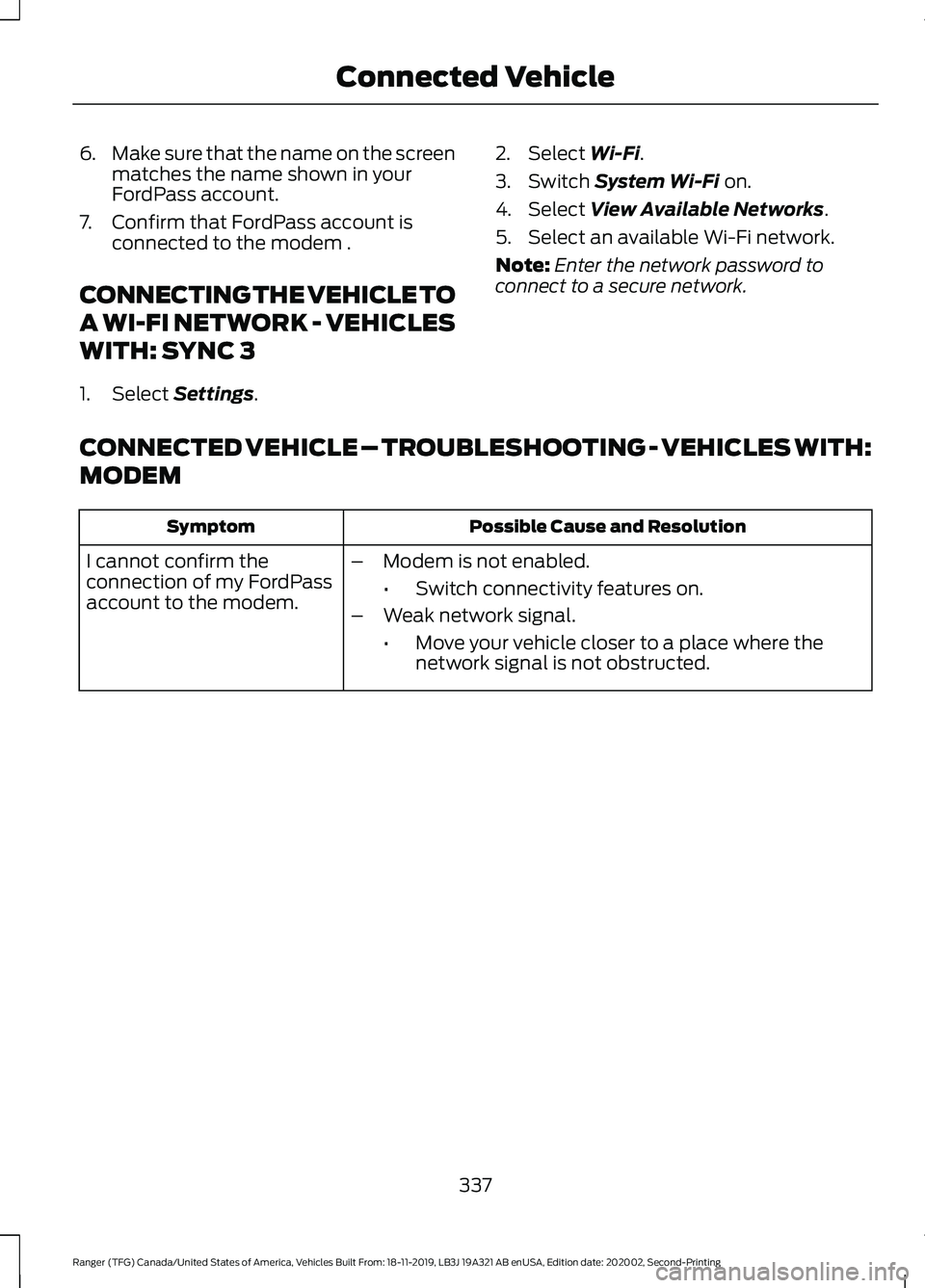
CONNECTED VEHICLE – TROUBLESHOOTING - VEHICLES WITH:
MODEM Possible Cause and Resolution
Symptom
I cannot confirm the
connection of my FordPass
account to the modem. –
Modem is not enabled.
•Switch connectivity features on.
– Weak network signal.
•Move your vehicle closer to a place where the
network signal is not obstructed.
337
Ranger (TFG) Canada/United States of America, Vehicles Built From: 18-11-2019, LB3J 19A321 AB enUSA, Edition date: 202002, Second-Printing Connected Vehicle
Page 341 of 478
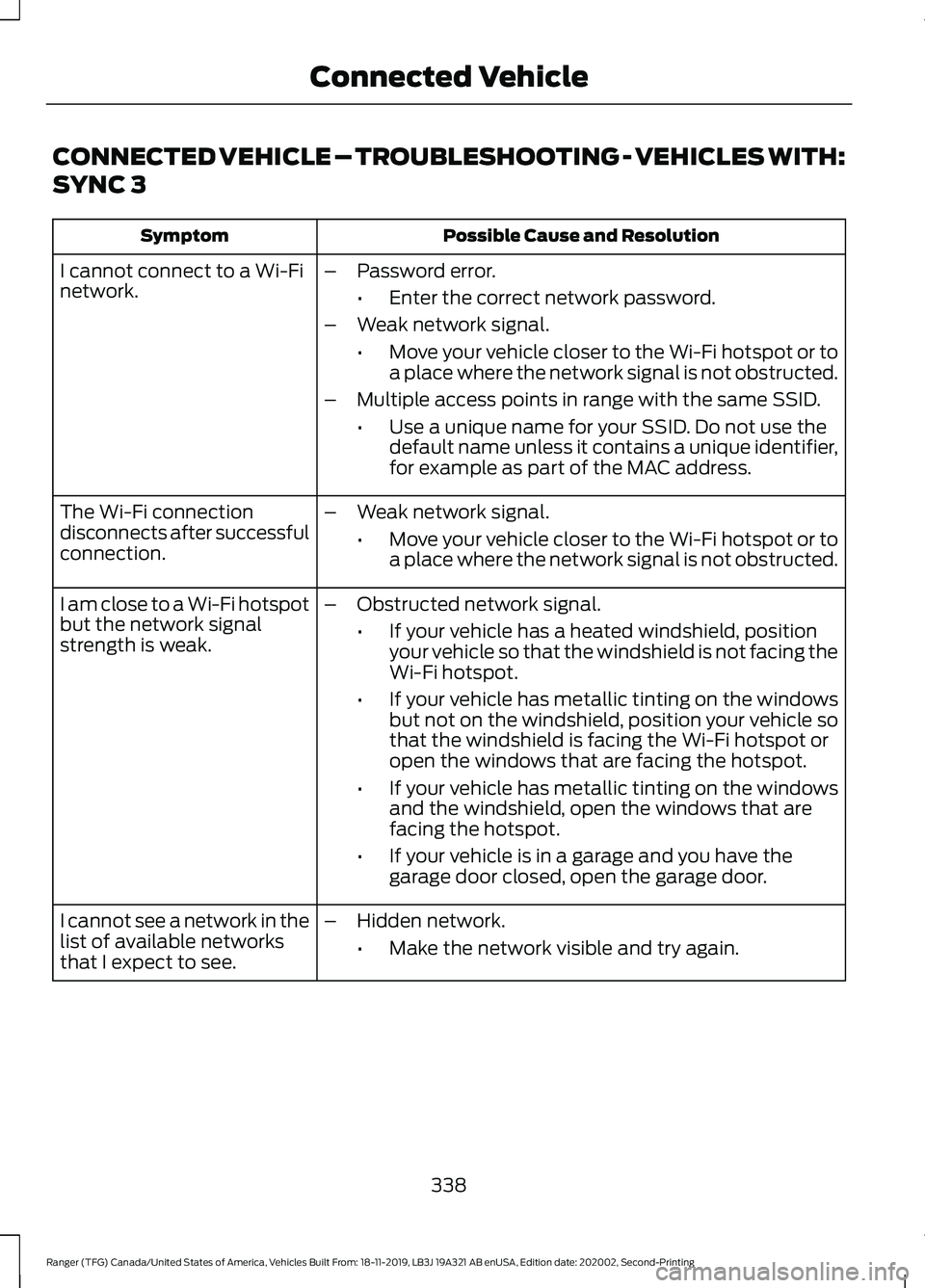
CONNECTED VEHICLE – TROUBLESHOOTING - VEHICLES WITH:
SYNC 3
Possible Cause and Resolution
Symptom
I cannot connect to a Wi-Fi
network. –
Password error.
•Enter the correct network password.
– Weak network signal.
•Move your vehicle closer to the Wi-Fi hotspot or to
a place where the network signal is not obstructed.
– Multiple access points in range with the same SSID.
•Use a unique name for your SSID. Do not use the
default name unless it contains a unique identifier,
for example as part of the MAC address.
The Wi-Fi connection
disconnects after successful
connection. –
Weak network signal.
•Move your vehicle closer to the Wi-Fi hotspot or to
a place where the network signal is not obstructed.
I am close to a Wi-Fi hotspot
but the network signal
strength is weak. –
Obstructed network signal.
•If your vehicle has a heated windshield, position
your vehicle so that the windshield is not facing the
Wi-Fi hotspot.
• If your vehicle has metallic tinting on the windows
but not on the windshield, position your vehicle so
that the windshield is facing the Wi-Fi hotspot or
open the windows that are facing the hotspot.
• If your vehicle has metallic tinting on the windows
and the windshield, open the windows that are
facing the hotspot.
• If your vehicle is in a garage and you have the
garage door closed, open the garage door.
I cannot see a network in the
list of available networks
that I expect to see. –
Hidden network.
•Make the network visible and try again.
338
Ranger (TFG) Canada/United States of America, Vehicles Built From: 18-11-2019, LB3J 19A321 AB enUSA, Edition date: 202002, Second-Printing Connected Vehicle
Page 342 of 478
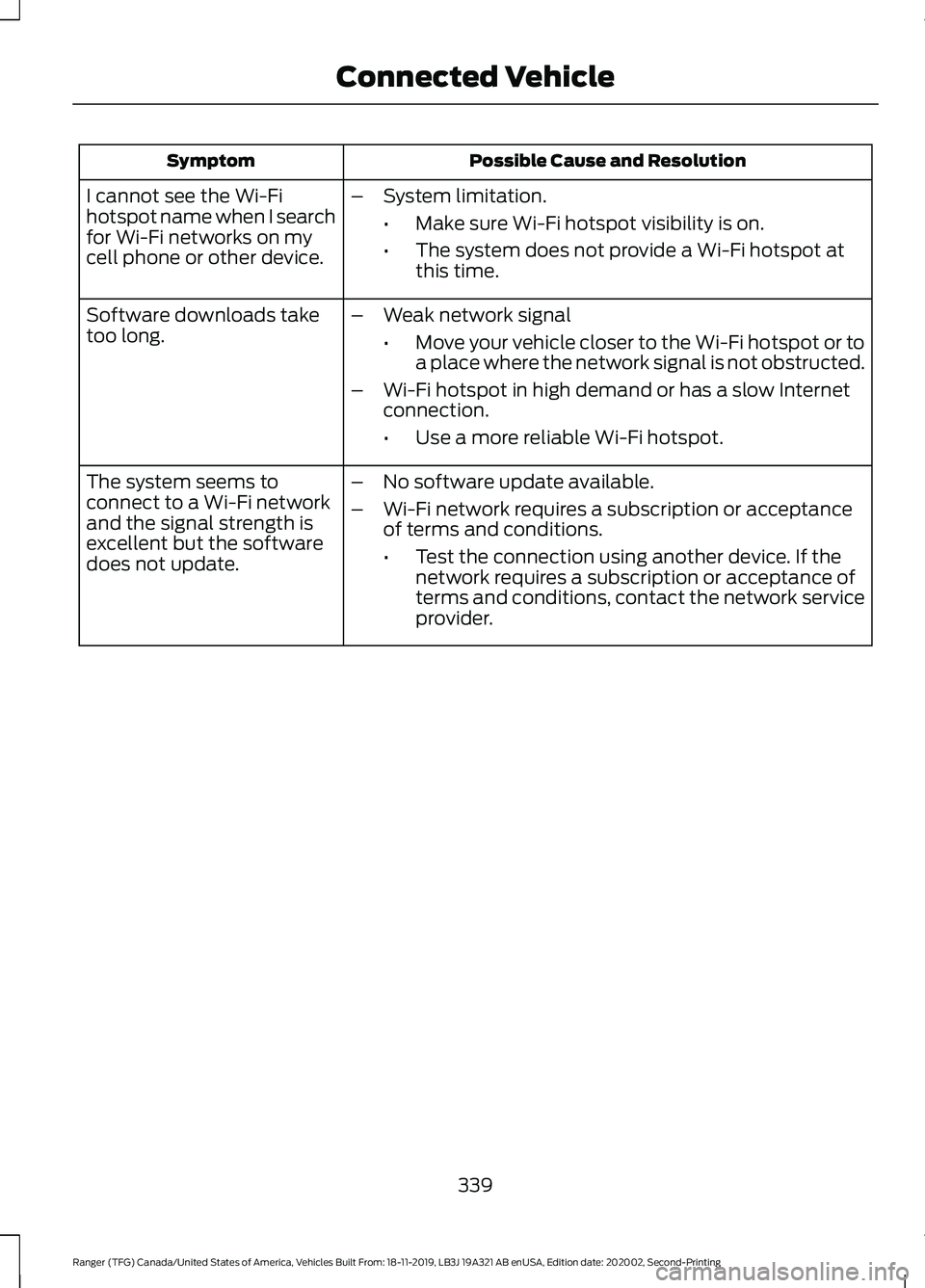
Possible Cause and Resolution
Symptom
I cannot see the Wi-Fi
hotspot name when I search
for Wi-Fi networks on my
cell phone or other device. –
System limitation.
•Make sure Wi-Fi hotspot visibility is on.
• The system does not provide a Wi-Fi hotspot at
this time.
– Weak network signal
•Move your vehicle closer to the Wi-Fi hotspot or to
a place where the network signal is not obstructed.
– Wi-Fi hotspot in high demand or has a slow Internet
connection.
•Use a more reliable Wi-Fi hotspot.
Software downloads take
too long.
–No software update available.
– Wi-Fi network requires a subscription or acceptance
of terms and conditions.
•Test the connection using another device. If the
network requires a subscription or acceptance of
terms and conditions, contact the network service
provider.
The system seems to
connect to a Wi-Fi network
and the signal strength is
excellent but the software
does not update.
339
Ranger (TFG) Canada/United States of America, Vehicles Built From: 18-11-2019, LB3J 19A321 AB enUSA, Edition date: 202002, Second-Printing Connected Vehicle
Page 356 of 478
safe operation of your vehicle. We
recommend against the use of any
hand-held device while driving and
encourage the use of voice-operated
systems when possible. Make sure you
are aware of all applicable local laws
that may affect the use of electronic
devices while driving.
WARNING: Always place your
device in a secure location in your vehicle
so it does not become a projectile in a
sudden stop or crash. Failure to follow
this instruction could result in personal
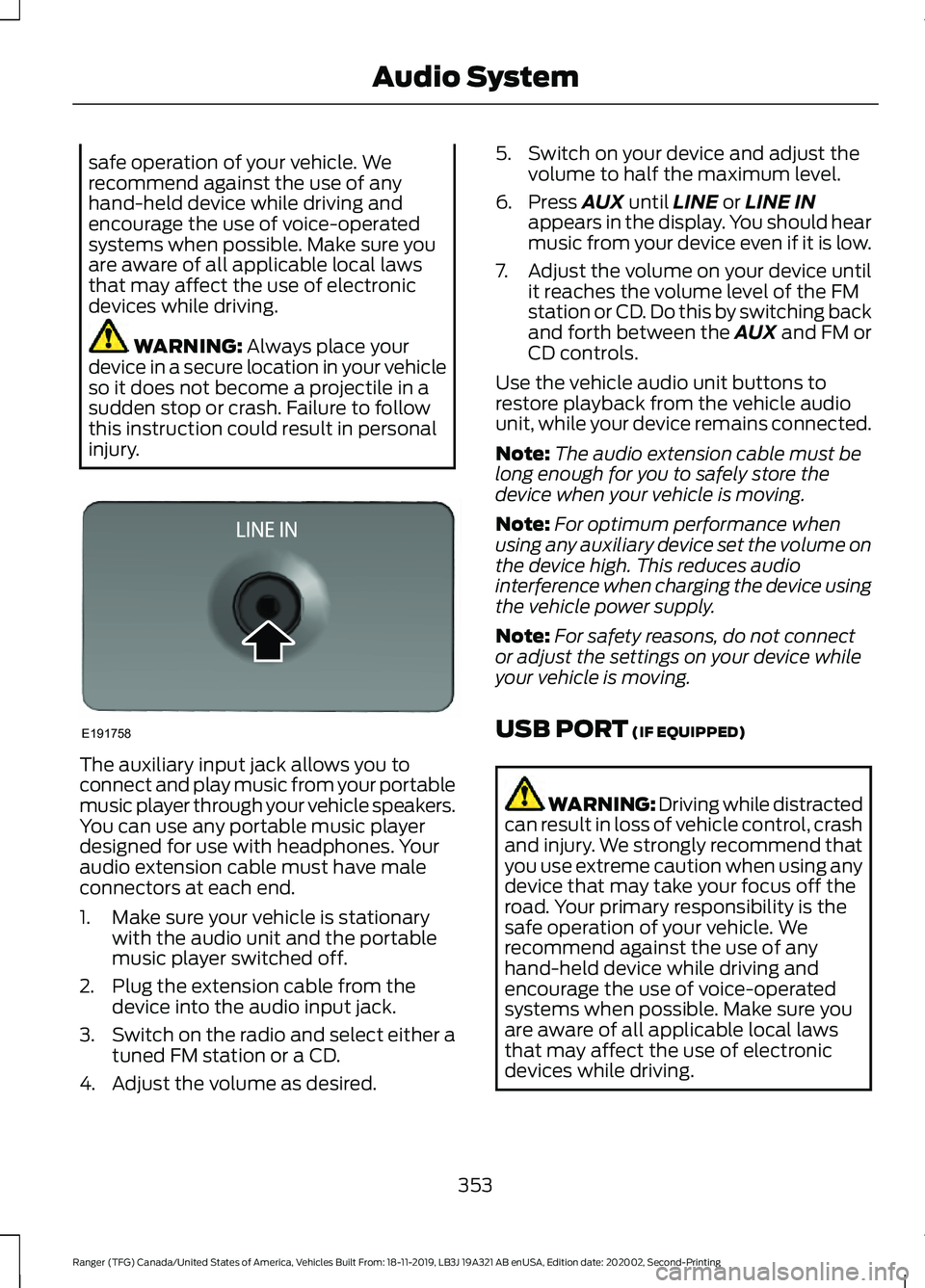
injury. The auxiliary input jack allows you to
connect and play music from your portable
music player through your vehicle speakers.
You can use any portable music player
designed for use with headphones. Your
audio extension cable must have male
connectors at each end.
1. Make sure your vehicle is stationary
with the audio unit and the portable
music player switched off.
2. Plug the extension cable from the device into the audio input jack.
3. Switch on the radio and select either a
tuned FM station or a CD.
4. Adjust the volume as desired. 5. Switch on your device and adjust the
volume to half the maximum level.
6. Press
AUX until LINE or LINE IN
appears in the display. You should hear
music from your device even if it is low.
7. Adjust the volume on your device until
it reaches the volume level of the FM
station or CD. Do this by switching back
and forth between the AUX and FM or
CD controls.
Use the vehicle audio unit buttons to
restore playback from the vehicle audio
unit, while your device remains connected.
Note: The audio extension cable must be
long enough for you to safely store the
device when your vehicle is moving.
Note: For optimum performance when
using any auxiliary device set the volume on
the device high. This reduces audio
interference when charging the device using
the vehicle power supply.
Note: For safety reasons, do not connect
or adjust the settings on your device while
your vehicle is moving.
USB PORT
(IF EQUIPPED) WARNING: Driving while distracted
can result in loss of vehicle control, crash
and injury. We strongly recommend that
you use extreme caution when using any
device that may take your focus off the
road. Your primary responsibility is the
safe operation of your vehicle. We
recommend against the use of any
hand-held device while driving and
encourage the use of voice-operated
systems when possible. Make sure you
are aware of all applicable local laws
that may affect the use of electronic
devices while driving.
353
Ranger (TFG) Canada/United States of America, Vehicles Built From: 18-11-2019, LB3J 19A321 AB enUSA, Edition date: 202002, Second-Printing Audio SystemE191758
Page 358 of 478
GENERAL INFORMATION
SYNC is an in-vehicle communications
system that works with your Bluetooth
enabled cellular phone and portable media
player. This allows you to:
•
Make and receive calls.
• Access and play music from your
portable music player.
• Use 911 Assist or Emergency Assistance
and applications via SYNC AppLink. *
• Access phonebook contacts and music
using voice commands.
• Stream music from your connected
phone.
• Text message.
• Use the advanced voice recognition
system.
• Charge your USB device (if your device
supports this).
* These features are not available in all
markets and may require activation.
Available AppLink enabled apps vary by
market.
Make sure that you review your device's
manual before using it with SYNC.
Support
SYNC support is available at your regional
Ford website. See SYNC™
Troubleshooting (page 363).
SYNC Owner Account
Why do I need a SYNC owner account?
• Essential for keeping up with the latest
software downloads available for
SYNC.
• Access to customer support for any
questions you may have. Driving Restrictions
For your safety, certain features are
speed-dependent and restricted when your
vehicle is traveling over
3 mph (5 km/h).
Safety Information WARNING: Driving while distracted
can result in loss of vehicle control, crash
and injury. We strongly recommend that
you use extreme caution when using any
device that may take your focus off the
road. Your primary responsibility is the
safe operation of your vehicle. We
recommend against the use of any
hand-held device while driving and
encourage the use of voice-operated
systems when possible. Make sure you
are aware of all applicable local laws
that may affect the use of electronic
devices while driving.
When using SYNC:
• Do not operate playing devices if the
power cords or cables are broken, split
or damaged. Place cords and cables
out of the way, so they do not interfere
with the operation of pedals, seats,
compartments or safe driving abilities.
• Do not leave playing devices in your
vehicle during extreme conditions as it
could cause them damage. See your
device's manual for further information.
• Do not attempt to service or repair the
system. See an authorized dealer.
Privacy Information
When a cellular phone is connected to
SYNC, the system creates a profile within
your vehicle that is linked to that cellular
phone. This profile is created in order to
offer you more cellular features and to
operate more efficiently. Among other
things, this profile may contain data about
your cellular phone book, text messages
355
Ranger (TFG) Canada/United States of America, Vehicles Built From: 18-11-2019, LB3J 19A321 AB enUSA, Edition date: 202002, Second-Printing SYNC™
(If Equipped)
Page 360 of 478
Helpful Hints
•
Make sure the interior of your vehicle is
as quiet as possible. Wind noise from
open windows and road vibrations may
prevent the system from correctly
recognizing spoken commands.
• Before giving a voice command, wait
for the system announcement to finish,
followed by a single tone. Any
command spoken before this does not
register with the system.
• Speak naturally, without long pauses
between words.
• You can interrupt the system at any
time while it is speaking by pressing the
voice button. You can cancel a voice
session by pressing and holding the
voice button. System Interaction and Feedback
The system provides feedback through
audible tones, prompts, questions and
spoken confirmations depending on the
situation and the chosen level of
interaction. You can customize the voice
recognition system to provide more or less
instruction and feedback.
The default setting is to a higher level of
interaction in order to help you learn to use
the system. You can change these settings
at any time.
Adjusting the Interaction Level Press the voice button. When
prompted, say:
Action and Description
Voice Command
Provides more detailed interaction and
guidance. (Recommended for first time
users.)
Interaction Mode Standard
Provides less audible interaction and guid-
ance.
Interaction Mode Advanced
Phone Confirmation
Using phone confirmations the system
asks you to verify before placing any calls.
To adjust this setting press the voice button, when prompted say: Action and Description
Voice Command
When enabled, this feature will prompt you
to confirm any voice initiated call command
prior to the call being placed.
Phone Confirmation Off
The system will make a best guess; you
may still occasionally be asked to confirm
settings.
Phone Confirmation On
357
Ranger (TFG) Canada/United States of America, Vehicles Built From: 18-11-2019, LB3J 19A321 AB enUSA, Edition date: 202002, Second-Printing SYNC™ (If Equipped)E142599
Page 361 of 478
USING SYNC™ WITH YOUR
PHONE
Hands-free calling is one of the main
features of SYNC. While the system
supports a variety of features, many are
dependent on your cellular phone's
functionality. At a minimum, most cellular
phones with Bluetooth wireless technology
support the following functions:
•
Answering an incoming call.
• Ending a call.
• Dialing a number.
• Redialing.
• Call waiting notification.
• Caller ID.
Other features, such as text messaging
using Bluetooth and automatic phonebook
download, are phone-dependent features.
Pairing a Phone
Wirelessly pairing your phone with SYNC
allows you to make and receive hands-free
calls.
Note: Make sure to switch on the ignition
and the radio. Shift the transmission into
park (P) for automatic transmission or first
gear for manual transmission.
Using the Audio System
Note: To scroll through the menus, press
the up and down arrows on your audio
system.
1. Make sure to switch on your phone's Bluetooth feature before starting the
search. See your device's manual if
necessary.
2. Press the Settings button.
3. Select Bluetooth from the menu.
4. Press the
OK button.
5. Select the option to add. This starts the pairing process. 6. When a message to begin pairing
appears in the audio display, search for
SYNC on your device.
Depending on your phone's capability and
your market, the system may prompt you
with questions, such as setting the current
phone as the primary phone and
downloading your phonebook.
Using Voice Commands Make sure to switch on your
phone's Bluetooth feature
before starting the search. See
your device's manual if necessary.
Press the voice button and when
prompted say: Action and Descrip-
tion
Voice Command
Follow the instruc-
tions on the audio
display.
Pair Phone
Phone Voice Commands Press the voice button. You can
do things like place a phone call
and access text messages.
When prompted, say a command. See the
following table for examples of
commands. Voice Command
___ List of Commands
Help
Call ___
Dial ___
Text Messages
358
Ranger (TFG) Canada/United States of America, Vehicles Built From: 18-11-2019, LB3J 19A321 AB enUSA, Edition date: 202002, Second-Printing SYNC™
(If Equipped)E142599 E142599