trouble FORD RANGER 2021 User Guide
[x] Cancel search | Manufacturer: FORD, Model Year: 2021, Model line: RANGER, Model: FORD RANGER 2021Pages: 475, PDF Size: 7.9 MB
Page 278 of 475
Your vehicle has a maintenance-free
battery. It does not require additional
water during service.
If your vehicle battery has a cover, make
sure you correctly install it after cleaning
or replacing the battery.
For longer, trouble-free operation, keep the
top of the battery clean and dry and the
battery cables tightly fastened to the
battery terminals. If any corrosion is
present on the battery or terminals, remove
the cables from the terminals and clean
with a wire brush. You can neutralize the
acid with a solution of baking soda and
water.
We recommend that you disconnect the
negative battery cable terminal from the
battery if you plan to store your vehicle for
an extended period.
To maintain correct operation of the
battery management system, if you add
any electrical devices to your vehicle, do
not connect the ground connection directly
to the negative battery terminal. A
connection at the negative battery terminal
can cause inaccurate measurements of
the battery condition and potential
incorrect system operation.
Note:
Electrical accessories or components
added to your vehicle by you or an
authorized dealer, may adversely affect
battery performance, durability and the
performance of other electrical systems on
your vehicle.
If a replacement battery is required, we
recommend you use a Ford replacement
battery that matches the electrical
requirements of your vehicle. If you disconnect or replace the battery
and your vehicle has an automatic
transmission, transmission must relearn
its adaptive strategy. Because of this, the
transmission may shift firmly when first
driven. This is normal operation while the
transmission fully updates its operation to
optimum shift feel.
Remove and Reinstall the Battery
To disconnect or remove the battery, do
the following:
1.
Apply the parking brake and switch the
ignition off.
2. Switch all electrical equipment off, for
example lights and radio.
3. Wait a minimum of two minutes before
disconnecting the battery.
Note: The engine management system has
a power hold function and remains powered
for a period after you switch the ignition off.
This is to allow diagnostic and adaptive
tables to be stored. Disconnecting the
battery without waiting can cause damage
not covered by the vehicle Warranty.
4. Disconnect the negative (-) battery cable terminal first.
5. Disconnect the positive (+) battery cable terminal last.
6. Remove the battery securing clamp.
7. Remove the battery.
8. Install in the reverse order.
Note: Before reconnecting the battery,
make sure the ignition remains switched off.
Note: If you only disconnect the negative
battery cable terminal, make sure it is
isolated or placed away from the battery
terminal to avoid un-intended connection
or arcing.
Note: Make sure the battery cable terminals
are fully tightened.
275
Ranger (TFG) Canada/United States of America, Vehicles Built From: 23-11-2020, MB3J 19A321 AA enUSA, Edition date: 202009, First-Printing Maintenance
Page 340 of 475
2. Press Wi-Fi.
3. Switch
System Wi-Fi on.
4. Press
View Available Networks. 5. Select an available Wi-Fi network.
Note:
Enter the network password to
connect to a secure network.
CONNECTED VEHICLE – TROUBLESHOOTING - VEHICLES WITH:
MODEM Possible Cause and Resolution
Symptom
I cannot confirm the
connection of my FordPass
account to the modem. –
Modem is not enabled.
•Switch connectivity features on.
– Weak network signal.
•Move your vehicle closer to a place where the
network signal is not obstructed.
337
Ranger (TFG) Canada/United States of America, Vehicles Built From: 23-11-2020, MB3J 19A321 AA enUSA, Edition date: 202009, First-Printing Connected Vehicle
Page 341 of 475
CONNECTED VEHICLE – TROUBLESHOOTING - VEHICLES WITH:
SYNC 3
Possible Cause and Resolution
Symptom
I cannot connect to a Wi-Fi
network. –
Password error.
•Enter the correct network password.
– Weak network signal.
•Move your vehicle closer to the Wi-Fi hotspot or to
a place where the network signal is not obstructed.
– Multiple access points in range with the same SSID.
•Use a unique name for your SSID. Do not use the
default name unless it contains a unique identifier,
for example as part of the MAC address.
The Wi-Fi connection
disconnects after successful
connection. –
Weak network signal.
•Move your vehicle closer to the Wi-Fi hotspot or to
a place where the network signal is not obstructed.
I am close to a Wi-Fi hotspot
but the network signal
strength is weak. –
Obstructed network signal.
•If your vehicle has a heated windshield, position
your vehicle so that the windshield is not facing the
Wi-Fi hotspot.
• If your vehicle has metallic tinting on the windows
but not on the windshield, position your vehicle so
that the windshield is facing the Wi-Fi hotspot or
open the windows that are facing the hotspot.
• If your vehicle has metallic tinting on the windows
and the windshield, open the windows that are
facing the hotspot.
• If your vehicle is in a garage and you have the
garage door closed, open the garage door.
I cannot see a network in the
list of available networks
that I expect to see. –
Hidden network.
•Make the network visible and try again.
338
Ranger (TFG) Canada/United States of America, Vehicles Built From: 23-11-2020, MB3J 19A321 AA enUSA, Edition date: 202009, First-Printing Connected Vehicle
Page 352 of 475
SiriusXM Satellite Radio Service
Note:
SiriusXM reserves the unrestricted
right to change, rearrange, add or delete
programming including canceling, moving
or adding particular channels, and its prices,
at any time, with or without notice to you.
Ford Motor Company shall not be
responsible for any such programming
changes. SiriusXM satellite radio is a
subscription-based satellite radio service
that broadcasts a variety of music, sports,
news, weather, traffic and entertainment
programming. Your factory-installed
SiriusXM satellite radio system includes
hardware and a limited subscription term,
which begins on the date of sale or lease
of your vehicle. See an authorized dealer
for availability.
For more information on extended
subscription terms (a service fee is
required), the online media player and a
complete list of SiriusXM satellite radio
channels, and other features, please visit
www.siriusxm.com in the United States,
www.siriusxm.ca in Canada, or call
SiriusXM at 1-888-539-7474.
Satellite Radio Electronic Serial
Number (ESN)
You need your ESN to activate, modify or
track your satellite radio account. When in
satellite radio mode, tune to channel 0.
Troubleshooting Action
Condition
Message
No action required. This
message should disappear
shortly.
Radio requires more than
two seconds to produce
audio for the selected
channel.
Acquiring…
If this message does not
clear shortly, or with an igni-
tion key cycle, your receiver
may have a fault. See an
authorized dealer for service.
There is an internal module
or system failure present.
Satellite antenna fault
SIRIUS system failure
Tune to another channel or
choose another preset.
The channel is no longer
available.
Invalid Channel
Contact SiriusXM at 1-888-
539-7474 to subscribe to
the channel, or tune to
another channel.
Your subscription does not
include this channel.
Unsubscribed Channel
349
Ranger (TFG) Canada/United States of America, Vehicles Built From: 23-11-2020, MB3J 19A321 AA enUSA, Edition date: 202009, First-Printing Audio SystemE208625
Page 354 of 475
Note:
As with any saved radio station, you
cannot access the saved station if your
vehicle is outside the station ’s reception
area.
HD Radio Reception and Station Troubleshooting Potential reception issues
If you are listening to a multicast station and you are on
the fringe of the reception area, the station may mute due
to weak signal strength.
Reception area
If you are listening to HD1, the system switches back to
the analog broadcast until the digital broadcast is available
again. However, if you are listening to any of the possible
HD2-HD7 multicast channels, the station mutes and stays
muted unless it is able to connect to the digital signal
again.
When the system first receives a station, aside from HD2-
HD7 multicast stations, it first plays the station in the
analog version. Once the receiver verifies the station is an
HD Radio station, it shifts to the digital version. Depending
on the station quality, you may hear a slight sound change
when the station changes from analog to digital. Blending
is the shift from analog to digital sound or digital back to
analog sound.
Station blending
In order to provide the best possible
experience, use the contact form to report
any station issues found while listening to
a station broadcasting with HD Radio
technology. Independent entities own and
operate each station. These stations are
responsible for the accuracy of all audio
streams and data fields.
351
Ranger (TFG) Canada/United States of America, Vehicles Built From: 23-11-2020, MB3J 19A321 AA enUSA, Edition date: 202009, First-Printing Audio System
Page 358 of 475
GENERAL INFORMATION
SYNC is an in-vehicle communications
system that works with your Bluetooth
enabled cellular phone and portable media
player. This allows you to:
•
Make and receive calls.
• Access and play music from your
portable music player.
• Use 911 Assist or Emergency Assistance
and applications via SYNC AppLink. *
• Access phonebook contacts and music
using voice commands.
• Stream music from your connected
phone.
• Text message.
• Use the advanced voice recognition
system.
• Charge your USB device (if your device
supports this).
* These features are not available in all
markets and may require activation.
Available AppLink enabled apps vary by
market.
Make sure that you review your device's
manual before using it with SYNC.
Support
SYNC support is available at your regional
Ford website. See SYNC™
Troubleshooting (page 363).
SYNC Owner Account
Why do I need a SYNC owner account?
• Essential for keeping up with the latest
software downloads available for
SYNC.
• Access to customer support for any
questions you may have. Driving Restrictions
For your safety, certain features are
speed-dependent and restricted when your
vehicle is traveling over
3 mph (5 km/h).
Safety Information WARNING: Driving while distracted
can result in loss of vehicle control, crash
and injury. We strongly recommend that
you use extreme caution when using any
device that may take your focus off the
road. Your primary responsibility is the
safe operation of your vehicle. We
recommend against the use of any
hand-held device while driving and
encourage the use of voice-operated
systems when possible. Make sure you
are aware of all applicable local laws
that may affect the use of electronic
devices while driving.
When using SYNC:
• Do not operate playing devices if the
power cords or cables are broken, split
or damaged. Place cords and cables
out of the way, so they do not interfere
with the operation of pedals, seats,
compartments or safe driving abilities.
• Do not leave playing devices in your
vehicle during extreme conditions as it
could cause them damage. See your
device's manual for further information.
• Do not attempt to service or repair the
system. See an authorized dealer.
Privacy Information
When a cellular phone is connected to
SYNC, the system creates a profile within
your vehicle that is linked to that cellular
phone. This profile is created in order to
offer you more cellular features and to
operate more efficiently. Among other
things, this profile may contain data about
your cellular phone book, text messages
355
Ranger (TFG) Canada/United States of America, Vehicles Built From: 23-11-2020, MB3J 19A321 AA enUSA, Edition date: 202009, First-Printing SYNC™
(If Equipped)
Page 362 of 475
__ is a dynamic listing, meaning that it
could be the name of anything, such as a
contact or phone number.
Phone Controls
Use the phone buttons on your steering
wheel to answer, reject, or hang up a call.
Accessing Features through the
Phone Menu
You can access your call history,
phonebook, sent text messages, as well
as access phone and system settings.
1. Press the PHONE button to enter the
phone menu.
2. Scroll through the menu to view contacts, text messages, and the
phone dialer.
SYNC™ APPLICATIONS AND
SERVICES
• 911 Assist: Can alert 911 in the event of
an emergency.
• SYNC AppLink: Allows you to connect
to and use certain applications (if your
phone is compatible).
These features may require activation.
Available AppLink enabled apps vary by
market.
911 Assist WARNING:
Unless the 911 Assist
setting is set on before a crash, the
system will not dial for help which could
delay response time, potentially
increasing the risk of serious injury or
death after a crash. WARNING:
Do not wait for 911
Assist to make an emergency call if you
can do it yourself. Dial emergency
services immediately to avoid delayed
response time which could increase the
risk of serious injury or death after a
crash. If you do not hear 911 Assist within
five seconds of the crash, the system or
phone may be damaged or
non-functional. WARNING:
Always place your
phone in a secure location in your vehicle
so it does not become a projectile or get
damaged in a crash. Failure to do so may
cause serious injury to someone or
damage the phone which could prevent
911 Assist from working properly.
Note: The SYNC 911 Assist feature must be
set on before the incident.
Note: The SYNC 911 Assist feature only
operates in the U.S., Canada or in a territory
in which 911 is the emergency number.
Note: Before setting this feature on, make
sure that you read the 911 Assist Privacy
Notice later in this section for important
information.
Note: If any user switches 911 Assist to on
or off, that setting applies for all paired
phones. If 911 Assist is switched off, either
a voice message plays or a display message
or an icon comes on when your vehicle is
started and after a previously paired phone
connects.
Note: Every phone operates differently.
While SYNC 911 Assist works with most
cellular phones, some may have trouble
using this feature.
359
Ranger (TFG) Canada/United States of America, Vehicles Built From: 23-11-2020, MB3J 19A321 AA enUSA, Edition date: 202009, First-Printing SYNC™
(If Equipped)
Page 364 of 475
911 Assist Privacy Notice
When you switch on 911 Assist, it may
disclose to emergency services that your
vehicle has been in a crash involving the
deployment of an airbag or activation of
the fuel pump shut-off. Certain versions or
updates to 911 Assist may also be capable
of electronically or verbally disclosing to
911 operators your vehicle location or other
details about your vehicle or crash to assist
911 operators to provide the most
appropriate emergency services. If you do
not want to disclose this information, do
not switch the feature on.
SYNC Mobile Apps
The system enables voice and steering
wheel control of SYNC AppLink enabled
smartphone apps. When an app is running
through AppLink, you can control main
features of the app through voice
commands and steering wheel controls.
Note:
You must pair and connect your
smartphone to SYNC to access AppLink.
Note: Android users need to connect the
phone to SYNC using Bluetooth. Note:
For information on available apps,
supported smartphone devices and
troubleshooting tips please visit the Ford
website.
Note: Availability of SYNC AppLink enabled
Apps will vary by region.
Note: Make sure you have an active account
for the app that you have downloaded.
Some apps work automatically with no
setup. Other apps want you to configure
your personal settings and personalize your
experience by creating stations or favorites.
We recommend you do this at home or
outside of your vehicle.
To Access Using the SYNC Menu
Press the Mobile Apps button to access
the menu on-screen. Then select: Action and Description
Menu
Item
Scroll through the list of
available applications and
select a particular app.
Find
Mobile
Apps
Note: If you cannot find a compatible SYNC
AppLink app, make sure the required app is
running on the mobile device.
To Access Using Voice Commands
Press the voice button, then when prompted say: Action and Description
Voice Command
Say the name of the application after the tone.
The app should start. When an app is running through SYNC, you can press the voice button and speak commands specific to the app, for example "Play Playlist Road Trip".
Mobile Applications
SYNC lists all of the currently available mobile apps.
List Applications
Searches your connected mobile device for SYNC-compatible mobile apps.
Find Applications
Use this command to discover the available voice commands.
Help
361
Ranger (TFG) Canada/United States of America, Vehicles Built From: 23-11-2020, MB3J 19A321 AA enUSA, Edition date: 202009, First-Printing SYNC™ (If Equipped)
Page 366 of 475
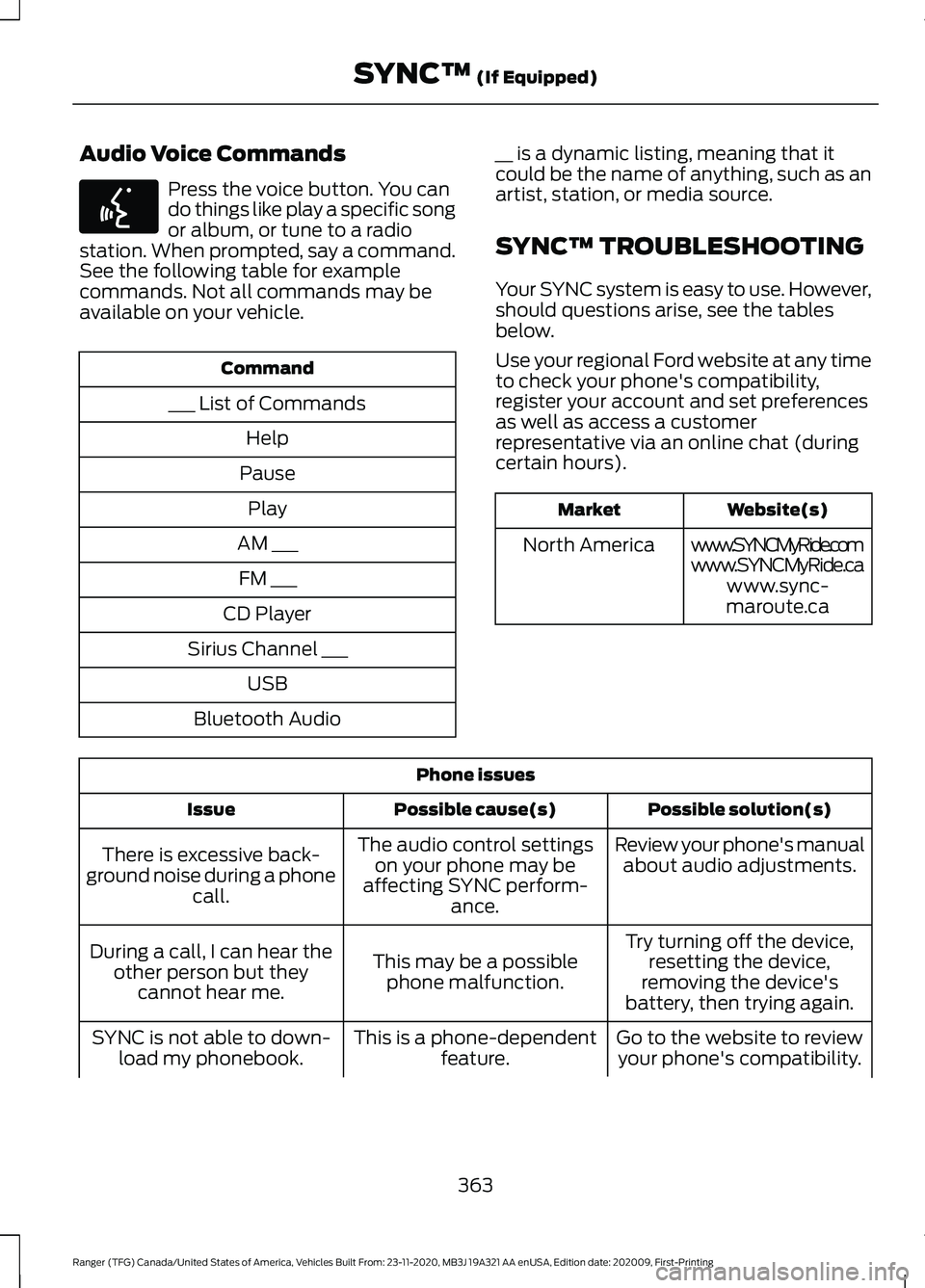
Audio Voice Commands
Press the voice button. You can
do things like play a specific song
or album, or tune to a radio
station. When prompted, say a command.
See the following table for example
commands. Not all commands may be
available on your vehicle. Command
___ List of Commands Help
Pause Play
AM ___ FM ___
CD Player
Sirius Channel ___ USB
Bluetooth Audio __ is a dynamic listing, meaning that it
could be the name of anything, such as an
artist, station, or media source.
SYNC™ TROUBLESHOOTING
Your SYNC system is easy to use. However,
should questions arise, see the tables
below.
Use your regional Ford website at any time
to check your phone's compatibility,
register your account and set preferences
as well as access a customer
representative via an online chat (during
certain hours). Website(s)
Market
www.SYNCMyRide.com
North America
www.SYNCMyRide.cawww.sync-
maroute.ca Phone issues
Possible solution(s)
Possible cause(s)
Issue
Review your phone's manualabout audio adjustments.
The audio control settings
on your phone may be
affecting SYNC perform- ance.
There is excessive back-
ground noise during a phone call.
Try turning off the device,resetting the device,
removing the device's
battery, then trying again.
This may be a possible
phone malfunction.
During a call, I can hear the
other person but theycannot hear me.
Go to the website to reviewyour phone's compatibility.
This is a phone-dependent
feature.
SYNC is not able to down-
load my phonebook.
363
Ranger (TFG) Canada/United States of America, Vehicles Built From: 23-11-2020, MB3J 19A321 AA enUSA, Edition date: 202009, First-Printing SYNC™ (If Equipped)E142599
Page 367 of 475
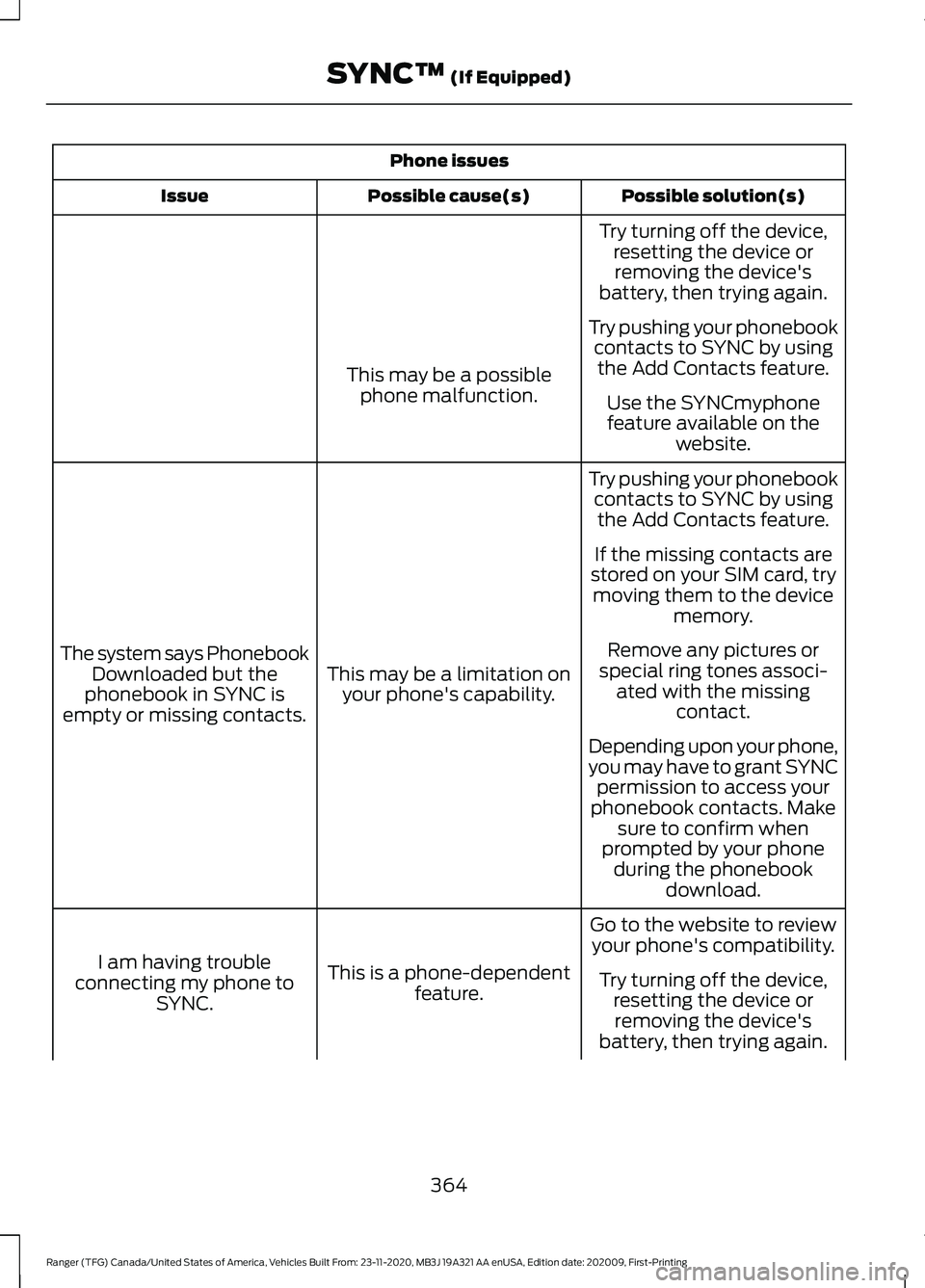
Phone issues
Possible solution(s)
Possible cause(s)
Issue
Try turning off the device,resetting the device orremoving the device's
battery, then trying again.
Try pushing your phonebook contacts to SYNC by usingthe Add Contacts feature.
This may be a possible
phone malfunction. Use the SYNCmyphone
feature available on the website.
Try pushing your phonebook contacts to SYNC by usingthe Add Contacts feature.
This may be a limitation on your phone's capability.
The system says Phonebook
Downloaded but the
phonebook in SYNC is
empty or missing contacts. If the missing contacts are
stored on your SIM card, try moving them to the device memory.
Remove any pictures or
special ring tones associ- ated with the missing contact.
Depending upon your phone,
you may have to grant SYNC permission to access your
phonebook contacts. Make sure to confirm when
prompted by your phone during the phonebook download.
Go to the website to review your phone's compatibility.
This is a phone-dependent feature.
I am having trouble
connecting my phone to SYNC. Try turning off the device,
resetting the device orremoving the device's
battery, then trying again.
364
Ranger (TFG) Canada/United States of America, Vehicles Built From: 23-11-2020, MB3J 19A321 AA enUSA, Edition date: 202009, First-Printing SYNC™ (If Equipped)