USB FORD RANGER 2023 Owner's Manual
[x] Cancel search | Manufacturer: FORD, Model Year: 2023, Model line: RANGER, Model: FORD RANGER 2023Pages: 470, PDF Size: 13.06 MB
Page 390 of 470
Phone Keypad
Directly dial a number.
Mute
Mute the microphone when in a call.
Phone Voice Assistant
Say a command to use the Google or Sirivoice assistant available on yourconnected phone to access supportedfeatures.
Text Messaging
Setting Text Message Notification
iOS
1.Go to the settings menu on your cellphone.
2.Select Bluetooth®.
3.Select the information icon to the rightof your vehicle.
4.Switch text message notification on.
Android
1.Go to the settings menu on your cellphone.
2.Select Bluetooth®.
3.Select the profiles option.
4.Select the phone profile.
5.Switch text message notification on.
Using Text Messaging
DescriptionMenu Item
Hear the text message.Hear It
View the text message.View
Call the sender.Call
Reply to the text message with a standard text message.Reply
Apple CarPlay (If Equipped)
1.Connect your device to a USB port.
2.Follow the instructions on thetouchscreen.
Note:Certain features of the system arenot available when you are using AppleCarPlay.
Switching Apple CarPlay Off
Select the settings option on thefeature bar.
1.Select Apple CarPlay Preferences.
2.Switch Apple CarPlay off.
Android Auto (If Equipped)
1.Connect your device to a USB port.
2.Follow the instructions on thetouchscreen.
Note:You might need to enable AndroidAuto from the settings menu.
Note:Certain features of the system arenot available when you are using AndroidAuto.
386
2023 Ranger (TFG) Canada/United States of America, Vehicles Built From: 10-10-2022, enUSA, Edition date: 202208, First-PrintingSYNC™ 3 (If Equipped)
Page 396 of 470
Navigation Map Accuracy andUpdates
HERE is the digital map provider for thenavigation application. If you find map dataerrors, you may report them directly toHERE by going to www.here.com. HEREevaluates all reported map errors andresponds with the result of theirinvestigation by e-mail.
The navigation system map data maycontain inaccurate or incompleteinformation due to the passage of time,changing circumstances, sources used andthe nature of collecting comprehensivegeographic data, any of which may lead toincorrect results. Inaccurate speed limitinformation, turn restrictions and otherroad attributes may affect the determinedroute and associated guidance
Annual navigation map updates areavailable for purchase through yourdealership. Depending on your purchaseagreement, you might be eligible for a freemap update. You can choose to downloadthe map data update onto a USB, order aUSB, or use Wi-Fi to deliver automaticupdates. To update your map data overWi-Fi, your vehicle must be connected toa Wi-Fi access point. Map data files arelarge, so it is highly recommended toperform the update when free Wi-Fi isavailable otherwise high data rates mayapply. For USB updates, free map updateeligibility, and other details, contactdealers at 1-866-462-8837 in the UnitedStates and Canada or 800-557-5539 inMexico or visit our local website for moreinformation.
APPS
The system allows you to interact withselect mobile apps while keeping your eyeson the road. Voice commands, steeringwheel buttons, or a quick tap on yourtouchscreen give you advanced control ofcompatible mobile apps. You can alsostream your favorite music or podcasts,share your time of arrival with friends, andkeep connected safely.
When you start an app through the systemfor the first time, you could be asked togrant certain permissions. You can reviewand change the permissions that you havegranted at any time when your vehicle isnot moving. We recommend that youcheck your data plan before using yourapps through the system. Using themcould result in additional charges. We alsorecommend that you check the appprovider's terms and conditions andprivacy policy before using their app. Makesure that you have an active account forapps that you want to use through thesystem. Some apps work with no setup.Others require you to configure somepersonal settings before you can use them.
Note:For more information about availableapps, visit the local Ford website.
Using Apps on an iOS Device
Select the apps option on thefeature bar.
1.If your device is connected via USB,switch Apple CarPlay off. See Phone(page 385).
2.Connect your iOS device to a USB portor pair and connect using Bluetooth®.
3.If prompted to enable CarPlay, selectDisable.
4.Start the apps on your device that youwant to use through SYNC.
392
2023 Ranger (TFG) Canada/United States of America, Vehicles Built From: 10-10-2022, enUSA, Edition date: 202208, First-PrintingSYNC™ 3 (If Equipped)
Page 397 of 470
Note:If you close the apps on your device,you will not be able to use them through thesystem.
5.Select the app that you want to use onthe touchscreen.
Note:Connect your device to a USB port ifyou want to use a navigation app. Whenusing a navigation app, keep your deviceunlocked and the app open.
Using Apps on an Android Device
Select the apps option on thefeature bar.
1.If your device is connected via USB,switch Android Auto off. See Phone(page 385).
2.Pair your device. See Phone (page 385).
3.Start the apps on your device that youwant to use through SYNC.
Note:If you close the apps on your device,you will not be able to use them through thesystem.
4.Select Find Mobile Apps.
Note:The system searches and connectsto compatible apps that are running on yourdevice.
5.Select the app that you want to use onthe touchscreen.
Note:Mobile apps on your device use theUSB port to establish a connection withSYNC. Some devices may lose the ability toplay music over USB when mobile apps areenabled.
Using Mobile Navigation on anAndroid Device
1.Connect your device to a USB port.
2.Switch Android Auto off. See Phone(page 385).
3.Switch on Enable Mobile Apps via USBin the Mobile Apps Settings tile.
4.Select the apps option on the featurebar.
5.Select the navigation app that youwant to use on the touchscreen.
Note:When using a navigation app, keepyour device unlocked and the app open.
SETTINGS
Press the button to enter thesettings menu.
Once you select a tile, press thebutton next to a menu item toview an explanation of thesetting.
Sound
Select this tile to adjust the sound settings.
Clock
Select this tile to adjust the clock settings.
Bluetooth®
Select this tile to switch Bluetooth® onand off and adjust the settings.
Phone
Select this tile to connect, disconnect, andmanage the connected device settings.
Audio
Select this tile to adjust the audio settings.
Driver Assist (If Equipped)
Select this tile to adjust Driver Assistfeatures like Park Aid, Lane Keepingsystem, Pedestrian Detection, andAuto-Start-Stop.
393
2023 Ranger (TFG) Canada/United States of America, Vehicles Built From: 10-10-2022, enUSA, Edition date: 202208, First-PrintingSYNC™ 3 (If Equipped) E280315 E268570
Page 399 of 470
SYNC™ 3 TROUBLESHOOTING
Voice Recognition
Possible Cause and ResolutionSymptom
The system does not under-stand what I am saying.–You might not be using supported voice commands.
•See Using Voice Recognition (page 374).
•For a complete list of voice commands, refer to ourwebsite.
–You might be speaking too soon.
•Wait for the voice prompt before you speak.
The system does not under-stand the name of a track orartist.
–Device limitation.Bluetooth® does not support voicecommands.
•Connect your device to a USB port.
•If you have an iOS device, press and hold the voicecontrol button on the steering wheel to use Siri toplay specific tracks.
–You might not be using supported voice commands.
•See Using Voice Recognition (page 374).
•For a complete list of voice commands, refer to ourwebsite.
–You might not be saying the name exactly as it appearson your device.
•Say the name of the track or artist exactly as itappears on your device. Spell out any abbreviationsin the name.
–The name contains special characters, for example *,- or +.
•Rename the files on your device or use the touch-screen to select and play the track.
The system does not under-stand the name of a contactin the phonebook on mydevice and calls the wrongcontact.
–You might not be saying the name exactly as it appearson your device.
•Say the first and last name of the contact exactlyas it appears on your device. Spell out any abbrevi-ations in the name.
–The name contains special characters, for example *,- or +.
•Rename the contact on your device or use thetouchscreen to select and call the contact.
395
2023 Ranger (TFG) Canada/United States of America, Vehicles Built From: 10-10-2022, enUSA, Edition date: 202208, First-PrintingSYNC™ 3 (If Equipped)
Page 400 of 470
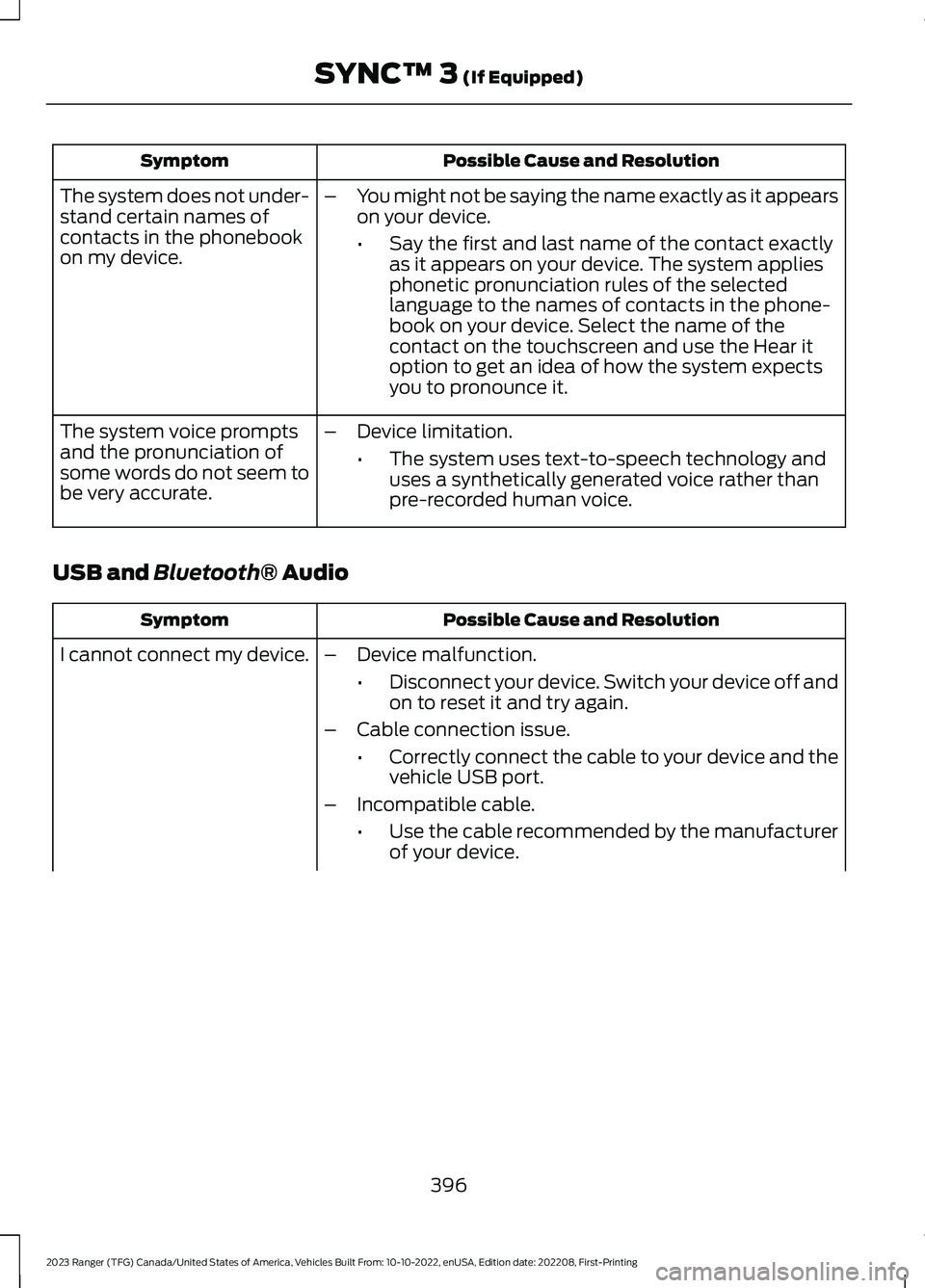
Possible Cause and ResolutionSymptom
–You might not be saying the name exactly as it appearson your device.
•Say the first and last name of the contact exactlyas it appears on your device. The system appliesphonetic pronunciation rules of the selectedlanguage to the names of contacts in the phone-book on your device. Select the name of thecontact on the touchscreen and use the Hear itoption to get an idea of how the system expectsyou to pronounce it.
The system does not under-stand certain names ofcontacts in the phonebookon my device.
–Device limitation.
•The system uses text-to-speech technology anduses a synthetically generated voice rather thanpre-recorded human voice.
The system voice promptsand the pronunciation ofsome words do not seem tobe very accurate.
USB and Bluetooth® Audio
Possible Cause and ResolutionSymptom
I cannot connect my device.–Device malfunction.
•Disconnect your device. Switch your device off andon to reset it and try again.
–Cable connection issue.
•Correctly connect the cable to your device and thevehicle USB port.
–Incompatible cable.
•Use the cable recommended by the manufacturerof your device.
396
2023 Ranger (TFG) Canada/United States of America, Vehicles Built From: 10-10-2022, enUSA, Edition date: 202208, First-PrintingSYNC™ 3 (If Equipped)
Page 401 of 470
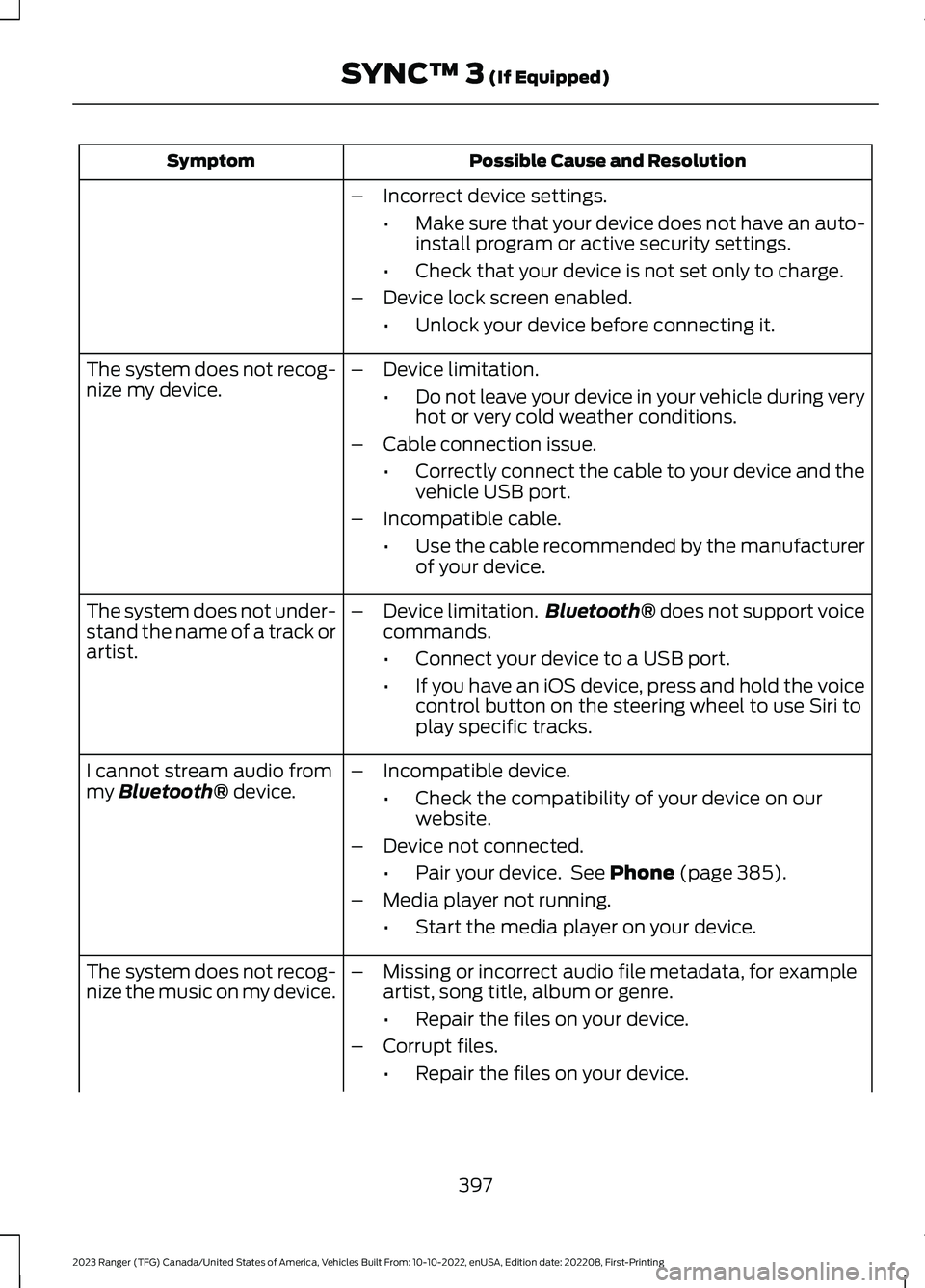
Possible Cause and ResolutionSymptom
–Incorrect device settings.
•Make sure that your device does not have an auto-install program or active security settings.
•Check that your device is not set only to charge.
–Device lock screen enabled.
•Unlock your device before connecting it.
The system does not recog-nize my device.–Device limitation.
•Do not leave your device in your vehicle during veryhot or very cold weather conditions.
–Cable connection issue.
•Correctly connect the cable to your device and thevehicle USB port.
–Incompatible cable.
•Use the cable recommended by the manufacturerof your device.
The system does not under-stand the name of a track orartist.
–Device limitation.Bluetooth® does not support voicecommands.
•Connect your device to a USB port.
•If you have an iOS device, press and hold the voicecontrol button on the steering wheel to use Siri toplay specific tracks.
I cannot stream audio frommy Bluetooth® device.–Incompatible device.
•Check the compatibility of your device on ourwebsite.
–Device not connected.
•Pair your device. See Phone (page 385).
–Media player not running.
•Start the media player on your device.
The system does not recog-nize the music on my device.–Missing or incorrect audio file metadata, for exampleartist, song title, album or genre.
•Repair the files on your device.
–Corrupt files.
•Repair the files on your device.
397
2023 Ranger (TFG) Canada/United States of America, Vehicles Built From: 10-10-2022, enUSA, Edition date: 202208, First-PrintingSYNC™ 3 (If Equipped)
Page 402 of 470
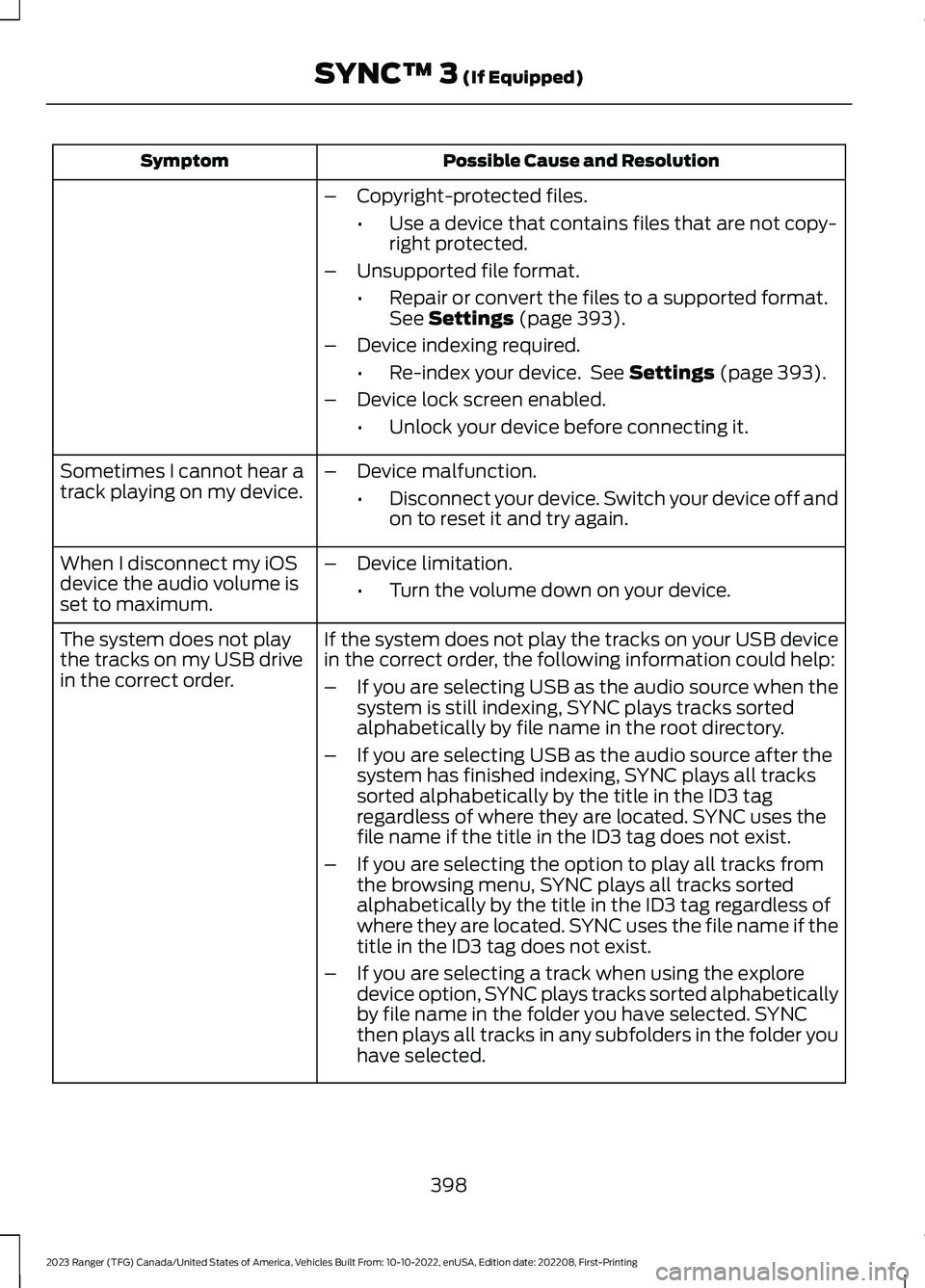
Possible Cause and ResolutionSymptom
–Copyright-protected files.
•Use a device that contains files that are not copy-right protected.
–Unsupported file format.
•Repair or convert the files to a supported format.See Settings (page 393).
–Device indexing required.
•Re-index your device. See Settings (page 393).
–Device lock screen enabled.
•Unlock your device before connecting it.
Sometimes I cannot hear atrack playing on my device.–Device malfunction.
•Disconnect your device. Switch your device off andon to reset it and try again.
When I disconnect my iOSdevice the audio volume isset to maximum.
–Device limitation.
•Turn the volume down on your device.
If the system does not play the tracks on your USB devicein the correct order, the following information could help:The system does not playthe tracks on my USB drivein the correct order.–If you are selecting USB as the audio source when thesystem is still indexing, SYNC plays tracks sortedalphabetically by file name in the root directory.
–If you are selecting USB as the audio source after thesystem has finished indexing, SYNC plays all trackssorted alphabetically by the title in the ID3 tagregardless of where they are located. SYNC uses thefile name if the title in the ID3 tag does not exist.
–If you are selecting the option to play all tracks fromthe browsing menu, SYNC plays all tracks sortedalphabetically by the title in the ID3 tag regardless ofwhere they are located. SYNC uses the file name if thetitle in the ID3 tag does not exist.
–If you are selecting a track when using the exploredevice option, SYNC plays tracks sorted alphabeticallyby file name in the folder you have selected. SYNCthen plays all tracks in any subfolders in the folder youhave selected.
398
2023 Ranger (TFG) Canada/United States of America, Vehicles Built From: 10-10-2022, enUSA, Edition date: 202208, First-PrintingSYNC™ 3 (If Equipped)
Page 403 of 470
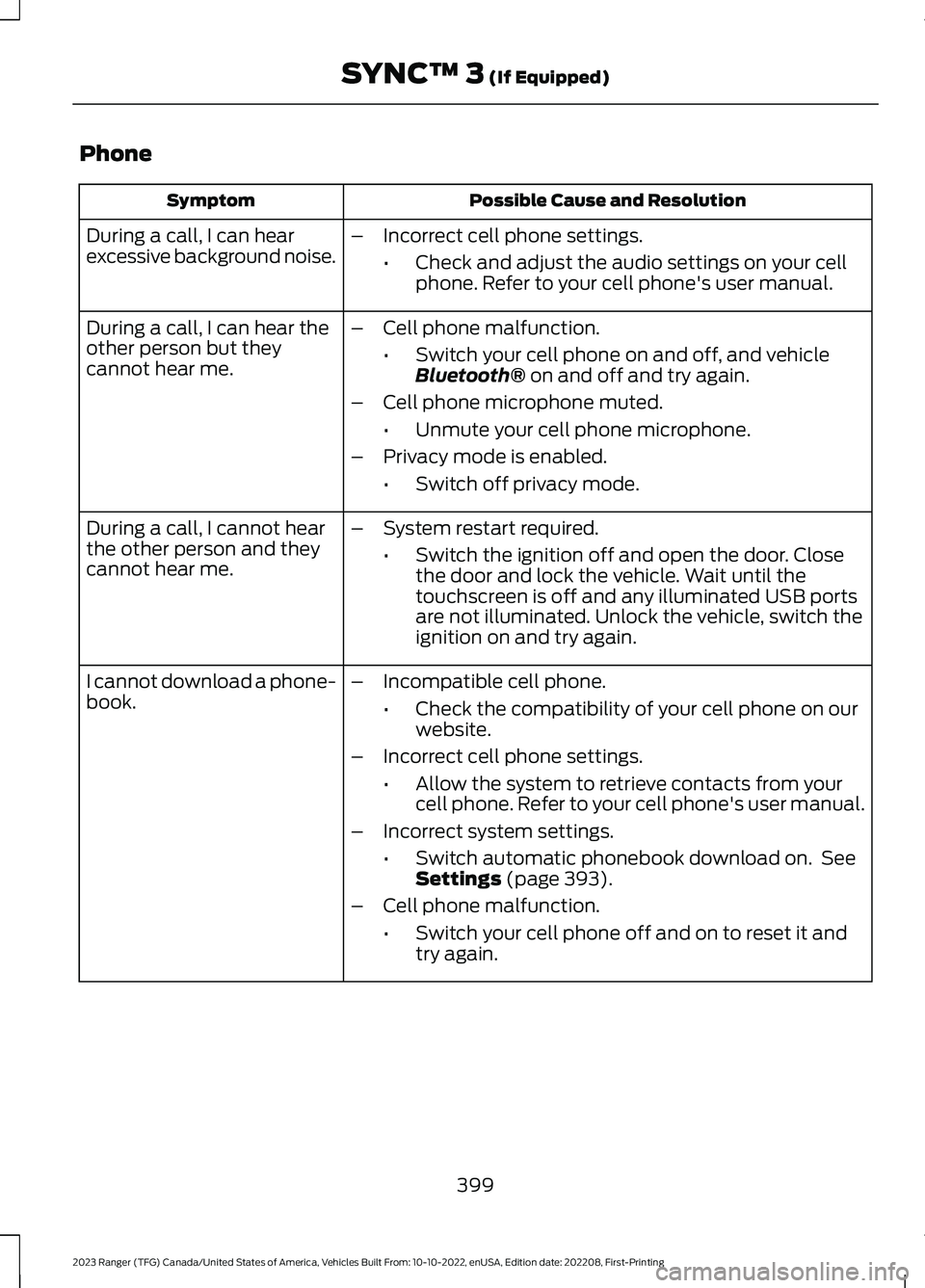
Phone
Possible Cause and ResolutionSymptom
During a call, I can hearexcessive background noise.–Incorrect cell phone settings.
•Check and adjust the audio settings on your cellphone. Refer to your cell phone's user manual.
During a call, I can hear theother person but theycannot hear me.
–Cell phone malfunction.
•Switch your cell phone on and off, and vehicleBluetooth® on and off and try again.
–Cell phone microphone muted.
•Unmute your cell phone microphone.
–Privacy mode is enabled.
•Switch off privacy mode.
During a call, I cannot hearthe other person and theycannot hear me.
–System restart required.
•Switch the ignition off and open the door. Closethe door and lock the vehicle. Wait until thetouchscreen is off and any illuminated USB portsare not illuminated. Unlock the vehicle, switch theignition on and try again.
I cannot download a phone-book.–Incompatible cell phone.
•Check the compatibility of your cell phone on ourwebsite.
–Incorrect cell phone settings.
•Allow the system to retrieve contacts from yourcell phone. Refer to your cell phone's user manual.
–Incorrect system settings.
•Switch automatic phonebook download on. SeeSettings (page 393).
–Cell phone malfunction.
•Switch your cell phone off and on to reset it andtry again.
399
2023 Ranger (TFG) Canada/United States of America, Vehicles Built From: 10-10-2022, enUSA, Edition date: 202208, First-PrintingSYNC™ 3 (If Equipped)
Page 406 of 470
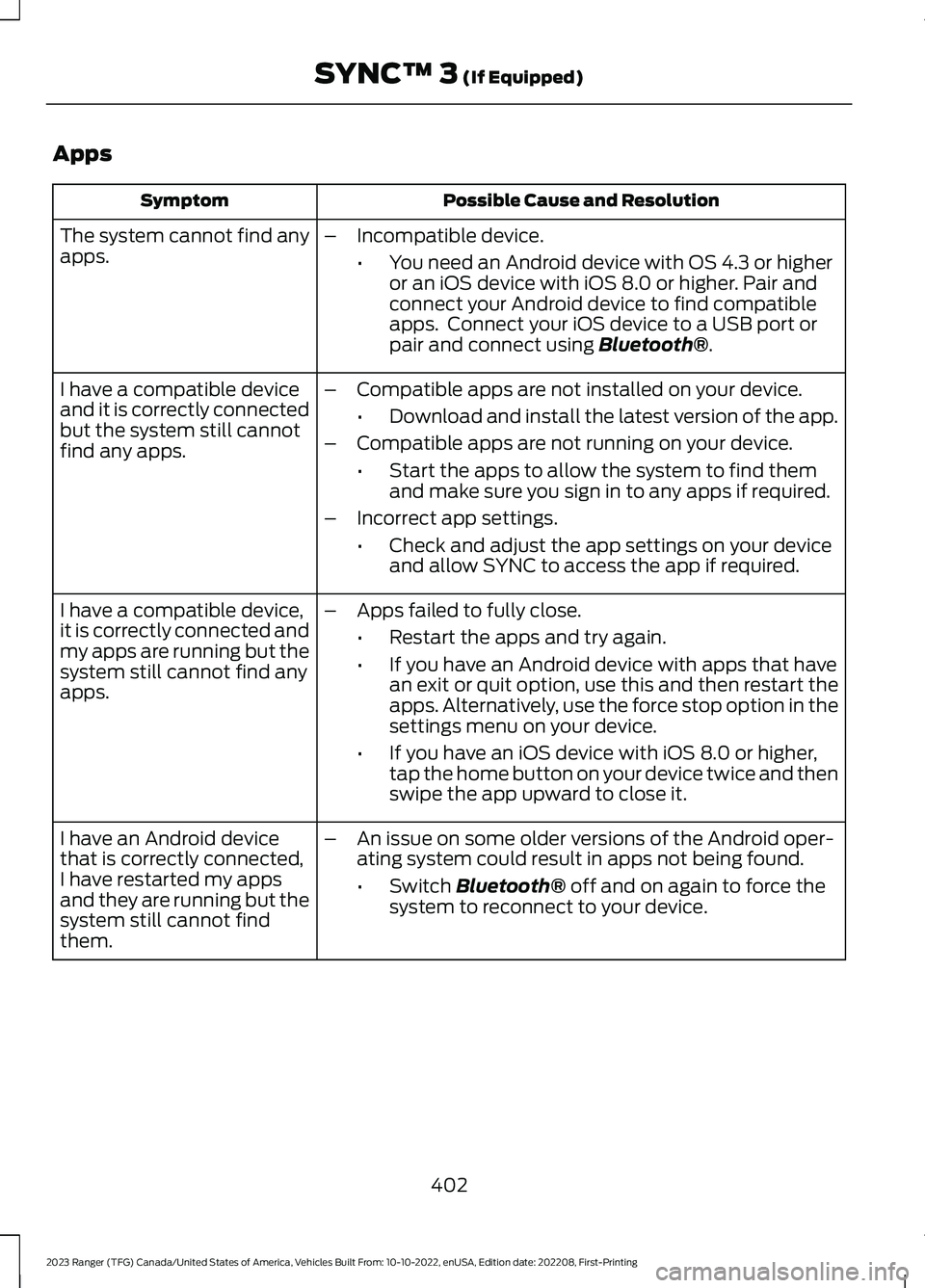
Apps
Possible Cause and ResolutionSymptom
The system cannot find anyapps.–Incompatible device.
•You need an Android device with OS 4.3 or higheror an iOS device with iOS 8.0 or higher. Pair andconnect your Android device to find compatibleapps. Connect your iOS device to a USB port orpair and connect using Bluetooth®.
I have a compatible deviceand it is correctly connectedbut the system still cannotfind any apps.
–Compatible apps are not installed on your device.
•Download and install the latest version of the app.
–Compatible apps are not running on your device.
•Start the apps to allow the system to find themand make sure you sign in to any apps if required.
–Incorrect app settings.
•Check and adjust the app settings on your deviceand allow SYNC to access the app if required.
I have a compatible device,it is correctly connected andmy apps are running but thesystem still cannot find anyapps.
–Apps failed to fully close.
•Restart the apps and try again.
•If you have an Android device with apps that havean exit or quit option, use this and then restart theapps. Alternatively, use the force stop option in thesettings menu on your device.
•If you have an iOS device with iOS 8.0 or higher,tap the home button on your device twice and thenswipe the app upward to close it.
I have an Android devicethat is correctly connected,I have restarted my appsand they are running but thesystem still cannot findthem.
–An issue on some older versions of the Android oper-ating system could result in apps not being found.
•Switch Bluetooth® off and on again to force thesystem to reconnect to your device.
402
2023 Ranger (TFG) Canada/United States of America, Vehicles Built From: 10-10-2022, enUSA, Edition date: 202208, First-PrintingSYNC™ 3 (If Equipped)
Page 466 of 470
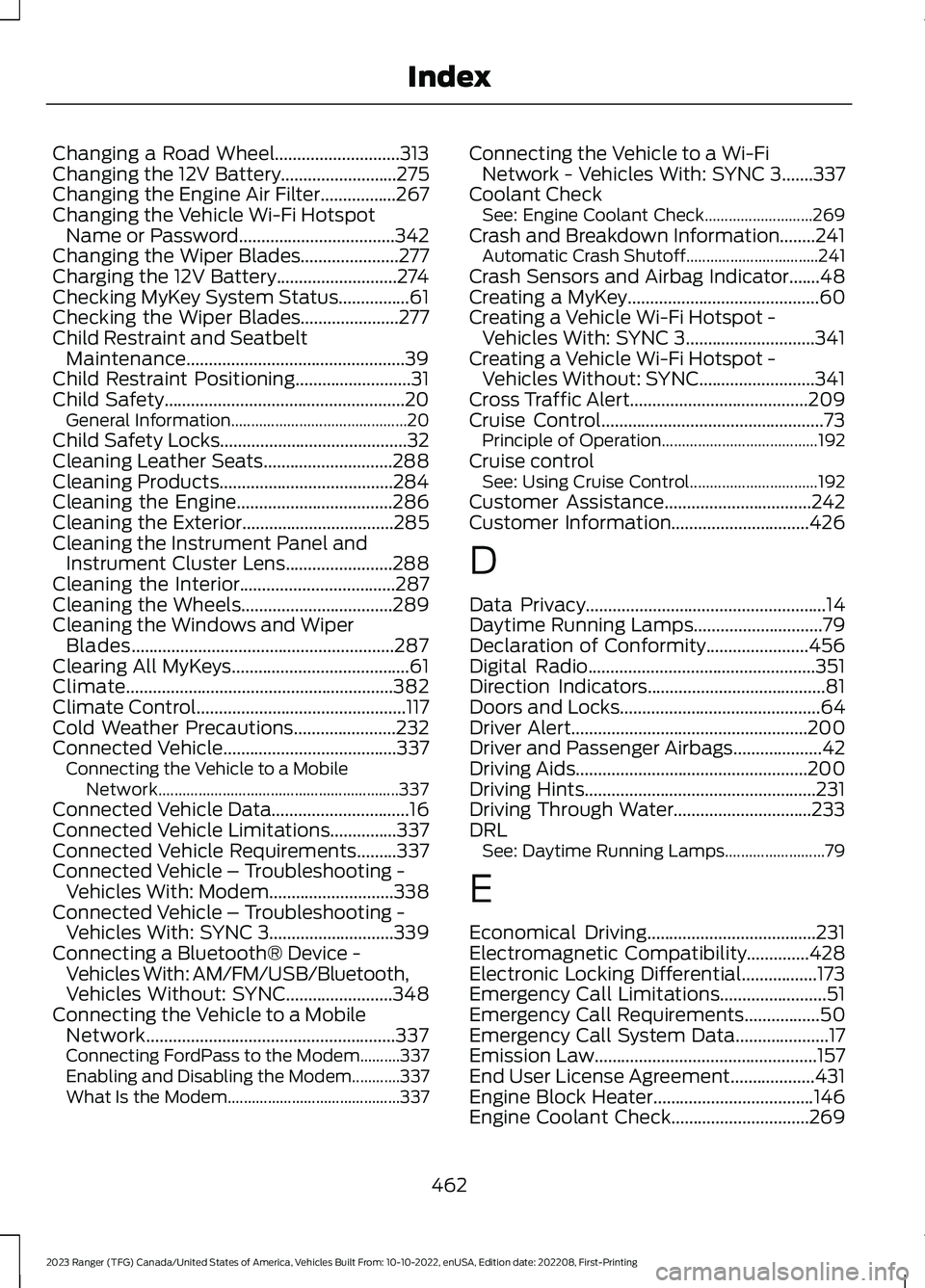
Changing a Road Wheel............................313Changing the 12V Battery..........................275Changing the Engine Air Filter.................267Changing the Vehicle Wi-Fi HotspotName or Password...................................342Changing the Wiper Blades......................277Charging the 12V Battery...........................274Checking MyKey System Status................61Checking the Wiper Blades......................277Child Restraint and SeatbeltMaintenance.................................................39Child Restraint Positioning..........................31Child Safety......................................................20General Information............................................20Child Safety Locks..........................................32Cleaning Leather Seats.............................288Cleaning Products.......................................284Cleaning the Engine...................................286Cleaning the Exterior..................................285Cleaning the Instrument Panel andInstrument Cluster Lens........................288Cleaning the Interior...................................287Cleaning the Wheels..................................289Cleaning the Windows and WiperBlades...........................................................287Clearing All MyKeys........................................61Climate............................................................382Climate Control...............................................117Cold Weather Precautions.......................232Connected Vehicle.......................................337Connecting the Vehicle to a MobileNetwork............................................................337Connected Vehicle Data...............................16Connected Vehicle Limitations...............337Connected Vehicle Requirements.........337Connected Vehicle – Troubleshooting -Vehicles With: Modem............................338Connected Vehicle – Troubleshooting -Vehicles With: SYNC 3............................339Connecting a Bluetooth® Device -Vehicles With: AM/FM/USB/Bluetooth,Vehicles Without: SYNC........................348Connecting the Vehicle to a MobileNetwork........................................................337Connecting FordPass to the Modem..........337Enabling and Disabling the Modem............337What Is the Modem...........................................337
Connecting the Vehicle to a Wi-FiNetwork - Vehicles With: SYNC 3.......337Coolant CheckSee: Engine Coolant Check...........................269Crash and Breakdown Information........241Automatic Crash Shutoff.................................241Crash Sensors and Airbag Indicator.......48Creating a MyKey...........................................60Creating a Vehicle Wi-Fi Hotspot -Vehicles With: SYNC 3.............................341Creating a Vehicle Wi-Fi Hotspot -Vehicles Without: SYNC..........................341Cross Traffic Alert........................................209Cruise Control..................................................73Principle of Operation.......................................192Cruise controlSee: Using Cruise Control................................192Customer Assistance.................................242Customer Information...............................426
D
Data Privacy......................................................14Daytime Running Lamps.............................79Declaration of Conformity.......................456Digital Radio...................................................351Direction Indicators........................................81Doors and Locks.............................................64Driver Alert.....................................................200Driver and Passenger Airbags....................42Driving Aids....................................................200Driving Hints....................................................231Driving Through Water...............................233DRLSee: Daytime Running Lamps.........................79
E
Economical Driving......................................231Electromagnetic Compatibility..............428Electronic Locking Differential.................173Emergency Call Limitations........................51Emergency Call Requirements.................50Emergency Call System Data.....................17Emission Law..................................................157End User License Agreement...................431Engine Block Heater....................................146Engine Coolant Check...............................269
462
2023 Ranger (TFG) Canada/United States of America, Vehicles Built From: 10-10-2022, enUSA, Edition date: 202208, First-PrintingIndex