language FORD SUPER DUTY 2010 2.G Owners Manual
[x] Cancel search | Manufacturer: FORD, Model Year: 2010, Model line: SUPER DUTY, Model: FORD SUPER DUTY 2010 2.GPages: 407, PDF Size: 3.36 MB
Page 26 of 407
DTE is calculated using a running average fuel economy, which is based
on your recent driving history of 500 miles (800 km). This value is not
the same as the average fuel economy display. The running average fuel
economy is re-initialized to a factory default value if the battery is
disconnected.
XX.X MPG (L/100km)
Average fuel economy displays your average fuel economy in miles/gallon
or liters/100 km.
If you calculate your average fuel economy by dividing distance traveled
by gallons of fuel used (liters of fuel used by 100 kilometers traveled),
your figure may be different than displayed for the following reasons:
•Your vehicle was not perfectly level during fill-up
•Differences in the automatic shut-off points on the fuel pumps at
service stations
•Variations in top-off procedure from one fill-up to another
•Rounding of the displayed values to the nearest 0.1 gallon (liter)
1. Drive the vehicle at least 5 miles (8 km) with the speed control
system engaged to display a stabilized average.
2. Record the highway fuel economy for future reference.
It is important to press the SELECT/RESET button (press and hold the
SELECT/RESET button for two seconds in order to reset the function)
after setting the speed control to get accurate highway fuel economy
readings.
Setup menu (vehicle customization and vehicle system check)
HOLD RESET FOR SETUP MENU
Press and hold the SELECT/RESET button to get into the setup menu
sequence for the following displays:
Note:When returning to the setup menu and a non-English language
has been selected, HOLD RESET FOR ENGLISH will be displayed to
change back to English. Press and hold the SELECT/RESET button to
change back to English.
OIL LIFE
This displays the remaining oil life.
An oil change is required whenever indicated by the message center and
according to the recommended maintenance schedule. USE ONLY
RECOMMENDED ENGINE OILS.
Instrument Cluster
26
2010 F-250/350/450/550(f23)
Owners Guide, 1st Printing
USA(fus)
Page 27 of 407
![FORD SUPER DUTY 2010 2.G Owners Manual To reset the oil monitoring system to 100% after each oil change
(approximately 7,500 miles [12,000 km] or 12 months) perform the
following:
1. Press and release the setup button to display “OIL LIF](/img/11/5288/w960_5288-26.png "FORD SUPER DUTY 2010 2.G Owners Manual To reset the oil monitoring system to 100% after each oil change
(approximately 7,500 miles [12,000 km] or 12 months) perform the
following:
1. Press and release the setup button to display “OIL LIF")
To reset the oil monitoring system to 100% after each oil change
(approximately 7,500 miles [12,000 km] or 12 months) perform the
following:
1. Press and release the setup button to display “OIL LIFE XXX% HOLD
RESET = NEW”.
2. Press and hold the SELECT/RESET stem for two seconds and release
to reset the oil life to 100%.
Note:To change oil life 100% miles value from 7,500 miles (12,000 km)
or 12 months to another value, proceed to Step 3.
3. Once “OIL LIFE SET TO XXX%” is displayed, release and press the
SELECT/RESET stem to change the Oil Life Start Value. Each release
and press will reduce the value by 10%.
Note:Oil life start value of 100% equals 7,500 miles (12,000 km) or
12 months. For example, setting oil life start value to 60% sets the oil
life start value to 4,500 miles (7,200 km) and 219 days.
UNITS
Displays the current units English or Metric.
Press and hold the SELECT/RESET button to change from English to
Metric.
Press the SELECT/RESET button for the next setup menu item or wait
for more than four seconds to return to the info menu.
LANGUAGE = ENGLISH / SPANISH / FRENCH
Allows you to choose which language the message center will display in.
Selectable languages are English, Spanish, or French.
Note:When entering the setup menu and a non-English language has
been selected, “PRESS RESET FOR ENGLISH” will be displayed to
change back to English.
Press and hold the SELECT/RESET button to select a new language.
Selectable languages are English, Spanish and French
Press and hold the SELECT/RESET button for two seconds to set the
language choice.
Press the SELECT/RESET button for the next setup menu item or wait
for more than four seconds to return to the info menu.
Instrument Cluster
27
2010 F-250/350/450/550(f23)
Owners Guide, 1st Printing
USA(fus)
Page 35 of 407
System check and vehicle feature customization
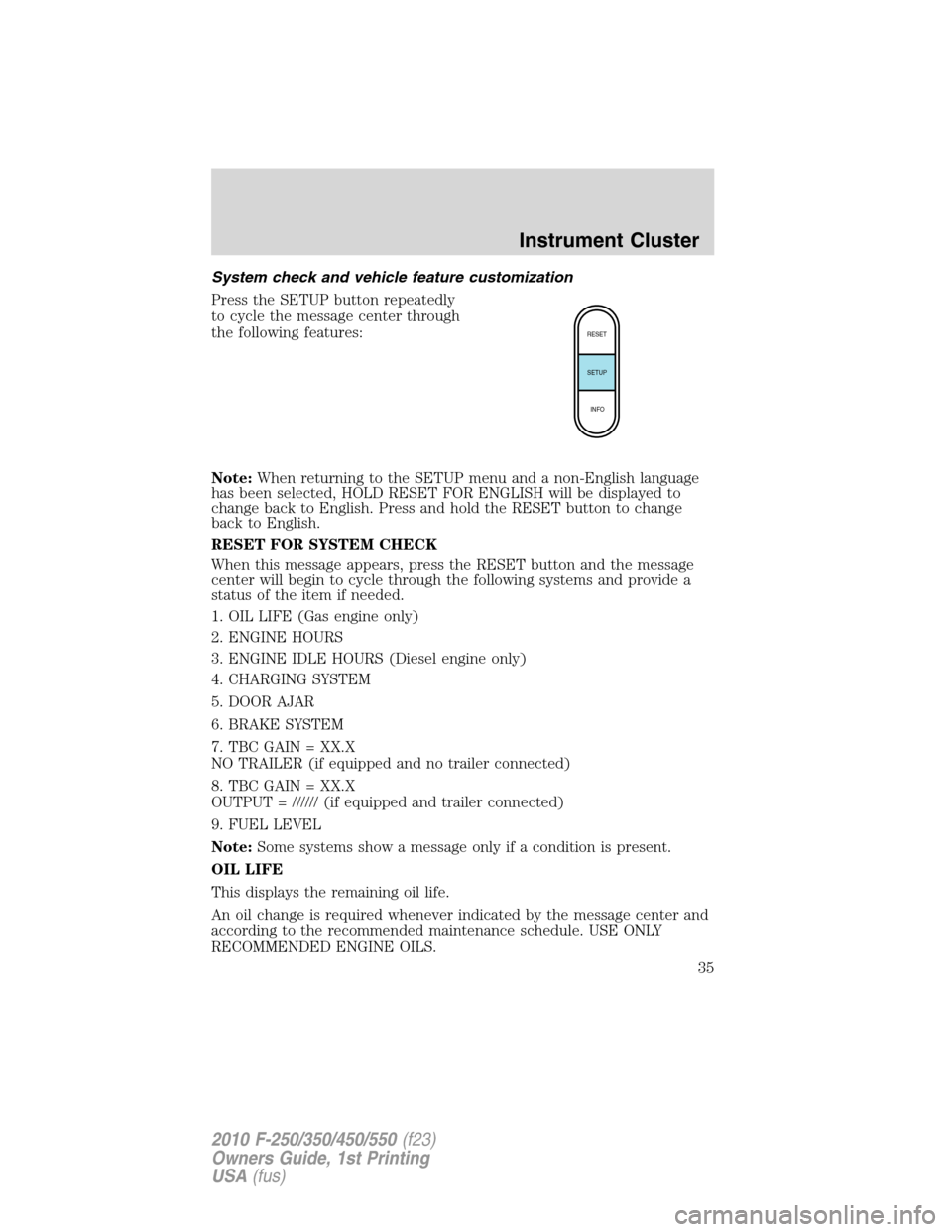
Press the SETUP button repeatedly
to cycle the message center through
the following features:
Note:When returning to the SETUP menu and a non-English language
has been selected, HOLD RESET FOR ENGLISH will be displayed to
change back to English. Press and hold the RESET button to change
back to English.
RESET FOR SYSTEM CHECK
When this message appears, press the RESET button and the message
center will begin to cycle through the following systems and provide a
status of the item if needed.
1. OIL LIFE (Gas engine only)
2. ENGINE HOURS
3. ENGINE IDLE HOURS (Diesel engine only)
4. CHARGING SYSTEM
5. DOOR AJAR
6. BRAKE SYSTEM
7. TBC GAIN = XX.X
NO TRAILER (if equipped and no trailer connected)
8. TBC GAIN = XX.X
OUTPUT = ////// (if equipped and trailer connected)
9. FUEL LEVEL
Note:Some systems show a message only if a condition is present.
OIL LIFE
This displays the remaining oil life.
An oil change is required whenever indicated by the message center and
according to the recommended maintenance schedule. USE ONLY
RECOMMENDED ENGINE OILS.
RESET
SETUP
INFO
Instrument Cluster
35
2010 F-250/350/450/550(f23)
Owners Guide, 1st Printing
USA(fus)
Page 38 of 407
![FORD SUPER DUTY 2010 2.G Owners Manual 8. Slowly drive the vehicle in a circle (less than 3 mph [5 km/h]) until
the CIRCLE SLOWLY TO CALIBRATE display changes to CALIBRATION
COMPLETED. It will take up to five circles to complete calibratio](/img/11/5288/w960_5288-37.png "FORD SUPER DUTY 2010 2.G Owners Manual 8. Slowly drive the vehicle in a circle (less than 3 mph [5 km/h]) until
the CIRCLE SLOWLY TO CALIBRATE display changes to CALIBRATION
COMPLETED. It will take up to five circles to complete calibratio")
8. Slowly drive the vehicle in a circle (less than 3 mph [5 km/h]) until
the CIRCLE SLOWLY TO CALIBRATE display changes to CALIBRATION
COMPLETED. It will take up to five circles to complete calibration.
9. The compass is now calibrated.
Note:If the RESET button is pressed or three minutes has expired, the
display will go back to the INFO menu and will show CAL instead of the
compass heading until the compass is calibrated.
LANGUAGE = ENGLISH / SPANISH / FRENCH
Allows you to choose which language the message center will display in.
Selectable languages are English, Spanish, or French.
Waiting four seconds or pressing the RESET button cycles the message
center through each of the language choices.
Press and hold the RESET button for two seconds to set the language
choice.
System warnings
System warnings alert you to possible problems or malfunctions in your
vehicle’s operating systems.
In the event of a multiple warning situation, the message center will
cycle the display to show all warnings by displaying each one for four
seconds.
The message center will display the last selected feature if there are no
more warning messages.
Types of messages and warnings:
•Some messages will appear briefly to inform you of something you
may need to take action on or be informed of.
•Some messages will appear once and then again when the vehicle is
restarted.
•Some messages will reappear after clearing or being reset if a problem
or condition is still present and needs your attention.
•Some messages can be acknowledged and reset by pressing RESET.
This allows you to use the full message center functionality by clearing
the message.
PARK BRAKE ENGAGED— Displayed when the parking brake is
applied (or not fully released).
CHECK BRAKE SYSTEM— Displayed when a fault has been detected
by the ABS module.
Instrument Cluster
38
2010 F-250/350/450/550(f23)
Owners Guide, 1st Printing
USA(fus)
Page 75 of 407
10.Volume:If your vehicle is
equipped with a navigation system,
this function is only available when
in dual play mode. For all other
vehicles, when in single play mode,
press to increase (
) or decrease () the volume over all speakers.
When in Dual Play, press to increase (
) or decrease () the volume
for the wired headphones. (Wireless headphone volume is controlled
with the rotary dial on the right ear piece.)
11.
/(Headphones/Speakers): Press once for Dual Play
(Headphone mode- the rear speakers are muted) and press again for
Single Play (same media playing through all speakers). You can also
press the 2 and 4 memory preset buttons on the audio system at the
same time to perform the same function. For further interaction
information, refer toSingle Play/Dual playunderOperationlater in
this section.
12.MEDIA:Press repeatedly to
select from the various possible
playing media sources (AM, FM1,
FM2, SAT (if equipped), CD, DVD, DVD-AUX). The media will show in
the status display on the top of the screen when in Dual Play mode.
When in Single Play mode, the media source will be displayed on the
radio.
Note:Channel A can access any possible media source (AM, FM1, FM2,
SAT (if equipped), CD, DVD, DVD-AUX). Channel B can only access
DVD and DVD-AUX sources.
Note:If your vehicle is equipped with a navigation system, this function
is only active in dual play mode.
13.RETURN:Press to return to the
playing media or to resume
playback.
14.MENU:When playing a DVD,
press MENU once to enter the DVD
disc menu (if available) and press
twice to enter the system set-up menu. From the set-up menu, you may
select from Angle, Aspect Ratio, Language, Subtitles, Disc resume,
Compression, Restore Defaults and Back. For more detailed information,
refer toMenu mode.
Entertainment Systems
75
2010 F-250/350/450/550(f23)
Owners Guide, 1st Printing
USA(fus)
Page 78 of 407
18.Fast reverse/Previous:When a DVD is playing, press and hold for a
quick reverse within the DVD. Press and release for the previous
chapter. Press PLAY to resume normal playback speed and volume.
In CD/MP3 mode, press to access the previous track.
19.MENU:Press to access the DVD disc menu for selections. Press MENU
again when in the DVD disc menu to access the system set-up menu.
20.SUBTITLE(DVD dependent): Press to turn the subtitle feature ON
or OFF.
21.LANGUAGE(DVD dependent): Press to select the desired language.
22.ENTER:Press to select the highlighted menu option.
23.ILLUMINATION: Press to illuminate the remote control and
backlight all of the buttons.
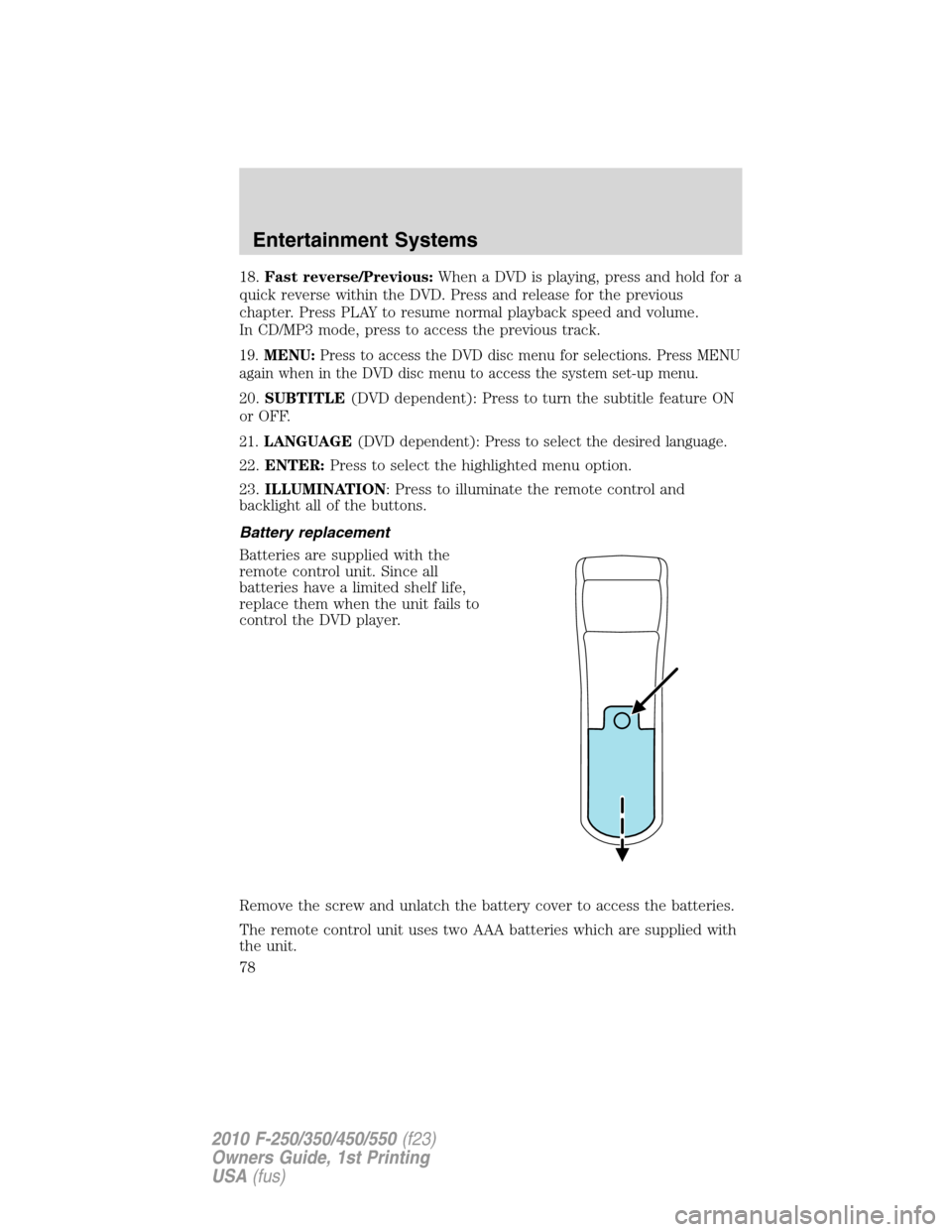
Battery replacement
Batteries are supplied with the
remote control unit. Since all
batteries have a limited shelf life,
replace them when the unit fails to
control the DVD player.
Remove the screw and unlatch the battery cover to access the batteries.
The remote control unit uses two AAA batteries which are supplied with
the unit.
Entertainment Systems
78
2010 F-250/350/450/550(f23)
Owners Guide, 1st Printing
USA(fus)
Page 85 of 407
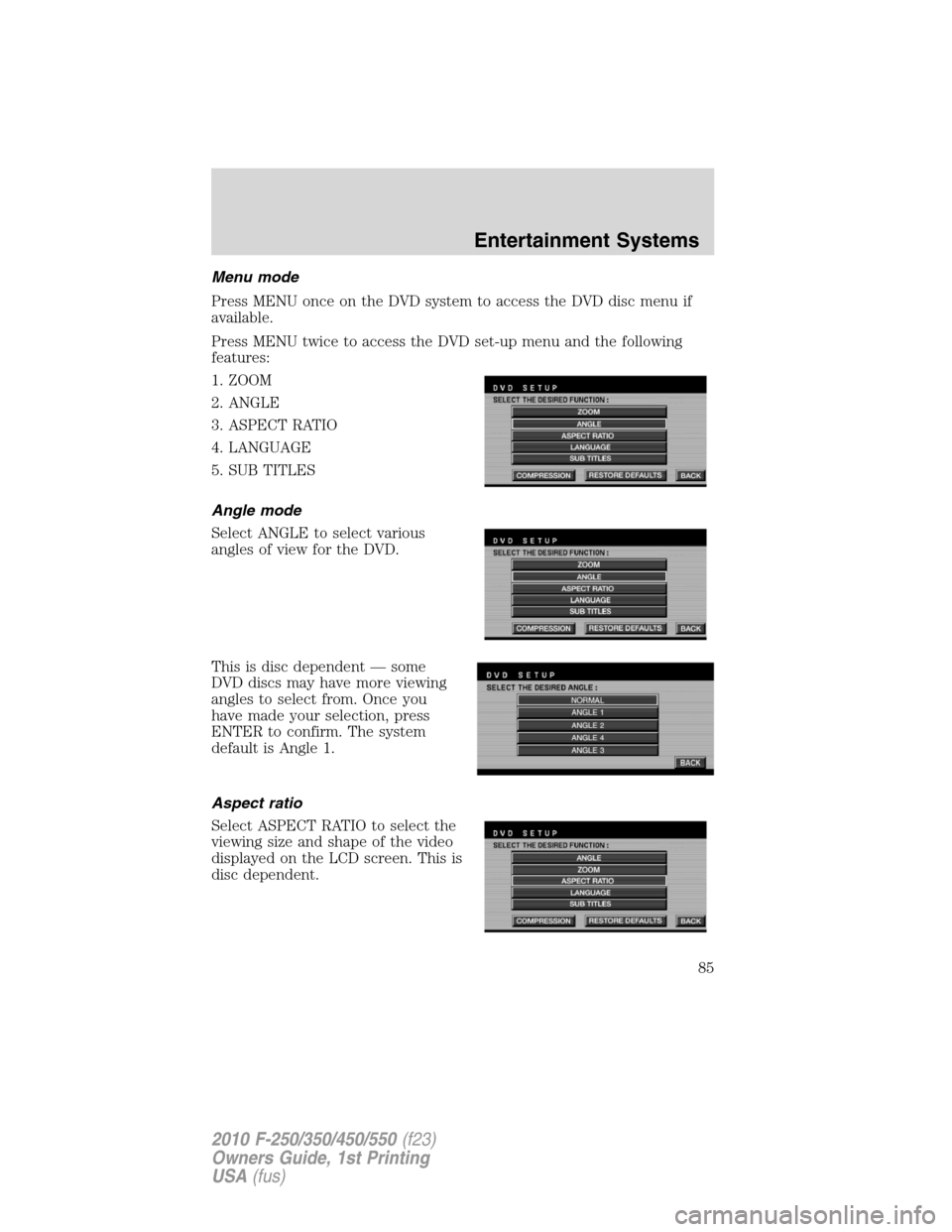
Menu mode
Press MENU once on the DVD system to access the DVD disc menu if
available.
Press MENU twice to access the DVD set-up menu and the following
features:
1. ZOOM
2. ANGLE
3. ASPECT RATIO
4. LANGUAGE
5. SUB TITLES
Angle mode
Select ANGLE to select various
angles of view for the DVD.
This is disc dependent — some
DVD discs may have more viewing
angles to select from. Once you
have made your selection, press
ENTER to confirm. The system
default is Angle 1.
Aspect ratio
Select ASPECT RATIO to select the
viewing size and shape of the video
displayed on the LCD screen. This is
disc dependent.
Entertainment Systems
85
2010 F-250/350/450/550(f23)
Owners Guide, 1st Printing
USA(fus)
Page 86 of 407
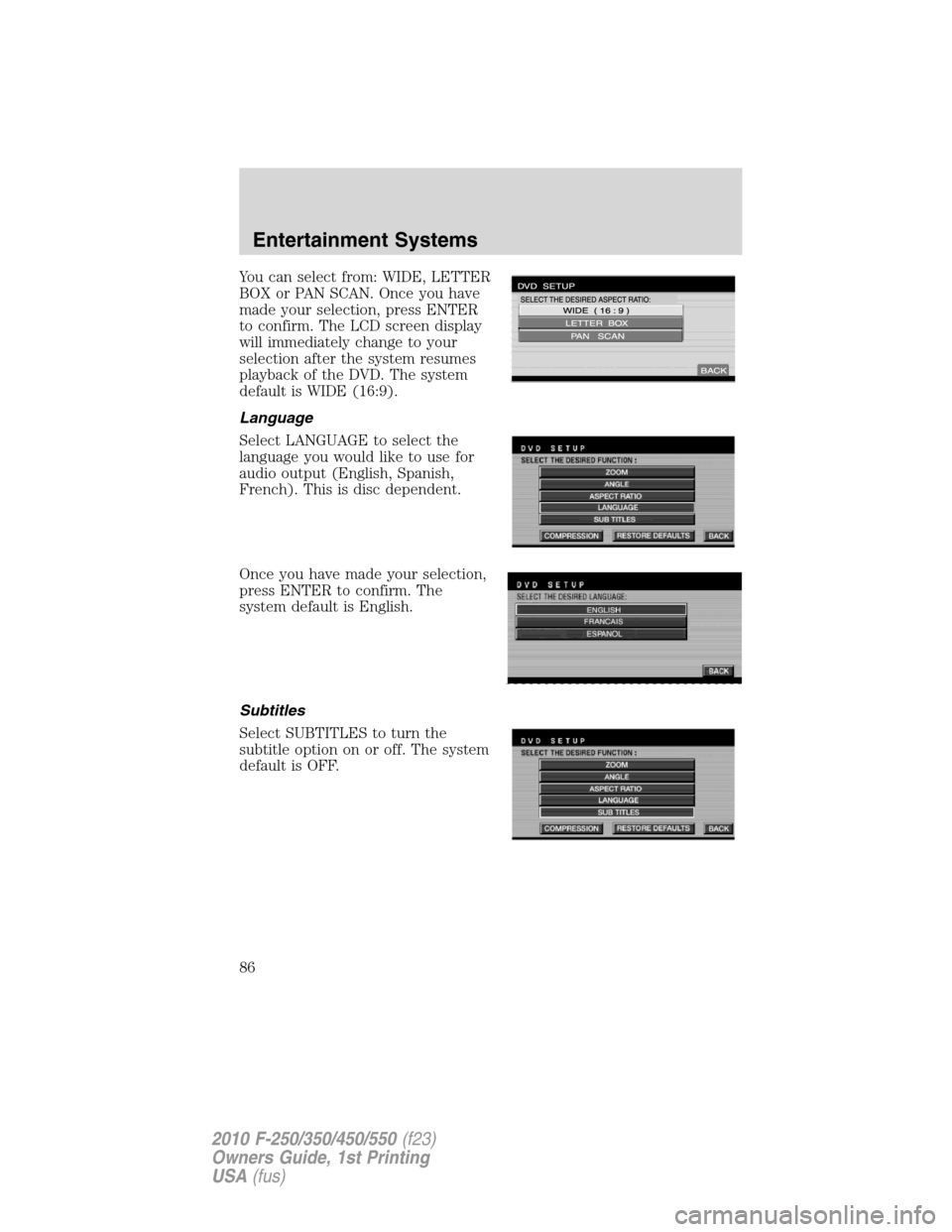
You can select from: WIDE, LETTER
BOX or PAN SCAN. Once you have
made your selection, press ENTER
to confirm. The LCD screen display
will immediately change to your
selection after the system resumes
playback of the DVD. The system
default is WIDE (16:9).
Language
Select LANGUAGE to select the
language you would like to use for
audio output (English, Spanish,
French). This is disc dependent.
Once you have made your selection,
press ENTER to confirm. The
system default is English.
Subtitles
Select SUBTITLES to turn the
subtitle option on or off. The system
default is OFF.
Entertainment Systems
86
2010 F-250/350/450/550(f23)
Owners Guide, 1st Printing
USA(fus)