display FORD SUPER DUTY 2014 3.G Owners Manual
[x] Cancel search | Manufacturer: FORD, Model Year: 2014, Model line: SUPER DUTY, Model: FORD SUPER DUTY 2014 3.GPages: 458, PDF Size: 5.3 MB
Page 392 of 458
1. Press the voice button.
2. When prompted, say "Services". This
initiates an outgoing call to SYNC
Services using your paired and
connected Bluetooth-enabled cellular
phone.
3. Once you connect to the service, follow
the voice prompts to request the
desired service, such as "Traffic" or
"Directions". You can also say, "What
are my choices?" to receive a list of
available services from which to
choose.
4. Say, "Services" to return to the Services
main menu or for help, say, "Help".
Connecting to SYNC Services Using
the Touchscreen If your vehicle is equipped with
Navigation, press the
Information button.
If your vehicle is not equipped with
Navigation, press the green tab on your
touchscreen.
1. Select
Connect to Services to initiate
an outgoing call to SYNC Services
using your phone.
2. Once connected, follow the voice prompts to request your desired
Service, such as "Traffic" or
"Directions". You can also say, "What
are my choices?" to receive a list of
available services from which to
choose.
3. Say, "Services" to return to the Services
main menu or for help, say, "Help".
Receiving Turn-by-Turn Directions
1. When connected to SYNC Services, say "Directions" or "Business search".
To find the closest business or type of
business to your current location, just
say "Business search" and then
"Search near me". If you need further assistance in finding a location you can
say "Operator" at any time within a
Directions or Business search to speak
with a live operator. The system may
prompt you to speak with an operator
when it has difficulty matching your
voice request. The live operator can
assist you by searching for businesses
by name or by category, residential
addresses by street address or by
name or specific street intersections.
Operator Assist is a feature of your
SYNC Services subscription. For more
information on Operator Assist, visit
www.SYNCMyRide.com/support.
2. Follow the voice prompts to select your
Destination. After the route download
is finished, the phone call automatically
ends.
If your vehicle is not equipped with
Navigation:
• Turn-by-turn directions appear in the
information display, in the status bar
of your touchscreen system and on the
SYNC Services screen. You also receive
driving instructions from audible
prompts.
• When on an active route, you can
select
Route Summary or Route
Status using the touchscreen controls
or voice commands to view the Route
Summary Turn List
or the Route
Status ETA. You can also turn voice
guidance on or off, cancel the route or
update the route.
If you miss a turn, SYNC automatically asks
if you want the route updated. Just say,
"Yes" when prompted and the system
delivers a new route to your vehicle.
If your vehicle is equipped with Navigation,
SYNC Services downloads your requested
destination to the navigation system. The
navigation system then calculates the
route and provides driving instructions.
See
Navigation (page 399).
389
Super Duty (TFA) MyFord Touch
™
(If Equipped)E142608
Page 396 of 458
Additional sports-related voice
commands
"WNBA schedule" "WNBA scores" "Help"
Alerts If your vehicle is equipped with
Navigation, touch the i
(Information) button to access
these features. If your vehicle is not
equipped with Navigation, touch the corner
of the touchscreen with the green tab.
Press Alerts, and then choose from any
of the following services:
• View
the complete message.
• Delete
the message.
• Delete All
messages.
This screen displays any system messages
(such as an SD card fault).
Note: The system alerts you to any
messages by turning the information icon
yellow. After you read or delete the
messages, the icon returns to white.
Calendar If your vehicle is equipped with
Navigation, touch the i
(Information) button to access
these features. If your vehicle is not
equipped with Navigation, touch the corner
of the touchscreen with the green tab.
Press
Calendar. You can view the current
calendar by day, week or month. 911 Assist
(If Equipped) WARNINGS
Unless the 911 Assist setting is set on
before a crash, the system will not
dial for help, which could delay
response time, potentially increasing the
risk of serious injury or death after a crash. Do not wait for 911 Assist to make an
emergency call if you can do it
yourself. Dial emergency services
immediately to avoid delayed response
time, which could increase the risk of
serious injury or death after a crash. If you
do not hear 911 Assist within five seconds
of the crash, the system or phone may be
damaged or non-functional. Always place your phone in a secure
location in your vehicle so it does not
become a projectile or damaged in
a crash. Failure to do so may cause serious
injury to someone or damage the phone,
which could prevent 911 Assist from
working properly. Note:
The SYNC 911 Assist feature must be
set on prior to the incident.
Note: Before setting this feature on, make
sure that you read the 911 Assist Privacy
Notice later in this section for important
information.
Note: If any user turns 911 Assist on or off,
that setting applies for all paired phones. If
911 Assist is turned off, either a voice
message plays or a display message (or
icon) comes on (or both) when your vehicle
is started after a previously paired phone
connects.
Note: Every phone operates differently.
While SYNC 911 Assist works with most
cellular phones, some may have trouble
using this feature.
393
Super Duty (TFA) MyFord Touch
™
(If Equipped)E142608 E142608
Page 404 of 458
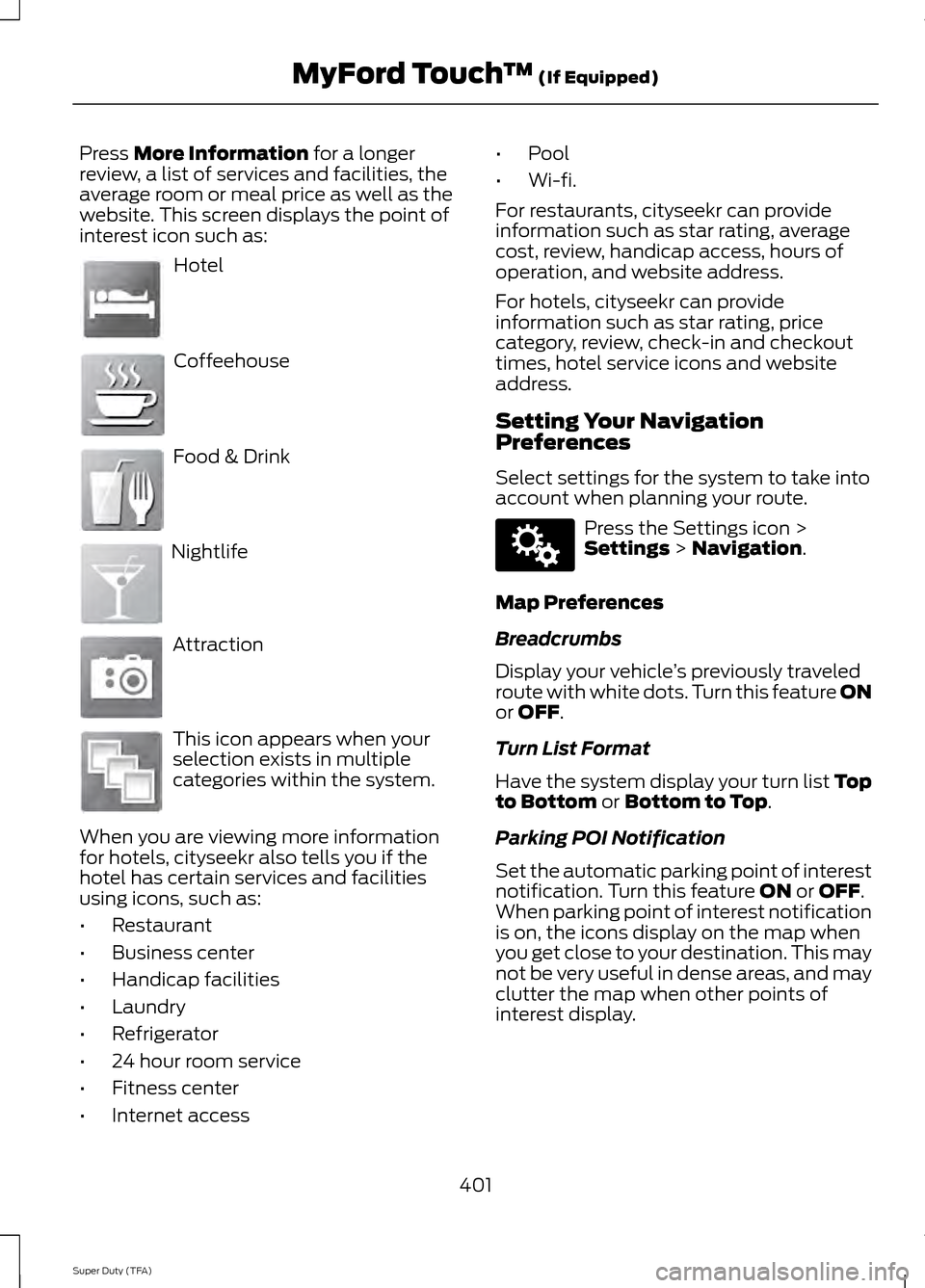
Press More Information for a longer
review, a list of services and facilities, the
average room or meal price as well as the
website. This screen displays the point of
interest icon such as: Hotel
Coffeehouse
Food & Drink
Nightlife
Attraction
This icon appears when your
selection exists in multiple
categories within the system.
When you are viewing more information
for hotels, cityseekr also tells you if the
hotel has certain services and facilities
using icons, such as:
• Restaurant
• Business center
• Handicap facilities
• Laundry
• Refrigerator
• 24 hour room service
• Fitness center
• Internet access •
Pool
• Wi-fi.
For restaurants, cityseekr can provide
information such as star rating, average
cost, review, handicap access, hours of
operation, and website address.
For hotels, cityseekr can provide
information such as star rating, price
category, review, check-in and checkout
times, hotel service icons and website
address.
Setting Your Navigation
Preferences
Select settings for the system to take into
account when planning your route. Press the Settings icon >
Settings
> Navigation.
Map Preferences
Breadcrumbs
Display your vehicle ’s previously traveled
route with white dots. Turn this feature ON
or
OFF.
Turn List Format
Have the system display your turn list Top
to Bottom
or Bottom to Top.
Parking POI Notification
Set the automatic parking point of interest
notification. Turn this feature
ON or OFF.
When parking point of interest notification
is on, the icons display on the map when
you get close to your destination. This may
not be very useful in dense areas, and may
clutter the map when other points of
interest display.
401
Super Duty (TFA) MyFord Touch
™
(If Equipped)E143884 E142636 E142637 E142638 E142639 E142640 E142607
Page 405 of 458

Route Preferences
Preferred Route
Choose to have the system display the
Shortest, Fastest or most Ecological route
first. If you set Always Use Preferred
Route to Yes, the system uses the
selected route type to calculate only one
route to the desired destination.
Always Use Preferred Route
Bypass route selection in destination
programming. The system only calculates
one route based on preferred route setting.
Eco Time Penalty
Select a low, medium or high cost for the
calculated Eco Route. The higher the
setting, the longer the time allotment is for
the route.
Avoid
These features allow you to choose to
have the system avoid freeways, toll roads,
ferries and car trains when planning your
route. Turn these features
ON or OFF.
Use HOV Lanes
Have the system use high-occupancy
vehicle lanes, if available, when planning
your route.
Navigation Preferences
Guidance Prompts
Have the system use
Voice & Tones or
Tone Only on your programmed route.
Auto - Fill State/Province
Have the system automatically fill in the
state and province based on the
information already entered into the
system. Turn this feature
ON or OFF. Traffic Preferences
Avoid Traffic Problems
Choose how you want the system to
handle traffic problems along your route.
•
Automatic:
Have the system reroute
you to avoid traffic incidents that
develop and impact the current route.
The system does not provide a traffic
alert notification.
• Manual:
Have the system always
provide a traffic alert notification for
traffic incidents along the planned
route. You have a choice to accept or
ignore the notification before making
the route deviation.
Traffic Alert Notification
Have the system display traffic alert
notifications.
Other traffic alert features allows you to
turn on certain, or all, traffic icons on the
map such as road work, incident, accidents
and closed roads. Scroll down to view all
the different types of alerts. Turn these
features
ON or OFF.
Avoid Areas
Choose areas which you want the system
to avoid when calculating a route for you.
Press
Add to program an entry. Once you
make a selection, the system tries to avoid
the area(s) if possible for all routes. To
delete a selection, choose the listing on
the screen. When the screen changes to
Avoid Areas Edit
, you can press Delete
at the bottom right of the screen.
Map Mode
Press the green bar in the upper right area
of the touchscreen to view map mode. Map
mode shows advanced viewing comprised
of both 2D city maps as well as 3D
landmarks (when available).
402
Super Duty (TFA) MyFord Touch
™
(If Equipped)
Page 406 of 458
2D city maps show detailed outlines of
buildings, visible land use and land
elements and detailed railway
infrastructure for the most essential cities
around the globe. These maps also contain
features, such as town blocks, building
footprints, and railways.
3D landmarks appear as clear, visible
objects that are typically recognizable and
have a certain tourist value. The 3D
landmarks appear in 3D map mode only.
Coverage varies, and improves with
updated map releases.
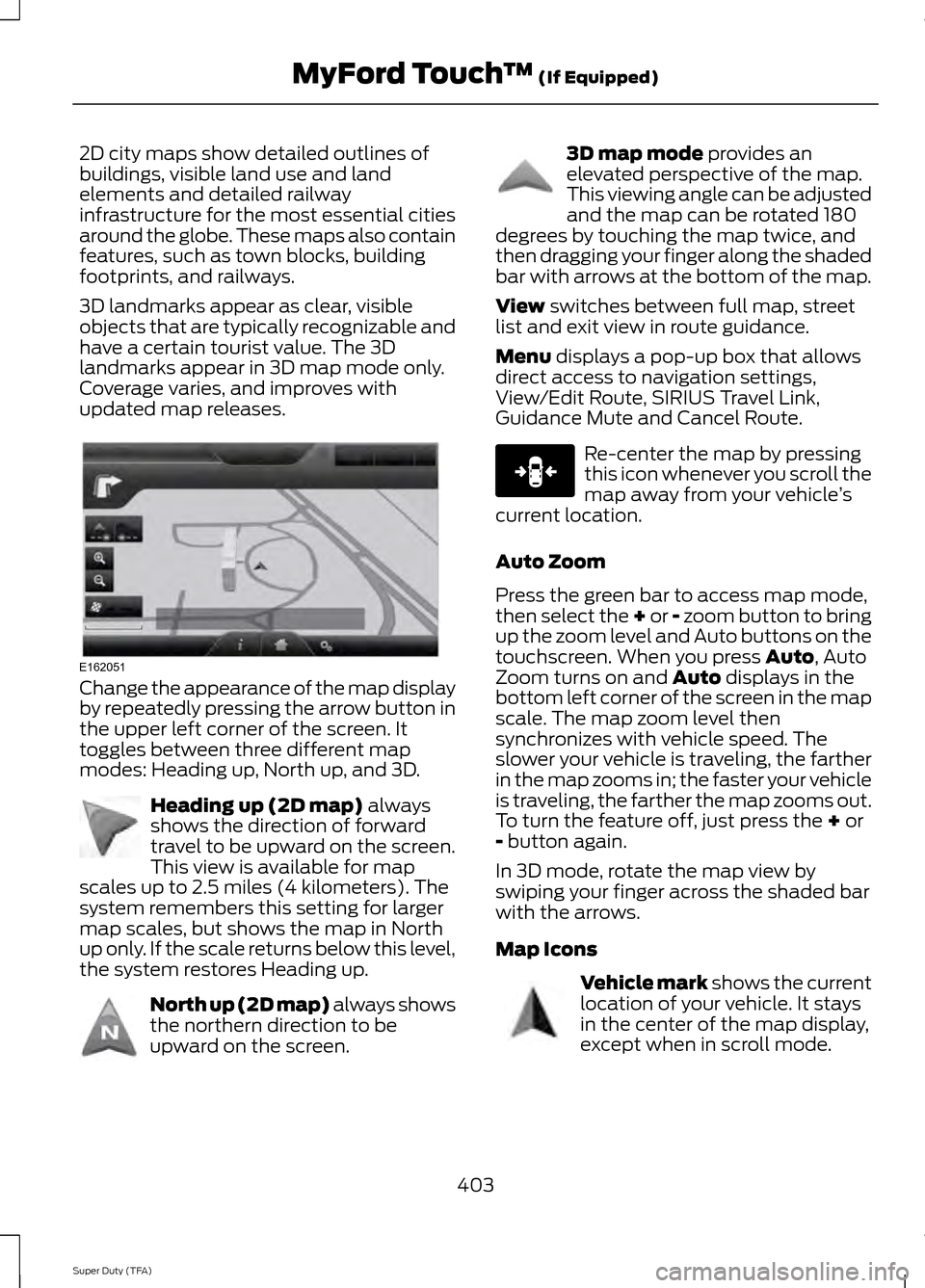
Change the appearance of the map display
by repeatedly pressing the arrow button in
the upper left corner of the screen. It
toggles between three different map
modes: Heading up, North up, and 3D.
Heading up (2D map) always
shows the direction of forward
travel to be upward on the screen.
This view is available for map
scales up to 2.5 miles (4 kilometers). The
system remembers this setting for larger
map scales, but shows the map in North
up only. If the scale returns below this level,
the system restores Heading up. North up (2D map) always shows
the northern direction to be
upward on the screen. 3D map mode
provides an
elevated perspective of the map.
This viewing angle can be adjusted
and the map can be rotated 180
degrees by touching the map twice, and
then dragging your finger along the shaded
bar with arrows at the bottom of the map.
View
switches between full map, street
list and exit view in route guidance.
Menu
displays a pop-up box that allows
direct access to navigation settings,
View/Edit Route, SIRIUS Travel Link,
Guidance Mute and Cancel Route. Re-center the map by pressing
this icon whenever you scroll the
map away from your vehicle
’s
current location.
Auto Zoom
Press the green bar to access map mode,
then select the + or - zoom button to bring
up the zoom level and Auto buttons on the
touchscreen. When you press
Auto, Auto
Zoom turns on and Auto displays in the
bottom left corner of the screen in the map
scale. The map zoom level then
synchronizes with vehicle speed. The
slower your vehicle is traveling, the farther
in the map zooms in; the faster your vehicle
is traveling, the farther the map zooms out.
To turn the feature off, just press the
+ or
- button again.
In 3D mode, rotate the map view by
swiping your finger across the shaded bar
with the arrows.
Map Icons Vehicle mark
shows the current
location of your vehicle. It stays
in the center of the map display,
except when in scroll mode.
403
Super Duty (TFA) MyFord Touch
™
(If Equipped)E162051 E142642 E142643 E142644 E146188 E142646
Page 407 of 458
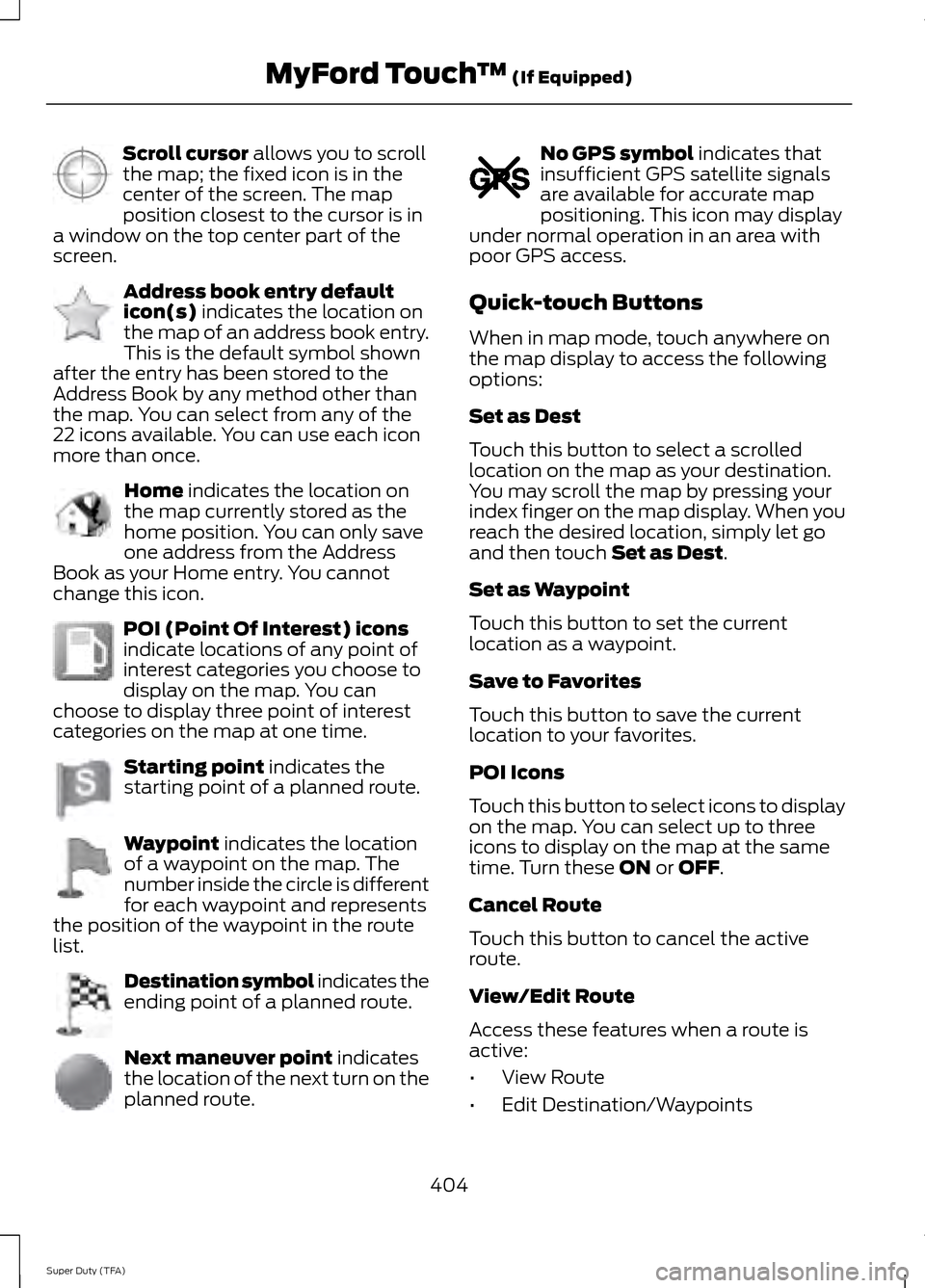
Scroll cursor allows you to scroll
the map; the fixed icon is in the
center of the screen. The map
position closest to the cursor is in
a window on the top center part of the
screen. Address book entry default
icon(s)
indicates the location on
the map of an address book entry.
This is the default symbol shown
after the entry has been stored to the
Address Book by any method other than
the map. You can select from any of the
22 icons available. You can use each icon
more than once. Home
indicates the location on
the map currently stored as the
home position. You can only save
one address from the Address
Book as your Home entry. You cannot
change this icon. POI (Point Of Interest) icons
indicate locations of any point of
interest categories you choose to
display on the map. You can
choose to display three point of interest
categories on the map at one time. Starting point
indicates the
starting point of a planned route. Waypoint
indicates the location
of a waypoint on the map. The
number inside the circle is different
for each waypoint and represents
the position of the waypoint in the route
list. Destination symbol indicates the
ending point of a planned route.
Next maneuver point
indicates
the location of the next turn on the
planned route. No GPS symbol
indicates that
insufficient GPS satellite signals
are available for accurate map
positioning. This icon may display
under normal operation in an area with
poor GPS access.
Quick-touch Buttons
When in map mode, touch anywhere on
the map display to access the following
options:
Set as Dest
Touch this button to select a scrolled
location on the map as your destination.
You may scroll the map by pressing your
index finger on the map display. When you
reach the desired location, simply let go
and then touch
Set as Dest.
Set as Waypoint
Touch this button to set the current
location as a waypoint.
Save to Favorites
Touch this button to save the current
location to your favorites.
POI Icons
Touch this button to select icons to display
on the map. You can select up to three
icons to display on the map at the same
time. Turn these
ON or OFF.
Cancel Route
Touch this button to cancel the active
route.
View/Edit Route
Access these features when a route is
active:
• View Route
• Edit Destination/Waypoints
404
Super Duty (TFA) MyFord Touch
™
(If Equipped)E142647 E142648 E142649 E142650 E142651 E142652 E142653 E142654 E142655
Page 409 of 458
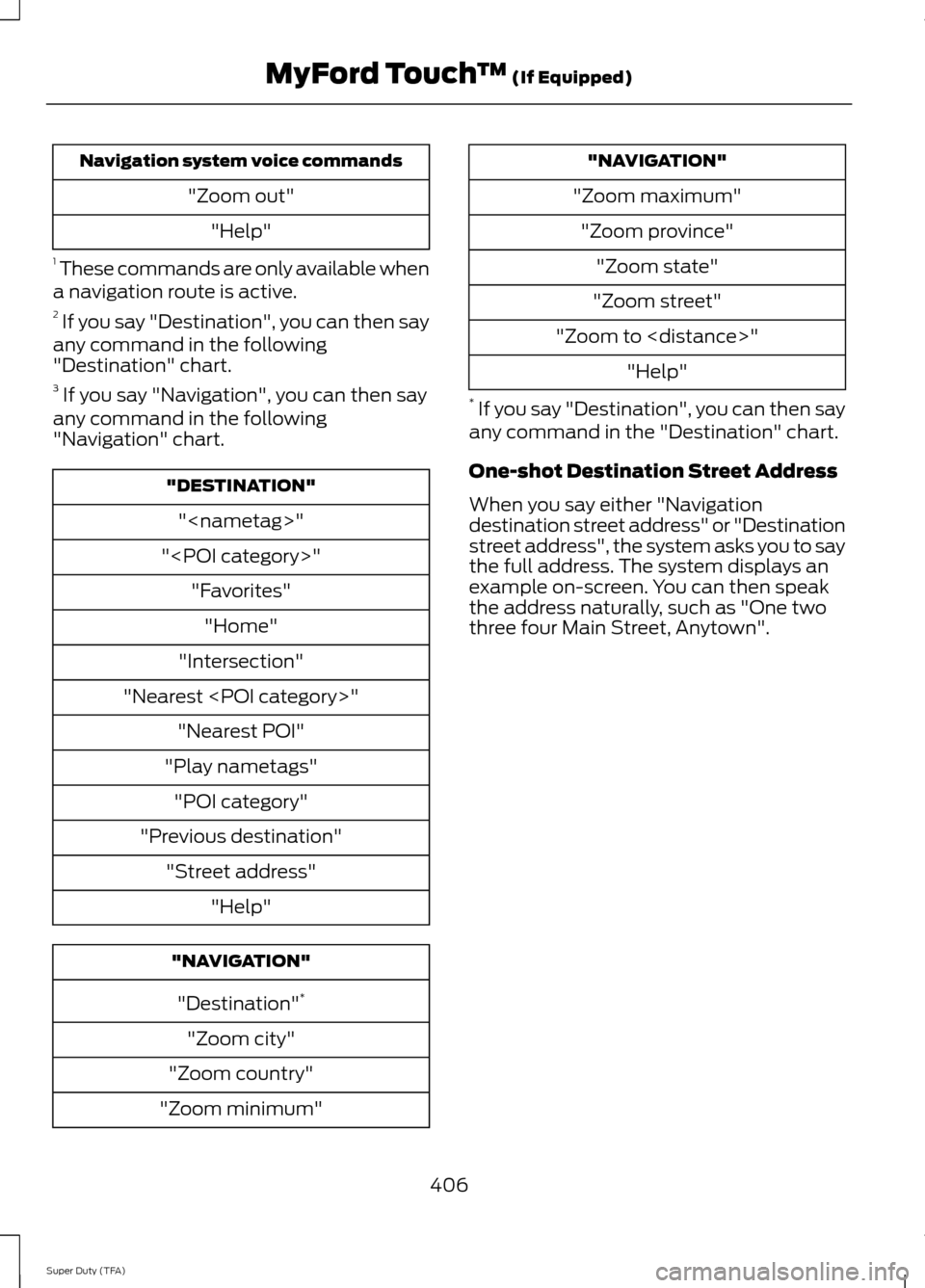
Navigation system voice commands
"Zoom out""Help"
1 These commands are only available when
a navigation route is active.
2 If you say "Destination", you can then say
any command in the following
"Destination" chart.
3 If you say "Navigation", you can then say
any command in the following
"Navigation" chart. "DESTINATION"
"
"
"Intersection"
"Nearest
"Play nametags" "POI category"
"Previous destination" "Street address" "Help" "NAVIGATION"
"Destination" *
"Zoom city"
"Zoom country"
"Zoom minimum" "NAVIGATION"
"Zoom maximum" "Zoom province" "Zoom state"
"Zoom street"
"Zoom to
* If you say "Destination", you can then say
any command in the "Destination" chart.
One-shot Destination Street Address
When you say either "Navigation
destination street address" or "Destination
street address", the system asks you to say
the full address. The system displays an
example on-screen. You can then speak
the address naturally, such as "One two
three four Main Street, Anytown".
406
Super Duty (TFA) MyFord Touch
™ (If Equipped)
Page 451 of 458
Fuel Consumption........................................136
Calculating Fuel Economy............................... 137
Filling the Tank.................................................... 136
Fuel Filter
........................................................234
Fuel Quality.....................................................134
Choosing the Right Fuel................................... 134
Choosing the Right Fuel With a Flex Fuel Vehicle (If Equipped)................................... 134
Diesel Engine........................................................ 134
Octane Recommendations............................ 134
Fuel Shutoff
..................................................204
Fuses..................................................................213
Fuse Specification Chart
...........................214
Passenger Compartment Fuse Panel.........219
Power Distribution Box..................................... 214
G
Garage Door Opener See: Universal Garage Door Opener............118
Gauges................................................................74 Engine Coolant Temperature Gauge.............75
Engine Oil Pressure Gauge................................ 75
Fuel Gauge.............................................................. 75
Information Display............................................. 75
Transmission Fluid Temperature Gauge................................................................... 75
General Information on Radio Frequencies...................................................45
General Maintenance Information.......428 Multi-point Inspection..................................... 430
Owner Checks and Services.......................... 429
Protecting Your Investment........................... 428
Why Maintain Your Vehicle?......................... 428
Why Maintain Your Vehicle at Your Dealership?..................................................... 428
Getting Assistance Outside the U.S. and Canada..........................................................210
Getting the Services You Need...............207 Away From Home.............................................. 207
Global Opening
..............................................69
Opening the Windows....................................... 69
H
Handbrake See: Parking Brake............................................. 159
Hazard Warning Flashers.........................204 HDC
See: Using Hill Descent Control.................... 166
Head Restraints
.............................................107
Adjusting the Head Restraint........................ 108
Heated Seats...................................................114
Heated Steering Wheel................................61
Heated Windows and Mirrors..................105 Heated Exterior Mirror...................................... 105
Heated Rear Window........................................ 105
Heating See: Climate Control......................................... 102
Hill Start Assist..............................................159 Using Hill Start Assist....................................... 159
Hints on Controlling the Interior Climate..........................................................104
Hints on Driving With Anti-Lock Brakes............................................................158
Hood Lock See: Opening and Closing the Hood...........222
I
Ignition Switch...............................................129
In California (U.S. Only)............................208
Information Display Control......................60 Type 1........................................................................\
60
Type 2........................................................................\
61
Information Displays....................................80 General Information........................................... 80
Information....................................................387 911 Assist............................................................... 393
Alerts...................................................................... 393
Calendar................................................................ 393
SIRIUS Travel Link............................................. 390
SYNC Services (If Equipped, United States Only)................................................................. 388
Vehicle Health Report...................................... 395
448
Super Duty (TFA) Index
Page 452 of 458

Information Messages..................................91
4WD........................................................................\
100
AdvanceTrac ™....................................................... 91
Alarm........................................................................\
. 91
Diesel Messages................................................... 92
Doors and Locks................................................... 95
Drivetrain................................................................. 95
Engine...................................................................... 96
Fuel........................................................................\
.... 96
Key........................................................................\
...... 97
Maintenance.......................................................... 97
MyKey®.................................................................... 97
Off Road.................................................................. 99
Park Aid................................................................... 98
Park Brake............................................................... 98
Power Steering..................................................... 98
Tire Pressure Monitoring System................... 99
Trailer...................................................................... 100
Installing Child Seats.....................................15 Child Seats............................................................... 15
Tether Strap Attachment................................... 21
Tether Strap Attachment (Rear SuperCab Only)..................................................................... 22
Using Cinch Tongue Lap and Shoulder Belts (All Front Center, Super Cab and Crew
Cab Rear Center Positions).......................... 18
Using Lap and Shoulder Belts.......................... 16
Using Lower Anchors and Tethers for CHildren (LATCH)........................................... 20
Using Tether Straps............................................. 20
Instrument Cluster
.........................................74
Instrument Lighting Dimmer.....................65
Interior Lamps.................................................66 Front Map Lamps (If equipped)..................... 67
Rear Dome and Map Lamps............................ 67
Interior Mirror
.....................................................71
Auto-Dimming Mirror........................................... 71
Introduction.........................................................7
J
Jump-Starting the Vehicle
.......................204
Connecting the Jumper Cables.................... 205
Jump Starting..................................................... 205
Preparing Your Vehicle.................................... 204
Removing the Jumper Cables....................... 205K
Keyless Entry....................................................54
SECURICODE™ KEYLESS ENTRY
KEYPAD.............................................................. 54
Keys and Remote Controls.........................45
L
Lighting Control
..............................................64
Headlamp Flasher............................................... 64
High Beams............................................................ 64
Lighting..............................................................64
Limited Slip Differential
.............................156
Load Carrying..................................................174
Load Limit........................................................174
Special Loading Instructions for Owners of
Pick-up Trucks and Utility-type
Vehicles.............................................................. 181
Vehicle Loading - with and without a Trailer.................................................................. 174
Locking and Unlocking
.................................53
Autolock and Autounlock.................................. 53
Battery Saver......................................................... 54
Illuminated Entry.................................................. 54
Power Door Locks................................................ 53
Remote Control..................................................... 53
Smart Unlocks....................................................... 53
Locks...................................................................53
Lug Nuts See: Changing a Road Wheel........................ 279
M
Maintenance..................................................222 General Information.......................................... 222
Manual Climate Control............................102
Manual Seats.................................................109 Manual Lumbar ................................................... 110
Moving the Seat Backward and Forward............................................................. 109
Recline Adjustment........................................... 109
Media Hub
........................................................311
Memory Function..........................................110
Easy Entry and Exit Feature.............................. 111
Message Center See: Information Displays................................ 80
449
Super Duty (TFA) Index
Page 454 of 458
Refueling..........................................................135
Fuel Filler Cap...................................................... 136
Remote Control..............................................45 Car Finder................................................................ 46
Integrated Keyhead Transmitters .................45
Memory Feature................................................... 46
Remote Start ......................................................... 47
Replacing the Battery......................................... 45
Sounding a Panic Alarm.................................... 47
Remote Start.................................................105
Automatic Settings........................................... 106
Heated and Cooled Devices........................... 106
Removing a Headlamp..............................238
Repairing Minor Paint Damage................251
Replacement Parts Recommendation.........................................11
Collision Repairs..................................................... 11
Scheduled Maintenance and Mechanical Repairs................................................................... 11
Warranty on Replacement Parts..................... 12
Replacing a Lost Key or Remote Control............................................................48
Reporting Safety Defects (Canada Only)...............................................................212
Reporting Safety Defects (U.S. Only)................................................................211
Roadside Assistance
..................................203
Vehicles Sold In Canada : Getting Roadside
Assistance....................................................... 203
Vehicles Sold In Canada : Using Roadside Assistance....................................................... 203
Vehicles Sold In The U.S.: Getting Roadside Assistance....................................................... 203
Vehicles Sold In The U.S. : Using Roadside Assistance....................................................... 203
Roadside Emergencies..............................203
Running-In See: Breaking-In.................................................. 198
Running Out of Fuel.....................................134 Refilling With a Portable Fuel
Container.......................................................... 135
S
Safety Belt Height Adjustment..................31
Safety Belt Minder.........................................32 Belt-Minder®......................................................... 32Safety Belts
.......................................................27
Principle of Operation......................................... 27
Safety Belt Warning Lamp and Indicator Chime................................................................31
Conditions of operation..................................... 32
Safety Canopy ™
.............................................42
Safety Precautions.......................................133
Satellite Radio..............................................308
Satellite Radio Electronic Serial Number
(ESN)................................................................ 309
Satellite Radio Reception Factors..............308
SIRIUS® Satellite Radio Service.................308
Troubleshooting................................................ 309
Scheduled Maintenance Record...........436
Scheduled Maintenance
..........................428
Seats..................................................................107
Security...............................................................57
Settings...........................................................355 Clock....................................................................... 356
Display................................................................... 356
Settings.................................................................. 357
Sound..................................................................... 357
Vehicle.................................................................... 357
Side Airbags
......................................................41
Sitting in the Correct Position..................107
Snow Chains See: Using Snow Chains.................................. 273
Snowplowing................................................200 Engine temperature while plowing..............201
Installing the Snowplow................................ 200
Operating the Vehicle with the Snowplow Attached........................................................... 201
Snowplowing with your Air Bag Equipped Vehicle............................................................... 201
Transmission operation while plowing............................................................. 202
Special Notices................................................12 New Vehicle Limited Warranty......................... 12
Special Instructions.............................................. 12
Using your Vehicle as an Ambulance.............12
Using your Vehicle as a Stationary Power Source................................................................... 12
Using your Vehicle with a Snowplow.............12
Special Operating Conditions Scheduled Maintenance...............................................432
6.2L and 6.8L Gasoline Engines................... 432
6.7L Diesel Engine.............................................. 435
Exceptions............................................................ 435
451
Super Duty (TFA) Index