key FORD SUPER DUTY 2014 3.G Workshop Manual
[x] Cancel search | Manufacturer: FORD, Model Year: 2014, Model line: SUPER DUTY, Model: FORD SUPER DUTY 2014 3.GPages: 458, PDF Size: 5.3 MB
Page 285 of 458
1.
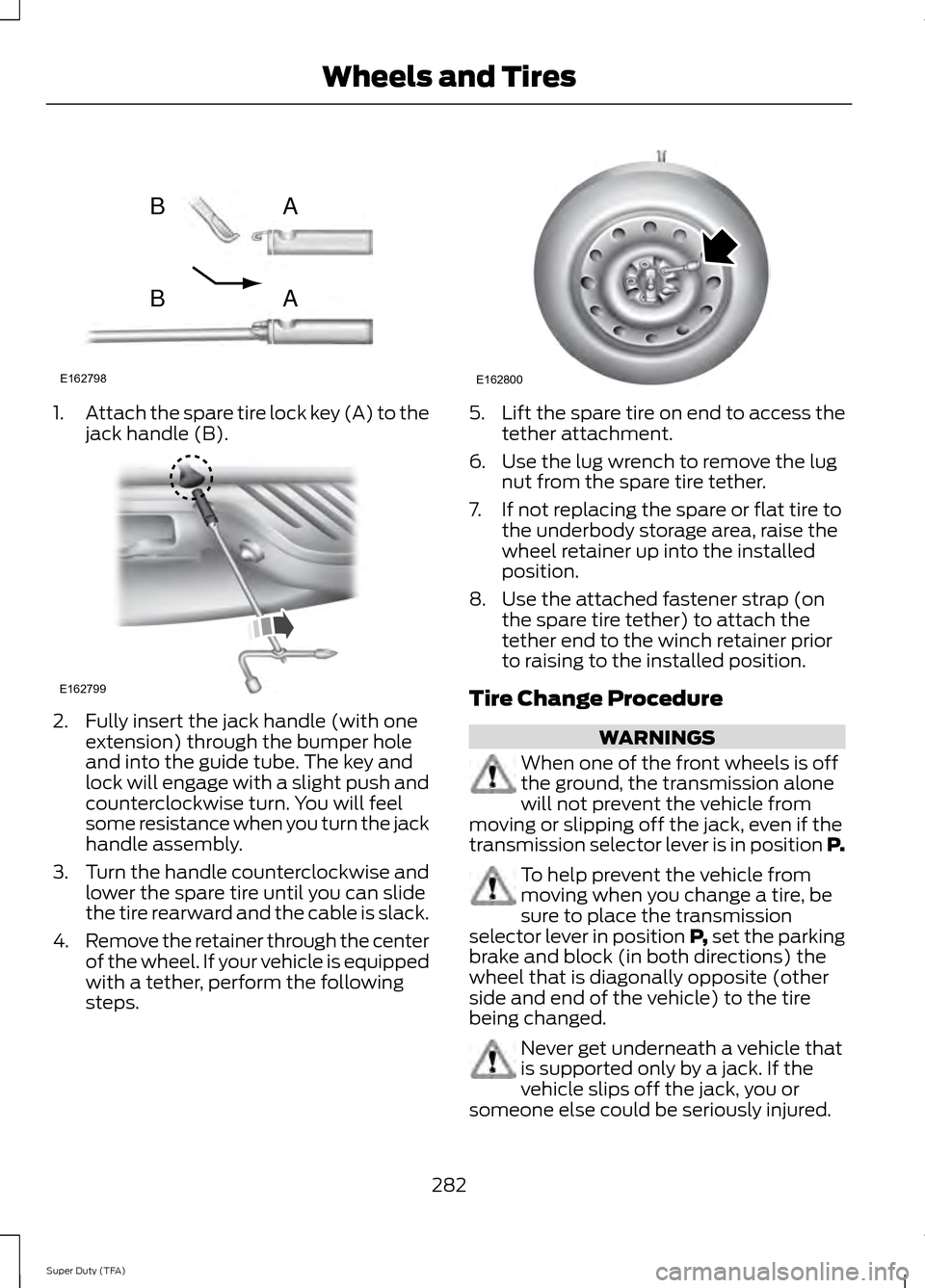
Attach the spare tire lock key (A) to the
jack handle (B). 2. Fully insert the jack handle (with one
extension) through the bumper hole
and into the guide tube. The key and
lock will engage with a slight push and
counterclockwise turn. You will feel
some resistance when you turn the jack
handle assembly.
3. Turn the handle counterclockwise and
lower the spare tire until you can slide
the tire rearward and the cable is slack.
4. Remove the retainer through the center
of the wheel. If your vehicle is equipped
with a tether, perform the following
steps. 5.
Lift the spare tire on end to access the
tether attachment.
6. Use the lug wrench to remove the lug nut from the spare tire tether.
7. If not replacing the spare or flat tire to the underbody storage area, raise the
wheel retainer up into the installed
position.
8. Use the attached fastener strap (on the spare tire tether) to attach the
tether end to the winch retainer prior
to raising to the installed position.
Tire Change Procedure WARNINGS
When one of the front wheels is off
the ground, the transmission alone
will not prevent the vehicle from
moving or slipping off the jack, even if the
transmission selector lever is in position P. To help prevent the vehicle from
moving when you change a tire, be
sure to place the transmission
selector lever in position P, set the parking
brake and block (in both directions) the
wheel that is diagonally opposite (other
side and end of the vehicle) to the tire
being changed. Never get underneath a vehicle that
is supported only by a jack. If the
vehicle slips off the jack, you or
someone else could be seriously injured.
282
Super Duty (TFA) Wheels and TiresE162798
AB
AB E162799 E162800
Page 292 of 458
3. Lay the tire on the ground with the
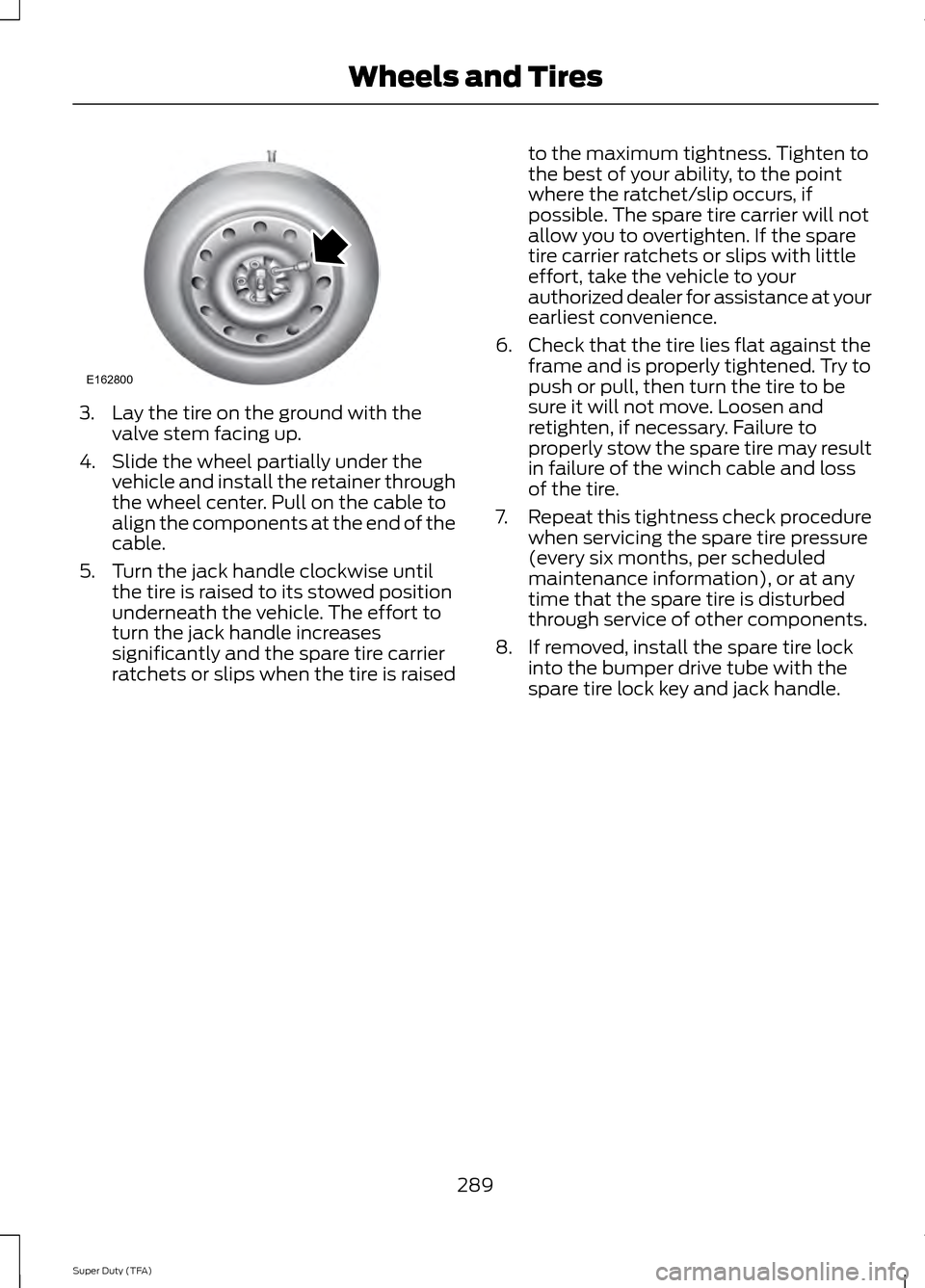
valve stem facing up.
4. Slide the wheel partially under the vehicle and install the retainer through
the wheel center. Pull on the cable to
align the components at the end of the
cable.
5. Turn the jack handle clockwise until the tire is raised to its stowed position
underneath the vehicle. The effort to
turn the jack handle increases
significantly and the spare tire carrier
ratchets or slips when the tire is raised to the maximum tightness. Tighten to
the best of your ability, to the point
where the ratchet/slip occurs, if
possible. The spare tire carrier will not
allow you to overtighten. If the spare
tire carrier ratchets or slips with little
effort, take the vehicle to your
authorized dealer for assistance at your
earliest convenience.
6. Check that the tire lies flat against the frame and is properly tightened. Try to
push or pull, then turn the tire to be
sure it will not move. Loosen and
retighten, if necessary. Failure to
properly stow the spare tire may result
in failure of the winch cable and loss
of the tire.
7. Repeat this tightness check procedure
when servicing the spare tire pressure
(every six months, per scheduled
maintenance information), or at any
time that the spare tire is disturbed
through service of other components.
8. If removed, install the spare tire lock into the bumper drive tube with the
spare tire lock key and jack handle.
289
Super Duty (TFA) Wheels and TiresE162800
Page 312 of 458
SIRIUS satellite radio is a
subscription-based satellite radio service
that broadcasts a variety of music, sports,
news, weather, traffic and entertainment
programming. Your factory-installed
SIRIUS satellite radio system includes
hardware and a limited subscription term,
which begins on the date of sale or lease
of your vehicle. See an authorized dealer
for availability.
For more information on extended
subscription terms (a service fee is
required), the online media player and a
complete list of SIRIUS satellite radio
channels, and other features, please visit
www.siriusxm.com in the United States,
www.sirius.ca in Canada, or call SIRIUS at
1-888-539-7474.
Satellite Radio Electronic Serial
Number (ESN)
You need your ESN to activate, modify or
track your satellite radio account. When in
satellite radio mode, press Options.
Troubleshooting Possible action
Condition
Radio display
No action required. This
message should disappear
shortly.
Radio requires more than
two seconds to produce
audio for the selected
channel.
Acquiring
If this message does not
clear shortly, or with an igni-
tion key cycle, your receiver
may have a fault. See an
authorized dealer for service.
There is an internal module
or system failure present.
Sat Fault/SIRIUS system
failure
Tune to another channel or
choose another preset.
The channel is no longer
available.
Invalid Channel
Contact SIRIUS at 1-888-
539-7474 to subscribe to
the channel, or tune to
another channel.
Your subscription does not
include this channel.
Unsubscribed Channel
The signal is blocked. When
you move into an open area,
the signal should return.
The signal is lost from the
SIRIUS satellite or SIRIUS
tower to your vehicle
antenna.
No Signal
No action required. The
process may take up to
three minutes.
Update of channel
programming in progress.
Updating
309
Super Duty (TFA) Audio System
Page 354 of 458
Safety Information
WARNING
Driving while distracted can result in
loss of vehicle control, crash and
injury. We strongly recommend that
you use extreme caution when using any
device that may take your focus off the
road. Your primary responsibility is the safe
operation of your vehicle. We recommend
against the use of any hand-held device
while driving and encourage the use of
voice-operated systems when possible.
Make sure you are aware of all applicable
local laws that may affect the use of
electronic devices while driving. •
Do not attempt to service or repair the
system. See an authorized dealer.
• Do not operate playing devices if the
power cords or cables are broken, split
or damaged. Place cords and cables
out of the way, so they do not interfere
with the operation of pedals, seats,
compartments or safe driving abilities. •
Do not leave playing devices in your
vehicle during extreme conditions as it
could cause them damage. See your
device's user guide for further
information.
• For your safety, some SYNC functions
are speed-dependent. Their use is
limited to when your vehicle is traveling
at speeds under 3 mph (5 km/h).
Make sure that you review your device's
manual before using it with SYNC.
Speed-restricted Features
Some features of this system may be too
difficult to use while your vehicle is moving
so they are restricted from use unless your
vehicle is stationary.
• Screens crowded with information,
such as Point of Interest reviews and
ratings, SIRIUS Travel Link sports
scores, movie times or ski conditions.
• Any action that requires you to use a
keyboard is restricted, such as entering
a navigation destination or editing
information.
• All lists are limited so the user can view
fewer entries (such as phone contacts
or recent phone call entries).
See the following chart for more specific
examples. Restricted features
Pairing a Bluetooth phone
Cellular Phone
Adding phonebook contacts or uploading phonebook
contacts (from a USB)
List entries are limited for phone contacts and recent
phone call entries
Editing the keypad code
System Functionality
Enabling Valet Mode
351
Super Duty (TFA) MyFord Touch
™ (If Equipped)
Page 355 of 458
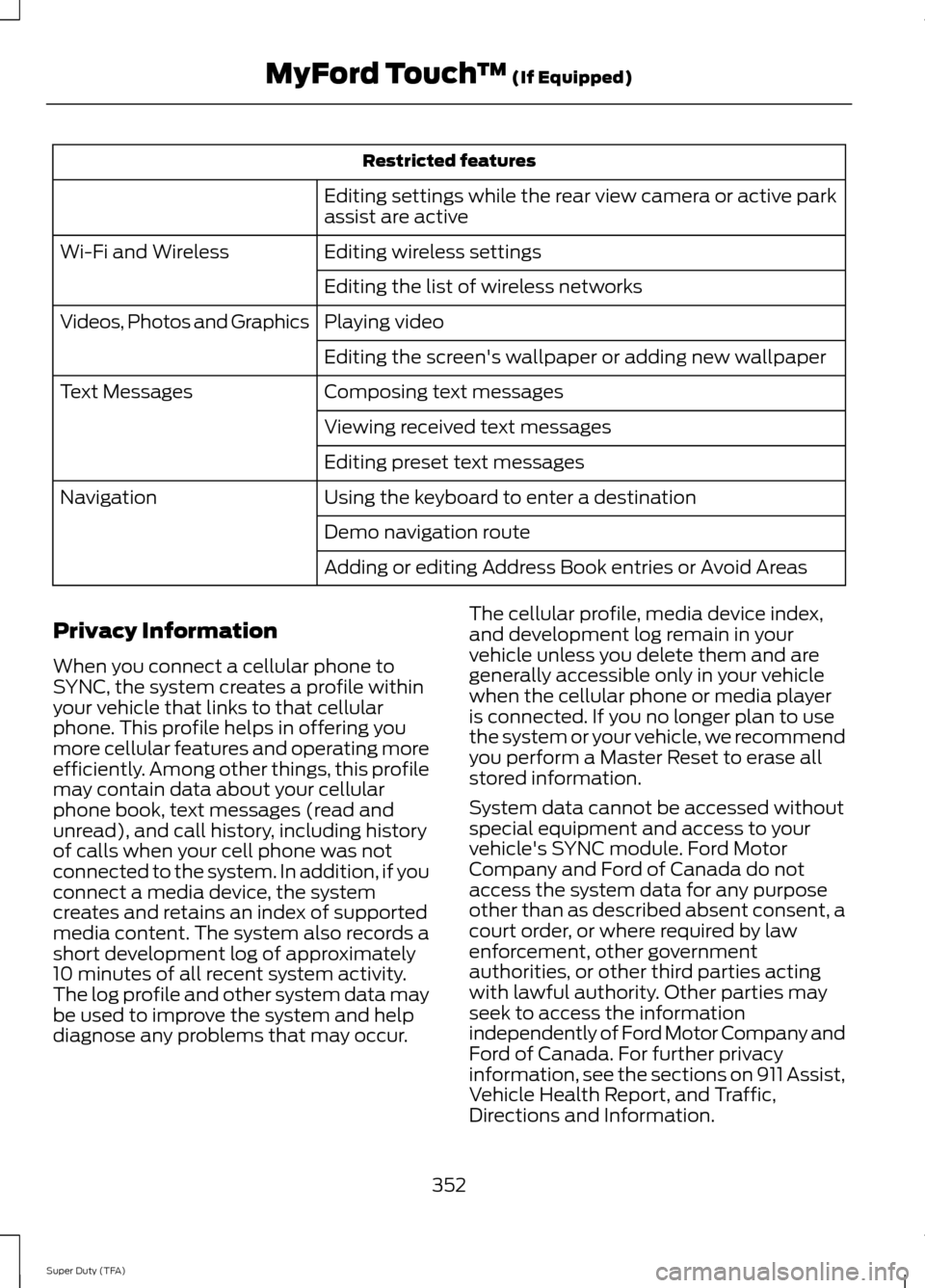
Restricted features
Editing settings while the rear view camera or active park
assist are active
Editing wireless settings
Wi-Fi and Wireless
Editing the list of wireless networks
Playing video
Videos, Photos and Graphics
Editing the screen's wallpaper or adding new wallpaper
Composing text messages
Text Messages
Viewing received text messages
Editing preset text messages
Using the keyboard to enter a destination
Navigation
Demo navigation route
Adding or editing Address Book entries or Avoid Areas
Privacy Information
When you connect a cellular phone to
SYNC, the system creates a profile within
your vehicle that links to that cellular
phone. This profile helps in offering you
more cellular features and operating more
efficiently. Among other things, this profile
may contain data about your cellular
phone book, text messages (read and
unread), and call history, including history
of calls when your cell phone was not
connected to the system. In addition, if you
connect a media device, the system
creates and retains an index of supported
media content. The system also records a
short development log of approximately
10 minutes of all recent system activity.
The log profile and other system data may
be used to improve the system and help
diagnose any problems that may occur. The cellular profile, media device index,
and development log remain in your
vehicle unless you delete them and are
generally accessible only in your vehicle
when the cellular phone or media player
is connected. If you no longer plan to use
the system or your vehicle, we recommend
you perform a Master Reset to erase all
stored information.
System data cannot be accessed without
special equipment and access to your
vehicle's SYNC module. Ford Motor
Company and Ford of Canada do not
access the system data for any purpose
other than as described absent consent, a
court order, or where required by law
enforcement, other government
authorities, or other third parties acting
with lawful authority. Other parties may
seek to access the information
independently of Ford Motor Company and
Ford of Canada. For further privacy
information, see the sections on 911 Assist,
Vehicle Health Report, and Traffic,
Directions and Information.
352
Super Duty (TFA) MyFord Touch
™ (If Equipped)
Page 361 of 458
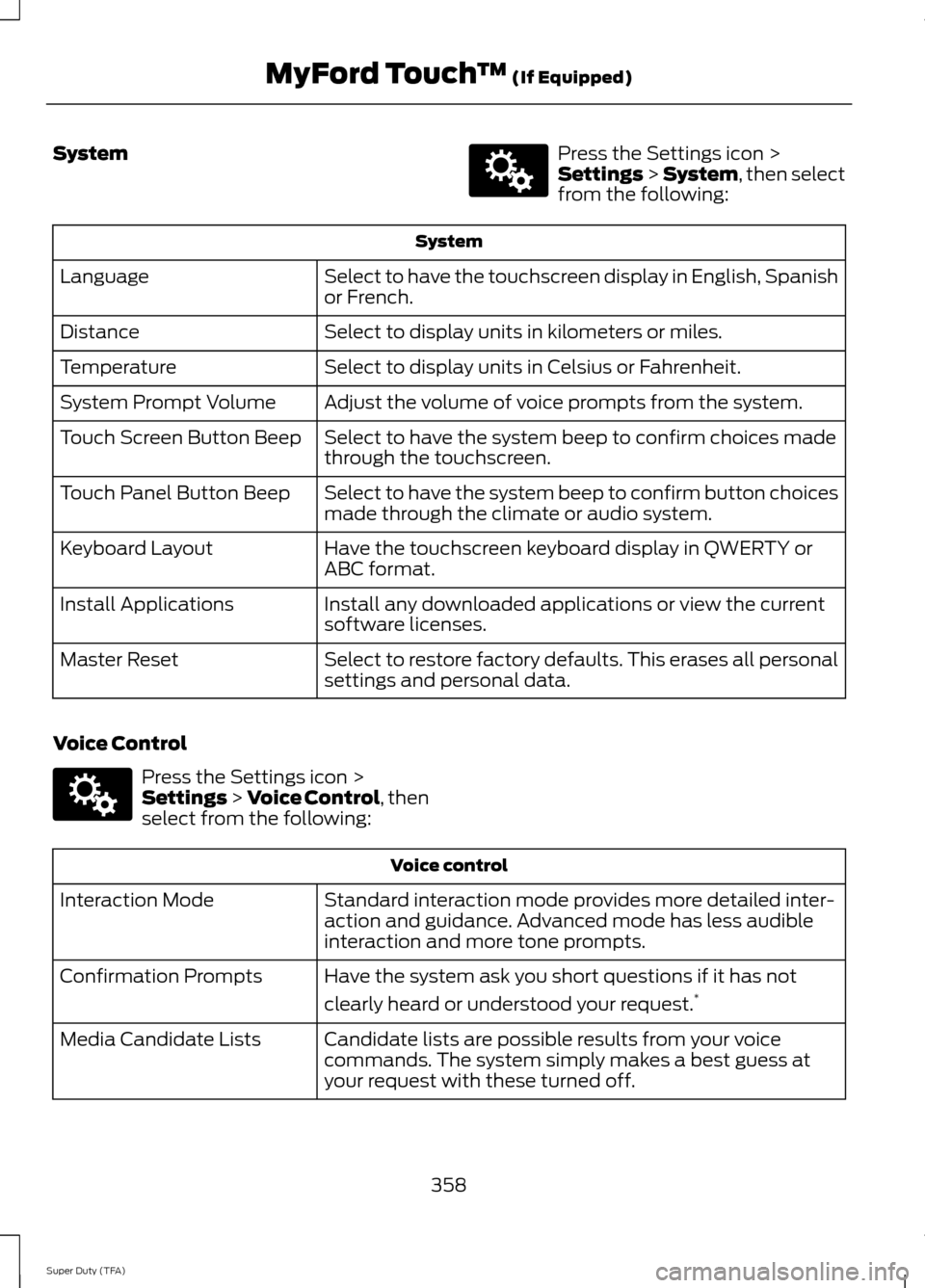
System Press the Settings icon >
Settings > System, then select
from the following: System
Select to have the touchscreen display in English, Spanish
or French.
Language
Select to display units in kilometers or miles.
Distance
Select to display units in Celsius or Fahrenheit.
Temperature
Adjust the volume of voice prompts from the system.
System Prompt Volume
Select to have the system beep to confirm choices made
through the touchscreen.
Touch Screen Button Beep
Select to have the system beep to confirm button choices
made through the climate or audio system.
Touch Panel Button Beep
Have the touchscreen keyboard display in QWERTY or
ABC format.
Keyboard Layout
Install any downloaded applications or view the current
software licenses.
Install Applications
Select to restore factory defaults. This erases all personal
settings and personal data.
Master Reset
Voice Control Press the Settings icon >
Settings
> Voice Control, then
select from the following: Voice control
Standard interaction mode provides more detailed inter-
action and guidance. Advanced mode has less audible
interaction and more tone prompts.
Interaction Mode
Have the system ask you short questions if it has not
clearly heard or understood your request. *
Confirmation Prompts
Candidate lists are possible results from your voice
commands. The system simply makes a best guess at
your request with these turned off.
Media Candidate Lists
358
Super Duty (TFA) MyFord Touch
™
(If Equipped)E142607 E142607
Page 376 of 458
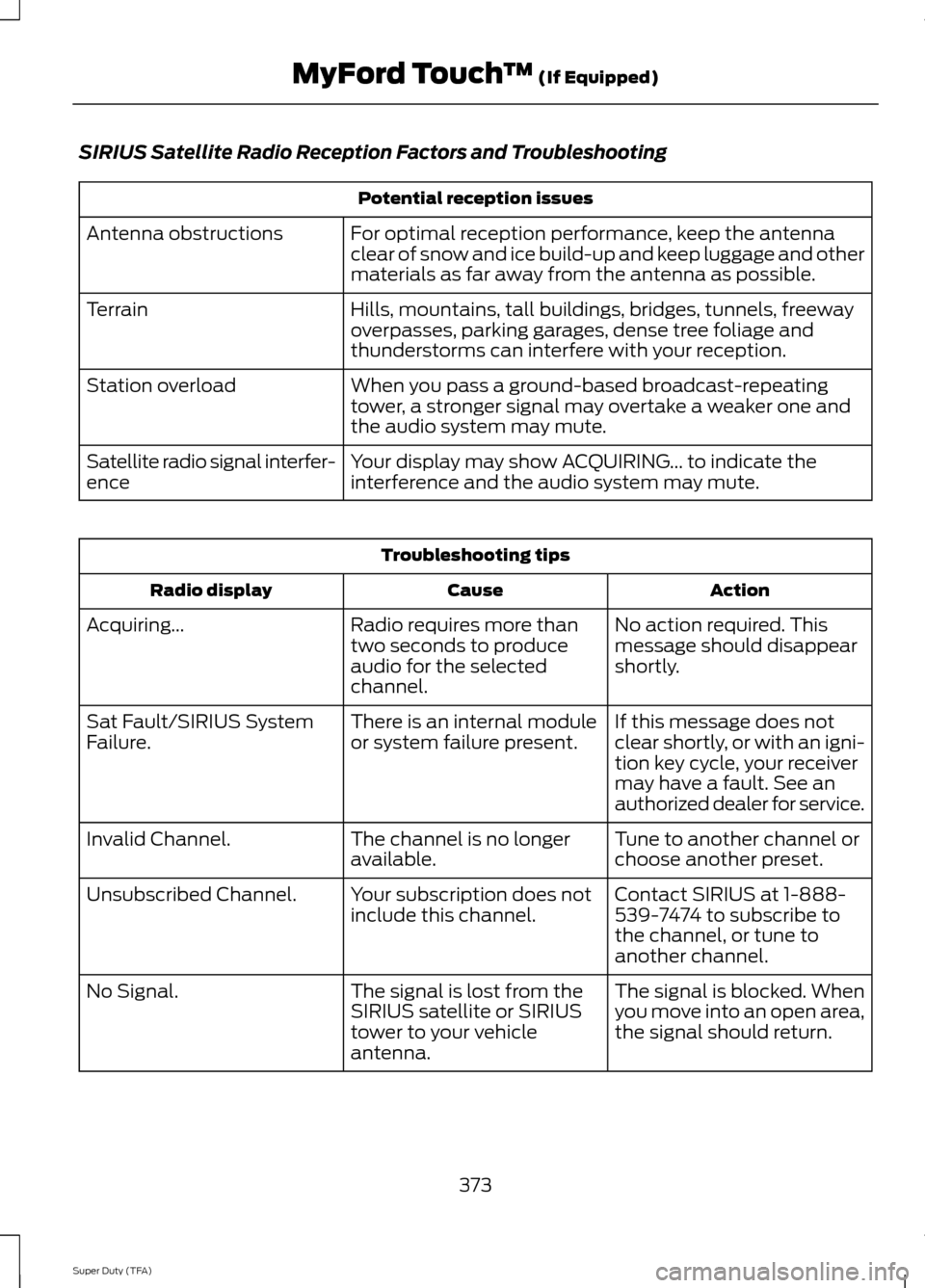
SIRIUS Satellite Radio Reception Factors and Troubleshooting
Potential reception issues
For optimal reception performance, keep the antenna
clear of snow and ice build-up and keep luggage and other
materials as far away from the antenna as possible.
Antenna obstructions
Hills, mountains, tall buildings, bridges, tunnels, freeway
overpasses, parking garages, dense tree foliage and
thunderstorms can interfere with your reception.
Terrain
When you pass a ground-based broadcast-repeating
tower, a stronger signal may overtake a weaker one and
the audio system may mute.
Station overload
Your display may show ACQUIRING... to indicate the
interference and the audio system may mute.
Satellite radio signal interfer-
ence Troubleshooting tips
Action
Cause
Radio display
No action required. This
message should disappear
shortly.
Radio requires more than
two seconds to produce
audio for the selected
channel.
Acquiring...
If this message does not
clear shortly, or with an igni-
tion key cycle, your receiver
may have a fault. See an
authorized dealer for service.
There is an internal module
or system failure present.
Sat Fault/SIRIUS System
Failure.
Tune to another channel or
choose another preset.
The channel is no longer
available.
Invalid Channel.
Contact SIRIUS at 1-888-
539-7474 to subscribe to
the channel, or tune to
another channel.
Your subscription does not
include this channel.
Unsubscribed Channel.
The signal is blocked. When
you move into an open area,
the signal should return.
The signal is lost from the
SIRIUS satellite or SIRIUS
tower to your vehicle
antenna.
No Signal.
373
Super Duty (TFA) MyFord Touch
™ (If Equipped)
Page 410 of 458
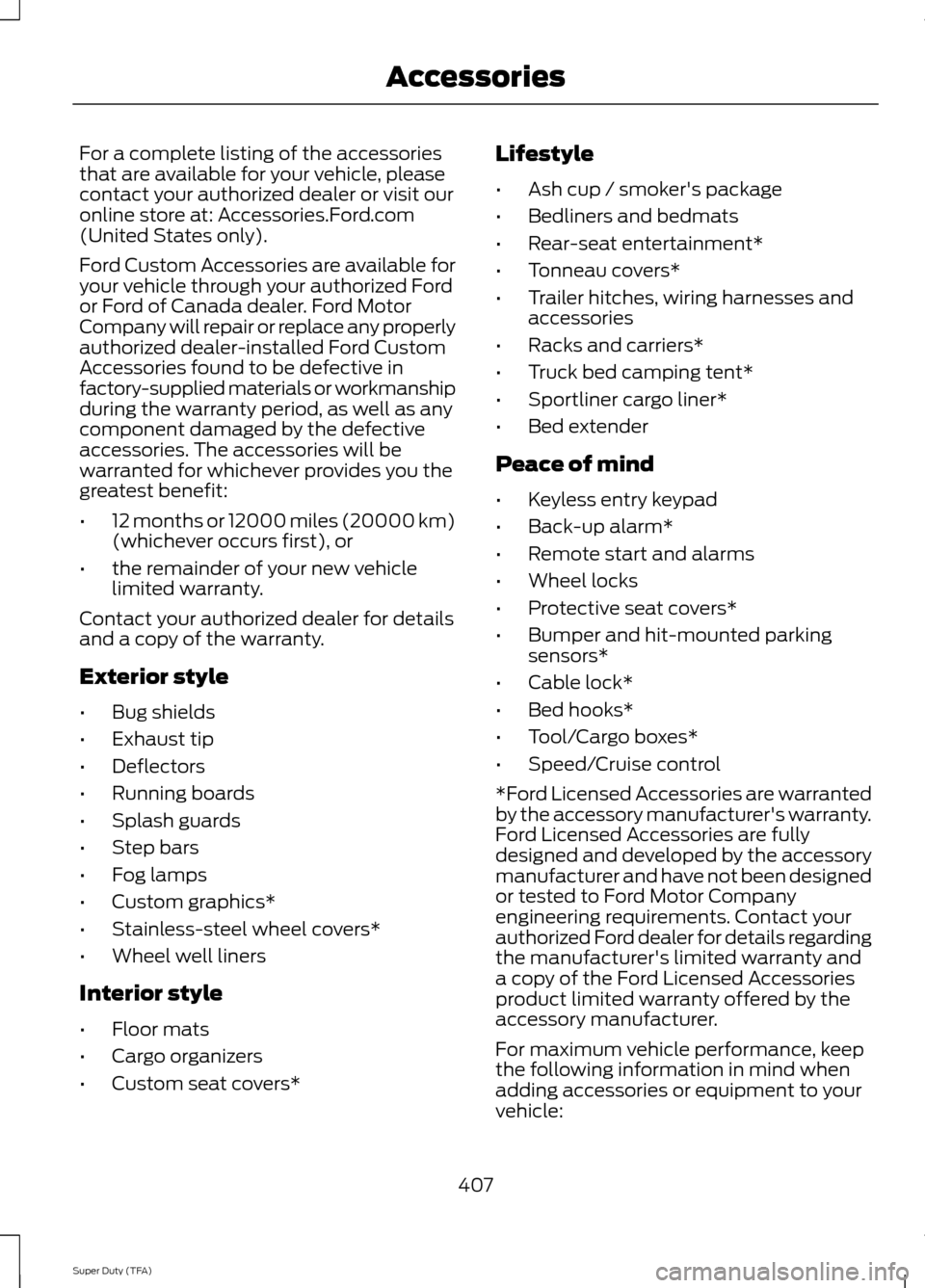
For a complete listing of the accessories
that are available for your vehicle, please
contact your authorized dealer or visit our
online store at: Accessories.Ford.com
(United States only).
Ford Custom Accessories are available for
your vehicle through your authorized Ford
or Ford of Canada dealer. Ford Motor
Company will repair or replace any properly
authorized dealer-installed Ford Custom
Accessories found to be defective in
factory-supplied materials or workmanship
during the warranty period, as well as any
component damaged by the defective
accessories. The accessories will be
warranted for whichever provides you the
greatest benefit:
•
12 months or 12000 miles (20000 km)
(whichever occurs first), or
• the remainder of your new vehicle
limited warranty.
Contact your authorized dealer for details
and a copy of the warranty.
Exterior style
• Bug shields
• Exhaust tip
• Deflectors
• Running boards
• Splash guards
• Step bars
• Fog lamps
• Custom graphics*
• Stainless-steel wheel covers*
• Wheel well liners
Interior style
• Floor mats
• Cargo organizers
• Custom seat covers* Lifestyle
•
Ash cup / smoker's package
• Bedliners and bedmats
• Rear-seat entertainment*
• Tonneau covers*
• Trailer hitches, wiring harnesses and
accessories
• Racks and carriers*
• Truck bed camping tent*
• Sportliner cargo liner*
• Bed extender
Peace of mind
• Keyless entry keypad
• Back-up alarm*
• Remote start and alarms
• Wheel locks
• Protective seat covers*
• Bumper and hit-mounted parking
sensors*
• Cable lock*
• Bed hooks*
• Tool/Cargo boxes*
• Speed/Cruise control
*Ford Licensed Accessories are warranted
by the accessory manufacturer's warranty.
Ford Licensed Accessories are fully
designed and developed by the accessory
manufacturer and have not been designed
or tested to Ford Motor Company
engineering requirements. Contact your
authorized Ford dealer for details regarding
the manufacturer's limited warranty and
a copy of the Ford Licensed Accessories
product limited warranty offered by the
accessory manufacturer.
For maximum vehicle performance, keep
the following information in mind when
adding accessories or equipment to your
vehicle:
407
Super Duty (TFA) Accessories
Page 411 of 458
•
When adding accessories, equipment,
passengers and luggage to your
vehicle, do not exceed the total weight
capacity of the vehicle or of the front
or rear axle (GVWR or GAWR as
indicated on the Safety Compliance
Certification label). Consult your
authorized dealer for specific weight
information.
• The Federal Communications
Commission (FCC) and Canadian
Radio Telecommunications
Commission (CRTC) regulate the use
of mobile communications systems —
such as two-way radios, telephones
and theft alarms — that are equipped
with radio transmitters. Any such
equipment installed in your vehicle
should comply with Federal
Communications Commission (FCC)
and Canadian Radio
Telecommunications Commission
(CRTC) regulations and installed only
by a qualified service technician.
• Mobile communications systems may
harm the operation of your vehicle,
particularly if they are not properly
designed for automotive use.
• To avoid interference with other vehicle
functions, such as anti-lock braking
systems, amateur radio users who
install radios and antennas onto their
vehicle should not locate the amateur
radio antennas in the area of the
driver's side hood.
• Any non-Ford custom electrical or
electronic accessories or components
that are added to the vehicle by the
authorized dealer or the owner, may
adversely affect battery performance
and durability, and may adversely
affect the performance of other
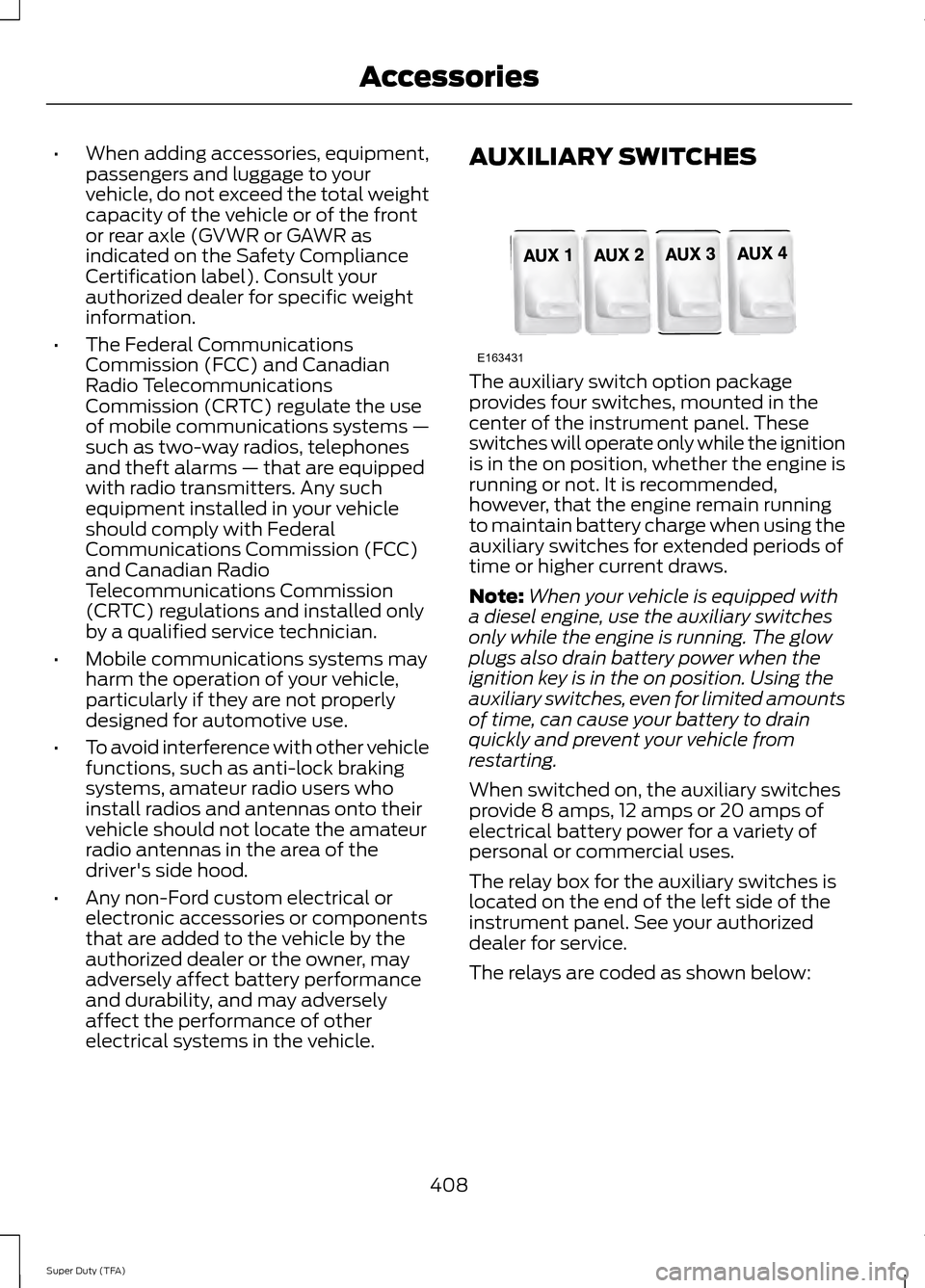
electrical systems in the vehicle. AUXILIARY SWITCHES
The auxiliary switch option package
provides four switches, mounted in the
center of the instrument panel. These
switches will operate only while the ignition
is in the on position, whether the engine is
running or not. It is recommended,
however, that the engine remain running
to maintain battery charge when using the
auxiliary switches for extended periods of
time or higher current draws.
Note:
When your vehicle is equipped with
a diesel engine, use the auxiliary switches
only while the engine is running. The glow
plugs also drain battery power when the
ignition key is in the on position. Using the
auxiliary switches, even for limited amounts
of time, can cause your battery to drain
quickly and prevent your vehicle from
restarting.
When switched on, the auxiliary switches
provide 8 amps, 12 amps or 20 amps of
electrical battery power for a variety of
personal or commercial uses.
The relay box for the auxiliary switches is
located on the end of the left side of the
instrument panel. See your authorized
dealer for service.
The relays are coded as shown below:
408
Super Duty (TFA) AccessoriesE163431
Page 448 of 458
4
4WD
See: Four-Wheel Drive...................................... 147
A
A/C See: Climate Control......................................... 102
About This Manual...........................................7
Protecting the Environment................................ 7
ABS See: Brakes........................................................... 158
ABS driving hints See: Hints on Driving With Anti-Lock
Brakes................................................................ 158
Accessories....................................................407 Exterior style........................................................ 407
Interior style......................................................... 407
Lifestyle................................................................. 407
Peace of mind..................................................... 407
Accessories See: Replacement Parts
Recommendation............................................. 11
Adjusting the Headlamps.........................237 Horizontal Aim Adjustment........................... 238
Vertical Aim Adjustment................................. 237
Adjusting the Pedals
.....................................62
Adjusting the Steering Wheel...................59
Airbag Disposal...............................................44
Air Conditioning See: Climate Control......................................... 102
Alarm See: Anti-Theft Alarm........................................ 58
Anti-Theft Alarm
............................................58
Arming the Alarm................................................. 58
Disarming the Alarm........................................... 58
Appendices....................................................410
Audible Warnings and Indicators.............79 Headlamps On Warning Chime...................... 79
Key in Ignition Warning Chime......................... 79
Parking Brake On Warning Chime.................. 79
Audio Control
..................................................59
Media........................................................................\
60
Seek, Next or Previous....................................... 60
Audio System...............................................300 General Information........................................ 300Audio unit - Vehicles With:
AM/FM/CD/SYNC....................................302
Audio unit - Vehicles With: AM/FM.......301
Audio unit - Vehicles With: Sony AM/FM/CD.................................................304
Autolamps........................................................64 Autolamps - Programmable Exit
Delay
.................................................................... 65
Automatic Climate Control......................103
Automatic Transmission...........................140 Brake-Shift Interlock......................................... 144
If Your Vehicle Gets Stuck In Mud or Snow.................................................................. 146
Understanding the Shift Positions of a 6– Speed Automatic Transmission..........141
Understanding the Shift Positions of the 5– Speed Automatic Transmission.........140
Understanding your SelectShift Automatic® transmission.......................... 143
Automatic Transmission Fluid Check............................................................230
Checking Automatic Transmission Fluid (If Equipped)........................................................ 230
Auxiliary Input Jack......................................310
Auxiliary Power Points................................126 110 Volt AC Power Points................................. 126
12 Volt DC Power Point..................................... 126
Locations............................................................... 126
Auxiliary Switches......................................408
B
Bonnet Lock See: Opening and Closing the Hood...........222
Booster Seats
..................................................23
Types of Booster Seats...................................... 24
Brake Fluid Check
........................................233
Brakes...............................................................158 General Information.......................................... 158
Breaking-In.....................................................198
Bulb Specification Chart
...........................242
C
California Proposition 65..............................11
Capacities and Specifications................292 Technical Specifications................................. 296
445
Super Duty (TFA) Index