tow FORD SUPER DUTY 2015 3.G Owners Manual
[x] Cancel search | Manufacturer: FORD, Model Year: 2015, Model line: SUPER DUTY, Model: FORD SUPER DUTY 2015 3.GPages: 470, PDF Size: 18.24 MB
Page 322 of 470
Note:This receiver includes the eCosreal-time operating system. eCos ispublished under the eCos License.
Satellite Radio Reception Factors
Potential satellite radio reception issues
For optimal reception performance, keep the antennaclear of snow and ice build-up and keep luggage and othermaterial as far away from the antenna as possible.
Antenna obstructions
Hills, mountains, tall buildings, bridges, tunnels, freewayoverpasses, parking garages, dense tree foliage andthunderstorms can interfere with your reception.
Terrain
When you pass a ground-based broadcast-repeatingtower, a stronger signal may overtake a weaker one andthe audio system may mute.
Station overload
Your display may show ACQUIRING . . . to indicate theinterference and the audio system may mute.Satellite radio signal interfer-ence
SIRIUS® Satellite Radio Service
Note:SIRIUS reserves the unrestricted rightto change, rearrange, add or deleteprogramming including canceling, movingor adding particular channels, and its prices,at any time, with or without notice to you.Ford Motor Company shall not beresponsible for any such programmingchanges.
SIRIUS satellite radio is asubscription-based satellite radio servicethat broadcasts a variety of music, sports,news, weather, traffic and entertainmentprogramming. Your factory-installedSIRIUS satellite radio system includeshardware and a limited subscription term,which begins on the date of sale or leaseof your vehicle. See an authorized dealerfor availability.
For more information on extendedsubscription terms (a service fee isrequired), the online media player and acomplete list of SIRIUS satellite radiochannels, and other features, please visitwww.siriusxm.com in the United States,www.sirius.ca in Canada, or call SIRIUS at1-888-539-7474.
Satellite Radio Electronic SerialNumber (ESN)
You need your ESN to activate, modify ortrack your satellite radio account. When insatellite radio mode, press Options.
319Super Duty (), enUSAAudio SystemE142593
Page 323 of 470
Troubleshooting
Possible actionConditionRadio display
No action required. Thismessage should disappearshortly.
Radio requires more thantwo seconds to produceaudio for the selectedchannel.
Acquiring
If this message does notclear shortly, or with an igni-tion key cycle, your receivermay have a fault. See anauthorized dealer for service.
There is an internal moduleor system failure present.Sat Fault/SIRIUS systemfailure
Tune to another channel orchoose another preset.The channel is no longeravailable.Invalid Channel
Contact SIRIUS at 1-888-539-7474 to subscribe tothe channel, or tune toanother channel.
Your subscription does notinclude this channel.Unsubscribed Channel
The signal is blocked. Whenyou move into an open area,the signal should return.
The signal is lost from theSIRIUS satellite or SIRIUStower to your vehicleantenna.
No Signal
No action required. Theprocess may take up tothree minutes.
Update of channelprogramming in progress.Updating
Contact SIRIUS at 1-888-539-7474 to resolvesubscription issues.
Your satellite service is nolonger available.Call SIRIUS 1-888-539-7474
Use the channel guide toturn off the Lock or Skipfunction on that station.
All the channels in theselected category are eitherskipped or locked.
None found. Check ChannelGuide.
No action required.SIRIUS has updated thechannels available for yourvehicle.
Subscription Updated
320Super Duty (), enUSAAudio System
Page 346 of 470
Connecting to SYNC Services Usingthe Phone Menu
1.Press the phone button to enter thephone menu.
2.Scroll to Services.
3.Press OK to confirm and enter theServices menu. The display indicatesthe system is connecting.
4.Press OK. SYNC initiates the call to theServices portal.
5.Once you connect to the service, followthe voice prompts to request thedesired service, such as Traffic orDirections. You can also say, "What aremy choices?" to receive a list ofavailable services from which tochoose.
6.Say, "Services" to return to the Servicesmain menu or for help, say, "Help".
Receiving Turn-by-Turn Directions
1.When connected to SYNC Services,say "Directions" or "Business search".To find the closest business or type ofbusiness to your current location, justsay "Business search" and then"Search near me". If you need furtherassistance in finding a location you cansay "Operator" at any time within aDirections or Business search to speakwith a live operator. The system mayprompt you to speak with an operatorwhen it has difficulty matching yourvoice request. The live operator can
assist you by searching for businessesby name or by category, residentialaddresses by street address or byname or specific street intersections.Operator Assist is a feature of yourSYNC Services subscription. For moreinformation on Operator Assist, visitwww.SYNCMyRide.com/support.
2.Follow the voice prompts to select yourdestination. Once you select yourdestination, the system uploads yourcurrent vehicle location, calculates aroute based on current trafficconditions and sends it back to yourvehicle. After the route download iscomplete, the phone call automaticallyends. You then receive audible andvisual driving instructions as you traveltoward your destination.
3.While on an active route, you can selector say "Route summary" or "Routestatus" to view the Route Summaryturn list or the Route Status ETA. Youcan also turn voice guidance on or off,cancel the route or update the route.
If you miss a turn, SYNC automatically asksif you want the route updated. Just say,"Yes" when prompted and the systemsends a new route to your vehicle.
Disconnecting from SYNC Services
1.Press and hold the phone button onthe steering wheel.
2.Say "Goodbye" from the SYNCServices main menu.
343Super Duty (), enUSASYNC™ (If Equipped)
Page 388 of 470
SIRIUS Satellite Radio Reception Factors and Troubleshooting
Potential reception issues
For optimal reception performance, keep the antennaclear of snow and ice build-up and keep luggage and othermaterials as far away from the antenna as possible.
Antenna obstructions
Hills, mountains, tall buildings, bridges, tunnels, freewayoverpasses, parking garages, dense tree foliage andthunderstorms can interfere with your reception.
Terrain
When you pass a ground-based broadcast-repeatingtower, a stronger signal may overtake a weaker one andthe audio system may mute.
Station overload
Your display may show ACQUIRING... to indicate theinterference and the audio system may mute.Satellite radio signal interfer-ence
Troubleshooting tips
ActionCauseRadio display
No action required. Thismessage should disappearshortly.
Radio requires more thantwo seconds to produceaudio for the selectedchannel.
Acquiring...
If this message does notclear shortly, or with an igni-tion key cycle, your receivermay have a fault. See anauthorized dealer for service.
There is an internal moduleor system failure present.Sat Fault/SIRIUS SystemFailure.
Tune to another channel orchoose another preset.The channel is no longeravailable.Invalid Channel.
Contact SIRIUS at 1-888-539-7474 to subscribe tothe channel, or tune toanother channel.
Your subscription does notinclude this channel.Unsubscribed Channel.
The signal is blocked. Whenyou move into an open area,the signal should return.
The signal is lost from theSIRIUS satellite or SIRIUStower to your vehicleantenna.
No Signal.
385Super Duty (), enUSAMyFord Touch™ (If Equipped)
Page 405 of 470
Disconnecting from SYNC Services
1.Press and hold the hang-up phone
button on the steering wheel.
2.Say "Good-bye" from the SYNCServices main menu.
SYNC Services quick tips
You can personalize your Services feature to providequicker access to your most used or favorite information.You can save address points, such as work or home. Youcan also save favorite information like sports teams, suchas Detroit Lions, or a news category. You can learn moreabout personalization by logging ontowww.SYNCMyRide.com.
Personalizing
Press the voice button at any time (while connected toSYNC Services) to interrupt a voice prompt or an audioclip (such as a sports report) and say your voice command.
Push to interrupt
Your subscription is associated with your Bluetooth-enabled cellular phone number, not your VIN (VehicleIdentification Number). You can pair and connect yourphone to any vehicle equipped with SYNC Services andcontinue enjoying your personalized services.
Portable
SYNC Services Voice Commands
When a route has beendownloaded (non-navigationsystems), press the voice buttonon the steering wheel controls. Whenprompted, say any of the followingcommands:
"SERVICES"
"Cancel route"
"Navigation voice off"
"Navigation voice on"
"Next turn"
"Route status"
"Route summary"
"SERVICES"
"Services"
"Update route"
"Help"
Sirius Travel Link (If Equipped)
WARNING
Driving while distracted can result inloss of vehicle control, crash andinjury. We strongly recommend thatyou use extreme caution when using anydevice that may take your focus off theroad. Your primary responsibility is the safeoperation of your vehicle. We recommendagainst the use of any handheld devicewhile driving and encourage the use ofvoice-operated systems when possible.Make sure you are aware of all applicablelocal laws that may affect the use ofelectronic devices while driving.
402Super Duty (), enUSAMyFord Touch™ (If Equipped)E142599
Page 406 of 470
Note:In order to use Sirius Travel Link, yourvehicle must be equipped with navigationand your navigation SD card must be in theSD card slot.
Note:A paid subscription is required toaccess and use these features. Go towww.siriusxm.com/travellink for moreinformation.
Note:Visit www.siriusxm.com/traffic# andclick on Coverage map and details for acomplete listing of all traffic areas coveredby Sirius Travel Link.
Note:Neither Sirius nor Ford is responsiblefor any errors or inaccuracies in the SiriusTravel Link services or its use in vehicles.
When you subscribe to Sirius Travel Link,it can help you locate the best gas prices,find movie listings, get current traffic alerts,view the current weather map, getaccurate ski conditions and see scores tocurrent sports games.
If your vehicle is equipped withNavigation, touch the i(Information) button to accessthese features. If your vehicle is notequipped with Navigation, touch the cornerof the touchscreen with the green tab.
Traffic On Route and Traffic Nearby
Touch these buttons to identify trafficincidents on your route, nearby yourvehicle’s current location or near any ofyour favorite places, if programmed.
Fuel Prices
Touch this button to view fuel prices atstations close to your vehicle’s location oron an active navigation route.
Movie Listings
Touch this button to view nearby movietheaters and their show times, if available.
Weather
Touch this button to view the nearbyweather, current weather, or the five dayforecast for the chosen area. Select Mapto see the weather map, which can showstorms, radar information, charts andwinds. Select Area to select from a listingof weather locations.
Sports Info
Touch this button to view scores andschedules from a variety of sports. You canalso save up to 10 favorite teams for easieraccess. The score automatically refresheswhen a game is in progress.
Ski Conditions
Touch this button to view ski conditionsfor a specific area.
Sirius Travel Link Voice Commands
Press the voice button on thesteering wheel controls. Whenprompted, say any of thefollowing commands:
"SIRIUS TRAVEL LINK"
"5-day weather forecast"
"Fuel prices"
"Movie listings"
"Sports headlines"*
"Sports schedules"*
"Sports scores"*
"Traffic"
"Weather"
403Super Duty (), enUSAMyFord Touch™ (If Equipped)E142608 E142599
Page 418 of 470
Traffic Alert Notification
Have the system display traffic alertnotifications.
Other traffic alert features allows you toturn on certain, or all, traffic icons on themap such as road work, incident, accidentsand closed roads. Scroll down to view allthe different types of alerts. Turn thesefeatures ON or OFF.
Avoid Areas
Choose areas which you want the systemto avoid when calculating a route for you.
Press Add to program an entry. Once youmake a selection, the system tries to avoidthe area(s) if possible for all routes. Todelete a selection, choose the listing onthe screen. When the screen changes toAvoid Areas Edit, you can press Deleteat the bottom right of the screen.
Map Mode
Press the green bar in the upper right areaof the touchscreen to view map mode. Mapmode shows advanced viewing comprisedof both 2D city maps as well as 3Dlandmarks (when available).
2D city maps show detailed outlines ofbuildings, visible land use and landelements and detailed railwayinfrastructure for the most essential citiesaround the globe. These maps also containfeatures, such as town blocks, buildingfootprints, and railways.
3D landmarks appear as clear, visibleobjects that are typically recognizable andhave a certain tourist value. The 3Dlandmarks appear in 3D map mode only.Coverage varies, and improves withupdated map releases.
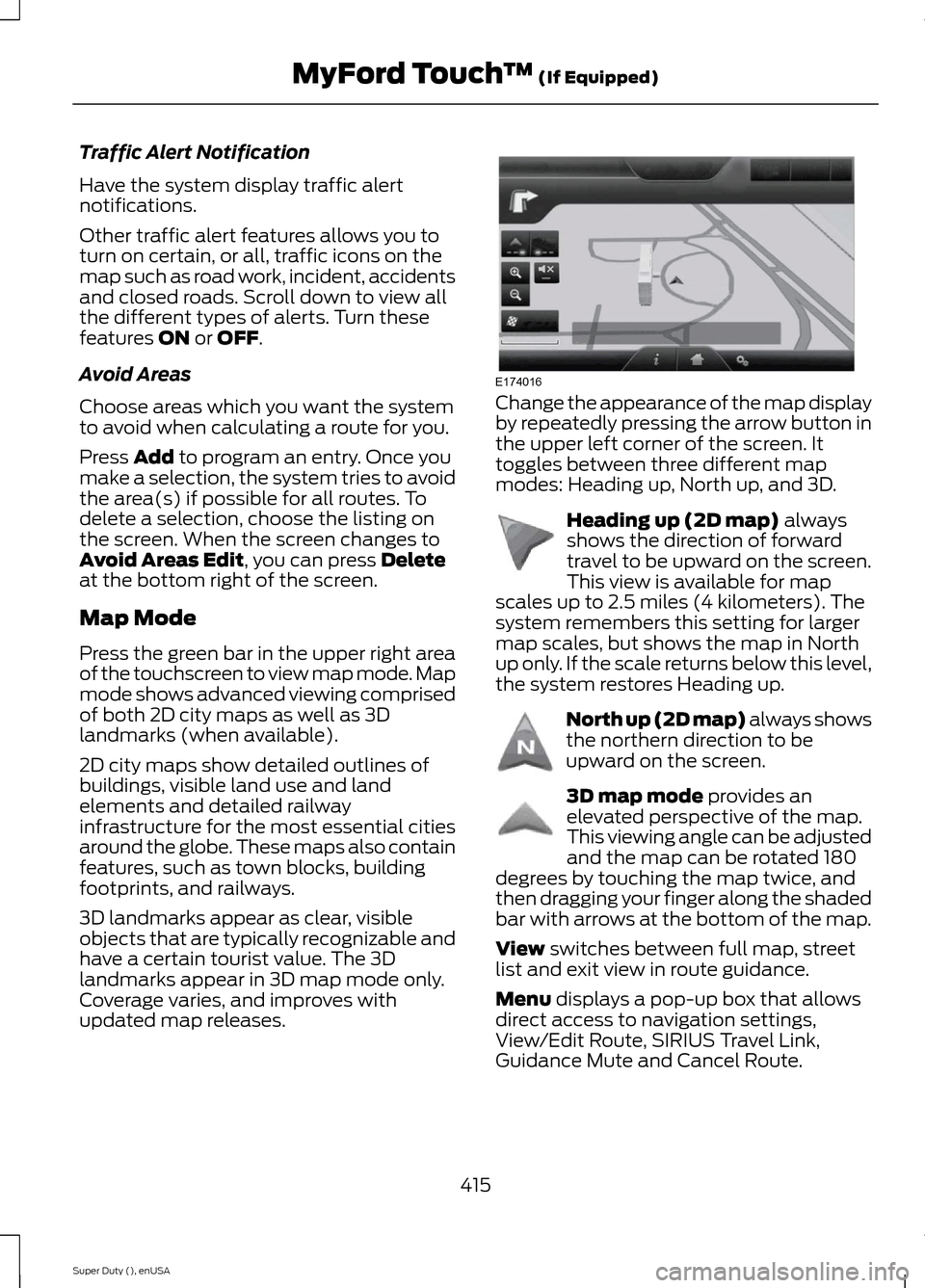
Change the appearance of the map displayby repeatedly pressing the arrow button inthe upper left corner of the screen. Ittoggles between three different mapmodes: Heading up, North up, and 3D.
Heading up (2D map) alwaysshows the direction of forwardtravel to be upward on the screen.This view is available for mapscales up to 2.5 miles (4 kilometers). Thesystem remembers this setting for largermap scales, but shows the map in Northup only. If the scale returns below this level,the system restores Heading up.
North up (2D map) always showsthe northern direction to beupward on the screen.
3D map mode provides anelevated perspective of the map.This viewing angle can be adjustedand the map can be rotated 180degrees by touching the map twice, andthen dragging your finger along the shadedbar with arrows at the bottom of the map.
View switches between full map, streetlist and exit view in route guidance.
Menu displays a pop-up box that allowsdirect access to navigation settings,View/Edit Route, SIRIUS Travel Link,Guidance Mute and Cancel Route.
415Super Duty (), enUSAMyFord Touch™ (If Equipped)E174016 E142642 E142643 E142644
Page 422 of 470
"NAVIGATION"
"Zoom maximum"
"Zoom province"
"Zoom state"
"Zoom street"
"Zoom to
"Help"
* If you say "Destination", you can then sayany command in the "Destination" chart.
One-shot Destination Street Address
When you say either "Navigationdestination street address" or "Destinationstreet address", the system asks you to saythe full address. The system displays anexample on-screen. You can then speakthe address naturally, such as "One twothree four Main Street, Anytown".
419Super Duty (), enUSAMyFord Touch™ (If Equipped)
Page 435 of 470
the terms and conditions of thisAgreement. Any such sale, assignment ortransfer that is not expressly permittedunder this paragraph will result inimmediate termination of this Agreement,without liability to Telenav, in which caseyou and all other parties shall immediatelycease all use of the Telenav Software.Notwithstanding the foregoing, Telenavmay assign this Agreement to any otherparty at any time without notice, providedthe assignee remains bound by thisAgreement.
8. Miscellaneous
8.1
This Agreement constitutes the entireagreement between Telenav and you withrespect to the subject matter hereof.
8.2
Except for the limited licenses expresslygranted in this Agreement, Telenav retainsall right, title and interest in and to theTelenav Software, including withoutlimitation all related intellectual propertyrights. No licenses or other rights which arenot expressly granted in this Agreementare intended to, or shall be, granted orconferred by implication, statute,inducement, estoppel or otherwise, andTelenav and its suppliers and licensorshereby reserve all of their respective rightsother than the licenses explicitly grantedin this Agreement.
8.3
By using the Telenav Software, youconsent to receive from Telenav allcommunications, including notices,agreements, legally required disclosuresor other information in connection with theTelenav Software (collectively,“Notices”)electronically. Telenav may provide such
Notices by posting them on Telenav’sWebsite or by downloading such Noticesto your wireless device. If you desire towithdraw your consent to receive Noticeselectronically, you must discontinue youruse of the Telenav Software.
8.4
Telenav’s or your failure to requireperformance of any provision shall notaffect that party’s right to requireperformance at any time thereafter, norshall a waiver of any breach or default ofthis Agreement constitute a waiver of anysubsequent breach or default or a waiverof the provision itself.
8.5
If any provision herein is heldunenforceable, then such provision will bemodified to reflect the intention of theparties, and the remaining provisions ofthis Agreement will remain in full force andeffect.
8.6
The headings in this Agreement are forconvenience of reference only, will not bedeemed to be a part of this Agreement,and will not be referred to in connectionwith the construction or interpretation ofthis Agreement. As used in this Agreement,the words “include” and “including,” andvariations thereof, will not be deemed tobe terms of limitation, but rather will bedeemed to be followed by the words“without limitation”.
9. Other Vendors Terms and Conditions
The Telenav Software utilizes map andother data licensed to Telenav by thirdparty vendors for the benefit of you andother end users. This Agreement includesend-user terms applicable to thesecompanies (included at the end of this
432Super Duty (), enUSAAppendices
Page 441 of 470
PROTECT YOURSELF FROM THE RISINGCOST OF VEHICLE REPAIRS WITH A FORDEXTENDED SERVICE PLAN.
SERVICE PLANS (U.S. Only)
More than 32 million Ford owners havediscovered the powerful protection of FordExtended Service Plan. It is the onlyextended service plan backed by FordMotor Company, and provides peace ofmind protection beyond the New VehicleLimited Warranty coverage.
Ford ESP Can Quickly Pay for Itself
One service bill – the cost of parts andlabor – can easily exceed the price of yourFord Extended Service Plan. With Ford ESPyou minimize your risk for unexpectedrepair bills and rising repair costs.
Up to 1,000+ Covered VehicleComponents
There are four Extended Service Plans withdifferent levels of coverage. Ask yourauthorized dealer for details.
1.PremiumCARE - Our mostcomprehensive coverage. With over1,000 covered components, this planis so complete that we generally onlydiscuss what’s not covered.
2.ExtraCARE - Covers 113 components,and includes many high-tech items.
3.BaseCARE - Covers 84 components.
4.PowertrainCARE - Covers 29 criticalcomponents.
Ford Extended Service Plan is honored byall authorized Ford dealers in the U.S. andCanada. It is the only extended service planauthorized and backed by Ford MotorCompany.
That means you get:
•Reliable, quality service at any Ford orLincoln dealership
•Repairs performed by factory trainedtechnicians, using genuine parts
Rental Car Reimbursement
1st day Rental Benefit
You take advantage of replacementtransportation if your vehicle is at yourauthorized dealer for same day coveredrepairs.
Extended Rental Benefits
If your vehicle is kept overnight for coveredrepairs, you are eligible for rental carcoverage, including bumper to bumperwarranty repairs, and Field Service Actions.
Roadside Assistance
Exclusive 24/7 roadside assistance,including:
•Towing, flat-tire change and batteryjump starts
•Out of fuel and lock-out assistance
•Travel expense reimbursement forlodging, meals and rental car
•Destination assistance for taxi, shuttle,rental car coverage and emergencytransportation
Transferable Coverage
If you sell your vehicle before your FordExtended Service Plan coverage expires,you can transfer any remaining coverageto the new owner. Whenever you sell yourvehicle, prospective buyers may have ahigher degree of confidence that vehiclewas properly maintained with Ford ESP,thereby improving resale value.
438Super Duty (), enUSAExtended Service Plan (ESP)