CD player FORD SUPER DUTY 2015 3.G User Guide
[x] Cancel search | Manufacturer: FORD, Model Year: 2015, Model line: SUPER DUTY, Model: FORD SUPER DUTY 2015 3.GPages: 470, PDF Size: 18.24 MB
Page 352 of 470
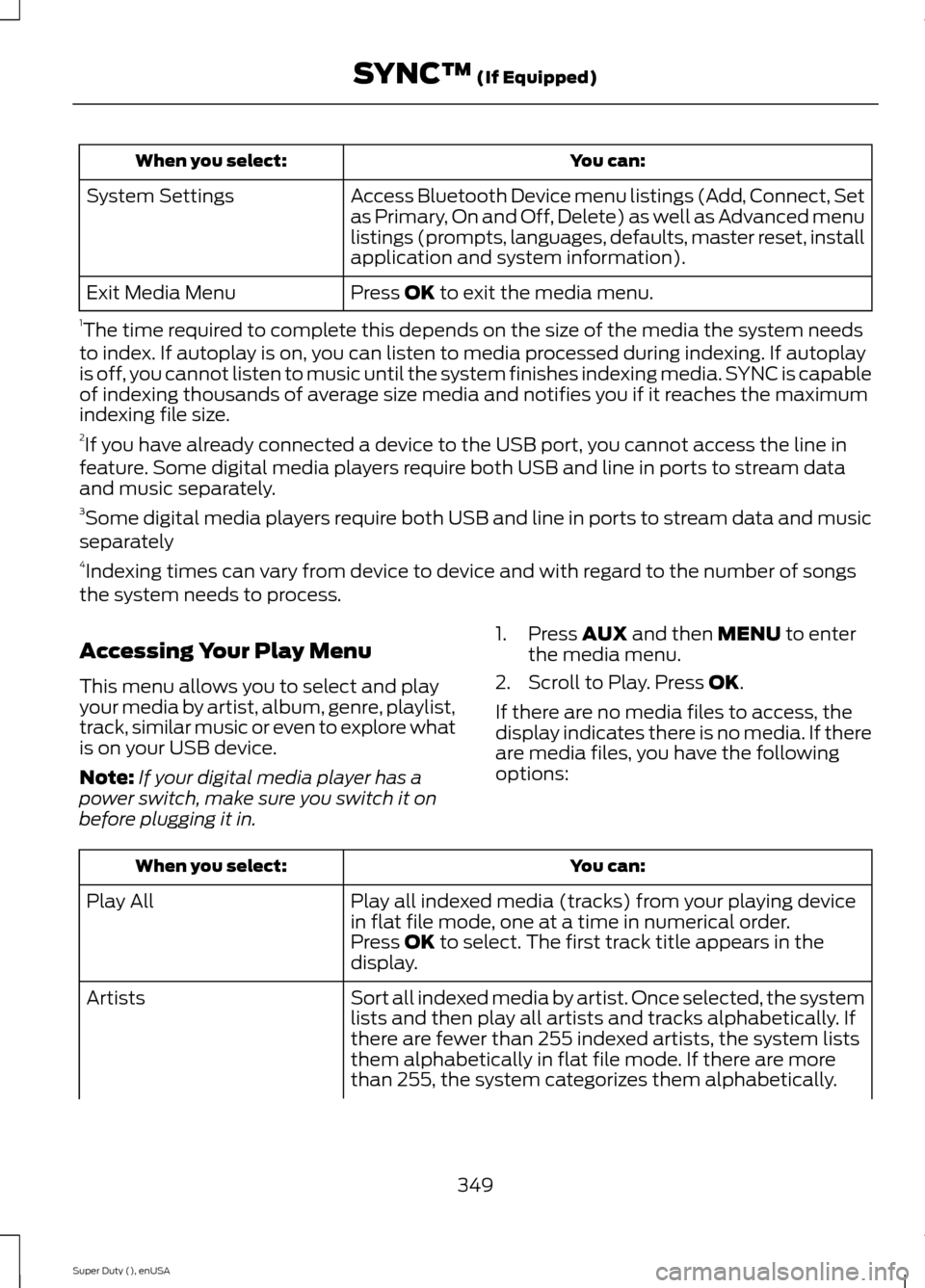
You can:When you select:
Access Bluetooth Device menu listings (Add, Connect, Setas Primary, On and Off, Delete) as well as Advanced menulistings (prompts, languages, defaults, master reset, installapplication and system information).
System Settings
Press OK to exit the media menu.Exit Media Menu
1The time required to complete this depends on the size of the media the system needsto index. If autoplay is on, you can listen to media processed during indexing. If autoplayis off, you cannot listen to music until the system finishes indexing media. SYNC is capableof indexing thousands of average size media and notifies you if it reaches the maximumindexing file size.2If you have already connected a device to the USB port, you cannot access the line infeature. Some digital media players require both USB and line in ports to stream dataand music separately.3Some digital media players require both USB and line in ports to stream data and musicseparately4Indexing times can vary from device to device and with regard to the number of songsthe system needs to process.
Accessing Your Play Menu
This menu allows you to select and playyour media by artist, album, genre, playlist,track, similar music or even to explore whatis on your USB device.
Note:If your digital media player has apower switch, make sure you switch it onbefore plugging it in.
1.Press AUX and then MENU to enterthe media menu.
2.Scroll to Play. Press OK.
If there are no media files to access, thedisplay indicates there is no media. If thereare media files, you have the followingoptions:
You can:When you select:
Play all indexed media (tracks) from your playing devicein flat file mode, one at a time in numerical order.Play All
Press OK to select. The first track title appears in thedisplay.
Sort all indexed media by artist. Once selected, the systemlists and then play all artists and tracks alphabetically. Ifthere are fewer than 255 indexed artists, the system liststhem alphabetically in flat file mode. If there are morethan 255, the system categorizes them alphabetically.
Artists
349Super Duty (), enUSASYNC™ (If Equipped)
Page 366 of 470
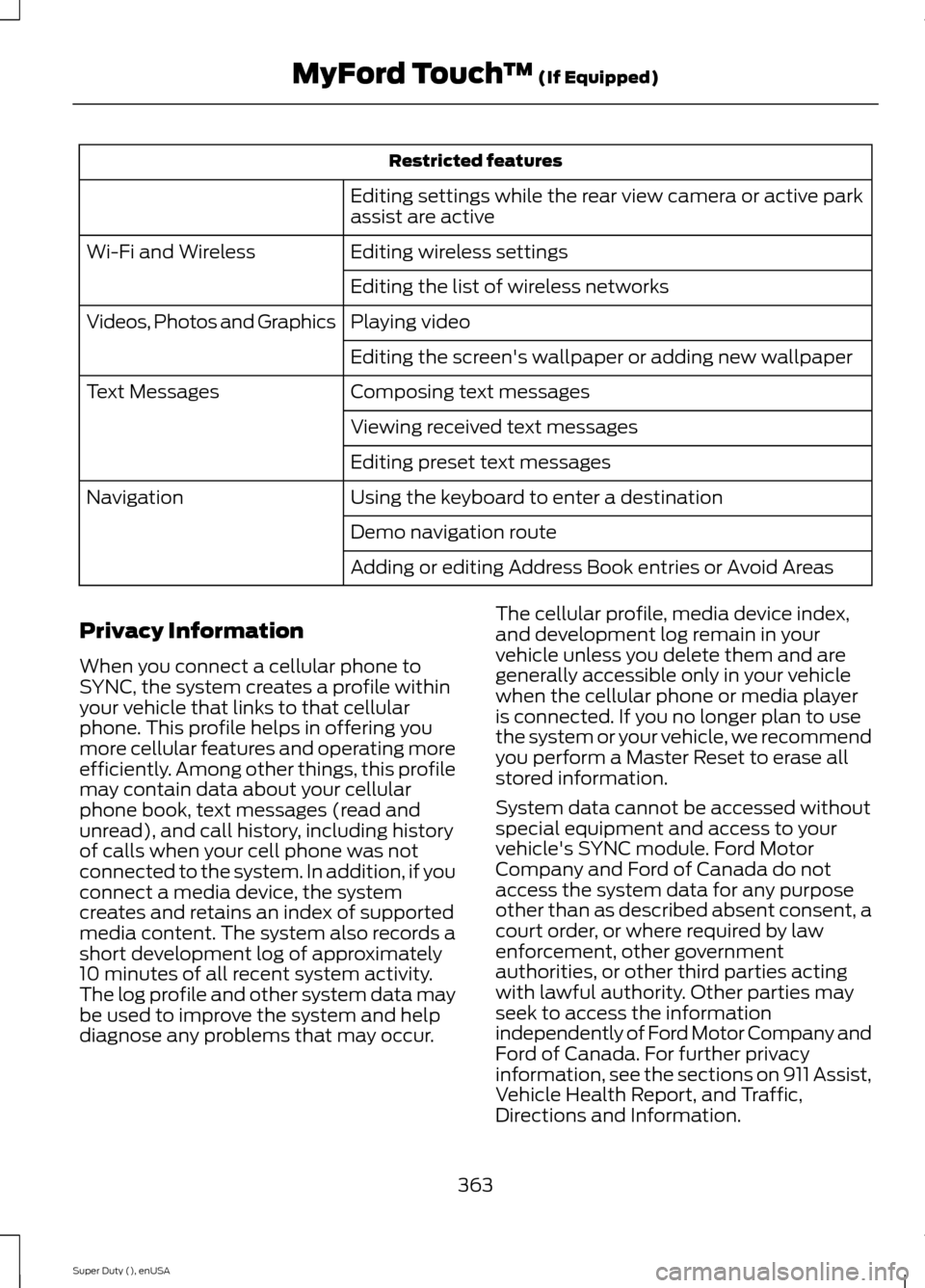
Restricted features
Editing settings while the rear view camera or active parkassist are active
Editing wireless settingsWi-Fi and Wireless
Editing the list of wireless networks
Playing videoVideos, Photos and Graphics
Editing the screen's wallpaper or adding new wallpaper
Composing text messagesText Messages
Viewing received text messages
Editing preset text messages
Using the keyboard to enter a destinationNavigation
Demo navigation route
Adding or editing Address Book entries or Avoid Areas
Privacy Information
When you connect a cellular phone toSYNC, the system creates a profile withinyour vehicle that links to that cellularphone. This profile helps in offering youmore cellular features and operating moreefficiently. Among other things, this profilemay contain data about your cellularphone book, text messages (read andunread), and call history, including historyof calls when your cell phone was notconnected to the system. In addition, if youconnect a media device, the systemcreates and retains an index of supportedmedia content. The system also records ashort development log of approximately10 minutes of all recent system activity.The log profile and other system data maybe used to improve the system and helpdiagnose any problems that may occur.
The cellular profile, media device index,and development log remain in yourvehicle unless you delete them and aregenerally accessible only in your vehiclewhen the cellular phone or media playeris connected. If you no longer plan to usethe system or your vehicle, we recommendyou perform a Master Reset to erase allstored information.
System data cannot be accessed withoutspecial equipment and access to yourvehicle's SYNC module. Ford MotorCompany and Ford of Canada do notaccess the system data for any purposeother than as described absent consent, acourt order, or where required by lawenforcement, other governmentauthorities, or other third parties actingwith lawful authority. Other parties mayseek to access the informationindependently of Ford Motor Company andFord of Canada. For further privacyinformation, see the sections on 911 Assist,Vehicle Health Report, and Traffic,Directions and Information.
363Super Duty (), enUSAMyFord Touch™ (If Equipped)
Page 373 of 470
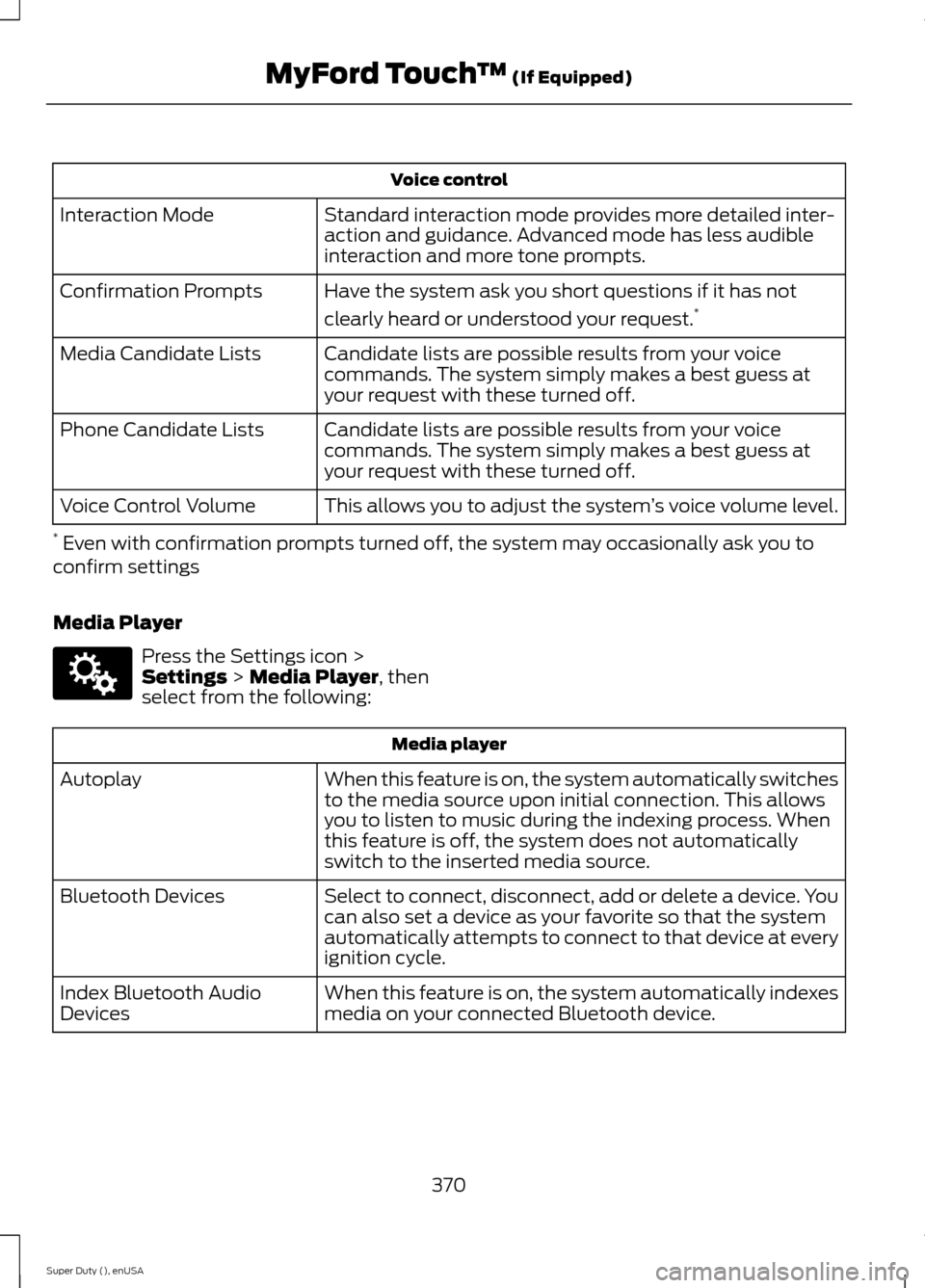
Voice control
Standard interaction mode provides more detailed inter-action and guidance. Advanced mode has less audibleinteraction and more tone prompts.
Interaction Mode
Have the system ask you short questions if it has not
clearly heard or understood your request.*Confirmation Prompts
Candidate lists are possible results from your voicecommands. The system simply makes a best guess atyour request with these turned off.
Media Candidate Lists
Candidate lists are possible results from your voicecommands. The system simply makes a best guess atyour request with these turned off.
Phone Candidate Lists
This allows you to adjust the system’s voice volume level.Voice Control Volume
* Even with confirmation prompts turned off, the system may occasionally ask you toconfirm settings
Media Player
Press the Settings icon >Settings > Media Player, thenselect from the following:
Media player
When this feature is on, the system automatically switchesto the media source upon initial connection. This allowsyou to listen to music during the indexing process. Whenthis feature is off, the system does not automaticallyswitch to the inserted media source.
Autoplay
Select to connect, disconnect, add or delete a device. Youcan also set a device as your favorite so that the systemautomatically attempts to connect to that device at everyignition cycle.
Bluetooth Devices
When this feature is on, the system automatically indexesmedia on your connected Bluetooth device.Index Bluetooth AudioDevices
370Super Duty (), enUSAMyFord Touch™ (If Equipped)E142607
Page 374 of 470
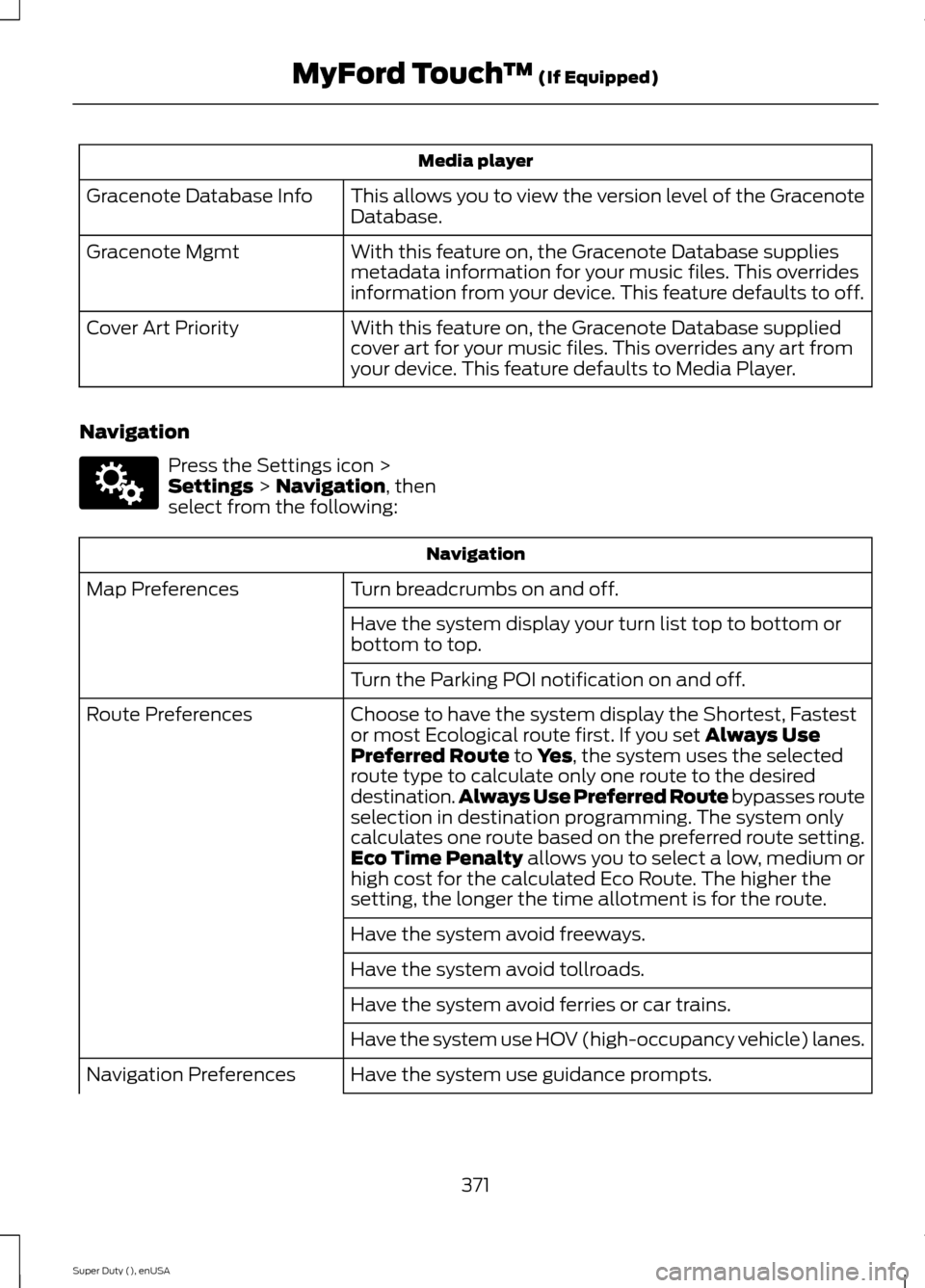
Media player
This allows you to view the version level of the GracenoteDatabase.Gracenote Database Info
With this feature on, the Gracenote Database suppliesmetadata information for your music files. This overridesinformation from your device. This feature defaults to off.
Gracenote Mgmt
With this feature on, the Gracenote Database suppliedcover art for your music files. This overrides any art fromyour device. This feature defaults to Media Player.
Cover Art Priority
Navigation
Press the Settings icon >Settings > Navigation, thenselect from the following:
Navigation
Turn breadcrumbs on and off.Map Preferences
Have the system display your turn list top to bottom orbottom to top.
Turn the Parking POI notification on and off.
Choose to have the system display the Shortest, Fastestor most Ecological route first. If you set Always UsePreferred Route to Yes, the system uses the selectedroute type to calculate only one route to the desireddestination.Always Use Preferred Route bypasses routeselection in destination programming. The system onlycalculates one route based on the preferred route setting.Eco Time Penalty allows you to select a low, medium orhigh cost for the calculated Eco Route. The higher thesetting, the longer the time allotment is for the route.
Route Preferences
Have the system avoid freeways.
Have the system avoid tollroads.
Have the system avoid ferries or car trains.
Have the system use HOV (high-occupancy vehicle) lanes.
Have the system use guidance prompts.Navigation Preferences
371Super Duty (), enUSAMyFord Touch™ (If Equipped)E142607
Page 381 of 470
![FORD SUPER DUTY 2015 3.G User Guide Sample commands
"Sirius <0-223>"*
"Sports games"*
* This command is only usable if you havean active subscription to SIRIUS satelliteradio.** The commands that have [ ] around theword means that the w](/img/11/5311/w960_5311-380.png "FORD SUPER DUTY 2015 3.G User Guide Sample commands
\"Sirius <0-223>\"*
\"Sports games\"*
* This command is only usable if you havean active subscription to SIRIUS satelliteradio.** The commands that have [ ] around theword means that the w")
Sample commands
"Sirius <0-223>"*
"Sports games"*
* This command is only usable if you havean active subscription to SIRIUS satelliteradio.** The commands that have [ ] around theword means that the word is optional. Forexample, if you say, "Play Metallica", thisis the same as the voice command, "Play[artist]
AM/FM Radio
Touch the AM or FM tab to listento the radio.
To change between AM and FM presets,just touch the AM or FM tab.
Memory Presets
Save a station by pressing and holding oneof the memory preset areas. There is a briefmute while the radio saves the station.Sound returns when finished.
HD Radio
Touch this button to turn HD Radio on. Thelight on the button illuminates when thefeature is on. HD Radio allows you toreceive radio broadcasts digitally, whereavailable, providing free, crystal-clearsound. See HD Radio information later inthis chapter.
Scan
Touch this button to go to the next strongAM or FM radio station. The light on thebutton illuminates when the feature is on.
Options
Sound Settings
Touch this button to adjust settings for:
•Bass
•Midrange
•Treble
•Balance and Fade
•DSP (Digital Signal processing)
•Occupancy Mode
•Speed Compensated Volume.
Note:Your vehicle may not have all thesesound settings.
Set PTY for Seek/Scan
This allows you to select a category ofmusic you would like to search for. You canthen choose to either seek or scan for thestations playing that category.
RDS Text Display
This allows you to view the informationbroadcast by FM stations.
AST
AST (Autostore) allows you to have thesystem automatically store the sixstrongest stations in your current location.
TAG Button
This feature is available when HD Radio ison, and allows you to tag a song todownload later. When you select On,TAGappears on-screen when HD Radio isactive. You can touch TAG to save theinformation of the song that is playing.When you plug in your portable musicplayer, the information transfers, ifsupported by your device. When you areconnected to iTunes, the tags appear toremind you of the songs you would like todownload. See HD Radio information laterin this chapter.
378Super Duty (), enUSAMyFord Touch™ (If Equipped)E142611
Page 382 of 470
Direct Tune
Touch this button to manually enter thedesired station number. Touch Enter whenyou are done.
HD Radio™ Information (If Available)
Note:HD Radio broadcasts are notavailable in all markets.
HD Radio technology is the digitalevolution of analog AM/FM radio. Yoursystem has a special receiver that allowsit to receive digital broadcasts (whereavailable) in addition to the analogbroadcasts, it already receives. Digitalbroadcasts provide a better sound qualitythan analog broadcasts with free,crystal-clear audio and no static ordistortion. For more information, and aguide to available stations andprogramming, please visitwww.hdradio.com.
When HD Radio is on and you tune to astation broadcasting HD Radio technology,you may notice the following indicators onyour screen:
The HD Radio logo either blinks whenacquiring a digital station, and then stayssolid when digital audio is playing, or is greywhen acquiring a digital station, and thenchanges to orange when digital audio isplaying. When this logo is available, youmay also see Title and Artist fieldson-screen.
The multicast indicator appears in FMmode (only) if the current station isbroadcasting multiple digital broadcasts.The highlighted numbers signify availabledigital channels where new or differentcontent is available. HD1 signifies the mainprogramming status and is available inanalog and digital broadcasts. Othermulticast stations (HD2 through HD7) areonly available digitally.
TAG allows you to save a song todownload later when you are on anacquired HD Radio station and the featureis on. To turn the feature on and use it:
1.Press AM or FM > Options > TAGButton > On.
2.When you hear a song you like, touchTAG.
3.The system automatically saves thesong's information and transfers it toyour portable music player (ifsupported) when you connect it to thesystem. The system automaticallytransfers the tag to your player (ifalready connected) and a pop-upconfirms the transfer.
4.When you access iTunes with yourportable music player, the tags appearto you as a reminder. The systemallows you to tag up to approximately100 songs. For a list of devices thatsupport tagging, seewww.SYNCMyRide.com,www.SYNCMyRide.ca orwww.syncmaroute.ca.
379Super Duty (), enUSAMyFord Touch™ (If Equipped)E142616
Page 387 of 470
Tune to the channel, to Cancel the alert orto Disable Alerts. If you are listening to asporting event, you can save your favoriteteams so that the system can alert youwhen they are playing on a satellite radiochannel.
Note:SIRIUS does not support the Alertfeature on all channels. Ford MotorCompany shall not be responsible for Alertfeature variation.
Electronic Serial Number (ESN)
SIRIUS requires this number whencommunicating with you about youraccount.
Direct Tune
Touch this button to manually enter thedesired satellite channel number. TouchEnter when you are done.
Browse
Touch this button to view a list of allavailable stations. Scroll to see morecategories. Touch the station you want tolisten to.
Touch Skip if you want to skip thischannel.
Touch Lock if you do not want anyone tolisten to this channel.
Touch Title or Artist to see song andartists on other stations.
SIRIUS Satellite Radio Information
Note:SIRIUS reserves the unrestricted rightto change, rearrange, add or deleteprogramming including canceling, movingor adding particular channels, and its prices,at any time, with or without notice to you.Ford Motor Company shall not beresponsible for any such programmingchanges.
SIRIUS satellite radio is asubscription-based satellite radio servicethat broadcasts a variety of music, sports,news, weather, traffic and entertainmentprogramming. Your factory-installedSIRIUS satellite radio system includeshardware and a limited subscription termthat begins on the date of sale or lease ofyour vehicle. See an authorized dealer foravailability.
For more information on extendedsubscription terms (a service fee isrequired), the online media player and alist of SIRIUS satellite radio channels, andother features, please visitwww.siriusxm.com in the United States,www.sirius.ca in Canada, or call SIRIUS at1-888-539-7474.
Note:This receiver includes the eCosreal-time operating system. eCos ispublished under the eCos License.
Satellite Radio Electronic Serial Number(ESN)
You need your ESN to activate, modify ortrack your satellite radio account. The ESNis on the System Information Screen (SRESN:XXXXXXXXXXXX). To access yourESN, touch the bottom left corner of thetouchscreen. Touch SIRIUS > Options.
384Super Duty (), enUSAMyFord Touch™ (If Equipped)E142593
Page 392 of 470
This feature allows you to plug in mediaplaying devices, memory sticks, flash drivesor thumb drives, and charge devices if theysupport this feature.
In order to playback video from your iPodor iPhone, you must have a specialcombination USB/RCA composite videocable (which you can buy from Apple).When you connect the cable to your iPodor iPhone, plug the other end into both theRCA jacks and the USB port.
Playing Music from Your Device
Note:The system is capable of indexing upto 30,000 songs.
Insert your device and select theSD Card or USB tab once thesystem recognizes it. You canthen select from the following options:
Repeat
This feature replays the currently playingsong or album.
Shuffle
Touch this button to play music on theselected album or folder in random order.
Similar Music
This feature allows you to choose musicsimilar to what is currently playing.
More Info
Touch this button to see disc informationsuch as current track, artist name, albumand genre.
Options
Touch this button to view and adjustvarious media settings.
Sound Settings allows you to adjustsettings for:
•Bass
•Midrange
•Treble
•Balance and Fade
•DSP (Digital Signal processing)
•Occupancy Mode
•Speed Compensated Volume.
Note:Your vehicle may not have all thesesound settings.
Media Player Settings allows you toselect more settings, which is under MediaPlayer. See Settings (page 366).
Device Information displays softwareand firmware information about thecurrently connected media device.
Update Media Index indexes your devicewhen you connect it for the first time andeach time the content changes (such asadding or removing tracks) to make sureyou have the latest voice commandsavailable for all media on the device.
Browse
This feature allows you to view thecontents of the device. It also allows youto search by categories, such as genre,artist or album.
If you want to view song information suchas Title, Artist, File, Folder, Album, andGenre, touch the on-screen album art.
You can also touch What’s Playing tohear how the system pronounces thecurrent band and song. This can be helpfulwhen using voice commands to make surethe system correctly plays your request.
389Super Duty (), enUSAMyFord Touch™ (If Equipped)E142611
Page 394 of 470
"BROWSE"
"Album
"All albums"
"All artists"
"All audiobooks"
"All authors"
"All composers"
"All folders"
"All genres"
"All movies"*
"All music videos"*
"All playlists"
"All podcasts"
"All songs"
"All TV shows"*
"All video playlists"*
"All video podcasts"*
"All videos"*
"Artist
"Audiobook
"Author
"Composer
"Folder
"Genre
"Playlist
"Podcast
"BROWSE"
"TV show
"Video
"Video playlist
"Video podcast
"Help"
* This command is only available in USBmode and is device-dependent.
Supported Media Players, Formatsand Metadata Information
SYNC is capable of hosting nearly anydigital media player, including iPod,Zune™, plays from device players, andmost USB drives. Supported audio formatsinclude MP3, WMA, WAV and AAC.
It is also able to organize your indexedmedia from your playing device bymetadata tags. Metadata tags, which aredescriptive software identifiers embeddedin the media files, provide informationabout the file.
If your indexed media files contain noinformation embedded in these metadatatags, SYNC may classify the emptymetadata tags as Unknown.
In order to playback video from your iPodor iPhone, you must have a specialcombination USB/RCA composite videocable (which you can buy from Apple).When you connect the cable to your iPodor iPhone, plug the other end into both theRCA jacks and the USB port.
Bluetooth Audio
Your system allows you to stream audioover your vehicle's speakers from yourconnected, Bluetooth-enabled cellularphone.
391Super Duty (), enUSAMyFord Touch™ (If Equipped)
Page 395 of 470
To access, press the lower leftcorner on the touchscreen, thenselect the BT Stereo tab.
Bluetooth Audio Voice Commands
If you are listening to a Bluetoothaudio device, press the voicebutton on the steering wheelcontrol. When prompted, say "Next song","Pause", "Play" or "Previous song".
If you are not listening to a Bluetooth audiodevice, press the voice button and, afterthe tone, say "Next song", "Pause", "Play"or "Previous song".
A/V Inputs
WARNINGS
Driving while distracted can result inloss of vehicle control, crash andinjury. We strongly recommend thatyou use extreme caution when using anydevice that may take your focus off theroad. Your primary responsibility is the safeoperation of your vehicle. We recommendagainst the use of any handheld devicewhile driving and encourage the use ofvoice-operated systems when possible.Make sure you are aware of all applicablelocal laws that may affect the use ofelectronic devices while driving.
For safety reasons, do not connector adjust the settings on yourportable music player while yourvehicle is moving.
Store the portable music player in asecure location, such as the centerconsole or the glove box, when yourvehicle is moving. Hard objects maybecome projectiles in a crash or suddenstop, which may increase the risk of seriousinjury. The audio extension cable must belong enough to allow the portable musicplayer to be safely stored while yourvehicle is moving.
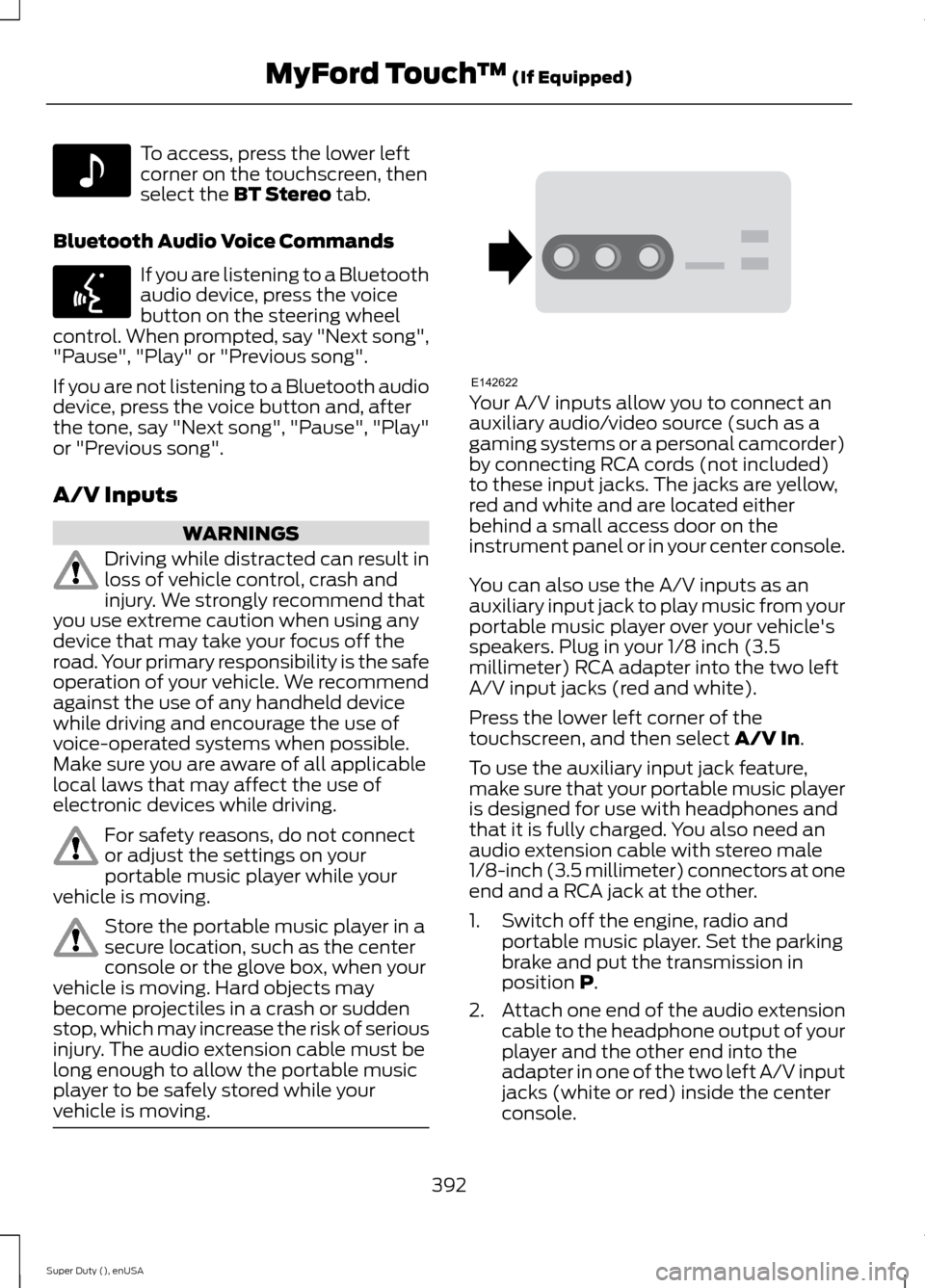
Your A/V inputs allow you to connect anauxiliary audio/video source (such as agaming systems or a personal camcorder)by connecting RCA cords (not included)to these input jacks. The jacks are yellow,red and white and are located eitherbehind a small access door on theinstrument panel or in your center console.
You can also use the A/V inputs as anauxiliary input jack to play music from yourportable music player over your vehicle'sspeakers. Plug in your 1/8 inch (3.5millimeter) RCA adapter into the two leftA/V input jacks (red and white).
Press the lower left corner of thetouchscreen, and then select A/V In.
To use the auxiliary input jack feature,make sure that your portable music playeris designed for use with headphones andthat it is fully charged. You also need anaudio extension cable with stereo male1/8-inch (3.5 millimeter) connectors at oneend and a RCA jack at the other.
1.Switch off the engine, radio andportable music player. Set the parkingbrake and put the transmission inposition P.
2.Attach one end of the audio extensioncable to the headphone output of yourplayer and the other end into theadapter in one of the two left A/V inputjacks (white or red) inside the centerconsole.
392Super Duty (), enUSAMyFord Touch™ (If Equipped)E142611 E142599 E142622