display FORD SUPER DUTY 2016 3.G Owners Manual
[x] Cancel search | Manufacturer: FORD, Model Year: 2016, Model line: SUPER DUTY, Model: FORD SUPER DUTY 2016 3.GPages: 510, PDF Size: 5.42 MB
Page 414 of 510
Action and Description
Message
Displays software and firmware information about the
currently connected media device.
Device Information
Indexes your device when you connect it for the first time and
each time the content changes (for example adding or
removing tracks) to make sure you have the latest voice
commands available for all media on the device.
Update Media Index
Note: Your vehicle may not have all these sound settings.
Browse
This feature allows you to view the
contents of the device. It also allows you
to search by categories, for example genre,
artist or album. If you want to view song information, for
example Title, Artist, File, Folder, Album,
and Genre, touch the on-screen album art.
You can also select: Action and Description
Message
To hear how the system pronounces the current band and
song. This can be helpful when using voice commands to
make sure the system correctly plays your request.
What’
s Playing?
USB and SD Card Voice Commands The voice system allows you to
control your media with voice
commands. For example, if you
are listening to music on your USB device,
and wish to change songs, you can press
the voice button and the system provides
you with audio prompts.
Press the voice button and when prompted say: Voice command
SD Card
USB
Then commands such as the following:
Browse
Next Track
411
Super Duty (TFA) Canada/United States of America, enUSA, Second Printing MyFord Touch
™ (If Equipped)E142599
Page 418 of 510
Hands-free calling is one of the main
features of SYNC. Once you pair your cell
phone, you can access many options using
the touchscreen or voice commands. While
the system supports a variety of features,
many are dependent on your cell phone
’s
functionality.
At a minimum, most cell phones with
Bluetooth wireless technology support the
following functions:
• Answering an incoming call.
• Ending a call.
• Using privacy mode.
• Dialing a number.
• Redialing.
• Call waiting notification.
• Caller ID.
Other features, such as text messaging
using Bluetooth and automatic phonebook
download, are cell phone-dependent
features. To check your cell phone ’s
compatibility, see your cell phone ’s user
manual and visit www.SYNCMyRide.com,
www.SYNCMyRide.ca or
www.syncmaroute.ca. Pairing Your Cell Phone for the
First Time WARNING
Driving while distracted can result in
loss of vehicle control, crash and
injury. We strongly recommend that
you use extreme caution when using any
device that may take your focus off the
road. Your primary responsibility is the safe
operation of your vehicle. We recommend
against the use of any hand-held device
while driving and encourage the use of
voice-operated systems when possible.
Make sure you are aware of all applicable
local laws that may affect the use of
electronic devices while driving. The first thing you must do to use the
phone features of SYNC is to pair your
Bluetooth-enabled cell phone with SYNC.
This allows you to use your cell phone in a
hands-free manner.
Note:
This is a speed-dependent feature.
It is unavailable when your vehicle is
traveling at speeds over 3 mph (5 km/h).
Touch the upper left corner of the touchscreen: Action and Description
Message
Add phone Follow the on-screen instructions.
Find SYNC
Make sure that Bluetooth is set to On
and that your cell phone
is in the correct mode. See your cell phone ’s manual if
necessary.
Select
SYNC and a six-digit PIN appears on your device.
If you are prompted to enter a PIN on your device, it does not
support Secure Simple Pairing. To pair, enter the PIN
displayed on the touchscreen. Skip the next step.
When prompted on your cell phone ’s display, confirm that
the PIN provided by SYNC matches the PIN displayed on your
cell phone.
The display indicates when the pairing is successful.
415
Super Duty (TFA) Canada/United States of America, enUSA, Second Printing MyFord Touch
™
(If Equipped)
Page 419 of 510
Action and Description
Message
SYNC may prompt you with more cell phone options. For
more information on your cell phone's capability, see your
cell phone's manual and visit the website.
Pairing Subsequent Cell Phones
Note: This is a speed-dependent feature.
It is unavailable when your vehicle is
traveling at speeds over 3 mph (5 km/h). Make sure that Bluetooth is set to
On and
that your cell phone is in the correct mode.
See your device's manual if necessary.
To pair a subsequent cell phone, select: Action and Description
Menu Item
Phone
Settings
Bluetooth Devices
Add Device Follow the on-screen instructions.
Find SYNC
Make sure that Bluetooth is set to On
and that your cell phone
is in the correct mode. See your cell phone ’s manual if
necessary.
Select
SYNC and a six-digit PIN appears on your device.
If you are prompted to enter a PIN on your device, it does not
support Secure Simple Pairing. To pair, enter the PIN
displayed on the touchscreen. Skip the next step.
When prompted on your cell phone ’s display, confirm that
the PIN provided by SYNC matches the PIN displayed on your
cell phone.
The display indicates when the pairing is successful.
SYNC may prompt you with more cell phone options. For
more information on your cell phone's capability, see your
cell phone's manual and visit the website.
416
Super Duty (TFA) Canada/United States of America, enUSA, Second Printing MyFord Touch
™
(If Equipped)
Page 420 of 510
Making Calls
Press the voice button and say a
command similar to the following:
Voice command
Call
Dial
You can say the name of a person from
your phone book to call or a say a number
to dial. For example "Call John" or "Dial
867-5309". To end the call or exit phone
mode, press and hold the phone
button.
Receiving Calls
During an incoming call, an audible tone
sounds. Call information appears in the
display if it is available. To accept the call, select:
Message
Accept
Note: You can also accept the call by
pressing the phone button on the steering
wheel. To reject the call, select:
Message
Reject
Note: You can also reject the call by
pressing the phone button on the steering
wheel.
Ignore the call by doing nothing. SYNC logs
it as a missed call.
Phone Menu Options
Press the top left corner on the
touchscreen to select from the following
options: Action and Description
Menu Item
Touch this button to access the on-screen numerical pad to
enter a number and place a call. During an active call, you can
also choose any of these options:
Phone
Mute Call
Hold Call
Privacy
Join Calls
End
417
Super Duty (TFA) Canada/United States of America, enUSA, Second Printing MyFord Touch
™ (If Equipped)E142599 E142632 E142632
Page 421 of 510
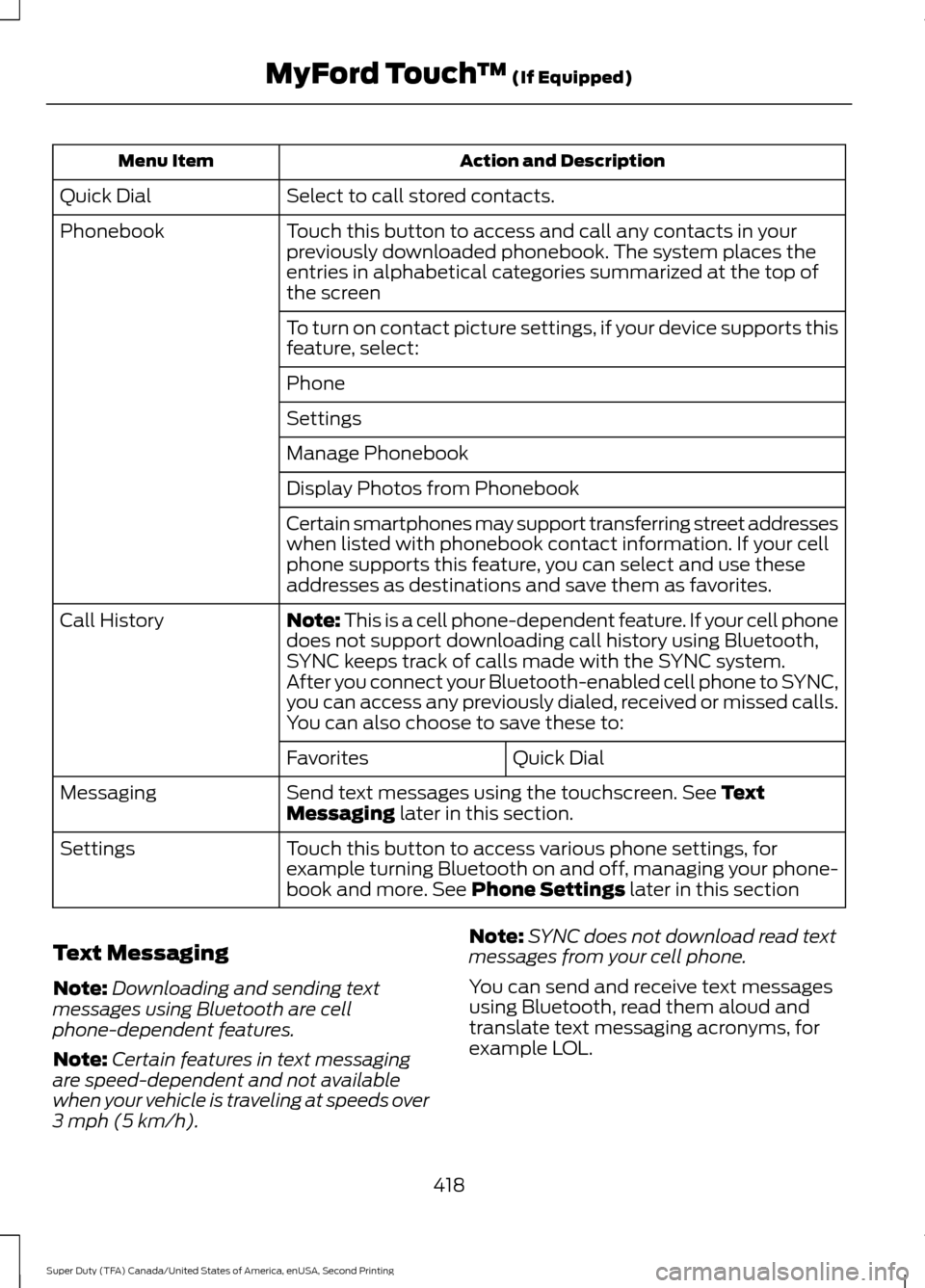
Action and Description
Menu Item
Select to call stored contacts.
Quick Dial
Touch this button to access and call any contacts in your
previously downloaded phonebook. The system places the
entries in alphabetical categories summarized at the top of
the screen
Phonebook
To turn on contact picture settings, if your device supports this
feature, select:
Phone
Settings
Manage Phonebook
Display Photos from Phonebook
Certain smartphones may support transferring street addresses
when listed with phonebook contact information. If your cell
phone supports this feature, you can select and use these
addresses as destinations and save them as favorites.
Note: This is a cell phone-dependent feature. If your cell phone
does not support downloading call history using Bluetooth,
SYNC keeps track of calls made with the SYNC system.
Call History
After you connect your Bluetooth-enabled cell phone to SYNC,
you can access any previously dialed, received or missed calls.
You can also choose to save these to:Quick Dial
Favorites
Send text messages using the touchscreen. See Text
Messaging later in this section.
Messaging
Touch this button to access various phone settings, for
example turning Bluetooth on and off, managing your phone-
book and more. See
Phone Settings later in this section
Settings
Text Messaging
Note: Downloading and sending text
messages using Bluetooth are cell
phone-dependent features.
Note: Certain features in text messaging
are speed-dependent and not available
when your vehicle is traveling at speeds over
3 mph (5 km/h)
. Note:
SYNC does not download read text
messages from your cell phone.
You can send and receive text messages
using Bluetooth, read them aloud and
translate text messaging acronyms, for
example LOL.
418
Super Duty (TFA) Canada/United States of America, enUSA, Second Printing MyFord Touch
™
(If Equipped)
Page 422 of 510
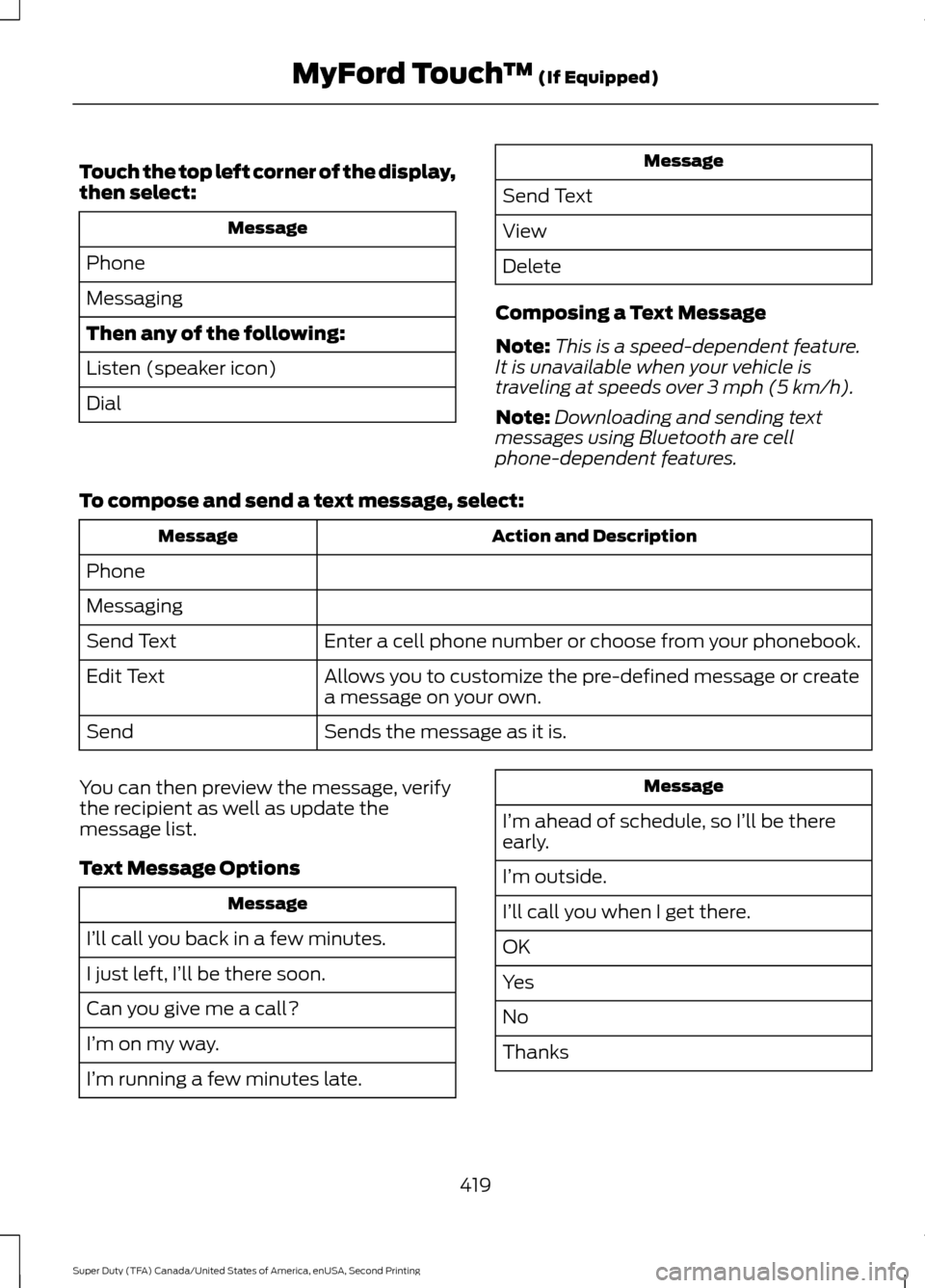
Touch the top left corner of the display,
then select:
Message
Phone
Messaging
Then any of the following:
Listen (speaker icon)
Dial Message
Send Text
View
Delete
Composing a Text Message
Note: This is a speed-dependent feature.
It is unavailable when your vehicle is
traveling at speeds over 3 mph (5 km/h).
Note: Downloading and sending text
messages using Bluetooth are cell
phone-dependent features.
To compose and send a text message, select: Action and Description
Message
Phone
Messaging Enter a cell phone number or choose from your phonebook.
Send Text
Allows you to customize the pre-defined message or create
a message on your own.
Edit Text
Sends the message as it is.
Send
You can then preview the message, verify
the recipient as well as update the
message list.
Text Message Options Message
I’ll call you back in a few minutes.
I just left, I’ll be there soon.
Can you give me a call?
I’m on my way.
I’m running a few minutes late. Message
I’m ahead of schedule, so I’ll be there
early.
I’m outside.
I’ll call you when I get there.
OK
Yes
No
Thanks
419
Super Duty (TFA) Canada/United States of America, enUSA, Second Printing MyFord Touch
™
(If Equipped)
Page 423 of 510
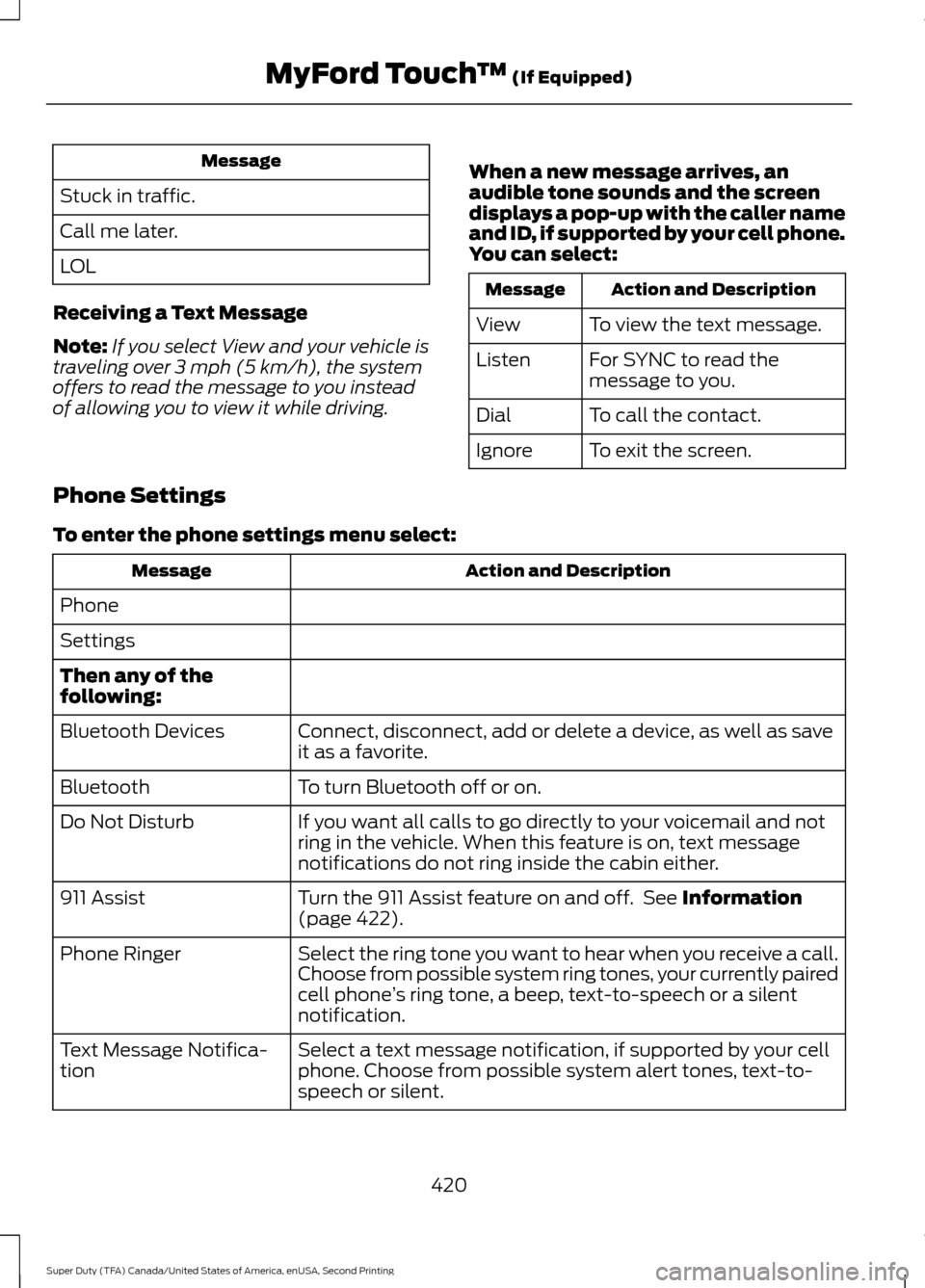
Message
Stuck in traffic.
Call me later.
LOL
Receiving a Text Message
Note: If you select View and your vehicle is
traveling over 3 mph (5 km/h), the system
offers to read the message to you instead
of allowing you to view it while driving. When a new message arrives, an
audible tone sounds and the screen
displays a pop-up with the caller name
and ID, if supported by your cell phone.
You can select: Action and Description
Message
To view the text message.
View
For SYNC to read the
message to you.
Listen
To call the contact.
Dial
To exit the screen.
Ignore
Phone Settings
To enter the phone settings menu select: Action and Description
Message
Phone
Settings
Then any of the
following: Connect, disconnect, add or delete a device, as well as save
it as a favorite.
Bluetooth Devices
To turn Bluetooth off or on.
Bluetooth
If you want all calls to go directly to your voicemail and not
ring in the vehicle. When this feature is on, text message
notifications do not ring inside the cabin either.
Do Not Disturb
Turn the 911 Assist feature on and off. See
Information
(page 422).
911 Assist
Select the ring tone you want to hear when you receive a call.
Choose from possible system ring tones, your currently paired
cell phone’s ring tone, a beep, text-to-speech or a silent
notification.
Phone Ringer
Select a text message notification, if supported by your cell
phone. Choose from possible system alert tones, text-to-
speech or silent.
Text Message Notifica-
tion
420
Super Duty (TFA) Canada/United States of America, enUSA, Second Printing MyFord Touch
™
(If Equipped)
Page 431 of 510
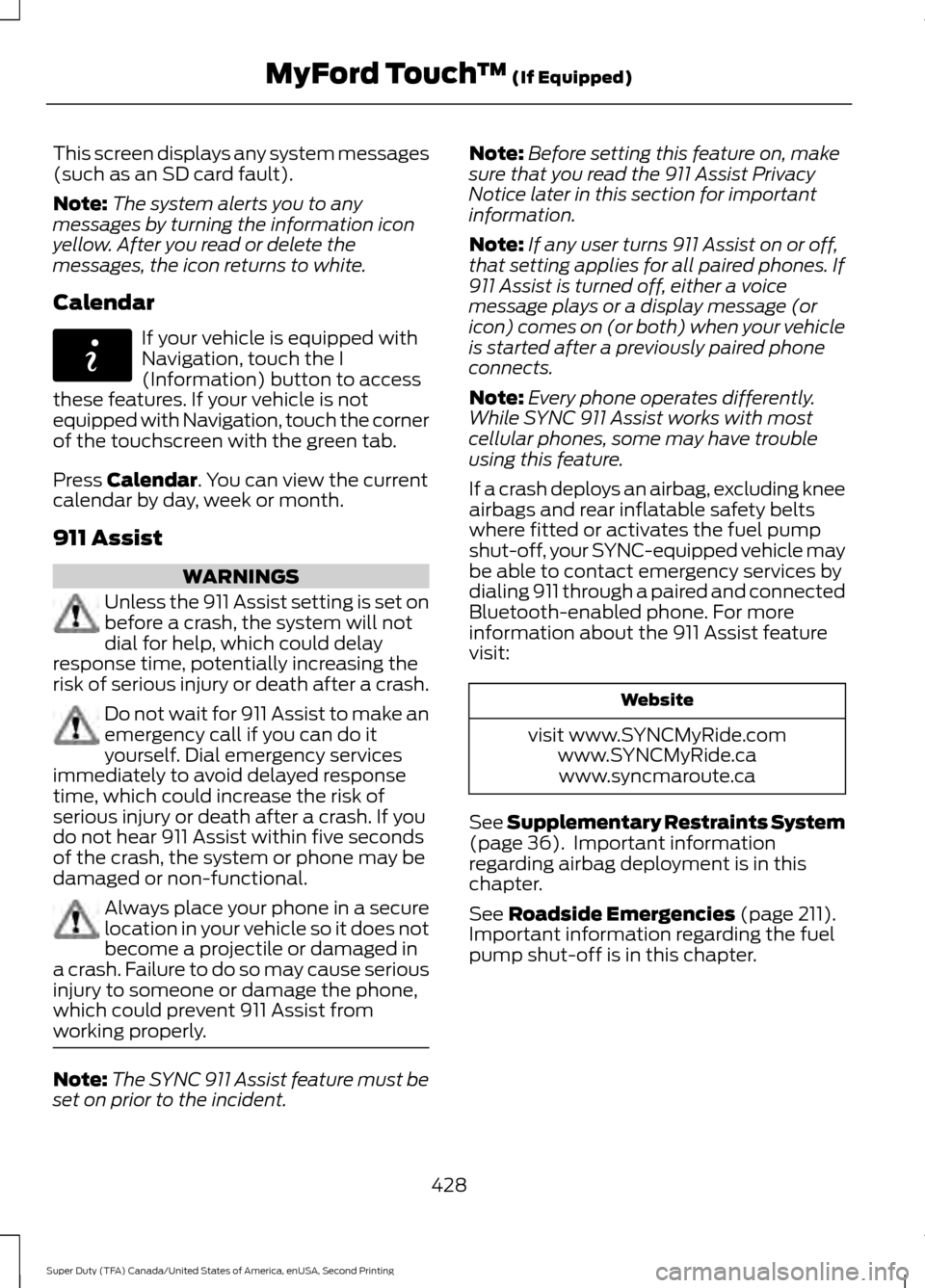
This screen displays any system messages
(such as an SD card fault).
Note:
The system alerts you to any
messages by turning the information icon
yellow. After you read or delete the
messages, the icon returns to white.
Calendar If your vehicle is equipped with
Navigation, touch the I
(Information) button to access
these features. If your vehicle is not
equipped with Navigation, touch the corner
of the touchscreen with the green tab.
Press Calendar. You can view the current
calendar by day, week or month.
911 Assist WARNINGS
Unless the 911 Assist setting is set on
before a crash, the system will not
dial for help, which could delay
response time, potentially increasing the
risk of serious injury or death after a crash. Do not wait for 911 Assist to make an
emergency call if you can do it
yourself. Dial emergency services
immediately to avoid delayed response
time, which could increase the risk of
serious injury or death after a crash. If you
do not hear 911 Assist within five seconds
of the crash, the system or phone may be
damaged or non-functional. Always place your phone in a secure
location in your vehicle so it does not
become a projectile or damaged in
a crash. Failure to do so may cause serious
injury to someone or damage the phone,
which could prevent 911 Assist from
working properly. Note:
The SYNC 911 Assist feature must be
set on prior to the incident. Note:
Before setting this feature on, make
sure that you read the 911 Assist Privacy
Notice later in this section for important
information.
Note: If any user turns 911 Assist on or off,
that setting applies for all paired phones. If
911 Assist is turned off, either a voice
message plays or a display message (or
icon) comes on (or both) when your vehicle
is started after a previously paired phone
connects.
Note: Every phone operates differently.
While SYNC 911 Assist works with most
cellular phones, some may have trouble
using this feature.
If a crash deploys an airbag, excluding knee
airbags and rear inflatable safety belts
where fitted or activates the fuel pump
shut-off, your SYNC-equipped vehicle may
be able to contact emergency services by
dialing 911 through a paired and connected
Bluetooth-enabled phone. For more
information about the 911 Assist feature
visit: Website
visit www.SYNCMyRide.com www.SYNCMyRide.cawww.syncmaroute.ca
See
Supplementary Restraints System
(page 36). Important information
regarding airbag deployment is in this
chapter.
See
Roadside Emergencies (page 211).
Important information regarding the fuel
pump shut-off is in this chapter.
428
Super Duty (TFA) Canada/United States of America, enUSA, Second Printing MyFord Touch
™
(If Equipped)E142608
Page 434 of 510
Making a Report
If you want to run a report by using the
touchscreen, select:
Message
Apps
Vehicle Health Report You can also run a vehicle health
report by voice command.
Press the voice button and when
prompted say: Voice command
Vehicle Health Report
Vehicle Health Report Privacy Notice
When you create a Vehicle Health Report,
Ford Motor Company may collect your
cellular phone number (to process your
report request) and diagnostic information
about your vehicle. Certain versions or
updates to Vehicle Health Report may also
collect more vehicle information. Ford may
use your vehicle information it collects for
any purpose. If you do not want to disclose
your cellular phone number or vehicle information, do not run the feature or set
up your Vehicle Health Report profile at
www.SYNCMyRide.com. See
www.SYNCMyRide.com (Vehicle Health
Report Terms and Conditions, and Privacy
Statement) for more information.
Where Am I?
For information about your current
location, select: Action and Descrip-
tion
Message
View your vehicle's
current location, if
your vehicle is
equipped with
navigation. If your
vehicle is not
equipped with
navigation, nothing
displays.
Where Am I?
CLIMATE
Touch the lower right corner on the
touchscreen to access your climate control
features. Depending on your vehicle line
and option package, your climate screen
may look different from this screen.
Note: You can switch temperature units
between Fahrenheit and Celsius. See
Settings (page 384).
431
Super Duty (TFA) Canada/United States of America, enUSA, Second Printing MyFord Touch
™
(If Equipped)E142599
Page 439 of 510
Note:
If your vehicle is on a recognized road
and you do not press the Start Route
button, the system defaults to the Fastest
Route option and begins guidance.
Point of Interest (POI) Categories Main Categories
Food/Drink & Dining
Travel & Transportation
Financial
Emergency
Community
Health & Medicine
Automotive
Shopping
Entertainment & Arts
Recreation & Sports
Government
Domestic Services Subcategories
Restaurant
Golf
Parking
Home & Garden
Personal Care Services
Auto Dealership
Govt Office
Public Transit
Education To expand these listings, press the + in
front of the listing.
The system also allows you to sort
alphabetically, by distance or by cityseekr
listings (if available).
cityseekr
Note:
cityseekr point of interest (POI)
information is limited to approximately 912
cities (881 in the United States, 20 in
Canada and 11 in Mexico). cityseekr, when available, is a service that
provides more information about certain
points of interest such as restaurants,
hotels and attractions.
When you have selected a point of interest,
the location and information appear, such
as address and phone number. If cityseekr
lists the point of interest, more information
is available, such as a brief description,
check-in and checkout times or restaurant
hours.
For a longer review, a list of services
and facilities, the average room, meal
price or the website press:
Menu Item
More Information
This screen displays the point of interest
icon such as:
436
Super Duty (TFA) Canada/United States of America, enUSA, Second Printing MyFord Touch
™
(If Equipped)E142634