navigation FORD SUPER DUTY 2016 3.G User Guide
[x] Cancel search | Manufacturer: FORD, Model Year: 2016, Model line: SUPER DUTY, Model: FORD SUPER DUTY 2016 3.GPages: 510, PDF Size: 5.42 MB
Page 395 of 510
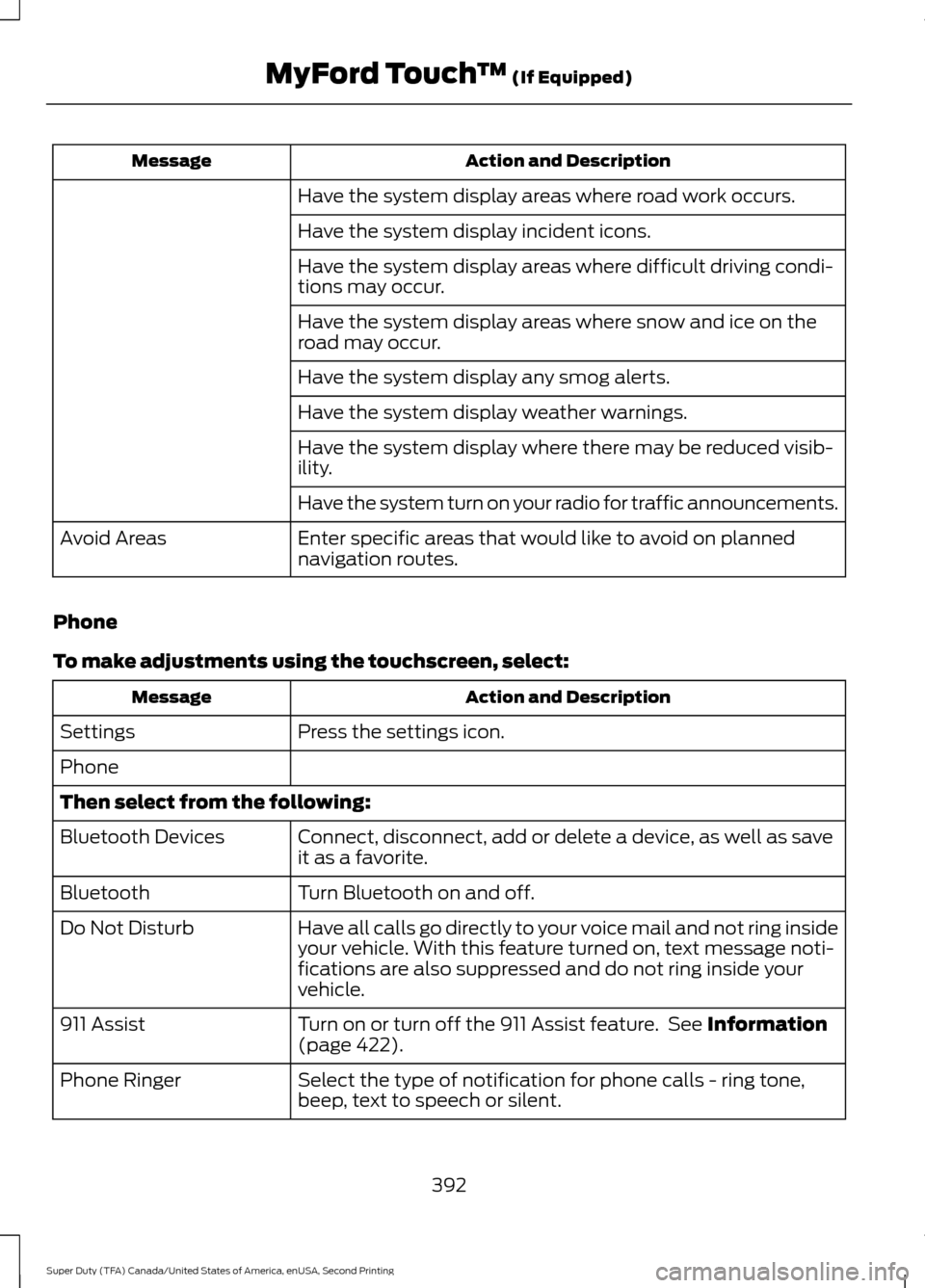
Action and Description
Message
Have the system display areas where road work occurs.
Have the system display incident icons.
Have the system display areas where difficult driving condi-
tions may occur.
Have the system display areas where snow and ice on the
road may occur.
Have the system display any smog alerts.
Have the system display weather warnings.
Have the system display where there may be reduced visib-
ility.
Have the system turn on your radio for traffic announcements.
Enter specific areas that would like to avoid on planned
navigation routes.
Avoid Areas
Phone
To make adjustments using the touchscreen, select: Action and Description
Message
Press the settings icon.
Settings
Phone
Then select from the following:
Connect, disconnect, add or delete a device, as well as save
it as a favorite.
Bluetooth Devices
Turn Bluetooth on and off.
Bluetooth
Have all calls go directly to your voice mail and not ring inside
your vehicle. With this feature turned on, text message noti-
fications are also suppressed and do not ring inside your
vehicle.
Do Not Disturb
Turn on or turn off the 911 Assist feature. See Information
(page 422).
911 Assist
Select the type of notification for phone calls - ring tone,
beep, text to speech or silent.
Phone Ringer
392
Super Duty (TFA) Canada/United States of America, enUSA, Second Printing MyFord Touch
™
(If Equipped)
Page 398 of 510
The Wi-Fi CERTIFIED Logo is a certification
mark of the Wi-Fi Alliance.
Help
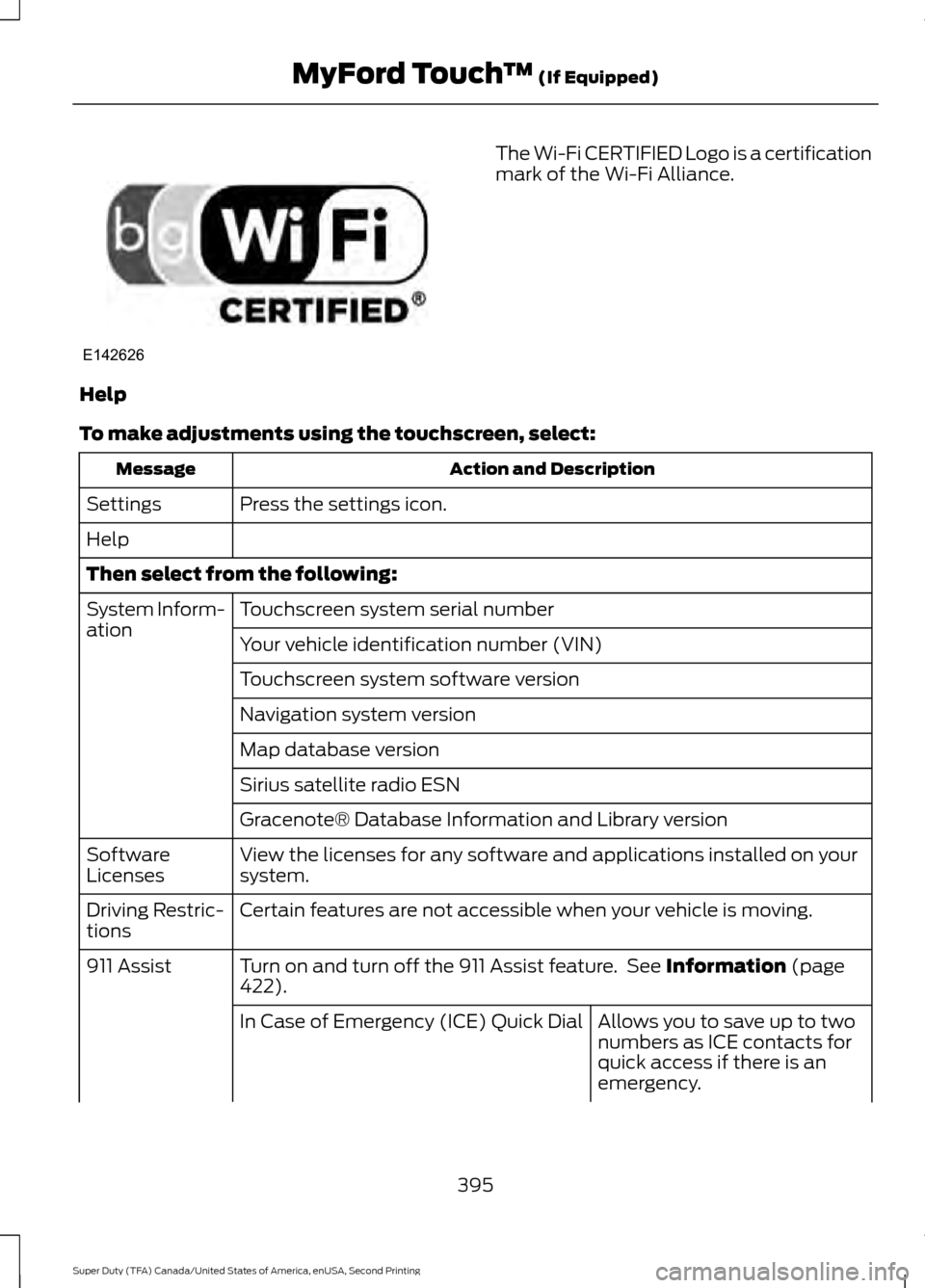
To make adjustments using the touchscreen, select: Action and Description
Message
Press the settings icon.
Settings
Help
Then select from the following:
Touchscreen system serial number
System Inform-
ation
Your vehicle identification number (VIN)
Touchscreen system software version
Navigation system version
Map database version
Sirius satellite radio ESN
Gracenote® Database Information and Library version
View the licenses for any software and applications installed on your
system.
Software
Licenses
Certain features are not accessible when your vehicle is moving.
Driving Restric-
tions
Turn on and turn off the 911 Assist feature. See Information (page
422).
911 Assist
Allows you to save up to two
numbers as ICE contacts for
quick access if there is an
emergency.
In Case of Emergency (ICE) Quick Dial
395
Super Duty (TFA) Canada/United States of America, enUSA, Second Printing MyFord Touch
™
(If Equipped)E142626
Page 412 of 510
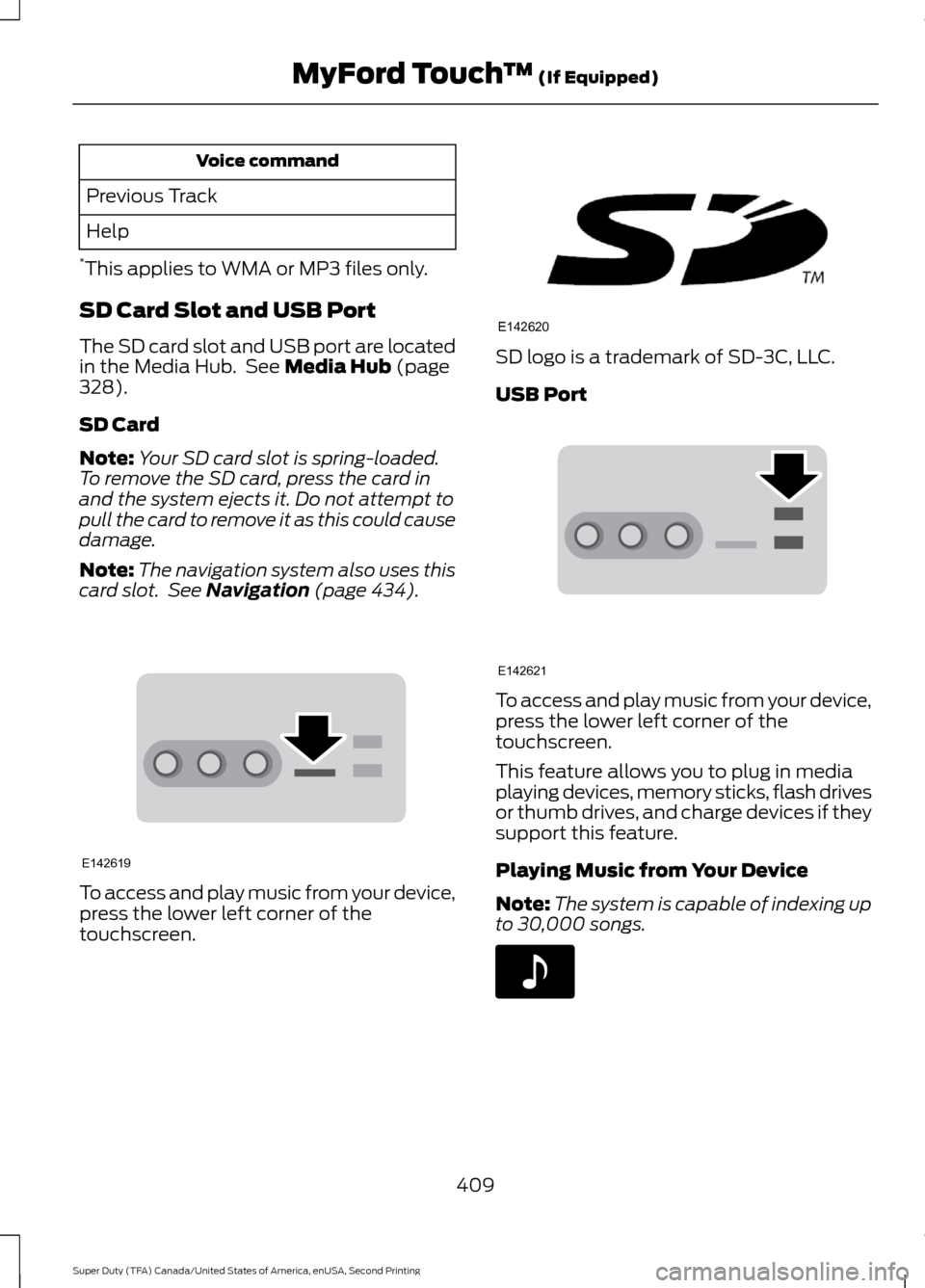
Voice command
Previous Track
Help
* This applies to WMA or MP3 files only.
SD Card Slot and USB Port
The SD card slot and USB port are located
in the Media Hub. See Media Hub (page
328).
SD Card
Note: Your SD card slot is spring-loaded.
To remove the SD card, press the card in
and the system ejects it. Do not attempt to
pull the card to remove it as this could cause
damage.
Note: The navigation system also uses this
card slot. See
Navigation (page 434). To access and play music from your device,
press the lower left corner of the
touchscreen. SD logo is a trademark of SD-3C, LLC.
USB Port
To access and play music from your device,
press the lower left corner of the
touchscreen.
This feature allows you to plug in media
playing devices, memory sticks, flash drives
or thumb drives, and charge devices if they
support this feature.
Playing Music from Your Device
Note:
The system is capable of indexing up
to 30,000 songs. 409
Super Duty (TFA) Canada/United States of America, enUSA, Second Printing MyFord Touch
™
(If Equipped)E142619 E142620 E142621 E142611
Page 425 of 510
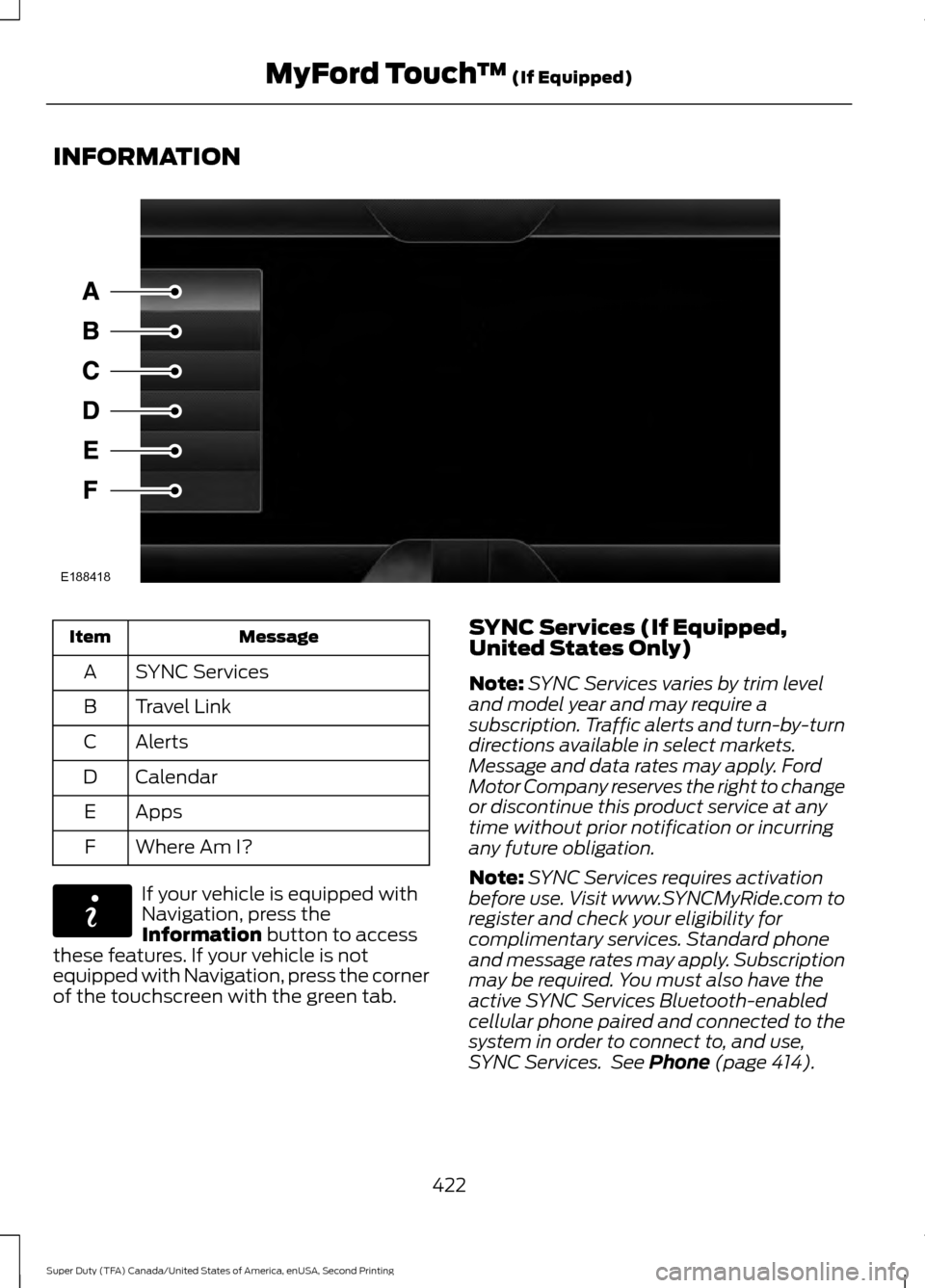
INFORMATION
Message
Item
SYNC Services
A
Travel Link
B
Alerts
C
Calendar
D
Apps
E
Where Am I?
F If your vehicle is equipped with
Navigation, press the
Information button to access
these features. If your vehicle is not
equipped with Navigation, press the corner
of the touchscreen with the green tab. SYNC Services (If Equipped,
United States Only)
Note:
SYNC Services varies by trim level
and model year and may require a
subscription. Traffic alerts and turn-by-turn
directions available in select markets.
Message and data rates may apply. Ford
Motor Company reserves the right to change
or discontinue this product service at any
time without prior notification or incurring
any future obligation.
Note: SYNC Services requires activation
before use. Visit www.SYNCMyRide.com to
register and check your eligibility for
complimentary services. Standard phone
and message rates may apply. Subscription
may be required. You must also have the
active SYNC Services Bluetooth-enabled
cellular phone paired and connected to the
system in order to connect to, and use,
SYNC Services. See
Phone (page 414).
422
Super Duty (TFA) Canada/United States of America, enUSA, Second Printing MyFord Touch
™
(If Equipped)E188418 E142608
Page 426 of 510
Note:
This feature does not function
properly if you have enabled caller ID
blocking on your cellular phone. Make sure
your cellular phone is not blocking caller ID
before using SYNC Services.
Note: The driver is ultimately responsible
for the safe operation of the vehicle, and
therefore, must evaluate whether it is safe
to follow the suggested directions. Any
navigation features provided are only an aid.
Make your driving decisions based on your
observations of local conditions and existing
traffic regulations. Do not follow the route
suggestions if doing so would result in an
unsafe or illegal maneuver, if you would be
placed in an unsafe situation, or if you would
be directed into an area that you consider
unsafe. Maps used by this system may be
inaccurate because of errors, changes in
roads, traffic conditions or driving
conditions. Note:
When you connect, the service uses
GPS technology and advanced vehicle
sensors to collect your vehicle's current
location, travel direction and speed to help
provide you with the directions, traffic
reports, or business searches you request.
Further, to provide the services you request,
for continuous improvement, the service
may collect and record call details and voice
communications. For more information, see
SYNC Services Terms and Conditions at
www.SYNCMyRide.com. If you do not want
Ford or its service providers to collect your
vehicle travel information or other
information identified in the Terms and
Conditions, do not subscribe or use the
service.
SYNC Services uses advanced vehicle
sensors, integrated GPS technology and
comprehensive map and traffic data, to
give you personalized traffic reports,
precise turn-by-turn directions, business
search, news, sports, weather and more.
For a complete list of services, or to learn
more, please visit www.SYNCMyRide.com.
Connecting to SYNC Services
You can connect to SYNC Services using
voice commands or by selecting a menu
item on the touchscreen.
To use voice commands, press the voice button and say: Action and Description
Voice Command
This initiates an outgoing call to SYNC Services using your
paired and connected Bluetooth-enabled cellular phone.
Once you connect to the service, follow the voice prompts
to request the desired service, for example traffic or
directions.
Services
Once connected to SYNC Services, you can also say the following:
Receive a list of available services from which to choose.
What Can I Say
To return to the Services main menu.
Services
Receive system help.
Help
423
Super Duty (TFA) Canada/United States of America, enUSA, Second Printing MyFord Touch
™ (If Equipped)
Page 427 of 510
If your vehicle is equipped with Navigation,
press the I (Information) button. If your
vehicle is not equipped with Navigation,
press the green tab on your touchscreen. To use the touchscreen select: Menu Item
Connect to Services
This command initiates an outgoing call
to SYNC Services using your paired and
connected Bluetooth-enabled cellular
phone. Once you connect to the service,
follow the voice prompts to request the
desired service.
Receiving Turn-by-Turn Directions
Press the voice button and say: Action and Description
Voice Command
To receive directions to a location. Once
you select your destination, the system
uploads your current vehicle location,
calculates a route based on current traffic
conditions and sends it back to your vehicle.
After the route download is complete, the
phone call automatically ends. You then
receive audible and visual driving instruc-
tions as you travel toward your destination.
Directions
To find a business or type of business. Once
you select your destination, the system
uploads your current vehicle location,
calculates a route based on current traffic
conditions and sends it back to your vehicle.
After the route download is complete, the
phone call automatically ends. You then
receive audible and visual driving instruc-
tions as you travel toward your destination.
Business Search
To find the closest business or type of
business to your location, within business
search.
Search near me
Provides you with further assistance within
Directions and Business Search. The system
may prompt you to speak with an operator
when it has difficulty matching your voice
request. The live operator can assist you by
searching for businesses by name or by
Operator
424
Super Duty (TFA) Canada/United States of America, enUSA, Second Printing MyFord Touch
™
(If Equipped)
Page 429 of 510
SYNC Services Voice Commands
If your vehicle is equipped with
Navigation, SYNC Services
downloads your requested
destination to the navigation system. The
navigation system then calculates the
route and provides driving instructions.
See Navigation (page 434).
If your vehicle is not equipped with
Navigation, when a route has been
downloaded (non-navigation systems),
you can press the voice button on the
steering wheel controls and say any of the
following commands to receive directions:
Services Voice command
Cancel Route
Route Status
Route Summary
Update Route
Help Sirius Travel Link
(If Equipped) WARNING
Driving while distracted can result in
loss of vehicle control, crash and
injury. We strongly recommend that
you use extreme caution when using any
device that may take your focus off the
road. Your primary responsibility is the safe
operation of your vehicle. We recommend
against the use of any handheld device
while driving and encourage the use of
voice-operated systems when possible.
Make sure you are aware of all applicable
local laws that may affect the use of
electronic devices while driving. Note:
In order to use Sirius Travel Link, your
vehicle must be equipped with navigation
and your navigation SD card must be in the
SD card slot.
Note: A paid subscription is required to
access and use these features. Go to
www.siriusxm.com/travellink for more
information.
Note: Visit www.siriusxm.com/traffic and
click on Coverage map and details for a
complete listing of all traffic areas covered
by Sirius Travel Link.
Note: Neither Sirius nor Ford is responsible
for any errors or inaccuracies in the Sirius
Travel Link services or its use in vehicles.
When you subscribe to Sirius Travel Link,
it can help you locate the best gas prices,
find movie listings, get current traffic alerts,
view the current weather map, get
accurate ski conditions and see scores to
current sports games.
426
Super Duty (TFA) Canada/United States of America, enUSA, Second Printing MyFord Touch
™
(If Equipped)E142599
Page 430 of 510
Action and Description
Menu Item
Touch these buttons to identify traffic incidents on your route,
nearby your vehicle ’s current location or near any of your
favorite places, if programmed.
Traffic on Route
Traffic Nearby
Touch this button to view fuel prices at stations close to your
vehicle’s location or on an active navigation route.
Fuel Prices
Touch this button to view nearby movie theaters and their
show times, if available.
Movie Listings
Touch this button to view the nearby weather, current weather,
or the five day forecast for the chosen area.
Weather
Select to see the weather map,
which can show storms, radar
information, charts and winds.
Map
Select to choose from a listing of
weather locations.
Area
Touch this button to view scores and schedules from a variety
of sports. You can also save up to 10 favorite teams for easier
access. The score automatically refreshes when a game is in
progress.
Sports Info
Touch this button to view ski conditions for a specific area.
Ski Conditions
Sirius Travel Link Voice Commands Press the voice button on the steering
wheel controls. When prompted, say
any of the following or a similar
command:
Voice command
Show Traffic
Show Weather
Help Alerts If your vehicle is equipped with
Navigation, touch the I
(Information) button to access
these features. If your vehicle is not
equipped with Navigation, touch the corner
of the touchscreen with the green tab.
Press Alerts, then choose from any of
the following services: Action and Description
Message
The complete message
View
The message
Delete
Messages
Delete All
427
Super Duty (TFA) Canada/United States of America, enUSA, Second Printing MyFord Touch
™
(If Equipped)E142599 E142608
Page 431 of 510
This screen displays any system messages
(such as an SD card fault).
Note:
The system alerts you to any
messages by turning the information icon
yellow. After you read or delete the
messages, the icon returns to white.
Calendar If your vehicle is equipped with
Navigation, touch the I
(Information) button to access
these features. If your vehicle is not
equipped with Navigation, touch the corner
of the touchscreen with the green tab.
Press Calendar. You can view the current
calendar by day, week or month.
911 Assist WARNINGS
Unless the 911 Assist setting is set on
before a crash, the system will not
dial for help, which could delay
response time, potentially increasing the
risk of serious injury or death after a crash. Do not wait for 911 Assist to make an
emergency call if you can do it
yourself. Dial emergency services
immediately to avoid delayed response
time, which could increase the risk of
serious injury or death after a crash. If you
do not hear 911 Assist within five seconds
of the crash, the system or phone may be
damaged or non-functional. Always place your phone in a secure
location in your vehicle so it does not
become a projectile or damaged in
a crash. Failure to do so may cause serious
injury to someone or damage the phone,
which could prevent 911 Assist from
working properly. Note:
The SYNC 911 Assist feature must be
set on prior to the incident. Note:
Before setting this feature on, make
sure that you read the 911 Assist Privacy
Notice later in this section for important
information.
Note: If any user turns 911 Assist on or off,
that setting applies for all paired phones. If
911 Assist is turned off, either a voice
message plays or a display message (or
icon) comes on (or both) when your vehicle
is started after a previously paired phone
connects.
Note: Every phone operates differently.
While SYNC 911 Assist works with most
cellular phones, some may have trouble
using this feature.
If a crash deploys an airbag, excluding knee
airbags and rear inflatable safety belts
where fitted or activates the fuel pump
shut-off, your SYNC-equipped vehicle may
be able to contact emergency services by
dialing 911 through a paired and connected
Bluetooth-enabled phone. For more
information about the 911 Assist feature
visit: Website
visit www.SYNCMyRide.com www.SYNCMyRide.cawww.syncmaroute.ca
See
Supplementary Restraints System
(page 36). Important information
regarding airbag deployment is in this
chapter.
See
Roadside Emergencies (page 211).
Important information regarding the fuel
pump shut-off is in this chapter.
428
Super Duty (TFA) Canada/United States of America, enUSA, Second Printing MyFord Touch
™
(If Equipped)E142608
Page 432 of 510
Setting 911 Assist On
If your vehicle is equipped with
Navigation, touch the I (Information)
button to access these features. If your
vehicle is not equipped with
Navigation, touch the corner of the
touchscreen with the green tab. Then
select:
Message
Apps
911 Assist
On
You can also access 911 Assist by
pressing: Message
Settings
Phone
911 Assist
Or you can also select:
Help
911 Assist
To make sure that 911 Assist works
properly:
• SYNC must be powered and working
properly at the time of the incident and
throughout feature activation and use.
• The 911 Assist feature must be set on
prior to the incident.
• You must pair and connect a
Bluetooth-enabled and compatible
phone to SYNC.
• A connected Bluetooth-enabled phone
must have the ability to make and
maintain an outgoing call at the time
of the incident. •
A connected Bluetooth-enabled phone
must have adequate network coverage,
battery power and signal strength.
• The vehicle must have battery power
and be located in the United States,
Canada or in a territory in which 911 is
the emergency number.
In the Event of a Crash
Not all crashes deploy an airbag or activate
the fuel pump shut-off (which would
trigger 911 Assist); however, SYNC tries to
contact emergency services if 911 Assist
triggers. If a connected phone sustains
damage or loses connection to SYNC,
SYNC searches for, and tries to connect
to, any available previously paired phone
and tries to make the call to 911.
Before making the call:
• SYNC provides a short window of time
(approximately 10 seconds) to cancel
the call. If you fail to cancel the call,
SYNC attempts to dial 911.
• SYNC says the following, or a similar
message: "SYNC will attempt to call
911, to cancel the call, press Cancel on
your screen or press and hold the
phone button on your steering wheel."
If you do not cancel the call, and SYNC
makes a successful call, a pre-recorded
message plays for the 911 operator, and
then the occupant(s) in your vehicle is able
to talk with the operator. Be prepared to
provide your name, phone number and
location immediately, because not all 911
systems are capable of receiving this
information electronically.
429
Super Duty (TFA) Canada/United States of America, enUSA, Second Printing MyFord Touch
™ (If Equipped)