USB port FORD SUPER DUTY 2019 Owner's Manual
[x] Cancel search | Manufacturer: FORD, Model Year: 2019, Model line: SUPER DUTY, Model: FORD SUPER DUTY 2019Pages: 666, PDF Size: 13.6 MB
Page 562 of 666
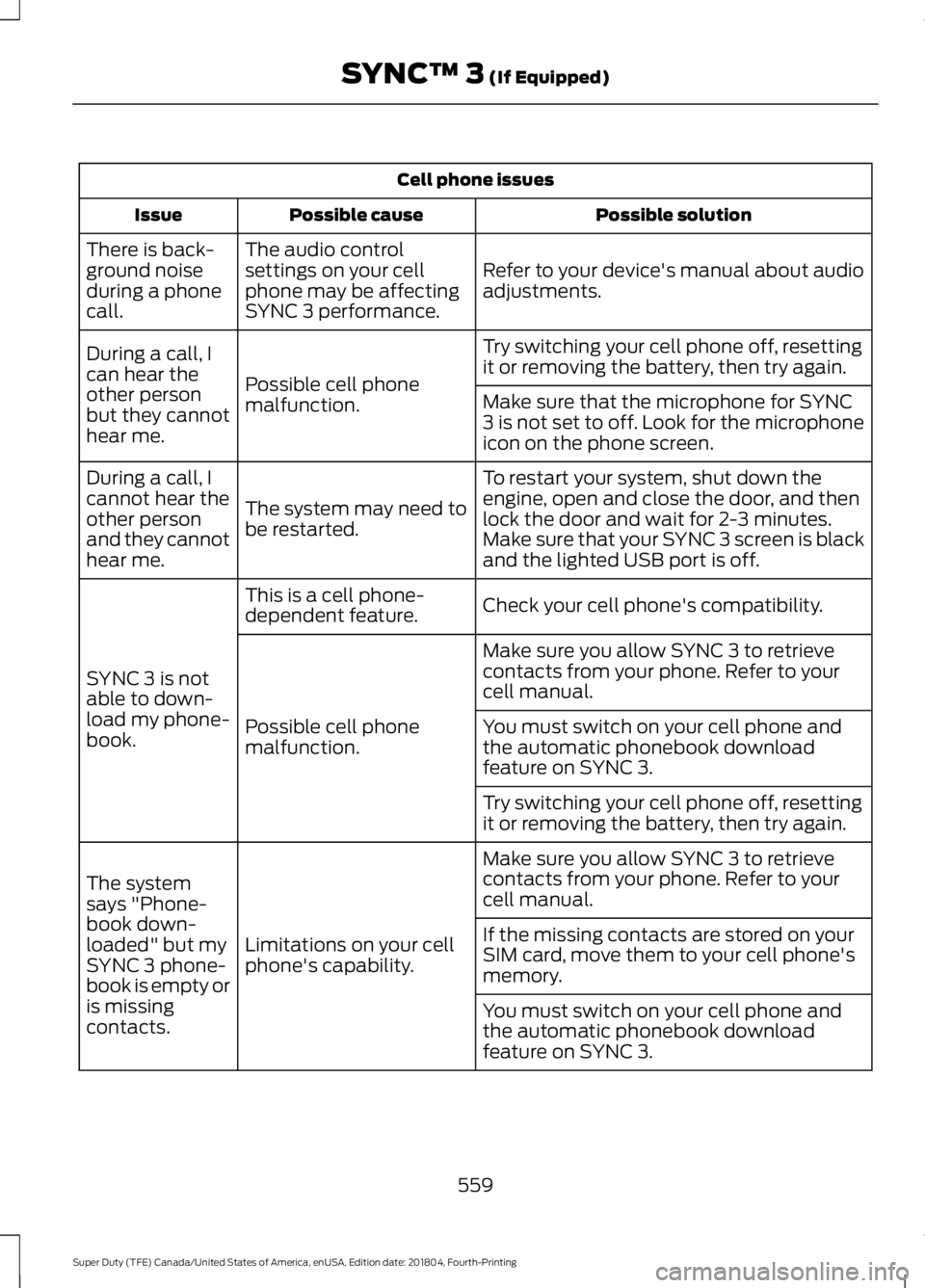
Cell phone issues
Possible solution
Possible cause
Issue
Refer to your device's manual about audio
adjustments.
The audio control
settings on your cell
phone may be affecting
SYNC 3 performance.
There is back-
ground noise
during a phone
call.
Try switching your cell phone off, resetting
it or removing the battery, then try again.
Possible cell phone
malfunction.
During a call, I
can hear the
other person
but they cannot
hear me.
Make sure that the microphone for SYNC
3 is not set to off. Look for the microphone
icon on the phone screen.
To restart your system, shut down the
engine, open and close the door, and then
lock the door and wait for 2-3 minutes.
Make sure that your SYNC 3 screen is black
and the lighted USB port is off.
The system may need to
be restarted.
During a call, I
cannot hear the
other person
and they cannot
hear me.
Check your cell phone's compatibility.
This is a cell phone-
dependent feature.
SYNC 3 is not
able to down-
load my phone-
book. Make sure you allow SYNC 3 to retrieve
contacts from your phone. Refer to your
cell manual.
Possible cell phone
malfunction. You must switch on your cell phone and
the automatic phonebook download
feature on SYNC 3.
Try switching your cell phone off, resetting
it or removing the battery, then try again.
Make sure you allow SYNC 3 to retrieve
contacts from your phone. Refer to your
cell manual.
Limitations on your cell
phone's capability.
The system
says "Phone-
book down-
loaded" but my
SYNC 3 phone-
book is empty or
is missing
contacts. If the missing contacts are stored on your
SIM card, move them to your cell phone's
memory.
You must switch on your cell phone and
the automatic phonebook download
feature on SYNC 3.
559
Super Duty (TFE) Canada/United States of America, enUSA, Edition date: 201804, Fourth-Printing SYNC™ 3 (If Equipped)
Page 564 of 666
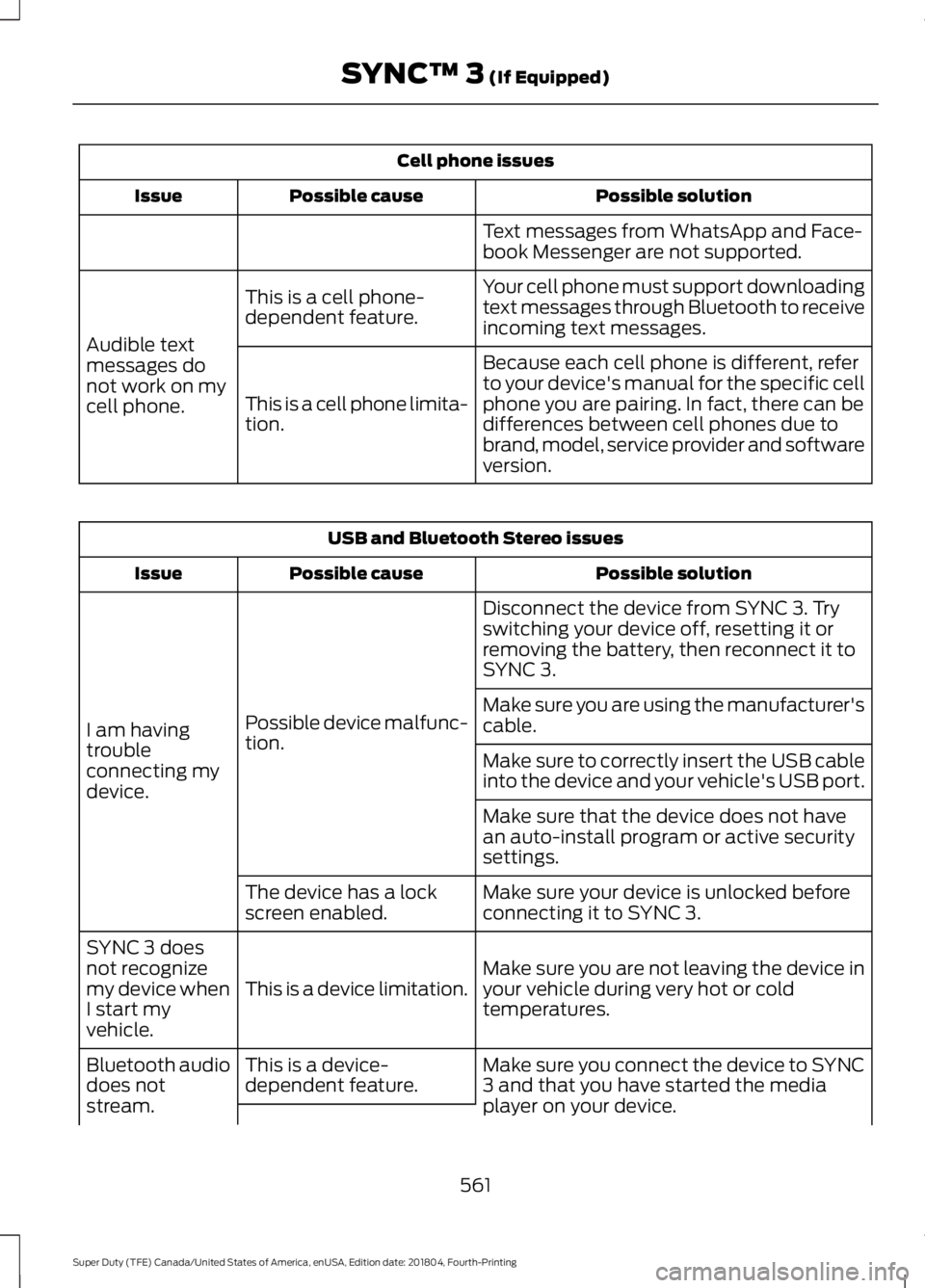
Cell phone issues
Possible solution
Possible cause
Issue
Text messages from WhatsApp and Face-
book Messenger are not supported.
Your cell phone must support downloading
text messages through Bluetooth to receive
incoming text messages.
This is a cell phone-
dependent feature.
Audible text
messages do
not work on my
cell phone. Because each cell phone is different, refer
to your device's manual for the specific cell
phone you are pairing. In fact, there can be
differences between cell phones due to
brand, model, service provider and software
version.
This is a cell phone limita-
tion. USB and Bluetooth Stereo issues
Possible solution
Possible cause
Issue
Disconnect the device from SYNC 3. Try
switching your device off, resetting it or
removing the battery, then reconnect it to
SYNC 3.
Possible device malfunc-
tion.
I am having
trouble
connecting my
device. Make sure you are using the manufacturer's
cable.
Make sure to correctly insert the USB cable
into the device and your vehicle's USB port.
Make sure that the device does not have
an auto-install program or active security
settings.
Make sure your device is unlocked before
connecting it to SYNC 3.
The device has a lock
screen enabled.
Make sure you are not leaving the device in
your vehicle during very hot or cold
temperatures.
This is a device limitation.
SYNC 3 does
not recognize
my device when
I start my
vehicle.
Make sure you connect the device to SYNC
3 and that you have started the media
player on your device.
This is a device-
dependent feature.
Bluetooth audio
does not
stream.
561
Super Duty (TFE) Canada/United States of America, enUSA, Edition date: 201804, Fourth-Printing SYNC™ 3 (If Equipped)
Page 565 of 666
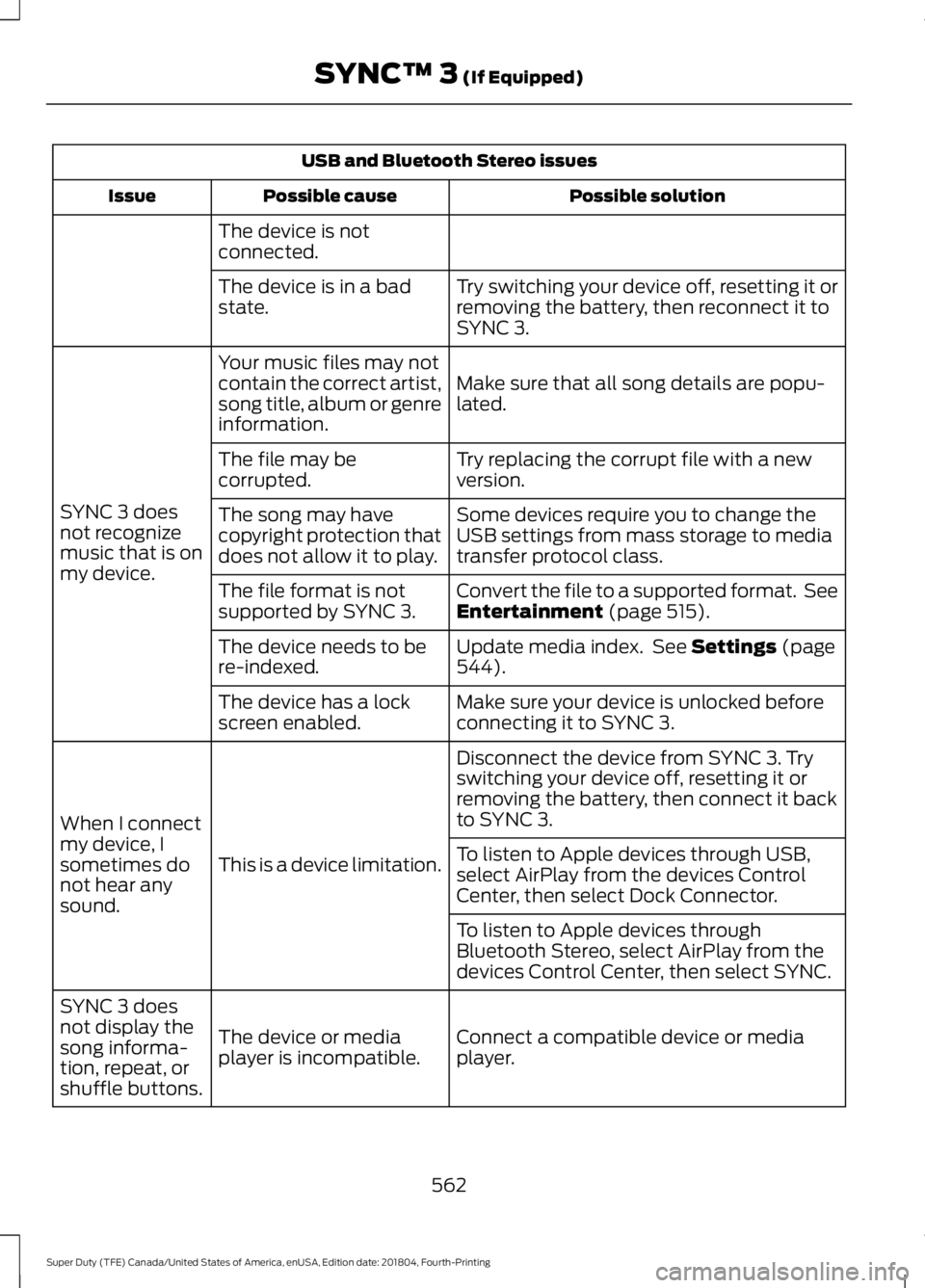
USB and Bluetooth Stereo issues
Possible solution
Possible cause
Issue
The device is not
connected. Try switching your device off, resetting it or
removing the battery, then reconnect it to
SYNC 3.
The device is in a bad
state.
Make sure that all song details are popu-
lated.
Your music files may not
contain the correct artist,
song title, album or genre
information.
SYNC 3 does
not recognize
music that is on
my device. Try replacing the corrupt file with a new
version.
The file may be
corrupted.
Some devices require you to change the
USB settings from mass storage to media
transfer protocol class.
The song may have
copyright protection that
does not allow it to play.
Convert the file to a supported format. See
Entertainment (page 515).
The file format is not
supported by SYNC 3.
Update media index. See
Settings (page
544).
The device needs to be
re-indexed.
Make sure your device is unlocked before
connecting it to SYNC 3.
The device has a lock
screen enabled.
Disconnect the device from SYNC 3. Try
switching your device off, resetting it or
removing the battery, then connect it back
to SYNC 3.
This is a device limitation.
When I connect
my device, I
sometimes do
not hear any
sound. To listen to Apple devices through USB,
select AirPlay from the devices Control
Center, then select Dock Connector.
To listen to Apple devices through
Bluetooth Stereo, select AirPlay from the
devices Control Center, then select SYNC.
Connect a compatible device or media
player.
The device or media
player is incompatible.
SYNC 3 does
not display the
song informa-
tion, repeat, or
shuffle buttons.
562
Super Duty (TFE) Canada/United States of America, enUSA, Edition date: 201804, Fourth-Printing SYNC™ 3
(If Equipped)
Page 568 of 666
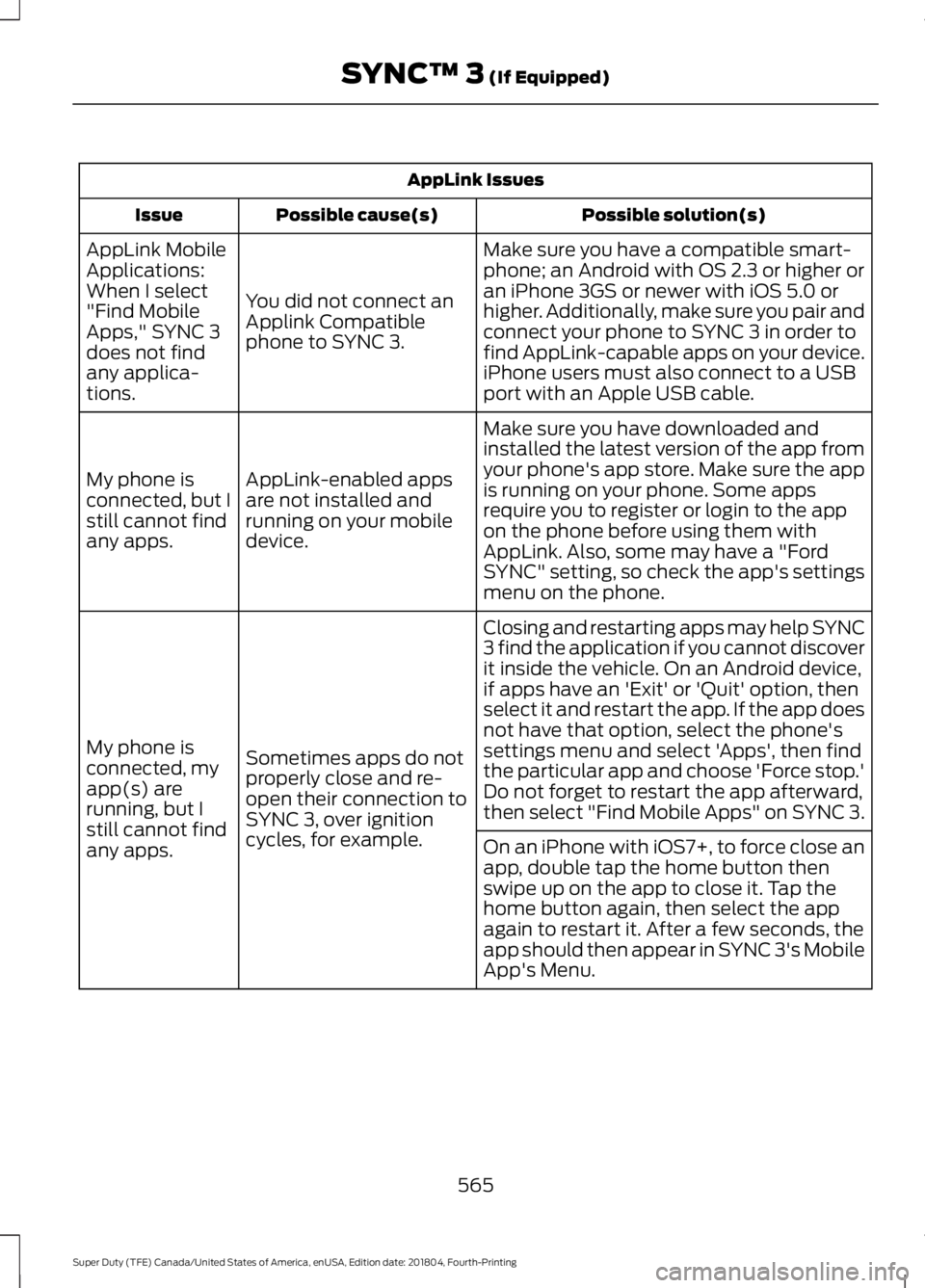
AppLink Issues
Possible solution(s)
Possible cause(s)
Issue
Make sure you have a compatible smart-
phone; an Android with OS 2.3 or higher or
an iPhone 3GS or newer with iOS 5.0 or
higher. Additionally, make sure you pair and
connect your phone to SYNC 3 in order to
find AppLink-capable apps on your device.
iPhone users must also connect to a USB
port with an Apple USB cable.
You did not connect an
Applink Compatible
phone to SYNC 3.
AppLink Mobile
Applications:
When I select
"Find Mobile
Apps," SYNC 3
does not find
any applica-
tions.
Make sure you have downloaded and
installed the latest version of the app from
your phone's app store. Make sure the app
is running on your phone. Some apps
require you to register or login to the app
on the phone before using them with
AppLink. Also, some may have a "Ford
SYNC" setting, so check the app's settings
menu on the phone.
AppLink-enabled apps
are not installed and
running on your mobile
device.
My phone is
connected, but I
still cannot find
any apps.
Closing and restarting apps may help SYNC
3 find the application if you cannot discover
it inside the vehicle. On an Android device,
if apps have an 'Exit' or 'Quit' option, then
select it and restart the app. If the app does
not have that option, select the phone's
settings menu and select 'Apps', then find
the particular app and choose 'Force stop.'
Do not forget to restart the app afterward,
then select "Find Mobile Apps" on SYNC 3.
Sometimes apps do not
properly close and re-
open their connection to
SYNC 3, over ignition
cycles, for example.
My phone is
connected, my
app(s) are
running, but I
still cannot find
any apps.
On an iPhone with iOS7+, to force close an
app, double tap the home button then
swipe up on the app to close it. Tap the
home button again, then select the app
again to restart it. After a few seconds, the
app should then appear in SYNC 3's Mobile
App's Menu.
565
Super Duty (TFE) Canada/United States of America, enUSA, Edition date: 201804, Fourth-Printing SYNC™ 3 (If Equipped)
Page 569 of 666
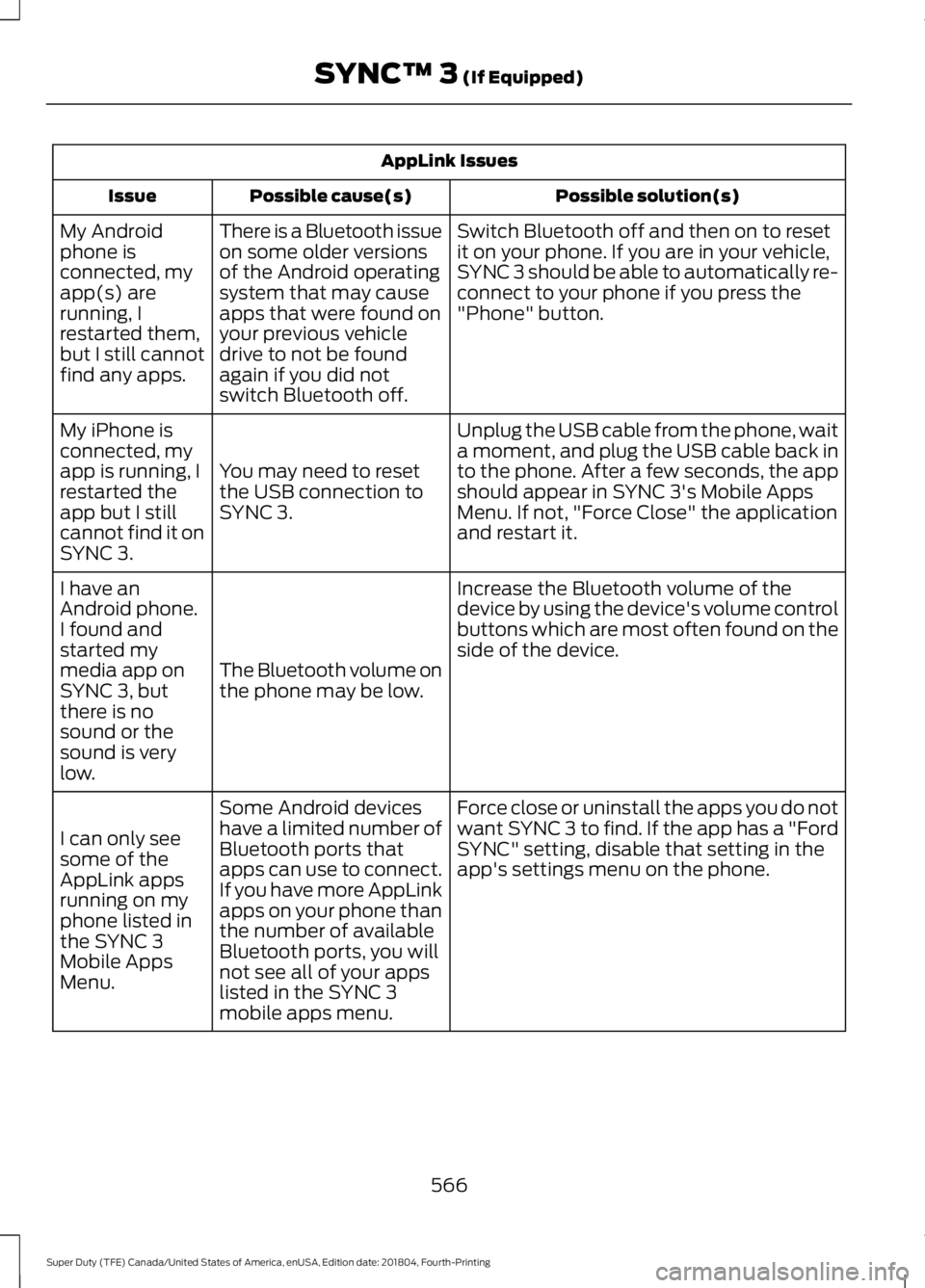
AppLink Issues
Possible solution(s)
Possible cause(s)
Issue
Switch Bluetooth off and then on to reset
it on your phone. If you are in your vehicle,
SYNC 3 should be able to automatically re-
connect to your phone if you press the
"Phone" button.
There is a Bluetooth issue
on some older versions
of the Android operating
system that may cause
apps that were found on
your previous vehicle
drive to not be found
again if you did not
switch Bluetooth off.
My Android
phone is
connected, my
app(s) are
running, I
restarted them,
but I still cannot
find any apps.
Unplug the USB cable from the phone, wait
a moment, and plug the USB cable back in
to the phone. After a few seconds, the app
should appear in SYNC 3's Mobile Apps
Menu. If not, "Force Close" the application
and restart it.
You may need to reset
the USB connection to
SYNC 3.
My iPhone is
connected, my
app is running, I
restarted the
app but I still
cannot find it on
SYNC 3.
Increase the Bluetooth volume of the
device by using the device's volume control
buttons which are most often found on the
side of the device.
The Bluetooth volume on
the phone may be low.
I have an
Android phone.
I found and
started my
media app on
SYNC 3, but
there is no
sound or the
sound is very
low.
Force close or uninstall the apps you do not
want SYNC 3 to find. If the app has a "Ford
SYNC" setting, disable that setting in the
app's settings menu on the phone.
Some Android devices
have a limited number of
Bluetooth ports that
apps can use to connect.
If you have more AppLink
apps on your phone than
the number of available
Bluetooth ports, you will
not see all of your apps
listed in the SYNC 3
mobile apps menu.
I can only see
some of the
AppLink apps
running on my
phone listed in
the SYNC 3
Mobile Apps
Menu.
566
Super Duty (TFE) Canada/United States of America, enUSA, Edition date: 201804, Fourth-Printing SYNC™ 3 (If Equipped)
Page 574 of 666
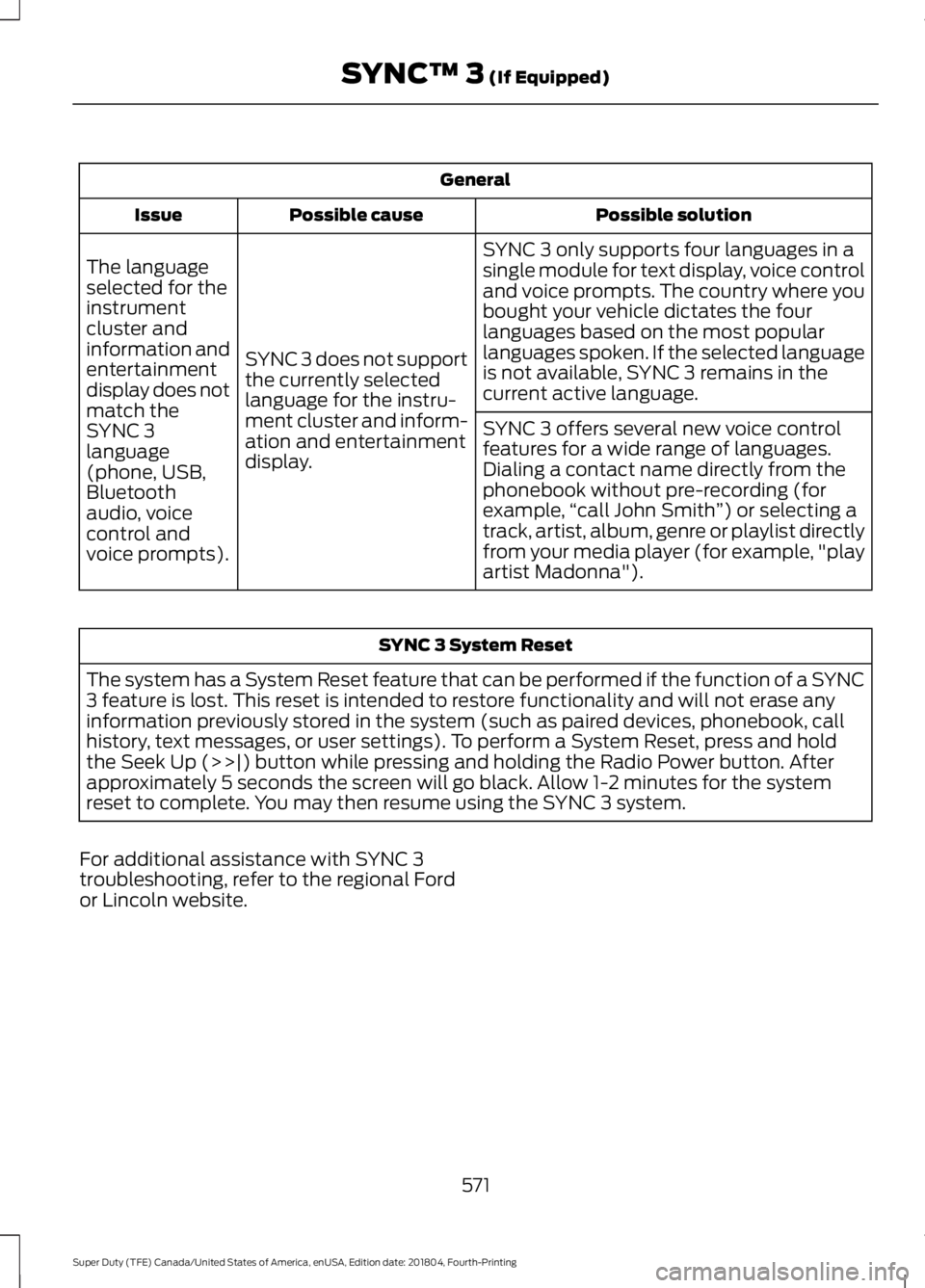
General
Possible solution
Possible cause
Issue
SYNC 3 only supports four languages in a
single module for text display, voice control
and voice prompts. The country where you
bought your vehicle dictates the four
languages based on the most popular
languages spoken. If the selected language
is not available, SYNC 3 remains in the
current active language.
SYNC 3 does not support
the currently selected
language for the instru-
ment cluster and inform-
ation and entertainment
display.
The language
selected for the
instrument
cluster and
information and
entertainment
display does not
match the
SYNC 3
SYNC 3 offers several new voice control
features for a wide range of languages.
Dialing a contact name directly from the
phonebook without pre-recording (for
example,
“call John Smith ”) or selecting a
track, artist, album, genre or playlist directly
from your media player (for example, "play
artist Madonna").
language
(phone, USB,
Bluetooth
audio, voice
control and
voice prompts). SYNC 3 System Reset
The system has a System Reset feature that can be performed if the function of a SYNC
3 feature is lost. This reset is intended to restore functionality and will not erase any
information previously stored in the system (such as paired devices, phonebook, call
history, text messages, or user settings). To perform a System Reset, press and hold
the Seek Up (>>|) button while pressing and holding the Radio Power button. After
approximately 5 seconds the screen will go black. Allow 1-2 minutes for the system
reset to complete. You may then resume using the SYNC 3 system.
For additional assistance with SYNC 3
troubleshooting, refer to the regional Ford
or Lincoln website.
571
Super Duty (TFE) Canada/United States of America, enUSA, Edition date: 201804, Fourth-Printing SYNC™ 3 (If Equipped)
Page 656 of 666
Regeneration......................................................
200
Digital Radio...................................................451 HD Radio Reception and Station
Troubleshooting............................................ 452
Direction Indicators.......................................95
Doors and Locks.............................................69
Draining the Fuel Filter Water Trap - 6.7L Diesel..............................................................351
Draining the Diesel Fuel Conditioner Module.............................................................. 352
Filter Location...................................................... 351
Driver Alert.....................................................249 Using Driver Alert............................................... 249
Driver and Passenger Airbags...................48 Children and Airbags........................................... 53
Passenger Airbag On and Off Switch .........48
Proper Driver and Front Passenger Seating Adjustment........................................................ 53
Driving Aids
....................................................249
Driving Hints..................................................299
Driving Through Water..............................300
DRL See: Daytime Running Lamps......................... 93
E
Economical Driving.....................................299
Electromagnetic Compatibility
.............608
Electronic Locking Differential.................221 Activating the Electronic Locking
Differential........................................................ 221
Emission Law.................................................193 Noise Emissions Warranty, Prohibited
Tampering Acts and Maintenance..........194
Tampering With a Noise Control System............................................................... 193
End User License Agreement..................610 VEHICLE SOFTWARE END USER LICENSE
AGREEMENT (EULA) ................................. 610
Engine Block Heater.....................................181 Using the Engine Block Heater...................... 182
Engine Coolant Check - 6.2L/6.8L........339 Adding Coolant.................................................. 340
Engine Coolant Temperature Management
.................................................. 342
Fail-Safe Cooling................................................ 341
Recycled Coolant.............................................. 340
Severe Climates.................................................. 341Engine Coolant Check - 6.7L
Diesel.............................................................343
Adding Coolant................................................... 343
Coolant Change................................................. 346
Engine and Secondary Cooling System Refill Procedure............................................. 345
Engine-driven Cooling Fan............................. 346
Recycled Coolant............................................... 345
Severe Climates................................................. 346
Engine Emission Control
............................193
Engine Idle Shutdown..................................181
Engine Immobilizer See: Passive Anti-Theft System..................... 78
Engine Oil Check - 6.2L/6.8L..................334 Adding Engine Oil.............................................. 334
Engine Oil Check - 6.7L Diesel................335 Adding Engine Oil.............................................. 336
Engine lubrication for severe service operation ......................................................... 336
Engine Oil Dipstick - 6.2L/6.8L...............334
Engine Oil Dipstick - 6.7L Diesel.............334
Engine Specifications - 6.2L....................419 Drivebelt Routing................................................ 419
Engine Specifications - 6.7L Diesel.......419 Drivebelt Routing............................................... 420
Engine Specifications - 6.8L...................420 Drivebelt Routing................................................ 421
Entertainment...............................................515 AM/FM Radio....................................................... 516
Apps........................................................................\
524
Bluetooth Stereo or USB................................ 523
CD (If equipped)................................................ 522
HD Radio ™ Information (If
Available)......................................................... 519
SiriusXM® Satellite Radio (If Activated)......................................................... 517
Sources................................................................... 516
Supported Media Players, Formats and Metadata Information................................ 524
USB Ports............................................................. 524
Environment......................................................17
Essential Towing Checks..........................287 Before Towing a Trailer.................................... 294
Dynamic Hitching Using the Rear View Camera System............................................ 288
Hitches.................................................................. 289
Integrated Trailer Brake Controller..............292
653
Super Duty (TFE) Canada/United States of America, enUSA, Edition date: 201804, Fourth-Printing Index
Page 664 of 666
.........")
Radio Frequency Certifications for SYNC
3........................................................................\
.. 646
Radio Frequency Certifications for Tire Pressure Monitoring Sensor(s)...............636
Radio Frequency Certifications for Wireless Charging........................................................... 645
Radio Frequency Statement for Audio Unit..................................................................... 647
U
Under Hood Overview - 6.2L..................330
Under Hood Overview - 6.7L Diesel.......331 F-Super Duty........................................................ 331
Scheduled Maintenance................................. 332
Under Hood Overview - 6.8L...................333
Under Seat Storage.....................................170 Rear Under Seat Storage................................. 170
Universal Garage Door Opener...............164 HomeLink Wireless Control System...........164
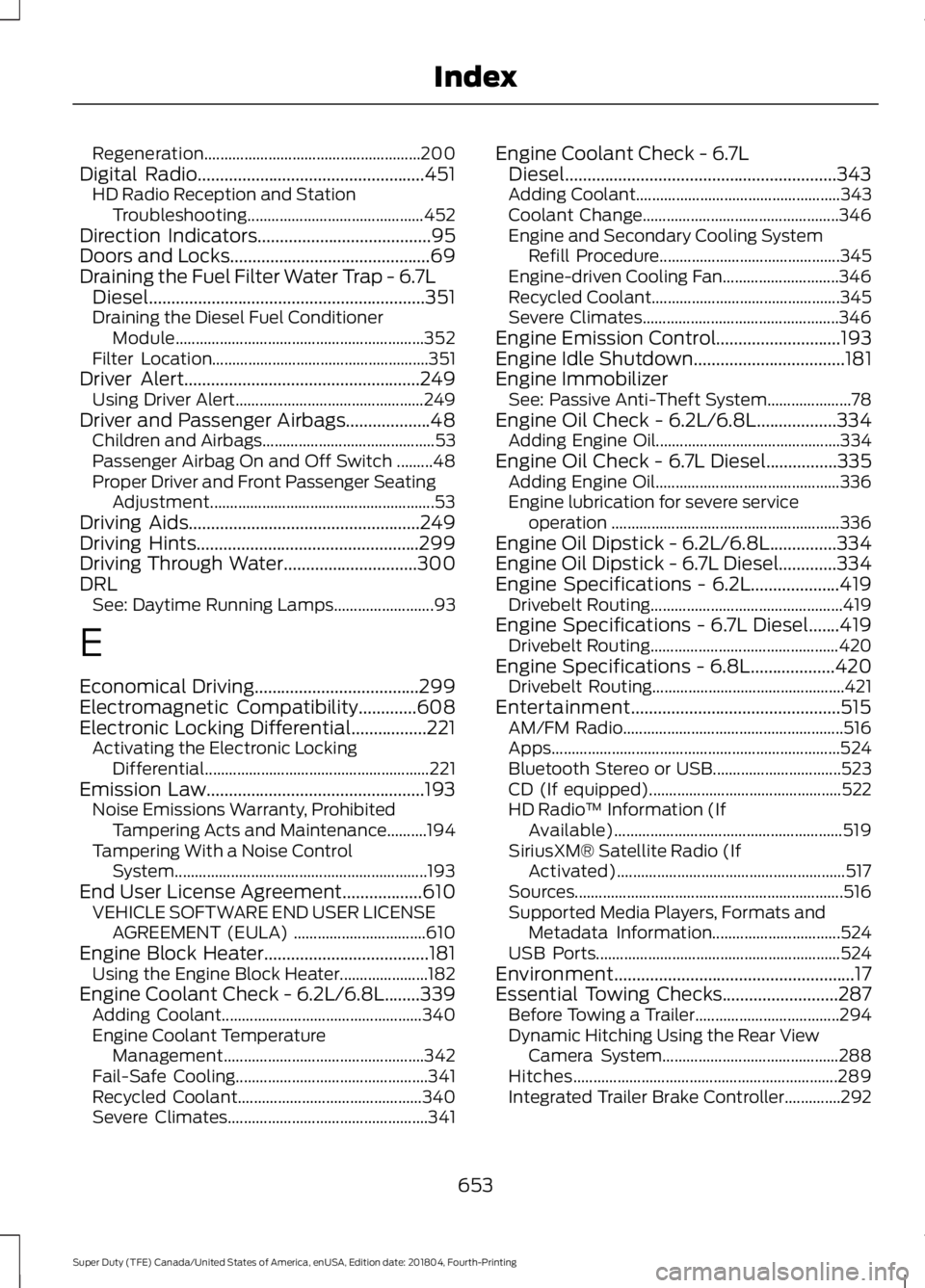
USB Port
.........................................................456
Using Adaptive Cruise Control................242 Automatic Cancellation.................................. 246
Blocked Sensor................................................... 247
Canceling the Set Speed................................ 245
Changing the Set Speed................................. 245
Detection Issues................................................ 246
Following a Vehicle........................................... 243
Hilly Condition and Trailer Tow Usage................................................................ 246
Overriding the Set Speed............................... 245
Resuming the Set Speed................................ 245
Setting the Adaptive Cruise Speed.............243
Setting the Gap Distance............................... 244
Switching Adaptive Cruise Control Off...................................................................... 246
Switching Adaptive Cruise Control On....................................................................... 243
Switching to Normal Cruise Control...........248
System Not Available....................................... 247
Using Cruise Control....................................241 Canceling the Set Speed................................ 242
Changing the Set Speed.................................. 241
Resuming the Set Speed................................ 242
Setting the Cruise Speed................................. 241
Switching Cruise Control Off......................... 242
Switching Cruise Control On.......................... 241Using Four-Wheel Drive
.............................212
4WD Indicator Lights......................................... 213
Driving Off-Road With Truck and Utility Vehicles............................................................. 216
Electronic Shift-On-the-Fly (ESOF) 4WD system................................................................ 212
How Your Vehicle Differs From Other Vehicles............................................................. 216
Manual Shift On Stop (MSOS) 4WD system................................................................ 212
Using a Manual Shift On Stop (MSOS) 4WD system.................................................... 213
Using the Electronic Shift on the Fly 4WD system................................................................ 215
Using Hill Descent Control
........................231
Hill descent modes............................................ 231
Using MyKey With Remote Start Systems...........................................................67
Using Power Running Boards....................82 Automatic Power Deploy.................................. 82
Automatic Power Stow...................................... 82
Bounce-back......................................................... 83
Enabling and Disabling...................................... 83
Manual Power Deploy........................................ 82
Using Snow Chains.....................................397
Using Stability Control...............................229 AdvanceTrac® with Roll Stability Control ™
(RSC®)............................................................. 229
Using SYNC™ With Your Media Player.............................................................478
Accessing Your USB Song Library...............482
Bluetooth Devices and System Settings............................................................ 484
Connecting Your Digital Media Player to the USB Port........................................................... 478
Media Menu Features....................................... 481
Media Voice Commands................................. 479
USB 2..................................................................... 484
Voice Commands for Audio Sources.........485
Using SYNC™ With Your Phone.............461 Accessing Features through the Phone
Menu................................................................. 466
Accessing Your Phone Settings................... 469
Bluetooth Devices............................................. 470
Making Calls........................................................ 465
Pairing a Phone for the First Time...............462
Pairing Subsequent Phones.......................... 463
Phone Options during an Active Call.........465
661
Super Duty (TFE) Canada/United States of America, enUSA, Edition date: 201804, Fourth-Printing Index