wheel FORD SUPER DUTY 2021 Repair Manual
[x] Cancel search | Manufacturer: FORD, Model Year: 2021, Model line: SUPER DUTY, Model: FORD SUPER DUTY 2021Pages: 666, PDF Size: 8.48 MB
Page 266 of 666
The electronic torque overlay steering
system adds supplemental steering assist
to the hydraulic gear when needed,
dependent on vehicle conditions such as
vehicle speed, steering wheel angle, and
steering wheel torque. The hydraulic
steering system provides the majority of
steering assistance. The electronic torque
overlay enables features such as pro trailer
backup assistance and lane departure
warning.
If your vehicle loses electrical power while
you are driving, your vehicle loses electric
power steering assistance. The steering
system still operates, and you can steer
your vehicle with hydraulic assist. Steering
your vehicle with only hydraulic assist
requires more effort.
Extreme continuous steering may increase
the effort required for you to steer your
vehicle. This increased effort prevents
overheating and permanent damage to
the steering system. You do not lose the
ability to steer your vehicle manually.
Typical steering and driving maneuvers
allow the system to cool and return to
normal operation.
Adaptive Learning (If Equipped)
The electronic power steering system
adaptive learning helps correct road
irregularities and improves overall handling
and steering feel. It communicates with
the brake system to help operate
advanced stability control and accident
avoidance systems. Whenever the battery
is disconnected or a new battery installed,
you must drive your vehicle a short
distance before the system relearns the
strategy and reactivates all systems. Adaptive Steering
(If Equipped)
Note: The adaptive steering system has
diagnostic checks that continuously monitor
the system. If the system detects a fault, a
message displays in the information display.
If a red warning message displays, stop your
vehicle as soon as it is safe to do so. The
message may clear if the fault is no longer
present. If an adaptive steering system
warning message appears each time you
start your vehicle, have the system checked
as soon as possible.
The adaptive steering system continually
changes the steering ratio with changes to
vehicle speed, optimizing the steering
response in all conditions. The system also
changes when you switch on the
transmission tow/haul feature. When you
select the tow/haul button, the adaptive
steering system reduces vehicle sensitivity
to steering inputs at higher vehicle speeds,
while maintaining the ease of parking and
maneuverability at low speeds.
Note: The adaptive steering system is
designed with a locking device. With the
lock engaged, the adaptive steering system
remains mechanically locked at a fixed
steering ratio. You may also notice a click
when you switch the vehicle on or after you
switch it off, as the lock disengages or
engages.
Note: If your vehicle loses electrical power
or detects a fault when you are driving, the
system automatically shuts down and you
retain normal steering function with a fixed
steering ratio. During this time it is possible
that the steering wheel may not be straight
when the vehicle is driving straight ahead.
In addition, the driver may notice that the
steering wheel angle required to steer the
vehicle may be different.
263
Super Duty (TFE) Canada/United States of America, enUSA, Edition date: 202008, Second-Printing Driving Aids
Page 267 of 666
Note:
During parking maneuvers, the
adaptive steering system balances the driver
work load for various steering wheel inputs
and vehicle loading conditions. Under
extreme operating conditions the system
locking device may engage. This strategy
prevents overheating and permanent
damage to the adaptive steering system.
Typical steering and driving maneuvers
allow the system to cool and return to
normal operation.
PRE-COLLISION ASSIST (IF
EQUIPPED) WARNING: You are responsible for
controlling your vehicle at all times. The
system is designed to be an aid and does
not relieve you of your responsibility to
drive with due care and attention. Failure
to follow this instruction could result in
the loss of control of your vehicle,
personal injury or death. WARNING:
The system does not
detect vehicles that are driving in a
different direction, cyclists or animals.
Apply the brakes when necessary. Failure
to follow this instruction could result in
the loss of control of your vehicle,
personal injury or death. WARNING:
The system does not
operate during hard acceleration or
steering. Failure to take care may lead
to a crash or personal injury. WARNING: The system may fail or
operate with reduced function during
cold and severe weather conditions.
Snow, ice, rain, spray and fog can
adversely affect the system. Keep the
front camera and radar free of snow and
ice. Failure to take care may result in the
loss of control of your vehicle, serious
personal injury or death. WARNING:
Some situations and
objects prevent hazard detection. For
example low or direct sunlight, inclement
weather, unconventional vehicle types,
and pedestrians. Apply the brakes when
necessary. Failure to follow this
instruction could result in the loss of
control of your vehicle, personal injury or
death. WARNING:
Take additional care if
your vehicle is heavily loaded or you are
towing a trailer. These conditions could
result in reduced performance of this
system. Failure to follow this instruction
could result in the loss of control of your
vehicle, personal injury or death. WARNING:
The system cannot
help prevent all crashes. Do not rely on
this system to replace driver judgment
and the need to maintain a safe distance
and speed.
Using the Pre-Collision Assist
System
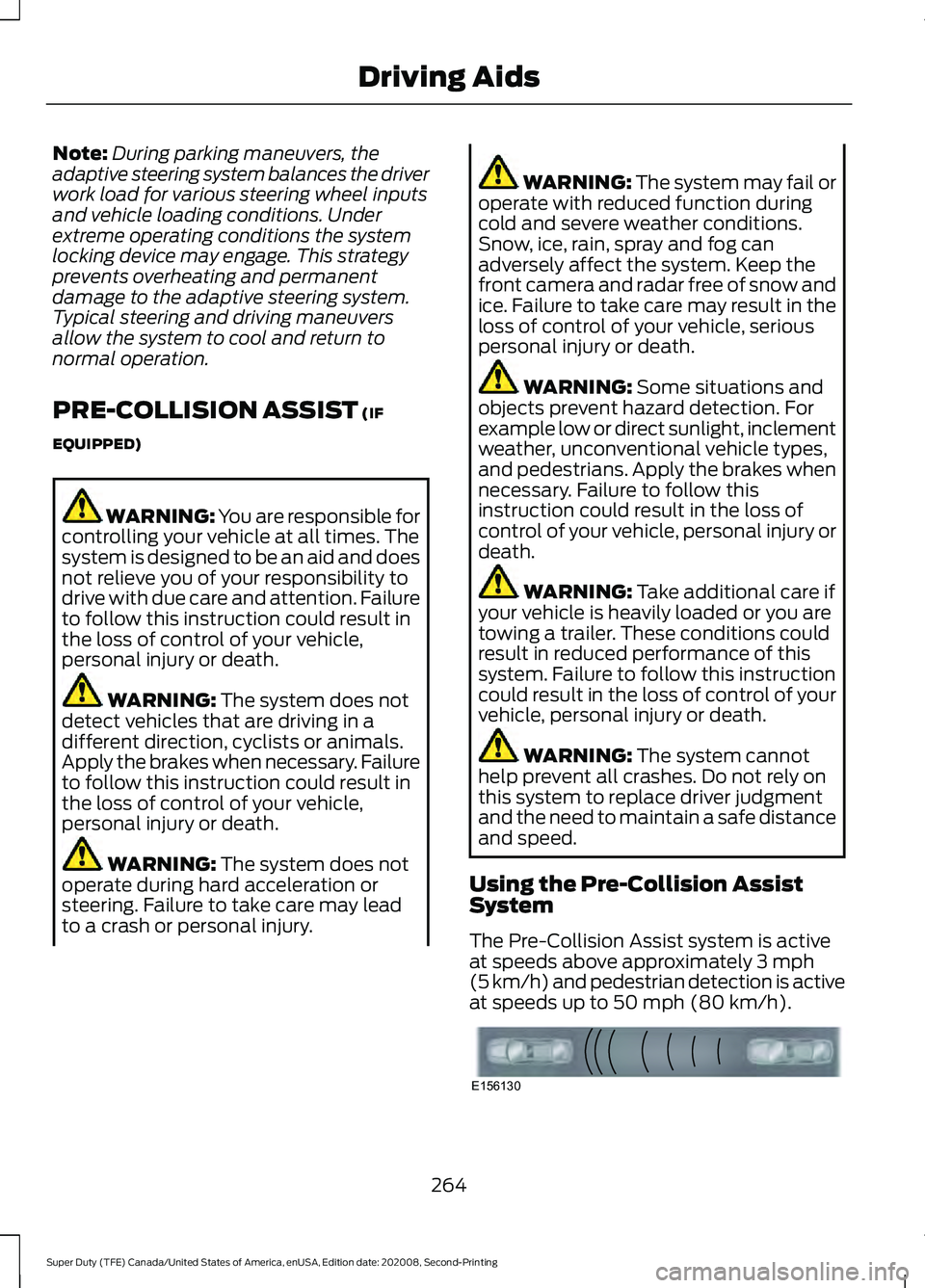
The Pre-Collision Assist system is active
at speeds above approximately
3 mph
(5 km/h) and pedestrian detection is active
at speeds up to
50 mph (80 km/h). 264
Super Duty (TFE) Canada/United States of America, enUSA, Edition date: 202008, Second-Printing Driving AidsE156130
Page 272 of 666
•
Electronic stability control and traction
control maintains your vehicle control
in adverse conditions or
high-performance driving.
• Electronic throttle control enhances
the powertrain response to your inputs.
• Transmission controls are optimized
with shift schedules tuned to each
terrain.
Using the System
The system tailors your vehicle
configuration for each mode you select.
Column Shifter To change the drive mode setting, press
the drive mode button. The drive mode
selection menu appears in the instrument
cluster and allows you to select through
the available drive modes.
Normal – For everyday driving.
This mode is a perfect balance
of excitement, comfort, and
convenience. WARNING: Do not use tow/haul
when the road surface is slippery. Failure
to follow this instruction could result in
the loss of control of your vehicle. Tow/Haul – For improved
transmission operation when
towing a trailer or a heavy load.
This mode moves upshifts to higher engine
speeds to reduce the frequency of
transmission shifting. This mode also
provides engine braking in all forward
gears, which slows your vehicle and assists
you in controlling your vehicle when
descending a grade. The amount of
downshift braking provided varies based
on the amount you press the brake pedal. Deep Snow/Sand – For snow or
soft, dry sand.
Eco – For efficient driving. This
mode helps deliver maximum
fuel efficiency and helps to
increase driving range. Slippery – For less than ideal
road conditions such as snow or
ice covered roads. Use this mode
for crossing terrain where loose, wet or
slippery material covers a firm surface.
Slippery mode lowers throttle response
and, if equipped with automatic
transmission, optimizes shifting for slippery
surfaces. Rock Crawl – For optimum
rock-climbing ability. Rock crawl
mode prompts you to put your
vehicle in 4x4 Low. Rock Crawl mode
optimizes the throttle and transmission
response to provide you additional control
of your vehicle. See
Using Four-Wheel
Drive (page 213). Some drive modes reduce
traction and stability control
performance and the warning
indicator illuminates in the instrument
cluster.
269
Super Duty (TFE) Canada/United States of America, enUSA, Edition date: 202008, Second-Printing Driving AidsE249567 E225310 E246592 E295420 E295413 E295414 E225315 E130458
Page 287 of 666
This feature helps you to steer your vehicle
when reversing with a trailer by:
•
Using the control knob with Pro Trailer
Backup Assist.
• Using the steering wheel with Trailer
Reverse Guidance.
Each trailer you use with your vehicle has
to be setup once.
You must take care to follow the setup
process accurately to correctly place the
sticker or sensor.
Contact your dealership if you need
assistance setting up your trailer.
Note: Your vehicle saves the trailer
information when you enter it into the
system. You can add a maximum of 10
trailers to the system.
Note: The system is not a substitute for
safe driving practices.
Note: You must always be aware of your
vehicle and trailer combination, and the
surrounding environment.
Note: The system does not detect or
prevent your vehicle or trailer from making
contact with obstacles in the surrounding
environment.
Note: Keep in mind that the front end of
your vehicle swings out when changing the
direction of the trailer. Note:
The system relies on user
measurements to determine sticker
placement or user installation of a sensor
to determine system limits. It is critical to
correctly take the key measurements or
properly install the sensor. Incorrect
measurements or sensor placement can
result in the improper function of the system
up to and including contact between your
vehicle and trailer. Even with correct
measurements and sensor placement, the
system cannot determine if the trailer body
may contact your vehicle. Check the
clearance between your vehicle and trailer,
especially for sharp turns.
Note: The system limits vehicle speed when
backing up. The system is not a replacement
for proper use of the throttle and brake
pedals.
Note: The system does not support backing
up when towing multiple trailers. If you are
towing more than one trailer, you must
disconnect the additional trailers before
using the system.
Positioning Your Vehicle and
Trailer
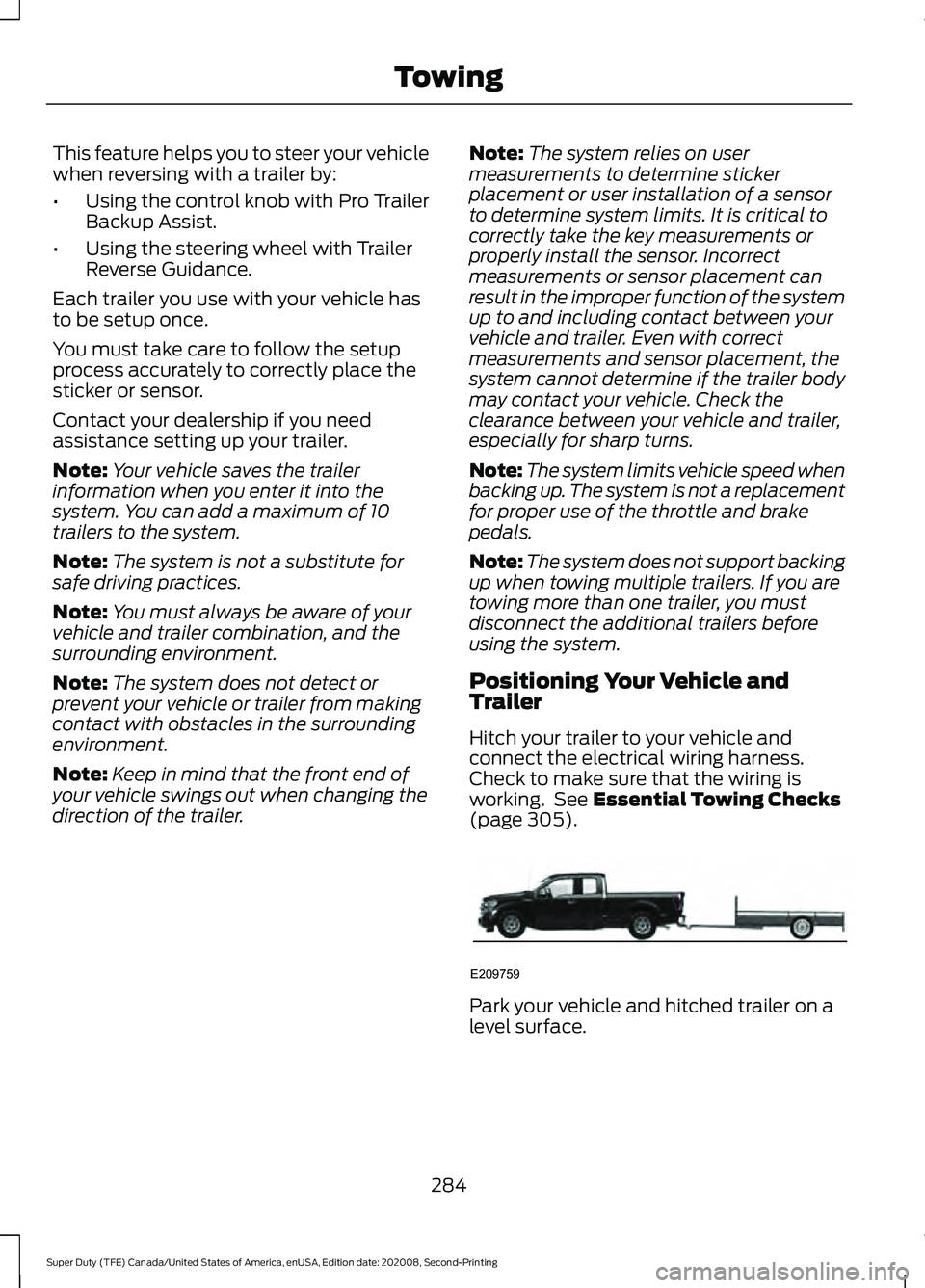
Hitch your trailer to your vehicle and
connect the electrical wiring harness.
Check to make sure that the wiring is
working. See Essential Towing Checks
(page 305). Park your vehicle and hitched trailer on a
level surface.
284
Super Duty (TFE) Canada/United States of America, enUSA, Edition date: 202008, Second-Printing TowingE209759
Page 288 of 666
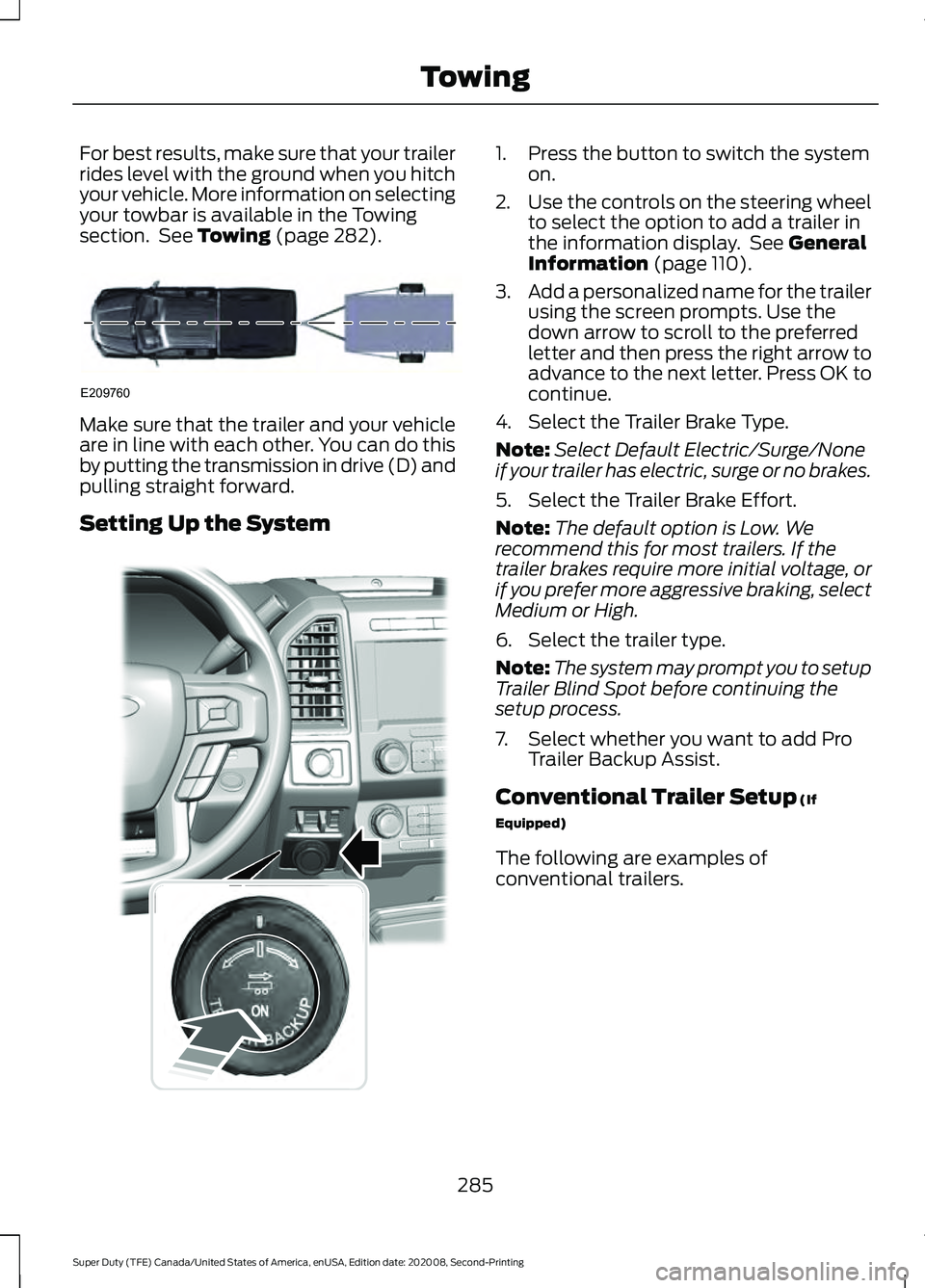
For best results, make sure that your trailer
rides level with the ground when you hitch
your vehicle. More information on selecting
your towbar is available in the Towing
section. See Towing (page 282).
Make sure that the trailer and your vehicle
are in line with each other. You can do this
by putting the transmission in drive (D) and
pulling straight forward.
Setting Up the System 1. Press the button to switch the system
on.
2. Use the controls on the steering wheel
to select the option to add a trailer in
the information display. See General
Information (page 110).
3. Add a personalized name for the trailer
using the screen prompts. Use the
down arrow to scroll to the preferred
letter and then press the right arrow to
advance to the next letter. Press OK to
continue.
4. Select the Trailer Brake Type.
Note: Select Default Electric/Surge/None
if your trailer has electric, surge or no brakes.
5. Select the Trailer Brake Effort.
Note: The default option is Low. We
recommend this for most trailers. If the
trailer brakes require more initial voltage, or
if you prefer more aggressive braking, select
Medium or High.
6. Select the trailer type.
Note: The system may prompt you to setup
Trailer Blind Spot before continuing the
setup process.
7. Select whether you want to add Pro Trailer Backup Assist.
Conventional Trailer Setup
(If
Equipped)
The following are examples of
conventional trailers.
285
Super Duty (TFE) Canada/United States of America, enUSA, Edition date: 202008, Second-Printing TowingE209760 E318266
Page 290 of 666
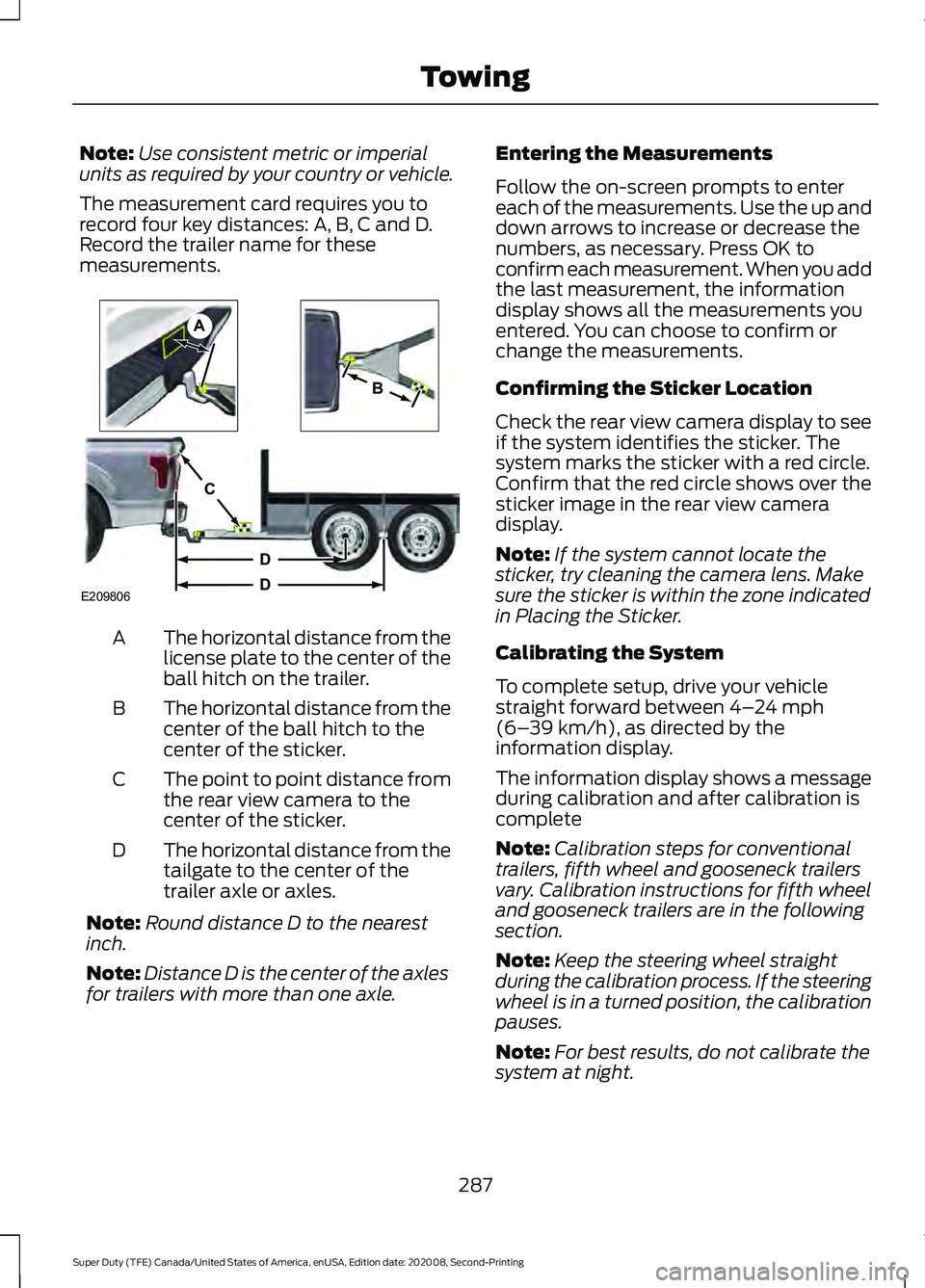
Note:
Use consistent metric or imperial
units as required by your country or vehicle.
The measurement card requires you to
record four key distances: A, B, C and D.
Record the trailer name for these
measurements. The horizontal distance from the
license plate to the center of the
ball hitch on the trailer.
A
The horizontal distance from the
center of the ball hitch to the
center of the sticker.
B
The point to point distance from
the rear view camera to the
center of the sticker.
C
The horizontal distance from the
tailgate to the center of the
trailer axle or axles.
D
Note: Round distance D to the nearest
inch.
Note: Distance D is the center of the axles
for trailers with more than one axle. Entering the Measurements
Follow the on-screen prompts to enter
each of the measurements. Use the up and
down arrows to increase or decrease the
numbers, as necessary. Press OK to
confirm each measurement. When you add
the last measurement, the information
display shows all the measurements you
entered. You can choose to confirm or
change the measurements.
Confirming the Sticker Location
Check the rear view camera display to see
if the system identifies the sticker. The
system marks the sticker with a red circle.
Confirm that the red circle shows over the
sticker image in the rear view camera
display.
Note:
If the system cannot locate the
sticker, try cleaning the camera lens. Make
sure the sticker is within the zone indicated
in Placing the Sticker.
Calibrating the System
To complete setup, drive your vehicle
straight forward between 4– 24 mph
(6– 39 km/h), as directed by the
information display.
The information display shows a message
during calibration and after calibration is
complete
Note: Calibration steps for conventional
trailers, fifth wheel and gooseneck trailers
vary. Calibration instructions for fifth wheel
and gooseneck trailers are in the following
section.
Note: Keep the steering wheel straight
during the calibration process. If the steering
wheel is in a turned position, the calibration
pauses.
Note: For best results, do not calibrate the
system at night.
287
Super Duty (TFE) Canada/United States of America, enUSA, Edition date: 202008, Second-Printing TowingE209806
A
B
C
D
D
Page 291 of 666
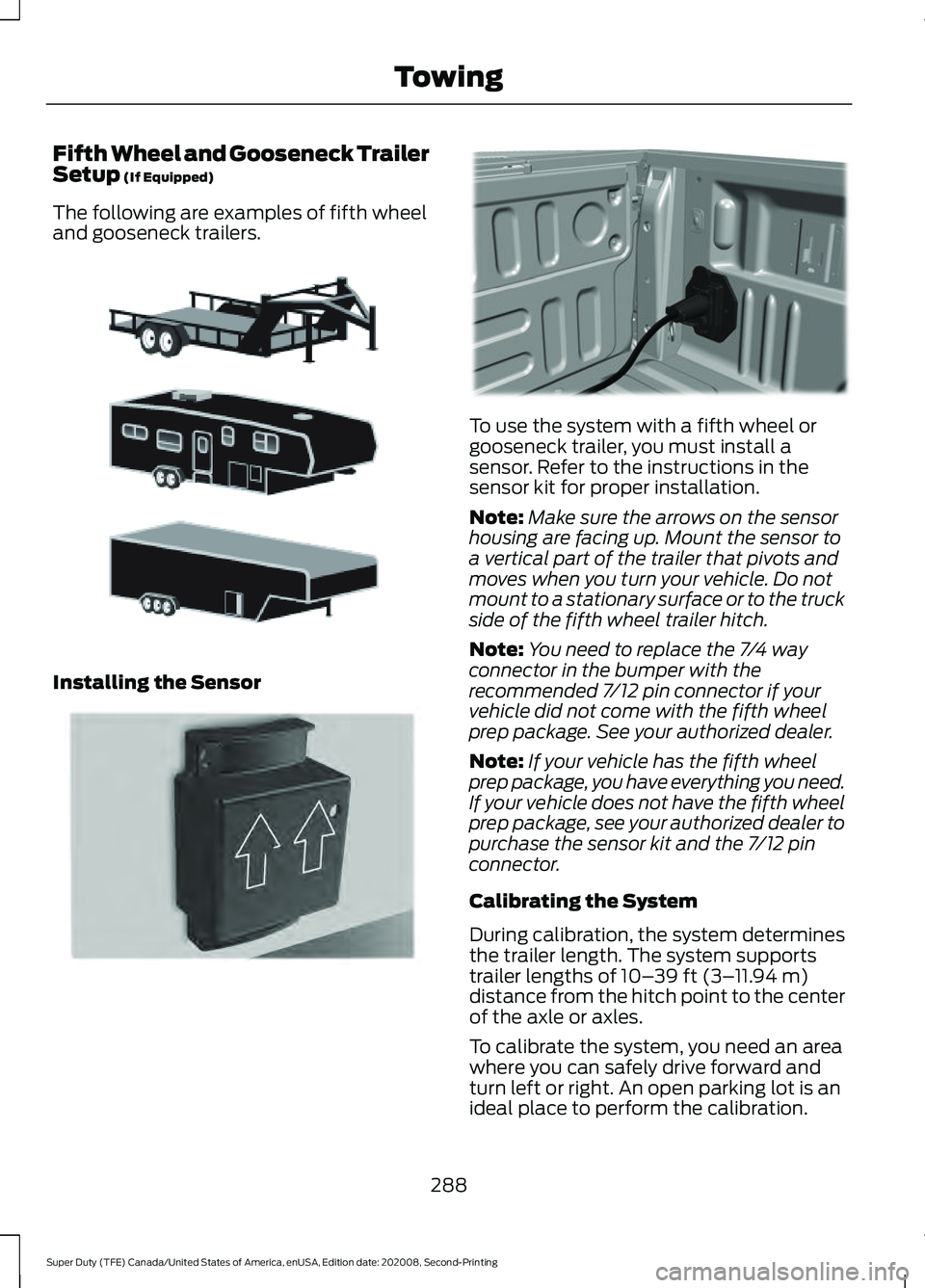
Fifth Wheel and Gooseneck Trailer
Setup (If Equipped)
The following are examples of fifth wheel
and gooseneck trailers. Installing the Sensor To use the system with a fifth wheel or
gooseneck trailer, you must install a
sensor. Refer to the instructions in the
sensor kit for proper installation.
Note:
Make sure the arrows on the sensor
housing are facing up. Mount the sensor to
a vertical part of the trailer that pivots and
moves when you turn your vehicle. Do not
mount to a stationary surface or to the truck
side of the fifth wheel trailer hitch.
Note: You need to replace the 7/4 way
connector in the bumper with the
recommended 7/12 pin connector if your
vehicle did not come with the fifth wheel
prep package. See your authorized dealer.
Note: If your vehicle has the fifth wheel
prep package, you have everything you need.
If your vehicle does not have the fifth wheel
prep package, see your authorized dealer to
purchase the sensor kit and the 7/12 pin
connector.
Calibrating the System
During calibration, the system determines
the trailer length. The system supports
trailer lengths of
10– 39 ft (3– 11.94 m)
distance from the hitch point to the center
of the axle or axles.
To calibrate the system, you need an area
where you can safely drive forward and
turn left or right. An open parking lot is an
ideal place to perform the calibration.
288
Super Duty (TFE) Canada/United States of America, enUSA, Edition date: 202008, Second-Printing TowingE311877 E315959 E316145
Page 292 of 666
Drive straight at approximately 5 mph
(8 km/h) to align the trailer behind your
vehicle. The information display and center
screen provide you with instructions and
tells you when the system is ready for a
turn. Turn left or right whenever you are
ready and in a safe turning area.
Note: You need to turn approximately 90
degrees to calibrate the system.
Note: The information display shows if you
are going too slow or fast. Calibration
pauses if the speed is outside the required
range of
2 – 16 mph (4– 25 km/h).
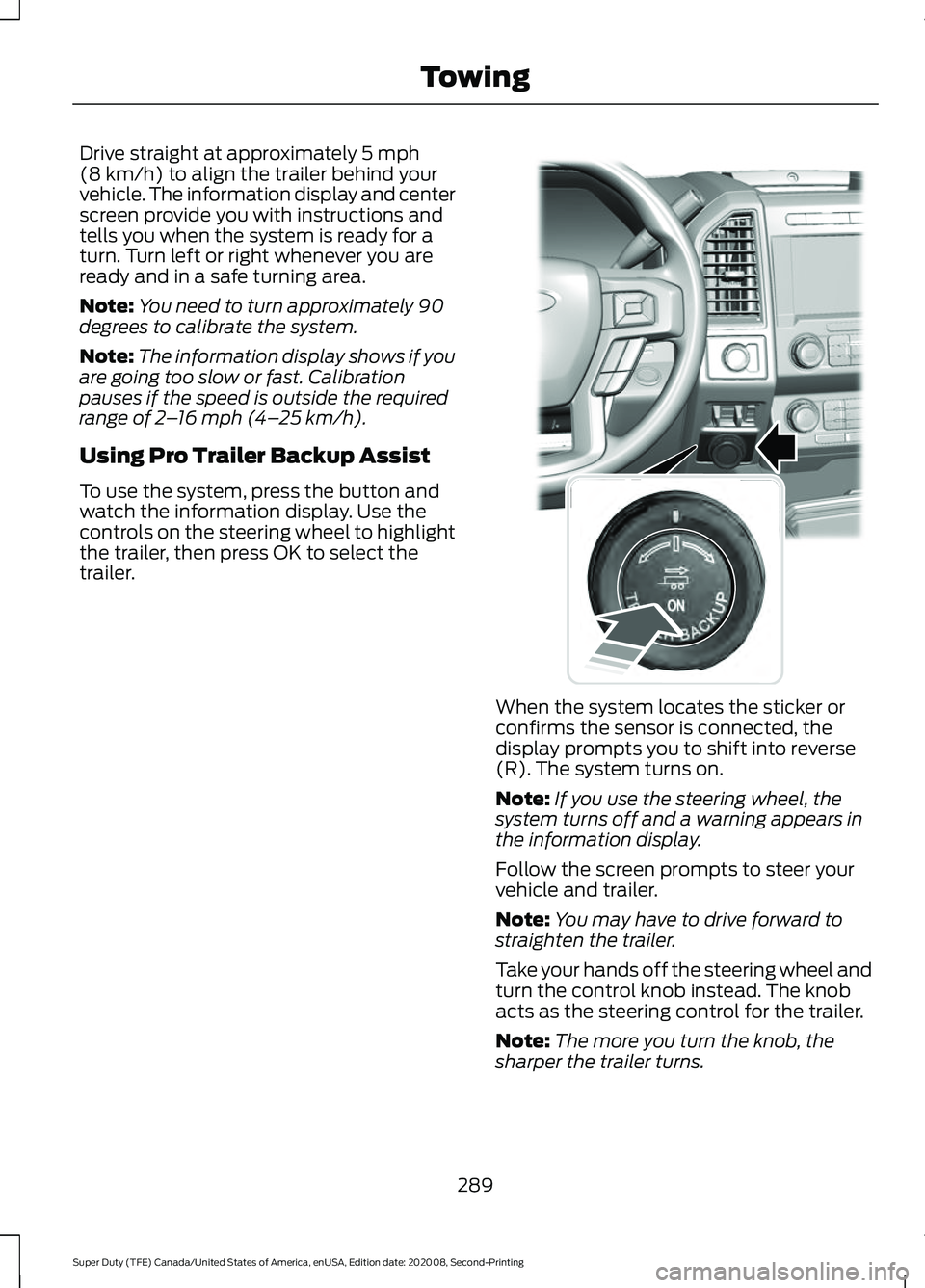
Using Pro Trailer Backup Assist
To use the system, press the button and
watch the information display. Use the
controls on the steering wheel to highlight
the trailer, then press OK to select the
trailer. When the system locates the sticker or
confirms the sensor is connected, the
display prompts you to shift into reverse
(R). The system turns on.
Note:
If you use the steering wheel, the
system turns off and a warning appears in
the information display.
Follow the screen prompts to steer your
vehicle and trailer.
Note: You may have to drive forward to
straighten the trailer.
Take your hands off the steering wheel and
turn the control knob instead. The knob
acts as the steering control for the trailer.
Note: The more you turn the knob, the
sharper the trailer turns.
289
Super Duty (TFE) Canada/United States of America, enUSA, Edition date: 202008, Second-Printing TowingE318266
Page 293 of 666
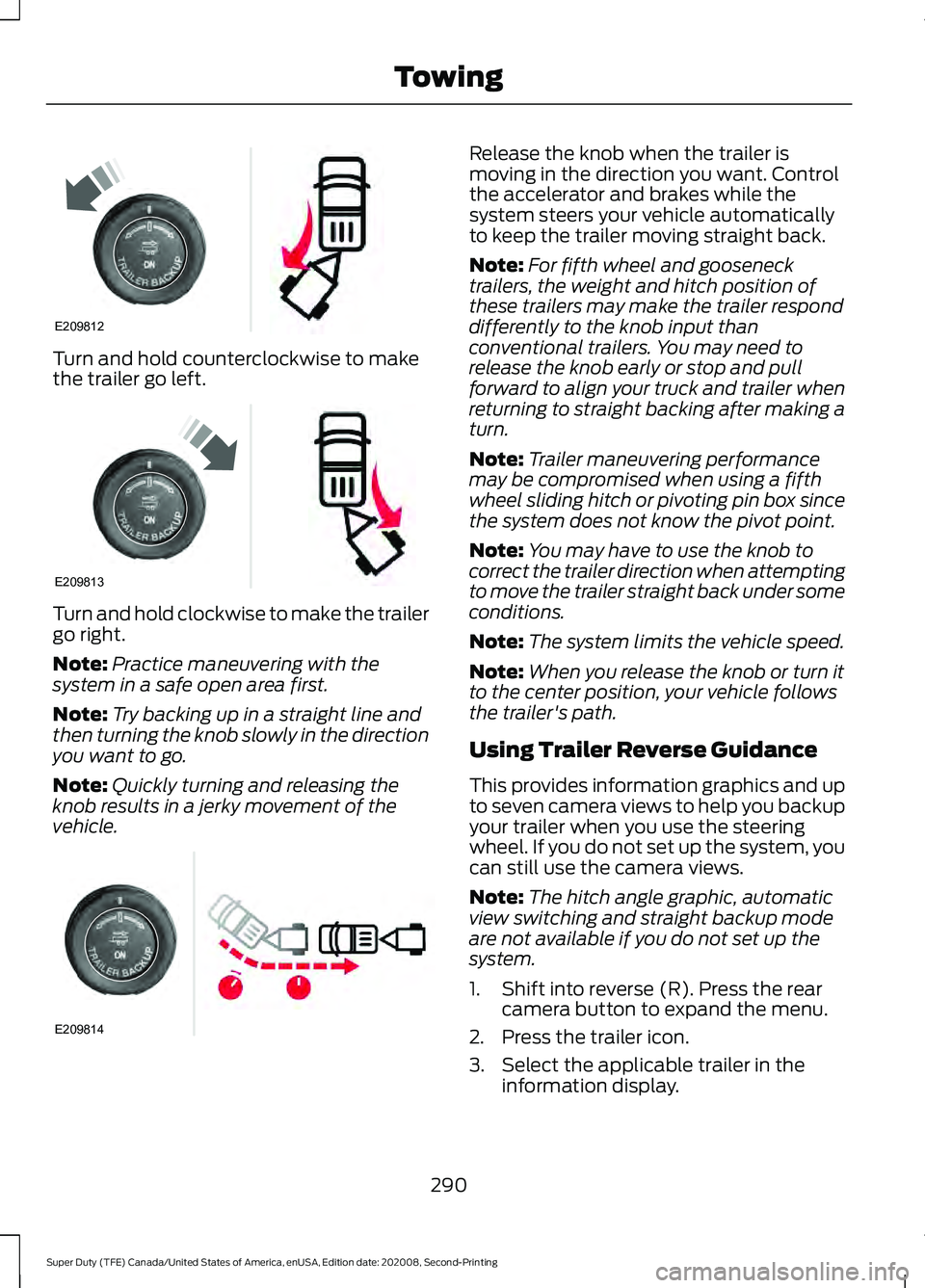
Turn and hold counterclockwise to make
the trailer go left.
Turn and hold clockwise to make the trailer
go right.
Note:
Practice maneuvering with the
system in a safe open area first.
Note: Try backing up in a straight line and
then turning the knob slowly in the direction
you want to go.
Note: Quickly turning and releasing the
knob results in a jerky movement of the
vehicle. Release the knob when the trailer is
moving in the direction you want. Control
the accelerator and brakes while the
system steers your vehicle automatically
to keep the trailer moving straight back.
Note:
For fifth wheel and gooseneck
trailers, the weight and hitch position of
these trailers may make the trailer respond
differently to the knob input than
conventional trailers. You may need to
release the knob early or stop and pull
forward to align your truck and trailer when
returning to straight backing after making a
turn.
Note: Trailer maneuvering performance
may be compromised when using a fifth
wheel sliding hitch or pivoting pin box since
the system does not know the pivot point.
Note: You may have to use the knob to
correct the trailer direction when attempting
to move the trailer straight back under some
conditions.
Note: The system limits the vehicle speed.
Note: When you release the knob or turn it
to the center position, your vehicle follows
the trailer's path.
Using Trailer Reverse Guidance
This provides information graphics and up
to seven camera views to help you backup
your trailer when you use the steering
wheel. If you do not set up the system, you
can still use the camera views.
Note: The hitch angle graphic, automatic
view switching and straight backup mode
are not available if you do not set up the
system.
1. Shift into reverse (R). Press the rear camera button to expand the menu.
2. Press the trailer icon.
3. Select the applicable trailer in the information display.
290
Super Duty (TFE) Canada/United States of America, enUSA, Edition date: 202008, Second-Printing TowingE209812 E209813 E209814
Page 294 of 666
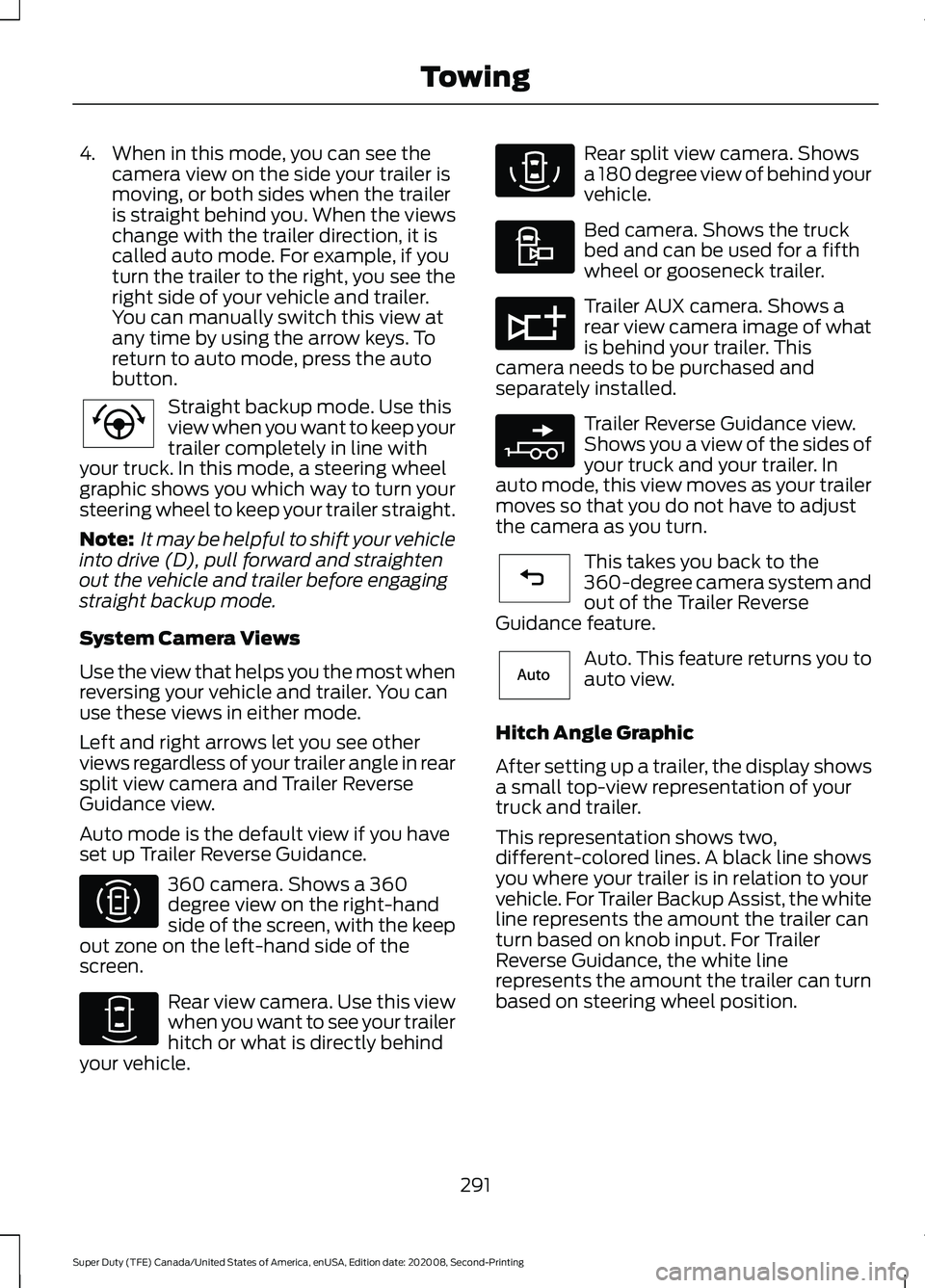
4. When in this mode, you can see the
camera view on the side your trailer is
moving, or both sides when the trailer
is straight behind you. When the views
change with the trailer direction, it is
called auto mode. For example, if you
turn the trailer to the right, you see the
right side of your vehicle and trailer.
You can manually switch this view at
any time by using the arrow keys. To
return to auto mode, press the auto
button. Straight backup mode. Use this
view when you want to keep your
trailer completely in line with
your truck. In this mode, a steering wheel
graphic shows you which way to turn your
steering wheel to keep your trailer straight.
Note: It may be helpful to shift your vehicle
into drive (D), pull forward and straighten
out the vehicle and trailer before engaging
straight backup mode.
System Camera Views
Use the view that helps you the most when
reversing your vehicle and trailer. You can
use these views in either mode.
Left and right arrows let you see other
views regardless of your trailer angle in rear
split view camera and Trailer Reverse
Guidance view.
Auto mode is the default view if you have
set up Trailer Reverse Guidance. 360 camera. Shows a 360
degree view on the right-hand
side of the screen, with the keep
out zone on the left-hand side of the
screen. Rear view camera. Use this view
when you want to see your trailer
hitch or what is directly behind
your vehicle. Rear split view camera. Shows
a 180 degree view of behind your
vehicle.
Bed camera. Shows the truck
bed and can be used for a fifth
wheel or gooseneck trailer.
Trailer AUX camera. Shows a
rear view camera image of what
is behind your trailer. This
camera needs to be purchased and
separately installed. Trailer Reverse Guidance view.
Shows you a view of the sides of
your truck and your trailer. In
auto mode, this view moves as your trailer
moves so that you do not have to adjust
the camera as you turn. This takes you back to the
360-degree camera system and
out of the Trailer Reverse
Guidance feature. Auto. This feature returns you to
auto view.
Hitch Angle Graphic
After setting up a trailer, the display shows
a small top-view representation of your
truck and trailer.
This representation shows two,
different-colored lines. A black line shows
you where your trailer is in relation to your
vehicle. For Trailer Backup Assist, the white
line represents the amount the trailer can
turn based on knob input. For Trailer
Reverse Guidance, the white line
represents the amount the trailer can turn
based on steering wheel position.
291
Super Duty (TFE) Canada/United States of America, enUSA, Edition date: 202008, Second-Printing TowingE224484 E310996 E310967 E310974 E310995 E311776 E310965 E224486 E315644