tow FORD SUPER DUTY 2022 Owners Manual
[x] Cancel search | Manufacturer: FORD, Model Year: 2022, Model line: SUPER DUTY, Model: FORD SUPER DUTY 2022Pages: 740, PDF Size: 9.95 MB
Page 518 of 740
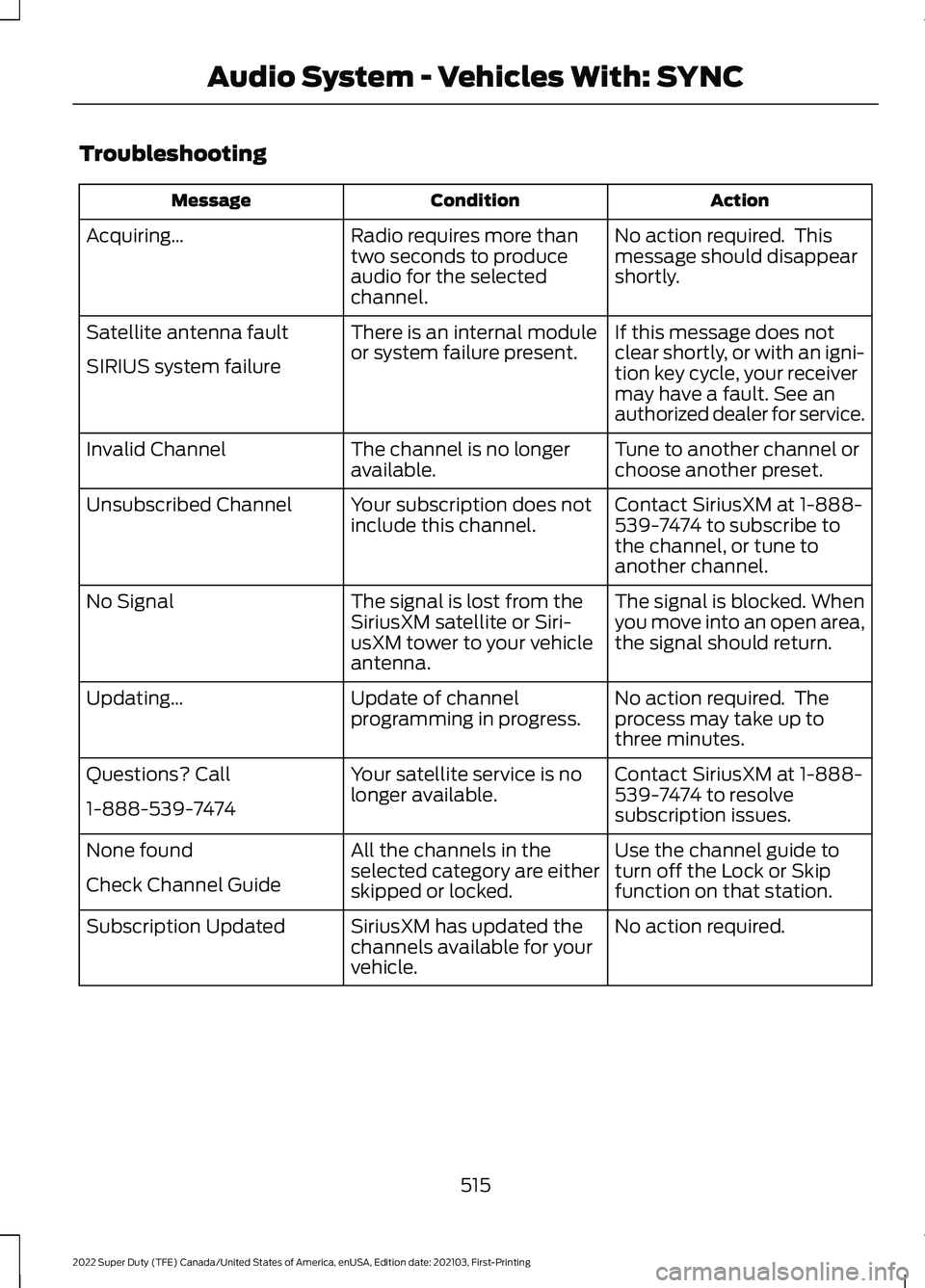
Troubleshooting
Action
Condition
Message
No action required. This
message should disappear
shortly.
Radio requires more than
two seconds to produce
audio for the selected
channel.
Acquiring…
If this message does not
clear shortly, or with an igni-
tion key cycle, your receiver
may have a fault. See an
authorized dealer for service.
There is an internal module
or system failure present.
Satellite antenna fault
SIRIUS system failure
Tune to another channel or
choose another preset.
The channel is no longer
available.
Invalid Channel
Contact SiriusXM at 1-888-
539-7474 to subscribe to
the channel, or tune to
another channel.
Your subscription does not
include this channel.
Unsubscribed Channel
The signal is blocked. When
you move into an open area,
the signal should return.
The signal is lost from the
SiriusXM satellite or Siri-
usXM tower to your vehicle
antenna.
No Signal
No action required. The
process may take up to
three minutes.
Update of channel
programming in progress.
Updating…
Contact SiriusXM at 1-888-
539-7474 to resolve
subscription issues.
Your satellite service is no
longer available.
Questions? Call
1-888-539-7474
Use the channel guide to
turn off the Lock or Skip
function on that station.
All the channels in the
selected category are either
skipped or locked.
None found
Check Channel Guide
No action required.
SiriusXM has updated the
channels available for your
vehicle.
Subscription Updated
515
2022 Super Duty (TFE) Canada/United States of America, enUSA, Edition date: 202103, First-Printing Audio System - Vehicles With: SYNC
Page 520 of 740
GENERAL INFORMATION
WARNING: Driving while distracted
can result in loss of vehicle control, crash
and injury. We strongly recommend that
you use extreme caution when using any
device that may take your focus off the
road. Your primary responsibility is the
safe operation of your vehicle. We
recommend against the use of any hand-held device while driving and
encourage the use of voice-operated
systems when possible. Make sure you
are aware of all applicable local laws
that may affect the use of electronic
devices while driving.
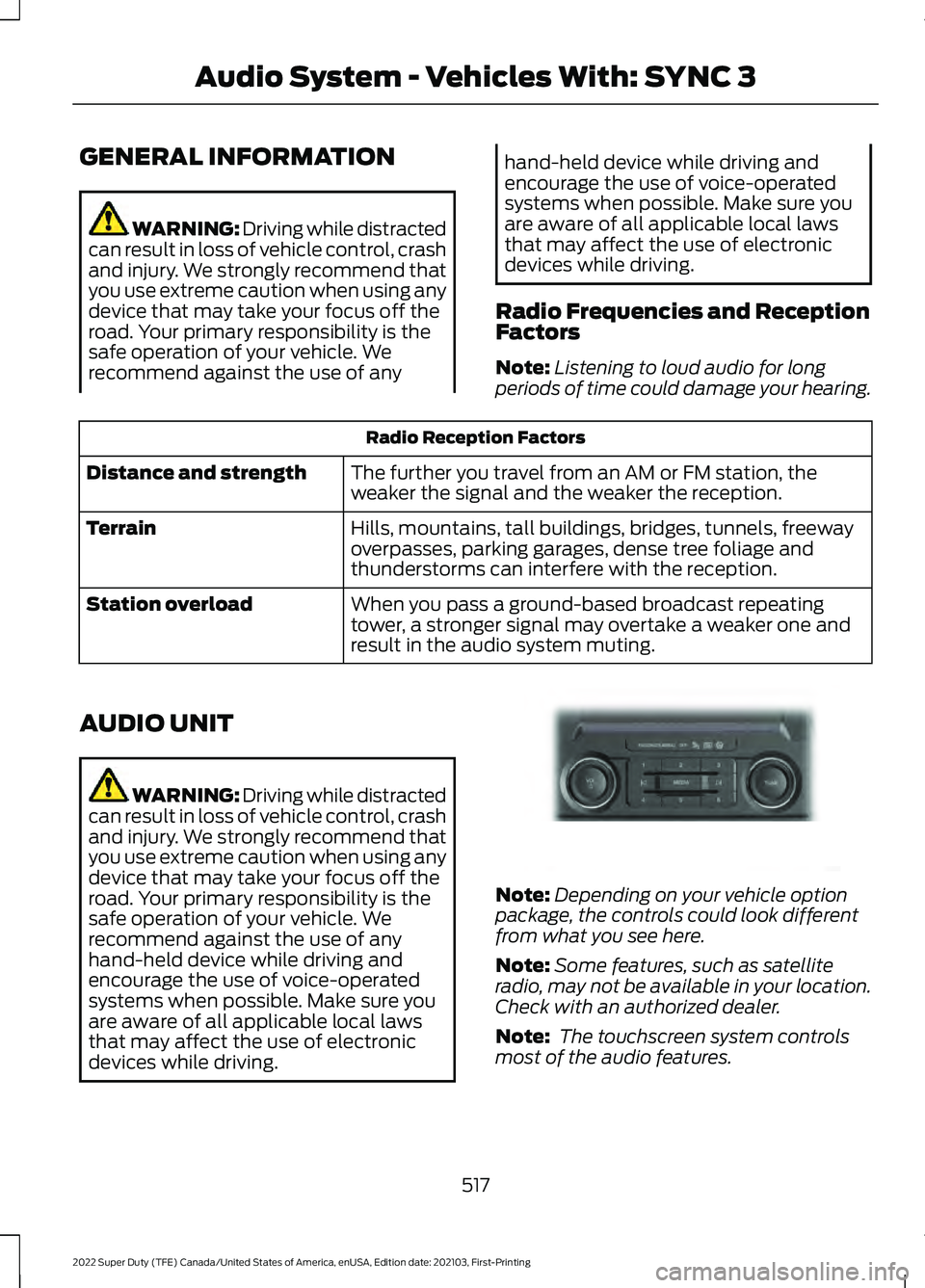
Radio Frequencies and Reception
Factors
Note: Listening to loud audio for long
periods of time could damage your hearing. Radio Reception Factors
The further you travel from an AM or FM station, the
weaker the signal and the weaker the reception.
Distance and strength
Hills, mountains, tall buildings, bridges, tunnels, freeway
overpasses, parking garages, dense tree foliage and
thunderstorms can interfere with the reception.
Terrain
When you pass a ground-based broadcast repeating
tower, a stronger signal may overtake a weaker one and
result in the audio system muting.
Station overload
AUDIO UNIT WARNING: Driving while distracted
can result in loss of vehicle control, crash
and injury. We strongly recommend that
you use extreme caution when using any
device that may take your focus off the
road. Your primary responsibility is the
safe operation of your vehicle. We
recommend against the use of any
hand-held device while driving and
encourage the use of voice-operated
systems when possible. Make sure you
are aware of all applicable local laws
that may affect the use of electronic
devices while driving. Note:
Depending on your vehicle option
package, the controls could look different
from what you see here.
Note: Some features, such as satellite
radio, may not be available in your location.
Check with an authorized dealer.
Note: The touchscreen system controls
most of the audio features.
517
2022 Super Duty (TFE) Canada/United States of America, enUSA, Edition date: 202103, First-Printing Audio System - Vehicles With: SYNC 3E291384
Page 525 of 740
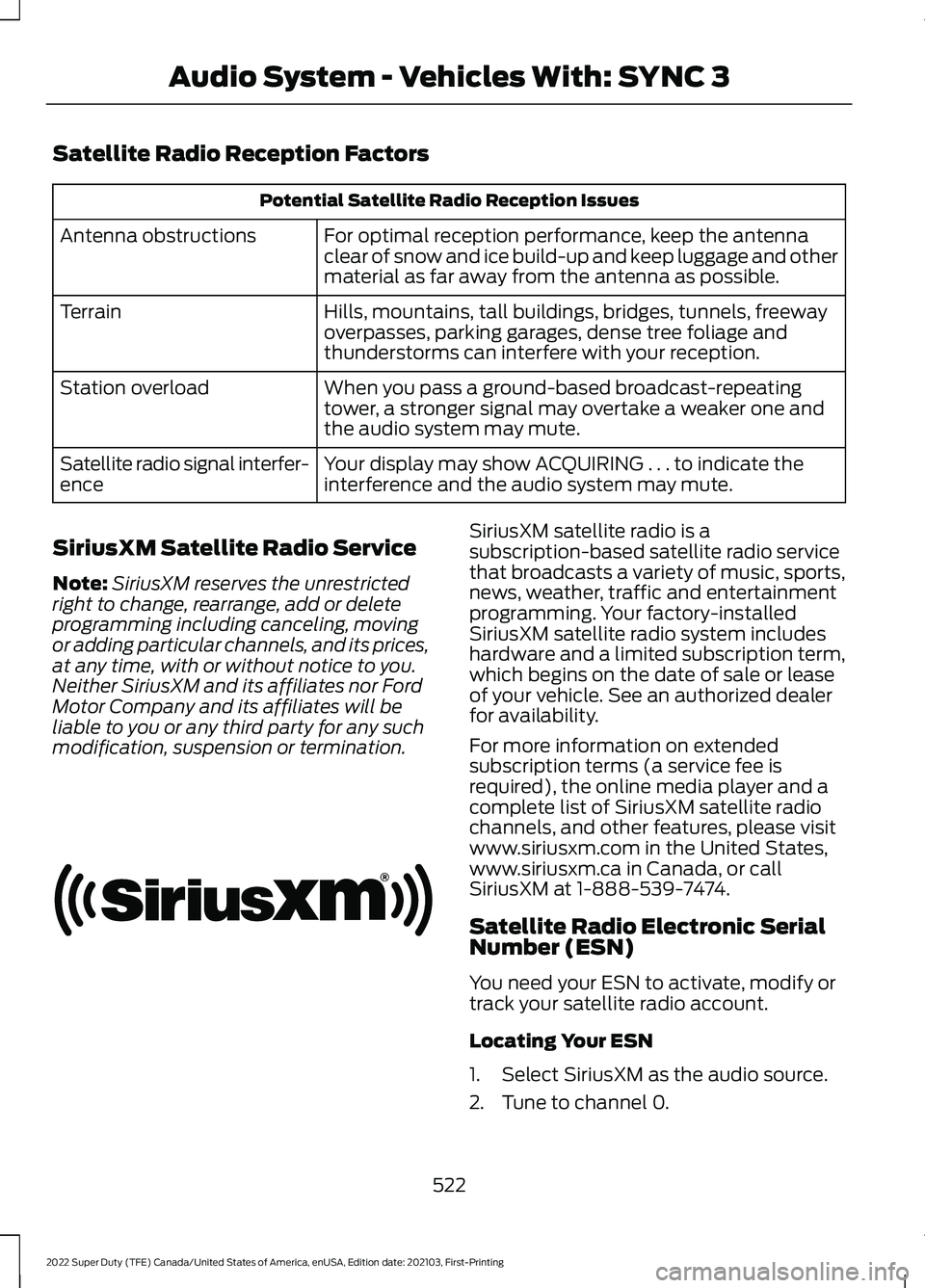
Satellite Radio Reception Factors
Potential Satellite Radio Reception Issues
For optimal reception performance, keep the antenna
clear of snow and ice build-up and keep luggage and other
material as far away from the antenna as possible.
Antenna obstructions
Hills, mountains, tall buildings, bridges, tunnels, freeway
overpasses, parking garages, dense tree foliage and
thunderstorms can interfere with your reception.
Terrain
When you pass a ground-based broadcast-repeating
tower, a stronger signal may overtake a weaker one and
the audio system may mute.
Station overload
Your display may show ACQUIRING . . . to indicate the
interference and the audio system may mute.
Satellite radio signal interfer-
ence
SiriusXM Satellite Radio Service
Note: SiriusXM reserves the unrestricted
right to change, rearrange, add or delete
programming including canceling, moving
or adding particular channels, and its prices,
at any time, with or without notice to you.
Neither SiriusXM and its affiliates nor Ford
Motor Company and its affiliates will be
liable to you or any third party for any such
modification, suspension or termination. SiriusXM satellite radio is a
subscription-based satellite radio service
that broadcasts a variety of music, sports,
news, weather, traffic and entertainment
programming. Your factory-installed
SiriusXM satellite radio system includes
hardware and a limited subscription term,
which begins on the date of sale or lease
of your vehicle. See an authorized dealer
for availability.
For more information on extended
subscription terms (a service fee is
required), the online media player and a
complete list of SiriusXM satellite radio
channels, and other features, please visit
www.siriusxm.com in the United States,
www.siriusxm.ca in Canada, or call
SiriusXM at 1-888-539-7474.
Satellite Radio Electronic Serial
Number (ESN)
You need your ESN to activate, modify or
track your satellite radio account.
Locating Your ESN
1. Select SiriusXM as the audio source.
2. Tune to channel 0.
522
2022 Super Duty (TFE) Canada/United States of America, enUSA, Edition date: 202103, First-Printing Audio System - Vehicles With: SYNC 3E208625
Page 526 of 740
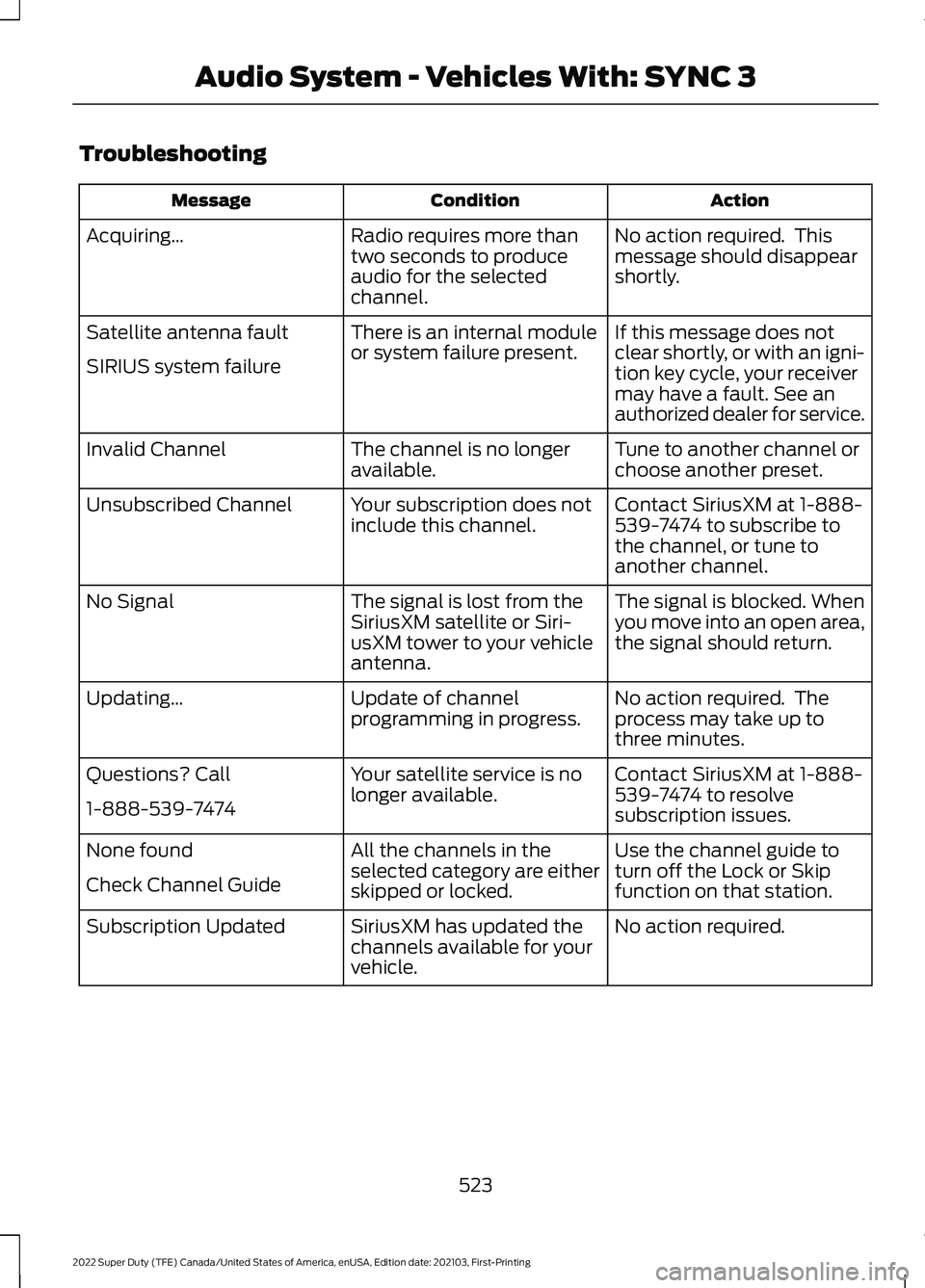
Troubleshooting
Action
Condition
Message
No action required. This
message should disappear
shortly.
Radio requires more than
two seconds to produce
audio for the selected
channel.
Acquiring…
If this message does not
clear shortly, or with an igni-
tion key cycle, your receiver
may have a fault. See an
authorized dealer for service.
There is an internal module
or system failure present.
Satellite antenna fault
SIRIUS system failure
Tune to another channel or
choose another preset.
The channel is no longer
available.
Invalid Channel
Contact SiriusXM at 1-888-
539-7474 to subscribe to
the channel, or tune to
another channel.
Your subscription does not
include this channel.
Unsubscribed Channel
The signal is blocked. When
you move into an open area,
the signal should return.
The signal is lost from the
SiriusXM satellite or Siri-
usXM tower to your vehicle
antenna.
No Signal
No action required. The
process may take up to
three minutes.
Update of channel
programming in progress.
Updating…
Contact SiriusXM at 1-888-
539-7474 to resolve
subscription issues.
Your satellite service is no
longer available.
Questions? Call
1-888-539-7474
Use the channel guide to
turn off the Lock or Skip
function on that station.
All the channels in the
selected category are either
skipped or locked.
None found
Check Channel Guide
No action required.
SiriusXM has updated the
channels available for your
vehicle.
Subscription Updated
523
2022 Super Duty (TFE) Canada/United States of America, enUSA, Edition date: 202103, First-Printing Audio System - Vehicles With: SYNC 3
Page 530 of 740
Switching Automatic Time
Updates On and Off
1. Press Settings on the touchscreen.
2. Press
Clock Settings.
3. Switch
Automatic time zone update
on or off.
AM/FM RADIO
AM/FM RADIO LIMITATIONS
The further you travel from an AM or FM
station, the weaker the signal and the
weaker the reception.
Hills, mountains, tall buildings, bridges,
tunnels, freeway overpasses, parking
garages, dense tree foliage and
thunderstorms can interfere with the
reception.
When you pass a ground-based broadcast
repeating tower, a stronger signal may
overtake a weaker one and result in the
audio system muting. SELECTING A RADIO STATION
Manually Selecting a Radio
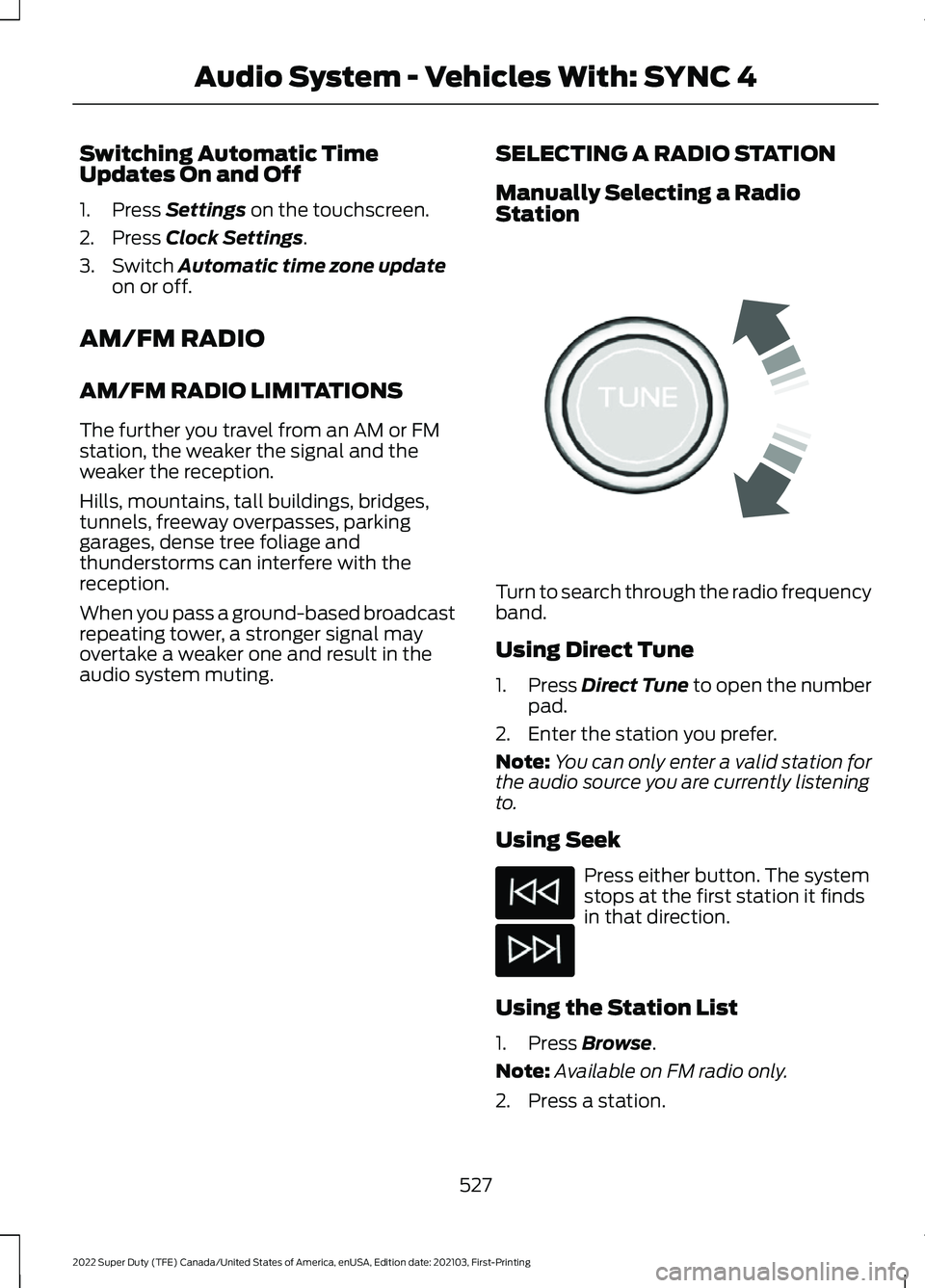
Station Turn to search through the radio frequency
band.
Using Direct Tune
1.
Press
Direct Tune to open the number
pad.
2. Enter the station you prefer.
Note: You can only enter a valid station for
the audio source you are currently listening
to.
Using Seek Press either button. The system
stops at the first station it finds
in that direction.
Using the Station List
1. Press
Browse.
Note: Available on FM radio only.
2. Press a station.
527
2022 Super Duty (TFE) Canada/United States of America, enUSA, Edition date: 202103, First-Printing Audio System - Vehicles With: SYNC 4E270235
Page 532 of 740
DIGITAL RADIO INDICATORS
HD Radio Indicator
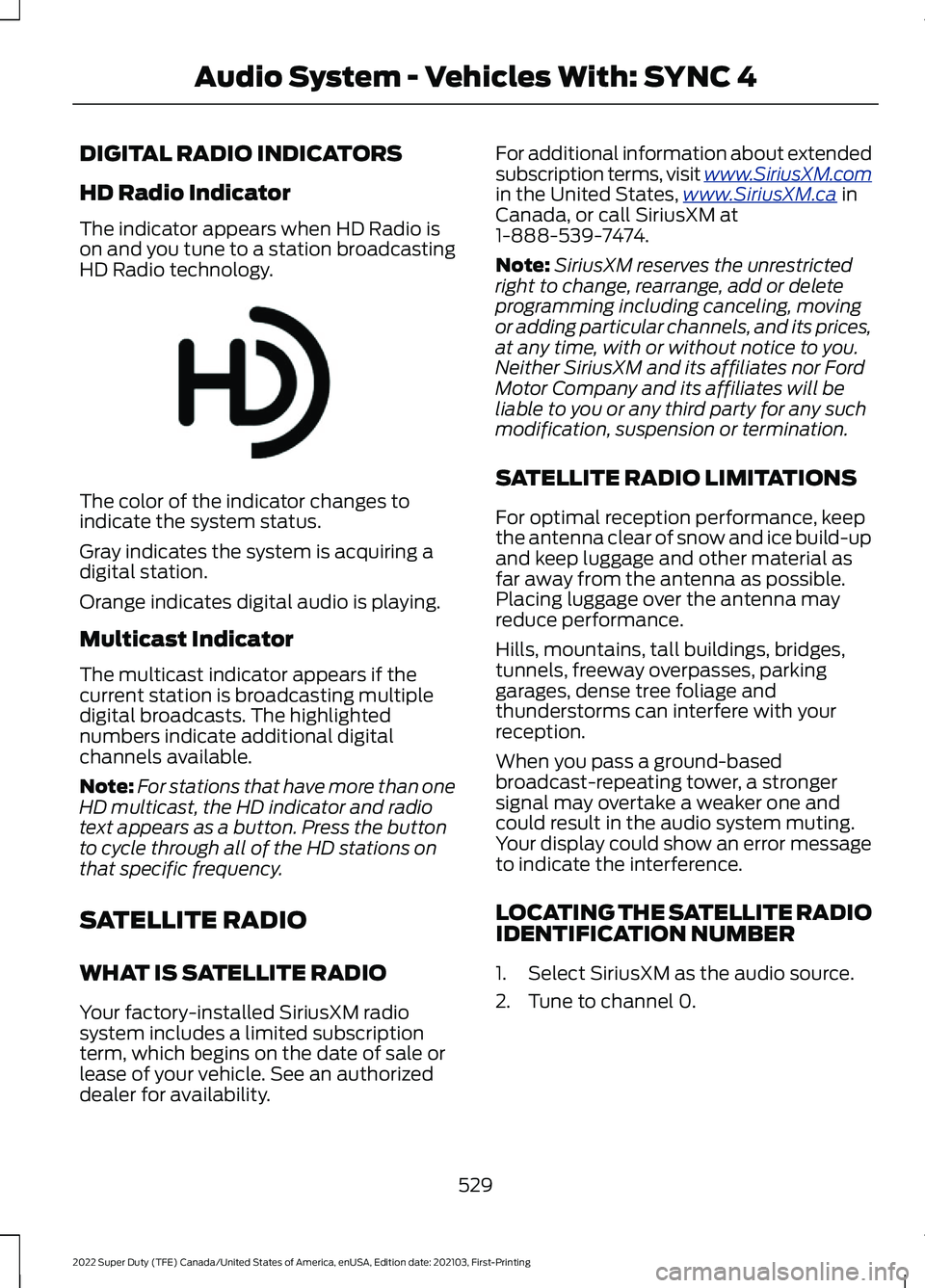
The indicator appears when HD Radio is
on and you tune to a station broadcasting
HD Radio technology.
The color of the indicator changes to
indicate the system status.
Gray indicates the system is acquiring a
digital station.
Orange indicates digital audio is playing.
Multicast Indicator
The multicast indicator appears if the
current station is broadcasting multiple
digital broadcasts. The highlighted
numbers indicate additional digital
channels available.
Note:
For stations that have more than one
HD multicast, the HD indicator and radio
text appears as a button. Press the button
to cycle through all of the HD stations on
that specific frequency.
SATELLITE RADIO
WHAT IS SATELLITE RADIO
Your factory-installed SiriusXM radio
system includes a limited subscription
term, which begins on the date of sale or
lease of your vehicle. See an authorized
dealer for availability. For additional information about extended
subscription terms, visit www .SiriusXM. c om
in the United States,
www .SiriusXM. c a in
Canada, or call SiriusXM at
1-888-539-7474.
Note: SiriusXM reserves the unrestricted
right to change, rearrange, add or delete
programming including canceling, moving
or adding particular channels, and its prices,
at any time, with or without notice to you.
Neither SiriusXM and its affiliates nor Ford
Motor Company and its affiliates will be
liable to you or any third party for any such
modification, suspension or termination.
SATELLITE RADIO LIMITATIONS
For optimal reception performance, keep
the antenna clear of snow and ice build-up
and keep luggage and other material as
far away from the antenna as possible.
Placing luggage over the antenna may
reduce performance.
Hills, mountains, tall buildings, bridges,
tunnels, freeway overpasses, parking
garages, dense tree foliage and
thunderstorms can interfere with your
reception.
When you pass a ground-based
broadcast-repeating tower, a stronger
signal may overtake a weaker one and
could result in the audio system muting.
Your display could show an error message
to indicate the interference.
LOCATING THE SATELLITE RADIO
IDENTIFICATION NUMBER
1. Select SiriusXM as the audio source.
2. Tune to channel 0.
529
2022 Super Duty (TFE) Canada/United States of America, enUSA, Edition date: 202103, First-Printing Audio System - Vehicles With: SYNC 4E142616
Page 561 of 740
Navigation (If Equipped)
Setting a Destination Description
Voice Command
Enter a destination address. When prompted,
provide the house number, the street and city.
Find an Address
Search for a point of interest by name or by category.
Find a Place
Search for a nearby point of interest by category. 1
Find the Next ___
Search for a point of interest category. 1
Find a POI Category
Set your saved home address as your destination.
Drive Home
Set your saved place of work as your destination.
Drive to Work
Display and select from a list of previous destina-
tions.
Show Previous Destinations
Display and select from a list of favorite destinations.
Show Favorites
1 Add a point of interest category or the name of a major brand or chain to the command.
Route Guidance Description
Voice Command
Cancel the current route.
Cancel Route
Select an alternate route.
Detour
Repeat the last guidance prompt.
Repeat Instruction
Display an overview of the route.
Show Route
Display a list of traffic events on your route.
Show Traffic
Display the map on the touchscreen.
Show Map
Display a two-dimensional map with north toward
the top of the touchscreen.
North Up
Display a two-dimensional map with the direction
you are traveling toward the top of the touchscreen.
Heading Up
Display a three-dimensional map with the direction
you are traveling toward the front.
Show 3D
558
2022 Super Duty (TFE) Canada/United States of America, enUSA, Edition date: 202103, First-Printing SYNC™ 3
(If Equipped)
Page 566 of 740
Action and Description
Menu Item
Replay audio on the current channel. You can replay approx-
imately 45 minutes of audio as long as you remain tuned to
the current station. Changing stations erases the previous
audio.
Replay
When you are in replay mode, you are not
able to select a different preset until you
return to live audio. Pressing this button
returns you to the live broadcast.
Live
Save the current song, artist, or team as a favorite. The system
alerts you when it plays again on any channel.
ALERT
Selecting this button allows you to enable and edit alerts.
Memory Presets
To set a preset, tune to the station then
press and hold one of the memory preset
buttons. The audio mutes briefly while the
system saves the station and returns once
the station is stored. You may be able to add additional preset
pages using the settings option on the
feature bar.
SiriusXM Satellite Radio Reception Factors and Troubleshooting Potential Reception Issues
For optimal reception performance, keep the antenna clear
of snow and ice build-up and keep luggage and other
materials as far away from the antenna as possible.
Antenna obstructions
Hills, mountains, tall buildings, bridges, tunnels, freeway
overpasses, parking garages, dense tree foliage and thunder-
storms can interfere with your reception.
Terrain
When you pass a ground-based broadcast-repeating tower,
a stronger signal may overtake a weaker one and the audio
system may mute.
Station overload
Your display may show ACQUIRING... to indicate the interfer-
ence and the audio system may mute.
Satellite radio signal
interference
563
2022 Super Duty (TFE) Canada/United States of America, enUSA, Edition date: 202103, First-Printing SYNC™ 3 (If Equipped)
Page 567 of 740
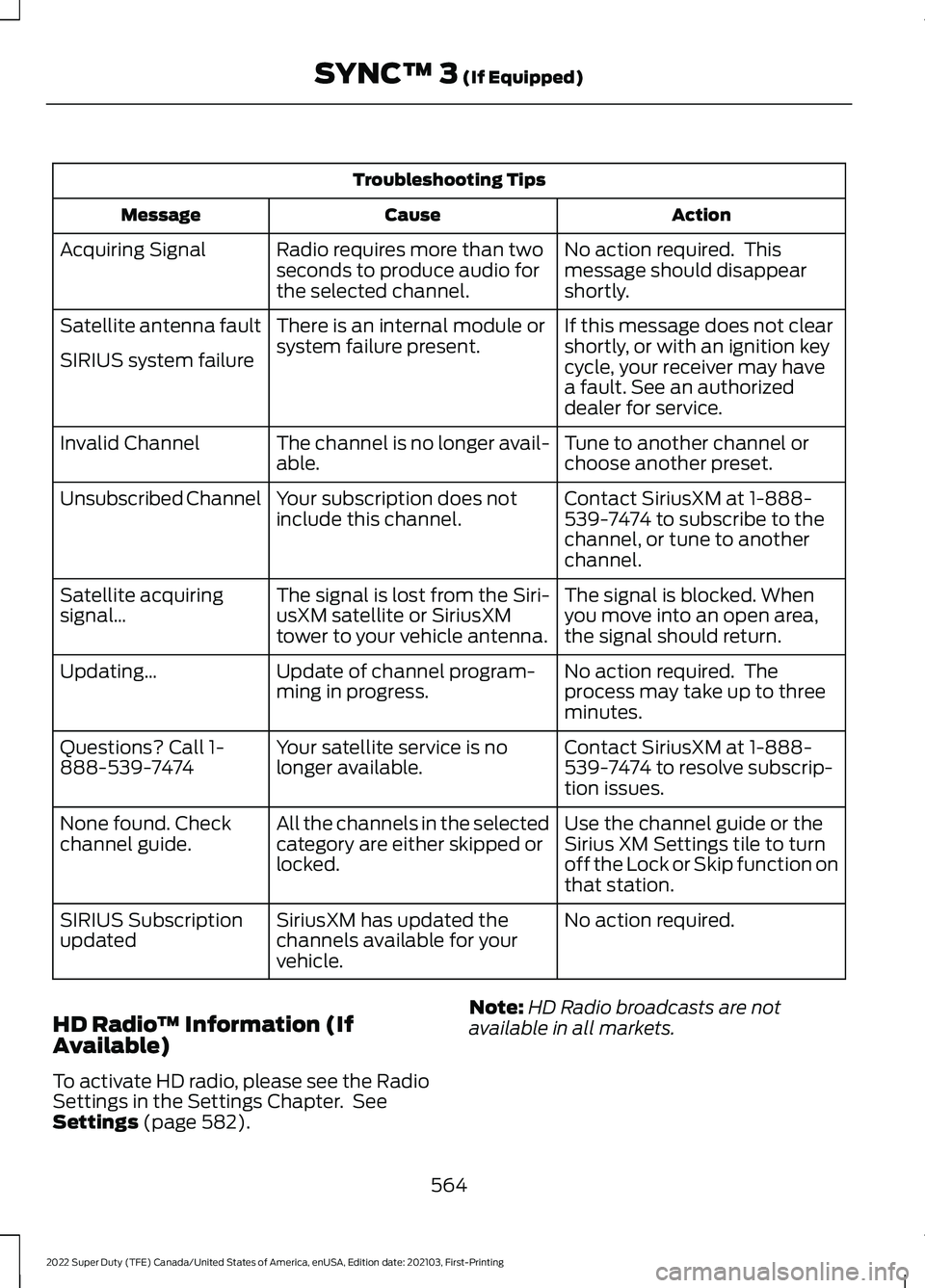
Troubleshooting Tips
Action
Cause
Message
No action required. This
message should disappear
shortly.
Radio requires more than two
seconds to produce audio for
the selected channel.
Acquiring Signal
If this message does not clear
shortly, or with an ignition key
cycle, your receiver may have
a fault. See an authorized
dealer for service.
There is an internal module or
system failure present.
Satellite antenna fault
SIRIUS system failure
Tune to another channel or
choose another preset.
The channel is no longer avail-
able.
Invalid Channel
Contact SiriusXM at 1-888-
539-7474 to subscribe to the
channel, or tune to another
channel.
Your subscription does not
include this channel.
Unsubscribed Channel
The signal is blocked. When
you move into an open area,
the signal should return.
The signal is lost from the Siri-
usXM satellite or SiriusXM
tower to your vehicle antenna.
Satellite acquiring
signal…
No action required. The
process may take up to three
minutes.
Update of channel program-
ming in progress.
Updating…
Contact SiriusXM at 1-888-
539-7474 to resolve subscrip-
tion issues.
Your satellite service is no
longer available.
Questions? Call 1-
888-539-7474
Use the channel guide or the
Sirius XM Settings tile to turn
off the Lock or Skip function on
that station.
All the channels in the selected
category are either skipped or
locked.
None found. Check
channel guide.
No action required.
SiriusXM has updated the
channels available for your
vehicle.
SIRIUS Subscription
updated
HD Radio ™ Information (If
Available)
To activate HD radio, please see the Radio
Settings in the Settings Chapter. See
Settings (page 582). Note:
HD Radio broadcasts are not
available in all markets.
564
2022 Super Duty (TFE) Canada/United States of America, enUSA, Edition date: 202103, First-Printing SYNC™ 3
(If Equipped)
Page 579 of 740
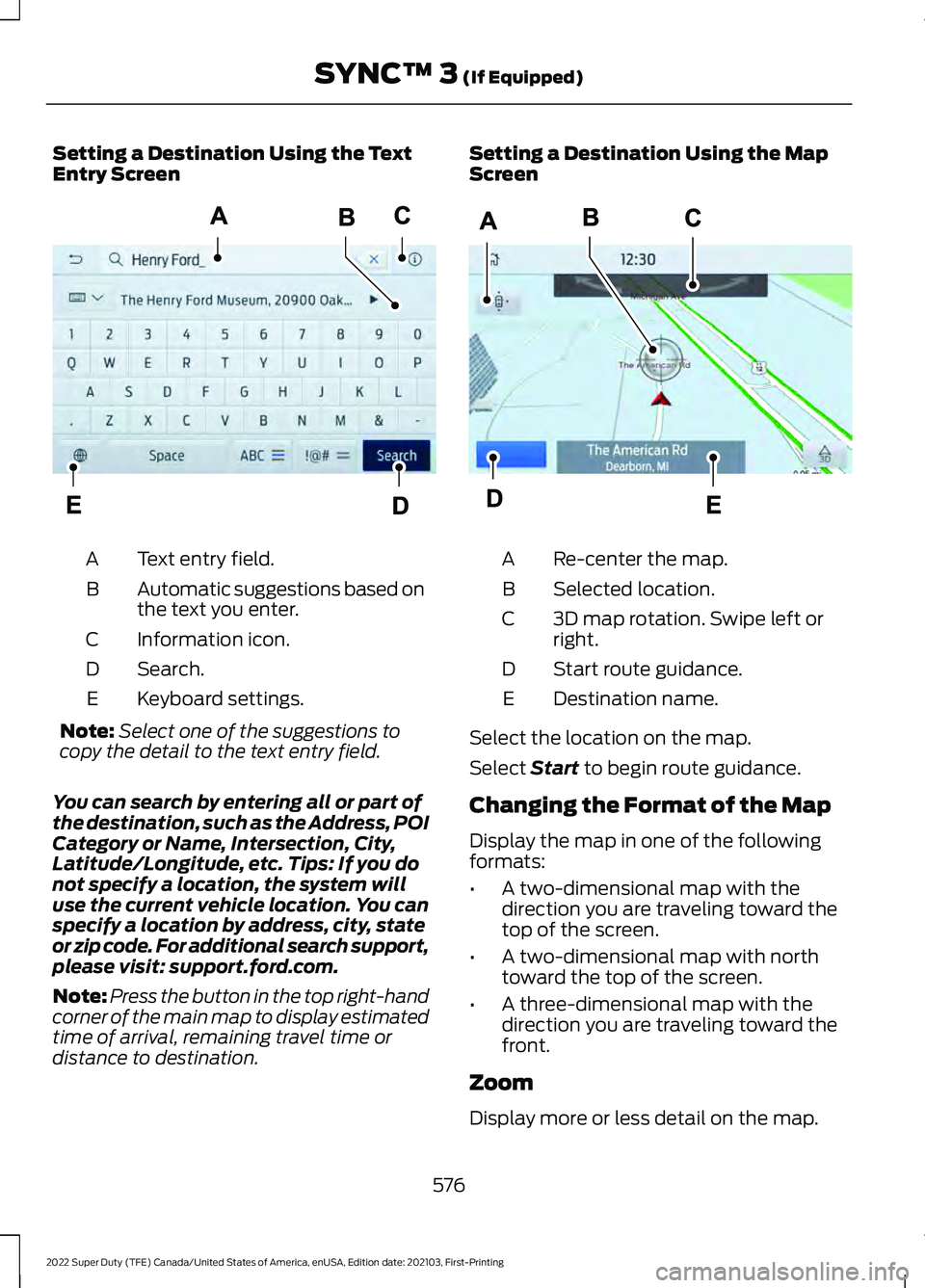
Setting a Destination Using the Text
Entry Screen
Text entry field.
A
Automatic suggestions based on
the text you enter.
B
Information icon.
C
Search.
D
Keyboard settings.
E
Note: Select one of the suggestions to
copy the detail to the text entry field.
You can search by entering all or part of
the destination, such as the Address, POI
Category or Name, Intersection, City,
Latitude/Longitude, etc. Tips: If you do
not specify a location, the system will
use the current vehicle location. You can
specify a location by address, city, state
or zip code. For additional search support,
please visit: support.ford.com.
Note: Press the button in the top right-hand
corner of the main map to display estimated
time of arrival, remaining travel time or
distance to destination. Setting a Destination Using the Map
Screen
Re-center the map.
A
Selected location.
B
3D map rotation. Swipe left or
right.
C
Start route guidance.
D
Destination name.
E
Select the location on the map.
Select Start to begin route guidance.
Changing the Format of the Map
Display the map in one of the following
formats:
• A two-dimensional map with the
direction you are traveling toward the
top of the screen.
• A two-dimensional map with north
toward the top of the screen.
• A three-dimensional map with the
direction you are traveling toward the
front.
Zoom
Display more or less detail on the map.
576
2022 Super Duty (TFE) Canada/United States of America, enUSA, Edition date: 202103, First-Printing SYNC™ 3
(If Equipped)E297558 E297559