steering FORD TAURUS 2014 6.G Repair Manual
[x] Cancel search | Manufacturer: FORD, Model Year: 2014, Model line: TAURUS, Model: FORD TAURUS 2014 6.GPages: 550, PDF Size: 7.21 MB
Page 436 of 550
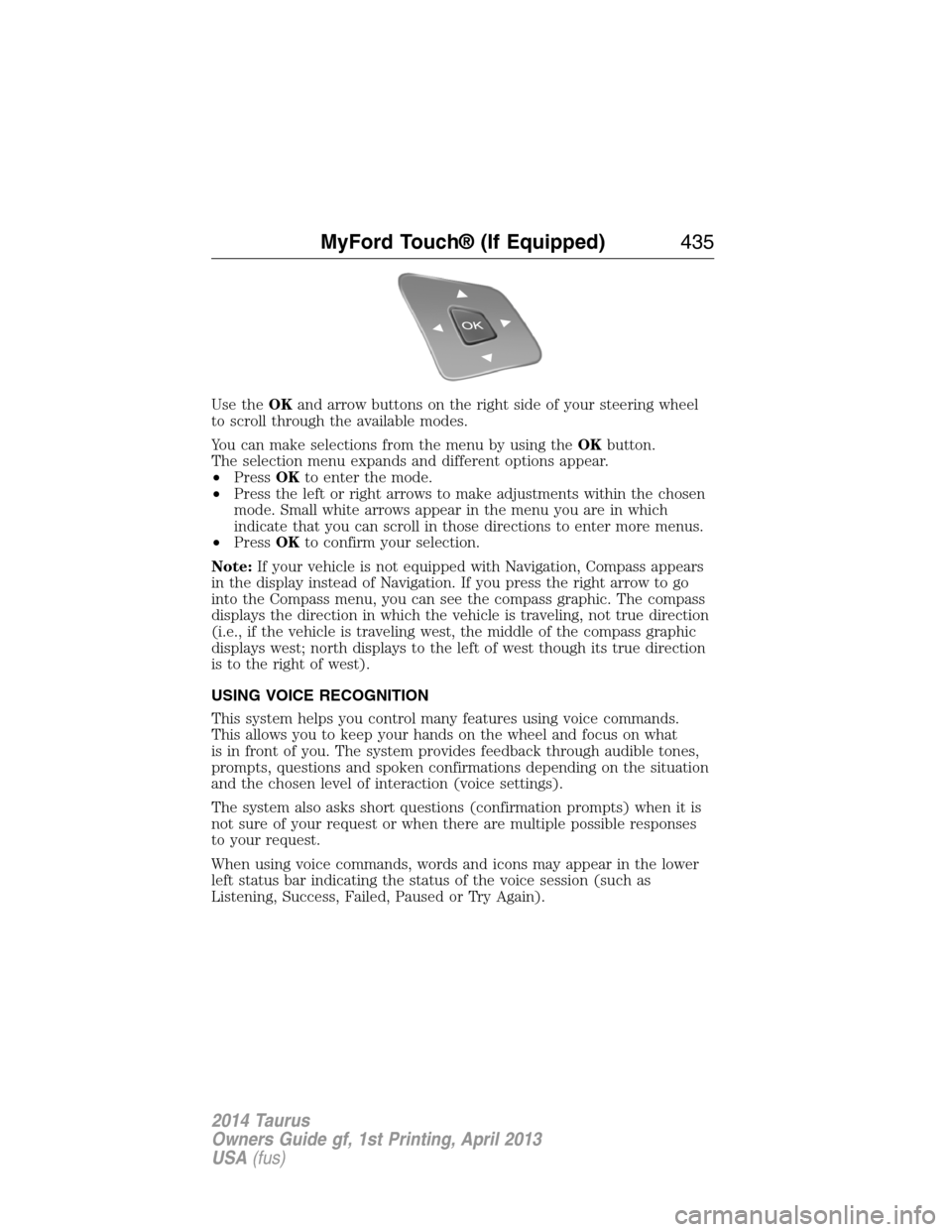
Use theOKand arrow buttons on the right side of your steering wheel
to scroll through the available modes.
You can make selections from the menu by using theOKbutton.
The selection menu expands and different options appear.
•PressOKto enter the mode.
•Press the left or right arrows to make adjustments within the chosen
mode. Small white arrows appear in the menu you are in which
indicate that you can scroll in those directions to enter more menus.
•PressOKto confirm your selection.
Note:If your vehicle is not equipped with Navigation, Compass appears
in the display instead of Navigation. If you press the right arrow to go
into the Compass menu, you can see the compass graphic. The compass
displays the direction in which the vehicle is traveling, not true direction
(i.e., if the vehicle is traveling west, the middle of the compass graphic
displays west; north displays to the left of west though its true direction
is to the right of west).
USING VOICE RECOGNITION
This system helps you control many features using voice commands.
This allows you to keep your hands on the wheel and focus on what
is in front of you. The system provides feedback through audible tones,
prompts, questions and spoken confirmations depending on the situation
and the chosen level of interaction (voice settings).
The system also asks short questions (confirmation prompts) when it is
not sure of your request or when there are multiple possible responses
to your request.
When using voice commands, words and icons may appear in the lower
left status bar indicating the status of the voice session (such as
Listening, Success, Failed, Paused or Try Again).
MyFord Touch® (If Equipped)435
2014 Taurus
Owners Guide gf, 1st Printing, April 2013
USA(fus)
Page 438 of 550
Accessing a List of Available Commands
•If you use the touchscreen, press the Settings icon >Help>Voice
Command List.
•If you use the steering wheel control, press the voice icon. After the
tone, speak your command clearly.
Voice command list
“Audio list of commands”
“Bluetooth audio list of commands”
“Browse list of commands”
“CD list of commands”
“Climate control list of commands”
“List of commands”
“Navigation list of commands”
*
“Phone list of commands”
“Radio list of commands”
“SD card list of commands”
“Sirius satellite list of commands”
**
“Travel link list of commands”*
“USB list of commands”
“Voice instructions list of commands”
“Voice settings list of commands”
“Help”
*This command is only available when your vehicle is equipped with the
navigation system, and the navigation system SD card is in the card slot.
**This command is only available when you have an active Sirius satellite
radio subscription.
Voice Settings
Voice settings allow you to customize the level of system interaction,
help and feedback. The system defaults to standard interaction that uses
candidate lists and confirmation prompts as these provide the highest
level of guidance and feedback.
Interaction Mode:Novice mode provides detailed interaction and
guidance while the advanced mode has less audible interaction and more
tone prompts.
MyFord Touch® (If Equipped)437
2014 Taurus
Owners Guide gf, 1st Printing, April 2013
USA(fus)
Page 441 of 550
Press the voice icon on the steering wheel. When prompted,
you can say:
“BROWSE” within devices
“Browse”*
“Browse
“Browse
“Browse Sirius channel guide”**
“Browse SD card”
“Browse USB”
“Help”
*If you have said “Browse”, you can then say any commands in the
following chart.
**This command is only usable if you have an active subscription to
Sirius satellite radio.
“BROWSE”
“
”
“SD card”**
“Sirius channel guide”*
“USB”**
“Help”
*This command is only usable if you have an active subscription to Sirius
satellite radio.
**For more commands in SD card or USB mode, see the “SD card and
USB Port” section of this chapter.
For a complete list of “Browse” voice commands, seeUSB and SD card
voice commandsandBluetooth audio voice commandsin the
following sections.
Your voice system allows you to change audio sources with a simple
voice command. For example, if you are listening to music on a USB
device, then want to switch to a satellite radio channel, simply press the
voice button on the steering wheel controls and say the name of the
Sirius station (such as, “the Highway”). The following voice commands
are available at the top level of the voice session no matter which
current audio source you are listening to (such as a USB device or Sirius
satellite radio).Note:This is only available when your MyFord Touch
system language is set to North American English.
440MyFord Touch® (If Equipped)
2014 Taurus
Owners Guide gf, 1st Printing, April 2013
USA(fus)
Page 447 of 550
Radio Voice Commands
If you are listening to the radio, press the voice button on the
steering wheel control. When prompted, say any of the
commands in the following chart.
If you are not listening to the radio, press the voice button and, after the
tone, say “Radio”, then any of the commands in the following chart.
“RADIO”
“<87.9–107.9>” “FM preset <#>”
“<87.9–107.9> HD”
*“FM1”
“<530–1710>” “FM 1 preset <#>”
“AM” “FM2”
“AM <530–1710>” “FM 2 preset <#>”
“AM autoset” “HD <#>”
*
“AM autoset preset <#>” “Preset <#>”
“AM preset <#>” “Radio off”
“FM” “Radio on”
“FM <87.9–107.9>” “Set PTY”
“FM <87.9-107.9> HD <#>”
*“Tune”**
“FM autoset” “Help”
“FM autoset preset <#>”
*If available.**If you have said, “Tune”, see the following “Tune” chart.
“TUNE”
“<87.9–107.9>” “FM autoset”
“<87.9-107.9> HD <#>”
*“FM autoset preset <#>”
“<530–1710>” “FM preset <#>”
“AM” “FM1”
“AM <530–1710>” “FM 1 preset <#>”
“AM autoset” “FM2”
“AM autoset preset <#>” “FM 2 preset <#>”
“AM preset <#>” “HD <#>”
*
“FM” “Preset <#>”
“FM <87.9–107.9>” “Help”
“FM <87.9-107.9> HD <#>”
*
*
If available.
446MyFord Touch® (If Equipped)
2014 Taurus
Owners Guide gf, 1st Printing, April 2013
USA(fus)
Page 449 of 550
Set Category for Seek/Scanallows you to select a category of music
you would like to search for. You can then choose to either seek or scan
for the stations playing that category.
Parental Lockoutallows you to lock and unlock channels, change or
reset your PIN or unlock all channels. To use this feature, you need your
initial PIN, which is 1234.
Artist/Title/Team Alertsallows you to select Artists, Titles and Teams
that you would like the system to alert you to when they are playing on
other channels. PressEdit Alertsto delete or turn off alerts. You can
also set all alerts to on or off. When an alert appears on the screen, you
can choose to Tune to the channel, to Cancel the alert or to Disable
Alerts. If you are listening to a sporting event, you can save your favorite
teams so that the system can alert you when they are playing on a
satellite radio channel.
Note:Sirius does not support the Alert feature on all channels. Ford
Motor Company shall not be responsible for Alert feature variation.
Electronic Serial Number (ESN)is required when communicating
with Sirius about your account.
Direct Tune
Touch this button to manually enter the desired satellite channel
number. TouchEnterwhen you are done.
Browse
Touch this button to view a list of all available stations. Scroll to see
more categories. Touch the station you want to listen to.
TouchSkipif you want to skip this channel.
TouchLockif you do not want anyone to listen to this channel.
TouchTi t l eorArtistto see song and artists on other stations.
Satellite Radio Voice Commands
If you are listening to Sirius satellite radio, press the voice
button on the steering wheel control. When prompted, say any
of the commands in the following chart.
If you are not listening to Sirius satellite radio, press the voice button
and, after the tone, say “Sirius”, then any of the commands in the
following chart.
448MyFord Touch® (If Equipped)
2014 Taurus
Owners Guide gf, 1st Printing, April 2013
USA(fus)
Page 454 of 550
Options
Sound Settingsallows you to adjust settings for:
•Bass
•Midrange
•Treble
•Balance and Fade
•DSP (Digital Signal Processing)
•Occupancy Mode
•Speed Compensated Volume.
Note:Your vehicle may not have all these sound settings.
Compressionallows you to turn the compression feature on and off.
Browse
Touch this button to look through all available CD tracks.
CD Voice Commands
If you are listening to a CD, press the voice button on the
steering wheel control. When prompted, say any of the
commands in the following chart.
If you are not listening to a CD, press the voice button and, after the
tone, say “CD”, then any of the commands in the following chart.
“CD”
“Pause” “Repeat off”
“Play” “Repeat track”
“Play next track” “Shuffle”
“Play previous track” “Shuffle CD”
*
“Play track <1–512>” “Shuffle folder”*
“Repeat” “Shuffle off”
“Repeat folder”*“Help”
*This applies to WMA or MP3 files only.
SD Card Slot and USB Port
SD Card Slot
Note:Your SD card slot is spring-loaded. To remove the SD card, press
the card in and the system ejects it. Do not attempt to pull the card to
remove it as this could cause damage.
Note:The navigation system also uses this card slot. SeeNavigation
systemlater in this chapter for more information.
MyFord Touch® (If Equipped)453
2014 Taurus
Owners Guide gf, 1st Printing, April 2013
USA(fus)
Page 456 of 550
Optionsallows you to view and adjust various media settings.
•Sound Settingsallows you to adjust settings for:
•Bass
•Midrange
•Treble
•Balance and Fade
•DSP (Digital Signal Processing)
•Occupancy Mode
•Speed Compensated Volume.
Note:Your vehicle may not have all these sound settings.
•Media Player Settingsallows you to select more settings, which is
underMedia Player.SeeSettings.
•Device Informationdisplays software and firmware information
about the currently connected media device.
•Update Media Indexindexes your device each time you connect it
to make sure you have the latest voice commands available for all
media on the device.
Browseallows you to view the contents of the device. It also allows you
to search by categories, such as genre, artist or album.
If you want to view song information such as Title, Artist, File, Folder,
Album, and Genre, touch the on-screen album art.
You can also touchWhat’s Playingto hear how the system pronounces
the current band and song. This can be helpful when using voice
commands to make sure the system correctly plays your request.
SD Card and USB Voice Commands
If you are listening to a USB device or an SD card, press the
voice button on the steering wheel control. When prompted, say
any of the commands in the following chart.
MyFord Touch® (If Equipped)455
2014 Taurus
Owners Guide gf, 1st Printing, April 2013
USA(fus)
Page 459 of 550
To access, press the lower left corner on the touchscreen, then
select theBT Stereotab.
Bluetooth Audio Voice Commands
If you are listening to a Bluetooth audio device, press the voice
button on the steering wheel control. When prompted, say
“Next song”, “Pause”, “Play” or “Previous song”.
If you are not listening to a Bluetooth audio device, press the voice
button and, after the tone, say “Bluetooth Audio”, then “Next song”,
“Pause”, “Play” or “Previous song”.
A/V Inputs
WARNING:Driving while distracted can result in loss of vehicle
control, crash and injury. We strongly recommend that you use
extreme caution when using any device that may take your focus off
the road. Your primary responsibility is the safe operation of your
vehicle. We recommend against the use of any hand-held device while
driving and encourage the use of voice-operated systems when possible.
Make sure you are aware of all applicable local laws that may affect the
use of electronic devices while driving.
WARNING:For safety reasons, do not connect or adjust the
settings on your portable music player while your vehicle is
moving.
WARNING:Store the portable music player in a secure location,
such as the center console or the glove box, when your vehicle is
in motion. Hard objects may become projectiles in a crash or sudden
stop, which may increase the risk of serious injury. The audio extension
cable must be long enough to allow the portable music player to be
safely stored while your vehicle is moving.
458MyFord Touch® (If Equipped)
2014 Taurus
Owners Guide gf, 1st Printing, April 2013
USA(fus)
Page 463 of 550
3. If you are prompted to enter a PIN on your device, it does not
support Secure Simple Pairing. To pair, enter the PIN displayed on
the touchscreen. Skip the next step.
4. When prompted on your phone’s display, confirm that the PIN
provided by SYNC matches the PIN displayed on your cellular phone.
5. The display indicates when the pairing is successful.
SYNC may prompt you with more phone options. For more information
on your phone’s capability, see your phone’s manual and visit the
website.
Pairing Subsequent Phones
Note:Put the transmission in positionP.Turn on your vehicle ignition
and the radio.
1. Press thePhonecorner of the touchscreen >Settings>BT
Devices>Add Device.
2. Make sure that Bluetooth is set toOnand that your cellular phone is
in the proper mode. See your phone’s manual if necessary.
•SelectSYNC,and a six-digit PIN appears on your device.
3. If you are prompted to enter a PIN on your device, it does not
support Secure Simple Pairing. To pair, enter the PIN displayed on
the touchscreen. Skip the next step.
4. When prompted on your phone’s display, confirm that the PIN
provided by SYNC matches the PIN displayed on your cellular phone.
5. The display indicates when the pairing is successful.
SYNC may prompt you with more phone options. For more information
on your phone’s capability, see your phone’s user guide and visit the
website.
Making Calls
Press the voice button on your steering wheel controls. When
prompted, say, “Call
number.
To end the call or exit phone mode, press this phone button.
462MyFord Touch® (If Equipped)
2014 Taurus
Owners Guide gf, 1st Printing, April 2013
USA(fus)
Page 464 of 550
Receiving Calls
During an incoming call, an audible tone sounds. Call information
appears in the display if it is available.
Accept the call by pressingAccepton the touchscreen or by
pressing this phone button on your steering wheel controls.
Reject the call by pressingRejecton the touchscreen or by pressing this
phone button on your steering wheel controls.
Ignore the call by doing nothing. SYNC logs it as a missed call.
Phone Menu Options
Press the top left corner on your touchscreen to select from the
following options:
Phone
Touch this button to access the on-screen numerical pad to enter a
number and place a call. During an active call, you can also choose to:
•Mute the call
•Put it on hold
•Turn on privacy (returns the call to your cellular phone)
•Join two calls
•End the call.
Quick Dial
Set up favorite contacts from you phonebook or history folder.
Phonebook
Touch this button to access and call any contacts in your previously
downloaded phone book. The system places the entries in alphabetical
categories summarized at the top of the screen.
To turn on contact picture settings, if your device supports this feature,
pressPhone>Settings>Manage Phonebook>Download photos
from Phonebook>On.
Certain smart phones may support transferring street addresses when
listed with phone book contact information. If your phone supports this
feature, you can select and use these addresses as destinations and save
them as favorites.
History
After you connect your Bluetooth-enabled phone to SYNC, you can
access any previously dialed, received or missed calls. You can also
choose to save these to yourFavoritesor toQuick Dial.
MyFord Touch® (If Equipped)463
2014 Taurus
Owners Guide gf, 1st Printing, April 2013
USA(fus)