ad blue FORD TAURUS 2015 6.G Owner's Manual
[x] Cancel search | Manufacturer: FORD, Model Year: 2015, Model line: TAURUS, Model: FORD TAURUS 2015 6.GPages: 558, PDF Size: 4.42 MB
Page 422 of 558
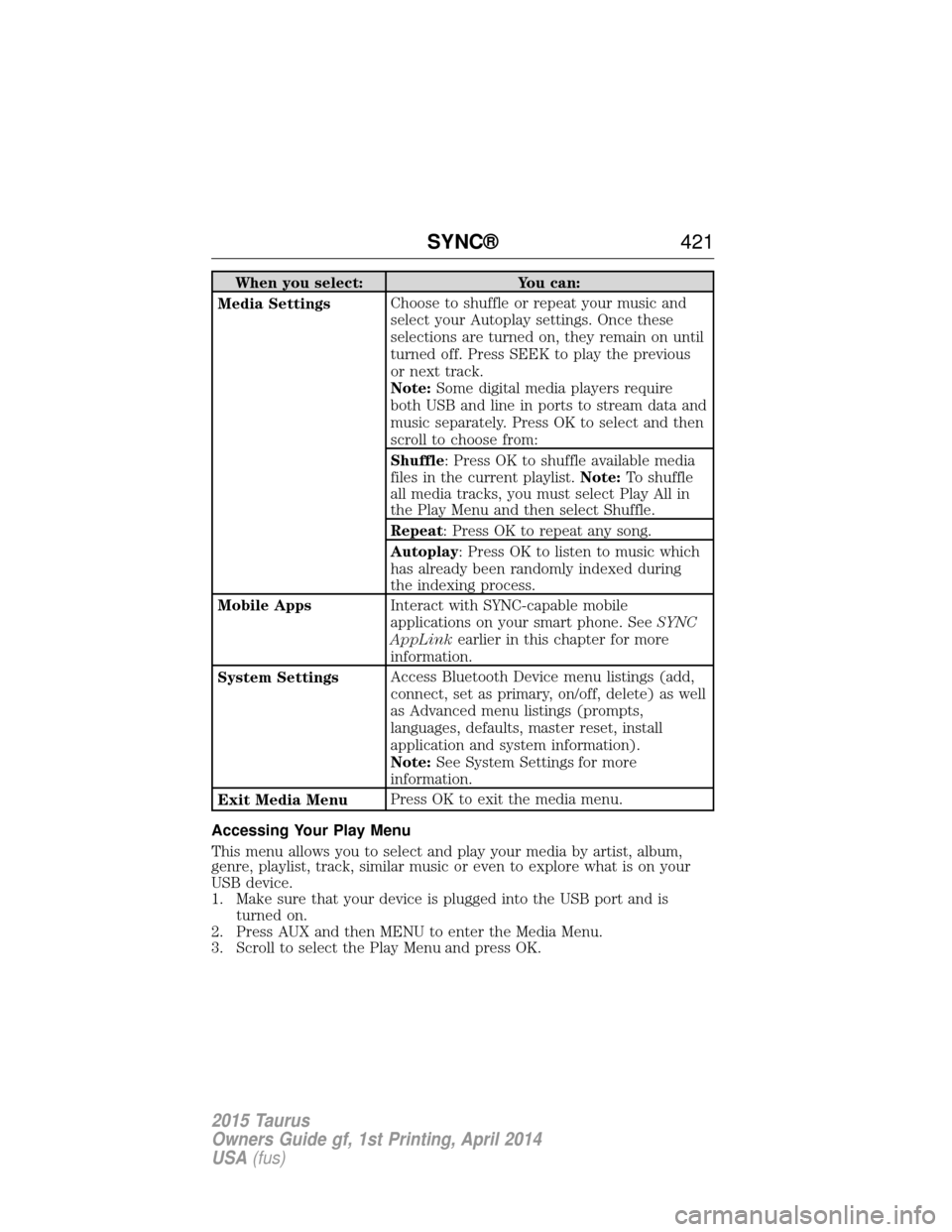
When you select:You can:
Media Settings Choose to shuffle or repeat your music and
select your Autoplay settings. Once these
selections are turned on, they remain on until
turned off. Press SEEK to play the previous
or next track.
Note:
Some digital media players require
both USB and line in ports to stream data and
music separately. Press OK to select and then
scroll to choose from:
Shuffle: Press OK to shuffle available media
files in the current playlist. Note:To shuffle
all media tracks, you must select Play All in
the Play Menu and then select Shuffle.
Repeat: Press OK to repeat any song.
Autoplay: Press OK to listen to music which
has already been randomly indexed during
the indexing process.
Mobile Apps Interact with SYNC-capable mobile
applications on your smart phone. See SYNC
AppLink earlier in this chapter for more
information.
System Settings Access Bluetooth Device menu listings (add,
connect, set as primary, on/off, delete) as well
as Advanced menu listings (prompts,
languages, defaults, master reset, install
application and system information).
Note:
See System Settings for more
information.
Exit Media Menu Press OK to exit the media menu.
Accessing Your Play Menu
This menu allows you to select and play your media by artist, album,
genre, playlist, track, similar music or even to explore what is on your
USB device.
1. Make sure that your device is plugged into the USB port and is turned on.
2. Press AUX and then MENU to enter the Media Menu.
3. Scroll to select the Play Menu and press OK.
SYNC® 421
2015 Taurus
Owners Guide gf, 1st Printing, April 2014
USA(fus)
Page 425 of 558
System Settings
System settings provide access to your Bluetooth Devices and
Advanced menu features.
The Bluetooth Devices menu allows you to add, connect and delete a
device as turn the Bluetooth feature on and off.
Your Advanced menu allows you to access and set prompts, languages,
defaults and perform a master reset.
Bluetooth Devices Menu Options
This menu allows you to add, connect and delete devices as well as turn
Bluetooth on and off.
1. Press AUX and then MENU to enter the Media Menu.
2. Scroll until System Settings appears and select OK.
3. Scroll until Bluetooth Devices appears.
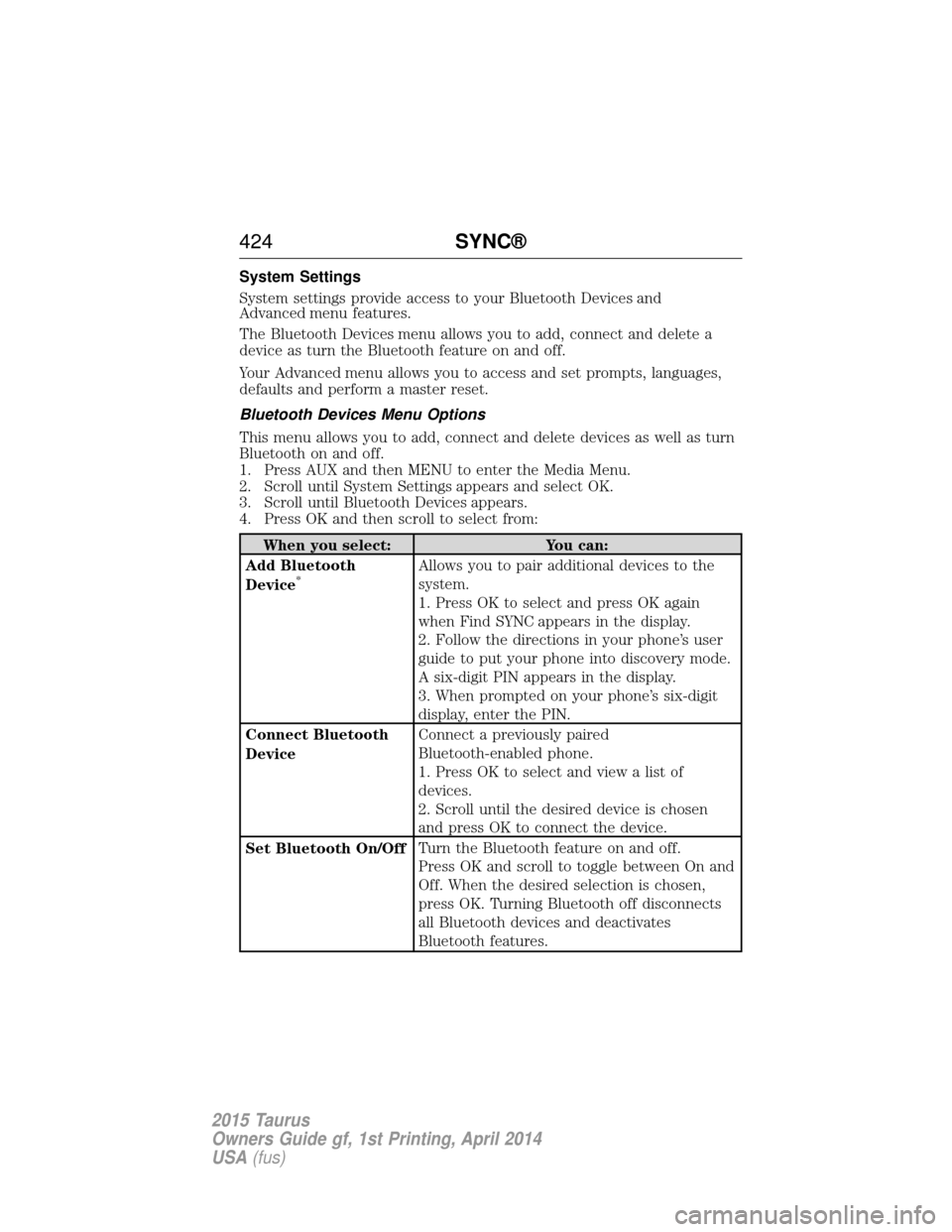
4. Press OK and then scroll to select from:
When you select:You can:
Add Bluetooth
Device
*Allows you to pair additional devices to the
system.
1. Press OK to select and press OK again
when Find SYNC appears in the display.
2. Follow the directions in your phone’s user
guide to put your phone into discovery mode.
A six-digit PIN appears in the display.
3. When prompted on your phone’s six-digit
display, enter the PIN.
Connect Bluetooth
Device Connect a previously paired
Bluetooth-enabled phone.
1. Press OK to select and view a list of
devices.
2. Scroll until the desired device is chosen
and press OK to connect the device.
Set Bluetooth On/Off Turn the Bluetooth feature on and off.
Press OK and scroll to toggle between On and
Off. When the desired selection is chosen,
press OK. Turning Bluetooth off disconnects
all Bluetooth devices and deactivates
Bluetooth features.
424
SYNC®
2015 Taurus
Owners Guide gf, 1st Printing, April 2014
USA(fus)
Page 429 of 558
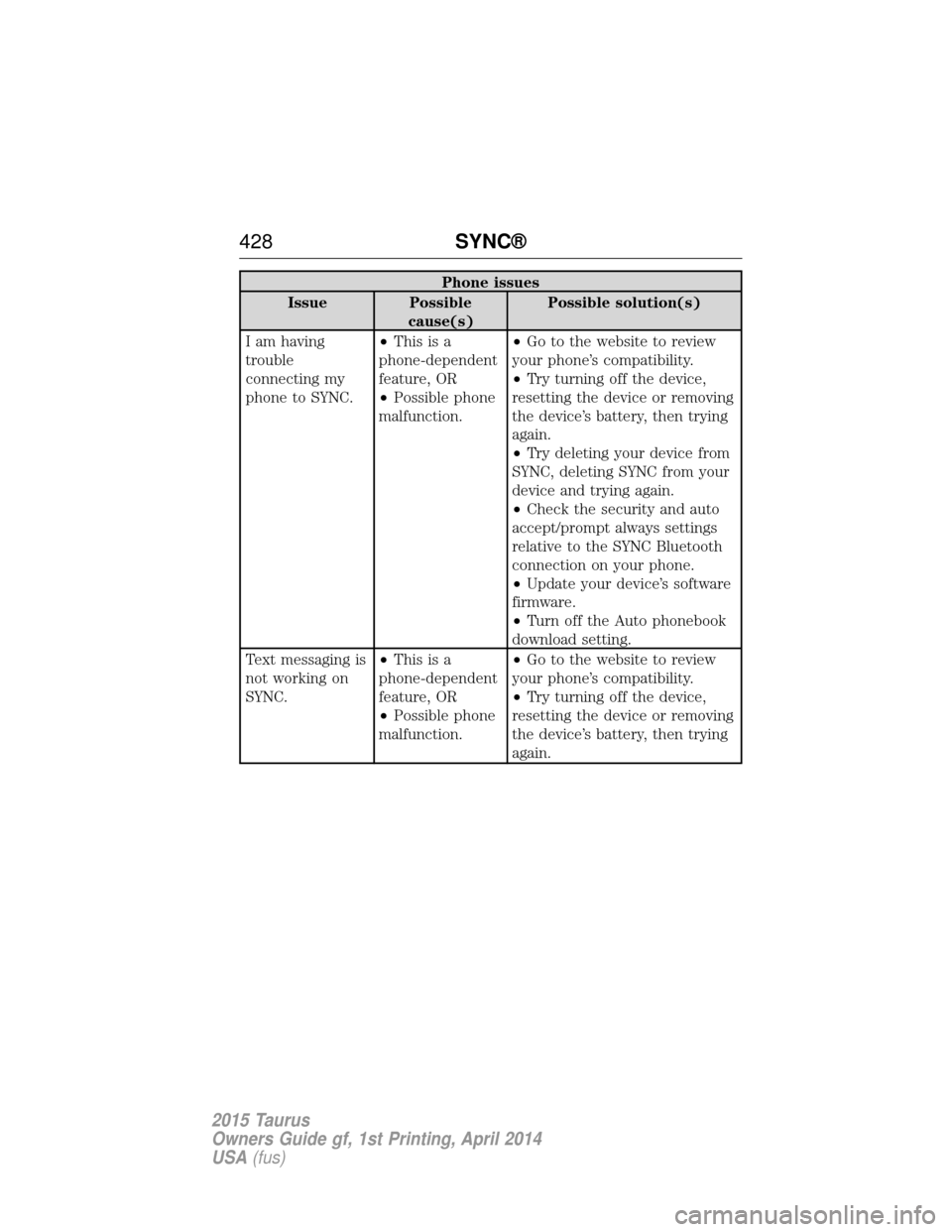
Phone issues
Issue Possible cause(s) Possible solution(s)
I am having
trouble
connecting my
phone to SYNC. •
Thisisa
phone-dependent
feature, OR
• Possible phone
malfunction. •
Go to the website to review
your phone’s compatibility.
• Try turning off the device,
resetting the device or removing
the device’s battery, then trying
again.
• Try deleting your device from
SYNC, deleting SYNC from your
device and trying again.
• Check the security and auto
accept/prompt always settings
relative to the SYNC Bluetooth
connection on your phone.
• Update your device’s software
firmware.
• Turn off the Auto phonebook
download setting.
Text messaging is
not working on
SYNC. •
Thisisa
phone-dependent
feature, OR
• Possible phone
malfunction. •
Go to the website to review
your phone’s compatibility.
• Try turning off the device,
resetting the device or removing
the device’s battery, then trying
again.
428 SYNC®
2015 Taurus
Owners Guide gf, 1st Printing, April 2014
USA(fus)
Page 430 of 558
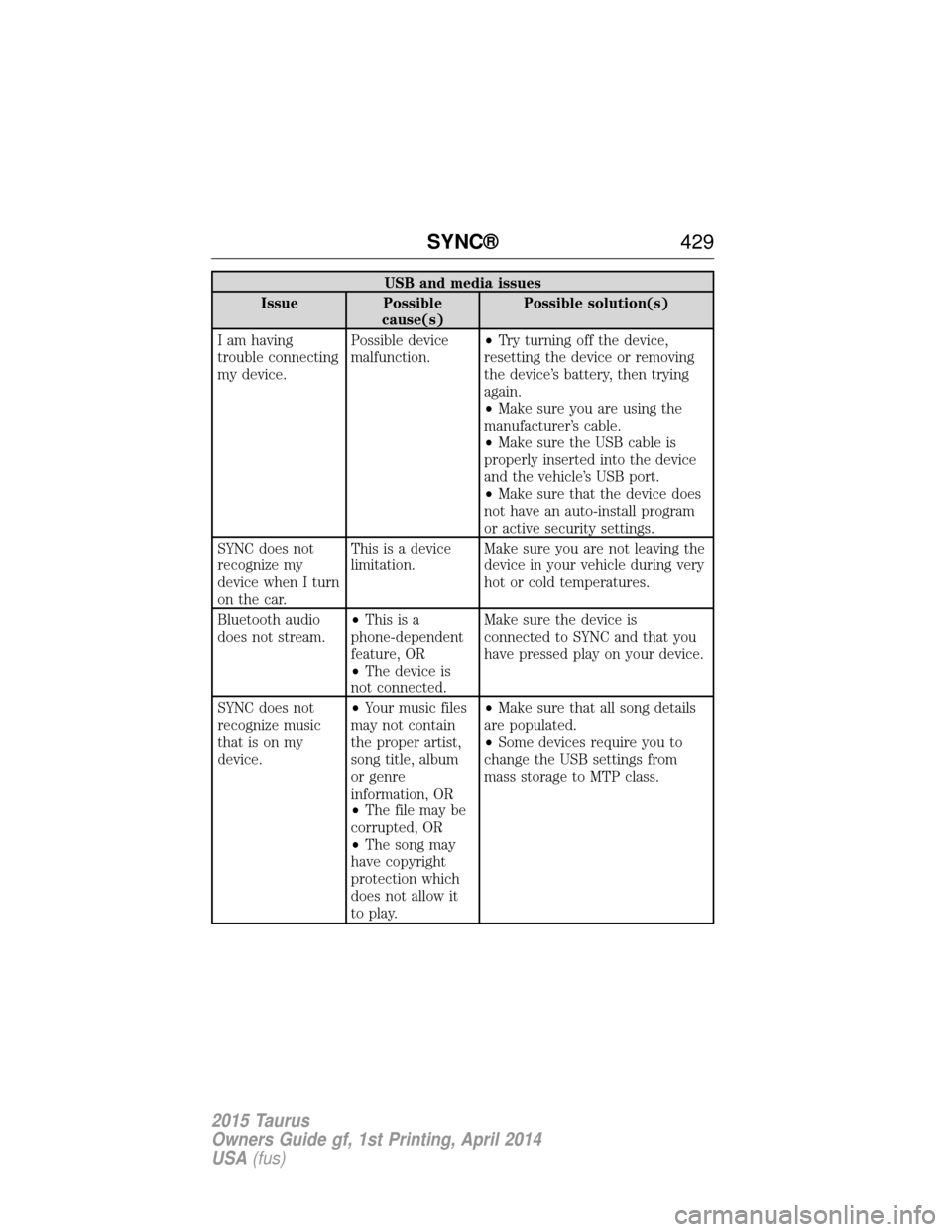
USB and media issues
Issue Possible cause(s) Possible solution(s)
I am having
trouble connecting
my device. Possible device
malfunction.
•
Try turning off the device,
resetting the device or removing
the device’s battery, then trying
again.
• Make sure you are using the
manufacturer’s cable.
• Make sure the USB cable is
properly inserted into the device
and the vehicle’s USB port.
• Make sure that the device does
not have an auto-install program
or active security settings.
SYNC does not
recognize my
device when I turn
on the car. This is a device
limitation.
Make sure you are not leaving the
device in your vehicle during very
hot or cold temperatures.
Bluetooth audio
does not stream. •
Thisisa
phone-dependent
feature, OR
• The device is
not connected. Make sure the device is
connected to SYNC and that you
have pressed play on your device.
SYNC does not
recognize music
that is on my
device. •
Your music files
may not contain
the proper artist,
song title, album
or genre
information, OR
• The file may be
corrupted, OR
• The song may
have copyright
protection which
does not allow it
to play. •
Make sure that all song details
are populated.
• Some devices require you to
change the USB settings from
mass storage to MTP class.
SYNC® 429
2015 Taurus
Owners Guide gf, 1st Printing, April 2014
USA(fus)
Page 431 of 558
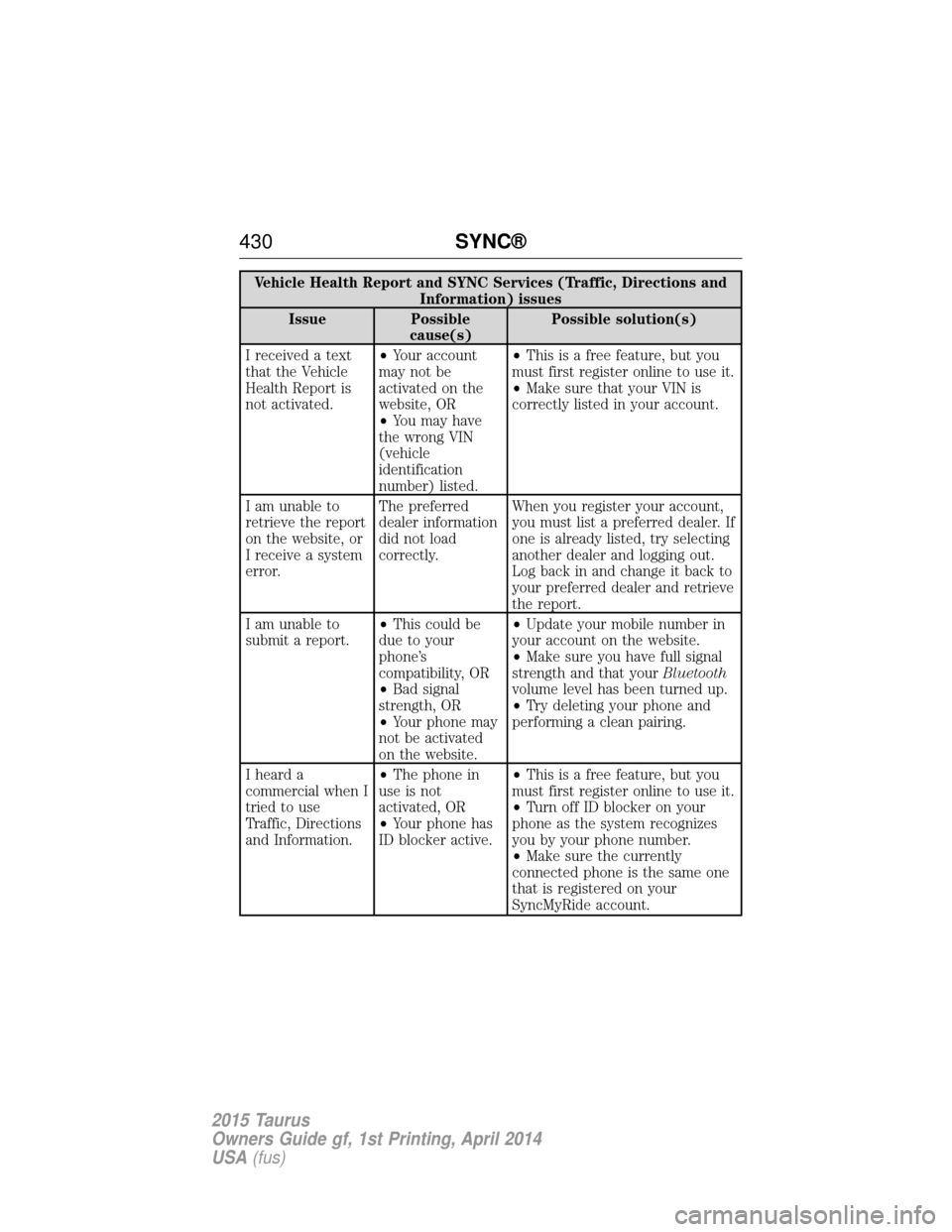
Vehicle Health Report and SYNC Services (Traffic, Directions andInformation) issues
Issue Possible cause(s) Possible solution(s)
I received a text
that the Vehicle
Health Report is
not activated. •
Your account
may not be
activated on the
website, OR
• You may have
the wrong VIN
(vehicle
identification
number) listed. •
This is a free feature, but you
must first register online to use it.
• Make sure that your VIN is
correctly listed in your account.
I am unable to
retrieve the report
on the website, or
I receive a system
error. The preferred
dealer information
did not load
correctly.
When you register your account,
you must list a preferred dealer. If
one is already listed, try selecting
another dealer and logging out.
Log back in and change it back to
your preferred dealer and retrieve
the report.
I am unable to
submit a report. •
This could be
due to your
phone’s
compatibility, OR
• Bad signal
strength, OR
• Your phone may
not be activated
on the website. •
Update your mobile number in
your account on the website.
• Make sure you have full signal
strength and that your Bluetooth
volume level has been turned up.
• Try deleting your phone and
performing a clean pairing.
I heard a
commercial when I
tried to use
Traffic, Directions
and Information. •
The phone in
use is not
activated, OR
• Your phone has
ID blocker active. •
This is a free feature, but you
must first register online to use it.
• Turn off ID blocker on your
phone as the system recognizes
you by your phone number.
• Make sure the currently
connected phone is the same one
that is registered on your
SyncMyRide account.
430 SYNC®
2015 Taurus
Owners Guide gf, 1st Printing, April 2014
USA(fus)
Page 440 of 558
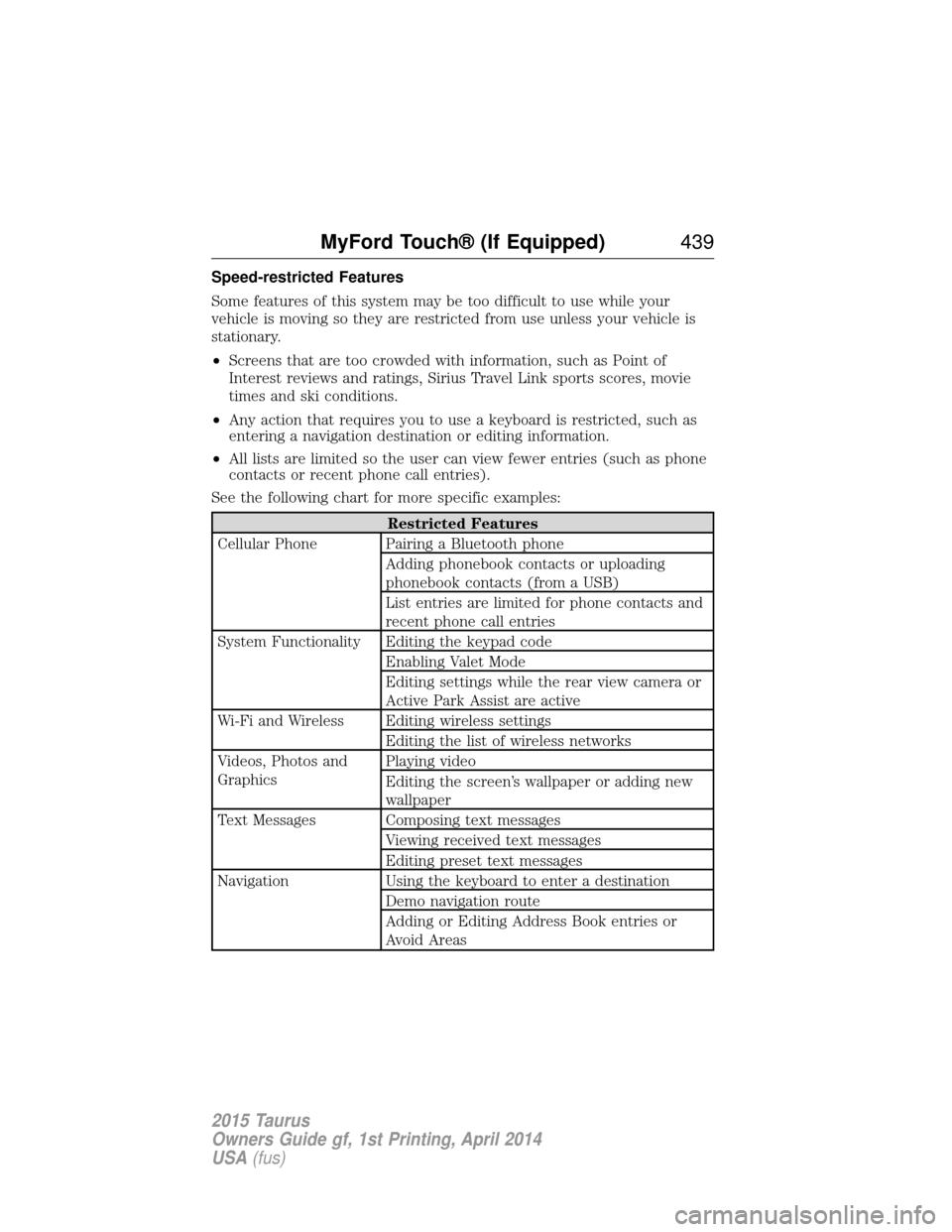
Speed-restricted Features
Some features of this system may be too difficult to use while your
vehicle is moving so they are restricted from use unless your vehicle is
stationary.
•Screens that are too crowded with information, such as Point of
Interest reviews and ratings, Sirius Travel Link sports scores, movie
times and ski conditions.
• Any action that requires you to use a keyboard is restricted, such as
entering a navigation destination or editing information.
• All lists are limited so the user can view fewer entries (such as phone
contacts or recent phone call entries).
See the following chart for more specific examples:
Restricted Features
Cellular Phone Pairing a Bluetooth phone Adding phonebook contacts or uploading
phonebook contacts (from a USB)
List entries are limited for phone contacts and
recent phone call entries
System Functionality Editing the keypad code Enabling Valet Mode
Editing settings while the rear view camera or
Active Park Assist are active
Wi-Fi and Wireless Editing wireless settings Editing the list of wireless networks
Videos, Photos and
Graphics Playing video
Editing the screen’s wallpaper or adding new
wallpaper
Text Messages Composing text messages Viewing received text messages
Editing preset text messages
Navigation Using the keyboard to enter a destination Demo navigation route
Adding or Editing Address Book entries or
Avoid Areas
MyFord Touch® (If Equipped) 439
2015 Taurus
Owners Guide gf, 1st Printing, April 2014
USA(fus)
Page 444 of 558
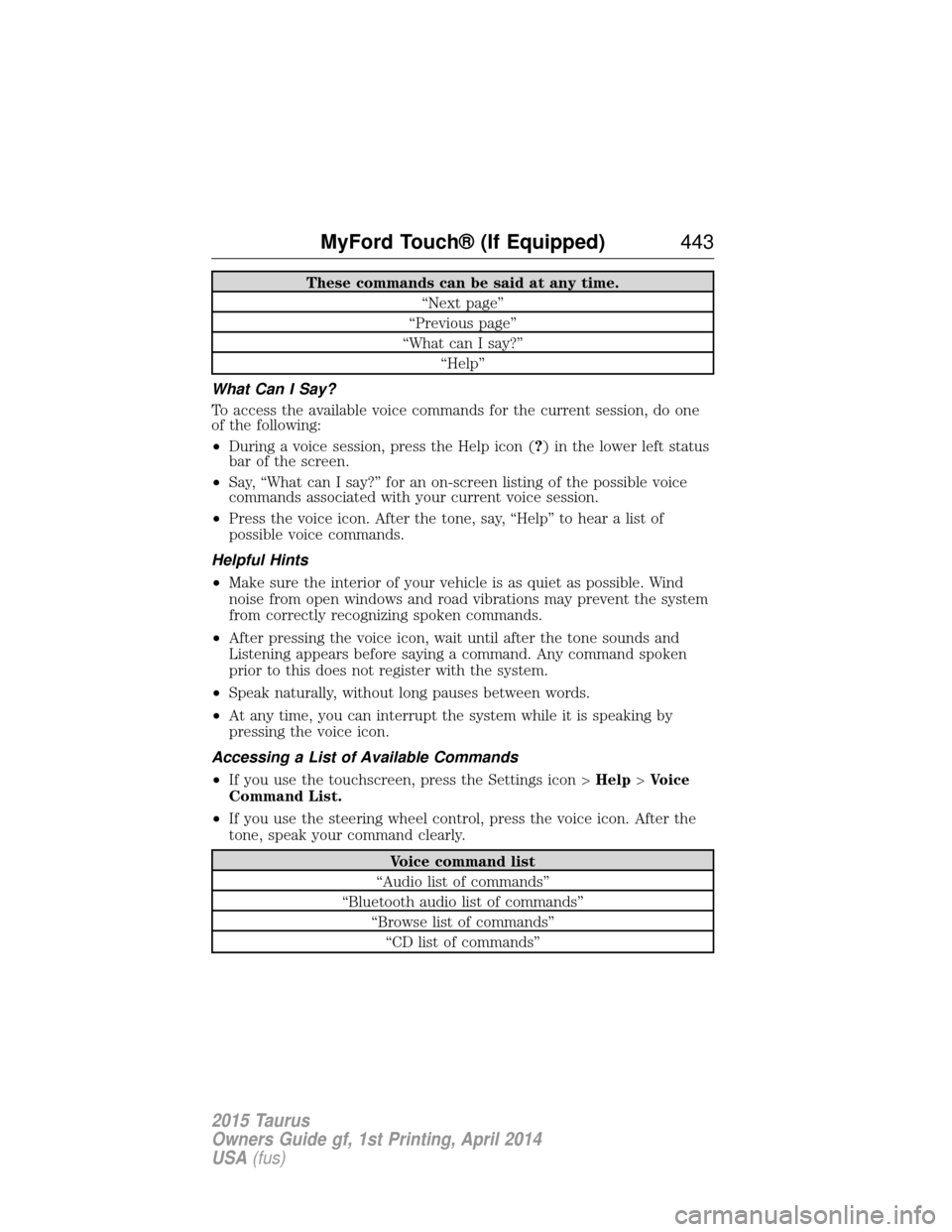
These commands can be said at any time.“Next page”
“Previous page”
“What can I say?” “Help”
What Can I Say?
To access the available voice commands for the current session, do one
of the following:
• During a voice session, press the Help icon ( ?) in the lower left status
bar of the screen.
• Say, “What can I say?” for an on-screen listing of the possible voice
commands associated with your current voice session.
• Press the voice icon. After the tone, say, “Help” to hear a list of
possible voice commands.
Helpful Hints
• Make sure the interior of your vehicle is as quiet as possible. Wind
noise from open windows and road vibrations may prevent the system
from correctly recognizing spoken commands.
• After pressing the voice icon, wait until after the tone sounds and
Listening appears before saying a command. Any command spoken
prior to this does not register with the system.
• Speak naturally, without long pauses between words.
• At any time, you can interrupt the system while it is speaking by
pressing the voice icon.
Accessing a List of Available Commands
• If you use the touchscreen, press the Settings icon > Help>Voice
Command List.
• If you use the steering wheel control, press the voice icon. After the
tone, speak your command clearly.
Voice command list
“Audio list of commands”
“Bluetooth audio list of commands” “Browse list of commands”“CD list of commands”
MyFord Touch® (If Equipped) 443
2015 Taurus
Owners Guide gf, 1st Printing, April 2014
USA(fus)
Page 448 of 558
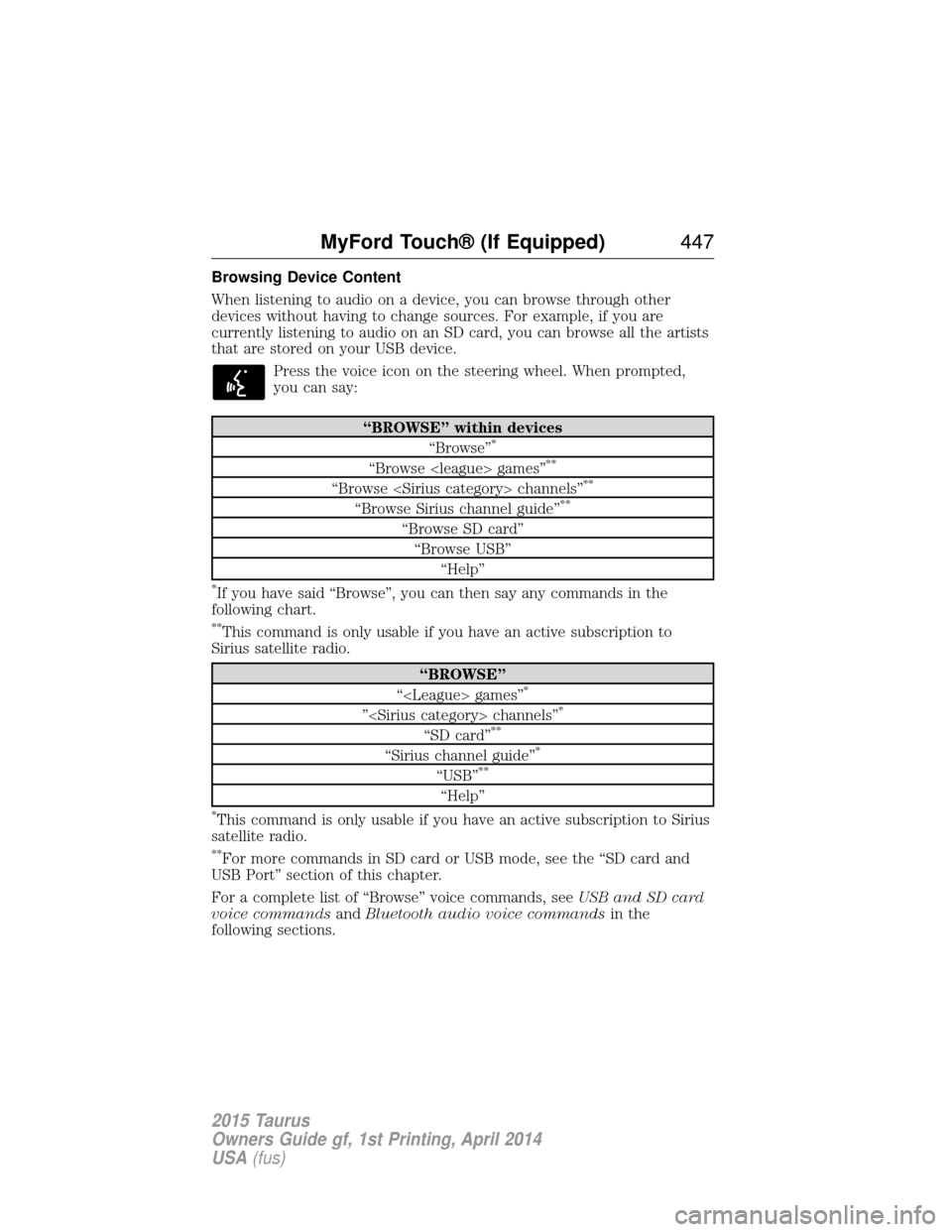
Browsing Device Content
When listening to audio on a device, you can browse through other
devices without having to change sources. For example, if you are
currently listening to audio on an SD card, you can browse all the artists
that are stored on your USB device.Press the voice icon on the steering wheel. When prompted,
you can say:
“BROWSE” within devices “Browse”*
“Browse
“Browse
“Browse Sirius channel guide”**
“Browse SD card”“Browse USB” “Help”
*If you have said “Browse”, you can then say any commands in the
following chart.
**This command is only usable if you have an active subscription to
Sirius satellite radio.
“BROWSE”
“
”
“SD card”**
“Sirius channel guide”*
“USB”**
“Help”
*This command is only usable if you have an active subscription to Sirius
satellite radio.
**For more commands in SD card or USB mode, see the “SD card and
USB Port” section of this chapter.
For a complete list of “Browse” voice commands, see USB and SD card
voice commands andBluetooth audio voice commands in the
following sections.
MyFord Touch® (If Equipped) 447
2015 Taurus
Owners Guide gf, 1st Printing, April 2014
USA(fus)
Page 466 of 558
Bluetooth Audio
Your system allows you to stream audio over your vehicle’s speakers from
your connected, Bluetooth-enabled cellular phone.To access, press the lower left corner on the touchscreen, then
select the BT Stereo tab.
Bluetooth Audio Voice Commands If you are listening to a Bluetooth audio device, press the voice
button on the steering wheel control. When prompted, say
“Next song”, “Pause”, “Play” or “Previous song”.
If you are not listening to a Bluetooth audio device, press the voice
button and, after the tone, say “Bluetooth Audio”, then “Next song”,
“Pause”, “Play” or “Previous song”.
A/V Inputs
WARNING: Driving while distracted can result in loss of vehicle
control, crash and injury. We strongly recommend that you use
extreme caution when using any device that may take your focus off
the road. Your primary responsibility is the safe operation of your
vehicle. We recommend against the use of any hand-held device while
driving and encourage the use of voice-operated systems when possible.
Make sure you are aware of all applicable local laws that may affect the
use of electronic devices while driving.
WARNING: For safety reasons, do not connect or adjust the
settings on your portable music player while your vehicle is
moving.
WARNING: Store the portable music player in a secure location,
such as the center console or the glove box, when your vehicle is
in motion. Hard objects may become projectiles in a crash or sudden
stop, which may increase the risk of serious injury. The audio extension
cable must be long enough to allow the portable music player to be
safely stored while your vehicle is moving.
MyFord Touch® (If Equipped) 465
2015 Taurus
Owners Guide gf, 1st Printing, April 2014
USA(fus)
Page 469 of 558
Hands-free calling is one of the main features of SYNC. Once you pair
your phone, you can access many options using the touchscreen or voice
commands. While the system supports a variety of features, many are
dependent on your cellular phone’s functionality. At a minimum, most
cellular phones with Bluetooth wireless technology support the following
functions:
•Answering an incoming call
• Ending a call
• Using privacy mode
• Dialing a number
• Redialing
• Call waiting notification
• Caller ID.
Other features, such as text messaging using Bluetooth and automatic
phonebook download, are phone-dependent features. To check your
phone’s compatibility, see your phone’s user manual and visit
www.SYNCMyRide.com, www.SYNCMyRide.ca or www.syncmaroute.ca.
Pairing Your Phone for the First Time
WARNING: Driving while distracted can result in loss of vehicle
control, crash and injury. We strongly recommend that you use
extreme caution when using any device that may take your focus off
the road. Your primary responsibility is the safe operation of your
vehicle. We recommend against the use of any hand-held device while
driving and encourage the use of voice-operated systems when possible.
Make sure you are aware of all applicable local laws that may affect the
use of electronic devices while driving.
The first thing you must do to use the phone features of SYNC is to pair
your Bluetooth-enabled cellular phone with SYNC. This allows you to use
your phone in a hands-free manner.
Note: Put the transmission in position P.Turn on your vehicle ignition
and the radio.
1. Touch Add Phone in the upper left corner of the touchscreen. Find
SYNC appears on the screen and instructs you to begin the pairing
process from your device.
2. Make sure that Bluetooth is set to Onand that your cellular phone is
in the proper mode. See your phone’s manual if necessary.
• Select SYNC, and a six-digit PIN appears on your device.
468 MyFord Touch® (If Equipped)
2015 Taurus
Owners Guide gf, 1st Printing, April 2014
USA(fus)