ESP FORD TAURUS 2015 6.G Repair Manual
[x] Cancel search | Manufacturer: FORD, Model Year: 2015, Model line: TAURUS, Model: FORD TAURUS 2015 6.GPages: 558, PDF Size: 4.42 MB
Page 453 of 558
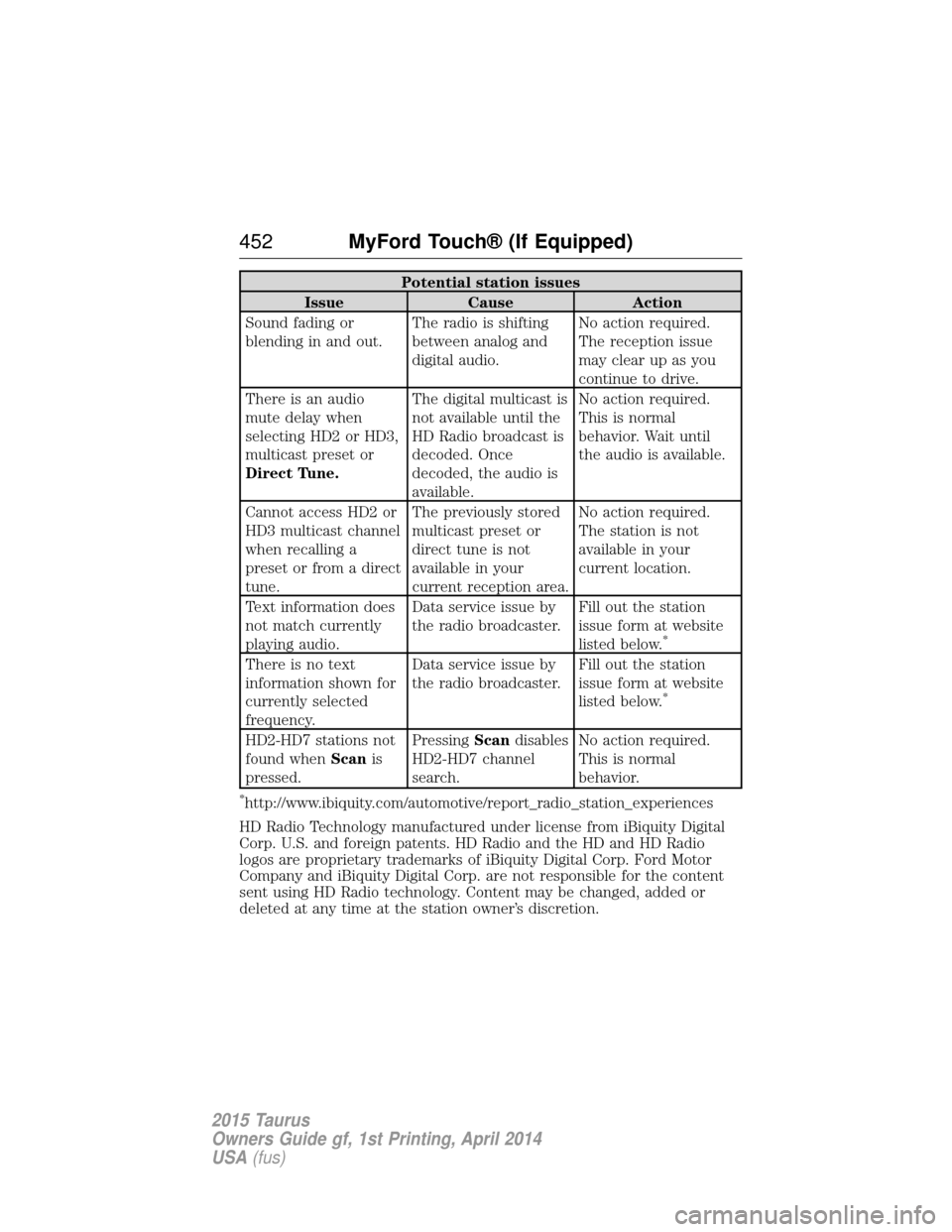
Potential station issues
Issue Cause Action
Sound fading or
blending in and out. The radio is shifting
between analog and
digital audio.No action required.
The reception issue
may clear up as you
continue to drive.
There is an audio
mute delay when
selecting HD2 or HD3,
multicast preset or
Direct Tune. The digital multicast is
not available until the
HD Radio broadcast is
decoded. Once
decoded, the audio is
available.No action required.
This is normal
behavior. Wait until
the audio is available.
Cannot access HD2 or
HD3 multicast channel
when recalling a
preset or from a direct
tune. The previously stored
multicast preset or
direct tune is not
available in your
current reception area.No action required.
The station is not
available in your
current location.
Text information does
not match currently
playing audio. Data service issue by
the radio broadcaster.
Fill out the station
issue form at website
listed below.
*
There is no text
information shown for
currently selected
frequency.Data service issue by
the radio broadcaster.
Fill out the station
issue form at website
listed below.
*
HD2-HD7 stations not
found when
Scanis
pressed. Pressing
Scandisables
HD2-HD7 channel
search. No action required.
This is normal
behavior.
*http://www.ibiquity.com/automotive/report_radio_station_experiences
HD Radio Technology manufactured under license from iBiquity Digital
Corp. U.S. and foreign patents. HD Radio and the HD and HD Radio
logos are proprietary trademarks of iBiquity Digital Corp. Ford Motor
Company and iBiquity Digital Corp. are not responsible for the content
sent using HD Radio technology. Content may be changed, added or
deleted at any time at the station owner’s discretion.
452 MyFord Touch® (If Equipped)
2015 Taurus
Owners Guide gf, 1st Printing, April 2014
USA(fus)
Page 456 of 558
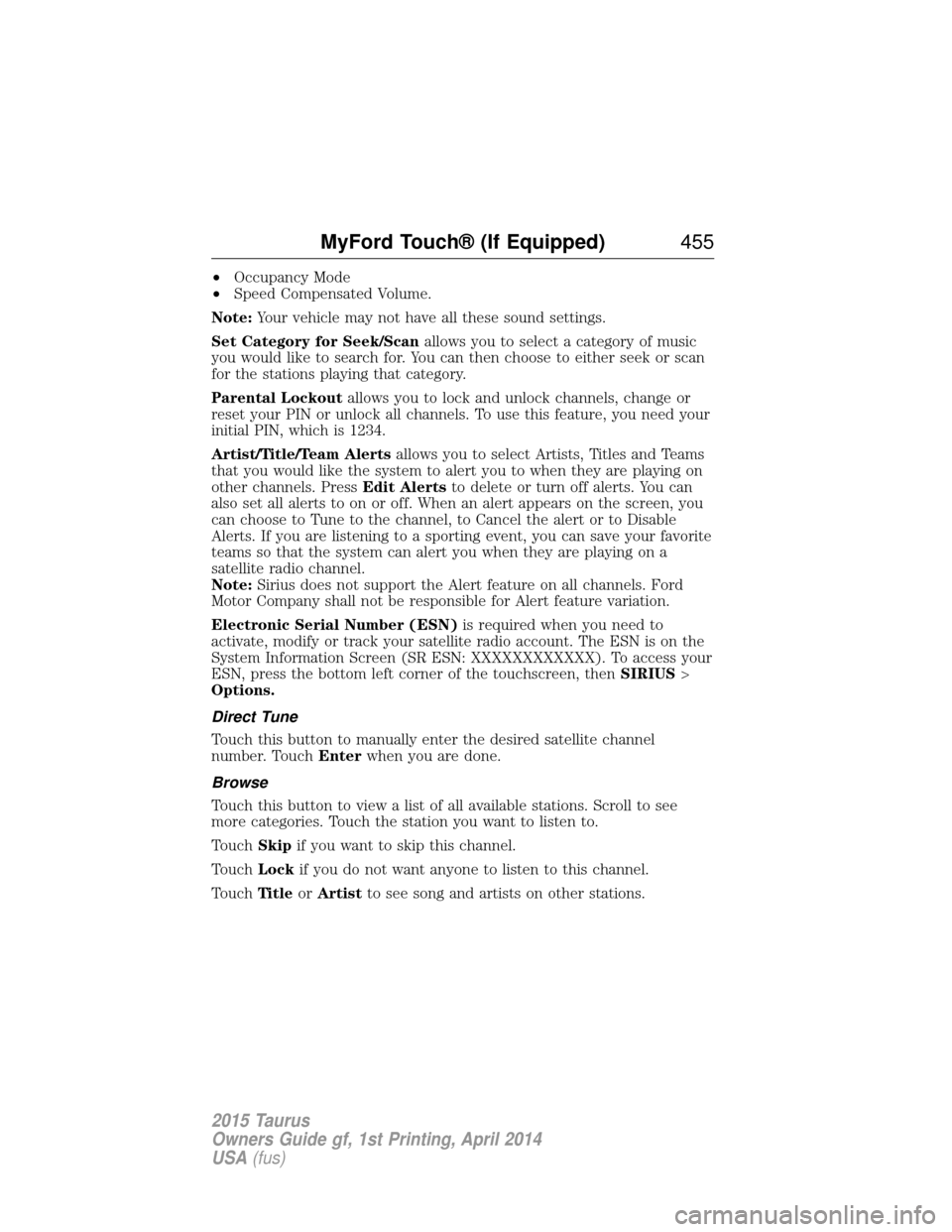
•Occupancy Mode
• Speed Compensated Volume.
Note: Your vehicle may not have all these sound settings.
Set Category for Seek/Scan allows you to select a category of music
you would like to search for. You can then choose to either seek or scan
for the stations playing that category.
Parental Lockout allows you to lock and unlock channels, change or
reset your PIN or unlock all channels. To use this feature, you need your
initial PIN, which is 1234.
Artist/Title/Team Alerts allows you to select Artists, Titles and Teams
that you would like the system to alert you to when they are playing on
other channels. Press Edit Alertsto delete or turn off alerts. You can
also set all alerts to on or off. When an alert appears on the screen, you
can choose to Tune to the channel, to Cancel the alert or to Disable
Alerts. If you are listening to a sporting event, you can save your favorite
teams so that the system can alert you when they are playing on a
satellite radio channel.
Note: Sirius does not support the Alert feature on all channels. Ford
Motor Company shall not be responsible for Alert feature variation.
Electronic Serial Number (ESN) is required when you need to
activate, modify or track your satellite radio account. The ESN is on the
System Information Screen (SR ESN: XXXXXXXXXXXX). To access your
ESN, press the bottom left corner of the touchscreen, then SIRIUS>
Options.
Direct Tune
Touch this button to manually enter the desired satellite channel
number. Touch Enterwhen you are done.
Browse
Touch this button to view a list of all available stations. Scroll to see
more categories. Touch the station you want to listen to.
Touch Skipif you want to skip this channel.
Touch Lockif you do not want anyone to listen to this channel.
Touch Ti t l eorArtist to see song and artists on other stations.
MyFord Touch® (If Equipped) 455
2015 Taurus
Owners Guide gf, 1st Printing, April 2014
USA(fus)
Page 458 of 558
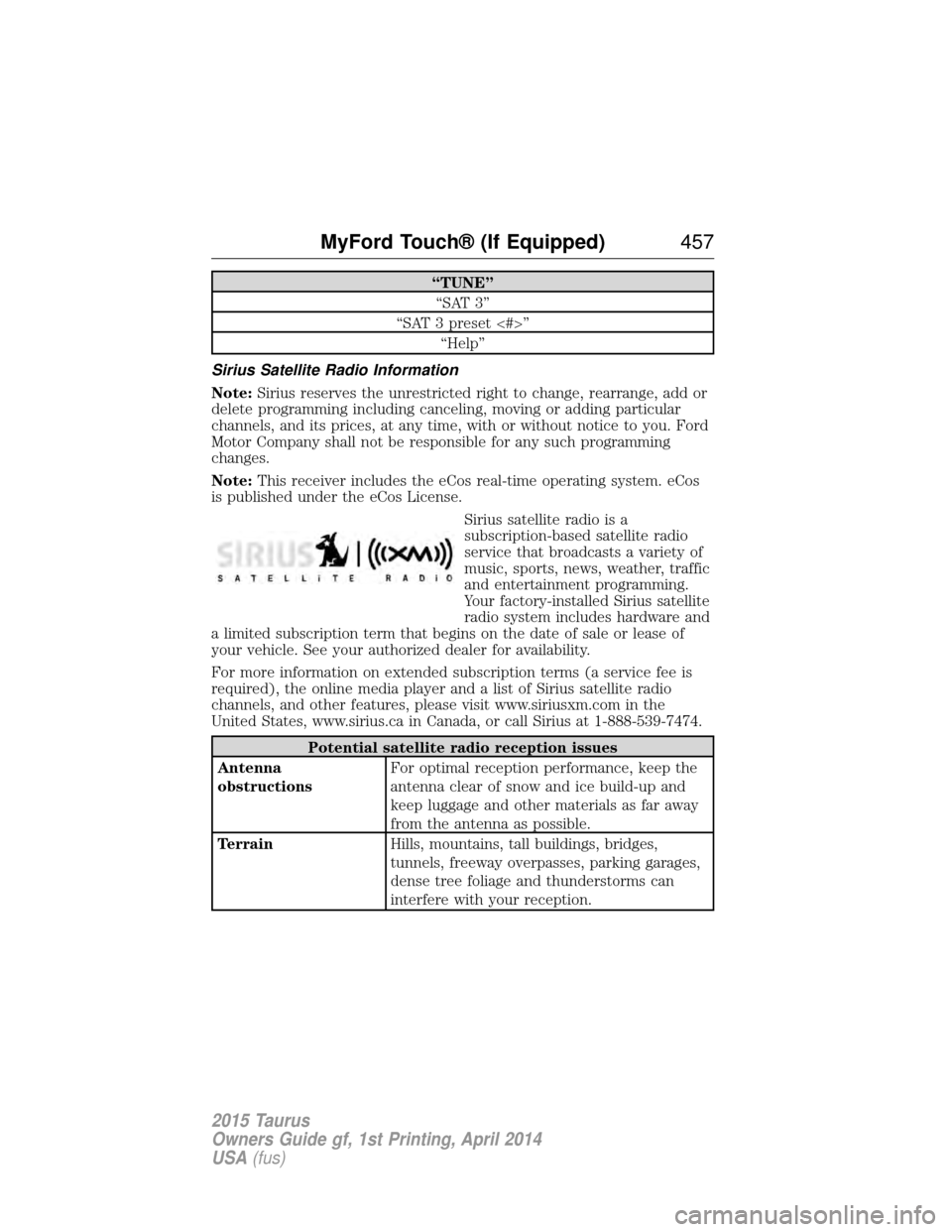
“TUNE”“SAT 3”
“SAT 3 preset <#>” “Help”
Sirius Satellite Radio Information
Note: Sirius reserves the unrestricted right to change, rearrange, add or
delete programming including canceling, moving or adding particular
channels, and its prices, at any time, with or without notice to you. Ford
Motor Company shall not be responsible for any such programming
changes.
Note: This receiver includes the eCos real-time operating system. eCos
is published under the eCos License.
Sirius satellite radio is a
subscription-based satellite radio
service that broadcasts a variety of
music, sports, news, weather, traffic
and entertainment programming.
Your factory-installed Sirius satellite
radio system includes hardware and
a limited subscription term that begins on the date of sale or lease of
your vehicle. See your authorized dealer for availability.
For more information on extended subscription terms (a service fee is
required), the online media player and a list of Sirius satellite radio
channels, and other features, please visit www.siriusxm.com in the
United States, www.sirius.ca in Canada, or call Sirius at 1-888-539-7474.
Potential satellite radio reception issues
Antenna
obstructions For optimal reception performance, keep the
antenna clear of snow and ice build-up and
keep luggage and other materials as far away
from the antenna as possible.
Terrain Hills, mountains, tall buildings, bridges,
tunnels, freeway overpasses, parking garages,
dense tree foliage and thunderstorms can
interfere with your reception.
MyFord Touch® (If Equipped) 457
2015 Taurus
Owners Guide gf, 1st Printing, April 2014
USA(fus)
Page 466 of 558
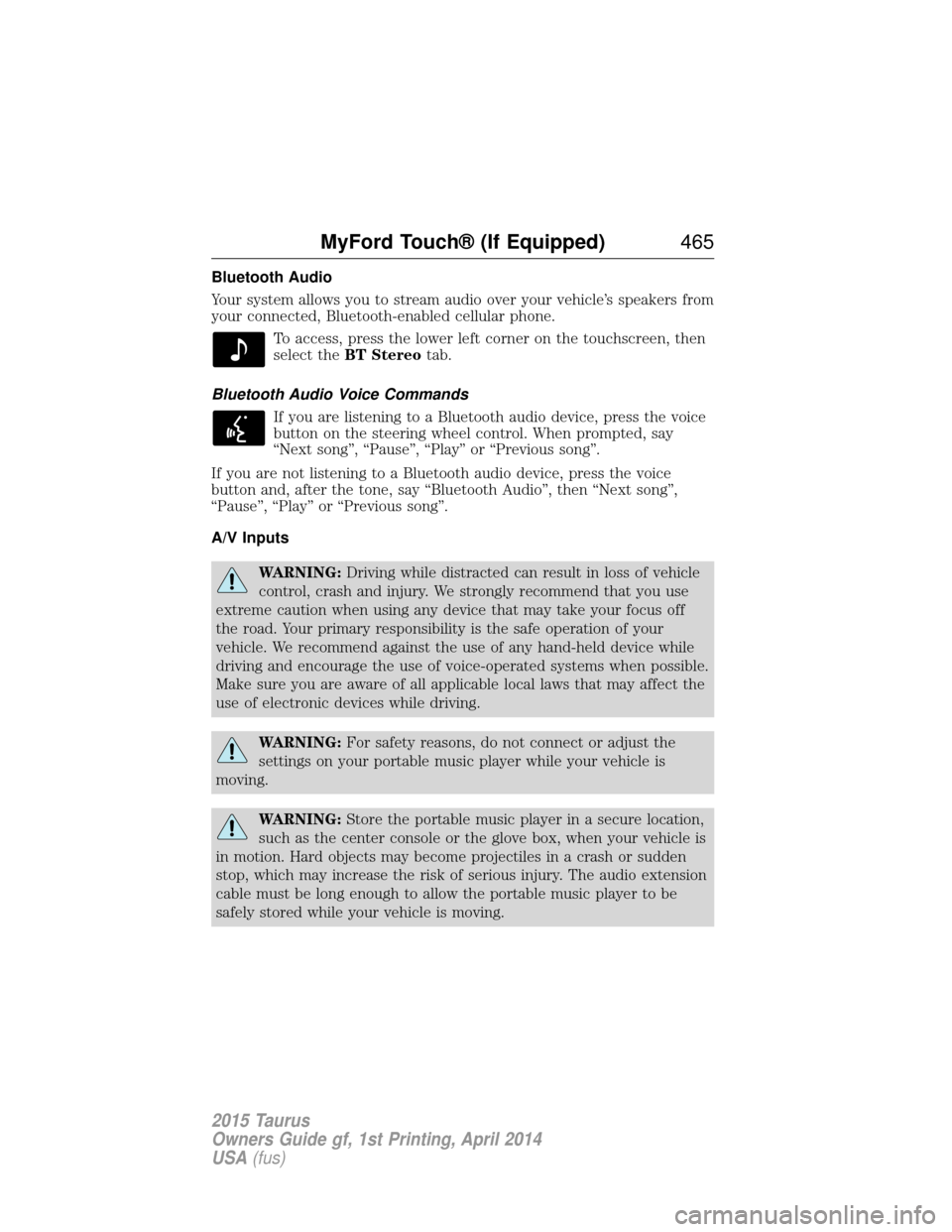
Bluetooth Audio
Your system allows you to stream audio over your vehicle’s speakers from
your connected, Bluetooth-enabled cellular phone.To access, press the lower left corner on the touchscreen, then
select the BT Stereo tab.
Bluetooth Audio Voice Commands If you are listening to a Bluetooth audio device, press the voice
button on the steering wheel control. When prompted, say
“Next song”, “Pause”, “Play” or “Previous song”.
If you are not listening to a Bluetooth audio device, press the voice
button and, after the tone, say “Bluetooth Audio”, then “Next song”,
“Pause”, “Play” or “Previous song”.
A/V Inputs
WARNING: Driving while distracted can result in loss of vehicle
control, crash and injury. We strongly recommend that you use
extreme caution when using any device that may take your focus off
the road. Your primary responsibility is the safe operation of your
vehicle. We recommend against the use of any hand-held device while
driving and encourage the use of voice-operated systems when possible.
Make sure you are aware of all applicable local laws that may affect the
use of electronic devices while driving.
WARNING: For safety reasons, do not connect or adjust the
settings on your portable music player while your vehicle is
moving.
WARNING: Store the portable music player in a secure location,
such as the center console or the glove box, when your vehicle is
in motion. Hard objects may become projectiles in a crash or sudden
stop, which may increase the risk of serious injury. The audio extension
cable must be long enough to allow the portable music player to be
safely stored while your vehicle is moving.
MyFord Touch® (If Equipped) 465
2015 Taurus
Owners Guide gf, 1st Printing, April 2014
USA(fus)
Page 469 of 558
Hands-free calling is one of the main features of SYNC. Once you pair
your phone, you can access many options using the touchscreen or voice
commands. While the system supports a variety of features, many are
dependent on your cellular phone’s functionality. At a minimum, most
cellular phones with Bluetooth wireless technology support the following
functions:
•Answering an incoming call
• Ending a call
• Using privacy mode
• Dialing a number
• Redialing
• Call waiting notification
• Caller ID.
Other features, such as text messaging using Bluetooth and automatic
phonebook download, are phone-dependent features. To check your
phone’s compatibility, see your phone’s user manual and visit
www.SYNCMyRide.com, www.SYNCMyRide.ca or www.syncmaroute.ca.
Pairing Your Phone for the First Time
WARNING: Driving while distracted can result in loss of vehicle
control, crash and injury. We strongly recommend that you use
extreme caution when using any device that may take your focus off
the road. Your primary responsibility is the safe operation of your
vehicle. We recommend against the use of any hand-held device while
driving and encourage the use of voice-operated systems when possible.
Make sure you are aware of all applicable local laws that may affect the
use of electronic devices while driving.
The first thing you must do to use the phone features of SYNC is to pair
your Bluetooth-enabled cellular phone with SYNC. This allows you to use
your phone in a hands-free manner.
Note: Put the transmission in position P.Turn on your vehicle ignition
and the radio.
1. Touch Add Phone in the upper left corner of the touchscreen. Find
SYNC appears on the screen and instructs you to begin the pairing
process from your device.
2. Make sure that Bluetooth is set to Onand that your cellular phone is
in the proper mode. See your phone’s manual if necessary.
• Select SYNC, and a six-digit PIN appears on your device.
468 MyFord Touch® (If Equipped)
2015 Taurus
Owners Guide gf, 1st Printing, April 2014
USA(fus)
Page 477 of 558
system in order to connect to, and use, SYNC Services. SeePhone
earlier in this chapter for pairing instructions.
Note: This feature does not function properly if you have enabled caller
ID blocking on your mobile phone. Make sure your mobile phone is not
blocking caller ID before using SYNC Services.
Note: The driver is ultimately responsible for the safe operation of the
vehicle, and therefore, must evaluate whether it is safe to follow the
suggested directions. Any navigation features are provided only as an aid.
Make your driving decisions based on your observations of local conditions
and existing traffic regulations. Do not follow the route suggestions if doing
so would result in an unsafe or illegal maneuver, if you would be placed in
an unsafe situation, or if you would be directed into an area that you
consider unsafe. Maps used by this system may be inaccurate because of
errors, changes in roads, traffic conditions or driving conditions.
Note: When you connect, the service uses GPS technology and advanced
vehicle sensors to collect your vehicle’s current location, travel direction
and speed to help provide you with the directions, traffic reports, or
business searches you request. Further, to provide the services you
request, for continuous improvement, the service may collect and record
call details and voice communications. For more information, see SYNC
Services Terms and Conditions at www.SYNCMyRide.com. If you do not
want Ford or its service providers to collect your vehicle travel
information or other information identified in the Terms and Conditions,
do not subscribe or use the service.
SYNC Services uses advanced vehicle sensors, integrated GPS technology
and comprehensive map and traffic data, to give you personalized traffic
reports, precise turn-by-turn directions, business search, news, sports,
weather and more. For a complete list of services, or to learn more,
please visit www.SYNCMyRide.com.
Connecting to SYNC Services Using Voice Commands
Press the voice button on the steering wheel controls.
1. When prompted, say “Services”. This initiates an outgoing call to SYNC Services using your paired and connected Bluetooth-enabled
cellular phone.
2. Once you connect to the service, follow the voice prompts to request the desired service, such as “Traffic” or “Directions”. You can also
say, “What are my choices?” to receive a list of available services
from which to choose.
3. Say, “Services” to return to the Services main menu or for help, say, “Help”.
476 MyFord Touch® (If Equipped)
2015 Taurus
Owners Guide gf, 1st Printing, April 2014
USA(fus)
Page 480 of 558
SYNC Services Voice CommandsWhen a route has been downloaded (non-navigation systems),
press the voice button on the steering wheel control. When
prompted, say any of the following commands:
“SERVICES”
“Cancel route”
“Navigation voice off” “Navigation voice on” “Next turn”
“Route status”
“Route summary” “Services”
“Update route” “Help”
Sirius Travel Link (If Equipped and If Activated)
WARNING: Driving while distracted can result in loss of vehicle
control, crash and injury. We strongly recommend that you use
extreme caution when using any device that may take your focus off
the road. Your primary responsibility is the safe operation of your
vehicle. We recommend against the use of any hand-held device while
driving and encourage the use of voice-operated systems when possible.
Make sure you are aware of all applicable local laws that may affect the
use of electronic devices while driving.
Note: In order to use Sirius Travel Link, your vehicle must be equipped
with navigation and your navigation SD card must be in the SD card slot.
Note: A paid subscription is required to access and use these features.
Go to www.siriusxm.com/travellink for more information.
Note: Visit www.siriusxm.com/traffic# and click on Coverage map and
details for a complete listing of all traffic areas covered by Sirius Travel
Link.
MyFord Touch® (If Equipped) 479
2015 Taurus
Owners Guide gf, 1st Printing, April 2014
USA(fus)
Page 481 of 558
Note:Neither Sirius nor Ford is responsible for any errors or
inaccuracies in the Sirius Travel Link services or its use in vehicles.
When you subscribe to Sirius Travel Link, it can help you locate the best
gas prices, find movie listings, get current traffic alerts, view the current
weather map, get accurate ski conditions and see scores to current
sports games.
If your vehicle is equipped with Navigation, touch the i
(Information) button to access these features. If your vehicle is
not equipped with Navigation, touch the corner of the
touchscreen with the green tab.
Traffic On Route and Traffic Nearby
Touch these buttons to identify traffic incidents on your route, nearby
your vehicle’s current location or near any of your favorite places, if
programmed.
Fuel Prices
Touch this button to view fuel prices at stations close to your vehicle’s
location or on an active navigation route.
Movie Listings
Touch this button to view nearby movie theaters and their show times, if
available.
Weather
Touch this button to view the nearby weather, current weather, or the
five day forecast for the chosen area. Select Mapto see the weather
map, which can show storms, radar information, charts and winds. Select
Area to select from a listing of weather locations.
Sports Info
Touch this button to view scores and schedules from a variety of sports.
You can also save up to 10 favorite teams for easier access. The score
automatically refreshes when a game is in progress.
Ski Conditions
Touch this button to view ski conditions for a specific area.
480 MyFord Touch® (If Equipped)
2015 Taurus
Owners Guide gf, 1st Printing, April 2014
USA(fus)
Page 484 of 558
911 Assist® (If Equipped)
WARNING:Unless the 911 Assist setting is set on before a
crash, the system will not dial for help, which could delay
response time, potentially increasing the risk of serious injury or death
after a crash.
WARNING: Do not wait for 911 Assist to make an emergency
call if you can do it yourself. Dial emergency services
immediately to avoid delayed response time, which could increase the
risk of serious injury or death after a crash. If you do not hear 911
Assist within five seconds of the crash, the system or phone may be
damaged or non-functional.
WARNING: Always place your phone in a secure location in your
vehicle so it does not become a projectile or damaged in a crash.
Failure to do so may cause serious injury to someone or damage the
phone, which could prevent 911 Assist from working properly.
Note: The SYNC 911 Assist feature must be set on prior to the incident.
Note: Before setting this feature on, make sure that you read the 911
Assist privacy notice later in this section for important information.
Note: If any user turns 911 Assist on or off, that setting applies for all
paired phones. If 911 Assist is turned off, either a voice message plays or
a display message (or icon) comes on (or both) when your vehicle is
started after a previously paired phone connects.
Note: Every phone operates differently. While SYNC 911 Assist works
with most cellular phones, some may have trouble using this feature.
If a crash deploys an airbag (excludes knee airbags and rear inflatable
safety belts [if equipped]) or activates the fuel pump shut-off, your
SYNC-equipped vehicle may be able to contact emergency services by
dialing 911 through a paired and connected Bluetooth-enabled phone.
You can learn more about the 911 Assist feature, visit
www.SYNCMyRide.com, www.SYNCMyRide.ca or www.syncmaroute.ca.
• For information on airbag deployment, see the Supplementary
Restraints System chapter.
• For information on the fuel pump shut-off, see the Roadside
Emergencies chapter.
MyFord Touch® (If Equipped) 483
2015 Taurus
Owners Guide gf, 1st Printing, April 2014
USA(fus)
Page 490 of 558
Only the photograph(s), which meets the following conditions, display:
•Compatible file formats are as follows: .jpg, .gif, .png, .bmp.
• Each file must be 1.5 MB or less.
• Recommended dimensions: 800 x 384.
Sound Press the Settings icon > Sound,then select from the
following:
Sound Settings
Bass DSP*
Midrange Occupancy Mode*
TrebleSpeed Compensated Volume
Set Balance and Fade
*If equipped.
Vehicle Press the Settings icon > Vehicle,then select from the
following:
• Ambient Lighting.
• Vehicle Health Report.
• Door Keypad Code.
• Camera Settings.
• Enable Valet Mode.
Ambient Lighting (If Equipped)
When activated, ambient lighting illuminates footwells and cupholders
with a choice of colors. To access and make adjustments:
1. Press the Settings icon > Vehicle>Ambient Lighting.
2. Touch the desired color.
3. Use the scroll bar to increase or decrease the intensity.
To turn the feature on or off, press the power button.
Vehicle Health Report
Turn Automatic Reminders on and off and set the mileage interval at
which you would like to receive the reports. Press ?for more information
on these selections.
When done making your selections, press Run Vehicle Health Report
Now if you want your report.
MyFord Touch® (If Equipped) 489
2015 Taurus
Owners Guide gf, 1st Printing, April 2014
USA(fus)