phone FORD TAURUS 2017 User Guide
[x] Cancel search | Manufacturer: FORD, Model Year: 2017, Model line: TAURUS, Model: FORD TAURUS 2017Pages: 504, PDF Size: 5.84 MB
Page 226 of 504
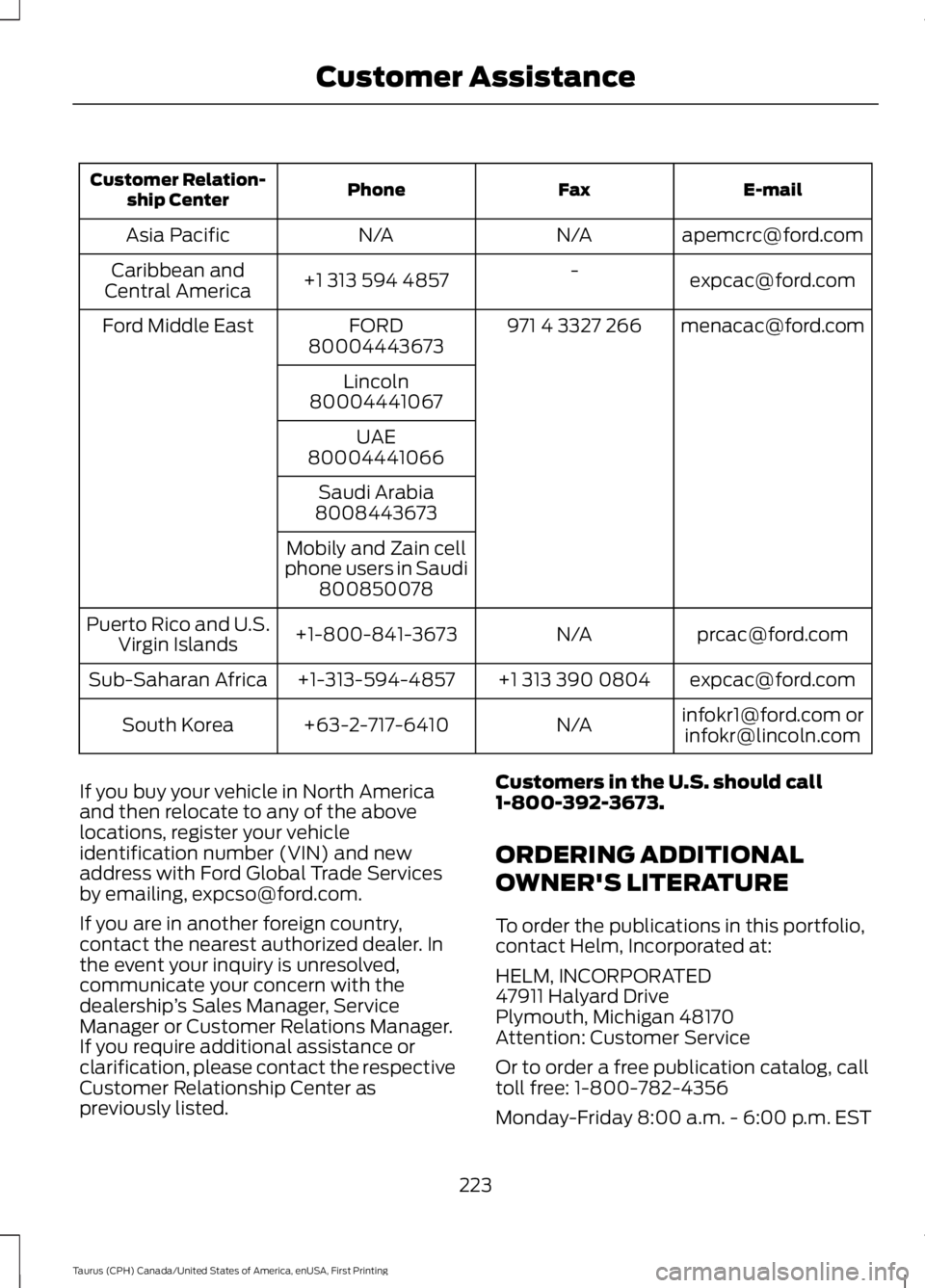
E-mailFaxPhoneCustomer Relation-ship Center
[email protected]/AN/AAsia Pacific
[email protected]+1 313 594 4857Caribbean andCentral America
[email protected] 4 3327 266FORDFord Middle East80004443673
Lincoln80004441067
UAE80004441066
Saudi Arabia8008443673
Mobily and Zain cellphone users in Saudi800850078
[email protected]/A+1-800-841-3673Puerto Rico and U.S.Virgin Islands
[email protected]+1 313 390 0804+1-313-594-4857Sub-Saharan Africa
[email protected] [email protected]/A+63-2-717-6410South Korea
If you buy your vehicle in North Americaand then relocate to any of the abovelocations, register your vehicleidentification number (VIN) and newaddress with Ford Global Trade Servicesby emailing, [email protected].
If you are in another foreign country,contact the nearest authorized dealer. Inthe event your inquiry is unresolved,communicate your concern with thedealership’s Sales Manager, ServiceManager or Customer Relations Manager.If you require additional assistance orclarification, please contact the respectiveCustomer Relationship Center aspreviously listed.
Customers in the U.S. should call1-800-392-3673.
ORDERING ADDITIONAL
OWNER'S LITERATURE
To order the publications in this portfolio,contact Helm, Incorporated at:
HELM, INCORPORATED47911 Halyard DrivePlymouth, Michigan 48170Attention: Customer Service
Or to order a free publication catalog, calltoll free: 1-800-782-4356
Monday-Friday 8:00 a.m. - 6:00 p.m. EST
223
Taurus (CPH) Canada/United States of America, enUSA, First Printing
Customer Assistance
Page 228 of 504
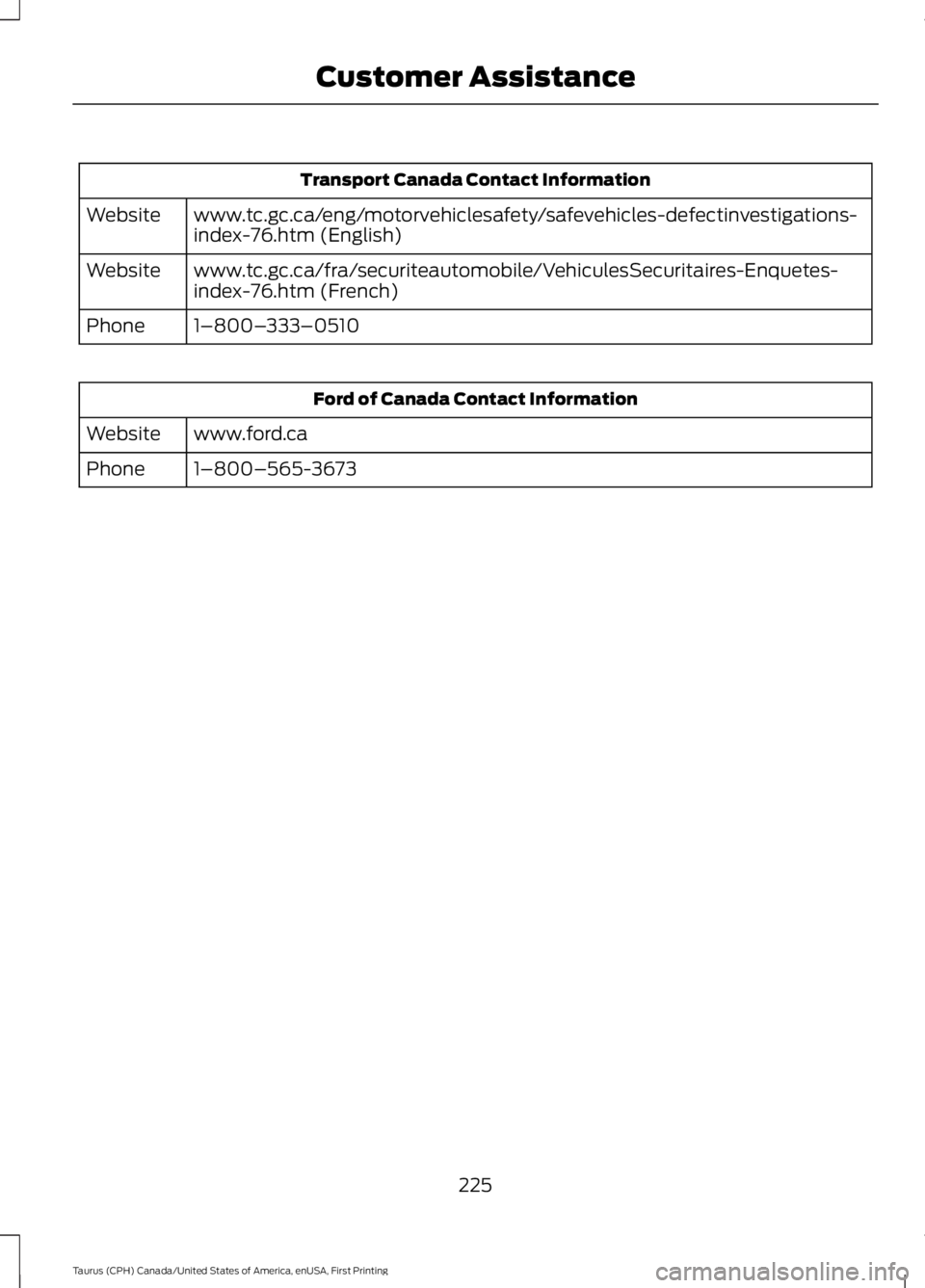
Transport Canada Contact Information
www.tc.gc.ca/eng/motorvehiclesafety/safevehicles-defectinvestigations-index-76.htm (English)Website
www.tc.gc.ca/fra/securiteautomobile/VehiculesSecuritaires-Enquetes-index-76.htm (French)Website
1–800–333–0510Phone
Ford of Canada Contact Information
www.ford.caWebsite
1–800–565-3673Phone
225
Taurus (CPH) Canada/United States of America, enUSA, First Printing
Customer Assistance
Page 320 of 504
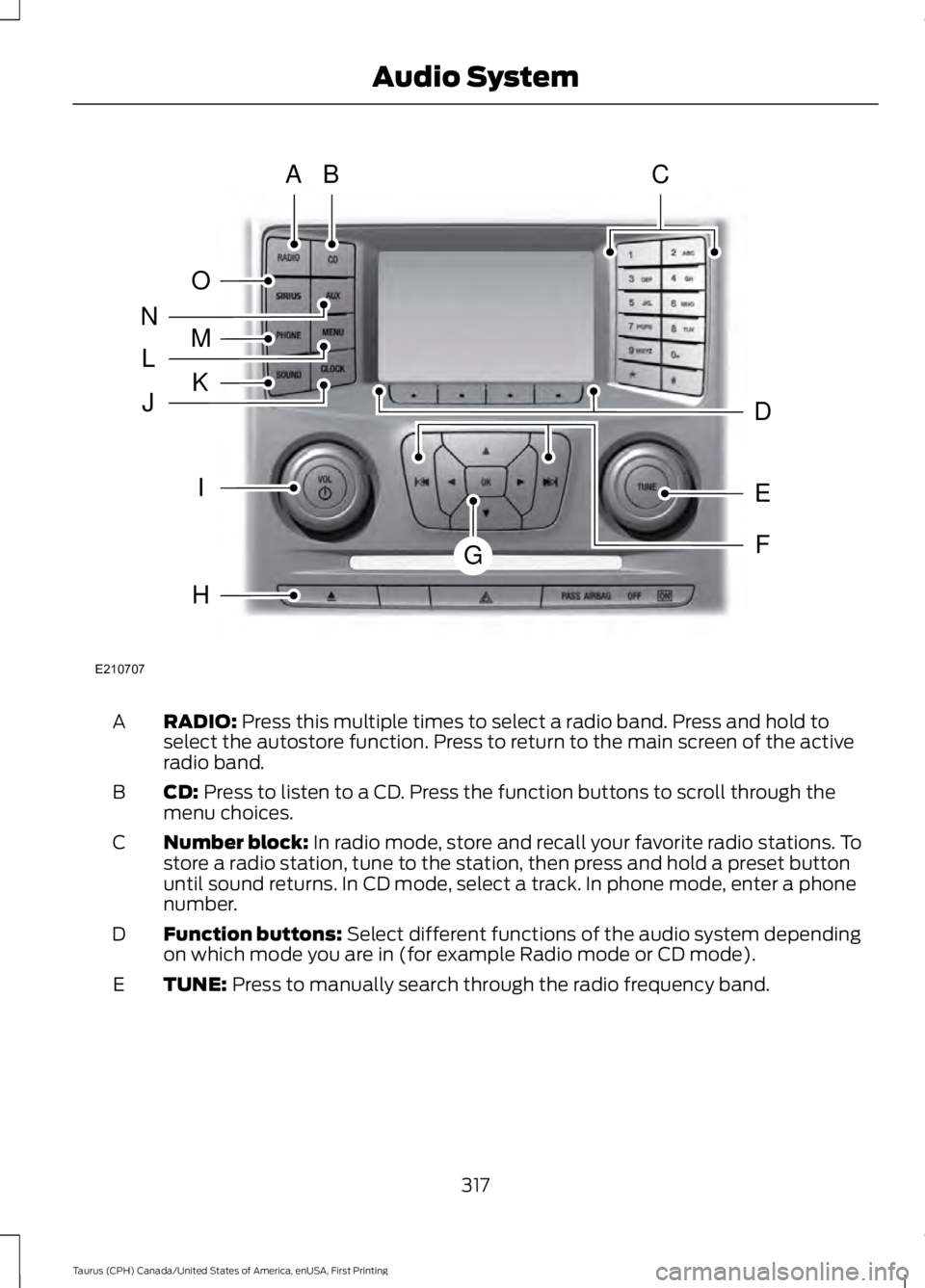
RADIO: Press this multiple times to select a radio band. Press and hold toselect the autostore function. Press to return to the main screen of the activeradio band.
A
CD: Press to listen to a CD. Press the function buttons to scroll through themenu choices.B
Number block: In radio mode, store and recall your favorite radio stations. Tostore a radio station, tune to the station, then press and hold a preset buttonuntil sound returns. In CD mode, select a track. In phone mode, enter a phonenumber.
C
Function buttons: Select different functions of the audio system dependingon which mode you are in (for example Radio mode or CD mode).D
TUNE: Press to manually search through the radio frequency band.E
317
Taurus (CPH) Canada/United States of America, enUSA, First Printing
Audio SystemE210707
AB
O
NMLKJ
EI
H
C
FG
D
Page 321 of 504
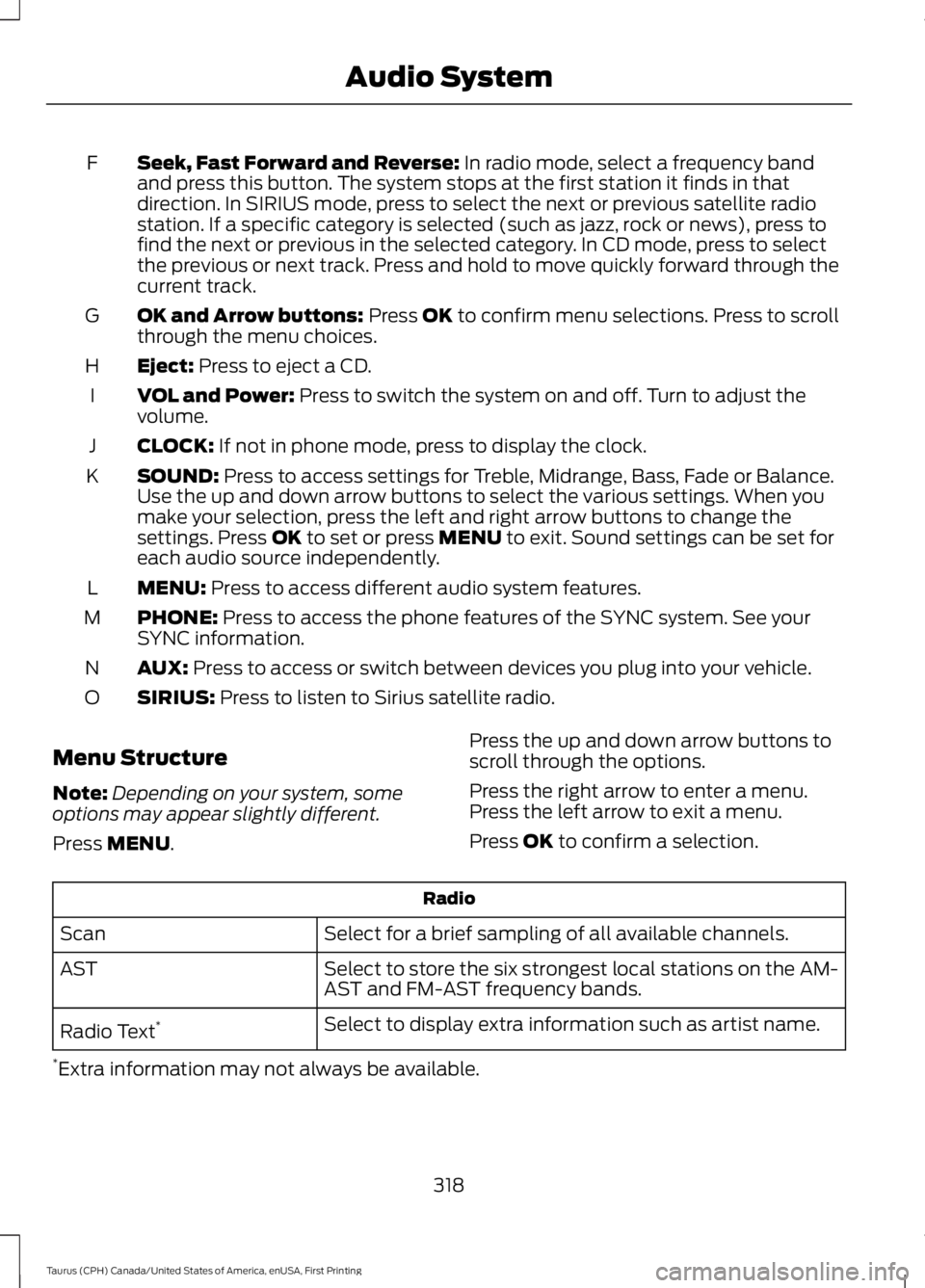
Seek, Fast Forward and Reverse: In radio mode, select a frequency bandand press this button. The system stops at the first station it finds in thatdirection. In SIRIUS mode, press to select the next or previous satellite radiostation. If a specific category is selected (such as jazz, rock or news), press tofind the next or previous in the selected category. In CD mode, press to selectthe previous or next track. Press and hold to move quickly forward through thecurrent track.
F
OK and Arrow buttons: Press OK to confirm menu selections. Press to scrollthrough the menu choices.G
Eject: Press to eject a CD.H
VOL and Power: Press to switch the system on and off. Turn to adjust thevolume.I
CLOCK: If not in phone mode, press to display the clock.J
SOUND: Press to access settings for Treble, Midrange, Bass, Fade or Balance.Use the up and down arrow buttons to select the various settings. When youmake your selection, press the left and right arrow buttons to change thesettings. Press OK to set or press MENU to exit. Sound settings can be set foreach audio source independently.
K
MENU: Press to access different audio system features.L
PHONE: Press to access the phone features of the SYNC system. See yourSYNC information.M
AUX: Press to access or switch between devices you plug into your vehicle.N
SIRIUS: Press to listen to Sirius satellite radio.O
Menu Structure
Note:Depending on your system, someoptions may appear slightly different.
Press MENU.
Press the up and down arrow buttons toscroll through the options.
Press the right arrow to enter a menu.Press the left arrow to exit a menu.
Press OK to confirm a selection.
Radio
Select for a brief sampling of all available channels.Scan
Select to store the six strongest local stations on the AM-AST and FM-AST frequency bands.AST
Select to display extra information such as artist name.Radio Text*
*Extra information may not always be available.
318
Taurus (CPH) Canada/United States of America, enUSA, First Printing
Audio System
Page 328 of 504
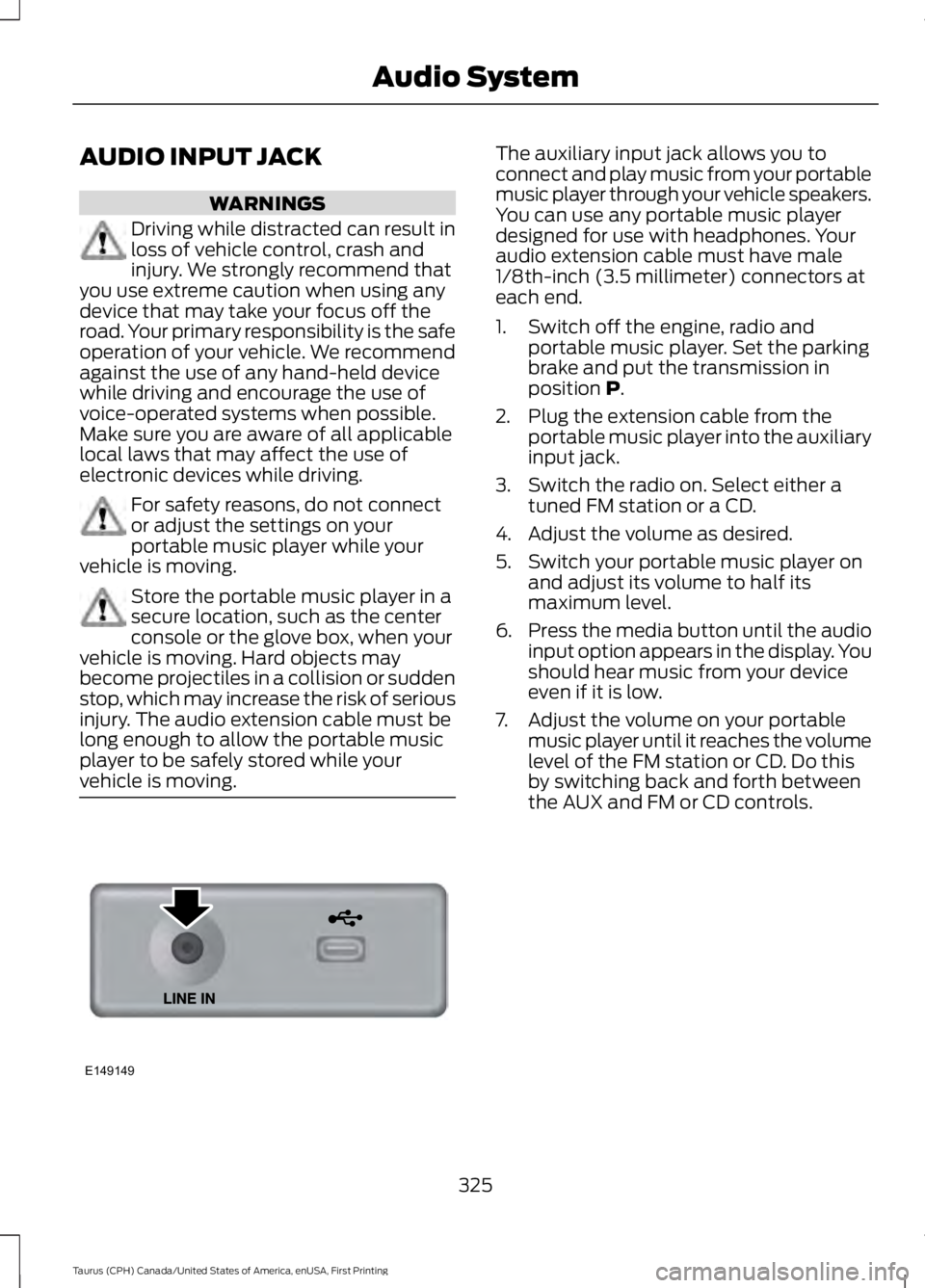
AUDIO INPUT JACK
WARNINGS
Driving while distracted can result inloss of vehicle control, crash andinjury. We strongly recommend thatyou use extreme caution when using anydevice that may take your focus off theroad. Your primary responsibility is the safeoperation of your vehicle. We recommendagainst the use of any hand-held devicewhile driving and encourage the use ofvoice-operated systems when possible.Make sure you are aware of all applicablelocal laws that may affect the use ofelectronic devices while driving.
For safety reasons, do not connector adjust the settings on yourportable music player while yourvehicle is moving.
Store the portable music player in asecure location, such as the centerconsole or the glove box, when yourvehicle is moving. Hard objects maybecome projectiles in a collision or suddenstop, which may increase the risk of seriousinjury. The audio extension cable must belong enough to allow the portable musicplayer to be safely stored while yourvehicle is moving.
The auxiliary input jack allows you toconnect and play music from your portablemusic player through your vehicle speakers.You can use any portable music playerdesigned for use with headphones. Youraudio extension cable must have male1/8th-inch (3.5 millimeter) connectors ateach end.
1. Switch off the engine, radio andportable music player. Set the parkingbrake and put the transmission inposition P.
2. Plug the extension cable from theportable music player into the auxiliaryinput jack.
3. Switch the radio on. Select either atuned FM station or a CD.
4. Adjust the volume as desired.
5. Switch your portable music player onand adjust its volume to half itsmaximum level.
6.Press the media button until the audioinput option appears in the display. Youshould hear music from your deviceeven if it is low.
7. Adjust the volume on your portablemusic player until it reaches the volumelevel of the FM station or CD. Do thisby switching back and forth betweenthe AUX and FM or CD controls.
325
Taurus (CPH) Canada/United States of America, enUSA, First Printing
Audio SystemE149149
Page 330 of 504
GENERAL INFORMATION
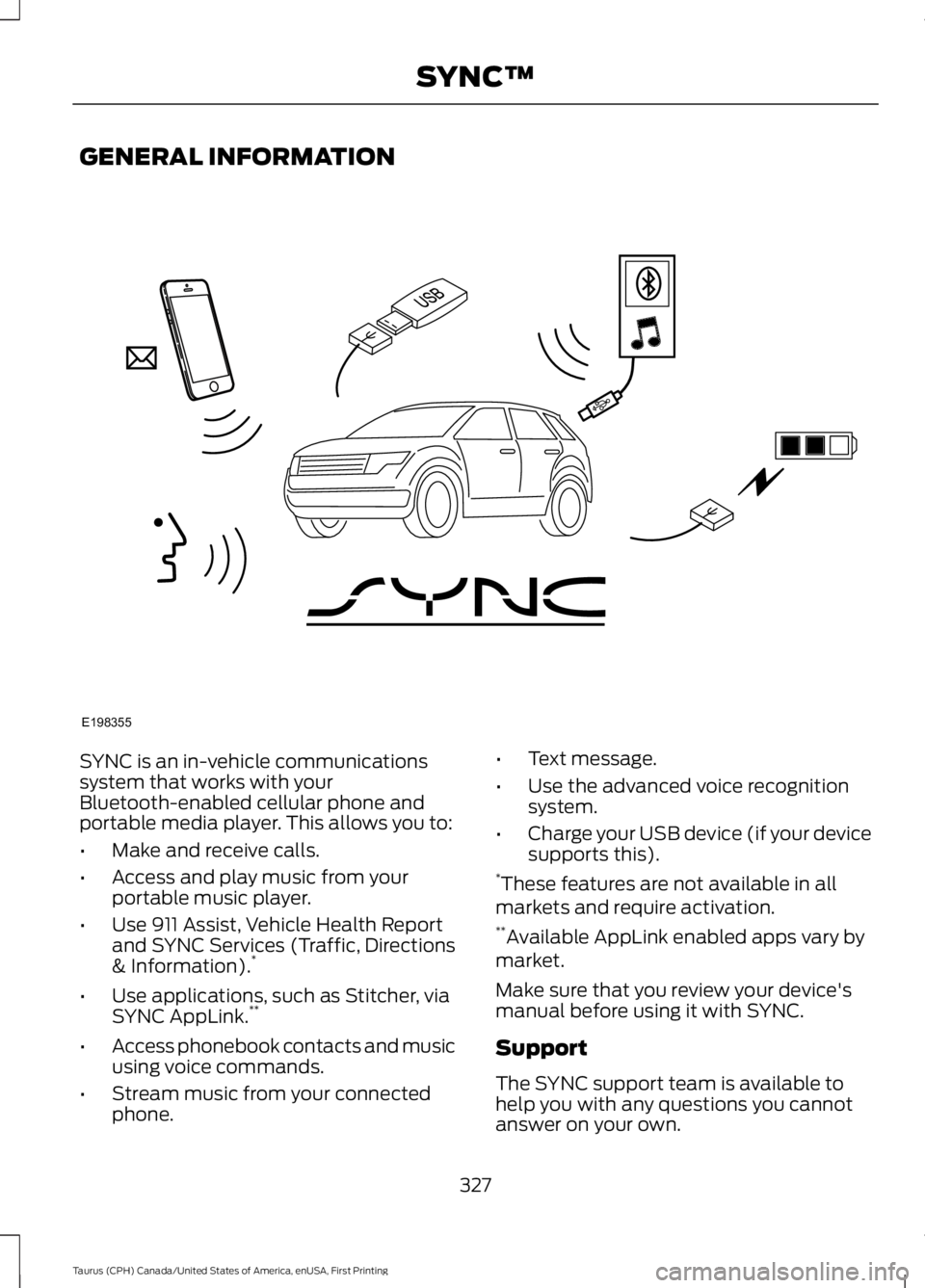
SYNC is an in-vehicle communicationssystem that works with yourBluetooth-enabled cellular phone andportable media player. This allows you to:
•Make and receive calls.
•Access and play music from yourportable music player.
•Use 911 Assist, Vehicle Health Reportand SYNC Services (Traffic, Directions& Information).*
•Use applications, such as Stitcher, viaSYNC AppLink.**
•Access phonebook contacts and musicusing voice commands.
•Stream music from your connectedphone.
•Text message.
•Use the advanced voice recognitionsystem.
•Charge your USB device (if your devicesupports this).*These features are not available in allmarkets and require activation.**Available AppLink enabled apps vary bymarket.
Make sure that you review your device'smanual before using it with SYNC.
Support
The SYNC support team is available tohelp you with any questions you cannotanswer on your own.
327
Taurus (CPH) Canada/United States of America, enUSA, First Printing
SYNC™E198355
Page 331 of 504
Monday-Saturday, 8:30am-9:00pm EST.
Sunday, 10:30am-7:30pm EST.
In the United States, call 1-800-392-3673.
In Canada, call 1-800-565-3673.
Times are subject to change due toholidays.
SYNC Owner Account
Why do I need a SYNC owner account?
•Required to activate Vehicle HealthReport and to view the reports online.
•Required to activate thesubscription-based SYNC Services andto personalize your Saved Points andFavorites.
•Essential for keeping up with the latestsoftware downloads available forSYNC.
•Access to customer support for anyquestions you may have.
Driving Restrictions
For your safety, certain features arespeed-dependent and restricted when yourvehicle is traveling over 3 mph (5 km/h).
Safety Information
WARNING
Driving while distracted can result inloss of vehicle control, crash andinjury. We strongly recommend thatyou use extreme caution when using anydevice that may take your focus off theroad. Your primary responsibility is the safeoperation of your vehicle. We recommendagainst the use of any hand-held devicewhile driving and encourage the use ofvoice-operated systems when possible.Make sure you are aware of all applicablelocal laws that may affect the use ofelectronic devices while driving.
When using SYNC:
•Do not operate playing devices if thepower cords or cables are broken, splitor damaged. Place cords and cablesout of the way, so they do not interferewith the operation of pedals, seats,compartments or safe driving abilities.
•Do not leave playing devices in yourvehicle during extreme conditions as itcould cause them damage. See yourdevice's manual for further information.
•Do not attempt to service or repair thesystem. See an authorized dealer.
Privacy Information
When a cellular phone is connected toSYNC, the system creates a profile withinyour vehicle that is linked to that cellularphone. This profile is created in order tooffer you more cellular features and tooperate more efficiently. Among otherthings, this profile may contain data aboutyour cellular phone book, text messages(read and unread), and call history,including history of calls when your cellularphone was not connected to the system.In addition, if you connect a media device,the system creates and retains an index ofsupported media content. The system alsorecords a short development log ofapproximately 10 minutes of all recentsystem activity. The log profile and othersystem data may be used to improve thesystem and help diagnose any problemsthat may occur.
The cellular profile, media device index,and development log will remain in thevehicle unless you delete them and aregenerally accessible only in the vehiclewhen the cellular phone or media playeris connected. If you no longer plan to usethe system or the vehicle, we recommendyou perform a Master Reset to erase allstored information.
328
Taurus (CPH) Canada/United States of America, enUSA, First Printing
SYNC™
Page 332 of 504
System data cannot be accessed withoutspecial equipment and access to thevehicle's SYNC module. Ford MotorCompany and Ford of Canada will notaccess the system data for any purposeother than as described absent consent, acourt order, or where required by lawenforcement, other governmentauthorities, or other third parties actingwith lawful authority. Other parties mayseek to access the informationindependently of Ford Motor Company andFord of Canada. For further privacyinformation, see the sections on 911 Assist,Vehicle Health Report, and Traffic,Directions and Information.
USING VOICE RECOGNITION
This system helps you control manyfeatures using voice commands. Thisallows you to keep your hands on thewheel and focus on what is in front of you.
Helpful Hints
•Make sure the interior of your vehicle isas quiet as possible. Wind noise fromopen windows and road vibrations mayprevent the system from correctlyrecognizing spoken commands.
•After pressing the voice button, waituntil after the tone sounds andListening appears before saying acommand. Any command spokenbefore this does not register with thesystem.
•Speak naturally, without long pausesbetween words.
•At any time, you can interrupt thesystem while it is speaking by pressingthe voice button.
Initiating a Voice Session
Initiate a voice session bypressing the voice button on thesteering wheel controls. SeeVoice Control (page 68).
When prompted you can say any of the following:
If you want the system to carry out the followingVoice command
Stream audio from your phone.Bluetooth Audio
Cancel the requested action.Cancel
Access mobile applications.mobile (apps | applica-tions)
Make calls.Phone
Access the device connected to your USB port.USB [1]
Run a vehicle health report.Vehicle Health (Report)
329
Taurus (CPH) Canada/United States of America, enUSA, First Printing
SYNC™E142599
Page 334 of 504
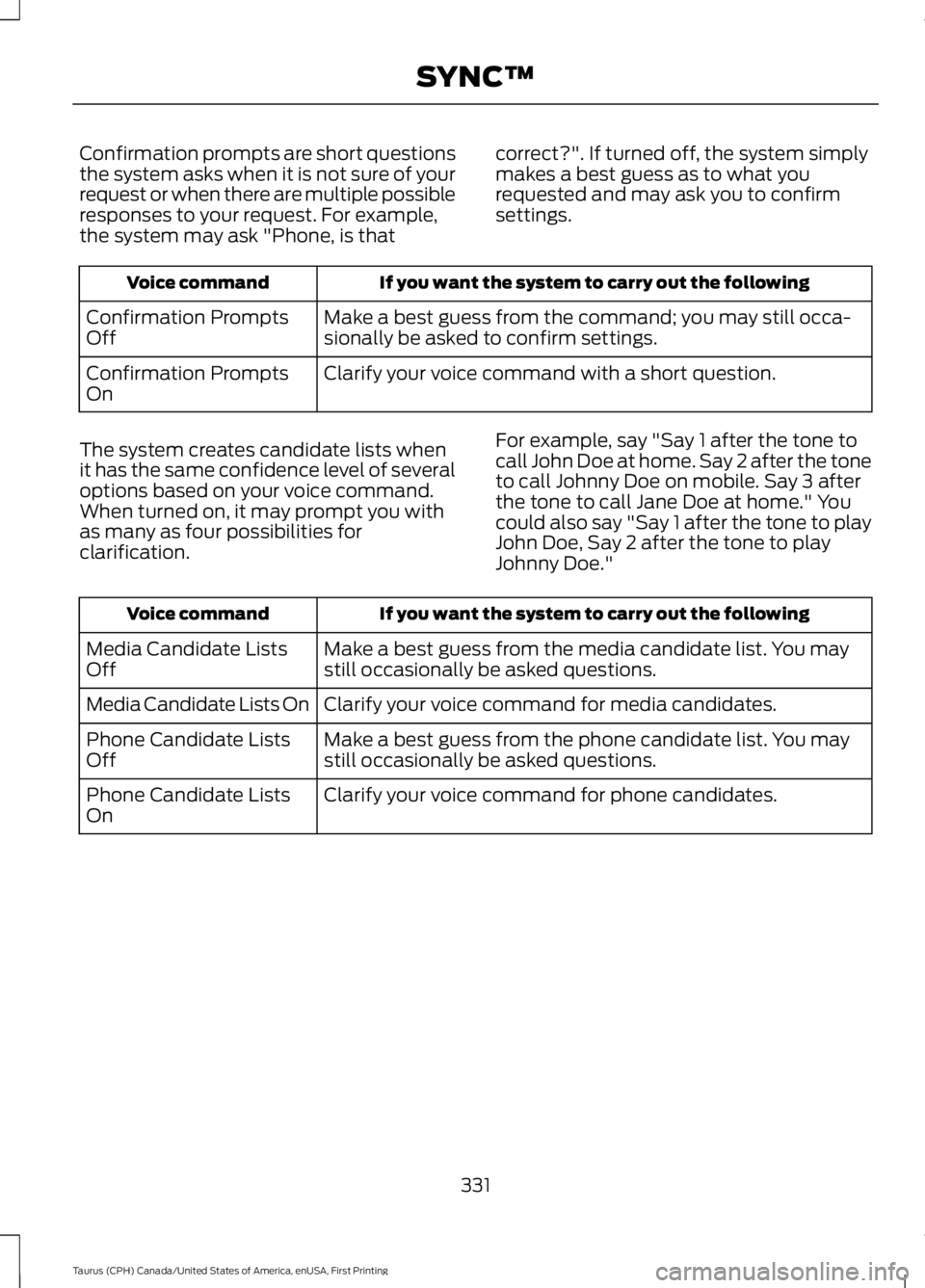
Confirmation prompts are short questionsthe system asks when it is not sure of yourrequest or when there are multiple possibleresponses to your request. For example,the system may ask "Phone, is that
correct?". If turned off, the system simplymakes a best guess as to what yourequested and may ask you to confirmsettings.
If you want the system to carry out the followingVoice command
Make a best guess from the command; you may still occa-sionally be asked to confirm settings.Confirmation PromptsOff
Clarify your voice command with a short question.Confirmation PromptsOn
The system creates candidate lists whenit has the same confidence level of severaloptions based on your voice command.When turned on, it may prompt you withas many as four possibilities forclarification.
For example, say "Say 1 after the tone tocall John Doe at home. Say 2 after the toneto call Johnny Doe on mobile. Say 3 afterthe tone to call Jane Doe at home." Youcould also say "Say 1 after the tone to playJohn Doe, Say 2 after the tone to playJohnny Doe."
If you want the system to carry out the followingVoice command
Make a best guess from the media candidate list. You maystill occasionally be asked questions.Media Candidate ListsOff
Clarify your voice command for media candidates.Media Candidate Lists On
Make a best guess from the phone candidate list. You maystill occasionally be asked questions.Phone Candidate ListsOff
Clarify your voice command for phone candidates.Phone Candidate ListsOn
331
Taurus (CPH) Canada/United States of America, enUSA, First Printing
SYNC™
Page 335 of 504
USING SYNC™ WITH YOUR
PHONE
Hands-free calling is one of the mainfeatures of SYNC. While the systemsupports a variety of features, many aredependent on your cell phone'sfunctionality. At a minimum, most cellphones with Bluetooth wireless technologysupport the following functions:
•Answering an incoming call.
•Ending a call.
•Using privacy mode.
•Dialing a number.
•Redialing.
•Call waiting notification.
•Caller ID.
Other features, such as text messagingusing Bluetooth and automatic phonebookdownload, are cell phone-dependentfeatures. To check your cell phone'scompatibility, see your cell phone's manualand visit www.SYNCMyRide.com,www.SYNCMyRide.ca orwww.syncmaroute.ca.
Pairing a Cell Phone for the FirstTime
Note:SYNC can support downloading upto approximately 1000 entries perBluetooth-enabled cell phone.
Note:Make sure to switch on the ignitionand the radio. Put the transmission inposition park (P) (automatic transmission)or neutral with the parking brake applied(manual transmission).
Note:To scroll through the menus, pressthe up and down arrows on your audiosystem.
Wirelessly pairing your cell phone withSYNC allows you to make and receivehands-free calls.
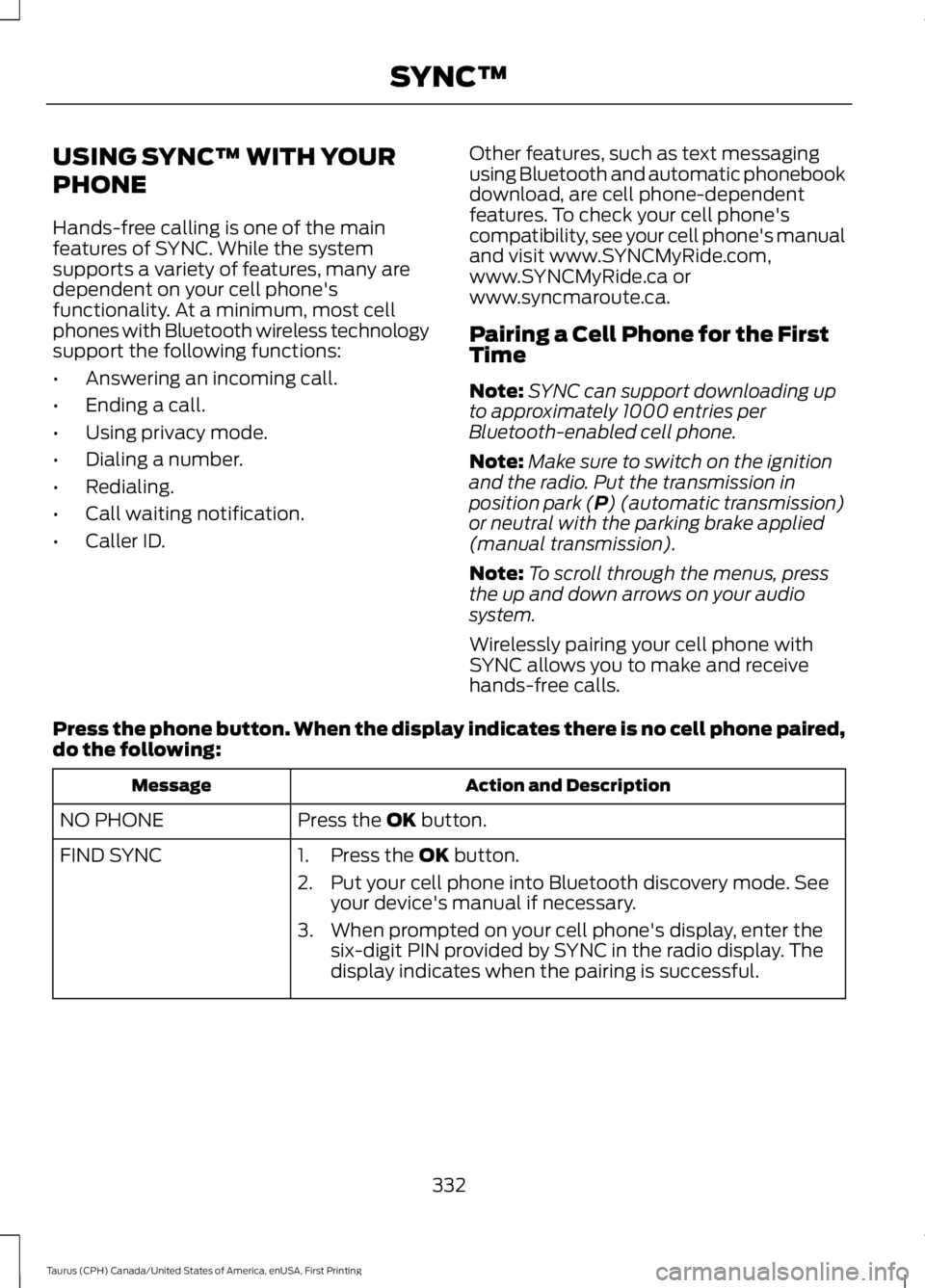
Press the phone button. When the display indicates there is no cell phone paired,do the following:
Action and DescriptionMessage
Press the OK button.NO PHONE
FIND SYNC1. Press the OK button.
2. Put your cell phone into Bluetooth discovery mode. Seeyour device's manual if necessary.
3. When prompted on your cell phone's display, enter thesix-digit PIN provided by SYNC in the radio display. Thedisplay indicates when the pairing is successful.
332
Taurus (CPH) Canada/United States of America, enUSA, First Printing
SYNC™