audio FORD TAURUS 2017 Owner's Manual
[x] Cancel search | Manufacturer: FORD, Model Year: 2017, Model line: TAURUS, Model: FORD TAURUS 2017Pages: 504, PDF Size: 5.84 MB
Page 325 of 504
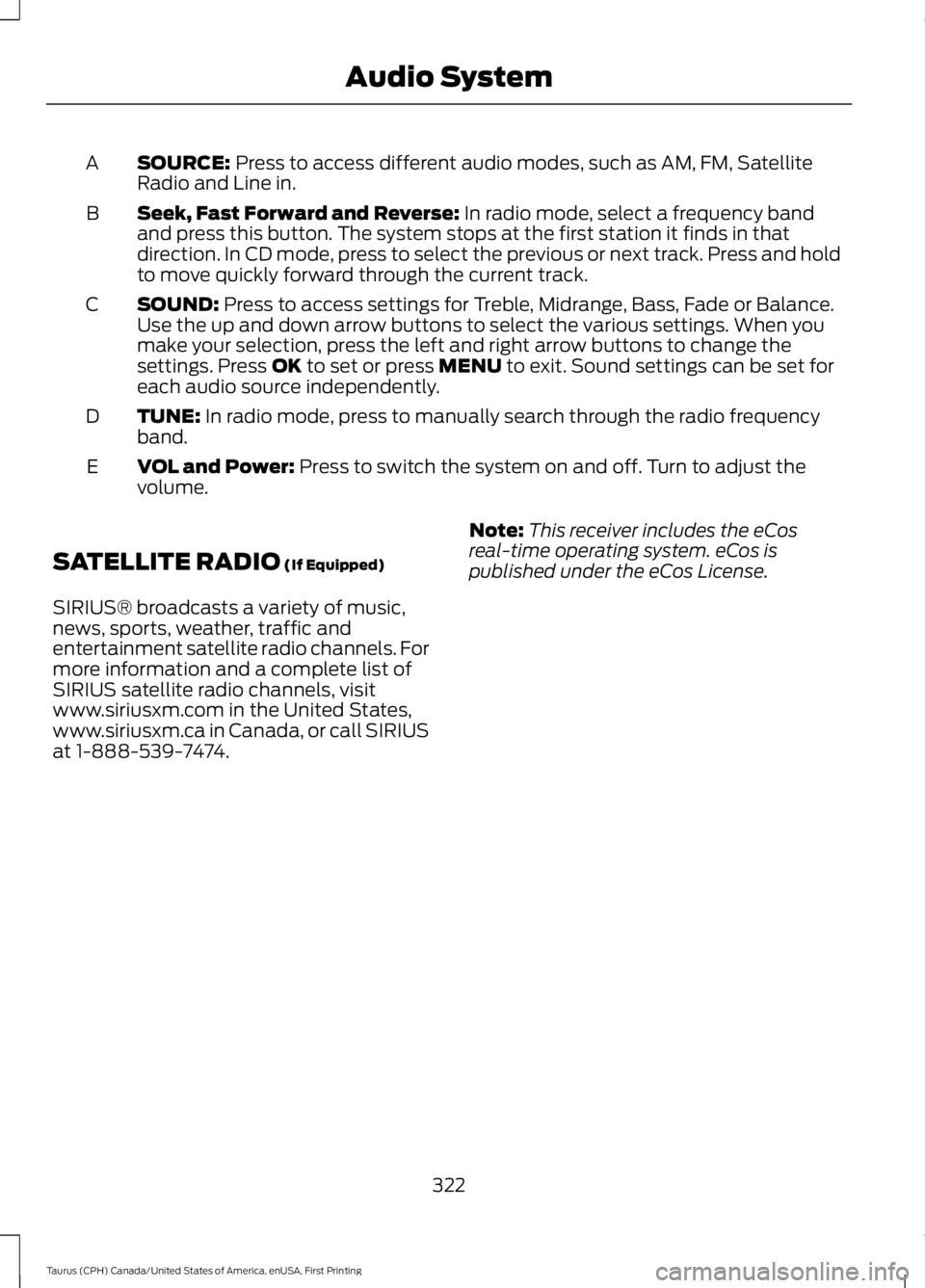
SOURCE: Press to access different audio modes, such as AM, FM, SatelliteRadio and Line in.A
Seek, Fast Forward and Reverse: In radio mode, select a frequency bandand press this button. The system stops at the first station it finds in thatdirection. In CD mode, press to select the previous or next track. Press and holdto move quickly forward through the current track.
B
SOUND: Press to access settings for Treble, Midrange, Bass, Fade or Balance.Use the up and down arrow buttons to select the various settings. When youmake your selection, press the left and right arrow buttons to change thesettings. Press OK to set or press MENU to exit. Sound settings can be set foreach audio source independently.
C
TUNE: In radio mode, press to manually search through the radio frequencyband.D
VOL and Power: Press to switch the system on and off. Turn to adjust thevolume.E
SATELLITE RADIO (If Equipped)
SIRIUS® broadcasts a variety of music,news, sports, weather, traffic andentertainment satellite radio channels. Formore information and a complete list ofSIRIUS satellite radio channels, visitwww.siriusxm.com in the United States,www.siriusxm.ca in Canada, or call SIRIUSat 1-888-539-7474.
Note:This receiver includes the eCosreal-time operating system. eCos ispublished under the eCos License.
322
Taurus (CPH) Canada/United States of America, enUSA, First Printing
Audio System
Page 326 of 504
Satellite Radio Reception Factors
Potential satellite radio reception issues
For optimal reception performance, keep the antennaclear of snow and ice build-up and keep luggage and othermaterial as far away from the antenna as possible.
Antenna obstructions
Hills, mountains, tall buildings, bridges, tunnels, freewayoverpasses, parking garages, dense tree foliage andthunderstorms can interfere with your reception.
Terrain
When you pass a ground-based broadcast-repeatingtower, a stronger signal may overtake a weaker one andthe audio system may mute.
Station overload
Your display may show ACQUIRING . . . to indicate theinterference and the audio system may mute.Satellite radio signal interfer-ence
SIRIUS® Satellite Radio Service
Note:SIRIUS reserves the unrestricted rightto change, rearrange, add or deleteprogramming including canceling, movingor adding particular channels, and its prices,at any time, with or without notice to you.Ford Motor Company shall not beresponsible for any such programmingchanges.
SIRIUS satellite radio is asubscription-based satellite radio servicethat broadcasts a variety of music, sports,news, weather, traffic and entertainmentprogramming. Your factory-installedSIRIUS satellite radio system includeshardware and a limited subscription term,which begins on the date of sale or leaseof your vehicle. See an authorized dealerfor availability.
For more information on extendedsubscription terms (a service fee isrequired), the online media player and acomplete list of SIRIUS satellite radiochannels, and other features, please visitwww.siriusxm.com in the United States,www.siriusxm.ca in Canada, or call SIRIUSat 1-888-539-7474.
Satellite Radio Electronic SerialNumber (ESN)
You need your ESN to activate, modify ortrack your satellite radio account. When insatellite radio mode, tune to channel 0.
323
Taurus (CPH) Canada/United States of America, enUSA, First Printing
Audio SystemE208625
Page 327 of 504
Troubleshooting
ActionConditionMessage
No action required. Thismessage should disappearshortly.
Radio requires more thantwo seconds to produceaudio for the selectedchannel.
Acquiring…
If this message does notclear shortly, or with an igni-tion key cycle, your receivermay have a fault. See anauthorized dealer for service.
There is an internal moduleor system failure present.Satellite antenna fault
SIRIUS system failure
Tune to another channel orchoose another preset.The channel is no longeravailable.Invalid Channel
Contact SIRIUS at 1-888-539-7474 to subscribe tothe channel, or tune toanother channel.
Your subscription does notinclude this channel.Unsubscribed Channel
The signal is blocked. Whenyou move into an open area,the signal should return.
The signal is lost from theSIRIUS satellite or SIRIUStower to your vehicleantenna.
No Signal
No action required. Theprocess may take up tothree minutes.
Update of channelprogramming in progress.Updating…
Contact SIRIUS at 1-888-539-7474 to resolvesubscription issues.
Your satellite service is nolonger available.Questions? Call
1-888-539-7474
Use the channel guide toturn off the Lock or Skipfunction on that station.
All the channels in theselected category are eitherskipped or locked.
None found
Check Channel Guide
No action required.SIRIUS has updated thechannels available for yourvehicle.
Subscription Updated
324
Taurus (CPH) Canada/United States of America, enUSA, First Printing
Audio System
Page 328 of 504
AUDIO INPUT JACK
WARNINGS
Driving while distracted can result inloss of vehicle control, crash andinjury. We strongly recommend thatyou use extreme caution when using anydevice that may take your focus off theroad. Your primary responsibility is the safeoperation of your vehicle. We recommendagainst the use of any hand-held devicewhile driving and encourage the use ofvoice-operated systems when possible.Make sure you are aware of all applicablelocal laws that may affect the use ofelectronic devices while driving.
For safety reasons, do not connector adjust the settings on yourportable music player while yourvehicle is moving.
Store the portable music player in asecure location, such as the centerconsole or the glove box, when yourvehicle is moving. Hard objects maybecome projectiles in a collision or suddenstop, which may increase the risk of seriousinjury. The audio extension cable must belong enough to allow the portable musicplayer to be safely stored while yourvehicle is moving.
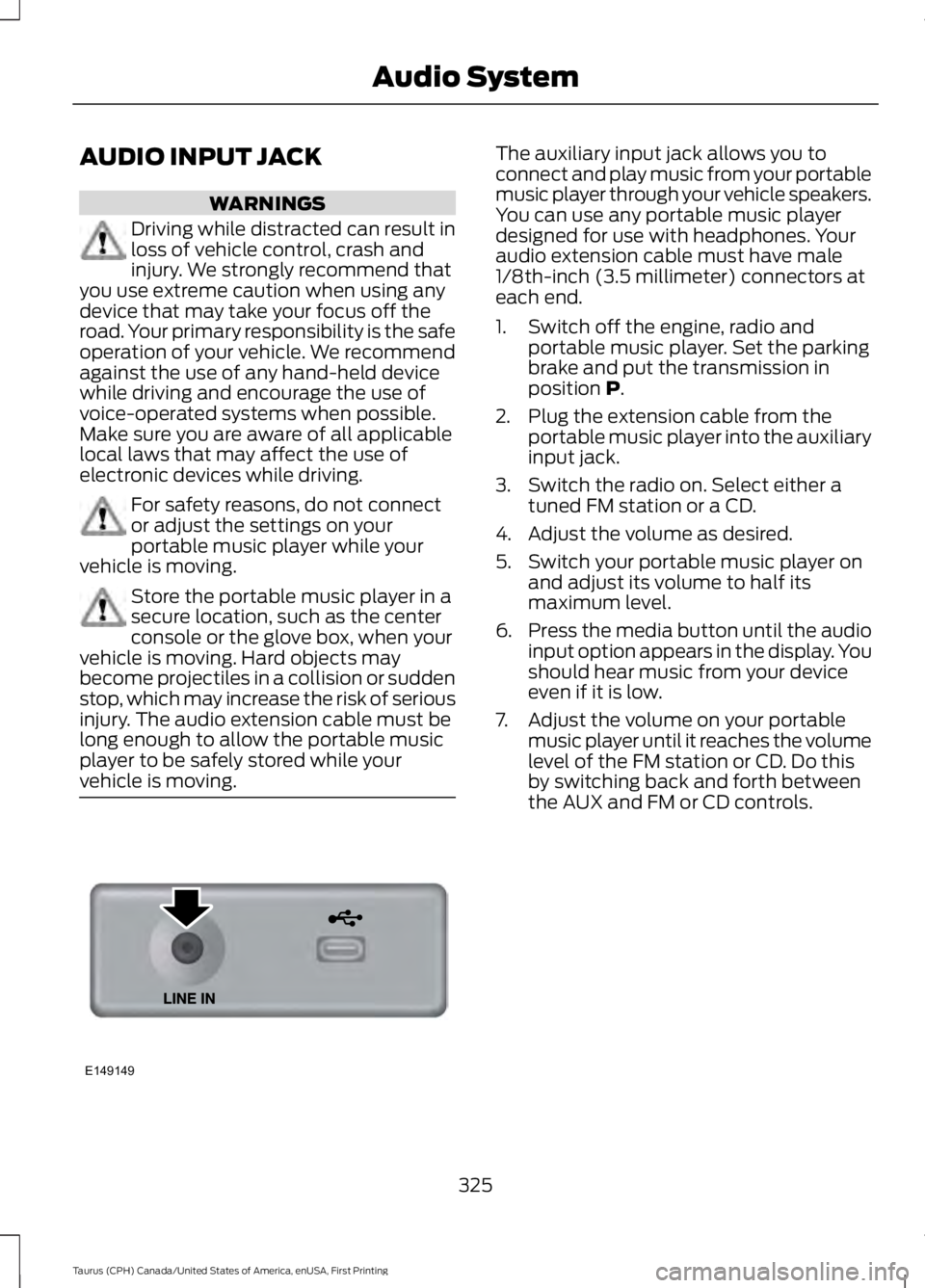
The auxiliary input jack allows you toconnect and play music from your portablemusic player through your vehicle speakers.You can use any portable music playerdesigned for use with headphones. Youraudio extension cable must have male1/8th-inch (3.5 millimeter) connectors ateach end.
1. Switch off the engine, radio andportable music player. Set the parkingbrake and put the transmission inposition P.
2. Plug the extension cable from theportable music player into the auxiliaryinput jack.
3. Switch the radio on. Select either atuned FM station or a CD.
4. Adjust the volume as desired.
5. Switch your portable music player onand adjust its volume to half itsmaximum level.
6.Press the media button until the audioinput option appears in the display. Youshould hear music from your deviceeven if it is low.
7. Adjust the volume on your portablemusic player until it reaches the volumelevel of the FM station or CD. Do thisby switching back and forth betweenthe AUX and FM or CD controls.
325
Taurus (CPH) Canada/United States of America, enUSA, First Printing
Audio SystemE149149
Page 329 of 504
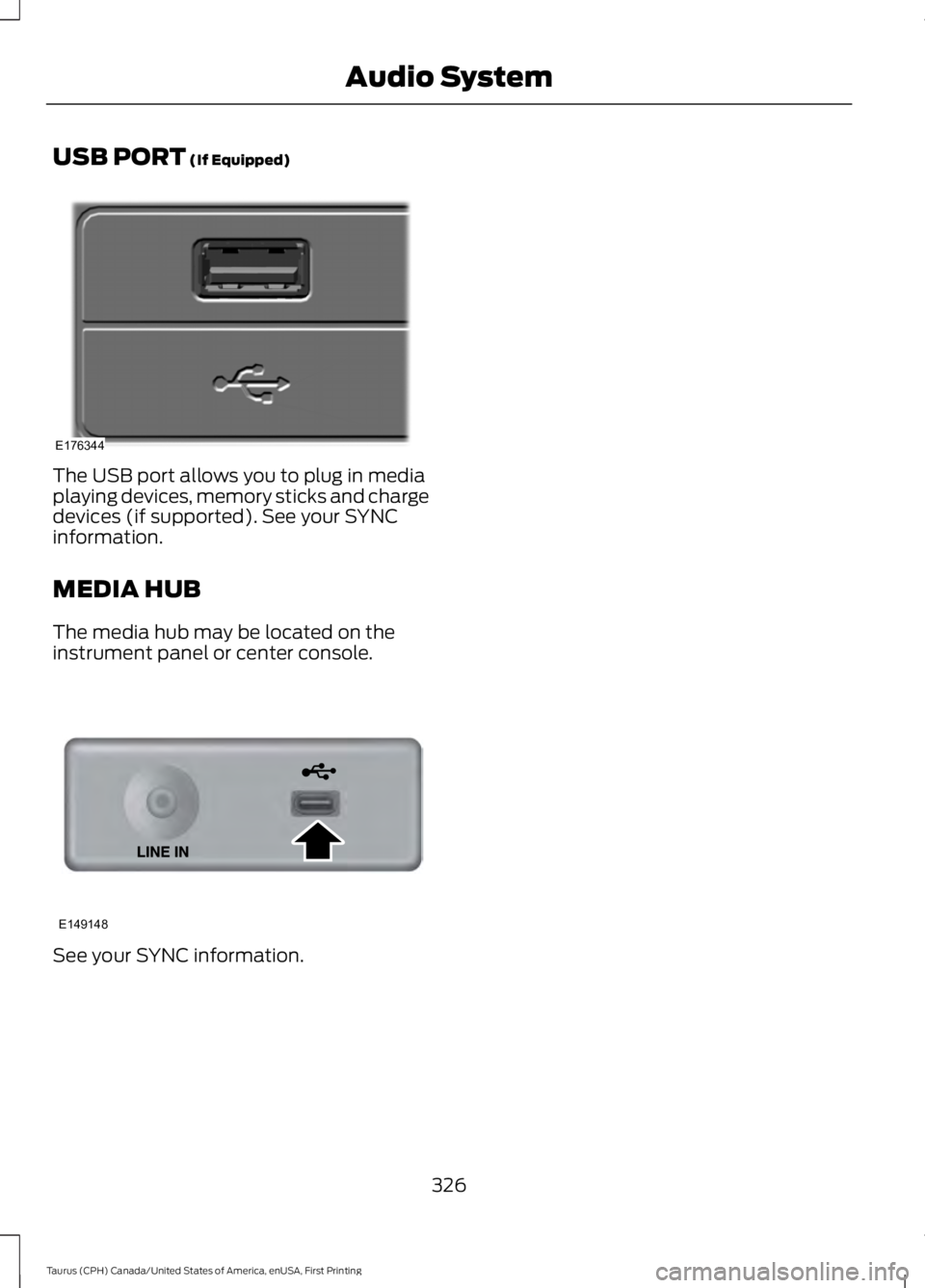
USB PORT (If Equipped)
The USB port allows you to plug in mediaplaying devices, memory sticks and chargedevices (if supported). See your SYNCinformation.
MEDIA HUB
The media hub may be located on theinstrument panel or center console.
See your SYNC information.
326
Taurus (CPH) Canada/United States of America, enUSA, First Printing
Audio SystemE176344 E149148
Page 332 of 504
System data cannot be accessed withoutspecial equipment and access to thevehicle's SYNC module. Ford MotorCompany and Ford of Canada will notaccess the system data for any purposeother than as described absent consent, acourt order, or where required by lawenforcement, other governmentauthorities, or other third parties actingwith lawful authority. Other parties mayseek to access the informationindependently of Ford Motor Company andFord of Canada. For further privacyinformation, see the sections on 911 Assist,Vehicle Health Report, and Traffic,Directions and Information.
USING VOICE RECOGNITION
This system helps you control manyfeatures using voice commands. Thisallows you to keep your hands on thewheel and focus on what is in front of you.
Helpful Hints
•Make sure the interior of your vehicle isas quiet as possible. Wind noise fromopen windows and road vibrations mayprevent the system from correctlyrecognizing spoken commands.
•After pressing the voice button, waituntil after the tone sounds andListening appears before saying acommand. Any command spokenbefore this does not register with thesystem.
•Speak naturally, without long pausesbetween words.
•At any time, you can interrupt thesystem while it is speaking by pressingthe voice button.
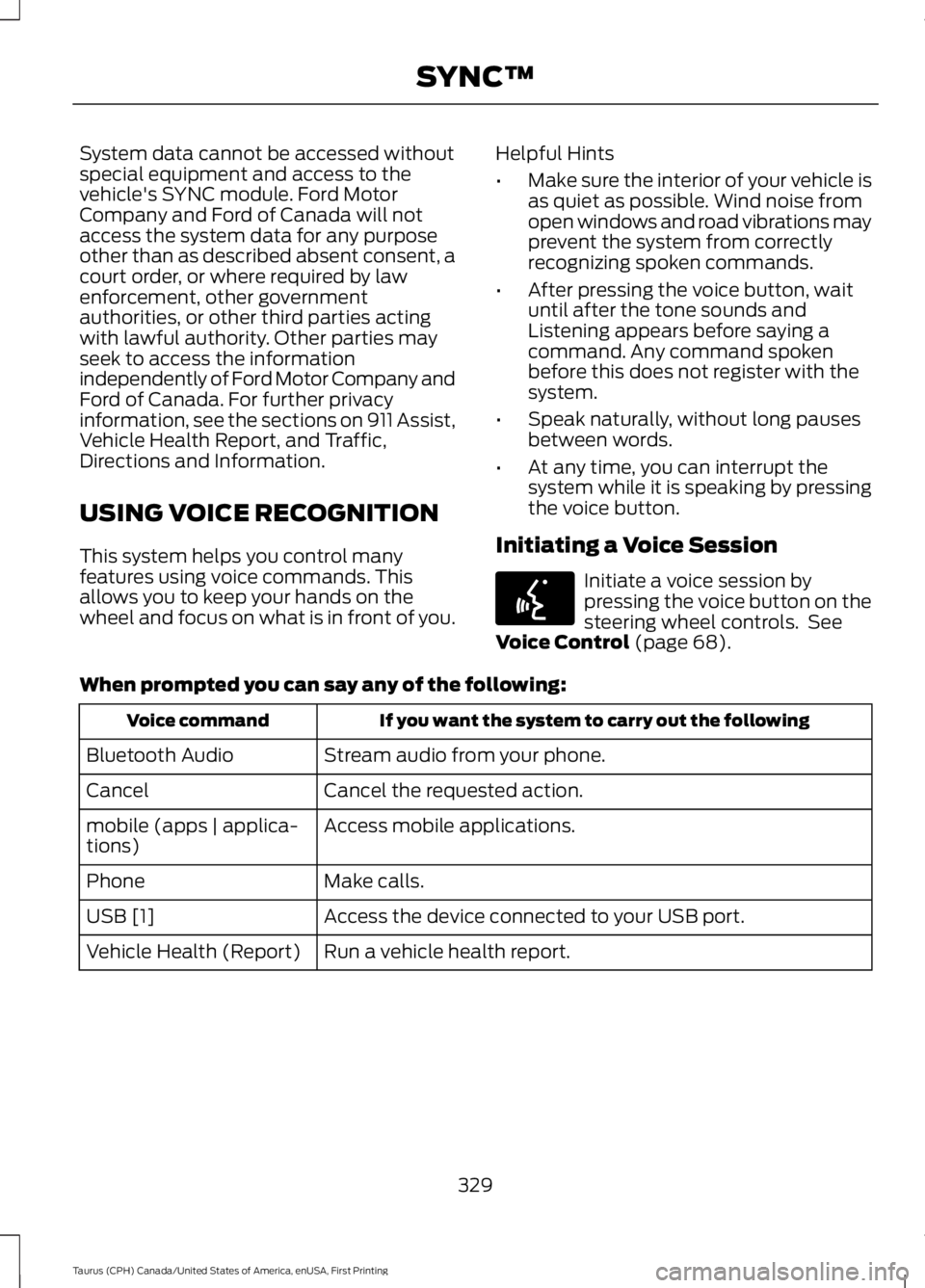
Initiating a Voice Session
Initiate a voice session bypressing the voice button on thesteering wheel controls. SeeVoice Control (page 68).
When prompted you can say any of the following:
If you want the system to carry out the followingVoice command
Stream audio from your phone.Bluetooth Audio
Cancel the requested action.Cancel
Access mobile applications.mobile (apps | applica-tions)
Make calls.Phone
Access the device connected to your USB port.USB [1]
Run a vehicle health report.Vehicle Health (Report)
329
Taurus (CPH) Canada/United States of America, enUSA, First Printing
SYNC™E142599
Page 335 of 504
USING SYNC™ WITH YOUR
PHONE
Hands-free calling is one of the mainfeatures of SYNC. While the systemsupports a variety of features, many aredependent on your cell phone'sfunctionality. At a minimum, most cellphones with Bluetooth wireless technologysupport the following functions:
•Answering an incoming call.
•Ending a call.
•Using privacy mode.
•Dialing a number.
•Redialing.
•Call waiting notification.
•Caller ID.
Other features, such as text messagingusing Bluetooth and automatic phonebookdownload, are cell phone-dependentfeatures. To check your cell phone'scompatibility, see your cell phone's manualand visit www.SYNCMyRide.com,www.SYNCMyRide.ca orwww.syncmaroute.ca.
Pairing a Cell Phone for the FirstTime
Note:SYNC can support downloading upto approximately 1000 entries perBluetooth-enabled cell phone.
Note:Make sure to switch on the ignitionand the radio. Put the transmission inposition park (P) (automatic transmission)or neutral with the parking brake applied(manual transmission).
Note:To scroll through the menus, pressthe up and down arrows on your audiosystem.
Wirelessly pairing your cell phone withSYNC allows you to make and receivehands-free calls.
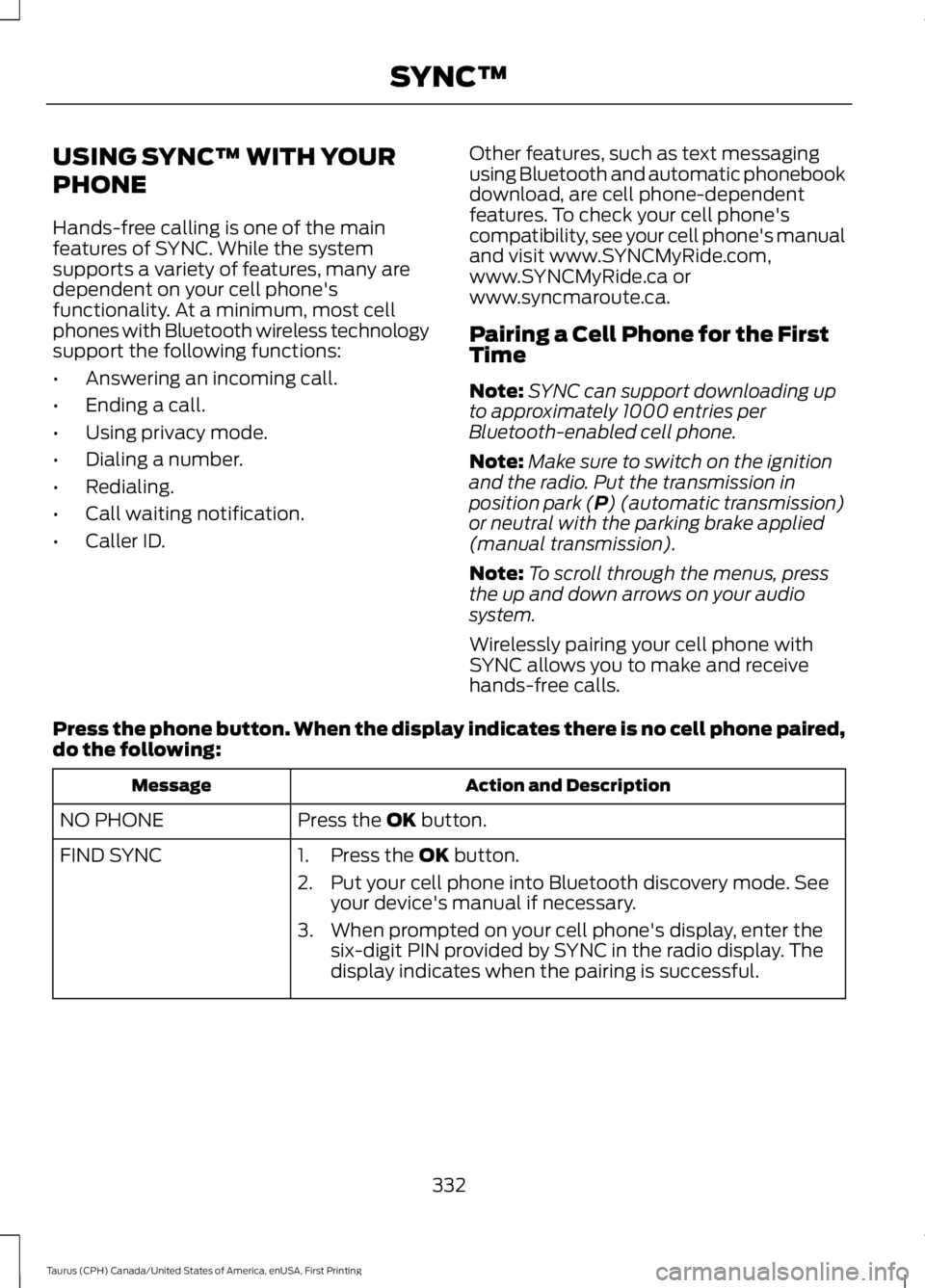
Press the phone button. When the display indicates there is no cell phone paired,do the following:
Action and DescriptionMessage
Press the OK button.NO PHONE
FIND SYNC1. Press the OK button.
2. Put your cell phone into Bluetooth discovery mode. Seeyour device's manual if necessary.
3. When prompted on your cell phone's display, enter thesix-digit PIN provided by SYNC in the radio display. Thedisplay indicates when the pairing is successful.
332
Taurus (CPH) Canada/United States of America, enUSA, First Printing
SYNC™
Page 336 of 504
Depending on your cell phone's capabilityand your market, the system may promptyou with questions, such as setting thecurrent cell phone as the primary cellphone (the cell phone SYNC automaticallytries to connect with first upon vehiclestart-up) and downloading yourphonebook.
Pairing Subsequent Cell Phones
Note:To scroll through the menus, pressthe up and down arrows on your audiosystem.
Note:Make sure to switch on the ignitionand the radio. Put the transmission inposition park (P) (automatic transmission)or neutral with the parking brake applied(manual transmission).
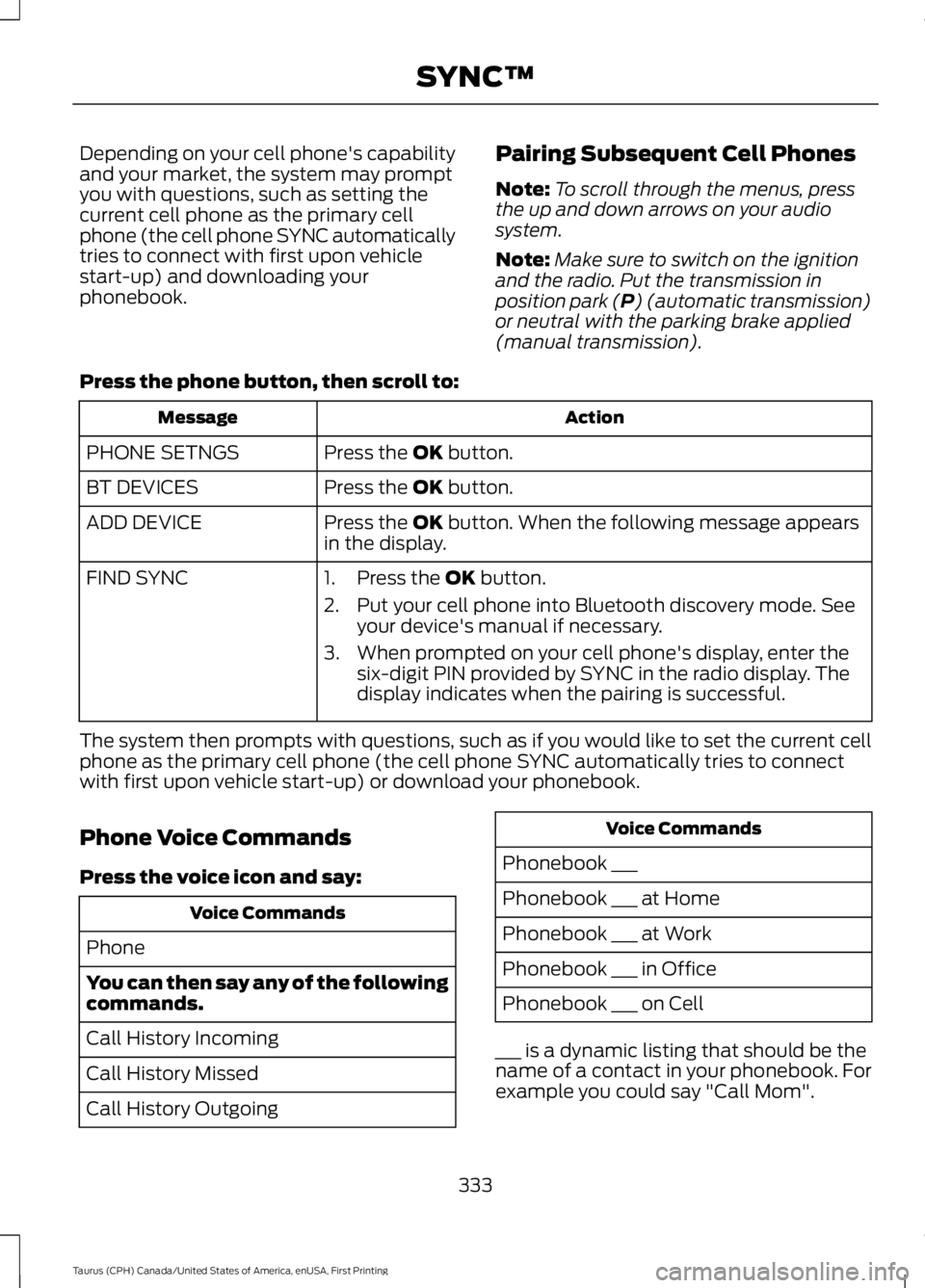
Press the phone button, then scroll to:
ActionMessage
Press the OK button.PHONE SETNGS
Press the OK button.BT DEVICES
Press the OK button. When the following message appearsin the display.ADD DEVICE
FIND SYNC1. Press the OK button.
2. Put your cell phone into Bluetooth discovery mode. Seeyour device's manual if necessary.
3. When prompted on your cell phone's display, enter thesix-digit PIN provided by SYNC in the radio display. Thedisplay indicates when the pairing is successful.
The system then prompts with questions, such as if you would like to set the current cellphone as the primary cell phone (the cell phone SYNC automatically tries to connectwith first upon vehicle start-up) or download your phonebook.
Phone Voice Commands
Press the voice icon and say:
Voice Commands
Phone
You can then say any of the followingcommands.
Call History Incoming
Call History Missed
Call History Outgoing
Voice Commands
Phonebook ___
Phonebook ___ at Home
Phonebook ___ at Work
Phonebook ___ in Office
Phonebook ___ on Cell
___ is a dynamic listing that should be thename of a contact in your phonebook. Forexample you could say "Call Mom".
333
Taurus (CPH) Canada/United States of America, enUSA, First Printing
SYNC™
Page 352 of 504
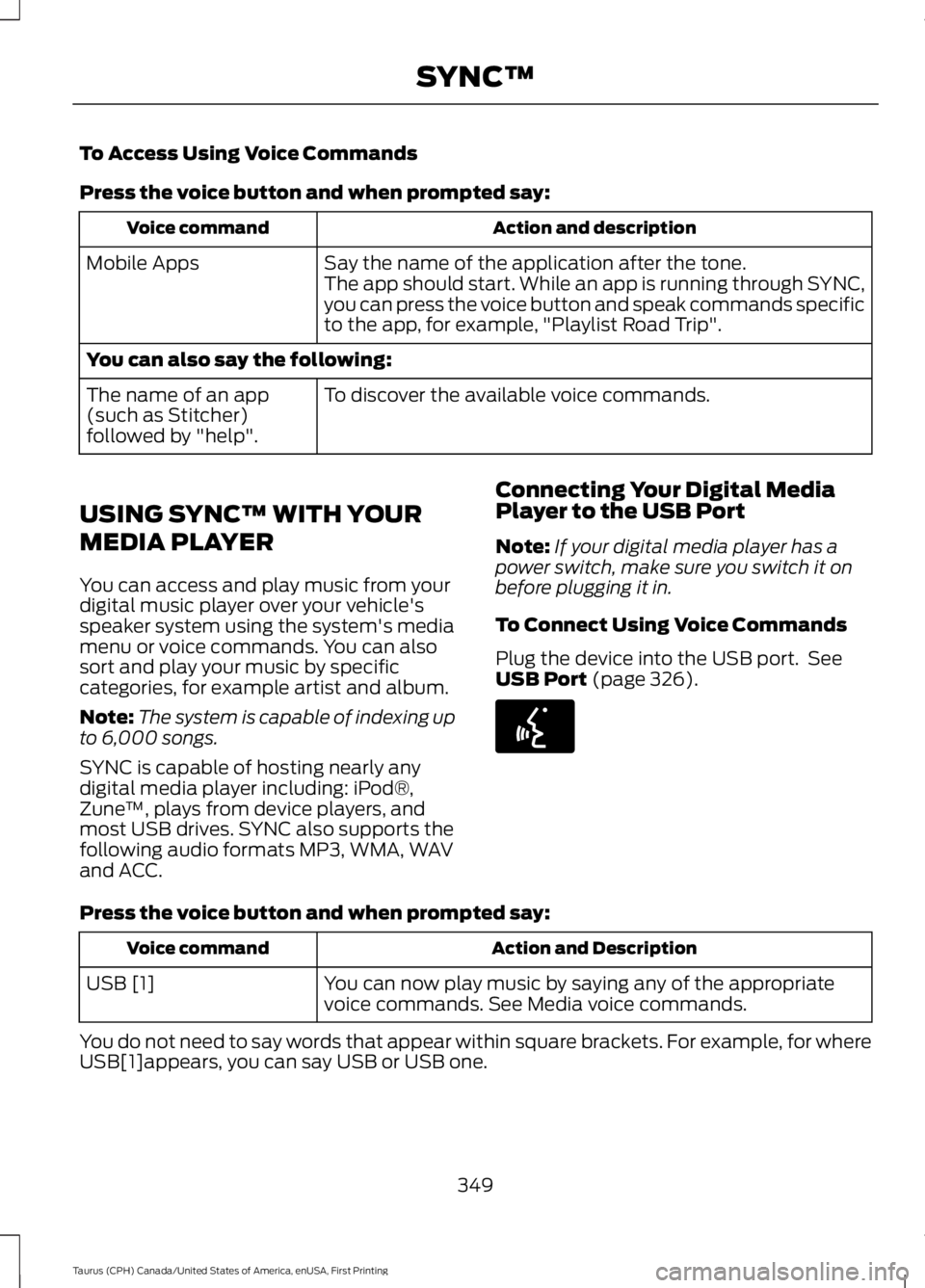
To Access Using Voice Commands
Press the voice button and when prompted say:
Action and descriptionVoice command
Say the name of the application after the tone.The app should start. While an app is running through SYNC,you can press the voice button and speak commands specificto the app, for example, "Playlist Road Trip".
Mobile Apps
You can also say the following:
To discover the available voice commands.The name of an app(such as Stitcher)followed by "help".
USING SYNC™ WITH YOUR
MEDIA PLAYER
You can access and play music from yourdigital music player over your vehicle'sspeaker system using the system's mediamenu or voice commands. You can alsosort and play your music by specificcategories, for example artist and album.
Note:The system is capable of indexing upto 6,000 songs.
SYNC is capable of hosting nearly anydigital media player including: iPod®,Zune™, plays from device players, andmost USB drives. SYNC also supports thefollowing audio formats MP3, WMA, WAVand ACC.
Connecting Your Digital MediaPlayer to the USB Port
Note:If your digital media player has apower switch, make sure you switch it onbefore plugging it in.
To Connect Using Voice Commands
Plug the device into the USB port. SeeUSB Port (page 326).
Press the voice button and when prompted say:
Action and DescriptionVoice command
You can now play music by saying any of the appropriatevoice commands. See Media voice commands.USB [1]
You do not need to say words that appear within square brackets. For example, for whereUSB[1]appears, you can say USB or USB one.
349
Taurus (CPH) Canada/United States of America, enUSA, First Printing
SYNC™E142599
Page 355 of 504
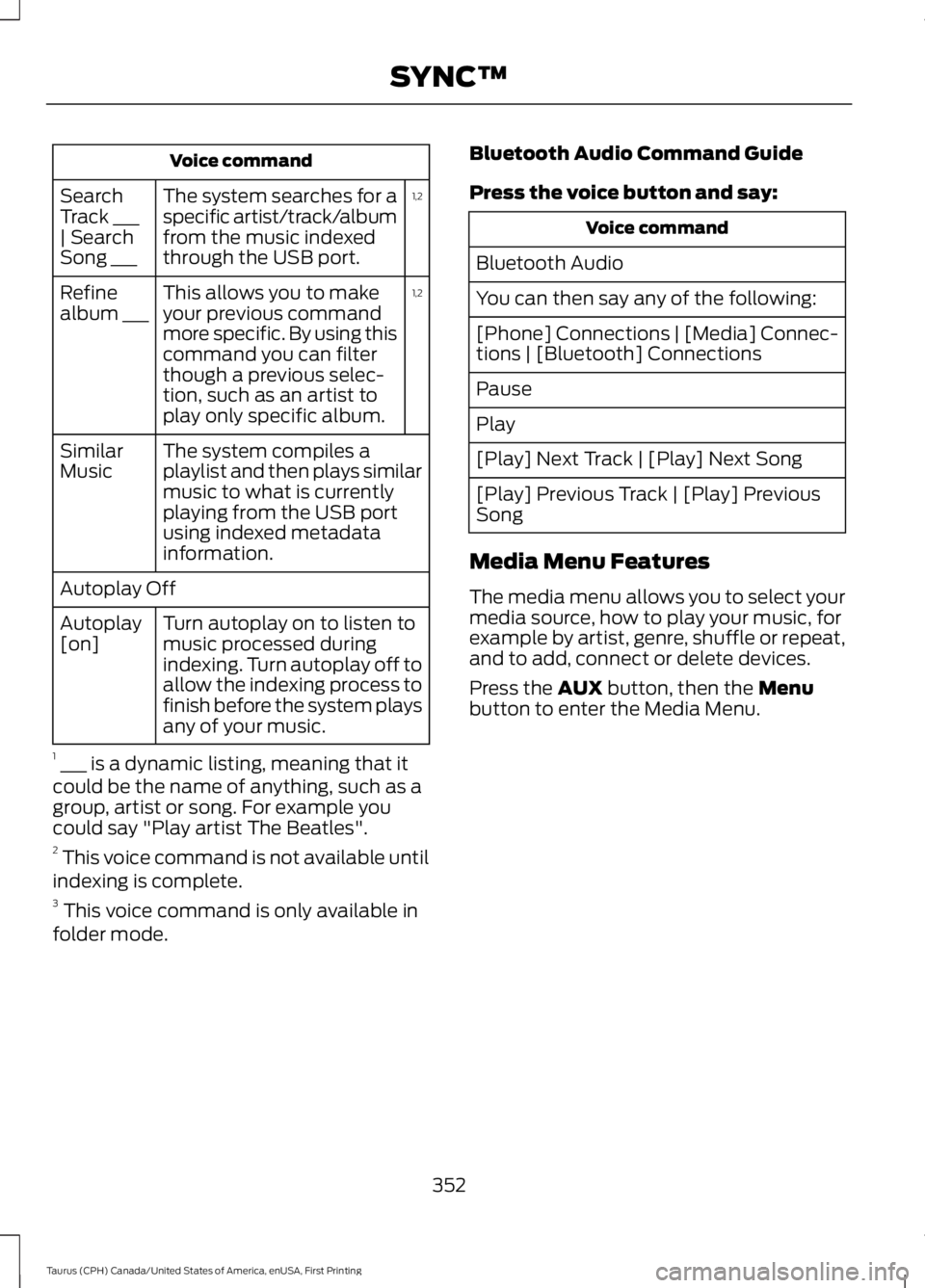
Voice command
1,2The system searches for aspecific artist/track/albumfrom the music indexedthrough the USB port.
SearchTrack ___| SearchSong ___
1,2This allows you to makeyour previous commandmore specific. By using thiscommand you can filterthough a previous selec-tion, such as an artist toplay only specific album.
Refinealbum ___
The system compiles aplaylist and then plays similarmusic to what is currentlyplaying from the USB portusing indexed metadatainformation.
SimilarMusic
Autoplay Off
Turn autoplay on to listen tomusic processed duringindexing. Turn autoplay off toallow the indexing process tofinish before the system playsany of your music.
Autoplay[on]
1 ___ is a dynamic listing, meaning that itcould be the name of anything, such as agroup, artist or song. For example youcould say "Play artist The Beatles".2 This voice command is not available untilindexing is complete.3 This voice command is only available infolder mode.
Bluetooth Audio Command Guide
Press the voice button and say:
Voice command
Bluetooth Audio
You can then say any of the following:
[Phone] Connections | [Media] Connec-tions | [Bluetooth] Connections
Pause
Play
[Play] Next Track | [Play] Next Song
[Play] Previous Track | [Play] PreviousSong
Media Menu Features
The media menu allows you to select yourmedia source, how to play your music, forexample by artist, genre, shuffle or repeat,and to add, connect or delete devices.
Press the AUX button, then the Menubutton to enter the Media Menu.
352
Taurus (CPH) Canada/United States of America, enUSA, First Printing
SYNC™