reset FORD TAURUS 2017 Service Manual
[x] Cancel search | Manufacturer: FORD, Model Year: 2017, Model line: TAURUS, Model: FORD TAURUS 2017Pages: 504, PDF Size: 5.84 MB
Page 396 of 504
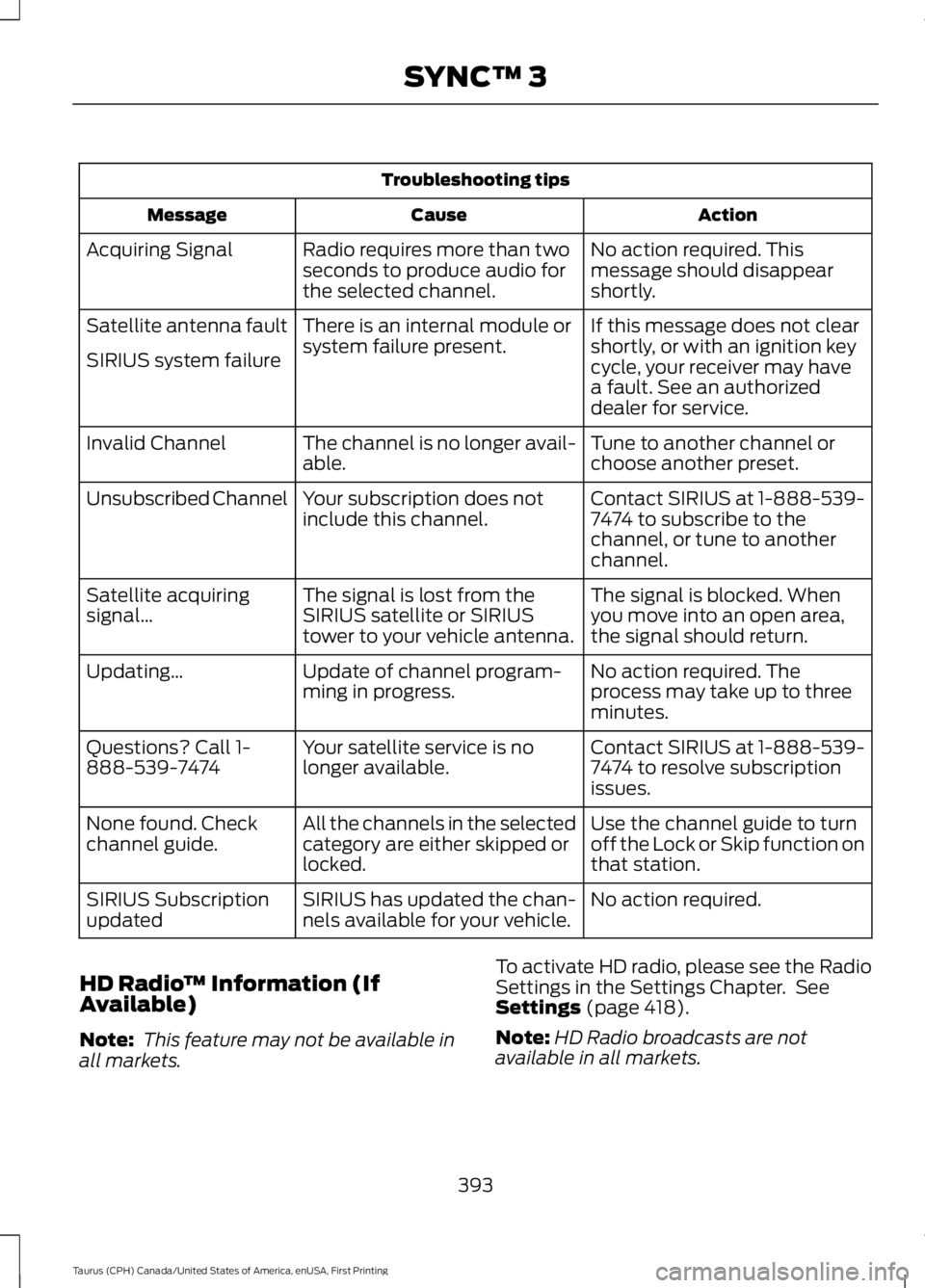
Troubleshooting tips
ActionCauseMessage
No action required. Thismessage should disappearshortly.
Radio requires more than twoseconds to produce audio forthe selected channel.
Acquiring Signal
If this message does not clearshortly, or with an ignition keycycle, your receiver may havea fault. See an authorizeddealer for service.
There is an internal module orsystem failure present.Satellite antenna fault
SIRIUS system failure
Tune to another channel orchoose another preset.The channel is no longer avail-able.Invalid Channel
Contact SIRIUS at 1-888-539-7474 to subscribe to thechannel, or tune to anotherchannel.
Your subscription does notinclude this channel.Unsubscribed Channel
The signal is blocked. Whenyou move into an open area,the signal should return.
The signal is lost from theSIRIUS satellite or SIRIUStower to your vehicle antenna.
Satellite acquiringsignal…
No action required. Theprocess may take up to threeminutes.
Update of channel program-ming in progress.Updating…
Contact SIRIUS at 1-888-539-7474 to resolve subscriptionissues.
Your satellite service is nolonger available.Questions? Call 1-888-539-7474
Use the channel guide to turnoff the Lock or Skip function onthat station.
All the channels in the selectedcategory are either skipped orlocked.
None found. Checkchannel guide.
No action required.SIRIUS has updated the chan-nels available for your vehicle.SIRIUS Subscriptionupdated
HD Radio™ Information (IfAvailable)
Note: This feature may not be available inall markets.
To activate HD radio, please see the RadioSettings in the Settings Chapter. SeeSettings (page 418).
Note:HD Radio broadcasts are notavailable in all markets.
393
Taurus (CPH) Canada/United States of America, enUSA, First Printing
SYNC™ 3
Page 397 of 504
HD Radio technology is the digitalevolution of analog AM/FM radio. Yoursystem has a special receiver that allowsit to receive digital broadcasts (whereavailable) in addition to the analogbroadcasts, it already receives. Digitalbroadcasts provide a better sound qualitythan analog broadcasts with free,crystal-clear audio and no static ordistortion. For more information, and aguide to available stations andprogramming, please visit:
Website
www.hdradio.com
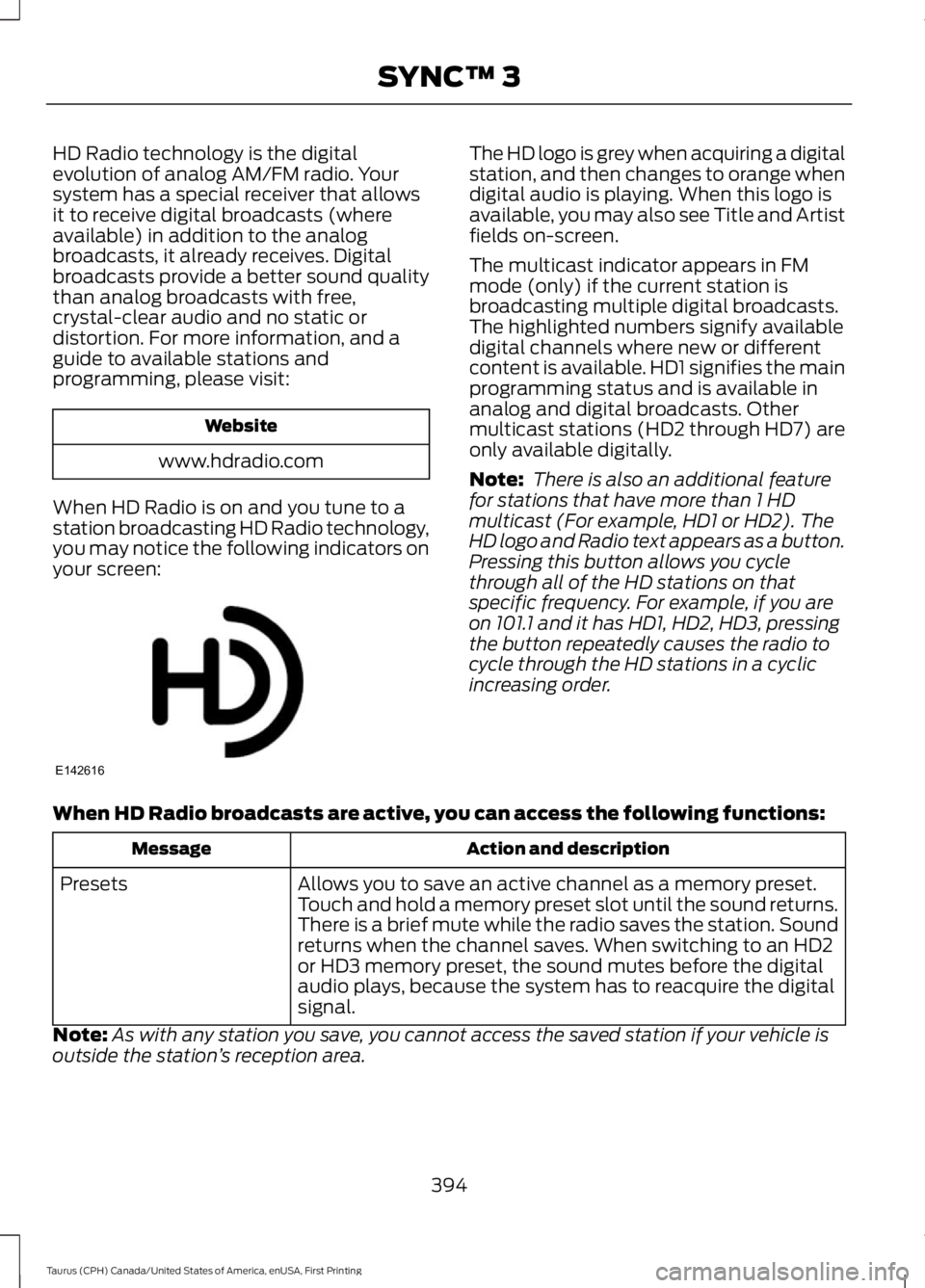
When HD Radio is on and you tune to astation broadcasting HD Radio technology,you may notice the following indicators onyour screen:
The HD logo is grey when acquiring a digitalstation, and then changes to orange whendigital audio is playing. When this logo isavailable, you may also see Title and Artistfields on-screen.
The multicast indicator appears in FMmode (only) if the current station isbroadcasting multiple digital broadcasts.The highlighted numbers signify availabledigital channels where new or differentcontent is available. HD1 signifies the mainprogramming status and is available inanalog and digital broadcasts. Othermulticast stations (HD2 through HD7) areonly available digitally.
Note: There is also an additional featurefor stations that have more than 1 HDmulticast (For example, HD1 or HD2). TheHD logo and Radio text appears as a button.Pressing this button allows you cyclethrough all of the HD stations on thatspecific frequency. For example, if you areon 101.1 and it has HD1, HD2, HD3, pressingthe button repeatedly causes the radio tocycle through the HD stations in a cyclicincreasing order.
When HD Radio broadcasts are active, you can access the following functions:
Action and descriptionMessage
Allows you to save an active channel as a memory preset.Touch and hold a memory preset slot until the sound returns.There is a brief mute while the radio saves the station. Soundreturns when the channel saves. When switching to an HD2or HD3 memory preset, the sound mutes before the digitalaudio plays, because the system has to reacquire the digitalsignal.
Presets
Note:As with any station you save, you cannot access the saved station if your vehicle isoutside the station’s reception area.
394
Taurus (CPH) Canada/United States of America, enUSA, First Printing
SYNC™ 3E142616
Page 398 of 504
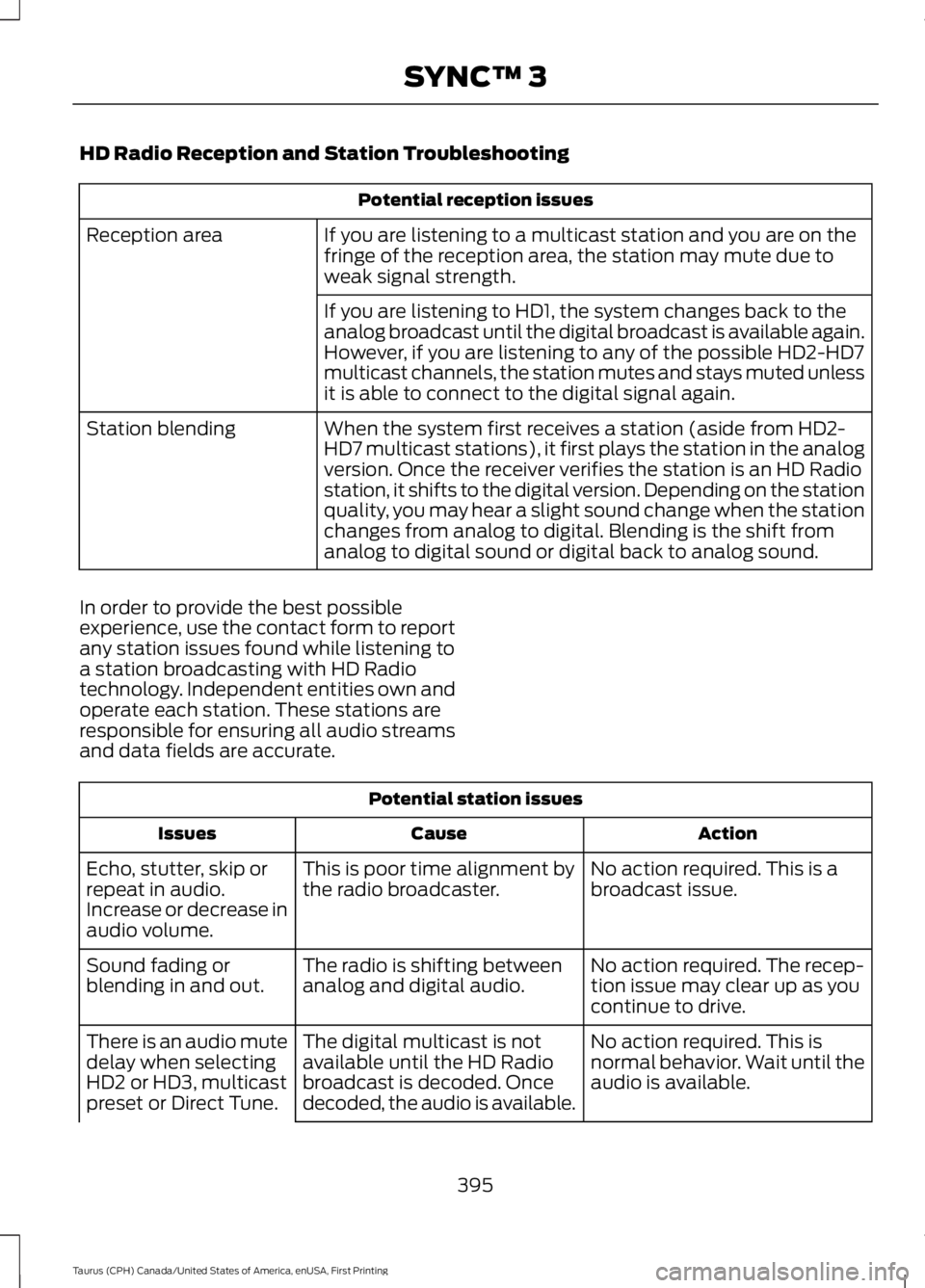
HD Radio Reception and Station Troubleshooting
Potential reception issues
If you are listening to a multicast station and you are on thefringe of the reception area, the station may mute due toweak signal strength.
Reception area
If you are listening to HD1, the system changes back to theanalog broadcast until the digital broadcast is available again.However, if you are listening to any of the possible HD2-HD7multicast channels, the station mutes and stays muted unlessit is able to connect to the digital signal again.
When the system first receives a station (aside from HD2-HD7 multicast stations), it first plays the station in the analogversion. Once the receiver verifies the station is an HD Radiostation, it shifts to the digital version. Depending on the stationquality, you may hear a slight sound change when the stationchanges from analog to digital. Blending is the shift fromanalog to digital sound or digital back to analog sound.
Station blending
In order to provide the best possibleexperience, use the contact form to reportany station issues found while listening toa station broadcasting with HD Radiotechnology. Independent entities own andoperate each station. These stations areresponsible for ensuring all audio streamsand data fields are accurate.
Potential station issues
ActionCauseIssues
No action required. This is abroadcast issue.This is poor time alignment bythe radio broadcaster.Echo, stutter, skip orrepeat in audio.Increase or decrease inaudio volume.
No action required. The recep-tion issue may clear up as youcontinue to drive.
The radio is shifting betweenanalog and digital audio.Sound fading orblending in and out.
No action required. This isnormal behavior. Wait until theaudio is available.
The digital multicast is notavailable until the HD Radiobroadcast is decoded. Oncedecoded, the audio is available.
There is an audio mutedelay when selectingHD2 or HD3, multicastpreset or Direct Tune.
395
Taurus (CPH) Canada/United States of America, enUSA, First Printing
SYNC™ 3
Page 399 of 504
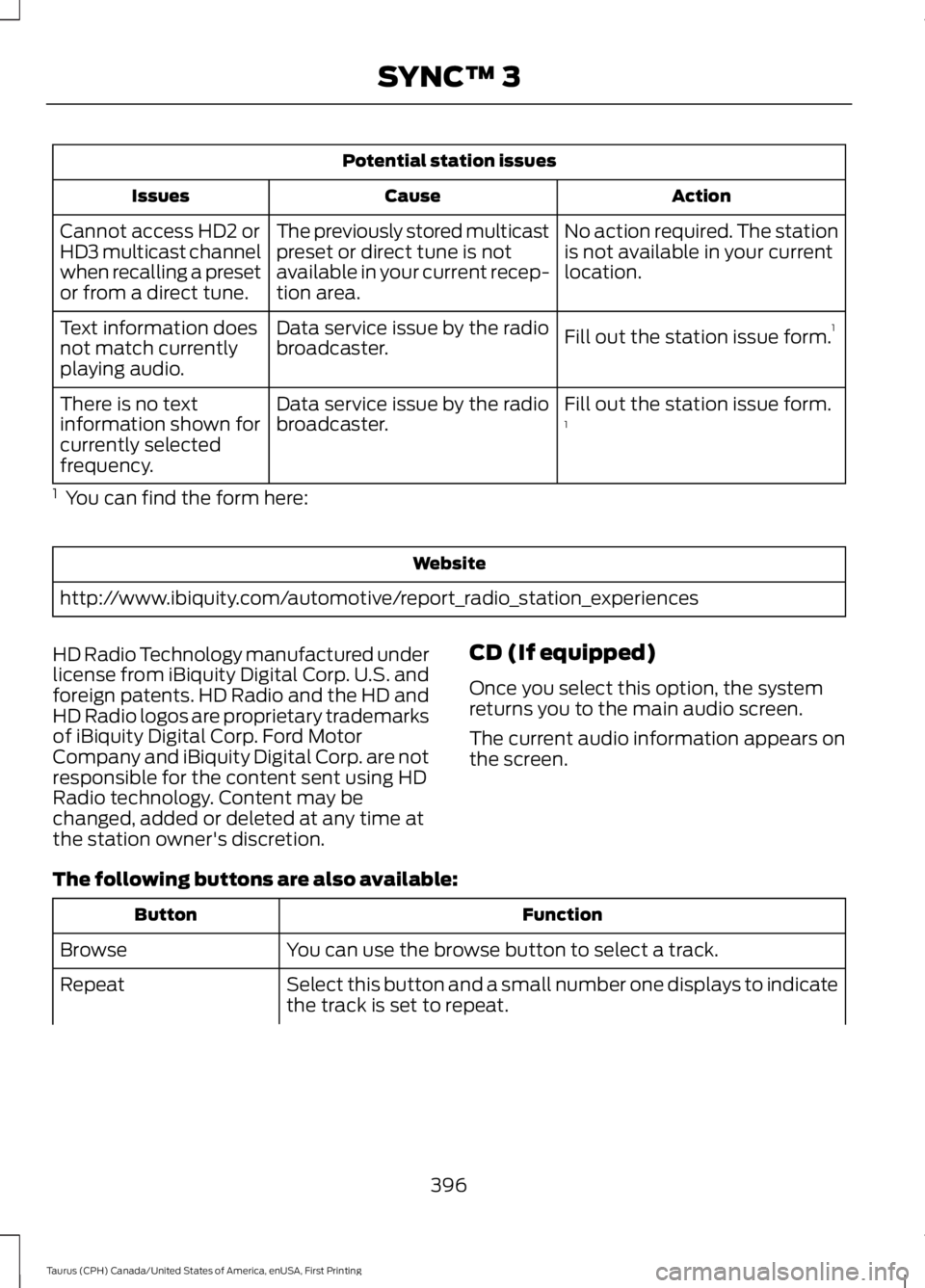
Potential station issues
ActionCauseIssues
No action required. The stationis not available in your currentlocation.
The previously stored multicastpreset or direct tune is notavailable in your current recep-tion area.
Cannot access HD2 orHD3 multicast channelwhen recalling a presetor from a direct tune.
Fill out the station issue form.1Data service issue by the radiobroadcaster.Text information doesnot match currentlyplaying audio.
Fill out the station issue form.1Data service issue by the radiobroadcaster.There is no textinformation shown forcurrently selectedfrequency.
1 You can find the form here:
Website
http://www.ibiquity.com/automotive/report_radio_station_experiences
HD Radio Technology manufactured underlicense from iBiquity Digital Corp. U.S. andforeign patents. HD Radio and the HD andHD Radio logos are proprietary trademarksof iBiquity Digital Corp. Ford MotorCompany and iBiquity Digital Corp. are notresponsible for the content sent using HDRadio technology. Content may bechanged, added or deleted at any time atthe station owner's discretion.
CD (If equipped)
Once you select this option, the systemreturns you to the main audio screen.
The current audio information appears onthe screen.
The following buttons are also available:
FunctionButton
You can use the browse button to select a track.Browse
Select this button and a small number one displays to indicatethe track is set to repeat.Repeat
396
Taurus (CPH) Canada/United States of America, enUSA, First Printing
SYNC™ 3
Page 409 of 504
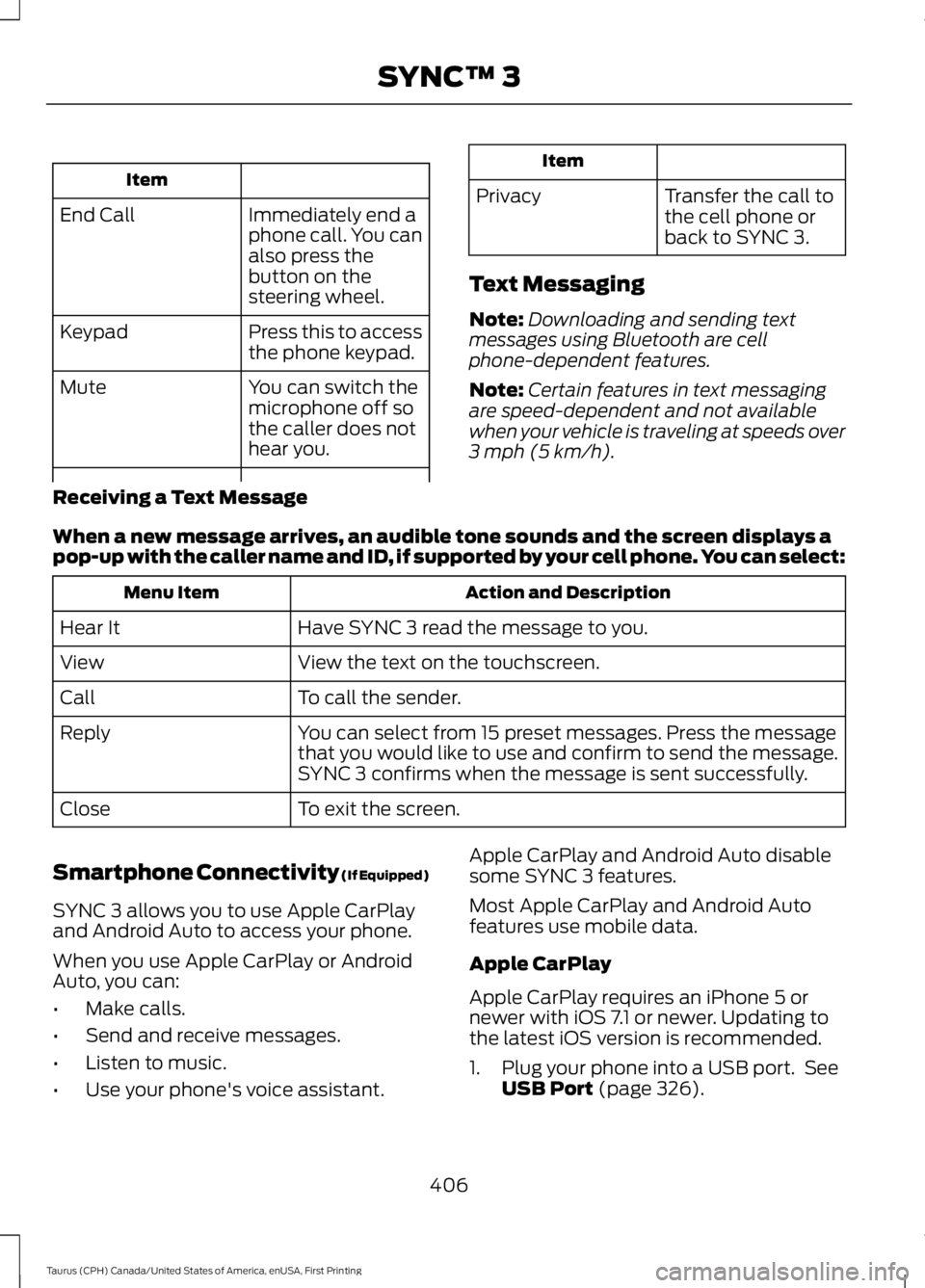
Item
Immediately end aphone call. You canalso press thebutton on thesteering wheel.
End Call
Press this to accessthe phone keypad.Keypad
You can switch themicrophone off sothe caller does nothear you.
Mute
Item
PrivacyTransfer the call tothe cell phone orback to SYNC 3.
Text Messaging
Note:Downloading and sending textmessages using Bluetooth are cellphone-dependent features.
Note:Certain features in text messagingare speed-dependent and not availablewhen your vehicle is traveling at speeds over3 mph (5 km/h).
Receiving a Text Message
When a new message arrives, an audible tone sounds and the screen displays apop-up with the caller name and ID, if supported by your cell phone. You can select:
Action and DescriptionMenu Item
Have SYNC 3 read the message to you.Hear It
View the text on the touchscreen.View
To call the sender.Call
You can select from 15 preset messages. Press the messagethat you would like to use and confirm to send the message.SYNC 3 confirms when the message is sent successfully.
Reply
To exit the screen.Close
Smartphone Connectivity (If Equipped)
SYNC 3 allows you to use Apple CarPlayand Android Auto to access your phone.
When you use Apple CarPlay or AndroidAuto, you can:
•Make calls.
•Send and receive messages.
•Listen to music.
•Use your phone's voice assistant.
Apple CarPlay and Android Auto disablesome SYNC 3 features.
Most Apple CarPlay and Android Autofeatures use mobile data.
Apple CarPlay
Apple CarPlay requires an iPhone 5 ornewer with iOS 7.1 or newer. Updating tothe latest iOS version is recommended.
1. Plug your phone into a USB port. SeeUSB Port (page 326).
406
Taurus (CPH) Canada/United States of America, enUSA, First Printing
SYNC™ 3
Page 411 of 504
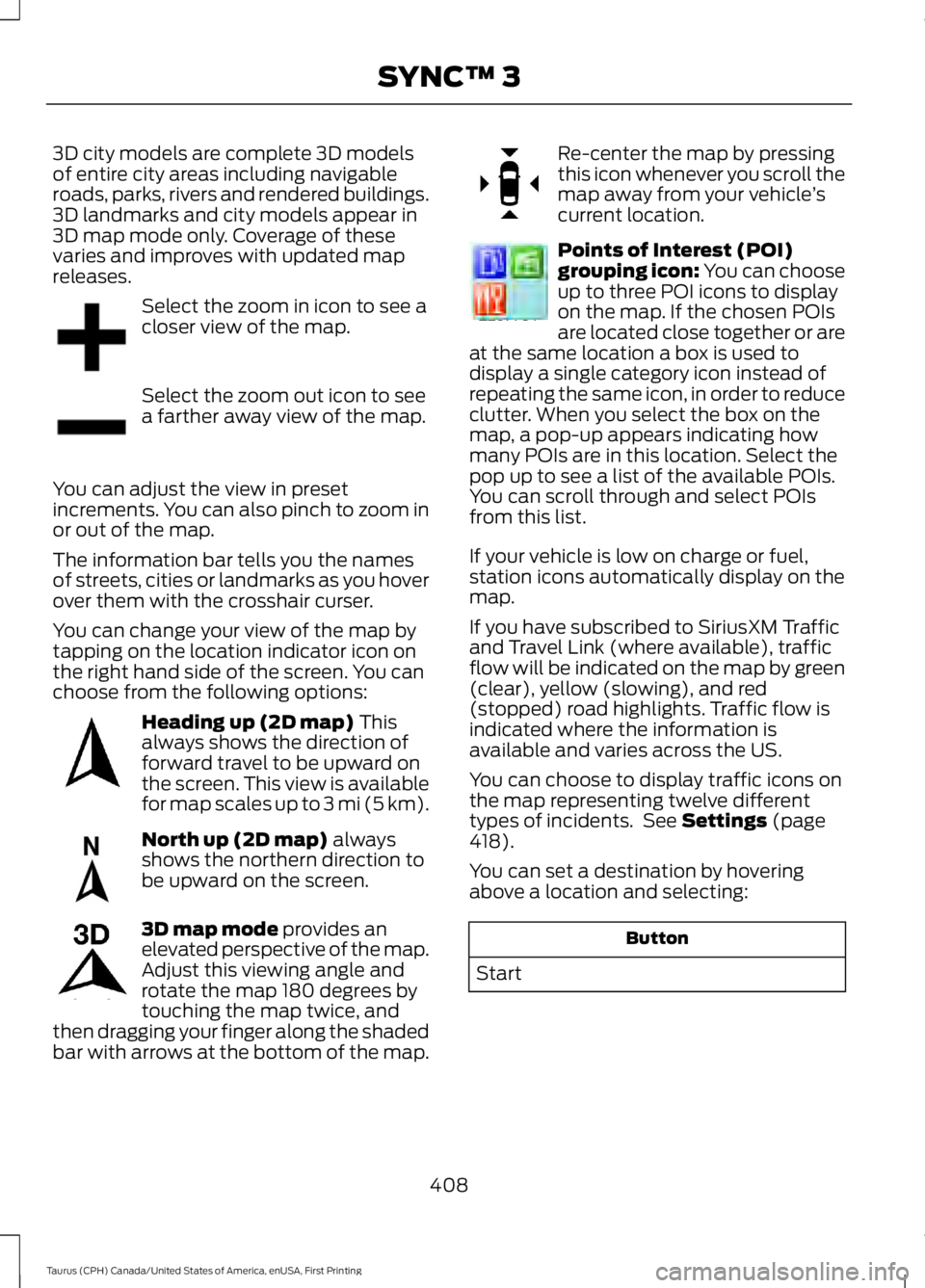
3D city models are complete 3D modelsof entire city areas including navigableroads, parks, rivers and rendered buildings.3D landmarks and city models appear in3D map mode only. Coverage of thesevaries and improves with updated mapreleases.
Select the zoom in icon to see acloser view of the map.
Select the zoom out icon to seea farther away view of the map.
You can adjust the view in presetincrements. You can also pinch to zoom inor out of the map.
The information bar tells you the namesof streets, cities or landmarks as you hoverover them with the crosshair curser.
You can change your view of the map bytapping on the location indicator icon onthe right hand side of the screen. You canchoose from the following options:
Heading up (2D map) Thisalways shows the direction offorward travel to be upward onthe screen. This view is availablefor map scales up to 3 mi (5 km).
North up (2D map) alwaysshows the northern direction tobe upward on the screen.
3D map mode provides anelevated perspective of the map.Adjust this viewing angle androtate the map 180 degrees bytouching the map twice, andthen dragging your finger along the shadedbar with arrows at the bottom of the map.
Re-center the map by pressingthis icon whenever you scroll themap away from your vehicle’scurrent location.
Points of Interest (POI)grouping icon: You can chooseup to three POI icons to displayon the map. If the chosen POIsare located close together or areat the same location a box is used todisplay a single category icon instead ofrepeating the same icon, in order to reduceclutter. When you select the box on themap, a pop-up appears indicating howmany POIs are in this location. Select thepop up to see a list of the available POIs.You can scroll through and select POIsfrom this list.
If your vehicle is low on charge or fuel,station icons automatically display on themap.
If you have subscribed to SiriusXM Trafficand Travel Link (where available), trafficflow will be indicated on the map by green(clear), yellow (slowing), and red(stopped) road highlights. Traffic flow isindicated where the information isavailable and varies across the US.
You can choose to display traffic icons onthe map representing twelve differenttypes of incidents. See Settings (page418).
You can set a destination by hoveringabove a location and selecting:
Button
Start
408
Taurus (CPH) Canada/United States of America, enUSA, First Printing
SYNC™ 3E207752 E207753 E207750 E207749 E207748 E207751 E207754
Page 421 of 504
Action and DescriptionMenu Item
Select to choose from a listing ofweather locations.Area
Touch this button to view scores and schedules from a varietyof sports. You can also save up to 10 favorite teams for easieraccess. The score automatically refreshes when a game is inprogress.
Sports Info
Touch this button to view ski conditions for a specific area.Ski Conditions
SETTINGS
Under this menu, you can access andadjust the settings for many of the systemfeatures. To access additional settings,swipe the screen left or right.
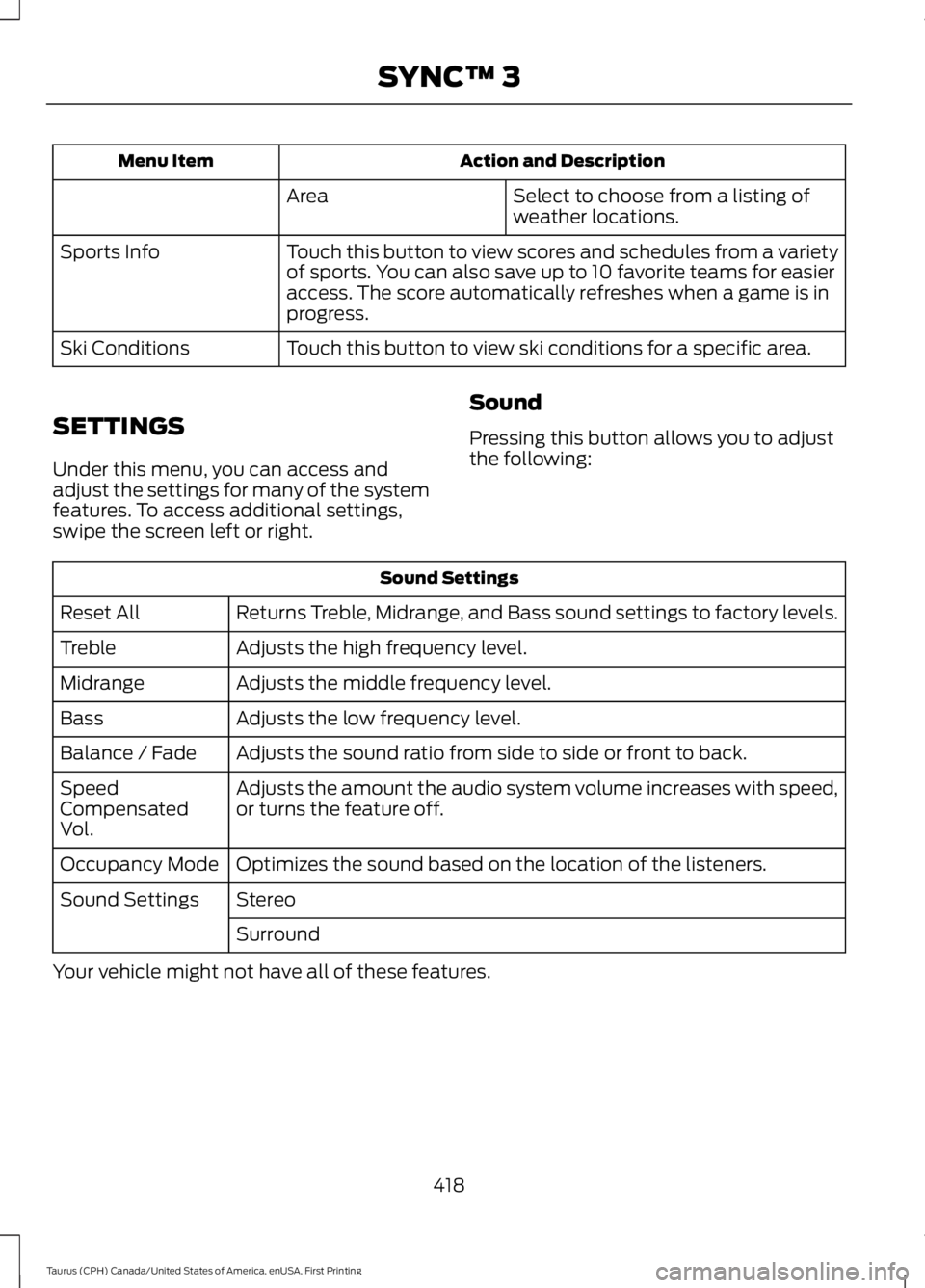
Sound
Pressing this button allows you to adjustthe following:
Sound Settings
Returns Treble, Midrange, and Bass sound settings to factory levels.Reset All
Adjusts the high frequency level.Treble
Adjusts the middle frequency level.Midrange
Adjusts the low frequency level.Bass
Adjusts the sound ratio from side to side or front to back.Balance / Fade
Adjusts the amount the audio system volume increases with speed,or turns the feature off.SpeedCompensatedVol.
Optimizes the sound based on the location of the listeners.Occupancy Mode
StereoSound Settings
Surround
Your vehicle might not have all of these features.
418
Taurus (CPH) Canada/United States of America, enUSA, First Printing
SYNC™ 3
Page 423 of 504
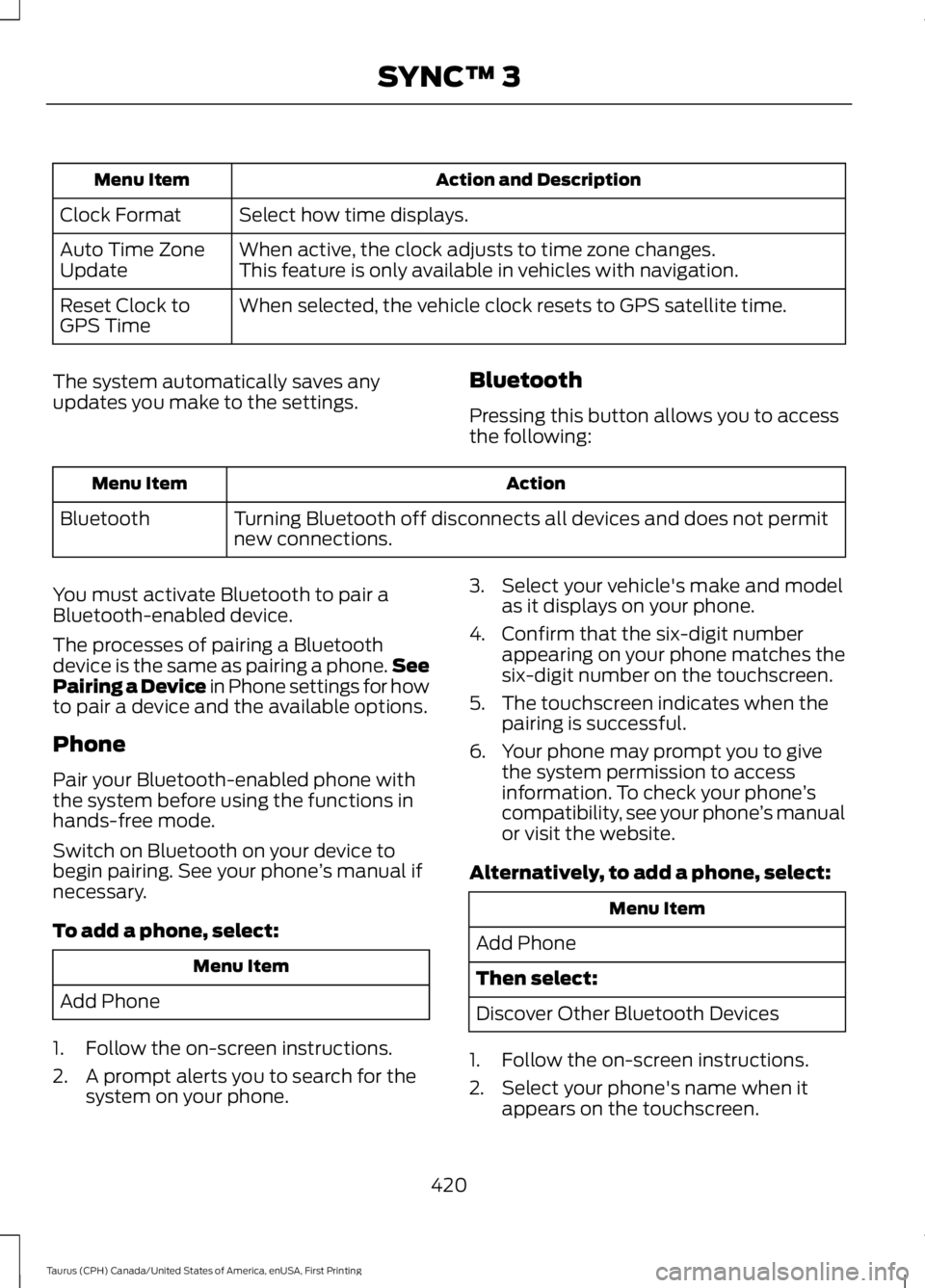
Action and DescriptionMenu Item
Select how time displays.Clock Format
When active, the clock adjusts to time zone changes.Auto Time ZoneUpdateThis feature is only available in vehicles with navigation.
When selected, the vehicle clock resets to GPS satellite time.Reset Clock toGPS Time
The system automatically saves anyupdates you make to the settings.Bluetooth
Pressing this button allows you to accessthe following:
ActionMenu Item
Turning Bluetooth off disconnects all devices and does not permitnew connections.Bluetooth
You must activate Bluetooth to pair aBluetooth-enabled device.
The processes of pairing a Bluetoothdevice is the same as pairing a phone.SeePairing a Device in Phone settings for howto pair a device and the available options.
Phone
Pair your Bluetooth-enabled phone withthe system before using the functions inhands-free mode.
Switch on Bluetooth on your device tobegin pairing. See your phone’s manual ifnecessary.
To add a phone, select:
Menu Item
Add Phone
1. Follow the on-screen instructions.
2. A prompt alerts you to search for thesystem on your phone.
3. Select your vehicle's make and modelas it displays on your phone.
4. Confirm that the six-digit numberappearing on your phone matches thesix-digit number on the touchscreen.
5. The touchscreen indicates when thepairing is successful.
6. Your phone may prompt you to givethe system permission to accessinformation. To check your phone’scompatibility, see your phone’s manualor visit the website.
Alternatively, to add a phone, select:
Menu Item
Add Phone
Then select:
Discover Other Bluetooth Devices
1. Follow the on-screen instructions.
2. Select your phone's name when itappears on the touchscreen.
420
Taurus (CPH) Canada/United States of America, enUSA, First Printing
SYNC™ 3
Page 427 of 504
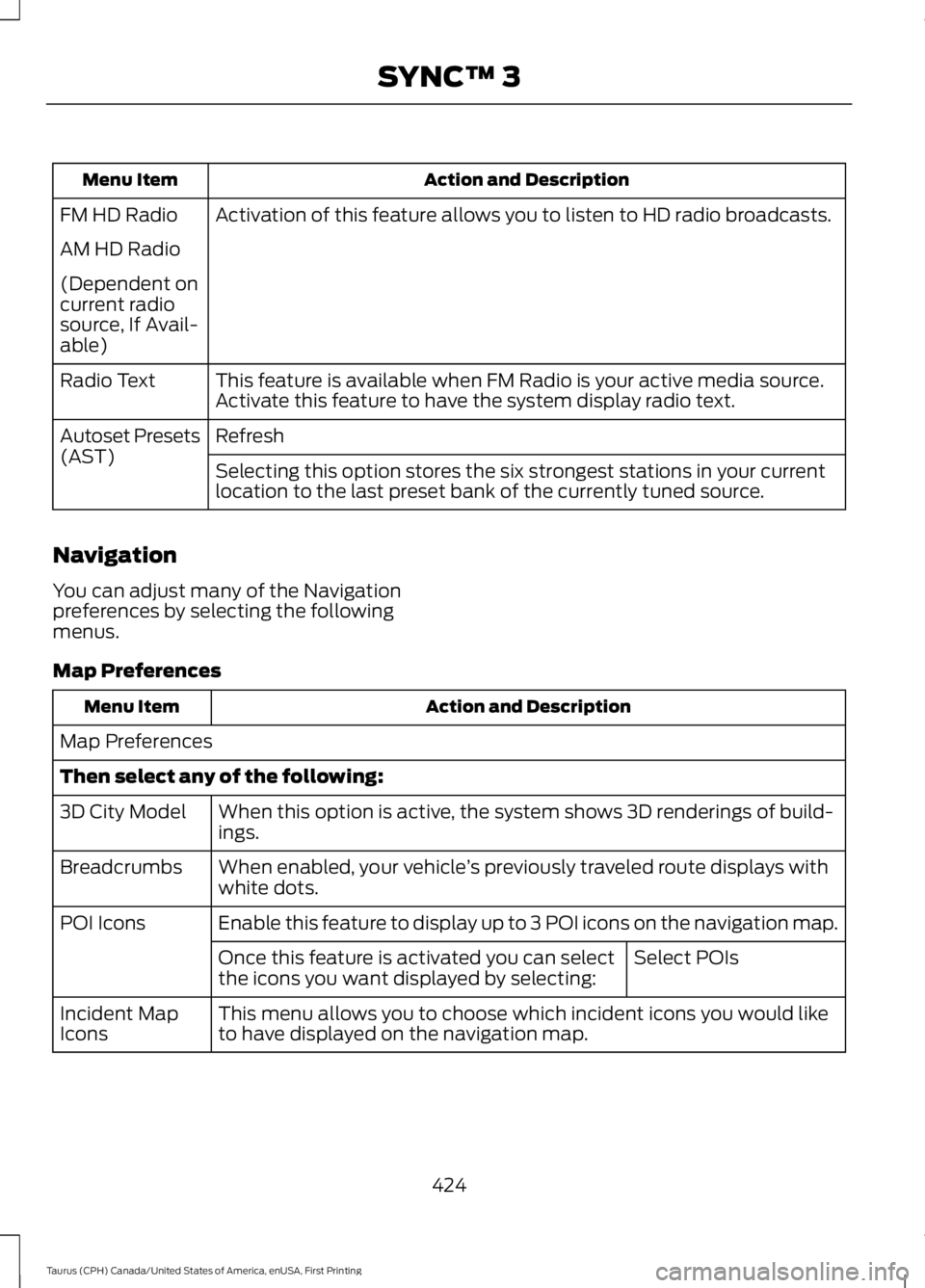
Action and DescriptionMenu Item
Activation of this feature allows you to listen to HD radio broadcasts.FM HD Radio
AM HD Radio
(Dependent oncurrent radiosource, If Avail-able)
This feature is available when FM Radio is your active media source.Activate this feature to have the system display radio text.Radio Text
RefreshAutoset Presets(AST)Selecting this option stores the six strongest stations in your currentlocation to the last preset bank of the currently tuned source.
Navigation
You can adjust many of the Navigationpreferences by selecting the followingmenus.
Map Preferences
Action and DescriptionMenu Item
Map Preferences
Then select any of the following:
When this option is active, the system shows 3D renderings of build-ings.3D City Model
When enabled, your vehicle’s previously traveled route displays withwhite dots.Breadcrumbs
Enable this feature to display up to 3 POI icons on the navigation map.POI Icons
Select POIsOnce this feature is activated you can selectthe icons you want displayed by selecting:
This menu allows you to choose which incident icons you would liketo have displayed on the navigation map.Incident MapIcons
424
Taurus (CPH) Canada/United States of America, enUSA, First Printing
SYNC™ 3
Page 431 of 504
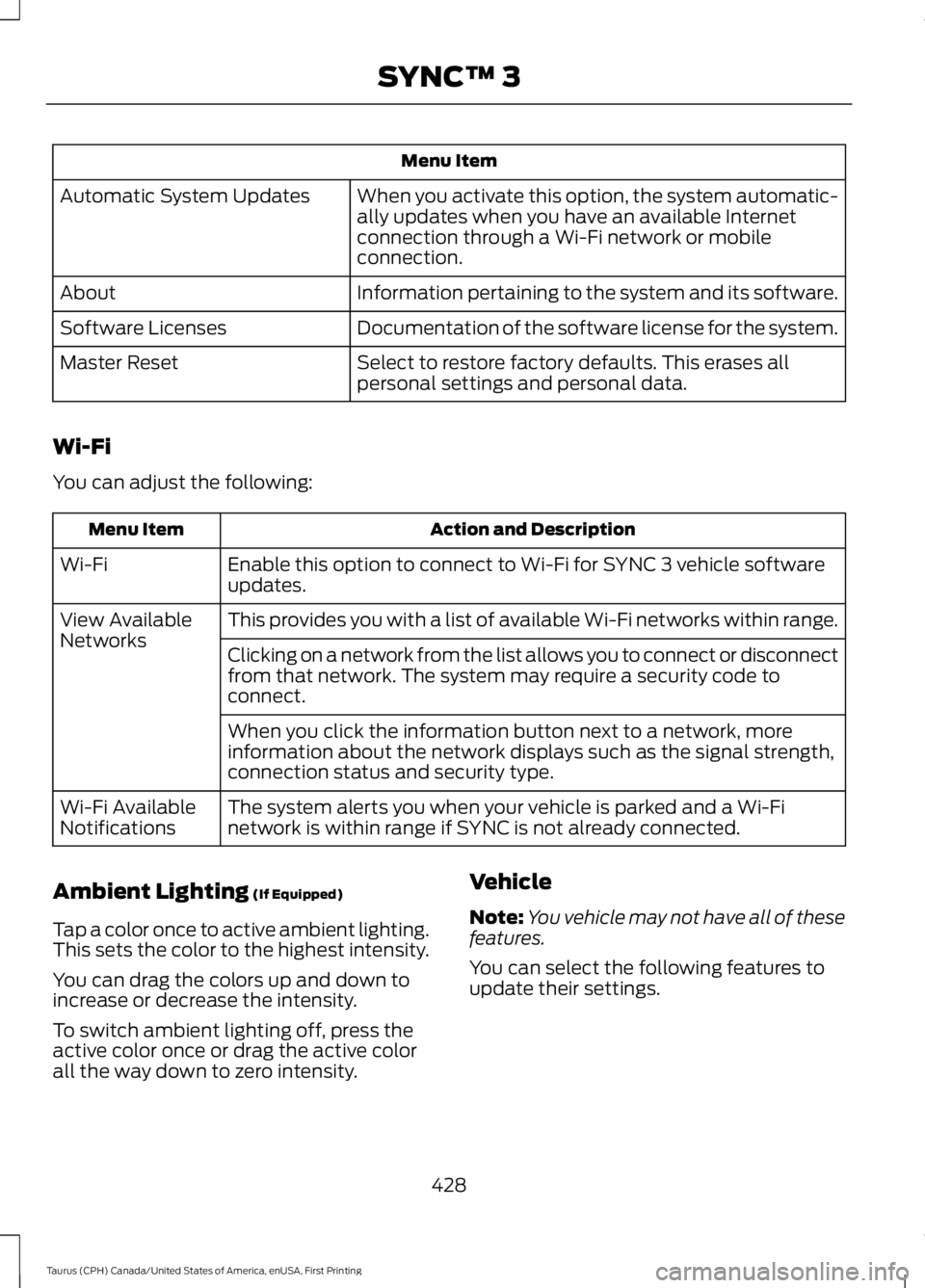
Menu Item
When you activate this option, the system automatic-ally updates when you have an available Internetconnection through a Wi-Fi network or mobileconnection.
Automatic System Updates
Information pertaining to the system and its software.About
Documentation of the software license for the system.Software Licenses
Select to restore factory defaults. This erases allpersonal settings and personal data.Master Reset
Wi-Fi
You can adjust the following:
Action and DescriptionMenu Item
Enable this option to connect to Wi-Fi for SYNC 3 vehicle softwareupdates.Wi-Fi
This provides you with a list of available Wi-Fi networks within range.View AvailableNetworksClicking on a network from the list allows you to connect or disconnectfrom that network. The system may require a security code toconnect.
When you click the information button next to a network, moreinformation about the network displays such as the signal strength,connection status and security type.
The system alerts you when your vehicle is parked and a Wi-Finetwork is within range if SYNC is not already connected.Wi-Fi AvailableNotifications
Ambient Lighting (If Equipped)
Tap a color once to active ambient lighting.This sets the color to the highest intensity.
You can drag the colors up and down toincrease or decrease the intensity.
To switch ambient lighting off, press theactive color once or drag the active colorall the way down to zero intensity.
Vehicle
Note:You vehicle may not have all of thesefeatures.
You can select the following features toupdate their settings.
428
Taurus (CPH) Canada/United States of America, enUSA, First Printing
SYNC™ 3