bluetooth FORD TAURUS 2019 Service Manual
[x] Cancel search | Manufacturer: FORD, Model Year: 2019, Model line: TAURUS, Model: FORD TAURUS 2019Pages: 515, PDF Size: 17.29 MB
Page 415 of 515

Action and Description
Menu Item
This allows you to view the version level of the Gracenote Database.
Gracenote® Data-
base Info
This allows you to view the manufacturer and model number of your
media device.
Device Informa-
tion
Erase the stored in media information in order to re-index.
Update Media
Index
Clock
To adjust the time, select the up and down
arrows on either side of the screen. The
arrows on the left adjust the hour and
arrows on the right adjust the minute. You
can then select AM or PM. You can adjust the following features:Action and Description
Menu Item
Select how time displays.
Clock Format
When active, the clock adjusts to time zone changes.
Auto Time Zone
Update This feature is only available in vehicles with navigation.
When selected, the vehicle clock resets to GPS satellite time.
Reset Clock to
GPS Time
The system automatically saves any
updates you make to the settings. Bluetooth
Pressing this button allows you to access
the following: Action
Menu Item
Turning Bluetooth off disconnects all devices and does not permit
new connections.
Bluetooth
You must activate Bluetooth to pair a
Bluetooth-enabled device.
The processes of pairing a Bluetooth
device is the same as pairing a phone. See
Pairing a Device in Phone settings for how
to pair a device and the available options. Phone
Pair your Bluetooth-enabled phone with
the system before using the functions in
hands-free mode.
Switch on Bluetooth on your device to
begin pairing. See your phone
’s manual if
necessary.
412
Taurus (CPH) Canada/United States of America, enUSA, Edition date: 201806, First-Printing SYNC™ 3
Page 416 of 515

To add a phone, select:
Menu Item
Add Phone
1. Follow the on-screen instructions.
2. A prompt alerts you to search for the system on your phone.
3. Select your vehicle's make and model as it displays on your phone.
4. Confirm that the six-digit number appearing on your phone matches the
six-digit number on the touchscreen.
5. The touchscreen indicates when the pairing is successful.
6. Your phone may prompt you to give the system permission to access
information. To check your phone ’s
compatibility, see your phone ’s manual
or visit the website.
Alternatively, to add a phone, select: Menu Item
Add Phone
Then select:
Discover Other Bluetooth Devices 1. Follow the on-screen instructions.
2. Select your phone's name when it
appears on the touchscreen.
3. Confirm that the six-digit number appearing on your phone matches the
six-digit number on the touchscreen.
4. The touchscreen indicates when the pairing is successful.
5. Your phone may prompt you to give the system permission to access
information. To check your phone ’s
compatibility, see your phone ’s manual
or visit the website.
Other features, such as text messaging
using Bluetooth and automatic phonebook
download, are phone-dependent features.
To check your phone ’s compatibility,
see your phone ’s manual or visit the
website: Website
owner.ford.com
www.syncmyride.ca
www.syncmaroute.ca
Once you have paired a device you can
adjust the following options. Action and Description
Menu Item
View Devices
You can then select: You can add a Bluetooth-enabled device by following the steps in
the previous table.
Add a Bluetooth
Device
You can select a phone by touching the name of the phone on the screen. You then
have the following options:
Depending on the status of the device, you can select either of these
options to interact with the selected device.
Connect
413
Taurus (CPH) Canada/United States of America, enUSA, Edition date: 201806, First-Printing SYNC™ 3
Page 421 of 515
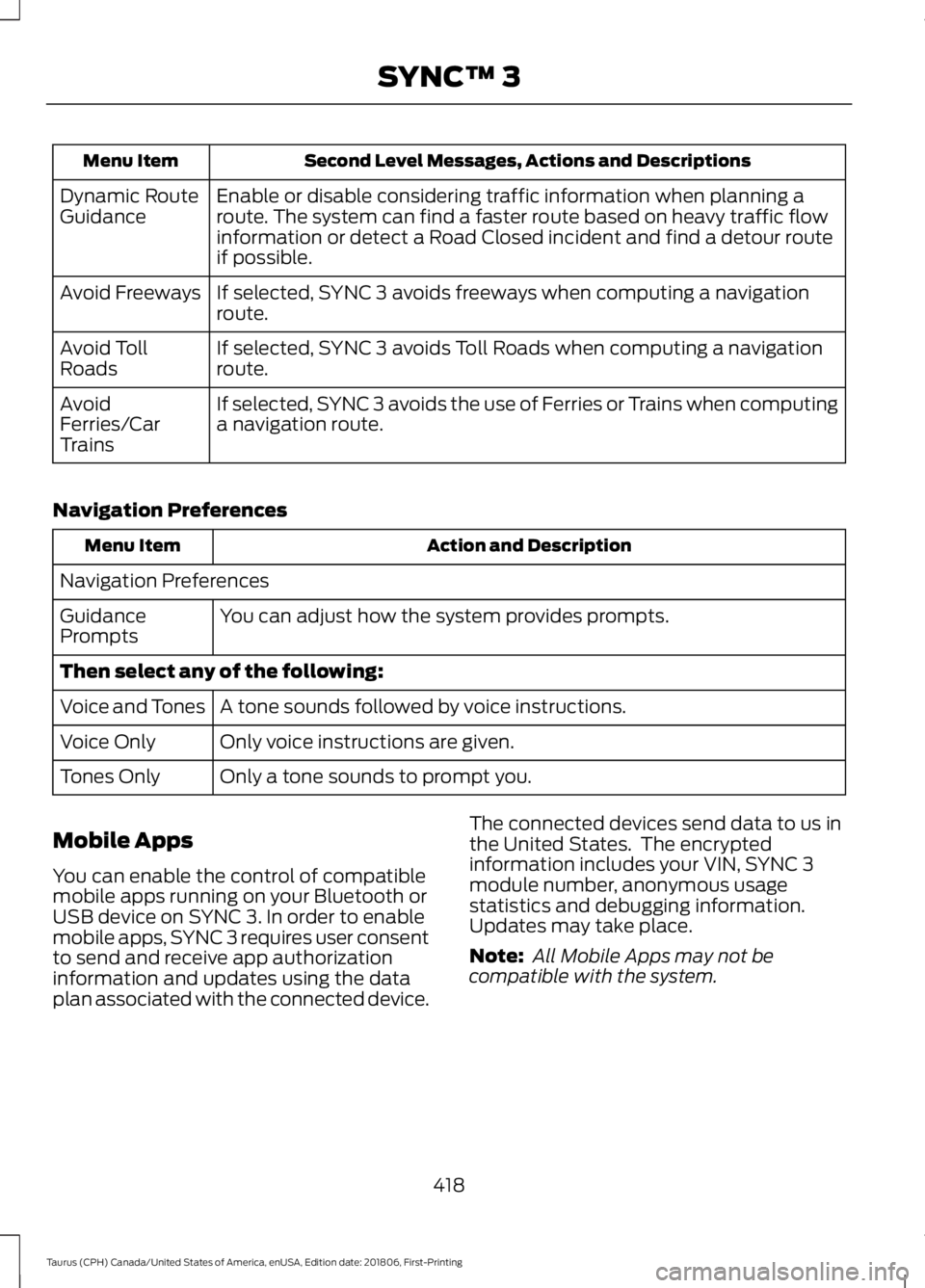
Second Level Messages, Actions and Descriptions
Menu Item
Enable or disable considering traffic information when planning a
route. The system can find a faster route based on heavy traffic flow
information or detect a Road Closed incident and find a detour route
if possible.
Dynamic Route
Guidance
If selected, SYNC 3 avoids freeways when computing a navigation
route.
Avoid Freeways
If selected, SYNC 3 avoids Toll Roads when computing a navigation
route.
Avoid Toll
Roads
If selected, SYNC 3 avoids the use of Ferries or Trains when computing
a navigation route.
Avoid
Ferries/Car
Trains
Navigation Preferences Action and Description
Menu Item
Navigation Preferences You can adjust how the system provides prompts.
Guidance
Prompts
Then select any of the following:
A tone sounds followed by voice instructions.
Voice and Tones
Only voice instructions are given.
Voice Only
Only a tone sounds to prompt you.
Tones Only
Mobile Apps
You can enable the control of compatible
mobile apps running on your Bluetooth or
USB device on SYNC 3. In order to enable
mobile apps, SYNC 3 requires user consent
to send and receive app authorization
information and updates using the data
plan associated with the connected device. The connected devices send data to us in
the United States. The encrypted
information includes your VIN, SYNC 3
module number, anonymous usage
statistics and debugging information.
Updates may take place.
Note:
All Mobile Apps may not be
compatible with the system.
418
Taurus (CPH) Canada/United States of America, enUSA, Edition date: 201806, First-Printing SYNC™ 3
Page 428 of 515
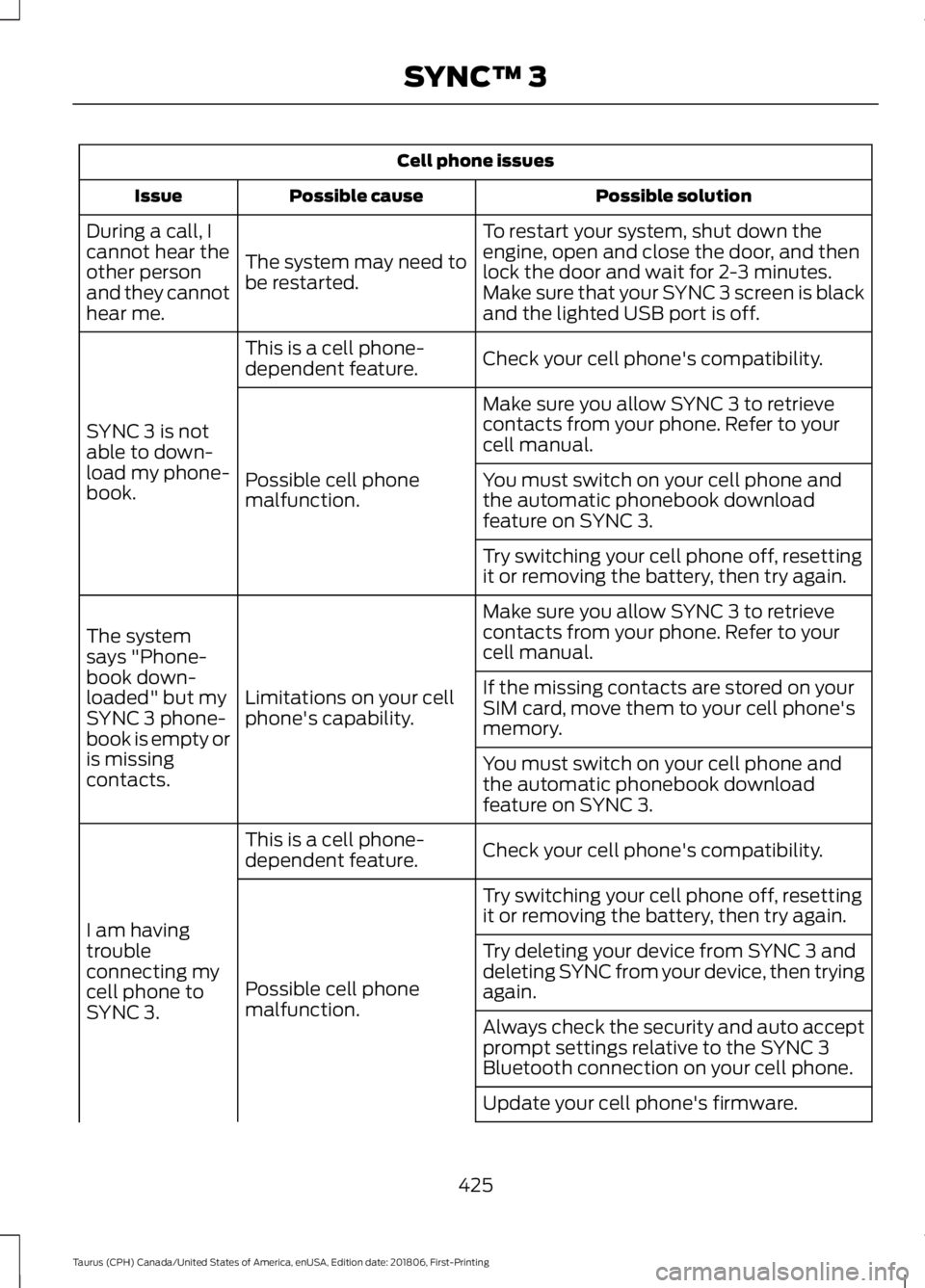
Cell phone issues
Possible solution
Possible cause
Issue
To restart your system, shut down the
engine, open and close the door, and then
lock the door and wait for 2-3 minutes.
Make sure that your SYNC 3 screen is black
and the lighted USB port is off.
The system may need to
be restarted.
During a call, I
cannot hear the
other person
and they cannot
hear me.
Check your cell phone's compatibility.
This is a cell phone-
dependent feature.
SYNC 3 is not
able to down-
load my phone-
book. Make sure you allow SYNC 3 to retrieve
contacts from your phone. Refer to your
cell manual.
Possible cell phone
malfunction. You must switch on your cell phone and
the automatic phonebook download
feature on SYNC 3.
Try switching your cell phone off, resetting
it or removing the battery, then try again.
Make sure you allow SYNC 3 to retrieve
contacts from your phone. Refer to your
cell manual.
Limitations on your cell
phone's capability.
The system
says "Phone-
book down-
loaded" but my
SYNC 3 phone-
book is empty or
is missing
contacts. If the missing contacts are stored on your
SIM card, move them to your cell phone's
memory.
You must switch on your cell phone and
the automatic phonebook download
feature on SYNC 3.
Check your cell phone's compatibility.
This is a cell phone-
dependent feature.
I am having
trouble
connecting my
cell phone to
SYNC 3. Try switching your cell phone off, resetting
it or removing the battery, then try again.
Possible cell phone
malfunction. Try deleting your device from SYNC 3 and
deleting SYNC from your device, then trying
again.
Always check the security and auto accept
prompt settings relative to the SYNC 3
Bluetooth connection on your cell phone.
Update your cell phone's firmware.
425
Taurus (CPH) Canada/United States of America, enUSA, Edition date: 201806, First-Printing SYNC™ 3
Page 429 of 515
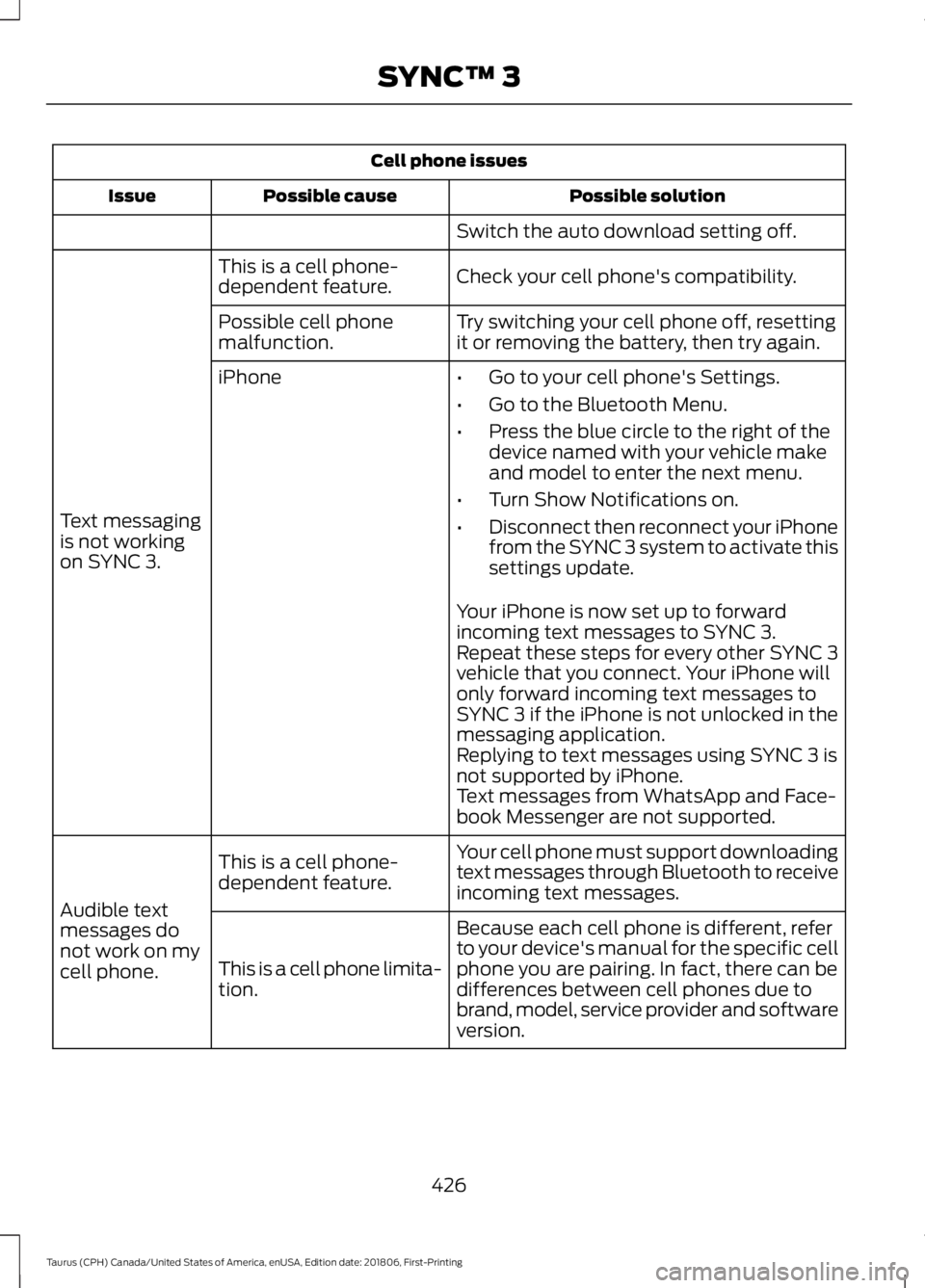
Cell phone issues
Possible solution
Possible cause
Issue
Switch the auto download setting off.
Check your cell phone's compatibility.
This is a cell phone-
dependent feature.
Text messaging
is not working
on SYNC 3. Try switching your cell phone off, resetting
it or removing the battery, then try again.
Possible cell phone
malfunction.
iPhone
•Go to your cell phone's Settings.
• Go to the Bluetooth Menu.
• Press the blue circle to the right of the
device named with your vehicle make
and model to enter the next menu.
• Turn Show Notifications on.
• Disconnect then reconnect your iPhone
from the SYNC 3 system to activate this
settings update.
Your iPhone is now set up to forward
incoming text messages to SYNC 3.
Repeat these steps for every other SYNC 3
vehicle that you connect. Your iPhone will
only forward incoming text messages to
SYNC 3 if the iPhone is not unlocked in the
messaging application.
Replying to text messages using SYNC 3 is
not supported by iPhone.
Text messages from WhatsApp and Face-
book Messenger are not supported.
Your cell phone must support downloading
text messages through Bluetooth to receive
incoming text messages.
This is a cell phone-
dependent feature.
Audible text
messages do
not work on my
cell phone. Because each cell phone is different, refer
to your device's manual for the specific cell
phone you are pairing. In fact, there can be
differences between cell phones due to
brand, model, service provider and software
version.
This is a cell phone limita-
tion.
426
Taurus (CPH) Canada/United States of America, enUSA, Edition date: 201806, First-Printing SYNC™ 3
Page 430 of 515
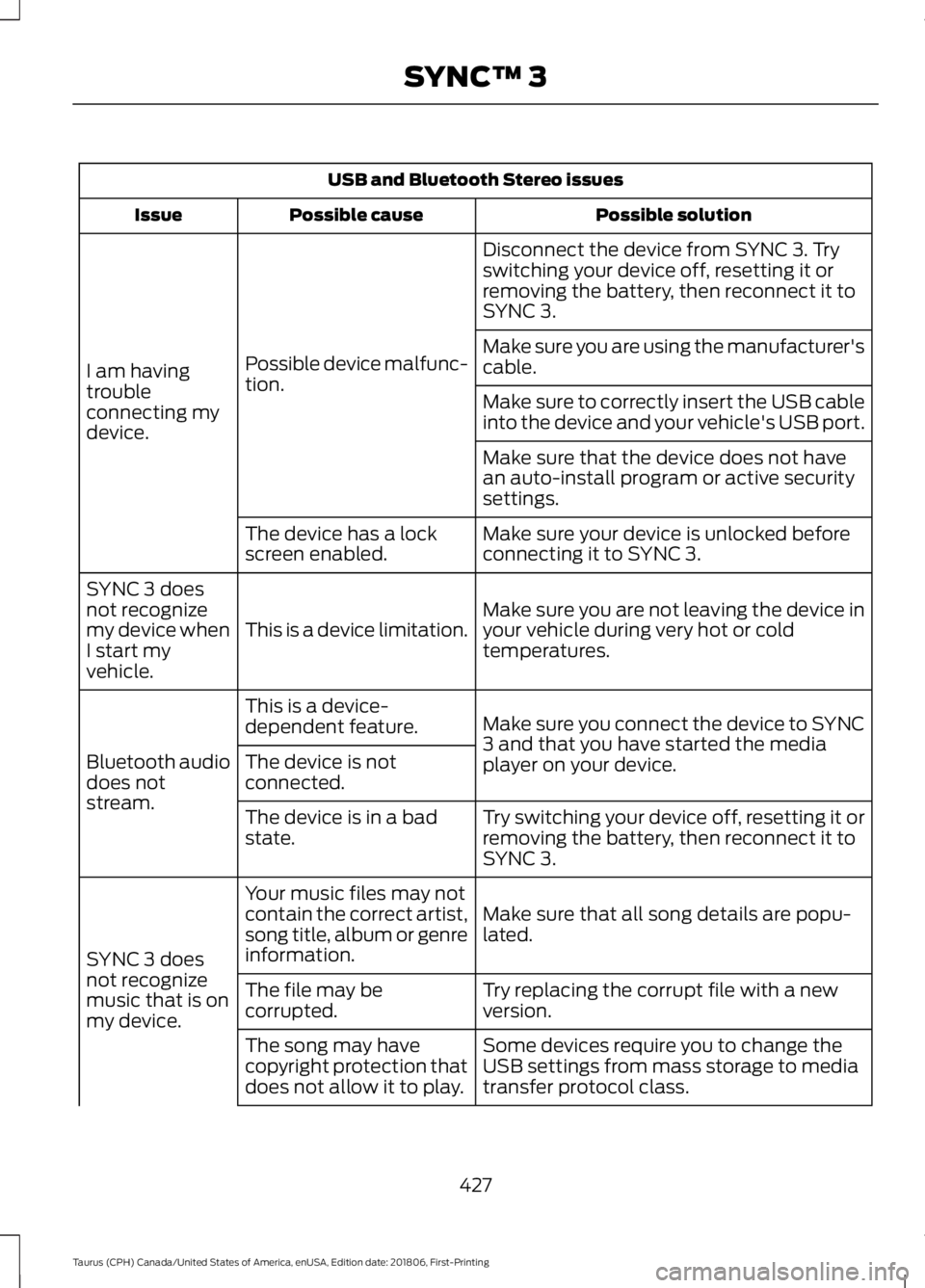
USB and Bluetooth Stereo issues
Possible solution
Possible cause
Issue
Disconnect the device from SYNC 3. Try
switching your device off, resetting it or
removing the battery, then reconnect it to
SYNC 3.
Possible device malfunc-
tion.
I am having
trouble
connecting my
device. Make sure you are using the manufacturer's
cable.
Make sure to correctly insert the USB cable
into the device and your vehicle's USB port.
Make sure that the device does not have
an auto-install program or active security
settings.
Make sure your device is unlocked before
connecting it to SYNC 3.
The device has a lock
screen enabled.
Make sure you are not leaving the device in
your vehicle during very hot or cold
temperatures.
This is a device limitation.
SYNC 3 does
not recognize
my device when
I start my
vehicle.
Make sure you connect the device to SYNC
3 and that you have started the media
player on your device.
This is a device-
dependent feature.
Bluetooth audio
does not
stream. The device is not
connected.
Try switching your device off, resetting it or
removing the battery, then reconnect it to
SYNC 3.
The device is in a bad
state.
Make sure that all song details are popu-
lated.
Your music files may not
contain the correct artist,
song title, album or genre
information.
SYNC 3 does
not recognize
music that is on
my device. Try replacing the corrupt file with a new
version.
The file may be
corrupted.
Some devices require you to change the
USB settings from mass storage to media
transfer protocol class.
The song may have
copyright protection that
does not allow it to play.
427
Taurus (CPH) Canada/United States of America, enUSA, Edition date: 201806, First-Printing SYNC™ 3
Page 431 of 515
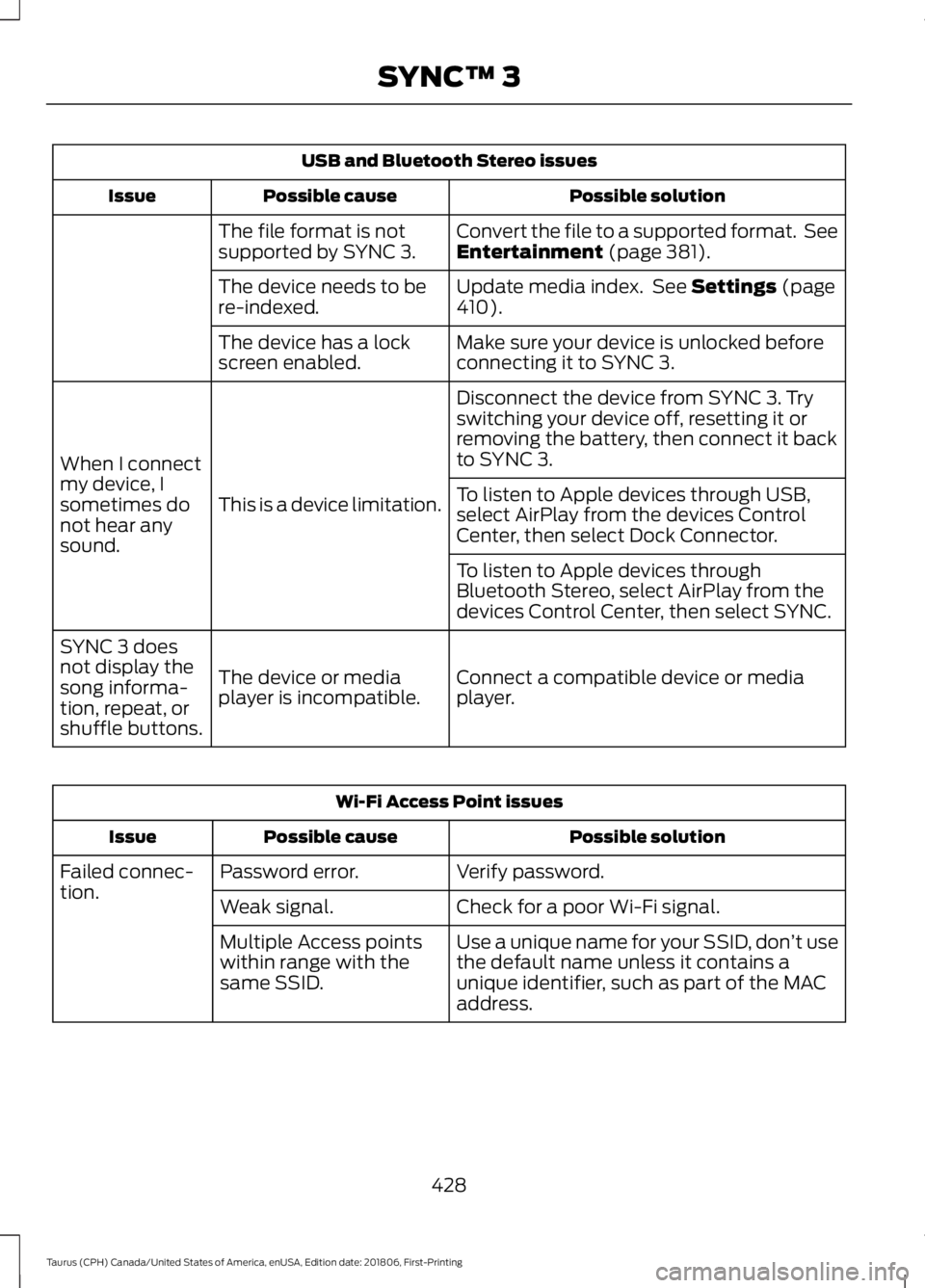
USB and Bluetooth Stereo issues
Possible solution
Possible cause
Issue
Convert the file to a supported format. See
Entertainment (page 381).
The file format is not
supported by SYNC 3.
Update media index. See
Settings (page
410).
The device needs to be
re-indexed.
Make sure your device is unlocked before
connecting it to SYNC 3.
The device has a lock
screen enabled.
Disconnect the device from SYNC 3. Try
switching your device off, resetting it or
removing the battery, then connect it back
to SYNC 3.
This is a device limitation.
When I connect
my device, I
sometimes do
not hear any
sound. To listen to Apple devices through USB,
select AirPlay from the devices Control
Center, then select Dock Connector.
To listen to Apple devices through
Bluetooth Stereo, select AirPlay from the
devices Control Center, then select SYNC.
Connect a compatible device or media
player.
The device or media
player is incompatible.
SYNC 3 does
not display the
song informa-
tion, repeat, or
shuffle buttons. Wi-Fi Access Point issues
Possible solution
Possible cause
Issue
Verify password.
Password error.
Failed connec-
tion.
Check for a poor Wi-Fi signal.
Weak signal.
Use a unique name for your SSID, don ’t use
the default name unless it contains a
unique identifier, such as part of the MAC
address.
Multiple Access points
within range with the
same SSID.
428
Taurus (CPH) Canada/United States of America, enUSA, Edition date: 201806, First-Printing SYNC™ 3
Page 432 of 515
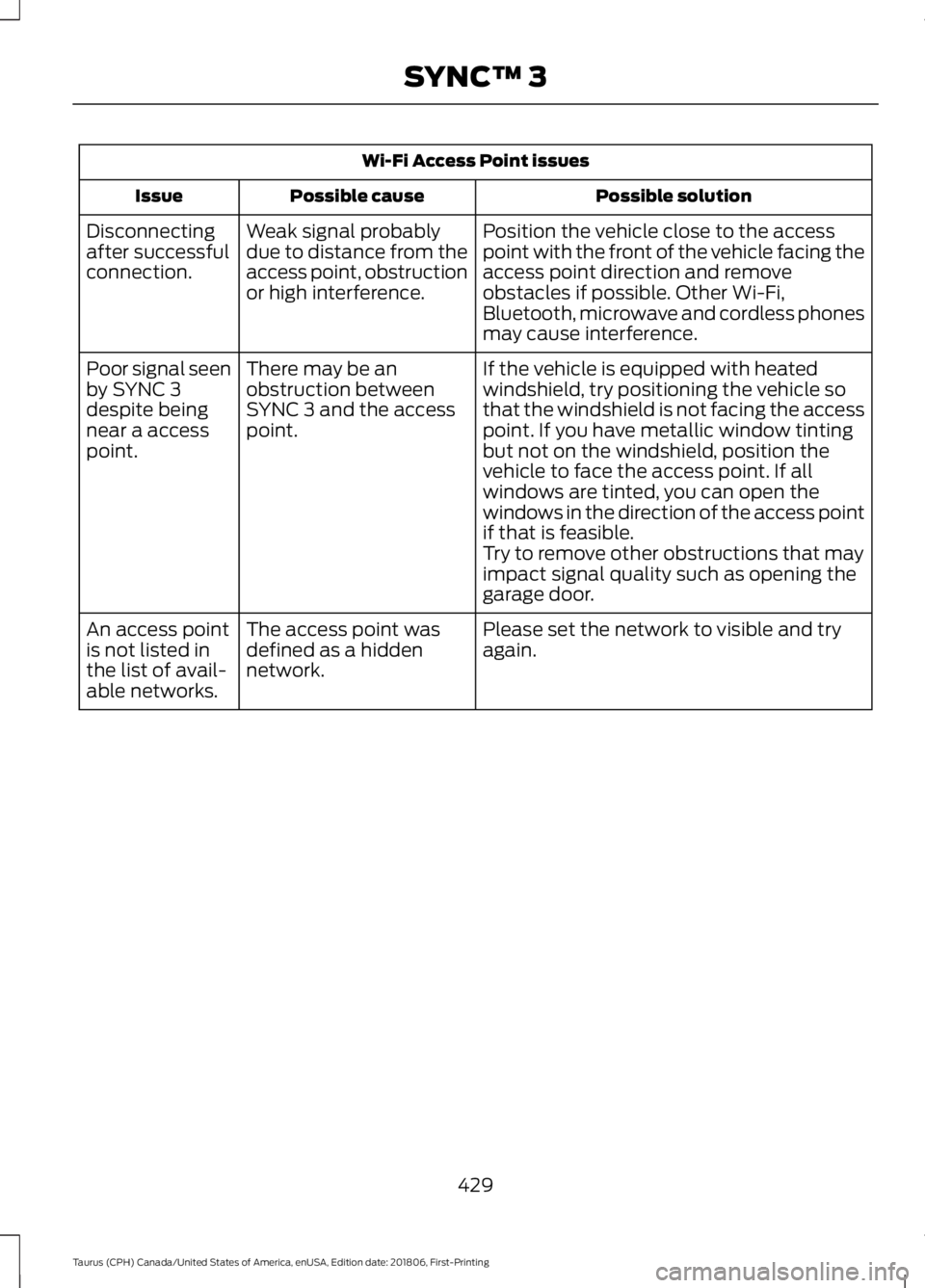
Wi-Fi Access Point issues
Possible solution
Possible cause
Issue
Position the vehicle close to the access
point with the front of the vehicle facing the
access point direction and remove
obstacles if possible. Other Wi-Fi,
Bluetooth, microwave and cordless phones
may cause interference.
Weak signal probably
due to distance from the
access point, obstruction
or high interference.
Disconnecting
after successful
connection.
If the vehicle is equipped with heated
windshield, try positioning the vehicle so
that the windshield is not facing the access
point. If you have metallic window tinting
but not on the windshield, position the
vehicle to face the access point. If all
windows are tinted, you can open the
windows in the direction of the access point
if that is feasible.
There may be an
obstruction between
SYNC 3 and the access
point.
Poor signal seen
by SYNC 3
despite being
near a access
point.
Try to remove other obstructions that may
impact signal quality such as opening the
garage door.
Please set the network to visible and try
again.
The access point was
defined as a hidden
network.
An access point
is not listed in
the list of avail-
able networks.
429
Taurus (CPH) Canada/United States of America, enUSA, Edition date: 201806, First-Printing SYNC™ 3
Page 435 of 515
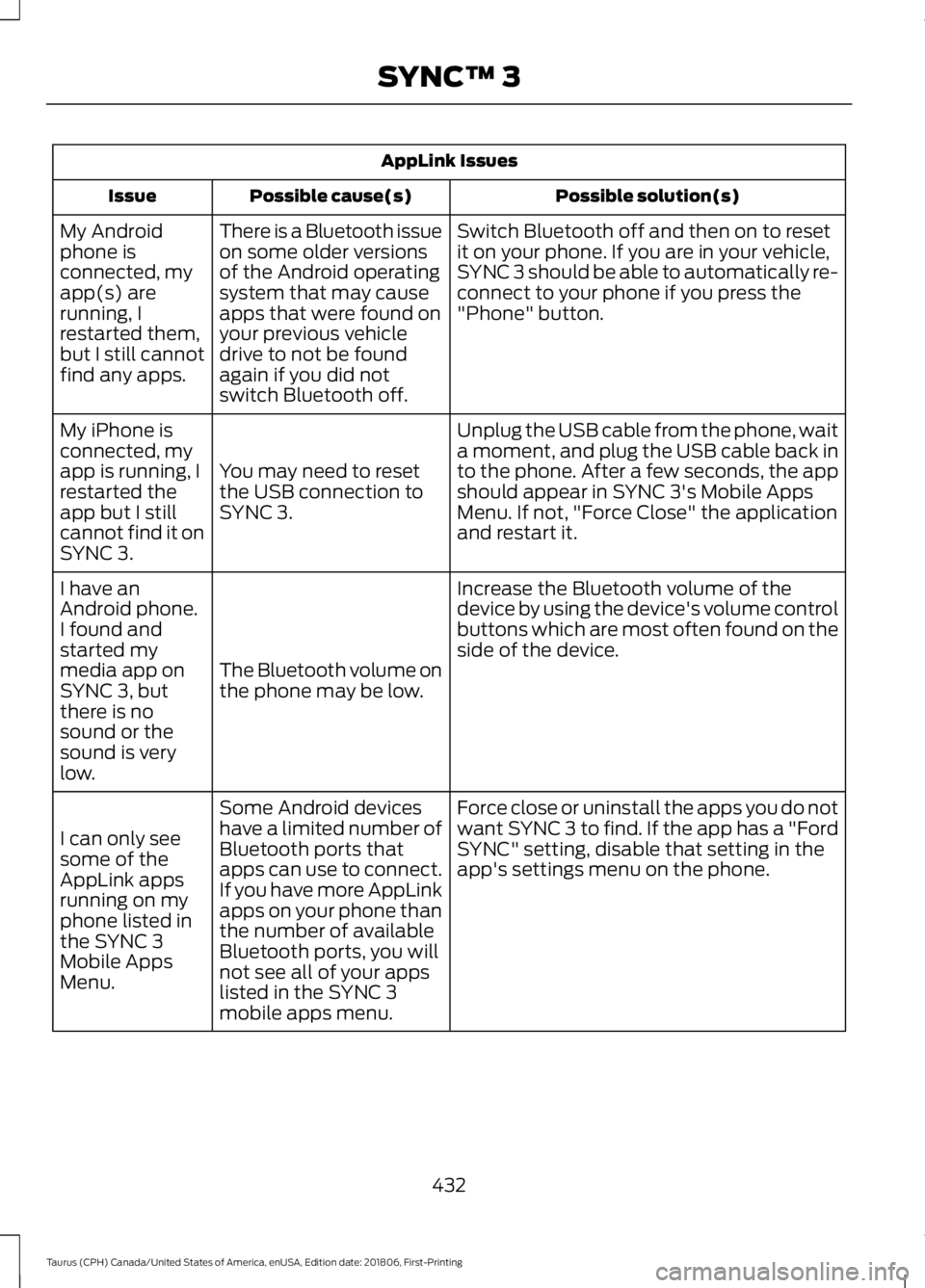
AppLink Issues
Possible solution(s)
Possible cause(s)
Issue
Switch Bluetooth off and then on to reset
it on your phone. If you are in your vehicle,
SYNC 3 should be able to automatically re-
connect to your phone if you press the
"Phone" button.
There is a Bluetooth issue
on some older versions
of the Android operating
system that may cause
apps that were found on
your previous vehicle
drive to not be found
again if you did not
switch Bluetooth off.
My Android
phone is
connected, my
app(s) are
running, I
restarted them,
but I still cannot
find any apps.
Unplug the USB cable from the phone, wait
a moment, and plug the USB cable back in
to the phone. After a few seconds, the app
should appear in SYNC 3's Mobile Apps
Menu. If not, "Force Close" the application
and restart it.
You may need to reset
the USB connection to
SYNC 3.
My iPhone is
connected, my
app is running, I
restarted the
app but I still
cannot find it on
SYNC 3.
Increase the Bluetooth volume of the
device by using the device's volume control
buttons which are most often found on the
side of the device.
The Bluetooth volume on
the phone may be low.
I have an
Android phone.
I found and
started my
media app on
SYNC 3, but
there is no
sound or the
sound is very
low.
Force close or uninstall the apps you do not
want SYNC 3 to find. If the app has a "Ford
SYNC" setting, disable that setting in the
app's settings menu on the phone.
Some Android devices
have a limited number of
Bluetooth ports that
apps can use to connect.
If you have more AppLink
apps on your phone than
the number of available
Bluetooth ports, you will
not see all of your apps
listed in the SYNC 3
mobile apps menu.
I can only see
some of the
AppLink apps
running on my
phone listed in
the SYNC 3
Mobile Apps
Menu.
432
Taurus (CPH) Canada/United States of America, enUSA, Edition date: 201806, First-Printing SYNC™ 3
Page 440 of 515
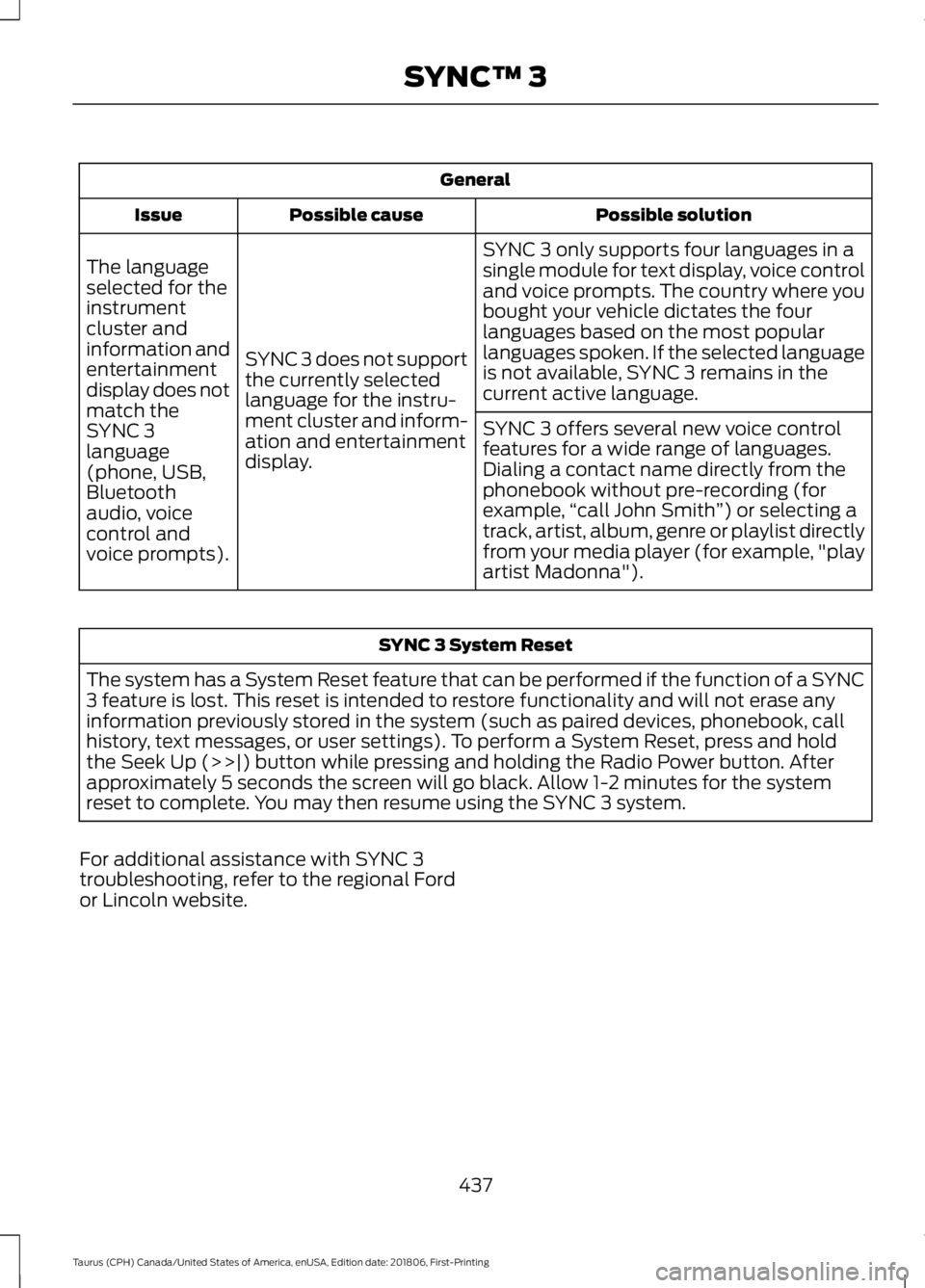
General
Possible solution
Possible cause
Issue
SYNC 3 only supports four languages in a
single module for text display, voice control
and voice prompts. The country where you
bought your vehicle dictates the four
languages based on the most popular
languages spoken. If the selected language
is not available, SYNC 3 remains in the
current active language.
SYNC 3 does not support
the currently selected
language for the instru-
ment cluster and inform-
ation and entertainment
display.
The language
selected for the
instrument
cluster and
information and
entertainment
display does not
match the
SYNC 3
SYNC 3 offers several new voice control
features for a wide range of languages.
Dialing a contact name directly from the
phonebook without pre-recording (for
example,
“call John Smith ”) or selecting a
track, artist, album, genre or playlist directly
from your media player (for example, "play
artist Madonna").
language
(phone, USB,
Bluetooth
audio, voice
control and
voice prompts). SYNC 3 System Reset
The system has a System Reset feature that can be performed if the function of a SYNC
3 feature is lost. This reset is intended to restore functionality and will not erase any
information previously stored in the system (such as paired devices, phonebook, call
history, text messages, or user settings). To perform a System Reset, press and hold
the Seek Up (>>|) button while pressing and holding the Radio Power button. After
approximately 5 seconds the screen will go black. Allow 1-2 minutes for the system
reset to complete. You may then resume using the SYNC 3 system.
For additional assistance with SYNC 3
troubleshooting, refer to the regional Ford
or Lincoln website.
437
Taurus (CPH) Canada/United States of America, enUSA, Edition date: 201806, First-Printing SYNC™ 3